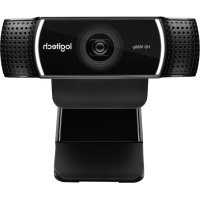
C922 Pro Stream - Webcam LOGITECH - Free user manual and instructions
Find the device manual for free C922 Pro Stream LOGITECH in PDF.



| Product type | Streaming webcam |
| Brand | Logitech |
| Model | C922 Pro Stream |
| Maximum video resolution | Full HD 1080p at 30 fps or 720p at 60 fps |
| Lens | Full HD glass lens with autofocus |
| Microphone | Built-in dual microphone |
| Connectivity | USB 2.0 (cable included) |
| Field of view | 78 degrees |
| Features | Customizable background (ChromaCam), activity indicator, flexible clip/base, tripod thread |
| Compatibility | Windows, macOS; compatible with XSplit, OBS, Skype, Facetime, Google Hangouts |
| Box contents | C922 Pro Stream webcam, user documentation, tripod* and 3-month XSplit license* (*depending on offer) |
| Dimensions | Approximately 10 cm x 5 cm x 5 cm (estimated) |
| Weight | Approximately 150 g (estimated) |
| Power supply | Via USB port |
| Maintenance | Clean the lens with a soft, dry cloth |
| Safety | Normal use with no special precautions |
| Spare parts | No user-serviceable parts |
| General information | Designed for streaming, live broadcasting and video conferencing |
Frequently Asked Questions - C922 Pro Stream LOGITECH
User questions about C922 Pro Stream LOGITECH
0 question about this device. Answer the ones you know or ask your own.
Ask a new question about this device
Download the instructions for your Webcam in PDF format for free! Find your manual C922 Pro Stream - LOGITECH and take your electronic device back in hand. On this page are published all the documents necessary for the use of your device. C922 Pro Stream by LOGITECH.
USER MANUAL C922 Pro Stream LOGITECH
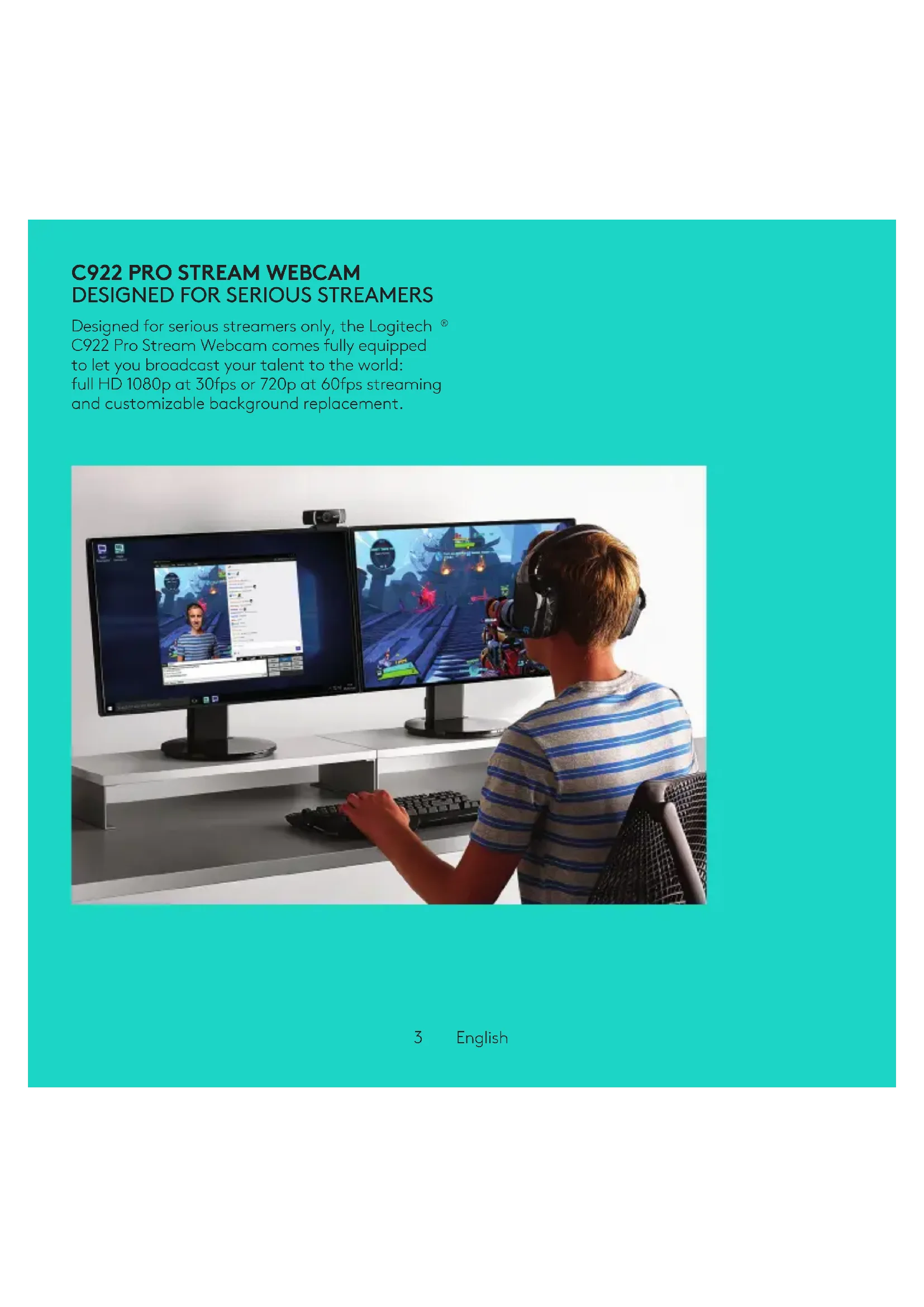
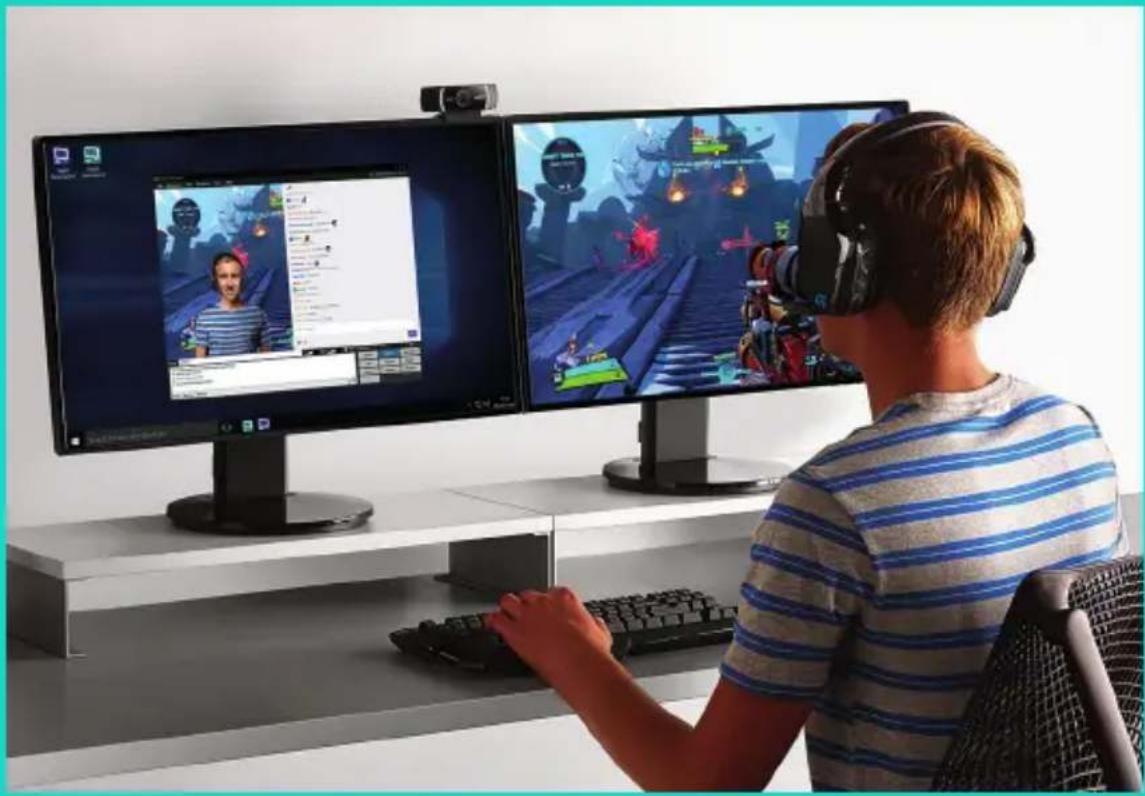
Designed for serious streamers only, the Logitech C922 Pro Stream Webcam comes fully equipped to let you broadcast your talent to the world: full HD 1080p at 30fps or 720p at 60fps streaming and customizable background replacement.
WHAT'S IN THE BOX
- C922 Pro Stream Webcam
-User documentation - Tripod*
- 3-Month XSplit License
Tripod and 3-month XSplit license only supplied with some packages.


Important Information
logitech
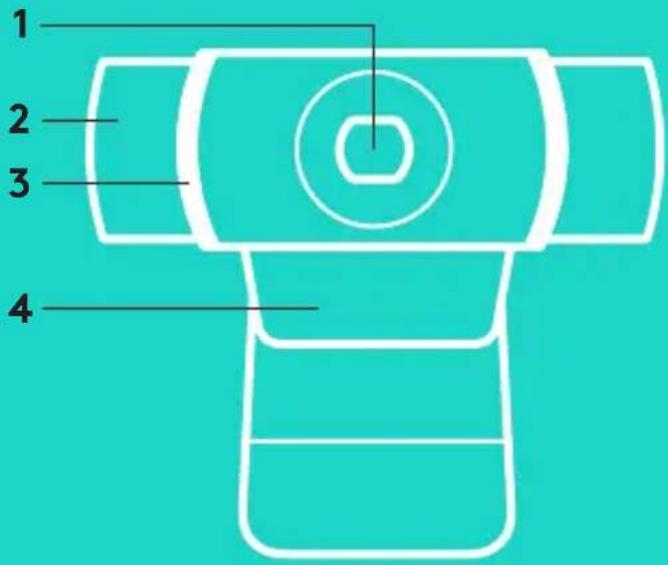
WEBCAM FEATURES
- Full HD glass lens with autofocus
- Dual Microphone
- Activity light
- Flexible clip/base
- Tripod attachment
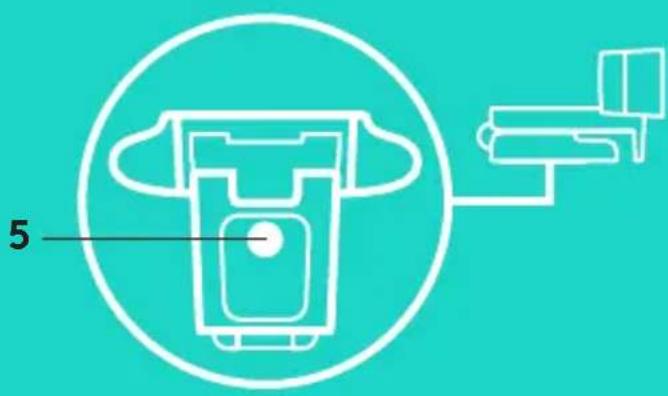
QUICK SETUP
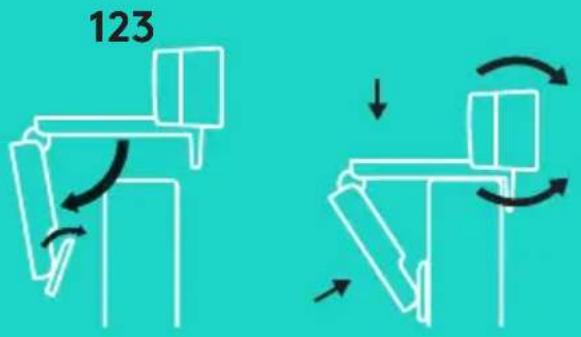
1
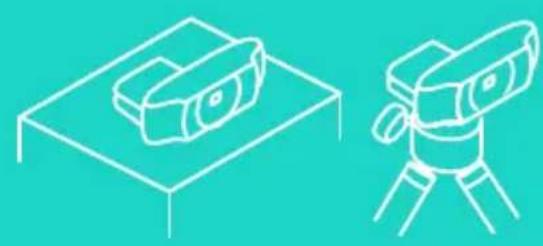

2

3
To use your C922 Pro Stream Webcam, simply plug it into your computer, using the USB cable, and run your favorite app:
-XSplit or OBS to stream online
- Microsoft Camera App (Windows) or QuickTime Player (Mac) to record photos or video
- Skype, Facetime® for Mac or Google Hangouts™ for video call
To update your camera settings, such as exposure or focus, please go to www.logitech.com/support/c922.
Download the ChromaCam by Personify for C922 app to use the background replacement technology in your live streams: www.logitech.com/support/c922.
HOW TO STREAM WITH C922 - XSPLIT BROADCASTER
To stream with Logitech C922, complete the following steps:
- Launch XSplit Broadcaster.
- Go to Add > Webcam...> Logitech C922 Pro Stream Webcam.
- Use Logitech recommended settings or adjust them manually to you liking.
Refer to the XSplit Documentation at http://xsplit.com for more information.
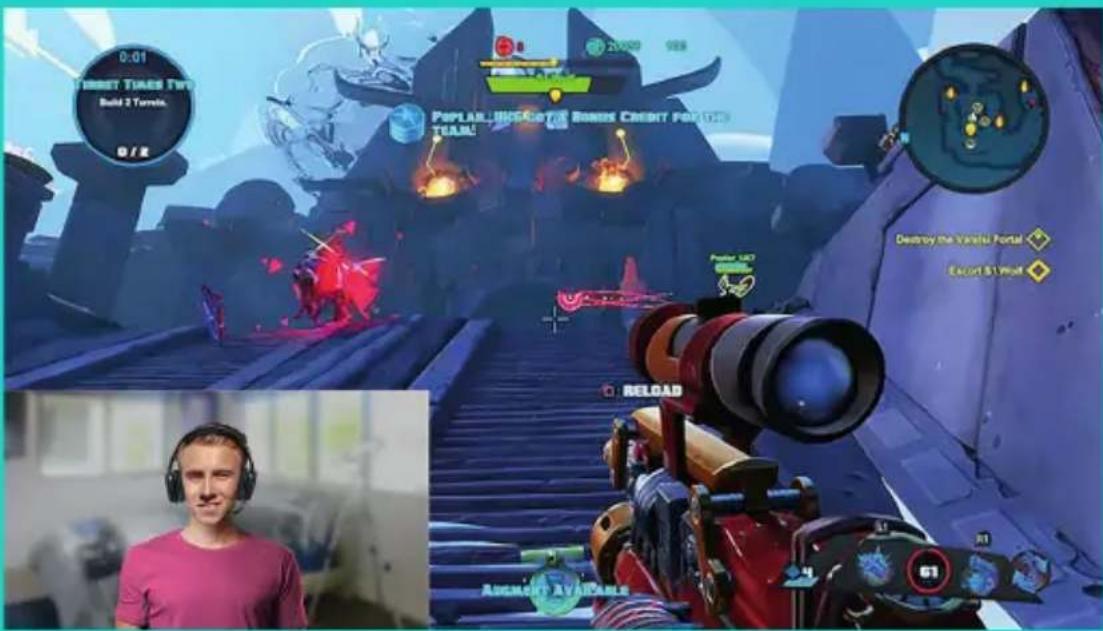
HOW TO STREAM WITH A CUSTOM BACKGROUND -XSPLIT BROADCASTER
To stream with Logitech C922 and a custom background, complete the following steps:
- Install ChromaCam by Personify for C922 from www.logitech.com/support.
- Launch XSplit Broadcaster.
- Go to Add > Webcam...> ChromaCam by Personify for C922. The ChromaCam app will launch automatically.
- Select the required background or add your own in ChromaCam.
Refer to the XSplit Documentation at http://xsplit.com for more information.
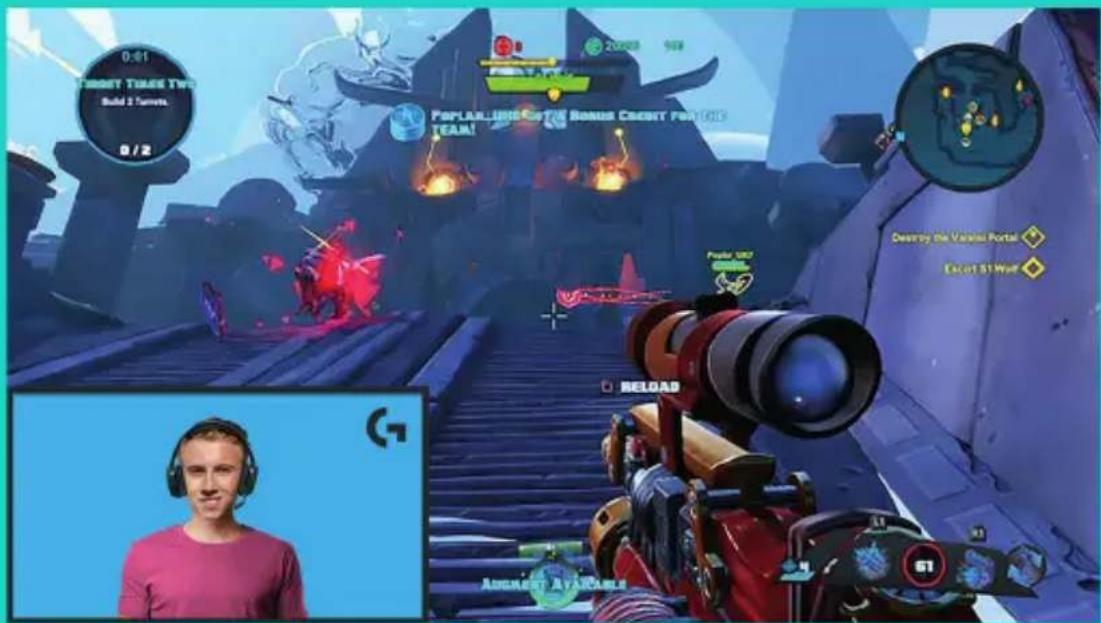
HOW TO STREAM WITHOUT BACKGROUND-XSPLIT BROADCASTER
To stream with Logitech C922 without background, complete the following steps:
- Install ChromaCam by Personify for C922 from www.logitech.com/support.
Launch XSplit Broadcaster.
- Go to Add > Webcam...> ChromaCam by Personify for C922. The ChromaCam app will launch automatically.
- Select the default virtual green screen background in ChromaCam.
-In XSplit Broadcaster, right-click your webcam capture to go into Camera Settings.
- Navigate to the "Color" tab.
- Select "ChromaKey" option, and make sure green is selected to remove the virtual green screen.
Refer to the XSplit Documentation at http://xsplit.com for more information.
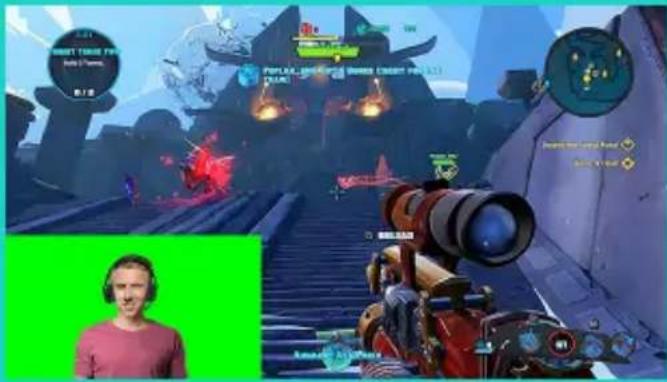

TIPS/ADVICE
To achieve the best results when streaming, the following points should be followed:
- Avoid wearing green outfits when using the virtual green screen.
- Make sure that you are well-lit to appear at your best during streaming.
To achieve a constant 720p/60fps stream:
- Ensure that any lighting comes from behind the webcam
- Use a "keylight", a main light source to light up your face.
- Use a softer "fill light" to reduce shadows on your face from the keylight.
- Keep lighting behind you to a minimum.
- Use natural lighting or bright white lights to provide neutral colors.
Try to use lighting that you can control the brightness on.
COMMENT DIFFUSER AVEC C922: XSPLIT BROADCASTER
CÓMOC HACER STREAMING CON C922-XSPLIT BROADCASTER
CÓMOC HACER STREAMING SIN FONDO - XSPLIT BROADCASTER
© 2016 Logitech. Logitech, Logi and other Logitech marks are owned by Logitech and may be registered.
All other trademarks are the property of their respective owners. Logitech assumes no responsibility for any errors that may appear in this manual. Information contained herein is subject to change without notice.




- WHAT'S IN THE BOX
- WEBCAM FEATURES
- QUICK SETUP
- HOW TO STREAM WITH C922 - XSPLIT BROADCASTER
- HOW TO STREAM WITH A CUSTOM BACKGROUND -XSPLIT BROADCASTER
- HOW TO STREAM WITHOUT BACKGROUND-XSPLIT BROADCASTER
- TIPS/ADVICE
- COMMENT DIFFUSER AVEC C922: XSPLIT BROADCASTER
- CÓMOC HACER STREAMING CON C922-XSPLIT BROADCASTER
- CÓMOC HACER STREAMING SIN FONDO - XSPLIT BROADCASTER
Brand : LOGITECH
Model : C922 Pro Stream
Category : Webcam