FLT100 - Garage door BERNER - Free user manual and instructions
Find the device manual for free FLT100 BERNER in PDF.


| Brand | BERNER |
| Model | FLT100 |
| Product type | Digital scanner for garage door |
| Number of storable fingerprints | 100 |
| Number of readers | 2 |
| Control elements | 3 keys (P, ↑, ↓) |
| Display | 2 seven-segment displays |
| Relay outputs | K1 and K2, max. 30 VDC / 2 A (50 VA / 60 W) |
| Pulse duration | Adjustable from 0.5 to 90 seconds (10 increments) |
| Power supply | 230 VAC / 6 VA (FL100) or 12 VAC / 3 VA (FLT100) |
| Access code | 4 digits, can be disabled (default 0000) |
| Security setting | Standard (S0) or high (S1) |
| Programming | By slot, activation by long press (4 s) on P |
| Deletion | Individual (menu 11) or general (menu 12) |
| Fingerprint copy | Between readers (menu 40) |
| Data transfer | Reader ↔ analysis unit (menus 41, 42) |
| Reader cable length | 5 m (garage version) or 15 m (door version) |
| Reader mounting | Outdoor, protected from weather |
| Analysis unit mounting | Indoor, separate area |
| Connection | Terminal block X1 (lock/motor), X2 (second relay), RJ12 socket X3/X4 (readers) |
Frequently Asked Questions - FLT100 BERNER
User questions about FLT100 BERNER
0 question about this device. Answer the ones you know or ask your own.
Ask a new question about this device
Download the instructions for your Garage door in PDF format for free! Find your manual FLT100 - BERNER and take your electronic device back in hand. On this page are published all the documents necessary for the use of your device. FLT100 by BERNER.
USER MANUAL FLT100 BERNER
Copyright. No reproduction even in part is allowed without our permission. All details subject to change.
7 S P A N N U N G S A
5.1 Display and control elements 30
5.2 Ex-factory settings 31
5.3 Normal operating mode 31
5.4 Access code entry 32
5.5 Menu selection 32
5.6 Menu overview 33
5.6.1 Menu 10 - teaching in a fingerprint 33
5.6.2 Menu 11 - individually deleting fingerprints 35
5.6.3 Menu 12 - deleting all fingerprints 36
5.6.4 Menu 20 - assign relay 36
5.6.5 Menu 21 - pulse duration of relay 1 37
5.6.6 Menu 22 - pulse duration of relay 2 38
5.6.7 Menu 30 - security setting 38
5.6.8 Menu 31 - setting up/changing access code 39
5.6.9 Menu 40 - fingerprints from reader 1 to reader 2 40
5.6.10 Menu 41 - transferring data to report unit 41
5.6.11 Menu 42 - securing data in reader 1 41
5.6.12 Menu 43 - resetting to ex-factory settings 41
5.6.13 Menu 44 - displaying/changing reader address 42
5.7 Initial operation of the second reader 42
6 S TATUS DISPLAY/ERRORMESSAGE 43
7 POWER FAILURE 44
8 LIST OF MEMORY LOCATION NUMBERS AND NAMES 44
9 TECHNICAL DATA 45
10 EC MANUFACTURER'S DECLARATION 46

Illustration section 69-76
1 GENERAL
The FL100/FLT100 finger-scan consists of a scanner and report unit. The versions for use on garage doors (FL100) or entrance doors (FLT 100) are different. Up to 100 fingerprints can be stored in the report unit. The scanner is connected to the report unit via a system cable.
2 INSTALLATION (see Figures 1, 2, 4 and 6)
The scanner can be installed at any point outside, preferably in an area protected against the weather. In the version for garage door operators, the scanner is equipped with a 5 m long, permanent connection line. The version for entrance doors is equipped with an approx. 15 cm long connecting lead that can be extended with a connection line.
The report unit must always be installed in an area inaccessible to unauthorised users, as the control lines for e.g. a door operator are connected here and it is possible to teach in or delete fingerprints. The report unit is installed in the frame on the hinge side in the version for entrance doors.
The report unit for the version for garage door operators is equipped with a power supply and mains plug to connect to 230V An external power supply (12 V~) must be provided for the report unit in the version for entrance doors.
3 IMPORTANT TERMS
Jumper (JP)
A wire jumper on the circuit board used to activate a specific function.
4 ELECTRICAL CONNECTIONS (see Figures 3 and 5a/5b)
Power supply (12 V):
Connection to a 2-pin terminal strip.
Pin Signal
1 V~ (1) or V-
2 V~ (2) or V+
Note
Pay attention to the correct polarity if the door opener must be operated with direct voltage. In the case of incorrect polarity, the report unit will continue to function, but the door opener will not.
Finger-scan 1 (X3):
Connection to a 6-pin RJ12 jack via the system cable.
Finger-scan 2 (X4):
Connection to a 6-pin RJ12 jack via the system cable.
Terminal strip (X1):
An A or E opener or operator can be connected via this plug, depending on the position of jumpers JP1 and JP2. If both jumpers are in position 2-3, the voltage to supply an opener is present at the terminals:
A opener connection (Figure 5b)
Pin Signal
1.1 V~ (1) or V-
1.2 Signal to open
1.3 V~ (2) or V+
E opener connection (Figure 5a)
Pin Signal
1.1 E opener (1) - (V 1 or V-)
1.2 E opener (2) - switched (V (2) or V+ )
1.3-
Operator connection (Figure 3)
Both jumpers must be in position 1-2 to control an operator.
This supplies the volt-free change-over contacts of relay K1.
Pin Signal
1.1 .6 (nc)
1.2.5 (com)
1.3.8 (no)
Terminal strip (X2)/connecting a second operator:
Both jumpers must be in position 1-2 in order to control a second operator. This supplies the volt-free change-over contacts of relay K2.
Pin Signal
2.1 .6 (nc)
2.2.5 (com)
2.3 .8 (no)
5 INITIAL OPERATION
The finger-scan is set with a programming button, two function buttons and a digital display on the report unit. The individual fingerprint is scanned in via a finger sensor on the scanner.
Note
Toensure operational reliability, we recommend scanning two fingerprints per person, i.e. one fingerprint from each hand.
5.1 Display and control elements
The finger sensor is used to teach in the fingerprint and identify authorisation to open the entrance or garage door.
Three LEDs on the reader are used for status display and for operator guidance.
The colours and functions are defined as follows:
Blue LED: - Displays operational readiness
- Illuminates the sensor strip
Red LED: - Displays the processing procedure (flashes slowly)
- Signals that a fingerprint has been rejected (lights up solidly for 2 seconds)
Green LED: - Indicates it is ready for the teach-in process (flashes slowly)
- Signals that a fingerprint has been accepted (lights up solidly for 2 seconds)
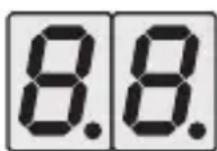
Two 7-segment displays on the report unit are used for status display and operator guidance. Two function buttons "↑" and "↓" and the programming button "P" are available to control entries.
5.2 Ex-factory setting
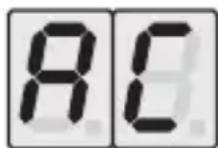
When in the ex-factory setting, the 7-segment displays indicate "AC" (all cleared). No fingerprint has been stored in this state, the relay has been set
to a pulse length of 0.5 seconds, the security setting is set to standard, and access code entry for programming is deactivated.
Pressing one of the “↑”、“↓” or “P” buttons will switch the system for you to enter the function selection and the 7-segment displays will indicate “nn”.
The ex-factory setting is displayed on the reader by illumination of all the LEDs.
Toprotect the report unit from unauthorised access to the programming and thus the function of the finger-scan, we recommend changing the access code from "0000" (see Chapter 5.6.8).
5.3 Normal operating mode
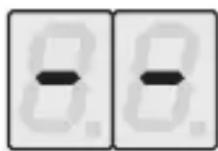
The report unit is in normal operating mode if at least one fingerprint has been taught in and the 7-segment displays indicate “- - ”. One of the “↑”“↓”or “P”
buttons must be pressed to select a menu. If access code entry has been activated, the system will request the access code if one of the buttons is pressed. If access code entry has not been activated, the system will immediately switch to the menu selection with the "nn" display. An illuminated blue LED indicates normal operating mode on the reader. The red and green LEDs are off.
5.4 Access code entry
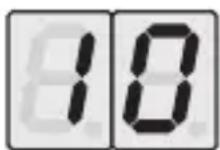
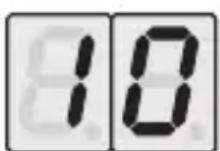
If the display "10" appears after pressing one of the "↑" or "P" buttons, the four-digit access code must be entered as indicated in Chapter 5.6.8.
The display "nn" for menu selection will appear if the access code has been entered correctly.
The display “- - ” for normal operating mode will appear if the entry is incorrect.
5.5 Menu (function) selection
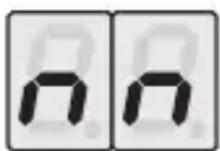
Pressing one of the "↑" or "↓" buttons will switch the system for you to enter the menu selection and the 7-segment displays will indicate
"nn". The two-digit menu number can now be entered.
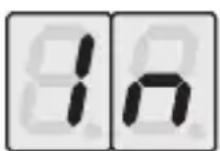
The value of the first digit in the menu number is selected by pressing the "↑" and "↓" buttons. The value is confirmed by briefly pressing the "P"
button and the system then moves on to the second digit.
The value of the second digit in the menu number is also selected by pressing the "↑" and "↓" buttons. The value is confirmed by briefly pressing the "P"
button and the menu number is then checked.
The respective function will be called up if a permissible menu number has been entered, otherwise the system will return to the "nn" function display. If no menu number is selected within 90 seconds after the last button actuation, the system will exit the menu selection and return to normal operating mode or the ex-factory settings.
5.6 Menu overview
Menu Function
10 Teaching in a fingerprint
11 删除 individual fingerprint
12 Deleting all fingerprints
20Assigning relays
21 Pulse duration of relay 1
22 Pulse duration of relay 2
30 Security setting
31 Changing access code
40 Copying fingerprints from reader 1 to reader 2
41 Loading data from reader 1 in the report unit
42 Storing data from the report unit in reader 1
43 Resetting to ex-factory settings
5.6.1 Menu 10 - teaching in a fingerprint (see Figure 7)
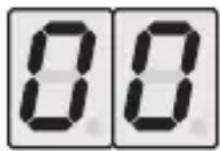
Fingerprints can be taught in by selecting menu 10. The display for the first free memory location (e.g. "00") will appear. The "↑" and "↓" buttons can be
used to teach in a fingerprint at a specific location. Only free memory locations are displayed here. The “P” button must be pressed for 4 seconds to enable a teach-in process on the reader for this memory location. The selected location number will begin to flash and signals readiness to teach in the fingerprint.
Readiness to teach in the fingerprint is also indicated by slow flashing of the green LED on the reader.
Note:
Wait at least 1 minute between switching on the power supply and teaching in the first fingerprint to allow the finger sensor to reach its operating temperature.
Place the finger as flat as possible on the stainless steel surface of the finger-scan, letting the tip of the finger touch the rear wall, and then pull the finger steadily over the sensor. The finger must always remain in contact with the sensor. The green LED will go out and the red LED starts to flash slowly, thus signalling that the fingerprint is being processed.
Note:
The blue LED will also go out during processing. No further functions are possible as long as the blue LED is out.
If correctly taught in, the fingerprint will be stored. The red LED on the reader will go out and the green LED is solidly illuminated for 2 seconds. The next free memory location is shown on the report unit display. Another free memory location can be selected with the “ ” and “ ” buttons and the teach-in process actuated by pressing the “P” button for 4 seconds.
If no other fingerprint must be taught in or the process shoul be cancelled, briefly press the "P" button to return to the menu display "nn".
The red LED on the reader will light up solidly for 2 seconds if the fingerprint has not been correctly taught in. The fingerprint can then be read in again immediately.
The function is cancelled if no fingerprint is read in or no button activated within 90 seconds. The red LED on the reader will quickly flash for 5 seconds. The "EL" display on the report unit will flash for 30 seconds or until a button is pressed. Then the menu display "nn" will reappear and the process can be repeated.
If all the memory locations have been assigned, the "FF" display in the report unit will flash for 30 seconds or until a button is pressed. This signals that an additional fingerprint can only be taught in after a stored fingerprint is deleted. Then the menu display "nn" will reappear. The red and green LEDs on the reader are off.
5.6.2 Menu 11 - individually deleting fingerprints
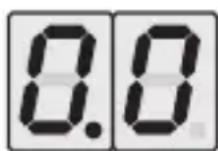
Fingerprints can be individually deleted by selecting menu 11. This function will not be called up if no fingerprints are stored and the system goes directly
back to the menu display "nn". The display for the first assigned memory location (e.g. "00") will appear when selected. An illuminated decimal point to indicate the assigned relay is shown to differentiate between the functions "individually delete fingerprints" and "teaching in fingerprint". The desired memory location can be selected with the "↑" and "↓" buttons. Only assigned memory locations are displayed. The selected fingerprint is deleted by pressing the "P" button for 4 seconds. During this, the display will flash with the location number and then switches to the next assigned memory location.
If no other fingerprint must be deleted or you want to abort the process, briefly press the “P” button to return to the menu display “nn”.
The system automatically returns to the menu display "nn" if no fingerprints are stored in the report unit.
Note:
If you want to delete the access authorisation for a person with several stored fingerprints, each of the fingerprints must be individually deleted!
5.6.3 Menu 12 - deleting all fingerprints
All of the stored fingerprints can be deleted by selecting menu 12. The reader is then back in the ex-factory setting.
Note:
The pulse times for the relays, the security setting and access code are not reset.
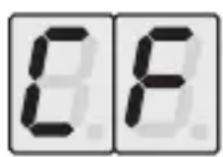
All fingerprints are deleted by pressing the "P"
button for 4 seconds. The display “CF” will flash while deleting and then automatically return to the
menu display "nn". Access authorisations for all persons must then be taught in again. If deleting should be aborted, briefly press the "P" button to return to the menu display "nn".
Note:
There is a danger of locking yourself out if no fingerprints are stored in the finger-scan (FL100/FLT100).
5.6.4 Menu 20 - assigning relay
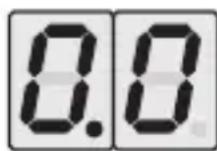
This function will not be called up if no fingerprints are stored and the system goes directly back to the menu display "nn". The display for the first assigned
memory location (e.g. "0.0") will appear. The desired memory location can be selected with the "↑" and "↓" buttons. Only assigned memory locations are displayed. As standard, the memory location is assigned to relay 1, which is indicated by an illuminated decimal point in the left 7-segment display. The relay can be changed by pressing the "P" button for 4 seconds. If relay 2 is assigned, this will be indicated by an illuminated decimal point in the right 7-segment display.
5.6.5 Menu 21 - pulse duration of relay 1
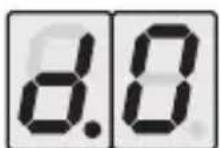
The length of the control pulse for relay 1 can be set by selecting menu 21 (illuminated decimal point in the left 7-segment display). The desired pulse duration
is selected by pressing the “↑” and “↓” buttons (see table). The selected value is confirmed by pressing the “P” button for 4 seconds. If the process should be aborted, briefly press the “P” button to return to the menu display “nn”.
| Display Pulse duration WE | |
| d.0 0,5 seconds (ex-factory setting) X | |
| d.1 1 second | |
| d.2 2 seconds | |
| d.3 5 seconds | |
| d.4 10 seconds | |
| d.5 20 seconds | |
| d.6 30 seconds | |
| d.7 45 seconds | |
| d.8 60 seconds | |
| d.9 90 seconds |
5.6.6 Menu 22 - pulse duration of relay 2
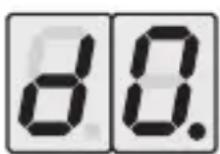
The length of the control pulse for relay 2 can be set by selecting menu 22 (illuminated decimal point in the right 7-segment display). The desired pulse
duration is selected by pressing the “↑” and “↓” buttons (see table). The selected value is confirmed by pressing the “P” button for 4 seconds. If the process should be aborted, briefly press the “P” button to return to the menu display “nn”.
You can switch between the "standard" and "high" security settings by selecting menu 30. "Standard" is the factory setting and is indicated by the display
"S0" in the report unit. If the "high" security setting has been selected, this will be indicated by the display "S1". The security setting is changed by pressing the "P" button for 4 seconds and the appropriate display will then be shown. Briefly press the "P" button to return to the menu display "nn".
5.6.8 Menu 31 - setting up/changing access code
The four-digit access code can be changed and activated/deactivated by selecting menu 31. The access code is set to "0000" (deactivated) in the ex-factory setting. If the access code is programmed to a code other than "0000", a function selection can only take place after entering this code.
Note:
If the access code is lost, the finger-scan can only be put back into operation after a factory reset. The finger-scan will then be in the ex-factory setting again.
The display for entering the first digit of the four-digit code will appear and digits 1-4 of the access code will be shown in the left display. The selected digit of the access code will be shown in the right display.
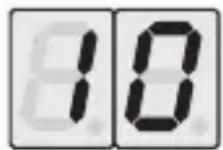
The number of the first digit of the access code is selected by pressing the "↑" and "↓" buttons. The number is confirmed by briefly pressing the "F
button and the system then moves on to the second digit.
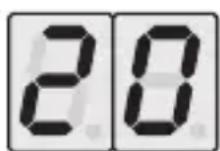
The number of the second digit of the access code is selected by pressing the "↑" and "↓" buttons. The number is confirmed by briefly pressing the "P"
button and the system then moves on to the third digit.
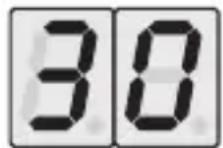
The number of the third digit of the access code is selected by pressing the "↑" and "↓" buttons. The number is confirmed by briefly pressing the "P"
button and the system then moves on to the fourth digit.
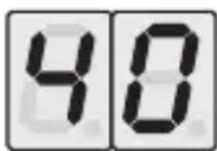
The number of the fourth digit of the access code is selected by pressing the "↑" and "↓" buttons. The number is confirmed by briefly pressing the "P"
button and the PIN is checked.
If you only want to check the access code, briefly press the “P” button as the code moves through the first to the fourth digit until the display “nn” appears for the menu selection.
If no button is pressed within 90 seconds after the last button actuation, the system will exit the access code entry section and return to normal operating mode. A previously programmed access code will retain its validity or the system remains in the ex-factory setting (deactivated).
Note:
The query for the access code is deactivated by entering the access code "0000". This then permits unimpeded access to the menu selection and function settings!
5.6.9 Menu 40 - transferring fingerprints from reader 1 to reader 2
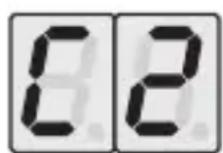
If you select menu 40, fingerprints stored in reader 1 can be copied to reader 2, so that both readers have the same access authorisations. The copy function
is performed by pressing the “P” button for 4 seconds. The display “C2” will flash during copying and then automatically return to the menu display “nn”. If the process should be aborted, briefly press the “P” button to return to the menu display “nn”.
5.6.10 Menu 41 - transferring data to report unit
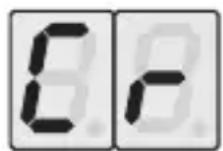
By selecting menu 41, the data stored in reader 1 can be transferred to the report unit. This data includes the access code, the location numbers
assigned to the fingerprints, the security setting and the pulse duration of the relays. This function makes it possible to replace a defective report unit with a new one and load the appropriate access data. The transmission is performed by pressing the “P” button for 4 seconds. The display “Cr” will flash during reading and then automatically return to the menu display “nn”. If the process should be aborted, briefly press the “P” button to return to the menu display “nn”.
5.6.11 Menu 42 - securing data in reader 1
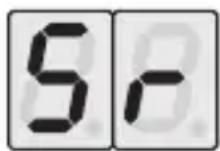
By selecting menu 42, the data stored in the report unit can be transferred to reader 1 and secured. This data includes the access code, the location
numbers assigned to the fingerprints, the security setting and the pulse duration of the relays. The transmission is performed by pressing the “P” button for 4 seconds. The display “Sr” will flash during reading and then automatically return to the menu display “nn”. If the process should be aborted, briefly press the “P” button to return to the menu display “nn”.
5.6.12 Menu 43 - resetting to ex-factory setting
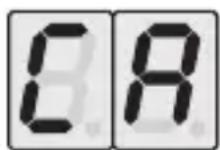
By selecting menu 43, you can reset the report unit and all connected readers to the ex-factory setting. In doing so, all fingerprints will be deleted, access
code entry for programming deactivated, the security settings set to standard and the relays set to a pulse duration of 0.5 seconds. The reset is done by pressing the “P” button for 4 seconds. The display “CA” flashes during the reset and then changes to display “AC” (all cleared). If the process should be aborted, briefly press the “P” button to return to the menu display “nn”.
Note:
There is a danger of locking yourself out if the finger-scan (FL100/FLT100) is in the ex-factory setting.
5.6.13 Menu 44 - displaying/changing reader address
Only one reader may be connected to the report unit when performing this function. The current address of the reader (e.g. "L1") appears after menu 44 is selected. The address is changed by pressing the "P" button for 4 seconds. The new address will now be displayed (e.g. "L2"). Briefly press the "P" button to return to the menu display "nn".
5.7 Initial operation of the second reader
The following steps must be done to connect a second reader to the report unit:
- Remove the first reader from the report unit.
- Connect the second reader to the report unit.
- Change the reader address from "L1" to "L2" via menu 44 (see Chapter 5.6.13).
- Reconnect the first reader to the report unit.
- Transfer the fingerprints from reader 1 to reader 2 using menu 40 (see Chapter 5.6.9).
6
S TATUS DISPLAYS/ERROR MESSAGES
| Display Meaning | Action / remedy | |
| R6 | Ex-factory setting Read in (all cleared): no fingerprint taught in | fingerprint |
| -8 | Operating mode: teach in at least one fingerprint | |
| EL | Abort during Reselect menu 10: teach-in process function for teaching in a fingerprint | |
| FF | All locations assigned Select menu 11, if necessary: function or deleting individual fingerprints | |
| EI | Error – reader 1: Select menu 41: memory locations using the function Cr do not correspond to transfer the data those in the report unit from the reader to the report unit. | |
| E2 | Error – reader 2: Select menu 40: memory locations synchrony do not correspond to via function C2. | switching the report unit on and reader 2 off. If yes, exchange transfer error the reader. |
| E3 | Reader 1 Check if the error transfer error remains after switching the report unit on and | |
| E4 |
7 POWER FAILURE
Fingerprints that have been taught in and stored are protected against power failures.
If the power supply returns after a failure, the report unit will still be in operating mode. This prevents the teach-in mode from starting after a power failure and the entrance door or garage door cannot be opened.
8 LIST OF MEMORY LOCATION NUMBERS AND NAMES
(Pages 77 - 79)
| No. | Name Scanned Relay Relay finger 1 2 | ||
| 00 |
9 TECHNICAL DATA
Finger-scan type: FL100 / FLT100
Memory locations: 100
Readers: 2
Control elements: Three buttons “P”, “↑” ↓ “↓”
Status display: Two 7-segment displays
Teach-in: Through location selection
Deleting: Delete individually, delete all
Control: Relay output K1 1x UM
Max. 30VDC / 2A (50 V A/60 W)
Relay output K2 1x UM
Max. 30VDC / 2A (50 VA/60 W)
Pulse duration: Adjustable in 10 stages: 0.5 - 90 seconds
Power supply: FL100
230VAC/6VA
FLT100
On-site door opener supply 12 V AC,
3 VA more for report unit and finger-scan.
10 EC MANUFACTURER'S DECLARATION
Product: Finger-scan
Device type: FL100 / FLT100
The product described above complies in its design and form with the pertinent underlying requirements of the guidelines for safety and health detailed below in the versions marketed by us. This declaration loses validity if changes are made to the product which we have not approved.
Pertinent provisions with which the product complies:
EC Electromagnetic Compatibility Directive
DIN EN 61000-6-1
DIN EN 61000-6-3
EC Low Voltage Directive 73/23 EEC
Steinhagen, 1 June 2007

ppa. Axel Becker
Managing Director