Detonator - Headphones TRITTON - Free user manual and instructions
Find the device manual for free Detonator TRITTON in PDF.



Frequently Asked Questions - Detonator TRITTON
User questions about Detonator TRITTON
0 question about this device. Answer the ones you know or ask your own.
Ask a new question about this device
Download the instructions for your Headphones in PDF format for free! Find your manual Detonator - TRITTON and take your electronic device back in hand. On this page are published all the documents necessary for the use of your device. Detonator by TRITTON.
USER MANUAL Detonator TRITTON
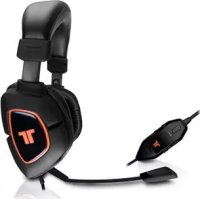
DETONATOR STEREO HEADSET

PRODUCT MANUAL
PACKAGE CONTENTS
[A]
MP3/mobile phone & Warranty 8
Technical support 9
FRANCAIS
Assistance technique 15
DEUTSCH
Kopfhorer 17
Before using this product, read the manuals for this accessory and the Xbox 360 console (and any other applicable manuals) for important safety and health information. Keep all manuals for future reference. For replacement Xbox manuals, see www.xbox.com/support or call Xbox Customer Service.
PREVENTION OF HEARING LOSS
CAUTION - Permanent hearing loss may occur if earphones or headphones are used at high volume for prolonged periods of time.
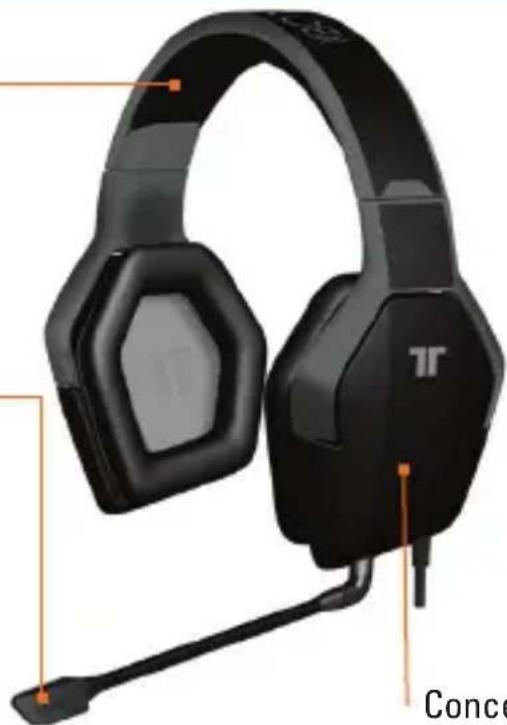
HEADSET
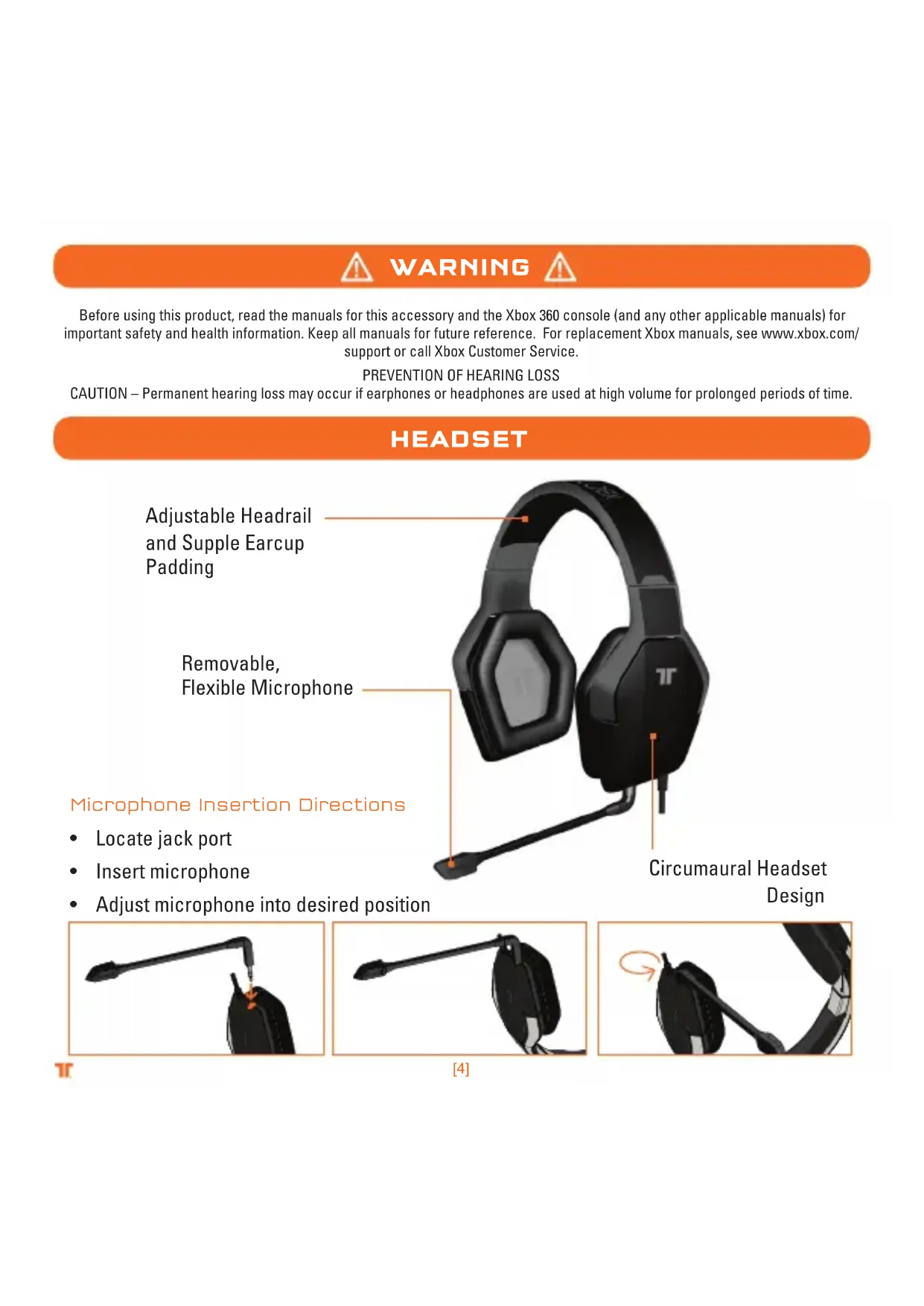
Adjustable Headrail and Supple Earcup Padding
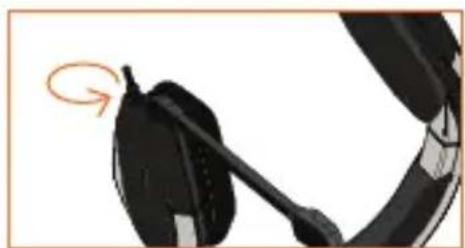
Removable, Flexible Microphone
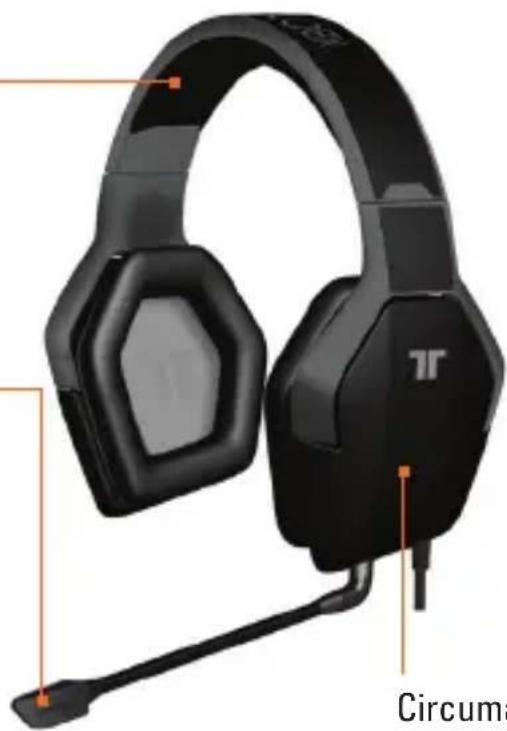
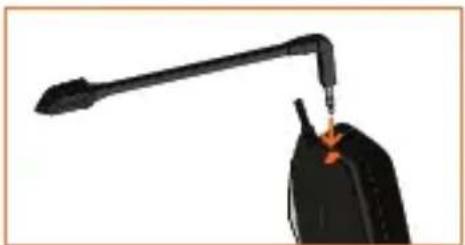
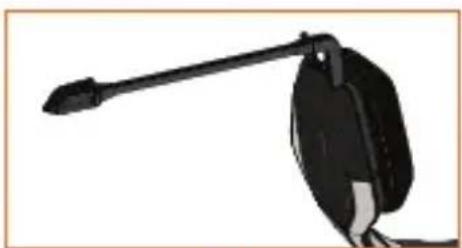
Microphone Insertion Directions
- Locate jack port
- Insert microphone
- Adjust microphone into desired position
Circumaural Headset Design

[4]
IN-LINE CONTROLLER
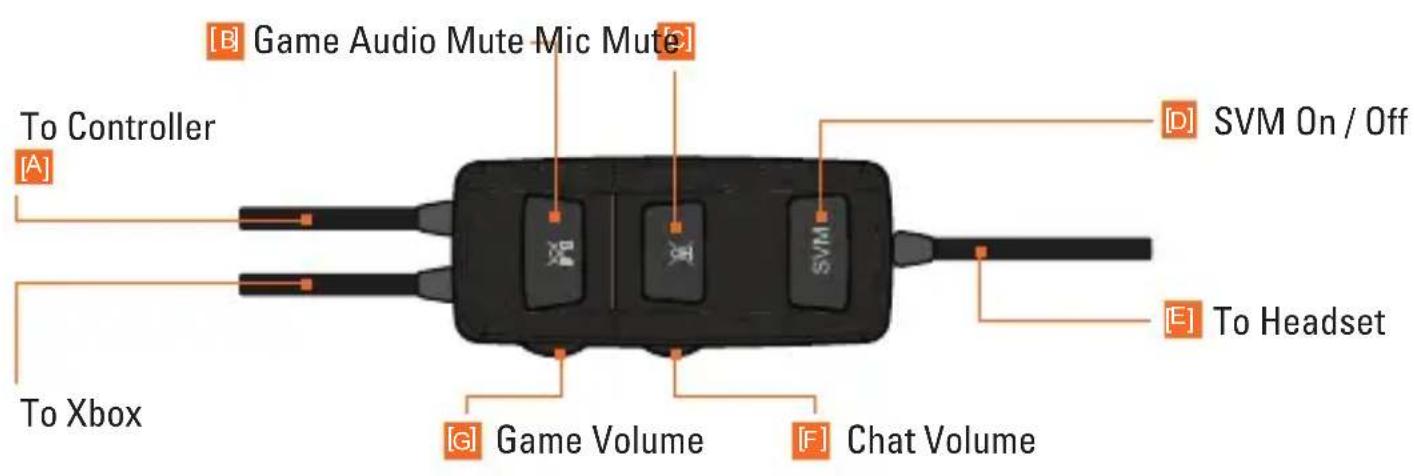
A Use to connect Headset Connector Cable to controller.
Press to mute game audio. LED will illuminate when muted.
Press the Mic Mute button down to mute the microphone so others cannot hear you. LED will illuminate when muted.
Press to activate Selectable Voice Monitoring (SVM). SVM allows the user to hear his/ her voice through the headset. LED will illuminate when active.
Headset port.
Use to adjust the volume of the voices of other players.
Use to adjust the volume of game audio.
XBOX 360·COMPONENT / VGA / COMPOSITE
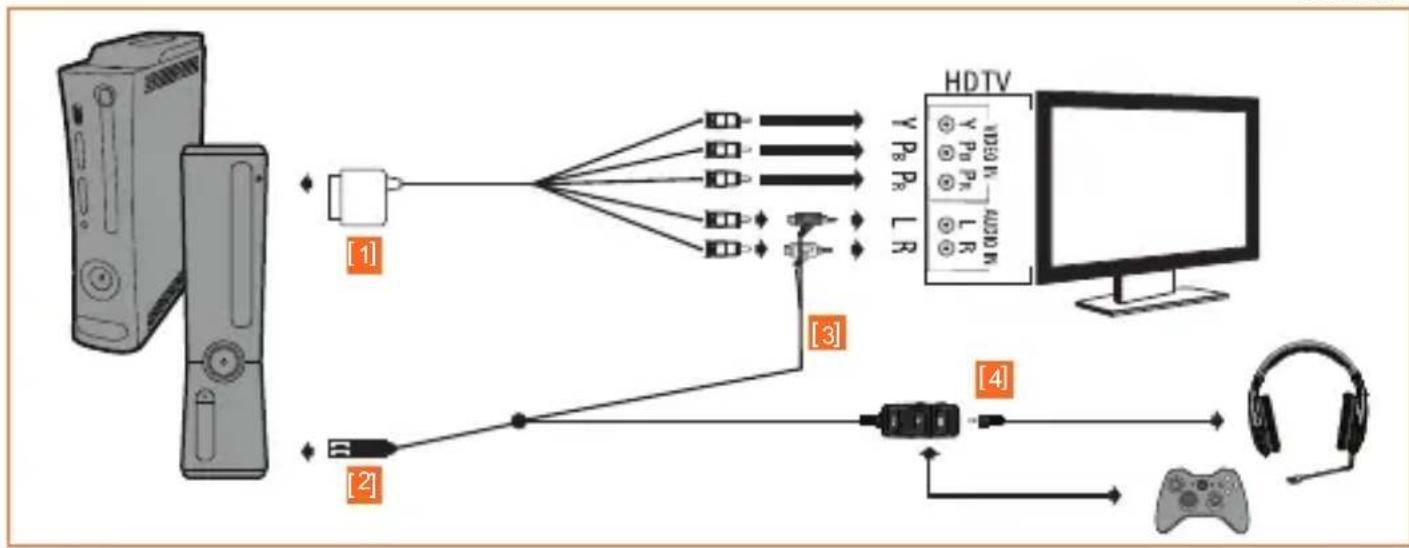
Ensure that TV/Monitor and Xbox 360 are powered OFF.
Connect the AV cable* to the console.
Connect the USB Cable to a USB port on the Xbox 360.
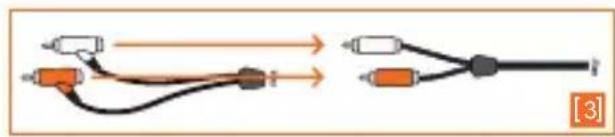
3 Connect the RCA connection cable to the Xbox 360 AV Cable.
4 Be sure to connect the Headset Connector Cable in the proper order:
1 - Connect Headset Connector Cable to the Headset Connector Port on the in-line controller.
2 - Connect puck side of Headset Connector Cable into Xbox 360-compatible controller.
XBOX LIVE
Troubleshooting:
If others cannot hear you:
Make sure the Mic Mute button, located on in-line controller, is not illuminated.
Make sure the Mic is fully inserted into headset.
Make sure the Headset Connector Cable is plugged in properly.
If you cannot hear others:
Press the Xbox Guide Button when a game is loaded, and go to Personal Settings >Voice. Ensure that "Headset only" is selected.
Make sure the Headset Connector Cable is plugged in properly.
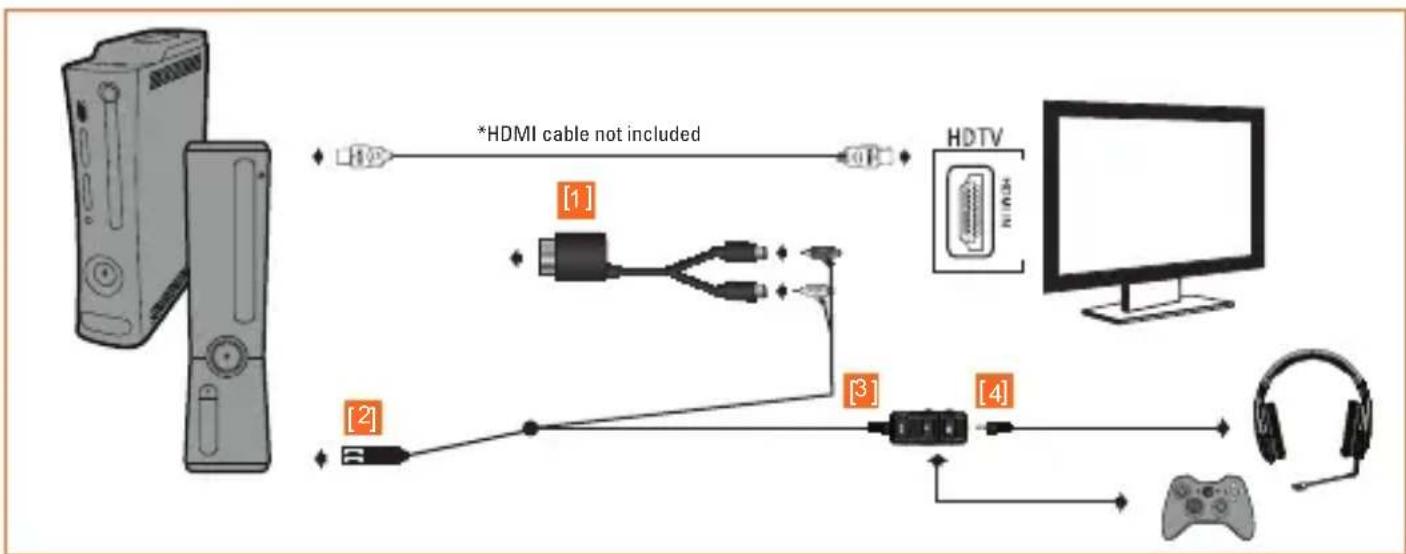
XBOX 360·HDMI
Ensure both HDMI-compliant TV/Monitor and Xbox 360 gaming system are powered OFF. Note: The Analog Audio Adapter (hereafter AAA) will work with ANY HDMI-equipped Xbox 360.
Insert AAA into the AV port on the Xbox 360.
Connect the USB Cable to a USB port on the Xbox 360.
[3] Connect the RCA connection cable to the AAA.
4 Be sure to connect the Headset Connector Cable in the proper order:
1 - Connect Headset Connector Cable to the Headset Connector Port on the in-line controller.
2 - Connect puck side of Headset Connector Cable into Xbox 360-compatible controller.
Troubleshooting:
I don't have any audio when connecting in analog mode.
There is no setting in the Xbox that can turn off analog output, so it is always on.
Check the following:
- Ensure the Xbox 360 is powered ON, and that audio is playing. When on the dashboard, and when not navigating, only silence is emitted on all audio channels.
- Ensure all analog connections are secure.
- Ensure that your audio device is powered ON, and the volume levels are set.
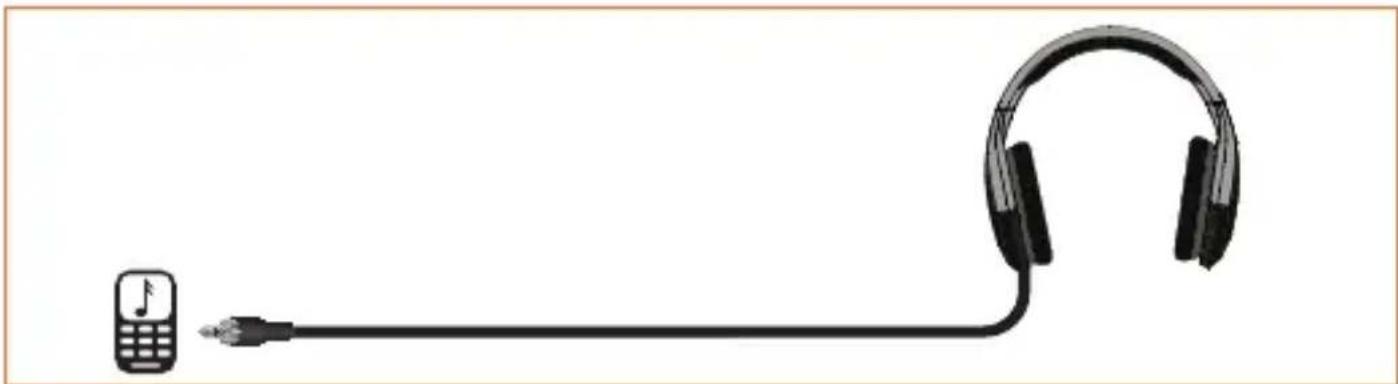
MP3/MOBILEPHONE
Connect the 3.5mm plug to the 3.5mm jack on your device.
Troubleshooting:
The plug won't fit in my mp3 phone.
Not all phones that have 3.5mm jacks will be compatible with this headset.
I hear music playing at a very low volume, and if I pull the plug out partially, the headset works normally.
- Your audio device does not have a jack that is compatible with 4-contact 3.5mm plugs. Adapters (sold separately) can resolve this.
WARRANTY
Register your product at TRITTONUSA.COM to receive warranty coverage, news, events and updates.
If you have any issues using this product, please try the following before returning this product to the store:
If people cannot hear you talk, make sure that the mute switch is not enabled and that the mic is fully inserted into the headset.
To confirm Xbox LIVE settings, press the Xbox Guide Button when a game is loaded, and go to Personal Settings > Voice. Ensure that Headset only" is selected.
For immediate support, visit http://www.trittontechnologies.com to find the latest documentation, Knowledge Base articles, and software for your device. You can also chat live with a support technician or submit a trouble ticket.
2-year limited warranty
Mad Catz warrants this product to be free from defects in materials and workmanship for the warranty period. This non-transferable, two- (2) year limited warranty is only to you, the first end-user purchaser. If a defect covered by this warranty occurs AND you have registered your product with Mad Catz AND you provide proof of purchase, Mad Catz, at its option, will repair or replace the product at no charge.
The Mad Catz two- (2) year limited warranty is available to North American and European customers. Your sole and exclusive remedy is repair or replacement of your Mad Catz product. In no event shall Mad Catz liability exceed the original purchase price of the product. This warranty does not apply to: (a) normal wear and tear or abusive use; (b) industrial, professional or commercial use; (c) if the product has been tampered with or modified.
To receive warranty service you must:
-
North America: call Mad Catz Technical Support at 1.800.659.2287 or 1.619.683.2815
-
Europe: call Mad Catz Technical Support at +44 (0) 8450-508418
- Obtain a Return Authorization Number from Mad Catz Technical Support
- Ship the product to Mad Catz at your expense for service
- Enclose a copy of the original sales receipt showing a purchase date
- Enclose a full return address with daytime and evening phone numbers
TECHNICAL SUPPORT
Online Support and User Guides: www.trittonusa.com
North American E-mail: techsupport@madcatz.com
North American telephone: Available 8am - 12pm, 1-4pm Pacific Standard Time, Monday through Friday (excluding holidays) at 1.800.659.2287 (US only) or 1.619.683.2815 (outside US).
European E-mail: techsupporteurope@madcatz.com
European telephone: Available 9 A.M. to 5 P.M. Greenwich Mean Time, Monday through Friday (excluding bank holidays) at +44 (0) 8450-508418
CAUTIONS
- Long-term exposure to loud music or other sounds in headphones may cause hearing damage. It is best to avoid extreme volume levels when using headphones, especially for extended periods.
- Use this unit only as intended.
To prevent fire or shock hazard, do not expose this unit to rain or moisture. Do not use within 30^ of any water such as swimming pools, bathtubs, or sinks. - To avoid electrical shock, do not disassemble. Refer servicing to qualified personnel only.
- Never insert objects of any kind, other than authorized items, into the product as they may touch dangerous voltage points or short out parts that could result in fire or electrical shock.
- Stop using this unit immediately if you begin to feel tired or if you experience discomfort or pain in your hands and/or arms while operating the unit. If the condition persists, consult a doctor.
- Avoid prolonged use of this unit. Take breaks every 30 minutes.
- Route all cords so that they are not likely to be walked on or tripped over. Make sure that cords are not placed in a position or areas where they may become pinched or damaged.
- Do not wrap cords around any part of anyone's body.
- Do not allow children to play with cords.
United States and Canada:
As required, certain of these class B digital devices (the headsets) have been tested by Mad Catz, Inc., 7480 Mission Valley Road, Suite 101, San Diego, CA 92108, and found to comply with part 15 of the FCC rules and the Canadian RSS-210 which sets forth limits designed to provide reasonable protection against harmful interference in a residential installation. These device(s) use, generate and can radiate radio frequency energy and, if not assembled, installed and used in accordance with the instructions, may cause harmful interference to radio communications. There is no guarantee that interference will not occur in any particular location or use. Operation is subject to the following two conditions: (1) this device may not cause harmful interference and (2) this device must accept any interference received, including interference that may cause undesired operation.
Exposure to Radio Frequency Radiation:
The radiated output power of the headset is well within FCC radio frequency exposure limits for this type of device when unaltered and used as described in our instructions and the controller operates within guidelines found in radio frequency safety standards, which reflect the consensus of the scientific community and therefore, the manufacturer believes the device's internal wireless radio is safe for use by consumers. The level of energy emitted is far less than the electromagnetic energy emitted by wireless devices such as mobile phones. However, the use of wireless radios may be restricted in some situations (e.g., on airplanes). If you are unsure of restrictions that may apply in any situation, you must ask for authorization before turning on, connecting or using the controller.
EU DECLARATION OF CONFORMITY:
As required, certain of these products have been tested and conform to the requirements of the European Union Directives 2002/95/EC, 2002/96/EC, and 2004/108/EC. Authorized signatory of the manufacturer is Mad Catz, Inc., 7480 Mission Valley Road, Suite 101, San Diego, CA 92108.

AVENTISSEMENT
Microphone Amovable, flexible
Conception casque circumaural
©2011 Mad Catz, Inc. 7480 Mission Valley Road, Suite 101, San Diego, CA 92108 U.S.A. Mad Catz, TRITTON, Detonator, the Mad Catz logo and the TRITTON logo are trademarks or registered trademarks of Mad Catz, Inc., its subsidiaries and affiliates. The shape and design of this product are a trade dress of Mad Catz. This product is manufactured under license from Microsoft Corporation. Microsoft, Kinect, Xbox, Xbox LIVE, Xbox 360, and the Xbox logos are trademarks of the Microsoft group of companies. All other product names and images are trademarks or registered trademarks of their respective owners. Made in China. All rights reserved. Product features, appearance and specifications may be subject to change without notice. Please retain this information for future reference.