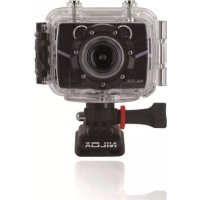
Foolish Special - Action camera NILOX - Free user manual and instructions
Find the device manual for free Foolish Special NILOX in PDF.



Frequently Asked Questions - Foolish Special NILOX
User questions about Foolish Special NILOX
0 question about this device. Answer the ones you know or ask your own.
Ask a new question about this device
Download the instructions for your Action camera in PDF format for free! Find your manual Foolish Special - NILOX and take your electronic device back in hand. On this page are published all the documents necessary for the use of your device. Foolish Special by NILOX.
USER MANUAL Foolish Special NILOX
natural_image
Three-panel image showing a snowboarder in mid-air, a cyclist in mid-air during a jump, and a bicycle on a snowy slope (no visible text or symbols)See the accessories: www.nilox.com
natural_image
Two black wristband devices with attached straps, one featuring a circular dial and the other a square head (no text or symbols visible)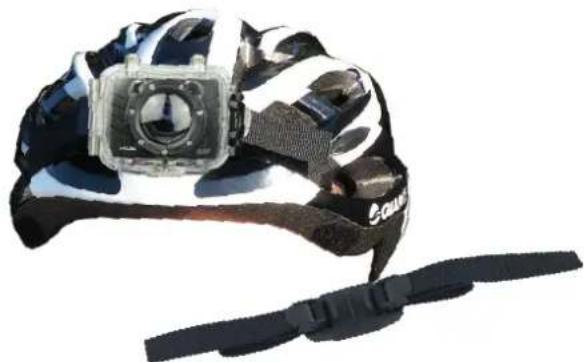
natural_image
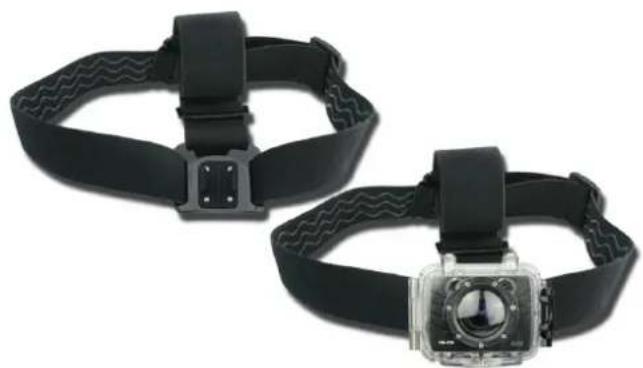
Close-up of a black and white sports helmet with a camera module, attached to a black strap (no text or symbols visible)HEAD STRAP MOUNT VENTED HELMET STRAP
natural_image
Two black-and-white photoelectric equipment units with camera modules and base mount (no visible text or symbols)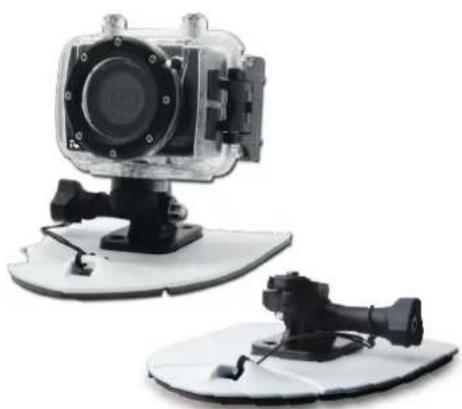
natural_image
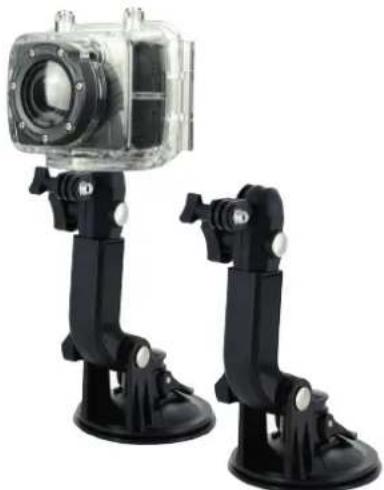
Two types of underwater camera modules, one mounted on a white platform and the other with a black sensor device (no text or symbols visible)SUCTION CAP MOUNT SURF-SKI MOUNT
Sommario
Precauzioni d'uso 2
Prefazione 2
flowchart
graph LR
    A["Traffic Light"] --> B["Device"]
    B --> C["Electronic Device"]
(2) Clip
natural_image
Three-step assembly of a black plastic housing component, shown from front to side (no text or symbols)natural_image
Two identical black traffic lights with red and green lights connected by an arrow, shown from different angles (no text or symbols)Modalità d'uso:
natural_image
Line drawing of a laptop with visible keyboard and screen (no text or symbols)USB Cable
USB Port on PC
Note:
natural_image
Black digital camera with lens and control buttons (no visible text or symbols)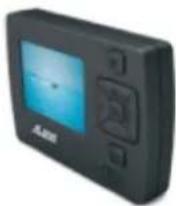
natural_image
Transparent plastic enclosure with black circular opening and mounting tabs (no text or symbols visible)natural_image
Close-up of a black mechanical clamp or bracket component (no visible text or symbols)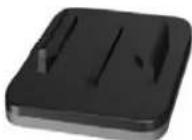
Cavo USB
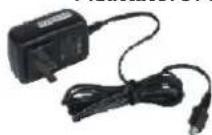
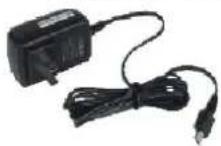
Adattatore AC
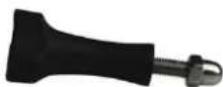
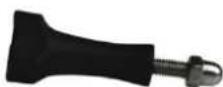
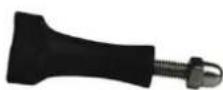
Vite lunga
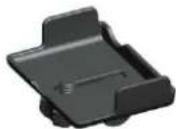
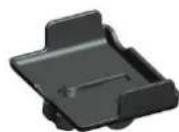
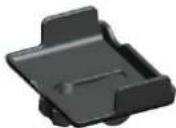
Supporto
Note:
Product Certification....2
Product Overview....2
Product Structure (outline drawing) 3
Operating Instructions....7
Parameter Settings....9
Operations....II
File Storage and Play....17
Adapter 18
Standard Accessories....19
Specifications & Parameters 20
Notices for Waterproof Case....20
Suggestions....21
Precautions
I. FOOLISH is a precision product. Please do not drop it or hit it physically.
2. Keep the camera away from any object with a strong magnetic field, like magnet or electromotor, or any object emitting strong radio waves, like antenna, as a strong magnetic field may cause failure to FOOLISH or cause damage to image and audio data.
3. Do not expose the camera to high temperature or sunlight direct.
4. Keep the Micro SD card away from the strong magnetic field of TV, speaker, or magnet. Do not put it in any place with potential static, or the data stored in it may be lost.
5. If the camera overheats, smokes or smell in charging, please disconnect the power supply immediately to avoid the risk of fire.
6. Put FOOLISH beyond the reach of any child for charging, as the power cord may cause an accidental suffocation or electric shock to the child.
7. Please keep this product in a cool, dry, and dust-free place.
Preface
Thanks for purchasing FOOLISH, the hands-free mini high-definition digital camera. With small size and integrated design, hands-free FOOLISH is easy to operate. Supported by high-definition and dynamic image capturing technology, it can record real scenes and various activities anytime anywhere, so that you can share wonderful recording experiences with your family and friends.
This manual specifies how to use and install FOOLISH and provides detailed information, including the instructions on use, operation and installation as well as the technical specifications. Please read this Manual carefully to understand it before use and keep it well for long-term reference.
Product Certification
As certified by such authoritative organizations CE, this product complies with the recommended standards and thus guarantees the user's safety.
Product Overview
As a multifunctional non-handheld high-definition digital sports video camera, FOOLISH by NILOX can perform many leading functions such as high-definition digital photographing, voice storage, real-time display, voice-activated video recording, photo shooting, time display, remote control, digital zoom, TFT color screen, multifunctional keys, laser indicating, high-speed USB data transmission, HDMI high-definition output function, low power prompt, memory card space prompt and USB charging. Supplemented by the accessories, this product integrating multiple patented technologies can be used to photograph anything, anytime, anywhere.
Product Structure (outline drawing)
text_image
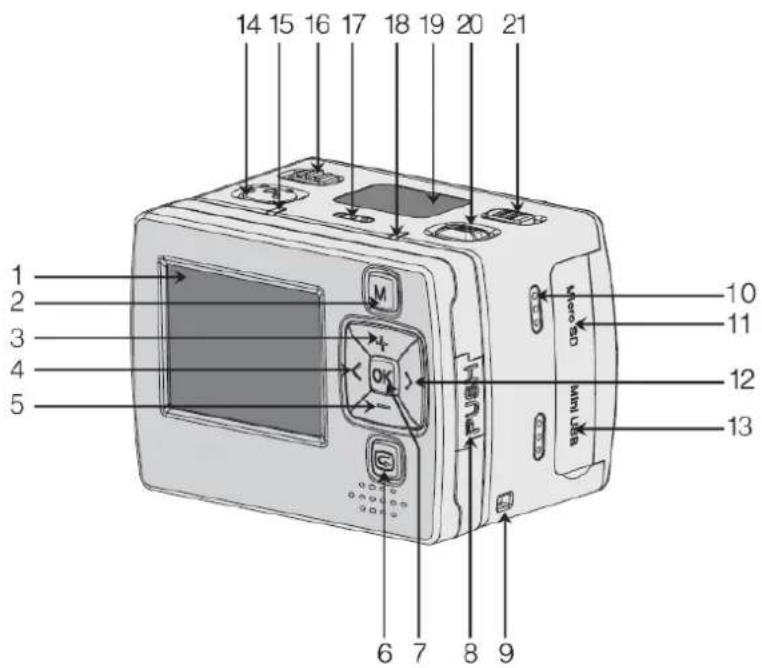
14 15 16 17 18 19 20 21 1 2 3 4 5 6 7 8 9 10 11 12 13I. Display TFT
2. MENU key
3. Up key
4. Left key
5. Down key
6. Recall key
7. OK
8. Push button of TFT display screen clip
9. Lanyard hole
10. Buzzer
II. SD card slot 20.Shutter
12. Right key
13. USB 2.0 output interface
14. Record
15.Green indicator of video/voice recording
16. Turn on
17. Microphone
18. Red indicator of functioning/loading
19. LCD segment screen
20. Shutter
21. VOX switch
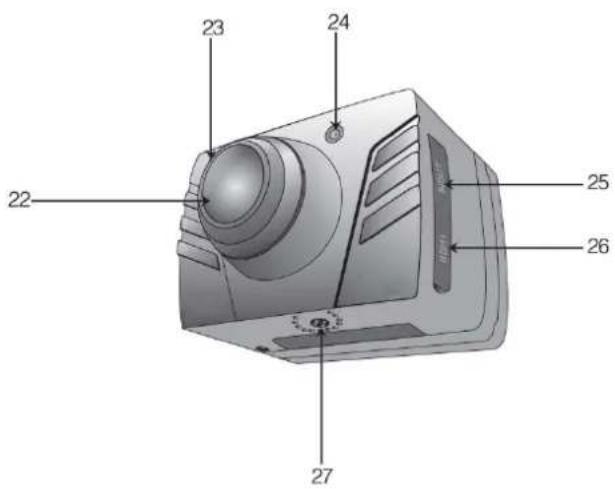
text_image
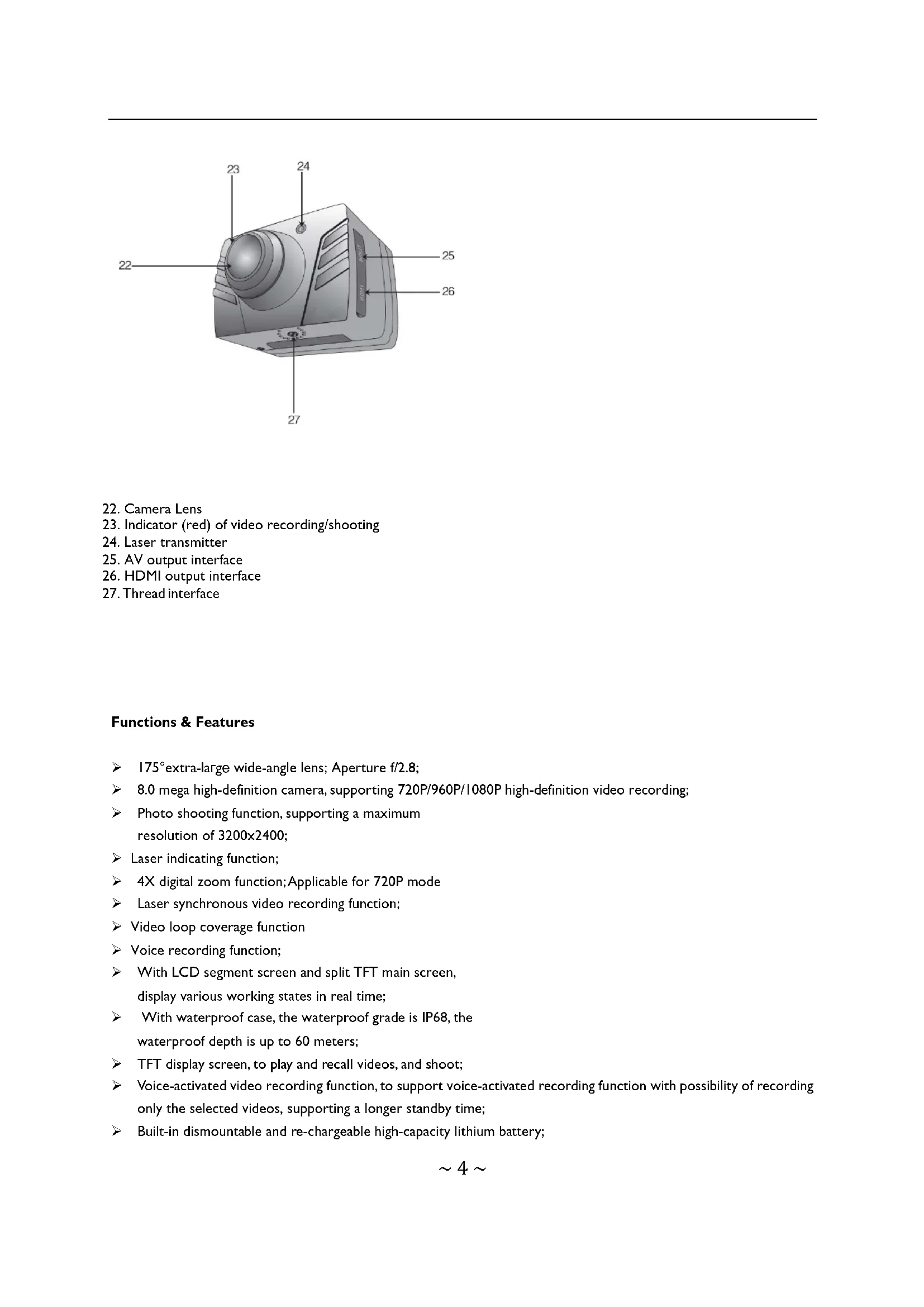
22 23 24 25 26 27- Camera Lens
- Indicator (red) of video recording/shooting
- Laser transmitter
- AV output interface
- HDMI output interface
- Thread interface
Functions & Features
175°extra-large wide-angle lens; Aperture f/2.8;
8.0 mega high-definition camera, supporting 720P/960P/I080P high-definition video recording;
➢ Photo shooting function, supporting a maximum resolution of 3200x2400;
➢ Laser indicating function;
4X digital zoom function; Applicable for 720P mode
➢ Laser synchronous video recording function;
▶ Video loop coverage function
➢ Voice recording function;
With LCD segment screen and split TFT main screen, display various working states in real time;
With waterproof case, the waterproof grade is IP68, the waterproof depth is up to 60 meters;
➢ TFT display screen, to play and recall videos, and shoot;
Voice-activated video recording function, to support voice-activated recording function with possibility of recording only the selected videos, supporting a longer standby time;
Built-in dismountable and re-chargeable high-capacity lithium battery;
Best image effect, three video output modes available for your selection:
1080P (1920x1080) 30fps/s, Applicable for 1080P models
960P (1280x960) 30f/s, Applicable for 1080P models
720P (1280x720) 60f/s, Applicable for 1080P models
720P(1280×720) 30f/s,
WVGA (848×480) 60f/s,
QVGA (320x240) 30f/s; Applicable for 720P models
Battery power detection and Micro SD card free space detection;
High-speed dynamic video recording, supporting an instant response to bright and dark environments;
➢ Auto exposure, auto white balance, easy to operate;
HDMI high-definition interface and AV output interface, to connect a high-definition display device or TV to view files;
➢ FOOLISH by NILOX supports a Micro SD card of 64Gb max. (not included);
➢ High-quality color fidelity, clearer and more realistic image;
Delicate and stylish exterior design
➢ Possibility of recording, stopping and shooting by using wireless remote control; unique code pairing function, avoiding interference of other remote control;
Recording MOV videos, to be directly played on PC or uploaded onto video websites;
➢ Auto standby power-saving function;
FOOLISH by NILOX supports fast forward and fast rewind, and skipping of contents in the next segment (when connecting with TFT screen player);
Supporting time setting (RTC function) and time superposition function
Supporting USB 2.0;
Built-in microphone, forming high-quality voice recording effect;
- Various sport accessories, truly realizing the video recording of sports;
Good seismic resistance;
- Various shooting modes available: Single shooting, three photos continuous shooting, continuous shooting;
➢ Settings auto saving.
Installation
I. Main body installation
FOOLISH can be either handheld or non-hand-held thanks to the combination of various non-hand-held accessories.
The camera can be installed where you want; or it
can be installed in water through the waterproof case in order to photograph scenes in the water.
The installation is shown as follows:
①Installation and removal of TFT display screen and main body
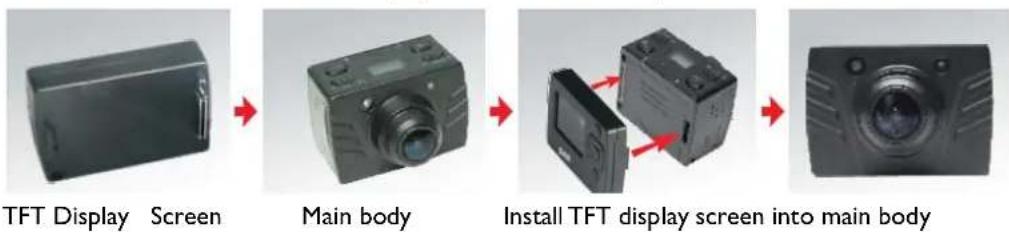
flowchart
graph LR
    A["TFT Display Screen"] --> B["Main body"]
    B --> C["Install TFT display screen into main body"]
** Pull out display screen: Please pull out the display screen after pressing Push key.**
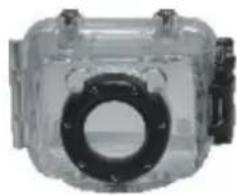
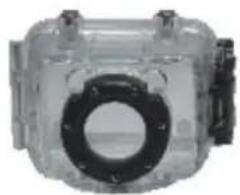
② Installation of waterproof case and main body
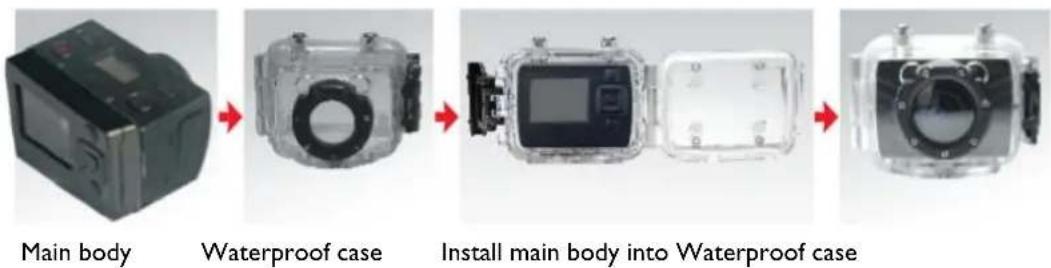
flowchart
graph LR
    A["Main body"] --> B["Waterproof case"]
    B --> C["Install main body into Waterproof case"]
Note to use waterproof case
*: Handle with care to avoid any damage to the waterproof case caused by dropping or physical shock.
*: Please clean with clear water as quickly as possible after using and dry it out to avoid rusting.
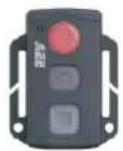
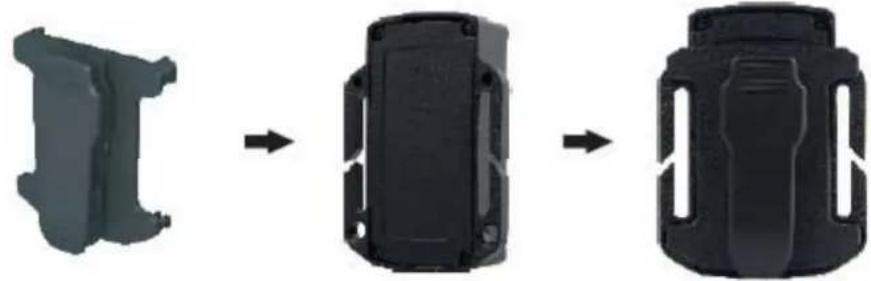
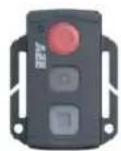
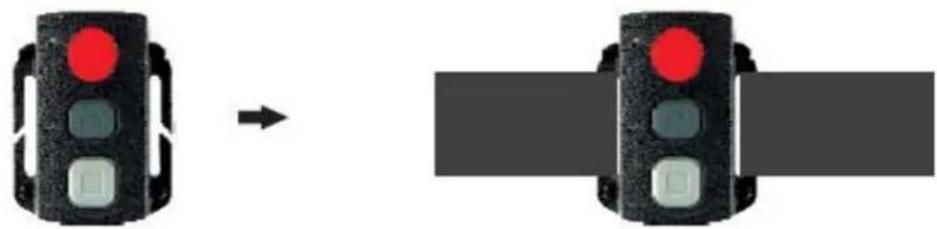
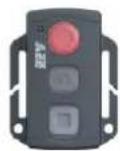
2. Installation of remote control
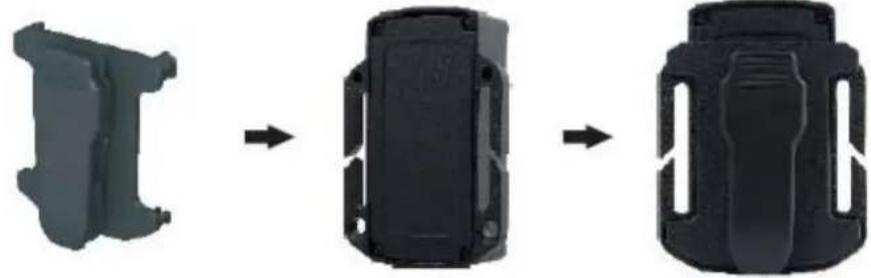
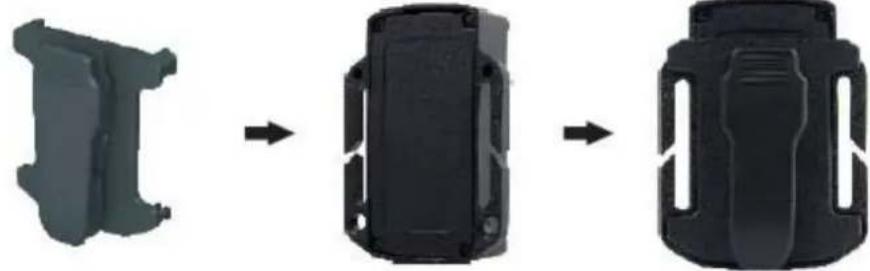
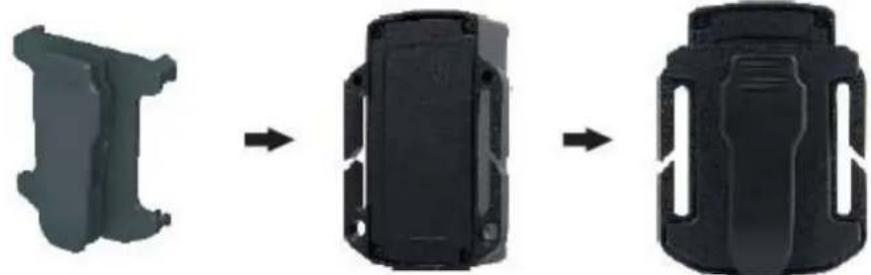
There is a separate remote control attached to FOOLISH. Please install the remote control onto the correct position based on the accessories below:
(1) Velcro
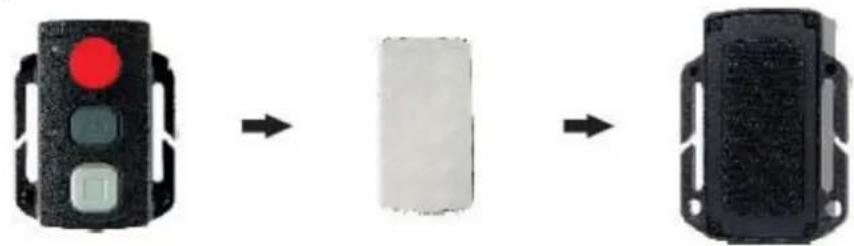
flowchart
graph LR
    A["Traffic Light"] --> B["Device"]
    B --> C["Electronic Device"]
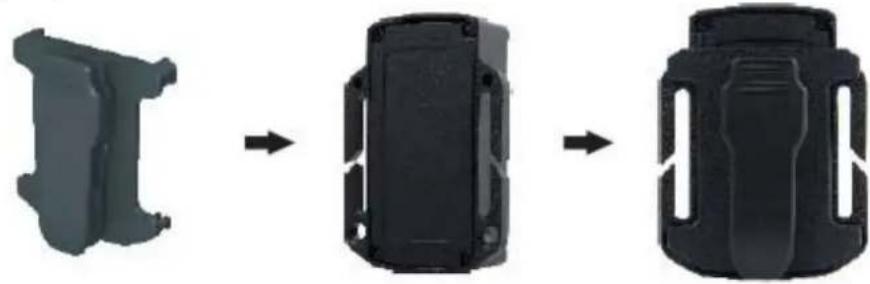
(2) Clip
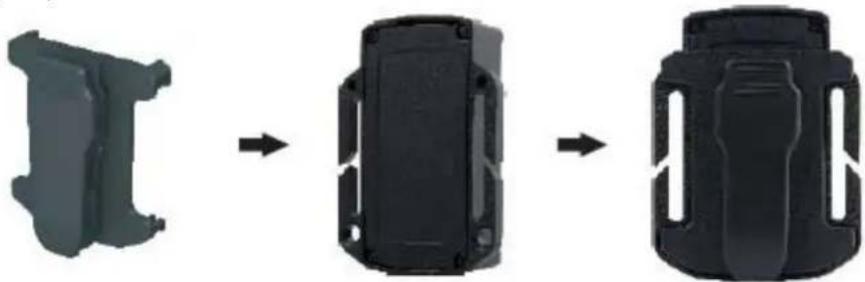
natural_image
Three black plastic mechanical components with cutouts, shown in progressive stages from left to right (no text or symbols visible)(3) Binding tape (optional)
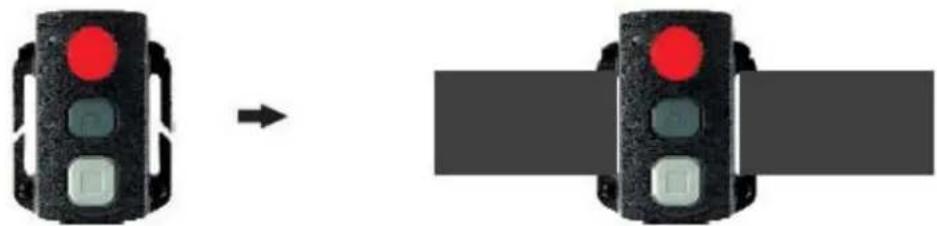
natural_image
Two identical traffic lights with red and green lights connected by an arrow, shown from different angles (no text or symbols)Operating Instructions:
Preparations before use:
(I) Start up and check the power
Turn the power switch to "ON" the system comes into play.
After the red indicator is bright constantly, the corresponding icons on LCD segment screen will be lightened to enter normal preview state.
At this time, it can view the following items on LCD segment screen:
A. Record mode: The current record mode can be viewed on the top left corner of LCD segment screen
“■” indicates the video recording mode and “☐” indicates the voice recording mode;
B. Photo shooting prompt: The shooting icon “ 📄 ” can be viewed on the LCD segment screen. The icon will twinkle once when shooting one photo;
C. Power icon: The power icon “💡” can be viewed on the top right corner of LCD segment screen. The icon will be bright constantly after the system coming into play; and the disappearance of the icon means FOOLISH is shut down or enters the standby state.
D. Video recording duration: Duration of the current video recording file is displayed on the middle line of LCD segment screen, such as "005:20". The video recording duration will start displaying when pressing "Record" key once, and it will stop when pressing "Record" key once again
Note:
The video recording duration respectively on LCD segment screen and TFT display screen is displayed synchronously ;
E. Indication of battery power: The battery power icon “◀◀◀” can be viewed on the bottom left corner of LCD segment screen and it will indicate the current battery power after starting up. More black grids indicate the higher power, and it is lower conversely.
Note:
The battery power indication icon will not display under standby or shutdown state;
F. USB Connection: The USB mode icon “ 🎨 ” can be viewed on the LCD segment screen and it indicates whether the machine is connected with the computer. The green indicator light on the left twinkles slowly. The icon will be lightened after connecting with computer in startup state and it will not be displayed when not connecting with computer.
G. TF card capacity indication: The TF card capacity icon “” can be viewed on the bottom right corner of LCD segment screen to indicate the capacity of TF card. More black grids indicate the higher spare capacity, and it is lower conversely. The green indicator light on the left remains on when the card is out of memory.
At this time, it can view the following items on TFT display screen:
A. Work mode: The video recording icon “” on the top left corner of TFT display screen indicates that it is in video recording standby state.
B. Battery power: The battery power icon “ 📄 ”on the bottom left corner of TFT display screen indicates the spare power of battery;
C. Resolution of video recording: 1080P/960P/720P/WVGA /QVGA on the bottom left corner of TFT display screen indicates that the system is in a 080P/960P/720P/WVGA /QVGA resolution video recording standby state;
D. Spare storage capacity: Information of whether it has external card “” and spare storage capacity “” can be viewed on the bottom right corner of TFT display screen:
E. It cannot respond to operations of "<" and ">" under the preview state;
F. FOOLISH can be charged with the attached power supply or USB cable. The "Red Indicator of Working/Charging" on the top of the machine will twinkle slowly in charging and it will be bright constantly after fully charging. The charging duration is about 3.5h.
Note:
Before use, please check if there is enough battery power. In case of a low battery power, please charge FOOLISH via the attached power supply or USB cable. The "Red Indicator of Working/Charging" will twinkle slowly in charging and remain red with the battery icon "###" displayed on the TFT display screen after charging.
(2) Format the micro SD memory
Format the Micro SD card Please select a high-speed Micro SD card only and format it on FOOLISH before recording any video and voice or shooting any photo. If the Micro SD card has ever been used on other devices, please format it on FOOLISH before any operation for normal usage.
Note:
Please confirm whether files in internal memory of FOOLISH and in Micro SD card are needed before operating;
* Locked files of FOOLISH also can be formatted to remove;
(3) Set the date/time
In preview mode, press "M" key to enter the menu interface, press ">”key to shift to the setup interface ", press key “-”to select the menu "Date/Time", and then press "OK" key to enter the setup interface of "Date/Time", (Note: To press "M" key can exit from the setup interface).
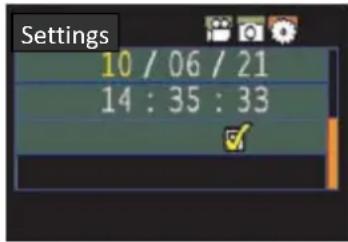
text_image
Settings 10 / 06 / 21 14 : 35 : 33The yellow number indicates the current cursor position. To press "<" or ">" key can move the cursor and select date or time, Press "OK" key to confirm, and this number will turn red and value of date or time can be changed. Then press "OK"
key again to finish; Finally, move the cursor to "√" key and press "OK" key to confirm date or time changed.
Parameter Settings
In preview mode, press "M" key to enter the menu interface, press "<" or "> " key to move the cursor left and right, and press "+" or "-" key to move the cursor up and down. After selecting the menu, press "OK" key to set the selected menu and to press "M" key again can exit..
(I) Setting of camera parameter:
a. Video image resolution: Select 1080P,960P,720P,WVGA or QVGA;
(720P/960P mode do not contain the setup options of 1080P mode and 1080P mode have no the QVGA mode)
b. Bit Rate: the sampling rate in transforming image into digital signals at the time of video recording.
Clear image requires high bit rate and large file size at the same time.
c. Laser synchronous shooting: Turn on or turn off the laser transmitter;
d. Shooting mode: Select video recording “ 🎨” or voice recording “ 🎩;
Note::
a. Under the voice recording mode, Press "Record" key once, the system starts recording, voice recording duration is displayed on the bottom of TFT display screen and the green indicator twinkles slowly; if press "Record" key again, the system will stop and save the current audio file recorded, the green indicator is off and the red indicator remains bright (the corresponding operating prompt is on LCD segment screen), and it returns to the preview mode.
b. The voice recording process only responds to operations of "Record", "Shutdown" and "VOX Switch" key; if turn on
"VOX Switch" in voice recording, the voice recording will be stopped and the file will be auto saved.
c. The laser icon will be displayed on the top left corner of the preview interface when turning on the function of laser synchronous shooting, which indicates the system is in this shooting mode. At this time, the laser will be turned on when starting recording and it will be turned off when stopping recording.
(2) Setting of camera parameter:
a. Single shot: The shooting mode is auto set in single shoot when starting up every time; To press "Shutter" once can take one photo;
b. Triple Shot: To press "Shutter" once can take three photos continuously;
c. Continuous shoot: Take one photo every 2s/3s/5s/10s/20s/30s, till to press key to stop or the card is full, or the power is run out;
d. Self shot: Select the self-timer delay time (0s, 5s or 10s);
Press “M” key to return to “Preview” state after selecting; press “Shutter” once, the system will start the timer and the self-timer indicator twinkles at the end of the delay time and it takes one photo. After finishing the self-timer for one time, the system will auto recover the shooting mode to single shooting. If the “Self-timer Delay Time” has been set, but the machine is restarted without pressing “Shutter” key, the machine will auto set the “self-timer Delay Time” at the state of 0s;
e. Image resolution: select 3M, 5M or 8M;
(3) Setting of system parameter:
a. Beep: Turn on or turn off the key tone;
Note: Voice of photo shooting and video recording cannot be turned off through this item. It only turns off the key operation voice and there is no switch to turn off voice of photo shooting and video recording in the machine system.
b. Self lamp: please turn it on or off before self timing;
Self lamp: please turn it on or off before self timing "ON"
c. Time display: Please set before using; the machine will auto record the shooting date and time when shooting image and display on the bottom right corner of the file;
d. Loop Coverage: Loop coverage: The video/audio file will be auto saved in segment once every 15 minutes when setting "Loop Coverage"; and if it is not set, the video/audio file will be auto saved in segment once every 30 minutes.
Note: The current actual segment file is determined by the file size set, but not determined by the true time, that is to say, the file will be segmented more than 15/30 minutes at a dark environment.
e. Auto standby: Select the auto standby time of 0, 2 minutes, 5 minutes or 10 minutes. In case of no any mission and operation after selecting, the system will start timing and FOOLISH will turn off input and output to enter the standby mode at the end of the time set. If there is any operation in timing, the system will re-time. If the video recording or shutter is operated in the -15- standby process, FOOLISH will be waked up. The default standby time is 5 minutes when selecting to restore the factory default;
f. TV output format: NTSC or PAL; the video format outputted to TV can be selected. If the selected format is changed, please unplug the AV cable and then reinsert it to update the parameters;
g. Format: After confirming that all files recorded are not needed to be saved, all files can be removed by formatting. Note: If there is no card inserted, the memory of the machine will be formatted; after inserting card, the system will format the card inserted, but not format the memory of the machine.
h. Factory default: The operation restores the parameter
settings to factory default. After restoring, the system will set the display mode of submenu of the "Menu" in English state. Press "M" key to enter the menu selection, press "<" or "> "key to enter the menu "Setup", press "-" key to select the option "Language", and then it can set in Chinese state. The system will set the time at 2011.01.01 after restoring factory default.
i.
Language: "English", "Simplified Chinese" or "Traditional
Chinese" can be selected via left or right key.
j. Light source frequency: Select the light source frequency 50Hz or 60Hz, depending on local grid frequency, in order to avoid the screen flickering in preview mode or in video recording.
k. Date/Time: Time can be adjusted and changed. It will be
displayed on the bottom right corner of the video file or photo file when recording or shooting;
Note: To press "M" key under the submenu may exit from it.
Operations:
I. Insert the Micro SD card.
2. Turn the power switch to "ON" to turn on FOOLISH, and the red indicator will be lightened and FOOLISH will enter preview mode.
Note:
a. In case of low battery power, you will find the battery icon "and the message "Low Power" on the TFT screen.
b. If no Micro SD card is inserted, you will find the Micro SD card icon 📄 on the TFT screen.
- Video recording:
(I) Manual recording:
Press "Record" key once in preview state, the system will start recording, the video recording duration will be displayed on the bottom right of TFT display screen, the "Green Indicator of Video/Voice Recording" and the frontal "Video Recording/Shooting Indicator (Red)" will twinkle slowly, and the recording duration on LCD segment screen is displayed normally. The video recording process only responds to operations of zoom In (+" key)/zoom out (-" key) function; if press "Record" key again, the system will stop and save the current video recording file, the frontal green indicator of video recording will be off, FOOLISH will return to the preview state, and the recording duration on LCD segment screen will be stopped displaying.
Note:
a. Turn the power switch to "OFF" in video recording, the system will save the current file recorded and then shut down;
b. If the battery power is low in video recording, the system will save the current file recorded and give the message "Low Battery" on TFT display screen until FOOLISH is turned off or auto enters standby mode;
c. If the memory space gets full in video recording, the system will save the current file recorded, give the message "Insufficient Memory" on TFT display screen, and go back to the preview mode. The video recording duration on LCD segment screen also will be stopped displaying.
d. In cyclic recording mode, the system will auto save a file every 15 minutes
e. After it is fully charged, it can continuously record time is about 2.5 hours; The continuous voice recording time is
about 3 hours;
f. In voice control mode, the system will start recording when the environmental voice is higher than 65dB and the green indicator will twinkle slowly; if the environmental voice is lower than 65dB and it lasts for 2 minutes, the system will auto save the 2-minute file recorded, the green indicator will be off, the red indicator will remain bright (the corresponding record stopping prompt will be displayed on LCD segment screen), and it returns to the preview state;
g. To press "+" or "-" key in voice recording mode cannot execute voice increasing/reducing operation; however, to press "+" or "-" key when recalling audio file can execute voice increasing/reducing operation;
h. Connect the machine to high-definition display device with HDMI cable in preview state, the basic operation of the machine can be finished on the high-definition display device; however, the digital zoom function cannot be realized in 720P/960P/1080P mode;
4. Photo shooting
You can set the image resolution before shooting photos. Press "M" key to enter the setup interface, pres ">u or "<" key to move the cursor to "☐"; select the menu "Image Resolution", and press "OK" key to enter the resolution setup menu. There are three resolution modes available for your selection:
● 3M: Photo shooting resolution of 2048x1536;
● 5M: Photo shooting resolution of 2592x1944;
● 8M: Photo shooting resolution of 3200x2400;
a. Single shot:
In preview mode, press "Shutter" once to shoot a photo with a "Click" sound, and the frontal red indicator will twinkle once (the photo shooting icon on LCD segment screen will twinkle once) and it will return to the preview state.
b. Triple Shot:
Press "M" key to enter the camera setup interface, press ">"or "<" key to move the cursor to " ",select the menu "Three Photos Continuous Shooting", and press "OK" key to confirm. Press "M" key to exit the setup interface after setting. Press "Shutter" once at this time, and FOOLISH will continuously shoot three photos.
c. Continuous shoot:
Press "M" key to enter the camera setup interface, press "> " key to move the cursor to ",select the menu "Continuous Shooting", and press "OK" key to set the continuous shooting interval time as (0, 2, 3, 5, 10, 20, 30 o 60 second).Press "M" key to exit the setup interface after setting the interval time. Press "Shutter" at this time,and FOOLISH will start shooting one photo every 2s, 3s,5s,10s20s,30s, till to press "Shutter" key again to stop.
d. Self Shot:
Press "M" key to enter the camera setup interface, press "> " key to move the cursor to ",select the menu "Self-timer", and press "OK" key to set the delay time as 0s,5s or 10s. Press "M" key to exit the setup interface after setting the delay time. Press "Shutter" once at this time, and FOOLISH will start the timer and shoot a photo at the end of the delay time.
Note:
a. If the memory space gets full, the system will give the message 'Insufficient Memory' (viewing on TFT display screen), and go back to the preview mode;
b. The setting of self-timer delay time is in effective once.
5. Voice recording
Press "M" key to enter the camera setup interface, select the menu "Shot Mode", press "OK" key to enter the selection interface, press "<" o "> "key to select "U", press "OK" key to confirm your selection, and finally press "M" key to exit the setup interface. Press "Record" key to start recording, and the green indicator twinkles slowly, the TFT screen displays the voice recording icon, and the timer is started.
Note: In case of re-starting or the system is waked up, it will recover to video recording mode.
6. File Recall
You can view the audio files, video files and photo files on FOOLISH. Press "C" key to enter the recall selection interface and press it again to exit. Select the menu "AV File" to view the audio and video files or select the menu "Photo File" to view the photo files. In case of many recalling files, time entering the preview interface will be extended.
(1) AV File
5elect the menu "AV File" and press "OK" key to view the recorded audio or video files. Press "-" key to enter the thumbnail preview mode.
You can press "Menu" key to delete or protect them when viewing video or audio files.
- Delete the current file;
- Delete all: Delete all audio and video files under no protection;
- Protect: Lock files to protect them; the icon “ ” will appear on the upper left corner of each protected file; repeat this operation to unprotect the protected files; no operation can delete the protected files except formatting.
a. Audio file:
Press "<" or ">" key to select an audio file, and to press "OK" key can play/stop it. In playing, you can press "+"key and "-" key to adjust the volume and press "?"key to pause/ play the file.
Note: No function of fast forward and fast rewind in audio file. In playing video/audio files, to press "OK" key can enter file preview state; at this time, press 🔔 "key to exit from file recall mode.
b. Video file
When playing a video file, you can press the following keys to execute operations:
● “+”: Increase the volume;
● “-”: Reduce the volume;
- "<":Fast rewind;
● “>”:Fast forward;
- “ ”:Press it to pause playing and press it again to resume playing;
● Key "Ok": Start/stop playing video file.
Note: Fast rewind can be set as twofold or fourfold, Forward/Reverse can be set at 1/2X or 1/4X speed.
(2) Photo file
Enter the photo file recall interface, press "-" key to preview the photo file thumbnails, and then press "OK" key to view the selected file. When viewing a photo file, you can press the following keys to execute operations:
- “+”:Zoom in the current photo;
- “-”:Preview the photo file thumbnails or zoom out the current photo;
- "<":Select the left photo, or press it to move the photo up in zoom-in mode;
- “>”:Select the right photo, or press it to move the photo down in zoom-in mode;
- “OK” key: to press “OK” key after zooming in the photo can move the photo horizontally and vertically via
combining with "Up", "Down", "left" or "right" key.
- “ ”:Press it to exit the photo view interface;
- Press "Menu" key in view mode to execute the operations below:
- Delete: Delete the current photo file (The deletion selection of "☐" and "☐" will appear after pressing "OK" key twice and select "☐" to delete);
- Delete all: Delete all photo files under no protection;
- Protect: Lock files to protect them; the icon " [RENT] will appear on the upper left corner of each protected file; repeat this operation to unprotect the protected files; no operation can delete the protected files except formatting;
• Auto play the photo files in the folder at an interval of 5s; - DPOF:When viewing a photo file, if you press "M" key to enter the setup interface and select the menu "DPOF", the icon "☐" will appear on the upper left corner of this file.
About DPOF
As a standard to record the print orders sent to the Micro SD card, DPOF (Digital Print Order Format) is applicable to the photos shot by digital cameras. You can designate the photos to be printed and the number of their copies. The following operations can be executed if your digital camera is DPOF compatible:
- Insert the Micro SD card into a DPOF compatible printer to output the photos as ordered.
- The printer compatible with your camera can follow the DPOF orders to print the photos
Note:
(I)The DPOF printing requires a Micro SD card with preset DPOF information. It will fail if you simply select the photos from the Micro SD card and try to print them.
(2) Some DPOF compatible printers and digital photo developing shops may fail to print the photos based on the specific settings. If this is the case with your printer, please refer to the User Manual attached to it. In another case, please check the DPOF compatibility with the digital photo developing shop.
(3) If the DPOF information of the Micro SD card has been set by another camera, please do not insert this card into FOOLISH to reset the DPOF information, or the DPOF information may be invalid or covered. Sometimes, special photo types make it impossible to set the DPOF information.
7. Remote control
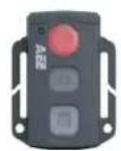
You can use the attached remote control of FOOLISH to control the video recording, photo shooting, stopping and laser function turning on/off. The red indicator on the remote control will twinkle once when you press any of the following keys:
Record Shutter-Stop Pausa
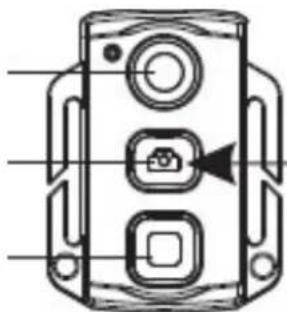
natural_image
Diagram of a device casing with three buttons and a cursor arrow (no text or symbols)long press "Shutter" key for 3 s can turn on and turn off the laser function
(A03)
Please follow the steps below to code the remote control before use to realize the correspondence of remote control and FOOLISH :
- Turn off FOOLISH, press and hold "Record" key, turn the power switch to "ON", and then release "Record" key. To conclude the process of synchronization (hold "Record" of FOOLISH) press the "Stop" and "Record" button once for 3 seconds. After successfully synchronized the remote control, you will hear a double beep.
Note:
a. Use wireless remote control to control FOOLISH can check whether the code pairing is successful. The control functions include: Video recording starting/stopping, photo shooting, waking in standby mode, and laser light turning on/off; FOOLISH will tick once for each operation. In case of video recording stopping or laser light turning off, FOOLISH will tick twice;
b. Remote control range: Remote control within 15 meters in any angle horizontally without barriers
c. To press "Record", "Shutter" or "Stop" key on the remote control in standby mode can wake up the system
8. Standby mode:
A. Non-voice control standby:
Push the VOX switch to "OFF" and turn the power switch to "ON", the system will start working and it will enter preview state after finishing initialization. In case of no any mission and operation, the system will auto enter standby power-saving mode at the end of the auto standby time set. Press "Record" or "Shutter" key at this time, or remote control any key on the remote control, the system will be waked up.
Note:
a To press keys on TFT screen in standby mode cannot wake up the system;
b The LCD segment screen does not display anything in standby mode.
B. Voice control Standby:
Push the VOX switch to "ON" and turn the power switch to "ON", the system will start working and it will enter preview state after finishing initialization. In case of no any mission and operation, and the environmental voice is lower than 65dB continuously, the system will auto enter standby power-saving mode at the end of the auto standby time set. Press "Record" or "Shutter" key at this time, or remote control any key on the remote control, the system will be waked up. When the environmental voice is higher than 65dB, the system will wake up and enter video recording state.
Note:
a To press keys on TFT screen in standby mode cannot wake up the system;
b The LCD segment screen does not display anything in standby mode.
9. AV output connection:
In preview state, connect FOOLISH with the display device with AV cable, and then all functions of FOOLISH can be operated.
Note:
After connecting with audio and video display device, TFT screen on FOOLISH and the voice will be turned off, and the audio and video will be displayed on the display device. LCD segment screen on FOOLISH will display the corresponding function operations normally.
- HDMI output connection: In preview state, connect FOOLISH with the high-definition display device with HDMI cable, and then functions of 5D19 can be operated; however, digital zoom function cannot be operated in720P/1080P mode;
Note:
a. After connecting with HDMI display device, TFT screen on FOOLISH and the voice will be turned off, and the audio and video will be displayed on the display device;
b. FOOLISH may be in abnormal state if the HDMI cable is inserted or unplugged improperly when connecting. It can be recovered after re-starting and LCD segment screen will display the corresponding function operations normally.
II. USB connection:
a. When there is no preset battery in FOOLISH, use USB power adapter to connect with FOOLISH, all functions can be operated (meanwhile, LCD segment screen and TFT display screen will display the corresponding operation prompts);
b. In startup state, use USB cable to connect with the computer; data stored in FOOLISH memory and the Micro SD card can be read (at this time, LCD segment screen will display the USB connection state icon);
c. FOOLISH may be in abnormal state if the USB cable is inserted or unplugged improperly when connecting, and re-start to recover.
- Prompt of key tone:
a. Press "Record" or "Shutter" key once in normal using, FOOLISH will tick once to indicate the effective operation;
b. When stopping video recording, FOOLISH will tick twice;
c. FOOLISH will tick twice to indicate the successful code pairing;
d. Press "Shutter" key in video recording, FOOLISH will not give prompt;
e. When operating on TFT display screen, press "Menu" key in preview state, press ">" or "<" key to enter the menu "Setup", press "+" or "-" key to select the menu "Key Tone", and then you can turn on or turn off the key tone;
f. If the system is in video recording, press "Stop" key on the remote control once, FOOLISH will tick twice to indicate the video recording stopping;
g. If the system is in video recording, press "Shutter" key on the remote control once, FOOLISH and horn on TFT display screen will not give any prompt;
h. Press any key on the remote control in standby state, FOOLISH will tick once to wake up the main system.
- Prompt of laser light
a. After starting up, long press "Record" key for 3s in any state, the system will lighten the laser light;
b. Long press "Record" key for 3s when turning on laser light, the system will turn off the laser light;
c. The laser light turning on/off also can be operated in standby state;
d. The wireless remote control can execute laser light turning on/off operation.
Note:
The function of long pressing "Record" key for 3s to turn on/off laser light does not interfere with the setting of turning on "Laser Synchronous Shooting" under the camera parameter setting.
- Turn On/Off TFT Display
a. In any status, long pressing Shutter key for 3 second to turn on or off TFT display;
b. TFT display can't be turned on or off by pressing Shutter key on remote control;
File Storage and Play
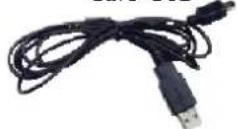
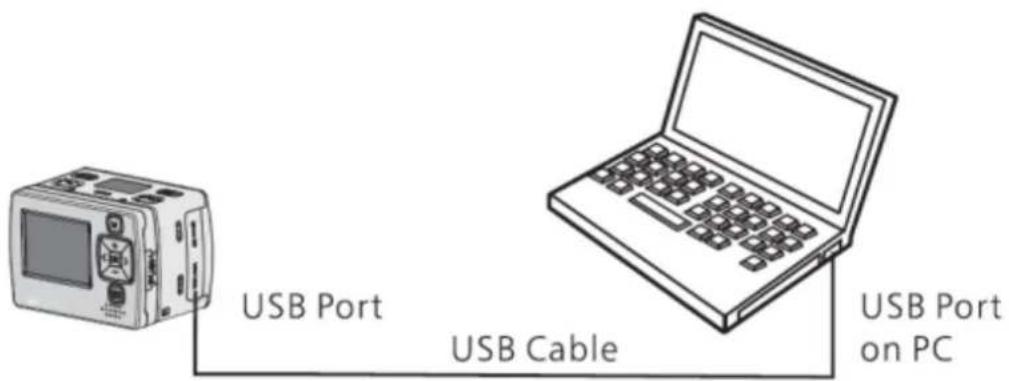
① USB Cable
You can copy or cut the recorded video files to your computer via the USB cable, or remove the Micro SD card and insert it into a card reader to read the video data. Then, you can select our software from the attached CD or such recommended software as Media Player and KM Player to play the videos.
text_image
USB Port USB Cable USB Port on PCNote:
(1) Please turn off the FOOLISH before inserting or unplugging the USB cable.
(2)Turn the power switch to "OFF" before charging
FOOLISH. The red indicator will twinkle slowly in charging.
(3) You can directly copy or cut the recorded files to your computer when the power switch is turned to "ON".
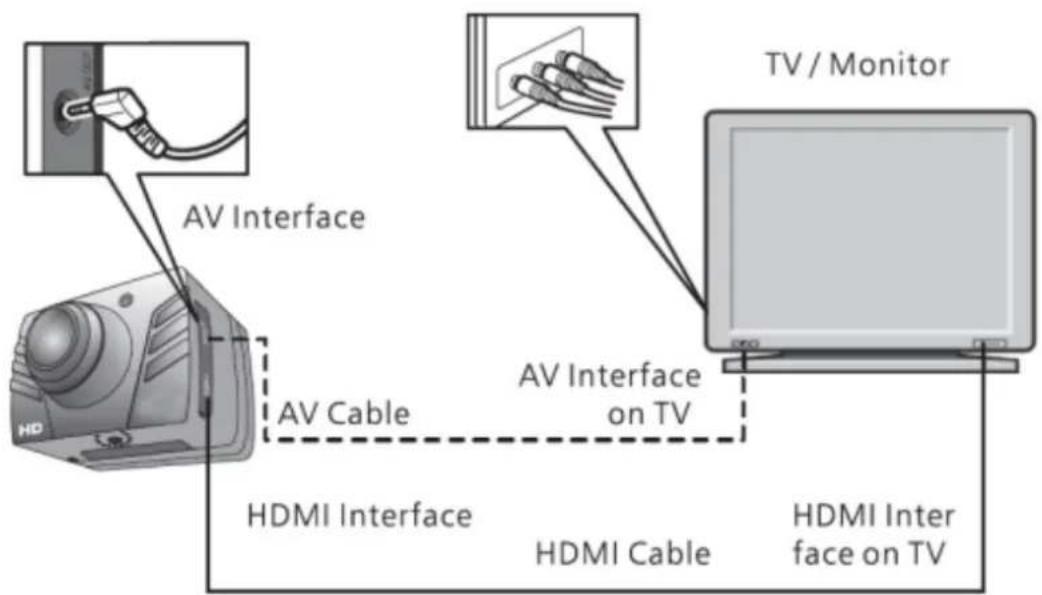
② HDMI and AV cable
You can also use the HDMI cable or AV cable to connect FOOLISH to a TV or monitor with HDMI interface, in order to play the recorded files.
flowchart
graph TD
    A[" projector"] -->|AV Cable| B["TV Monitor"]
    B -->|AV Interface on TV| C["Monitor"]
    C -->|AV Interface on TV| A
    style A fill:#f9f,stroke:#333
    style B fill:#ccf,stroke:#333
    style C fill:#cfc,stroke:#333
Note:
(1) After connecting FOOLISH to the monitor via the HDMI cable, please select the input source for the monitor to display the data from FOOLISH.
(2) If you select the AV cable, please connect each of its terminals to the relevant TV or monitor terminal in the same color.
(3) Please adjust the parameters of the monitor to optimize the image effect.
Adapter
This product always conforms to the authenticated AC adapter. The adapter should be marked one of the following:
NOTICE:
When using the power adapter, make sure the rating voltage on it is compatible with that of the device to avoid potential damages resulting from incorrect usage of power supply
Standard Accessories
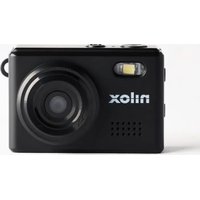
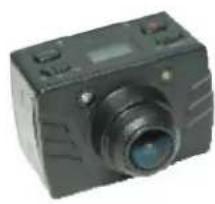
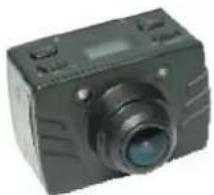
Main body
Display TFT
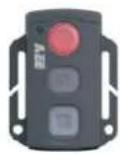
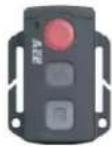
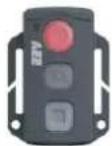
Remote control
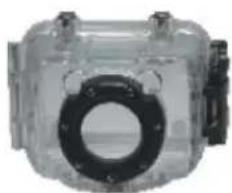
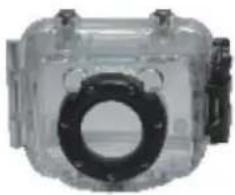
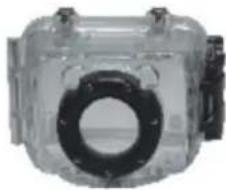
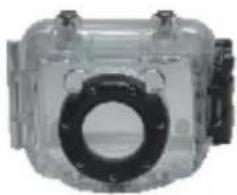
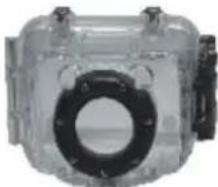
Waterproof case
natural_image
Black digital camera with lens and control panel (no visible text or symbols)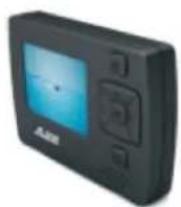
natural_image
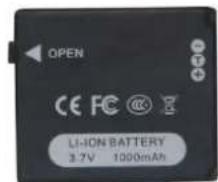
Transparent plastic camera housing with a black circular opening and mounting feet (no text or symbols visible)Battery
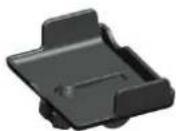
Accessory for flat installation
A69 Flat accessory
A67 Accessory for L helmet
text_image
OPEN CE FC @ F LI-ION BATTERY 3.7V 1000mAh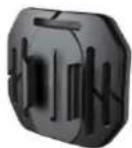
natural_image
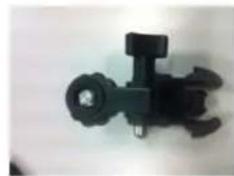
Close-up of a black mechanical clamp or bracket component (no visible text or symbols)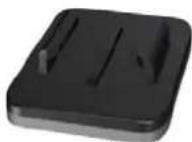
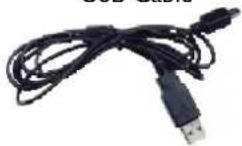
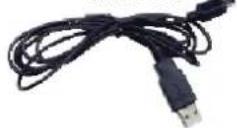
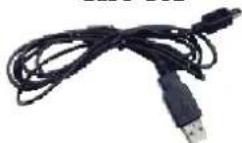
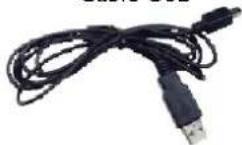
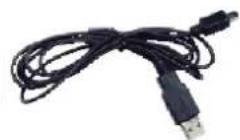
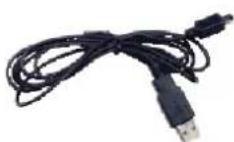
USB Cable
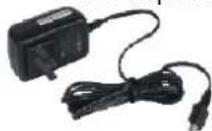
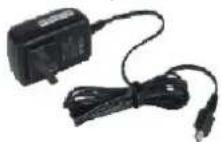
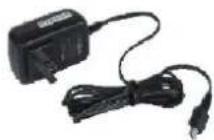
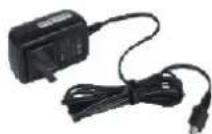
AC Adapter

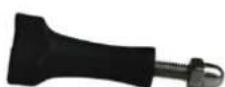
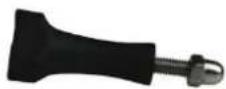
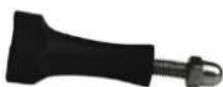
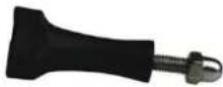
long screw
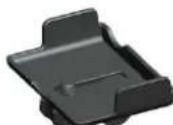
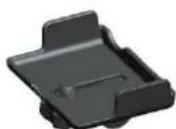
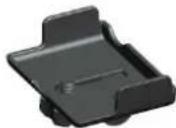
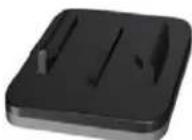
Support
Note:
(1): The actual items may be different from the pictures.
Package is subject to change without prior notice.
(2): The actual accessories may vary with configuration listed here, depending on the configuration of the product you purchase.
Specifications & Parameters
| View Angle | 175° |
| Pixel | 8.0 Mega SENSORE CMOS (2592*1944) |
| Battery | 1000mAh Lithium Battery |
| Power Consumption | 350mA@ 3.7V (MAX) |
| Video Recording Duration | About 2.5 h |
| Voice Recording Duration | About 3 h |
| Video control standby Duration | About 250 h |
| Storage temperature | -20°C ~ 60°C |
| Operating temperature | -10°C ~ 50°C |
| Operating humidity | 15~85%RH |
| Memory Card | Micro SD/MMC |
| Charging Duration | About 3.5 h |
| Micro SD Card Capacity | 64GB SDHC Max. |
| File storage | Normal: 30 Minutes/Segment; loop: 15Minutes/Segment |
| Video recording | 1080P (1920x1080) (applicable for 1080P)960P (1280x960) (applicable for 1080P)720P/60 (1280x720) (applicable for 1080P)720P/30 (1280x720)WVGA (848x480)QVGA (320x240) (applicable for 720P) |
| Video Format | MOV |
| Voice Format | WAV |
| Photo shooting | Resolution available: 3M, 5M, or 8M JPEG |
| USB port | USB 2.0 |
| Remote Control Range | 5 Meters |
| Operating system | Windows XP /Vista o Above/Win 7/ Mac OS |
| Weight | 90g (without screen)/116g (with screen) |
| Dimension | 60mm x 58mm x 42mm |
Note:
Specifications are subject to minor change with upgrade and update. Please base on real object.
Notices for Waterproof Case
The water-proof casing shall be installed precisely. Please notice following items during operation:
- Do not disassemble and refix the sealing ring of casing, keys and lens cover by yourself. Otherwise, the sealing of water-proof casing may be affected.
- Do not place the casing in those environments where exist corrosive gas such as strong acid or alkali; and keep it away from chemicals and other corrosives.
- Do not put water-proof casing in high (above 50^ C) or low ( -10^ C) temperatures for long period of time to avoid casing deformation.
-
Do not expose the casing under direct sunshine for a long time to avoid deteriorating its waterproofing performance.
-
Before using the casing, it's advised to check whether the seal rings are under good condition, whether there are foreign objects at the sealing joints, whether the casing is well sealed and tightly buckled.
- After using the case in sea water, please clean and flush it by fresh water firstly, and then use a dry cloth to wipe the surface and put the device in a cool and ventilated place.
Suggestions
I. The surface of camera might be warmed up after a long working time;
2. if the camera would not be used for a long time, it's advised to take out batteries and charge every six months to keep them in good working condition;
3. The function of digital zoom shall reduce the image quality slightly;
4. The angle of view might vary with different working modes;
5. It's advised to play larger video files by computer or other professional players to realize smooth playing.
Please read this user manual carefully and thoroughly before any attempt to install and operate this product and keep it for your future reference.
Contenidos
Advertencias 2
Prólogo....2
QVGA (320×240) 30f/s;
modelos 720P
flowchart
graph LR
    A["Red Light Source"] --> B["White Rectangular Device"]
    B --> C["Black Rectangular Device"]
(2) Clip
natural_image
Three-step assembly of a black plastic enclosure, showing front, side, and top views (no text or symbols)natural_image
Two identical traffic lights with red and gray buttons, connected by an arrow to a blank rectangular area (no text or symbols)text_image
USB Port USB Cable USB Port on PCNota:
Mando control remoto
Carcasa impermeable
natural_image
Black digital camera with lens and control panel (no visible text or symbols)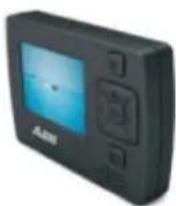
natural_image
Transparent plastic camera housing with a black circular opening and mounting feet (no text or symbols visible)natural_image
Close-up of a black mechanical component with a central hub and mounting holes (no visible text or symbols)
cable USB
AC Adaptador
Tornillo
soporte
Nota:
flowchart
graph LR
    A["Red Light Source"] --> B["White Box"]
    B --> C["Black Sensor Module"]
(2) Clipe
natural_image
Three-step assembly of a black plastic housing component, shown from front to side (no text or symbols)natural_image
Two identical traffic lights with red and blue lights connected by an arrow, shown from different angles (no text or symbols)Modalidade de uso:
natural_image
Diagram of a device front panel with control buttons and an arrow pointing to the bottom panel (no text or symbols present)text_image
USB Port USB Cable USB Port on PCNotas:
natural_image
Black digital camera with lens and control buttons (no visible text or symbols)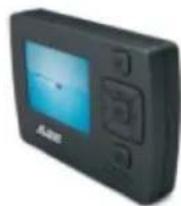
natural_image
Transparent plastic camera case with black ring and adjustment knob (no text or symbols visible)Bateria
natural_image
Close-up of a black mechanical component with multiple arms and a central hub (no visible text or symbols)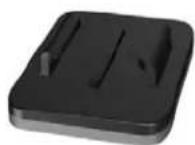
Cabo USB
Adaptador AC
Parafuso comprido
Suporte
Nota:
flowchart
graph LR
    A["Red Light Source"] --> B["White Box"]
    B --> C["Black Box"]
(2) Clip
natural_image
Three-step assembly of a black plastic housing component, shown from front to side (no text or symbols)(3) Sangle (facultative)
natural_image
Two identical black traffic lights with red and blue indicators, connected by an arrow to a gray rectangular object (no text or symbols visible)Mode d'emploi :
text_image
USB Port USB Cable USB Port on PCRemarque :
natural_image
Black digital camera with lens and control buttons (no visible text or symbols)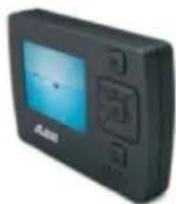
natural_image
Transparent plastic camera case with black ring and mounting tabs (no text or symbols visible)natural_image
Close-up of a black mechanical clamp or bracket component (no visible text or symbols)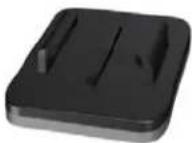
Câble USB
Adaptateur CA
Vis longue
Support
Remarque :
flowchart
graph LR
    A["Red Light Source"] --> B["White Box"]
    B --> C["Black Sensor Module"]
(2) Einhängeclip
natural_image
Three-step diagram showing a device component before and after processing, with no visible text or symbols.natural_image
Two identical black traffic lights with red and gray buttons, connected by an arrow to a gray rectangular bar (no text or symbols)natural_image
Diagram of a device rear panel with three circular ports and an arrow pointing to one (no text or symbols)text_image
USB Port USB Cable USB Port on PCAchtung:
natural_image
Black digital camera with lens and control buttons (no visible text or symbols)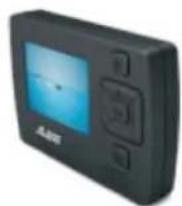
natural_image
Transparent plastic camera housing with black circular ring and mounting tabs (no text or symbols visible)Batterie
Flächen-Zubehör
A69
A67
(Flächen-Zubehör)
natural_image
Close-up of a black mechanical clamp or bracket component (no visible text or symbols)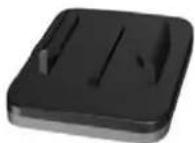
USB Kabel
AC Adapter
lange Schraube
Hänger
720P(1280x720) 30f/s,
WVGA (848x480) 60f/s,
natural_image
Three-step diagram showing a device component before and after processing, with no visible text or symbols.natural_image
Two black-and-white traffic lights with red and gray buttons, connected by an arrow to a gray rectangular bar (no text or symbols)b. If no Micro SD card is inserted, you will find the Micro SD card icon " [icon] " on the TFT screen.
- Εγγραφή βίντεο :
natural_image
Line drawing of a laptop with visible keyboard and front panel (no text or symbols)Θύρα USB στο PC
Σημείωση:
natural_image
Black digital camera with lens and control buttons (no visible text or symbols)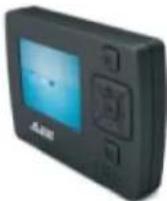
natural_image
Transparent plastic camera housing with a black circular opening and mounting tabs (no text or symbols visible)natural_image
Close-up of a black plastic mechanical component with no visible text or symbolsΕξάρτημα καμπύλωσης
Καλώδιο USB
Προσαρμογέας
AC Σετ βιδών
Μέρος
Συγκράτησης
22\~