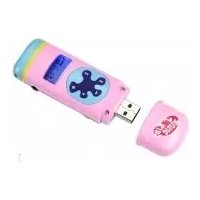
MP600 - Mp3 player Difrnce - Free user manual and instructions
Find the device manual for free MP600 Difrnce in PDF.


| Product type | Digital MP3 player |
| Brand | Difrnce |
| Model | MP600 |
| Memory capacity | 128 MB / 256 MB / 512 MB / 1 GB / 2 GB (depending on version) |
| Display | OLED with status icons |
| Interface | USB 2.0 full speed |
| Power supply | Rechargeable lithium battery via USB |
| Supported audio formats | MP3 (32-384 kbps), WMA (64-128 kbps), WAV |
| Signal-to-noise ratio | 90 dB |
| Headphone output power | 9 mW x 2 (32 ohms) |
| Operating systems | Windows 98SE / Me / 2000 / XP, Mac OS |
| Dimensions (W x H x D) | 32 x 94 x 16 mm |
| Weight | 35 g |
| Main functions | MP3/WMA playback, voice recording, USB key function |
| Package contents | Player, earphones, USB cable, charger, CD with driver, manual |
| Care and cleaning | Clean with a soft, dry cloth. Do not expose to moisture. |
| Safety | Use only the supplied charger. Do not expose to extreme temperatures. |
| Spare parts and repairability | Built-in battery not replaceable by user. Contact customer service. |
Frequently Asked Questions - MP600 Difrnce
User questions about MP600 Difrnce
0 question about this device. Answer the ones you know or ask your own.
Ask a new question about this device
Download the instructions for your Mp3 player in PDF format for free! Find your manual MP600 - Difrnce and take your electronic device back in hand. On this page are published all the documents necessary for the use of your device. MP600 by Difrnce.
USER MANUAL MP600 Difrnce
Technological specifications
Introductie
text_image
Removable Disk (E:) This disk or device contains more than one type of converts. What do you want Windows to do? Play using Windows Media Player Open folder to view files using Windows Explorer Take no options Print the pictures using Photo Painting Wizard View a slideshow of the images using Windows Picture and Fox Viewer Copy pictures to a folder on my computer OK Canceltext_image
Safety Remove Hardware Select the device you want to unplug or react, and then click Stop. When Windows notifies you that it is safe to do so unplug the device from your computer. Hardware devices USB Max Storage Device USB Max Storage Device or Generic USB Disk Device Properties Display device components CloseNederlands
text_image
Stop a Hardware device Confirm devices to be stopped. Choose OK to continue. Windows will attempt to stop the following devices. After the devices are stopped they may be removed safety. USB Mass Storage Device Generate volume - [E:1] GENERIC USB DISC DEVICE USB Device OK CancelInformation in this document is subject to change without notice.
No part of this document may be reproduced or transmitted in any form or by any means, electronics or mechanical, including photocopying and recording or translated to another language for any purpose without the prior written consent of the manufacturer.
All brand names, logos and registered trademarks mentioned are property of their respective owners.
© 2006. All right reserved.
Version 1.0 091006
Please read this booklet and note the warning statements before using the product.
Warning! Improper use of charger might cause the battery to turn hot or explode.
English
Table of Contents
Introduction 3
Features 3
Package Contents 3 Overview 4
Buttons Operation 5
Display 5
Power On and Off....5 Entering Main Menu Page....7
Entering Main Menu Page Play Music 7
Skip a Song 7
Fast Forward and Backward 7
Driver 8
Downloading MP3 and WMA songs 9
Disconnecting the USB Cable 10
Formatting the Internal Memory 11
Trouble Shoot 12 Technical Specifications 12
Technical Specifications: 13
English
Introduction
Thank you for choosing our digital MP3 player. You can use this versatile MP3 player not only for playing MP3 and WMA songs, but also recording voice and serving as a USB flash disk.
Features
● Large OLED display
● Support MP3 (MPEG1/2 Layer2), WMA
- USB mass storage function for data storage
● Lithium battery supports long playing time
- No driver installation is required (except Windows® 98/98SE)
Package Contents
- User's manual
● Standard earphones - USB cable
- Charger
- CD including the driver
English
Overview
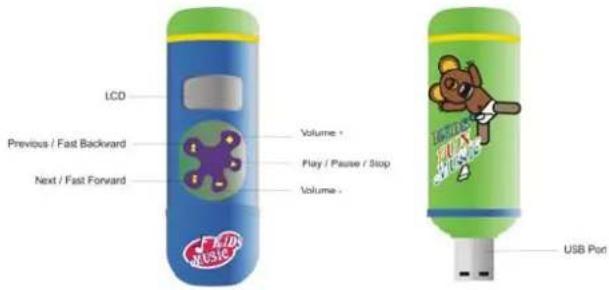
Front and Back
text_image
LCD Previous / Fast Backward Next / Fast Forward Volume * Play / Pause / Stop Volume * USB PortLeft
text_image
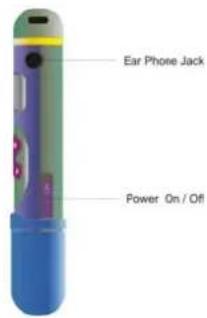
Ear Phone Jack Power On / OffEnglish
Buttons Operation
| Operation | |
| EARPHONES JACK | Insert the earphones into the earphones jack |
| USB PORT Connect | the USB cable to the USB port of the computer for uploading the songs |
| NEXT/FAST FORWARD | In PLAYING mode, press the button and release it immediately to jump to next songUnder Menu or Sub-menu page, press the button and release it immediately to jump to next menu itemsIn PLAYING mode, press the button and hold it to fast forward |
| PREVIOUS/FAST BACKWARD | In PLAYING mode, press the button and release it immediately to jump to previous songUnder Menu or Sub-menu page, press the button and release it immediately to jump to previous menu itemsIn PLAYING mode, press the button and hold it to fast backward the song |
| PLAY/PAUSE/STOP | In IDLE mode, press and hold the button to turn on the playerIn STOP mode, press and hold the button to turn off the playerIn STOP mode, press the button to play the songsIn PLAYING mode, press the button to pause the playing song |
| VOLUME + Press and hold the button to increase the volume | |
| VOLUME - Press and hold the button to decrease the volume | |
| DISPLAY Display the operating status and lyric | |
Display
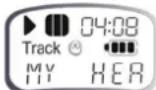
| Display Icon Function | |
| StatusShow play / pause / stop of the music | |
| Battery Level | Show the battery level. |
| The Duration of the Playing MusicShow the playing song currently | |
| The Name of Playing SongShow the playing song currently |
Power
Power On
Press and push POWER button to turn on the player.
Power Off
Press and push POWER button to turn off the player.
Battery Level
The battery icon 🎯 on the display shows the battery level.
Low Battery
When the battery icon shows in ☐, it indicates the battery power is running out.
Charge Battery
Use USB cable to connect the unit and power charger for recharging.
-When the battery icon shows in USB, it indicates the battery is charging.
-When the battery icon shows in nearly 80%.
-When the battery icon shows in (icon blinking), it indicates the battery is full.
Note: 1. Do full charge the battery before the unit is used for first time.
- Re-charge the battery if the unit is not used for a long time.
Music
1 After turn on the Power, switch the player on by press and hold the PLAY / PAUSE bottom. The display shows as below.

2 Press the PLAY/ PAUSE button to enter the Playing Song mode. Note: Only .MP3 and .WMA format will be played under Playing Song mode.
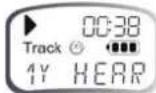
3 Press and hold the PLAY / PAUSE button to pause the music.
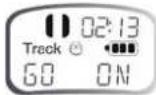
4 Press and hold the PLAY / PAUSE button for 2 seconds to stop the music.
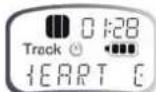
Skip a Song
Press PREV/NEXT button and release it immediately to jump to next or previous song.
Fast Forward and Backward
Press PREV/NEXT button and hold it to fast forward or backward.
Note: Refer to Overview section for detailed buttons operation.
Driver
System Requirements
● PC with Pentium class or faster processor
64MB RAM
USB
● CD-ROM drive for software installation
● 30MB free hard disk space
- Windows® 98SE
Windows® 98 and MAC OS
Windows® 98 (first edition) and MAC-OS are not supported.
Windows® 98SE
If the player is running on Windows® 98SE, please install the driver by going through the following instruction in details before using the player. The driver must be installed on your computer to make your player work properly with your computer. Please skip the following instructions for driver installation.
Step 1. Before you install the driver, please don't connect the player to the computer
Step 2. Insert the CD into your computer, click Setup.exe and the installation will start.
Step 3. Follow the on-screen instructions to complete the driver installation and restart your computer.
Step 4. Connect the player to your computer and a Removable Disk will appear for drag-and-drop of the music files
*Note: For Windows®Me/XP platform, it is unnecessary for installing driver before using.
English
Downloading MP3 and WMA songs
Note: The screens shown below applies to Windows® XP, other version of Windows® may display slightly different screens.
Step 1: Ensure your player is on. Step 2: Tightly plug the USB cable to the USB ports of your computer and player.
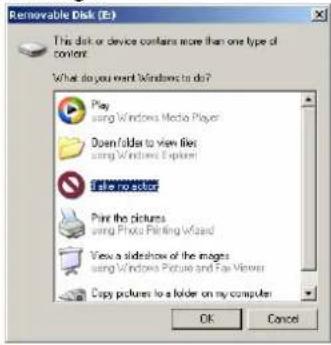
Step 3: Once the plugging is done properly, the following screen will display. If this screen doesn't show, please re-plug the USB cable again. Note: Please ignore the following screen if you are not using Windows® XP.
Step 4: Choose Open folder to view files.
text_image
Removable Disk (E:) This disk or device contains more than one type of contents. What do you want Windows to do? Play using Windows Media Player Down/folder to view files using Windows Explorer Enter objects Print the pictures using Photo Printing Wizard View a slideshow of the images using Windows Picture and Fan Viewers Copy pictures to a folder on my computer OK CancelStep 6:Drag and drop .MP3 and .WMA music file into Removable Disk.
Note: You are allowed to create any directories and files in Removable Disk.
The file in extension of .LRC is the lyric file that stores the lyrics synchronous with its song. Please refer to Editing Lyrics section for details.
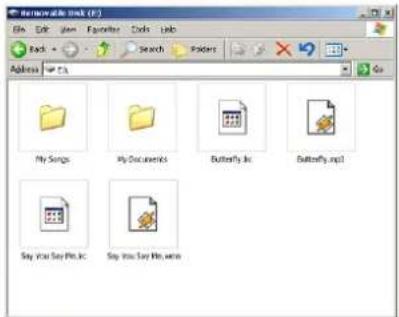
text_image
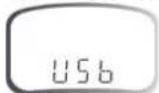
My Songs My Documents Butterfly Inc Butterfly Iraq Say you Say Pkt, Inc. Say you Say Pkt, Inc.Display of the device will show below while connecting to the computer.
English
Disconnecting the USB Cable
Before you disconnect the USB cable from your player or computer, please note the following procedures should be done for safety removal.
Note: Please ignore these procedures if you are using Windows®98/98SE.
Note: "Busy..." will appear during downloading or uploading the files, please don't disconnect the USB cable or turn off the player at this moment. If "Busy..." disappears on the display, you are allowed to disconnect the cable.
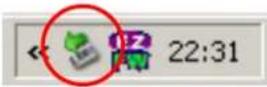
Step 1: Double click the Removable Disk, which's at the right-bottom corner of your desktop.
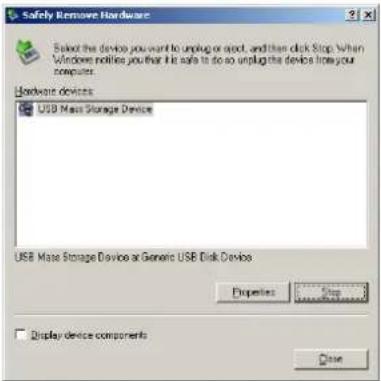
Step 2: The following window will appear. Click Stop button.
text_image
Safety Remove Hardware Select the device you want to unplug or spool, and then click Stop. When Windows notifies you that it is safe to do so unplug the device to your computer. Hardware devices: USB Maste Storage Device USB Maste Storage Device or Generic USB Disk Device Properties Stop Display device components SaveEnglish
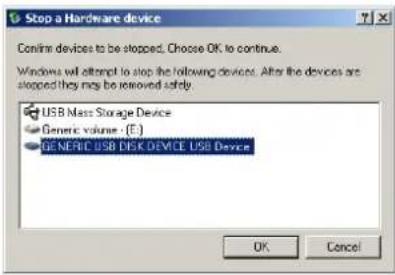
Step 3: Another window will pop up. Select "GENERIC USB DISK DEVICE USB Device" and click OK button to confirm.
text_image
Stop a Hardware device Confirm devices to be stopped. Choose OK to continue. Windows will attempt to stop the following devices. After the devices are stopped they may be removed safely. USB Mass Storage Device Generic volume : (E:) GENERIC USB DISK DEVICE USB Device OK CancelStep 4: Click Close button to exit the window. You are allowed to disconnect the USB cable from the USB port of your computer.
Formatting the Internal Memory
Note: This formatting procedure will cause all files in the player lost.
Using the Formatting in Windows®
- Click My Computer your desktop.

on
-
And you will see a Removable Disk, right click on Removable Disk and click Format on the menu.
-
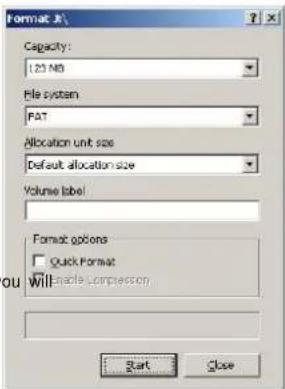
After you clicked Format, you see the following screen and click Start button to start formatting.
text_image
Format 8 Capacity: 123 MB File system PAT Allocation unit size Default allocation size Volume label: Format options □ Quick Format Will enable compression Start CloseEnglish
Trouble Shooting
| Symptom | Reasons | Solution |
| Press the POWER button, the display does not turn on | The battery run out Charge battery | |
| After plugging the player into the USB port of your computer,Removable Disk Drive cannot be found in My Computer | It runs in the default MTP Player status | Change the MTP Player mode into USB Storage Mode accordingly |
| The software utilities of the player (included in CD) conflicts with other software drivers which were installed on your computer | ● Uninstall the software utilities of the player ● Restart your computer ● Re-install the software utilities again | |
| Your motherboard doesn't support the USB connection | Contact the manufacturer of your motherboard to upgrade the motherboard driver | |
| The music file on the player cannot be deleted | The attribute of the music file sets asRead Only | Change the attribute of the music file |
| The playing time displays in disorder when playing a mp3 music | A mp3 music file is currently compressed in VBR format, which can vary the compression speed of a mp3 music. When the mp3 music is playing, the variable speed will cause the playing time displays in disorder | Compress the mp3 music in fix compression speed rather than variable compression speed |
| When the player is connected or disconnect to/from your computer, there is an unusual error on the computer | It's due to the sudden disconnection of USB port during transferring the files | It is recommended the user should not suddenly unplug the player from the USB port of computer when the files are being transferred or the internal memory is being formatted. |
| My player can't play the mp3 music files | Most of mp3 music files in the market are compressed in MPEG1, MPEG2, LAYER3 standard. In earlier days, some mp3 music are compressed in MPEG1 LAYER1 and MPEG1 LAYER2. Please note our player doesn't support MPEG1 LAYER1, MPEG1 LAYER2 or an mp3 compressed in more than one compression standards. | If the mp3 player can't play the mp3 music file, skip to the next song until the mp3 music files are not compressed in MPEG1 LAYER1 /MPEG1 LAYER2. |
| Delete those files which can't be played in the player | ||
| Change the compression standard of a mp3 music file in MPEG1 LAYER3 | ||
| If the music file can't be played normally or you hear a long beep sound | The player doesn't support such compression standard of the playing music file | The player just can support MPEG1 MPEG2 LAYER3 and WMA music files |
English
| Out of the range of compression speed | The range of MP3 compression speed: 32Kbps~384KbpsThe range compression speed: 64Kbps~128Kbps | |
| Tips: If you don't know the compression standard and speed of the music file, you should use those common music players (i.e. Winamp) to check the music information. | ||
| the USB cable | No driver was installed on Windows® 98/98SE | Install driver The computer ca |
| Unsafely remove the USB cable | Format the internal memory | |
of WMA
Technical Specifications
| Capacity 128MB/256MB/$12MB/1GB/2GB Flash Memory | |
| Display OLED Display with icon status | |
| Interface USB 2.0 full speed | |
| Power 1 x Lithium battery | |
| File type | .MP3 (32kbps - 384kbps), .WMA (64kbps - 128kbps) for music at Constant Bit Rate.WAV for recorded audio files |
| S/N ratio 90dB | |
| Earphones output power | 9mWx, 32ohm |
| Operating System | Windows® 98SE/Me/2000/XPMAC OS and Windows® 98 (first edition) are not supported. |
| Dimensions 32mm(W) x 94mm(H) x 16mm(D) | |
| Weight 35g | |
MANUEL DE L'UTILISATEUR
text_image
Removable Disk (E:) This disk or device contains more than one type of content. What do you want Windows to do? Play using Windows Media Player Open folder to view files using Windows Explorer Take no action Print the pictures using Photo Printing Wizard View a slideshow of the images using Windows Picture and Fax Viewer Copy pictures to a folder on my computer OK Canceltext_image
Safely Remove Hardware Select the device you want to unplug or eject, and then click Stop. When Windows notifies you that it is safe to do so unplug the device from your computer. Hardware devices: USB Mass Storage Device USB Mass Storage Device at Generic USB Disk Device Properties Stop Display device components CloseFrançais
text_image
Stop a Hardware device Confirm devices to be stopped, Choose OK to continue. Windows will attempt to stop the following devices. After the devices are stopped they may be removed safely. USB Mass Storage Device Generic volume - (E:) GENERIC USB DISK DEVICE USB Device OK Canceltext_image
Format J:\ Capacity: 123 MB File system FAT Allocation unit size Default allocation size Volume label e, Format options Quick Format Enable Compression Start Closetext_image
Removable Disk (E:) This disk or device contains more than one type of content. What do you want Windows to do? Play using Windows Media Player Open folder to view files using Windows Explorer Take no action Print the pictures using Photo Printing Wizard View a slideshow of the images using Windows Picture and Fax Viewer Copy pictures to a folder on my computer OK Canceltext_image
← 22:31 NashotokSchritt
2:
Nachstehendes
text_image
Safely Remove Hardware Select the device you want to unplug or eject, and then click Stop. When Windows notifies you that it is safe to do so unplug the device from your computer. Hardware devices. USB Mass Storage Device USB Mass Storage Device at Generic USB Disk Device Properties Stop Display device components CloseDeutsch
text_image
Stop a Hardware device Confirm devices to be stopped. Choose OK to continue. Windows will attempt to stop the following devices. After the devices are stopped they may be removed safely. USB Mass Storage Device Generic volume - [E:] GENERIC USB DISK DEVICE USB Device OK Canceltext_image
Format J:\ Capacity: 123 MB File system FAT Allocation unit size Default allocation size Volume label Format options Quick Format Enable Compression Start CloseStörungsbeseitigung