50b Platinum - Smartphone ARCHOS - Free user manual and instructions
Find the device manual for free 50b Platinum ARCHOS in PDF.


User questions about 50b Platinum ARCHOS
0 question about this device. Answer the ones you know or ask your own.
Ask a new question about this device
Download the instructions for your Smartphone in PDF format for free! Find your manual 50b Platinum - ARCHOS and take your electronic device back in hand. On this page are published all the documents necessary for the use of your device. 50b Platinum by ARCHOS.
USER MANUAL 50b Platinum ARCHOS
Description of the phone. 3
Assembling. 6
Getting started. 8
4G & WiFi connection. 10
Google account & Contacts. 12
Hints & tips with AndroidTM 14
Troubleshooting. 16
For more information, please consult the FAQs on www.archos.com.
Make sure to read them before considering any product return. As we are often updating and improving our products, your device's software may have a slightly different appearance or modified functionality than presented in this Quick Start Guide.



Package Contents
Check your product box for the following items:
-ARCHOS 50b Platinum
-Battery
-Headset
-USB cable
-Charger
-Quick start guide
-Warranty Legal & Safety notices
The items supplied with your device and available accessories may vary depending on your region or service provider.
The supplied items are designed only for your device and may not be compatible with other devices.
Unapproved accessories may cause your device to malfunction.
2
ARCHOS_50b_Platinum_book.indd 3 29/10/2014 10:06:27

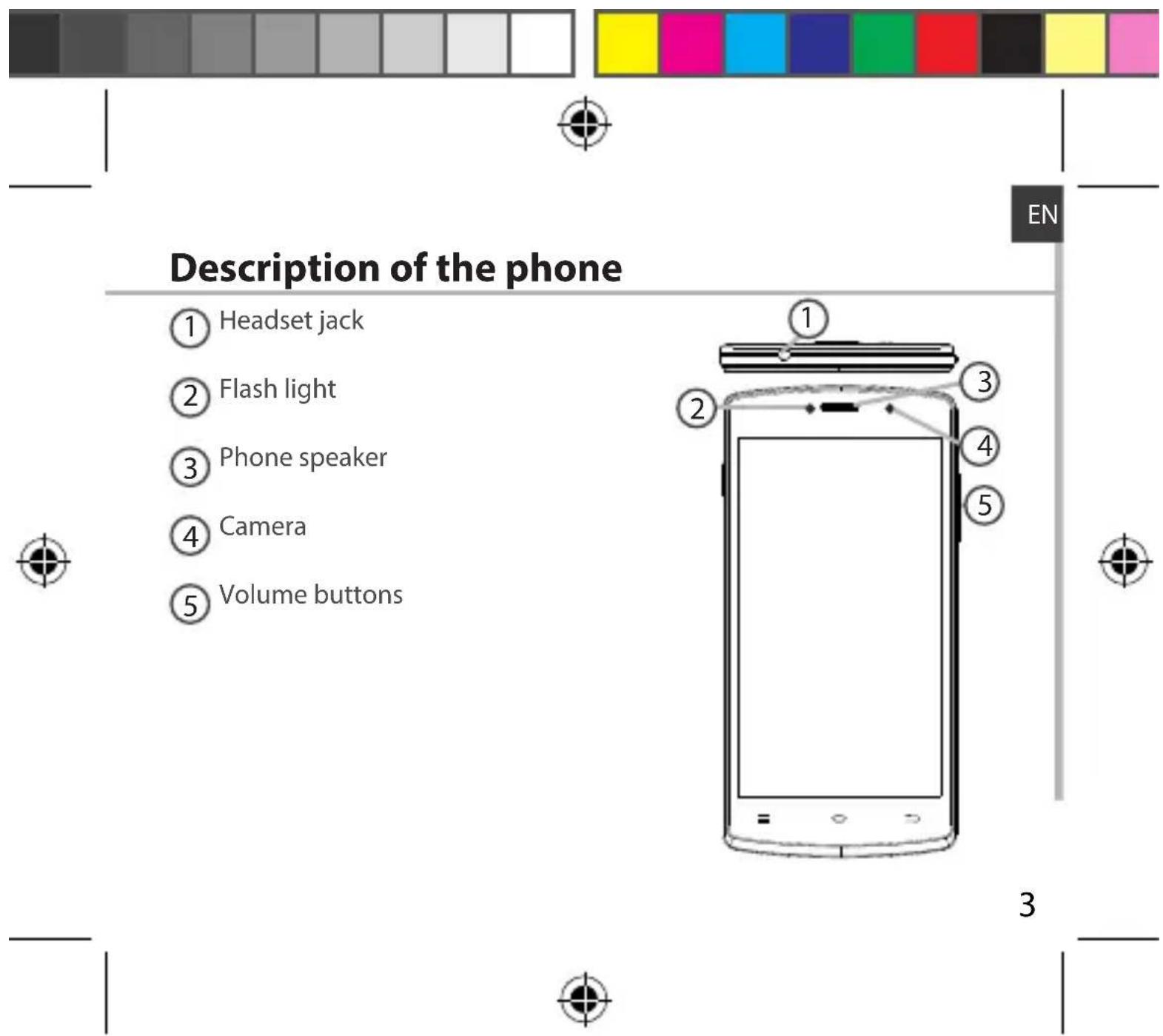
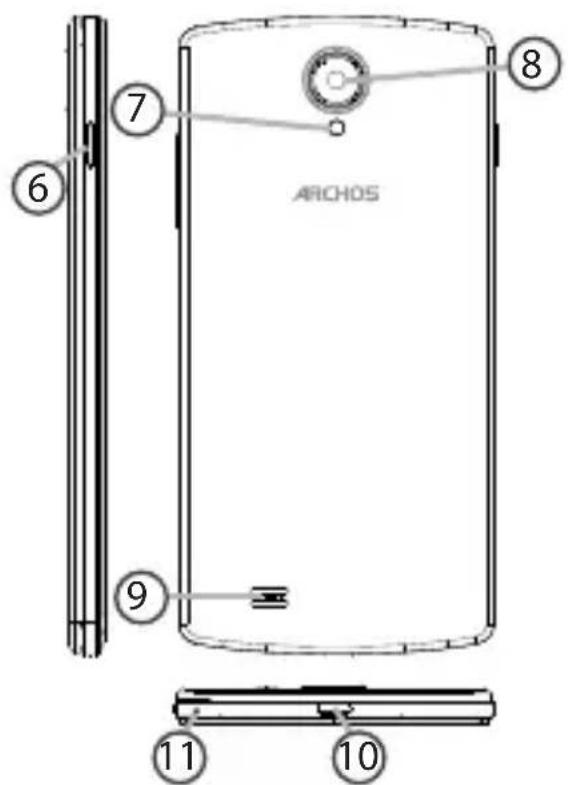
Description of the phone
ON/OFF button
⑦ Flash light
Camera
9 Loudspeaker
Micro-USB port
11 Microphone
4

Assembling
Opening
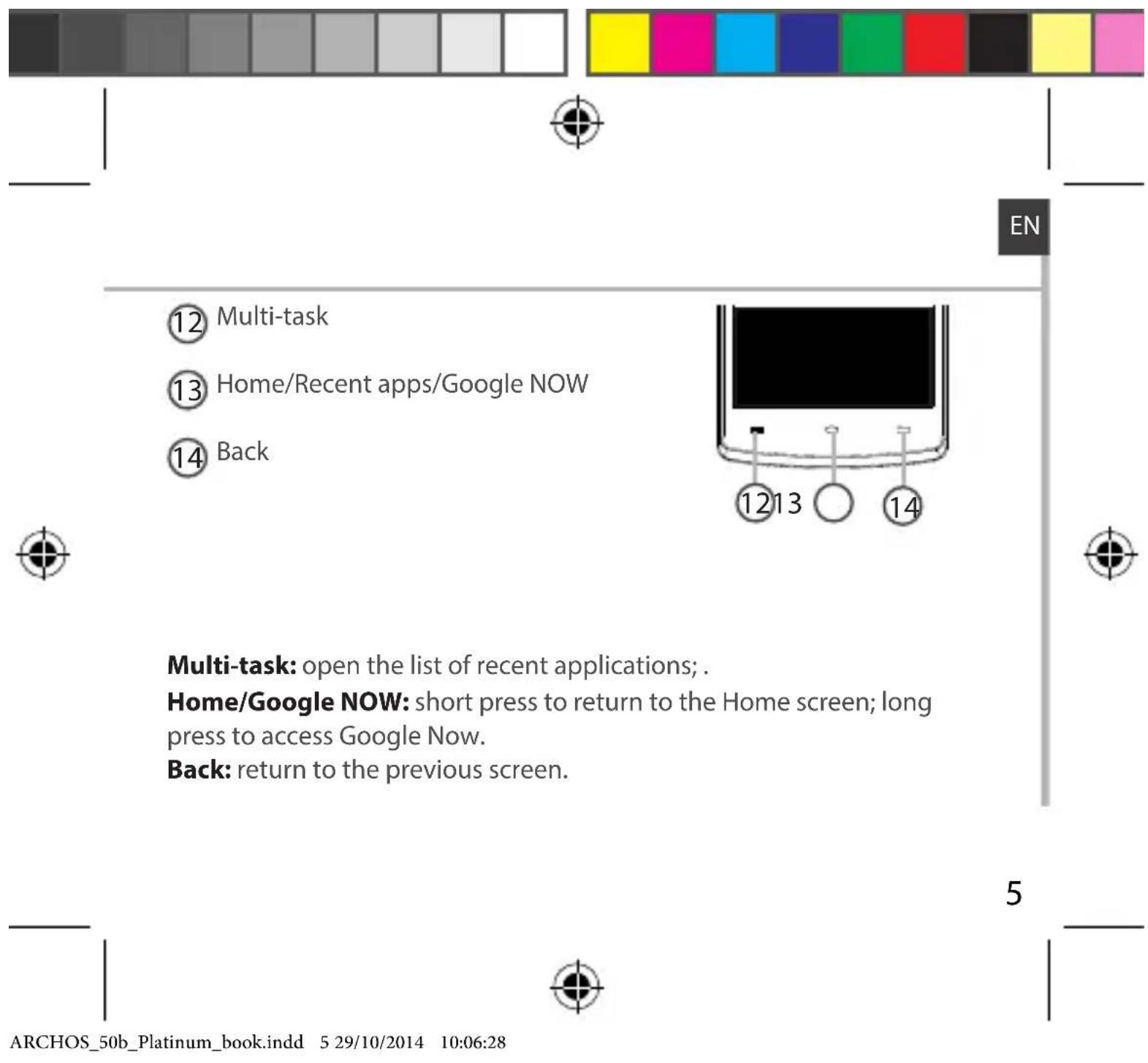
- Use the notch to remove the back cover.
Do not bend or twist the back cover excessively. Doing so may damage the cover.
- Remove the battery.
Inserting a SIM card
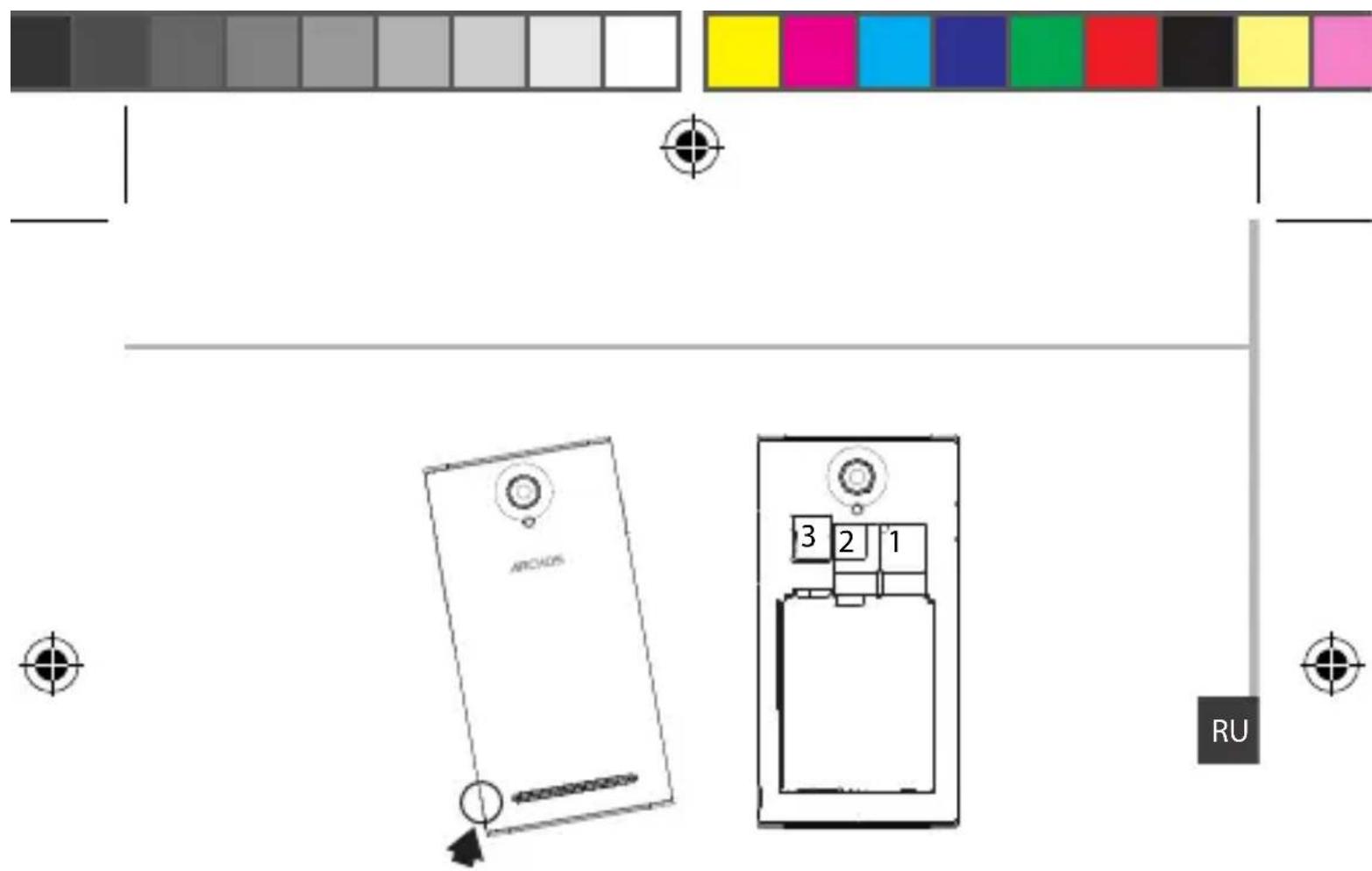
For your SIM card, slide it facing downwards in the slot 1 or 2.
Inserting a Memory card
For your Memory card, slide it facing downwards in the slot 3.
Closing
- Align the battery's 4 contact points with those of the phone and gently press the battery down into place.
- Replace the back cover clicking it back into position.
Tip: Before using your device for the first time, charge completely its battery.
6


Getting started
Turn ON
- Press and hold the ON/OFF button to turn on the device.
When you turn on your device, a PIN code may be requested. - Type the PIN code supplied with your SIM card.
Beware of typing a wrong PIN code. - Select 'OK'.

Through the wizard
The first time you start up your ARCHOS, the installation wizard will help you set up your device:

-Language
-Date & time
-WiFi connection
-Location service options
Turn OFF
To turn off your device, press and hold the ON/OFF button, and then select Power off > OK.
8


3G & WiFi connection
3G connection
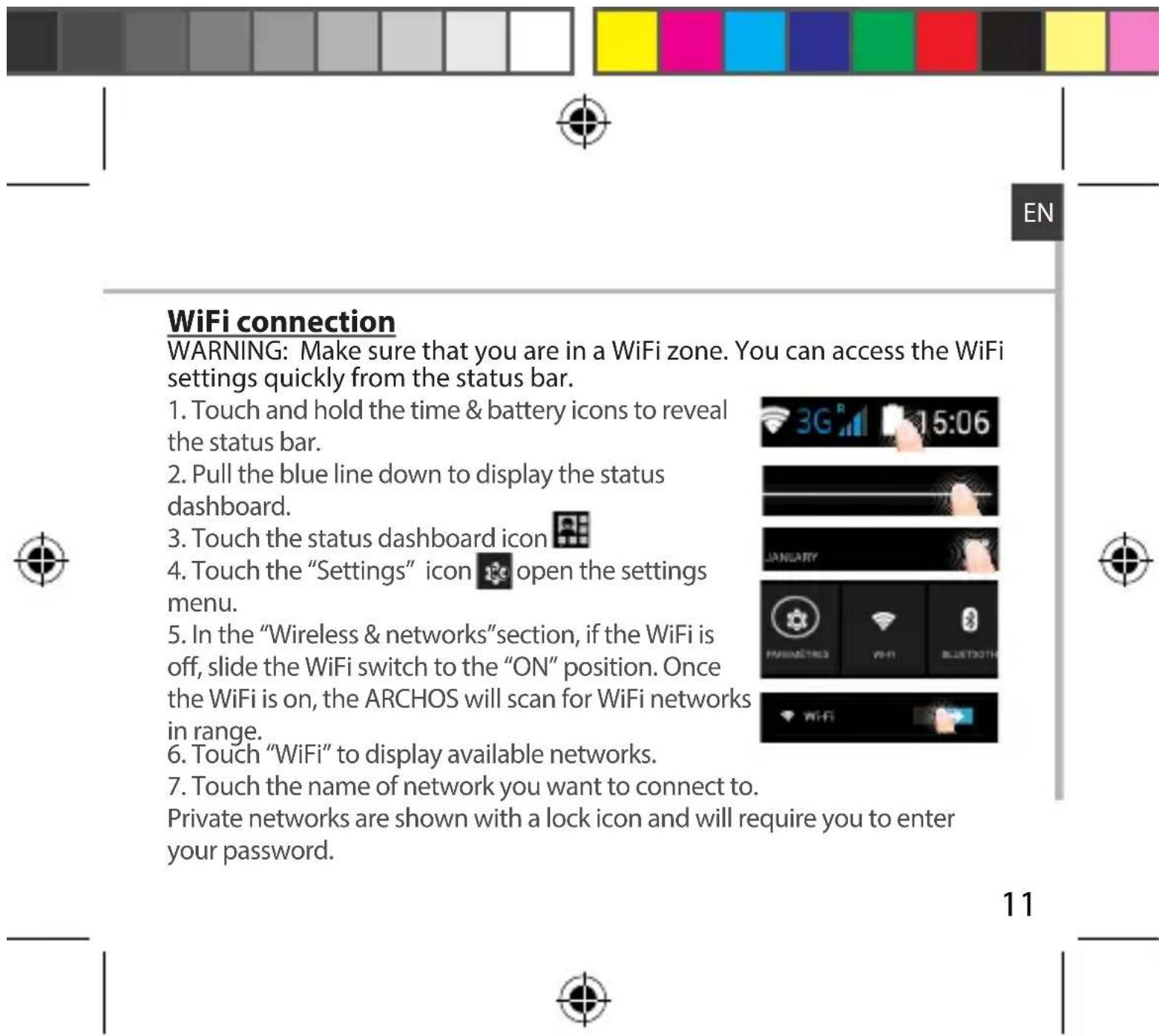
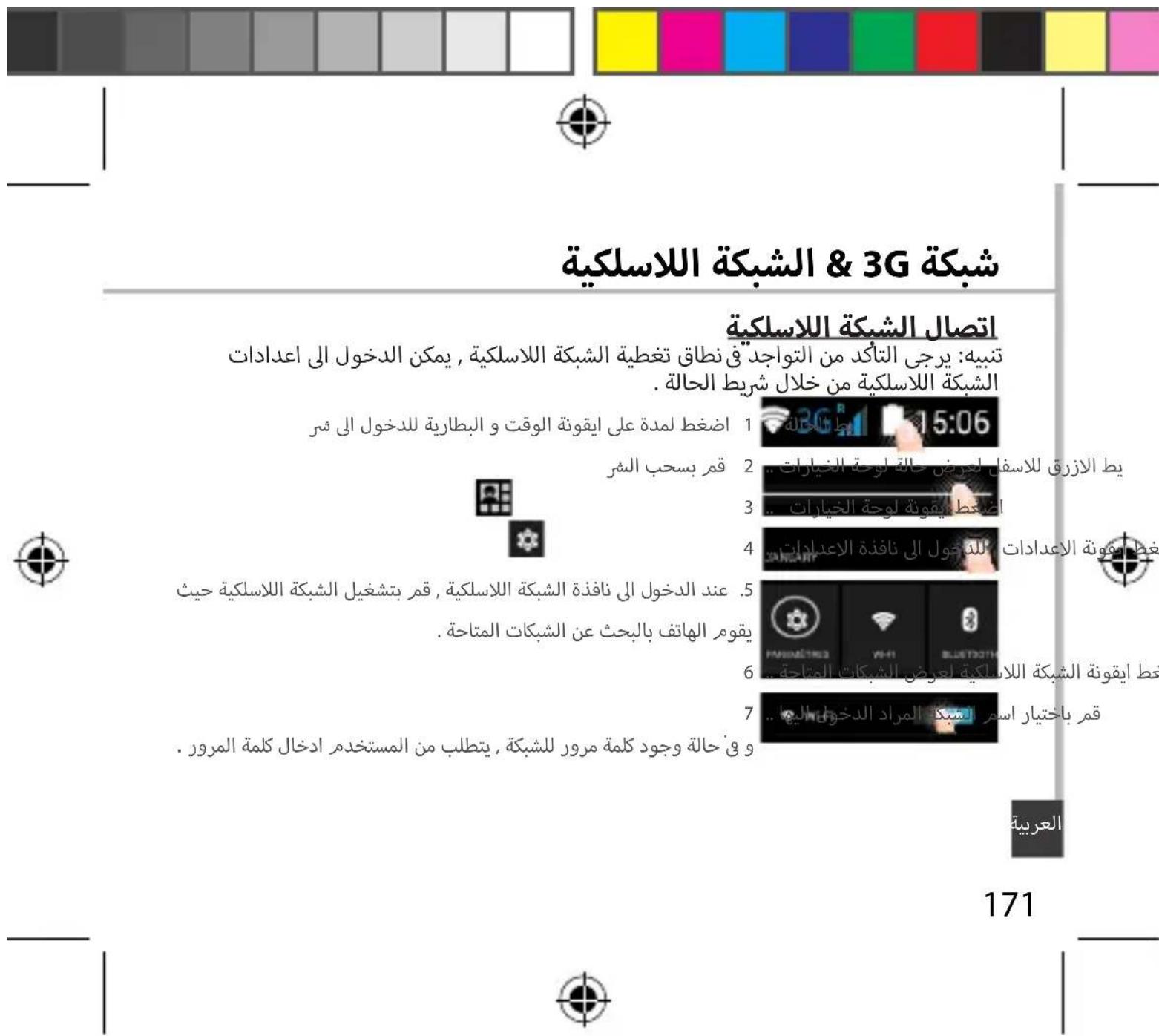
With your SIM card, you should be connected to the Internet without any further setup. The ARCHOS will only have signal if you are in an area covered by your provider's 3G network. When connected to the 3G network, the 3G icon is displayed in the status bar.
Activating the mobile data
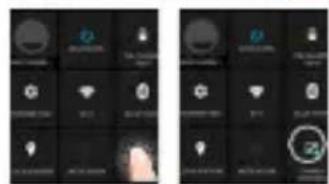
To be able to access Internet, the mobile data icon must be activated.
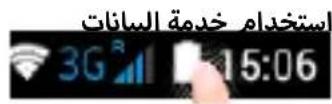
- Touch and hold the time & battery icons to reveal the status bar.
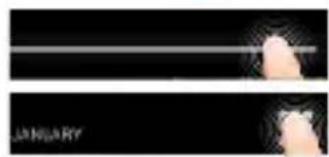
2.Pull the white line down to display the status dashboard. - Touch the status dashboard icon
- Touch the mobile data icon activate it.
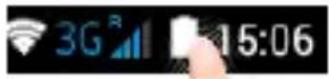
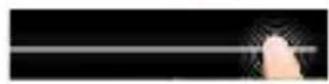
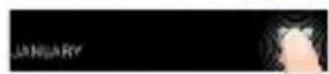
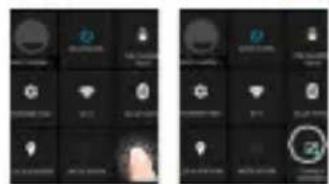
Tip: If you encounter connection problem's, see the FAQs on www.archos. com or contact your 3G network connection provider.
ARCHOS_50b_Platinum_book.indd 11 29/10/2014 10:06:30

Google & Contacts
Adding a Google account
A Google account lets you take full advantage of any Google apps and services that you may want to use.
- Go to "Settings" > > "Accounts"> "Add account".
- Select the account type "Google" to add.
- Follow the onscreen instructions to enter information about the account. Once the account is created, you can access Play Store, Gmail, Hangouts, Maps and many other apps.
Synchronizing info
Information must be sync to be saved. Your data is backed up on Google servers.
- Go to "Settings" > "Accounts" > "Google".
- Select your account.
The list of information that can be sync are displayed.
Automatic sync should be activated. To launch the sync, press the Menu button, then Sync now. You can get them back in case of loss of your device or SIM card. When your Google account is added to a new device, all your saved information is transferred.
12



Saving your contacts
When your contacts are saved, they are always available on the web and can be syncsed to any Android phone that's set up with your Google account.
- Install the SIM card with your contacts in your phone.
- From a Home or All Apps screen, select the People app
- Touch the Menu button > "Import/Export".
- In Import/export contacts, select "Import from SIM card".
- Select your Google account.
- Check contacts to be imported and validate.
- Once the contacts are imported in the Google account, go to "Settings" > "Accounts" > "Google".
- Select you Google account.
- Select the Menu button, then "Sync now".
Your contacts are saved to via your Google account.


Hints & tips for Android™
The extended home screen:
You have by default one home screen. You can create as many home screens you want. Select an app icon and slide it right. A new home screen will be created. Select another app icon and slide it right to create a third home screen.
Moving a home screen item:
Touch and hold your finger onto it until the positioning gridlines appear, then slide it to the desired location, and release your finger.
Removing a home screen item:
Touch and hold it, slide your finger towards the top of the screen and drop it over the "Remove" icon.
Uninstalling an item:
From the "All apps" screens, touch and hold it, slide your finger towards the top of the screen and drop it over "Uninstall" bin.
14


EN
Creating application folders:
Drop one app icon over another on a home screen and the two icons will be combined.
Widgets:
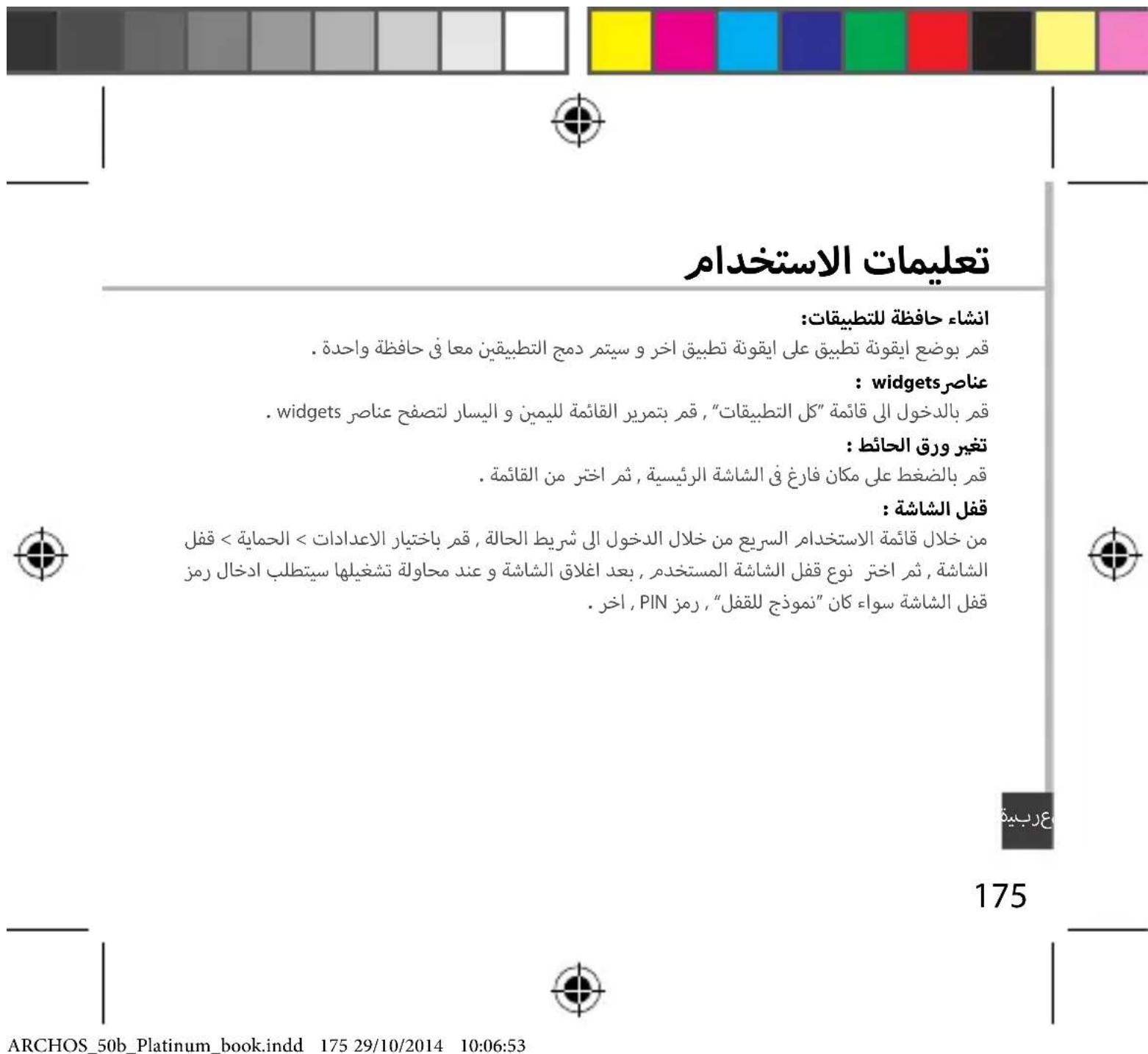
Touch and hold your finger on your home screen. Touch "Widgets".
Changing your wallpaper:

Hold your finger on a home screen at an empty location, then choose from the list.
Locking the touchscreen:
From the quick settings dashboard in the status bar, touch "Settings". In "Settings", scroll down and touch "Security". Touch "Screen lock". Touch the type of lock you would like to use. After you set a lock, a lock screen is displayed whenever your screen wakes up, requesting the pattern, pin or other specified key.



Troubleshooting
My phone is frozen or cannot switch on
Check the battery contacts, remove and reinstall your battery, then turn your phone on. Check the battery power level, charge for at least 20 minutes.
My phone cannot connect to a network or "No service" is displayed
Try connecting in another location. Verify the network coverage with your operator.
Unable to make outgoing calls
Make sure your phone is connected to a network, and the network is not overloaded or unavailable.
Unable to receive incoming calls
Make sure your phone is switched on and connected to a network (check for overloaded or unavailable network).
SIM card PIN locked
Contact your network operator to obtain the PUK code (Personal Unblocking Key).
To configure a new 3G network:
On your device, tap Settings.
Select Wireless & networks > More... > Mobile networks.
Select Network settings. In Network operators, select your operator.
In Access Point Names, select the correct access point name and enter the exact connection parameters provided by your 3G provider.
Table des matieres
He n3r6aIte n He cKpyuBaITe KpbIshky CnIshkom CnIbHO. 3TO MOxet npIBeCTN K ee NOBpeJdeHIO.
2.ИЗБЛЕКИТе 6aTapeю.
BCTaBka SIM-KapT
BcTaBbTe KapTy SIM KOHTaKTHoI O6JaCTbIO BHN3 B rHe3do 1 & 2.
BCTaBka KapTbI naMaTn
BCTaBbTe KapTu NaMAtu KOHTaKTHoI O6JaCTbIO BHN3 B rHe3do 3.
3aKpbTne
- CoBmecnte 4 TouKn KOHTaKTob aKKymyIaTopa C COOTBeTCTByIOuIMN ToUKamn Ha Telefohe N OCTopoXHo HadaBnTe Ha aKKymyIaTOp BHN3, YTO6bl 3aDbHHTb erO Ha MeCTo.
- YctaHOBInTe KpbIshky aKKymyJrTopa, TaK UTo6bI OHa CO IeJyKom Ctana Ha MecTO.
POncka3Kn.
Ipei nepBbIM nCNoJIb3OBAHnEm yCTpoIcTba NOLHOCTbIO 3apJInTe aKKymyIaTOp.
Chumume 3adHIOKpbiuKy cnomoubIO na3a

Hauano pa60tbi
BkIIOueHne
- Haxmnte n ydepxnBaTe KHONky BkIIOueHnN N BbIKIOueHnN, YTO6bl BKIOuHTb yCTpOInCTBO.
Pn BkIouhen yCTpoNCTBa MoKeT NOBntbCz anpoc Ha BBOD PIN-KoJa. - BBeInTe PIN-KoI, npeIoocTaBnaEmbIc SIM-KapToI.
- HaxmTe OK.
Mactep Hactpoikn
PpOfHn3ByKOB N yBeDOMneHn
- Korinda yctpoiCTBO BKIIIOyeHO, HaKMITE u yIepKINBaIe KHOIIKy
120



BKIOUeyH/BBIKIOUeyH.
- BbI6epNTe OIMN I3 BapNaHTOB.
ДиuctBna Ha ceHcOpHOM 3KpaHe
Kacahne: KocHTecb OINH pa3 nIy Bbl6opa nn 3ayncka MeHIO, yHKcnn nn npINOxKeHn.
Be3 3Byka Bn6paIIa Co 3BykOM

Kacahne u yepxahanhe: KocHTecb 3JeMeHt a u yepxuBaIte ero He Mehee 2 cekyHd.
NepetacknBaHne:KochNTecb 3JIeMeHTa IN nepeMeCTNTe erO B HOBOE MECTO.
Двоиhoe kacahne:БьICTpoДвждыКОСнТecьЭлЕмHTa.
Ckatae:Pa3BeiTe IBa nalbua,a 3aTeM CBeiTe IX uINKOBblIM DnIXKeHnEM.
Подcka3к.Еси устюг STBO He nCNoIb3yeTcB TeueHne onpeДeJIeHHOro BpeMeHn, ceHCOPHbI 3KpaH BblKIIuOaETcR. YTo6bl BKIOUHTb 3KpaH, HaxMITE KHOINKy BKIOUeHry N BblKIOUeHry. YTo6bl 3aIaTb IInTeIbHoCTb, nepeiDITe K MeHIO Settings > Display > Sleep (HacTpoIKN > DInCpIeN > PexIM cHa).
RU


Teneoh He pearupyet Ha deiCTBnI Hn He BKNIOUaTeTc
ПоберTe KOТаКтб aKKуМЛЯТОп, ИЗВLEКИТЕ и ПОТOPН OYCTAHOBITe aKKуМЛЯТОр, 3aTeM CHOBA BкючITE TeIeФOH. ПоберTe ypoBeHb 3apЯДа aKKуМЛЯТОр, BblONHITe 3apяДКУ B TeueHHe MeHee 20 MInHyT.
He ydaetcnoiknouhtb TeneoH He moKET K cetn, nIIN oTo6paXkaeTcA coo6ueHne No service (Het cetn)
PonbTaTecb yCTaHOBnTB coeINHeHne B dpyrom MeTe. PpOBepbTe y onepaTopa hAnuHne NOKpbITncaTn. PpOBepbTe y onepaTopa, deIcTBnTeBHa nBaHa SIM-kapTa. POnbTaTecb Bbl6paTb DoCTyInHyocTb (ceTn) BpyHyIO. POnbTaTecb yCTaHOBnTB coeINHeHne No3Ke, eCNI ceTb nepeRpyKeHa.
He ydaetcBbINOJIHrTb IcXoJaIue Bbl3OBbl
Y6eHNTecb, YTO TeIeOoH NIOKJIIOUeH K CetN, N YTO CTeB IOCTyINHa N He NepeRpyXeHa.
He ydaetra npHHMaTb BXOJaIue Bbl3OBbl
Y6eIITecb, YTO TeJefoH BkIoUeH I NOKIOUeH K CeTn (IPOBepbTe, YTO CeTb IOCTyInHa I He neperpykeHa).
3a6nokupobAH PIN-koq SIM-kapTbI
O6paTntecb K onepatopy Mo6nIbHcBra3n dny noluyehna PUK-koJa (Personal Unblocking Key — nepcoHaJIbHbI pa36nokpyuOJn KoJ).
4b > 3a
cfo 0d ool bfoi, ollo wll poe o aioo oio gno ydo aodwllg jy
.0gKwJ<00yJ<01dAeYI 000gJ
168168168


#
J
1.
.PIN joo Jssl uBauw PIN Jao Jaaa aJb
2...PINjorj
. 2021 PIN JOULI JOULI
3 ... 10 且 1

wizard
. aill oalw yaggi gacgaaaew aill oalw gld

-4
-4SLSU1S
golal ool
#
. 0i1j jxJy JxJy JxJy JxJy

169169




ailll 3G aow oos y g, 3G aow oos jy w d 100
g aow 3G aow oos gl g, EDGE aow gl 3G aow gbln
3Gdd
. ygl 111111111111111111111111111111111111111111111111111111111111
ab > 30
www.archos.com cnnn n g go aasal alw y jy, Jauy d kaa 0g gl .a

ARCHOS_50b_Platinum_book.indd 171 29/10/2014 10:06:53

Google U
. Google aoss oasoll lalbll g clssll alssol ssowll li
.1
. 日 日 日 Google"UwJgJ2
Gmail, joll aluwrj kou, aaglgl Goggle w> caiy dwlal lcls y
. 5

J

Google aooi 1o 1000000000000000000000000000000000000000
1..Google<UyLw
jol2..uWdJ
.402c 100
. 14 jolji Jus aow gll clogkaal no stly
jGGoogleuuaa aB,clilol oiaoaiow jayll gl aibll
. 1iill Js oJzaiu I auiu
172



slwyl &Google
slwyl b
3aalbll C 1 .

2..aasjll aolll
3...(JLwJ&JlWJ)

jol 4 .. aIbUJ jao.
j5 .Google
6...gosolglwlwjl
. Google < 1y1y1y1 < 1y1y1y1 y1 y1 y1 y1 y1 y1 y1 y1 y1 y1 y1 y1 y1 .7
- | x - 1| = | x + 2| = 1 .
- “jol” b2ol
Google 4ds c120 jcleawly bao ay

173




:aaJll aaLaljy
. jll gl jnall aal l al 1jll oanl
:aaaJll aaiJl cdo
.aaaiolaljodgnofo
.1goluaai jdi yjyll caiuill aiai Jgdo gdo bdo
.4x1y1jllg jnnn nn nnnnnnnnnnnnnnnnnnnnnnnnnnnnnnnnnnnnnnnnnnnnnnnnnnnnnnnnnnnnnnnnnnnnnnnnnnnnnnnnnnnnnnn
:aaJll aWJlJ no Jai
a a a a a a a a a a a a a a a a a a a a a a
.

:aajjaaaijno jiae j
a"000dall kall 3 aag y aiiaoo gly ouoaiy ay sall jaisll je bally
| x - 1| = | x + 2| = 1 - | x + 2| = ( x + 2) ( 1 - x) = ( x + 2) ( 1 - x)
:raic c
3 1
. 15201 g
174




lglolg|blylsl
aill jiee jie jie
. 400 g Jaaai aaii ul g, aaiy wlll Jaaai oo Sll
Jolka Jlaaalg
.(aio g Jaoi aai jg),aui Juaio g Jaaiaai jn nn ao ai
PIN j0j
.PUK jor Jc Jgauu aai Jusoo Jluai
3G 13
jol, jgaoaiiagllk<uijoll <ikl& aLwUaJyjol, cIuayUJI Jgss
aall clogall g aall Jgssal abai jol , aill jessy jly b, aull
.3G aous Jusoo Jds Jo Juaa
aJg j 10000000000000000000000000000000000000000000
.
176


J 100000000000000000000000000000000000000000000000000000000000000000000000000000000000

Juaa Juaa Juaa Juaa Juaa Juaa Juaa Juaa Juaa Juaa Juaa Juaa Juaa Juaa Juaa Juaa Juaa Juaa Juaa Juaa Juaa Juaa Juaa Juaa Juaa Juaa Juaa Juaa Juaa Juaa Juaa Juaa Juaa Juaa JUA

1/
jull 190
:Ej0JrWl
:JUULUJIaO
a a
kaioJuaWauuU
JUSSS JSSS - JSSS - PSSS
y
Coooyuoguo-1aaguiueeaiqaii-02012000guguaol
a
Egaiiaaiaaaiaaaiaaaaaeae



Open Source Software Offer
The software bundled with this product includes software files subject to certain open source license requirements. Such open source software files are subject solely to the terms of the relevant open source software license. Such open source software is provided on an "AS IS" basis to the maximum extent permitted by applicable law.
For the open source files contained herein, please access "Open source license" section located at: Settings\About phone\Legal information on the device for the relevant copyright and licensing terms. You may obtain a copy of Apache License, Version 2.0 at http://www.apache.org/licenses/License-2.0. You may also obtain a copy of GNU General Public License, Version 2 at the Free Software Foundation, INC, 51 Franklin Street, Fifth Floor, Boston, MA 02110-1301, USA.
Until the date that is three years after our last shipment of this product, you may obtain a copy of the source code corresponding to the binaries for any GPL-Licensed file by contacting ARCHOS customer service at http://www.archos.com and ARCHOS will send you a link to such source code or will provide instructions to get the source on a physical medium.
This offer is valid to anyone in receipt of this information.




National restrictions
This device is intended for home and office use in all EU countries (and other countries following the EU directive 1999/5/EC) without any limitation except for the countries mentioned below:
Country Restriction ReasonRemark
Bulgaria None General authorization required for outdoor use and public service

France Outdoor use
limited to 10
Military Radiolocation use. Refarming of the
mWe.i.r.p.
2.4 GHz band has been ongoing in recent years to allow current relaxed regulation. Full implementation planned 2012
within the
band 2454-
2483.5 MHz
Italy None If used outside of own premises, general
authorization is required.
Luxembourg None General authorization required for network and service supply (not for spectrum)
180


Norway Implemented This subsection does not apply for the geographical aera within a radius of 20km from the centre of Ny-Alesund
Russian None Only for indoor applications Federation
Note: Frequency 2454-2483.5MHZ are restricted to indoor use in France.
Consult the declaration of conformity on http://www.archos.com/products/ declaration_conformity.html


SAR
After the laboratory measurement, this mobile phone SAR value is: Max head 0.594 W/kg; Max Body 0.395 W/Kg Archos company declares that this device is in compliance with the essential requirements and other relevant provisions of Directive 1999/5/EC
C€0700
181