Speechlive LFH7400 - Voice recorder PHILIPS - Free user manual and instructions
Find the device manual for free Speechlive LFH7400 PHILIPS in PDF.



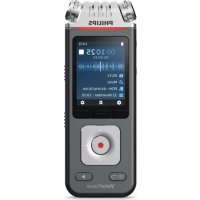
| Product Type | Digital voice recorder with SpeechLive cloud integration |
| Main Functions | Audio recording, dictation, automatic transcription (transcription service), speech recognition (speech recognition service), cloud workflow management |
| Cloud Services | SpeechLive Cloud for storage, human transcription, automatic speech recognition |
| Compatible Applications | Philips SpeechExec Pro Dictate/Transcribe (Windows), Philips Dictation Recorder app (iOS, Android, BlackBerry 10, Windows Phone) |
| User Management | Add authors and transcribers, assign Office Manager role, manage relationships, reset passwords |
| Transcription | Transcription service with multilingual support (English, French, German) and multi-speaker dictations (up to 5+), dictation prioritization |
| Speech Recognition | Speech recognition service with 21 languages, near-instant transcription, automatic top-up |
| Power Supply | USB power supply (cable included) for charging and data transfer |
| Maintenance | Clean with a soft, dry cloth; avoid liquids and abrasive products |
| Safety | Follow usage instructions; use only approved accessories |
| Spare Parts and Repairability | Contact Philips customer service for spare parts and repairs |
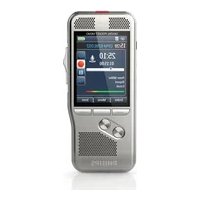
| General Information | Brand: Philips; Model: SpeechLive LFH7400; Category: Voice Recorder |
Frequently Asked Questions - Speechlive LFH7400 PHILIPS
User questions about Speechlive LFH7400 PHILIPS
0 question about this device. Answer the ones you know or ask your own.
Ask a new question about this device
Download the instructions for your Voice recorder in PDF format for free! Find your manual Speechlive LFH7400 - PHILIPS and take your electronic device back in hand. On this page are published all the documents necessary for the use of your device. Speechlive LFH7400 by PHILIPS.
USER MANUAL Speechlive LFH7400 PHILIPS
1 About this guide 3
Terminology 3
Symbols used 3
2 User management 4
Adding users 4
Select a user as an Office manager 4
Send email invitation at a later time 5
Editing existing users 5
Resetting the password 5
Deleting users 6
User applications 6
3 Relationship management (only advanced business package) 7
Defining relationships 7
4 SpeechLive transcription service 8
Using SpeechLive transcription service 8
Select languages 8
Activate multi-speaker dictations 9
Sending dictations 9
Receiving transcribed documents 9
Notification of finished documents 9
5 SpeechLive speech recognition service 10
Using SpeechLive speech recognition service 10
Select languages 10
Sending dictations 10
Receiving transcribed documents 11
Notification of transcribed documents 11
6 Overview of settings 12
Account settings 12
Download account activities 12
Back up files 12
Archive settings 12
7 Support information 13
Open source software 13
8 Additional information 14
1 About this guide
Thank you for choosing Philips SpeechLive as your cloud based dictation workflow solution. This guide covers the basic configuration of your workflow.
Terminology
Administrator
- The person who adds users to the SpeechLive workflow and manages workflow relationships.
Author
• The person who records dictations as audio files.
Transcriptionist
- The person who transcribes the audio files (dictations) of authors.
Office manager
- An author or transcriptionist with additional rights, such as managing users and workflow relationship settings.
User
- Umbrella term for the author and transcriptionist roles.
Symbols used

Tip
- This symbol identifies information that helps you to use Philips SpeechLive in an easier and more efficient manner.

Note
- This symbol indicates important notes to keep in mind when using Philips SpeechLive.
2 User management

Note
- If you have created a test account or an account with only one user, you are added automatically as an author and will receive an email from the system with additional information on how to use SpeechLive. Unless you are adding additional users, you can skip this section and go to SpeechLive transcription service.
Add authors and transcriptionists to the SpeechLive workflow by creating a user account for each user with only a few clicks.
If you are not logged in immediately after registering:
1 Open your browser and enter the following Internet address: login.speechlive.com.
2 Enter your email address and password, and then click Login.
To manage users in your workflow:
- Click the Workflow tab and then click Users from the drop-down list.
Adding users

Note
- At least one user is required to send dictations to the SpeechLive transcription service or to the SpeechLive speech recognition service.
- If you have added the maximum number of purchased users to the workflow, you first need to delete users before you can add new ones. For more information, see Deleting users.
1 Click the Workflow tab and then click Users from the drop-down list.
2 Click the Invite new user icon 📋 on the toolbar. → The Invite new user window opens.
3 Enter the user's email address in the Email address field. This email address will also serve as the user name for the account.
4 Enter the user's name in the Name field. This will be the displayed user name in the workflow.
5 In the User role section, select Author or Transcriptionist and choose if you want the user to be an Office manager. For more information, see Select a user as an Office manager.
6 Select your desired notification setting for transcribed documents. You can always change the notification setting in Workflow > Users. For more information, see Editing existing users.
7 Click Add user to add the user to the workflow without an invitation email.
→ The user status is displayed in the Status column of the users list.
User role
Status
Author
Not invited
Click Add & Invite to add the user to the workflow and send them an invitation email.
→The newly added user will receive an invitation email with additional information on how to activate the SpeechLive user account.
→ The user status is displayed in the Status column of the users list.
User role
Status
Author
Invited
If the user has clicked the activation link in the invitation email, the account is activated and the user status is displayed in the Status column of the users list:
User role
Status
Author
Activated
Select a user as an Office manager
Select one or more workflow users to be Office managers. As Office managers, users get additional rights: They can edit user settings, such as inviting new users and deleting existing users from the workflow. Advanced business package users are also able to change workflow relationship settings.

Note
- Users don't get a notification when you assign them the role of an Office manager. As an account administrator, you should inform the relevant users that you have selected them to be Office managers in the workflow.
- Users can only participate in the workflow as Office managers if you have sent them a user invitation email and if they have clicked the activation link in the invitation email.
To select a new user as an Office manager:
1 Proceed as described in the steps 1-4 of the chapter Adding users.
2 In the User role section, select Author or Transcriptionist and mark the checkbox next to Office manager.
3 Proceed as described in the steps 6-7 of the chapter Adding users.
To select an existing user as an Office manager:
1 Click the Workflow tab and then click Users from the drop-down list.
2 Select the desired user and click the Edit user icon on the toolbar.
→ The Edit user window opens.
3 In the User role section, mark the checkbox next to Office manager.
4 Click Save changes.
Send email invitation at a later time
You can add a user to the workflow and send an email invitation at a later time. The reasons for resending or sending an email invitation at a later time can be the following:
- You want to set up all users in the workflow first and send the invitation email afterwards.
- The user missed to click the activation link in the invitation email within 24 hours after receiving the invitation email.
- The invitation email was directed to the user's spam folder and therefore the activation link has expired.
- There was a technical problem while trying to send the invitation email.
To resend an email invitation:
1 Click the Workflow tab and then click Users from the drop-down list.
2 Select the desired user.
3 Click the Resend invitation icon 📋 on the toolbar.
Editing existing users
You can always change the settings for existing users, such as notifications for transcribed documents, the displayed name, or select the desired user to be an Office manager.
1 Click the Workflow tab and then click Users from the drop-down list.
2 Select the desired user and click the Edit user icon on the toolbar.
→ The Edit user window opens.
3 Select the desired settings.
4 Click Save changes.
Resetting the password
Reset account administrator password
1 Click the Account tab and then click Edit account at the bottom of the page.
2 In the Login data section, enter your old password in the Old password field. Then enter and repeat your new password in the relevant fields.
3 Click Save.
Reset user password
Workflow users can't reset their password themselves. Only the account administrator can request a password reset. Users can afterwards change their password by clicking the confirmation link in the password reset email

Note
- You can only request a new password for users who have already been activated.
- When resetting a password in SpeechLive, the user also needs to change the relevant password in other applications, such as SpeechExec workflow software or the Philips dictation recorder app.
To request a password reset for a workflow user:
1 Click the Workflow tab and then click Users from the drop-down list.
2 Select the desired user and click the Reset password icon 📷 on the toolbar.
→The user receives an email with a confirmation link. After clicking the link, a window opens where the user can change their password.
Deleting users

Note
- If you want to delete all users with the same user role—Author or Transcriptionist—make sure that all dictations assigned to any user with this user role are deleted. You can only delete the very last user within one user role if all dictations in the workflow have been deleted.
- Additionally, all dictations assigned to the workflow users in SpeechExec need to be deleted from the Archive folder in SpeechExec.
1 Click the Workflow tab and then click Users from the drop-down list.
2 Select the desired user and click the Delete user icon on the toolbar.
3 · If there are dictations assigned to the user you want to delete, you will be prompted to assign the dictations to another user who has the same user role, which is Author or Transcriptionist. In this case, select a user from the drop-down list you want to assign the dictations to. Then click OK.
Delete user
Please select a takeover author, who will be assigned to get the deletable user's dictations:


→The dictations are assigned to the selected user, and the Author name of the relevant dictations changes to the Author name of the new user.
- If the user you want to delete is the last user in the list within one user role, you will be prompted to delete all dictations in the account. In this case, first delete all dictations in the workflow, and then delete the user again.
Delete user
To remove this user, you must delete all dictations in the account.

- If there are no dictations assigned to the user you want to delete, click Delete.
→The user is deleted.
User applications
There are three ways for users to log in to the SpeechLive system. They can do one of the following:
- Access login.speechlive.com on a computer by using a browser
- Use Philips SpeechExec Pro Dictate or Philips SpeechExec Pro Transcribe workflow software installed on a computer (Windows only)
- Use the Philips dictation recorder app (for iOS, Android, BlackBerry 10, or Windows phone) on a smartphone or tablet

Note
- If you want to use SpeechLive with Philips SpeechExec dictation software, you need to have a valid license key for the software.
3 Relationship management (only advanced business package)
If you have purchased the SpeechLive advanced business package, you can manage relationships between up to 50 workflow users by assigning authors to transcriptionists. Transcriptionists can only view dictations from those authors who have been assigned to them.

Note
- If you have upgraded from a small business package to an advanced business package, all authors and transcriptionists in your workflow are automatically assigned to each other. You can change the assignment of single users in Workflow > Workflow relationships (see Defining relationships).
Defining relationships
1 Log in to your SpeechLive account at login.speechlive.com.
2 Click the Workflow tab and then click Workflow relationships from the drop-down list.
→If assignments already exist, all links between authors and transcriptionists are listed.

→The number of transcriptionists assigned to an author is displayed accordingly:
Author 2

3 If you want to change the view of users and assign authors to transcriptionists instead, click the Typist to
Author icon 📁 on the toolbar. →The view is changed now and the transcriptionists are listed in the left column, the authors to be assigned in the right column. →The icon on the toolbar changes to Author to Typist 📁.
4 To link a transcriptionist to an author, select the desired author. Then click the add icon + next to the transcriptionist you want to link to the selected author.
→The transcriptionist is now linked to the author.
To remove the link between a transcriptionist and an author, select the desired author. Then click the remove icon ➕ next to the transcriptionist you want to unlink from the author.
5 Click the Save icon on the toolbar once you're finished setting up all desired relationships.
Exporting user relationship overview
Export a .csv file with an overview of the links between all users in your workflow.
1 Click the Workflow tab and then click Workflow relationships from the drop-down list.
2 Click the Export icon on the toolbar.
→The .csv file is downloaded to a local folder on your computer.
4 SpeechLive transcription service
The Philips SpeechLive transcription service is a complete speech-to-text workflow solution. If dictations have been assigned a priority status, important dictations will be transcribed even faster.
The SpeechLive transcription service also supports dictations with multiple speakers, such as interviews, telephone conversations, or meetings.

Note
- The SpeechLive transcription service can only be used if you have charged your account with sufficient transcription service minutes.
The following table provides an overview of the available languages, delivery times, maximum file length and number of speakers:
English
| Number of speakers 1 2 3 | 4-5 >5 | |||||
| Delivery time(up to...hours) | 24 | 5*72 | ||||
| Maximum file length*(minutes) | 120 | 25** | 180 | |||
French
| Number of speakers 1 2 3 | 4-5 >5 | ||||
| Delivery time(up to...hours) | 24 | 72 | |||
| Maximum file length*(minutes) | 120 | 180 | |||
German
| Number of speakers 1 2 3 | 4-5>5 | |||||
| Delivery time(up to...hours) | 12 | 5*72 | ||||
| Maximum file length*(minutes) | 120 | 25** | 180 | |||
*) Priority dictations
**) Priority dictations that exceed 25 minutes are automatically changed to dictations without priority. Users are notified via email.
***) The length of the dictation sent to the transcription service is rounded to the next full minute.
Using SpeechLive transcription service
When you purchase a SpeechLive package, you automatically get 10 free trial minutes per account for the SpeechLive transcription service. You can always top up your transcription service credit.

Note
• Purchased transcription service minutes expire after 24 months.
Purchase minutes for the transcription service
1 Log in to your SpeechLive account at login.speechlive.com.
2 Click the Account tab.
3 Scroll down to SpeechLive transcription service and then click Buy transcription minutes.
Enable automatic recharge
Enable the automatic recharge function, which will recharge your account with a predefined amount once your preset threshold is reached.
1 Click the Account tab and then click Edit account at the bottom of the page.
2 In the SpeechLive transcription service section, mark the checkbox next to Auto-recharge, select your desired amount of auto-recharge minutes and your desired threshold.
√ Auto-recharge 20 minutes √ if the balance is less than 10 minutes
□ Enable transcription of multi-speaker recordings (Interviews, phone conversations, meetings...)
3 Click the Save icon

Select languages
At the beginning of the registration or buying process, you need to select the language for the transcription service.

Note
- The SpeechLive transcription service supports only one language per SpeechLive account. You can't change the selected language at a later date.
- Should you require multiple languages, create a second SpeechLive account and select the desired language.
Activate multi-speaker dictations
Enable the transcription for multi-speaker dictations to allow transcription of interviews, telephone conversations, meetings and more. When you send dictations to the transcription service, you can select if it is a dictation with one, two, three, four, five or more than five speakers. If you select more than five speakers, you will receive an offer via email.

Note
- The multi-speaker option is only available for purchased accounts.
- If you enable the transcription for multi-speaker dictations, the auto-recharge checkbox is automatically marked. Since the prices for the transcription of multi-speaker dictations are higher than for single-speaker dictations, it is necessary that your credit is charged sufficiently in order to process your multi-speaker dictations.
- Users also need to activate multi-speaker dictations in their applications. For more information, see the Quick start guide for authors.
To enable the multi-speaker dictations feature:
1 Click the Account tab and then click Edit account at the bottom of the page.
2 In the SpeechLive transcription service section, mark the relevant checkbox to enable multi-speaker dictations.
√ Auto-recharge 20 minutes √ if the balance is less than 10 minutes
√ Enable transcription of multi-speaker recordings (interviews, phone conversations, meetings ...)
3 Click the Save icon on the toolbar.
For full cost control, activate a notification which will inform you via email once your preset threshold is reached.
To activate notifications:
1 Click the Account tab and then click Edit account at the bottom of the page.
2 In the SpeechLive transcription service section, mark the checkbox next to the desired notification setting and select your desired threshold.
Send an email notification when the monthly costs exceed EUR 50 EUR
√ E-mail notification is sent when the balance is less than: 10 minutes
3 Click the Save icon on the toolbar.
Sending dictations
With the one-off 10-minute trial for the SpeechLive transcription service, all users in your workflow are able to send dictations to the transcription service straight away. For information on how to send dictations to the transcription service, see the Quick start guide for authors.
You can always top up your transcription service credit. For more information, see Purchase minutes for the transcription service.
Receiving transcribed documents
As soon as a dictation is transcribed, the finished document is attached to the original dictation in the SpeechLive portal. Depending on your SpeechLive notification settings for your workflow users, the document can additionally be sent to the authors via email If users work with Philips SpeechExec workflow software, the dictation is also attached to the original dictation in the software.
Notification of finished documents
As the account administrator, you can define the notification settings for transcribed documents in the SpeechLive portal.
1 Log in to your SpeechLive account at login.speechlive.com.
2 Click the Workflow tab and then click Users from the drop-down list.
3 Select the desired user and click the Edit user icon on the toolbar.
→ The Edit user window opens.
4 Select your desired notification setting for transcribed documents
5 Click Save changes.
5 SpeechLive speech recognition service
The Philips SpeechLive speech recognition service is a fast and efficient speech-to-text solution, perfect for general contexts. The dictations sent to the speech recognition service are almost immediately transcribed by SpeechLive. Choose between 21 languages for dictations to be transcribed in.

Note
- The SpeechLive speech recognition service can only be used if you have charged your SpeechLive account with sufficient speech recognition minutes.
Using SpeechLive speech recognition service
Every user in your workflow has five (small business package) or 10 (advanced business package) free speech recognition service minutes available every month. You can always top up your speech recognition service credit.

Note
- Free speech recognition minutes that haven't been used up, automatically expire after a month.
• Purchased speech recognition minutes expire after 36 months.
Purchase minutes for the speech recognition service
1 Log in to your SpeechLive account at login.speechlive.com.
2 Click the Account tab.
3 Scroll down to Speech recognition service and then click Buy speech recognition minutes.
Enable automatic recharge
Enable the automatic recharge function, which will recharge your account with a predefined amount once a certain threshold is reached.
1 Click the Account tab and then click Edit account at the bottom of the page.
2 In the Speech recognition service section, mark the checkbox next to Auto-recharge, select your desired amount of auto-recharge minutes and your desired threshold.
√ Auto-recharge 50 minutes √ if the balance is less than 10 minutes
☐ Send an email notification when the monthly costs exceed EUR: 50 EUR
3 Click the Save icon
Select languages
You can select multiple languages for the speech recognition service. When you use the speech recognition service for the first time, a default language is already preselected. SpeechLive recognizes your browser's system language and selects the language for the speech recognition service accordingly.

Note
- You can't disable the preselected default language. To change the default language, you need to change your browser's language.
To select languages for speech recognition:
1 Log in to your SpeechLive account at login.speechlive.com.
2 Click the Workflow tab and then click Speech recognition from the drop-down list.
3 Mark the checkbox next to your desired language(s).
4 Click the Save icon on the toolbar.
Sending dictations
With the monthly free speech recognition minutes, all users in your workflow are able to send dictations to the speech recognition service straight away. For information on how to send dictations to the speech recognition service, see the Quick start guide for authors.
You can always top up your speech recognition service credit. For more information, see Purchase minutes for the speech recognition service.
Receiving transcribed documents
As soon as a dictation is transcribed, the finished document is attached to the original dictation in the SpeechLive portal. Depending on your SpeechLive notification settings for your workflow users, the document can additionally be sent to the authors via email. If users work with Philips SpeechExec Pro Dictate software, the dictation is also attached to the original dictation in the software.

Note
- The finished document is sent as an .rtf and a .txt file. If smartphone users can't open the .rtf file, we recommend using the .txt file instead.
Notification of transcribed documents
As the account administrator, you can define the notification settings for transcribed documents in the SpeechLive portal.
1 Log in to your SpeechLive account at login.speechlive.com.
2 Click the Workflow tab and then click Users from the drop-down list.
3 Select the desired user and click the Edit user icon on the toolbar.
→ The Edit user window opens.
4 Select your desired notification setting for transcribed documents
5 Click Save changes.
6 Overview of settings
Account settings
1 Log in to your SpeechLive account at login.speechlive.com.
2 Click Account on the menu bar to display the following information:
- Product information
• Account information - SpeechLive partner for service and support
- SpeechLive transcription service (optional)
• Transcription service history (optional)
• Speech recognition service
• Speech recognition history - Account address
• Payment information - Login data
- Communication settings
3 To edit your account or top up your transcription service and speech recognition service credit, click Edit account.
Download account activities
Download a .csv file with information on all workflow activities of the last 30 days. This information includes, for example, which users have been added or removed by whom, which users have activated their SpeechLive account, or which users have been assigned the role of an Office manager.
1 Click the Workflow tab and then click Activities from the drop-down list.
2 Click Download now. →The .csv file is downloaded to a local folder on your computer.
Back up files
As the account administrator, you can quickly and easily create a local backup of all files in your workflow and download them to your computer.
To back up files:
1 Click the Workflow tab and then click Backup from the drop-down list.
2 If you haven't backed up files yet, click Create a new backup now.
If you have already backed up files and want to create a new back up, click the Create new backup icon 🧑 on the toolbar.
→You will get a confirmation email once your backup has finished.
To download backed up files to the computer:
1 Click the Workflow tab and then click Backup from the drop-down list.
2 Click the Download icon on the toolbar.
→ The Enter the password pop-up window appears.
3 Enter your SpeechLive password, and then click OK. → The Success pop-up window appears.
4 Click Download.
→The backup is downloaded to a local folder on your computer.
Archive settings
If you use SpeechExec workflow software in addition to SpeechLive, all dictations in your workflow are automatically archived in SpeechExec after they have been transcribed.
As the account administrator, you can select if all workflow users should see archived dictations, or if only the person who uploaded the dictations and the related transcriptionists should see the dictation files.
Additionally, you can define a purge interval after which archived dictations will be deleted automatically from the SpeechLive workflow.

Note
- The automatic purge function is only available for archived dictations.
- Dictations that are deleted from the SpeechLive workflow after the preset purge interval are also deleted from the Archive folder in SpeechExec.
1 Click the Workflow tab and then click Archive settings from the drop-down list.
2 Select your desired setting for the visibility of archived dictations, and optionally define a purge interval.
3 Click the Save icon on the toolbar.
7 Support information
In case of questions, click the Support tab to display the following information:
- Your SpeechLive workflow status
- User manuals
• Frequently asked questions - Contact details of your SpeechLive and speech recognition support partner
- Contact details of the SpeechLive transcription service (optional)
- Feedback
Open source software
This product may contain open source software. Speech Processing Solutions GmbH hereby offers to deliver, upon request, a copy of the complete corresponding source code for the copyrighted open source software packages used in this product for which such offer is requested by the respective licenses. This offer is valid up to three years after product purchase. To obtain the source code, please write in English to: info@speech.com.
8 Additional information
For more information on user applications, download the Quick start guide for authors and the Quick start guide for transcriptionists.
Neither Speech Processing Solutions GmbH nor its affiliates shall be liable to the purchaser of this product or third parties with respect to claims for damages, losses, costs or expenses incurred by purchaser or third parties as a result of an accident, misuse or abuse of this product or unauthorized modifications, repair, modification of the product or failure to meet the operating and maintenance instructions provided by Philips. This User Manual is not of a contractual nature. We accept no liability for changes, mistakes or printing errors. Philips and the Philips Shield Emblem are registered trademarks of Koninklijke Philips N.V. and are used by Speech Processing Solutions GmbH under license from Koninklijke Philips N.V. Trademarks are the property of their respective owners.

Inhaltsverzeichnis
7 Informations support technique 45
Logiciel libre 45
7 Informations support technique
Issue date 2016-04-26
Version 1.0
© 2016 Speech Processing Solutions GmbH. All rights reserved.
Specifications are subject to change without notice. Philips and the Philips shield emblem are registered trademarks of Koninklijke Philips N.V. and are used by Speech Processing Solutions GmbH under license from Koninklijke Philips N.V. All trademarks are the property of their respective owners.
www.philips.com/dictation
- About this guide
- Terminology
- Administrator
- Author
- Transcriptionist
- Office manager
- User
- Symbols used
- User management
- Note
- Adding users
- Select a user as an Office manager
- Send email invitation at a later time
- Editing existing users
- Resetting the password
- Reset account administrator password
- Reset user password
- Deleting users
- Delete user
- User applications
- Relationship management (only advanced business package)
- Defining relationships
- Exporting user relationship overview
- SpeechLive transcription service
- Using SpeechLive transcription service
- Purchase minutes for the transcription service
- Enable automatic recharge
- Select languages
- Activate multi-speaker dictations
- Sending dictations
- Receiving transcribed documents
- Notification of finished documents
- SpeechLive speech recognition service
- Using SpeechLive speech recognition service
- Purchase minutes for the speech recognition service
- To select languages for speech recognition:
- Notification of transcribed documents
- Overview of settings
- Account settings
- Download account activities
- Back up files
- Archive settings
- Support information
- Open source software
- Additional information
- Inhaltsverzeichnis
- Informations support technique 45
- Informations support technique
Brand : PHILIPS
Model : Speechlive LFH7400
Category : Voice recorder