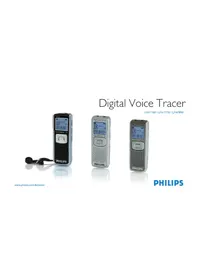
Speechlive PCL1000 - Voice recorder PHILIPS - Free user manual and instructions
Find the device manual for free Speechlive PCL1000 PHILIPS in PDF.



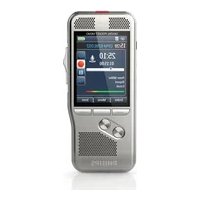
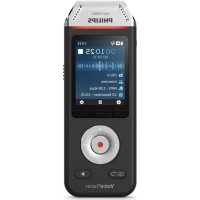
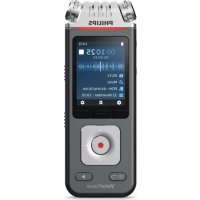
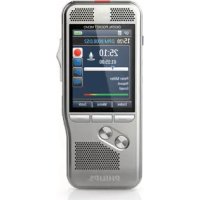
| Product type | Digital voice recorder with cloud dictation solution |
| Brand | Philips |
| Model | Speechlive PCL1000 |
| Dimensions | Approximately 120 x 50 x 20 mm |
| Weight | Approximately 80 g (without batteries) |
| Power supply | Built-in rechargeable lithium-ion battery or USB power |
| Storage capacity | Internal memory (variable capacity) + microSD slot |
| Supported audio formats | MP3, WAV, DSS |
| Main functions | Voice recording, dictation, transcription via SpeechExec software, SpeechLive cloud synchronization, foot pedal control (optional) |
| Connectivity | USB 2.0, built-in Wi-Fi, headset microphone port |
| Display | Backlit OLED screen |
| Maintenance and cleaning | Wipe with a soft, dry cloth; do not use solvents |
| Security | Password-protected user account; encryption of data in transit and at rest |
| Spare parts and repairability | Battery replaceable by a professional; other parts not available separately |
| General information | Indoor use; operating temperature: 0°C to 40°C; relative humidity: 20% to 80% |
Frequently Asked Questions - Speechlive PCL1000 PHILIPS
User questions about Speechlive PCL1000 PHILIPS
0 question about this device. Answer the ones you know or ask your own.
Ask a new question about this device
Download the instructions for your Voice recorder in PDF format for free! Find your manual Speechlive PCL1000 - PHILIPS and take your electronic device back in hand. On this page are published all the documents necessary for the use of your device. Speechlive PCL1000 by PHILIPS.
USER MANUAL Speechlive PCL1000 PHILIPS
Thank you for choosing Philips SpeechLive as your cloud based dictation workflow solution. This guide provides instructions on how to activate and configure your SpeechLive access.
Once you have received an invitation email from the SpeechLive system, read this quick start guide carefully.
As a SpeechLive transcriptionist, you can transcribe author dictations on your desktop computer. The dictation workflow is securely managed via your SpeechLive user account.
Terminology
Administrator
The person who adds users to the SpeechLive workflow and manages workflow relationships.
Author
The person who records dictations as audio files.
Transcriptionist
The person who creates the audio files (dictations) of author documents.
User
Umbrella term for the author and transcriptionist roles.
Philips SpeechExec Pro Transcribe software
Transcriptionists can use this software to create documents from audio files on your desktop computer. The software is described in this guide as SpeechExec transcriber software.
SpeechLive Portal
Browser application that transcriptionists use to manage their dictation list and to send transcribed documents back to the author.
Symbols used

Tip
This symbol identifies information that helps you to use Philips SpeechLive in an easier and more efficient manner.

Note
This symbol indicates important notes to keep in mind when using Philips SpeechLive.
2 Installing the application
1 Open the invitation email that you received from the SpeechLive system.
2 Make sure that you have installed the latest version of the SpeechExec transcription software.
3 You can download the software either by using the link in the invitation email or here.

Note
- If you cannot click on the link, copy the link into your browser's address bar and press the Enter key on your keyboard.
- Since this is a relatively large amount of data, the download may take a while, depending on the speed of your Internet connection.
- A valid license key is required to use the SpeechExec transcriber software dictation software, which you can order from the SpeechLive online shop or from your SpeechLive sales partner.
3 Activating the SpeechLive user account
1 Open the invitation email that you received from the SpeechLive system.
2 Click on the Activation link mentioned in step 2 of the email.
For security reasons you will be forwarded to a website where you have to define a password for your SpeechLive user account (your email address is filled in automatically).

Note
- If you cannot click on the link, copy the link into your browser's address bar and press the Enter key on your keyboard.
3 Enter a Password of your choice.
4 Confirm your password by entering it a second time.
5 Click on Accept invitation
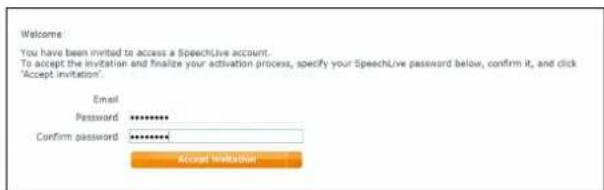
Your SpeechLive user account is now activated. More information on how to configure your application is available under Configuring the application.
4 Configuring the application
Before you can use SpeechLive, you need to link the SpeechExec software on your desktop computer to your SpeechLive user account. Finished dictations are then automatically saved to your SpeechLive folder.
Automatic configuration
1 After you have accepted the email invitation, click Start SpeechExec configuration.
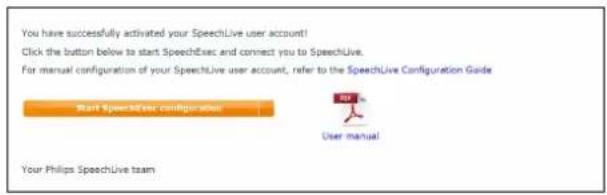
2 You will be asked to allow this website to open a program on your computer. Click Allow.
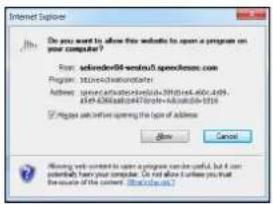
The SpeechExec transcriber software starts and connects automatically to your SpeechLive user account.
Manual configuration (optional)
You can also manually set up access to your SpeechExec user account in your SpeechExec transcriber software:
1 Start the SpeechExec transcriber software, which you have installed on your computer.
2 Click on Start SpeechLive on the toolbar.
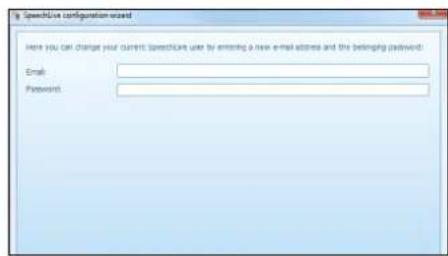
3 Enter your Email address and Password.
4 Click Next.
The SpeechExec transcriber software is now linked to your SpeechLive user account.

Note
- More information about the SpeechLive user account configuration options can be found in the SpeechExec user manual or in the SpeechExec online help.
5 Transcribing dictations
Transcriptionists receive a notification when the dictation has been created. This is displayed automatically in the SpeechExec transcription software under My SpeechLive in the IN folder.

Tip
- Users of the advanced business package (PCL1100) can also transcribe dictations using the SpeechLive portal (see also chapter SpeechLive Portal, page 7).
SpeechExec transcription software
1 Double-click on the file name to open the dictation. The SpeechExec Player appears, which you can control using either the mouse or foot control.
2 Transcribe the dictation.
3 Click Finish.
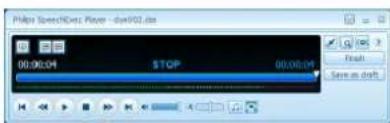
4 Select Finish transcription
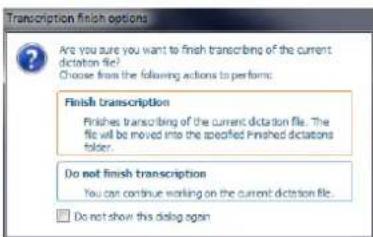
The dictation is moved to the Archive folder.
5 Right-click with your mouse on the dictation file in the work list.
6 Select Attach document.
7 Choose the required document.
8 Click Open
The document is attached to the dictation.
SpeechLive Portal
1 Open your browser and enter the following URL: www.speechlive.com
2 Click Login and enter your email address and password.
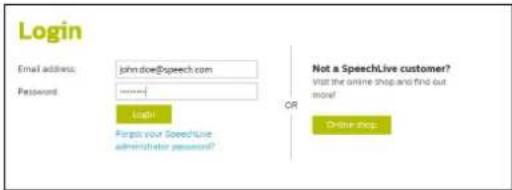
3 Click Login.
4 Click Dictations on the menu bar.
5 Click on the required dictation.
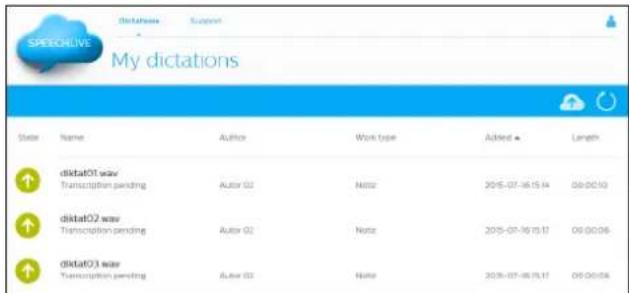
6 Click on Open dictation in player on the toolbar* The player appears in place of the toolbar and can be controlled using the foot control or mouse.
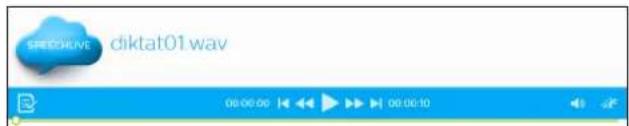
7 Transcribe the dictation.

Tip
- Adjust the playback volume and speed by clicking on the corresponding icon.
8 Click Close to finish the transcription.
9 Click Choose file to attach the dictation to a document.
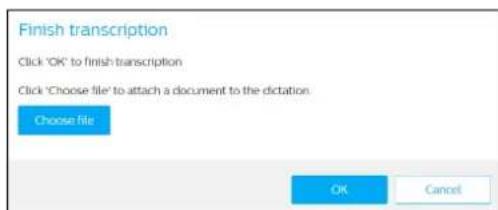
10 Click OK.
*) This function is only available to transcriptionists using the advanced business package (PCL1100).
6 Additional information
More information on SpeechExec Pro Transcribe can be
found in the
SpeechExec Pro Transcribe User Manual.
Neither Speech Processing Solutions GmbH nor its affiliates shall be liable to the purchaser of this product or third parties with respect to claims for damages, losses, costs or expenses incurred by purchaser or third parties as a result of an accident, misuse or abuse of this product or unauthorized modifications, repair, modification of the product or failure to meet the operating and maintenance instructions provided by Philips. This User Manual is not of a contractual nature. We accept no liability for changes, mistakes or printing errors. Philips and the Philips Shield Emblem are registered trademarks of Koninklijke Philips N.V. and are used by Speech Processing Solutions GmbH under license from Koninklijke Philips N.V. Trademarks are the property of their respective owners.


Inhaltsverzeichnis
- Terminology
- Administrator
- Author
- Transcriptionist
- User
- Philips SpeechExec Pro Transcribe software
- SpeechLive Portal
- Symbols used
- Installing the application
- Note
- Activating the SpeechLive user account
- Configuring the application
- Automatic configuration
- Manual configuration (optional)
- Transcribing dictations
- Tip
- SpeechExec transcription software
- Additional information
- Inhaltsverzeichnis
Brand : PHILIPS
Model : Speechlive PCL1000
Category : Voice recorder