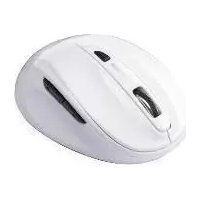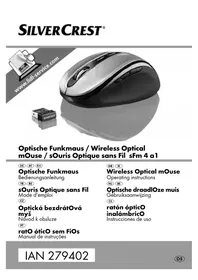
SFM 4 A1 - Mouse SILVERCREST - Free user manual and instructions
Find the device manual for free SFM 4 A1 SILVERCREST in PDF.



| Product type | Wireless optical mouse |
| Brand | SilverCrest |
| Model | SFM 4 A1 |
| Dimensions (L x W x H) | Approx. 10.2 x 6.8 x 4.2 cm |
| Weight (including batteries) | Approx. 110 g |
| Power supply | 2 AA 1.5 V batteries |
| Resolution | 1000, 1500, 2000 dpi (switchable via DPI button) |
| Radio frequency | 2.4 GHz |
| Range | Up to 5 m |
| Connectivity | Nano USB receiver (stored in compartment under mouse) |
| System requirements | Intel Pentium III / AMD Athlon or higher; 1 free USB port; Microsoft Windows XP/Vista/7/8; CD-ROM/DVD drive |
| Buttons | 5 buttons: left, right, scroll wheel, back, forward; + DPI button |
| Power saving mode | Auto-off after approx. 8 minutes of inactivity; wake by click or scroll |
| Included software | CD for driver installation and button configuration |
| Operating temperature | 15 °C to +40 °C |
| Storage temperature | 0 °C to 50 °C |
| Air humidity (non-condensing) | 10% to 70% |
| Package contents | Wireless mouse, nano USB receiver, software CD, 2 AA 1.5 V batteries, user manual |
| Warranty | 3 years (manufacturer warranty by Kompernass Handels GmbH) |
| Maintenance and cleaning | Clean the housing with a damp cloth and mild detergent; avoid moisture ingress |
| Safety instructions | Do not look into the LED beam; handle batteries with care (risk of explosion); keep out of reach of children |
Frequently Asked Questions - SFM 4 A1 SILVERCREST
User questions about SFM 4 A1 SILVERCREST
0 question about this device. Answer the ones you know or ask your own.
Ask a new question about this device
Download the instructions for your Mouse in PDF format for free! Find your manual SFM 4 A1 - SILVERCREST and take your electronic device back in hand. On this page are published all the documents necessary for the use of your device. SFM 4 A1 by SILVERCREST.
USER MANUAL SFM 4 A1 SILVERCREST
Operating instructions
NL BE
Optische draadlOze muis
Gébruiksaanwijzing
ES
ratón ópticO
inalámbricO
DE AT CH
Before reading, unfold the page containing the illustrations and familiarise yourself with all functions of the device.
FR BE
GB/IE Operating instructions Page 25
KOMPERNASS HANDELS GMBH
BURGSTRASSE 21
44867 BOCHUM
GERMANY
www.kompernass.com
Contents
Introduction...... 26
Copyright 26
Limitation on liability . . . . 26
Intended use ..... 27
Warnings used ..... 28
Notes on trademarks ... 29
Safety....29
Basic safety guidelines .. 29
Controls and package contents .... 33
Initial operation.....33
Check package contents 33
Disposal of packaging materials .... 34
Inserting/replacing the batteries .... 35
Connecting the nano-USB receiver .... 35
Power-saving mode.....36
Changing operating modes....36
Installing the software . . . 37
Configuration of the mouse buttons .... 39
Storage when not in use 42
Disposal.... 43
Disposal of the device...43 Disposal of batteries....43
Appendix.....44
Technical data.....44
Notes on the EU Declaration of Conformity ..... 45
Kompernass Handels GmbH warranty ..... 45
Service 48
Importer 48
Introduction
Congratulations on the purchase of your new device.
You have selected a high-quality product. The operating instructions are part of this product. They contain important information on safety, usage and disposal. Before using the product, familiarise yourself with all handling and safety guidelines. Use the product only as described and for the range of applications specified. Keep these operating instructions in a safe place. Please also pass these operating instructions on to any future owner(s).
Copyright
This documentation is subject to copyright protection.
Any reproduction, or any reprint even in the form of excerpts, as well as the rendition of figures even in modified form, is only permitted with the manufacturer's written consent.
Limitation on liability
All the technical information, data and instructions regarding installation, connection and operation contained in these operating instructions corresponds to the latest information available to us at the time of printing and takes our previous experience and know-how into account.
No claims may be derived from the specifications, figures and descriptions in these operating instructions. The manufacturer assumes no responsibility for damage caused by failure to observe these instructions, improper use, incompetent repairs, making unauthorised modifications or for using unapproved replacement parts.
Intended use
This wireless mouse is an information technology device designed as an input device for a computer. The device must not be used outside of closed rooms. This device is not intended for use in companies or for other commercial uses (e.g. office productivity applications). Use the device only in the home for private purposes. It is not intended for any other use. Claims of any kind for damage arising as a result of incorrect use will not be accepted. The risk shall be borne solely by the user.
Warnings used
The following warnings are used in these operating instructions:

DANGER
A warning at this hazard level indicates an imminently hazardous situation.
Failure to avoid this hazardous situation could result in severe injuries or even death.
▶ Follow the instructions in this warning notice to avoid the risk of serious injuries or death.
CAUTION
A warning at this hazard level indicates potential material damage.
Failure to avoid this situation could result in material damage.
▶ Follow the instructions in this warning to prevent material damage.
NOTE
▶ A note indicates additional information that eases device handling.
Notes on trademarks
-USB ^® is a registered trademark of USB Implementers Forum, Inc.
- Microsoft ^® , Windows ^® and other Microsoft product names are registered trademarks of the Microsoft Corporation.
-Intel ^® and Pentium ^® are registered trademarks of the Intel Corporation.
-AMD ^® and AMD ^® Athlon ^TM are registered trademarks of Advanced Micro Devices, Inc.
All other names and products may be trademarks or registered trademarks of their respective owners.
Safety
In this section, you will receive important safety advice relating to device handling. Improper use may result in personal injury and material damage.
Basic safety guidelines
To ensure safe handling of the device, follow the safety guidelines set out below

DANGER! LED radiation!
Avoid damage to eyes. Do not stare into the LED beam. Do not look directly at the LED beam using optical instruments.
This appliance may be used by children aged 8 over and by persons with reduced physical, sensory or mental capabilities or lack of experience and knowledge, provided that they are under supervision or have been told how to use of the appliance safely and are aware of the potential risks. Children must not play with the appliance. Cleaning and user maintenance tasks must not be carried out by children unless they are supervised.
■ Prior to use, check the device for visible external damage. Do not operate a device that has been damaged or dropped.
■ Always place the device on a stable and level surface. It can be damaged if dropped.
■ Do not expose the device to direct sunlight or high temperatures. Otherwise it may overheat and be irreparably damaged.
- Do not place the product near heat sources such as radiators or other heat-generating devices.
■ Never attempt to open the device.
■ Do not make any unauthorised modifications or alterations to the device.
- Do not expose the device to spray or dripping water and do not place liquid-filled objects, such as vases or open drink containers, on or near the device.
DANGER! Packaging materials such as plastic film must not be used as playthings.
Risk of suffocation!

DaNGEr
Mishandling the batteries can cause fires, explosions, leakages or other hazards!
▶ Do not throw the batteries into a fire and do not subject them to high temperatures.
▶ Do not open, deform or short-circuit batteries, since this can lead to chemical leakage.
▶ Do not attempt to recharge batteries. Do not charge batteries unless they are explicitly labelled as "rechargeable". There is a risk of explosion!
▶ Check the condition of the batteries at regular intervals. Leaking chemicals can cause permanent damage to the device. Take particular care when handling damaged or leaking batteries. Risk of chemical burns! Wear protective gloves.
▶ Chemicals which leak from a battery can cause skin irritation. In event of contact with the skin, rinse with copious amounts of water. If the chemicals come into contact with your eyes, rinse thoroughly with water, do not rub and consult a doctor immediately.

DaNGEr
▶ Keep batteries out of the reach of children. Children can put batteries into their mouth and swallow them. If a battery has been swallowed, seek medical assistance immediately as this can lead to severe internal burns (or even death) within two hours.
▶ Do not mix different types of batteries.
▶ Always insert the batteries the right way round (observe correct polarity) otherwise there is a danger that they could explode.
▶ If you do not intend to use the device for a long time, remove the batteries.
Controls and package contents
① Left mouse button
② Right mouse button
③ Scroll wheel
4 DPI button
⑤ Back button ▶
6 Forward button
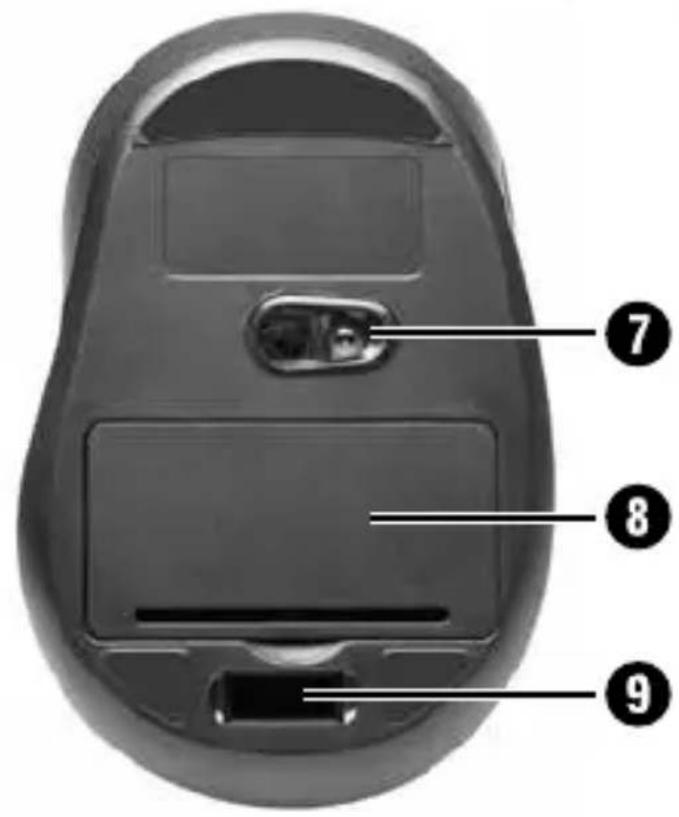
⑦ Optical sensor
8 Battery compartment
⑨ Storage compartment for the nano-USB receiver
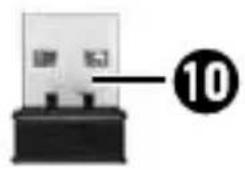
⑩ Nano-USB receiver
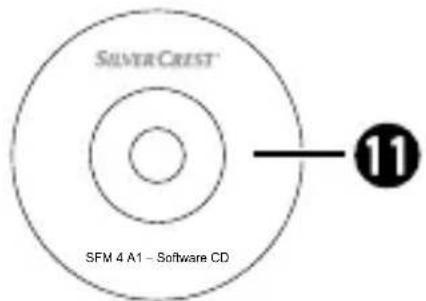
⑪ Software CD
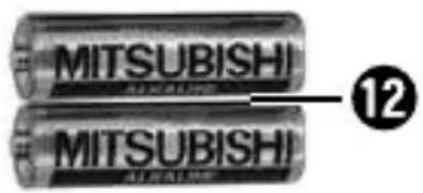
⑫ 2 x 1.5 V batteries
13 Operating instructions
Initial operation
Check package contents
The following components are included in delivery:
- Wireless mouse SFM 4 A1
- Nano-USB receiver 10
- Software CD ⑪
- 2 × 1.5 ~V batteries ⑫
• These operating instructions 13
NOTE
▶ Check the consignment for completeness and for signs of visible damage.
If the consignment is incomplete or damaged due to defective packaging or carriage, contact the Service hotline (see the chapter Service).
Remove all parts of the device from the packaging and remove all packaging materials.
Disposal of packaging materials
The packaging protects the device from damage during shipment. The packaging materials have been selected for their environmental friendliness and ease of disposal and are therefore recyclable.

Returning the packaging to the materials cycle conserves raw materials and reduces the amount of waste that is generated.
Dispose of packaging materials which are no longer needed in accordance with applicable local regulations.
Inserting/replacing the batteries
◆ Open the battery compartment ⑧ on the underside of the wireless mouse.
Insert 2 x 1.5 V AA batteries into the battery compartment ⑧ (observe correct polarity). First place one battery in the lower compartment and then the second battery in the higher compartment. Ensure that the plastic strip is positioned under the batteries, this will make future battery exchanges easier.
◆ Close the battery compartment ⑧.
CAUTION
▶ Always use batteries from the same manufacturer and of the same type. Always replace both batteries at the same time.
Connecting the nano-USB receiver
Remove any other mouse that is connected to your computer and then restart the computer.
Remove the nano-USB receiver 10 from the storage compartment 9 on the bottom of the wireless mouse.
- Connect the nano-USB receiver 10 to a free USB-port on your computer while it is running.
The operating system recognises the new hardware and automatically installs the necessary drivers. After the installation of the driver, the wireless mouse is ready for operation and can be used.
Power-saving mode
The wireless mouse is equipped with a power-saving mode.
If you switch the computer off, the wireless mouse automatically switches off after around 8 minutes in order to save power.
If you disconnect the nano-USB receiver ⑩ from the computer, the wireless mouse automatically switches off after around 8 minutes in order to save power.
If you do not click, scroll or move the wireless mouse, it turns off after about 8 minutes. As soon as you press any button on the wireless mouse or use the scroll wheel, the wireless mouse switches back on.
Changing operating modes
You can use the DPI button ④ to switch the optical sampling between the resolutions 1000 dpi, 1500 dpi and 2000 dpi. The higher the resolution, the more accurate the wireless mouse's sampling.
Installing the software
To be able to use the full functionality of the mouse, you must install the supplied software.
NOTE
The following illustrations and descriptions relate to the operating system Microsoft® Windows® 7. The screen display may differ for other operating systems.
- Insert the supplied software CD ⑪ in the CD-ROM drive of your computer.
The installation process should start automatically.
If this is not the case, start the "setup.exe" file on the CD-ROM manually by double-clicking it.
The installation starts and the installation wizard is displayed.
The start window of the installation wizard will be displayed.
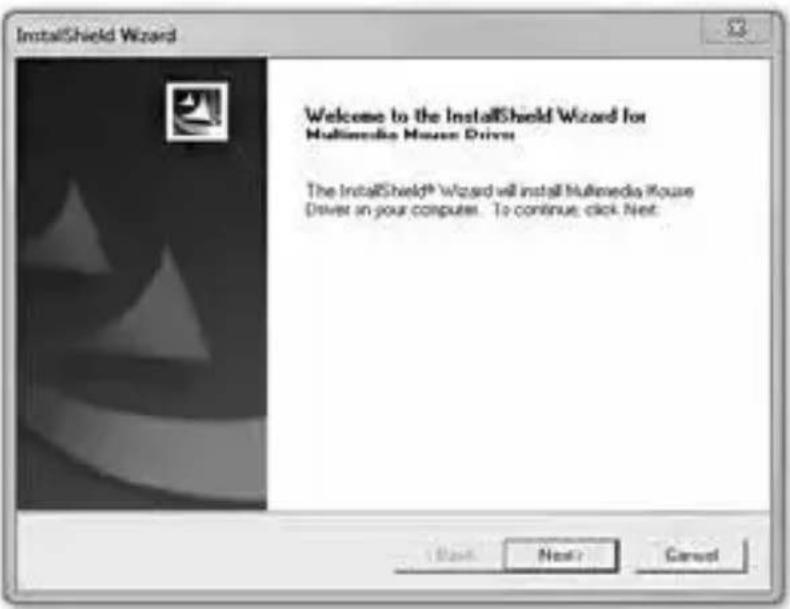
◆ Click on the "Next >" button.
In the next step, you can choose the destination folder for the installation by using the "Browse" button or selecting the suggested destination.
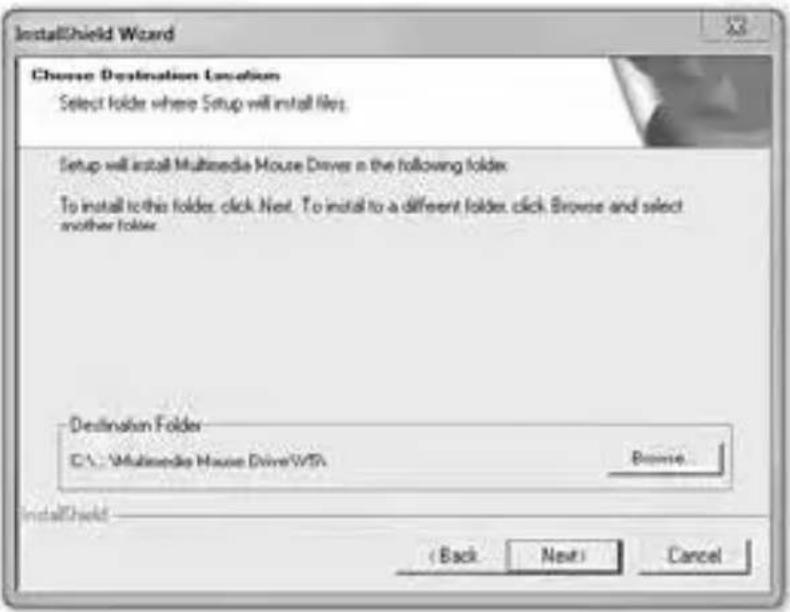
◆ Move on to the next step by clicking on the "Next >" button.
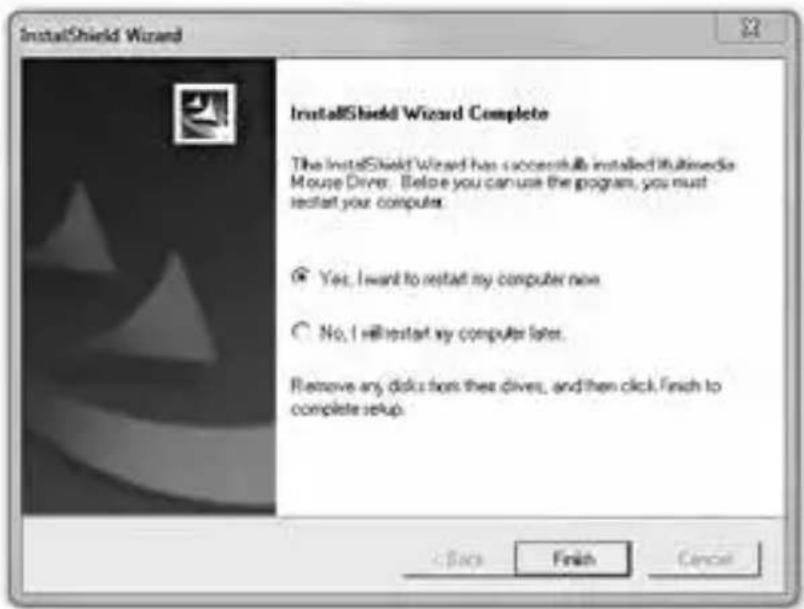
To finish the installation, click the "Finish" button. The computer will be restarted.
Configuration of the mouse buttons
You can use the software to customise the mouse functions according to your personal preferences.
Double-click on this icon in the system tray (bottom left of your screen, next to the clock) or click on the icon with the right mouse button and select "Mouse properties" from the context menu.
The configuration menu for the mouse appears.
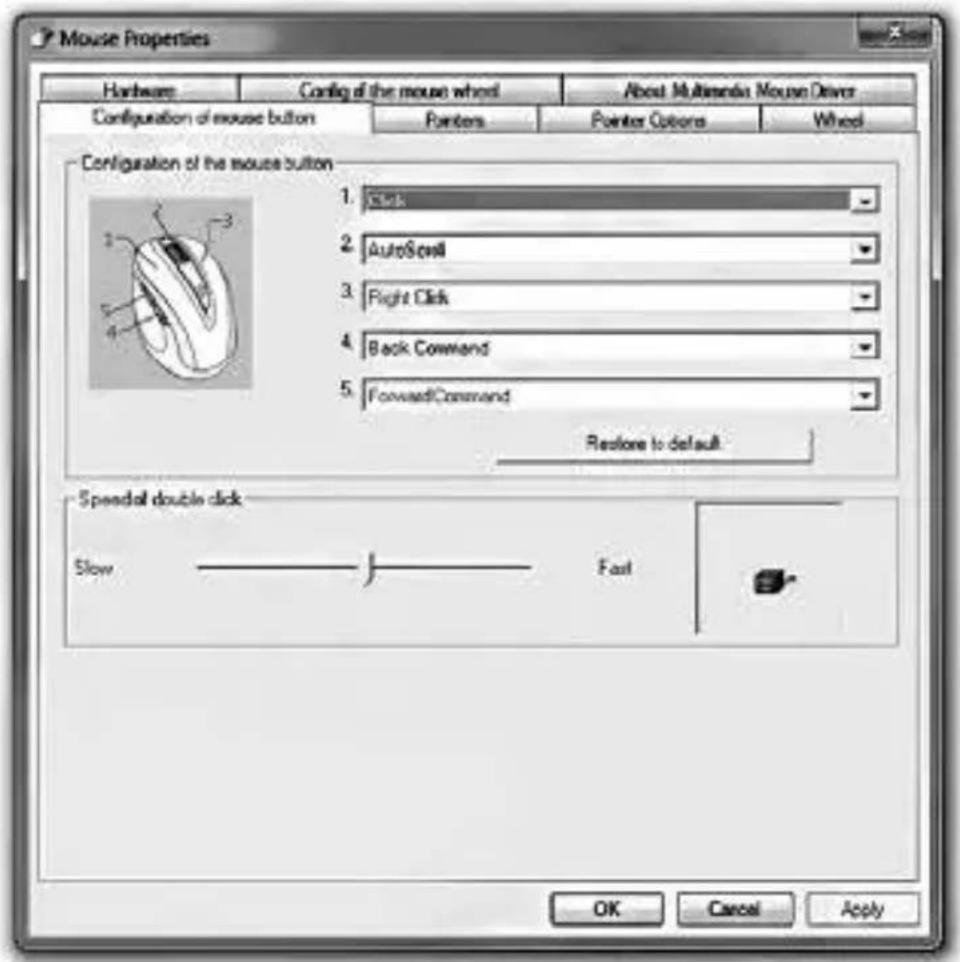
Select the tab "Configuration of mouse button". Here you can set a function for each of the five mouse buttons.
- Click on the drop-down menu for the corresponding mouse button and select a function from the menu.
To apply the changes, click on the "Apply" button (the window remains open) or on "OK" (the window closes).
- Select "Restore to default" to return the buttons to their original functions.
The other tabs in this configuration menu contain settings for the respective operating system.
Troubleshooting
If the wireless mouse is not recognised after installation or does not respond to input, check the following:
◆ Check to ensure that the batteries have been inserted the right way round.
◆ Check that the nano-USB receiver ⑩ is properly connected to the computer.
◆ Try using a different USB port on your computer.
◆ Check the capacity of the batteries and if necessary replace them.
Note: you should use a mouse pad or similar if you are using the wireless mouse on a glass surface or any other reflective surface.
NOTE
If the above-mentioned solutions do not resolve the problem, please contact Customer Service (see chapter Service).
Cleaning
CAUTION
▶ Moisture penetrating the device can cause a short-circuit and damage the equipment. To avoid irreparable damage, ensure that no moisture penetrates the device during cleaning.
■ Clean the housing only with a soft damp cloth and a mild detergent.
Storage when not in use
If you are not going to the use the device for a long period of time, remove the nano-USB receiver ⑩ from your computer and store it in the storage compartment ⑨ on the underside of the wireless mouse.
Remove the batteries from the device and store it in a clean, dry location away from direct sunlight.
Disposal
Disposal of the device

The adjacent symbol of a crossed-out wheelie bin means that this device is subject to Directive 2012/19/EU. This directive states that this device may not be disposed of in normal household waste at the end of its usable life, but must be handed over to specially set-up collection locations, recycling depots or disposal companies.
This disposal is free of charge for the user. Protect the environment and dispose of this device properly.
You can obtain further information from your local disposal company or the city or local authority.
Disposal of batteries
Used batteries may not be disposed of in household waste. All consumers are required by law to dispose of batteries at a collection point provided by their local community or at a retail store. The purpose of this obligation is to ensure that batteries are disposed of in a non-polluting manner. Only dispose of batteries when they are fully discharged. Cover the poles of partially discharged batteries with tape to prevent short circuits.
Appendix
Technical data
| Voltage supply 2 x 1.5 V AA batteries | |
| Radio frequency 2.4 GHz | |
| Sampling resolution | 1000 dpi, 1500 dpi, 2000 dpi |
| Range up to 5 m | |
| Dimensions approx. 10.2 x 6.8 x 4.2 cm | |
| Weight (including batteries) | approx. 110 g |
| Operating temperature 15°C-+40°C | |
| Storage temperature 0°C-50°C | |
| Relative humidity (no condensation) | 10%-70% |
System requirements:
- Intelium® III/AMD® Athlon™ or higher
- 1 free USB port
- Microsoft Windows® XP, Windows Vista®, Windows® 7 or Windows® 8
- CD-ROM drive or DVD drive for installing the software
Notes on the EU Declaration of Conformity
This appliance complies with the essential requirements and other relevant provisions of the R&TTE Directive 1999/5/EC and the RoHS Directive 2011/65/EU.
CE The complete EU Declaration of Conformity is available from the importer.
This appliance has a 3-year warranty valid from the date of purchase. If this product has any faults, you, the buyer, have certain statutory rights. Your statutory rights are not restricted in any way by the warranty described below.
Warranty conditions
The validity period of the warranty starts from the date of purchase. Please keep your original receipt in a safe place. This document will be required as proof of purchase. If any material or production fault occurs within three years of the date of purchase of the product, we will either repair or replace the product for you at our discretion. This warranty service is dependent on you presenting the defective appliance and the proof of purchase (receipt) and a short written description of the fault and its time of occurrence. If the defect is covered
by the warranty, your product will either be repaired or replaced by us. The repair or replacement of a product does not signify the beginning of a new warranty period.
Warranty period and statutory claims for defects
The warranty period is not prolonged by repairs effected under the warranty. This also applies to replaced and repaired components. Any damage and defects present at the time of purchase must be reported immediately after unpacking. Repairs carried out after expiry of the warranty period shall be subject to a fee.
Scope of the warranty
This appliance has been manufactured in accordance with strict quality guidelines and inspected meticulously prior to delivery. The warranty covers material faults or production faults. The warranty does not extend to product parts subject to normal wear and tear or fragile parts such as switches, batteries, baking moulds or parts made of glass. The warranty does not apply if the product has been damaged, improperly used or improperly maintained. The directions in the operating instructions for the product regarding proper use of the product are to be strictly followed. Uses and actions that are discouraged in the operating instructions or which are warned against must be avoided. This product is intended solely
for private use and not for commercial purposes. The warranty shall be deemed void in cases of misuse or improper handling, use of force and modifications/repairs which have not been carried out by one of our authorised Service centres.
Warranty claim procedure
To ensure quick processing of your case, please observe the following instructions:
- Please have the till receipt and the item number (e.g. IAN 12345) available as proof of purchase.
- You will find the item number on the type plate, an engraving on the front page of the instructions (bottom left), or as a sticker on the rear or bottom of the appliance.
- If functional or other defects occur, please contact the service department listed either by telephone or by e-mail.
- You can return a defective product to us free of charge to the service address that will be provided to you. Ensure that you enclose the proof of purchase (till receipt) and information about what the defect is and when it occurred.

Download these instructions along with many other manuals, product videos and software on www.lidl-service.com.
Service

Service Great Britain
Tel.: 0871 5000 720 (£ 0.10/Min.)
E-Mail: kompernass@lidl.co.uk

Service Ireland
Tel.: 1890 930 034
(0,08 EUR/Min., (peak))
(0,06 EUR/Min., (off peak))
E-Mail: kompernass@lidl.ie
IAN 279402
Importer
Please note that the following address is not the service address. Please use the service address provided in the operating instructions.
KOMPERNASS HANDELS GMBH
BURGSTRASSE 21
44867 BOCHUM
GERMANY
www.kompernass.com
Table des matières
Introduction ..... 50
natural_image
Symbolic icon of a person moving with arrows, enclosed in a circle (no text or symbols)KOMPERNASS HANDELS GMBH
BURGSTRASSE 21
44867 BOCHUM
GERMANY
www.kompernass.com
Inhoud
Inleiding....74
KOMPERNASS HANDELS GMBH
BURGSTRASSE 21
44867 BOCHUM
GERMANY
www.kompernass.com
Obsah
Úvod.....98
KOMPERNASS HANDELS GMBH
BURGSTRASSE 21
44867 BOCHUM
GERMANY
www.kompernass.com
índice
KOMPERNASS HANDELS GMBH
BURGSTRASSE 21
44867 BOCHUM
GERMANY
www.kompernass.com
índice
Introdução..... 146
KOMPERNASS HANDELS GMBH
BURGSTRASSE 21
44867 BOCHUM
GERMANY
www.kompernass.com