
IAN 55976 - Mouse SILVERCREST - Free user manual and instructions
Find the device manual for free IAN 55976 SILVERCREST in PDF.


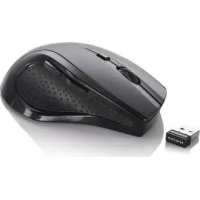
| Product Type | Multimedia Wireless Mouse |
| Model | OM1008-SL (IAN 55976) |
| Number of Buttons | 8 (7 programmable) |
| Scroll Wheel | 4-way tilt wheel (vertical and horizontal scrolling) |
| Resolution (CPI) | Switchable between 800 and 1600 CPI |
| Wireless Technology | 2.4 GHz RF with USB nano receiver |
| Wireless Range | Up to 5 m (15 feet) |
| Operating Modes | Standard and Media mode (toggle by holding CPI button 3 seconds) |
| Power Source | 1 AA battery (1.5 V) |
| Battery Life Indicator | Orange LED when battery low |
| Auto Standby | Yes, powers off after inactivity; press any button to wake |
| Dimensions (L x W x H) | 108 mm x 70 mm x 41 mm |
| Weight (without battery, with receiver) | 75 g |
| System Requirements | Windows XP/Vista/7, USB 2.0 port, CD-ROM drive for software |
| Package Contents | Mouse, USB nano receiver, 1 AA battery, driver CD, user manual |
| LED Class | Class 1 (safe under normal use) |
| Operating Temperature | 5°C to 40°C |
| Maximum Humidity | 90% RH |
| Warranty | 36 months from date of purchase (UK hotline: 0207-36 50 744) |
| Manufacturer | TARGA GmbH, Germany |
Frequently Asked Questions - IAN 55976 SILVERCREST
User questions about IAN 55976 SILVERCREST
0 question about this device. Answer the ones you know or ask your own.
Ask a new question about this device
Download the instructions for your Mouse in PDF format for free! Find your manual IAN 55976 - SILVERCREST and take your electronic device back in hand. On this page are published all the documents necessary for the use of your device. IAN 55976 by SILVERCREST.
USER MANUAL IAN 55976 SILVERCREST
Multimedia Wireless Mouse
with 8 buttons
GB Multimedia Wireless Mouse with 8 buttons
User manual and service information
OM1008-SL
Overview
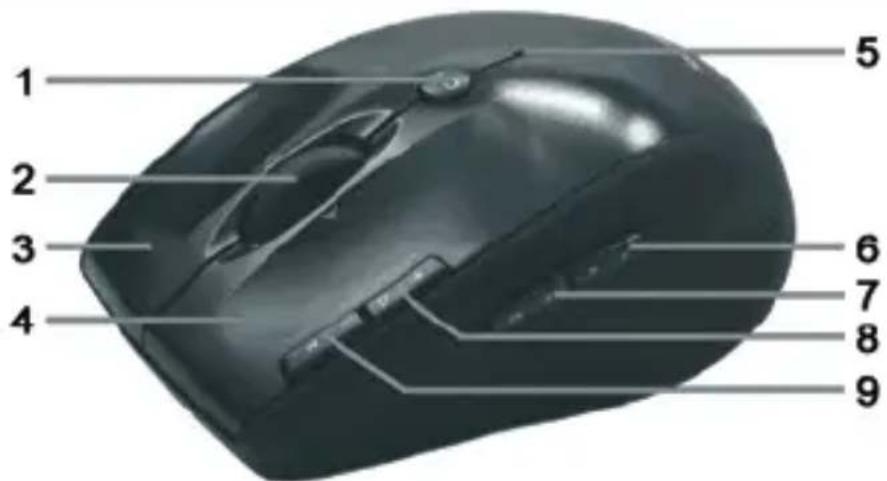
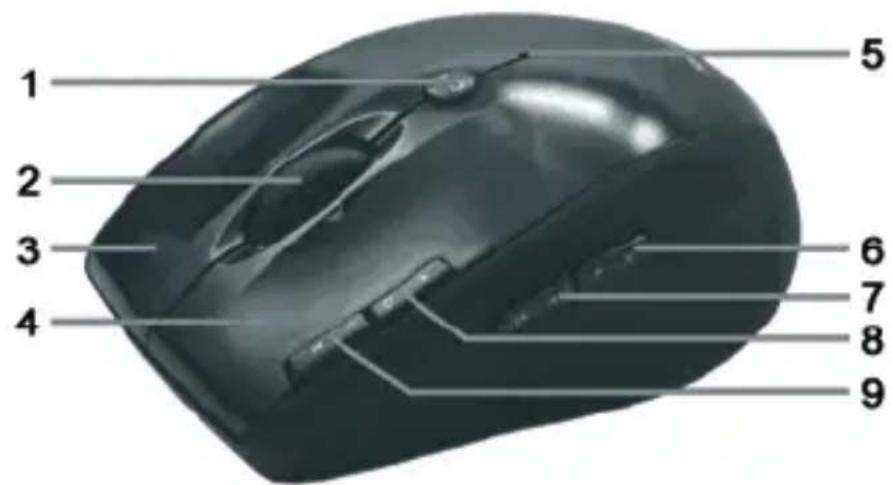
1 800/1600 cpi toggle switch (press briefly) Standard / media mode toggle switch (keep pressed for 3 seconds) 2 Tilt wheel (4-way scroll wheel) Volume control and mute (media mode) 3 Right mouse button 4 Left mouse button 5 Battery level indicator 6 Forward (default) Next title (media mode) 7 Back (default) Previous title (media mode) 8 Zoom + (default mode) Launch Media Player (media mode) 9 Zoom - (default mode) Play / Pause (media mode)
Table of Contents
Overview .... 1
Important Safety Instructions ....4
Intended Use 5
Operating Environment 6
Children and Persons with Disabilities 7
Batteries 7
RF Interface....7
Repair and Maintenance 9
Copyright 9
Storing When Not Using the Product 9
Conformity Notice 10
Disposal of Old Devices 10
Package Contents....11
Introduction 12
System Requirements....12
Installing Hardware ....13
Inserting the Battery 13
Connecting the USB Nano Receiver 15
Installing the Software....16
Wireless Mouse OM1008-SL
Operation....19
Changing the Operating Mode 19
Configuration 19
Appendix 22
Troubleshooting 22
Technical Specifications 23
Warranty Information 24
Important Safety Instructions
Before you use this device for the first time, please read the following notes in this manual and heed all warnings, even if you are familiar with handling electronic devices. Keep this manual safe for future reference. If you sell the device or pass it on, it is essential that you also hand over this manual.

This icon denotes important information for the safe operation of the product and for the user's safety.

This icon alerts about a strong light source.

This symbol denotes further information on the topic.

Warning: LED Radiation! LED Class 1
Avoid damage to your eyes! Never look into the LED beam. Never point the LED beam directly at people or animals!
Intended Use
This wireless mouse, consisting of an optical mouse and USB nano receiver, is an IT device. The device may not be used outdoors or in tropical climates. This product has not been designed for corporate or commercial (e.g. office) applications. Use the product in domestic environments for private applications only. This device fulfils all conformity-relevant norms and standards. Any modifications to the device may result in these directives no longer being met. The manufacturer is not liable for any damage or interference resulting from non-compliance with the instructions above. Only use the accessories recommended by the manufacturer. Any use other than that mentioned above does not correspond to the intended use.
If you are not using the device within the Republic of Germany, you must observe the regulations and laws in the country of use.
Operating Environment
Position the wireless mouse on a stable, even surface and do not place any objects on the device. The device is not designed for use in environments with high temperatures or humidity (e.g., bathrooms), and must be kept free of dust. Operating temperature and operating humidity: 5°C to 40°C, max. 90% RH.

Always make sure that:
- no direct heat sources (e.g., radiators) can affect the device;
- the device is not exposed to direct sunlight or artificial light;
- contact with spray, dripping water, and corrosive liquids is avoided and the device is never operated near water; in particular, the device may never be immersed in liquids (do not place any objects containing liquids, such as vases or drinks, near the device);
- the device is never placed in the immediate vicinity of magnetic fields (e.g., loudspeakers);
- no fire hazards (e.g., burning candles) are placed on or near the device;
- no foreign bodies enter the device;
- the device is not subjected to extreme temperature changes;
- the device is not subjected to excessive shocks and vibrations.

Children and Persons with Disabilities
Electrical devices do not belong in the hands of children. People with disabilities should only use electrical devices in appropriate circumstances. Do not allow children or persons with disabilities to use electrical devices when not under supervision. They may not comprehend the presence of potential risks. Batteries and small parts represent potential choking hazards. Keep the batteries in a safe place. If a battery is swallowed, seek medical help immediately. Keep the packaging away from children and persons with disabilities too as there is danger of suffocation.

Batteries
Insert the battery with the correct polarity. Never try to recharge normal batteries and under no circumstances throw them into fire. Remove the battery if the device is not going to be used for a long time. Improper use may cause explosions and danger to life.

RF Interface
Turn the device off when onboard an aircraft, in a hospital, in an operating theatre or in the vicinity of medical electronic equipment. The RF signals may interfere with the functionality of sensitive
devices. Place the device at least 20 cm (8 inches) away from pacemakers, as the RF signals may interfere with the functionality of the pacemaker. The transmitted RF signals can cause interference with hearing aids. Do not place the device with the wireless adapter turned on near flammable gases or in a potentially explosive area (e.g. a paint shop), as the transmitted RF signals may cause explosions or fire. The range of the radio wave signals depends on environmental conditions.
When data is transmitted via a wireless connection it may also be received by unauthorized parties. Targa GmbH is not liable for any interference caused to RF or TV signals through unauthorized modification to this device. Furthermore, Targa does not assume any liability for replacing any cables or devices that have not been specifically approved by Targa GmbH. The user is solely responsible and liable for troubleshooting any interference caused by unauthorized modification of this device and for replacing appliances.
Repair and Maintenance
Repairs are required when this device has been damaged in any way, for example when liquid has entered the product, when the product has been exposed to rain or moisture, when the product does not work normally or if the product has been dropped. If smoke, unusual noises or smells are noticed, switch off the device immediately. In these cases the device should no longer be used and should be inspected by authorized service personnel. Please contact qualified personnel when repair is needed. Never open the housing of the device, or the accessories. Only use a clean, dry cloth for cleaning. Never use any corrosive liquids.
Copyright
The entire content of this User's Manual is copyrighted and is provided to the reader for information purposes only. Copying data and information without prior explicit written approval by the author is strictly forbidden. This also applies to any commercial use of the contents and information. All texts and diagrams are up-to-date as per the date of print release.
Storing When Not Using the Product
When left unused for a long period of time, remove the battery from the wireless mouse. Remove the USB nano receiver from your computer's USB port and insert it into the storage compartment of the mouse. Please note that the USB nano receiver fits into the storage compartment in only one direction, without the need to
apply any force. Also make sure that the storage temperature is maintained between 5 °C and 40 °C. The humidity must not exceed 90% RH.
Conformity Notice

The wireless mouse complies with the basic and other relevant requirements of the R&TTE Directive 1999/5/EC. The corresponding Declaration of Conformity can be found at the end of this User's Manual.
Disposal of Old Devices

Devices marked with this symbol are subject to European Directive 2002/96/EC. All electric and electronic devices must be disposed of separately from household waste at official disposal centres. Also the USB nano receiver is an electronics device and needs to be disposed of properly.
Avoid hazards to the environment and dangers to your personal health by disposing of the device properly. For further information about proper disposal, contact your local government, disposal bodies or the shop where you bought the device.
Respect the environment. Old batteries do not belong in with domestic waste. They must be handed in to a collection point for waste batteries.
Recycle the packaging material properly too. Cardboard packaging can be taken to paper recycling containers or public collection points for recycling. Any film or plastic contained in the packaging should be taken to your public collection points for disposal.
Package Contents
Please check that delivery contents are complete using this list:
- Wireless Mouse OM1008-SL
- USB nano receiver OM1008-SL-R (inserted into the wireless mouse)
- 1 AA brand-name battery, 1.5V
- Driver CD
- User's Manual
If you find any items missing or damaged, please phone our hotline. You will find the corresponding phone number in the last chapter "Warranty Information".
Introduction
Thank you for purchasing the wireless mouse SilverCrest OM1008-SL. This wireless mouse is, apart from the 3 standard buttons, equipped with five special buttons that enable access to frequently-used functions. The scroll wheel is a 4-way scroll wheel that enables both vertical and horizontal scrolling. With the special CPI button (1) you can toggle between a resolution of 800 cpi and 1600 cpi or between standard and media functionality. This wireless mouse furthermore features an automatic standby function. When not using the wireless mouse for a certain time, it will power off. Press any button on the wireless mouse to power it back on.
System Requirements
- Intel® Pentium® III / AMD Athlon™ or higher
- 1 free USB 2.0 port
- Microsoft® Windows® XP, Windows Vista® or Windows® 7
- CD-ROM or DVD-ROM drive for installing the software
Installing Hardware
Inserting the Battery
First insert the supplied battery into the wireless mouse, as shown in the figure below. Take care to insert the battery into the device observing the correct polarity (+ and -).

10 On/Off button 11 Optical sensor 12 Mouse battery compartment 13 USB nano receiver
- Open the battery compartment (12) on the bottom of the wireless mouse.
- Remove the USB nano receiver (13).
- Insert the supplied battery (size AA) into the wireless mouse with the correct polarity (+ and -); see the illustration.
- Close the battery compartment (12).
- Press the On/Off button (10) on the bottom of the wireless mouse to power it on.

If the indicator light (5) on the upper side of the wireless mouse lights up orange, the battery is depleted. When this happens, replace the battery with a new battery of the same type.

Should the wireless mouse fail to work, power it off and back on. Sometimes removing and re-inserting the battery will also help.

The wireless mouse features an automatic standby function. When not using the wireless mouse for a certain time, it will power off. Press any button on the wireless mouse to power it back on.
Connecting the USB Nano Receiver
If you still have your old mouse connected to the computer, please shut down your computer, disconnect the device and restart the computer.
Plug the USB nano receiver (13) into a free USB port on your powered-on computer.
The operating system will detect the new hardware and will automatically install the corresponding drivers. Depending on the operating system, one of the following messages will appear:
Under Windows ® XP
When connecting the receiver for the first time, the operating system will prompt "Found New Hardware". Wait until the message "Your new hardware is installed and ready to use" appears before using the wireless mouse.
Under Windows Vista ® , Windows ® 7
When connecting the receiver for the first time, the operating system will prompt "Installing device driver software". Wait until the message "Your devices are ready to use" appears. Your wireless mouse has been successfully configured and can now be used.
Installing the Software
In order to be able to use the full function-capabilities of your mouse, you must install the supplied software. To do this, insert the supplied CD-ROM into the CD-ROM drive of your computer. The setup process should start automatically, otherwise double-click on the "setup.exe" file on the CD-ROM to start manually.
Only under Windows Vista ® and Windows ® 7 the setup will be temporarily blocked and a message „An unidentified program wants access to your computer” appears. To continue setup, click "Allow".
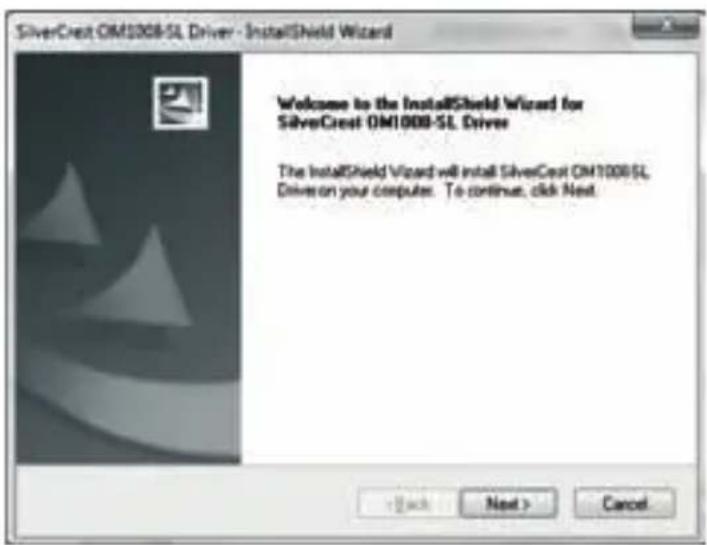
The following setup screens correspond to the Windows ® 7 operating system. For Windows ® XP/Vista these screens will slightly vary but their contents is the same.
To launch setup, click .
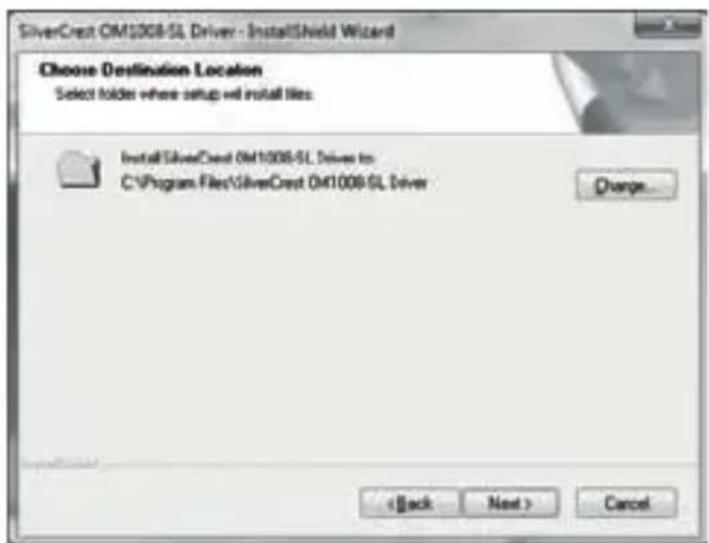
Here you can select the destination folder for the installation with the button or use the suggested folder. To proceed click .
Wireless Mouse OM1008-SL
Click to finish the setup programme.
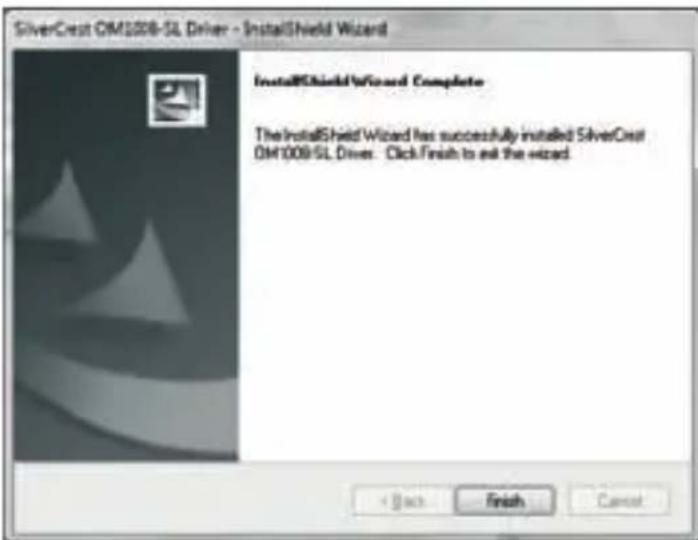

If you are prompted to restart your computer, restart it before using the software.
Operation
Changing the Operating Mode
Use the CPI button (1) to quickly toggle between 800 cpi and 1600 cpi resolution for optical tracking. Tracking at 1600 cpi offers higher accuracy.
To toggle between standard and media operating mode of your optical mouse, press and hold the CPI button (1) for at least 3 seconds until the indicator (5) blinks briefly. The available functions for the media mode can be found on page 1 – Overview. In media operating mode, you can press the tilt wheel (2) to the left or right to adjust the sound volume. In standard operating mode, you can press the tilt wheel (2) to the left or right or turn the wheel to adjust the Windows sound volume, whenever the volume icon is enabled in the system bar.
Configuration
Double-click on the icon in the task bar (lower-right corner on your screen, near the system clock). Or right-click on the icon and select from the context menu. The mouse configuration menu will appear.
Wireless Mouse OM1008-SL
Here you can assign a function for the highlighted mouse buttons. Click on the radio button corresponding to the mouse button and select the desired function from the menu.
By using the you can return all settings to factory default.
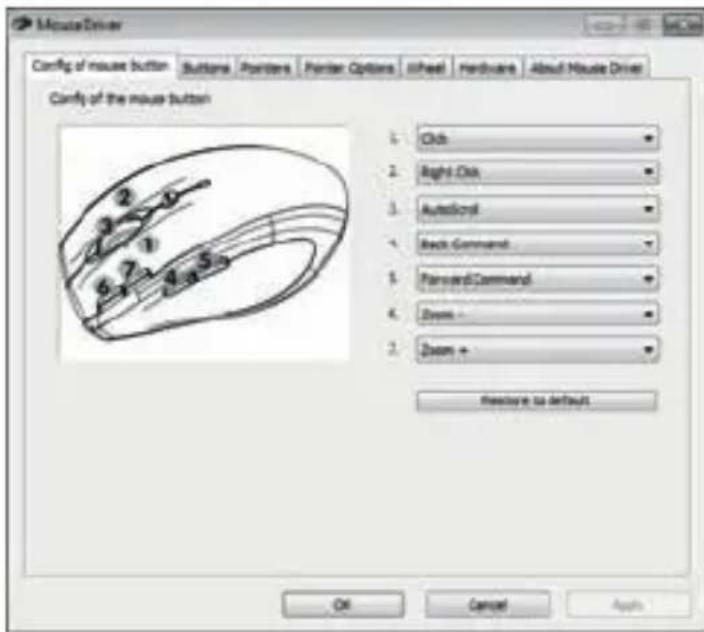

All selected options apply to the default mode. The button assignments for media mode cannot be modified.
Enable changes by clicking the button (the window remains open) or by clicking on the button (the window closes).
The other tabs of the configuration menu contain settings that belong to the used operating system.
Note for Microsoft® Windows Vista® and Windows® 7 users (Windows® XP does not contain this function):
Under Control Panel of your operating system you can use the "Mouse" option to also configure the mouse horizontal scroll wheel feature.
Appendix
Troubleshooting
If after installation the mouse is not detected or does not respond, please test the following:
☑ Check the polarity of the battery. ☑ Please check if the wireless mouse is switched on. ☑ Please check that the USB nano receiver unit has been connected properly to your computer (see page 15 - Connecting the USB Nano Receiver). ☑ Please try a different USB port. ☑ Check the charging level of the battery and if necessary insert a new battery. ☑ Please note that you should use a pad (e.g. mouse pad) when using the mouse on a glass or glossy surface.
Technical Specifications
- Wireless optical PC mouse with USB nano receiver
- LED Class 1
- 8 hotkeys, of which 7 programmable
- Tilt Wheel (4-way scroll wheel)
- Resolution switchable: 800 cpi or 1600 cpi
- Smart Link (no need to establish connections between receiver and wireless mouse any more)
- Wireless transmission frequency: 2.4 GHz
- Power supply: 1 AA battery, 1.5 V
- Toggling between Media Player and Office mode (standard operation) by pressing a button
- Range up to 5m (15 feet)
- Dimensions of wireless mouse: 108 mm x 70 mm x 41 mm (LxWxH)
- Dimensions of USB nano receiver: 15.5 mm x 7 mm x 18 mm (LxWxH)
- Weight of wireless mouse: 75 g (without battery, with USB nano receiver inserted)
Warranty Information
36 month warranty from date of purchase
UK
Important warranty information
SILVERCREST
Dear Customer,
Thank you for purchasing a Silvercrest product.
We ask you to read carefully through the enclosed documentation or online help before putting your Silvercrest product into service. If you have a problem, which can not be solved in this way, please contact our hotline.
In case that trouble solving over the telephone is not possible, our hotline will arrange the service depending on the fault of the device. This will contain the elimination of defects by production and material at no charge.
Up-to-date information and answers to the most frequently asked questions are available on the internet from: www.silvercrest.cc
This guarantee is valid in United Kingdom.
Your statutory guarantees from the seller are in addition to this warranty and are not limited by it.
BT

36
month warranty
Hotline number
0207 - 36 50 744
(Please have your serial number at hand!)
Manufacturer:
TARGA GmbH
Postfach 22 44
D-59482 Soest
www.silvercrest.co
EC - Declaration of Conformity
Address:
Targa GmbH
Lange Wende 41
59494 Soest, Germany
Product:
Multimedia Mouse
Model:
SilverCrest OM1008-SL
The product complies with the requirements of the following European directives:
1999/5/EC
R&TTE
Compliance was proved by the application of the following standards:
RF:
EN 300 440-2 V 1.3.1
EMC:
EN 301 489-1 V 1.8.1
EN 301 489-3 V 1.4.1
Safety:
EN 60950-1:2006+A11:2009
Year of CE marking:
2010

Authorised signature
Matthias Klauke, Managing Director
TARGA GmbH
Lange Wende 41
D-59494 Soest
www.silvercrest.cc
CE
4 △


- MULTIMEDIA WIRELESS MOUSE
- WITH 8 BUTTONS
- OVERVIEW
- TABLE OF CONTENTS
- WIRELESS MOUSE OM1008-SL
- OPERATION
- APPENDIX
- WARRANTY INFORMATION
- IMPORTANT SAFETY INSTRUCTIONS
- WARNING: LED RADIATION! LED CLASS
- INTENDED USE
- OPERATING ENVIRONMENT
- ALWAYS MAKE SURE THAT
- CHILDREN AND PERSONS WITH DISABILITIES
- BATTERIES
- RF INTERFACE
- REPAIR AND MAINTENANCE
- COPYRIGHT
- STORING WHEN NOT USING THE PRODUCT
- CONFORMITY NOTICE
- DISPOSAL OF OLD DEVICES
- PACKAGE CONTENTS
- INTRODUCTION
- SYSTEM REQUIREMENTS
- INSTALLING HARDWARE
- INSERTING THE BATTERY
- CONNECTING THE USB NANO RECEIVER
- UNDER WINDOWS ® XP
- UNDER WINDOWS VISTA ® , WINDOWS ®
- INSTALLING THE SOFTWARE
- CHANGING THE OPERATING MODE
- CONFIGURATION
- TROUBLESHOOTING
- TECHNICAL SPECIFICATIONS
- EC - DECLARATION OF CONFORMITY
Brand : SILVERCREST
Model : IAN 55976
Category : Mouse