SGM 4000 A1 - Mouse SILVERCREST - Free user manual and instructions
Find the device manual for free SGM 4000 A1 SILVERCREST in PDF.


User questions about SGM 4000 A1 SILVERCREST
0 question about this device. Answer the ones you know or ask your own.
Ask a new question about this device
Download the instructions for your Mouse in PDF format for free! Find your manual SGM 4000 A1 - SILVERCREST and take your electronic device back in hand. On this page are published all the documents necessary for the use of your device. SGM 4000 A1 by SILVERCREST.
USER MANUAL SGM 4000 A1 SILVERCREST
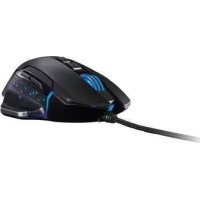
GAMING MOUSE SGM 4000 A1
GB IE N
GAMING MOUSE
Operation and safety notes
DK
GAMING-MUS
GB/IE/NI Operation and safety notes Page 5
Warnings and symbols used.. Page 6
Introduction 7
Intended use Page 7
Trademark notices.. 8
Scope of delivery 8
Safetynotes.. Page 8
Description of parts.. 12
Technical data.. 12
Before use 14
Software installation.. 15
Storage when not in use.. 28
Cleaning 28
Troubleshooting 29
Disposal.. 30
Warranty 31
| Warnings and symbols used These instructions for use contain the following symbols and warnings: | |
| DANGER! This symbol with the signal word "DANGER" indicates a hazard with a high level of risk which, if not avoided, will result in serious injury or death. | |
| WARNING! This symbol with the signal word "WARNING" indicates a hazard with a medium level of risk which, if not avoided, could result in serious injury. | |
| CAUTION! This symbol with the signal word "CAUTION" indicates a hazard with a low level of risk which, if not avoided, could result in minor or moderate injury. | |
| ATTENTION! This symbol with the signal word "Attention" indicates a possible property damage. | |
| NOTE: This symbol with the signal word "NOTE" provides additional useful information. | |
| --- | Direct current |
| Warning against optical radiation | |
GAMING MOUSE
Introduction
We congratulate you on the purchase of your new product. You have chosen a high quality product. The instructions for use are part of the product. They contain important information concerning safety, use and disposal. Before using the product, please familiarise yourself with all of the safety information and instructions for use. Only use the product as described and for the specified applications. If you pass the product on to anyone else, please ensure that you also pass on all the documentation with it.
Intended use
This GAMING MOUSE (hereinafter referred to as "product") is an information technology device and is designed as an input device for computers. This product must not be used outside of closed rooms. This product is not intended for use in companies or for other commercial uses (e.g. office productivity applications). Use this product only in the home for private purposes Any other use is considered improper. Any claims resulting from improper use or due to unauthorised modification of the product will be considered un-warranted. Any such use is at your own risk.
Trademark notices
■ iJSRegistered trademark of USB Implementers Forum, Inc.
■ Windows® registered trademark of Microsoft Corporation in the United States and other countries.
Mac OS is trademarks of Apple Inc., registered in the U.S. and other countries.
The SilverCrest trademark and trade name is the property of their respective owners.
Any other names and products are trademarks or registered trademarks of their respective owners.
Scope of delivery
1 Gaming mouse
1 Software CD
1 Instructions for use
1 Quick start guide

Safetynotes
Before using the product, please familiarize yourself with all of the safety instructions and instructions for use! When passing this product on to others, please also include all the documents!
WARNING! DANGER TO LIFE AND RISK OF ACCIDENT FOR INFANTS AND CHILDREN!
DANGER! RISK OF SUFFOCATION! Never leave children unsupervised with the packaging material. The packaging material poses a suffocation hazard. Children frequently underestimate the dangers. The packaging material is not a toy.
This product may be used by children age 8 years and up as well as by persons with reduced physical, sensory or mental capacities or lacking experience and/or knowledge, so long as they are supervised or instructed in the safe use of the product and understand the associated risks. Do not allow children to play with the product. Cleaning and user maintenance should not be performed by children without supervision. The product is not a toy.
ATTENTION! RISK OF PROPERTY DAMAGE
Check the product before every use! Discontinue use if any damage to the product or the connection cable is detected!
This product does not contain any parts which can be serviced by the user.
- Do not place burning candles or other open fire on or next to the product.
If you notice smoke or unusual noise or odour, immediately disconnect the USB connection.
- Do not pull the plug out of the connection socket by the cable, but always touch the plug.
Sudden temperature changes may cause condensation inside the product. In this case, allow the product to acclimate for some time before using it again to prevent short circuits! - Do not operate the product near heat sources, e.g. radiators or other devices emitting heat!
- Do not throw the product into fire and do not expose to high temperatures.
- Do not try to open the product! It has no internal parts requiring maintenance.
ATTENTION! Ensure that
no direct heat sources (e.g. heating) can affect the product.
- any contact with splashed and dripping water and corrosive liquids is avoided and the product is not operated in the vicinity of water. In particular, the product should never be submerged in liquid; do not place any vessels filled with liquid, for example, vases or drinks, on or near the product.
the product is not used in the immediate vicinity of magnetic fields (e.g. speakers).
- no fire sources (e.g. burning candles) are placed on or near the product.
no objects are inserted into the interior of the product.
the product is never subjected to excessive shocks and vibrations.
no objects are placed on a connected cable and cables are not connected over sharp edges because they could be damaged otherwise.

Take care to avoid injury to eyes and skin when in the vicinity of optical radiation
It is necessary to repair the product if they have been damaged in any way, for example, if the housing is damaged, if liquid or objects have penetrated the product or if the product has been exposed to rain or moisture.
Repair work is also required if the product is not working properly or has been dropped. If smoke is produced, or there are any unusual sounds or smells, turn the product off immediately. In such cases, the product should not be used until they have been inspected by authorised service personnel. Only have the product repaired by qualified personnel. Never open the housing of the product.

NOTE:
The user must take regular breaks during the use of the product, in case of pain in the hands, arms or shoulder and neck area the work must be interrupted and some stretching exercises must be done.
Description of parts
Please refer to the fold out page.
1 Right mouse button
2 Scroll wheel and middle mouse button
3 Resolution DPI + button
4 Resolution DPI - button
5 Back button
6 Next button
7 Left mouse button
8 Instructions for use
9 Software CD
10 Quick start guide
-Technical data
Operating systems:
Microsoft®Windows®2000, Vista, 7, 8, 10
Mac OS X 10.0 Cheetah or above
Android system 2.3 or above
Resolution:
| Resolution (DPI) | Identification Color |
| 500 Red | |
| 1000 Green | |
| 1500 Blue | |
| 2000 Purple | |
| 3000 Yellow | |
| 4000 White | |
| Remarks: Identification color can be adjusted via software | |
Hardware:
1 free USB port, CD-Rom drive for mouse software installation
7 control buttons:
left, right, scroll wheel, forward, backward, DPI +, DPI -
USB transfer rate: 125 Hz, 250 Hz, 500 Hz and 1000 Hz
Max. acceleration: 20 G
Cable length: approx. 2.1 m
Dimension (L× W× H) : approx. 130× 76× 42mm
| Net weight: | approx. 162 g |
| USB voltage and current: | 5 V --- 200 mA |
| Operating temperature: | -10 to +60 °C |
| Operating Humidity: | 40 to 80 % RH |
| Storage temperature: | -10 to +60 °C |
| Storage humidity: | 20 to 90 % RH |
The specification and design may be changed without notification.
Before use
i NOTE:
Before use, verify the package contents are complete and undamaged!
All parts have to be unpacked and the packaging material has to be removed completely.
Setup your product
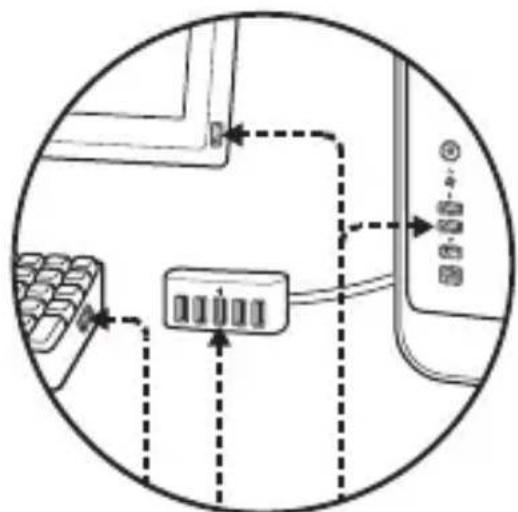
Turn on your computer and plug the mouse's USB connector into an available USB port on your computer.
Your gaming mouse will be detected by your computer and, if necessary, the required standard drivers will be installed automatically. The mouse is now ready to use and can be used like an ordinary computer mouse.
-Software installation
- Insert the provided CD into the computer's CD rom.
- It will auto run the setup software, otherwise choose SilverCrest SGM 4000 A1 gaming mouse.exe from your CD ROM drive.
- Follow the installation instruction to complete the whole installation process.
i NOTE:
The software is not compatible with MAC OS and Android system.
You can also download the mouse installation software at www.Lidl-service.com. At this Lidl service website you have to input the product number (IAN) to search for the software to download.
- Generalfunction
- Changing the resolution by pressing the Resolution DPI + / - button 3 / 4 is indicated by the light color. For details, see section "Technical Data".
- To change the light mode, hold down the Back button 5 and press the Resolution DPI + button 3 for about 3 seconds. Three different modes are available.
After the installation of the software is completed, the following window opens automatically:
Overview of the software operation elements
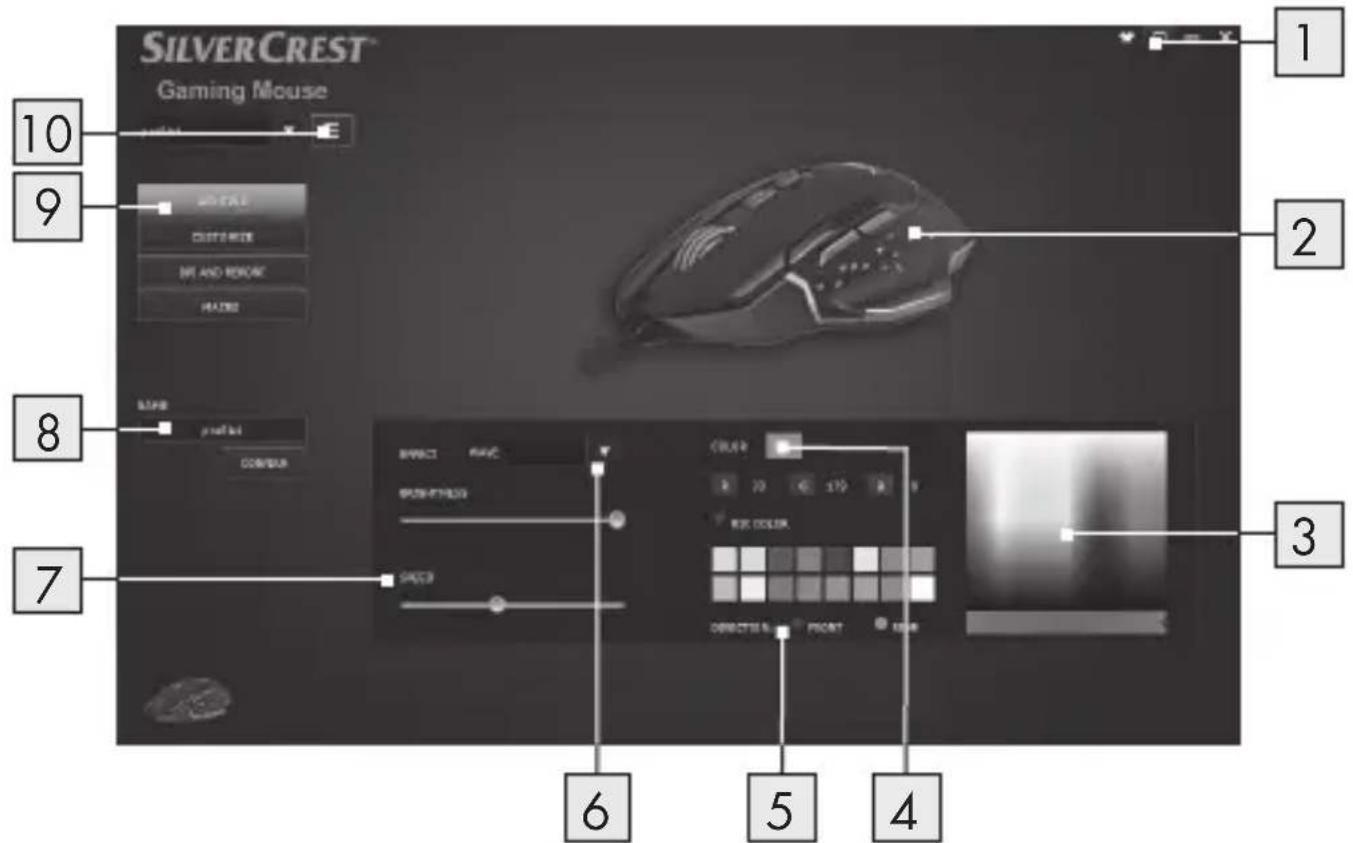
- Minimizewindow
- Current view of colour rending on product
- RGB colour palette
- Selected RGB colour from colour palette
-
LED light direction (Front / Rear)*
-
LED light effect selection
- LED running speed
8.Namingprofile - Lighting / Customize / DPI and Report / Macro page
10.MENU
*This function is only available for the "Wave" effect.
Customize
Select the menu item "CUSTOMIZE" in the selection on the left side.
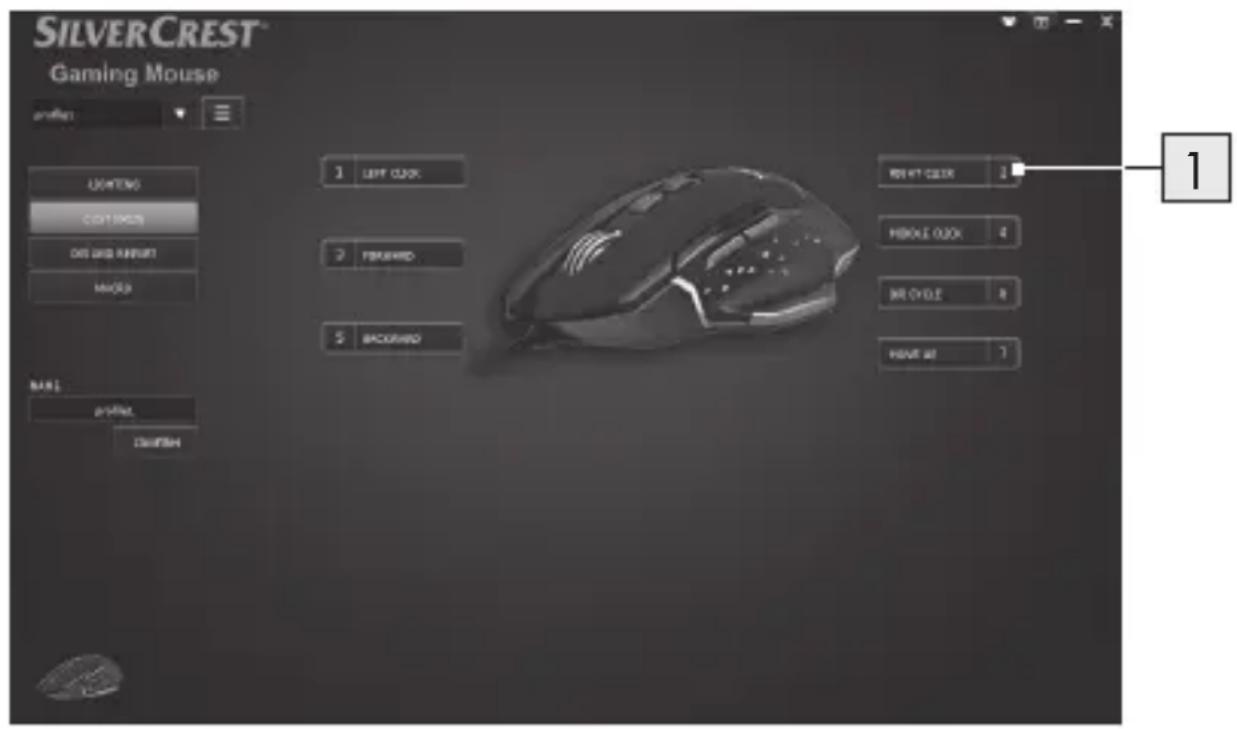
1. Customizing the Buttons
Change the function of the individual buttons according to your wishes.
i NOTE:
A button must always be assigned the "Left mouse button" function.
- Select the button to change.
- Select the desired function from the list.
- If necessary, set the required parameters for the selected function.
| Adjustable function | Corresponding parameters |
| Mouse Key | Left Click |
| Right Click | |
| Middle Click | |
| Forward | |
| Backward | |
| DPI | DPI+ |
| DPI- | |
| DPI Cycle | |
| Rapid Fire | Enter Value / ms |
| Clicks | |
| Keyboard Key Please enter a key | |
| Multimedia Select Multimedia function | |
| System Power / Sleep / | Awake |
| Macro | Select Macro name |
| Select Macro finish | |
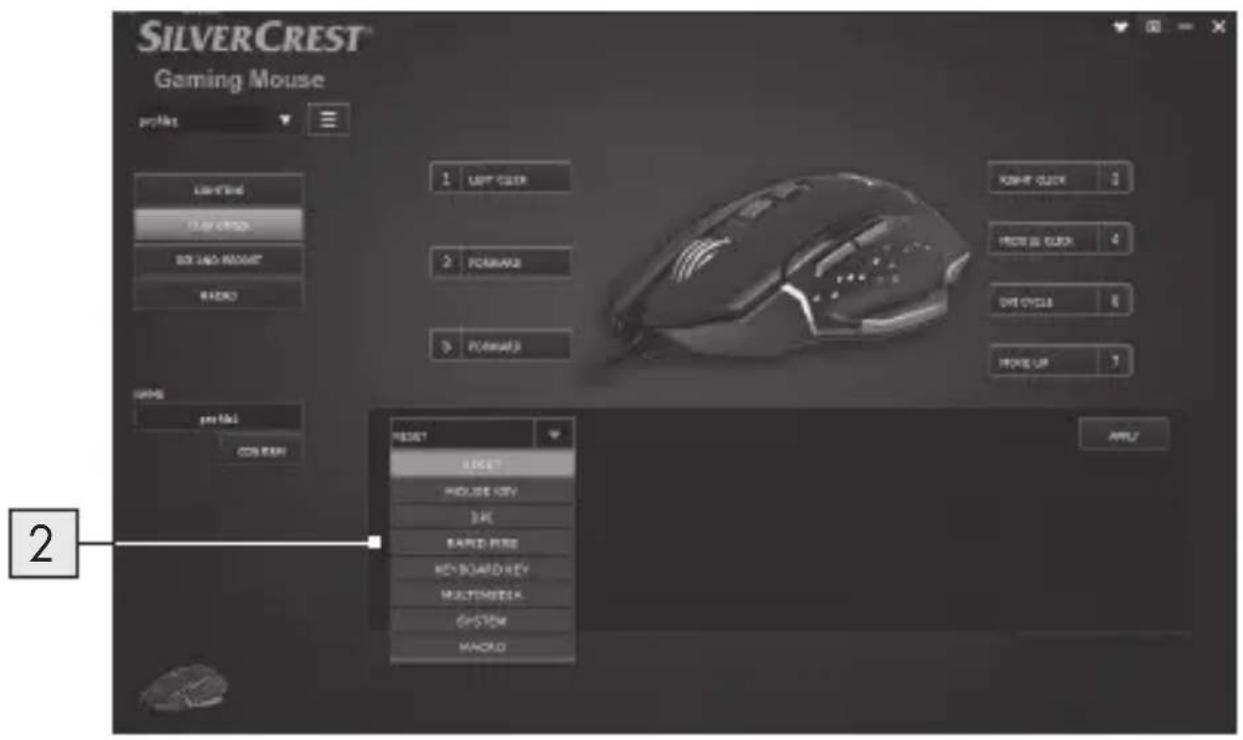
2. Key Function list
■ Assign each mouse key function from the list.
DPI and Report rate
Select the menu item "DPI AND REPORT" in the selection on the left side.
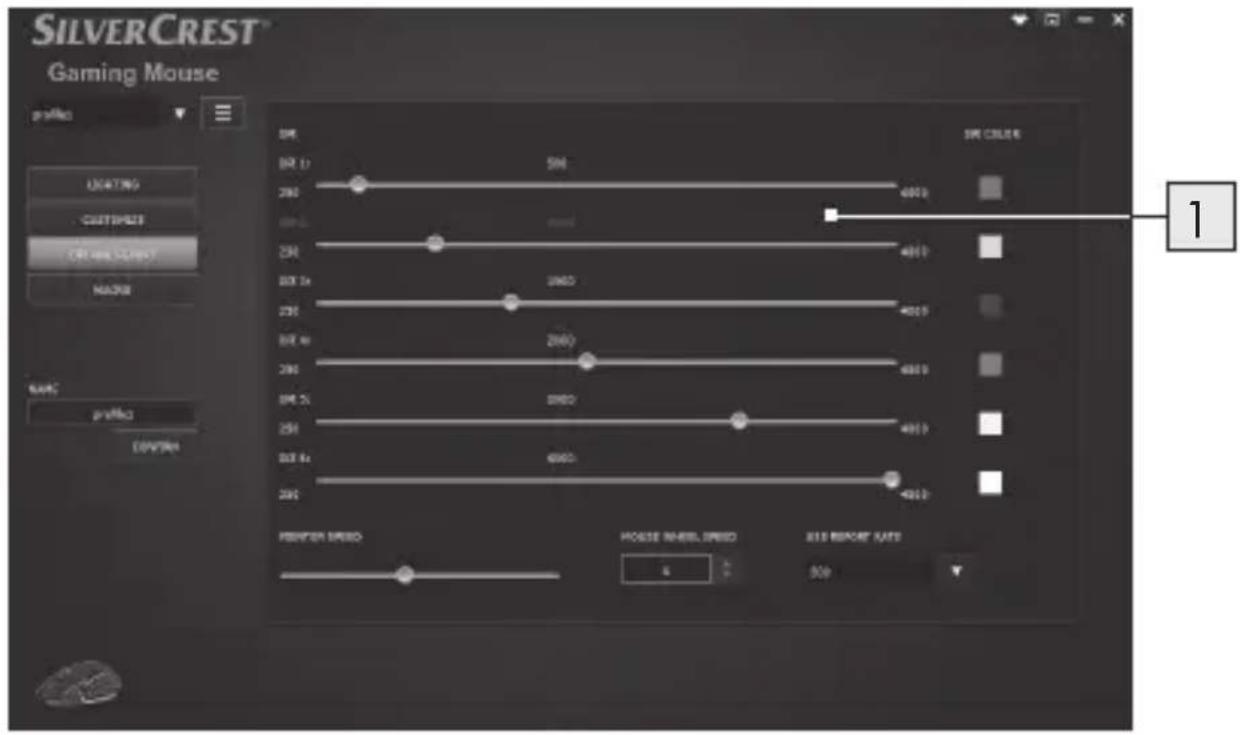
1. DPI range setting
In this area you can set the report rate of your mouse, the higher the report rate is set, the more precisely you can move the mouse pointer.
Use the sliders to set the desired resolution for 6 different ranges. You can later call up the respective with the preset DPI + and - buttons.
To confirm, the mouse flashes three times in the color of the selected resolution after you have set it.
You can set the resolution in a range from 250 to 4000 dpi.
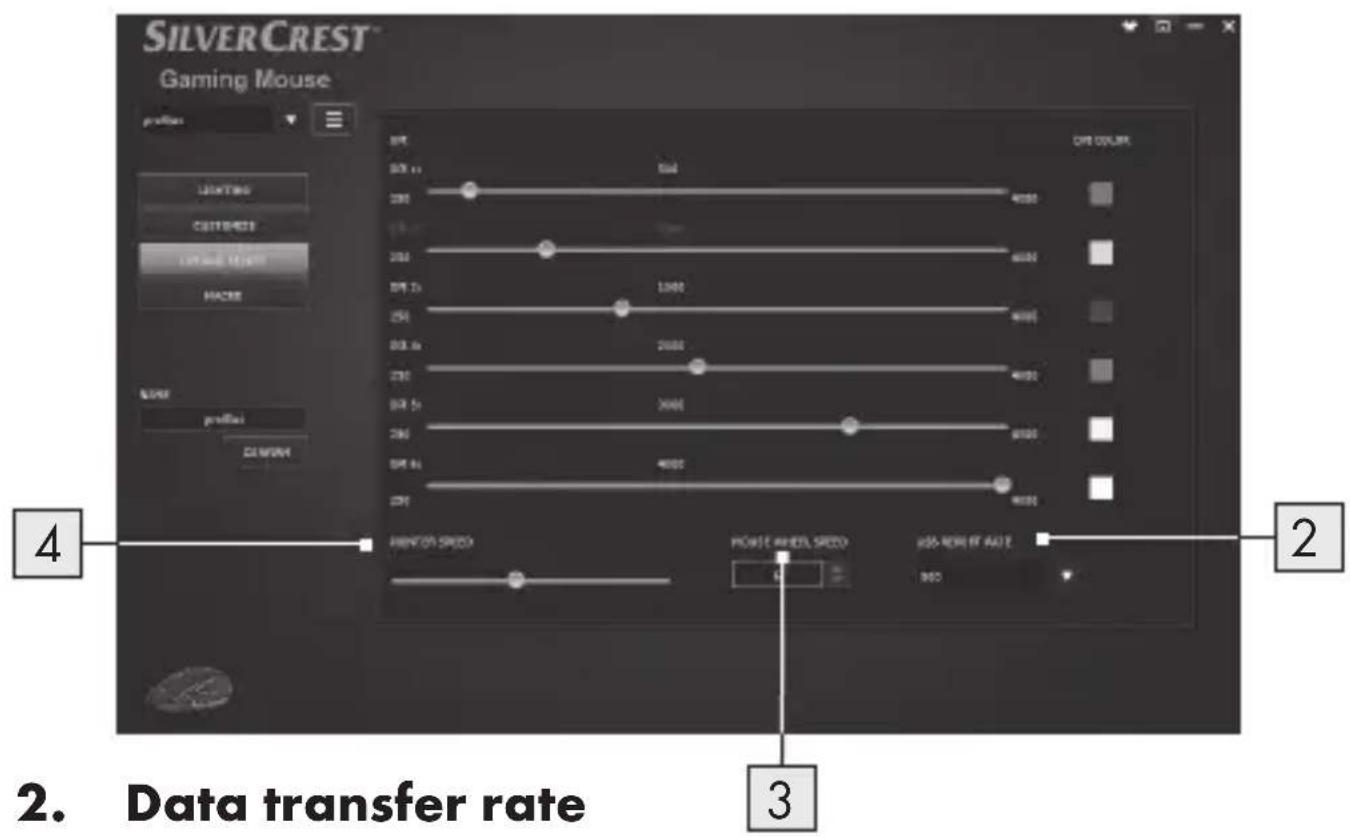
The higher the data transfer rate, the more often your computer receives information about the status of your mouse.
You can select among 125Hz , 250Hz , 500Hz and 1000Hz .
3. Wheel speed setting
Adjust the wheel speed (1 - 10)
4. Pointer speed
Mouse pointer speed setting
- Macrosetting
Select the menu item "MACRO" in the selection on the left side.
This Macros section allows you to create a series of precise keystroke and button presses.
(This section describes how to Record and Edit mouse macros commands, ALL Preset Macros will be shown in the Key function list)
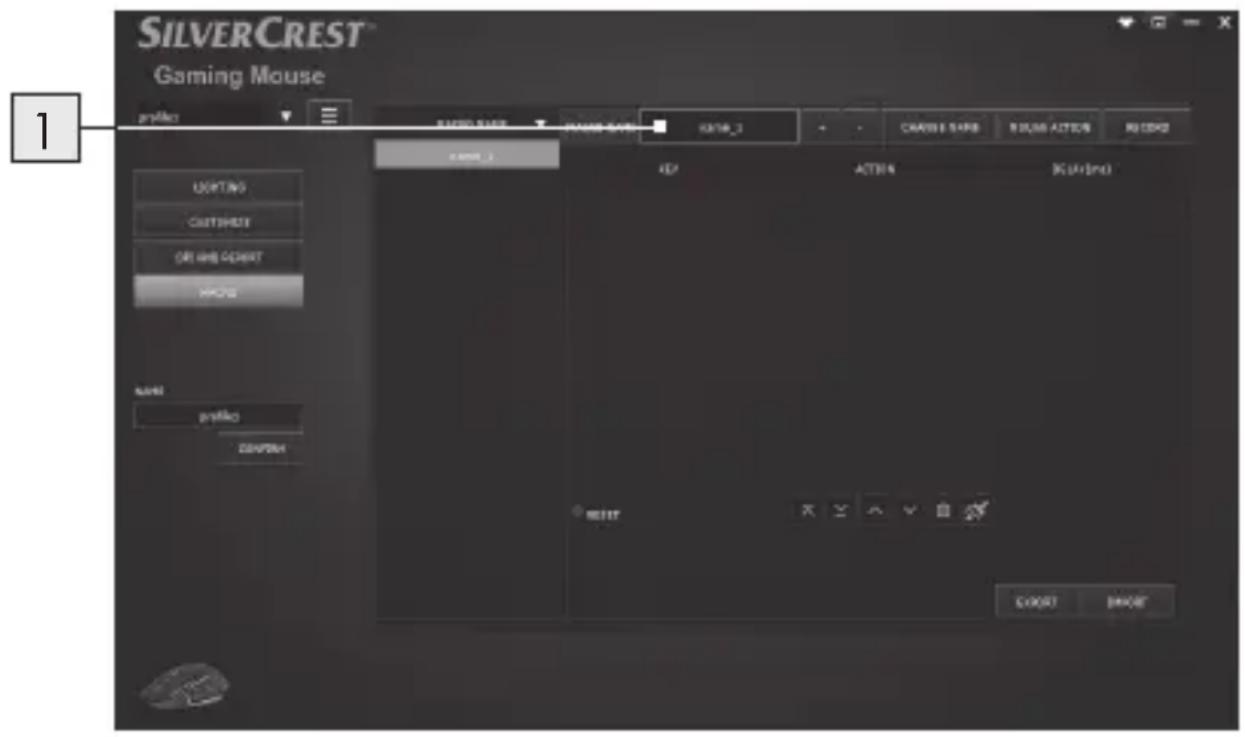
- Click the "+" button to create a new Macro profile
("Name_1" is default setting)
Click the " - " button to delete an existing Macro profile.
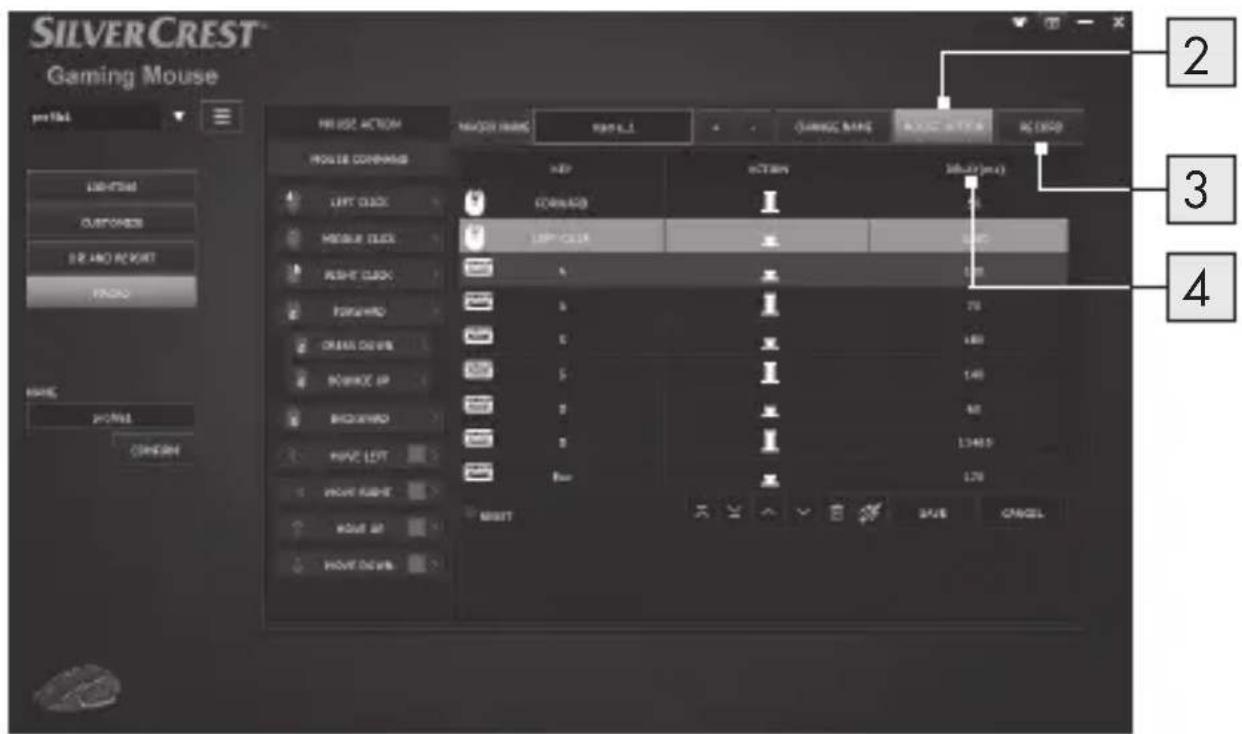
- Press "MOUSE ACTION" and then you will see a list of MOUSE COMMAND drop off from the left side. Choose your favourite mouse actions combination one by one.
- Meanwhile you can press "RECORD" button to start construct your keyboard events in combination of key setting in sequence.
- Press "STOP" button to end the recording of key combination.
- Double click the time to modify the delay time, type desired milliseconds of time delay in-between commands.
- Press "SAVE" to finish MACRO setting.
- End user can also export the Macro setting to the computer, when you need to use the Macro setting, you can import the Marco setting again from your computer.
By assigning a MACRO to a mouse button, you can execute complex combinations with ease.
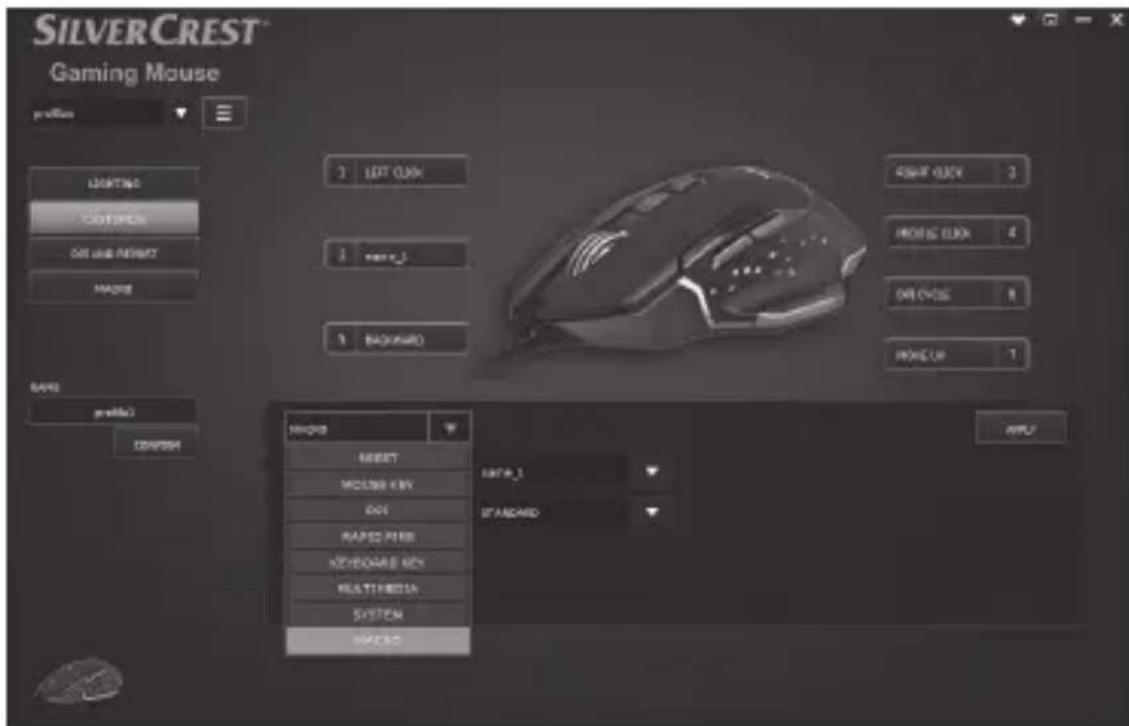
- Go back to CUSTOMIZE setting page, choose a desired mouse button to apply MACRO Setting from function list.
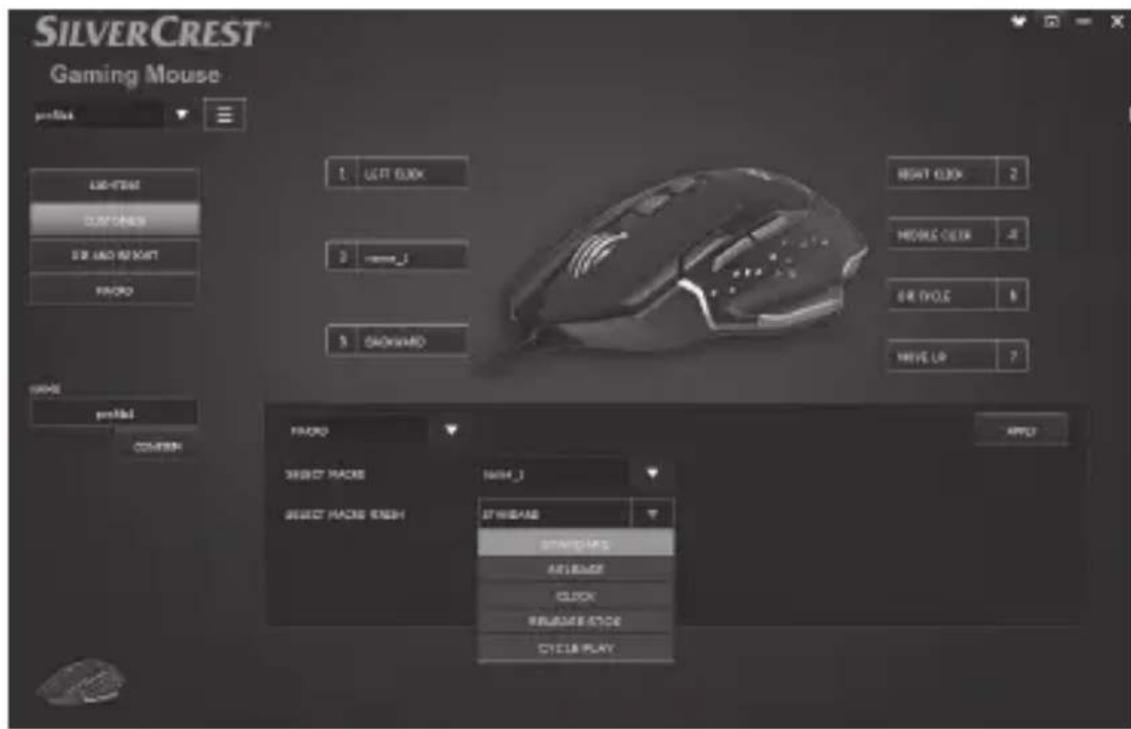
- Select MACRO function from the list
- Then select preset MACRO profile setting, above example named as "Name_1"
- After setting preferred customized button, you can enjoy the game with more ease!
- Storage when not in use
Store the product in a dry indoor location protected from direct sunlight, preferably in its original packaging.
Cleaning
Disconnect the USB connection before cleaning!
Only clean the outside of the product using a soft, dry cloth!
At persistent soiling, a mild cleaning agent can be used.
Only use a clean, dry cloth for cleaning the product and never use any corrosive liquids. Use a slightly moistened cloth and a mild cleaning agent to remove stubborn dirt.
Use glass cleaner to lightly moisten a soft, lint-free cloth and gently wipe the lens.
Troubleshooting
Problem Solution
The product does not work properly.
Option 1:
Make sure the USB plug is fully plugged into the USB port and the computer is on or try to use a different USB port.
Option 2:
The product may not work or may only work with errors on glass surfaces or on reflective surfaces. In this case, the user must use a suitable mouse pad.
Option 3:
Uninstall the software and then reboot the computer. Re-install the software.
Option 4:
In case of malfunctions, the user may have to clean the mouse optics.
- Disposal
Packaging:
The packaging is made of environmentally friendly materials, which may be disposed of through your local recycling facilities.
Product:
Contact your municipality for information on how to dispose of your worn-out product.
The adjacent symbol of a crossed out dustbin on wheels indicates this product is subject to directive 2012/19/EU. This directive states at the end of the life this product must not be disposed of through
regular household refuse but must be returned to special collection sites, recycling depots or waste management companies.
This disposal is free of charge to you.
Protect the environment and dispose of properly.
Warranty
The product has been manufactured to strict quality guidelines and meticulously examined before delivery. In the event of product defects you have legal rights against the retailer of this product. Your legal rights are not limited in any way by our warranty detailed below.
The warranty for this product is 3 years from the date of purchase. Should this product show any fault in materials or manufacture within 3 years from the date of purchase, we will repair or replace it - at our choice - free of charge to you.
The warranty period begins on the date of purchase. Please keep the original sales receipt in a safe location. This document is required as your proof of purchase. This warranty becomes void if the product has been damaged, or used or maintained improperly.
The warranty applies to defects in material or manufacture. This warranty does not cover product parts subject to normal wear, thus possibly considered consumables (e.g. batteries) or for damage to fragile parts, e.g. switches, rechargeable batteries or glass parts.

9.Lys/Tilpas/DPlog rapport/Macro-side
10.MENU
Mac OS X 10.0 Cheetah of hoger
Android 2.3 of hoger
Resolutie: