
ERA160 - Cash register SHARP - Free user manual and instructions
Find the device manual for free ERA160 SHARP in PDF.



| Product Type | Electronic Cash Register |
| Brand | Sharp |
| Model | ERA160 |
| Dimensions (W x D x H) | 330 x 364 x 238 mm |
| Weight | 8.7 kg |
| Power Supply | Official voltage and frequencies (nominal) |
| Power Consumption | Standby: 8 W; Operating: 17 W max. |
| Operating Temperature | 0 °C to 40 °C |
| Operator Display | 7-segment display (10 positions) |
| Customer Display | 7-segment display (7 positions) |
| Printer | Selective type with single-station print wheel, approx. 3.2 lines/sec, 12-digit capacity |
| Paper Roll | Width 57.5 ± 0.5 mm, max. diameter 70 mm, weight 52.3 to 64 g/m² |
| Ink Ribbon | Width 13 mm, length 4 m, purple color (monochrome) |
| Number of Departments | 5 by default, programmable up to 15 |
| Number of PLUs | Up to 200 |
| Payment Methods | Cash, check, credit, foreign currency, charge account, payout |
| Management Functions | VAT/tax calculation, X/Z reports, PLU programming, automatic sequences |
| Maintenance | Clean with a soft dry cloth; replace batteries, paper roll, ink ribbon |
| Safety | Unplug for complete disconnection; do not use with wet hands |
| Spare Parts | Key options (ER-11KT7, etc.) available from your dealer |
| Supplied Accessories | 2 manager keys, 2 operator keys, 2 drawer keys, 1 paper roll, 1 rewind spool, 1 ink ribbon, bracket support, manual |
| Warranty | Refer to your local dealer |
Frequently Asked Questions - ERA160 SHARP
User questions about ERA160 SHARP
0 question about this device. Answer the ones you know or ask your own.
Ask a new question about this device
Download the instructions for your Cash register in PDF format for free! Find your manual ERA160 - SHARP and take your electronic device back in hand. On this page are published all the documents necessary for the use of your device. ERA160 by SHARP.
USER MANUAL ERA160 SHARP
The cash register should be securely fitted to the supporting platforms to avoid instability when the drawers are open.
CAUTION:
The socket-outlet shall be installed near the equipment and shall be easily accessible.
CAUTION:
For a complete electrical disconnection, pull out the mains plug.
CAUTION:
This equipment complies with the requirements of Directives 89/336/EEC and 73/23/EEC as amended by 93/68/EEC.
Thank you very much for your purchase of the SHARP Electronic Cash Register, Model ER-A160/ER-A180.
Please read this manual carefully before operating your machine in order to gain full understanding of functions and features.
Please keep this manual for future reference; it will help you if you encounter any operational problems.
CAUTION!
Never install the batteries into the cash register before initializing it. Before you start operating the cash register, you must first initialize it, then install the batteries. Otherwise, distorted memory contents and malfunction of the cash register will occur. For their procedures, please refer to page 6.
IMPORTANT
• Install your register in a location that is not subject to direct radiation, unusual temperature changes, high humidity, or exposure to water sources.
Installation in such locations could cause damage to the cabinet and the electronic components.
- Never operate the register with wet hands.
The water could seep into the interior of the register and cause component failure.
- When cleaning your register, use a dry, soft cloth. Never use solvents, such as benzine and/or thinner.
The use of such chemicals will lead to discoloration or deterioration of the cabinet.
- The register plugs into any standard wall outlet (Official (nominal) voltage).
Other electrical devices on the same electrical circuit could cause the register to malfunction.
- If the register malfunctions, call your local dealer for service - do not try to repair the register yourself.
- For a complete electrical disconnection, pull out the mains plug.
CONTENTS
INTRODUCTION....1
IMPORTANT 1
CONTENTS....2
PARTS AND THEIR FUNCTIONS....3
GETTING STARTED....6
BASIC SALES ENTRY ....10
OTHER TYPES OF ENTRIES....12
1 Item entries....12
Single item entries ....12
Repeat entries 12
Multiplication entries....13
Single item cash sale (SICS) entry 13
2 Displaying subtotals ....14
3 Finalization of transaction....14
Cheque or credit sale 14
4 Computation of VAT/tax 14
VAT/tax system 14
5 Auxiliary entries....15
Percent calculations (premium or discount) 15
Discount entries....16
Refund entries 16
Printing of non-add code numbers ....16
6 Payment treatment....17
Currency exchange 17
Received on account entries 18
Paid out entries....18
No sale (exchange) 18
7 Receipt issuance after finalization....18
8 Automatic sequence key (key) entries 18
9 Override entries....19
CORRECTION 19
READING (X) AND RESETTING (Z) OF SALES TOTALS 21
1 Summary of reading (X) and resetting (Z) reports....21
2 Sample reports 22
PROGRAMMING 24
1 Programming the VAT/tax rate....24
2 Programming for departments....24
3 PLU (Price Lookup) programming....26
4 Programming for miscellaneous keys 27
5 Programming various functions....29
6 Reading stored program....33
PROGRAMMING FOR EURO 34
6 Opening the drawing by hand 42
7 Installing the fixing angle bracket 42
8 In case of power failure or paper jam 43
9 Program resetting....43
0 Before calling for service 43
LIST OF OPTIONS....44
SPECIFICATIONS 44
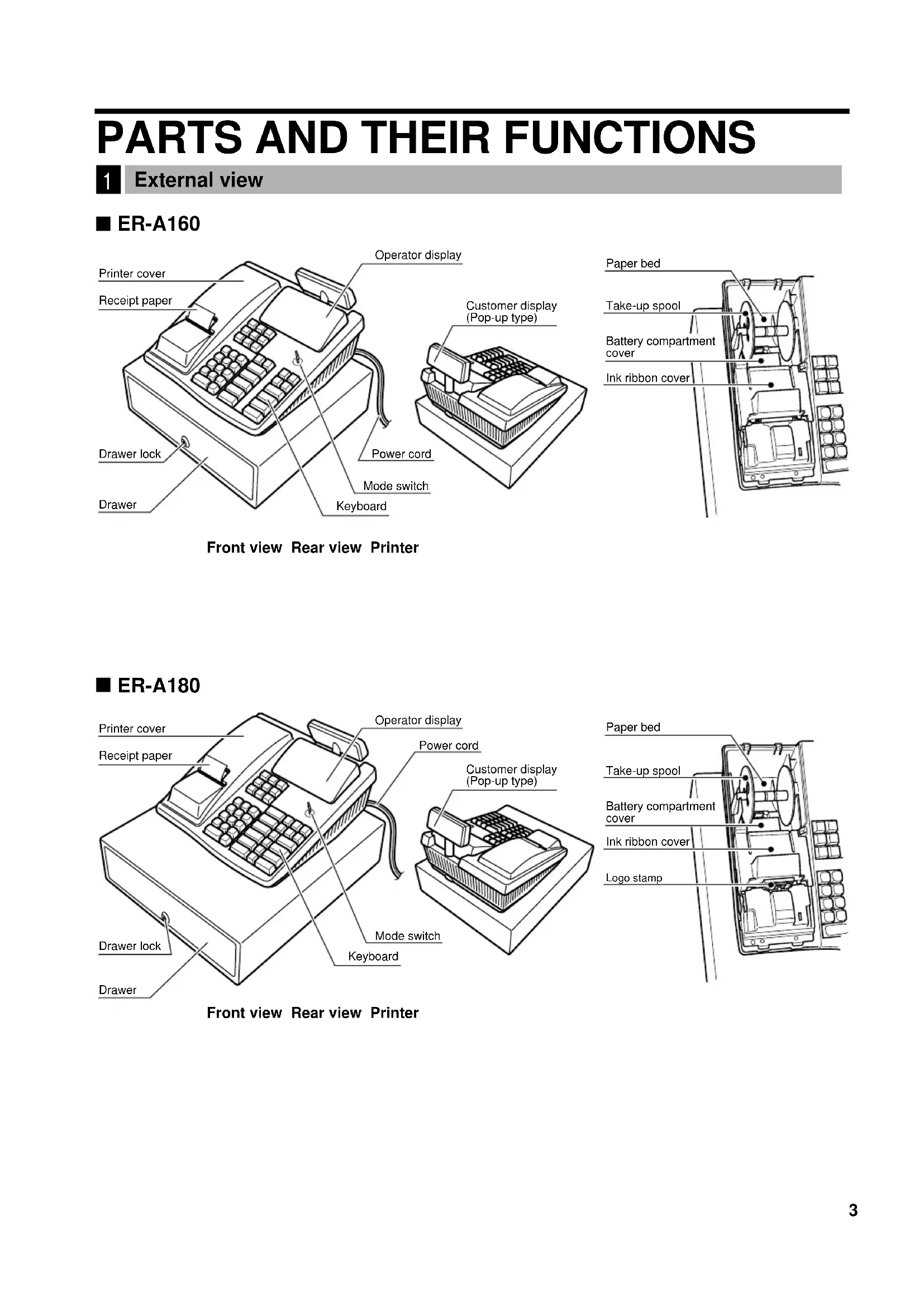
PARTS AND THEIR FUNCTIONS
1 External view
■ ER-A160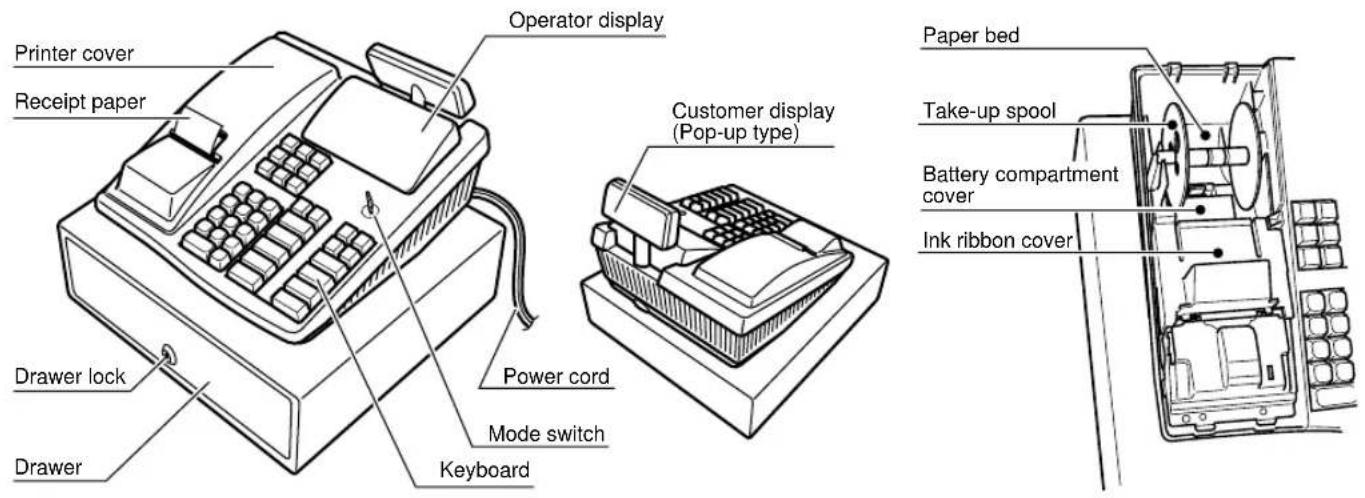
Front view Rear view Printer
■ ER-A180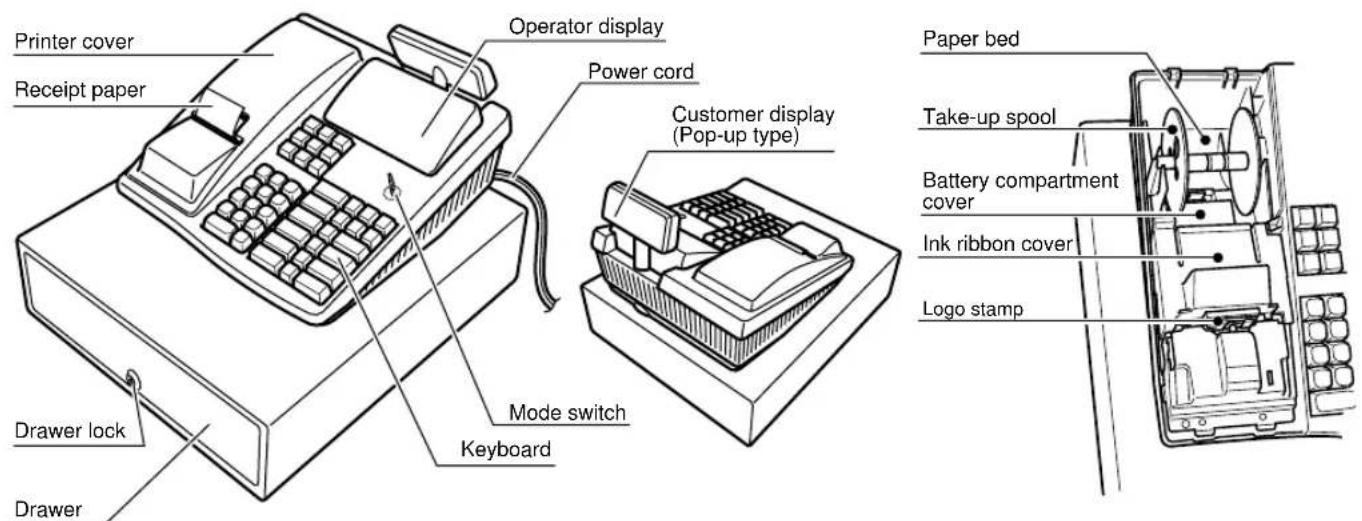
Front view Rear view Printer
2 Keyboard
■ Standard keyboard layout ER-A160 ER-A180
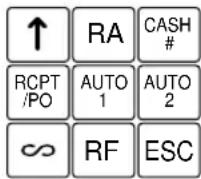
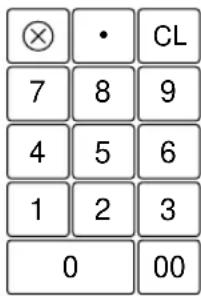
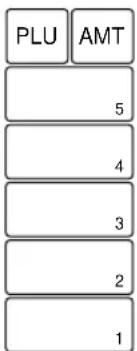
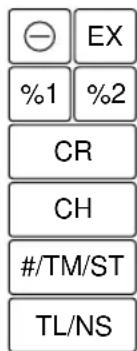
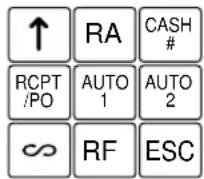
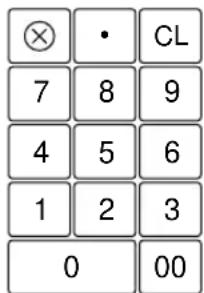
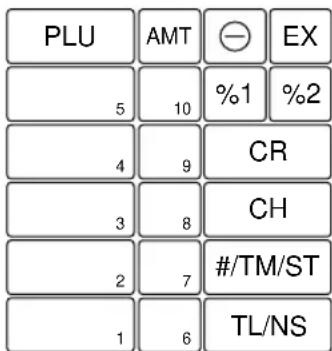
■ Standard key names
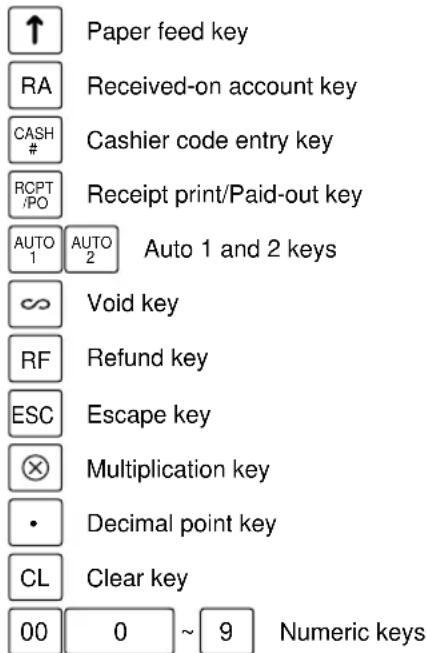
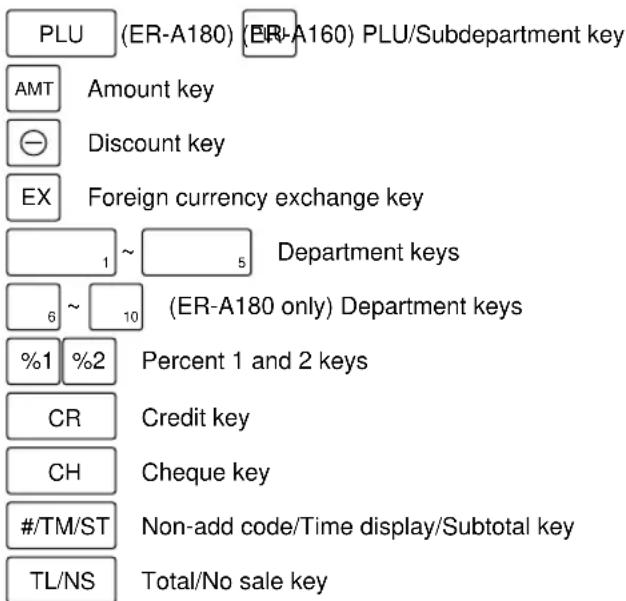
■ Option keys
VAT Value added tax key (ER-A180 only) Department shift key
(Ex. [SHF-T] 181 =Department 16)
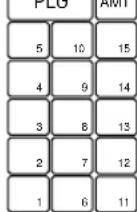
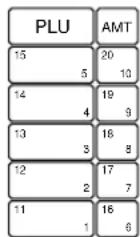
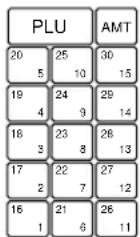
You can change the number of departments to 10 or 15 (ER-A160), or to 5, 15, 20 or 30 (ER-A180). The key layout of 15, 20, 30 departments are as follows. (The layout of 5 and 10 departments are as shown above.) Consult your dealer for changing the number of departments.
15 departments 20 departments 30 departments
3 Mode switch and mode keys
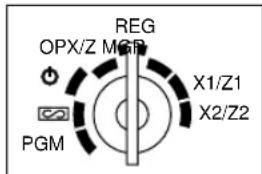
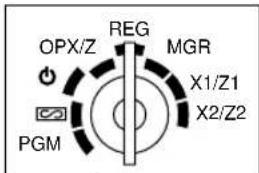
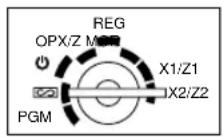
The mode switch can be operated by inserting one of the two supplied mode keys - manager (MA) and operator (OP) keys. These keys can be inserted or removed only in the "REG" or "☐" position.
![graph TD A["Manager key (MA)"] --> B["OP"] B --> C["OPX/Z"] C --> D["REG"] D --> E["MGR"] E --> F["X1/Z1"] F --> G["X2/Z2"] G --> H["PGM"] H --> I["OP"] style A fill:#f9f,stroke:#333 style B fill:#ccf,stroke:#333 style C fill:#cfc,stroke:#333 style D fill:#fcc,stroke:#333 style E fill:#cff,stroke:#3…](/content/2026/02/387794/images/5ccf8e71ab56afd4b30e0aa05ebb3c8a2bc1c2363630e22730370f0331d98381.jpg)
The mode switch has these settings:
This mode locks all register operations. (AC power becomes off.) No change occurs to register data.
OP X/Z: To take individual cashier X or Z reports, and to take flash reports. And it can be used to toggle receipt state "ON" and "OFF" by pressing the RCPTIPO key.
REG: For entering sales.
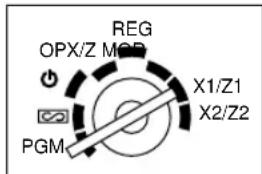
PGM: To program various items.
∞: Enters into the void mode. This mode allows correction after finalizing a transaction.
MGR: For manager's entries. The manager can use this mode for an override entry.
X1/Z1: To take the X/Z report for various daily totals
X2/Z2: To take the X/Z report for periodic (weekly or monthly) consolidation
4 Displays
Operator display Customer display (Pop-up type)
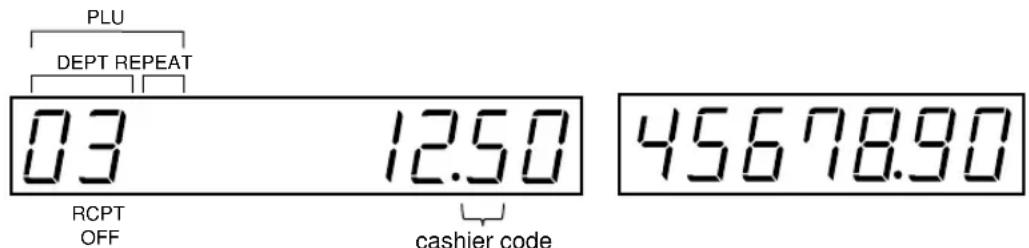
Amount: Appears in the far-right eight (max.) positions. When the amount is minus, the minus symbol “-” appears before the amount.
Number of repeats for repetitive registrations:
The number of repeats is displayed, starting at "2" and incremented with each repeat. When you have registered ten times, the display will show "0." (2 → 3 …… 9 → 0 → 1 → 2 …)
Receipt function status:
The indicator “_” appears in the ninth position when the receipt function is in the OFF status.
Time: Appears in the first to fifth positions (using 24-hour format) in the OP X/Z, REG, ∞, or MGR mode. In the REG, ∞, or MGR mode, press the #TMST key to display the time.
■ Machine state symbols (appears in the tenth place)
P : Appears during programming.
E : Appears when an error is detected.
☐ : Appears when the subtotal is displayed or when the amount tendered is smaller than the sale amount.
C : Appears when the EX key is pressed to calculate a subtotal in foreign currency.
F : Appears when a transaction is finalized by pressing the TLNS, CH or CR key.
[ : Appears when the change due amount is displayed.
L : Appears when the voltage of the installed batteries is under the required level. You must replace them with new ones within two days. Refer to page 37 for details.
L : Appears when the batteries are not installed, or the installed batteries are dead. You must replace them with new ones immediately. Refer to page 37 for details.
GETTING STARTED
Follow these steps when you use the cash register for the first time.
1 Install the Cash Register
Unpack the cash register and place it in a location near a wall outlet. Be sure to locate it in such a location as described in “IMPORTANT” (page 1).
To prevent the register from moving the drawer, fix the drawer with the fixing angle bracket. To fix the drawer, please refer "Installing the fixing angle bracket" of "OPERATOR MAINTENANCE" (page 42).
2 Initialize the Cash Register
In order for your cash register to operate properly, you must initialize the cash register before programming for the first time. Use the following procedure:
Before initializing the cash register, make sure that the plug is not connected to the outlet, and the batteries are not mounted in the register.
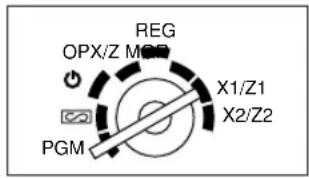
- Turn the mode switch to the "PGM" position.
- Insert the plug into the outlet.
The rightmost decimal point will blink for a few seconds, then the register will sound three beeps and display "0.00".

3 Install Batteries
Purchase and install three R6 or LR6 batteries ("AA" size). The batteries prevent the data and user-programmed settings from being erased when the AC cord is accidentally disconnected or in case of a power failure.
The batteries will last approximately one year. If the low battery symbol "L" appears on the far left of the display, you must replace them within two days. And if the no battery symbol "L" appears, you must replace them at once.
To install the batteries, use the following procedure.
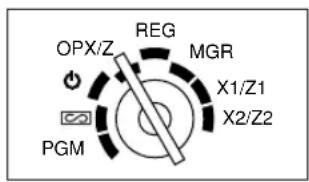
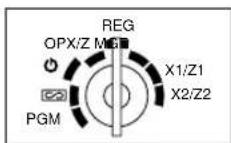
- Turn the mode switch to the "OP X/Z" position.
The display will change to time display with the symbol "L".

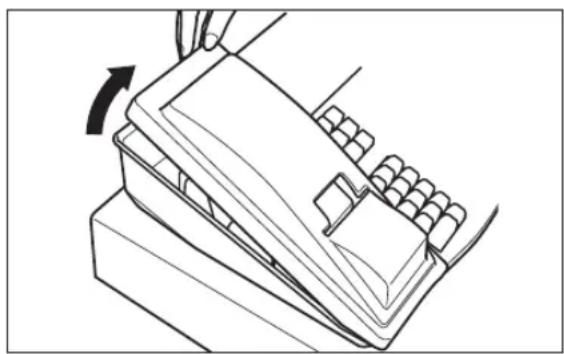
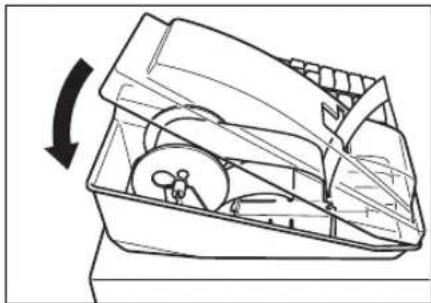
- Remove the printer cover.
Lift up the rear of the printer and detach it.
Be very careful with the manual cutter mounted on the cover, so as not to cut yourself.
- Open the battery compartment cover located in front of the paper bed.
Press the tab toward you, then pull and lift the cover to expose the battery compartment.
- Install three new batteries in the battery compartment. Be sure that the positive (+) and negative (-) poles of each battery are facing in the proper direction. When they are correctly installed, the battery icon will disappear.
- Close the battery compartment cover.
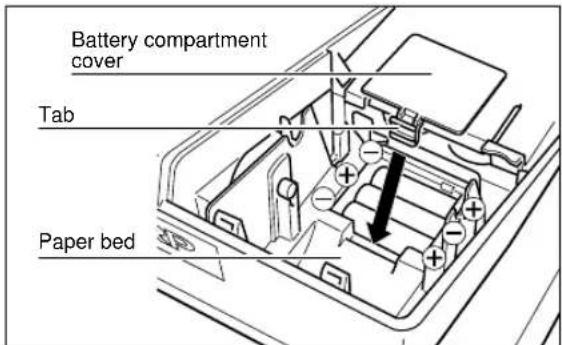
View from rear
CAUTION!
Incorrectly using batteries can cause them to burst or leak, possibly damaging the interior of the cash register.
Note the following precautions:
- Be sure that the positive (+) and negative (-) poles of each battery are facing in the proper direction.
- Never mix batteries of different types.
- Never mix old batteries and new ones.
- Never leave dead batteries in the battery compartment.
- Remove the batteries if you do not plan to use the cash register for long periods. However, the data and user-programmed settings will be erased.
- If a battery leaks, clean out the battery compartment immediately, taking care to avoid letting the battery fluid come into direct contact with your skin.
- Do not throw any spent batteries into combustible waste and do not burn any spent batteries.
Note
Your cash register comes with a battery caution label. Please cut off the appropriate half and attach it to the battery compartment cover.
4
Install the Paper Roll
Precaution: Be very careful for the manual cutter mounted on the printer cover when removing and replacing the cover, so as not to hurt yourself.
- Turn the mode switch to the "REG" position.
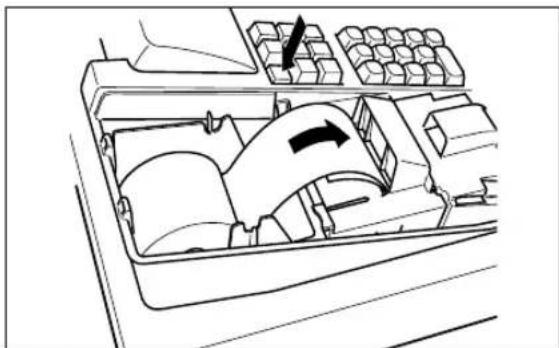
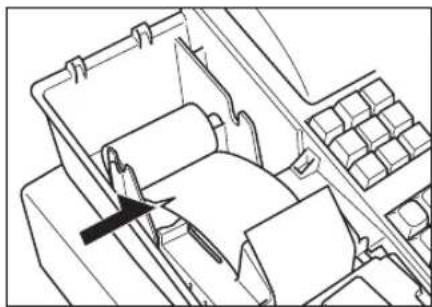
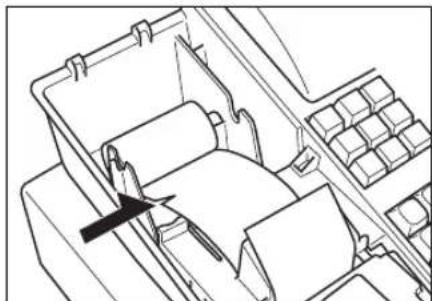
- Set the provided paper roll correctly and drop it in the paper bed.
- Make a fold in the paper five centimeters from the end.
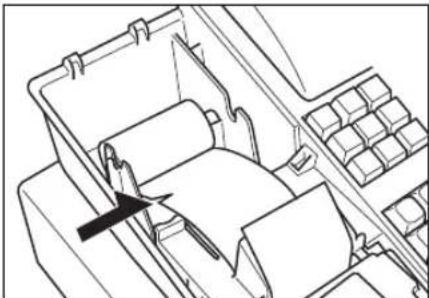
- While pressing the ↑ key, insert the folded end straight into the paper inlet. The inserted end appears at the printing area.
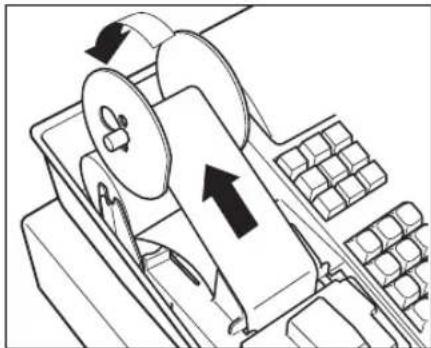
- When not using the take-up spool (using as receipt paper):
- Lead the end of the paper out through the manual cutter on the printer cover. (Press the ↑ key to advance the paper more if required.)
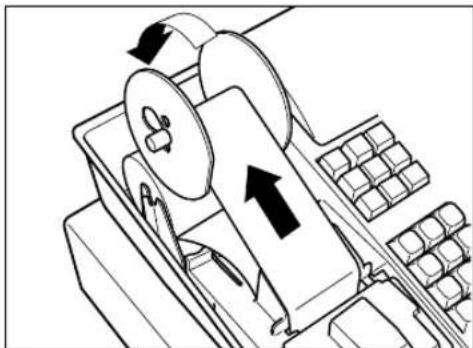
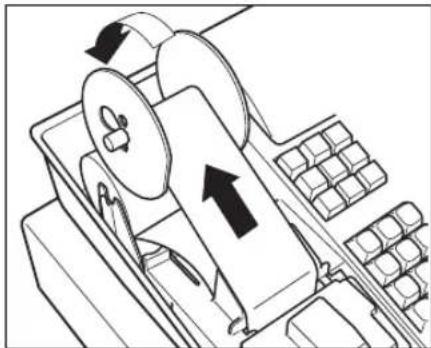
When using the take-up spool (using as journal paper):
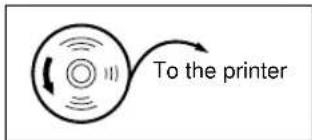
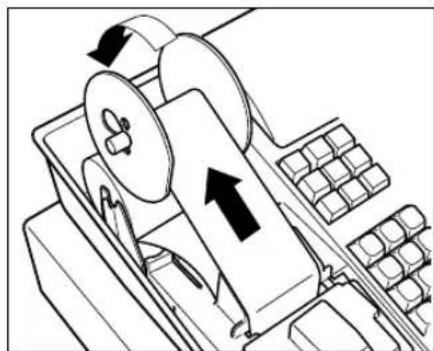
- Insert the end of the paper into the slit in the spool. (Press the ↑ key to feed more paper if required.)
- Wind the paper two or three turns around the spool shaft.
- If the holding plate is not attached to the spool, attach it by inserting the spool shaft into the large hole and sliding it into the small one.
- Set the spool on the bearing, and press the key to take up excess slack in the paper.
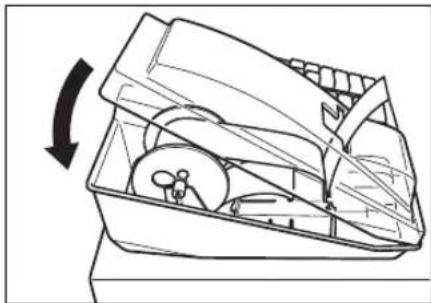
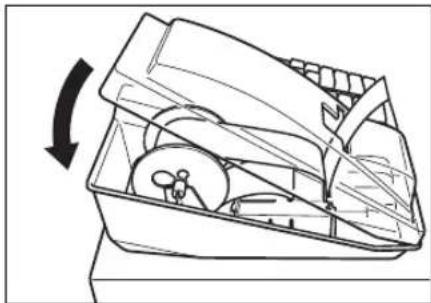
6. Replace the printer cover.
Hook the cover on the pawls on the cabinet and shut it.
Note
- When using a paper roll as journal paper, you must change the printer type. Refer to "Programming print format" on page 30.
- You can use 2-ply journal/receipt paper. For the installation procedure, refer to Note on "Installing the paper roll" (page 39).
5
Program Items as Necessary
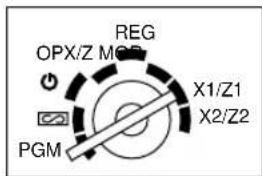
Before programming, insert the manager (MA) key and turn the mode switch to "PGM".
Note
- On the key operation examples shown below, numeric such as 1234 indicates the number or parameter which must be entered using the corresponding numeric keys.
- On the receipt, the programmed data is printed together with header (date) and footer (e.g. consecutive number).
■ Setting the date
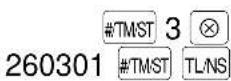
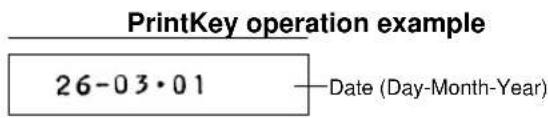
Enter day (one or two digits), month (two digits), and year (two digits) in this sequence.
![graph LR A["Procedure"] --> B["#/TM/ST"] --> C["3"] --> D["⊗"] --> E["Date (five or six digits)"] --> F["#/TM/ST"] --> G["TL/NS"]](/content/2026/02/387794/images/3c3ed213d56806f6f300cff7fedd0202e8b2ca7a940152ee8d8590e435492c36.jpg)
Example: March 26, 2001
■ Setting the time
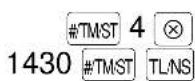
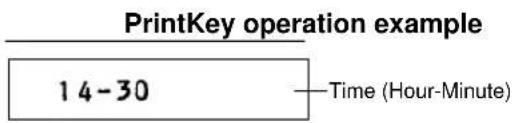
Set the time using the 24-hour format. For example, when the time is set to 2:30 AM, enter 230; and when it is set to 2:30 PM, enter 1430.
![graph LR A["Procedure"] --> B["#/TM/ST"] B --> C["4"] C --> D["⊗"] D --> E["Time (max. four digits)"] E --> F["#/TM/ST"] F --> G["TL/NS"]](/content/2026/02/387794/images/28b93fd2659a96e6132e41a2d527d79b99efa6d892536d11eb2a003faf88c943.jpg)
Example: 14:30
■ Programming the VAT (Value Added Tax) rate
If you program the VAT/tax rate, your cash register can calculate the sales tax. In the VAT system, the tax is included in the price you enter in the register, and the tax amount is calculated when tendered according to the VAT rate programmed. In the tax system, the tax is calculated when tendered according to the tax rate programmed, and added to the price. Your cash register can provide totally 6 kinds of tax system and 3 kinds of rates.
In the factory setting, the VAT/tax system is set to "Automatic VAT 1-3 system", and all the departments are programmed as taxable in VAT 1/tax 1 rate. So, if you set VAT 1 rate by executing the procedure shown below, VAT 1 can be calculated automatically to all the goods sold.
In the current VAT/tax system, you can also use VAT 2 and VAT 3 rates when you need more than one VAT rate. Refer to "Programming the VAT/tax rate" to program multiple VAT rates, and "Programming for departments" to allocate the taxable status to departments.
If you make nontaxable for some goods, program a department as nontaxable for all VAT rates. (Please note that all the goods belonging to that department are subjected to nontaxable.)
If you need other types of VAT/tax system, refer to "Computation of VAT/tax" on page 14, and consult your dealer for the change of your VAT/tax system.
Procedure
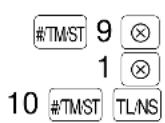
![graph LR A["#TM/ST"] --> B["9"] B --> C["⊗"] C --> D["1"] D --> E["⊗"] E --> F["*1VAT rate"] F --> G["#TM/ST"] G --> H["TL/NS"] F --> I["∞"] I --> J["To inhibit this VAT rate"] style F fill:#f9f,stroke:#333 style G fill:#ccf,stroke:#333 note right of F "To program '0'" note right of G "To inhibit th…](/content/2026/02/387794/images/ef55da41e05859c7977abd206b9bec9fc0a9bf72ac32095669e834e0a2d761f4.jpg)
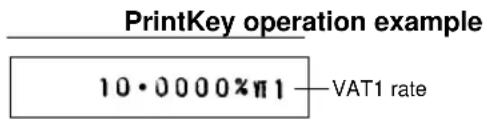
*1: VAT rate: 0.0001 to 100.0000
Example: VAT 1 rate 10%

Program for EURO
Your register can be modified to correspond with each period set for the introduction of EURO. To execute the automatic modification operation, please refer to "PROGRAMMING FOR EURO" on page 34.
Before the modification operation, you must go to X2/Z2 mode and make cashier assignment first. For cashier assignment, please refer to page 10.
Now you are ready for the sales operation. However, you can program other various convenient functions depending on your need. For details, please refer to "PROGRAMMING".
BASIC SALES ENTRY
1 Prior to entries
Before registrations, insert the operator or manager key into the mode switch and turn it to the "REG" position and check the following items:
Receipt ON/OFF function
When you use the printer to issue receipts, you can disable receipt printing in the REG mode to save paper using the receipt function. To disable receipt printing, press the RCPT/PO key in the OP X/Z position. This key toggles the receipt printing status "ON" and "OFF". When the status is "OFF", the receipt off indicator “_” illuminates in the display. Your register will print reports regardless of the receipt state, so the paper roll must be installed even when the receipt state is "OFF".
Cashier assignment
Prior to any item entries, cashiers must enter their cashier codes into the register. However, the code entry may not be necessary when the same cashier handles the next transaction.
■ Sign-on (in REG, MGR, OP X/Z, X1/Z1, X2/Z2 mode)
To display the signed-on cashier code
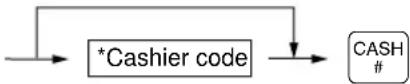
*Cashier code: 1-6(ER-A160) 1-8(ER-A180)
Enter the code using numeric keys.
- Enter the price for the first item with numeric keys.
- Press the appropriate department key.
- Repeat steps 1 and 2 for all the items.
- Press the #TMST key to display the amount due. (You can omit this step.)
- Enter the amount received from the customer with numeric keys. (You can omit this step if the amount tendered is the same as the subtotal.)
- Press the TLNS key, and change due is displayed with the symbol “L” and the drawer is opened.
- Tear off the receipt and give it to the customer with his or her change displayed.
- Close the drawer.
Note
- When you finalize the transaction with the TLNS key without tendering, the total sales amount is displayed.
- If you enter the amount tendered which is smaller than the subtotal, the register shows a deficit with the symbol “☐” Make an additional tender entry.
Example:
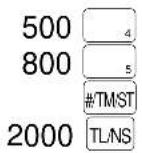
PrintKey operation example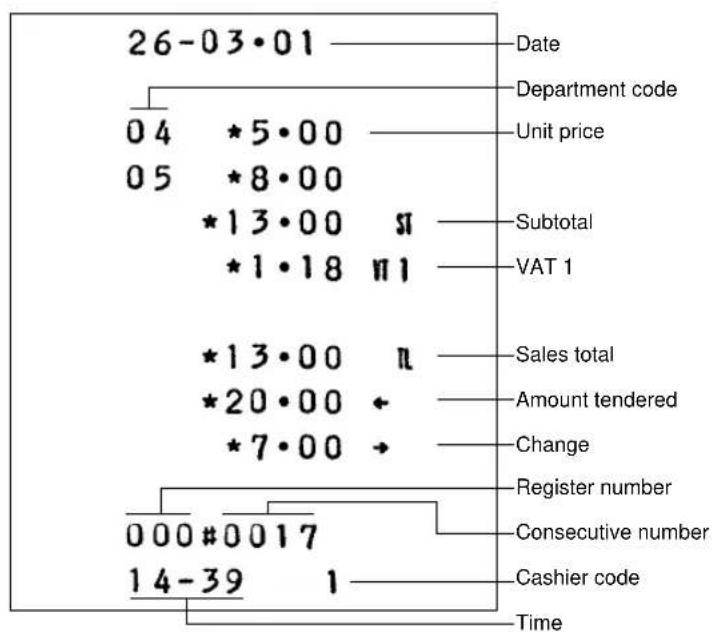
In this example, the department 4 and 5 are set as taxable 1 (default setting) and VAT 1 rate is programmed as 10%.
3 Error warning
In the following examples, your register will go into an error state accompanied with a warning beep and the error symbol “E” on the display. Clear the error state by pressing the CL key and take proper action.
- When you enter an over 13-digit number (entry limit overflow): Cancel the entry and re-enter a correct number.
- When you make an error in key operation: Clear the error and continue operation.
- When you make an entry beyond a programmed amount entry limit: Check to see if the entered amount is correct. If it is correct, it can be rung up in the MGR mode.
- When an including-tax subtotal exceeds eight digits: Delete the subtotal by pressing the CL key and press the TLNS, CH or CR key to finalize the transaction.
Error escape function
When you want to quit a transaction because of an error or something uncontrollable, use the error escape function as shown below:
![graph TD A["Transaction"] --> B["CL"] B --> C["ESC"] C --> D["ESC"] E["To clear the error state"] --> B](/content/2026/02/387794/images/f4485d4f4412c829da0be2fd6d1bac31ca638ab7df7371998b1e272d78eba221.jpg)
The transaction is voided (treated as a subtotal void) and the receipt is issued by this function. If you have already entered tendered amount, the operation is finalized as a cash sale.
When you use the error escape function, “★★★★” is printed on the receipt.
OTHER TYPES OF ENTRIES
On the key operation examples except that of "Computation of VAT/tax", all the departments are programmed as non-taxable. Also on all the examples,
numeric such as 1234 indicates that they are entered using the corresponding numeric keys.
1 Item entries
■ Single item entries
Department
When using a programmed unit price
![graph TD A["1 (max. 7 digits)"] --> B["(SHIFT)"] B --> C["Department keyUnit p"]](/content/2026/02/387794/images/31fd5cfcde4606d792cc8ef89cd83c6b9b0d2c86b6e4c0b339654563e0244626.jpg)
*To shift the department key, press the department shift key at this point. (ER-A180 only)
PLU
Subdepartment![graph LR A["Unit price *1\n(max. 7 digits)"] --> B["AMT"] B --> C["PLU code"] C --> D["PLU"]](/content/2026/02/387794/images/280f3f6eaa107669e679f4f1194191aad83f450c42459e784199951f142324ee.jpg)
*1 Less than the programmed entry digit limit

- When those departments and PLUs for which the unit price has been programmed as zero (0) are entered, only the sales quantity is added.
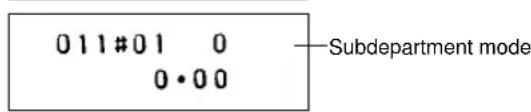
- When using PLU function, you must program the preset price, and associated department. When using subdepartment function, you must change the mode to subdepartment mode, and program the associated department. Refer to page 26 for programming details.
PrintKey operation example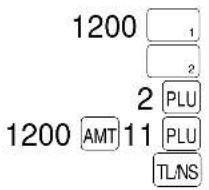
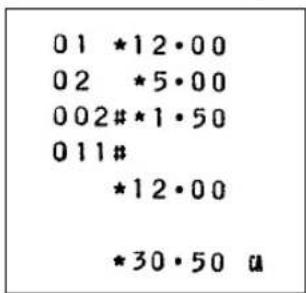
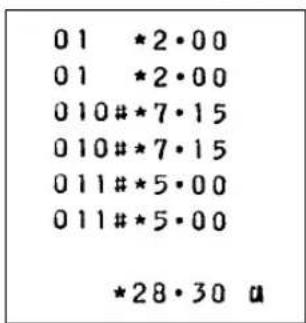
■ Repeat entries
You can use this function for entering a sale of two or more same items.
PrintKey operation example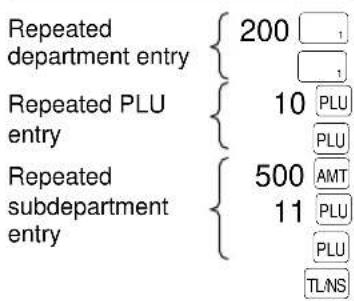
■ Multiplication entries
Use this feature when you sell a large quantity of items or need to enter quantities that contain decimals.
Procedure
![graph TD A["Q'ty Dept. Key"] --> B["Unit price"] B --> C["(SHIFT)"] C --> D[" "] B --> E["PLU code"] E --> F["PLU"] B --> G["Unit price"] G --> H["AMT"] H --> I["PLU code"] I --> J["PLU"] style B fill:#f9f,stroke:#333 style E fill:#ccf,stroke:#333 style G fill:#ccf,stroke:#333](/content/2026/02/387794/images/a167f2f5c0960229352addb7caadc34af183a7980eaeeb042b8a61a1e36b1b35.jpg)
*To shift the department key, press the department shift key before pressing the department key. (ER-A180 only)
- Q'ty: Up to three digits integer + three digits decimal or four digits integer + two digits decimal
- Unit price: Less than a programmed entry digit limit • Q'ty x unit price: Up to seven digits
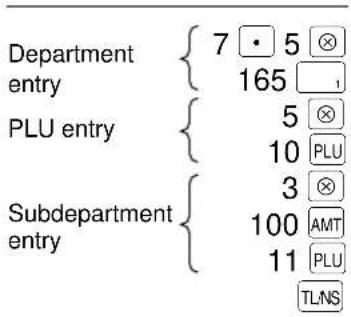
PrintKey operation example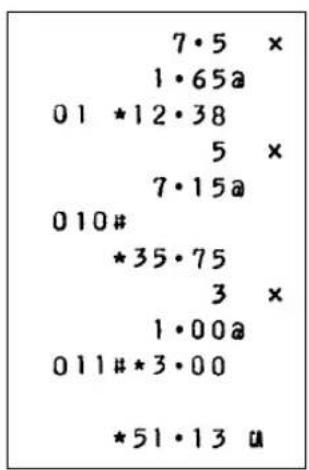
■ Single item cash sale (SICS) entry
- This function is useful when a sale is for only one item and is for cash; such as a pack of cigarettes. It is applicable only to those departments programmed as SICS or to their associated PLUs or subdepartments.
- The transaction is finalized as soon as you press the department key or PLU key.

If an entry to a department or PLU/subdepartment set for SICS follows the ones to departments or PLUs/subdepartments not set for SICS, it does not finalize and results in a normal sale.
2 Displaying subtotals
The subtotal is displayed by pressing the #TM· ST key. When you press it, the subtotal of all entries which have been made is displayed and the symbol “☐” will light up in the display.

If you want to print the subtotal when you press the #TMST key, change the setting by programming. Refer to "Selection of the subtotal printing" (page 31).
3 Finalization of transaction
■ Cheque or credit sale
Cheque sale
Press the CH key at the end of the transaction. The amount tendered can be entered like a cash sale and the change due is displayed.
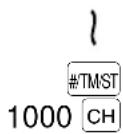
PrintKey operation example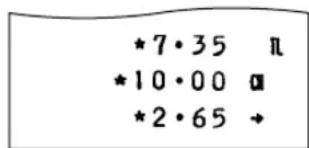
*The amount tendered: Less than programmed entry digit limit
Credit sale
Press the CR key at the end of the transaction. The amount tendered cannot be entered.
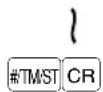
PrintKey operation example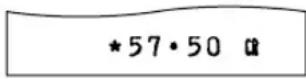
*The total sales amount: Less than programmed entry digit limit
Mixed-tender sale
You can perform mixed-tendering of cheque and cash, cash and credit, and cheque and credit.
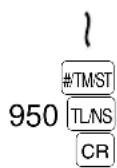
PrintKey operation example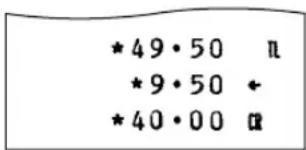
4 Computation of VAT/tax
■ VAT/ tax system
The machine may be programmed for the following six tax systems by your dealer.
Automatic VAT 1-3 system (This is the factory default system)
This system, at settlement, calculates VAT for taxable 1 through 3 subtotals by using the corresponding programmed rate.
Automatic tax 1-3 system
This system, at settlement, calculates taxes for taxable 1 through 3 subtotals by using the corresponding programmed rate, and also adds the calculated taxes to those subtotals, respectively.
Manual VAT 1-3 system
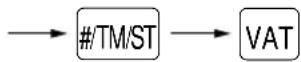
This system provides the VAT calculation for taxable 1 through 3 subtotals. This calculation is performed using the corresponding programmed rate when the VAT key is pressed just after the #TM/ST key.
Manual VAT 1 system
![graph LR A["#TM/ST"] --> B["VAT rate"] B --> C["VAT"] D["To use a programmed rate"] --> B](/content/2026/02/387794/images/3dfd904ca0c7a70669ce81ef04a2621987a70650da243cbe06c48f6787128c4d.jpg)
This system enables the VAT calculation for the then subtotal. This calculation is performed using the VAT 1 preset rate when the VAT key is pressed just after the #TMST key. For this system, the keyed-in VAT rate (0.0001 to 99.9999) can be used.
Manual tax 1-3 system
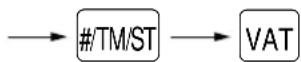
This system provides the tax calculation for taxable 1 through 3 subtotals. This calculation is performed using the corresponding programmed rate when the VAT key is pressed just after the #TMST key. After this calculation, you must finalize the transaction.
Automatic tax 1-2 and automatic VAT 3 system
This system enables the calculation in combination with automatic tax 1 and 2 and automatic VAT 3. The combination can be VAT3 corresponding to taxable 3 and any of tax 1 and 2 corresponding to taxable 1 and taxable 2 for each item. The tax amount is calculated automatically with the corresponding programmed rates.
Note
• Tax statuses of PLU depend on that of the department to which the PLU belongs. - VAT/tax assignment symbol can be printed at the fixed right position near the amount on the receipt as follows:
VAT1 VT1 Tax1 TX1
VAT2 VT2 Tax2 TX2
VAT3 VT Tax3 TX

When multiple VAT/tax is assigned to a department or a PLU, a symbol of the lowest number assigned to VAT/tax rate will be printed. For details, contact your authorized SHARP dealer.
PrintKey operation example
550

(When the manual VAT 1-3 system is selected)

04 *5·50
*5·50 \$1
*0·21 π2
*5·50
5 Auxiliary entries
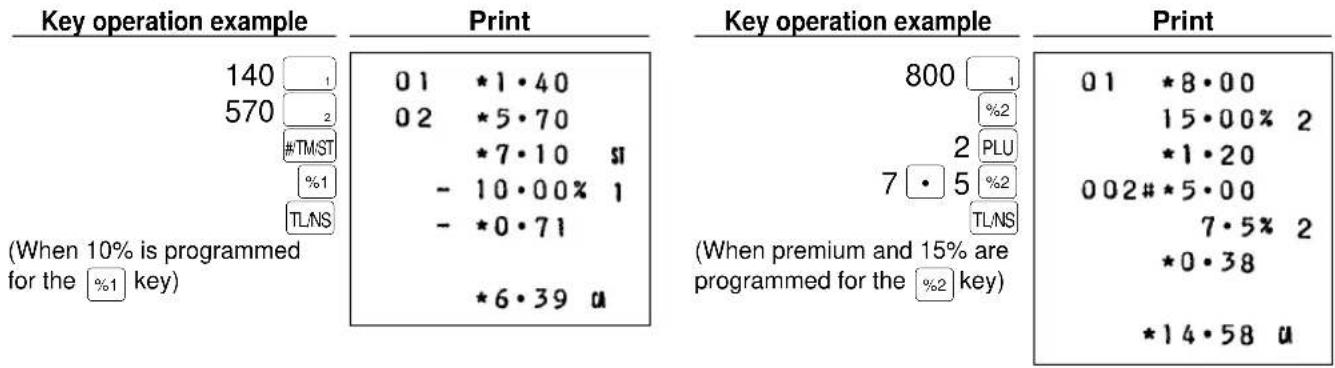
■ Percent calculations (premium or discount)
- Your register provides the percent calculation for subtotal and/or each item entry depending on programming.
- Percentage: 0.01 to 100.00% (Depending on programming) (Application of preset rate (if programmed) and manual rate entry are available.)
Percent calculation for the subtotal Percent calculation for item entries
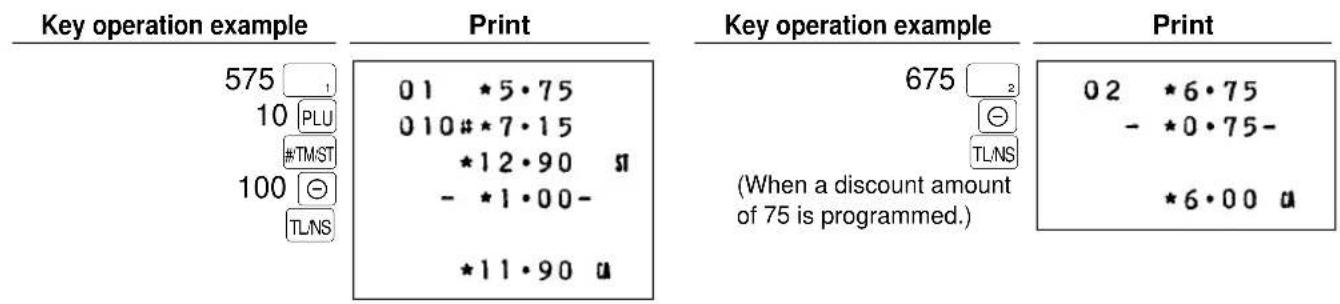
■ Discount entries
Your register allows you to deduct a preset amount or a certain amount manually entered, which are less than a programmed upper limit. These calculations can be after the entry of an item and/or the computation of subtotal depending on the programming.
Discount for the subtotal Discount for item entries
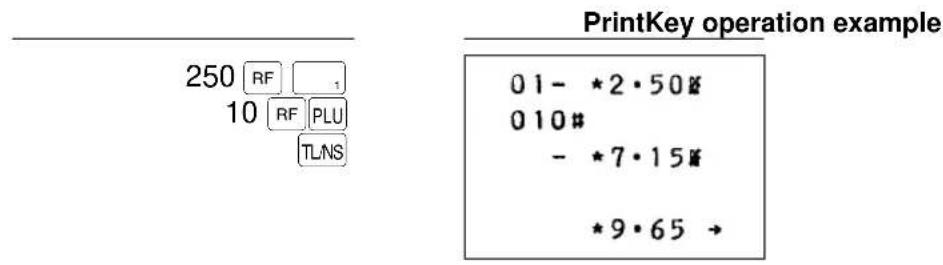
■ Refund entries
If a refund item is the one entered into a department, enter the amount of the refund, then press the RF key and the corresponding department key in this order; and if an item entered into a PLU is returned, enter the corresponding PLU code, then press the RF and PLU keys.
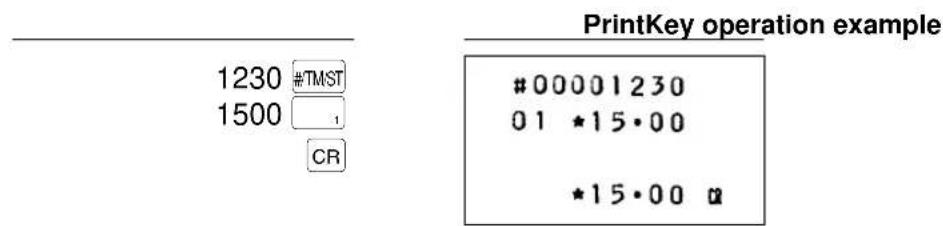
■ Printing of non-add code numbers
Enter a non-add code number such as a customer's code number and credit card number within a maximum of 8 digits and press the #TM/ST key at any point during the entry of a sale. Your register will print it at once.
6 Payment treatment
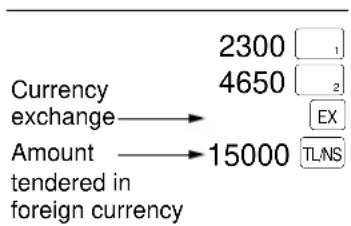
■ Currency exchange
Your register allows payment entries of foreign currency. Pressing the EX key creates a subtotal in foreign currency.
![graph TD A["After an entry is completed or After the amount tendered is found smaller than the sales amount in a sales entry"] --> B["*Exchange rate"] B --> C["EX"] C --> D["Amount tendered (max. 8 digits)"] D --> E["TL/NS"] D --> F["CH"] D --> G["CR"] E --> H["Next registration or payment in domest…](/content/2026/02/387794/images/1477fc3ebc6491f3e4273c0001a5b1010ef36807bec34ec1b62af80b18a1121a.jpg)
*Exchange rate: 0.000000 to 999.999999
Note
- When the amount tendered is short, the deficit is shown in domestic currency.
- Availability of credit and cheque tendering is depending on programming (only for preset exchange rate).
- A programmed foreign currency symbol is printed when you apply preset rate.
- If you want to print the exchange rate on receipt/journal, please consult your dealer.
Applying preset exchange rate
PrintKey operation example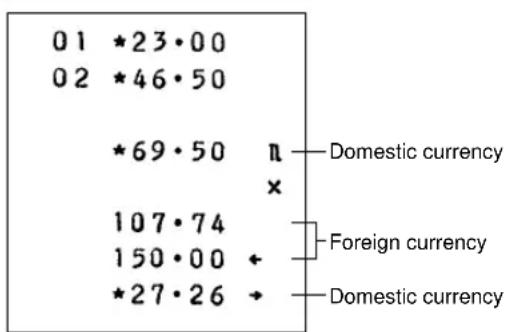
Applying manual exchange rate
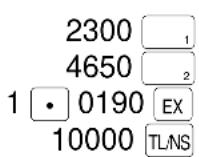
PrintKey operation example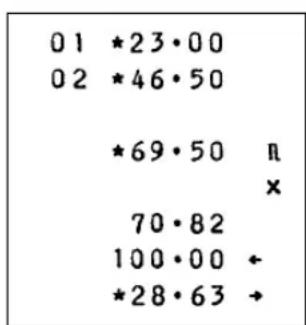
■ Received on account entries
![graph LR A["Amount * (max. 8 digits)"] --> B["RA (Available cash only)"]](/content/2026/02/387794/images/0c76631fd742eee068bfeb3bba74afdd79cf25b771f48830042d0298364cd49f.jpg)
*Less than the programmed entry digit limit
PrintKey operation example
4800 RA
*48·00
■ Paid out entries
![graph LR A["Amount * (max. 8 digits)"] --> B["RCPT/PO (Available cash only)"]](/content/2026/02/387794/images/ccf5bf6e0a7f06cf25fa20536a6809d4220baa59686760e7837164658b2f7a72.jpg)
*Less than the programmed entry digit limit
PrintKey operation example
3000 RCPT/PO
*30·00
■ No sale (exchange)
Simply press the TLNS key without any entry. The drawer will open and the printer will print "NS" on the journal or the receipt.
B
7 Receipt issuance after finalization
If your customer wants a receipt after you have finalized a transaction with the receipt function being in the "OFF" status (no receipting), press the RCPTIPO key after transaction. This will produce a receipt.
Note
- Pressing the RCPT/PO key in the OP X/Z mode before registration toggles the status "ON" and "OFF".
- When more than 64 lines are entered, the receipt will be issued in the format of summary receipt print.
8 Automatic sequencing key (AUTO key) entries
You can achieve a programmed transaction simply by pressing a corresponding automatic sequencing key. For programming the AUTO key, refer to page 32.
PrintKey operation example
AUTO 1 TL/NS
( AUTO _ 1 = 2 PLU )
002#*5·00
*5·00
9 Override entries
You can override the entry digit limit setting by making an entry in the MGR mode.
Procedure
- Turn the mode switch to the MGR position using the manager (MA) key.
- Make an override entry.
On this example, the register has been programmed not to allow discount entries over 2 digits.
Key operation example
REG-mode entries 1500
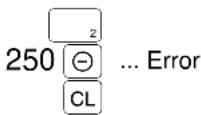
Turn the mode switch to the MGR position.
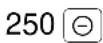
Return the mode switch to the REG position.

CORRECTION
1 Correction of the last entry (direct void)
If you make an incorrect entry relating to a department, PLU/subdepartment, percentage ( %1 and %2 ), discount ( ⊖ ) or refund, you can void this entry by pressing the ∞ key immediately after the incorrect entry.
PrintKey operation example
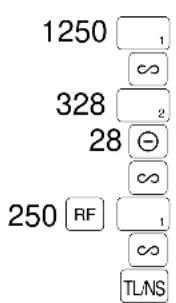
2 Correction of the next-to-last or earlier entry (indirect void)
With the ∞ key, you can void any incorrect department entry, PLU/subdepartment entry or item refund entry made during a transaction if you find it before finalizing the transaction (e.g. pressing the TLNS key).

PrintKey operation example
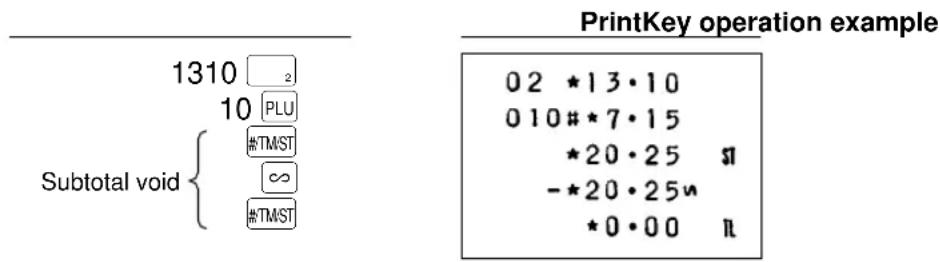
3 Subtotal void
You can void an entire transaction. Once subtotal void is executed, the transaction is aborted and the register issues a receipt.
4 Correction after finalizing a transaction
If you find errors during the tendering operation or after finalizing a transaction, you can void the whole entries made in an incorrect receipt in the void mode in the following procedure. (If you find the errors during the tendering operation, enter the void mode after finalizing a transaction.)
- Turn the mode switch to the position using the manager (MA) key to enter the void mode.
- Repeat the entries that are recorded on an incorrect receipt. (All data for the incorrect receipt are removed from register memory; the voided amounts are added to the void-mode transaction totalizer.)
Cancellation receipt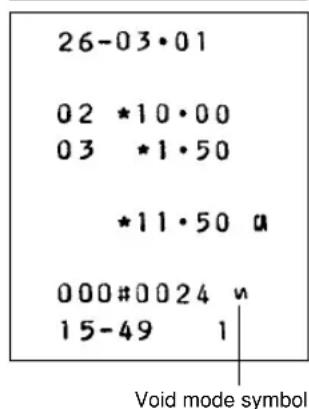
READING (X) AND RESETTING (Z) OF SALES TOTALS
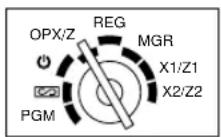
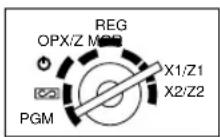
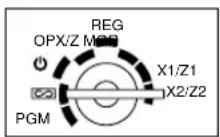
- Use the reading function (X) when you need to take a reading of sales information entered since the last resetting. You can take this reading any number of times. It does not affect the register's memory.
- Use the resetting function (Z) when you need to clear the register's memory. Resetting prints all sales information and clears the entire memory except for the GT, reset count, and consecutive number.
1 Summary of reading (X) and resetting (Z) reports
X1 and Z1 reports: Daily sales reports
X2 and Z2 reports: Periodic (monthly) consolidation reports
| Item | Mode switch position | Key operation | |||
| OPX/Z | X1/Z1 | X2/Z2 | |||
| Flash report:(Only display)To clear the display,press the CL key orturn the mode switch toanother position. | X | -- | Dept. key or:Department total amount → Dept. key (ER-A180 only) → Dept. key (ER-A180 only) | ||
 key: Amount of cash in drawer key: Amount of cash in drawer | |||||
 key: Sales total key: Sales total | |||||
| General report | - | X1, Z1 | X2, Z2 |   Reading [TLNS] Resetting Reading [TLNS] Resetting | |
| Individual cashierreport | X, Z | -- |  Reading Reading    [report of the cashier currently signed-on) [report of the cashier currently signed-on) | ||
| Full cashier report | - | X1, Z1 | - |  Reading Reading    [CASH #] Resetting [CASH #] Resetting | |
| PLU sales report | - | X1, Z1 | - |   Start Start   ALL PLUs [End PLU code] [Resetting PLU]
Hourly sales report ALL PLUs [End PLU code] [Resetting PLU]
Hourly sales report | -X8D6] Reading   [Resetting #TM/ST] [Resetting #TM/ST] |
Note
- In the reports, when both of sales quantity and sales amount are zero, their printing is skipped. If you do not want to skip, change the programming. (Refer to "Programming print format".)
- "X" represents read symbol and "Z" represents reset symbol in the reports.
2 Sample report
■ General report
- Sample X1 report
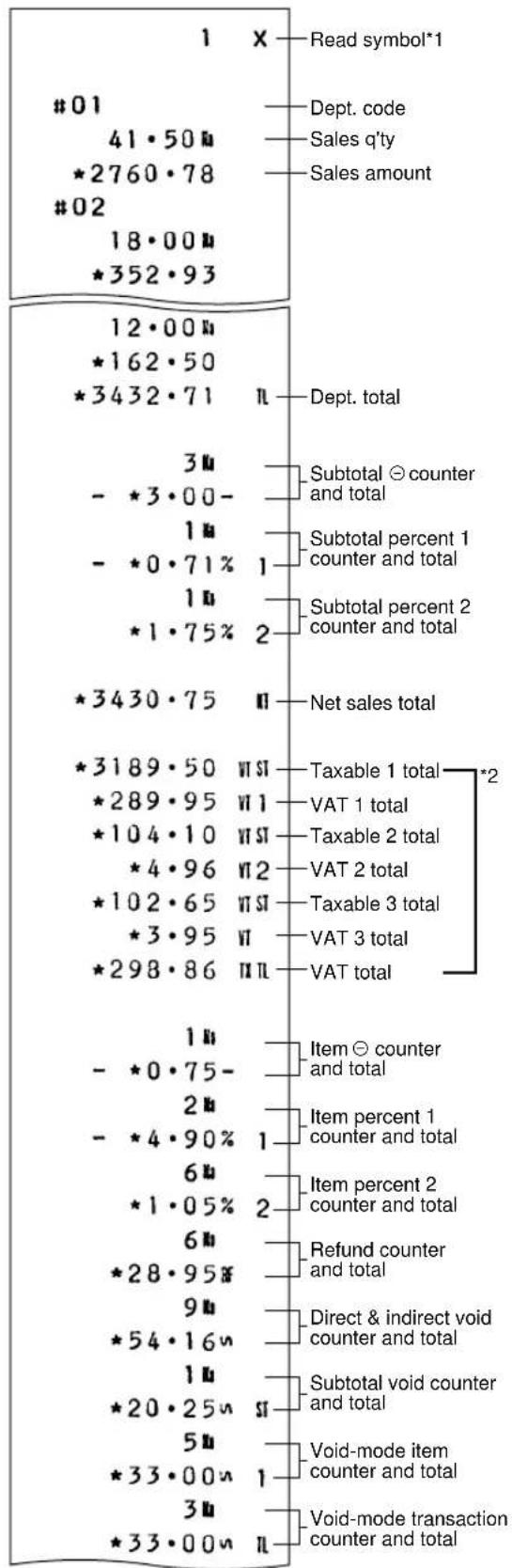
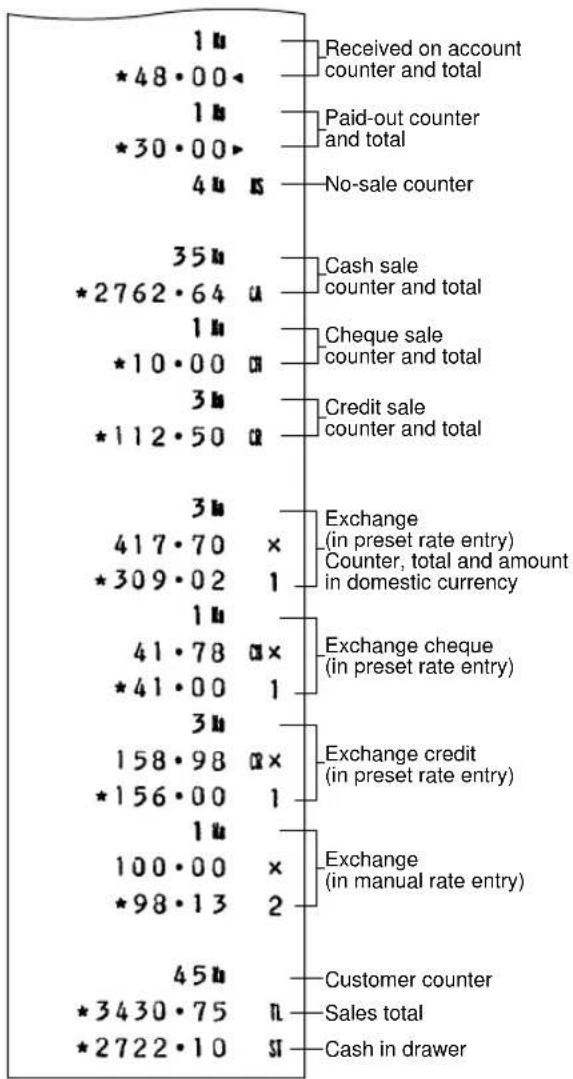
*1: In X2 report, 2 is printed here. *2: When the tax system is automatic tax 1-3, manual tax 1-3, or the combination of automatic tax 1-2 and automatic VAT 3, the net sales total plus tax 1, 2, 3 are printed here.
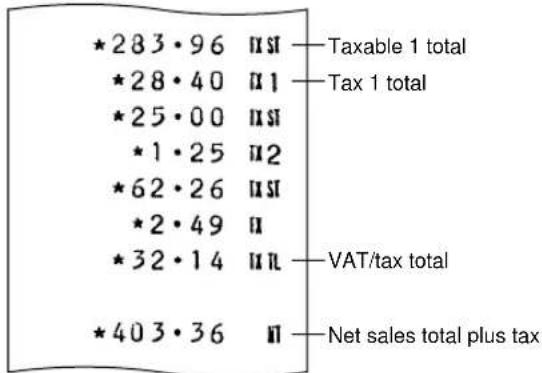
• Sample Z1 report • Sample Z2 report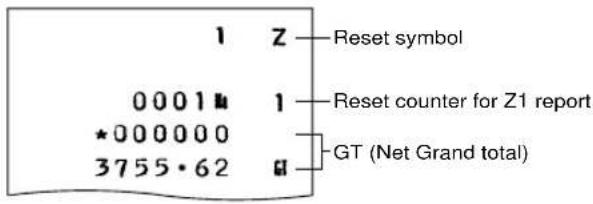
The subsequent printout occurs in the same format as in the sample X1 report.
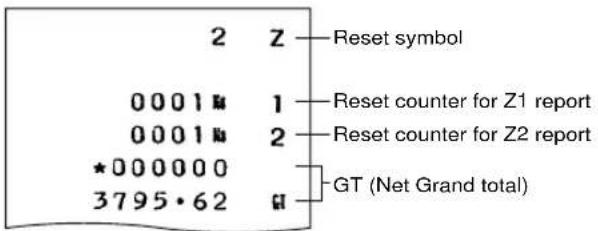
The subsequent printout occurs in the same format as in the sample X1 report.
■ Cashier reports
Individual cashier report
• Sample X1 report Full cashier report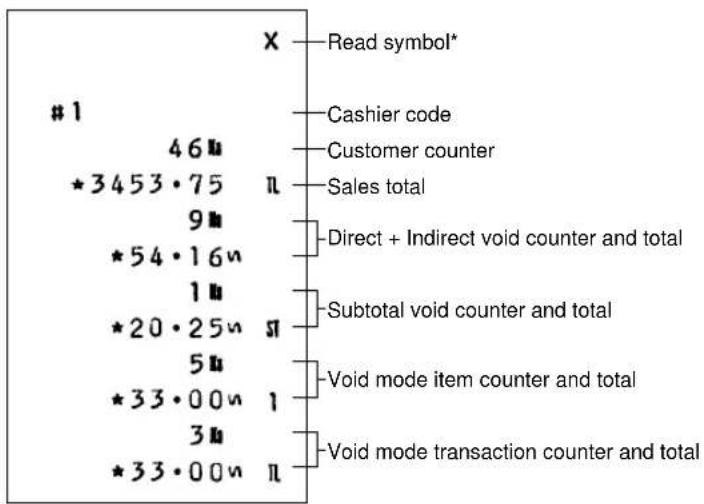
*: When you take Z report, "Z" is printed.
The printout occurs in the same format as in the sample report of individual cashier, but all cashier's sales data are printed in the order of cashier code number (from #1 to #6 for ER-A160, from #1 to #8 for ER-A180).
■ Hourly sales report PLU sales report
• Sample X1 report • Sample X1 report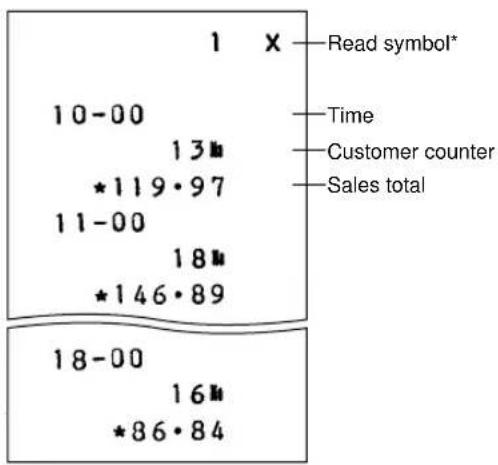
*: When you take Z report, "Z" is printed.

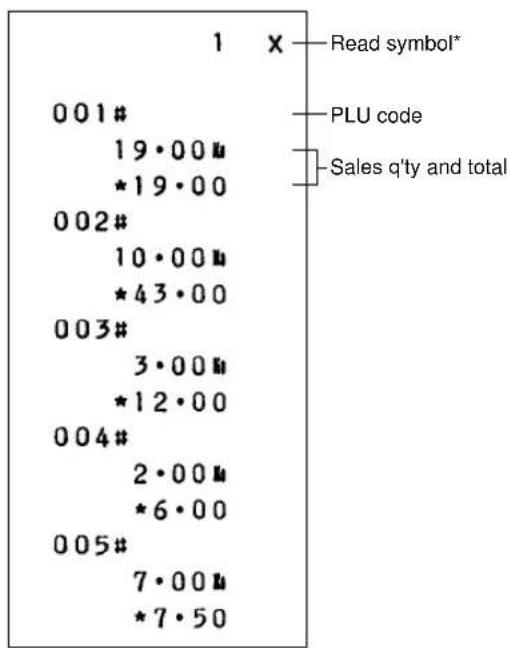
*: When you take Z report, "Z" is printed.
PROGRAMMING
This chapter illustrates how to program your cash register. Program every item necessary for your store by following the appropriate procedure.

On the key operation examples, numeric such as 1234 indicates the number or parameter which must be entered using the corresponding numeric keys.
1 Programming the VAT/tax rate
![graph LR A["#/TM/ST"] --> B["9"] B --> C["⊗"] C --> D["*1A 1-3"] D --> E["⊗"] E --> F["*2Sign and VAT/tax rate"] F --> G["⊗"] G --> H["*3Lowest taxable amount"] H --> I["#/TM/ST"] I --> J["TL/NS"] F --> K["To program "0""] G --> L["To program "0""] K --> M["∞"] L --> N["To inhibi…](/content/2026/02/387794/images/e55dda212b31ea9ab68b71bfce5feb3fc7ab421ff2757e3c112b81dd258eb430.jpg)
*1: VAT/tax rate number (1-3) *2: Sign and VAT/tax rate: XYYY.YYYY (X:Sign -/+ = 1/0, YYY.YYYY:VAT/tax rate = 000.0001 to 100.0000) *3: Max. five digits: 0 to 99999
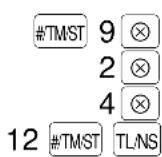
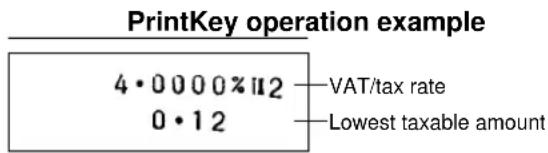
In VAT system, the sign and the lowest taxable amount are ignored. They are valid only when you select add on tax system.
2 Programming for departments
Your machine is equipped with 5 (ER-A160) or 10 (ER-A180) standard departments. You can increase the number of departments up to 15 (ER-A160) or 30 (ER-A180).
■ Functional programming
Sign
Assign plus department for normal sales, or minus department for minus transaction.
Tax status
Assign a tax status to each department. When entries are made into taxable departments in a transaction, tax is automatically computed according to the associated tax rate as soon as the transaction is completed.
SICS (Single Item Cash Sale)
If the first registration is to a department set for SICS, the sale is finalized as soon as the department key is pressed.
Entry digit limits
Set the number of allowable digits for the maximum entry amount for each department. The limit is effective for operations in the REG mode and can be overridden in the MGR mode.
Procedure
![graph LR A["To set all zeros"] --> B["ABCDEF"] B --> C["×"] C --> D["(SHIFT)"] D --> E["Dept. key"] E --> F["TL/NS"] F --> A](/content/2026/02/387794/images/33e57089413c3c39daa37fee67241394ef617dbfbca5bbd0fc1909d1496df39b.jpg)
To program another dept.
*To shift the department key, press the department shift key at this point. (ER-A180 only)
* Item: Selection: Entry:
| A Sign Minus department 1 | ||
| Plus department 0 | ||
| B Taxable in VAT 3/tax 3 rate Yes 1 | No | 0 |
| C Taxable in VAT 2/tax 2 rate Yes 1 | No | 0 |
| D Taxable in VAT 1/tax 1 rate Yes 1 | No | 0 |
| E SICS / Normal SICS 1 | Normal 0 | |
| F Entry digit limit 0-7 | ||
Key operation example
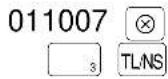
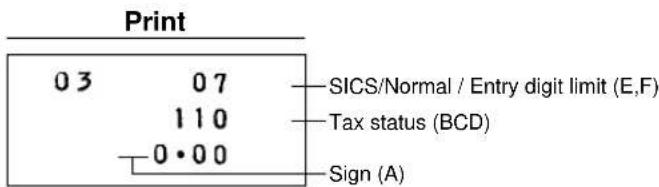
Note
- The tax system of your machine has been factory-set to automatic VAT1–3. If you desire to select any of automatic tax 1–3, manual VAT1–3, manual VAT1, manual tax 1–3, and the combination of the automatic tax 1–2 and the automatic VAT 3, consult your dealer.
- When the combination of the automatic tax 1–2 and the automatic VAT 3 system is selected, one of the tax 1–2 can be selected in combination with VAT3(B). Example: BCD = 101 or 110
Unit price
Procedure
![graph TD A["Unit price(max. six digits)"] --> B["To set zero"] B --> C["(SHIFT)"] C --> D["Dept. key"] D --> E["TL/NS"] E --> A](/content/2026/02/387794/images/e6f9083a85ebb5e1e3c70c21e2d74641d5840ba0d9806d772cf650be735fdafe.jpg)
To program another dept.
*To shift the department key, press the department shift key at this point. (ER-A180 only)
Key operation example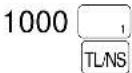
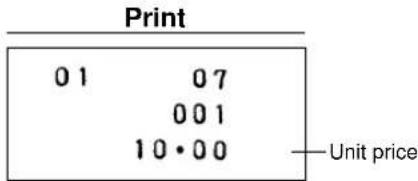
PLU (Price lookup) programming
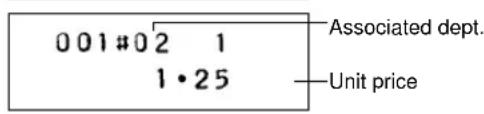
■ Unit price and associated department assignment
Unit price (max. six digits)
You will usually have unit prices programmed for individual PLUs as PLU preset unit prices. If you program unit price "0" for a PLU, you can enter only the selling quantity of the PLU, i.e. the PLU can be used only as a counter.
Associated department
When a PLU is associated with a department, the following functions of the PLU depend on the programming for the corresponding department.
• Tax status, entry digit limit (only for the subdepartment), single item cash sale, and sign
Procedure
![graph TD A["PLU code*1"] --> B["PLU"] B --> C["Unit price (max. six digits)"] C --> D["*2 (SHIFT)"] D --> E["Dept. key"] E --> F["TL/NS"] G["To inhibit"] --> H["∞"] I["To program zero"] --> C J["To program the following PLU"] --> C K["To program another PLU"] --> E](/content/2026/02/387794/images/73e723faee0b032a7cc93abf6b426900bb91a9c89bb7987a96d7b54ced442635.jpg)
*1: 1 through 200 (ER-A160) or 1 through 400 (ER-A180) *2: To shift the department key, press the department shift key at this point. (ER-A180 only)
PrintKey operation example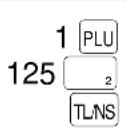
■ PLU/subdepartment mode
If the PLU mode (i.e. automatic preset unit price entry) is selected, individual PLU entries can be made by entering the assigned code and depressing the PLU key. If the subdepartment mode is selected, the following key operations must be performed: Enter the price, press the AMT key, enter the PLU code, and press the PLU key.
Procedure
![graph LR A["*1PLU code"] --> B["PLU"] B --> C["*2A"] C --> D["#/TM/ST"] D --> E["TL/NS"] E --> F["To program another PLU"] F --> G["To program the following PLU"] G --> H["To program "0""] H --> C](/content/2026/02/387794/images/1f04ff60a2da1e64cfb3d43022a405a2240a7f80968f602f313d355a4630de3e.jpg)
*1: 1 through 200 (ER-A160) or 1 through 400 (ER-A180) *2: 0 for subdepartment mode or 1 for PLU mode
PrintKey operation example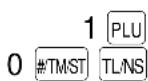
4 Programming for miscellaneous keys
■ Programming the rate (%, EX)
Procedure
![graph TD A["To program zero"] --> B["*Rate of"] B --> C["%1"] B --> D["%2"] B --> E["EX"] E --> F["TL/NS"] F --> G["End"] C --> G D --> G E --> G](/content/2026/02/387794/images/6372b3c88af97140781c2c18d0c14aab8d26b55ca2eff8060ad617a965286d61.jpg)
To program another rate
*: Rate
0.00 - 100.00 (% rate)
0.000000 - 999.999999 (currency exchange rate)
exchange rate)
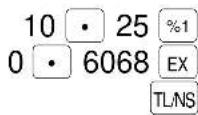
PrintKey operation example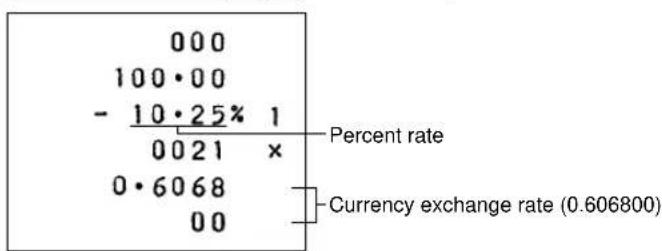
Note
You must use a decimal point when setting rates that are fractional.
■ Programming the discount key amount (⊖)
Procedure
![graph LR A["To program zero"] --> B["Discount amount (max. six digits)"] B --> C["⊖"] C --> D["TL/NS"]](/content/2026/02/387794/images/cf85a93e2e668999492a2406385f94188b1593925c1344e70c457ac0989ea90b.jpg)
PrintKey operation example
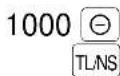
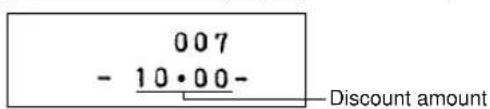
■ Programming the percent rate limitation ( % )
You can program the upper limit of percent rates for percent entries. Percent entries that exceed the upper limit may be overridden in the MGR mode.
Procedure
![graph LR A["#TM/ST"] --> B["⊗"] --> C["1"] --> D["0"] --> E["To program zero"] E --> F["Percentage limit (0.00 -100.00)"] F --> G["%1"] --> H["%2"] --> I["TL/NS"] I --> J["Feedback to F"]](/content/2026/02/387794/images/d53f769622edc99b5b98f81d08ed27e43372901eabc28b733f7a458d3178c308.jpg)
To program for another percent key
Note
10.00% can be entered as 1 0 or 1 0 • 0 0. The • key is needed only for fractional entry.
PrintKey operation example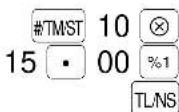
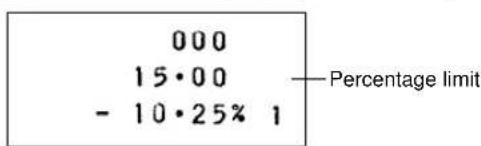
■ Programming function parameters for ⊖ and % keys
+/- sign
Programming of the +/- sign assigns the premium or discount function for each key.
Item % / Item ⊖
Percent/discount calculation for the individual department and PLU
Subtotal % / Subtotal ⊖
Percent/discount calculation for the subtotals
Entry digit limit (For discount key only)
The limit is in effect for the REG-mode operations but can be overridden in the MGR mode.
Procedure
![graph LR A["To program "0" for all items"] --> B["*ABCD"] B --> C["×"] C --> D["⊖, %1 or %2"] D --> E["TL/NS"] E --> F["To program for another key"] F --> A](/content/2026/02/387794/images/ce3ece6b55020c6b99a22badd476087602ab15481c1b019e5fca2674590ca70c.jpg)
*: Item: Selection: Entry:
| A +/- sign + (premium) sign 0 | |
| - (discount) sign 1 | |
| B Item % / Item ⊖ | Enable 0 |
| Disable 1 | |
| C Subtotal % / Subtotal ⊖ | Enable 0 |
| Disable 1 | |
D Entry digit limit* 0-7 * When programming for percent keys, always enter 0. The default setting is ABCD = 1007 for ☑ key and 1000 for % key.
PrintKey operation example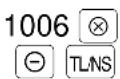
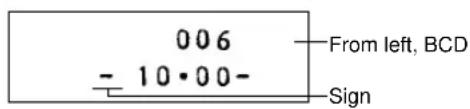
■ Programming function parameters for EX key
Currency exchange rate entry selection
You can enable or disable preset and manual entry of currency exchange rate.
Number of digits after decimal point
Set the number of digits after decimal point which is printed on the receipts for currency exchange amount.
Foreign currency symbol
Foreign currency symbol for EX key is printed on a foreign currency exchange amount of which rate is preset by programming.
Procedure
![graph LR A["To program "0" for all items"] --> B["*ABCD"] B --> C["⊗"] C --> D["EX"] D --> E["TL/NS"]](/content/2026/02/387794/images/12522347a842ebb5329b7448b8c5a3b8a87eca3d87f6d62a155ab7c9259565cc.jpg)
*: Item: Selection: Entry:
| A Manual rate entry Enable 0 | |
| Disable 1 | |
| B Preset rate entry Enable 0 | |
| Disable 1 | |
| C Number of digits after decimal point 0-3 | |
| D Foreign currency symbol ★ 0 | |
| (space) 1 | |
| € 2 |
The default setting is ABCD = 0021.
PrintKey operation example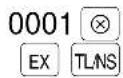
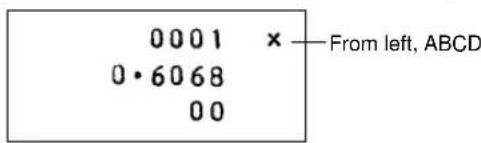
■ Programming an entry digit limit for CH, CR, RA and PO keys
The limit is in effect for REG-mode operation but can be overridden in the MGR mode. When "0" is set, the operation of the corresponding key is prohibited.
Procedure![graph LR A["Entry digit limit(0-8)"] --> B["×"] B --> C["CH"] D["To program "0""] --> A E["To program for another key"] --> A F["CR, RA"] --> C G["P⊗, TL/NS"] --> E](/content/2026/02/387794/images/66e17f4d119a605f18c60f006c727c62f673cd81213f0d74c35d89a1a5fbaeda.jpg)
PrintKey operation example
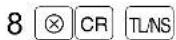

5 Programming various functions
Note
- Be very careful not to enter a wrong number for the number entry after the first #TMST key. Be sure to enter the number described in the "Procedure".
- You can continue programming until TLNS key is pressed for the programming described in this section. To continue programming, repeat from the first numeric key entry.
■ Setting the register number
When your store has two or more registers, it is practical to set separate register numbers for their identification.
Procedure![graph LR A["#/TM/ST"] --> B["1"] B --> C["⊗"] C --> D["Register number (one to three digits)"] D --> E["#/TM/ST"] E --> F["TL/NS"] G["To set the register number "0""] --> D](/content/2026/02/387794/images/5e6e1e05aadac48ba938416c85027f6845d8a48a7e7e1093255a85f9c1b5f08f.jpg)
PrintKey operation example
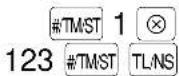
123#
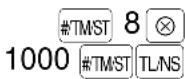
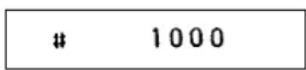
■ Setting the consecutive number
The consecutive number is increased by one each time a receipt is issued.
![graph LR A["#/TM/ST"] --> B["2"] B --> C["⊗"] C --> D["A number (one to four digits) that is one less than the desired starting number"] D --> E["#/TM/ST"] E --> F["TL/NS"] G["To begin the count from 0001"] --> D](/content/2026/02/387794/images/e0e46c56c89ad4da6e597df82a2a5a6924205df5e695a53aba3864a926235b22.jpg)
PrintKey operation example
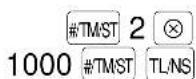
1000
■ Programming optional feature selection
You can enable or disable the operation of Paid out, Received-on account, Refund, No-sale, Void in the REG-mode, and also select if you enable fractional quantity entry or not.
Procedure
![graph LR A["#/TM/ST"] --> B["5"] B --> C["⊗"] C --> D["*ABCDEFGHIJKLMNOPQRSTUVWXYZ"] D --> E["#/TM/ST"] E --> F["TL/NS"] G["To set "0" for all items"] --> D](/content/2026/02/387794/images/804c3936fd376321d64011bc28edf2bfff0858a719261c840ff6763cb1acafbf.jpg)
* Item: Selection: Entry:
| A Paid-out in the REG-mode Enable 0 | |
| Disable 1 | |
| B Received on account in the REG-mode Enable 0 | |
| Disable 1 | |
| C Subtotal void in the REG-mode Enable 0 | |
| Disable 1 | |
| D Indirect void in the REG-mode Enable 0 | |
| Disable 1 | |
| E Direct void in the REG-mode Enable 0 | |
| Disable 1 | |
| F Refund entry in the REG-mode Enable 0 | |
| Disable 1 | |
| G No sale in the REG-mode Enable 0 | |
| Disable 1 | |
| H Fractional quantity entry | Enable 0 |
| Disable 1 | |
The default setting is ABCDEFGH = 00000000.
Key operation example
| #TM/ST | 5 | ⊗ |
| 00000100 | #TM/ST | TL/NS |
| #00000100 |
■ Programming print format
You can program;
Printer type - Use printer as journal printer or for issuance of receipt
If you select the journal printer type and complete journal information is mandatory, the receipt ON/OFF function should be in the "ON" state.
Receipt print form - Detailed receipt print or summary receipt print
On the summary receipt print, the details of each item are not printed.
Date print selection
Consecutive number print selection
Zero skip for reports
Procedure
![graph LR A["#/TM/ST"] --> B["6"] B --> C["⊗"] C --> D["*ABCDEFGHIJKLMNOPQRSTUVWXYZH"] D --> E["#/TM/ST"] E --> F["TL/NS"] G["To set "0" for all items"] --> D](/content/2026/02/387794/images/ddafa0efbdcb51b0a26510e4b521c6c4999cc997ca0675382687eb6573412458.jpg)
* Item: Selection: Entry:
| A Printer type Journal printer 0 | |||
| Receipt printer 1 | |||
| B Receipt print form Total 0 | |||
| Detailed 1 | |||
| C Always enter 0. 0 | |||
| D Date print Yes 0 | |||
| No | 1 | ||
| E Consecutive no. print Yes 0 | |||
| No | 1 | ||
| F Always enter 0. 0 | |||
| G Zero skip in PLU report | Yes 1 | ||
| No | 0 | ||
| H Zero skip in general/cashier/hourly report | Yes 1 | ||
| No 0 | |||
The default setting is ABCDEFGH = 11000011.
Key operation example
| #TM/ST | 6 | ⊗ | |
| 10000011 | #TM/ST | TL/NS | |
| #10000011 |
■ Selection of the subtotal printing
You can make selection of subtotal print when #TMST key is pressed.
Procedure
![graph LR A["#/TM/ST"] --> B["7"] B --> C["⊗"] C --> D["*ABCDEFGH"] D --> E["#/TM/ST"] E --> F["TL/NS"] D -->|To set “0” for all items| D](/content/2026/02/387794/images/9a3fa333f2993d261811f33a4c6536cfe980cf41fa0f3433dd4c485469092626.jpg)
* Item: Selection: Entry:
| A - B Always enter 0. 0 | ||
| C Subtotal print with a press of subtotal key | Yes 1 | |
| No | 0 | |
| D - H Always enter 0. 0 | ||
Key operation example
| #TM/ST | 7 | ⊗ |
| 00100000 | #TM/ST | TL/NS |
| #00100000 |
■ Programming EURO system settings
For details of EURO system settings, please refer to "PROGRAMMING FOR EURO".
Printing exchange total amount and change amount on receipt or journal
Total and change amounts in exchange currency are printed respectively below each of the total and change amounts in domestic currency.
Cheque and credit operation when tendering in foreign currency
Exchange calculation method
“Division” or “Multiplication” can be selected for the conversion method from domestic currency to exchange currency, and the calculation is performed as follows:
In case that "Division" is selected:
Domestic currency amount ÷ Exchange rate = Exchange amount
In case that "Multiplication" is selected
Domestic currency amount × Exchange rate = Exchange amount
Procedure
![graph LR A["#/TM/ST"] --> B["8"] B --> C["⊗"] C --> D["*ABCD"] D --> E["#/TM/ST"] E --> F["TL/NS"] G["To set "0" for all items"] --> D](/content/2026/02/387794/images/b45327c2e325fc08e3534120c6384d1b1d2a170603918cadfa0841b9c4fbdffb.jpg)
* Item: Selection: Entry:
| A Printing exchange total amount and Yes 1 change amount on receipt or journal No 0 | |
| B Always enter 0.0 | |
| C Cheque and credit operation when Yes 1 tendering in foreign currency No 0 | |
| D Exchange calculation method Division 1 | Multiplication 0 |
Key operation example
■ Programming the AUTO key — Automatic sequencing key —
If you program frequently performed transactions or report sequences for the AUTO keys, you can call those transactions and/or reports simply by pressing the corresponding AUTO keys in key operations in the appropriate mode (REG, MGR, ☐, OP X/Z, X1/Z1 or X2/Z2).
Procedure
![graph TD A["AUTO 1"] --> B["Transaction"] C["AUTO 2"] --> B B --> D["AUTO 1"] B --> E["AUTO 2"] D --> F["TL/NS"] E --> F G["Delete"] --> B H["max. 20 times"] --> B](/content/2026/02/387794/images/6f7aa87e737be80da2a86ec22f68918622307fa5ae5896133ea9d2e468498684.jpg)
Programming for 1 ; entering a PLU 2 item (programmed unit price: 1.50)
Key operation example
![graph LR A["AUTO1 setting"] --> B["2"] B --> C["AUTO1"] B --> D["PLU"] B --> E["AUTO1"] B --> F["TLNS"]](/content/2026/02/387794/images/679c2d2398bcb0ed36eb56833617b554cd3ac0642430217ecc41db91305ee28d.jpg)
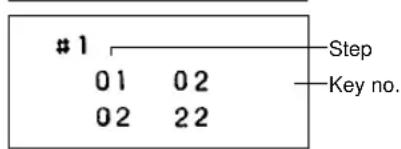
Key number list
| keys nos. | |
| 0 | 00 |
| 1 | 01 |
| 2 | 02 |
| 3 | 03 |
| 4 | 04 |
| 5 | 05 |
| 6 | 06 |
| 7 | 07 |
| 8 | 08 |
| 9 | 09 |
| 00 | 10 |
| keys nos. | |
| • | 11 |
| ⊗ | 12 |
| CL | 13 |
| TLNS | 14 |
| #TMST | 1 |
| CH | 16 |
| CR | 17 |
| %1 | 18 |
| %2 | 19 |
| ⊖ | 20 |
| keys nos. | |
| EX | 21 |
| PLU | 22 |
| AMT | 23 |
| ∞ | 24 |
| RF | 25 |
| RCPTPC | 2 |
| RA | 27 |
| CASH4 | 28 |
| VAT | 29 |
| SHIFTI | 30 |
| keys nos. | |
| 1 | 51 |
| 2 | 52 |
| 3 | 53 |
| 4 | 54 |
| 5 | 55 |
| 6 | 56 |
| 7 | 57 |
| 8 | 58 |
| 9 | 59 |
| 10 | 60 |
| keys nos. | |
| 11 | 61 |
| 12 | 62 |
| 13 | 63 |
| 14 | 64 |
| 15 | 65 |
6 Reading stored programs
■ Key sequence for reading stored program
Report name Key sequence
| Programming report | TLNS | |
| Auto key programming report 1 | TLNS | → |
| PLU programming report | Start PLU code→⊗→End PLU code→PLU | |
■ Sample printouts
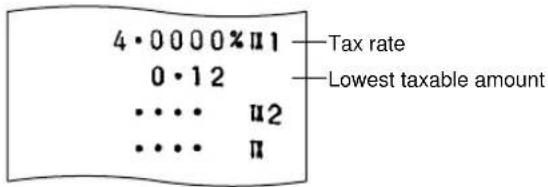
1 Programming report
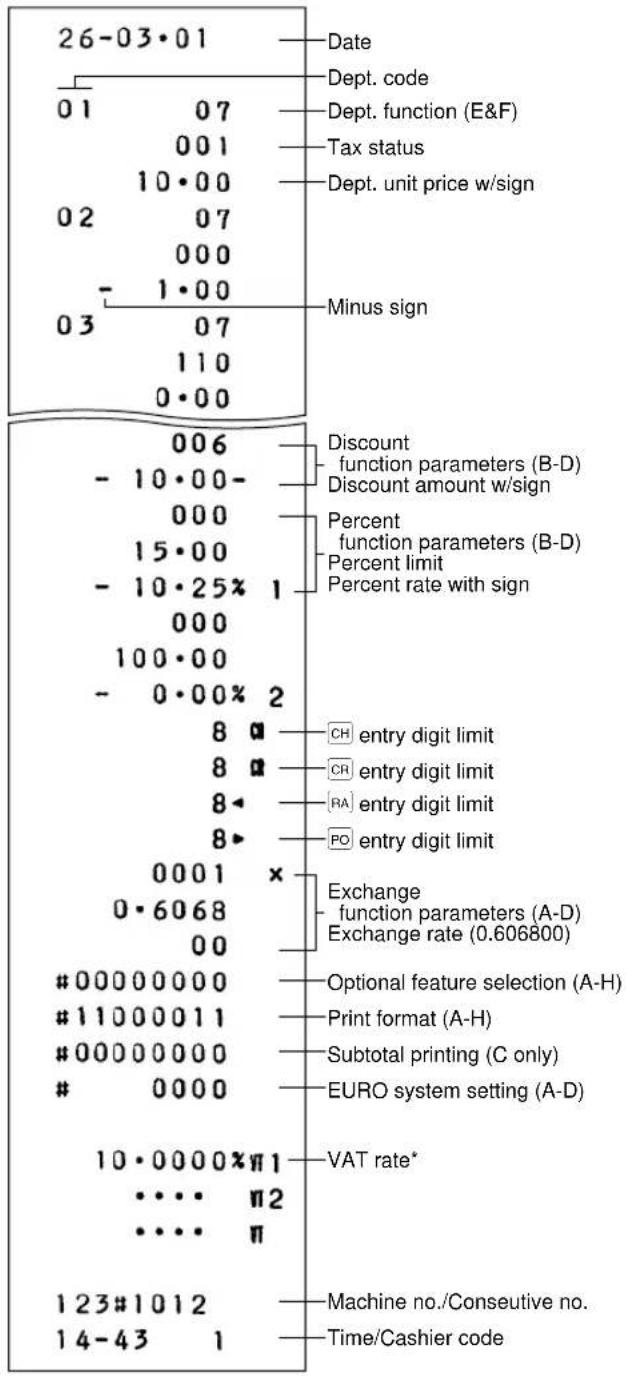
*When the tax system is automatic tax 1-3, manual tax 1-3, or the combination of automatic tax 1-2 and automatic VAT 3, the lowest taxable amount is printed under the tax rate.
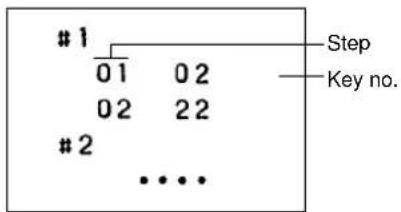
2 Auto key programming report
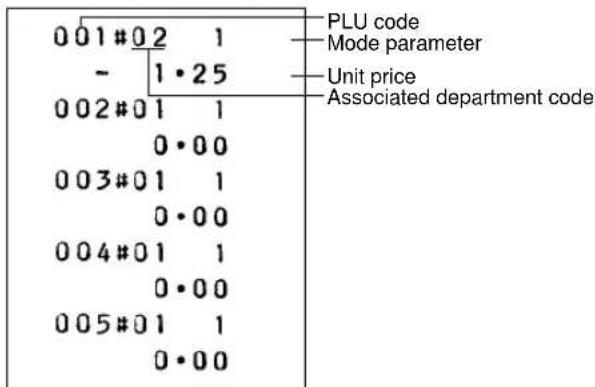
3 PLU programming report
PROGRAMMING FOR EURO
Your register can be modified to correspond with each period set for the introduction of EURO, and in your register each currency is treated as shown on the table below depending on which period you are in.
Basically your register can be automatically modified to correspond to the introduction of EURO by executing the modification operation in the X2/Z2 mode. However, there are several options you must set depending on your needs.
How currencies are treated in your register
| Period 1 | Period 2 | Period 3 | ||
| After the introduction of EURO, and before EURO banknotes and coins begin to circulate | After EURO banknotes and coins begin to circulate, and before national currency is withdrawn from circulation. (Co-existence of EURO and national currency) | After the national currency is withdrawn from circulation | ||
| Currency | EURO | Exchange key (Preset rate entry) | Domestic currency | Domestic currency |
| National currency (DM, F, etc.) | Domestic currency | Exchange key (Preset rate entry) | ||
| Foreign currency | Exchange key (Manual rate entry) | Exchange key (Manual rate entry) | Exchange key | |
Receipt samples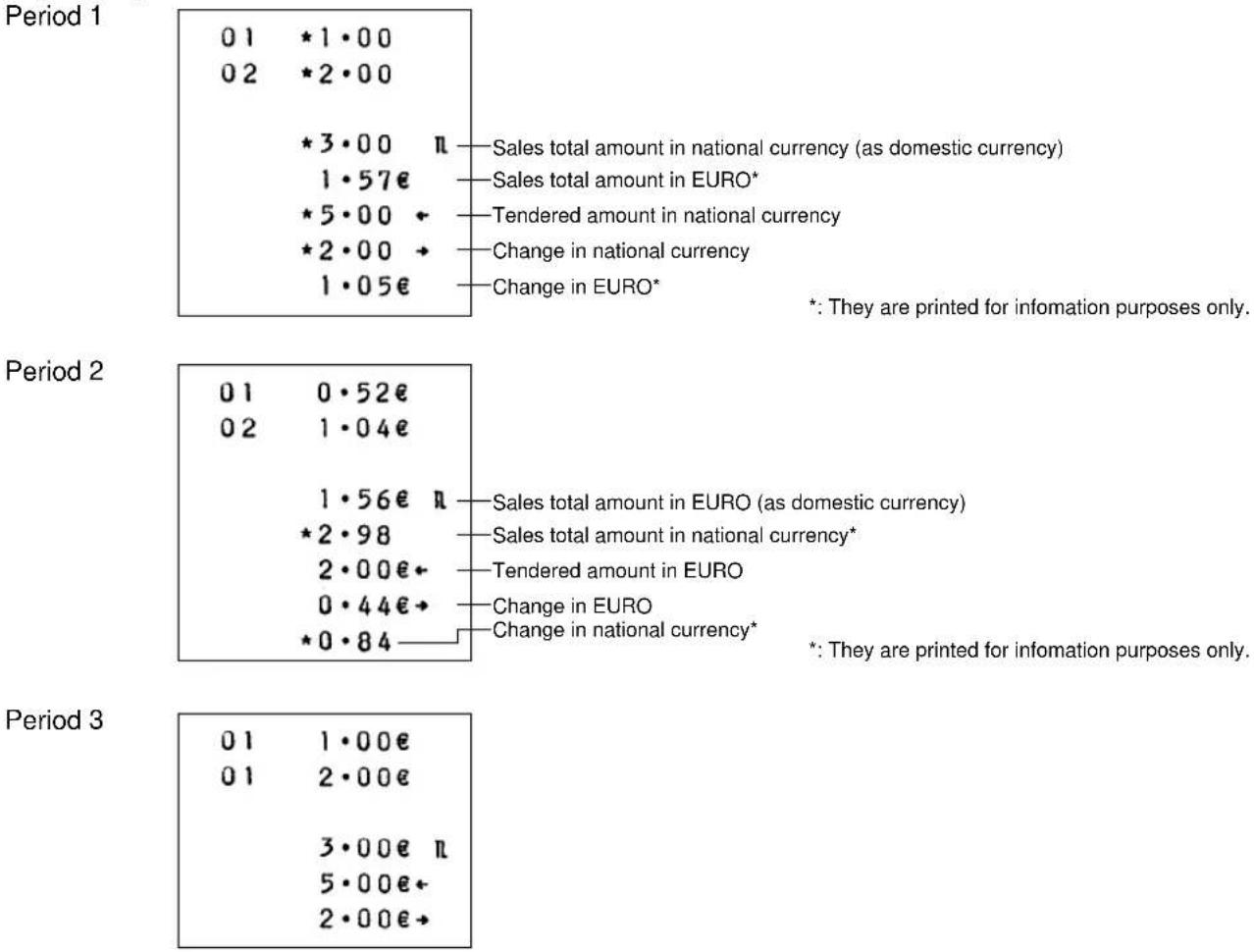
■ Automatic Modification of Register System for Introduction of EURO
To make your register correspond to the introduction of EURO, your register system can be automatically modified. According to the steps of the introduction, you can make your register correspond to EURO. Set the manager key (MA) to X2/Z2 position, and use the following sequence.
![graph LR A["8"] --> B["0"] B --> C["0"] C --> D["•"] D --> E["TL/NS"] E --> F["⊗"] F --> G["*A"]](/content/2026/02/387794/images/bfff381cc85f74116056c04bb7c38654959c7d42b50a015cc1ee5eb9d6a10a2c.jpg)
*A=1: Applicable for period 1
*A=2: Applicable for period 2
*A=3: Applicable for period 3
Note
- A cashier must be signed-on before this operation.
- You can perform each operation only once with the substitution of “A=1”, “A=2” and “A=3”. If you perform the operation with the substitution of “A=2” first, you cannot perform the operation with the substitution of “A=1”. If you perform the operation with the substitution of “A=3” first, you cannot perform the operation with the substitution of “A=1” and “A=2”.
The details of the automatic register system modification are as follows:
(As for PGM functions described below, please refer to "Programming EURO system settings" and "Programming function parameters for the EX key".)
When "1" is substituted for "A":
- Issuing a general Z1 report
- Issuing a general Z2 report
- Setting "printing" for a PGM function "Printing exchange total amount and change amount on receipt or journal"
- Setting "division" for a PGM function "Exchange calculation method"
- Setting the EURO symbol (€) for the currency symbol of exchange key, and setting "2" for the number of digits after decimal point of exchange amount
- Setting the round-off function for currency exchange
After the execution of the procedure with the substitution of "1", treat EURO as foreign currency using the exchange key (EX) with the preset rate entry.
When "2" is substituted for "A":
- Issuing a general Z1 report
- Issuing a general Z2 report
- Resetting GT
- Setting "printing" for a PGM function "Printing exchange total amount and change amount on receipt or journal"
- Setting "multiplication" for a PGM function "Exchange calculation method"
- Changing the domestic currency symbol to the EURO symbol (€) and setting the number of digits after decimal point of the domestic currency amount to 2
- For the setting of the currency symbol and the number of digits after decimal point of exchange amount, the ones that had been set to the domestic currency are set.
- Setting the round-off function for currency exchange
After the execution of the procedure with the substitution of "2", treat EURO as domestic currency, and previous national currency as foreign currency using the exchange key (EX) with the preset rate entry.
Since EURO becomes domestic currency in your register after execution of the procedure with the substitution of "2", you must change unit prices in each department and PLU to make prices correspond to EURO before actually you start operating your register again. As for the miscellaneous keys, also please change the rates or amounts so that they are based on amounts in EURO.
When "3" is substituted to "A":
- Issuing a general Z1 report
- Issuing a general Z2 report
- Resetting GT
- Setting "not printing" for a PGM function "Printing exchange total amount and change amount on receipt or journal"
- Setting "multiplication" for a PGM function "Exchange calculation method"
- Changing the domestic currency symbol to the EURO symbol (€) and setting the number of digits after decimal of the domestic currency amount to 2
- Setting the round-off function for currency exchange
After the execution of the procedure with the substitution of "3", treat EURO as domestic currency.
When the operation with the substitution of "2" has been performed already, "3. Resetting GT" is not executed.
When the operation with the substitution of "1" or "2" has been performed already, the currency symbol of exchange key is overwritten with a space.
Note
- If you want to check the current status you are in, set the manager key (MA) to X2/Z2 position, and use the following sequence.

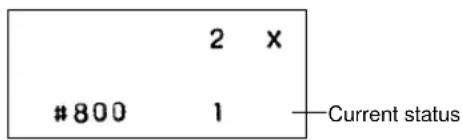
■ Optional Programming for the Introduction of EURO
Some programming relating with the function of exchange key ( [EX] ) cannot be changed automatically with the execution of modification operation described in the previous section.
Currency exchange rate for EX key
For period 1 and period 2, set the EURO conversion rate. For programming details, refer to "Programming the rate".
Exchange rate entry selection
When you treat EURO currency in the exchange key, you must apply preset rate entry. So, make enable for preset rate entry for period 1 and period 2. For programming details, refer to "Programming function parameters for EX key".
Cheque/credit operation
For period 1 and period 2, enable cheque/credit operation when tendering in foreign currency so that you can treat cheque and credit for EURO currency and national currency. For programming details, refer to "Programming EURO system setting".
■ Displaying the Change Amount in Exchange Currency
You can display a change amount in exchange currency by pressing the key when the change amount is displayed. This may be convenient when you want to give the change in exchange currency in the period 1 and
- When pressing the EX key again, the displayed amount returns to the amount in domestic currency.
The conditions that you can display a change amount in exchange currency are as follows:
- "Printing" is selected for a PGM function "Printing exchange total amount and change amount on receipt or journal. • Exchange rate is not zero.
1 Replacing the batteries
If the low battery symbol “L” appears on the far left of the display, the voltage of the batteries is less than the required level. In this situation, you must replace new batteries within two days.
And if the no battery symbol “L” appears on the far left of the display, less than three batteries are installed in your register, or the batteries are dead. In this situation, you must replace new ones immediately. If the AC power is accidentally disconnected or in case of a power failure, all programmed settings will be reset to the default settings and any data stored in memory will be cleared.
CAUTION!
Incorrectly using batteries can cause them to burst or leak, possibly damaging the interior of the cash register. Note the following precautions:
- Be sure that the positive (+) and negative (-) poles of each battery are facing in the proper direction.
- Never mix batteries of different types.
- Never mix old batteries and new ones.
- Never leave dead batteries in the battery compartment.
- Remove the batteries if you do not plan to use the cash register for long periods. However, the data and user-programmed settings will be erased.
- If a battery leaks, clean out the battery compartment immediately, taking care to avoid letting the battery fluid come into direct contact with your skin.
- Do not throw any spent batteries into combustible waste and do not burn any spent batteries.
To replace the batteries:
- Make sure that the register is plugged in.
- Turn the mode switch to the "OP X/Z" position.
- Remove the printer cover.
- Open the battery compartment cover located in front of the paper bed and remove the old batteries.
- Install three new R6 or LR6 batteries ("AA" size) in the battery compartment. Be sure that the positive and negative poles of each battery are facing in the proper direction. When they are installed correctly, the "L" symbol will disappear.
- Close the battery compartment cover.
- Replace the printer cover.
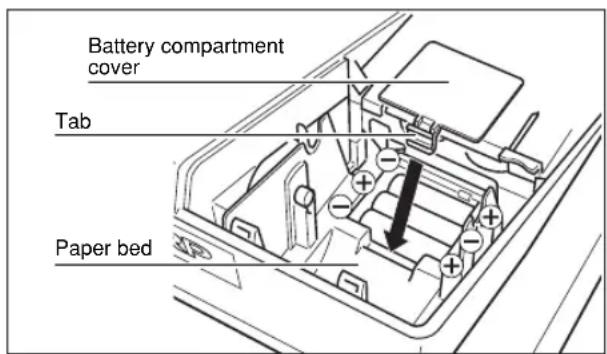
View from rear
2 Replacing the paper roll
Precaution: Be very careful with the manual cutter mounted on the printer cover when removing and replacing the cover, so as not to hurt yourself.
■ Removing the paper roll
When a red dye appears on the paper roll, it is time to replace the existing paper roll. Replace the paper roll with a new one.
- Remove the printer cover.
- Turn the mode switch to the "REG" position with the AC cord connected.
- When the take-up spool is not used:
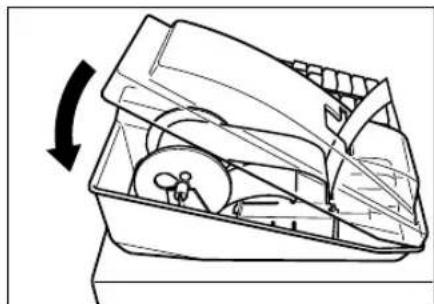
- Cut the paper near the paper roll as shown on the second sketch, and remove the used paper roll.
- Remove the rest of paper by pressing the key.
When the take-up spool is used:
- Press the key to advance the paper until its printed part is out of the way.
- Cut the paper, and remove the take-up spool from the cradle.
- Cut the paper near the paper roll, and remove the used paper roll.
- Remove the rest of paper by pressing the key.
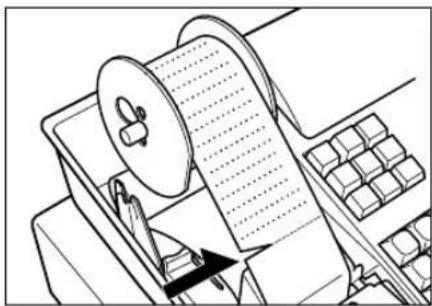
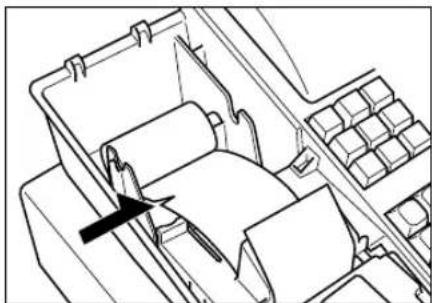
- Remove the used paper roll from the take-up spool. Slide up the holding plate to move the spool shaft from the small hole in the plate to the large one. Remove the holding plate from the spool shaft.
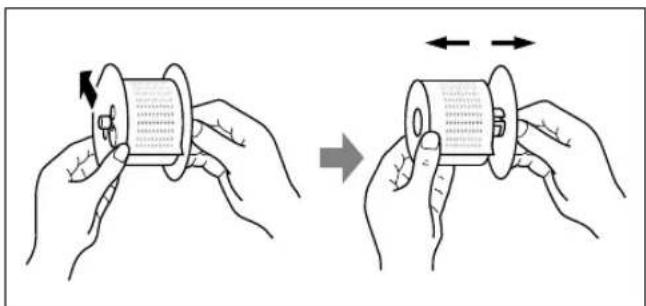
■ Installing the paper roll
Be sure to use paper rolls specified by SHARP.
The use of any other paper rolls than specified could cause paper jamming, resulting in register malfunction.
Paper specification
Paper width: 57.5 ± 0.5 mm Max. outside diameter: 70 mm
Before starting the installation, make sure that the AC cord is connected, and the mode switch is in the "REG" position. Remove the printer cover, if it is not.
- Set the paper roll correctly and drop it in the paper bed.
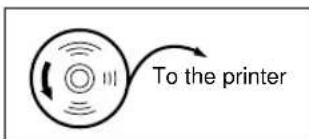
- Make a fold in the paper approx. five centimeters from the end.
- While pressing the ↑ key, insert the folded end straight into the paper inlet. The inserted end appears at the printing area.
4 When not using the take-up spool (using as receipt paper):
- Lead the end of the paper out through the manual cutter on the printer cover. (Press the ↑ key to advance the paper more if required.)
When using the take-up spool (using as journal paper):
- Insert the end of the paper into the slit in the spool.
(Press the ↑ key to feed more paper if required.)
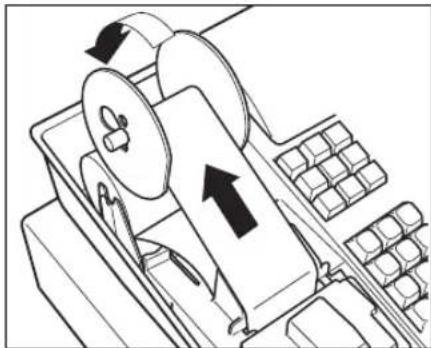
- Wind the paper two or three turns around the spool shaft.
- If the holding plate is not attached to the spool, attach it by inserting the spool shaft into the large hole and sliding it into the small one.
- Set the spool on the bearing, and press the key to take up excess slack in the paper.
- Replace the printer cover.
Note
- When using a paper roll as journal paper, you must change the printer type. Refer to "Programming print format" on page 30.
- When using 2-ply journal/receipt paper, follow the same instructions as above, but lead the end of the receipt paper out through the manual cutter after winding the journal paper on the take-up spool shaft.
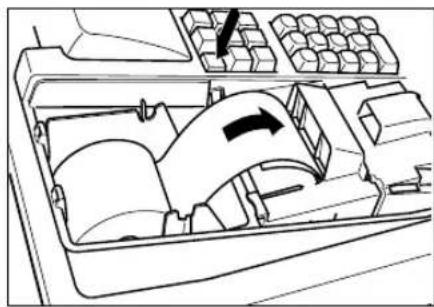
3 Replacing the ink ribbon
When printing becomes faded, replace the ink ribbon with a new one specified by SHARP.
Removal
Note
To prevent the ink ribbon from drying or becoming dirty, do not remove it from its bag until just before using.
- Remove the printer cover.
- Cut off the paper and press the key to remove it.
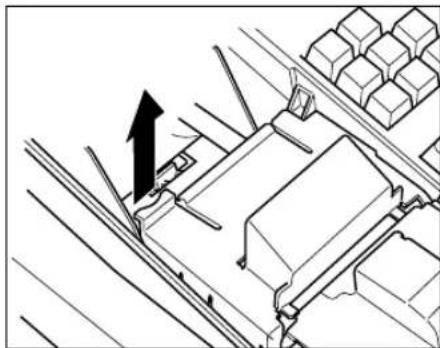
- Detach the ink ribbon cover.
Pull the tab in the direction of the arrow to lift the cover.
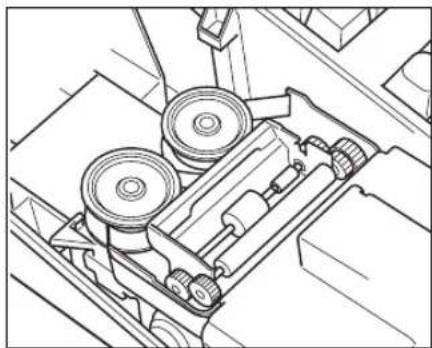
- Remove the ink ribbon.
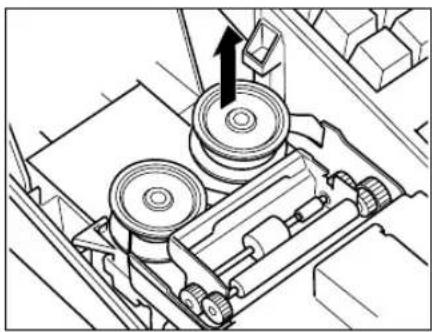
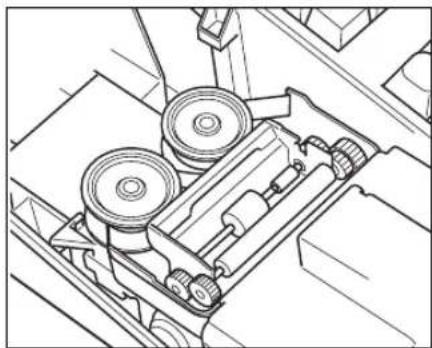
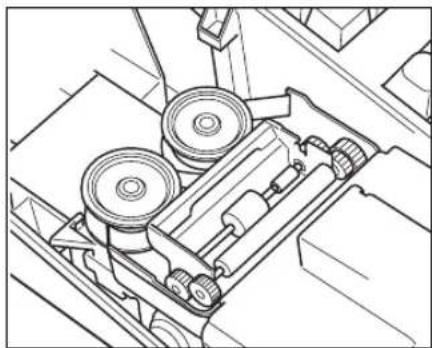
Remove the reel that is not locked by the reel stopper first, then tip the stopper to the opposite side and remove the other reel. To remove the reels, pull them upwards.
■ Installation
The protruding side of the reels must face downward. So, note which reel is the left one and which is the right.
- Install the reel on the side where the reel stopper is not tipped. Rotate the reel to the right or to the left until it clicks into place.
- Run the ink ribbon correctly through the printer as shown in the right sketch. Note that the ribbon is placed along the outside of the metal brackets.
- Install the other reel in the same way, and rotate either reel to take up slack from the ribbon.
- Replace the ink ribbon cover.
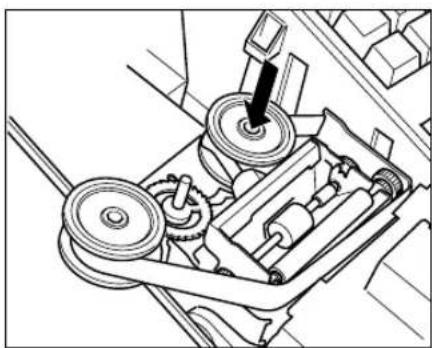
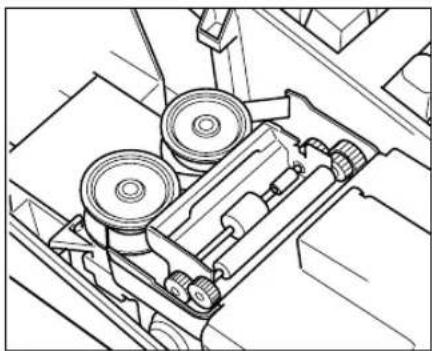
4 Ink refill (ER-A180 only)
If the logo becomes too light, it's time to refill the logo ink. You must use the logo ink specified by SHARP. Consult your dealer for the logo ink. For refilling the logo ink, follow the procedure given below.
- Remove the printer cover.
- Remove the logo by pulling it straight up in the direction of the arrow.
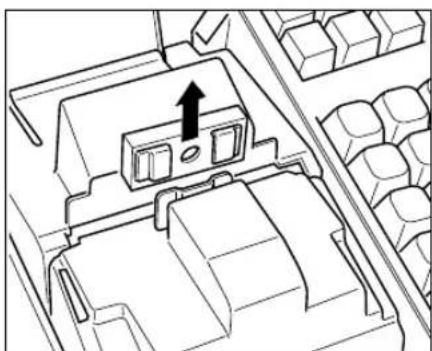
- Pour two or three drops of logo ink through the ink inlet situated on the back of the logo.
- Replace the logo by the reverse procedure to removing.
- Replace the printer cover.
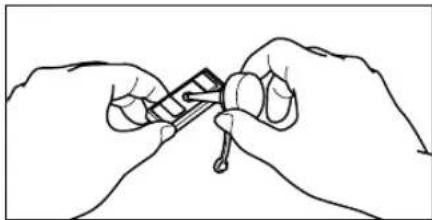
Precautions:
The logo ink first gives a clear print 6 to 10 hours after being applied into the logo. Therefore, refilling at the end of daily business is most effective. Overinking should be avoided. This will create a blurry print.
Do not apply the logo ink to the ink ribbon.
5 Drawer handling
■ Locking the drawer
To lock the drawer, insert the key into the drawer lock and turn it 90 degrees counterclockwise.
To unlock the drawer, insert the drawer key into the lock and turn it 90 degrees clockwise.
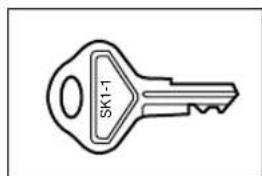
Drawer lock key
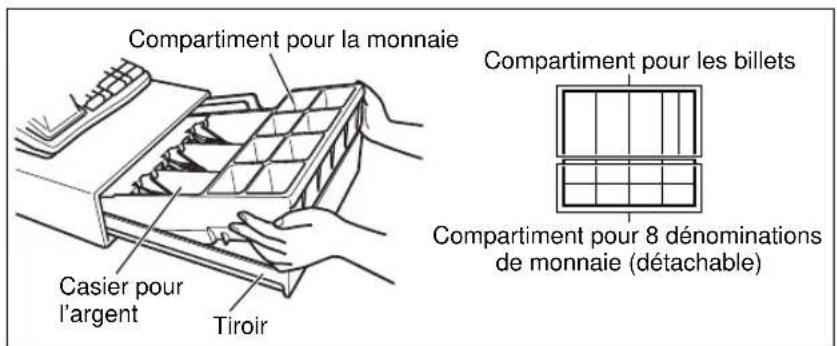
■ Removing the till and the drawer
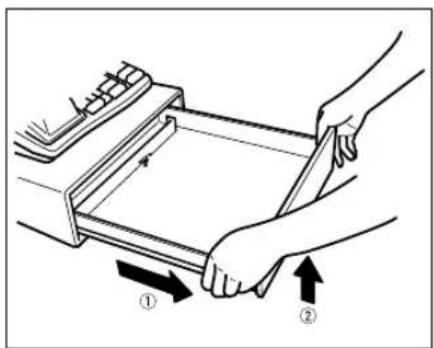
The till in the register is detachable. After closing your business for the day, remove the till from the drawer and keep the drawer open. To detach the drawer, pull it forward fully with the till removed, and remove it by lifting it up.
ER-A160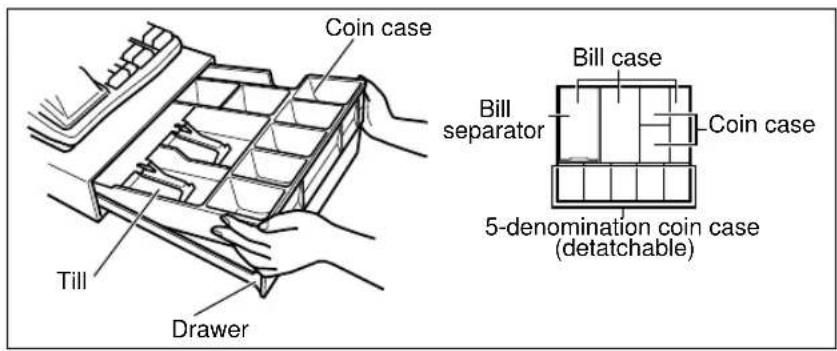
ER-A180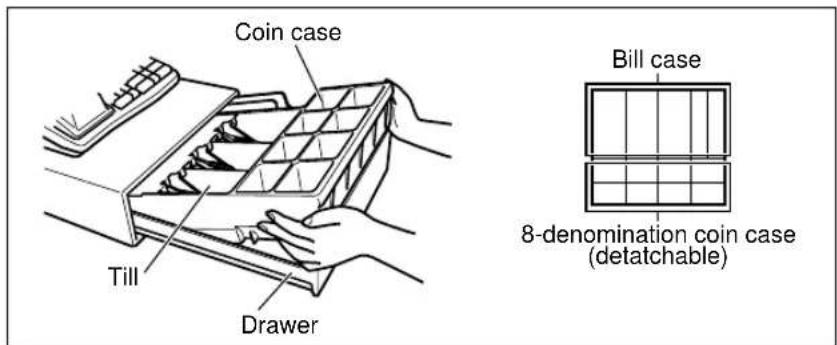
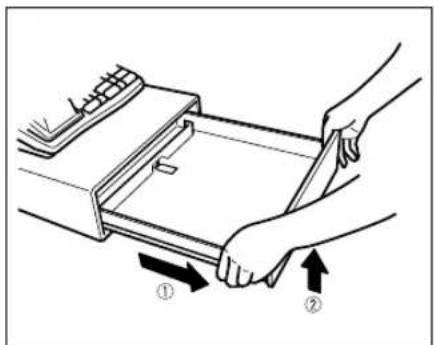
6 Opening the drawer by hand
The drawer automatically opens in the usual way. However, when power failure is encountered or the machine becomes out of order, slide the lever located on the machine bottom in the direction of the arrow. (See the figure shown below.) The drawer will not open, if it is locked with a drawer lock key.
ER-A160 ER-A180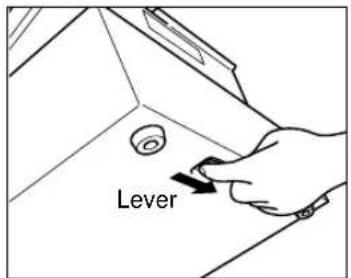
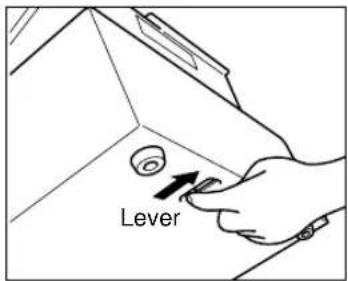
7 Installing the fixing angle bracket
To prevent the register from moving when the drawer opens, use the supplied fixing angle bracket to fix the drawer to the platform.
How to install the fixing angle bracket
- Thoroughly clean the location where the fixing angle bracket (B) is to be placed.
- Peel off the adhesive tape on the fixing angle bracket.
- Hook the angle bracket onto the hook (A) that is located at the bottom rear of the register.
- Firmly stick the fixing angle bracket to the table surface that you cleaned above.
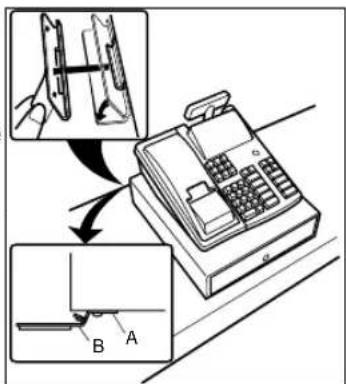
How to remove the register from the fixing angle bracket
- Lift up the front of the register and pull the register towards you.
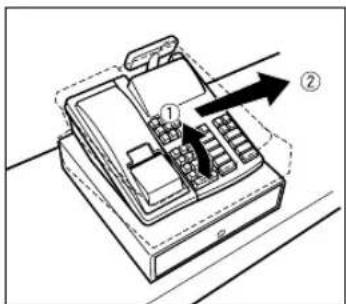
8 In case of power failure or paper jam
When power is lost, the machine retains its memory contents and all information on sales entries.
The following situations occur during a power failure or paper jam. (Batteries must be correctly installed.)
When a power failure occurs when the register is turned on or during a computation process:
When power returns, the register resumes operation from the point of failure.
When a power failure occurs during the printing of a sales transaction or of X/Z reports:
When power returns, the register prints “★★★★★★★★” and then resumes correct printing of the transaction or reports.
What to do when the printer motor locks:
If the printer motor happens to lock, the printing stalls, and an intermittent beeping starts. If this occurs, please follow the procedure below.
- Turn the mode switch to " " position.
- Insure the printer is clear of any obstructions (e.g. paper jams, etc).
To clear the printer, remove the printer cover and the ribbon cover.
- Turn the mode switch to the previous position. The “----” appears in the display.
- Feed the paper roll to the proper position.
- Press the CL key.
- The register will resume correct printing after printing "★★★★★★★★".
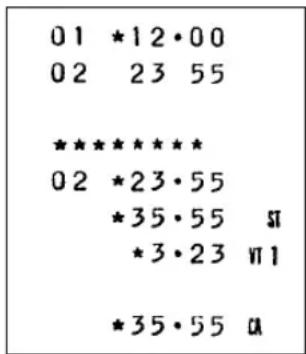
9 Program resetting
If your register is locked, perform the program resetting. When the program resetting is performed, the register returns to the initial state without erasing the sales data and user-programmed settings. The procedure is as follows:
- Unplug the power cord from the outlet.
- Turn the mode switch to "PGM" position.
- While pressing the up arrow key, plug the power cord into the outlet.
When the program resetting is done successfully, “★★★★ 2” is printed.
10 Before calling for service
The malfunctions shown in the left-hand column below, labeled “Fault,” do not necessarily indicate functional faults of the machine. It is therefore advisable to refer to the “Checking” shown in the right-hand column before calling for service.
| Fault Checking | |
| The display shows symbols that do not make sense. • Was the machine initialized?(1) | |
| (2) The display won't be illuminated even when the mode switch is turned to any other position than “ ⭕”. | • Is power supplied to the electrical outlet?• Is the power cord plug out or loosely connected to the electrical outlet? |
| (3) The display is illuminated, but the whole machine refuses registrations. | • Is a cashier code assigned to the register?• Is the mode switch set properly at the “REG” position? |
| (4) No receipt is issued. • Is the paper roll properly installed? | • Is there a paper jam?• Is the receipt function in the “OFF” status? |
| (5) No journal paper is taken up. • Is the take-up spool installed on the bearing properly?• Is there a paper jam? | |
| (6) Printing is unusual. • Is the paper roll properly installed? | • Is the ink ribbon worn out?• Is the ink ribbon installed properly?• Has the ink ribbon folded? |
LIST OF OPTIONS
For your register, the following options are available. For details, contact your dealer.
•Key kit models
By using the following key kits, you can change the keyboard layout of your register.
- ER-11KT7: 30 regular size keys • ER-12KT7: 30 1 x 2 size keys
- ER-22KT7: 10 2 x 2 size keys • ER-11DK7G: 30 regular size dummy keys • ER-51DK7G: 10 5 x 1 size dummy keys
SPECIFICATIONS
| Model: ER-A160/ER-A180 | |
| Dimensions: ER-A160: 330 (W) x 364 (D) x 238 (H) mm ER-A180: 355 (W) x 424 (D) x 252 (H) mm | |
| Weight: ER-A160: 8.7 kg ER-A180: 10.7 kg | |
| Power source: Official (nominal) voltage and frequency | |
| Power consumption: Stand-by 8WOperating 17W (max.) | |
| Working temperature: 0 °C to 40 °C | |
| Electronics: LSI (CPU) etc. | |
| Display:Operator display: 7-segment display (10 positions)Customer display: 7-segment display (7 positions) | |
| Printer:Type: One-station print wheel selective typePrinting speed: Approx. 3.2 lines/secondPrinting capacity: 12 digitsOther functions: Receipt (ON-OFF) function | |
| Paper roll: Width: 57.5 ± 0.5 mmMax. diam.: 70 mmWeight: 52.3 to 64 g/m2 Superior quality paperThickness: 0.06 to 0.085 mm | |
| Ink ribbon: Width: 13 mm Length: 4 m Colour: Purple (single colour) | |
| Cash drawer: ER-A160: 3 slots for bill and 7 for coin denominationsER-A180: 5 slots for bill and 8 for coin denominations | |
| Accessories: Manager key 2Operator key 2Drawer lock key 2Paper roll 1Take-up spool 1Ink ribbon 1 (mounted on the printer)Battery caution label 1Fixing angle bracket 1Instruction manual 1 copyBill separator 1 (ER-A160 only) (set in the drawer)Logo stamp 1 (ER-A180 only) (mounted on the printer) |
* Specifications and appearance subject to change without notice for improvement.
INTRODUCTION
Note
■ Insertion
Precautions:
Drawer key
ER-A180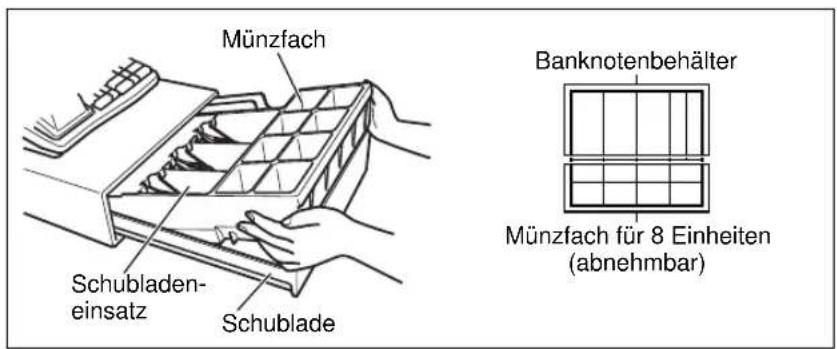
Max. diameter: 70 mm
Drawer key 2
Paper roll 1
Take-up spool 1
- Remove the ink ribbon.
■ Installation
ER-A180
Installation
Precautions:
ER-A180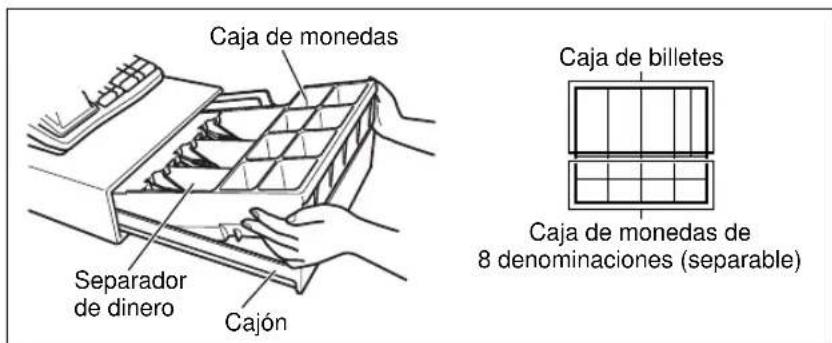
6 Manual opening of the drawer
The wires in this mains lead are coloured in accordance with the following code:
BLUE:
BROWN:
Neutral
Live
As the colours of the wires in the mains lead of this apparatus may not correspond with the coloured markings identifying the terminals in your plug, proceed as follows.
The wire which is coloured BLUE must be connected to the terminal which is marked with the letter N or coloured black.
The wire which is coloured BROWN must be connected to the terminal which is marked with the letter L or coloured red.
The apparatus must be protected by a 3A fuse in the mains plug or distribution board.
CAUTION: DO NOT CONNECT THE LIVE (BROWN) WIRE OR THE NEUTRAL (BLUE) WIRE TO THE EARTH TERMINAL OF YOUR 3-PIN MAINS PLUG.
Environment Protection
The device is supported by a battery. To dispose the battery safely to protect the environment, please note the following points:
• Take the used battery to your local waste depot, dealer or customer service centre for recycling.
- Do not throw the used battery into fire, into water or into the household waste!
- CAUTION
- IMPORTANT
- CONTENTS
- PARTS AND THEIR FUNCTIONS
- EXTERNAL VIEW
- KEYBOARD
- STANDARD KEYBOARD LAYOUT ER-A160 ER-A
- STANDARD KEY NAMES
- OPTION KEYS
- DEPARTMENTS 20 DEPARTMENTS 30 DEPARTMENTS
- MODE SWITCH AND MODE KEYS
- DISPLAYS
- OPERATOR DISPLAY CUSTOMER DISPLAY (POP-UP TYPE)
- NUMBER OF REPEATS FOR REPETITIVE REGISTRATIONS
- RECEIPT FUNCTION STATUS
- MACHINE STATE SYMBOLS (APPEARS IN THE TENTH PLACE)
- GETTING STARTED
- INSTALL THE CASH REGISTER
- INITIALIZE THE CASH REGISTER
- INSTALL BATTERIES
- NOTE
- INSTALL THE PAPER ROLL
- WHEN USING THE TAKE-UP SPOOL (USING AS JOURNAL PAPER)
- REPLACE THE PRINTER COVER
- PROGRAM ITEMS AS NECESSARY
- SETTING THE DATE
- SETTING THE TIME
- PROGRAMMING THE VAT (VALUE ADDED TAX) RATE
- PROCEDURE
- PROGRAM FOR EURO
- BASIC SALES ENTRY
- PRIOR TO ENTRIES
- RECEIPT ON/OFF FUNCTION
- CASHIER ASSIGNMENT
- EXAMPLE
- ERROR WARNING
- ERROR ESCAPE FUNCTION
- OTHER TYPES OF ENTRIES
- ITEM ENTRIES
- SINGLE ITEM ENTRIES
- REPEAT ENTRIES
- MULTIPLICATION ENTRIES
- SINGLE ITEM CASH SALE (SICS) ENTRY
- DISPLAYING SUBTOTALS
- FINALIZATION OF TRANSACTION
- CHEQUE OR CREDIT SALE
- CHEQUE SALE
- CREDIT SALE
- MIXED-TENDER SALE
- COMPUTATION OF VAT/TAX
- VAT/ TAX SYSTEM
- AUTOMATIC VAT 1-3 SYSTEM (THIS IS THE FACTORY DEFAULT SYSTEM)
- AUTOMATIC TAX 1-3 SYSTEM
- MANUAL VAT 1-3 SYSTEM
- MANUAL VAT 1 SYSTEM
- MANUAL TAX 1-3 SYSTEM
- AUTOMATIC TAX 1-2 AND AUTOMATIC VAT 3 SYSTEM
- PRINTKEY OPERATION EXAMPLE
- AUXILIARY ENTRIES
- PERCENT CALCULATIONS (PREMIUM OR DISCOUNT)
- PERCENT CALCULATION FOR THE SUBTOTAL PERCENT CALCULATION FOR ITEM ENTRIES
- DISCOUNT ENTRIES
- DISCOUNT FOR THE SUBTOTAL DISCOUNT FOR ITEM ENTRIES
- REFUND ENTRIES
- PRINTING OF NON-ADD CODE NUMBERS
- PAYMENT TREATMENT
- CURRENCY EXCHANGE
- APPLYING PRESET EXCHANGE RATE
- APPLYING MANUAL EXCHANGE RATE
- RECEIVED ON ACCOUNT ENTRIES
- PAID OUT ENTRIES
- NO SALE (EXCHANGE)
- RECEIPT ISSUANCE AFTER FINALIZATION
- AUTOMATIC SEQUENCING KEY (AUTO KEY) ENTRIES
- OVERRIDE ENTRIES
- KEY OPERATION EXAMPLE
- CORRECTION
- CORRECTION OF THE LAST ENTRY (DIRECT VOID)
- CORRECTION OF THE NEXT-TO-LAST OR EARLIER ENTRY (INDIRECT VOID)
- SUBTOTAL VOID
- CORRECTION AFTER FINALIZING A TRANSACTION
- READING (X) AND RESETTING (Z) OF SALES TOTALS
- SUMMARY OF READING (X) AND RESETTING (Z) REPORTS
- SAMPLE REPORT
- GENERAL REPORT
- CASHIER REPORTS
- INDIVIDUAL CASHIER REPORT
- HOURLY SALES REPORT PLU SALES REPORT
- PROGRAMMING
- PROGRAMMING THE VAT/TAX RATE
- PROGRAMMING FOR DEPARTMENTS
- FUNCTIONAL PROGRAMMING
- UNIT PRICE
- PLU (PRICE LOOKUP) PROGRAMMING
- UNIT PRICE AND ASSOCIATED DEPARTMENT ASSIGNMENT
- UNIT PRICE (MAX. SIX DIGITS)
- ASSOCIATED DEPARTMENT
- PLU/SUBDEPARTMENT MODE
- PROGRAMMING FOR MISCELLANEOUS KEYS
- PROGRAMMING THE RATE (%, EX)
- PROGRAMMING THE DISCOUNT KEY AMOUNT (⊖)
- PROGRAMMING THE PERCENT RATE LIMITATION ( % )
- PROGRAMMING FUNCTION PARAMETERS FOR ⊖ AND % KEYS
- ENTRY DIGIT LIMIT (FOR DISCOUNT KEY ONLY)
- PROGRAMMING FUNCTION PARAMETERS FOR EX KEY
- CURRENCY EXCHANGE RATE ENTRY SELECTION
- NUMBER OF DIGITS AFTER DECIMAL POINT
- FOREIGN CURRENCY SYMBOL
- PROGRAMMING AN ENTRY DIGIT LIMIT FOR CH, CR, RA AND PO KEYS
- PROGRAMMING VARIOUS FUNCTIONS
- SETTING THE REGISTER NUMBER
- SETTING THE CONSECUTIVE NUMBER
- PROGRAMMING OPTIONAL FEATURE SELECTION
- PROGRAMMING PRINT FORMAT
- SELECTION OF THE SUBTOTAL PRINTING
- PROGRAMMING EURO SYSTEM SETTINGS
- PRINTING EXCHANGE TOTAL AMOUNT AND CHANGE AMOUNT ON RECEIPT OR JOURNAL
- CHEQUE AND CREDIT OPERATION WHEN TENDERING IN FOREIGN CURRENCY
- EXCHANGE CALCULATION METHOD
- ITEM: SELECTION: ENTRY
- PROGRAMMING THE AUTO KEY — AUTOMATIC SEQUENCING KEY
- KEY NUMBER LIST
- READING STORED PROGRAMS
- KEY SEQUENCE FOR READING STORED PROGRAM
- SAMPLE PRINTOUTS
- PROGRAMMING REPORT
- AUTO KEY PROGRAMMING REPORT
- PLU PROGRAMMING REPORT
- PROGRAMMING FOR EURO
- AUTOMATIC MODIFICATION OF REGISTER SYSTEM FOR INTRODUCTION OF EURO
- WHEN "1" IS SUBSTITUTED FOR "A
- WHEN "2" IS SUBSTITUTED FOR "A
- WHEN "3" IS SUBSTITUTED TO "A
- OPTIONAL PROGRAMMING FOR THE INTRODUCTION OF EURO
- CURRENCY EXCHANGE RATE FOR EX KEY
- EXCHANGE RATE ENTRY SELECTION
- CHEQUE/CREDIT OPERATION
- DISPLAYING THE CHANGE AMOUNT IN EXCHANGE CURRENCY
- REPLACING THE BATTERIES
- REPLACING THE PAPER ROLL
- REMOVING THE PAPER ROLL
- WHEN THE TAKE-UP SPOOL IS USED
- INSTALLING THE PAPER ROLL
- PAPER SPECIFICATION
- REPLACING THE INK RIBBON
- REMOVAL
- INSTALLATION
- INK REFILL (ER-A180 ONLY)
- PRECAUTIONS
- DRAWER HANDLING
- LOCKING THE DRAWER
- REMOVING THE TILL AND THE DRAWER
- OPENING THE DRAWER BY HAND
- INSTALLING THE FIXING ANGLE BRACKET
- HOW TO INSTALL THE FIXING ANGLE BRACKET
- HOW TO REMOVE THE REGISTER FROM THE FIXING ANGLE BRACKET
- IN CASE OF POWER FAILURE OR PAPER JAM
- PROGRAM RESETTING
- BEFORE CALLING FOR SERVICE
- LIST OF OPTIONS
- INTRODUCTION
- INSERTION
- ER-A
- MANUAL OPENING OF THE DRAWER
- ENVIRONMENT PROTECTION
Brand : SHARP
Model : ERA160
Category : Cash register