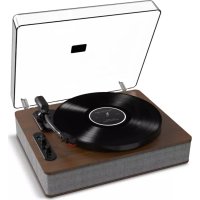
Forever LP - Turntable ION - Free user manual and instructions
Find the device manual for free Forever LP ION in PDF.



| Product type | Vinyl turntable with built-in speakers |
| Brand | ION |
| Model | Forever LP |
| Speeds | 33 ⅓, 45, 78 RPM |
| Drive type | Belt-driven |
| Built-in speakers | Yes, 2 speakers (stereo) |
| Audio outputs | RCA (line level), USB |
| Power supply | 12V / 1A AC adapter (included) |
| Vinyl-to-digital conversion | EZ Vinyl/Tape Converter software included |
| Autostop function | Yes, switchable |
| Tonearm | Manual lift with lever |
| Stylus | Moving magnet cartridge (replaceable) |
| 45 RPM adapter | Included with built-in storage |
| Slipmat | Pre-mounted |
| Box contents | Turntable, AC adapter, USB cable, slipmat, 45 RPM adapter, software CD, quick start guide |
Frequently Asked Questions - Forever LP ION
User questions about Forever LP ION
0 question about this device. Answer the ones you know or ask your own.
Ask a new question about this device
Download the instructions for your Turntable in PDF format for free! Find your manual Forever LP - ION and take your electronic device back in hand. On this page are published all the documents necessary for the use of your device. Forever LP by ION.
USER MANUAL Forever LP ION
Make sure that the items listed below are included in the box:
- Forever LP
Power Adapter - USB cable
- Pre-Mounted Slipmat
45 RPM Adapter - Software CD
- Quickstart Guide
- Safety & Warranty Manual
READ SAFETY INSTRUCTION BOOKLET BEFORE USING THE PRODUCT
Support
For the most up to date system requirements, compatibility information, and product registration, visit the ION website: ionaudio.com
For the latest information about this product, visit ionaudio.com/foreverlp
For additional product support, visit ionaudio.com/support
For safety/warranty information, visit ionaudio.com/warranty
Connection Diagram
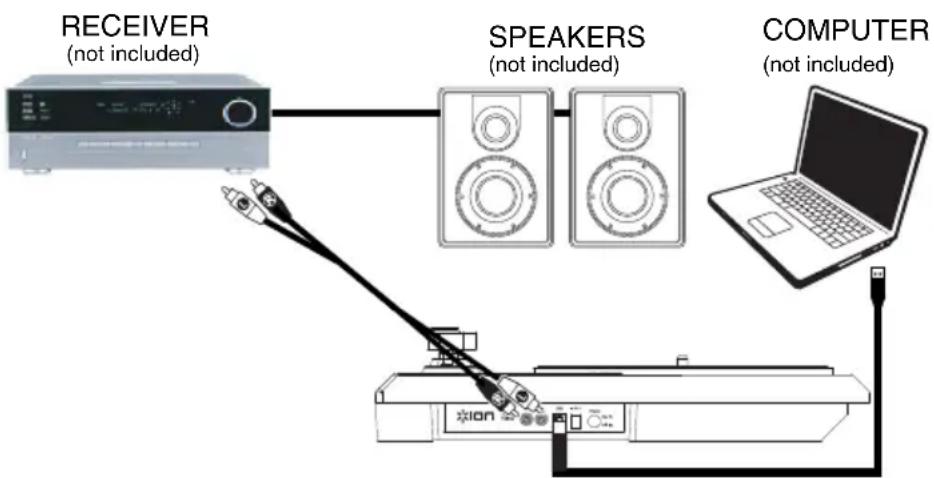
Since Forever LP has built-in speakers, it is not necessary to connect speakers in order to listen to your vinyl records. However, if you want to connect your own speakers, please see the following diagram.
Using Forever LP With Your Computer
Playback
There are 3 ways to listen to your vinyl records with Forever LP!
- You can simply listen to your music using Forever LP's internal speakers.
- If you prefer to use your own stereo speakers, you can connect Forever LP's RCA outputs to a stereo system or to powered speakers. Do not connect them to phono-level inputs; Forever LP's RCA outputs are line-level and could damage a device with phono-level inputs. (Any other standard input type, such as CD, Aux In, or Tape is acceptable).
- You can listen through your computer using your own external speakers, or through headphones connected to your computer. (Forever LP cannot be used as a playback device for your computer's audio.)
Recording
To record music to your computer, you can use ION EZ Vinyl/Tape Converter. EZ Vinyl/Tape Converter makes it easy to turn your music into digital files. After you finish converting your vinyl, you can then burn to CD or load onto portable media devices.
To install the software, insert the included CD into your computer, and follow the on-screen instructions.
Visit ionaudio.com/ezvc to download the latest version of EZ Vinyl/Tape Converter software or for helpful troubleshooting guide and additional support.
- With EZ Vinyl/Tape Converter installed on your computer, use the included USB cable to connect Forever LP's USB port to an available USB port on your computer.
- On your computer, you can open EZ Vinyl/Tape Converter by going to Start Menu All Programs (Windows) or the Applications menu (Mac).
- Follow the on-screen instructions to set up your recording. When prompted to play your music, move Forever LP's tonearm over the record to start playback.
Note: To listen to a record while it's playing, listen through your computer's speakers, or connect Forever LP's RCA outputs to a stereo system or powered speakers. Forever LP must be connected to the computer in order for EZ Vinyl/Tape Converter to advance to the next step.
- When you have finished recording, raise Forever LP's tonearm from the record and return it to its arm clip.
Features
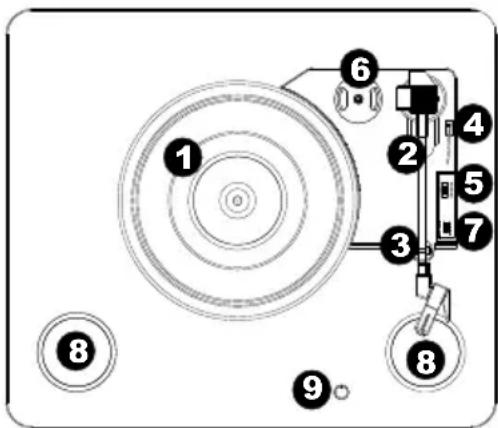
- Platter - Place your record here.
- Tonearm* - The tonearm can be raised and lowered by hand, or by pressing the raise / lower lever. Please note that the tonearm needs to be moved away from resting position (on the arm clip) for the turntable motor to activate. When the tonearm is placed back in its resting position, the turntable motor will deactivate if Autostop has been turned on.
- Arm Clip - This specially designed arm clip secures the tonearm while at rest or when not in use. The arm clip has been designed to remain in the up position while unlocked.
- Raise / Lower Lever - Raises and lowers the tonearm.
- 33/45/78 Switch - This switch controls the RPM of the turntable platter.
- 45 RPM Adapter Holder - Holds the included 45 RPM adapter. When not using the adapter, please place it in this holder.
- Autostop Switch - This switch turns autostop on or off. When autostop is on, the platter will start spinning when the tonearm is placed over the record and stop spinning when the record has reached the end. (When autostop is off, the platter will always spin regardless of the position of the tonearm.)
Note: If your vinyl record stops before it reaches the end of the music, turn Autostop to the off position for this particular record. This is generally recommended for 45 RPM records.
- Speakers - Listen to the audio from your playing vinyl record.
- Volume - Controls the audio output from the internal speakers but does not affect the RCA output sound level or the USB signal level.
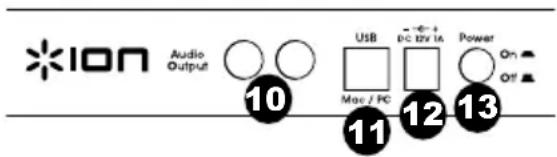
- RCA Output** - The audio from a playing vinyl record is sent to this line-level coaxial audio output. This must not be connected to phono level devices. (If you do not already have an RCA cable, this can be found at a loca
- USB Audio Output - Use the included USB cable to connect your turntable to your computer. The USB connection will send audio from the turntable to your computer. Please see the Using Forever LP With Your Computer section of this manual for information.
- Power - Use the included adapter to connect to wall power.
- Power Button - Press this button to turn Forever LP on/off.
**WARNING: The RCA outputs are LINE level. Please only connect these to LINE level inputs. You may damage your receiver if you plug in a LINE level device into a PHONO level input.
IMPORTANT: Remove the plastic cartridge cover (needle cover) before operating the turntable.
- IMPORTANT: If the turntable's stylus becomes worn, purchase a replacement at ionaudio.com/ict09rs. If you play 78 RPM records, we recommend using a 78 RPM stylus, which you can purchase at ionaudio.com/ict06rs.
Troubleshooting
If you experience any difficulties, please refer to the troubleshooting steps below as well as those in the EZ Vinyl/Tape Converter manual included with this product.
I'm not hearing any audio when recording music to a computer:
o Make sure that Forever LP is powered on and that the needle is on the record.
o Make Forever LP is selected as your computer's default recording device (see the instructions below).
o Disconnect then reconnect the USB cable connecting Forever LP to your computer. Make sure the computer speakers are turned up and the volume is not muted. Try turning up the volume on the Forever LP's built-in speakers using the volume knob on the top panel of Forever LP.
If you are listening through your computer's speakers, make sure those speakers are selected as your computer's default playback device (see the instructions below). Alternatively, you could connect Forever LP's RCA outputs to a stereo system or powered speakers. Do not connect them to phono-level inputs; Forever LP's RCA outputs are line-level and could damage a device with phono-level inputs.
(Note: The RCA outputs monitor the signal coming out of the turntable, not the signal coming from your computer.)
I'm not hearing any audio when playing music:
If you are playing music from vinyl:
o Make sure that Forever LP is powered on and that the needle is on the record.
o Connect Forever LP's RCA outputs to a stereo system or powered speakers. (Do not connect them to phono-level inputs; Forever LP's RCA outputs are line-level and could damage a device with phono-level inputs.)
o Make sure to adjust the volume knob on the turntable in order to hear your vinyl record playing through the built-in speakers.
If you are playing music from your computer:
o Make sure your software music player's volume is turned up.
o Make sure your computer's volume is turned up.
o Make sure your computer's speakers are selected as your computer's default playback device (see the instructions below). (Forever LP cannot be used as a playback device for your computer's audio.)
I am hearing a hum through my speaker or laptop when using the turntable:
-
If you are recording to a laptop:
Please connect the laptop to a grounded power supply (3 prong) -
If you are playing through a speaker:
○ Ensure you are using the 12V 1A power adapter that was included with your product.
If your volume is on max, try turning it down until the hum stops.
My turntable is not making any sound, or music is muffled:
Take the cover off the stylus.
The turntable belt fell off:
o Please re-attach the belt to the turntable. For details on how to do this, see the guide located at ionaudio.com/turntablebelt.
My turntable is not spinning:
- Ensure the turntable is powered on (power switch in the back).
- Ensure autostop is turned on and the tonearm is placed over record (if auto stop is off it should always be spinning when power is on).
If the above steps do not help, you may need to re-attach your turntable belt. For details on how to do this, see the guide located at ionaudio.com/turntablebelt.
My record is not playing at the correct speed; its pitch is too high or too low:
Ensure the 33 / 45 / 78 switch is set to the correct speed for your record.
If the 33 / 45 / 78 switch is set correctly and the speed it still slightly off, do the following:
- On the underside of Forever LP, find the rubber pad with the RPM speed you want to adjust, and gently lift up the rubber pad to remove it.
- Push through the rubber seal, and tighten/loosen the screw using a Phillips-head screwdriver to fine-tune the RPM speed.
Setting Your Computer's Soundcard as the Default Playback Device
- Windows XP: Click Start Menu Control Panel (or Settings Control Panel in Classic View) Sound and Audio Devices. Click the Audio tab and under Sound playback, select your computer's soundcard as the default device.
- Windows Vista: Click Start Menu Control Panel (or Settings Control Panel in Classic View) Hardware and Sound Sound. Click the Playback tab and select your computer's soundcard as the default device.
- Windows 7: Click Start Menu Control Panel Sound. Click the Playback tab and select your computer's soundcard as the default device.
- Windows 8: From the Start menu, click the lower-left corner of the screen to bring yourself to the Desktop. In the bottom-right corner of the Taskbar, locate the Volume Control "Speaker" icon. Right-click the speaker and select Playback Devices. The Windows Sound control panel should appear set on the Playback tab. If your computer's soundcard does not have a green "check mark" symbol next to it, right-click it and select "Set as Default Device".
- Mac: Click the upper-left "apple" icon then click System Preferences Sound. Click the Output tab. From the menu, select Internal Speakers if you are using the computer's internal speakers or select Headphones if you are using speakers or headphones attached to the computer's 1/8" headphone output.
Setting Forever LP as the Default Recording Device
- Windows XP: Click Start Menu Control Panel (or Settings Control Panel in Classic View) Sound and Audio Devices. Click the Audio tab and under Sound recording, select Forever LP as the default device.
- Windows Vista: Click Start Menu Control Panel (or Settings Control Panel in Classic View) Hardware and Sound Sound. Click the Recording tab and select Forever LP as the default device.
- Windows 7: Click Start Menu Control Panel Sound. Click the Recording tab and select Forever LP as the default device.
- Windows 8: From the Start menu, click the lower-left corner of the screen to bring yourself to the Desktop. In the bottom-right corner of the Taskbar, locate the Volume Control "Speaker" icon. Right-click the speaker and select Playback Devices. In the Windows Sound control panel select the Recording tab. If Forever LP does not have a green "check mark" symbol next to it, right-click it and select "Set as Default Device".
- Mac: Click the upper-left "apple" icon then click System Preferences Sound. Click the Input tab. From the menu, select Forever LP as the device.
BEFORE RETURNING THE PRODUCT, please contact ION Audio for technical at ionaudio.com/support.
Assistance technique
Power: 12V DC, 1A, center pin-positive, tip-negative
Dimensions: 13.75'' × 16'' × 3.46'' ; 360 mm × 406 mm × 88 mm
Weight: 5.9 lbs; 2.68 kg
Cartridge: Ceramic
Stylus Tip: Diamond tip
Track Force: 5 grams nominal (4-6 grams)
Output Voltage: (at 1kHz = 3.54~cm / sec ) 200-300 mV
Channel Balance: (at 1 kHz) < = 3dB
Channel Separation: (at 1 kHz) >=15dB
Frequency Response: 80-10,000Hz (+-7dB)
Stylus: iCT09RS (diamond-tipped) included, also available at ionaudio.com/ict09rs
78 RPM stylus sold separately at ionaudio.com/ict06rs
Trademarks and Licenses
iTunes is a trademark of Apple, Inc., registered in the U.S.A. and other countries.
Phillips is a registered trademark of the Phillips Screw Company in the United States and other countries.
All other product or company names are trademarks or registered trademarks of their respective owners.