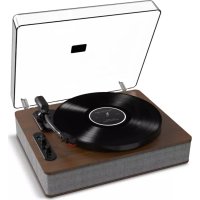
Luxe LP - Turntable ION - Free user manual and instructions
Find the device manual for free Luxe LP ION in PDF.



| Product Type | Vinyl turntable with Bluetooth transmitter |
| Brand | ION |
| Model | Luxe LP |
| Speeds | 33, 45, 78 RPM |
| Connectivity | Bluetooth (transmitter), USB (audio to computer), RCA line, 3.5mm auxiliary input, 3.5mm headphone output |
| Power | Power adapter included |
| Special features | Autostop, automatic arm return, Bluetooth pairing, USB audio converter |
| Included software | EZ Vinyl/Tape Converter (free download) |
| Included accessories | 45 RPM adapter, USB cable, power cable, dust cover, felt mat, user guide |
| Audio outputs | RCA line, headphone, Bluetooth |
| Audio input | 3.5mm auxiliary |
| Stylus protection | Removable stylus guard (remove before use) |
| 78 stylus compatibility | 78 RPM stylus sold separately |
| Automatic stop | Autostop switch on/off |
| Auto power off | European models: stops after 10 minutes without audio signal |
| Maintenance | Clean the stylus with an anti-static brush; keep the platter clean |
| Safety | Do not connect RCA outputs to a phono input (risk of damage) |
| Support | ionaudio.com/support |
Frequently Asked Questions - Luxe LP ION
User questions about Luxe LP ION
0 question about this device. Answer the ones you know or ask your own.
Ask a new question about this device
Download the instructions for your Turntable in PDF format for free! Find your manual Luxe LP - ION and take your electronic device back in hand. On this page are published all the documents necessary for the use of your device. Luxe LP by ION.
USER MANUAL Luxe LP ION
Appendix English (47)
User Guide (English)
Introduction
Thank you for purchasing the Luxe LP. At ION, your entertainment is as important to us as it is to you. That's why we design our products with one thing in mind—to make your life more fun and more convenient.
Box Contents
| Luxe LP | 45 RPM Adapter |
| Power Adapter | USB Cable |
| Dust Cover | Quickstart Guide |
| Felt Slipmat | Safety & Warranty Manual |
Important: Visit ionaudio.com to download the free EZ Vinyl/Tape Converter software.
Support
For the latest information about this product (documentation, technical specifications, system requirements, compatibility information, etc.) and product registration, visit ionaudio.com.
For additional product support, visit ionaudio.com/support.
Setup
- Place the unit on a stable, level surface, away from any strong magnetic fields.
- Lift the cabinet lid to access the turntable.
- Remove the plastic stylus cover from the cartridge.
- Remove the twist-tie used to secure the tonearm during shipment.
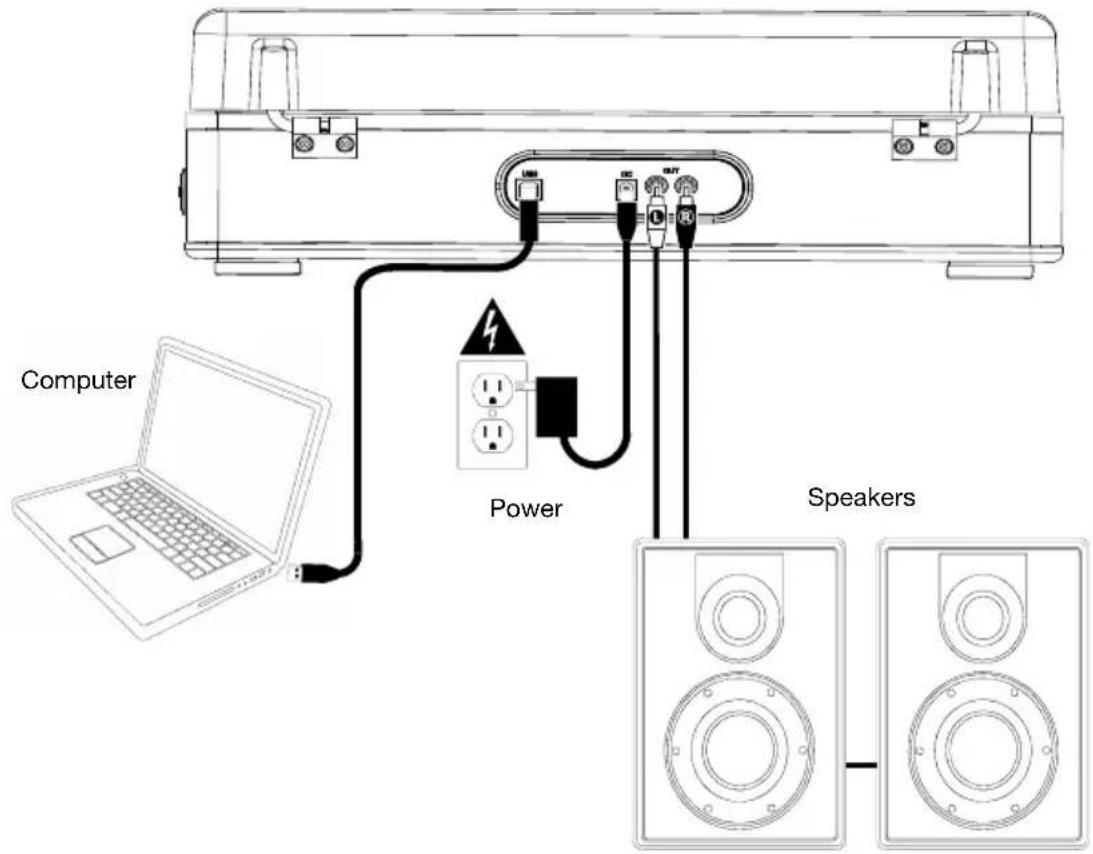
- Optional: Connect an output device to the Line Output and an input device to the Aux In.
- Optional: Use the included USB cable to connect your turntable to your computer. The USB connection will send audio from the turntable to your computer.
- Connect the power cable to an available power outlet.
- Turn the Volume/Power knob to turn the unit on.
Connection Diagram
Items not listed under Introduction > Box Contents are sold separately.
Features
Top Panel
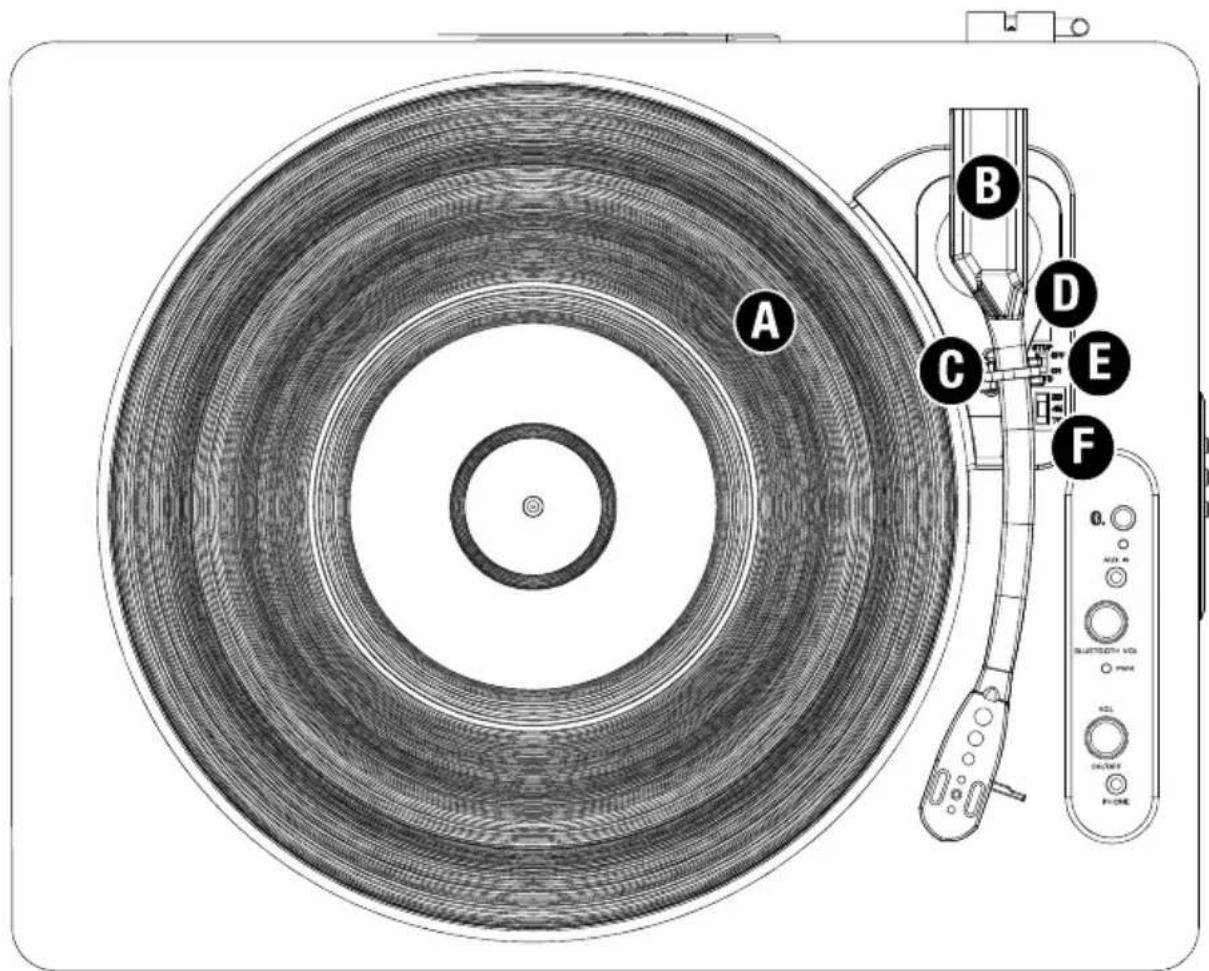
A. Platter: Place your record here.
B. Tonearm: Tracks the groove in a vinyl record. When the tonearm reaches the center of a playing vinyl record, it will automatically return to the arm rest.
C. Arm Clip: This specially designed arm clip secures the tonearm while at rest or when not in use. The arm clip has been designed to remain in the up position while unlocked.
D. Raise / Lower Lever: Raises and lowers the tonearm.
E. Autostop switch: This switch turns autostop on or off. When autostop is on, the platter will start spinning when the tonearm is placed over the record and stop spinning when the record has reached the end. (When autostop is off, the platter will always spin regardless of the position of the tonearm.)
F. 33 / 45 / 78 Switch: This switch controls the RPM of the turntable platter.
Note: For best results when playing 78 RPM vinyl records, use a 78 stylus (sold separately). Only use a 78 stylus with 78 RPM vinyl records. Purchase a 78 RPM stylus at ionaudio.com.
UI Panel
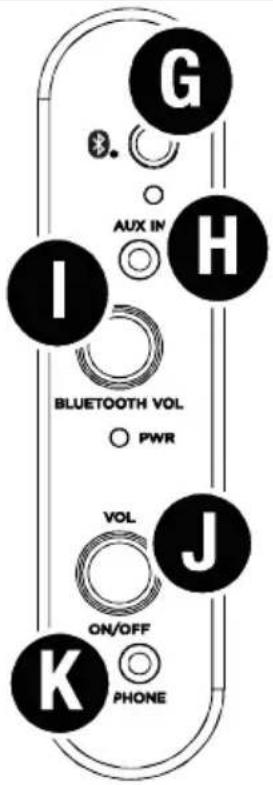
G. Bluetooth ® Button: Press this button to start Bluetooth pairing. To cancel or exit pairing mode, press the Bluetooth button again. The LED will blink when pairing with a Bluetooth device, and remain solid once fully paired. If currently connected to a Bluetooth speaker, press this button to disconnect from the speaker.
H. Aux Input: Connect a CD player, digital media player, or other audio source to this 1/8" (3.5 mm) stereo auxiliary input. The audio from the Aux Input is also transmitted over a Bluetooth connection.
1. Bluetooth Volume: This knob is used for adjusting the volume of a connected Bluetooth speaker.
J. Volume/Power Knob: This knob is used both for powering on Luxe LP and adjusting the speaker output volume. To turn Luxe LP on or off, simply turn the knob. You will feel a click when Luxe LP turns on. To adjust the volume, turn the knob left and right.
TIP: Due to the nature of Bluetooth, the Luxe LP speaker's output and the Bluetooth speaker's output will be out of sync. Turn this volume down when transmitting to a Bluetooth speaker.
K. Headphone Output: Connect headphones (sold separately) to listen to your vinyl playback.
Rear Panel
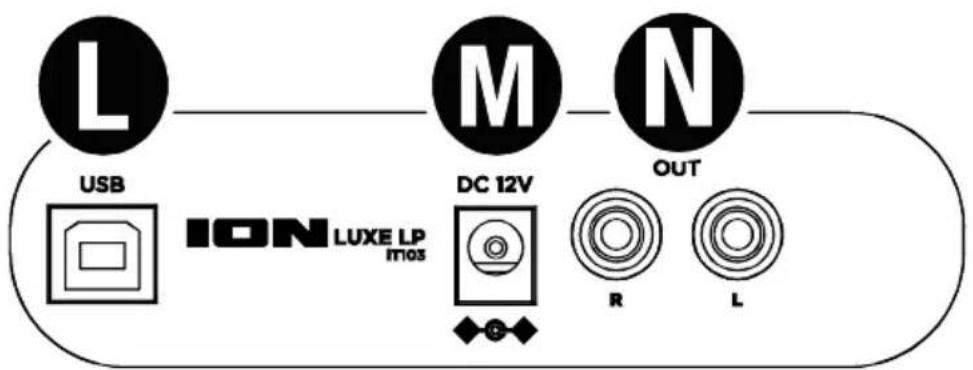
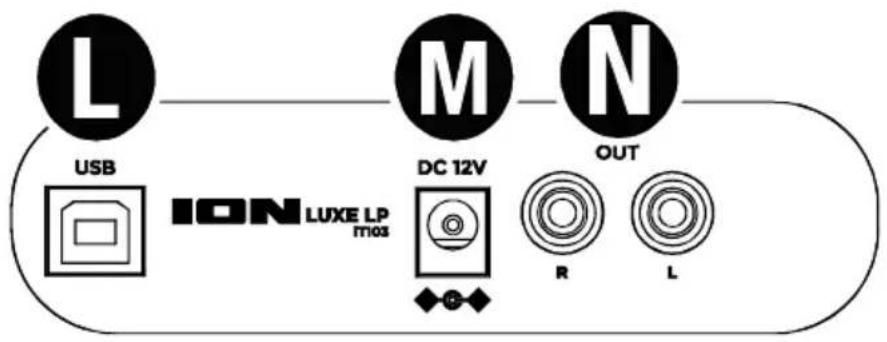
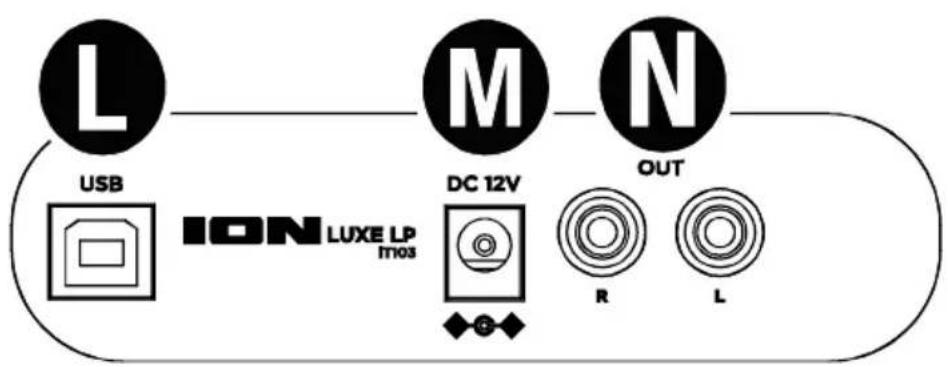
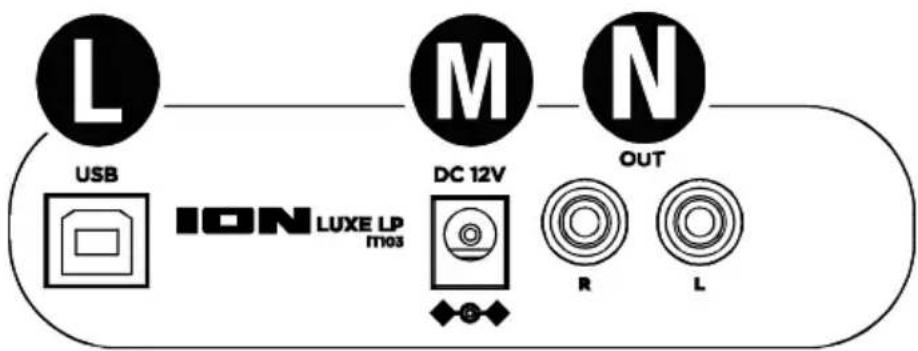
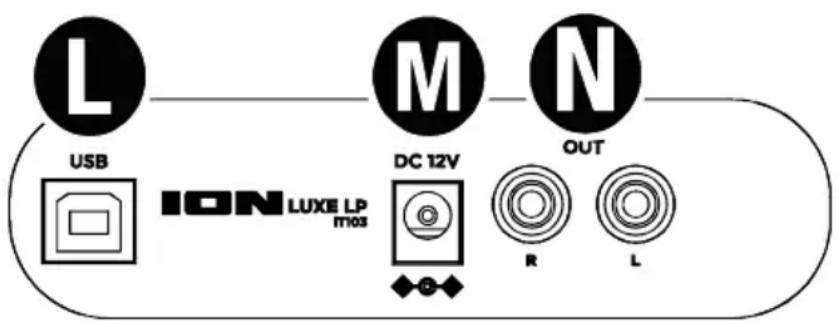
L. USB Audio Output: Use the included USB cable to connect your turntable to your computer. The USB connection will send audio from the turntable to your computer. Please see the Using Luxe LP With Your Computer section of this manual for information.
M. Power Cable Input: Use the included adapter to connect to wall power.
N. RCA Output: The audio from a playing vinyl record is sent to this line-level RCA audio output.
Warning: The RCA Outputs are line-level. Please only connect these to line-level inputs. You may damage your receiver if you plug in a line-level device into a phono-level input.
Operation
Playback
There are 3 ways to listen to your vinyl records with Luxe LP:
- You can connect Luxe LP to a Bluetooth speaker. See the section Pairing Luxe LP to a Bluetooth Speaker for details.
- If you prefer to use your own stereo speakers, you can connect Luxe LP's RCA outputs to a stereo system or to powered speakers. Do not connect them to phono-level inputs; Luxe LP's RCA outputs are line-level and could damage a device with phono-level inputs. Any other standard input type, such as CD, Aux In, or Tape is acceptable.
- You can listen through your computer speakers or with headphones connected to your computer, once your computer soundcard's input device has been set to USB PnP Audio Device or USB Audio Device, depending on your Windows operating system (USB PnP Audio Device on macOS) and that you are record-monitoring the audio using EZ Vinyl/Tape Converter or similar software (Luxe LP cannot be used as a playback device for your computer's audio). See the section Setting Your Computer's Soundcard as the Default Playback Device for details on how to configure sound playback.
Note (for European models only): Luxe LP will automatically power off after 10 minutes if no audio is playing.
Pairing Luxe LP to a Bluetooth Speaker
Luxe LP has a Bluetooth transmitter to send audio to a Bluetooth speaker wirelessly.
- Power on your Bluetooth speaker and ensure it is in pairing mode.
- Power on the Luxe LP turntable.
- Press and release the Bluetooth button on Luxe LP to start pairing to your Bluetooth device. Once Luxe LP is connected to the Bluetooth speaker, the Bluetooth LED will be solid blue. Your Bluetooth speaker should also indicate that its paired.
Note: Luxe LP will connect to the closest Bluetooth speaker that is near it. If after 20 minutes no Bluetooth speaker can be found to pair with, the Bluetooth transmitter will become inactive and the LED will turn off.
Note: Maximum range will be achieved when using devices with Bluetooth 4.0 or higher. - Play music on your Luxe LP turntable. If you are connected to a Bluetooth speaker and do not hear audio, try pressing the play button on the speaker or try pressing the Bluetooth button on Luxe LP.
- Adjust the volume on your Bluetooth speaker (if applicable) or the Bluetooth Volume knob on Luxe LP to control the output level.
- To disconnect pairing, press and hold the Bluetooth button, power off the Luxe LP turntable, or turn off pairing on your Bluetooth speaker.
Note: Before connecting to your Bluetooth speaker, move other Bluetooth receivers/speakers out of range of Luxe LP (30'/9.1m or more) or turn them off.
Using Luxe LP With Your Computer
Recording
To record music to your computer, you can use ION EZ Vinyl/Tape Converter and a USB cable. EZ Vinyl/Tape Converter conveniently saves your recordings to your computer. After you finish converting your vinyl, you can then burn to CD or load onto portable media devices.
Visit ionaudio.com to download the free EZ Vinyl/Tape Converter software.
- With EZ Vinyl/Tape Converter installed on your computer, use the included USB cable to connect Luxe LP's USB port to an available USB port on your computer.
- On your computer, you can open EZ Vinyl/Tape Converter by going to Start Menu ▶ All Programs (Windows) or the Applications menu (macOS).
- Follow the on-screen instructions to set up your recording. When prompted to play your music, move Luxe LP's tonearm over the record to start playback.
Note: To listen to a record while it's playing, listen through Bluetooth speakers, your computer's speakers, or connect Luxe LP's RCA outputs to a stereo system or powered speakers. Do not connect them to phono-level inputs; Luxe LP's RCA outputs are line-level and could damage a device with phono-level inputs.
- When the record has ended, Luxe LP's tonearm will automatically return to the arm clip.
Visit ionaudio.com/computer-optimization for more information on optimizing your computer for audio.
Playback
You can listen to the music on your computer through its internal speakers or through headphones connected to it. (Luxe LP cannot be used as a playback device for your computer's audio.)
To listen to a record while it's playing, listen through Bluetooth speakers, your computer's speakers, or connect Luxe LP's RCA outputs to a stereo system or powered speakers. Do not connect them to phono-level inputs; Luxe LP's RCA outputs are line-level and could damage a device with phono-level inputs.
Troubleshooting
If you experience any difficulties, please refer to the troubleshooting steps below as well as those in the EZ Vinyl/Tape Converter manual.
If you are recording to a computer:
• Make sure that Luxe LP is powered on and that the needle is on the record.
- Make sure Luxe LP is selected as your computer's default recording device (see the instructions below).
- If you are listening through your computer's speakers, make sure those speakers are selected as your computer's default playback device (see the instructions below). Alternatively, you can use Bluetooth or the RCA Outputs to connect Luxe LP to a stereo system or powered speakers. Do not connect the RCA Outputs to phono-level inputs; Luxe LP's RCA outputs are line-level and could damage a device with phono-level inputs.
Note: The RCA outputs monitor the signal coming out of the turntable, not the signal coming from your computer.
- Disconnect then reconnect the USB cable connecting Luxe LP to your computer.
I'm not hearing any audio when playing music:
• If you are playing music from vinyl:
o Make sure that Luxe LP is powered on and that the needle is on the record.
o Use Bluetooth or the RCA Outputs to connect Luxe LP to a stereo system or powered speakers. Do not connect the RCA Outputs to phono-level inputs; Luxe LP's RCA outputs are line-level and could damage a device with phono-level inputs.
• If you are playing music from your computer:
o Make sure your software music player's volume is turned up.
o Make sure your computer's volume is turned up.
o Make sure your computer's speakers are selected as your computer's default playback device (see the instructions below). (Luxe LP cannot be used as a playback device for your computer's audio.)
I am hearing a hum through my speaker or laptop when using the turntable:
- If you are recording to a laptop:
o Please connect the laptop to a grounded power supply (3 prong)
- If you are playing through a speaker:
o Please connect to a grounded (3 prong) power supply.
My record is not playing at the correct speed; its pitch is too high or too low:
- Ensure the 33 / 45 / 78 switch is set to the correct speed for your record.
The Bluetooth speaker that I want is not pairing to Luxe LP.
- Turn off or move other nearby Bluetooth speakers over 30' (9.1m) away.
I am connected to a Bluetooth speaker but do not hear any audio.
• Use the Bluetooth Volume knob on Luxe LP to turn up the Bluetooth output level.
- If you are connected to a Bluetooth speaker with a play button, try pressing the play button. Alternatively, try pressing the Bluetooth button on Luxe LP.
- Press and hold Luxe LP's Bluetooth button to disconnect it from the Bluetooth speaker. Then press and release the Bluetooth button to pair again.
- Turn Luxe LP off and then on again, and then press its Bluetooth button to pair again.
My smartphone will not connect to Luxe LP Turntable.
- Luxe LP Turntable acts as a Bluetooth Transmitter, sending the audio out of Luxe LP into other Bluetooth Speakers. Luxe LP Turntable cannot act as a Bluetooth Receiver and play music from your smartphone over headphones or RCA outputs.
The Bluetooth LED will not stop blinking.
- Once the Bluetooth button is pressed, Luxe LP will try to connect to nearby Bluetooth speakers for 1 minute. To stop the blinking Bluetooth LED, power cycle Luxe LP.
I am hearing an echo when listening to music.
- Either listen to music through a paired Bluetooth speaker or connect the RCA audio outputs from Luxe LP to a speaker. Both playback methods should not be used at the same time.
I am hearing static noise in my headphones.
- Press Luxe LP's Bluetooth button to disconnect it from a paired Bluetooth speaker. When listening to Luxe LP with headphones, always make sure Luxe LP is not connected to a Bluetooth speaker at the same time.
Setting Luxe LP as the Default Recording Device
- Windows XP: Click Start Menu ▶ Control Panel (or Settings ▶ Control Panel in Classic View) ▶ Sound and Audio Devices. Click the Audio tab and under Sound recording, select USB PnP Audio Device as the default device.
- Windows Vista: Click Start Menu ▶ Control Panel (or Settings ▶ Control Panel in Classic View) ▶ Hardware and Sound ▶ Sound. Click the Recording tab and select USB PnP Audio Device as the default device.
- Windows 7: Click Start Menu ▶ Control Panel ▶ Sound. Click the Recording tab and select USB PnP Audio Device as the default device.
- Windows 8: From the Start Menu, click the lower-left corner of the screen to bring yourself to the Desktop.
In the bottom-right corner of the Taskbar, locate the Volume Control "Speaker" icon. Right-click the speaker and select Playback Devices. In the Windows Sound control panel select the Recording tab.
If USB PnP Audio Device does not have a green "check mark" symbol next to it, right-click it and select "Set as Default Device".
- macOS: Click the upper-left "apple" icon then click System Preferences ▶ Sound. Click the Input tab. From the menu, select USB PnP Audio Device as the device.
Setting Your Computer's Soundcard as the Default Playback Device
- Windows XP: Click Start Menu ▶ Control Panel (or Settings ▶ Control Panel in Classic View) ▶ Sound and Audio Devices. Click the Audio tab and under Sound playback, select your computer's soundcard as the default device.
- Windows Vista: Click Start Menu ▶ Control Panel (or Settings ▶ Control Panel in Classic View) ▶ Hardware and Sound ▶ Sound. Click the Playback tab and select your computer's soundcard as the default device.
- Windows 7: Click Start Menu ▶ Control Panel ▶ Sound. Click the Playback tab and select your computer's soundcard as the default device.
- Windows 8: From the Start menu, click the lower-left corner of the screen to bring yourself to the Desktop.
In the bottom-right corner of the Taskbar, locate the Volume Control "Speaker" icon. Right-click the speaker and select Playback Devices. The Windows Sound control panel should appear set on the Playback tab.
If your computer's soundcard does not have a green "check mark" symbol next to it, right-click it and select "Set as Default Device". - macOS: Click the upper-left "apple" icon then click System Preferences ▶ Sound. Click the Output tab. From the menu, select Internal Speakers if you are using the computer's internal speakers or select Headphones if you are using speakers or headphones attached to the computer's 1/8" headphone output.
BEFORE RETURNING THE PRODUCT, please contact ION Audio for technical support at ionaudio.com/support
Panel trasero
Panneau arrière
Pannello posteriore
Rückseite
Technical Specifications
| Output Power | 2 x 2 W (peak) |
| Frequency Response | 100 Hz – 10 KHz (+3/-10 dB) |
| Drivers | Low-Frequency: 2 x 3" / 77 mm woofer |
| Bluetooth Specifications | Profile: A2DP, AVRCPRange: Up to 100 feet / 30.5 meters |
| Cartridge Type | Ceramic |
| Stylus | Conical, ruby-tipped includedReplacement can be purchased at ionaudio.com |
| Power | Via power adapter (12 VDC, 1 A, center-positive, included)Connection: barrelInput Voltage: 100–240 VAC, 50/50 Hz V AC, 50/60 HzConsumption: 15 W |
| Dimensions(width x depth x height) | 16.1" x 12.99" x 5.7"410mm x 330mm x 145mm |
| Weight | 8.45 lb.3.83 kg |
Specifications are subject to change without notice. Bluetooth and wireless range are affected by walls, obstructions, and movement. For optimal performance, place the product in the center of the room so it is unobstructed by walls, furniture, etc. Battery life may vary based on temperature, age, and volume usage of product.
Trademarks & Licenses
ION Audio is a trademark of ION Audio, LLC, registered in the U.S. and other countries. The Bluetooth word mark and logos are owned by the Bluetooth SIG, Inc. and any use of such marks by ION Audio is under license. macOS is a trademark of Apple Inc., registered in the U.S. and other countries. Windows is a registered trademark of Microsoft Corporation in the United States and other countries. All other product names, company names, trademarks, or trade names are those of their respective owners.
ionaudio.com
- USER GUIDE (ENGLISH)
- INTRODUCTION
- SUPPORT
- SETUP
- CONNECTION DIAGRAM
- FEATURES
- TOP PANEL
- UI PANEL
- REAR PANEL
- OPERATION
- PLAYBACK
- PAIRING LUXE LP TO A BLUETOOTH SPEAKER
- USING LUXE LP WITH YOUR COMPUTER
- RECORDING
- TROUBLESHOOTING
- IF YOU ARE RECORDING TO A COMPUTER
- I'M NOT HEARING ANY AUDIO WHEN PLAYING MUSIC
- I AM HEARING A HUM THROUGH MY SPEAKER OR LAPTOP WHEN USING THE TURNTABLE
- MY RECORD IS NOT PLAYING AT THE CORRECT SPEED; ITS PITCH IS TOO HIGH OR TOO LOW
- THE BLUETOOTH SPEAKER THAT I WANT IS NOT PAIRING TO LUXE LP
- I AM CONNECTED TO A BLUETOOTH SPEAKER BUT DO NOT HEAR ANY AUDIO
- MY SMARTPHONE WILL NOT CONNECT TO LUXE LP TURNTABLE
- THE BLUETOOTH LED WILL NOT STOP BLINKING
- I AM HEARING AN ECHO WHEN LISTENING TO MUSIC
- I AM HEARING STATIC NOISE IN MY HEADPHONES
- SETTING LUXE LP AS THE DEFAULT RECORDING DEVICE
- SETTING YOUR COMPUTER'S SOUNDCARD AS THE DEFAULT PLAYBACK DEVICE
- PANEL TRASERO
- PANNEAU ARRIÈRE
- PANNELLO POSTERIORE
- RÜCKSEITE
- TRADEMARKS & LICENSES
Brand : ION
Model : Luxe LP
Category : Turntable