CDRHD1000 - Cd player/recorder YAMAHA - Free user manual and instructions
Find the device manual for free CDRHD1000 YAMAHA in PDF.



| Product type | CD player/recorder with built-in hard drive (HDD) |
| Dimensions (W × H × D) | 435 × 115.5 × 414.5 mm |
| Weight | 8.3 kg |
| Power supply | 230 V AC, 50 Hz (Europe model); other models: 120 V AC, 60 Hz or 240 V AC, 50 Hz |
| Power consumption | 33 W |
| Hard drive capacity | Approximately 30 hours of recording (up to 999 virtual discs) |
| Main functions | CD → HDD copy (up to 10×), HDD → CD-R (8×), HDD → CD-RW (4×); recording from external sources (analog/digital); album editing; playback; finalization; CD duplication |
| Recording modes | Manual, Multi Sync., All Synchro, Full Auto, Auto Period |
| Supported disc formats (recording) | CD-R, CD-RW (audio) |
| Audio inputs | Optical digital (TOSLINK), coaxial digital (RCA), analog stereo (RCA) |
| Audio outputs | Analog stereo (RCA), optical digital, coaxial digital, headphones (6.35 mm jack) |
| Frequency response | 5 Hz – 20 kHz (±0.5 dB) |
| Signal-to-noise ratio (EIAJ) | 105 dB (playback), 92 dB (recording) |
| Total harmonic distortion (1 kHz) | 0.004% (playback), 0.006% (recording) |
| Maintenance and cleaning | Clean with a soft, dry cloth; do not use chemical solvents |
| Safety | Do not expose to moisture, excessive heat or shocks; do not open the casing; unplug during storms |
| Included accessories | Remote control (with AA batteries ×2), RCA cables (×2), optical fiber cable |
| Repairability | Do not attempt to repair yourself; contact an authorized YAMAHA service center |
| General information | CD TEXT compatibility; SCMS copy protection system; editing operations (album, track, disc); Undo function; CD-RW erasure |
Frequently Asked Questions - CDRHD1000 YAMAHA
User questions about CDRHD1000 YAMAHA
0 question about this device. Answer the ones you know or ask your own.
Ask a new question about this device
Download the instructions for your Cd player/recorder in PDF format for free! Find your manual CDRHD1000 - YAMAHA and take your electronic device back in hand. On this page are published all the documents necessary for the use of your device. CDRHD1000 by YAMAHA.
USER MANUAL CDRHD1000 YAMAHA
Compact Disc Recorder
- To assure the finest performance, please read this manual carefully. Keep it in a safe place for future reference.
- Install this unit in a well ventilated, cool, dry, clean place with at least 30cm on the top, 20cm on the right and left, and 10cm at the back of this unit for ventilation space - away from direct sunlight, heat sources, vibration, dust, moisture, and/or cold.
- Locate this unit away from other electrical appliances, motors, or transformers to avoid humming sounds. To prevent fire or electrical shock, do not place this unit where it may get exposed to rain, water, and/or any type of liquid.
- Do not expose this unit to sudden temperature changes from cold to hot, and do not locate this unit in a environment with high humidity (i.e. a room with a humidifier) to prevent condensation inside this unit, which may cause an electrical shock, fire, damage to this unit, and/or personal injury.
-
On the top of this unit, do NOT place:
-
Other components, as they may cause damage and/or discoloration on the surface of this unit.
- Burning objects (i.e. candles), as they may cause fire, damage to this unit, and/or personal injury.
-
Containers with liquid in them, as they may cause electrical shock to the user and/or damage to this unit.
-
Do not cover the rear panel of this unit with a newspaper, tablecloth, curtain, etc. in order not to obstruct heat radiation. If the temperature inside this unit rises, it may cause fire, damage to this unit, and/or personal injury.
- Do not plug in this unit to a wall outlet until all connections are complete.
- Do not operate this unit upside-down. It may overheat, possibly causing damage.
- Do not use force on switches, knobs and/or cords.
- When disconnecting the power cord from the wall outlet, grasp the plug; do not pull the cord.
- Do not clean this unit with chemical solvents; this might damage the finish. Use a clean, dry cloth.
- Only voltage specified on this unit must be used. Using this unit with a higher voltage than specified is dangerous and may cause fire, damage to this unit, and/or personal injury. YAMAHA will not be held responsible for any damage resulting from use of this unit with a voltage other than specified.
- To prevent damage by lightning, disconnect the power cord from the wall outlet during an electrical storm.
- Take care of this unit so that no foreign objects and/or liquid drops inside this unit.
- Do not attempt to modify or fix this unit. Contact qualified YAMAHA service personnel when any service is needed. The cabinet should never be opened for any reasons.
- When not planning to use this unit for long periods of time (i.e. vacation), disconnect the AC power plug from the wall outlet.
- Be sure to read the "Troubleshooting" section on common operating errors before concluding that this unit is faulty.
- Before moving this unit, first check that there is no disc in the discard tray. Finally, press POWER to turn off this unit, and disconnect the AC power plug from the wall outlet.
SPECIAL INSTRUCTIONS FOR U.K. MODEL
IMPORTANT
The wires in this mains lead are colours in accordance with the following code:
GREEN-and-YELLOW:Earth
BLUE:Neutral
BROWN:Live
As the colours of the wires in the mains lead of this apparatus may not correspond with the coloured markings identifying the terminals in your plug proceed as follows: The wire which is coloured GREEN-and-YELLOW must be connected to the terminal in the plug which is marked by the letter E or by the safety earth symbol or coloured GREEN or GREEN-and - YELLOW. The wire which is coloured BLUE must be connected to the terminal which is marked with the letter N or coloured BLACK. The wire which is coloured BROWN must be connected to the terminal which is marked with the letter L or coloured RED.
For U.K. customers
If the socket outlets in the home are not suitable for the plug supplied with this appliance, it should be cut off and an appropriate 3 pin plug fitted. For details, refer to the instructions described above.
Note: The plug severed from the mains lead must be destroyed, as a plug with bared flexible cord is hazardous if engaged in a live socket outlet.
Laser component in this product is capable of emitting radiation exceeding the limit for Class 1.
Introduction
Thank you for purchasing this YAMAHA product. We hope it will give you many years of trouble-free enjoyment. For the best performance, read this manual carefully. It will guide you in operating your YAMAHA product.
Features
- Copying a CD to the HDD at maximum 10x speed
- Copying data on the HDD to a CD-R disc at maximum 8x speed
- Copying data on the HDD to a CD-RW disc at maximum 4x speed
- CD TEXT compatible
This unit has a built-in hard disk drive (HDD) with large capacity that makes a long recording possible. You can copy several CDs onto the HDD, pick up and play your favorite from the copied data on the HDD. Moreover, various sound sources recorded to the HDD can be edited variously. By copying the edited sound source to CD-R or CD-RW discs, your original CD can be easily created by this unit itself.
Contents
PREPARATION
Features 1
DISCS COMPATIBLE WITH THIS UNIT 2
PREPARATION 4
Supplied Accessories 4
Remote Control 5
Connections 6
CONTROLS AND FUNCTIONS 7
Front Panel 7
Remote Control 8
Display 9
Display Information 10
RULES OF DIGITAL RECORDING AND NOTES ON
SYSTEM 11
Rules of Digital Recording 11
Notes on System 11
Usable Recording Media 13
Types of Recording and Copying 13
Before Starting to Record and Copy 13
Recording from an External Component onto the HDD .... 14
Recording from an External Component onto a CD-R or CD-RW Disc 15
Selecting an Input Source 17
Adjusting the Recording Level 17
Finalization 19
Selecting a Disc for Recording 20
Setting the Recording Mode 20
Manual Track Marking 21
Copying from a CD onto the HDD 22
Copying from the HDD onto a CD-R or CD-RW Disc .... 24
Duplication of a CD 26
Selecting a Disc to Be Copied on 28
Setting the Copying Mode 28
Copying Menu Setting 29
EDITING
ALBUM EDITING 31
TRACK EDITING 37
DISC EDITING 46
UNDO FUNCTION 50
ERASING A CD-RW DISC 51
PLAYBACK
Playing a CD 52
Playing Tracks on the HDD 52
Finding the Desired Passage (Search) 53
Finding the Desired Group (Group Skip) 53
Finding the Desired Track (Track Skip) 54
DISCS COMPATIBLE WITH THIS UNIT
Discs that can be used for recording on this unit
Be sure to use only CD-R and CD-RW discs made by reliable manufacturers.
CD-R and CD-RW digital audio discs that display either of the following marks can be used with this unit.


FOR CONSUMER FOR CONSUMER USE FOR MUSIC USE ONLY
Discs that can be used for recording
- CD-R discs can only be recorded on once, and the recorded material cannot be erased.
- CD-RW discs can be recorded on, have the recorded material erased, and then recorded on again any number of times.
Discs that cannot be used for recording on this unit
- Disces bearing marks other than those shown above.
- Discs intended for recording computer data.
- Discs intended for professional use or labeled "FOR PROFESSIONAL USE ONLY".
■Finalization of CD-R discs for playback on standard CD players
Although a partially recorded CD-R disc can be played on this unit, it cannot be played on a standard CD player until it has undergone a process known as "finalization". In the finalization process, the
Table of Contents (TOC) is written onto the disc and further recording is not possible.
However, this process makes it possible to play a CD-R disc on a standard CD player.
Some CD players may not play back the finalized CD-R discs properly due to differences in the playback system of different manufacturers.
See page 19 for the finalization procedure.
■Erasure or loss of data
Yamaha and suppliers accept no liability for the loss of data written on the HDD and CD-R or CD-RW discs, or any problems caused as a result of using this unit. As a precaution, it is recommended that the discs are tested after they have been recorded on. Furthermore, under no circumstances do Yamaha and suppliers guarantee the reliability of the discs.
Discs that can be played back
In addition to CD-R and CD-RW digital audio discs described above, commercially available pre-recorded CDs bearing the marks shown below can also be played on this unit.


■Playback of CD-RW discs
Please note that even after a CD-RW disc has been finalized, it still cannot be played on a standard CD player.
CD-RW discs can only be played back on CD-RW-compatible players such as this unit.
Additionally, CD-RW discs can be erased even after finalization has been performed, and recorded on again.
■Playback on DVD players
Before playing back a finalized CD-R or CD-RW discs on a DVD player, please check whether the DVD player is compatible with CD-R or CD-RW discs or not. Refer to the owner's manual of the DVD player for more information. CD-R or CD-RW discs cannot be played on a DVD player that is not compatible with CD-R or CD-RW discs.
IMPORTANT
- Please check the copyright laws in your country to record from records, CDs, radio, etc. Recording of copyright material may infringe copyright laws.
Handling of discs
Heed the following notes on handling of discs not to create any cause for a recording failure, a loss of the recorded data, or a malfunction of this unit.
- This compact disc recorder is designed for use with CDs (including 8cm [3"] discs) bearing the marks only. Never attempt to load any other type of disc into this unit.
- CDs are not subjected to wear during play. However if the disc is handled improperly, damage may be created on the disc to adversely affect the disc's play.
- Do not use cleaning discs or warped discs. All of these could damage this unit.
-
Although playback of CDs is generally not affected by small particles of dust or fingerprints on their playing surface, dust, fingerprints, small scratches and direct sunlight on the recording surface of a CD-R or CD-RW disc may make recording impossible. Therefore, for optimal performance of the recorder and for long-term enjoyment of your CD collection, handle discs correctly as outlined in the following guidelines.
-
Hold discs by touching only the edges or center hole.
- When a disc is not currently being used, remove it from the recorder and store in an appropriate case.
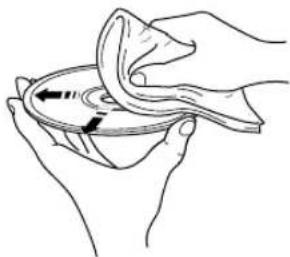
- With proper disc maintenance, cleaning should not be necessary. However, should cleaning be required, wipe by using a clean, dry cloth. Do not wipe with a circular motion; wipe straight outward from the center.
- Do not try to clean the disc's surface by using any type of disc cleaner, record spray, antistatic spray or liquid, or any other chemical-based liquid, because such substances might irreparably damage the disc's surface.
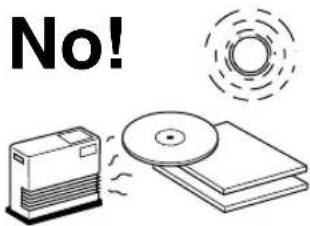
- Do not expose discs to direct sunlight, high temperature, or high humidity for a long period of time, because this might warp or otherwise damage the disc.
To prevent a malfunction of this unit
- Do not use any non-standard shaped CDs (heart, flower shaped, etc.) available on the market, because they are off-balance in their weight.
If a non-standard shaped CD is loaded into this unit, it may create problems such as improper playback, opening the disc tray, creating an usual noise, and this unit's failure.

- Be sure to use a felt-tip pen or similar writing tool when writing on the label side of the disc. Do not use a ball-point pen, pencil, or other hard-tipped writing tool, as these may damage the disc and may adversely affect further recording on the disc.
- Do not use the discs with glue left on their surface. It may get stuck in this unit or create damage to this unit.
- When using an 8cm(3^ ) disc, do not place a normal 12cm(5^ ) disc on top of it.
Supplied Accessories
After unpacking, make sure the following items are included in your package.
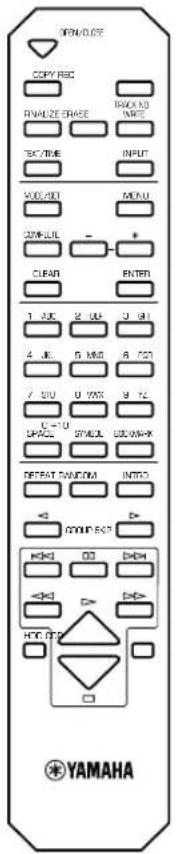
- Remote Control - Batteries (size AA, UM-3, or R6) (2)
RCA Pin Cables (2)
Optical Fiber Cable
Remote Control
Cautions
- If operation of this unit by the remote control creates any malfunction in any other components, change the placement of the component.
- Do not spill any liquid on or drop the remote control. Do not place it near a heater or in the bathroom where the temperature and humidity become high.
- Make sure the remote control sensor is not exposed to direct sunlight or strong lights. If it is, it may not function correctly.
■Loading the batteries in the remote control
- Remove the battery compartment cover on the back of the remote control.
- Insert 2 batteries (AA, UM-3 or R6 type) according to the polarity markings on the inside of the battery compartment.
- Close the cover until it snaps into place.
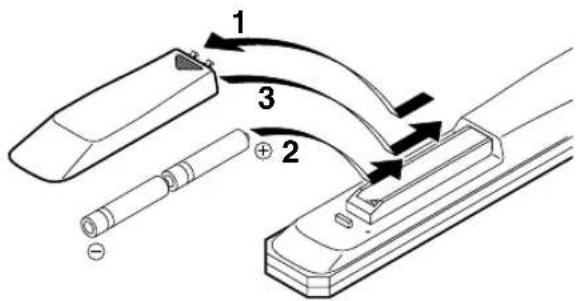
■Battery replacement
If you find that the remote control must be used closer to this unit than usual, the batteries are weak. Replace both batteries with new ones.
Notes on batteries
- Use only AA, UM-3, or R6 type batteries for replacement.
- Do not mix a new battery with a used one.
- A rechargeable battery cannot be used.
- Do not mix different types of battery.
- Do not attempt to short out the batteries by directly connecting the plus (+) and the minus (-) with a piece of metal.
- Remove the batteries if the remote control will not be used for an extended period of time.
- If batteries leak, dispose of them immediately. Clean the battery compartment thoroughly before installing new batteries.
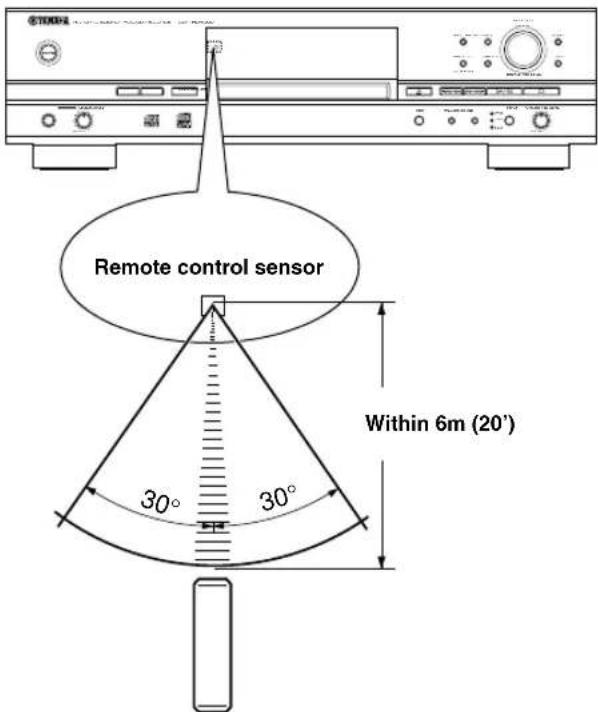
Remote control operation range
Connections
Turn off the power of this unit and the other components, and unplug them from the wall outlet before making any connections.
- Correctly connect the input and output jacks on this unit to the input and output jacks on the other components.
- Arrow marks () in the illustration below indicate the direction of the audio signal.
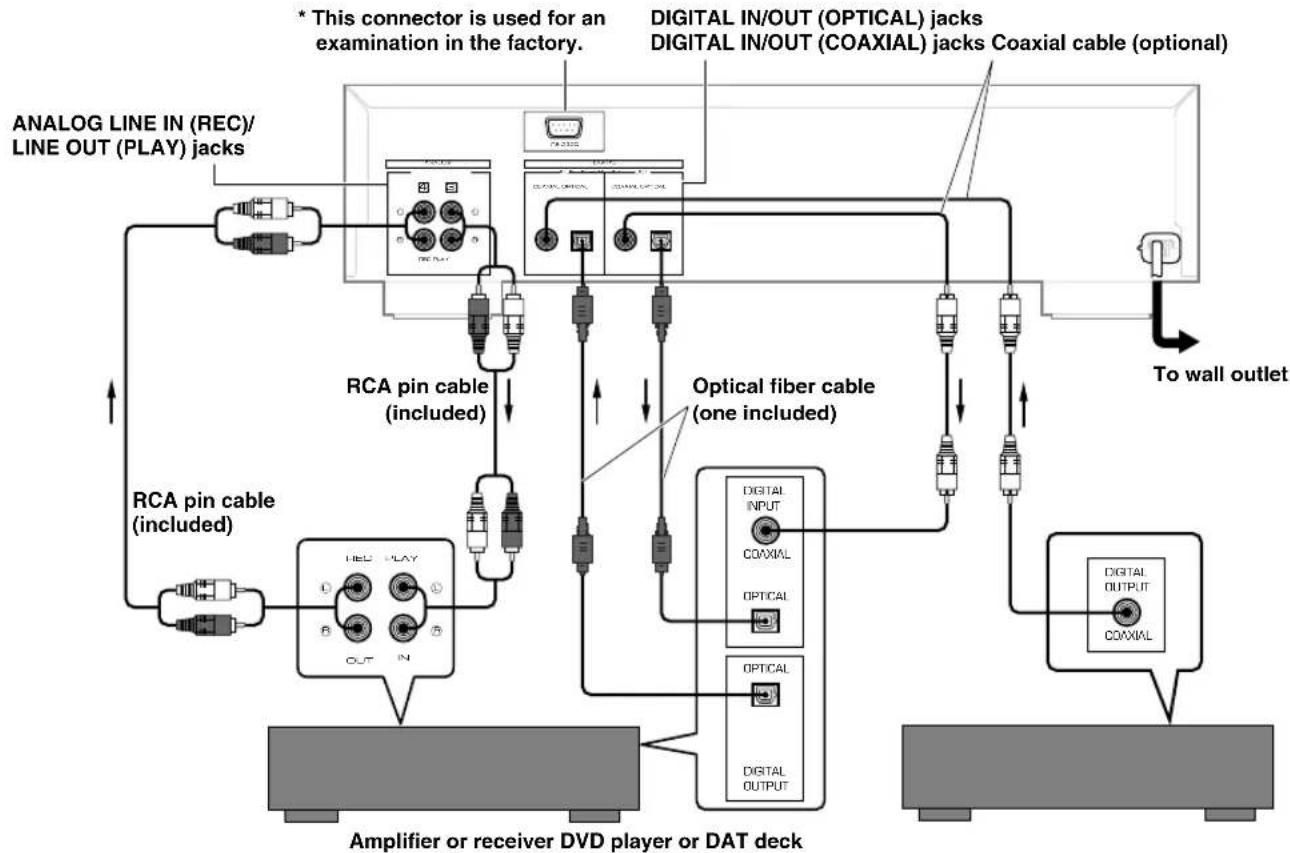
Digital connections
- Remove the jack covers for the DIGITAL IN/OUT (OPTICAL) jacks before starting to make connections. Using the optical fiber cable, connect the DIGITAL IN (OPTICAL) jack on this unit to the digital optical output jack on the other component, and the DIGITAL OUT (OPTICAL) jack on this unit to the digital optical input jack on the other component.
- Keep the jack covers for future use. Replace them in order to protect the DIGITAL IN/OUT (OPTICAL) jacks from dust when the jacks are not being used.
- When using the DIGITAL IN/OUT (COAXIAL) jacks, make connections with coaxial cables. Connect the DIGITAL IN (COAXIAL) jack on this unit to the digital coaxial output jack on the other component, and the DIGITAL OUT (COAXIAL) jack on this unit to the digital coaxial input jack on the other component.
■Analog connections
- Make sure to connect the L (left) and R (right) input and output jacks on this unit to the correct L (left) and R (right) input and output jacks on the other component.
- Connect the ANALOG LINE IN (REC) jack on this unit to the analog output jack on the other component, and the ANALOG LINE OUT (PLAY) jack on this unit to the analog input jack on the other component.
- The ANALOG LINE IN (REC)/LINE OUT (PLAY) jacks on this unit are numbered 3 and 4 respectively. Connect these jacks to the jacks with the same numbers when connecting this unit to a Yamaha amplifier or receiver.
Plug in this unit to a wall outlet when all connections are complete.
Note
- When you play the data on the HDD or CDs, signals are output both from the ANALOG LINE OUT (PLAY) jack and from the DIGITAL OUT (OPTICAL/COAXIAL) jacks.
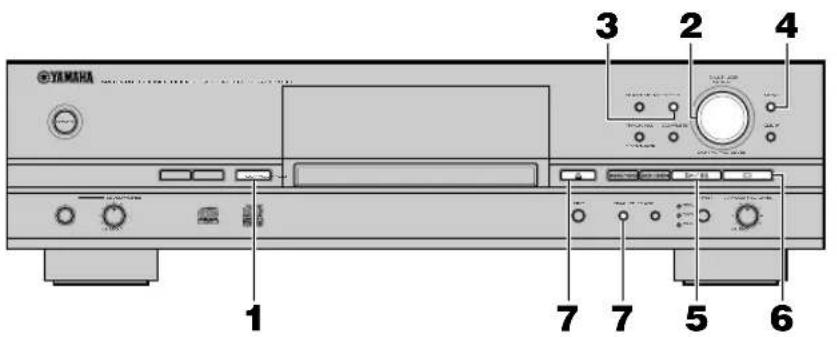
Front Panel
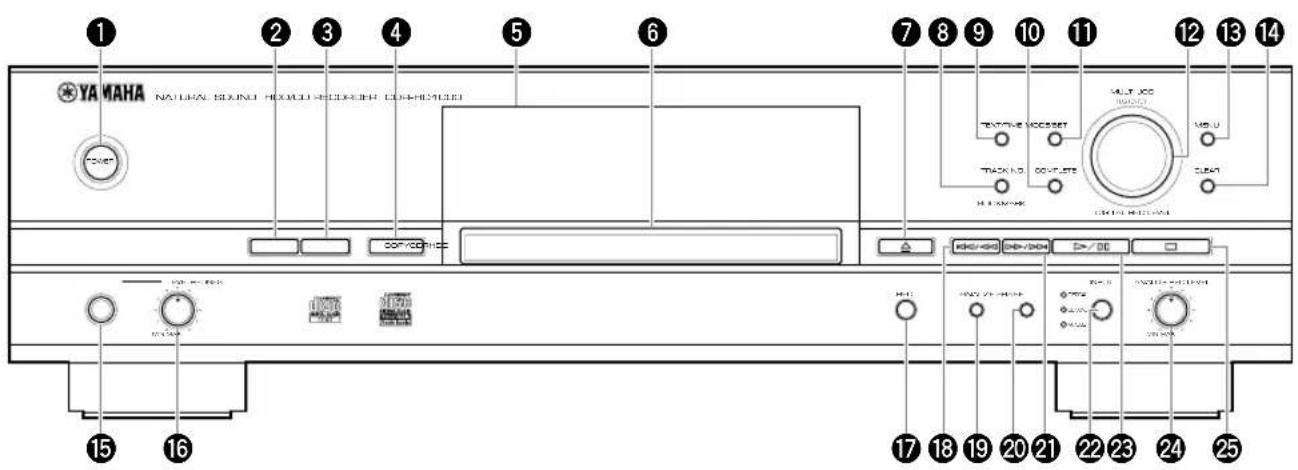
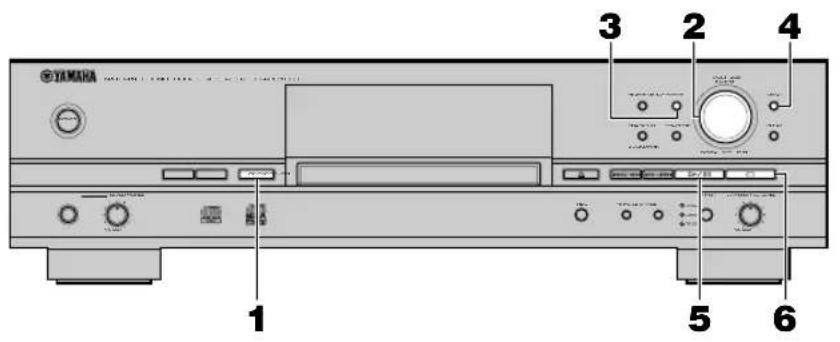
1 POWER P.13
HDD
CDR
4 COPY P.23,25,27
5 Front panel display P.9, 10
6Disc tray
7
8 TRACK NO./BOOKMARK P.21,36
9 TEXT/TIME P.10
10COMPLETE
1MODE/SET
12MULTI JOG knob
3MENU
14CLEAR
15 PHONES jack P. 58
16 PHONES LEVEL control. P. 58
17 REC P. 14, 16
18
19 FINALIZE P. 19
20 ERASE P.51
2
2 INPUT P.17
23>
24 ANALOG REC LEVEL control. P. 18
25
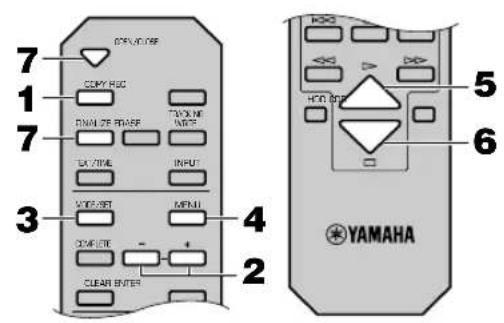
Remote Control
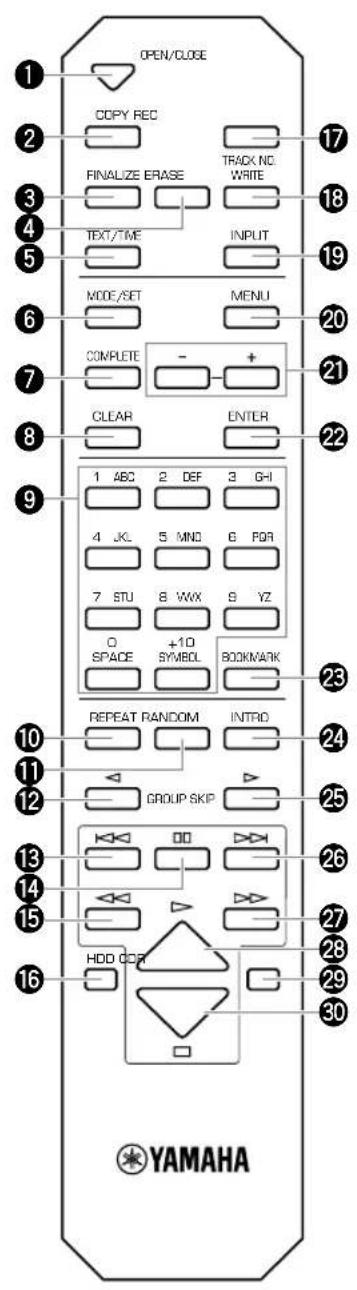
1 OPEN/CLOSE
COPY P.23,25,27
3 FINALIZE P.19
ERASE P.51
5 TEXT/TIME P.10
6MODE/SET
7COMPLETE
3CLEAR
9Alphabetical/numeric buttons P.35,45,49,54
10 REPEAT P.56,57
1 RANDOM P.56
GROUPSKIP
3
14nn
15
16HDD
17 REC P. 14, 16
18 TRACK NO.WRITE P.21
19 INPUT P. 17
20 MENU
21+/-
ENTER
BOOKMARK P.36
INTRO P.57
25GROUPSKIP
26
27
28
CDR
30
Display
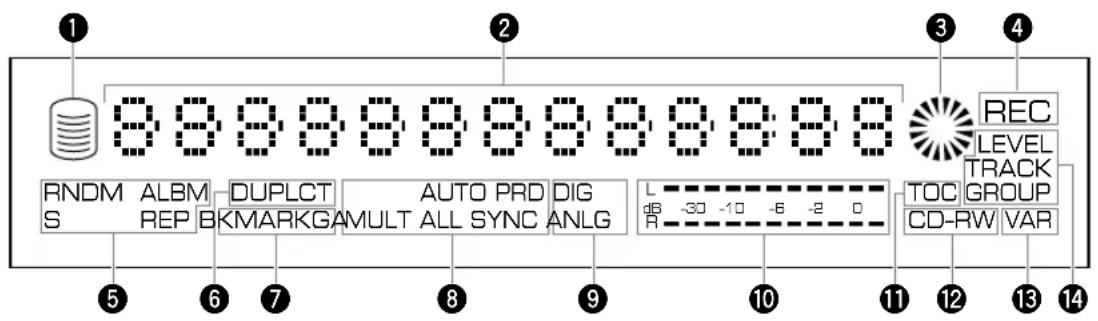
HDD mark
Information display
CDR mark
4REC indicator
⑤Playback mode/play style indicator. P. 55-58
RNDM indicator
ALBM indicator
S indicator
G indicator
A indicator
REP indicator
DUPLCT indicator P.27
BKMARK indicator P.36
Recording mode indicator P.20, 28
AUTOindicator
PRD indicator
MULT indicator
ALL indicator
SYNC indicator
Copying mode indicator P.30
DIG indicator
ANLG indicator
10 Level meter. P. 18, 19, 30, 51
TOC indicator P. 19, 51
CD-RW indicator P. 19, 51
VAR indicator. P. 18, 30
14 MULTI JOG status indicator
LEVEL indicator
TRACK indicator
GROUPindicator
Display Information
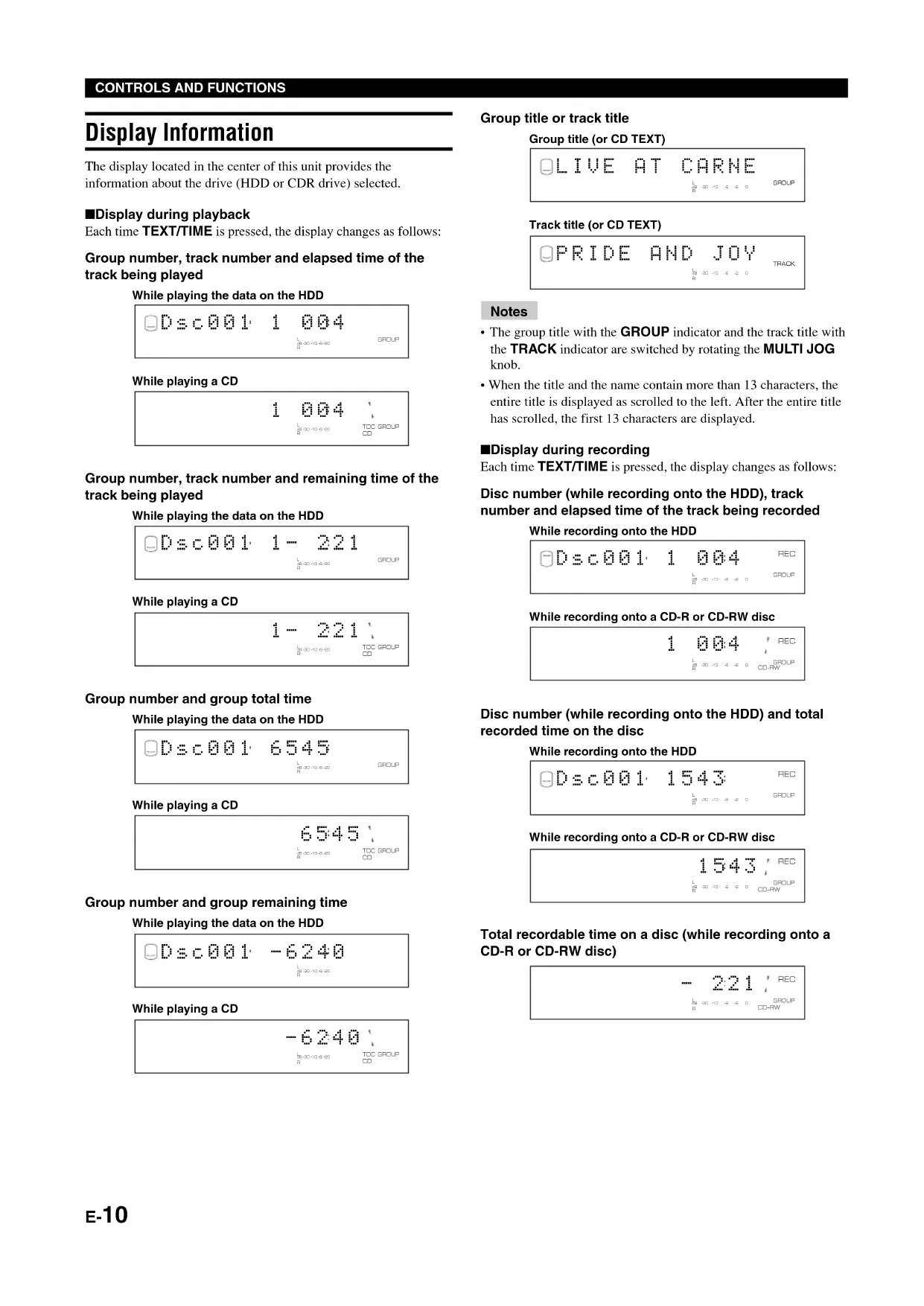
The display located in the center of this unit provides the information about the drive (HDD or CDR drive) selected.
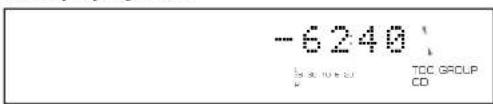
■Display during playback
Each time TEXT/TIME is pressed, the display changes as follows:
Group number, track number and elapsed time of the track being played
While playing the data on the HDD
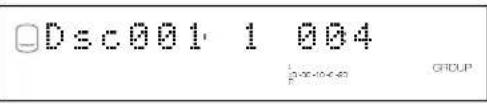
While playing a CD
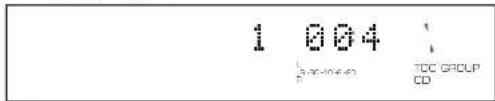
Group number, track number and remaining time of the track being played
While playing the data on the HDD
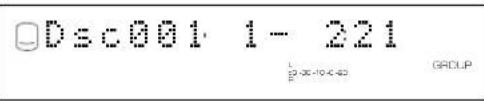
While playing a CD
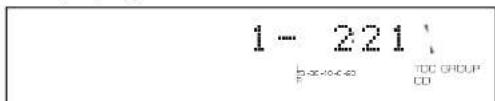
Group number and group total time
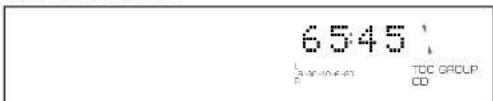
While playing the data on the HDD
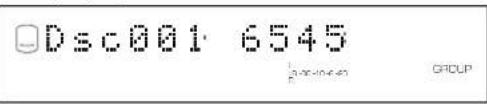
While playing a CD
Group number and group remaining time
While playing the data on the HDD
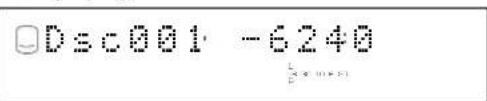
While playing a CD
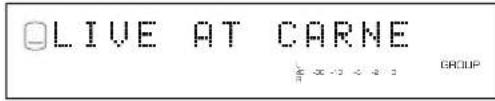
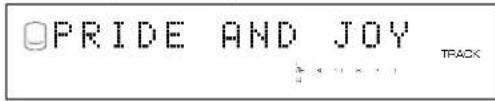
Group title or track title
Group title (or CD TEXT)
Track title (or CD TEXT)
Notes
- The group title with the GROUP indicator and the track title with the TRACK indicator are switched by rotating the MULTI JOG knob.
- When the title and the name contain more than 13 characters, the entire title is displayed as scrolled to the left. After the entire title has scrolled, the first 13 characters are displayed.
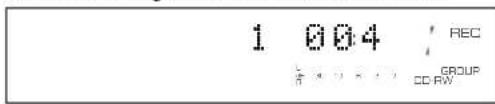
■Display during recording
Each time TEXT/TIME is pressed, the display changes as follows:
Disc number (while recording onto the HDD), track number and elapsed time of the track being recorded
While recording onto the HDD
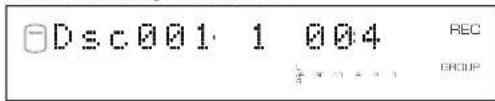
While recording onto a CD-R or CD-RW disc
Disc number (while recording onto the HDD) and total recorded time on the disc
While recording onto the HDD

While recording onto a CD-R or CD-RW disc
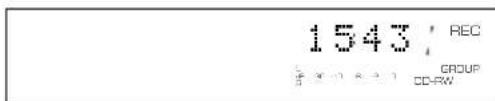
Total recordable time on a disc (while recording onto a CD-R or CD-RW disc)
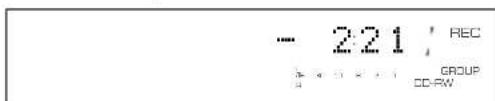
Rules of Digital Recording
SCMS—Serial Copy Management System
As a digital audio component, this unit conforms with the Serial Copy Management System (SCMS) standards. The Serial Copy Management System restricts copies made by recording digital signals to first-generation copies only.
The digital program sources that have been recorded cannot be digitally recorded again.
There are 2 rules as follows:
Rule 1
Digital sources such as commercially available CDs can be copied digitally onto other recordable digital media with this unit (a first-generation digital copy). However, the first-generation digital copy cannot be copied digitally any further.
Rule 2
The source that was recorded via the ANALOG LINE IN (REC) jacks can be copied digitally onto other recordable digital media (a first-generation digital copy). However, the first-generation digital copy cannot be copied digitally any further.
This unit monitors the SCMS status for each track when a digital recording is made. If the track is protected from digital recording and copying, it is not possible to make a digital recording and copy of that track.
The SCMS standard does not apply to analog recording and copying.
When making a copy from a CD onto the HDD, or from the HDD onto a CD-R or CD-RW disc, any of the copy methods described below can be selected. The following selections are contained in "Copy Method".
“Auto Dig/Anlg”
Automatically switches to analog recording if the track cannot be digitally recorded for SCMS.
"Digital Copy/Move":
Performs recording of only those tracks that can be digitally copied when recording from a CD onto the HDD. Switches to the Digital Move method when recording from the HDD onto a CD-R or CD-RW disc.
"Analog Copy":
Performs analog copying regardless of the SCMS standard.
Digital Move
This unit has a built-in HDD with large space that makes a long recording possible. You can create your own CD by editing the various program sources that have been recorded onto the HDD of this unit and copying them onto a CD-R or CD-RW disc.
If you want to make a digital copy of the original data that has been created on the HDD to a CD-R or CD-RW disc, the "Digital Move" method is convenient. You can make a digital copy from the HDD onto a CD-R or CD-RW disc even if the track is protected from making a second-generation copy by the SCMS standard.
However, since the concept of "Digital Move" is that the data is moved from the HDD onto a CD-R or CD-RW disc, the original data on the HDD is erased when moving is complete. See page 30 for details.
Notes on System
Number of recordable discs and tracks and their length
One CD-R or CD-RW disc, or one disc on the HDD can be recorded with up to 99 tracks on them.
- Once 99 tracks have been recorded, no further recording is possible even if space for recording is available on the disc.
- The minimum length of one track must be 4 seconds. If a recording is stopped while the track is less than 4 seconds long, this unit will record for 4 seconds, and then stop recording. The maximum length of one track is 99 minutes 59 seconds for the HDD.
- 999 discs can be created at maximum on the HDD of this unit. However, the number of discs that can be created is limited according to the space availability (total recordable time) on the HDD. Total recordable time for the HDD is approximately 30 hours.
- The maximum length of one disc on the HDD is 99 minutes 59 seconds. However, since each track on the HDD is handled in the unit of frame (75 frames are equal to one second), the maximum length of one track or disc may vary slightly.
Source sampling rate conversion
- Digital input of this unit supports sampling frequencies of 32kHz , 44.1kHz , 48kHz , and 96kHz . This unit converts these inputs to the 44.1kHz, 16 -bit digital signals and records them onto the HDD, or a CD-R or CD-RW disc.
- Analog input is also converted to the same digital signal to be recorded.
- This unit always produces the signals at the sampling frequency of 44.1kHz , 16-bit from its digital output.
■Recording of non-audio signals
- This unit is designed exclusively for recording audio signals. Recording is only possible for audio signals.
- When a CD with CD TEXT is recorded onto the HDD, CD TEXT will be automatically copied if it is not copy protected.
- If the digital signals contain graphic data such as CD graphics, the non-audio signals will not be recorded.
- It is not possible to record from non-audio sources such as CD-ROM or DVD.
Data processing
- A small amount of space may be used for data processing besides recording the actual program sources.
- Although this unit is capable of recording 999 albums at maximum onto the HDD, the data processing speed may slow down if a large number of albums is created.
Data on the HDD
The data recorded onto the built-in HDD of this unit will be numbered and organized based on the following concept:
Disc
One consequent recording is counted and numbered as one unit of disc. The HDD of this unit can record 999 discs at maximum. (However, the number of discs to be created may be less than 999 for the space availability on the HDD.)
Track
99 tracks can be recorded onto a disc at maximum. (However the number of discs tracks to be recorded may be less than 99 for the space availability on the HDD.) One track must be 4 seconds at shortest and 99 minutes 59 seconds at longest.
Album
A group of the source programs selected from different discs and recorded as the playlist is called "album". This unit can record 999 albums at maximum onto the HDD. See page 31 for details.
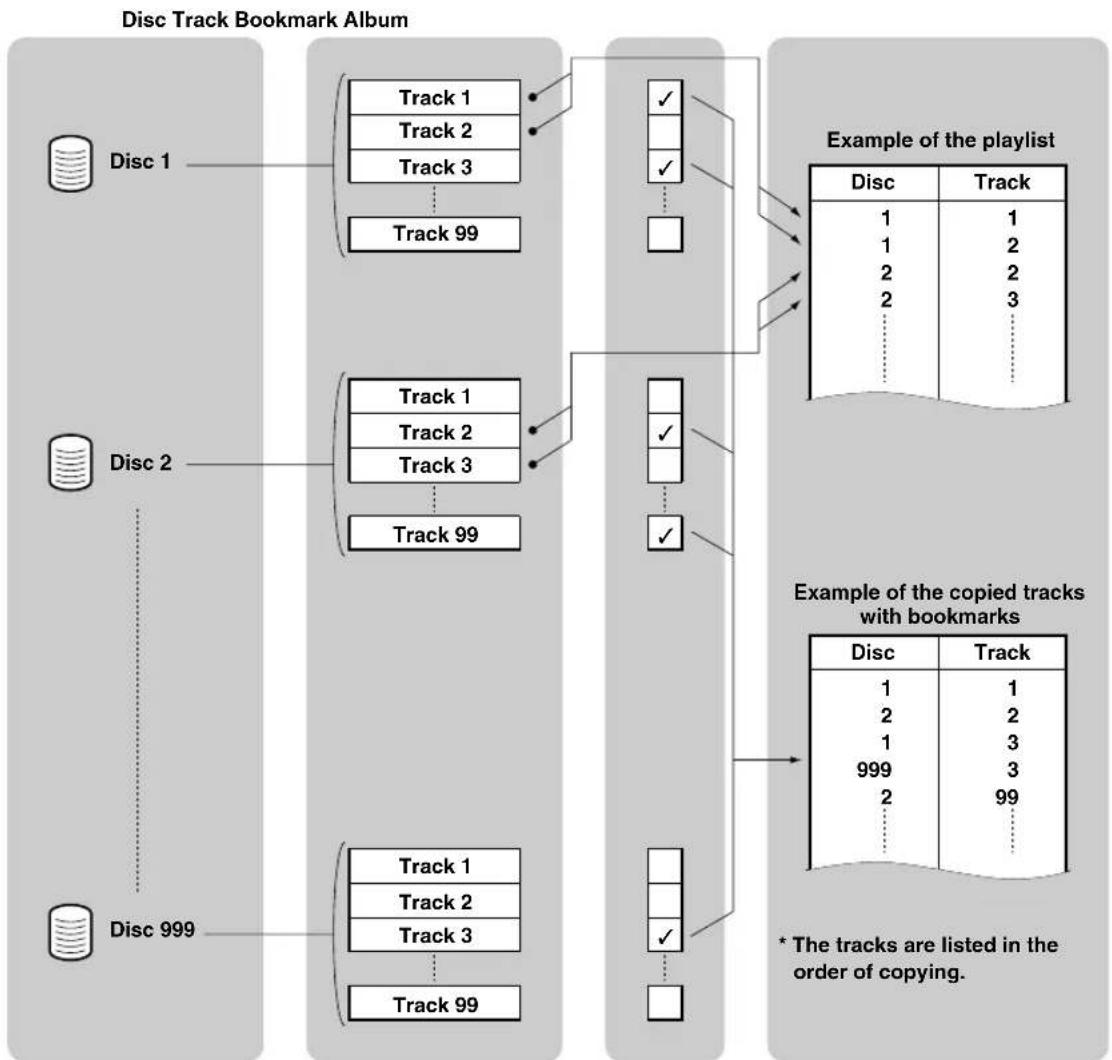
Bookmark
This unit can make a temporary bookmark on a favorite track as playing back. The list of the program sources marked is called "bookmark". This marking is temporary and cannot be duplicated. However, an album can be easily created by copying the bookmarked tracks. See page 36 for details.
Group
A collection of tracks such as a disc, album, and bookmark is called "group". Any of the recorded discs, created albums, and marked bookmarks can be selected as a group in the order by rotating the MULTI JOG knob.
Usable Recording Media
The media used for recording and copying with this unit are the hard disk drive (HDD) or a compact disc for recording (a CD-R or CD-RW disc). Choose whichever suits your needs.
HDD is convenient to make a long recording, and to edit the recorded tracks afterwards.
A CD-R and CD-RW disc can be used to make an original CD that another CD player can play.
Types of Recording and Copying
5 types of recording and copying are possible with this unit as follows:
- Recording from an external component onto the HDD
See page 14. - Recording from an external component onto a CD-R or CD-RW disc
See page 15. - Copying from a CD onto the HDD
See page 22. - Copying from the HDD onto a CD-R or CD-RW disc
See page 24. - Duplication of a CD
See page 26.
Note
- When a CD with CD TEXT is recorded from an external CD player, CD TEXT cannot be copied even if it is not copy protected. To copy CD TEXT, copy a CD onto the HDD following the steps for "Copying from a CD onto the HDD" on pages 22—23.
Before Starting to Record and Copy
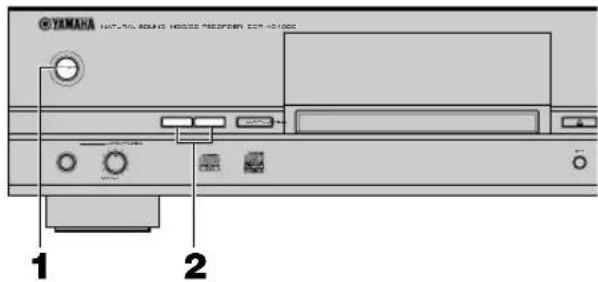
- Turn on the power of this unit by pressing POWER on the front panel.
The message "WELCOME TO YAMAHA HDD/CD SYSTEM" appears on the display. After the message is displayed, this unit is ready for operation.
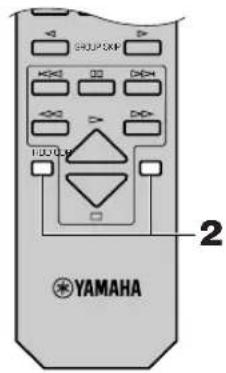
- Select the recording medium.
Press HDD when recording onto the HDD, and CDR when recording onto a CD-R or CD-RW disc.
This section describes the basic recording operation. The operation steps are explained by using the buttons on the front panel and the remote control.
Recording from an External Component onto the HDD
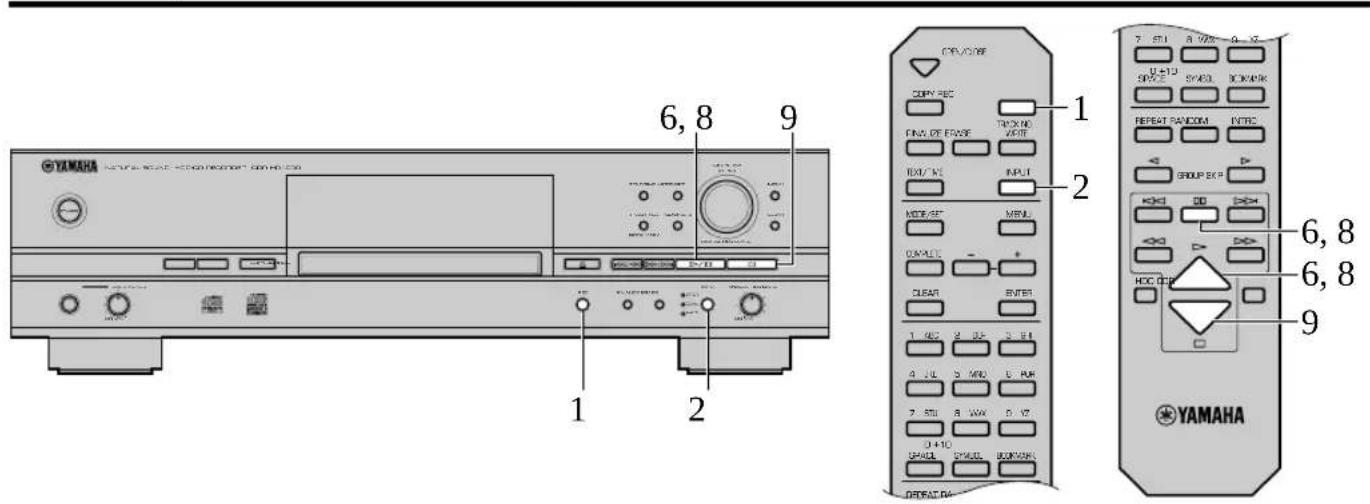
1. Press REC.
The HDD mark flashes, and the disc and track numbers to be recorded are indicated on the display. Recording has not been started yet at this stage. (Recording pause mode)
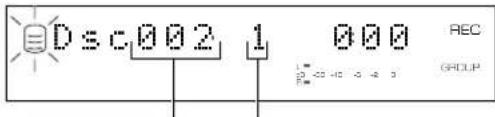
Disc number to be recorded Track number to be recorded
2. Select the input source to be recorded.
Press INPUT to select the input source from among OPTICAL, COAXIAL, and ANALOG. See page 17 for details.
3. Adjust the recording level.
The recording level can be adjusted for both digital and analog input. See page 17 for details.
4. Select the disc to be recorded.
See page 20 for details.
5. Select the recording mode.
See page 20 for details.
6. Start recording.
Press / 口 (or on the remote control) to start recording.

Note
- In the multi-synchronized or all-synchronized recording mode, this unit automatically starts recording when the source component starts playback.
7. Start playing the source.
8. Press on the remote control) to stop recording temporarily.
The HDD mark flashes and the track number is advanced to the next.
Press on the remote control) to resume recording.
9. Press to stop recording.
The first track number of the disc at which recording has been stopped is indicated on the display.
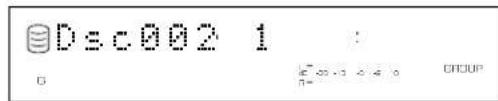
IMPORTANT
-
Never turn off the power of this unit during recording. Recording may not be correctly made, or the data on the HDD may be damaged.
-
During recording, make sure that this unit is not subjected to shock or vibration as the HDD may be damaged.
Recording from an External Component onto a CD-R or CD-RW Disc
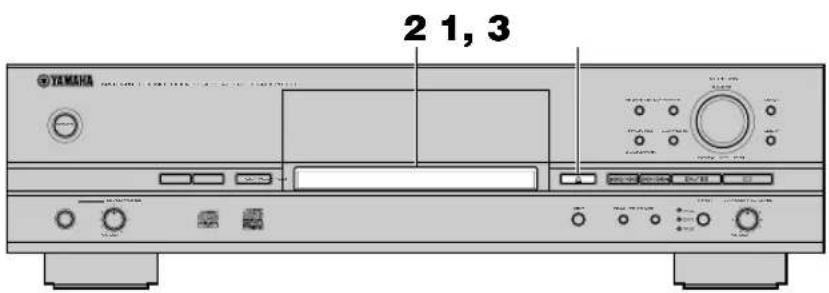
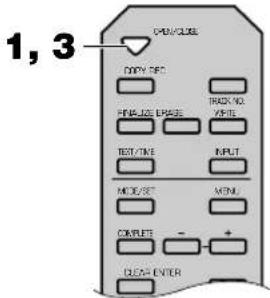
- Press (OPEN/CLOSE on the remote control) to open the disc tray.
- Load a new CD-R or CD-RW disc, or a CD-R or CD-RW disc without finalization on the disc tray.
Place the CD-R or CD-RW disc correctly aligned in the recessed area of the disc tray with its recordable side facing down.
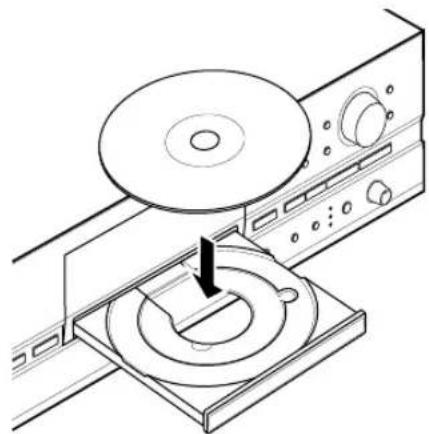
- Press (OPEN/CLOSE on the remote control) to close the disc tray.
Note
- The disc tray can be also closed by pressing the front edge of the disc tray gently. If a CD-R or CD-RW disc without finalization has been loaded, this unit starts playback of that CD-R or CD-RW disc. Press to stop playback.
This unit starts reading the disc information (type and capacity of the disc) when the disc has been loaded. It takes approximately 10 to 15 seconds to complete the reading. The following message appears on the display during the reading.
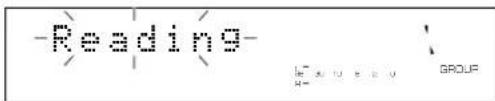
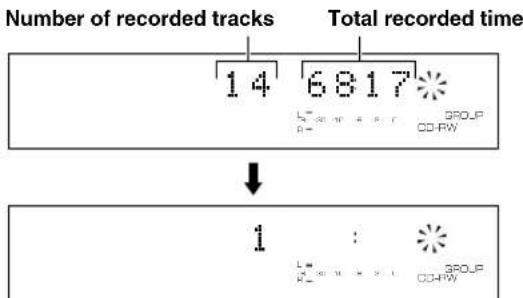
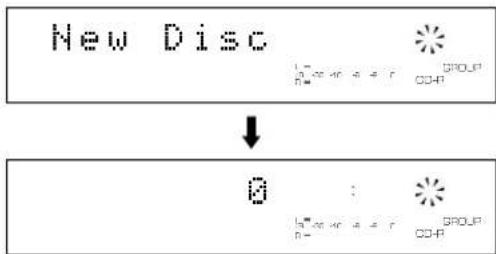
When reading the disc information has been completed, the display changes as follows and this unit becomes ready for operation.
When a CD-R or CD-RW disc without finalization is loaded
When a new CD-R or CD-RW disc is loaded
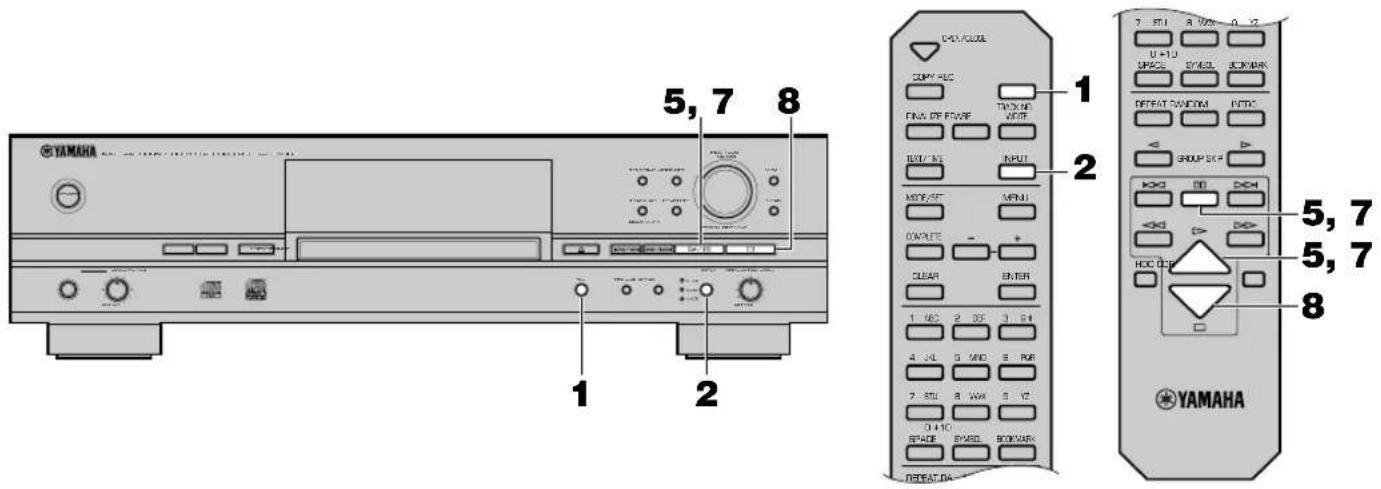
1. Press REC.
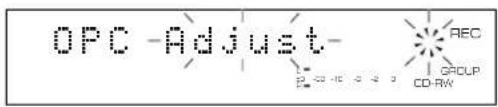
This unit automatically adjusts the laser strength against the disc reflection for optimal recording. This process is called OPC (Optimum Power Calibration) and takes approximately 15 seconds to complete.
The following message appears on the display.
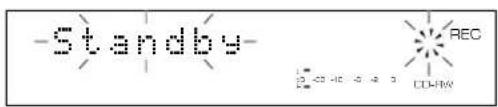
If this unit determines that OPC is not needed for the disc loaded, "Standby" flashes on the display.
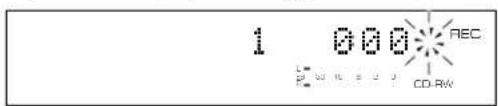
The CDR mark starts flashing in a few seconds, and the track number is indicated on the display. Recording has not been started yet at this stage. (Recording pause mode)
Note
- Before starting to record, check the remaining time available for recording on the CD-R or CD-RW disc. (See page 10.)
2. Select the input source to be recorded.
Press INPUT to select the input source to be recorded from among OPTICAL, COAXIAL and ANALOG. See page 17 for details.
3. Adjust the recording level.
The recording level can be adjusted for both digital and analog input. See page 17 for details.
4. Select the recording mode.
See page 20 for details.
5. Start recording.
Press / 口 (or on the remote control) to start recording.
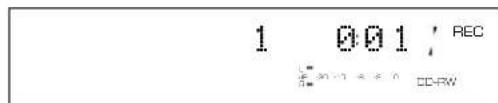
Note
- In the multi-synchronized, all-synchronized, or full autosynchronized recording mode, this unit automatically starts recording when the source component starts playback.
6. Start playing the source.
7. Press on the remote control) to stop recording temporarily.
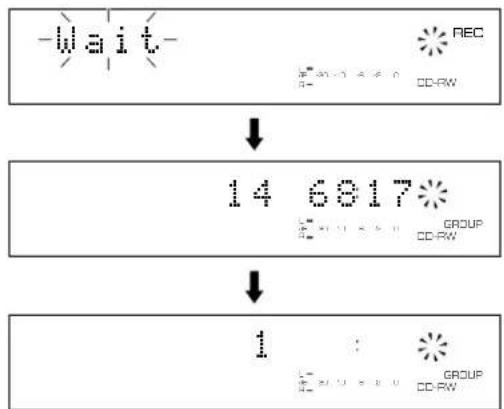
"Wait" flashes on the display. The CDR mark starts flashing in a few seconds and the track number is advanced to the next. Press 12 or on the remote control to resume recording.
8. Press to stop recording.
"Wait" flashes on the display. The number of recorded tracks and the total recorded time are indicated on the display in a few seconds, and then the first track number of the recorded tracks is indicated on the display in a few seconds.
9. Perform finalization when all recordings have been completed.
See page 19 for the finalization procedure.
IMPORTANT
- Never turn off the power of this unit during recording. Recording may not be correctly made, or the CD-R or CD-RW disc may be damaged.
- If the power of this unit is turned off during recording on a CD-R disc, recording may become impossible or the CD-R disc may not be played back normally because information is not written in the PMA (Program Memory Area).
- During recording, make sure that this unit is not subjected to shock or vibration as it may cause skips or jumps to be included in the recording.
Selecting an Input Source
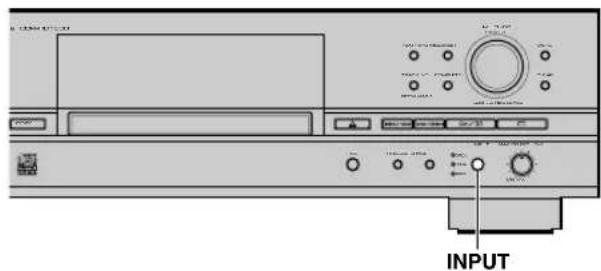
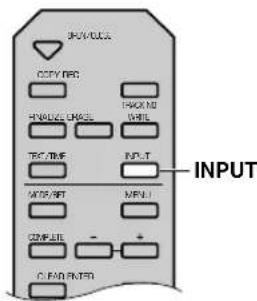
Press INPUT to select the appropriate input source to be used for recording from among OPTICAL (optical digital input), COAXIAL (coaxial digital input), and ANALOG (analog input).
- Press INPUT to light OPTICAL when recording the source input to the DIGITAL IN (OPTICAL) jack.
- Press INPUT to light COAXIAL when recording the source input to the DIGITAL IN (COAXIAL) jack.
- Press INPUT to light ANALOG when recording the source input to the ANALOG LINE IN (REC) jacks.
Note
- This selection of the input source must be made while this unit is in the recording pause mode.
Adjusting the Recording Level
There is an adjusting procedure for each input source to be recorded as explained below. Choose the one for your input source and follow the steps.
■When recording a digital input source
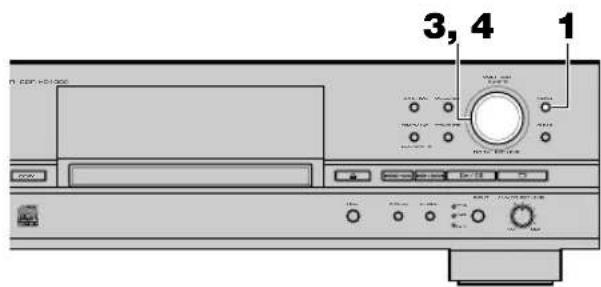
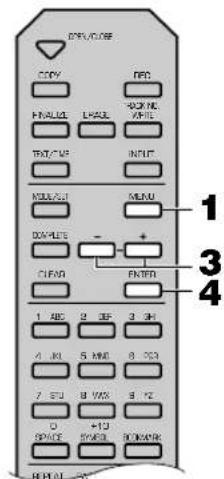
The digital recording level is set to 0dB, the level of the input source, as an initial setting. Further adjustment is not normally necessary. However it is possible to adjust the recording level to suit your needs.
- Press MENU while this unit is in the recording pause mode.
The following message appears on the display.
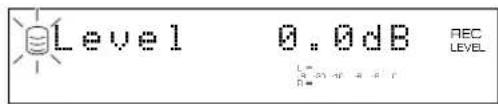
-
Play the loudest passage (highest sound level) of the source to be recorded.
-
Rotate the MULTI JOG knob (press +/- on the remote control) to adjust the recording level.
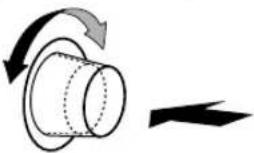
Adjustment is possible in the -12dB to +12dB range by 0.4dB steps. When the level is set to a value other than 0dB, the VAR indicator lights on the display.
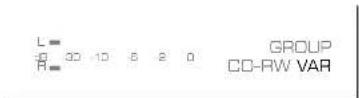
Adjust the recording level so that the red part on the peak level meter does not light at the loudest sound levels.
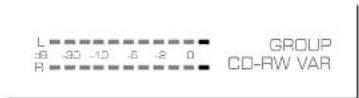
- Press the MULTI JOG knob (ENTER on the remote control) to return to the previous display.
Notes
- The recording level can be adjusted while this unit is in either the recording or recording pause mode. Once recording has been stopped, the recording level is reset to 0dB.
- Adjustment of the recording level can be canceled by pressing MENU when the level is adjusted in the recording pause mode.
The recording level is set to 0dB by pressing CLEAR when the level is adjusted in the recording pause mode.
■When recording an analog input source
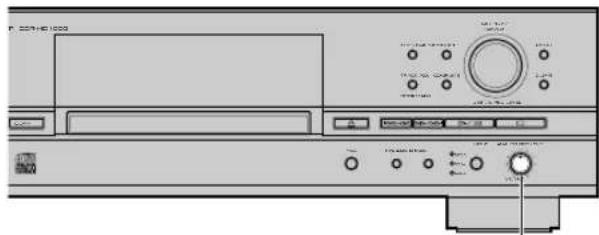
2
- Play the loudest passage (highest sound level) of the source to be recorded.
- Adjust the recording level by rotating the ANALOG REC LEVEL control.
Rotate the control clockwise to increase the level and counterclockwise to decrease the level.
Adjust the recording level so that the red part on the peak level meter does not light at the loudest sound levels.
Note
- The recording level can be adjusted while this unit is in either the recording or recording pause mode.
Finalization
Finalization is the process that concludes recording, and allows a CD-R disc to be played on a standard CD player. (CD-RW discs can only be played on a CD-RW-compatible player even after finalization has been completed. CD-RW discs cannot be played on a standard CD player.)
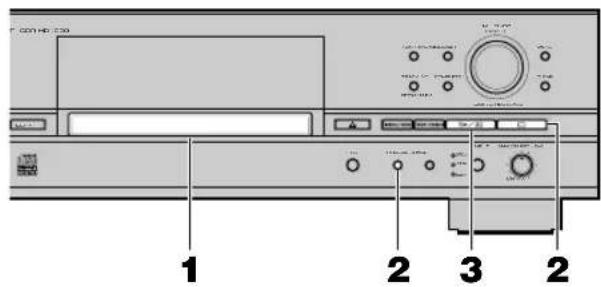
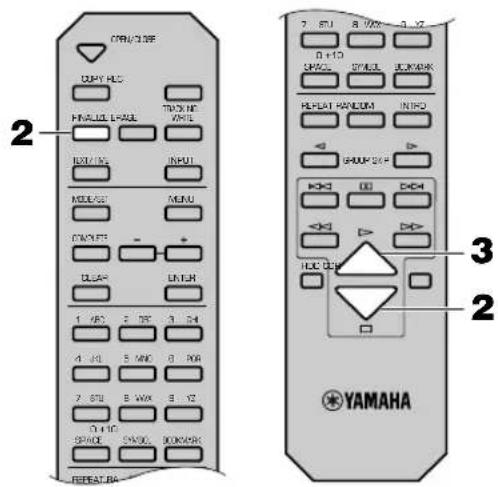
- Load a recorded CD-R or CD-RW disc without finalization.
- Press FINALIZE.
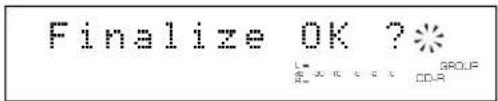
To cancel finalization, press .
- Press on the remote control to start finalization.
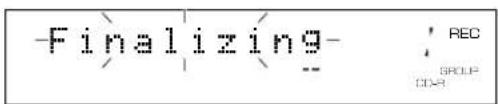
The level meter shows the finalization progress on the display.
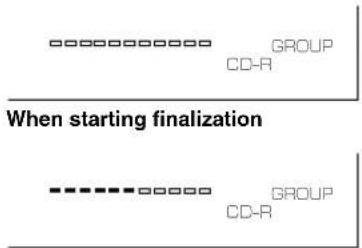
During finalization
- When finalization of a CD-R disc has been completed, the CD-R indicator on the display changes to the CD indicator and the TOC indicator lights on the display, and this unit enters the stop mode.

- When finalization of a CD-RW disc has been completed, the TOC indicator lights on the display, and this unit enters the stop mode.

Cautions
Further recording is not possible onto a finalized CD-R disc. Make sure that all recording has been completed before making a finalization.
- Before loading the disc, make sure there are no scratches, dust, fingerprints or similar marks on the disc. If necessary, clean the disc as described on page 3.
- Once the finalization process has started, no other operation is possible until finalization is completed.
- Never turn off the power or disconnect the power cord during finalization.
Note
- When finalizing a CD-R or CD-RW disc that does not support high-speed writing, use the slow finalization mode. By pressing and holding FINALIZE for approximately 3 seconds in step 2, "Slow Fnlz OK?" appears on the display and this unit is ready to perform slow finalization.
Selecting a Disc for Recording
Setting the Recording Mode
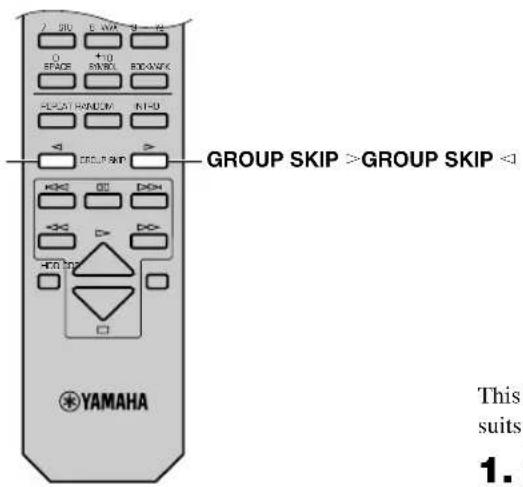
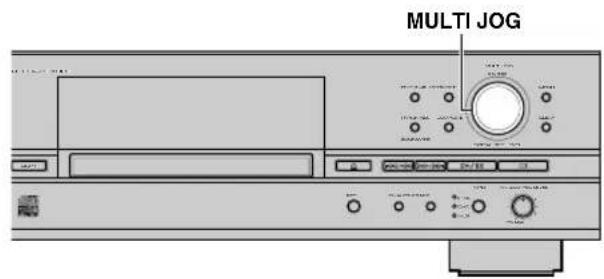
When recording onto the HDD, you can select the disc on the HDD for your recording. Rotate the MULTI JOG knob (press GROUP SKIP < /GROUP SKIP > on the remote control) to select the disc number on which recordings are to be made while this unit is in the recording pause mode.
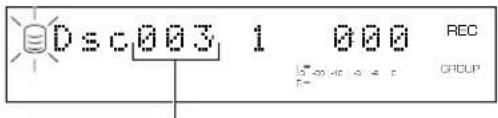
Disc number on which recordings are to be made
Notes
- When no disc number is selected, recordings are made onto the disc with the smallest number available on the HDD.
- When a disc with recorded tracks is selected, new recordings are added to the end of the previous recordings.
This unit provides various recording modes. Choose the one that suits your needs.
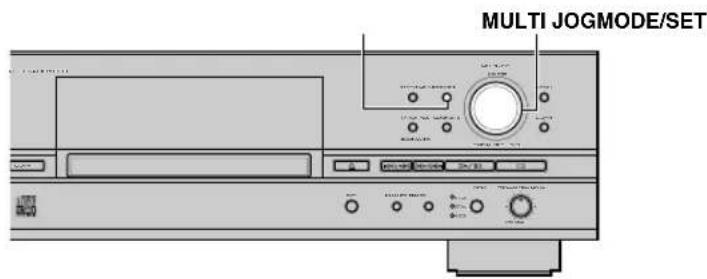
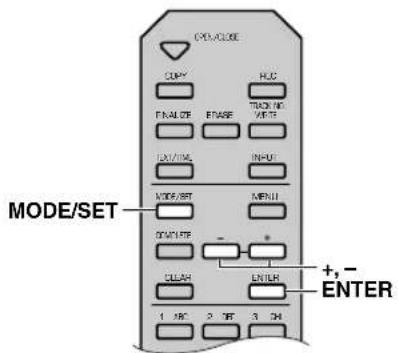
- Press MODE/SET while this unit is in the recording pause mode.
The recording mode can be selected.
- Rotate the MULTI JOG knob (press + / - on the remote control) to select the recording mode.
Choose one of the modes listed below.
■Manual (Manual recording mode)
All the recording operations including starting, stopping, track marking and finalization (when recording onto a CD-R or CDRW disc) are performed manually.
■Multi Sync. (Multi-synchronized recording mode)
This mode records the set number of tracks at the same time as the source programs are being played. The number of tracks to be recorded can be set in the range of 1 to 99 tracks. This mode is convenient to record a mix of tracks from different sources.
All Synchro (All-synchronized recording mode)
This mode records all of the material from a single audio source at the same time as the source programs are being played. Track markers are automatically placed between the tracks being recorded.
■Full Auto (Full auto-synchronized recording mode)
(when recording onto a CD-R or CD-RW disc only) This mode automatically performs finalization after all synchronized recording is complete. A CD-R disc can be played as a CD as soon as finalization has been completed.
Auto Period (Auto-period recording mode)
This mode makes recording for the set amount of time while placing track markers at the set time interval. The length between track markers can be adjusted in the 10 seconds to 30 minutes range by 10-second steps. This mode is convenient to search for material recorded from FM broadcasts.
- Press the MULTI JOG knob (ENTER on the remote control) to confirm the recording mode selected. Further settings are necessary if "Multi Sync." or "Auto Period" is selected. Follow the steps described below to make settings.
When "Multi Sync." is selected
The following message appears on the display. The desired number of tracks can be set.
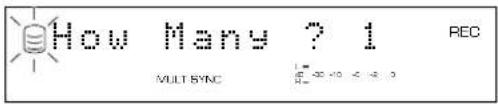
- Select the number of tracks by rotating the MULTI JOG knob (pressing +/- on the remote control). The number can be set in the 1 to 99 tracks range.
- Press the MULTI JOG knob (ENTER on the remote control) to confirm the number of tracks to be set.
When "Auto Period" is selected
The following message appears on the display. The time length between track markers can be set.
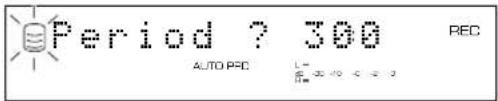
- Select the time length between track markers by rotating the MULTI JOG knob (pressing +/- on the remote control).
The time length can be set in the 10 seconds to 30 minutes range by 10-seconds steps.
- Press the MULTI JOG knob (ENTER on the remote control) to confirm the time length between the selected track markers.
The following message appears on the display. The total recording time can be set.
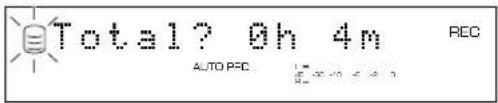
- Select the total recording time by rotating the MULTI JOG knob (pressing +/- on the remote control).
- Press the MULTI JOG knob (ENTER on the remote control) to confirm the total recording time.
Notes
- If no recording mode is selected, recording is performed in the manual recording mode.
- Manual recording or auto period recording are recommended for a long recording over 100 minutes. In these recording modes, the recording will be performed continuously to the next available disc after the recording has been performed to one disc for its maximum length.
- When recording to the HDD in the auto period recording mode, the recording will be performed continuously to the next available disc if the time length between selected track markers exceeds the group remaining time.
- In the auto period recording mode, a time error can occur in a frame unit. Therefore, the time of each track or the group total time may not match the confirmed time length between selected track markers or the total recording time.
Manual Track Marking
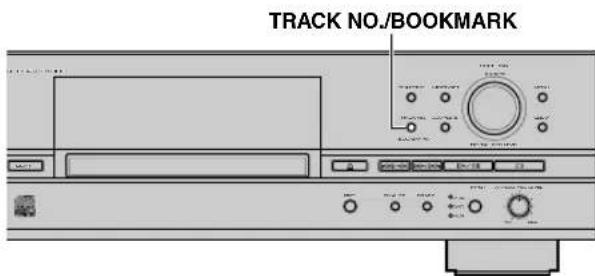
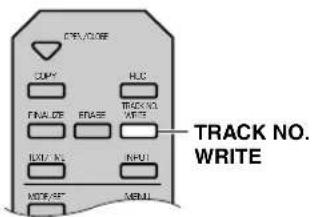
This unit can automatically place track markers. However you can also manually place track markers during your recording. (Manual track marking)
Press TRACK NO./BOOKMARK (TRACK NO. WRITE on the remote control) during your recording.
- A new track number is added at the location on the disc corresponding to the time TRACK NO./BOOKMARK (TRACK NO. WRITE on the remote control) is pressed.
- Manual track marking is possible after the recording has been performed for 5 seconds from the beginning of the track, and a disc cannot contain more than 99 tracks. Even if there is time remaining on the disc, further recording is impossible once 99 track markers have been placed.
Notes
- Manual track marking is recommended when recording an analog source at an extremely low level, and when recording digital satellite broadcasts.
- The track markers may not be placed properly even if the recording has been performed in the synchronized recording according to the type of the source devices. To avoid this problem, place the track markers manually.
- The track markers may not be placed properly when recording the source that contains the noise or low level sound, or the source of which the intervals between tracks are extremely short. To avoid this problem, place the track markers manually.
- Manual track marking is possible even during synchronized recording.
This section describes the basic copying operation. The operation steps are explained by using the buttons on the front panel and the remote control.
Copying from a CD onto the HDD
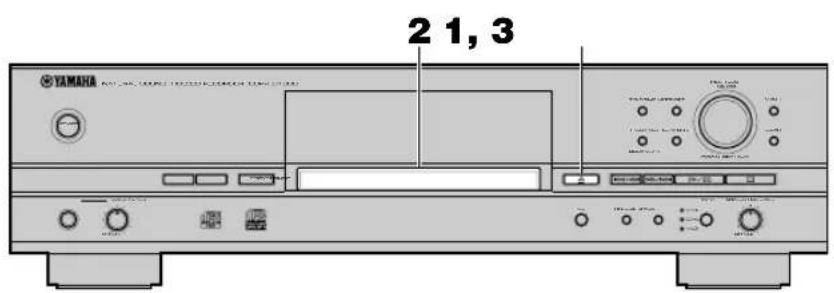
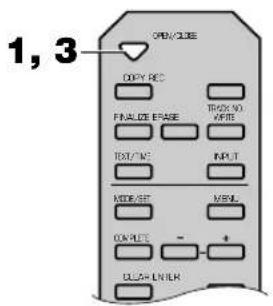
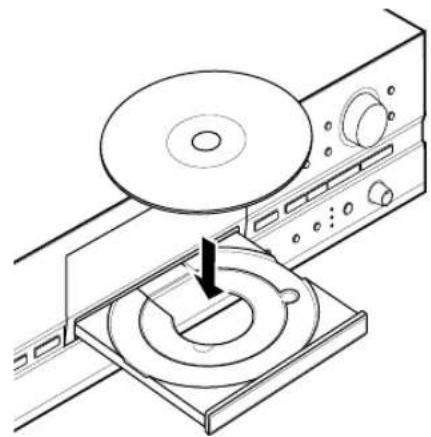
- Press (OPEN/CLOSE on the remote control) to open the disc tray.
- Load the CD to copy from on the disc tray.
Place a CD correctly aligned in the recessed area of the disc tray with its label side facing up.
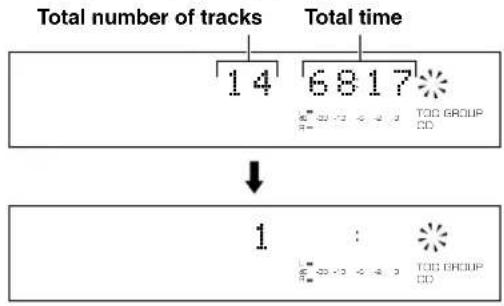
When reading the disc information has been completed, the display changes as follows, and this unit becomes ready for operation.
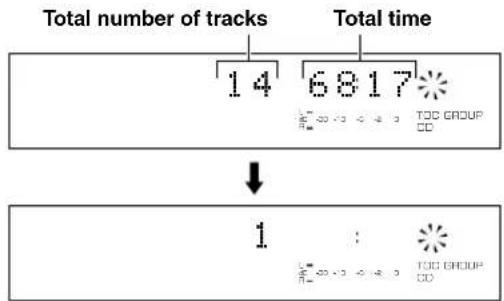
- Press (OPEN/CLOSE on the remote control) to close the disc tray.
Note
- The disc tray can be also closed by pressing the front edge of the disc tray gently. If the disc tray is closed in this way, this unit starts playback of a CD. Press to stop playback.
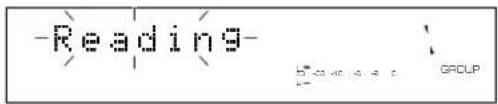
This unit starts reading the disc information (type and capacity of the disc) when the disc is loaded. It takes approximately 10 to 15 seconds to complete the reading.
The following message appears on the display during the reading.
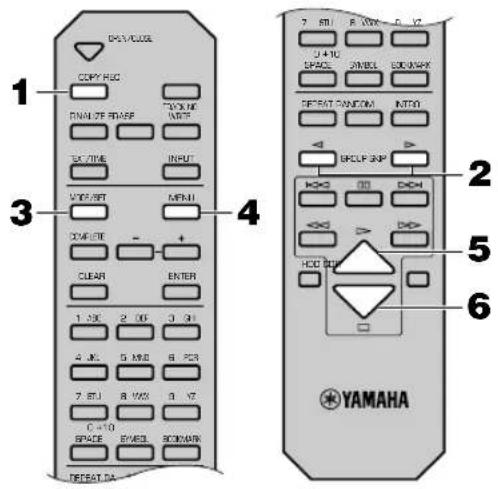
1. Press COPY once.
The following message appears on the display, and this unit enters the copy standby mode. Copying has not been started yet at this stage.
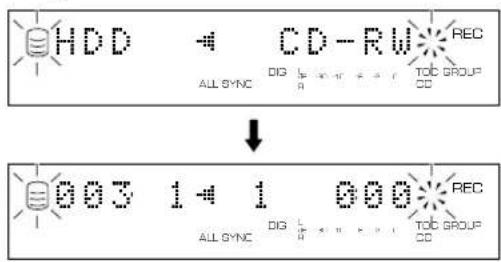
2. Select the disc to be copied.
Rotate the MULTI JOG knob (press GROUP SKIP or GROUP SKIP on the remote control) to select the disc to be copied to. See page 28 for details.
3. Select the copying mode.
Press MODE/SET to select the copying mode. See page 28 for details.
4. Make detailed settings for copying on the menu.
Press MENU to start setting the copying menu. See page 29 for details.
5. Start copying.
Press / (on the remote control) to start copying.
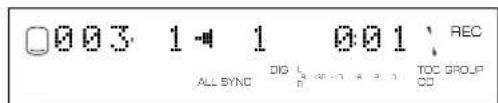
Notes
It takes a few seconds for this unit to become ready to start copying after > / 口 (on the remote control) has been pressed.
- This unit may create some vibration and rotation noise while performing the copying process by rotating a CD at high speed. If this problem occurs, lower the copying speed to decrease the vibration and rotation noise. (See "Copy Speed" on page 30.)
6. When copying has been completed, the operation of the HDD and the CD automatically stops. To cancel copying, press .
Output of the signals during copying
- During copying at 1x speed, signals are output both from the ANALOG LINE OUT (PLAY) jack and from the DIGITAL OUTPUT (OPTICAL/COAXIAL) jacks.
- During copying at 2x speed, signals are output only from the ANALOG LINE OUT (PLAY) jack.
- During copying at 4x or more speed, signals are output neither from the ANALOG LINE OUT (PLAY) jack nor the DIGITAL OUTPUT (OPTICAL/COAXIAL) jacks.
Copying from the HDD onto a CD-R or CD-RW Disc
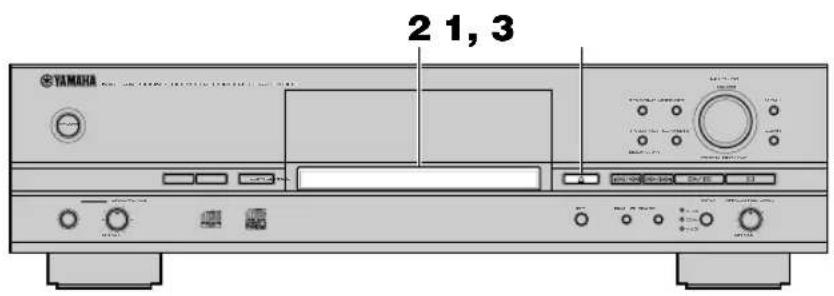
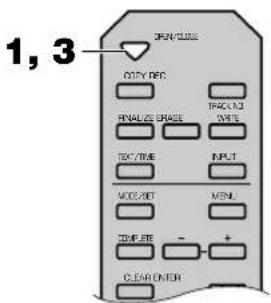
- Press (OPEN/CLOSE on the remote control) to open the disc tray.
- Load a new CD-R or CD-RW disc, or a CD-R or CD-RW disc without finalization on the disc tray.
Place the CD-R or CD-RW disc correctly aligned in the recessed area of the disc tray with its recordable side facing down.
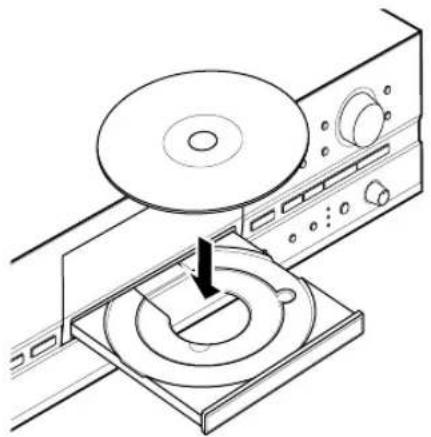
- Press (OPEN/CLOSE on the remote control) to close the disc tray.
Note
- The disc tray can be also closed by pressing the front edge of the disc tray gently. If a CD-R or CD-RW disc without finalization is loaded, this unit starts playback of that CD-R or CD-RW disc. Press to stop playback.
This unit starts reading the disc information (type and capacity of the disc) when a disc is loaded. It takes approximately 10 to 15 seconds to complete reading.
The following message appears on the display during reading.
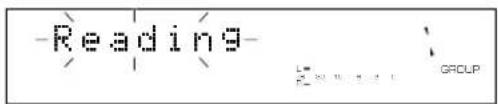
When reading the disc information has been completed, the display changes as follows, and this unit becomes ready for copying operation.
When copying onto a CD-R or CD-RW disc without finalization
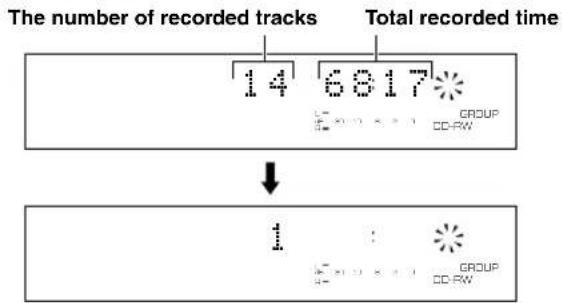
When copying onto a new CD-R or CD-RW disc
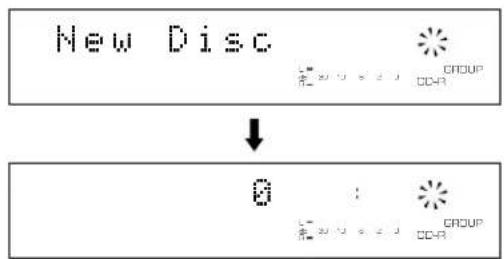
Note
- This unit can make a high-speed copy onto a CD-R or CD-RW disc. However there are some audio CD-R or CD-RW discs that do not support high speed writing. To copy onto these discs, lower the copy speed. (See "Copy Speed" on page 30.)
1. Press COPY twice.
The following message appears on the display, and this unit enters in the copy standby mode. Copying has not been started yet at this stage.
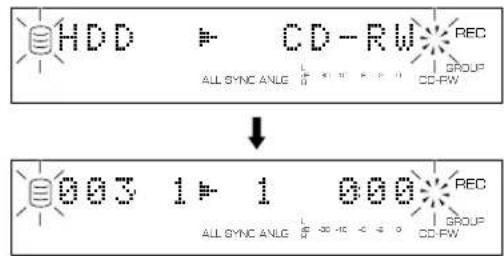
2. Select the group on the HDD to be copied.
Rotate the MULTI JOG knob (press + / - on the remote control) to select the group on the HDD to be copied.
3. Select the copying mode.
Press MODE/SET to select the copying mode. See page 28 for details.
4. Make detailed settings for your copying on the menu. Press MENU to make copying menu settings. See page 29 for details.
5. Start copying.
Press on the remote control) to start copying.
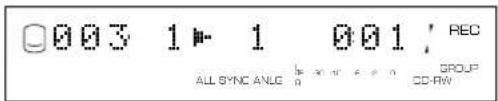
Notes
- OPC may start on the loaded disc depending on its recording condition. It takes approximately 15 seconds to complete the adjustment.
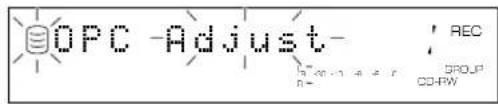
When the adjustment has been completed, and the message above turns off on the display, copying automatically starts.
- The progress of elapsed time for the track being copied may vary by the data processing inside this unit.
6. When copying has been completed, the operation of the HDD and the CD automatically stops. To cancel copying, press .
Caution
- If copying is canceled by being pressed, only the data that has been recorded on the CD-R or CD-RW disc before the cancellation remains on the disc. When "Digital Move" (see page 30) is selected, the original data on the HDD which has already been copied to a CD-R or CD-RW disc will be deleted.
7. The TOC indicator flashes if the copied data contains the title data (disc title etc.) which can be copied to a CD-R or CD-RW disc. To copy the titles, perform finalization before opening the disc tray (See page 19).
"TEXT Save?" appears on the display if the disc tray has been attempted to be opened by pressing (OPEN/CLOSE on the remote control). To copy the title, perform finalization. To open the disc tray, press (OPEN/CLOSE on the remote control) again.
Caution
- If the disc tray is opened without performing finalization, the title data is not copied to a CD-R or CD-RW disc.
Note
- In the full auto-synchronized copy mode, finalization is performed automatically.
Duplication of a CD
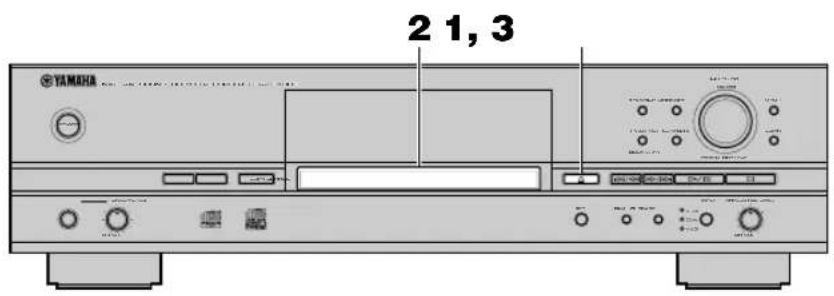
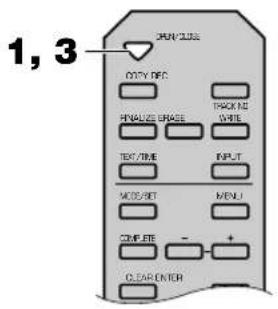
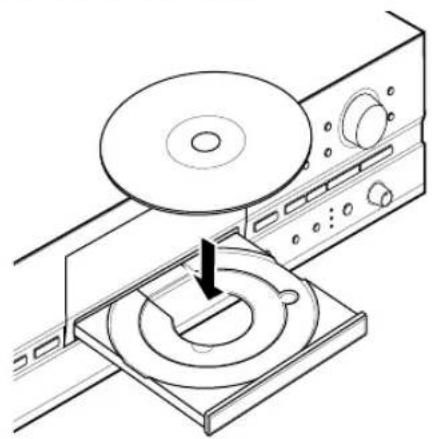
- Press (OPEN/CLOSE on the remote control) to open the disc tray.
- Load the CD to duplicate on the disc tray.
Place the CD correctly aligned in the recessed area of the disc tray with its label side facing up.
When reading about the disc information has been completed, the following message appears on the display, and this unit becomes ready for duplicating operation.
- Press (OPEN/CLOSE on the remote control) to close the disc tray.
Note
The disc tray can be also closed by pressing the front edge of the disc tray gently. If the disc tray is closed in this way, this unit starts playback of the CD. Press to stop playback.
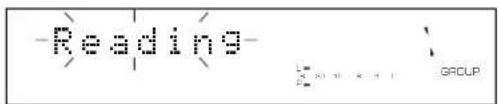
This unit starts reading the disc information (type and capacity of the disc) when the disc is loaded. It takes approximately 10 to 15 seconds to complete reading.
The following message appears on the display during reading.
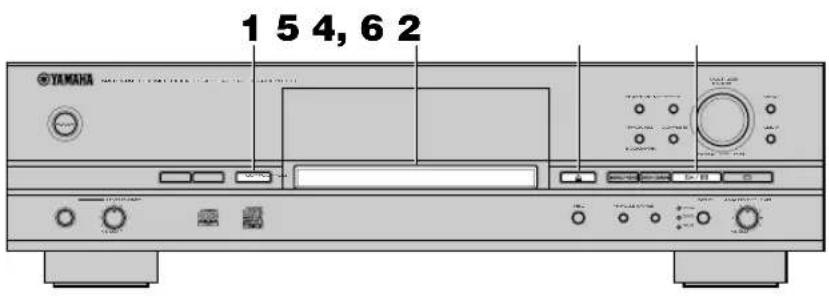
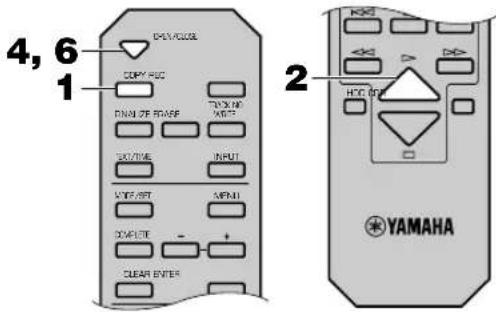
1. Press COPY three times.
The following message appears on the display, and this unit enters the copy standby mode. Duplication has not been started yet at this stage.
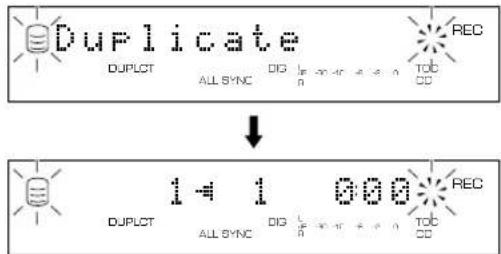
2. Start copying from the CD onto the HDD.
Press on the remote control) to start copying. The copying conditions are as follows:
- Copy Method: "Digital Copy"
- Copy Level: 0dB
- Copy Speed: "Best Effort"
See page 30 for further details about the copying conditions described above.
Cautions
- If copying is canceled by being pressed, even the data that has been copied before cancellation does not remain on the HDD.
- If a track is copy protected by the SCMS standard, that track cannot be copied onto the HDD.
3. When copying from the CD onto the HDD has been completed, the following message appears on the display.
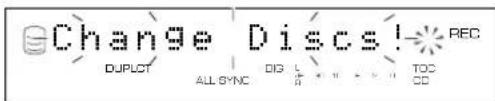
4. Press (OPEN/CLOSE on the remote control) to open the disc tray.
5. Load a new CD-R or CD-RW disc on the disc tray.
Caution
- New recordings cannot be added to a CD-R or CD-RW disc on which some tracks have been previously recorded.
6. Press (OPEN/CLOSE on the remote control) to close the disc tray.
When the disc tray is closed, this unit starts reading the disc information. When reading has been completed, this unit automatically starts copying from the HDD onto the CD.
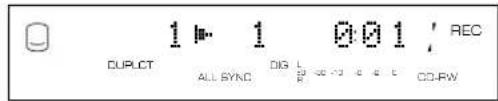
Notes
- Duplication cannot be correctly made for a CD-R or CD-RW disc that does not support high-speed copying. In this case, make a copy onto the HDD first, and then copy the copied data onto a disc by "Digital Move" at 2x or 1x speed. (See page 30.)
After reading the disc information has been completed, OPC may start on the loaded disc depending on its recording condition.
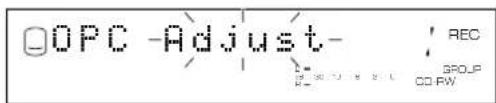
When the adjustment has been completed, and the above message turns off on the display, this unit automatically starts copying. The copying conditions are as follows:
- Copy Method: "Digital Move"
- Copy Level: 0dB
- Copy Speed: "Best Effort"
See page 30 for further details about the copying conditions described above.
Caution
- If copying is canceled by being pressed, only the data that has been recorded on the CD-R or CD-RW disc before cancellation remains on the disc. The original data on the HDD being copied will be deleted.
7. When copying has been completed, the HDD operation automatically stops, and finalization of the CD-R or CD-RW disc starts.
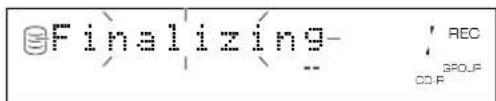
After finalization has been completed, this unit enters the stop mode.
Selecting a Disc to Be Copied on

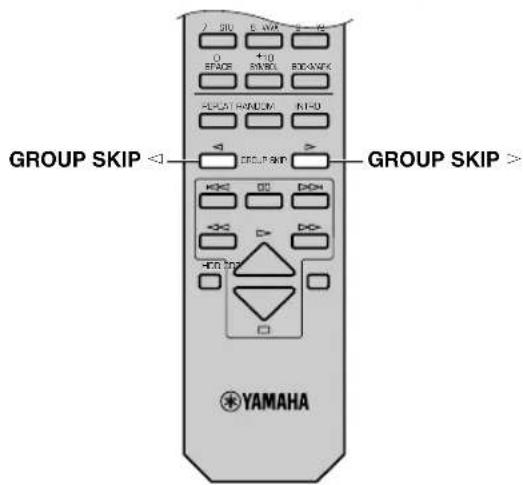
When the copying onto the HDD, you can select the disc on the HDD to make copy on. Rotate the MULTI JOG knob (press GROUP SKIP < / GROUP SKIP on the remote control) to select the disc number to make the copy on while this unit is in the copy standby mode.
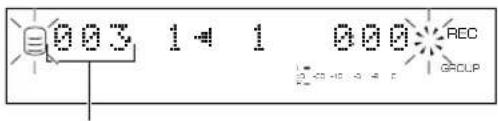
Disc number to make the copy on
Notes
- If the disc number is not selected, copying will be made on the disc with the smallest number available on the HDD.
- When a disc number with recorded tracks is selected, new recordings will be added to the end of the last track that has been previously recorded.
Setting the Copying Mode
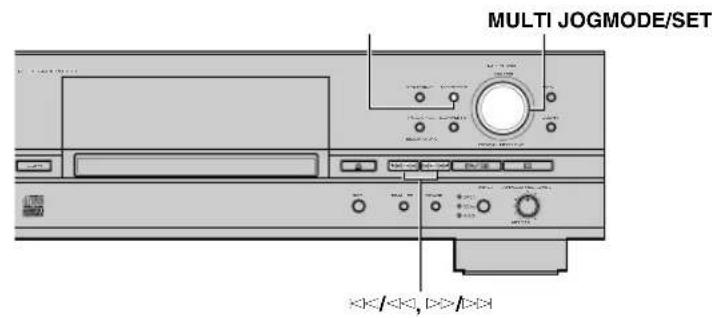
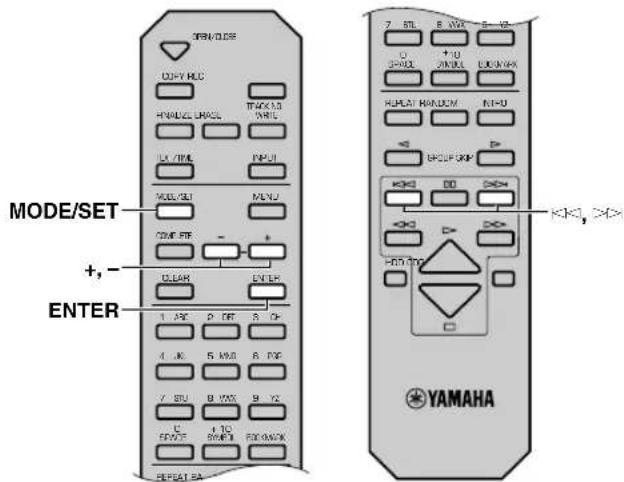
This unit provides various copying modes. Choose the one that suits your needs.
- Press MODE/SET while this unit is in the copy standby mode.
You can select the copying mode.
- Rotate the MULTI JOG knob (press + / - on the remote control) to select the copying mode.
Choose one of the modes listed below.
All Synchro (All-synchronized copying mode)
This mode copies all of the material from a single audio source at the same time as the source programs are being played. Track markers are automatically placed between the tracks being recorded.
■Multi Sync. (Multi-synchronized copying mode)
This mode copies the set number of tracks at the same time as the source programs are being played. The number of tracks to be recorded can be set in the range of 1 to 99 tracks. This mode is convenient to record a mix of tracks from different sources.
■Full Auto (Full auto-synchronized copying mode)
(when recording on a CD-R or CD-RW disc only) This mode automatically performs finalization after all synchronized copying is complete. A CD-R disc can be played as a CD as soon as finalization has been completed.
- Press the MULTI JOG knob (ENTER on the remote control) to confirm the copying mode selected. If "Multi Sync." is confirmed, follow the steps described below to make further settings.
■ When "Multi Sync." is confirmed
The following message appears on the display, and you can enter the desired number of tracks to be copied.
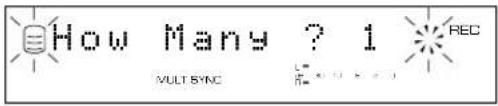
- Select the number of tracks by rotating the MULTI JOG knob (pressing +/- on the remote control).
The number can be selected in the 1 to 99 tracks range. - Press the MULTI JOG knob (ENTER on the remote control) to confirm the number selected.
-
Specify the group or the track to start copying from.
-
When copying from a CD onto the HDD, select the track to start copying from by pressing (\left\langle \begin{array}{lll} \text{串串串串串串串串串串串串串串串串串串串串串串串串串串串串串串串串串串串串串串串串串串串串串串串串串串串串串串串串串串串串串串串串串串串串串串串串串串串串串串串串串串串串串串串串串串串串串串串串串串串串
- When copying from the HDD onto a CD-R or CD-RW disc, select the group or the track to start copying from by rotating the MULTI JOG knob. While the GROUP indicator is lit, the group number can be selected. While the TRACK indicator is lit, the track number can be selected. Switch the indicator to being lit by pressing the MULTI JOG knob.
Notes
- If the group or track number is not specified, all tracks will be copied in the all-synchronized copying mode.
- When duplicating a CD, the copying mode cannot be selected. At duplication, copying from a CD onto the HDD is performed in the all-synchronized copying mode. On the other hand, copying from the HDD onto a CD is performed in the full auto-synchronized copying mode.
Copying Menu Setting
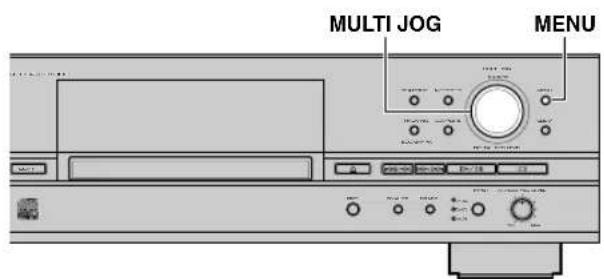
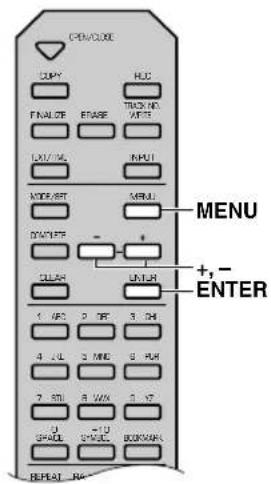
You can make detailed settings on the menu for your copying. Follow the steps described below for menu setting.
- Press MENU while this unit is in the copy standby mode.
You can start setting the copying menu. - Select the menu item to be set by rotating the MULTI JOG knob (pressing + / - on the remote control).
The copying menu contains 3 items as follows:
- Copy Method (setting the copying method)
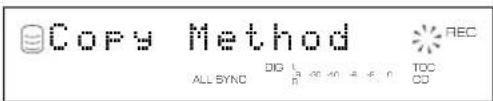
- Copy Level (setting the copying level)

- Copy Speed (setting the copying speed)

-
Press the MULTI JOG knob (ENTER on the remote control) to confirm the menu item to be adjusted.
-
Adjust the parameter for each item by rotating the MULTI JOG knob (pressing +/- on the remote control).
See the further steps for detailed instructions on parameter adjustment for each item.
- Press the MULTI JOG knob (ENTER on the remote control) to confirm the setting when adjustment has been completed.
- Press MENU to close the menu.
This unit returns to the copy standby mode.
Note
- The settings for "Copy Method" and "Copy Speed" are stored in the memory and apply to future copying.
■Copy Method
Setting of the copying method. Copying may fail if the setting for "Copy Method" is not correctly made.
Initial setting: Digital Copy
Digital Copy
This method always makes digital copies. Copying is not possible if the tracks are copy protected by the SCMS standard (see page 11).
Auto Dig/Anlg
Digital and analog copying are automatically switched depending on the track. If digital copying is prohibited by the SCMS standard (see page 11), an analog copy is made. For those tracks that can be digitally copied, a digital copy is made.
Analog Copy
This method always makes analog copies.
Initial setting: Analog Copy
Analog Copy
This method always makes analog copies.
Digital Move
The data is moved from the HDD to the CD. Therefore, the track or group data will be deleted from the HDD after they have been moved to the CD-R or CD-RW disc by this method.
Auto Dig/Anlg
Digital and analog copying are automatically switched depending on the track. If digital copying is prohibited by the SCMS standard (see page 11), an analog copy is made. For those tracks that can be digitally copied, a digital copy is made.
Note
- In analog copying, the data may be copied at a lower sound level.
Copy Level
Setting of the sound level for copying. Sound level adjustment is not normally necessary. However it is possible to adjust the copying sound level to suit you needs.
The following message appears on the display when "Copy Level" setting is confirmed in step 3 for "Copying Menu Setting" on page 29.
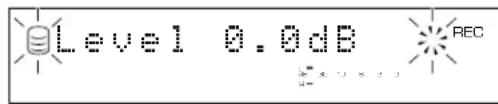
- Adjust the copying sound level by rotating the MULTI JOG knob (pressing +/- on the remote control).
Adjustment is possible in the -12dB to +12dB range by 0.4dB steps. When the level is set to a value other than 0dB, the VAR indicator lights on the display.
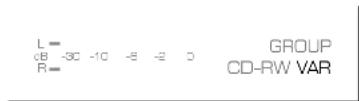
2. Press the MULTI JOG knob (ENTER on the remote control) to confirm the copying level setting.
Notes
- Level adjustment is not possible during copying.
- If the red part on the peak level meter lights at the loudest sound levels, stop copying to adjust the copying level, and then resume copying.
■Copy Speed
Setting of the copying speed.
Initial setting: Best Effort
Best Effort
Copying is done at the highest speed possible depending on the "Copy Method" setting and the disc condition.
- When "Digital Copy" is selected: 10x speed
- When "Auto Dig/Anlg" is selected: 2x speed
- When "Digital Move" is selected: 8x speed (for a CD-R disc), 4x speed (for a CD-RW disc)
- When "Analog Copy" is selected: 2x speed
1x Copy
Copying is always made at 1x speed despite the "Copy Method" setting.
2x Copy
Copying is always made at 2x speed despite the "Copy Method" setting.
Notes
- If there are scratches or dust on the disc, the copy speed may drop automatically even when "Best Effort" is selected.
- Select "2x Copy" or "1x Copy" when copying onto a CD-R or CD-RW disc that does not support high-speed copying.
ALBUM EDITING
You can select the desired tracks from among the ones recorded on the HDD (or a CD) and store them as an album in this unit's memory. You can also edit the album afterwards. The following steps describe how to edit the album.
For details about each editing menu item, refer to the descriptions on the following pages corresponding to your need.
To create a new album .Album New" (page 32)
To edit an already created album. "Edit Stored" (page 32)
To copy other group as an album. "Album Copy" (page 33)
To change the album number .Album Rename (page 34)
To delete an album. "Album Delete" (page 34)
To eliminate unused album numbers .Album Pack" (page 35)
To assign an album title . "Album Title" (page 35)
To place a bookmark . "Bookmark" (page 36)
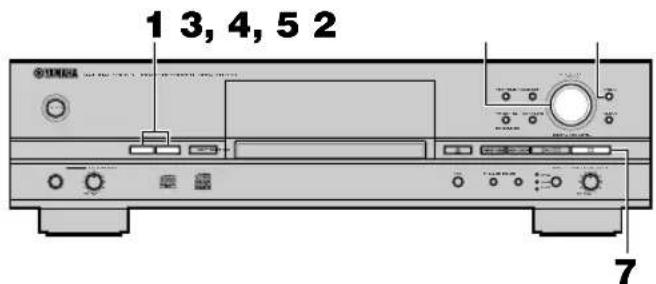
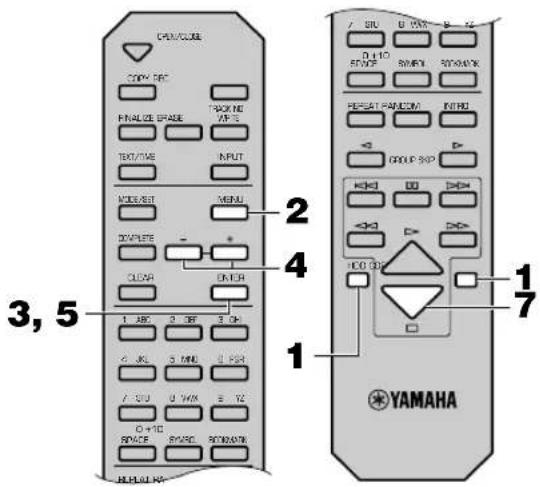
- Press HDD or CDR to select the drive to be edited.
- Menu appears on the display if MENU is pressed when this unit is in the stop mode.
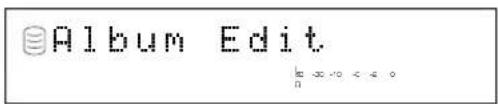
-
Press the MULTI JOG knob (ENTER on the remote control) to display the editing menu item selection.
-
Select the editing menu item to be set by rotating the MULTI JOG knob (pressing +/- on the remote control).
The followings are the album editing menu items.
- Album New
- Edit Stored
- Album Copy (only when the HDD is selected)
- Album Rename (only when the HDD is selected)
- Album Delete
- Album Pack (only when the HDD is selected)
-
Album Title (only when the HDD is selected)
-
Press the MULTI JOG knob (ENTER on the remote control) to confirm the menu item before editing.
- Start editing by following the setting steps (pages 32-36) for each item.
Notes
- If MENU is pressed during editing, entry of the selection becomes ineffective, and the display changes to the previous one.
-
If is pressed during editing, all entry of the selection becomes ineffective, and the display returns to the one when this unit was in the stop mode.
-
Press when all editing has been completed.
The display changes to the one when this unit was in the stop mode.
Album New
You can create a new album by selecting the desired tracks from among the ones recorded on the HDD or a CD.
Editing subject: HDD or CD
- Select and confirm "Album New" in step 4 for "ALBUM EDITING" on page 31.
The following message appears on the display. (The following display is the one when the HDD is being edited.)
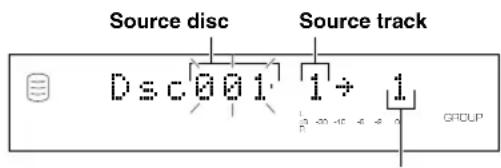
Track in the album to be created
The number of the source disc flashes. (This indication does not appear when a CD is selected for editing.)
- Select the source disc by rotating the MULTI JOG knob (pressing + / - on the remote control).
- Press the MULTI JOG knob (ENTER on the remote control) to confirm the source disc.
The number of the source track flashes.
Note
- Steps 2 and 3 are not necessary when a CD is selected for editing.
- Select the source track by rotating the MULTI JOG knob (pressing +/- on the remote control).
- Press the MULTI JOG knob (ENTER on the remote control) to confirm the source track.
The track number of the album being created will be advanced to the next, and the display returns to the one shown in step 1. Repeat steps 2-5 to select other discs and tracks.
Note
- If a wrong selection is confirmed, press CLEAR to cancel it, and select and confirm the correct entry.
- Press COMPLETE.
A new album is created with the selected tracks recorded on it.
Note
- If the new album is created on the CDR drive that already has the album, the newly created album is overwritten onto the previous album.
Edit Stored
You can add tracks to or delete tracks from an already created album.
Editing subject: HDD or CD
- Select and confirm "Edit Stored" in step 4 for "ALBUM EDITING" on page 31.
The following message appears on the display. (The following display is the one when the HDD is being edited.)
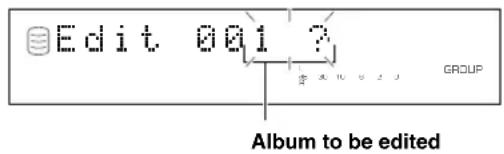
- Select the album to be edited by rotating the MULTI JOG knob (pressing +/- on the remote control).
- Press the MULTI JOG knob (ENTER on the remote control) to confirm the album to be edited.
The following message appears on the display. (The following display is the one when the HDD is selected for editing.)
Disc that contains the tracks to be added (only when the HDD is selected) Track to be added
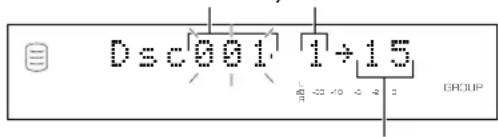
Track to be added or deleted
Note
- Steps 2 and 3 are not necessary when a CD is selected for editing.
■When adding new tracks
- Select the track to be added by pressing | | or
- Select the disc that contains the track to be added by rotating the MULTI JOG knob (pressing +/- on the remote control).
- Press the MULTI JOG knob (ENTER on the remote control) to confirm the disc that contains the track to be added.
Note
-
Steps 2 and 3 are not necessary when a CD is selected for editing.
-
Select the track to be added by rotating the MULTI JOG knob (pressing +/- on the remote control).
- Press the MULTI JOG knob (ENTER on the remote control) to confirm the track to be added.
- When continuing to add tracks to the album, repeat steps 1-5.
- Press COMPLETE. The selected tracks are added to the album.
When deleting tracks from the album
- Select the track to be deleted by pressing . . . . . . . . . . . . . . . or
- Press CLEAR.
Note
-
The tracks following the deleted track will automatically be down-numbered.
-
When continuing to delete tracks from the album, repeat steps 1 and 2.
- Press COMPLETE. The selected tracks are deleted from the album.
Album Copy
You can copy the entire disc, album, or bookmark in a new album.
Editing subject: HDD only
- Select and confirm "Album Copy" in step 4 for "ALBUM EDITING" on page 31.
The following message appears on the display.
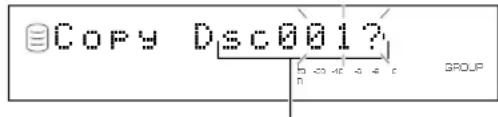
Group to be copied from
The number of the group to be copied from flashes.
- Select the group to be copied from by rotating the MULTI JOG knob (pressing + / - on the remote control).
The group to be copied from switches in the order of "disc" "album" "bookmark".
- Press the MULTI JOG knob (ENTER on the remote control) to confirm the group to be copied from.
The display scrolls to the left to indicate the number of the group to be copied from and the number of the album to be copied to.
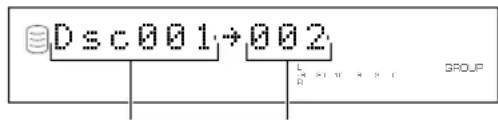
Group to be copied from Album to be copied to
Notes
- The album to be copied on is assigned the smallest available number.
-
If a wrong selection is confirmed, press CLEAR to cancel it. Select and confirm the correct entry.
-
Press COMPLETE.
The selected group is copied to a new album.
Album Rename
You can move the album and assign a new number.
Editing subject: HDD only
- Select and confirm "Album Rename" in step 4 for "ALBUM EDITING" on page 31.
The following message appears on the display.
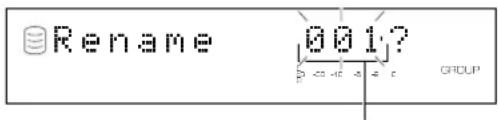
Album to be moved
The number of the album to be moved flashes.
- Select the album to be moved by rotating the MULTI JOG knob (pressing + / - on the remote control).
- Press the MULTI JOG knob (ENTER on the remote control) to confirm the album to be moved.
The display scrolls to the left to indicate the number of the album to be moved and the new album number.
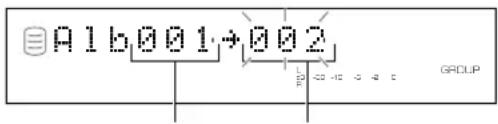
Album to be moved New album number
- Select the new album number by rotating the MULTI JOG knob (pressing +/- on the remote control).
- Press the MULTI JOG knob (ENTER on the remote control) to confirm the new album number.
Note
- If a wrong selection is confirmed, press CLEAR to cancel it. Then, select again and confirm the correct entry.
- Press COMPLETE.
The selected album has been moved and assigned a new number.
Notes
- If the selected new album number is already in use, the albums following this renumbered album will be automatically up-numbered by one. However, if there is any unused album number, only the albums up to that number will be up-numbered.
- The original number of the album that has been renumbered will be available for future use.
Album Delete
You can delete an existing album.
Editing subject: HDD or CD
- Select and confirm "Album Delete" in step 4 for "ALBUM EDITING" on page 31.
The following message appears on the display. (when HDD is selected)
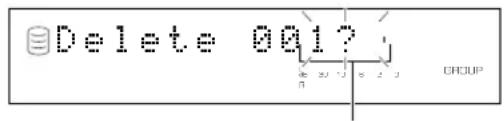
Album to be deleted
The number of the album to be deleted flashes. (This indication does not appear when CD is selected.)
- Select the album to be deleted by rotating the MULTI JOG knob (pressing + / - on the remote control).
- Press the MULTI JOG knob (ENTER on the remote control) to confirm the album to be deleted.
Notes
- Steps 2 and 3 are not necessary when CD is selected for editing.
-
If a wrong selection is confirmed, press CLEAR to cancel it. Then, select again and confirm the correct entry.
-
Press COMPLETE.
The selected album has been deleted.
Notes
- When HDD is selected for editing, the number of the deleted album will be available for future use.
- When CD is selected, the information about the created album with the recorded tracks on the CD will be erased if the disc tray is opened, or the power of this unit is turned off.
Album Pack
You can re-organize the album numbers by eliminating unused album numbers that have been created by changing album numbers or deleting albums.
Editing subject: HDD
1. Select and confirm "Album Pack" in step 4 for "ALBUM EDITING" on page 31.
The following message appears on the display.
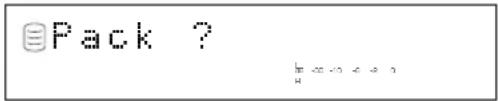
2. Press COMPLETE.
The album numbers are re-organized without unused album numbers.
Before "Album Pack" is performed
| 1 | 3 | 4 | 6 | |||
| 1 | 2 | 3 | 4 | 5 | 6 |
After "Album Pack" has been performed (Unused album numbers have been eliminated.)
: Unused album numbers
Album Title
You can assign a title to a created album.
Editing subject: HDD only
1. Select and confirm "Album Title" in step 4 for "ALBUM EDITING" on page 31.
The following message appears on the display.
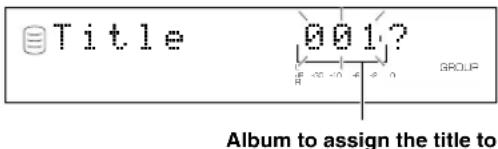
The number of the album to assign a title to flashes.
- Select the album to assign a title to by rotating the MULTI JOG knob (pressing +/- on the remote control).
3. Press the MULTI JOG knob (ENTER on the remote control) to confirm the album to assign a title to.
The following message appears on the display.
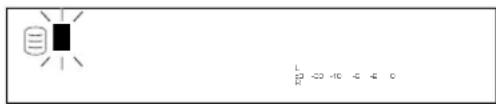
The cursor flashes.
Note
- If the selected album already has a title, the title appears on the display.
4. Enter the title characters by using the MULTI JOG knob or the alphabetical/numeric buttons on the remote control.
■Entering the title characters by using the MULTI JOG knob
1. Rotate the MULTI JOG knob clockwise.
When the MULTI JOG knob is rotated clockwise, characters appear in the order of alphabetical capital letters, alphabetical lower case letters, numbers, and symbols. Select the character you wish to use for the title.
2. Press the MULTI JOG knob to confirm the selected character.
The cursor moves to the next space. Repeat steps 1 and 2 until the title is complete. A title can contain up to 32 characters.
3. Press COMPLETE when all the characters have been entered.
The title is assigned to the selected album.
■Entering the title characters by using the alphabetical/numeric buttons on the remote control
1. Select the character to be used for the title by using the alphabetical/numeric buttons on the remote control.
Alphabetical capital letters, alphabetical lower case letters, and numbers switch each time the buttons are pressed. To create a space, press SPACE. To use a symbol, press SYMBOL to select the desired symbol.
2. Select the next character by pressing one of the alphabetical/numeric buttons.
The cursor automatically moves to the next space. When the same button is used, press >> to move the cursor to the next space.
ALBUM EDITING
3. Press COMPLETE when all the characters have been entered.
The title is assigned to the selected album.
Note
- If a new character is entered on the existing character, the new character is inserted in front of the existing character.
Correcting the characters
Move the cursor to the character to be corrected by pressing 100 or 100 / 100 (or on the remote control). Press CLEAR to cancel the character before a new character is entered. Then enter and confirm the new character.
Bookmark
While playing a track that has been recorded on the HDD of this unit, you can place a bookmark temporarily on the track.Bookmark is convenient for immediate playback of the desired track and for creating a new album since the tracks with bookmarks are stored in a playlist.
To place a bookmark
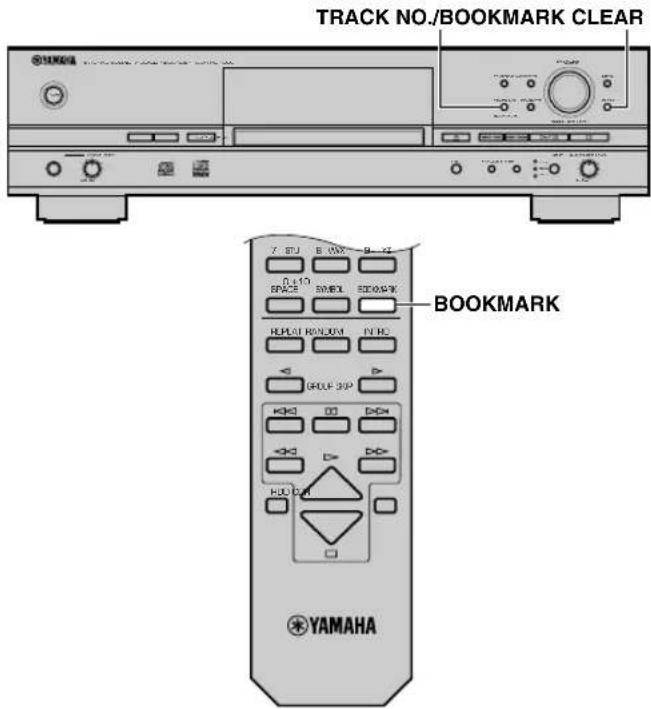
Press TRACK NO./BOOKMARK (BOOKMARK on the remote control) to place a bookmark during playback of the track. The BKMARK indicator lights on the display.

Notes
- When the track with a bookmark is selected, the BKMARK indicator lights on the display regardless of whether it is during playback or stopped.
- Only one list of tracks with bookmarks can be stored. If you wish to have more than one list, copy the playlist in the album. (See page 33.)
To play the track with a bookmark
See page 58.
■To cancel a bookmark
Press TRACK NO./BOOKMARK (BOOKMARK on the remote control) to cancel the bookmark during playback of the track. The BKMARK indicator turns off on the display.
■To cancel all bookmarks
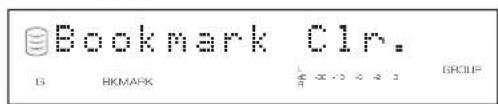
Press CLEAR as pressing TRACK NO./BOOKMARK on the front panel while this unit is in the stop mode. The following message appears on the display, and all bookmarks are canceled.
TRACK EDITING
You can do various editing operations on the tracks that have been recorded on the HDD. The following steps describe how to edit a track.
For details about each editing menu item, refer to the descriptions on the following pages corresponding to your need.
To change a track number. "Track Rename" (page 38)
To adjust the beginning of a track . "Track Adjust" (page 38)
To erase a track. "Track Erase" (page 39)
To erase the part of a track . "Part Erase" (page 40)
To combine a series of tracks . . . . Track Combine" (page 41)
To divide one track into two . "Track Divide" (page 42)
To eliminate unused track numbers. "Track Pack" (page 43)
To add fade-in to the beginning of a track. "Add Fade In" (page 43)
To add fade-out to the end of a track . Add Fade Out" (page 44)
To assign a track title. "Track Title" (page 45)
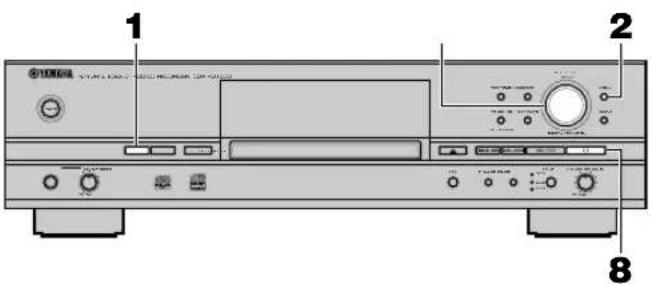
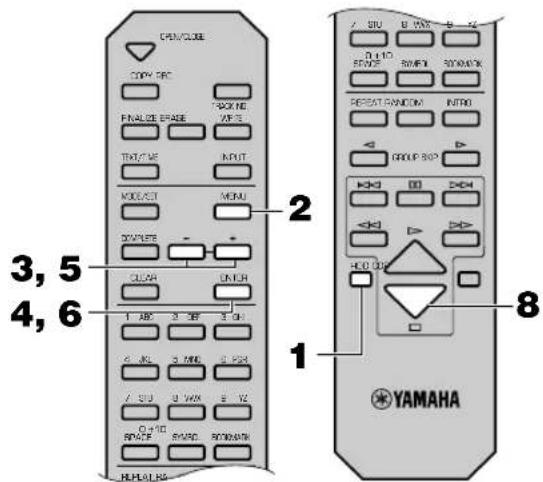
- Press HDD to select the HDD.
- Press MENU to display the menu item selection while this unit is in the stop mode.
- Select "Track Edit" by rotating the MULTI JOG knob (pressing +/- on the remote control).
目
Track Edit
[\frac{1}{n}\infty \rightarrow 0]
- Press the MULTI JOG knob (Enter, on the remote control) to display the editing menu item selection.
- Select the menu item by rotating the MULTI JOG knob (pressing +/- on the remote control).
The followings are the track editing menu items:
Track Rename
- Track Adjust
Track Erase
Part Erase
Track Combine
Track Divide
Track Pack
- Add Fade In
- Add Fade Out
Track Title
- Press the MULTI JOG knob (ENTER on the remote control) to confirm the menu item before editing.
- Start editing by following the setting details (pages 38-45) for each menu item.
Notes
- If MENU is pressed during editing, entry of the selection becomes ineffective, and the display returns to the previous one.
-
If is pressed during editing, all entry of the selection becomes ineffective, and the display returns to the one when this unit was in the stop mode.
-
Press when all editing has been completed.
The display changes to the one when this unit was in the stop mode.
Track Rename
You can move a track and assign a new number.
- Select and confirm "Track Rename" in step 5 for "TRACK EDITING" on page 37.
The following message appears on the display.
Disc that contains the track to be moved
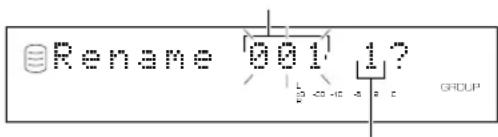
Track to be moved
The disc number that contains the track to be moved flashes.
- Select the disc that contains the track to be moved by rotating the MULTI JOG knob (pressing +/- on the remote control).
- Press the MULTI JOG knob (ENTER on the remote control) to confirm the disc that contains the track to be moved.
The number of the track to be moved flashes.
- Select the track to be moved by rotating the MULTI JOG knob (pressing +/- on the remote control).
- Press the MULTI JOG knob (ENTER on the remote control) to confirm the track to be moved.
The display scrolls to the left to indicate the disc number that contains the track to be moved, the existing track number, and the new track number.
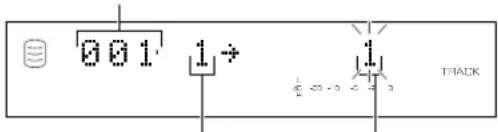
Disc that contains the track to be moved
Existing track number New track number
- Select the new track number by rotating the MULTI JOG knob (pressing +/- on the remote control).
- Press the MULTI JOG knob (ENTER on the remote control) to confirm the new track number.
Note
- If a wrong selection is confirmed, press CLEAR to cancel it. Then, select again and confirm the correct entry.
- Press COMPLETE.
The selected track is renumbered.
Notes
- If the selected new track number is already in use, the tracks following this renumbered track will be automatically up-numbered by one. However, if there is any unused track number, only the tracks up to that number will be up-numbered.
- The original number of the track that has been renumbered will be available for future use.
Track Adjust
You can change the beginning of the track to either earlier or later.
- Select and confirm "Track Adjust" in step 5 for "TRACK EDITING" on page 37.
The following message appears on the display.
Disc that contains the track to be adjusted
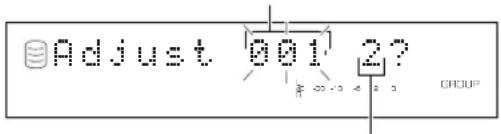
Track to be adjusted
The disc number that contains the track to be adjusted flashes.
- Select the disc that contains the track to be adjusted by rotating the MULTI JOG knob (pressing +/- on the remote control).
- Press the MULTI JOG knob (ENTER on the remote control) to confirm the disc that contains the track to be adjusted.
The number of the track to be adjusted flashes.
- Select the track to be adjusted by rotating the MULTI JOG knob (pressing + / - on the remote control).
- Press the MULTI JOG knob (ENTER on the remote control) to confirm the track to be adjusted.
Note
- If there is no track before the track that is selected and confirmed in steps 4 and 5, "No Previous" appears on the display, and adjustment is not possible for this track.
- Press on the remote control) to start playback of the track to be adjusted.
"Adjust" and the indication of the time length to be adjusted alternately appear on the display.
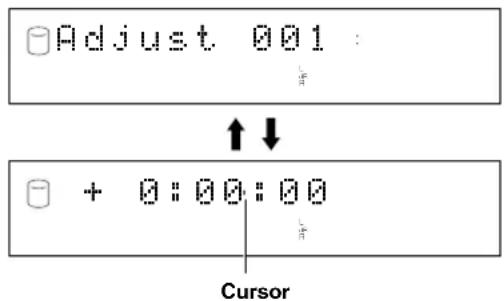
7. Adjust the time length to change the beginning of the track by rotating the MULTI JOG knob (pressing +/- on the remote control).
The time length can be adjusted by "minute: second: frame". (Frame is the unit used for values smaller than 1 second. 75 frames make 1 second.) Move the cursor on the side of the second indication to the part to be adjusted by pressing ( \left| \left| \left| \left| \left| \left| \left| \left| \left| \left| \left| \left| \left| \left| \left| \left| \left| \left| \left| \left| \left| \left| \left| \left| \left| \left| \left| \left| \left| \left| \left| \left| \left| \left| | \left| \left| \left| \left| \left| \left| \left| \left| \left| \left| \left| \left| \left| \left| \left| \left| \left| \left| \left| \left| \left| \left| \left| \left| \left| \left| \left| \left| \left| \left| \left| \left| \left| 1 = 1 = 1 = 1 = 1 = 1 = 1 = 1 = 1 = 1 = 1 = 1 = 1 = 1 = 1 = 1 = 1 = 1 = 1 = 1 = 1 = 1 = 1 = 1 = 1 = 1 = 1 = 1 = 1 = 1 = 1 = 1 = 1 = 1 =
8. Press the MULTI JOG knob (ENTER on the remote control) to search for the temporarily changed beginning point of the track according to the time length setting made in step 7 and start repeated playback from the new beginning point to the end of the disc.
Go to the next step if the new beginning point is set appropriately. If not, continue the adjustment by repeating steps 7 and 8.
Notes
- Press CLEAR to cancel the new setting and return to the original setting for the track beginning point.
- If a wrong selection is confirmed, press CLEAR to cancel it. Then, select again and confirm the correct entry.
9. Press COMPLETE.
The new track beginning point is set.
Before "Track Adjust" is performed
| 1 | 2 |
| 1 | -2 |
After "Track Adjust" has been performed (The beginning of track 2 is adjusted earlier.)
Notes
- If the adjusted track includes a part that cannot be copied digitally before adjusting, the adjusted track itself cannot be copied digitally either.
- When the emphasis status of the track to be adjusted is different from that of the previous track, the emphasis status of the track to be adjusted takes precedence over that of the previous track.
Track Erase
You can erase a selected track.
1. Select and confirm "Track Erase" in step 5 for "TRACK EDITING" on page 37.
The following message appears on the display.
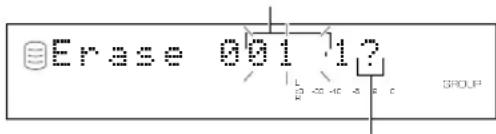
Disc that contains the track to be erased
Track to be erased
The disc number that contains the track to be erased flashes.
2. Select the disc that contains the track to be erased by rotating the MULTI JOG knob (pressing +/- on the remote control).
3. Press the MULTI JOG knob (ENTER on the remote control) to confirm the disc that contains the track to be erased.
The number of the track to be erased flashes.
4. Select the track to be erased by rotating the MULTI JOG knob (pressing +/- on the remote control).
5. Press the MULTI JOG knob (ENTER on the remote control) to confirm the track to be erased.
Notes
- If a wrong selection is confirmed, press CLEAR to cancel it. Then, select again and confirm the correct entry.
- To check the track to be erased, press 0 - 1 on the remote control). This unit starts to play the track to be erased repeatedly.
6. Press COMPLETE.
The selected track is erased.
Note
- The number of the track that has been erased will be available for future use.
Part Erase
You can erase part of a selected track.
- Select and confirm "Part Erase" in step 5 for "TRACK EDITING" on page 37.
The following message appears on the display.
Disc that contains the track to be partially erased
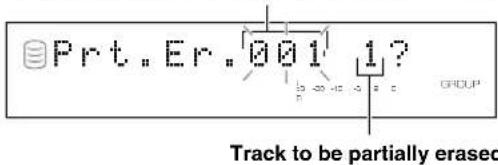
The disc number that contains the track to be partially erased flashes.
- Select the disc that contains the track to be partially erased by rotating the MULTI JOG knob (pressing +/- on the remote control).
- Press the MULTI JOG knob (ENTER on the remote control) to confirm the disc that contains the track to be partially erased.
The number of the track to be partially erased flashes.
- Select the track to be partially erased by rotating the MULTI JOG knob (pressing +/- on the remote control).
- Press the MULTI JOG knob (ENTER on the remote control) to confirm the track to be partially erased.
Setting the beginning point of a partial erase
1. Press on the remote control) to start playback of the track to be partially erased.
"Str.Pt." and the beginning point of a partial erase alternately appear on the display.
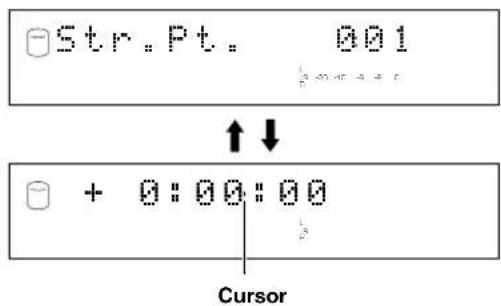
- Set the beginning point of the partial erase by rotating the MULTI JOG knob (pressing + / - on the remote control).
The beginning point of a partial erase can be set by "minute: second: frame". Move the cursor on the side of the second indication to the point to be set by pressing / < or / >
- Press the MULTI JOG knob (ENTER on the remote control) to search for the point that is several seconds before the beginning point of the partial erase set in step 2. Then the passage between the searched point and the beginning point set for the partial erase is for repeatedly played.
Go to the next step, if the beginning point of the partial erase is set appropriately. If not, continue setting by repeating steps 2 and 3.
- Press MODE/SET to confirm the beginning point of the partial erase.
Setting the ending point of a partial erase
"End.Pt." and the ending point of the partial erase alternately appear on the display after step 4 for "Setting the beginning point of a partial erase".
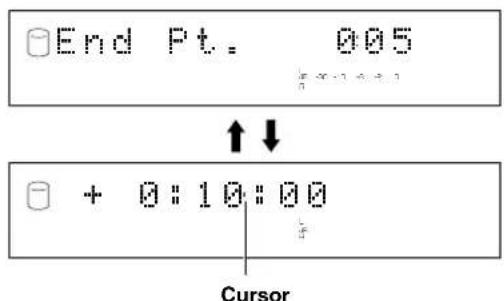
Note
-
The ending point of the partial erase is temporarily set to a point that is 10 seconds after the beginning point of the partial erase.
-
Set the ending point of the partial erase by rotating the MULTI JOG knob (pressing +/- on the remote control).
The ending point of the partial erase can be set by "minute: second: frame". Move the cursor on the side of the second indication to the point to be set by pressing 100 or 100 .
- Press the MULTI JOG knob (ENTER on the remote control) to search for the ending point of the partial erase set in step 1. Then the passage between the ending point and a point that is several seconds after the ending point is repeatedly played.
Go to the next step, if the ending point of the partial erase is set appropriately. If not, continue setting by repeating steps 1 and 2.
- Press MODE/SET to confirm the ending point of the partial erase.
"Prt.Er." and "Pt.Fix" alternately appear on the display.
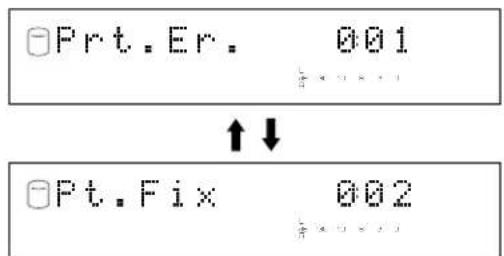
When the ending point is confirmed, this unit repeatedly plays the passage between a point that is approximately 5 seconds before the beginning point and the point that is approximately 5 seconds after the ending point of the partial erase.
Caution
- During the playback of the passage mentioned above, the sound may be missing at the joint between the passage before the beginning point and the passage after the ending point. However, the partially erased track is played properly after confirming the part to be erased in step 4.
To change the ending point, press CLEAR once to return to the setting display for the ending point.
To change the beginning point, press CLEAR twice to return to the setting display for the beginning point.
4. Press COMPLETE.
The selected part is erased.
Caution
- The minimum length of a track is 4 seconds. It is not possible to create a track that is shorter than 4 seconds by a partial erase.
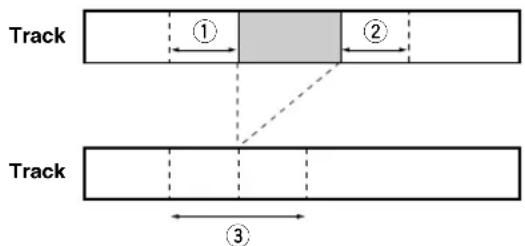
Part to be erased
①Repeated passage when setting the beginning point
② Repeated passage when setting the ending point
③ Repeated passage after confirming the ending point
Track Combine
You can combine a series of tracks into one.
1. Select and confirm "Track Combine" in step 5 for "TRACK EDITING" on page 37.
The following message appears on the display.
Disc that contains the first track to be combined
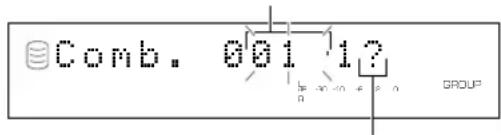
Track to be the first in the combination
The disc number that contains the first track to be combined flashes.
2. Select the disc that contains the first track to be combined by rotating the MULTI JOG knob (pressing + / - on the remote control).
3. Press the MULTI JOG knob (ENTER on the remote control) to confirm the disc that contains the first track to be combined.
The number of the track to be the first in the combination flashes.
- Select the track to be the first in the combination by rotating the MULTI JOG knob (pressing +/- on the remote control).
5. Press the MULTI JOG knob (ENTER on the remote control) to confirm the track to be the first in the combination.
The display scrolls to the left to indicate the disc number that contains the first track to be combined, the track number to be the first in the combination, and the track number to be the last in the combination.
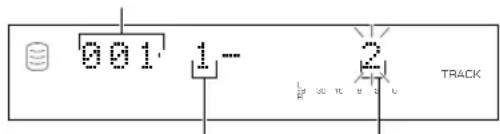
Disc that contains the first track in the combination
Track to be the first in the combination
Track to be the last in the combination
- Select the track to be the last in the combination by rotating the MULTI JOG knob (pressing + / - on the remote control).
- Press the MULTI JOG knob (ENTER on the remote control) to confirm the track to be the last in the combination.
- Press COMPLETE.
The two selected tracks and all those between are combined into one track.
Notes
- When combining a series of tracks, the selected track numbers following the selected first track will be available for future use.
- The track title for the first track is effective for the combined track.
- If there is any track that cannot be copied digitally among the tracks to be combined, the combined track cannot be copied digitally either.
- When tracks with different emphasis status have been combined, the emphasis status of the first track becomes effective for the combined track.
Track Divide
You can divide a track into two at the selected point.
- Select and confirm "Track Divide" in step 5 for "TRACK EDITING" on page 37.
The following message appears on the display.
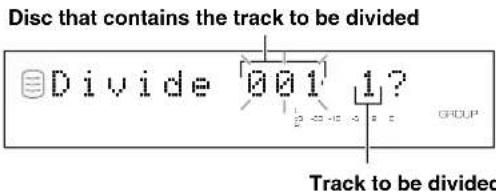
The disc number that contains the track to be divided flashes.
- Select the disc that contains the track to be divided by rotating the MULTI JOG knob (pressing + / - on the remote control).
- Press the MULTI JOG knob (ENTER on the remote control) to confirm the disc that contains the track to be divided.
The number of the track to be divided flashes. - Select the track to be divided by rotating the MULTI JOG knob (pressing +/- on the remote control).
- Press the MULTI JOG knob (ENTER on the remote control) to confirm the track to be divided.
- Press on the remote control) to play the track to be divided.
"Div.Pt." and the dividing point alternately appear on the display.
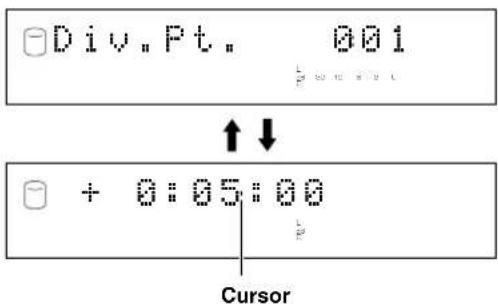
- Set the dividing point by rotating the MULTI JOG knob (pressing +/- on the remote control).
The dividing point can be set by "minute: second: frame". Move the cursor on the side of the second indication to the point to be set by pressing ( \left| \left| \left| \left| \left| \left| \left| \left| \left| \left| \left| \left| \left| \left| \left| \left| \left| \left| \left| \left| \left| \left| \left| \left| \left| \left| \left| \left| \left| \left| \left| \left| \left| \left| 1 = 1 = 1 = 1 = 1 = 1 = 1 = 1 = 1 = 1 = 1 = 1 = 1 = 1 = 1 = 1 = 1 = 1 = 1 = 1 = 1 = 1 = 1 = 1 = 1 = 1 = 1 = 1 = 1 = 1 = 1 = 1 = 1 = 1 =
- Press the MULTI JOG knob (ENTER on the remote control) to search for a point that is several seconds before the dividing point set in step 7. Then the passage between the searched for point and the dividing point is repeatedly played.
Go to the next step, if the dividing point is set appropriately. If not, continue setting by repeating steps 7 and 8.
9. Press COMPLETE.
The selected track is divided into two at the set dividing point.
Cautions
- The minimum length of a track is 4 seconds. It is not possible to create a track that is shorter than 4 seconds by dividing a track.
- One disc can contain up to 99 tracks. If the disc already contains 99 tracks, "Track No.Full" appears on the display.
Note
- The track numbers following the divided track will be up-numbered by one. However, if there is any unused track number, only the tracks up to that number will be up-numbered.
Before "Track Divide" is performed
| 1 | 2 | 4 | 5 | 6 | ||
| Divided into two | ||||||
| 1 | 2 | 3 | 4 | 5 | 6 | |
After "Track Divide" has been performed (dividing a track into two)
:Space not being used
Track Pack
You can re-organize the track numbers by eliminating unused track numbers, that have been created by changing track numbers or erasing tracks.
- Select and confirm "Track Pack" in step 5 for "TRACK EDITING" on page 37.
The following message appears on the display.
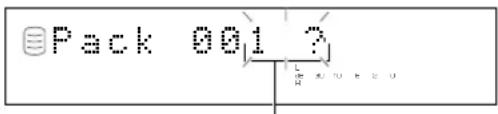
Disc on which unused track numbers are to be eliminated
- Select the disc on which unused track numbers are to be eliminated by rotating the MULTI JOG knob (pressing +/- on the remote control).
- Press the MULTI JOG knob (ENTER on the remote control) to confirm the disc on which unused track numbers are to be eliminated.
- Press COMPLETE.
The track numbers are re-organized by eliminating unused track numbers.
Before "Track Pack" is performed
| 1 | 3 | 4 | 6 | |||
| 1 | 2 | 3 | 4 | 5 | 6 |
After "Track Pack" has been performed (Unused track numbers have been eliminated.)
:Unused track numbers
Add Fade In
You can add fade-in at the beginning of a track. The beginning of the track is played with gradually rising level when fade-in has been added.
- Select and confirm "Add Fade In" in step 5 for "TRACK EDITING" on page 37.
The following message appears on the display.
Disc that contains the track to add fade-in
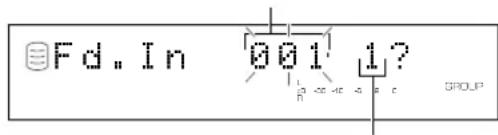
Track to add fade-in
The disc number that contains the track to add fade-in flashes.
- Select the disc that contains the track to add fade-in by rotating the MULTI JOG knob (pressing +/- on the remote control).
- Press the MULTI JOG knob (ENTER on the remote control) to confirm the disc that contains the track to add fade-in.
The number of the track to add fade-in flashes.
- Select the track to add fade-in by rotating the MULTI JOG knob (pressing +/- on the remote control).
- Press the MULTI JOG knob (ENTER on the remote control) to confirm the track to add fade-in.
- Press on the remote control to play the track to add fade-in.
"Fd.In" and the fade-in length alternately appear on the display.

- Set the fade-in length by rotating the MULTI JOG knob (pressing +/- on the remote control).
The fade-in length can be set in the 1 to 10 second range by 1 second increments.
TRACK EDITING
- Press the MULTI JOG knob (ENTER on the remote control) to repeatedly play the passage between the beginning of the track and a point that is several seconds after the end of the fade-in to be added as set in step 7.
Go to the next step, if the fade-in length is set appropriately. If not, continue setting by repeating steps 7 and 8.
- Press COMPLETE.
The fade-in is added to the beginning of the selected track for the selected length.
Notes
- To cancel the fade-in that has been added, press CLEAR in step 7 to clear the fade-in length, and then press COMPLETE.
- Fade-in cannot be added to a track that is shorter than 21 seconds.
-
The fade-in effect becomes ineffective if the following editing is performed to the track which the fade-in is added to.
-
Erasing a certain part of the track (Part Erase).
- Combining the track (Track Combine).
- Dividing the track (Track Divide).
- Adjusting the beginning of the track (Track Adjust).
- If "Track Adjust" has been performed, the fade-in effect of both the adjusted track and the previous track becomes ineffective.
Add Fade Out
You can add fade-out at the end of a track. The end of the track is played with gradually lowering the level when fade-out has been added.
- Select and confirm "Add Fade Out" in step 5 for "TRACK EDITING" on page 37.
The following message appears on the display.
Disc that contains the track to add fade-out
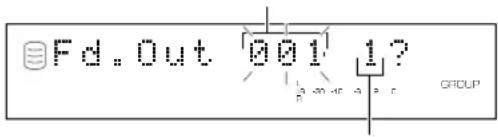
Track to add fade-out
The disc number that contains the track to add fade-out flashes.
- Select the disc that contains the track to add fade-out by rotating the MULTI JOG knob (pressing +/- on the remote control).
- Press the MULTI JOG knob (ENTER on the remote control) to confirm the disc that contains the track to add fade-out.
The number of the track to add fade-out flashes.
- Select the track to add fade-out by rotating the MULTI JOG knob (pressing +/- on the remote control).
-
Press the MULTI JOG knob (ENTER on the remote control) to confirm the track to add fade-out.
-
Press on the remote control) to play the track to add fade-out.
"Fd.Out" and the fade-out length alternately appear on the display.
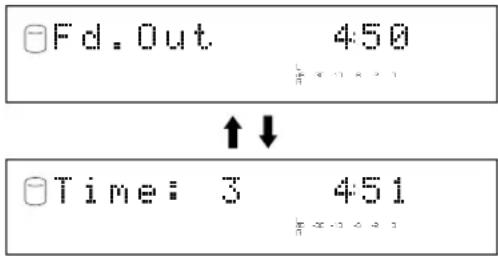
- Set the fade-out length by rotating the MULTI JOG knob (pressing + / - on the remote control).
The fade-out length can be set in the 1 to 10 second range by 1 second increments.
- Press the MULTI JOG knob (ENTER on the remote control) to repeatedly play the passage between a point that is several seconds before the beginning of the fade-out to be added as set in step 7 and the end of the track.
Go to the next step, if the fade-out length is set appropriately. If not, continue setting by repeating steps 7 and 8.
- Press COMPLETE.
The fade-out is added to the end of the selected track for the selected length.
Notes
- To cancel the fade-out that has been added, press CLEAR in step 7 to clear the fade-out length, and then press COMPLETE.
- Fade-out cannot be added to a track that is shorter than 21 seconds.
-
The fade-out effect becomes ineffective if the following editing is performed to the track which the fade-out is added to.
-
Erasing a certain part of the track (Part Erase).
- Combining the track (Track Combine).
- Dividing the track (Track Divide).
-
Adjusting the beginning of the track (Track Adjust).
-
If "Track Adjust" has been performed, the fade-out effect of both the adjusted track and the previous track becomes ineffective.
Track Title
You can assign a title to a track.
1. Select and confirm "Track Title" in step 5 for "TRACK EDITING" on page 37.
The following message appears on the display.
Disc that contains the track to assign a title to
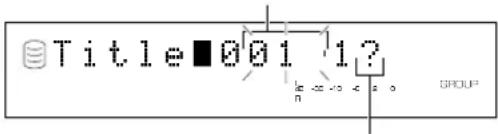
Track to assign a title to
The disc number that contains the track to assign a title to flashes.
2. Select the disc that contains the track to assign a title to by rotating the MULTI JOG knob (pressing +/- on the remote control).
3. Press the MULTI JOG knob (ENTER on the remote control) to confirm the disc that contains the track to assign a title to.
When the disc has been confirmed, the disc number that contains the track to assign a title to flashes.
4. Select the track to assign a title to by rotating the MULTI JOG knob (pressing + / - on the remote control).
5. Press the MULTI JOG knob (ENTER on the remote control) to confirm the track to assign a title to.
The following message appears on the display.
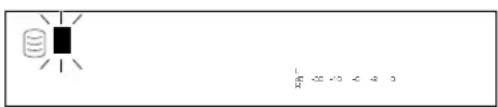
The cursor flashes.
Note
- If the selected track already has a title, the title appears on the display.
6. Enter the title characters by using the MULTI JOG knob or the alphabetical/numeric buttons on the remote control.
■Entering the title characters by using the MULTI JOG knob
1. Rotate the MULTI JOG knob clockwise.
When the MULTI JOG knob is rotated clockwise, characters appear in the order of alphabetical capital letters, alphabetical lower case letters, numbers, and symbols. Select the character you wish to use for the title.
2. Press the MULTI JOG knob to confirm the selected character.
The cursor moves to the next space. Repeat steps 1 and 2 until the title is complete. A title can contain up to 32 characters.
3. Press COMPLETE when all the characters have been entered.
The title is assigned to the selected track.
■Entering the title characters by using the alphabetical/numeric buttons on the remote control
1. Select the character to be used for the title by using the alphabetical/numeric buttons on the remote control.
Alphabetical capital letters, alphabetical lower case letters, and numbers switch each time the buttons are pressed. To create a space, press SPACE. To use a symbol, press SYMBOL to select the desired symbol.
2. Select the next character by pressing one of the alphabetical/numeric buttons.
The cursor automatically moves to the next space. When the same button is used, press to move the cursor to the next space.
3. Press COMPLETE when all the characters have been entered.
The title is assigned to the selected track.
Note
- If a new character is entered on the existing character, the new character is inserted in front of the existing character.
Correcting the characters
Move the cursor to the character to be corrected by pressing < < or > > / > > (or on the remote control). Press CLEAR to cancel the character before a new character is entered. Then enter and confirm the new character.
DISC EDITING
You can do various editing operations on the discs that have been recorded on the HDD. The following steps describe how to edit a disc.
For details about each editing menu item, refer to the descriptions on the following pages corresponding to your need.
To change a disc number . "Disc Rename" (page 46)
To erase a disc "Disc Erase" (page 47)
To combine a series of discs . "Disc Combine" (page 47)
To divide one disc into two. "Disc Divide" (page 48)
To eliminate unused disc numbers "Disc Pack" (page 48)
To assign a disc title . "Disc Title" (page 49)
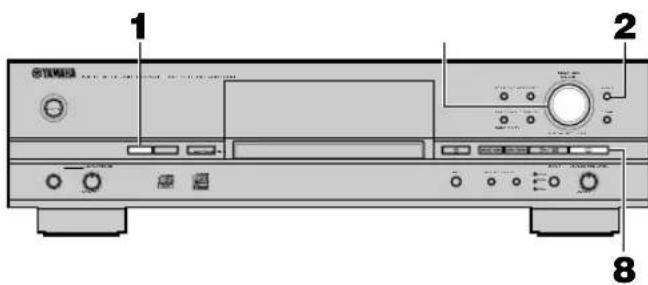
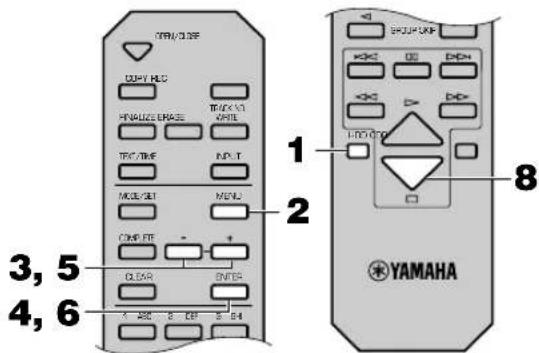
- Press HDD to select the HDD to edit.
- Press MENU to display the menu item selection while this unit is in the stop mode.
- Select "Disc Edit" by rotating the MULTI JOG knob (pressing + / - on the remote control).
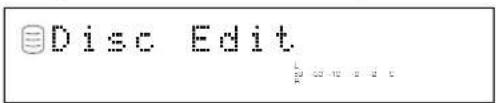
- Press the MULTI JOG knob (ENTER on the remote control) to display the editing menu item selection.
- Select the desired editing menu item by rotating the MULTI JOG knob (pressing + / - on the remote control).
The followings are the disc editing menu items:
Disc Rename
Disc Erase
Disc Combine
Disc Divide
Disc Pack
- Disc Title
- Press the MULTI JOG knob (ENTER on the remote control) to confirm the menu item before editing.
- Start editing by following the detailed steps (pages 46-49) for each menu item.
Notes
- If MENU is pressed during editing, entry of the selection becomes ineffective, and the display returns to the previous one.
- If is pressed during editing, all entry of the selection becomes ineffective, and the display returns to the one while this unit was in the stop mode.
- Press when all editing has been completed.
The display changes to the one when this unit was in the stop mode.
Disc Rename
You can move a disc and assign a new number.
- Select and confirm "Disc Rename" in step 5 for "DISC EDITING".
The following message appears on the display.
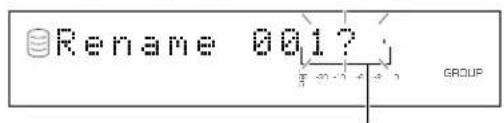
Disc to be moved
The disc number to be moved flashes.
- Select the disc to be moved by rotating the MULTI JOG knob (pressing + / - on the remote control).
- Press the MULTI JOG knob (ENTER on the remote control) to confirm the disc to be moved.
The display scrolls to the left to indicate the disc number to be moved and new number.
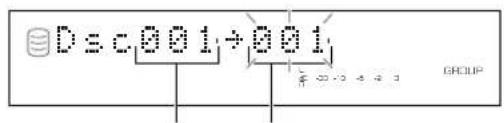
Disc to be moved
New disc number
- Select the new disc number to by rotating the MULTI JOG knob (pressing + / - on the remote control).
- Press the MULTI JOG knob (ENTER on the remote control) to confirm the new disc number.
Note
- If a wrong selection is confirmed, press CLEAR to cancel it. Then, select again and confirm the correct entry.
- Press COMPLETE.
The selected disc has been moved to and assigned a new number.
Notes
- If the selected new disc number is already in use, the disc numbers following this renumbered disc will be automatically up-numbered by one. However, if there is any unused disc number, only the discs up to that number will be up-numbered.
The original number of the disc that has been renumbered will be available for future use.
Disc Erase
You can erase a selected disc.
- Select and confirm "Disc Erase" in step 5 for "DISC EDITING" on page 46.
The following message appears on the display.
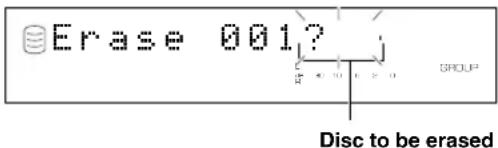
The number of the disc to be erased flashes.
- Select the disc to be erased by rotating the MULTI JOG knob (pressing + / - on the remote control).
- Press the MULTI JOG knob (ENTER on the remote control) to confirm the disc to be erased.
Note
- If a wrong selection is confirmed, press CLEAR to cancel it. Then, select again and confirm the correct entry.
- Press COMPLETE.
The selected disc is erased.
Note
- The number of the erased disc will be available for future use.
Disc Combine
You can combine a series of discs into one.
- Select and confirm "Disc Combine" in step 5 for "DISC EDITING" on page 46.
The following message appears on the display.
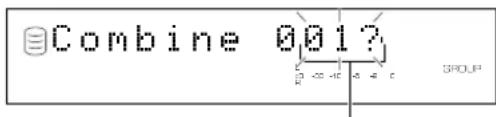
Disc to be the first in the combination
The disc number to be the first in the combination flashes.
- Select the disc to be the first track in the combination by rotating the MULTI JOG knob (pressing +/- on the remote control).
- Press the MULTI JOG knob (ENTER on the remote control) to confirm the disc to be the first in the combination.
The display scrolls to the left to indicate the disc numbers to be the first and the last in the combination.
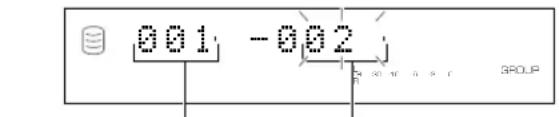
Disc to be the first in the combination
Disc to be the last in the combination
- Select the disc to be the last in the combination by rotating the MULTI JOG knob (pressing +/- on the remote control).
-
Press the MULTI JOG knob (ENTER on the remote control) to confirm the disc to be the last in the combination.
-
Press COMPLETE.
The two selected discs and all those between are combined into one disc.
Cautions
- One disc can contain up to 99 tracks. When the total track number on a disc exceeds 99, "Track No.Full" appears on the display.
- The maximum length of one disc on the HDD is 99 minutes 59 seconds. When the total time of the discs to be combined exceeds 99 minutes 59 seconds, "No Enough Spc" appears on the display.
Notes
- When combining a series of discs, the selected disc numbers following the selected first disc will be available for future use.
- The disc title for the first disc is effective for the combined disc.
Disc Divide
You can divide a disc into two at the selected point.
- Select and confirm "Disc Divide" in step 5 for "DISC EDITING" on page 46.
The following message appears on the display.
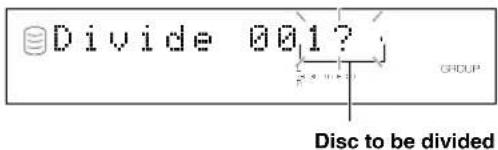
The number of the disc to be divided flashes.
- Select the disc to be divided by rotating the MULTI JOG knob (pressing +/- on the remote control).
- Press the MULTI JOG knob (ENTER on the remote control) to confirm the disc to be divided.
"Div.from" and the dividing point (the number of the track to be the first after dividing) appear on the display.
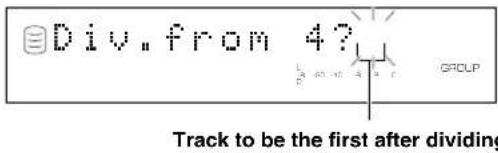
- Select the dividing point by rotating the MULTI JOG knob (pressing +/- on the remote control).
- Press the MULTI JOG knob (ENTER on the remote control) to confirm the dividing point.
- Press COMPLETE.
The selected disc is divided into two at the selected dividing point.
Caution
- The HDD can contain up to 999 discs. If the HDD already contains 999 discs, "Disc No.Full" appears on the display.
Note
- The disc numbers following the divided disc will be up-numbered by one. However, if there is any unused disc number, only the discs up to that number will be up-numbered.
Before "Disc Divide" is performed
| 1 | 2 | 4 | 5 | 6 | ||
| Divided into two | ||||||
| 1 | 2 | 3 | 4 | 5 | 6 | |
After "Disc Divide" has been performed (dividing a disc into two)
: Space not being used
Disc Pack
You can re-organize the disc numbers by eliminating unused disc numbers that have been created by changing disc numbers or erasing discs.
- Select and confirm "Disc Pack" in step 5 for "DISC EDITING" on page 46.
The following message appears on the display.
- Press COMPLETE.
The disc numbers are re-organized by eliminating unused disc numbers.
Before "Disc Pack" is performed
| 1 | 3 | 4 | 6 | |||
| 1 | 2 | 3 | 4 | 5 | 6 |
After "Disc Pack" has been performed (Unused disc numbers have been eliminated.)
: Unused disc numbers
Disc Title
You can assign a title to a recorded disc.
1. Select and confirm "Disc Title" in step 5 for "DISC EDITING" on page 46.
The following message appears on the display.
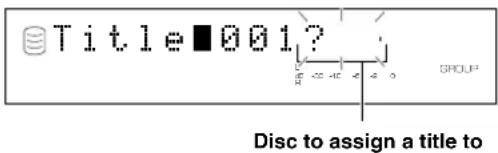
The number of the disc to assign a title to flashes.
2. Select the disc to assign a title to by rotating the MULTI JOG knob (pressing +/- on the remote control).
3. Press the MULTI JOG knob (ENTER on the remote control) to confirm the disc to assign a title to.
The following message appears on the display.
The cursor flashes.
Note
- If the selected disc already has a title, the title appears on the display.
4. Enter the title characters by using the MULTI JOG knob or the alphabetical/numeric buttons on the remote control.
■Entering the title characters by using the MULTI JOG knob
1. Rotate the MULTI JOG knob clockwise.
When the MULTI JOG knob is rotated clockwise, characters appear in the order of alphabetical capital letters, alphabetical lower case letters, numbers, and symbols. Select the character you wish to use for the title.
2. Press the MULTI JOG knob to confirm the selected character.
The cursor moves to the next space. Repeat steps 1 and 2 until the title is complete. A title can contain up to 32 characters.
3. Press COMPLETE when all the characters have been entered.
The title is assigned to the selected disc.
■Entering the title characters by using the alphabetical/numeric buttons on the remote control
1. Select the character to be used for the title by using the alphabetical/numeric buttons on the remote control.
Alphabetical capital letters, alphabetical lower case letters, and numbers switch each time the buttons are pressed. To create a space, press SPACE. To use a symbol, press SYMBOL to select the desired symbol.
2. Select the next character by pressing one of the alphabetical/numeric buttons.
The cursor automatically moves to the next space. When the same button is used, press >> to move the cursor to the next space.
3. Press COMPLETE when all the characters have been entered.
A title is assigned to the selected disc.
Note
- If a new character is entered on the existing character, the new character is inserted in front of the existing character.
Correcting the characters
Move the cursor to the character to be corrected by pressing < < or > > / > > (or on the remote control). Press CLEAR to cancel the character before a new character is entered. Then enter and confirm the new character.
You can cancel an operation and the result of a previous editing step on this unit (Undo function).
- Press MENU to display the menu item selection while this unit is in the stop mode.
- Select "Undo" by rotating the MULTI JOG knob (pressing +/- on the remote control).
- Press the MULTI JOG knob (ENTER on the remote control) to display "Undo?".
- Press COMPLETE.
The previous editing operation and result are canceled.
The undo function does not work if any of the following operations has been performed after the editing operation.
- After the editing operation, a recording has been made, or this unit has been set in the recording pause mode to start recording.
- After the editing operation, a copy has been made, or this unit has been set in the copy standby mode to start copying.
Further editing operations have been performed. - The HDD has been formatted.
The following message appears on the display if the undo function does not work.

Notes
- The undo function does not apply to the addition of fade-in or fade-out to a track because it can be canceled at any time.
- The undo function does not apply to assigning a title to an album, track or disc.
- The undo function does not apply to editing a CD album.
You can erase the data recorded on a CD-RW disc. New recordings can be made in the space created by erasing. The following 4 types of erasing are possible with this unit.
■Last Track Erase
This operation erases the last track on a disc. "Last Track Erase" cannot be performed if a CD-RW disc has been finalized, or only one track has been recorded on the disc.
1. Load the CD-RW disc to be erased.
2. Press ERASE.
The following message appears on the display.
Go to the next step when erasing only the last track. To erase other tracks as well, select the track number to start erasing from by rotating the MULTI JOG knob.
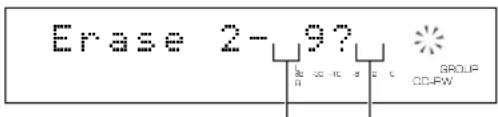
Track to start erasing from Last track
To cancel erasing, press
- Press on the remote control) to start erasing. "Erasing" flashes on the display, and the level meter shows the erasing progress.
- This unit enters the stop mode when erasing has been completed.
■All Track Erase
This operation erases all of the tracks. "All Track Erase" cannot be done if a CD-RW disc has been finalized.
- Load the CD-RW disc to be erased.
- Press ERASE repeatedly until "Erase All?" appears on the display.
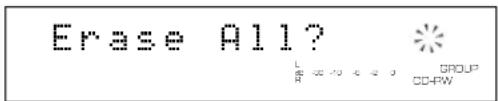
To cancel erasing, press
- Press on the remote control) to start erasing. "Erasing" flashes on the display, and the level meter shows the erasing progress.
- This unit enters the stop mode when erasing has been completed.
TOC Erase
This operation is only available on a CD-RW disc that has been finalized. After the Table of Contents (TOC) has been erased, the effects of finalization are defeated, and further recording is possible.
- Load the CD-RW disc that has been finalized.
- Press ERASE.
"Erase TOC?" appears on the display.

To cancel erasing, press.
3. Press on the remote control to start erasing.
"Erasing" flashes on the display, and the level meter shows the erasing progress.
4. This unit enters the stop mode when erasing has been completed.
Note
- The TOC indicator turns off when "TOC Erase" has been completed.
■Disc Erase
This operation erases all data on the disc. It is mainly used to recover a disc.
- Load the CD-RW disc to be erased.
- Press and hold ERASE for approximately 2 seconds. "Erase Disc?" appears on the display.

To cancel erasing, press .
- Press on the remote control) to start erasing. "Erasing" flashes on the display, and the level meter shows the erasing progress.
- This unit enters the stop mode when erasing has been completed.
Cautions
- Never turn off the power of this unit during erasing.
- If "Check Disc" appears on the display during erasing, and erasing stops, there may be dust or damage on the disc. Check the disc and start the erasing operation again.
Erasing a disc takes approximately 20 minutes.
This unit can play back tracks recorded on the 2 types of recording media; HDD and CD. Press HDD to play tracks recorded on the HDD, and press CDR to play tracks recorded on a CD (including a CD-R and a CD-RW disc).
Playing a CD
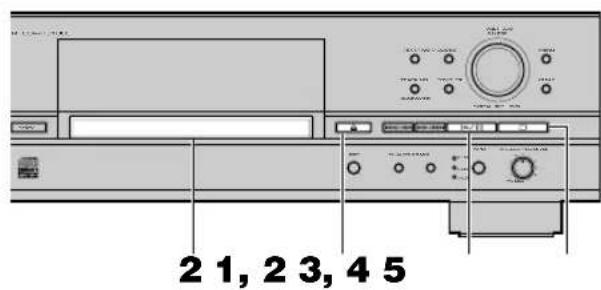
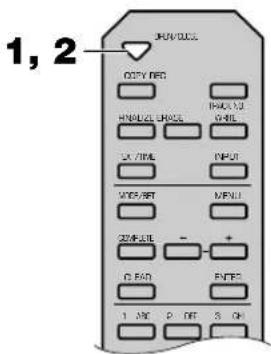
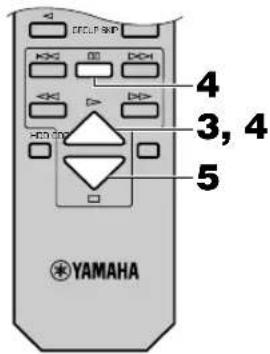
- Press (OPEN/CLOSE on the remote control) to open the disc tray.
- Load the CD to be played on the disc tray and close the disc tray by pressing (OPEN/CLOSE on the remote control).
This unit starts reading the disc information. "Reading" flashes on the display during reading.
- Start playback.
When / (on the remote control) is pressed, this unit starts playback from the beginning of the first track.
- Press on the remote control) to stop playback temporarily.
Press on the remote control) to resume playback.
- Press to stop playback.
Playing Tracks on the HDD
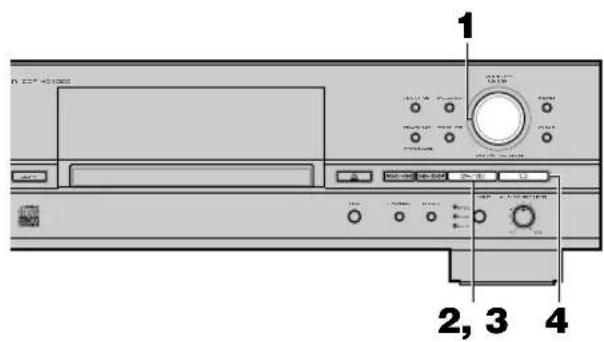
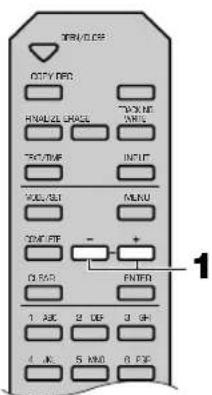
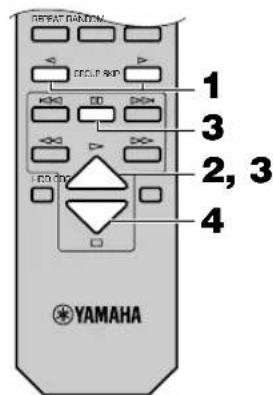
- Make sure the GROUP indicator is lit on the display and select the group (disc, album, or bookmark) to be played by rotating the MULTI JOG knob (pressing +/- on the remote control).
Note
-
You can select the group by pressing GROUP SKIP < / GROUP SKIP on the remote control.
-
Start playback.
When / (on the remote control) is pressed, this unit starts playback from the beginning of the first track of the selected group.
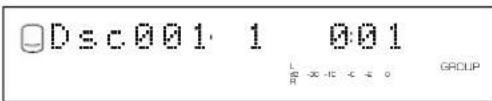
- Press (on the remote control) to stop playback temporarily.
Press on the remote control) to resume playback. - Press to stop playback.
IMPORTANT
- Never turn off the power of this unit during the playback. The data on the HDD may be damaged.
- During the playback, make sure that this unit is not subjected to shock or vibration as the HDD may be damaged.
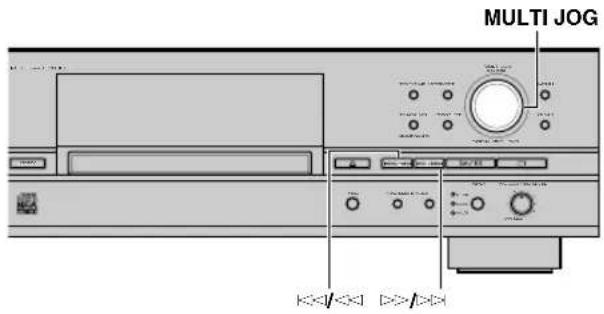
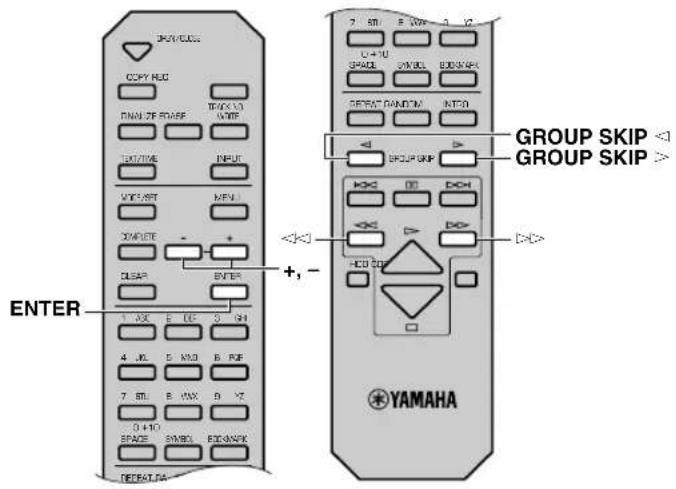
Finding the Desired Passage (Search)
To go forward rapidly
Press and hold >> on the remote control) during playback.
When the button is released, normal playback resumes.
To go backward rapidly
Press and hold | < | on the remote control) during playback.
When the button is released, normal playback resumes.
Note
- Search is possible in the pause mode. No sound can be heard when searching is performed during the pause mode.
Finding the Desired Group (Group Skip)
You can select the group (disc, album, or bookmark) recorded on the HDD.
To select the desired group with the MULTI JOG knob (+ / - on the remote control)
Press the MULTI JOG knob (ENTER on the remote control) to turn on the GROUP indicator on the display.
Rotate the MULTI JOG knob clockwise (press + on the remote control) to advance to the next group and the following groups or counterclockwise (press - on the remote control) to return to the previous group and other previous groups.
To advance to the next group
Press GROUP SKIP on the remote control.
Press GROUP SKIP repeatedly to advance to other groups.
To return to the previous group
Press GROUP SKIP on the remote control.
Press GROUP SKIP repeatedly to return to other previous groups.
Notes
- Group skip is possible in the play, pause and stop modes.
- Playback starts from the beginning of the first track of the selected group.
Resume Play function
If you press on the remote control) after has been pressed to stop playback, this unit starts playback from the beginning of the track that has been stopped. This function is called "Resume Play". To cancel the "Resume Play" function, press to stop playback first and then press again. After the cancellation, this unit starts playback from the beginning of the first track recorded on a disc (or an album) or a CD.
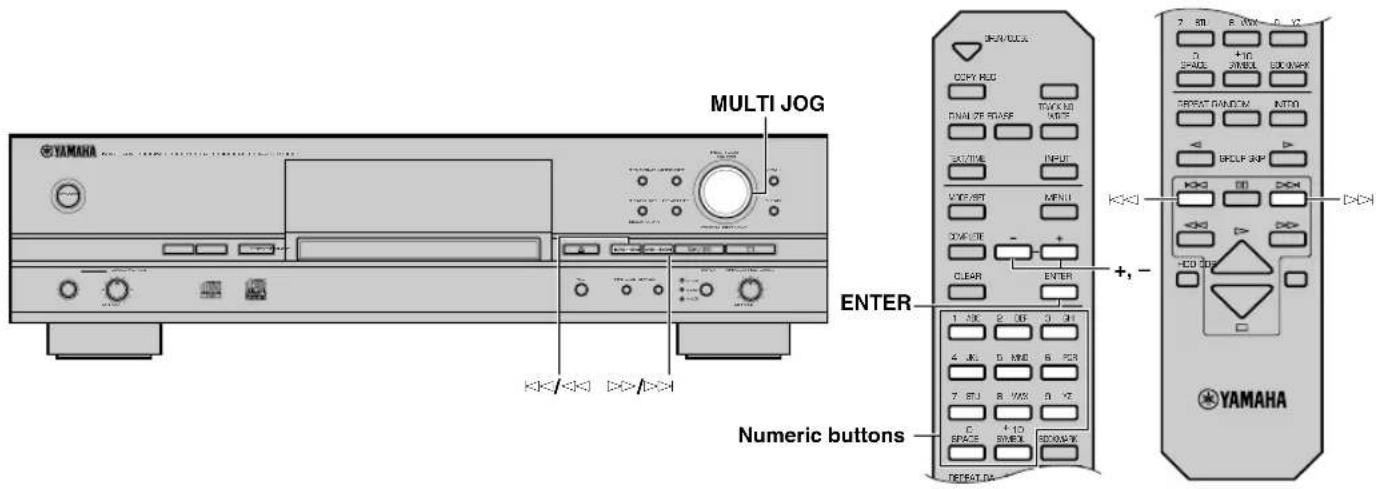
Finding the Desired Track (Track Skip)
To select the desired track number with the MULTI JOG knob (+ / - on the remote control)
Press the MULTI JOG knob (ENTER on the remote control) to turn on the TRACK indicator on the display.
Rotate the MULTI JOG knob clockwise (press + on the remote control) to advance to the next track and the following tracks or counterclockwise (press - on the remote control) to return to the previous track and other previous tracks.
■To advance to the next track
Press 12 -12 on the remote control). Press 12 -12 on the remote control) repeatedly to skip to other tracks.
To return to the beginning of the track being played
Press | < < | /< on the remote control) once during playback.
To return to the previous track
Press 12 = 12 on the remote control) twice during playback. Press 12 = 12 on the remote control) repeatedly to return to other previous tracks.
To play the desired track
Select the desired track by using the numeric buttons on the remote control. The selected track number appears on the display.
Example: To select track 25
Press +10 twice, and then immediately press 5 once.
Note
- If a number higher than the last track number recorded on a disc (or an album) or a CD is entered by using the remote control, this unit plays the last track.
Note
- Track skip is possible in the play, pause and stop modes.
This unit provides various playback methods according to the setting. The following steps describe the setting procedure for each setting.
Notes
- The setting of play style, random play, repeat play, and intro play can be set during the playback.
- The setting of play style, random play, and full repeat play is memorized even after the power of this unit has been turned off.
Setting the Play Style
When playing sources recorded on the HDD, you can set the play style. The play style setting changes the range of playback for random play, full repeat play, and intro play.
- Press HDD to select the HDD.
- Press MODE/SET to display the playback mode setting.
"Play Style" appears on the display.
- Press the MULTI JOG knob (ENTER on the remote control) to start the play style setting.
- Rotate the MULTI JOG knob (press +/- on the remote control) to display "Style All" or "Style Group".
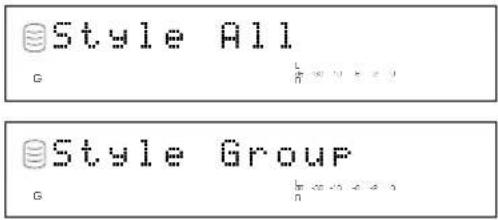
- Press the MULTI JOG knob (ENTER on the remote control) to confirm the selection.
When "Style All" is confirmed
The A indicator lights on the display.
Random play, full repeat play, or intro play can be set for one of the group categories (disc, album, and bookmark) recorded on the HDD.
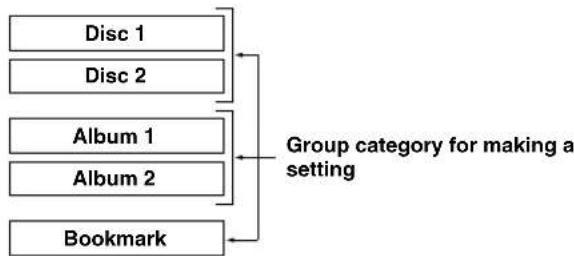
- When random play is set, all tracks that belong to the selected group category are played in a random sequence.
- When full repeat play is set, all tracks that belong to the selected group category are repeatedly played.
- When intro play is set, the beginnings of all tracks that belong to the selected group category are played one after another.
For example, if full repeat play is set during the playback of disc 1, all tracks recorded to discs 1 and 2 are repeatedly played.
Note
- If "Style All" is set and the title is shown on the display, the sound may be missing when this unit switches from one disc to another. To avoid this problem, switch the display to from the indication of time by pressing TEXT/TIME (see page 10).
■ When "Style Group" is confirmed
The G indicator lights on the display.
Random play, full repeat play, or intro play can be set for one of the groups (disc, album, and bookmark) recorded on the HDD.
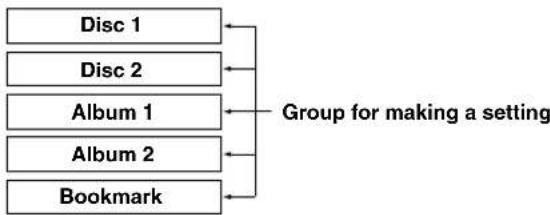
- When random play is set, all tracks that belong to the selected group are played in a random sequence.
- When full repeat play is set, all tracks that belong to the selected group are repeatedly played.
- When intro play is set, the beginnings of all tracks that belong to the selected group are played one after another.
For example, if full repeat play is set during the playback of disc 1, all tracks recorded to disc 1 are repeatedly played.
Random Play
You can listen to all tracks recorded in a group on the HDD or on a CD in a random sequence.
To set random play
- Press HDD or CDR to select the drive to be used.
- Press MODE/SET to start the playback mode setting.
- Rotate the MULTI JOG knob (press +/- on the remote control) to display "Random".
Random
1 04-104-65
- Press the MULTI JOG knob (ENTER on the remote control) to start setting random play.
- Rotate the MULTI JOG knob (press +/- on the remote control) to display "Random On".
Random On
10
6. Press the MULTI JOG knob (ENTER on the remote control) to confirm the selection.
The RNDM indicator lights on the display.
RNDM
G
Notes
- Random play can be easily set by pressing RANDOM on the remote control.
- If random play is set during playback, the new setting applies to the next track.
To start random play
When random play is set, press > / < on the remote control) to start random play.
■To stop random play
Press
■To cancel the random play setting
Select and confirm "Random Off" in step 5 for "To set random play" or press RANDOM on the remote control. The RNDM indicator turns off on the display.
Single Repeat Play
You can listen to a single desired track or to a track being played repeatedly.
To set single repeat play
- Press HDD or CDR to select the drive to be used.
- Press MODE/SET to start the playback mode setting.
- Rotate the MULTI JOG knob (press +/- on the remote control) to display "Repeat".
Repeat
10
- Press the MULTI JOG knob (ENTER on the remote control) to start setting single repeat play.
- Rotate the MULTI JOG knob (press +/- on the remote control) to display "Repeat Single".
Repeat Single
1
6. Press the MULTI JOG knob (ENTER on the remote control) to confirm the selection.
The S REP indicator lights on the display.
S REP
Notes
- Single repeat play can be easily set by pressing REPEAT on the remote control once.
- The track being played is repeatedly played even during playback of an album or random play.
■To cancel the single repeat play setting
Select and confirm "Repeat Off" in step 5 for "To set single repeat play" or press REPEAT on the remote control repeatedly until the S REP indicator turns off on the display.
Full Repeat Play
You can repeatedly listen to all tracks recorded in a group (or a CD) or group category.
To set full repeat play
- Press HDD or CDR to select the drive to be used.
- Press MODE/SET to start the playback mode setting.
- Rotate the MULTI JOG knob (press +/- on the remote control) to display "Repeat".
Repeat.
1 0
- Press the MULTI JOG knob (ENTER on the remote control) to start setting full repeat play.
- Rotate the MULTI JOG knob (press +/- on the remote control) to display "Repeat Full".
Repeat Full
1 2
6. Press the MULTI JOG knob (ENTER on the remote control) to confirm the selection.
The REP indicator lights on the display.
REPG
Notes
- Full repeat play can be easily set by pressing REPEAT on the remote control twice.
- The tracks are repeatedly played in the same random order if played in the random play mode.
To cancel the full repeat play setting
Select and confirm "Repeat Off" in step 5 for "To set full repeat play" or press REPEAT on the remote control repeatedly until the REP indicator turns off on the display.
Intro Play
You can listen to the beginnings of the tracks for a set amount of time one after another.
To set intro play
- Press HDD or CDR to select the drive to be used.
- Press MODE/SET to start the playback mode setting.
- Rotate the MULTI JOG knob (press +/- on the remote control) to display "Intros Scan".
Intros Scan
- Press the MULTI JOG knob (ENTER on the remote control) to start setting intro play.
- Rotate the MULTI JOG knob (press +/- on the remote control) to set the amount of time to play the beginning of each track.
The playback time can be set in the 1 to 10 seconds range by 1 second steps and in the 10 seconds to 60 seconds range by 5 seconds steps.
Interval: 5
To start intro play
After the playback time for intro play has been set in step 5 for "To set intro play", press the MULTI JOG knob (ENTER on the remote control) to confirm the setting or press > / (on the remote control) to start intro play.
Intro 001-1
Notes
- Intro play can be easily started by pressing INTRO on the remote control.
- The beginning of the selected track is repeatedly played if single repeat is set.
- When "Style Group" is set with the full repeat play mode, the beginnings of all tracks recorded in the selected group are repeatedly played.
- When "Style All" is set with the full repeat play mode, the beginnings of all tracks recorded in the selected group category are repeatedly played.
- The beginnings of randomly selected tracks are played if random play is set.
To stop intro play
Press
To cancel the intro play setting
Press INTRO on the remote control.
Album Play
You can listen to the desired tracks in the desired order (album play). You need to create an album that lists the tracks in a certain order. See page 32 for the album creation procedure.
To play a created album
- Press HDD or CDR to select the drive to be used.
- Press the MULTI JOG knob (ENTER on the remote control) to turn on the GROUP indicator on the display.
- Select the album to be played by rotating the MULTI JOG knob (pressing +/- on the remote control).
When using the CD drive
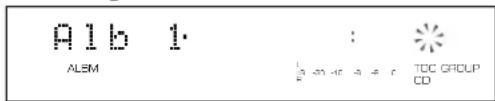
When using the HDD (when album number 1 is selected.)
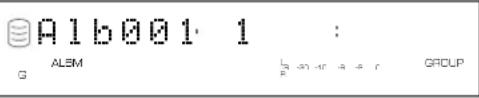
If there is more than 1 album created on the HDD, the album numbers appear in orderly sequence.
4. Start playback.
Playback starts from the beginning of the first track of the selected album when > / 口 (on the remote control) is pressed.
- Press >10 (on the remote control) to stop playback temporarily.
To resume playback, press or on the remote control).
■To stop album play
Press
To edit the album
See page 32.
■To delete the album
See page 34.
Bookmark Play
You can easily listen to a group of desired tracks by selecting a list of tracks with bookmarks. See page 36 for details about bookmarks.
- Press HDD to select the HDD.
- Press the MULTI JOG knob (ENTER on the remote control) to turn on the GROUP indicator on the display.
- Rotate the MULTI JOG knob (press +/- on the remote control) to select "Mark".
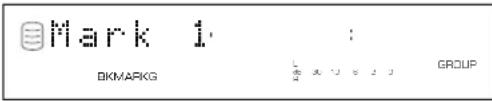
4. Start playback.
Playback starts from the beginning of the first track when > / 0 (on the remote control) is pressed.
Note
-
Tracks are played in the order that bookmarks have been placed.
-
To stop playback temporarily, press on the remote control).
To resume playback, press / 口 (or on the remote control).
Listening with Headphones
Connect your headphones to the PHONES jack and adjust the volume with the LEVEL control.
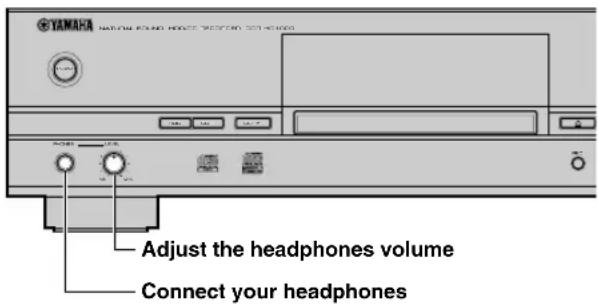
Caution
- If the power of other components such as an amplifier connected to this unit is not turned on, the sound of this unit may be distorted. If this occurs, use the headphones with the other component's power turned on.
HDD Utility
To check the HDD utility (HDD Info.)
You can check the HDD utility (capacity, usage, and available space) of this unit.
- Press MENU to display the menu item selection while this unit is in the stop mode.
- Select "HDD Utility" by rotating the MULTI JOG knob (pressing +/- on the remote control).
- Press the MULTI JOG knob (ENTER on the remote control) to display "HDD Info".

- Press the MULTI JOG knob (ENTER on the remote control) again to display the capacity of the HDD.
Each time the MULTI JOG knob is rotated (+ / - on the remote control is pressed), the display changes as follows. Indications are made by time.
Capacity (total time)
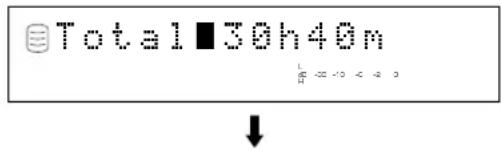
Usage (total used time)
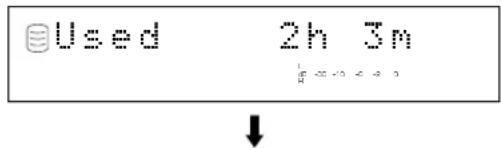
Available space (recordable time)
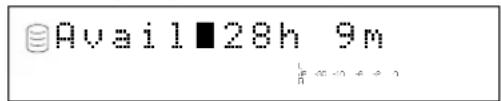
To format the HDD (HDD Format)
You can format the HDD in this unit.
Cautions
- After the HDD has been formatted, all data about the recorded tracks and settings will be erased from the HDD.
-
After all data on the HDD have been initialized, the undo function cannot be applied to any editing operations before formatting.
-
Press MENU to display the menu item selection while this unit is in the stop mode.
- Select "HDD Utility" by rotating the MULTI JOG knob (pressing +/- on the remote control).
- Press the MULTI JOG knob (ENTER on the remote control) to display the HDD utility item selection.
- Select "HDD Format" by rotating the MULTI JOG knob (pressing +/- on the remote control).

- "Initialize?" appears on the display when the MULTI JOG knob (ENTER on the remote control) is pressed.
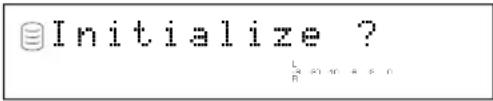
- "Format Really" appears on the display to make a confirmation when > / ( > on the remote control) is pressed.

If you wish to format the HDD, press INPUT. If not, press .
- "Format OK" appears in the display when INPUT is pressed. Then the display returns to the one when the power of this unit was turned on.
Note
The times displayed are rough estimates.
System Utility
■To check the firmware version (Firm. Version)
Software that is called "firmware" is built into this unit. This firmware controls the operation. The following steps describe the firmware version check procedures.
- Press MENU to display the menu item selection while this unit is in the stop mode.
- Select "Sys. Utility" by rotating the MULTI JOG knob (pressing +/- on the remote control).
- Press the MULTI JOG knob (ENTER on the remote control) to display "Firm. Version".

- Press the MULTI JOG knob (ENTER on the remote control) again to display the version of the firmware.

The display switches in the order of the system firmware version the CDR drive firmware version type of HDD as the MULTI JOG knob is rotated (+/-) on the remote control is pressed).
System firmware version

CDR drive firmware version
Type of HDD

To initialize the setting for each item (Initialize)
You can initialize the settings that have been changed.
- Press MENU to display the menu item selection while this unit is in the stop mode.
- Select "Sys. Utility" by rotating the MULTI JOG knob (pressing +/- on the remote control).
- Press the MULTI JOG knob (ENTER on the remote control) to display the system utility item selection.
- Select "Initialize" by rotating the MULTI JOG knob (pressing +/- on the remote control).
- "Initialize?" appears on the display if the MULTI JOG knob (ENTER on the remote control) is pressed.

- Press COMPLETE.
The display returns to the one when the power of this unit is turned on.
To change the display brightness (Dimmer Setup)
You can change the brightness of the display.
- Press MENU to display the menu item selection while this unit is in the stop mode.
- Select "Sys. Utility" by rotating the MULTI JOG knob (pressing +/- on the remote control).
- Press the MULTI JOG knob (ENTER on the remote control) to display the system utility item selection.
- Select "Dimmer Setup" by rotating the MULTI JOG knob (pressing +/- on the remote control).
5. The current setting is indicated on the display if the MULTI JOG knob (ENTER on the remote control) is pressed.

(Initial setting)
The selection and the brightness change in 3 levels as the MULTI JOG knob is rotated (+ / - on the remote control is pressed).
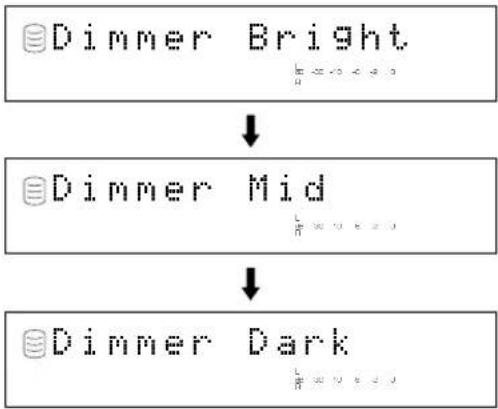
6. Press the MULTI JOG knob (ENTER on the remote control) or COMPLETE.
The display brightness has been set.
To set auto play (Auto Play)
You can set the auto play function which automatically starts playback when the power of this unit is turned on.
- Press MENU to display the menu item selection while this unit is in the stop mode.
- Select "Sys. Utility" by rotating the MULTI JOG knob (pressing +/- on the remote control).
- Press the MULTI JOG knob (ENTER on the remote control) to display the system utility item selection.
- Select "Auto Play" by rotating the MULTI JOG knob (pressing +/- on the remote control).

5. The current setting is indicated on the display if the MULTI JOG knob (ENTER on the remote control) is pressed.

(Initial setting)
Select "Auto Play On" by rotating the MULTI JOG knob (pressing + / - on the remote control).
6. Press the MULTI JOG knob (ENTER on the remote control) or COMPLETE.
The auto play function will be turned on and applied when the power of this unit is turned on the next time.
- This unit plays data on the drive that had been last selected when the power of this unit was last turned off.
- This unit plays in the playback mode (such as random play) that had been last set when the power of this unit was last turned off.
Note
- Initial setting is "Auto Play Off".
To update the firmware version (Firm. Update)
This menu is prepared for the expansion of the functions in the future.
DAC (Digital/Analog Converter) Mode
This unit has a DAC mode function. You can switch the input signals, as an input selector, to output from both the analog and digital jacks to the amplifier connected to this unit.
- Press MENU to display the menu item selection while this unit is in the stop mode.
- Select "DAC mode" by rotating the MULTI JOG knob (pressing +/- on the remote control).
- Press the MULTI JOG knob (ENTER on the remote control) to enter the DAC mode.
-
The input source selected by INPUT is output both from the ANALOG LINE OUT (PLAY) jacks and from the DIGITAL OUT (OPTICAL/COAXIAL) jacks.
-
When OPTICAL or COAXIAL is selected, the MULTI JOG knob functions as a volume control.
-
When ANALOG is selected, the ANALOG REC LEVEL control functions as a volume control.
-
Any of the following operation cancel the DAC mode and start normal operation.
-
Press on the remote control) to play the drive that had been selected before entering the DAC mode.
- Press to set this unit in the stop mode.
- Press COMPLETE to set this unit in the stop mode.
Display Messages
Can't Copy
This message is displayed for approximately 3 seconds when digital recording or copying is not possible according to the SCMS standard.
See "Rules of Digital Recording" on page 11.
Can't Edit
This message is displayed when a prohibited editing operation has been attempted.
Change Discs!
This message informs that a CD needs to be changed to a disc to be used for duplicating when copying from a CD onto the HDD has been completed.
Check Disc
The disc loaded is not compatible with this unit, or some kind of error has occurred during operation. Check the disc, and exchange the disc if necessary.
Data Track
This message is displayed when the data track is being played.
Disc Full
This message is displayed when recording to a CD-R or CD-RW disc cannot be performed any further because the recording has been made up to the total recordable time.
Disc No.Full
When the number of discs recorded on the HDD has reached its maximum of 999 discs, this message is displayed if more discs have been attempted to be added.
Erasing
Erasing a CD-RW disc is being performed. The erasing progress is indicated by the level meter.
Finalize OK?
This message confirms starting finalization of a disc. If you wish to finalize the disc, press / ( on the remote control).
Finalizing
Finalization is being performed. The finalization progress is indicated by the level meter.
HDD Full
This message is displayed when recording to the HDD cannot be performed any further because the recording has been made up to the total recordable time.
New Disc
The disc in the disc tray is either a new CD-R or CD-RW disc, or a CD-RW disc that has been erased by using a Disc Erase or All Erase.
No data
There are no tracks (data) recorded on the HDD.
No Enough Spc
There is not enough space for copying, or the track number exceeds the maximum number, or the total recorded time of the disc exceeds its maximum length when the recording to HDD is performed in the multi-synchronized or all-synchronized recording mode.
No Previous
When making "Track Adjust" on the TRACK EDITING menu, there is no track before the track to be adjusted.
No Source
When copying from the HDD onto a CD-R or CD-RW disc, there is no source recorded on the HDD to be used for copying.
Not Audio
A non-audio disc or a disc for PCs has been loaded in the disc tray, and recording has been attempted on that disc.
No Undo Data
Undo is not possible.
OPC Adjust
This message is displayed while OPC (Optimum Power Calibration) optimized the laser power to the reflectivity of the disc. Approximately 15 seconds may be required to complete this automatic adjustment. However, this time length may change according to the type of the disc that has been loaded.
Pack Before!
This message is displayed when the editing operation cannot be done unless "Pack" is performed.
Reading
This unit reads the format of the disc loaded on the disc tray. Approximately 10 to 15 seconds may be required to complete the reading. However, this time length may change according to the type of the disc that has been loaded.
Standby
This message is displayed for several seconds after REC has been pressed to record on a CD-R or CD-RW disc.
TEXT Save?
This message is displayed when the disc tray has been attempted to be opened without performing finalization after copying the data including the titles (disc title, track title, and album title) to a CD-R or CD-RW disc.
Track No.Full
One disc can contain up to 99 tracks. Recording is attempted on the disc that has reached the maximum number.
Unrecordable
In recording or copying onto a CD-R or CD-RW disc, the disc cannot be used for recording or copying. Or in recording or copying onto the HDD, no space is available.
Wait
This message flashes while this unit is writing information to the PMA (Program Memory Area) after is pressed in recording onto a CD-R or CD-RW disc, or processing the data on the HDD.
Troubleshooting
If this unit fails to operate normally, check the following points to determine whether the fault can be corrected by the simple measures suggested. If they cannot be corrected, or if the fault is not listed in the SYMPTOM column, disconnect the power cord and contact your authorized YAMAHA dealer or service center for assistance.
| SYMPTOM | CAUSE | REMEDY |
| This unit does not turn on when POWER is pressed. | The AC power cord is not completely connected. | Securely connect the power cord. |
| Playback does not begin with the disc loaded. | There is moisture on the laser pick-up. | Turn off the power of this unit and wait 20 to 30 minutes before trying to play a disc. |
| The disc has been loaded upside down. | Reload the disc with the label side facing up. | |
| The disc is dirty. | Clean the disc. | |
| Playback is delayed, or begins at the wrong place. | The disc may be scratched or damaged. | Check the disc carefully. Replace it if necessary. |
| Recording/copying is not possible. | The disc has been finalized. | Load a recordable CD that has not been finalized yet. |
| The disc that has completed recording is loaded. | Load a recordable CD. | |
| INPUT is not correctly set. | Set INPUT to the correct position according to the input signal. | |
| Further digital recording or copying has been attempted from the digitally copied sources. | Switch to ANALOG to make a recording. | |
| There is not enough available space left or 99 tracks have already been recorded on the disc. | Load a recordable disc (for a CD-R or CD-RW disc). Select the other discs (for the HDD). | |
| There is no available space on the HDD. | Erase the space not being used by performing “Pack” to create available space on the HDD for further recording. | |
| If the power cord was unplugged or there was a power outage during recording, the recorded material may be lost. | If the recording of a CD-RW disc is interrupted, try recording again from the beginning. When the recording of a CD-R disc is interrupted, start recording over again with a disc that can be recorded on. | |
| The disc is dirty or damaged. | Clean or replace the disc. | |
| Some vibration and rotation noise are created during the copying. | This unit copies by rotating the disc at high speed. | Lower the copying speed to decrease vibration and rotation noise. |
| Continuous recording cannot be made on a disc beyond 100 minutes. (HDD) | The longest recordable time for a disc is 99 minutes 59 seconds. | Set the recording mode to the manual or auto period recording mode. Recording continues to be made on the next disc. |
| The beginning of the track is missing during the playback when this unit is connected digitally to an amplifier. | The tracks that have different emphases have been played. | Connect to the amplifier using the ANALOG LINE OUT (PLAY) jacks. |
| The sound is missing when this unit switches one disc to another. | The titles appear on the display during the playback of the part that has been recorded stretching over the two discs. | Press TEXT/TIME to switch the display to the indication of time. |
| A CD-R or CD-RW that has been recorded with this unit cannot be played on the other CD player or DVD player. | Your CD or DVD player is not compatible with CD-R or CD-RW discs. | Use a CD or DVD player compatible with CD-R or CD-RW discs. |
| The disc has not been finalized. | Finalize the disc. | |
| Sound “skips”. | This unit and/or the component connected is being subjected to vibration or impact. | Relocate the unit. (This is not possible if the skipping sound is already on the recording due to vibrations or impact that occurred during recording.) |
| The disc is dirty. | Clean the disc. | |
| This unit makes noise. | Connection has not correctly been made. | Properly connect the audio cords. Replace the audio cords. |
| This unit does not operate properly. | The internal microcomputer has been frozen. | Turn off the power of this unit and then turn on again after about one minute. |
| Remote control does not work. | The batteries of the remote control are too weak. | Replace 2 batteries with new ones. |
| Remote control is from too far. Remote control is being used at an incorrect angle. | Use the remote control within 6m and 60 degrees radius. | |
| Direct sunlight or lighting (of an inverter type of fluorescent lamp, etc.) is striking the remote control sensor. | Change the position so that the remote control sensor is not exposed to strong lighting. | |
| TV does not correctly function when the remote control is being used. | Remote control is being used near TV set with a remote control sensor. | Relocate this unit away from the TV or cover the TV's remote control sensor. |
| The picture on the TV is impaired. | The indoor antenna is used. | Use an outdoor antenna, or set this unit away from the TV set. |
Specifications
Audio Performance
Frequency response 5 to 20,000Hz ± 0.5 dB
S/N ratio (EIAJ)
Playback 105 dB
Recording 92 dB
Total harmonic distortion (1 kHz)
Playback 0.004 %
Recording 0.006 %
Dynamic range
Playback 99 dB
Recording 93 dB
Laser Diode Properties
Material . . . . . . . . . . . . . . . . . . . . . . . . . . . . . . . . . . . . . . . . . . . . . . . . . . . . .
Wavelength 780 to 787nm
Pulse Durations and Max. Output at the lens of the Laser Pickup Unit
Read Mode . 0.7 mW (Continuous)
Write Mode Max. 38mW (for 166 ns, Min. Cycle 86.6 ns)
Inputs
ANALOG LINE IN (REC) Type . Pin jack Standard output level 500 mV/24 kΩ
DIGITAL IN (OPTICAL) Type Square optical connector jack
DIGITAL IN (COAXIAL) Type Coaxial jack Standard output level 0.5 Vp-p (75 Ω)
Outputs
ANALOG LINE OUT (PLAY) Type . Pin jack Standard output level (1kHz,0dB) 2.0±0.5 Vrms
DIGITAL OUT (OPTICAL) Type Square optical connector jack
DIGITAL OUT (COAXIAL) Type Coaxial jack Standard output level 0.5 Vp-p (75 Ω)
PHONES Standard output level (Input 150 shorted, -20 dB) 300mV / 150
General
Power supply [U.S.A. and Canada models] AC 120 V, 60 Hz [Australia model] AC 240 V, 50 Hz [U.K. and Europe models] AC 230 V, 50 Hz
Power consumption 33 W Dimensions (W x H x D) 435 x 115.5 x 414.5 mm (17-1/8" x 4-1/2" x 16-5/16")
Weight 8.3 kg (18 lbs. 5 oz.)
Accessories. RCA Pin cables (2) Optical fiber cable Remote control Batteries (2)
Operating environment Temperature +5 to 35^ Humidity 30 to 90% RH (No condensation)
Specifications are subject to change without notice.
- Copy Method : "Digital Copy"
- Copy Level: 0 dB
- Copy Speed: "Best Effort"
- Copy Method: "Digital Move"
- Copy Level: 0 dB
- Copy Speed: "Best Effort"
Track Rename
Track Adjust
- Track Erase
Part Erase
Track Combine
Track Divide
Track Pack
- Add Fade In
- Add Fade Out
Track Title
Disc Rename
Disc Erase
- Disc Combine
Disc Divide
- Disc Pack
- Disc Title
Pourmettrea jourla versiondufirmware (Firm.Update)
ANALOG LINE IN (REC)
Type Prisc RCA
DIGITAL IN (OPTICAL)
DIGITAL IN (COAXIAL)
Type Prise coaxiale
DIGITAL OUT (OPTICAL)
DIGITAL OUT (COAXIAL)
Type Prise coaxiale
ANALOG LINE IN (REC)
Art . Stiftbuchse
DIGITAL IN (OPTICAL)
DIGITAL IN (COAXIAL)
Art Koaxialbuchse
DIGITAL OUT (OPTICAL)
DIGITAL OUT (COAXIAL)
Art Koaxialbuchsc
- Copy Method: "Digital Copy"
- Copy Level: 0 dB
- Copy Speed: "Best Effort"
- Copy Method: "Digital Move"
- Copy Level: 0 dB
- Copy Speed: "Best Effort"
Se sidan 30 for narmare detaljer om ovanstende kopieringsvillkor.
Varning
Disc Rename
- Disc Erase
Disc Combine
Disc Divide
Disc Pack
Disc Title
Total harmonisk distortion (vid 1 kHz)
Spelning 0.004%
Inspelning .0,006%
Dynamikomfang
Spelning 99 dB
Inspelning 93 dB
ANALOG LINE IN (REC)
Typ . Phono
Standardutniv 500 mV/24 kΩ
DIGITAL IN (OPTICAL)
DIGITAL IN (COAXIAL)
Typ Koaxialuttag
Standardutniva 0,5 Vtt (75 Ω)
Utgangar
ANALOG LINE OUT (PLAY)
Typ . Phono
Standardutniv (1 kHz, 0 dB) 2,0±0.5 Vrms
DIGITAL OUT (OPTICAL)
OPTICAL OUT (COAXTIAL)
Typ . Koaxialuttag
Standardutniva 0,5 Vtt (75Ω)
PHONES
Standardutniva (Inimpedans 150 ,kortslutct, -20dB 300 mV/150
■Allmert
Stromforsorjning
Tuttavia"This is the most beautiful piece of art I've ever seen in my life. It's a beautiful piece of art and it's so beautiful, it's so beautiful, it's so beautiful, it's so beautiful, it's so beautiful, it's so beautiful, it's so beautiful, it's so beautiful, it's so beautiful, it's so beautiful, it's so beautiful, it's so beautiful, it's so beautiful, it's so beautiful, it's so beautiful, it's so beautiful, it's so beautiful, it's so beautiful, it's so beautiful, it's so beautiful, it's so beautiful.
- Copy Method: "Digital Copy";
- Copy Level: 0 dB;
- Copy Speed: "Best Effort".
- Copy Method: "Digital Move";
- Copy Level: 0 dB;
- Copy Speed: "Best Effort".
Disc Rename
Disc Erase
- Disc Combine
- Disc Divide
Disc Pack
- Disc Title
- Copy Method: "Digital Copy"
- Copy Level: 0 dB
- Copy Speed: "Best Effort"
- Copy Method: "Digital Move"
- Copy Level: 0 dB
- Copy Speed: "Best Effort"
Track Rename
- Track Adjust
- Track Erase
Part Erase
- Track Combine
Track Divide
Track Pack
- Add Fade In
- Add Fade Out
Track Title
Antes de executar "Track Adjust"
| 1 | 2 |
| 1 | 2 |
Antes de executar "Track Pack"
| 1 | 3 | 4 | 6 | |||
| 1 | 2 | 3 | 4 | 5 | 6 |
Para comprobar la version de Firmware (Firm. Version)
ANALOG LINE IN (REC)
Toma de patilla
DIGITAL IN (OPTICAL)
DIGITAL IN (COAXIAL)
Toma coaxial
Nivel de salute estandar 0,5 Vp-p (75 Ω)
■Salidas
ANALOG LINE OUT (PLAY)
Toma de patilla
DIGITAL OUT (OPTICAL)
DIGITAL OUT (COAXIAL)
Toma coaxial
Nivel de salute estandar 0,5 Vp-p (75 Ω)
PHONES (AURICULARS)
Nivel de salute estandar
(entrada 150Ω cortados, -20 dB) 300 mV/150Ω
■General
DISCS DIE U IN DIT APPARAAT KUNT GEBRUKEN .. 2
VOORBEREIDINGEN 4
DISCS DIE U IN DIT APPARAAT KUNT GEBRUIKEN
- Copy Method: "Digital Copy"
- Copy Level: 0 dB
- Copy Speed: "Best Effort"
- Copy Method: "Digital Move"
- Copy Level: 0 dB
- Copy Speed: "Best Effort"
Disc Rename
Disc Erase
Disc Combine
Disc Divide
- Disc Pack
- Disc Title
ANALOG LINE IN (REC)
Soort Penstekker
DIGITAL IN (OPTICAL)
DIGITAL IN (COAXIAL)
DIGITAL OUT (OPTICAL)
DIGITAL OUT (COAXIAL)
Use of controls or adjustments or performance of procedures other than those specified herein may result in hazardous radiation exposure.
ATTENTION
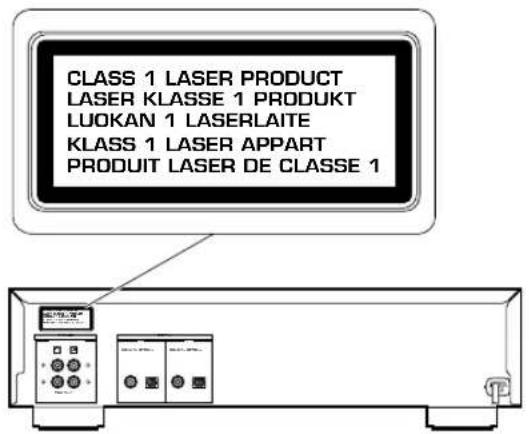
(For U.S.A. and Canada models)
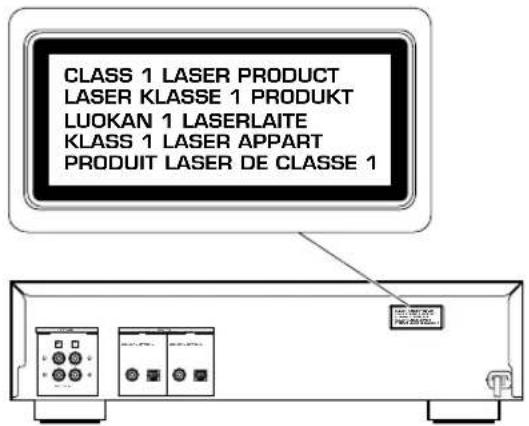
(For U.K. and Europe models)
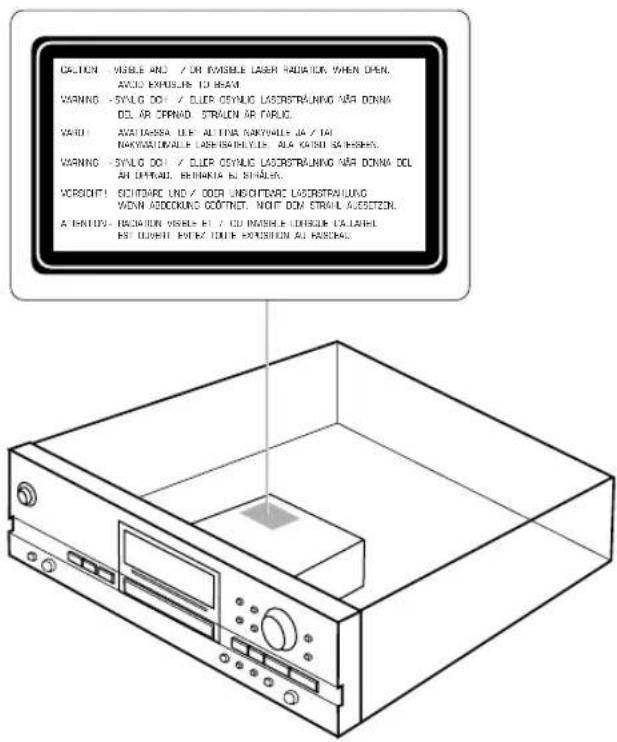

- SPECIAL INSTRUCTIONS FOR U.K. MODEL
- IMPORTANT
- For U.K. customers
- Introduction
- Features
- Contents
- PREPARATION
- DISCS COMPATIBLE WITH THIS UNIT 2
- PREPARATION 4
- CONTROLS AND FUNCTIONS 7
- RULES OF DIGITAL RECORDING AND NOTES ON
- EDITING
- PLAYBACK
- DISCS COMPATIBLE WITH THIS UNIT
- Discs that can be used for recording on this unit
- Discs that can be used for recording
- Discs that cannot be used for recording on this unit
- ■Finalization of CD-R discs for playback on standard CD players
- ■Erasure or loss of data
- Discs that can be played back
- ■Playback of CD-RW discs
- ■Playback on DVD players
- Handling of discs
- To prevent a malfunction of this unit
- Supplied Accessories
- Remote Control
- Cautions
- ■Loading the batteries in the remote control
- ■Battery replacement
- Notes on batteries
- Connections
- Digital connections
- ■Analog connections
- Plug in this unit to a wall outlet when all connections are complete.
- Note
- Front Panel
- Display
- Display Information
- ■Display during playback
- Group number, track number and elapsed time of the track being played
- Group number, track number and remaining time of the track being played
- Group number and group total time
- Group number and group remaining time
- Group title or track title
- Notes
- ■Display during recording
- Disc number (while recording onto the HDD), track number and elapsed time of the track being recorded
- Disc number (while recording onto the HDD) and total recorded time on the disc
- Total recordable time on a disc (while recording onto a CD-R or CD-RW disc)
- Rules of Digital Recording
- SCMS—Serial Copy Management System
- Rule 1
- Rule 2
- Digital Move
- Notes on System
- Number of recordable discs and tracks and their length
- Source sampling rate conversion
- ■Recording of non-audio signals
- Data processing
- Data on the HDD
- Disc
- Track
- Album
- Bookmark
- Group
- Usable Recording Media
- Types of Recording and Copying
- Before Starting to Record and Copy
- Recording from an External Component onto the HDD
- Press REC.
- Select the input source to be recorded.
- Adjust the recording level.
- Select the disc to be recorded.
- Select the recording mode.
- Start recording.
- Start playing the source.
- Press on the remote control) to stop recording temporarily.
- Press to stop recording.
- Recording from an External Component onto a CD-R or CD-RW Disc
- Select the recording mode.
- Start recording.
- Start playing the source.
- Press on the remote control) to stop recording temporarily.
- Press to stop recording.
- Perform finalization when all recordings have been completed.
- Selecting an Input Source
- Adjusting the Recording Level
- Finalization
- Selecting a Disc for Recording
- Setting the Recording Mode
- ■Manual (Manual recording mode)
- ■Multi Sync. (Multi-synchronized recording mode)
- All Synchro (All-synchronized recording mode)
- ■Full Auto (Full auto-synchronized recording mode)
- Auto Period (Auto-period recording mode)
- When "Multi Sync." is selected
- When "Auto Period" is selected
- Manual Track Marking
- Copying from a CD onto the HDD
- Press COPY once.
- Select the disc to be copied.
- Select the copying mode.
- Make detailed settings for copying on the menu.
- Start copying.
- When copying has been completed, the operation of the HDD and the CD automatically stops. To cancel copying, press .
- Output of the signals during copying
- Copying from the HDD onto a CD-R or CD-RW Disc
- Press COPY twice.
- Select the group on the HDD to be copied.
- Make detailed settings for your copying on the menu. Press MENU to make copying menu settings. See page 29 for details.
- Caution
- The TOC indicator flashes if the copied data contains the title data (disc title etc.) which can be copied to a CD-R or CD-RW disc. To copy the titles, perform finalization before opening the disc tray (See page 19).
- Duplication of a CD
- Press COPY three times.
- Start copying from the CD onto the HDD.
- When copying from the CD onto the HDD has been completed, the following message appears on the display.
- Press (OPEN/CLOSE on the remote control) to open the disc tray.
- Load a new CD-R or CD-RW disc on the disc tray.
- Press (OPEN/CLOSE on the remote control) to close the disc tray.
- When copying has been completed, the HDD operation automatically stops, and finalization of the CD-R or CD-RW disc starts.
- Selecting a Disc to Be Copied on
- Setting the Copying Mode
- All Synchro (All-synchronized copying mode)
- ■Multi Sync. (Multi-synchronized copying mode)
- ■Full Auto (Full auto-synchronized copying mode)
- ■ When "Multi Sync." is confirmed
- Copying Menu Setting
- ■Copy Method
- Digital Copy
- Auto Dig/Anlg
- Analog Copy
- Copy Level
- Press the MULTI JOG knob (ENTER on the remote control) to confirm the copying level setting.
- ■Copy Speed
- Best Effort
- 1x Copy
- 2x Copy
- ALBUM EDITING
- Album New
- Edit Stored
- ■When adding new tracks
- When deleting tracks from the album
- Album Copy
- Album Rename
- Album Delete
- Album Pack
- Select and confirm "Album Pack" in step 4 for "ALBUM EDITING" on page 31.
- Press COMPLETE.
- Album Title
- Select and confirm "Album Title" in step 4 for "ALBUM EDITING" on page 31.
- Press the MULTI JOG knob (ENTER on the remote control) to confirm the album to assign a title to.
- Enter the title characters by using the MULTI JOG knob or the alphabetical/numeric buttons on the remote control.
- ■Entering the title characters by using the MULTI JOG knob
- Rotate the MULTI JOG knob clockwise.
- Press the MULTI JOG knob to confirm the selected character.
- Press COMPLETE when all the characters have been entered.
- ■Entering the title characters by using the alphabetical/numeric buttons on the remote control
- Select the character to be used for the title by using the alphabetical/numeric buttons on the remote control.
- Select the next character by pressing one of the alphabetical/numeric buttons.
- Correcting the characters
- To place a bookmark
- To play the track with a bookmark
- ■To cancel a bookmark
- ■To cancel all bookmarks
- TRACK EDITING
- Track Rename
- Track Adjust
- Adjust the time length to change the beginning of the track by rotating the MULTI JOG knob (pressing +/- on the remote control).
- Press the MULTI JOG knob (ENTER on the remote control) to search for the temporarily changed beginning point of the track according to the time length setting made in step 7 and start repeated playback from the new beginning point to the end of the disc.
- Press COMPLETE.
- Track Erase
- Select and confirm "Track Erase" in step 5 for "TRACK EDITING" on page 37.
- Select the disc that contains the track to be erased by rotating the MULTI JOG knob (pressing +/- on the remote control).
- Press the MULTI JOG knob (ENTER on the remote control) to confirm the disc that contains the track to be erased.
- Select the track to be erased by rotating the MULTI JOG knob (pressing +/- on the remote control).
- Press the MULTI JOG knob (ENTER on the remote control) to confirm the track to be erased.
- Press COMPLETE.
- Part Erase
- Press COMPLETE.
- Track Combine
- Select and confirm "Track Combine" in step 5 for "TRACK EDITING" on page 37.
- Select the disc that contains the first track to be combined by rotating the MULTI JOG knob (pressing + / - on the remote control).
- Press the MULTI JOG knob (ENTER on the remote control) to confirm the disc that contains the first track to be combined.
- Press the MULTI JOG knob (ENTER on the remote control) to confirm the track to be the first in the combination.
- Track Divide
- Track Pack
- Add Fade In
- Add Fade Out
- Track Title
- Select and confirm "Track Title" in step 5 for "TRACK EDITING" on page 37.
- Select the disc that contains the track to assign a title to by rotating the MULTI JOG knob (pressing +/- on the remote control).
- Press the MULTI JOG knob (ENTER on the remote control) to confirm the disc that contains the track to assign a title to.
- Select the track to assign a title to by rotating the MULTI JOG knob (pressing + / - on the remote control).
- Press the MULTI JOG knob (ENTER on the remote control) to confirm the track to assign a title to.
- Enter the title characters by using the MULTI JOG knob or the alphabetical/numeric buttons on the remote control.
- DISC EDITING
- Disc Rename
- Disc Erase
- Disc Combine
- Disc Divide
- Disc Pack
- Disc Title
- Select and confirm "Disc Title" in step 5 for "DISC EDITING" on page 46.
- Select the disc to assign a title to by rotating the MULTI JOG knob (pressing +/- on the remote control).
- Press the MULTI JOG knob (ENTER on the remote control) to confirm the disc to assign a title to.
- ■Last Track Erase
- Load the CD-RW disc to be erased.
- Press ERASE.
- ■All Track Erase
- TOC Erase
- ■Disc Erase
- Playing a CD
- Playing Tracks on the HDD
- Finding the Desired Passage (Search)
- To go forward rapidly
- To go backward rapidly
- Finding the Desired Group (Group Skip)
- To select the desired group with the MULTI JOG knob (+ / - on the remote control)
- To advance to the next group
- To return to the previous group
- Resume Play function
- Finding the Desired Track (Track Skip)
- To select the desired track number with the MULTI JOG knob (+ / - on the remote control)
- ■To advance to the next track
- To return to the beginning of the track being played
- To return to the previous track
- To play the desired track
- Example: To select track 25
- Setting the Play Style
- Random Play
- To set random play
- Press the MULTI JOG knob (ENTER on the remote control) to confirm the selection.
- To start random play
- ■To stop random play
- ■To cancel the random play setting
- Single Repeat Play
- To set single repeat play
- ■To cancel the single repeat play setting
- Full Repeat Play
- To set full repeat play
- To cancel the full repeat play setting
- Intro Play
- To set intro play
- To start intro play
- To stop intro play
- To cancel the intro play setting
- Album Play
- To play a created album
- Start playback.
- ■To stop album play
- To edit the album
- ■To delete the album
- Bookmark Play
- Listening with Headphones
- HDD Utility
- To check the HDD utility (HDD Info.)
- System Utility
- To change the display brightness (Dimmer Setup)
- The current setting is indicated on the display if the MULTI JOG knob (ENTER on the remote control) is pressed.
- (Initial setting)
- Press the MULTI JOG knob (ENTER on the remote control) or COMPLETE.
- To set auto play (Auto Play)
- To update the firmware version (Firm. Update)
- DAC (Digital/Analog Converter) Mode
- Display Messages
- Can't Copy
- Can't Edit
- Change Discs!
- Check Disc
- Data Track
- Disc Full
- Disc No.Full
- Erasing
- Finalize OK?
- Finalizing
- HDD Full
- New Disc
- No data
- No Enough Spc
- No Previous
- No Source
- Not Audio
- No Undo Data
- OPC Adjust
- Pack Before!
- Reading
- Standby
- TEXT Save?
- Track No.Full
- Unrecordable
- Wait
- Troubleshooting
- Specifications
- Audio Performance
- Laser Diode Properties
- Inputs
- Outputs
- General
- Pourmettrea jourla versiondufirmware (Firm.Update)
- Varning
- Utgangar
- ■Allmert
- ■Salidas
- ■General
- DISCS DIE U IN DIT APPARAAT KUNT GEBRUKEN .. 2
- VOORBEREIDINGEN 4
- DISCS DIE U IN DIT APPARAAT KUNT GEBRUIKEN
- ATTENTION
Brand : YAMAHA
Model : CDRHD1000
Category : Cd player/recorder