FCS3085 - Surveillance Camera LEVELONE - Free user manual and instructions
Find the device manual for free FCS3085 LEVELONE in PDF.



| Product Type | Network Surveillance Camera |
| Brand | LevelOne |
| Model | FCS3085 |
| Connectivity | Ethernet (RJ45) |
| Default IP Address | 192.168.1.64 (DHCP enabled by default) |
| Default HTTP Port | 80 |
| Data Port | 8000 |
| Network Protocol | IPv4 |
| Configuration Tool | SADP (Search Active Device Protocol) |
| Activation Required | Yes, via SADP or web interface |
| Password | Strong, minimum 8 characters with 3 categories (uppercase, lowercase, digits, special) |
| User Access | Web Browser (Internet Explorer, etc.) |
| Plugin Required | Yes, for live viewing |
| Account Management | Administrator, Operator, User |
| Device Search | Automatic every 15 seconds via SADP |
| Offline Detection Time | 45 seconds |
| Firmware Update | Via SADP or web interface |
| Security | Strong password recommended, delete unnecessary accounts |
| Maintenance | Keep firmware up to date, check network settings |
Frequently Asked Questions - FCS3085 LEVELONE
User questions about FCS3085 LEVELONE
0 question about this device. Answer the ones you know or ask your own.
Ask a new question about this device
Download the instructions for your Surveillance Camera in PDF format for free! Find your manual FCS3085 - LEVELONE and take your electronic device back in hand. On this page are published all the documents necessary for the use of your device. FCS3085 by LEVELONE.
USER MANUAL FCS3085 LEVELONE
natural_image
Abstract geometric pattern composed of blue squares forming a stylized 'T' shape (no text or symbols)
Network Camera
Quick Installation Guide v1.0
English
Português
Deutsch
Русский
Français
Polski
Español
Ελληνικά
Italiano
Table of Contents
English....3
Deutsch....7
Français 11
Español....15
Italiano 19
Ελληνικά 23
Português 27
Русский 31
Polski 35
Package Contents
▶ Network Camera
CD Manual/Utility
▶ Quick Installation Guide
English
- Search tool of SADP
SADP is a kind of user-friendly and installation-free online device search tool. It searches the active online devices within your subnet and displays the information of the devices. You can also modify the basic network information of the devices using this software.
- Search Active devices online
◆ Search online devices automatically
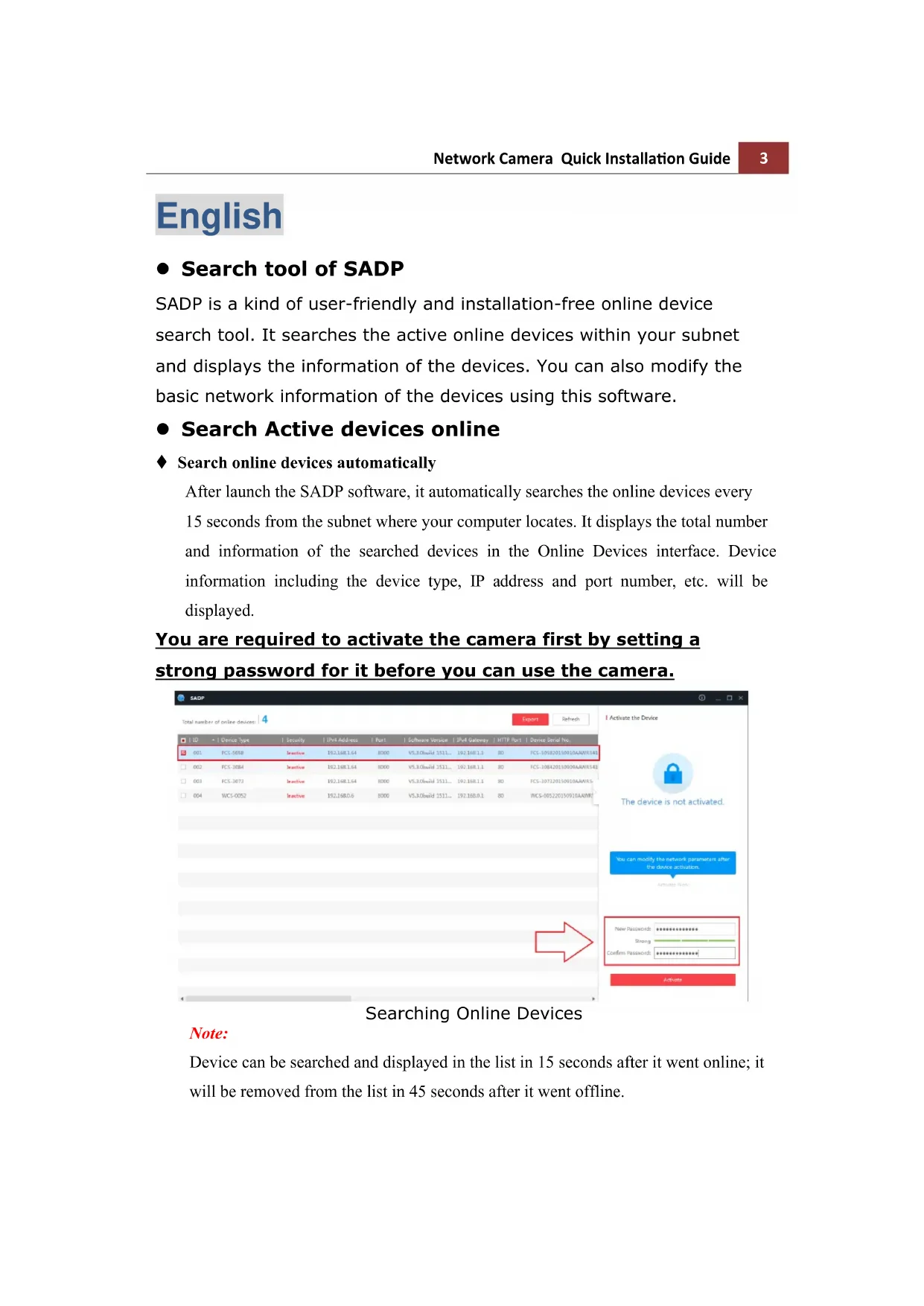
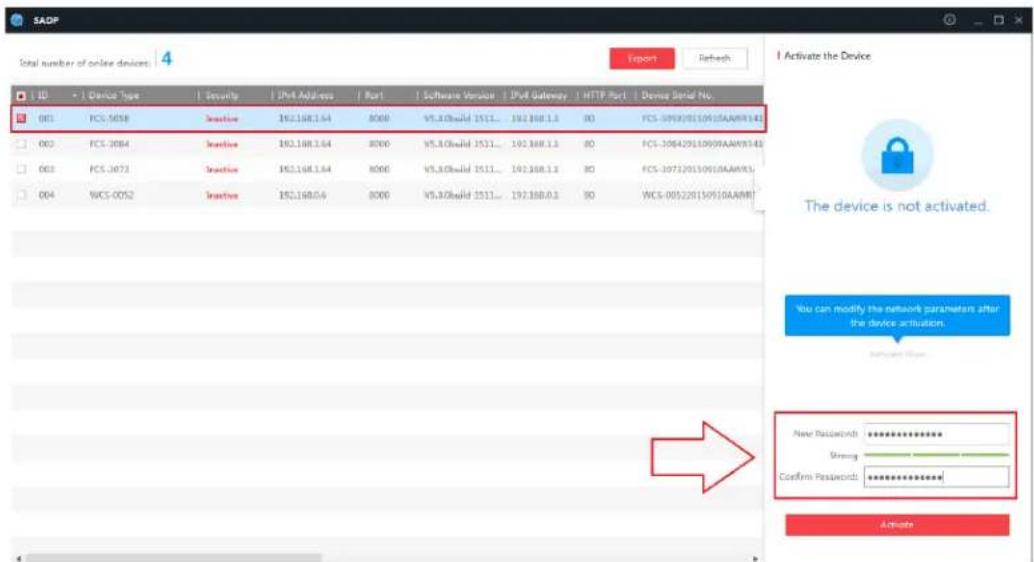
After launch the SADP software, it automatically searches the online devices every 15 seconds from the subnet where your computer locates. It displays the total number and information of the searched devices in the Online Devices interface. Device information including the device type, IP address and port number, etc. will be displayed.
You are required to activate the camera first by setting a strong password for it before you can use the camera.
text_image
SADP Total number of online devices 4 Export Refresh ID + | Device Type | Security IP# Address | Port | Software Version | IP# Gateway | HTTP Port | Demo Serial No. 001 FCS-5058 Setecio 192.168.1.64 8000 V5.3.0build 1511... 192.168.1.3 80 PCS-505820150910AAAMR142 002 FCS-3084 Setecio 192.168.1.64 8000 V5.3.0build 1511... 192.168.1.3 80 PCS-30842015090AAAMR142 003 FCS-3073 Setecio 192.168.1.64 8000 V5.3.0build 1511... 192.168.1.3 80 PCS-307320150910AAAMR1 004 WCS-0052 Setecio 192.168.0.6 8000 V5.3.0build 1511... 192.168.0.3 80 WCS-005220150910AAAMR I Activate the Device The device is not activated. You can modify the network parameters after the device activation. New Password: ************ Binary: ************ Confirm Password: ************ ActivateSearching Online Devices
Note:
Device can be searched and displayed in the list in 15 seconds after it went online; it will be removed from the list in 45 seconds after it went offline.

- For your privacy and to better protect your system against security risks, we strongly recommend the use of strong passwords for all functions and network devices. The password should be something of your own choosing (using a minimum of 8 characters, including at least three of the following categories: upper case letters, lower case letters, numbers and special characters) in order to increase the security of your product.
- Proper configuration of all passwords and other security settings is the responsibility of the installer and/or end-user.
- Modify network parameters
Steps:
-
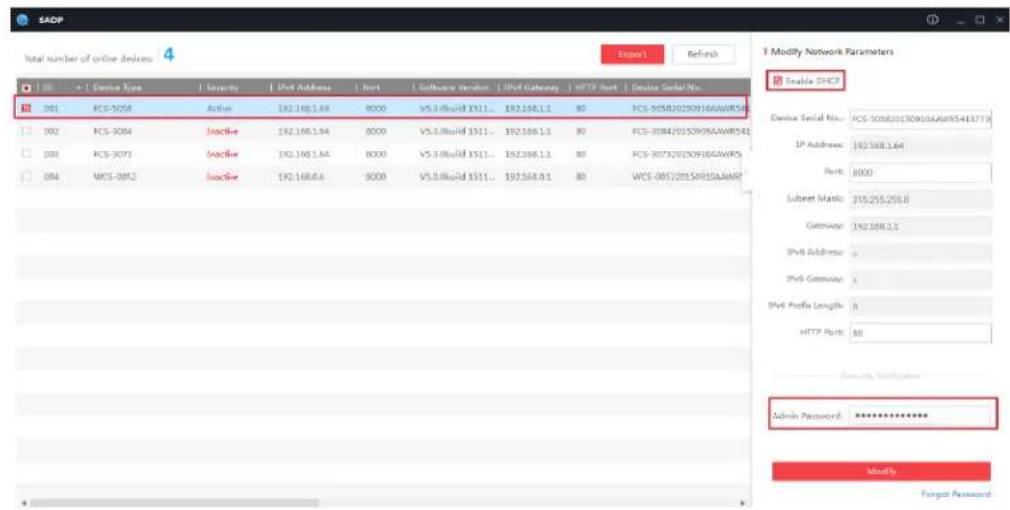
Select the device to be modified in the device list and the network parameters of the device will be displayed in the Modify Network Parameters panel on the right side.
-
Edit the modifiable network parameters, e.g. IP address and port number.
-
Enter the password of the admin account of the device in the Password field and click to save the changes.
text_image
SADP Total number of online devices 4 Report1 Refresh I Modify Network Parameters Enable DHCP Device Serial No: PCS-505620150916AAWR5413778 IP Address: 192168.1.64 Port: 8000 Subset Mask: 255255258.0 Gateway: 192168.1.1 IPv4 Address: IPv4 Gateway: IPv4 Profile Length: 8 HTTP Port: 88 Security Indicator Admin Password: ************ Modify Forgot PasswordNotes:
- The default IP address of the camera is 192.168.1.64.
● And you need to activate the camera via SADP software. For the
camera enables the DHCP by default, the IP address is allocated automatically
Accessing by Web Browsers
Steps:
- Open the web browser.
- In the browser address bar, input the IP address of the network camera, and press the Enter key to enter the login interface.
- Select the interface language on the top-right of login interface.
natural_image
Abstract grayscale curved shape with soft gradients, no text or symbols visible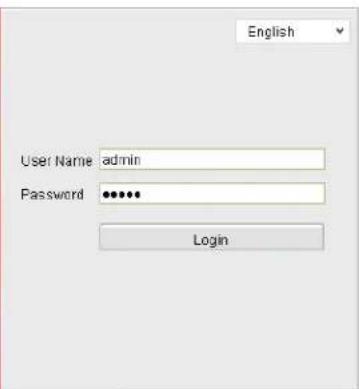
text_image
English User Name admin Password •••••• Login- Input the user name and password and click.
Login
The admin user should configure the device accounts and user/operator permissions properly. Delete the unnecessary accounts and user/operator permissions.
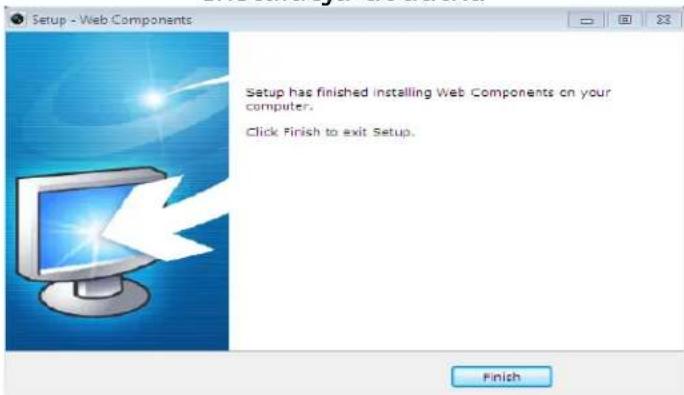
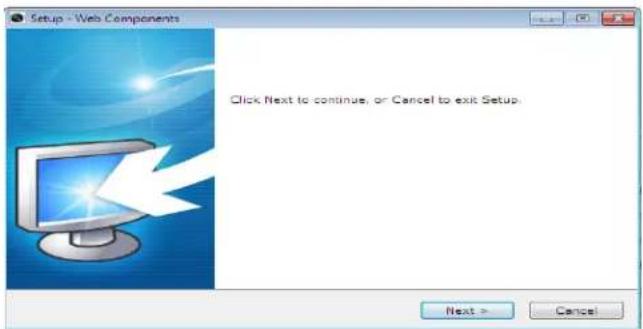
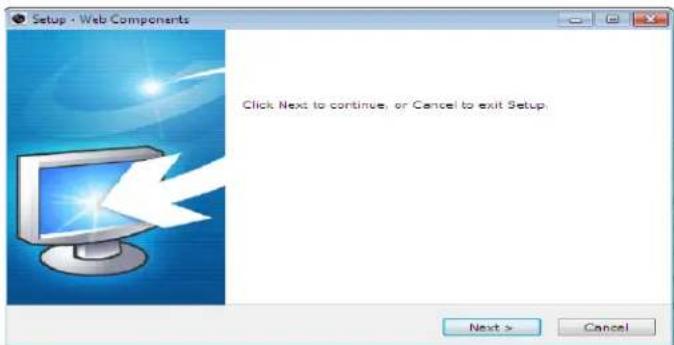
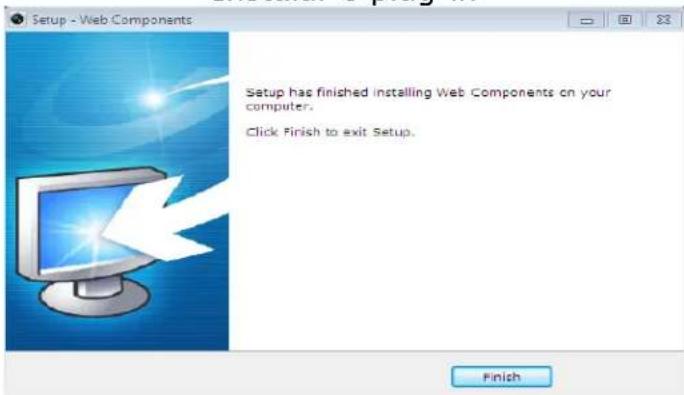
- Install the plug-in before viewing the live video and operating the camera. Please follow the installation prompts to install the plug-in.

text_image
Live View Playback Log Configuration Sub Stream Main Stream Webcomponents Please click here to download and install the plug-in. Close the browser when installing the plug-in.Download and Install Plug-in
text_image
Setup - Web Components Click Next to continue, or Cancel to exit Setup. Next > CancelInstall Plug-in
text_image
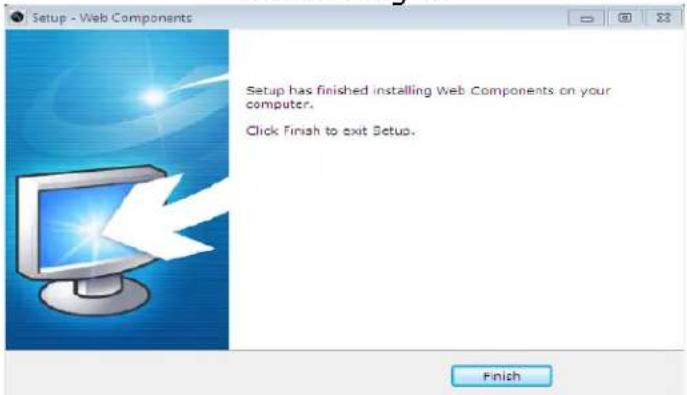
Setup - Web Components Setup has finished installing Web Components on your computer. Click Finish to exit Setup. FinishInstall Plug-in (2)
Deutsch
text_image
SADP Total number of online devices 4 Export Refresh ID Device Type Security IPV Address Port Software Version IPV Gateway HTTP Port Device Serial No. 001 PCS-1058 Inactive 192.168.1.64 8000 V5.3.0build 1511... 192.168.1.3 BD PCS-105820150910AAAWR142 002 PCS-1084 Inactive 192.168.1.64 8000 V5.3.0build 1511... 192.168.1.3 BD PCS-10842015090AAWR342 003 PCS-1073 Inactive 192.168.1.64 8000 V5.3.0build 1511... 192.168.1.3 BD PCS-107120150910AAWR3 004 WCS-0052 Inactive 192.168.0.6 8000 V5.3.0build 1511... 192.168.0.3 BD WCS-005220150910AAWR I Activate the Device The device is not activated. You can modify the network parameters after the device activation. Activate by: New Password: ********** Strong Confirm Password: ********** Activatetext_image
Live View Playback Log Configuration Sub Stream Main Stream Webcomponents Please click here to download and install the plug-in. Close the browser when installing the plug-in.text_image
Setup - Web Components Click Next to continue, or Cancel to exit Setup. Next > CancelPlug-in installieren
text_image
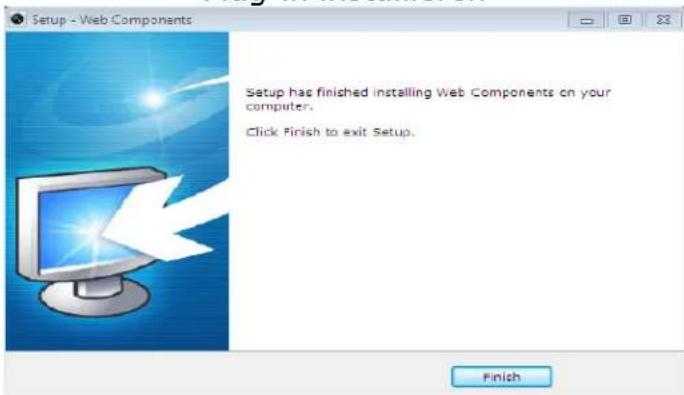
Setup - Web Components Setup has finished installing Web Components on your computer. Click Finish to exit Setup. FinishPlug-in installieren(2)
Français
text_image
Total number of active devices 4 Export Refresh Modify Network Parameters CDS-2032 Device Serial No: CDS-2032/01/08/10/AWRS/541779 IP Address: 192.198.1.64 Port: 000 Subnet Mask: 205.215.215.0 Gateway: 192.198.1.4 BVD Address: 0 BVD Gateway: 0 IPd Profile Length: 0 HTTP Port: 80 Admin Password: ********** Modify Target PasswordREMARQUES :
natural_image
Abstract grayscale curved shape with soft gradients, no text or symbols present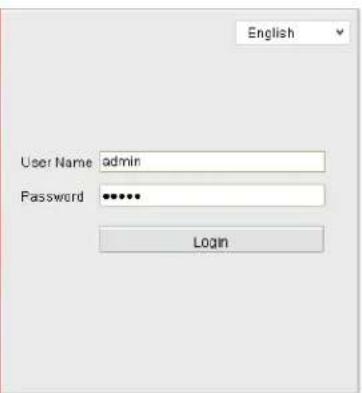
text_image
English User Name admin Password •••••• Logintext_image
Live View Playback Log Configuration Sub Stream Main Stream Webcomponents Please click here to download and install the plug-in. Close the browser when installing the plug-in.text_image
Setup - Web Components Click Next to continue, or Cancel to exit Setup. Next > CancelInstallez le plug-in
text_image
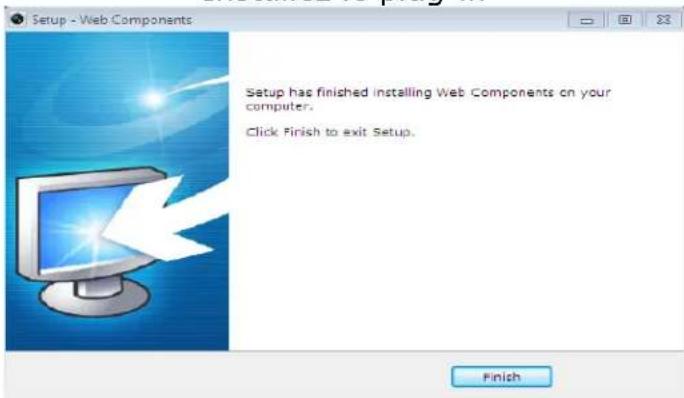
Setup - Web Components Setup has finished installing Web Components on your computer. Click Finish to exit Setup. FinishInstallez le plug-in(2)
Español
text_image
Live View Playback Log Configuration Sub Stream Main Stream Webcomponents Please click here to download and install the plug-in. Close the browser when installing the plug-in.text_image
Setup - Web Components Click Next to continue, or Cancel to exit Setup. Next > CancelInstalar el complemento
text_image
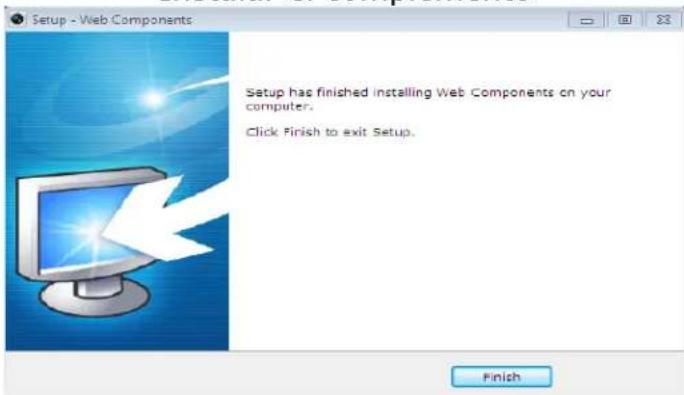
Setup - Web Components Setup has finished installing Web Components on your computer. Click Finish to exit Setup. FinishInstalar el complement(2)
Italiano
natural_image
Abstract grayscale curved shapes with soft gradients, no text or symbols present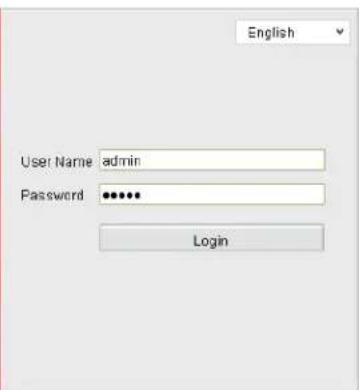
text_image
English User Name admin Password •••••• Logintext_image
Live View Playback Log Configuration Sub Stream Main Stream Webcomponents Please click here to download and install the plug-in. Close the browser when installing the plug-in.text_image
Setup - Web Components Click Next to continue, or Cancel to exit Setup. Next > Canceltext_image
Setup - Web Components Setup has finished installing Web Components on your computer. Click Finish to exit Setup. Finishtext_image
SADP Total number of active devices 4 Export Refresh 1 Activate the Device The device is not activated. You can modify the network parameters after the choice activation. New Password: ********** Bring: Confirm Password: **********natural_image
Abstract grayscale curved shape with soft gradients, no text or symbols present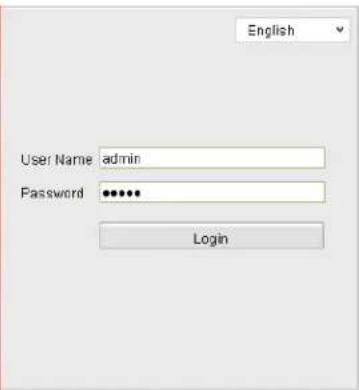
text_image
English User Name admin Password •••••• Logintext_image
Live View Playback Log Configuration Sub Stream Main Stream Webcomponents Please click here to download and install the plug-in. Close the browser when installing the plug-in.text_image
Setup - Web Components Click Next to continue, or Cancel to exit Setup. Next > Canceltext_image
Setup - Web Components Setup has finished installing Web Components on your computer. Click Finish to exit Setup. Finishtext_image
SADP Total number of online devices 4 Export Refresh ID Device Type Security IPv4 Address Port Software Version IPv4 Gateway HTTP Port Device Serial No. 001 PCS-3058 Inactive 192.168.1.64 8000 V5.3.0build 3511... 192.368.1.3 80 PCS-508820150N10AAWR542 002 PCS-3084 Inactive 192.168.1.64 8000 V5.3.0build 3511... 192.368.1.3 80 PCS-308420150N08AAWR542 003 PCS-3073 Inactive 192.168.1.64 8000 V5.3.0build 3511... 192.368.1.3 80 PCS-307320150N05DAAWR542 004 WCS-0052 Inactive 192.168.0.6 8000 V5.3.0build 3511... 192.368.0.3 80 WCS-005220150N10AAWR542 I Activate the Device The device is not activated. You can modify the network parameters after the device activation. Active Flow New Password: ********** Growing Confirm Password: ********** ActivateProcurar dispositivos online
Nota:
natural_image
Abstract grayscale curved shape with soft gradients, no text or symbols present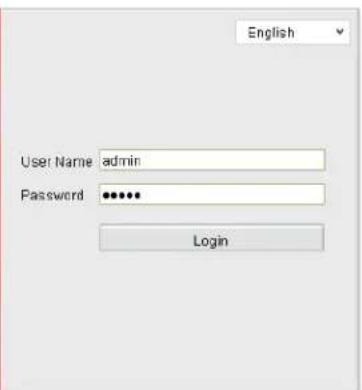
text_image
English User Name admin Password •••••• Logintext_image
Live View Playback Log Configuration Sub Stream Main Stream Webcomponents Please click here to download and install the plug-in. Close the browser when installing the plug-in.Transferir e instalar o plug-in
text_image
Setup - Web Components Click Next to continue, or Cancel to exit Setup. Next > CancelInstalar o plug-in
text_image
Setup - Web Components Setup has finished installing Web Components on your computer. Click Finish to exit Setup. FinishInstalar o plug-in (2)
Русский
• Средство поиска SADP
text_image
SADP Total number of online devices 4 Export Refresh ID Device Type Security JPM Address Port Software Version JPM Gateway HTTP Port Device Serial No. 001 PCS-3058 Inactive 192.168.1.64 8000 V5.3.0build 1511... 192.168.1.1 80 PCS-305820150910AAWR341 002 PCS-3084 Inactive 192.168.1.64 8000 V5.3.0build 1511... 192.168.1.1 80 PCS-30842015090AAWR341 003 PCS-3073 Inactive 192.168.1.64 8000 V5.3.0build 1511... 192.168.1.1 80 PCS-307320150910AAWR34 004 WCS-0052 Inactive 192.168.0.6 8000 V5.3.0build 1511... 192.168.0.1 80 WCS-305220150910AAWR I Activate the Device The device is not activated. You can modify the network parameters after the device activation. Active Type New Password: ********** Strong Confirm Password: ********** Activatenatural_image
Abstract grayscale circular design with layered segments and gradients, no text or symbols present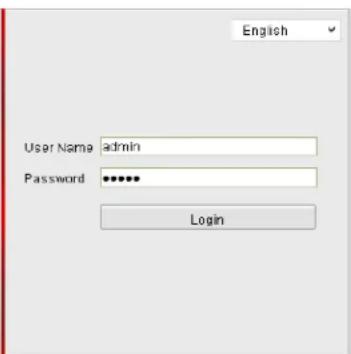
text_image
English User Name admin Password ***** Logintext_image
Live View Playback Log Configuration Sub Stream Main Stream Webcomponents Please click here to download and install the plug-in. Close the browser when installing the plug-in.text_image
Setup - Web Components Click Next to continue, or Cancel to exit Setup. Next > Canceltext_image
Setup - Web Components Setup has finished installing Web Components on your computer. Click Finish to exit Setup. Finishtext_image
Live View Playback Log Configuration Sub Stream Main Stream Webcomponents Please click here to download and install the plug-in. Close the browser when installing the plug-in.text_image
Setup - Web Components Click Next to continue, or Cancel to exit Setup. Next > CancelInstalacja dodatku