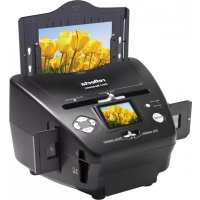
3in1 - Scanner Reflecta - Free user manual and instructions
Find the device manual for free 3in1 Reflecta in PDF.

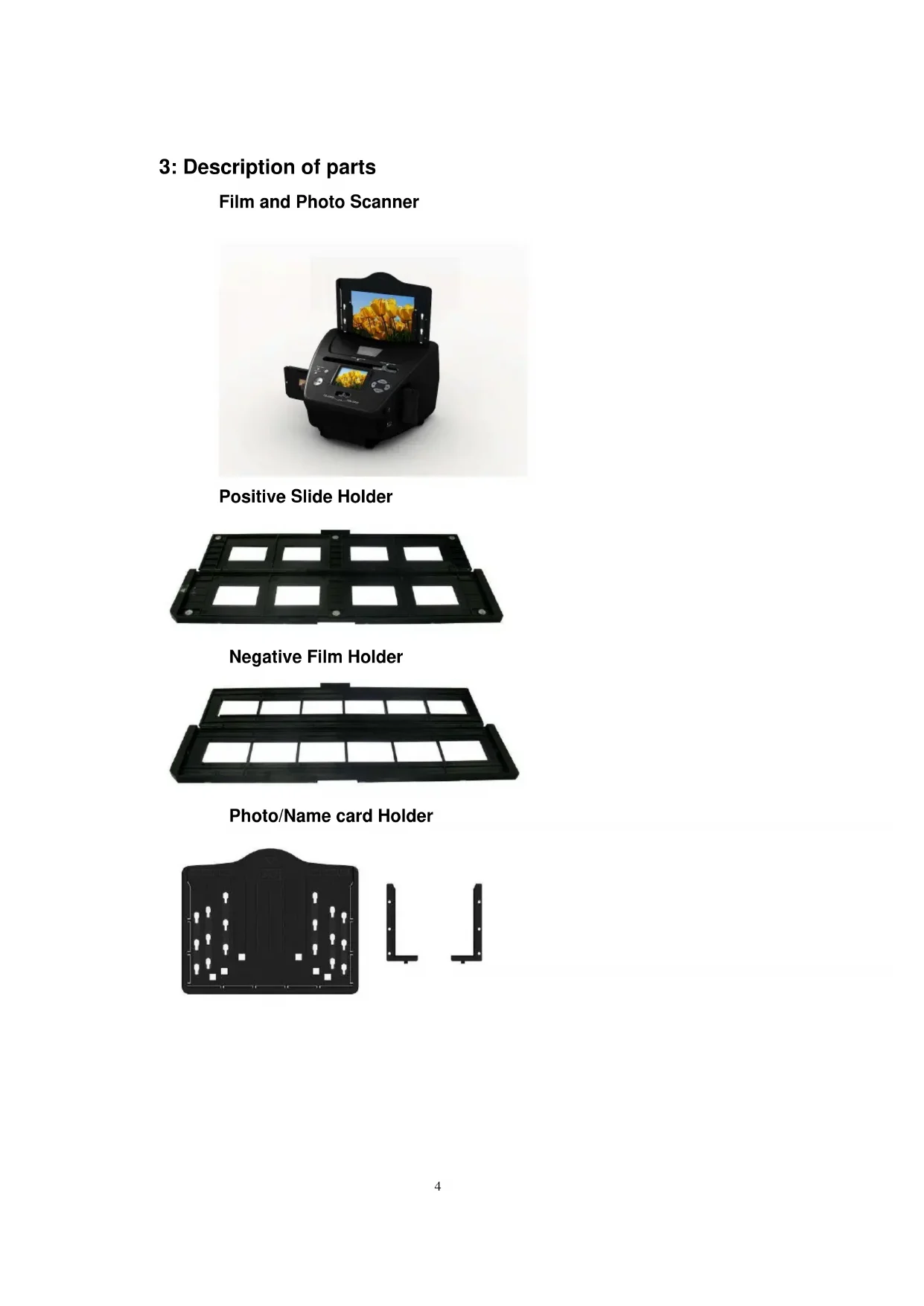


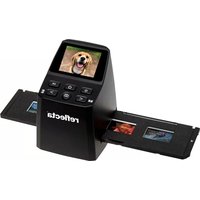
| Product Type | 3-in-1 Scanner (films, slides, photos) |
| Brand | Reflecta |
| Model | 3in1 |
| Dimensions | 220 x 208 x 147 mm |
| Weight | 890 g |
| Power Supply | USB (5 V) or 5 V power adapter |
| Sensor | CMOS 5.1 megapixels |
| Maximum Resolution | 10 MP (interpolated) |
| Display | 2.4-inch LTPS LCD |
| Internal Memory | Yes (built-in) + SD/MMC card |
| Scanned Formats | 35 mm negatives, slides, photos up to 5 x 7 inches |
| Main Functions | Scanning, viewing, slideshow, brightness/color adjustments, rotation, mirror effect, cropping |
| Maintenance and Cleaning | Clean the glass surface with a dry, clean cotton swab, without alcohol |
| Safety | Do not expose to moisture, do not disassemble, avoid USB overload, keep away from heat sources |
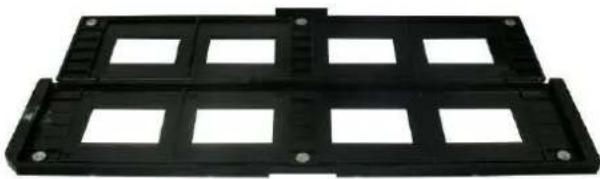
| Included Accessories | Film holder (negative), slide holder, 4-in-1 photo holder, USB cable, power adapter, OCR CD |
| Repairability | Do not repair yourself; any intervention must be carried out by a qualified technician |
| General Information | Automatic shutdown after 30 minutes of inactivity; available languages: English, French, German, Italian, Spanish, etc. |
Frequently Asked Questions - 3in1 Reflecta
User questions about 3in1 Reflecta
0 question about this device. Answer the ones you know or ask your own.
Ask a new question about this device
Download the instructions for your Scanner in PDF format for free! Find your manual 3in1 - Reflecta and take your electronic device back in hand. On this page are published all the documents necessary for the use of your device. 3in1 by Reflecta.
USER MANUAL 3in1 Reflecta
natural_image
Black digital camera with a screen displaying yellow flowers, no visible text or symbolsDia-Halter
natural_image
Black plastic enclosure with multiple rectangular cutouts and mounting holes (no text or symbols visible)Negativ-Filmhalter
natural_image
Black plastic tray with rectangular slots and a small protrusion at the top (no text or symbols visible)natural_image
Black plastic panel with white light fixtures and two separate L-shaped metal bracket diagrams (no text or symbols)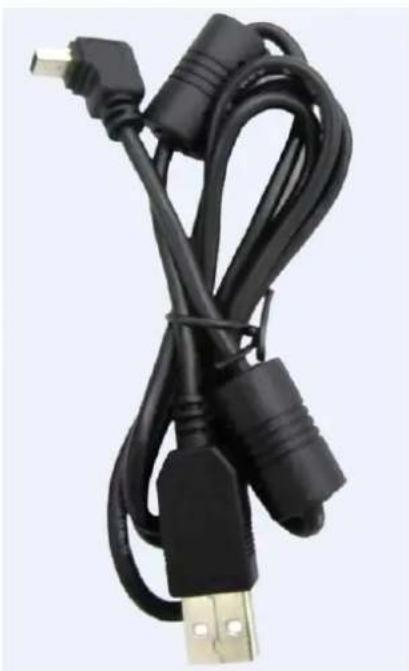
natural_image
Coiled black USB cable with gold connectors, no visible text or symbolsUSB-Kabel
4. Dias laden
natural_image
Hand holding a small white rectangular object with a small inset image, against a plain background (no text or symbols visible)natural_image
Hand holding a small tool interacting with a black plastic electronic component (no visible text or symbols)natural_image
Black digital camera with a screen displaying yellow tulips against a blue sky (no text or symbols visible)5. Negative laden
natural_image
Close-up of a hand holding a film strip with visible filmstrip pattern (no text or symbols)natural_image
Black rectangular object with four small rectangular panels, no visible text or symbolsnatural_image
Black digital camera with a screen displaying a floral image, showing no visible text or symbols on the device itself.natural_image
Digital camera printer with a screen displaying yellow flowers, showing no visible text or symbols on the device itself.Hinweis:
Push the slider above to the left (film scanning)
oder
natural_image
Two side-by-side photos of a small dog with red flowers, one being drenched by a 'Drehen' arrow (no text or symbols on the dog itself)natural_image
Exterior view of a historic castle with multiple towers and pointed spires under a blue sky (no signage or text visible)flowchart
graph LR
    A["Start: Image at top"] -->|SCAN| B["Scan to castle"]
    B --> C["Enter"]
    C --> D["Next Step with icon legend"]
natural_image
Exterior view of a historic castle with multiple towers and pointed architecture under a clear blue sky (no signage or text visible)natural_image
Exterior view of a historic castle with multiple towers and pointed roofs under a blue sky (no signage or text visible)natural_image
Exterior view of a historic castle with multiple towers and a pointed spire under a blue sky (no signage or text visible)For correct usage please read these instructions carefully and keeps in a safe place for future reference!
Contents
1: Safety precautions....2
2: Package contents .... 3
3: Description of parts....4
4: Loading Slides....5
5: Loading Negatives....6
6: Loading photo....7
7: General operations....9
8: Trouble shooting ....20
9: Technical Specifications....21
1: Safety precautions
Important: Do not expose this product to rain or moisture to preserve the life of your product.
Caution: Do not disassemble this unit. To prevent the risk of electric shock, do not remove cover.
Ventilation: The device should be situated so that its location or position does not interfere with its proper ventilation. For example, the unit should not be situated on a bed, sofa, rug or similar surface that may block the ventilation openings.
Heat: The device should be situated away from sources of high heat such as radiators or stoves.
Cleaning: We strongly suggest using a clean, dry, non-alcohol cotton swab to clean the glass surface periodically to produce a clear image.
Non use period: The USB cord for the device should be unplugged from the computer when the unit is left unused for a long period of time.
USB overloading: Do not overload the USB connections on your computer. If you have too many devices connected to your computer such as a wireless mouse, media player, mobile phone or other USB powered devices. There may not be enough power for the film & photo scanner to operate properly.
Servicing: The user should not attempt to service the device beyond those means described in the operating instructions. All other servicing should be referred to qualified person.
Film Holder: The design of the film holder follows ISO standard. In some cases the holes on the film will not match exactly to the alignment of the holder. This is caused by a non-standard camera. In this case there will be a small black line on the edge of the frame that can easily be cropped out using photo editing software.
ISO-- International Organization for Standardization
For environmental protection and energy conservation, besides in PLAYBACK and USB mode, the device will be powered off automatically without any operation in 30 minutes of inactivity.
2: Package contents
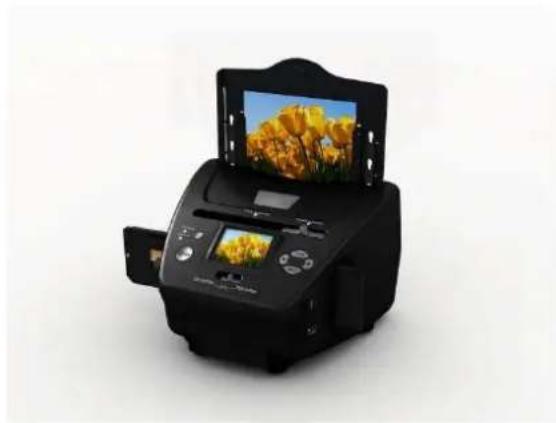
◆ Film & photo scanner
USB cable
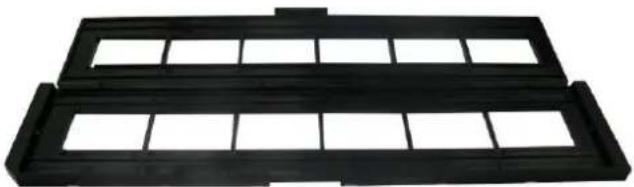
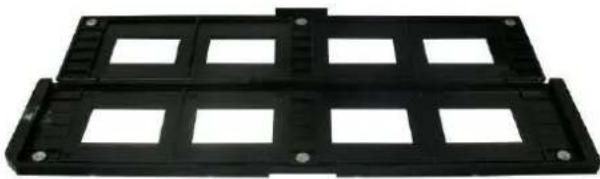
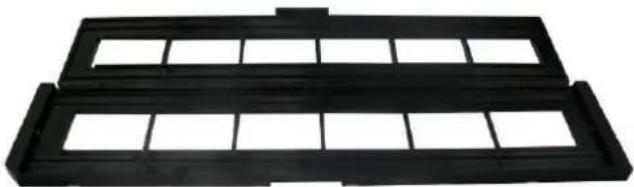
◆ Negative Film Holder
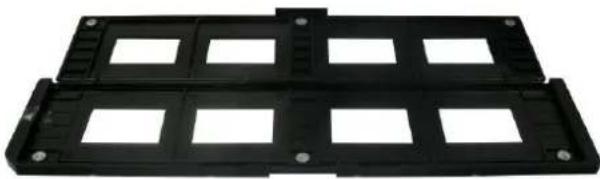
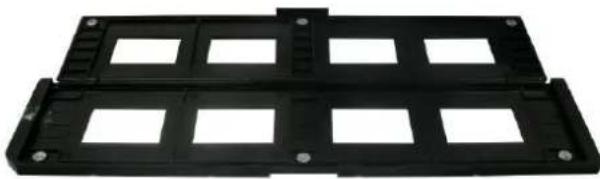
◆ Positive Slide Holder
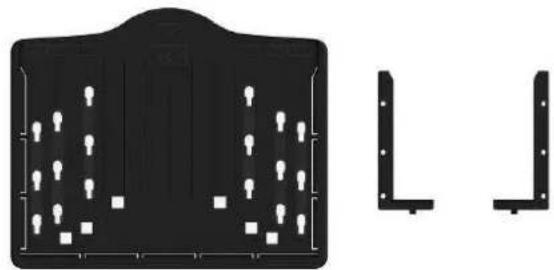
◆ 4 in 1 Photo Tray
◆ OCR CD
◆ AC/DC adapter
◆ User's Manual
Please remove the adaptor from the mains when not in use.
3: Description of parts
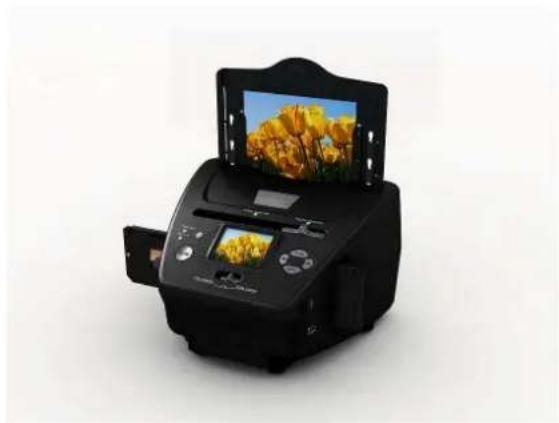
Film and Photo Scanner
natural_image
Black digital camera with a screen displaying yellow flowers, no visible text or symbolsPositive Slide Holder
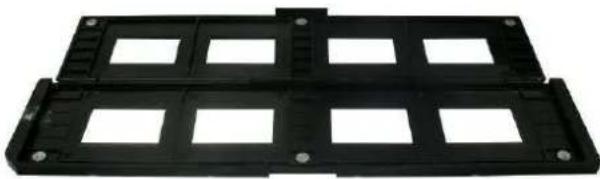
natural_image
Black plastic mechanical component with multiple rectangular cutouts and mounting holes (no text or symbols visible)Negative Film Holder
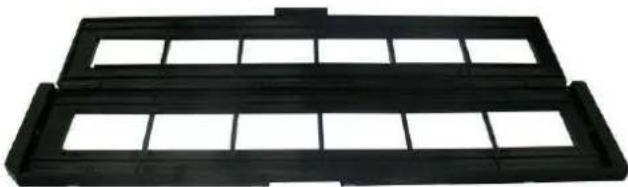
natural_image
Black plastic mechanical component with grid-like cutouts (no text or symbols)Photo/Name card Holder
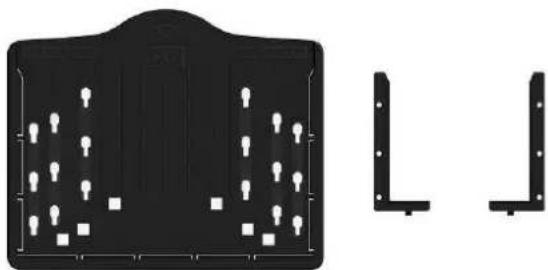
natural_image
Black plastic panel with white lightbulb and square cutouts, alongside two separate L-shaped metal bracket diagrams (no text or symbols)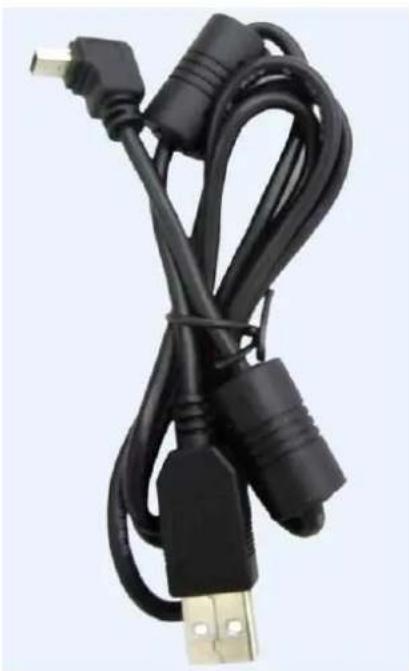
natural_image
Black USB cable with gold connector, no visible text or symbolsUSB cable
4: Loading Slides
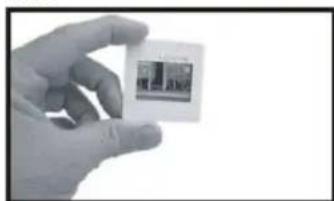
Hold up the slide toward the light. Face the trademark side of the slide away from you. Look through the slide and it should appear normally (not a mirror image).
Now turn the slide so the image is upside down while looking at the same side.
natural_image
Hand holding a small white object with a small inset image, possibly a photo or digital display (no visible text or symbols)Open the slide holder at the marked spot on the top.
With the slide holder laid open place the slide into recessed area in the holder- the slide should fit perfectly.
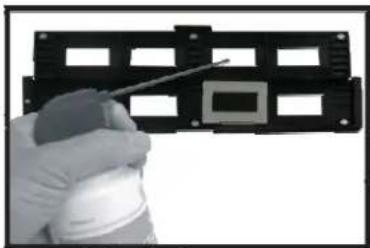
Note: Handle slides with care. Any dust scratches or fingerprints will show up on your saved images. You'd better to cotton gloves when handling slides. It is recommended to use compressed air to remove any dust on the slides. You can purchase it from an office supply or electronics retailer.
natural_image
Hand holding a small electronic component with a tool, no visible text or symbolsClose the slide holder and press the edges so that it locks in place.
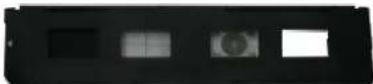
Hold it in the position as shown in the film & photo scanner.
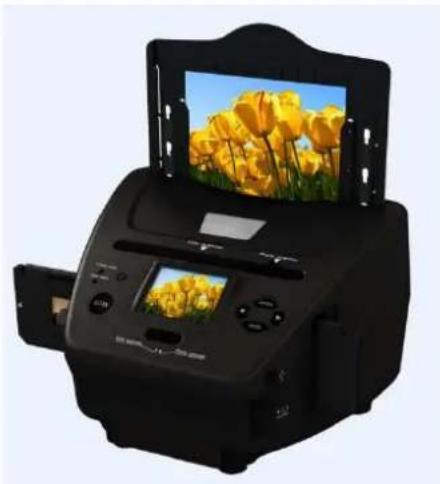
Insert the Slide Holder into the slot on the right side of the film & photo scanner as shown.
natural_image
Black handheld printer with a digital display showing yellow tulips against a blue sky (no text or symbols visible)5: Loading Negatives
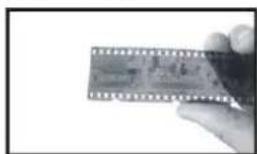
Hold up the negative toward the light. As you look through the negative you should be able to read the small negative numbers normally (not a mirror image).
Now turn the negative so the image is upside down while looking at the same side.
natural_image
Close-up of a hand holding a thin film strip with visible traces and pads (no text or symbols)Open the negative holder at the marked spot on the top.
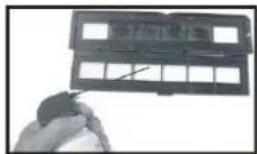
With the negative holder laid open place the negative into holder so the notches line up with the notches on the holder.
Note: Handle negatives with care. Any dust, scratches or fingerprints will show up on your saved images. If possible use cotton gloves when handling negatives. It is recommended to use compressed air to remove any dust on the negatives. This is not included with the film & photo scanner but can be purchased from an office supply or electronics retailer.
natural_image
Hand holding a small object with a grid-like structure, possibly a device or panel (no visible text or symbols)Close the negative holder and press the edges so that it locks in place
natural_image
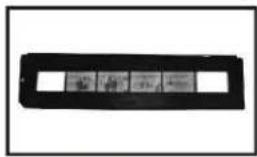
Black rectangular object with four small rectangular cutouts, no visible text or symbolsHold it in the position as shown in the film & photo scanner.
Insert the negative holder into the slot on the right side of the film & photo scanner as shown.

natural_image
Black digital camera with a screen displaying a golden flower image, showing no visible text or symbols on the device itself.Film Holder: The design of the film holder follows ISO standard. In some cases the holes on the film will not match exactly to the alignment of the holder. This is caused by a non-standard camera. In this case there will be a small black line on the edge of the frame that can easily be cropped out using photo editing software.
ISO-- International Organization for Standardization
6: Loading photo
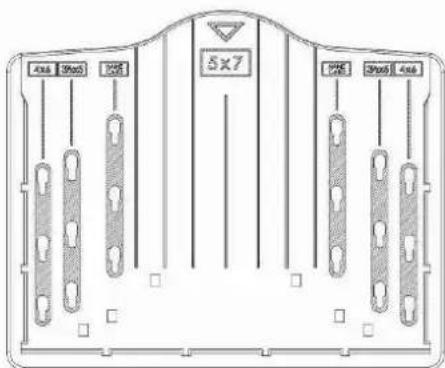
Photo tray
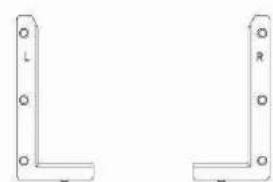
natural_image
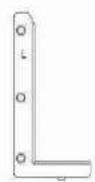
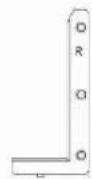
Two L-shaped metal bracket structures with mounting holes, no text or symbols presentLeft bracket Right bracket
Position the brackets according to the marked dimensions on the photo tray. Note that for 5x7" photographs, the brackets do not need to be fitted into the photo tray.
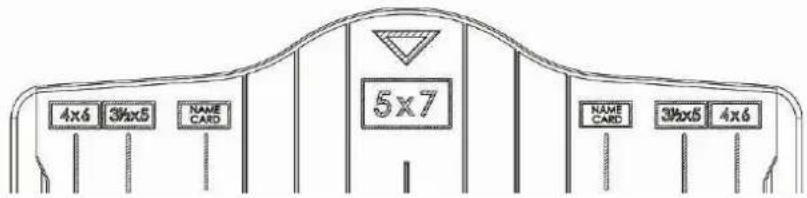
Place the brackets into the slots and slide the brackets downwards to secure. Check that they are securely fastened by turning the photo tray upside down. The brackets should not fall off.
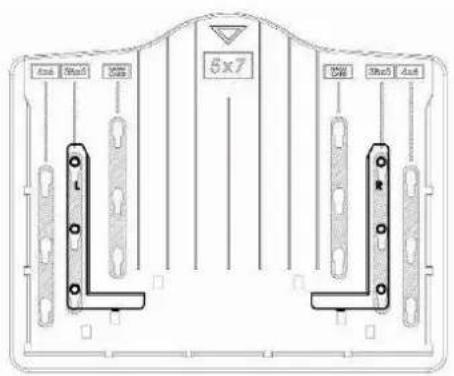
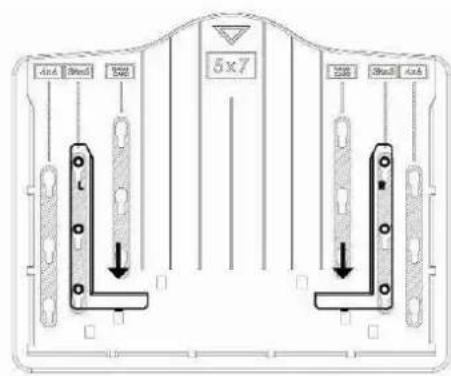
- Place brackets in photo tray 2. Slide brackets downwards
to secure
Insert the photo into appropriately sized photo tray (5"x7" (5R), 4"x6" (4R), 3 1/2"x5" (3R), name card)
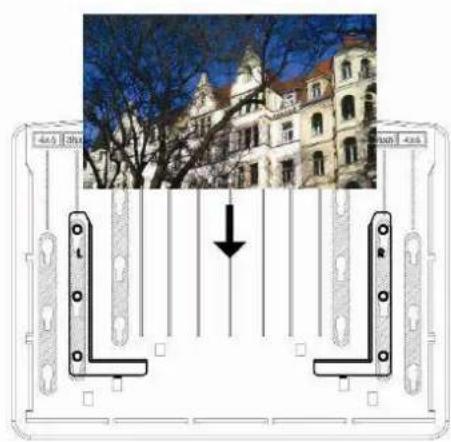
natural_image
Architectural diagram showing a building with columns and structural beams, featuring a photo of its exterior (no text or symbols present)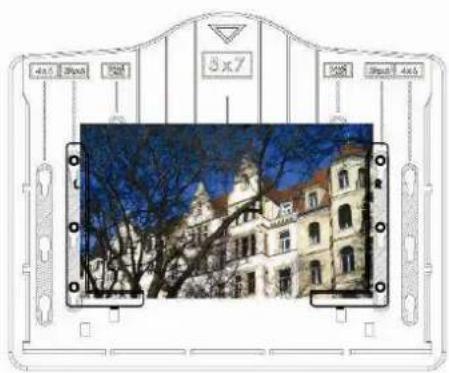
Insert the photo tray into the photo tray slot from the top of the film & photo
scanner as shown.
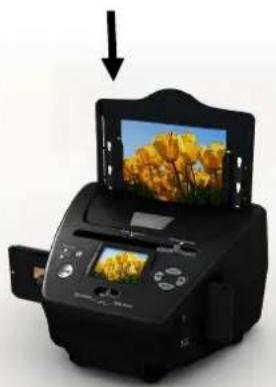
natural_image
Black digital printer with a screen displaying yellow tulips, no visible text or symbols on the device itself.Note:
- Please use the provided OCR CD to organize the name cards.
- Handle photo with care. Any dust scratches or fingerprints will show up on your saved images.
- Scanned name cards will capture a standard dimension of 91x55mm. The scanned image will have a slight border around the name card.
7: General operations
Note: Maybe there is some difference between the preview image and saved image, please subject to the image that you saved in SD card.
◆ Quick Start
1: If you want to scan the films, please switch two switches on the top of the device to the left side. Otherwise if you want to scan the photos, please switch to the right side.
2: Put Slide/Negative onto the Slide/Negative Holder or insert photo into appropriately sized photo tray (5"x7" (5R), 4"x6" (4R), 3 ½"x5" (3R), name card)
3: Insert the Slide/Negative Holder into the slot on the right of the device or insert photo tray into photo tray slot from the top of the device.
4: Apply the power to the film & photo scanner by two ways:
(1) USB: Connect the film & photo scanner to PC with USB cable
(2) 5V adapter: Connect the adapter to the device with USB cable
5: Press POWER button to turn on the film & photo scanner.
Note: (1) When the Film scanner mode is selected, the Film scan indication LED is on.
(2) When the Photo scanner mode is selected, the Photo scan indication LED is on.
6: Follow the menu on screen for scanning.
7: After finished the scanning, take out the memory card.
Note: The film & photo scanner has a built-in memory for recording, when
there is a memory card inserted, it will be the top priority for saving data 8: Or read pictures from PC by USB mode
9. When capturing in either photo or film modes, please remember to push both slide switches to the correct placement.
A notification will appear on-screen as a reminder to carry out the following:
-
Photo: push both sliders to the right
-
Push the slider above to the right (photo scanning)
-
Please remove film tray for photo scanning
-
Film: push both sliders to the left.
Push the slider above to the left (film scanning)
◆ Operation Guide
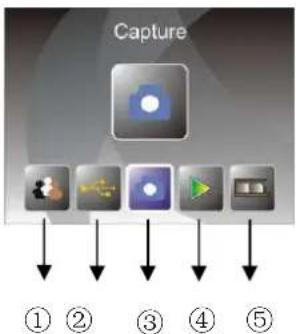
Home/MODE: Main menu
When the Film scanner mode is selected, the following main menu will appear:
flowchart
graph TD
    A["Capture"] --> B["Step ①"]
    A --> C["Step ②"]
    A --> D["Step ③"]
    A --> E["Step ④"]
    A --> F["Step ⑤"]
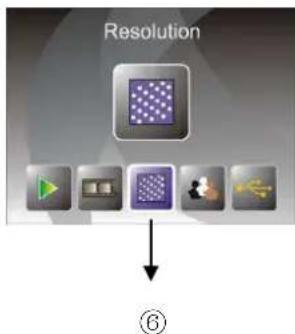
flowchart
graph TD
    A["Green Triangle"] --> B["Gray Rectangle"]
    C["Black Circle"] --> D["Purple Patterned Square"]
    E["Gray Arrow"] --> F["Step ⑥"]
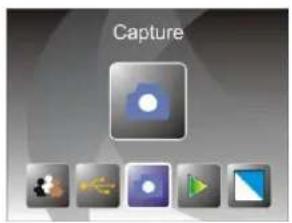
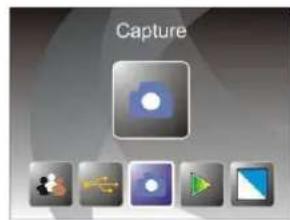
① Language mode
② USB mode
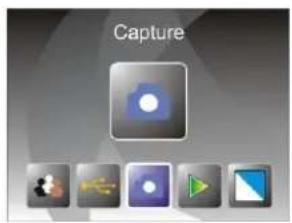
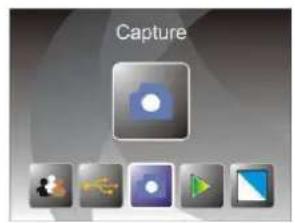
③ Capture mode
④ Playback mode
⑤ Film Type
⑥ Resolution
When the Photo scanner mode is selected, the following main menu will appear:
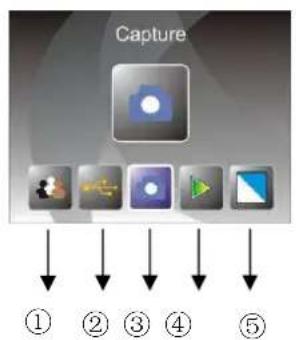
flowchart
graph TD
    A["Capture"] --> B["Step 1"]
    B --> C["Step 2"]
    C --> D["Step 3"]
    D --> E["Step 4"]
    E --> F["Step 5"]
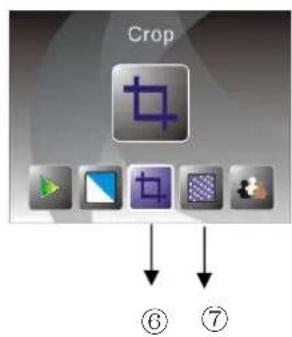
flowchart
graph TD
    A["Crop"] --> B["⑥"]
    A --> C["⑦"]
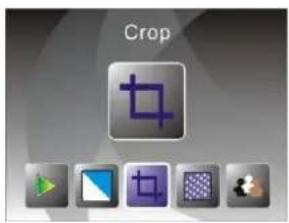
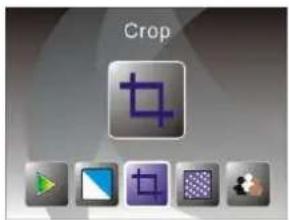
① Language mode
② USB mode
③ Capture mode
④ Playback mode
⑤ Effect: multicolor, B&W
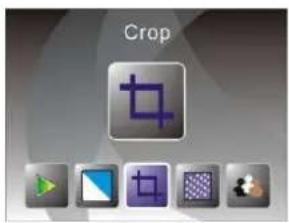
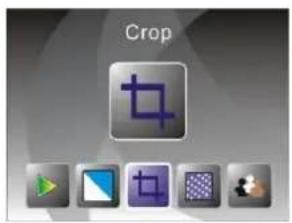
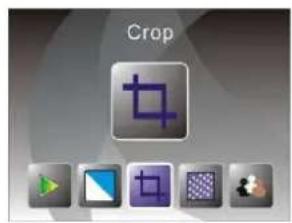
⑥ Crop proportion: (5"x7" (5R), 4"x6" (4R), 3 1/2"x5" (3R), name card)
⑦ Resolution
Home/MODE: No memory card
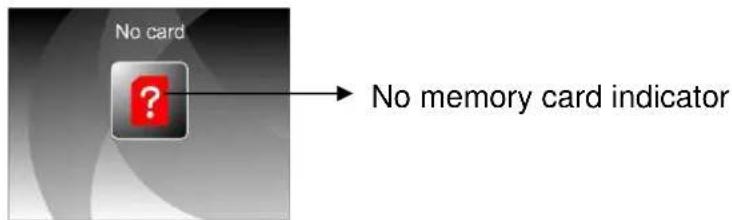
If there is no memory card inserted into the device, a warning icon will be shown on screen when entering the main menu
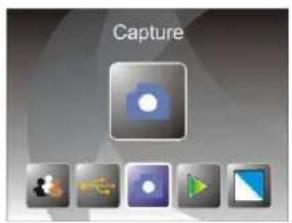
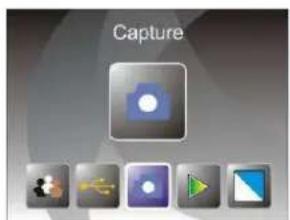
1: Capture
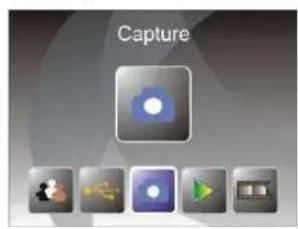
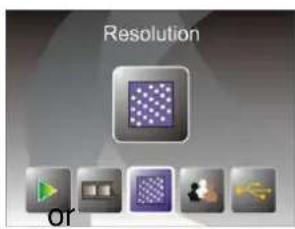
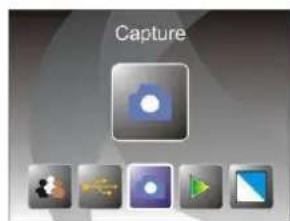
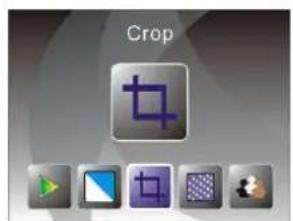
After the welcome page, the above menu will appear. User can press LEFT/RIGHT button for desired menu, then press ENTER button to confirm the selection.
1.1 Adjust brightness and color of image
You can adjust brightness and color of image in capture mode.
When enter into capture mode, press ENTER button, following picture will show on:
EV means brightness; R means red; G means green; B means blue.
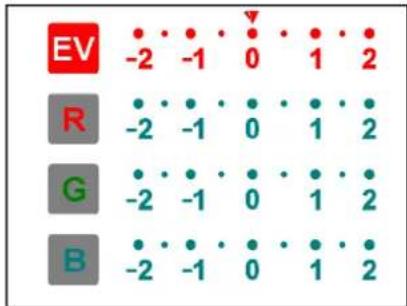
Press ENTER button to switch, press LEFT/RIGHT button to adjust data Press SCAN button back to image preview mode
1.2 Capture: Mirror/Flip(Hard Key)
If any image requires for Mirror or Flip before capture, press LEFT/RIGHT button for Mirror/Flip function, the live view will be adjusted accordingly(This step is to correct user misplaced the film/photo either upside down or flip). Mirror and Flip function can only be used while in the live view mode.
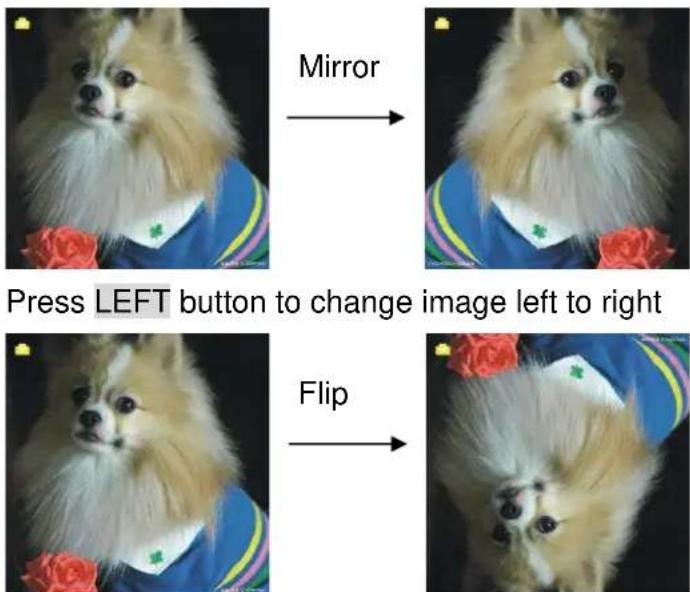
Press RIGHT button to upside down image
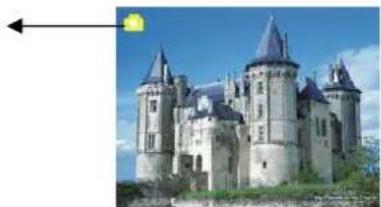
1.3 Capture mode
live view indicator
natural_image
Exterior view of a historic castle with multiple towers and pointed spires under a blue sky (no signage or text visible)Once entered capture mode, there will be an indicator on the left top corner to indicate it is in live view mode.
User can also press ENTER button, then press LEFT/RIGHT button to adjust EV value, press ENTER button again to confirm and back to live view mode.
1.4 Capture: Edit Menu
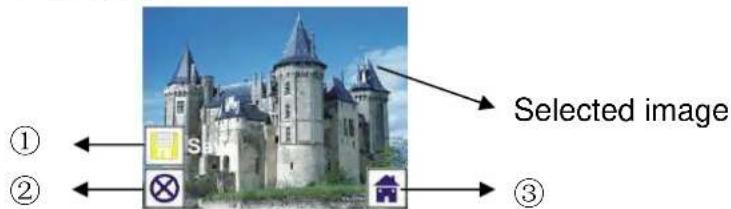
① Save: save captured image
② Cancel: cancel any editing with this image
③ Home: back to main menu
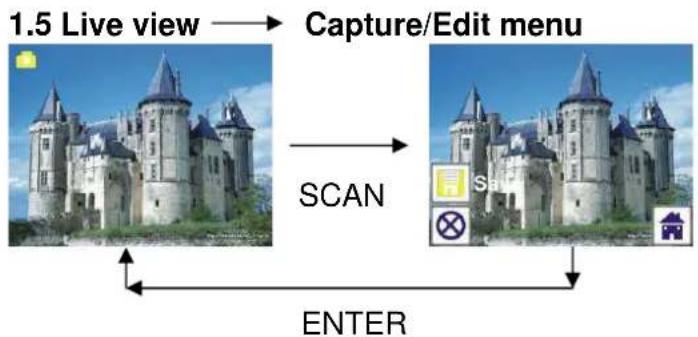
flowchart
graph LR
    A["1.5 Live view"] --> B["Capture/Edit menu"]
    B --> C["SCAN"]
    C --> D["ENTER"]
Once press SCAN button in live view, the edit menu will appear. When user press ENTER button, the current image will be saved to internal memory or memory card when there is a memory card inserted, the display will return to live view again.
1.6 Capture: Save
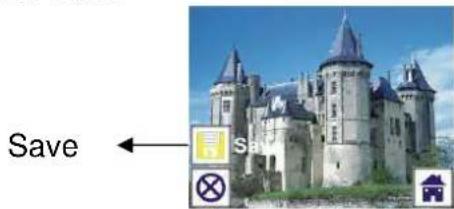
Once user press SCAN button, preview (live view) image will be selected
and shown on the TFT which will take between 1\~2 second with 2 icons shown on the left side of the screen. Save icon will be highlighted for user to confirm by ENTER button, after the above step, the display will go back to live view mode (preview)
1.7 Capture: Cancel
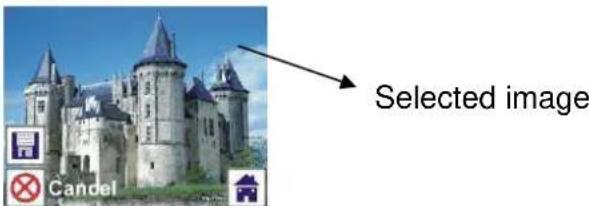
Select Cancel icon with LEFT/RIGHT button and press ENTER button to cancel any editing step with present selected image and the display will return to live view mode (nothing will be saved)
1.8 Capture: Home
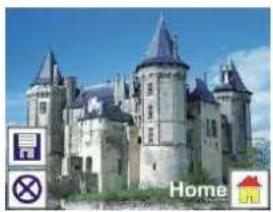
natural_image
Exterior view of a historic castle with multiple towers and a dome, under a clear blue sky (no signage or text visible)Select Home icon with LEFT/RIGHT button, then press ENTER button or press MODE button on top of the device anytime to return to main menu
1.9 Exit from Edit mode back to Capture mode (live view)
Once user press ENTER button for save or cancel option, the display will return to capture mode/live view. Then user can move the film holder to next target film or change another photo to capture.
1.10 Memory full
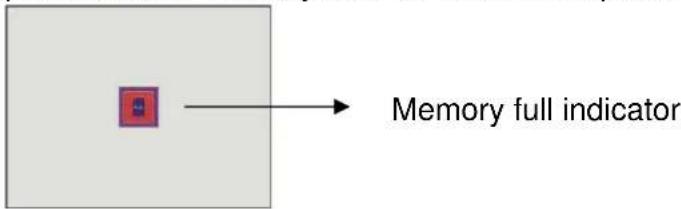
Once the images in internal memory or memory card is full, a memory full icon will be shown on screen when press SCAN button. User has to download the images to PC or replace another memory card for continue capture.
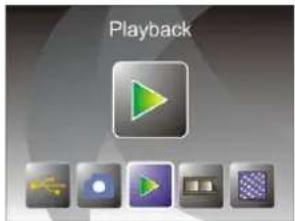
2: Playback
or
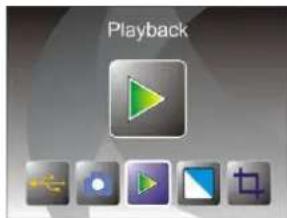
Press LEFT/RIGHT button to playback mode when power on the device or access the main menu by Home icon/MODE button anytime. Press ENTER button to confirm the selection.
2.1 Playback: Auto Slide Show

Once user enter playback mode (default to slide show), TFT will auto display all images stored in internal memory or memory card with 2 seconds interval from previous captured image. User can also stop the slide show by press ENTER button (Only the images captured by the film & photo scanner are available in playback mode)
2.2 Playback: Edit Menu
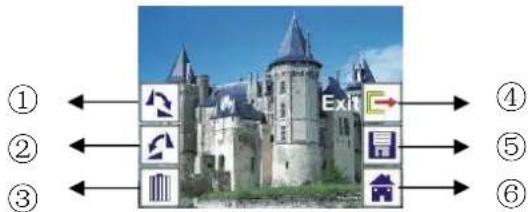
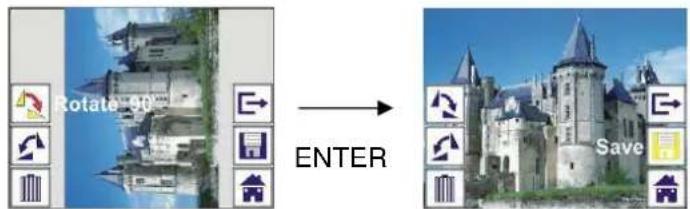
① Rotate +90: captured image rotate +90 degrees
② Rotate -90: captured image rotate -90 degrees
③ Delete: delete this picture stored in internal memory or memory card
④ Exit: return to Slide show mode
⑤ Save: save the modified image to internal memory or memory card
⑥ Home: return to main menu
2.3 Playback: Slide show → Single picture → Edit mode
User can interrupt (stop) slide show mode to stand alone playback mode
(single picture playback) by press ENTER button. (Pause slide show) Then user is able to scroll each picture by LEFT/RIGHT button. Once user select the picture stored in internal memory or memory card which intended to be modified, press ENTER button again to bring out the edit mode for modification.
If there is no memory card inserted or no image in internal memory, TFT will auto display 20 frames stored in internal memory when enter playback mode, but they will not be edited anytime.
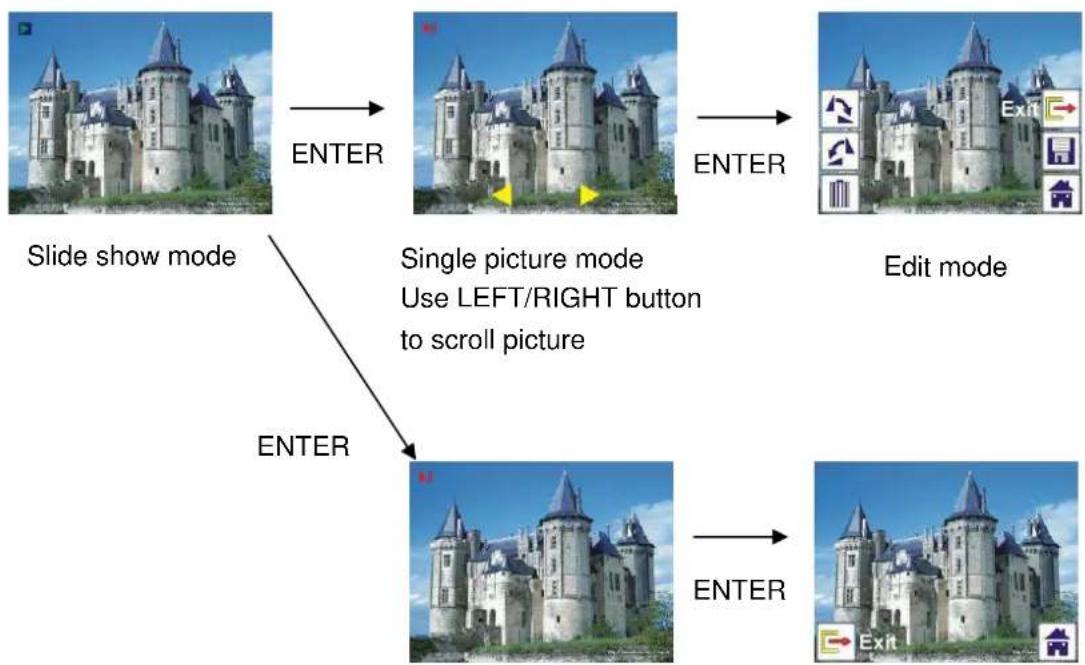
flowchart
graph TD
    A["Slide show mode"] -->|ENTER| B["Single picture mode\nUse LEFT/RIGHT button\nto scroll picture"]
    B -->|ENTER| C["Edit mode"]
    A -->|ENTER| D["Single picture mode\nUse LEFT/RIGHT button\nto scroll picture"]
    D -->|ENTER| E["Edit mode"]
2.4 Playback: Rotate/Save
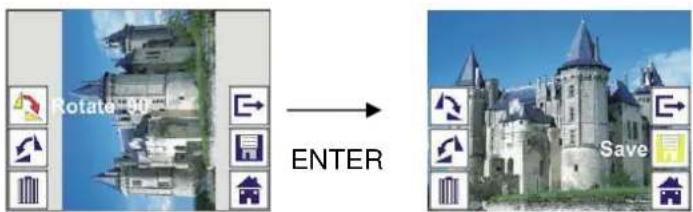
If user wants to rotate +90 degrees by ENTER button, the image will be rotated +90 degrees and cursor will remain at Save. Press ENTER button again to save modified result and next picture will be shown. For continuously rotate +90 degrees, move cursor to rotate again and press ENTER button. (Same for Rotate -90 function)
2.5 Playback: Exit
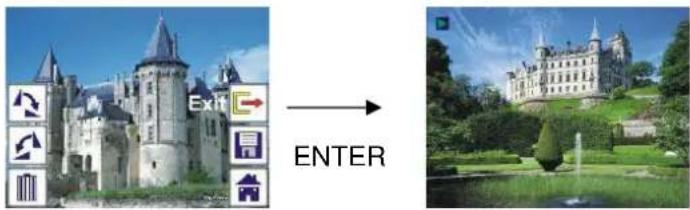
Once user select Exit function in edit menu, the display will go back to slide show starting with the current picture without any change
2.6 Playback: Delete
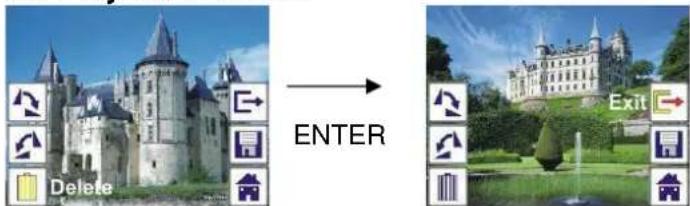
Select delete icon with LEFT/RIGHT button then press ENTER button, that will delete the present selected picture and next picture will be shown. Cursor will remain at Exit icon. If user intend to process continuously delete, just move cursor to delete icon again and press ENTER button to confirm.
2.7 Playback: Home
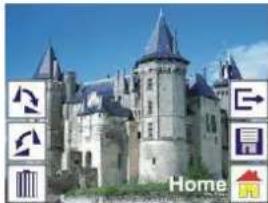
natural_image
Exterior view of a historic castle with pointed spires and surrounding icons (no readable text or symbols)Select Home icon with LEFT/RIGHT button, then press ENTER button or press MODE button on top of the device anytime to return to main menu
2.8 Playback: No Picture
If there is no picture when enter playback mode, a No picture symbol will show on screen
3: Film Type
When the Film scanner mode is selected, user can change film type by enter Film Type menu when power on the device or access the main menu by Home icon/MODE button anytime. Press LEFT/RIGHT button for Film Type and press ENTER button to confirm.
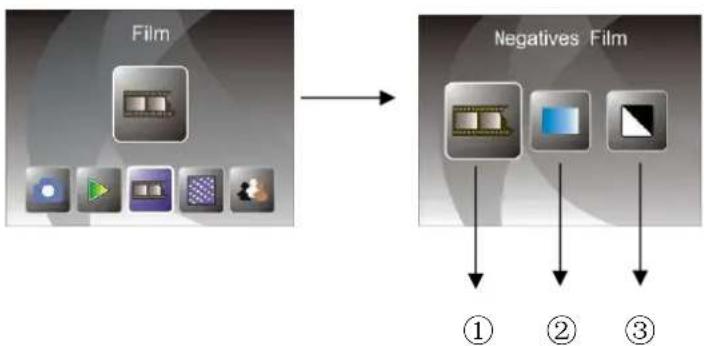
flowchart
graph TD
    A["Film"] --> B["Negatives Film"]
    B --> C["①"]
    B --> D["②"]
    B --> E["③"]
① Negatives Film: select Negatives film when load color negative film in holder
② Slides: select Slides when load slide in holder
③ B&W: select B&W when load B&W negative film in holder
User can press LEFT/RIGHT button to select film type, then press ENTER button to confirm
4: Effect
When the Photo scanner mode is selected, user can change color effect by enter Effect menu when power on the device or access the main menu by Home icon/MODE button anytime. Press LEFT/RIGHT button for Effect and press ENTER button to confirm
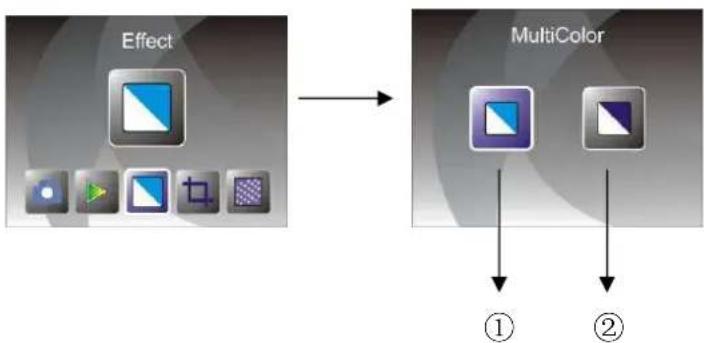
flowchart
graph LR
    A["Effect"] --> B["MultiColor"]
    style A fill:#f9f,stroke:#333
    style B fill:#bbf,stroke:#333
① Multicolor effect
② B&W effect
User can press LEFT/RIGHT button to select color effect, then press ENTER button to confirm
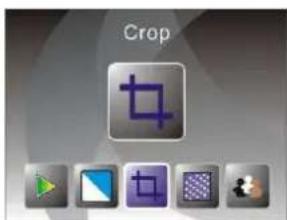
5: Crop proportion
When the Photo scanner mode is selected, user can change crop proportion by enter Crop menu when power on the device or access the main menu by Home icon/MODE button during operation. Press LEFT/RIGHT button for Crop and press ENTER button to confirm
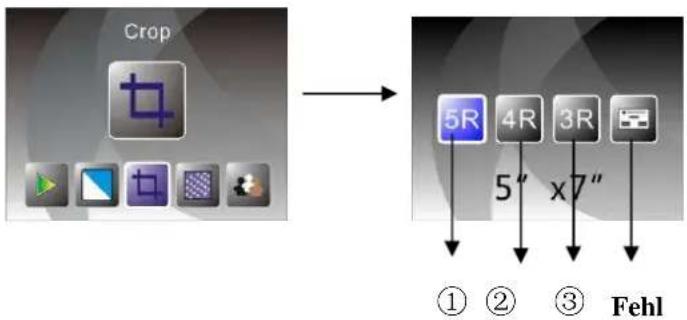
flowchart
graph TD
    A["Crop"] --> B["5R"]
    A --> C["4R"]
    A --> D["3R"]
    B --> E["①"]
    C --> F["②"]
    D --> G["③"]
    H["Fehl"] --> I["5" x7""]
① 5R (5"X7") crop proportion
② 4R (4"X6") crop proportion
③ 3R (3 12 "x5") crop proportion
④ Name card crop proportion
User can press LEFT/RIGHT button to select crop proportion, then press ENTER button to confirm
7: Resolution
Change resolution by enter Resolution menu when power on the device or access the main menu by Home icon/MODE button anytime. Press LEFT/RIGHT button for Resolution and press ENTER button to confirm
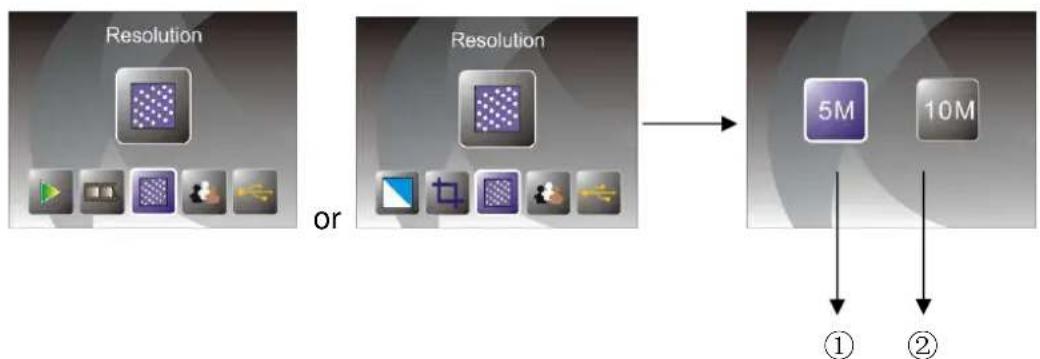
flowchart
graph TD
    A["Resolution"] --> B["or"]
    B --> C["Resolution"]
    C --> D["5M"]
    C --> E["10M"]
    D --> F["①"]
    E --> G["②"]
① 5M resolution
② 10M resolution
User can press LEFT/RIGHT button to select resolution, then press ENTER button to confirm
8: Language
Change language definition by enter language menu when power on the device or access the main menu by Home icon/MODE button anytime. Press LEFT/RIGHT button for language and press ENTER button to confirm.
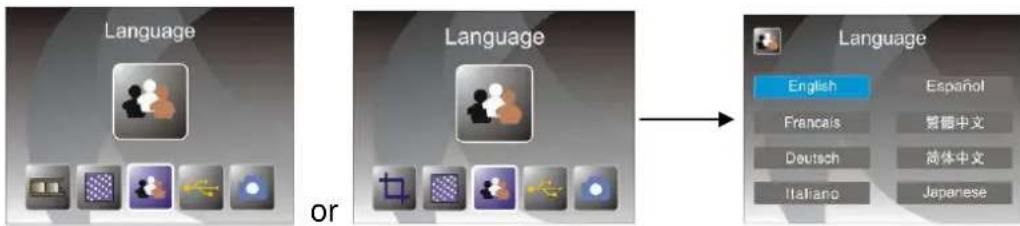
User can press LEFT/RIGHT button to select language, then press ENTER button to confirm
9: USB mode
After finished capture, please take out the memory card from the film & photo scanner to download the stored images from the memory card.
When the device is connected with USB cable to PC, User can also press MODE button to main menu, then press LEFT/RIGHT button to select USB mode, then press ENTER button to confirm, the film & photo scanner will become a mass storage device and user can review or edit images on PC.
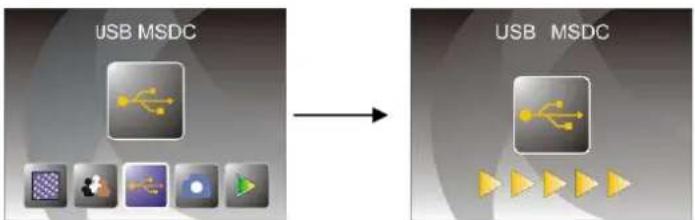
flowchart
graph LR
    A["USB MSDC"] --> B["→"]
    B --> C["USB MSDC"]
User can also press MODE button to back to main menu.
10: Trouble shooting
Question: There is unwanted stripe appearance at the edge of the image.
Answer: If it is slight stripe, move the slide holder gently to and fro in the device until the stripe is no longer visible in the preview window.
If the stripe is still, please contact with our retailer.
Question: The device cannot connect to the computer.
Answer: Please check if the cable has already connected to the USB port of the computer. Or connect the cable to another USB port. It is
recommended that connect it to the motherboard directly, not to the front panel.
Turn on the power button, enter USB mode, it acts as a mass storage device.
11: Technical Specifications
◆ Lens : 2G3P F/NO=3.97 f=4.04 Film Range:51.5mm F/NO=4 f=3.93 Photo Range:170mm
◆ Sensor : 5.1 mega pixels CMOS sensor
◆ LCD: 2.4 inch LTPS LCD Display
◆ External memory: SD/MMC
◆ Exposure : Auto
◆ Color balance : Auto
◆ Scan high resolution : 10M interpolation resolution
◆ Data conversion : 12 bits per color channel
◆ Scan Method : Single pass
◆ Light source : Backlight Panel
◆ LED light lifetime for on & off: 10000 times
◆ Power : Powered from USB/5V adapter
◆ Interface: USB 2.0
◆ Dimension: 220 x 208 x 147mm
◆ Weight: 890g
◆ Language: English, French, German, Italian, Spanish, Traditional Chinese, Simplified Chinese, Japanese
MADE IN CHINA
natural_image
Black digital camera with a screen displaying yellow flowers, no visible text or symbolsPositieve diahouder
natural_image
Black plastic enclosure with multiple rectangular slots and mounting holes (no text or symbols visible)natural_image
Black plastic tray with rectangular slots and a small top component (no text or symbols visible)natural_image
Technical diagram showing a black rectangular component with white lightbulb and square cutouts, alongside two separate L-shaped metal brackets (no text or symbols)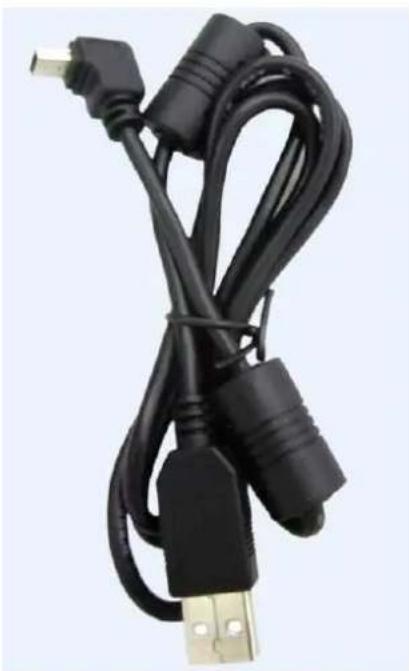
natural_image
Coiled black USB cable with gold connectors, no visible text or symbolsUSB-kabel
4. Laden van dia's
natural_image
Hand holding a small white electronic device with a small screen (no visible text or symbols)natural_image
Hand holding a spray gun next to a black plastic component with grid patterns (no text or symbols visible)natural_image
Black handheld printer with a screen displaying yellow tulips against a blue sky (no visible text or symbols)natural_image
Close-up of a hand holding a film strip with visible filmstrip pattern (no text or symbols)natural_image
Hand holding a small object with a pen, next to a dark rectangular device with grid windows (no visible text or symbols)natural_image
Black digital camera with a screen displaying a floral image, showing no visible text or symbols on the device itself.natural_image
Architectural diagram showing a building with vertical supports and a directional arrow, no text or symbols present.
natural_image
Black printer with digital display showing a floral image, no visible text or symbols on the device itself.Opmerking:
Push the slider above to the left (film scanning)
of
natural_image
Exterior view of a historic castle with multiple towers and pointed spires under a blue sky (no signage or text visible)flowchart
graph LR
    A["Image at top: Sun with moon"] -->|SCAN| B["Server icon with 'SAR' icon"]
    B --> C["ENTER"]
natural_image
Exterior view of a historic castle with multiple towers and a dome, under a clear blue sky (no signage or text visible)natural_image
Exterior view of a historic castle with multiple towers and pointed roofs under a blue sky (no signage or text visible)natural_image
Exterior view of a historic castle with 'Exit' and 'ENTER' labels, alongside a scenic view of the same building (no signage on structures)natural_image
Exterior view of a historic castle with pointed towers and a pointed spire, surrounded by icons for navigation, printing, and home (no readable text or symbols)(1) 5M resolutie
(2) 10M resolutie
Scanner Films/Diapositives
natural_image
Black digital camera with a screen displaying yellow flowers, no visible text or symbolsPorte-diapositive (positif)
natural_image
Black plastic enclosure with multiple rectangular slots and mounting holes (no text or symbols visible)natural_image
Black plastic tray with rectangular slots and a small top component (no text or symbols visible)Porte-photo/Nom
natural_image
Technical diagram showing a black rectangular panel with white lightbulb and square cutouts, alongside two separate L-shaped metal components (no text or symbols)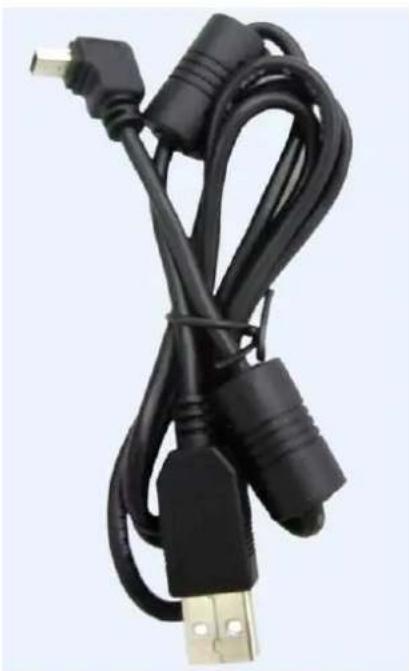
natural_image
Coiled black USB cable with gold connectors, no visible text or symbolsCâble USB
4. Chargement des diapositives
natural_image
Hand holding a small white electronic device with a small screen (no visible text or symbols)natural_image
Hand holding a spray gun inspecting a black plastic component with grid windows (no text or symbols visible)natural_image
Black handheld printer with a screen displaying yellow tulips against a blue sky background (no visible text or symbols)natural_image
Close-up of a hand holding a small electronic device with a screen (no visible text or symbols)natural_image
Black digital camera with a screen displaying a floral image, and a downward arrow indicating compression (no text or symbols visible)Porte-photo
Equerre
gauche
Equerre droit
natural_image
Architectural diagram showing a building with vertical supports and a directional arrow, no text or symbols present.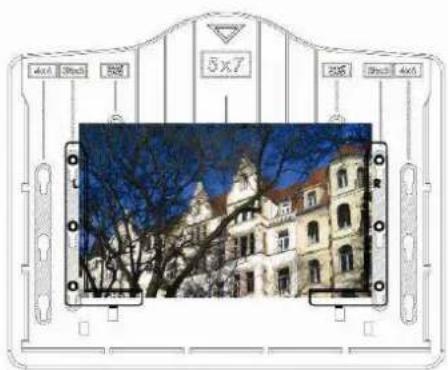
natural_image
Black printer with digital display showing a floral image, no visible text or symbols on the device itself.Remarque :
Push the slider above to the left (film scanning)
◆ Mode d'emploi
ou
natural_image
Exterior view of a historic castle with twin towers and pointed spires under a blue sky (no signage or text visible)natural_image
Exterior view of a historic castle with multiple towers and pointed architecture under a clear blue sky (no signage or text visible)natural_image
Exterior view of a historic castle with multiple towers and pointed architecture under a blue sky (no signage or text visible)natural_image
Exterior view of a historic castle with pointed towers and a spire, displayed under blue sky (no signage or text)natural_image
Simple geometric shape with a yellow question mark inside a square (no text or symbols)natural_image
Black digital camera with a screen displaying a yellow flower image, no visible text or symbols on the device itself.Supporto diapositive
natural_image
Black plastic mechanical component with multiple rectangular cutouts and mounting holes (no text or symbols visible)Supporto negativi
natural_image
Black plastic tray with rectangular slots and a small protrusion at the top (no text or symbols visible)natural_image
Technical diagram showing a black rectangular component with white circular features and two separate L-shaped metal brackets (no text or symbols)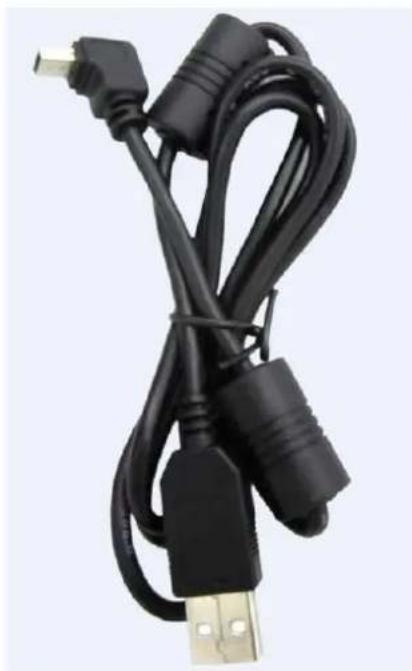
natural_image
Coiled black USB cable with gold connector, no visible text or symbolsCavo USB
4. Caricamento diapositive
natural_image
Hand holding a small white square object with a small black-and-white icon, no visible text or symbols.natural_image
Hand holding a small electronic component with a tool, no visible text or symbolsnatural_image
Black digital camera with a screen displaying yellow tulips in the background (no visible text or symbols)natural_image
Hand holding a pen writing on a screen (no visible text or symbols)natural_image
Black rectangular object with four small white rectangular cutouts, no visible text or symbolsnatural_image
Black digital camera with two screens displaying a floral image, showing a downward arrow (no text or symbols visible)natural_image
Black printer with two screens displaying a floral image, no visible text or symbols on the device itself.Nota:
Push the slider above to the left (film scanning)
◆ Guida operativa
Home/MODE: Menu principale
natural_image
Close-up of a fluffy white dog wearing a blue jacket with a red flower, no visible text or symbols.Capovolgimento in verticale
natural_image
Close-up of a small white dog wearing a blue and white outfit with a red flower (no visible text or symbols)natural_image
Close-up of a small porthorn dog wearing a blue outfit with a red flower, no visible text or symbols.natural_image
Close-up of a small white dog wearing a blue and yellow outfit with a flower (no visible text or symbols)natural_image
Exterior view of a historic castle with multiple towers and pointed spires under a blue sky (no signage or text visible)flowchart
graph LR
    A["Image at top: Golden Gate"] -->|SCAN| B["Server icon with 'S' and radio symbol"]
    B --> C["Enter"]
natural_image
Exterior view of a historic castle with multiple towers and pointed architecture under a clear blue sky (no signage or text visible)natural_image
Exterior view of a historic castle with multiple towers and pointed spires under a blue sky (no signage or text visible)natural_image
Exterior view of a historic castle with pointed towers and a dome, under a clear blue sky (no signage or text visible)natural_image
Simple gray square with a yellow question mark in the center (no text or symbols)natural_image
Black digital camera with a screen displaying a yellow flower image, no visible text or symbols on the device itself.natural_image
Black plastic mechanical component with multiple rectangular slots and mounting holes (no text or symbols visible)natural_image
Black plastic tray with rectangular slots and a flat top, no visible text or symbolsnatural_image
Black plastic enclosure with white light fixtures and two separate L-shaped metal brackets (no text or symbols)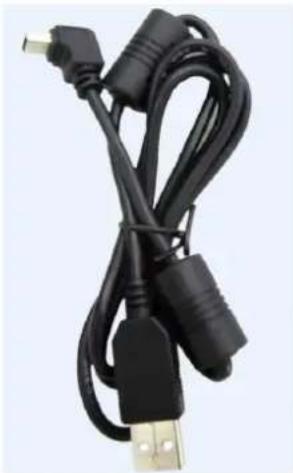
natural_image
Black USB cable with connector, no visible text or symbolsCablu USB
natural_image
Hand holding a small white square with a small inset image, no visible text or symbolsnatural_image
Hand holding a small electronic component with a tool, next to a black plastic panel (no visible text or symbols)natural_image
Black digital camera with two screens displaying yellow tulips against a blue sky (no text or symbols visible)natural_image
Hand holding a thin film strip with visible filmstrip pattern (no text or symbols)natural_image
Person holding a device with a grid of rectangular panels, possibly a monitor or display unit (no visible text or symbols)natural_image
Black rectangular object with four small rectangular cutouts, resembling a slide or panel (no visible text or symbols)natural_image
Black digital camera with a screen displaying a floral image, and a downward arrow indicating compression (no text or symbols visible)ISO-- International Organization for Standardization
natural_image
Architectural diagram showing a building with vertical supports and a directional arrow, no text or symbols present.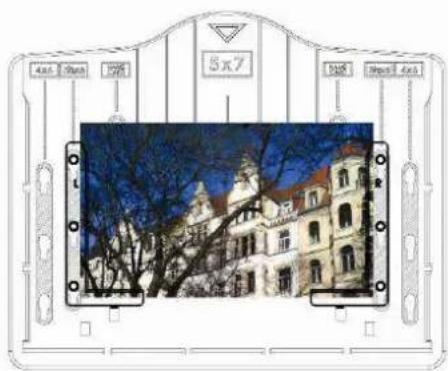
natural_image
Black printer with digital display showing yellow flowers, no visible text or symbolsNotă:
Push the slider above to the left (film scanning)
♦ Ghid de utilizare
flowchart
graph TD
    A["Crop"] --> B["⑥"]
    A --> C["⑦"]
sau
natural_image
Exterior view of a historic castle with multiple towers and pointed architecture under a blue sky (no signage or text visible)natural_image
Exterior view of a historic castle with multiple towers and spires under a clear blue sky (no signage or text visible)natural_image
Exterior view of a historic castle with multiple towers and pointed spires under a blue sky (no signage or text visible)2.10 Redare: Rotire/Salvare
natural_image
Exterior view of a historic castle with pointed towers and a central tower, surrounded by small directional icons (no readable text or symbols)natural_image
Simple geometric diagram with a yellow question mark inside a square (no text or symbols)natural_image
Black digital camera with a screen displaying yellow flowers, no visible text or symbolsnatural_image
Black plastic enclosure with multiple rectangular slots and mounting holes (no text or symbols visible)natural_image
Black plastic tray with rectangular slots and a small top component (no text or symbols visible)natural_image
Technical diagram showing a black rectangular panel with white lightbulb and square cutouts, alongside two separate L-shaped metal bracket shapes (no text or symbols)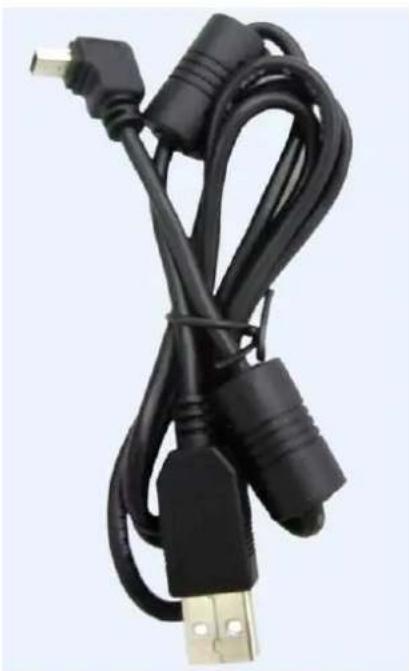
natural_image
Coiled black USB cable with gold connectors, no visible text or symbolsCable USB
4. Cargar diapositivas
natural_image
Hand holding a small white electronic device with a small screen (no visible text or symbols)natural_image
Hand holding a spray gun inspecting a black plastic component with grid patterns (no text or symbols visible)natural_image
Black handheld printer with a large screen displaying yellow tulips against a blue sky background (no visible text or symbols)5. Cargar negativos
natural_image
Close-up of a hand holding a small electronic device with a screen (no visible text or symbols)natural_image
Black digital camera with a screen displaying a floral image, and a downward arrow indicating compression (no text or symbols visible)natural_image
Architectural diagram showing a building with vertical supports and a directional arrow, no text or symbols present.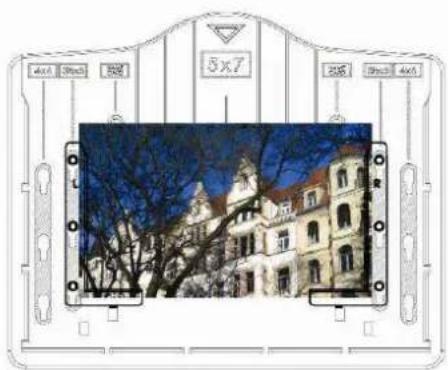
natural_image
Black digital camera with a screen displaying yellow flowers, no visible text or symbols on the device itself.Nota:
Push the slider above to the left (film scanning)
natural_image
Exterior view of a historic castle with multiple towers and pointed spires under a blue sky (no signage or text visible)natural_image
Exterior view of a historic castle with multiple towers and pointed architecture under a clear blue sky (no signage or text visible)natural_image
Exterior view of a historic castle with multiple towers and pointed architecture under a blue sky (no signage or text visible)natural_image
Exterior view of a historic castle with pointed spires and surrounding icons (no readable text or symbols)natural_image
Simple geometric shape with a yellow question mark inside a square frame (no text or symbols)

- Dias laden
- Negative laden
- Hinweis:
- Contents
- 1: Safety precautions
- 2: Package contents
- 3: Description of parts
- 4: Loading Slides
- 5: Loading Negatives
- 6: Loading photo
- Note:
- 7: General operations
- ◆ Quick Start
- ◆ Operation Guide
- Home/MODE: Main menu
- Home/MODE: No memory card
- 1: Capture
- Adjust brightness and color of image
- Capture: Mirror/Flip(Hard Key)
- Capture mode
- Capture: Edit Menu
- Capture: Save
- Capture: Cancel
- Capture: Home
- Exit from Edit mode back to Capture mode (live view)
- Memory full
- 2: Playback
- Playback: Auto Slide Show
- Playback: Edit Menu
- Playback: Slide show → Single picture → Edit mode
- Playback: Rotate/Save
- Playback: Exit
- Playback: Delete
- Playback: Home
- Playback: No Picture
- 3: Film Type
- 4: Effect
- 5: Crop proportion
- 7: Resolution
- 8: Language
- 9: USB mode
- 10: Trouble shooting
- 11: Technical Specifications
- Laden van dia's
- Opmerking:
- Chargement des diapositives
- Remarque :
- ◆ Mode d'emploi
- Caricamento diapositive
- Nota:
- ◆ Guida operativa
- Home/MODE: Menu principale
- Notă:
- ♦ Ghid de utilizare
- Cargar diapositivas
- Cargar negativos
Brand : Reflecta
Model : 3in1
Category : Scanner