EasyManual
I110 - Radio Imperial - Free user manual and instructions
Find the device manual for free I110 Imperial in PDF.



User questions about I110 Imperial
0 question about this device. Answer the ones you know or ask your own.
Ask a new question about this device
Download the instructions for your Radio in PDF format for free! Find your manual I110 - Imperial and take your electronic device back in hand. On this page are published all the documents necessary for the use of your device. I110 by Imperial.
USER MANUAL I110 Imperial
Thank you for purchasing the IMPERIAL i110. When you use the IMPERIAL i110 for the first time, please read these instructions carefully, and retain them for reference in future. You will be able to fully enjoy the many functions of the radio only if you follow the instructions. This operating manual will assist you with the › correct › safe › optimal use of the IMPERIAL i110. We assume the user of the radio has general knowledge related to the operation of consumer electronics products. Any person › installing › connecting › operating › cleaning › disposing of this radio must first have taken notice of the entire contents of this operating manual. Always keep this operating manual close to the radio.E 43 IMPERIAL
Please read the safety notices carefully before operating the radio. Please note all warnings and instructions both on the product and in the operating manual.
2.1 Basic Safety notices
› In case of operating problems, disconnect the radio from the power source. › To avoid the risk of fire or the danger of an electrical shock, do not expose the radio to rain or to very humid, wet conditions. › Do not open the housing of the product, otherwise you are at risk of getting an electrical shock. › Only connect the radio to the mains current via a correctly installed 220– 240 V~, 50–60 Hz mains outlet. › If you will not be using the radio for an extended period, disconnect the external mains adapter from the mains outlet. Only pull out the adapter, do not pull on the cable. › In case of an electrical storm, disconnect the mains adapter of the radio from the mains outlet. › Should liquid or foreign objects fall into the radio, immediately disconnect the mains adapter from the mains outlet. Have the product checked by qualified personnel before resuming operation. Otherwise you are in danger of getting an electrical shock.E 44Operating Manual
› Please ensure the electrical outlet (plug) is easily accessible. › Do not squeeze or sharply bend cable connections. › If the mains cable is damaged, you must have the radio repaired by an expert before using it again. Otherwise you are in danger of getting an elec- trical shock. › Never allow children to use the radio without supervision. › Always leave maintenance or repair work to qualified personnel. Ignoring this may endanger yourself and others. › In case of operating problems, disconnect the radio from the power supply. › Obtain spare parts exclusively from the manufacturer. › Changes to the product will result in a termination of liability by the manu- facturer. › Remove protective foils/films. › Use only a dry cloth to clean the equipment NOTE! Note on disconnecting from mains supply. The product draws power even when in standby mode. To completely disconnect the product from the mains supply, the adapter must be disconnected from the mains outlet.E 45 IMPERIAL
i110 Correct positioning › Place the radio on a firm, even surface. › Avoid placing the radio close to sources of heat, e.g. radiators, open fires, e.g. candles, or devices with strong magnetic fields, e.g. loudspeakers. › Do not place any containers with liquids (e.g. vases) on the radio. › Avoid places subject to direct sunshine or with a very high level of dust. › Do not cover the ventilation slots. Ensure adequate circulation of air around the radio. › Do not place any heavy objects on the radio. › When moving the radio from a cold to a warm environment, humidity may condense inside the radio. In this case you should wait for an hour before operating the radio again. › Place the mains cable in such a position that nobody will step on it or trip over it. Correct handling of batteries › Batteries may contain poisonous substances. Ensure batteries are not handled by children. Children could place the batteries in their mouth and swallow them. If a battery is swallowed, please consult a doctor immediately. › Leaking batteries may damage the remote control. If the radio is not going to be used for an extended period, remove the batteries. › Batteries may contain poisonous substances. Batteries must be disposed of in accordance with current legal regulations and with consideration for the environment. Do not dispose of batteries in your domestic waste. › Do not expose batteries to open flames or extreme heat, as they may explode. › Always replace batteries by the same type.
46Operating Manual 2.2. Explanation of safety notices You will find the following categories of safety notices in the operating manu- al: DANGER! Notes marked with the word DANGER will warn you of possible danger of injury to persons. Instructions with the word NOTE will warn you of possib- le material or environmental damage. These notes contain special advice related to the economic operation of the receiver.
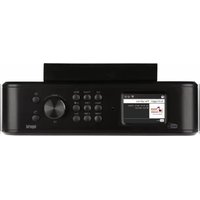
Station memory keys 1-5 Power key on/off Use this key to switch the radio on or to standby. Menu key Calls up the menu of the radio. Mode key Here you can select the operating mode of the unit, between Internet radio, UPnP and USB. Navigation/ station selection Use these keys to navigate in the menu, or to select the next station in the station list. Display Volume control, confirmation key Use the rotary dial to adjust the volume, or confirm menu entries by pres- sing the key. Mains adapter connection Use this socket to connect the radio with the mains adapter (supplied) USB connection Here you can connect the radio with a USB storage device like USB HDD drive, USB Stick in order to reproduce music files from this. LINE OUT Here you can connect the radio with a hi-fi amplifier or with active loudspeakers in order to process the music received through the radio via a sound system. Headphone socket Here you can connect a headphone, in order to listen to music played on the radio via headphones. When headphones are connected, music reproduction via the radio loudspeakers will be interrupted.
Standby button Use this button to turn the device on or off. Sleep Use this button to turn the sleep timer of the unit on or off. WPS button With this button you can establish a W-LAN connection in your home network. Alarm Use this button to activate the alarm clock function Internet Radio Direct Switch to Internet Radio Mode Local radio UPnP Enables the device‘s UPnP function. Repeat Use this button to repeat playback of one or more tracks Shuffle This activates random playback Menu Use this button to activate the device‘s menu Mode Switches between the various modes: web radio, UPnP, USB Enter This button is used to confirm an entry Navigation up/down - left/right Use these buttons to navigate through the menu Select previous track / rewind Use this button to select the previous track or to rewind.
Select next track / fast forward Use this button to select the next track or to fast forward. Play Starts or pauses playback Mute Mutes the device‘s volume to silent. Stop Stops playback V+ volume Increases the volume Numerical keypad V- volume Decreases the volume EQ equalizer function You can activate the equalizer function and configure custom sound set- tings using this button. Language You can change the menu language with this button. Favourites button Turns on one of the individually stored favourite channels.
Please remove the parts carefully from the packaging. Check whether all parts are present. NOTE: the radio can be controlled both by the keys on the radio as well as via the remote control. The operation via the remote control is a more convenient and easy method of playing the IMPERIAL i110. For this reason, this operating manual will focus on setting up and operating the radio via the remote control supplied. If the radio is connected to a network, it can also be controlled via the appli- cation AirMusicControl App. This application is available for Android and iOS operating systems. For more details see Chapter 8. 6.1. Power supply First, connect the mains adapter supplied with the corresponding socket on the rear panel of the IMPERIAL i110. Now connect the mains adapter to a 220V outlet. 6.2. Network connection To use the Internet functions of the radio, it must be connected to a network. You can establish the connection via the integrated WiFi receiver.
6.3 Language selection
Switch on the power via the power key on the front of radio or on the remote control. The radio will be switched on. Use the Up/down keys of the remote control to select the menu language. Confirm the menu language selected by pressing the ENTER key on the remote control.E 54Operating Manual
6.4. Checking the network If you wish to connect the radio to your home network, confirm the question displayed by pressing Yes. If this setting is selected, the radio will check for available networks each time it is switched on. 6.5. Network configuration To connect your radio with the network, confirm the question displayed by pressing Yes. If you do not wish to connect the radio with a network, you can bypass this menu item by selecting No.
6.5.1 Network selection
Select the type of connection to be used to connect the radio with a network. To establish a connection (WiFi) select Wireless Network. When selecting a connection via W-LAN (wireless network) all available net- works will be displayed. Select the network with which the connection is to be established. Enter the WiFi key. Use the ▼▲ keys to select a symbol, continue by pressing the ► key. Confirm the entry by pressing ENTER. Press the Menu key on the radio or on the remote control to go to the main menu of the radio. The radio will automatically close the menu after 10 seconds, and will revert to the radio mode previously selected. A display in the bottom right-hand corner will show the seconds, counting backwards. You can navigate around the menu using the ▼▲ ►◄ keys. The main menu of the radio consists of the following menu items:E 55 IMPERIAL
i110 You can select the individual menu items using the ▸ ◂ arrow keys. Confirm your selection by pressing the ENTER key. 7.1. Configuration Press the Menu key on the radio or on the remote control, and use the ►◄ keys to select Settings. You can make individual settings for the radio under this menu item.
Select the operating mode of the radio. If you select the mode Radio Alarm, the radio will switch to a digital clock on the display. Go to the menu item ALARM to configure the radio as a radio alarm.
7.1.2 My MediaU Management
Here you can activate or deactivate the Mediau Management function. The MediaU Management function allows you to save an individual station list, and to play these stations. To set up and activate your station list, you will require a login on the following Internet page: http://www.mediayou.net/
If your log-in is successful, you can register your radio. To do this, please enter the MAC address of the radio as a serial number. The MAC address of the radio can be found under the item Information Center.
Whenever you have updated the web page, on which you can manage and update your personal radio stations, please navigate your radio to My MediaU Management to synchronize the changes.
Here you can configure your network settings. Use the ▼▲ keys to select the desired menu item, and confirm by pressing ENTER. The network will be configures as described under chapter 6.4.E 57 IMPERIAL
Here you can set the time and date. The radio is set to automatic time setting at the factory. When the radio is connected to the Internet via a network, the time and date will be synchronized automatically. In this case it is not necessary to set the time.
The radio can be used as a radio alarm. This menu item allows you to set 2 wake-up times if desired. Also, you can set whether the alarm is to go off at the set time with a note, a melody or an Internet radio station. When you have entered the alarm time, activate the radio alarm function in the menu.
To stop the alarm, press the Enter key on the remote control, or key 7 on the radio. To do this, go to Settings and select the menu item Mode, and switch the operating mode to radio alarm here. (Chapter 7.1.1.)
The timer allows you to set a time at the end of which the radio will sound an alarm. To do this, use the ▸ ◂ keys to enter the time in minutes and seconds. Pressing the key repeatedly will increase or decrease the time in one-second steps, hold the ▸ or ◂ key down for longer to scan forward or backward through time. Confirm your entry by pressing ENTER.
Here you can set the menu language of the radio.
The dimmer function allows you to adjust the brightness of the display. The radio is set to the highest level of brightness at the factory. Use this menu item to individually adjust the brightness.E 59 IMPERIAL
Here you can change the multi-colour display to black and white, if required.
7.1.10. Energy management
Here you can determine whether resp. after what interval the radio should switch automatically from the operating to stand-by mode. You can select from 5, 15 and 30 minutes. If the radio does not switch off automatically, go to the line Switch Off, and confirm the command with Enter.
In this menu you can set the sleep timer. Select a time periode after which the radio automatically turns off.
You can set the buffer space in this menu.
If the radio is connected to the Internet, you can also show weather informati- on on the radio display. This menu item allows you to select the place for which weather information is to be shown. You can also specify the temperature units. Weather information is displayed in stand-by mode. The radio will alternate the display automatically between weather data and the current time.
7.1.14. Setting for local stations
To facilitate the search for stations in your area while in Internet radio mode, you can specifically search for radio stations in your region using the menu. To do this, you must inform the radio of your location. Here you can enter your location manually, or activate an automatic location search.
Here you can set the play/reproduction settings applicable when playing audio files via an external USB data medium.
7.1.16. DLNA setting
The radio is capable of communicating with DLNA-enabled equipment. For example, it is possible to reproduce audio files on a DLNA-enabled cell phone via the radio. Here you can change the name of the equipment used to indicate the radio on a DLNA unit.
Here you can select certain pre-selected sound settings. Alternatively, you can also press the EQ key on the remote control while the unit is in operation.
7.1.18. Resume when power on
Here you can activate the playback with the last selected radio station after restarting the radio.
7.1.19. Software Update
It may be necessary to update the operating software in order to improve the functions of the radio. The USB interface allows you to update the opera- ting system of your radio, provided you have the requisite software, which is available for downloading on www.telestar.de. The software provided on the Internet page must be unpacked. The unpacked files can then be saved on a suitable storage medium, and connected to the radio via the USB connection (11).
7.1.20. Factory default settings
In this menu item you can reset the radio to the condition it was in when supplied by the factory. The radio will then commence with a setup as per initial operation.
i110 7.2. Local Station Press the Menu key on the radio or on the remote control, and use the ►◄ keys to select Local Station. Under this menu item, the most popular Internet radio stations are sorted by geographic region, and can thus be found more easily. In this menu item, you can use the ▼▲ keys to select the desired program list. Confirm your selection by pressing Enter. 7.3. Internet Radio Press the Menu key on the radio or on the remote control, and use the ►◄ keys to select Internet Radio. In the Internet radio menu you can select and manage all Internet radio sta- tions. About 25.000 radio stations may be available, provided your radio is connected to a network that is in turn connected to the Internet.
7.3.1. My Favourites
You can use this menu to select one of the 5 favourite stations you have saved via the station saving keys on the radio.
62Operating Manual Alternatively, the radio stations can also be called up via the station saving keys on the radio, or by directly entering the number on the remote control.
7.3.2. Radio stations / Music
Here you can select between different radio station lists. Use the ▼▲ buttons and confirm by pressing Enter.
7.3.3. Local Stations
Under this menu item you will find the most popular Internet radio stations sorted by geographic region, and can thus be called up more easily. See also
7.3.4. Last station selected
This menu item will show you a list of the Internet radio stations you have selected most recently. Note: a precondition for the contents of the menu sub-item „last selected“ is that you must have used the Internet radio mode previously. When you switch to this mode for the first time, the list will not yet reflect any entries.
This menu item allows you to specifically search for a radio station in the Internet. To do this, you must enter the name of the station. Go to the menu Service and select Scan for station, then confirm by pressing ENTER. Use the keys on the remote control to enter the name of the radio station in the search field. Use the ▸ key to move on by one character. Confirm the entry by pressing ENTER. The radio will now scan for all stations corresponding with this entry. Select a station by using the ▼▲ keys, and confirm by pressing ENTER. Alternatively you can also add new radio stations if you know their Internet address. To do this, enter the Internet address of the radio provider.
i110 7.4. Media Center Press the Menu key on the remote control or on the radio, and use the ►◄ keys to select Media Center. If the i110 is connected to a wireless network, the radio can also be used as a media player in order to playback music data from PCs or smartphones connected to the same home network via UPnP or DLNA, and given that the appropriate media contents have been released for distribution in this network. To select the media player option, proceed as follows: Use the ▼▲ keys to select the area from which you wish to play music. You have the choice of selecting either USB (USB data source connected to the USB socket of the radio) or UPnP (music data via the UPnP protocol, if these are available in the same network as the radio). Use the ▸ ▸ key to go to the next title. Use the ◂ ◂ key to go back one title. Use the ▸ ▸II key to pause during play, press again to continue playing. 7.5. Information Center
7.5.1. Weather and Finances
Press the Menu key on the remote control or on the radio, and use the ►◄ keys to select Information Center.
64Operating Manual In this area you will have access to current weather and financial information. Under the heading Weather Information select the country and city for which you would like the weather forecast to be displayed. Confirm your selection by pressing ENTER. Navigate through the menu by using the ▼▲ keys. Weather information can also be displayed in stand-by mode. Use the ▸ key to add the weather information selected to the stand-by weather display. The weather display for stand-by mode can be activated as described in Chapter
7.2.1. Similar to the procedure for the weather forecast, you can also have
financial services and stock market figures from around the world displayed.
7.5.2. System information
In this menu you can monitor the details of the network connected. The information includes, among others, the MAC address, which is necessary to register you radio for mymediaU. (See also Chapter 7.1.2) The radio can be controlled via smartphone or tablet and an appropriate app. The application AIR Music Control can be downloaded for Android and Apple iOS. The app also allows you to playback local music files on your smartphone via the radio.
i110 NOTE: This description applies to the app, valid as per 09.2015. Functions as well as the appearance may change within the scope of software updates!! › To use the function, download the app from the Google Play Store for Android operating systems, or via i-tunes for iOS operating systems, and install the app on your smartphone. Ensure that the radio and your mobile tablet are logged into the same network. › Start the application. When starting the app, this will automatically recognize the i110 provided this is logged into the same network. The main menu of the app is structured along the same lines as the menu of the radio.
Main menu Start the desired function by tapping on the appropriate symbol. Internet radio In this mode, too, all the familiar functions in Internet radio operation can be selected. In the lower section you can select the station saving spaces 1-5.E 67 IMPERIAL
Media Center In this area you can connect with media servers in your network. In addition, you have the facility to access music files stored on a USB storage device connected with the system.E 68Operating Manual
No display indication, radio does not respond to operation Set up power supply via mains adap- ter supplied No operation via remote control possible Batteries discharged or incorrectly inserted. Please check whether bat- teries inserted in correct direction. Poor audio quality when playing music File with low bit rate. Check the audio file. For MP3 files, bit rate should be 192Kbit/s or higher Volume too low Check volume setting on i110. Check volume setting of attached device from which music is being played. Network connection cannot be established Check the wi-fi function. Activate the DHCP function of the router on which the radio is to be logged in. A firewall may be active in the net- work.E 69 IMPERIAL
Wi-fi (W-LAN) connection cannot be established Check the availability of wi-fi net- works. Reduce distance between wi-fi router and radio. Ensure you use the correct WEP/ WPA password when logging on to a wi-fi router. No Internet radio stations available Check the access points of the net- work. The radio station may be cur- rently unavailable. The station link may have been changed, or it is no longer broadcasting.E 70Operating Manual
10. DISPOSAL INSTRUCTIONS
The packaging of your product consists exclusively of recyclable materials. Please return these materials, appro- priately sorted, to the „Dual System“ or the appropriate recycling system in your country. At the end of its lifetime, this product may not be disposed of in your normal household waste, it must be handed in at a collection point for the recycling of electrical and electronic equipment. The symbol on the product, packaging or operating manual indicates this requirement. The materials used are recyclable as indicated by their markings. By recycling or otherwise re-using old products or their components you are making an important contribution to the protection of our environment. Please enquire from your local authorities where the appropriate recycling centre is located. Please ensure that spent batteries as well as electronic waste are not dis- posed of in your domestic waste, and are professionally recycled.E 71 IMPERIAL
INTERNET RADIO Chip set Audiocodecs Wi-Fi Magic M6 internet radio solution ca. 25.000 internet radio stations available MP3 (Bitrate up to 320 Kbits/s, sample rate up to 48 KHz) AAC/AAC+ (sample rate up to 320 Kbits/s, sample rate up to 48 KHz) WMA (sample rate up to 320 Kbits/s, sample rate up to 48 KHz) UPnP/ DLNA compatible IEEE 802.11b/g WPA/WPA2/WEP (64/128 bit key) DISPLAY TFT Color Display 2.8 inch LCD 240 x 320 pixelsE 72Operating Manual
11. FEATURES & TECHNICAL DATA
SOUND INDEX STMicroelectronics BRIDGE AMPLIFIER 3” loudspeaker max. 4Ω 7W Supports multi sound effect EQ to set
Input: 100-240 V AC 50 /60 Hz Output: 12 Volt DC / 1.5 A Please note that all technical data or any descripted functions are subject to change without notice. Copy and reproduction only with authorization of the publisher TELESTAR Digital GmbH is not responsible for printing errors. Correct as at: January 2022 TELESTAR - DIGITAL GmbH Am Weiher 14 56766 Ulmen © 2022E 73 IMPERIAL
i110 Dear customer! Thank you for choosing a product from our range. Our product complies with all legal requirements, and has been manufactured subject to constant quality controls. The technical data correspond with the current status at the time of printing. Subject to change without notice. The warranty period for the IMPERIAL i110 corresponds with the legal requirements at the time of purchasing. In addition, we provide our telephonic Hotline service, offering professional assistance. Professional, trained experts are available in our service area to answer your queries. Here you can pose any questions you may have with regard to IMPERIAL products, and obtain hints on finding possible causes of problems. Our technicians are available from Monday-Friday, from 08h00 to 16h45 (CET) at the following telephone number: +49(0)2676 / 95 20 101 or per E-Mail at: service@telestar.de If the service hotline is unable to assist you, please send your IMPERIAL i110, if possible in the original packaging, and definitely securely packed, to the fol- lowing address: TELESTAR - DIGITAL GmbH Service Center Am Weiher 14 (Industrial zone) D-56766 Ulmen/Germany
12. SERVICE & SUPPORTE
74Operating Manual Your radio bears the CE mark, and complies with all required EU standards. CE mark for European markets The CE mark on the product IMPERIAL i110 gives you the assurance that the product complies with the regulations of directive for the electromagnetic compatibility directive (2004/108/EC), with the RoHS directive (2011/65/EC), with the LVD directive (2006/95/EC), the R&TTE directive (1999/5/EC) and the directive ErP (1275/2008/EC). The conformity declaration for this product can be obtained at: www.telestar.de/de_DE/Konformitaetserklaerung/352- 529/?produc- tID=11017