ADR610 - Dashcam PHILIPS - Free user manual and instructions
Find the device manual for free ADR610 PHILIPS in PDF.



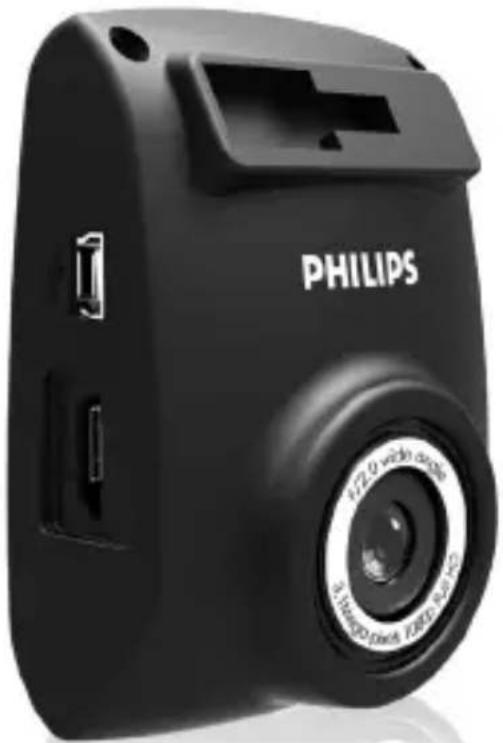
| Product type | Dashcam (car dashboard camera) |
| Brand | Philips |
| Model | ADR610 |
| Dimensions (L x W x H) | 72.8 x 53.3 x 31.34 mm |
| Display | 2" LCD (480 x 234 pixels) |
| Image sensor | 3.1 megapixel CMOS |
| Video resolution | Full HD 1920 x 1080p @ 30 fps |
| Viewing angle | Wide angle, 100° (diagonal) |
| Aperture | F/2.0 |
| Video format | .MOV, H.264 compression |
| Storage media | microSD card (Class 6 or higher, up to 32 GB) |
| Power supply | Car adapter 12-24 V, main unit 5 V/1 A |
| Interfaces | Mini USB 2.0, Mini HDMI, microSD slot, microphone, speaker |
| Main functions | Automatic recording, collision detection (G-sensor), emergency recording, motion detection, eco memory mode, driver fatigue alert, time stamp, loop recording |
| Operating temperature | 0 °C to 65 °C |
| Storage temperature | -20 °C to 70 °C |
| Included accessories | Mounting bracket, cigarette lighter charger, adhesive tape |
| Available languages | French, English, German, Italian, Spanish, Portuguese, Polish, Russian |
| Care and cleaning | Clean the lens with a soft, dry cloth. Disconnect the device before cleaning. |
| Safety | Use only the supplied charger. Do not expose to extreme temperatures. Avoid inserting/removing the SD card while powered on. |
| Spare parts and repairability | Contact Philips customer service for spare parts. The device is not designed for user repair. |
Frequently Asked Questions - ADR610 PHILIPS
User questions about ADR610 PHILIPS
0 question about this device. Answer the ones you know or ask your own.
Ask a new question about this device
Download the instructions for your Dashcam in PDF format for free! Find your manual ADR610 - PHILIPS and take your electronic device back in hand. On this page are published all the documents necessary for the use of your device. ADR610 by PHILIPS.
USER MANUAL ADR610 PHILIPS
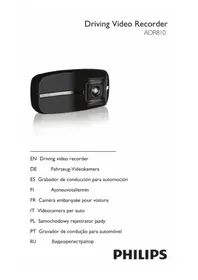
Driving video recorder
ADR610
natural_image
Black Philips digital camera with visible lens and ports (no text or symbols on body)EN Driving video recorder
natural_image
Simple line drawing of a mechanical component with a flanged top and threaded base (no text or symbols)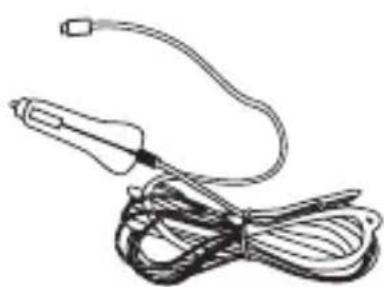
natural_image
Line drawing of a medical or laboratory probe with coiled wires and a probe tip (no text or symbols)
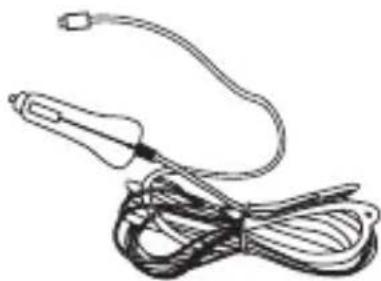
Bracket x 1 Cigarette lighter x 1 Sticky tape x 1
2 Installing in vehicles System
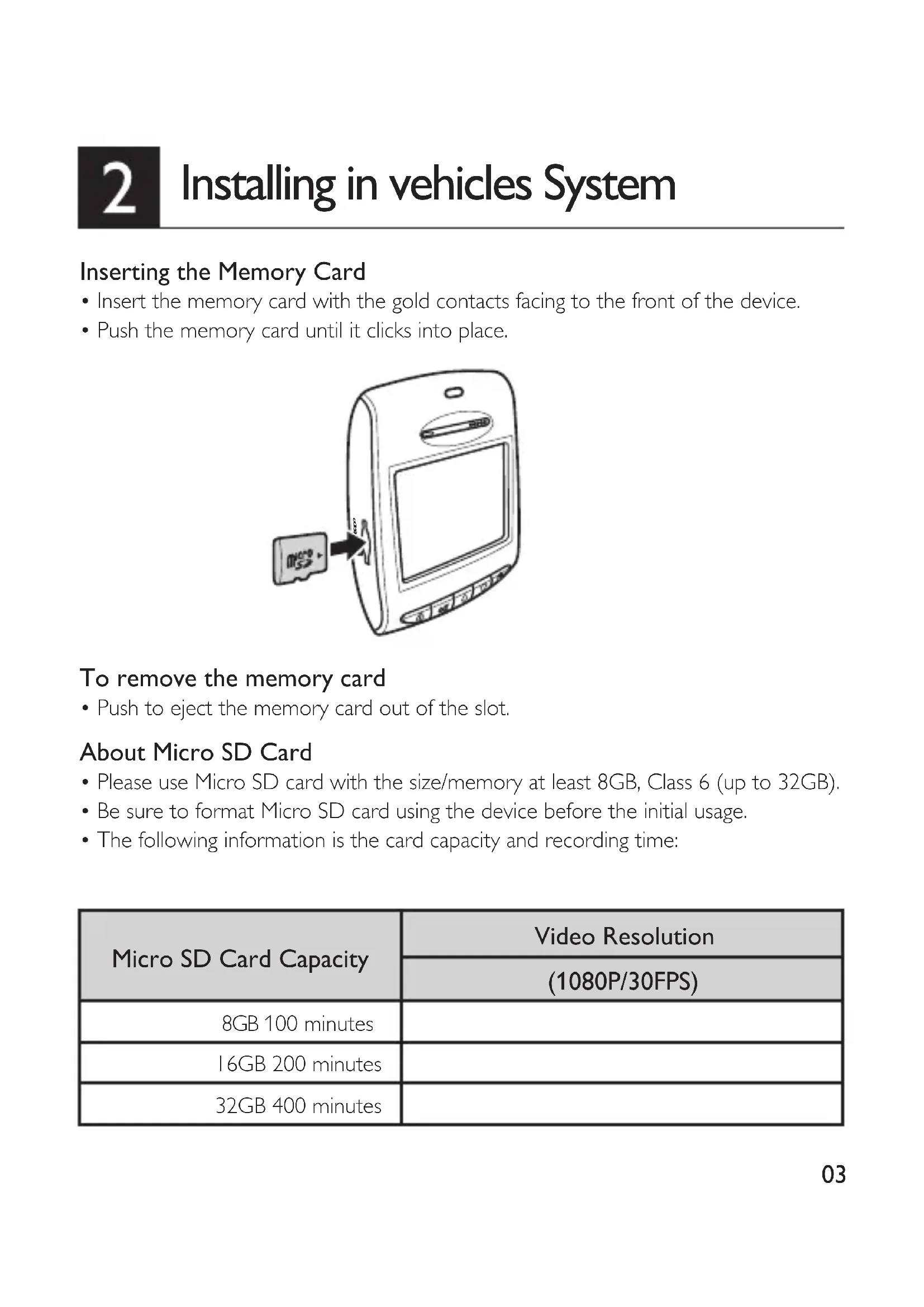
Inserting the Memory Card
- Insert the memory card with the gold contacts facing to the front of the device.
- Push the memory card until it clicks into place.
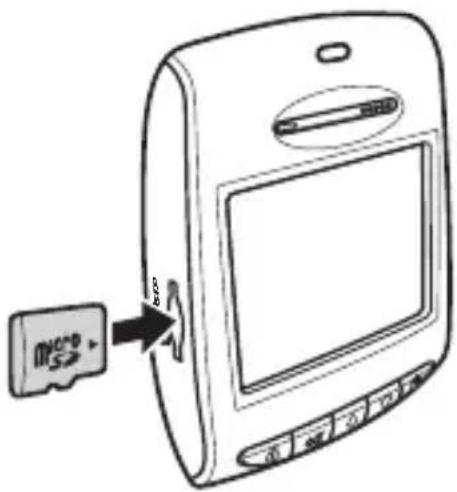
To remove the memory card
- Push to eject the memory card out of the slot.
About Micro SD Card
- Please use Micro SD card with the size/memory at least 8GB, Class 6 (up to 32GB).
- Be sure to format Micro SD card using the device before the initial usage.
• The following information is the card capacity and recording time:
| Micro SD Card Capacity | Video Resolution |
| (1080P/30FPS) | |
| 8GB 100 minutes | |
| 16GB 200 minutes | |
| 32GB 400 minutes |
- Attach the bracket to the device. Slide it into the bracket holder until you hear a click.
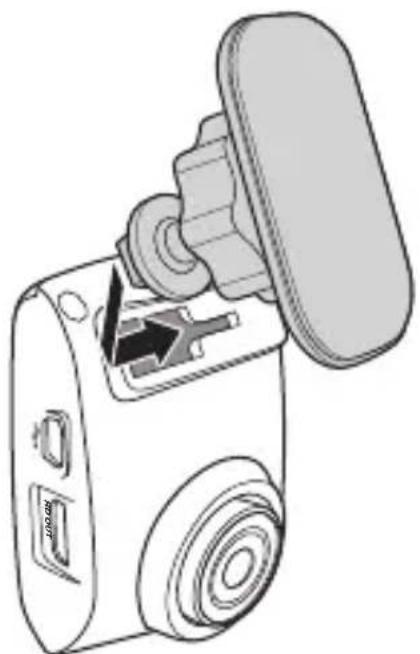
natural_image
Diagram of a device with a handle and internal components, no visible text or symbols- Peel off the protective plastic sheet from the adhesive bracket.
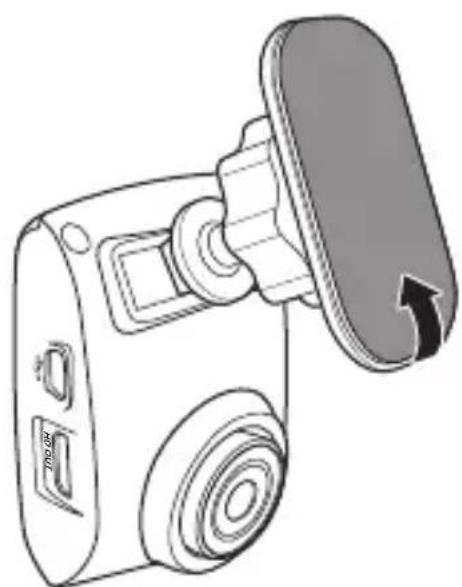
natural_image
Line drawing of a camera with a scroll wheel and attached cover (no text or symbols)- Place and press down the bracket firmly onto your windshield.
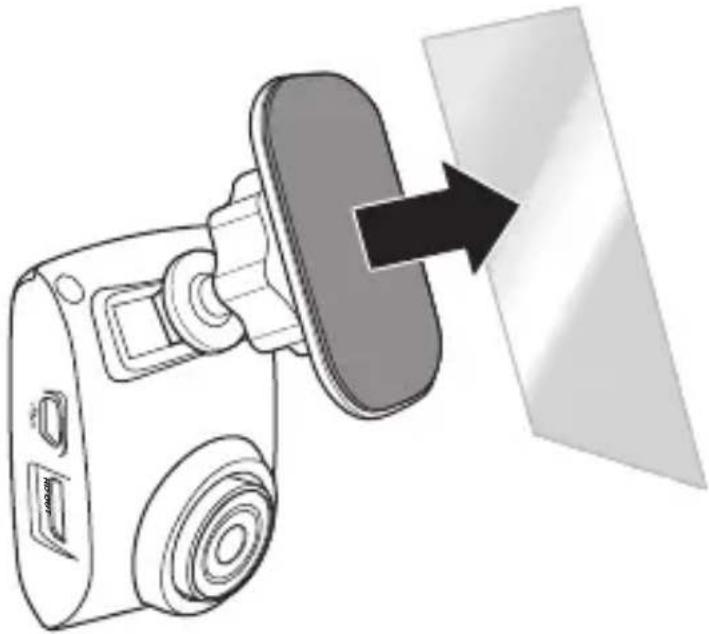
natural_image
Diagram of a camera with a screen and directional arrow indicating light or perspective (no text or symbols)- Adjust the device position. Loose the knob to swivel the device to proper position. Then tighten the knob to make sure the device is securely locked in place.
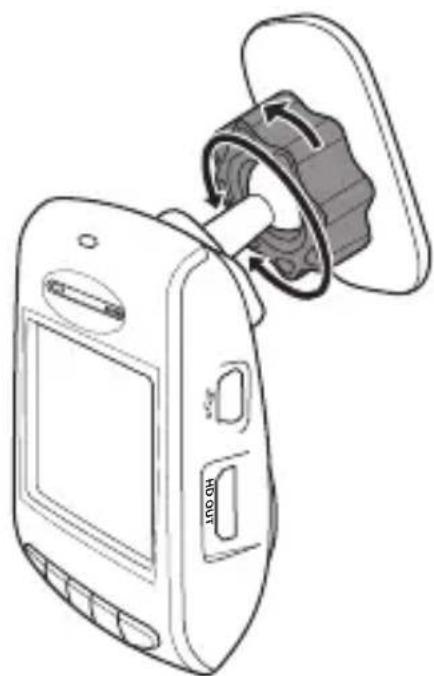
natural_image
Line drawing of a mobile phone with a rotary switch and control panel (no text or symbols)- Connect the Mini USB interface of the car charger to the Mini USB port of the device.
- Plug the car charger to the cigarette lighter socket of your vehicle.
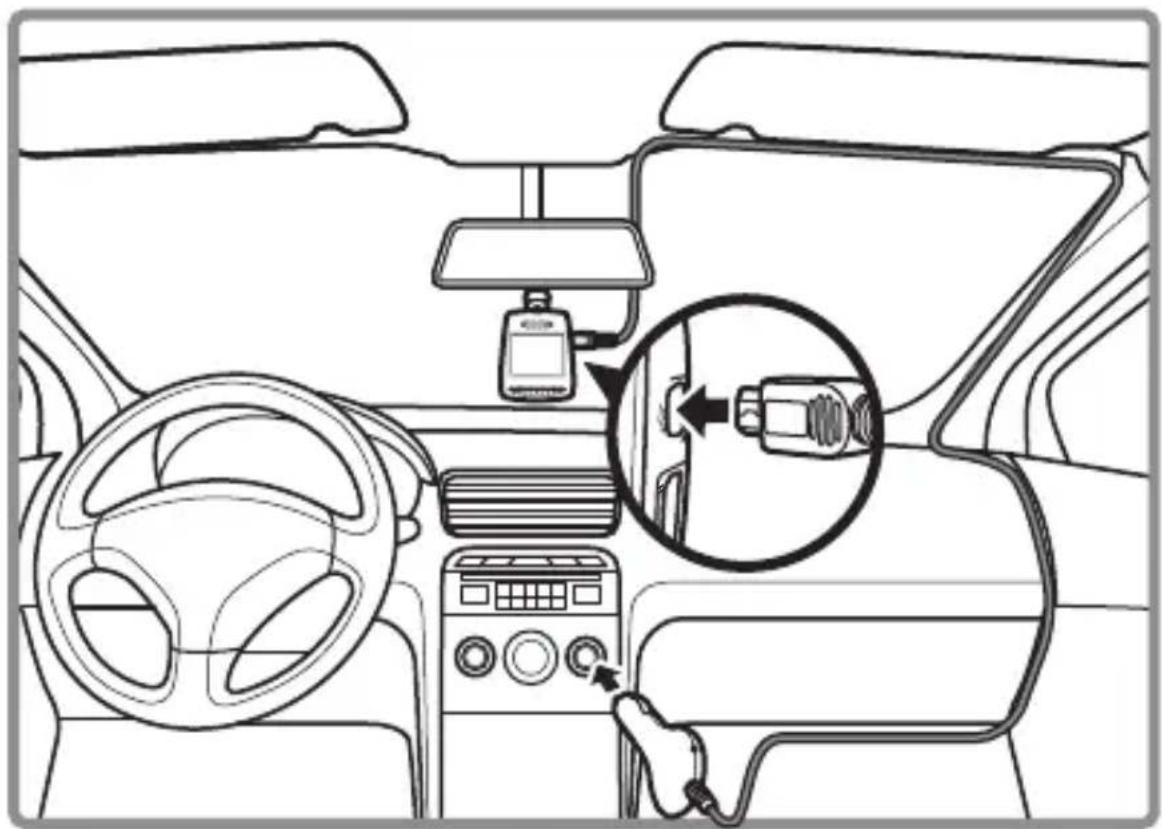
Automatic power On/Off
- Once the power of the vehicle is on, the device automatically turns on.
- If you disconnect the car charger, the device automatically turns off.
Manual Power On/Off
• To turn on the device, press ⏻ .
• To turn off the device, press and hold ⏻ for at least 2 seconds.
Notes:
- It is recommended to disconnect the car charger cable when the engine is off.
- Please use our dedicated car charger to avoid non-compliance with the device.
- SD card hot swap will easily cause system reset, please do not take out or insert SD card when system is working.
- Once connected to a PC though USB, the device only allow data transfer.
3 System setting
Click on Menu to show the menu list, and set different functions of the device
- Resolution: set the video resolution to Full HD1080P (FHD).
- AutomaticRecording: when activated, video recording will start automatically once the power of the vehicle is on.
- VoiceRecording: switch on/off voice recording function.
- CollisionDetection: the CollisionDetection function will automatically detect any collision events, and create an emergency video clip. The emergency video clip will show 30 seconds before and after the event detection. The video file will be saved into the Emergency Record folder. The device can save up to 10 emergency recording video files. Select the level of event detection sensitivity to high sensitivity/low sensitivity/ off.
- Clock: Set the time for the device.
- Date Stamp: switch on/off date and time marking on the video.
- Slide Show: switch on or off loop playback.
- Volume: Adjust the volume level.
- Monitor Mode (additional power supply required): the Monitor Mode function will reduce video footage down to one frame per second to save storage capacity. When activated, it will enter Monitor mode 1 minute after no movements are detected in the camera field of view, When any movement is detected again, normal recording starts immediately.
- MotionDetection (additional power supply required): the MotionDetection function will stop video recording 1 minute after no movements are detected in the field of view. When any movement is detected again, normal recording starts immediately.
- EV value: manually adjust the exposure level.
- Language: English, French, German, Italian, Spanish, Portuguese, Polish and Russian are available for selection.
- Format: Format your TF card (Micro SD). Please format your card using the device before you use it for the first time.
- LCDAutoOff: Set the time before the monitor is turned off automatically, or set the monitor always on.
- DriverFatigueAlert: set driver fatigue alert function on/off.
- Default: reset all device settings to factory default settings.
- About: model name, firmware version, and related product certifications.
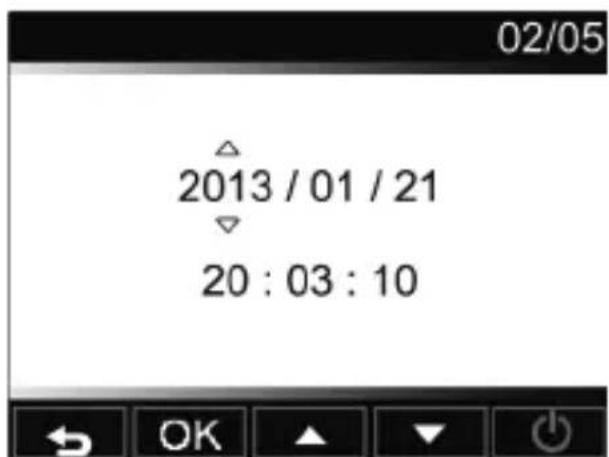
Set the Date and Time
- Press ▼ to open the on screen display menu.
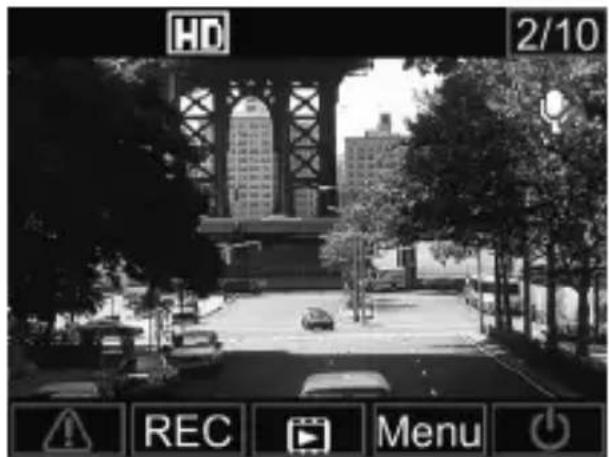
- Press ▲ / ▼ to select Clock and press OK to enter Clock menu.
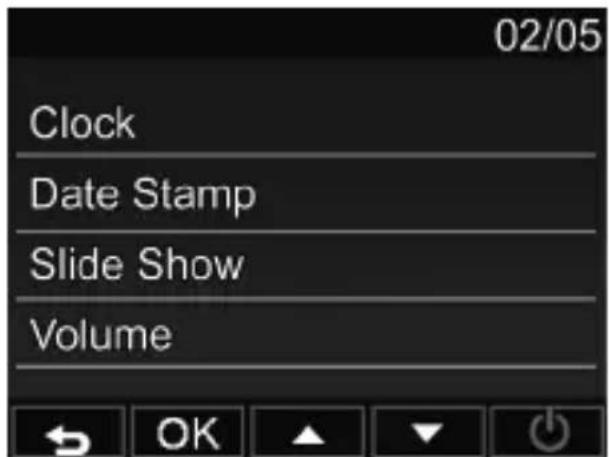
- To adjust date and time field, press OK to select the field.
- Press ▲ / ▼ to adjust the value.
- Repeat steps 3-4 to adjust other fields.
- Press ⚠️ to save your changes.
4 Operating instructions
Recording Videos
Video Recording
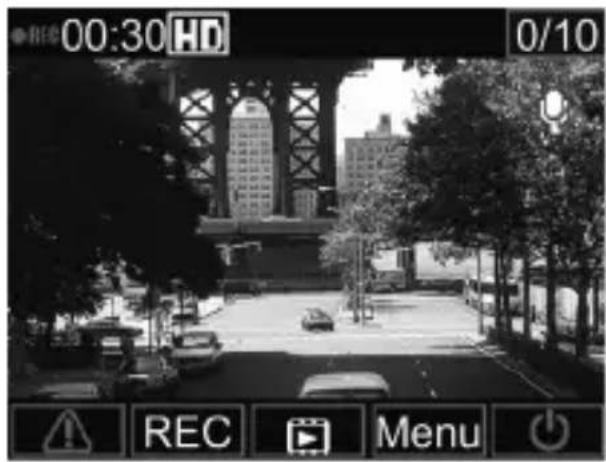
- When the power of the vehicle is on, the device automatically turns on and starts recording. If the Automatic Recording function is disabled, press OK to start recording manually.
- Recording will automatically stop when the power of the vehicle is off. Or, press OK to stop recording manually at any time.
Emergency Recording
- During video recording, you can manually create an Emergency Recording, to secure a video file of any event that might happen.
- Press ⚠️ to start the Emergency Recording.
- icon appears on the top right side of the screen, indicating Emergency Recording is ongoing.
- The system automatically creates an emergency video file. The video file is saved into the Emergency Records folder.
- When the CollisionDetection function is activated, the device will automatically detect any collision events, and create an emergency video file. The emergency video clip will show 30 seconds before and after the event detection. The video file will be saved into the Emergency Records folder.
- The device can save up to 10 Emergency Recording video files. The number of Emergency Recording saved on the card is indicated in the top right corner of the LCD.
Notes:
-
A storage card icon 📄 appears on the LCD for approximately 1 minute during the emergency recording file saving. During this time, all buttons are unavailable. Other functions are unavailable until the file is saved.
-
When Monitor Mode or Motion Detection functions are activated, the Emergency Recording and CollisionDetection will be turned off automatically.
Playback Videos
Playing Videos
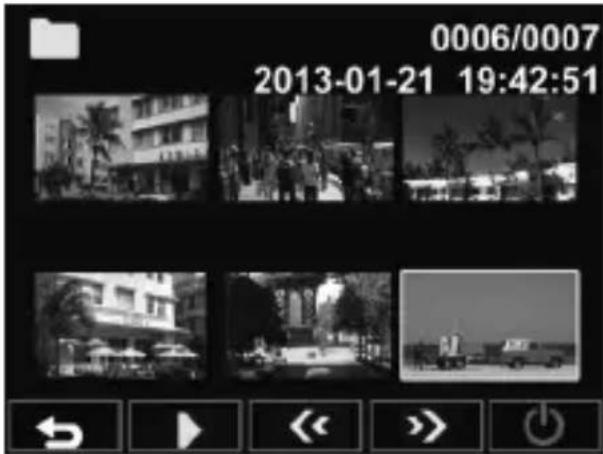
- Press ♠ to enter Playback mode.
- Press ♠ / ♥ to select Emergency Record or Last Record and press OK
- Press ♠ / ♥ to browse for the desired video file and press OK to play the video.
Deleting Videos
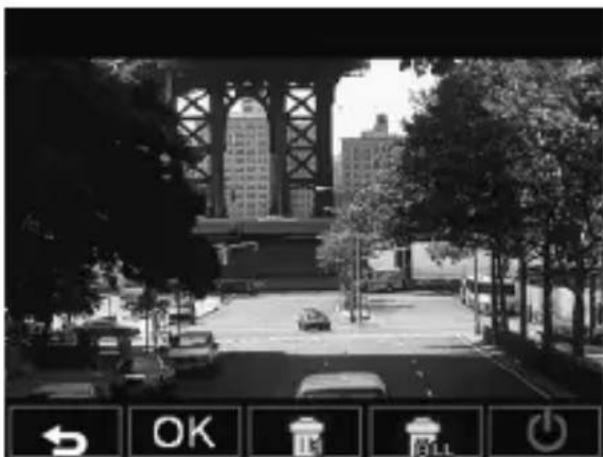
- During video playback, press OK to pause the playback.
- Press ▲ to enter the Delete screen.
- Press ▲ ( 🔊₁ ) to delete the selected file or press ▼ ( 🔊ₘ) to delete all files.
- A confirmation message appears on the screen. Press ♠ / ▼ to select Yes and press OK to confirm deletion.
Protecting Videos
To secure videos against being overwritten,
- During video playback, press OK to pause the playback.
- Press ▼ to enter the Protect screen.
- Press ◆ ( 🔊 ) to lock the file. A lock icon ( 🔊 ) is displayed on the screen to indicate that the file is protected. To unlock the locked file, press ▼ ( 🔊 ).
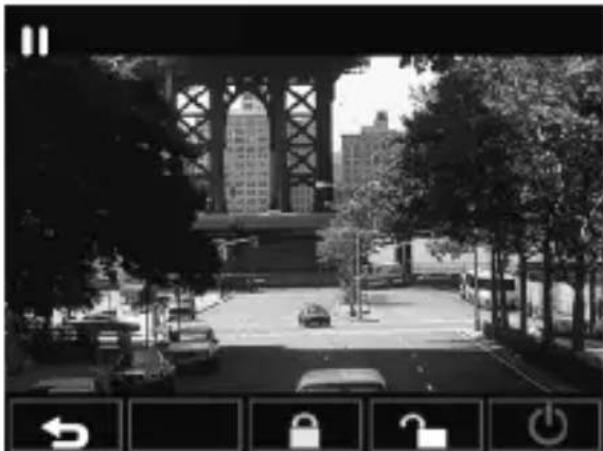
natural_image
Black-and-white cityscape photo showing a bridge over a road with trees and buildings in the background (no visible text or symbols)5 Driver Fatigue Alert
To help car drivers manage the evolution of their fatigue, a fatigue index displays the evolution of driver's fatigue, taking into account physiological and journey related parameters such as time of the day and time spent driving. The device will alert the driver when fatigue index reaches 80, and also every two hours of driving.
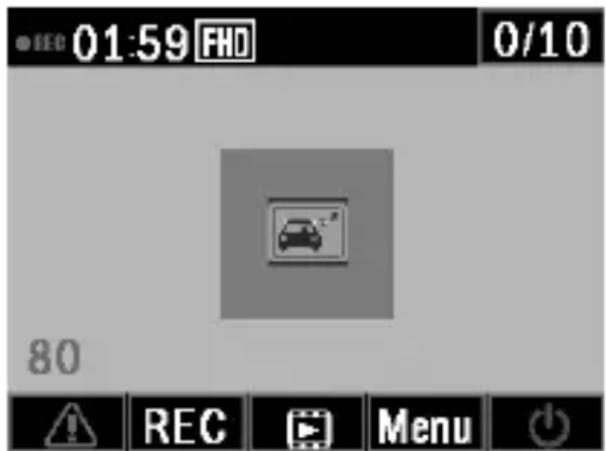
When switch on, fatigue index will be
displayed on the screen. When fatigue index is less than 60, the value in green color is displayed on screen. Before fatigue index reaches 80, yellow value is displayed on screen with an alert sound. When fatigue index is above 80, red value is displayed on screen with 3 alert sounds and an fatigue icon pop up to alert user.(System time need set correctly when user switch on driver fatigue alert function).
Technical specs
| Automatic functions | Automatic recordingCollision detection & emergency file protectionSeamless loop recordingAuto exposureAuto white balanceDate and time stampLCD auto OffDriver fatigue alert |
| Image Sensor | 3.1 Mega-pixels CMOS |
| Video resolution | Full HD(1920x1080p) @30fps |
| Display | 2" LCD 480*234 dot |
| Aperture Range | F/#2.0 |
| Fixed Lens | Wide angle lens, FOV 100 (Diagonal), 5 layers glass |
| File Format | .MOVAVC audio compression /H.264 video compression |
| Random Access Memory | 64Mx16bit (1Gbits) DDR2 SDRAM |
| Internal Memory | 64Mb SPI Flash |
| Recording media | Micro SD card (class 6 or higher, up to 32GB) |
| Real Time ClockRetaining Period | At least 5 days |
| Recording Time | 200min @16GB for full HD280min @16GB for HD Premium |
| Operating Temperature | 0°C ~ 65°C |
| Storage Temperature | -20°C ~ 70°C |
| Accessories | Mini USB car charger, Mount bracket, Sticky tape |
| Interface | Mini USB 2.0, Mini HDMI, Micro SD slot,Microphone, Speaker |
| Languages | English, French, German, Italian, Spanish, Portuguese,Polish and Russian |
| Power | 12-24V car adapter Main unit: 5V/1A |
| Dimensions (LxWxH) | 72.8x 53.3x 31.34mm |
1 Produktübersicht
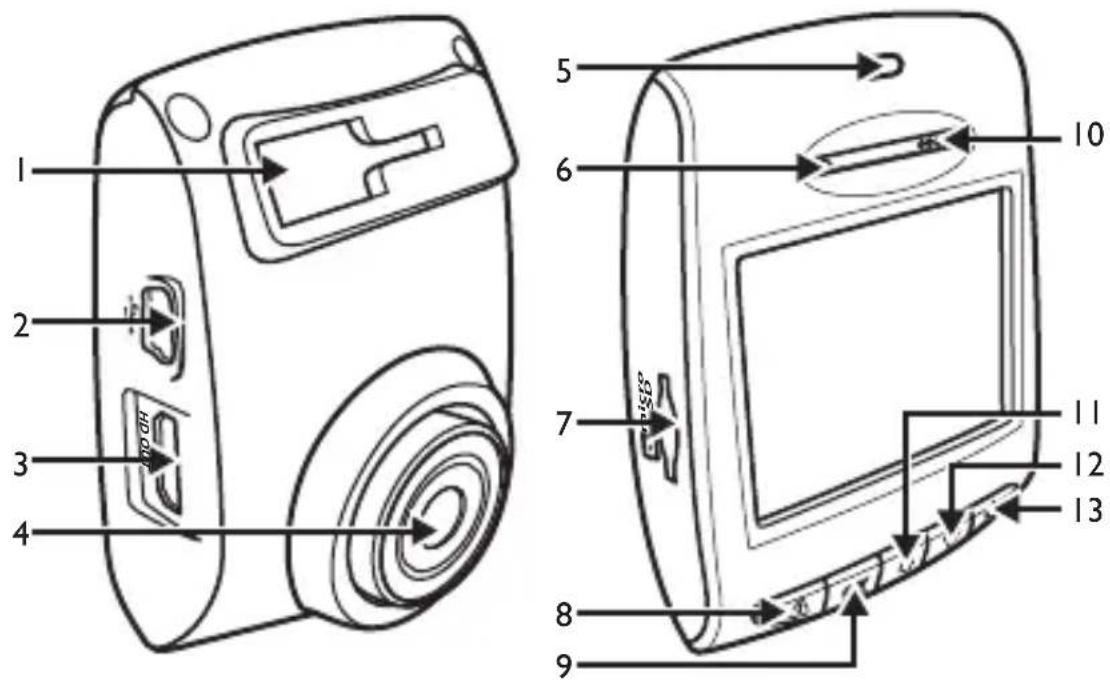
natural_image
Simple line drawing of a mechanical component with a flanged top and threaded base (no text or symbols)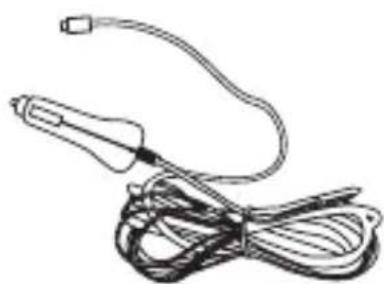
natural_image
Line drawing of a medical or laboratory probe with coiled wires and a probe tip (no text or symbols)
natural_image
Diagram of a device with a handle and control panel, showing internal components (no text or symbols)natural_image
Line drawing of a digital camera with a scroll wheel and attached cover (no text or symbols)natural_image
Interior view of a car dashboard with steering wheel, infotainment device, and close-up of sensor placement (no text or symbols)Schützen von Videos
natural_image
Black-and-white city street view with bridge, trees, and buildings in background (no visible text or symbols)5 Ermüdungs-Alarm
natural_image
Simple line drawing of a mechanical component with a rounded top and flanged base (no text or symbols)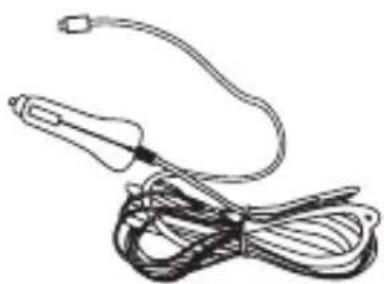
natural_image
Line drawing of a medical or laboratory probe with coiled wires and a terminal connector (no text or symbols)
Anclaje x 1 Mechero x 1 Cinta adhesiva x 1
natural_image
Diagram of a device with a scroll wheel and mechanical components, no visible text or symbolsnatural_image
Line drawing of a camera with a scroll wheel and attached cover (no text or symbols)natural_image
Diagram of a camera with a screen and directional arrow indicating light or perspective (no text or symbols)natural_image
Line drawing of a medical device with a rotary switch and labeled ports (no text or symbols beyond labels)natural_image
Interior view of a car dashboard with steering wheel, infotainment device, and close-up of connector (no text or symbols)natural_image
Black-and-white city street view with bridge, trees, and buildings in background (no visible text or symbols)5 Alarma de fatiga
natural_image
Mechanical component diagram showing a flanged arm and cylindrical shaft (no text or symbols)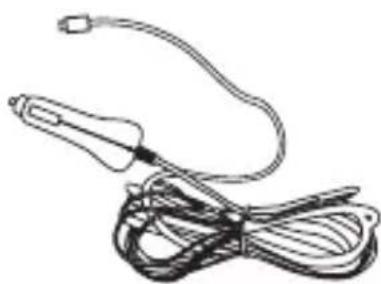
natural_image
Line drawing of a medical or laboratory probe with a curved tube and coiled wires (no text or symbols)
natural_image
Diagram of a device with a handle and internal components, no visible text or symbolsnatural_image
Diagram of a camera with a screen and directional arrow indicating light or perspective (no text or symbols)natural_image
Line drawing of a digital camera with a scroll wheel and attached cover (no text or symbols)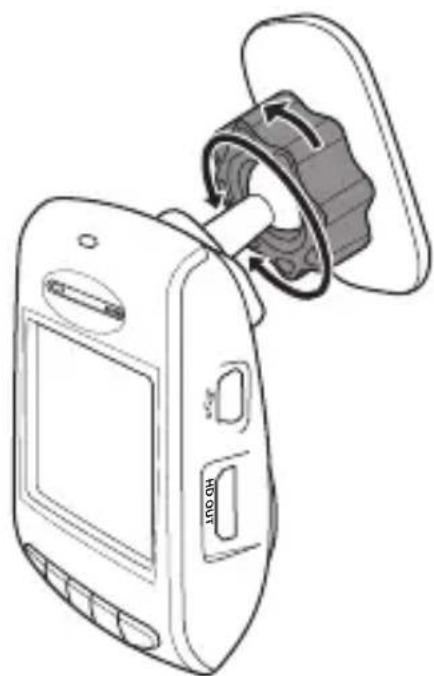
natural_image
Line drawing of a mobile phone with a rotary switch and control panel (no text or symbols)natural_image
Interior view of a car dashboard with steering wheel, infotainment device, and close-up of connector (no text or symbols)Protéger les vidéos
natural_image
Black-and-white city street view with bridge, trees, and vehicles (no visible text or symbols)natural_image
Mechanical component diagram showing a flanged arm and cylindrical shaft (no text or symbols)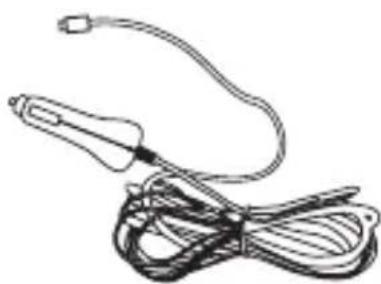
natural_image
Line drawing of a medical or laboratory probe with a coiled cable and probe tip (no text or symbols)
Staffa × 1 Accendisigari × 1 Nastro adesivo × 1
2
natural_image
Diagram of a handheld device with a scroll wheel and internal components (no text or symbols)natural_image
Line drawing of a camera with a scroll wheel and attached cover (no text or symbols)natural_image
Diagram of a camera with a screen and directional arrow indicating light or perspective (no text or symbols)natural_image
Line drawing of a handheld device with a rotary knob and labeled buttons (no text or symbols beyond basic labels)natural_image
Interior view of a car dashboard with steering wheel, infotainment device, and close-up of connector (no text or symbols)Proteggere i video
natural_image
Black-and-white city street view with bridge, trees, and traffic (no visible text or symbols)natural_image
Mechanical component diagram showing a flanged arm and cylindrical shaft (no text or symbols)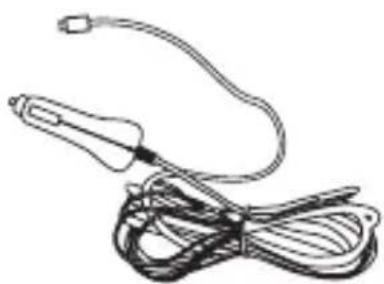
natural_image
Line drawing of a medical or laboratory probe with attached wires (no text or symbols)
natural_image
Diagram of a device with a scroll wheel and mechanical components, no visible text or symbolsnatural_image
Line drawing of a camera with a scroll wheel and attached cover (no text or symbols)natural_image
Diagram of a camera with a screen and directional arrow indicating light or perspective (no text or symbols)natural_image
Line drawing of a handheld device with a rotary knob and labeled buttons (no text or symbols beyond basic labels)natural_image
Black-and-white city street view with bridge, trees, and traffic (no visible text or symbols)natural_image
Mechanical component diagram showing a flanged arm and cylindrical shaft (no text or symbols)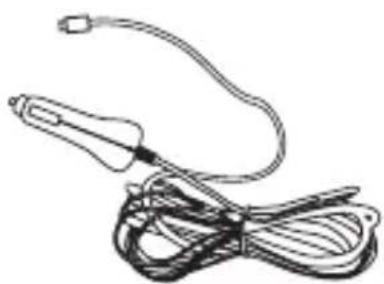
natural_image
Line drawing of a medical or laboratory probe with attached wires (no text or symbols)
Suporte x 1 Isqueiro x 1 Fita adesiva x 1
natural_image
Diagram of a device with a handle and internal components, no visible text or symbolsnatural_image
Line drawing of a digital camera with a scroll wheel and attached cover (no text or symbols)natural_image
Diagram of a camera with a screen and directional arrow indicating light or perspective (no text or symbols)natural_image
Line drawing of a mobile phone with a rotary switch and control panel (no text or symbols)natural_image
Interior view of a car dashboard with steering wheel, infotainment device, and close-up of connector (no text or symbols)Automático On/Off
Proteção de Vídeos
natural_image
Black-and-white cityscape photo showing a bridge over a road with traffic and buildings in the background (no visible text or symbols)5 Alarme de Fadiga
natural_image
Mechanical component diagram showing a flanged arm and cylindrical shaft (no text or symbols)Кронштейн x 1
natural_image
Line drawing of a medical or laboratory probe with a curved tube and coiled wires (no text or symbols)Прикуриватель x 1

Клейкая лента × 1
natural_image
Diagram of a device with a handle and internal components, no visible text or symbolsnatural_image
Line drawing of a digital camera with a scroll wheel and attached cover (no text or symbols)natural_image
Diagram of a camera with a screen and directional arrow indicating light or perspective (no text or symbols)natural_image
Line drawing of a medical device with a rotary knob and control buttons (no text or symbols)natural_image
Interior view of a car dashboard with steering wheel, rearview lock, and close-up of connector (no text or symbols)Защита видеозаписей
natural_image
Black-and-white street view showing a bridge over a city with pedestrians and trees, no visible text or symbols.All rights reserved.
Document order number: 3211 008 21251
- Driving video recorder
- ADR610
- Installing in vehicles System
- Inserting the Memory Card
- To remove the memory card
- About Micro SD Card
- Automatic power On/Off
- Manual Power On/Off
- Notes:
- System setting
- Click on Menu to show the menu list, and set different functions of the device
- Set the Date and Time
- Operating instructions
- Recording Videos
- Video Recording
- Emergency Recording
- Playback Videos
- Playing Videos
- Deleting Videos
- Protecting Videos
- Driver Fatigue Alert
- Produktübersicht
- Schützen von Videos
- Ermüdungs-Alarm
- Alarma de fatiga
- Protéger les vidéos
- 2
- Proteggere i video
- Automático On/Off
- Proteção de Vídeos
- Alarme de Fadiga
- Защита видеозаписей
Brand : PHILIPS
Model : ADR610
Category : Dashcam