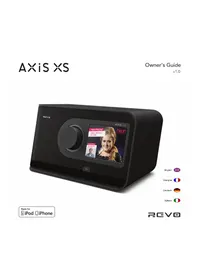
Axis XS - Radio REVO - Free user manual and instructions

Find the device manual for free Axis XS REVO in PDF.

📄 136 pages English EN 💬 AI Question 10 questions ⚙️ Specs
Notice REVO Axis XS - page 2
View the manual : Français FR Deutsch DE English EN Italiano IT
Features Details
Product type Radio
Supported frequencies FM, DAB+
Connectivity Bluetooth, USB
Power supply Power adapter or rechargeable battery
Dimensions Compact, ideal for home use or on the go
Weight Lightweight, easy to carry
Usage Radio listening, audio streaming via Bluetooth
Maintenance Regular surface cleaning, firmware updates if available
Safety Use only with the supplied adapter, avoid exposure to water
Additional information 2-year warranty, customer support available

Frequently Asked Questions - Axis XS REVO

How do I set the frequency on my REVO Axis XS?
To set the frequency, use the tuning knob located on the front panel. Turn it until you reach the desired frequency, then press "OK" to confirm.
Why is my radio not receiving a signal?
Check that the batteries are sufficiently charged and that the antenna is properly positioned. Also ensure there are no obstacles between the radio and the transmitter.
How do I reset my REVO Axis XS to factory settings?
To reset, press and hold the reset button located on the back of the device for about 10 seconds until the screen flashes.
What should I do if my radio's screen is black?
Make sure the radio is turned on and the batteries are charged. If the screen remains black, try resetting the device as described above.
How do I update the firmware on my REVO Axis XS?
Download the latest firmware version from the official REVO website. Connect your radio to a computer via USB and follow the instructions provided in the update guide.
My radio is making strange noises, what should I do?
Check the internal connections and make sure there are no debris in the battery compartment. If the problem persists, contact customer service for assistance.
How do I change the volume on my REVO Axis XS?
Use the volume knob located on the side of the device. Turn it clockwise to increase the volume and counterclockwise to decrease it.
Is the REVO Axis XS waterproof?
The REVO Axis XS is not fully waterproof. Avoid exposing it to water or damp conditions to prevent damage.
How do I connect my REVO Axis XS to another device?
Use the connection port located on the back of the radio. Follow your device's instructions to establish the connection.
What types of batteries are compatible with the REVO Axis XS?
The REVO Axis XS uses AA batteries. Make sure to use good quality alkaline or rechargeable batteries for optimal performance.

User questions about Axis XS REVO

0 question about this device. Answer the ones you know or ask your own.

Ask a new question about this device

L'email reste privé : il sert seulement à vous prévenir si quelqu'un répond à votre question.

No questions yet. Be the first to ask one.

Download the instructions for your Radio in PDF format for free! Find your manual Axis XS - REVO and take your electronic device back in hand. On this page are published all the documents necessary for the use of your device. Axis XS by REVO.

USER MANUAL Axis XS REVO

Owner’s Guide v1.0 English Deutsch Italiano Français2 English Technical Support Should you encounter problems using this product, please refer to the troubleshooting section on page 31 of this owner’s guide. Alternatively, call Revo technical support on : UK 01555 666 161 From outside the UK + 44 1555 666 161 Alternatively, e-mail support@revo.co.uk or visit the troubleshooting section of our website at: www.revo.co.uk Environmental Info PRODUCT DISPOSAL INSTRUCTIONS (WEEE DIRECTIVE) The symbol shown here and on the product means that it is classed as Electrical or Electronic Equipment and should not be disposed with other household or commercial waste at the end of its working life. The Waste of Electrical and Electronic Equipment (WEEE) Directive (2002/96/EC) has been put in place to recycle products using best available recovery and recycling techniques to minimise the impact on the environment, treat any hazardous substances and avoid the increasing landll. For more information please contact your local authority or the retailer where the product was purchased. RoHS COMPLIANT & CE MARK This product has been designed to comply with international directives on the Restriction of Hazardous Substances (RoHS) and has been designed and type-tested to comply with EU requirements and carries a CE mark. SAFETY WARNINGS

  • Do not operate this radio near water
  • Do not remove screws or casing parts
  • Use only the power supply unit supplied
  • Avoid small objects and liquids from entering the product Warranty Revo Technologies Ltd warrants to the end user that this product will be free from defects in materials and workmanship in the course of normal use for a period of one year from the date of purchase. This guarantee covers breakdowns due to manufacturing faults and does not apply in cases such as accidental damage, general wear and tear, user negligence, modication or repair not authorised by Revo Technologies Ltd. To register your purchase please visit www.revo.co.uk Copyrights and Acknowledgements Copyright 2012 Revo technologies Ltd. All rights reserved. No part of this publication may be copied, distributed, transmitted or transcribed in any form or by any means, electronic, mechanical, magnetic, manual or otherwise, without the permission of Revo Technologies Limited. REVO and AXiS XS are trademarks or registered trademarks of Revo Technologies Ltd. iPod, iPhone and iPad are trademarks of Apple Inc., registered in the U.S. and other countries. Revo Technologies Ltd The Inox Building, Caldwellside, Lanark, Scotland, United Kingdom, ML11 7SR Tel: 01555 66 61 61 Int. Tel: +44 1555 66 61 61 Fax: 01555 66 33 44 Int. Fax: +44 1555 66 33 44 Email: enquiries@revo.co.uk Website: www.revo.co.uk Disclaimer Revo Technologies Limited makes no representation or warranties with respect to the content of this publication, and specically disclaims any implied warranties of merchantability or tness for any particular purpose. Further, Revo Technologies Limited reserves the right to make changes to this publication from time to time, without notication to any person or organisation.3 English Contents

Support, Warranty and Environmental Information Table of Contents / Welcome Introducing AXiS XS What’s in the Box? / Power Supply Anatomy of AXiS XS Remote Control / Guiding Principles Home Screen Menu Second–Level Navigation Internet Setup Internet Radio Mode DAB Radio Mode DAB Slideshow iPod Docking Mode Bluetooth Mode Network Audio Mode FM Radio Mode Alarms / Auxiliary Input Mode System Settings / ChargePort Troubleshooting Info Glossary / Audio Specications Welcome Thank you for purchasing AXiS XS. We are sure that it will provide you with years of enjoyment and reliable service. This guide has been designed to quickly get you up and running with your radio, offer guidance on the product’s features and provide information on operation, safety, warranty details and troubleshooting. Unpacking AXiS XS Carefully remove your AXiS XS from its packaging and remove the other items from the box. The box should contain the following:

  • Multi-region power supply unit (With adaptors for UK, Europe USA and Australian)
  • Warranty Card If any items are missing or damaged, please contact your point of purchase or call Revo directly on +44 (0) 1555 66 61 61 Note: Please retain AXiS XS’s packaging for possible future use, it’s the safest way to transport AXiS XS if that proves necessary.4 English Introducing AXiS XS AXiS XS is the ultimate ‘connected’ digital radio device, uniquely combining multi-format radio reception with iPod and iPhone docking and wireless audio streaming from your Bluetooth® device or networked PC or Mac computer. AXiS XS is capable of receiving a full range of digital radio standards including DAB, DAB+, FM with RDS and internet radio. Next generation multimedia services such as DAB Slideshow and RadioVis are also supported. This compact radio features a 3.5” colour TFT display, and is controlled via an icon-driven touchscreen user interface, enabling quick and easy navigation around the radio’s many advanced features. AXiS XS boasts award-winning audio performance, courtesy of its 8W Class-D amplier and patented Balanced Radiator loudspeaker technology. Completing the hardware picture, AXiS XS provides charging for a range of USB devices including mobile phones, tablets and accessories. Thanks to Bluetooth® technology you can wirelessly stream music to AXiS XS from your iPhone, Android, Blackberry or other Bluetooth® device, such as a laptop or tablet. No physical docking necessary. AXiS XS provides a standard 5V (at 2000 mA) USB power supply via its ChargePoint connector, enabling you to charge a wide variety of USB devices including mobile phones, tablets etc. On the same wireless network as your computer, AXiS XS can also act as a remote streaming device for your music collection. You can also use the Frontier Silicon internet radio portal from your computer to tailor the content received by your AXiS XS. As a standalone device, AXiS XS is an accomplished DAB, DAB+ and FM receiver, along with its functions as an iPod docking station and alarm clock. Connected to a wireless broadband network, AXiS XS can receive thousands of internet radio stations and podcasts from around the globe. Your Versatile Radio Hub AXiS XS is already very useful on its merits as a digital receiver and iPod/iPhone dock. Connected to a wireless broadband network however, is where it really shines... AXiS XS will automatically seek out available wi- networks wherever you are. Even without a computer, you can access the huge range of stations and podcasts available via internet radio. By adding a computer or networked storage device to the mix, AXiS XS can stream audio from any PC or Mac, providing access to your music collection in any part of the home or work environment.5 English What’s in the Box? AXiS XS Warranty Card User Guide Power Supply Unit (+ 4 Plug Adaptors) Set of 7 iPod Dock Adaptors Your AXiS XS radio is supplied with a multi-region power supply, meaning that it can be operated in a number of countries around the world. Simply choose the correct adaptor for your country from the selection and attach to the PSU body. Startup screen Power Supply PSU Body

UK EURO U.S.A AUSTRALIA6

English Standby Button Rear Ports Extendable Aerial USB Charge Port USB Update Port DC Power Socket Auxiliary Line In Headphone In Stereo RCA Connectors iPod Video Out The Anatomy of AXiS XS iPod Dock Colour Touchscreen Rotary Volume7 English Digital Digits TouchstarKontrolUser’s Recommended Radio1:24/4.31 Time, Date, Alarm and Network status are displayed along the top of the screen. These are not touch-activated but provide a quick, handy summary. The central area of the screen is the main information display, showing you menu lists and information about whatever you’re currently listening to. Navigational menus occupy the bottom of the screen. These allow you to access features and settings and get back to the home screen. AXiS XS’s remote control is powered by a 3V lithium-ion battery. Depending on usage, this battery should happily run for 1 – 2 years. Replace the battery with a new CR2025 lithium cell when button presses seem sluggish, or when the operating range seems to have reduced signicantly. Remote Control Guiding Principles One of AXiS XS’s dening features is its 3.5 inch colour touchscreen, which puts you in direct contact with the radio’s many functions. AXiS XS’s controls are very intuitive, so should require little explanation. The graphical representation of features and the ability to directly touch words and buttons to activate them should feel natural after just a few minutes of use. To get you started, the following two pages aim to offer a summary of what you can expect to see in the different areas of your AXiS XS’s screen and provide an outline of how to nd your way around.

Standby Skip Back Snooze (alarm) Volume Down Play / Pause Mute Skip Forward Sleep (alarm) Volume Up Stop 16.20pm 31 Jul 20128 English Home Screen Your rst point of contact with AXiS XS XS’s interface is the home screen. We think the various modes will be fairly self-explanatory and easy to nd but here we offer a short description of the function of each of the homepage icons. Gently press and release an icon to access the relevant mode. Internet Radio Internet Radio mode allows you to access tens of thousands of online radio stations and podcasts from around the World. As long as you have a broadband internet connection, you don’t even need a computer to use this mode. Details on page 11. Network Audio / Network Music Player AXiS XS’s network music player mode “Network Audio” lets you stream audio les across your network from PC or Mac. This turns AXiS XS into a multi-room system for your existing music collection. See page 21. Bluetooth Wirelessly stream music from your Bluetooth smartphone, tablet, laptop or other Bluetooth enabled device, directly to AXiS XS, without the need for physical docking or connection. See page 20. Auxiliary Input Via a standard 3.5mm audio cable, you can use AXiS XS to play back audio from any external source you choose. See page 26 for details. Sleep Set AXiS XS to automatically switch itself off after a pre-determined time period has elapsed. See page 26 for details. Settings The Settings menu provides you with controls to tailor the setup of your AXiS XS. Network settings, sound EQ levels, software updates and timing preferences can be controlled from here. See page 27 for details. Alarms AXiS XS’s alarms allow you to wake up to any of the audio modes or a buzzer. Alarms are fully congurable to specify dates, recurrence, volume etc. See page 25. DAB / DAB+ Radio As well as high-sensitivity DAB reception, AXiS XS XS is future-proofed to provide coverage of DAB+ broadcasts when available. See page 15 for full details. FM Radio AXiS XS is loaded with cutting-edge features but it also includes the ability to receive FM broadcasts, including RDS data. Very handy if you take your radio outside a DAB reception area or Wi-Fi network. See page 24. iPod mode AXiS XS XS provides docking, charging, control and playback for nearly all models of Apple iPod and iPhone. See the iPod section on page 18 for more information.9 English Close – click to return to the home screen and stop playback of current mode. After you’ve clicked an option on the home screen to enter one of the modes, the layout of the screen will change slightly. While each mode looks unique to a certain extent, depending on the information to be displayed, there are several features in common throughout the system. Second–Level Navigation When using any of AXiS XS’s modes, you’ll notice at the foot of the screen are one or two rows of contextual menu buttons. These are your main means of interacting with AXiS XS. The bottom row remains on screen in all modes and provides system-level navigation, enabling you to return to the home-screen at any time, or bring up a contextual menu for your current mode If you press the ‘Home’ button, the current mode will continue to play until you select an alternative audio source. This means you can adjust AXiS XS’s alarm settings or change your system conguration without interrupting your listening. Home – click to return to the main menu screen while maintaining audio playback of current mode Contextual Menu – click to view and congure user options for current mode. As you navigate through context-specic sub-menus, the “Close” button will change to a “Back” button, which takes you back up to the previously viewed screen. Volume – click to mute volume. The current mode name is displayed in the centre of the bottom menu bar. Internet Radio An arrow next to an item in a list indicates that there are further options associated with that item. When you enter a navigational menu, the available choices will be shown as a list. Just touch any option in a list to select it. On longer lists, a scrollbar will appear to the right of the screen. Use the Up and Down buttons to scroll through the list one screen at a time, or press part of the scrollbar background to jump to a point. If you press the Home button, you’ll notice that a “Back” button appears in the lower right hand corner of the main menu screen. Pressing this will take you back to the currently playing mode. Settings Menu Alarms SettingsTime SettingsEqualiser SettingsNetwork Settings16.20pm 31 Jul 2012 BBC Radio 6 Music Rock/Alternative/VarietyLondon United KingdomThe BBC’s new digital radionetwork featuring a rich musicmix of breaking talent, classicartists and live performancesInternet Radio16.20pm 31 Jul 201210 English Internet Setup AXiS XS makes connecting to the internet via your local wireless or wired network very straightforward. The easiest way to get started is simply to enter Internet Radio mode, where AXiS XS will lead you through the process of connecting to your network and getting online. The main steps are illustrated below: Saved Network Proles: If you move your AXiS XS to a different location, when you enter one of the internet modes it will automatically re-scan for available networks. Only networks within range will be listed but don’t worry, your old settings are saved safely and will automatically nd your network again if you move your AXiS XS back to that location. Select your region... Wireless networks within range will be listed. Select your preferred network.Enter your network password and click “Confirm”.00:00 USA CanadaMost of EuropeFranceSettingsSelect WLAN Region00:00My Network<Rescan><Wired Network>Manual SettingsSettingsNetwork WizardSettings Network key: Q W E R T Y U I O A S D F G H J K L Z X C V

Connecting... After following the steps above you should be able to access the Internet Radio mode. You’ve also taken the rst step towards streaming audio wirelessly from computers on your network. All your network settings will be saved to AXiS XS’s memory until you choose to manually update them. Scanning...

  • Select your WLAN region from the list.
  • AXiS XS automatically scans for networks. As in the example shown, any neworks within range of your AXiS XS will be listed by name.
  • Select your preferred network from the list.
  • If your network is not password protected, AXiS XS will now connect to it. If you do use password protection, you will be prompted to enter your access code as shown. Type your password using the on-screen keyboard, then press “Conrm”.
  • AXiS XS will now connect to your network. Your password is saved to AXiS XS’s memory so you don’t need to enter it every time you reconnect. If you want to manually check or change your network settings at any time, you can do so via the “Settings” section. Go to “Network Settings” then select “Network Wizard”. If you have advanced settings you wish to congure yourself, select the “Manual settings” option. For more information, see page 30.11 English Internet Radio Mode AXiS XS’s Internet Radio mode is a fantastic way to receive interesting broadcasts of every imaginable type from all around the World. It also allows you to listen to podcasts, enabling you to catch up or listen on demand to many broadcasts you may have missed on their rst airing. From AXiS XS’s home screen, click the Internet Radio icon to start. Getting Started... The rst time you enter Internet Radio mode (after you’ve successfully set up your internet connection – see page 10), you’ll be taken to the main Station Directory menu screen. You’ll nd the following options on the main Internet Radio Station List: BBC Radio 6 MusicRock/Alternative/VarietyLondon United KingdomThe BBC’s new digital radionetwork featuring a rich musicmix of breaking talent, classicartists and live performancesInternet Radio Station information, including name, genre, location, logo and description data where available from broadcaster. View Technical Information Add Current Station to Favourites View Station Directory List Main IR Playing Screen My Favourites Provides a quick route to access stations which you select as favourites. For more information on using favourites see page 13. Local A comprehensive list of all the internet radio stations being broadcast from within your country or geographical region. BBC A handy shortcut to all BBC stations. Stations The big list! Find thousands of stations either by browsing categories such as location, genre and popularity or by searching for a station by name. Podcasts Find podcasts and “listen-again” broadcasts by location, genre or by searching for a name. My Added Stations Shows stations that you’ve personally added to your station list by accessing the Frontier Silicon Radio Portal. See page 14 for more details. Help Find your AXiS XS’s access code. The main contextual menu button in IR mode simply offers you two options: Return to playing screen: Takes you back to the main station info screen. Last Listened: Offers you a list of shortcuts to your recently accessed stations. Buffering... Depending on broadband connection and network speeds, stations may need to preload (buffer) for a few seconds before playback starts. My FavouritesLocal United Kingdom BBC StationsInternet Radio16.20pm 31 Jul 201216.20pm 31 Jul 201212 English The rst time you run Internet Radio mode, you’ll be taken straight to the main station list as described overleaf. This directory offers you a great variety of methods to browse and search for radio stations and podcasts. Broadly speaking, all the list items operate in a similar manner, so in the following example we’ll focus on one item from the menu: the “Stations” heading, which provides the most comprehensive range of broadcasts. After clicking “Stations”, you’ll see the options listed as below: Browsing for Stations By Location Choose a continent, then a country, then browse all available stations for that location, or delve deeper into sub-categories for specic genres etc. It’s worth noting that if you’re looking for a station from your own country, it’s probably quicker to access it by going to the main station directory and clicking the heading “Local”. By Genre Categorises all available stations by programme type, based on the descriptions provided by broadcasters. After selecting an option from the list, you can then browse a complete list of that entire genre, or rene your results further, based on sub-categories such as country of origin. Popular Stations A list of the 100 most listened-to stations via the Frontier Silicon Internet Radio Portal. New Stations A list of the 50 stations most recently added to the Frontier Silicon Internet Radio Portal. Finding IR Stations Station Directory Searching for Stations Internet Radio uzic Search String: Q W E R T Y U I O A S D F G H J K L Z X C V

UZIC Drum-BreaksUZIC Techno-MinimalInternet RadioSearch ResultsLocationGenre<Search stations>Popular stationsInternet RadioStationsBluegrassBluesBusiness NewsCelticInternet RadioGenre If you have a specic radio station in mind, you can search for it by name or by a keyword from its title or description. From the main Station List, select “Stations”, then click “<Search stations>”. This brings up a keyboard search box: Input a word, phrase or part of a station name and click “search”. Any matching results will be listed as pictured below. Simply select a station from the list to begin playing it. Click “Back” to search again if you didn’t nd what you were looking for. To access AXiS XS’s Internet Radio Station List, press the directory button any time you’re in IR mode. 16.20pm 31 Jul 201216.20pm 31 Jul 201216.20pm 31 Jul 201213 English Podcasts / Listen Again Podcasts offer you the ability to listen to a huge array of programmes on-demand, giving you a chance to catch up with broadcasts you may have missed, or to listen again to something you enjoyed. To nd podcasts, search for a radio station as normal, but instead of clicking the station name to listen live, select the Podcasts option. This will bring up a list of available programmes. Select a show to bring up a list of the podcasts available for it. Note: not all stations make their programmes available as podcasts. Also, the length of time that podcasts are available is dictated by the station. In many cases, podcasts will be made available for one week, although many are also available for longer periods. You can also register an unlimited number of favourites via the Frontier Silicon Radio Portal, which means they’re stored independently of your AXiS XS. If you carry out a factory reset, your favourites will still be retained. You can even share these favourites with other interet radio devices. See page 14 for more details. Favourite Station Presets AXiS XS lets you save separate lists of favourite internet radio stations and podcasts. To review your favourites, click the Station List button and select “My Favourites”. To add the station or podcast you’re listening to as a new favourite, click the Add Favourite button. When you browse one of the options, you’ll see your favourites listed in the order you saved them. You can easily remove items from the lists by pressing the corresponding trashcan icon: Favourite Added StationsPodcastsInternet RadioMy Favourites16.20pm 31 Jul 2012BBC Radio 6 MusicBBC Radio 2Internet RadioStations16.20pm 31 Jul 2012BBC Radio 6 MusicPodcastsInternet RadioBBC Radio 6 Music16.20pm 31 Jul 2012Arts, Drama, Readings and SpecialAdam and JoeBBC Introducing with To m RobinsoBruce Dickinson Friday Rock ShowInternet RadioPodcasts16.20pm 31 Jul 2012Internet RadioAdam and Joe16.20pm 31 Jul 2012 05/08/2012 - August 1214 English The Information button takes you to a screen displaying technical specications for the station you’re listening to. Under the “Help” section, you’ll nd your AXiS XS’s access code plus the heading “FAQ”. This contains a couple of short audio tracks offering guidance. When you exit Internet Radio mode, your last listened-to radio station is saved to AXiS XS’s memory and will be automatically restored next time you use Internet Radio. Internet Radio Portal AXiS XS can use the Frontier Silicon Internet Radio Portal to access some advanced internet radio features. To access the portal you need to register your AXiS XS on the Frontier Silicon website at: www.wiradio-frontier.com Your AXiS XS has a unique access code. To nd it, enter Internet Radio mode. On the menu screen, scroll down and press Help. Now press Get Access Code. Make a note of this code, then use your computer to access the website. Click on the “Register Here” link on the left side of the screen, then follow the instructions. If you already have an account on the Portal, you can register your AXiS XS as an additional radio. Log into your account then select My Preferences, then “Add Another Wi-Fi Radio”. Now you’ll be able to take advantage of features such as manually adding your own stations, or creating shared favourites lists to use with multiple devices. www.wiradio-frontier.com BBC Radio 6 Music Rock/Alternative/VarietyLondon United KingdomThe BBC’s new digital radionetwork featuring a rich musicmix of breaking talent, classicartists and live performancesInternet Radio16.20pm 31 Jul 2012 BBC Radio 6 Music DescriptionBit rateCodecSampling rateThe BBC’s new digital radio net-64 kb/sREALCOOK44.1 kHzInternet Radio16.20pm 31 Jul 2012Why do stations not work somtimes ...Why do stations disappear from my l...Internet Radio FAQ 16.20pm 31 Jul 2012Get Access CodeFAQInternet Radio Help 16.20pm 31 Jul 2012Access codeXXXX1234Internet RadioGet access code16.20pm 31 Jul 201215 English DAB Radio Mode Getting started Please ensure that your AXiS XS’s antenna is fully extended before you enter DAB mode. On AXiS XS’s Home screen, click the DAB icon. The rst time you enter DAB mode, AXiS XS will automatically begin to scan through the frequency range to nd radio stations. Scanning will take a few moments; a progress bar will appear on screen to keep track of how many stations are picked up in your area.

After scanning, the list of radio stations received in your area will be sorted alphabetically and saved to AXiS XS’s memory. The Now Playing screen displays information from the broadcaster. Station name and programme type (genre) are displayed at all times. Additional information is displayed where provided by the broadcaster. This may include categories such as:

  • Current track title and artist name.
  • Programme information.
  • Extra station Information.
  • Contact details / web links etc.
  • Upcoming programme information. If text is too long to t on one screen, it will scroll automatically every few seconds. More detailed technical information is available by pressing the info key. This includes detailed broadcaster data and information about signal strength. Listening to DAB Stations Simply click on a station name in the station list to begin playing it. To access AXiS XS’s DAB Station List, press the directory button. View Station List Add Current Station to Favourites List Go to Next Station from List View Favourites List Go to Previous Station from List Station / Programme Information View Technical Data BBC Radio 6MusicRock MusicNow playing:Banquet by Bloc Party DAB STEREO DAB Cancel Scanning in progress... Stations found: 37 16.20pm 31 Jul 2012 BBC Radio 3BBC Radio 4BBC Radio 5 LiveBBC Radio 6Music DAB Station List 16.20pm 31 Jul 2012 BBC Radio 6 MusicStation EnsembleFrequencySignal LevelSignal StrengthCodecBit rateSampling rateBBC National DAB225.648MHz 12B MP2 Joint Stereo128 kb/s48 kHz DAB 16.20pm 31 Jul 2012 16.20pm 31 Jul 201216 English Rescanning DAB Stations From time to time, it may be necessary to perform a manual scan to keep your AXiS XS’s station list up-to-date. A couple of reasons may account for this...
  • New station launches or existing stations which cease broadcasting.
  • If the initial scan gave poor reception (for example, if the aerial was not properly extended or AXiS XS was placed in a bad reception area), the default station list may be incomplete or even empty. To begin a manual scan, in DAB mode, press the Menu button. Select Scan from the list. When the scan is nished, your updated station-list will be saved into AXiS XS’s memory. “Pruning” Stations To remove stations that appear on your list but which are not available, press the Menu key in DAB mode and select Prune Invalid Stations. AXiS XS will remove any invalid stations and auto update and save your station list. Editing Presets You can change the order or delete items from your favourites list by going to the DAB menu and selecting Edit Favourites. Controls will appear around any station you select, allowing you to move or remove it. Dynamic Range Control DRC can improve audio performance if you are listening to music with a high dynamic range in a noisy environment (e.g. listening to classical music while cooking in the kitchen). DRC boosts quieter sounds, making them easier to hear, without over- amplifying the louder sections of music. AXiS XS has 3 DRC settings: OFF, Low and High. Default setting is Low. To alter this setting, click the Menu button in DAB mode. Select DRC from the list, then click your preferred setting. Note: Not all DAB broadcasts are able to use DRC. If the broadcast does not support DRC, then changing the setting will have no effect. Favourite Station Presets AXiS XS lets you save up to 10 of your favourite DAB stations as presets. To store the station you are currently listening to as a preset, just press the add preset button at any time. When successful, you’ll see the message “Favourite Added”. To view your preset stations list at any time, press the presets button. Favourite Added BBC Radio 3 BBC Radio 4 BBC Radio 5 Live BBC Radio 6Music DAB Station List 16.20pm 31 Jul 2012 1: BBC Radio 6Music 2: BBC Radio 4 3: BBC Scotland 4: <Empty> DAB My Favourites 16.20pm 31 Jul 2012 DRC OFF Low High DAB 16.20pm 31 Jul 2012 1: BBC Radio 6Music 2: BBC Radio 4 3: BBC Scotland 4: <Empty> DAB Select a favourite to move or delete 16.20pm 31 Jul 201217 English AXiS XS provides support for DAB Slideshow, an innovative new feature that signicantly enhances the digital radio experience. DAB Slideshow enables detailed full colour images to be broadcast alongside standard digital audio transmissions, providing a colourful and informative backdrop to DAB radio broadcasts. Slideshow content includes a wide variety of information screens and images, including ‘Now Playing’ screens, news headlines, sports reports, weather information and trafc updates. At the time of writing, DAB Slideshow content is being broadcast by a growing number of radio stations in the UK, Germany, Switzerland, Norway, Denmark, France, Australia and Hong Kong. If DAB Slideshow content is available on your chosen station, AXiS XS will automatically display the slideshow image at full screen size. To revert to the standard DAB Mode screen, simply press AXiS XS’s touchscreen. To re-enter full-screen DAB Slideshow mode at any time, press the small slideshow graphic on the left of the screen. NOTE: The availability of DAB Slideshow content is at the discretion of broadcaster. Not all stations currently operate this feature. DAB Slideshow DAB 9.30am 31 Jul 2012 Capital SIGNAL 105-106 Capital FMNo.1 Hit Music Station18 English All the following models are fully compatible with your AXiS XS: AXiS XS is one of only a handful of digital radios that is Apple certied for use with both iPod and iPhone. To enter iPod playback mode from AXiS XS’s home menu screen, just press and release the iPod icon. In iPod mode, the controls are simply: you can use AXiS XS’s touchscreen interface, or the remote control, to operate the basic playback features of you iPod. Where available, AXiS XS’s will display track title, artist name and album title information on screen. You can access other iPod features and controls as normal while docking with AXiS XS. The only exception is your iPod’s internal volume control - when plugged into AXiS XS, this feature is disabled. AXiS XS is made-to-measure for your iPod or iPhone. It requires very little effort to get up and running as an easy-to-use charging point and high quality amplier for your Apple devices. Simply plug your iPod or iPhone into AXiS XS’s dock for instant playback. See page 19 for instructions and further guidance on compatibility and installation of specic dock adaptors. Don’t forget, even if you own an alternative type of media player, a rst generation iPod or an iPod Shufe, you can still use AXiS XS for playback via a 3.5mm lead. Thirteen Big Star No1 Record - Radio City 0:41/2.34 iPod iPod 16.20pm 31 Jul 201219 English All the following models are fully compatible with your AXiS XS:

AXiS XS is supplied with a selection of adaptors to t a variety of iPod models. Each of the supplied adaptors has a number (see illustration 1), see the list opposite to check which adaptor corresponds to your iPod/iPhone. While it is not strictly necessary to use a dock adapter to connect an iPod to AXiS XS, if one is available, we recommend that you use it. If an adapter for your specic mode of iPod/iPhone is not among those supplied with AXiS, please use the adaptor provided by Apple as part of your iPod/iPhone kit. Alternatively, dock adaptors for most models can be purchased from the AppleStore (www.applestore.com). To t the adaptor, remove the dock dust cover before inserting the adaptor into the recess that surrounds the iPod connector (see illustration 2).20 English Select AXiS XS from the list. Your Bluetooth device will conrm when pairing has been completed, and AXiS XS will display the blue Bluetooth logo on-screen. During the pairing process, some Bluetooth devices may prompt you to enter a Passkey. Should your device require a Passkey, enter 0000. Should you experience problems when pairing your device with AXiS XS, please see the Bluetooth Troubleshooting section on page 32. Selecting and controlling music playback can be done in one of two ways, either directly from the source device (smartphone, tablet or laptop), or from AXiS XS’s touchscreen using the on-screen controls. To exit Bluetooth mode and close the connection between AXiS XS and your source device, press the X icon on the touchscreen. Wirelessly stream music from your Bluetooth smartphone, tablet, laptop or other Bluetooth enabled device, directly to AXiS XS, without the need for physical docking or connection. ‘Pairing’ occurs when two Bluetooth devices talk to each other and establish a connection. This connection is stored in the memory of both devices, meaning that once you ‘pair’ a particular device with AXiS XS, you shouldn’t have to go through the pairing process again. Select the Bluetooth icon from the Home Screen and AXiS XS will enter pairing mode. On your Bluetooth device, ensure that Bluetooth is enabled then initiate a ‘Search’ for a new device. When the ‘Search’ process has been completed, your device will list all the available Bluetooth devices in your close proximity. Pairing with Bluetooth Devices Passkey Streaming Music Management of Multiple Bluetooth Devices How to pair a Bluetooth device with AXiS XS Please note, the playback volume level can be independently controlled from either AXiS XS or the source device. If you have paired only one Bluetooth device, on entering Bluetooth mode, AXiS XS will automatically seek to connect with this device. Should you wish to pair another device, repeat the pairimg procedure. Firstly ensuring that any other paired devices have Bluetooth functionality temporarily disabled - otherwise AXiS XS will attempt to nd and connect with a previously paired device. Should you wish to clear all of the pairing proles held in AXiS XS’s memory, press the ‘Settings’ icon on the home screen, then select ‘Miscellaneous Settings’ and ‘Bluetooth Reset’. After clearing AXiS XS’s Bluetooth memory, please remember to delete devices from the paired device list on your Bluetooth device, before attempting to re-pair. Bluetooth Mode Clearing AXiS XS’s Bluetooth Memory 16.20pm 31 Jul 2012 Pairing Mode 16.20pm 31 Jul 2012Software VersionDisplay BacklightMiscellaneous SettingsBluetooth ResetFactory Reset16.20pm 31 Jul 201221 English Network Audio Mode AXiS XS’s network music player mode is accessed by selecting “Network Audio” from the Home menu. The mode utilises the Universal Plug and Play (“UPnP”) protocol to let you browse and play audio les wirelessly across your network from PC or Mac computers. Once you’ve set up your computer for sharing, AXiS XS can remotely navigate through your digital music collection by categories such as Artist Name, Album Title or Musical Genre. In order for AXiS XS to play your audio les from computer, the computer must rst be congured for media sharing. Recommended system requirements for straightforward setup of your computer are:

  • Apple Mac running OS X or later with a UPnP application installed to access an iTunes library. For information about setting up your computer to share music with AXiS XS, please see the instructions overleaf. Track, Artist and Album information is displayed on screen, along with Track Duration and Current Position. Stream Audio Menu You can set tracks to “Repeat” or “Shufe” by accessing toggle controls within the menu. Music Directory Menu Click to navigate through your shared music library and nd new tracks. Repeat Shufe Add to Playlist Information View technical details of File Type, Bitrate and Sample Rate. Rewind Press once to skip to start of previous track. Press and hold to quickly scan back through current track. Play / Pause toggle Stop Stop playback and return to your music directory list. Fast Forward Press once to skip to next track. Press and hold to quickly scan forward through current track. Playback of Network Audio Using AXiS XS with iTunes Please note: iTunes does not currently operate a UPnP media server, but there are a number of third-party software applications (many of them free) which can enable you to access your iTunes music library. See “Streaming from an Apple Mac” on page 22. Science Friction New School Science1:55/3.2616.20pm 31 Jul 2012Network Audio22 English Streaming from Windows PC using Windows Media Player Windows Media Player (version 11 or newer) is the most popular UPnP server client. There are alternative UPnP platforms which can be used, but this description deals with the process of conguring your WMP system. First, ensure that your PC and AXiS XS are both connected to the same network. In WMP, add the audio les and folders you want to share with your AXiS XS to the Media Library. Select “Library”, then “Add to Library”. To ensure that AXiS XS will be able to gain access to your shared media, turn Media Sharing on. Select AXiS XS and click “Allow” as pictured. Your PC is now ready to stream music to AXiS XS. The WMP UPnP service runs in the background, so you don’t actually need to have the WMP software running to access your les from AXiS XS. Streaming from an Apple Mac To connect AXiS XS to your Apple Mac computer, a third– party UPnP server application is required. There are a number of these apps available for download online. One of the most common and easy-to-use is called EyeConnect. This is available from: www.elgato.com Once you’ve downloaded and installed EyeConnect to your MAC, open up your System Preferences control panel and under “Other”, select EyeConnect. Ensure that AXiS XS is connected to the same network as your Mac – AXiS XS will appear on your EyeConnect devices list as pictured, right. Make sure the “Enable” box next to AXiS XS is ticked and that the “Access” drop down menu is set to “Enable New Devices”. Your MAC is now ready to stream to AXiS XS. EyeConnect runs discreetly in the background, so there’s no need to open the control panel each time you wish to stream. Network Audio: Setting Up

English Network Audio: Finding Tracks AXiS XS can play the major audio le formats from a computer or server on your local wireless network, including: MP3, AAC, WMA and FLAC When you enter Network Audio mode, you’ll be asked to select your music source. Click on “Shared Media”. All available computers on your network which have been congured to share les via UPnP will be listed: After selecting your desired computer from the list, you’ll see a list of available media types. Click “Music” to nd your shared tracks. You can browse your collection by criteria such as Album Title, Artist Name and Genre. If you like, you can also set up playlists on your computer, then access these from your AXiS XS. Select an option and you’ll be presented with an alphabetically sorted list (top right). You can then browse down through sub-categories to nd specic pieces of music. Just click a track name to play it. Select Music Source Shared Media My Music EyeConnect (My-Computer-01) EyeConnect (My-Computer-02) EyeConnect (My-Computer-03) EyeConnect (My-Computer-04) My Music EyeConnect (My-Computer-02) Music My Music Music Playlists Albums Genres Artists My Music Artists Jedi Knights Jeff Beck Jeff Buckley Jeff Mills My Music Jedi Knights All Jedi Selector New School Science My Music New School Science May The Funk Be With You Noddy Holder One For M.A.W. Science Friction My Music 16.20pm 31 Jul 2012 16.20pm 31 Jul 2012 16.20pm 31 Jul 2012 16.20pm 31 Jul 2012 16.20pm 31 Jul 2012 16.20pm 31 Jul 2012 16.20pm 31 Jul 201224 English Before entering FM mode, please fully extend AXiS XS’s aerial. From the Home screen, press the FM button. You’ll see the following screen, with the currently selected FM frequency displayed. Note the frequency scale across the centre of the screen. You can simply press any part of this scale, to tune AXiS XS to the corresponding radio frequency. You can also use the forward and back buttons to tune up or down through the frequency range, one step at a time. If you want to scan through the bands to nd a station, click on “Seek” so that it’s hilighted in yellow, then use the forward and back buttons as before. Now instead of individual steps, AXiS XS will scan up or down until it nds the next available station. For stations with good signal strength which broadcast RDS information, AXiS XS will display the RDS Data. STEREO88 90 94 98 103106 108 99.50MHz

Favourite Station Presets AXiS XS allows you to store up to 10 favourite station presets in FM Mode. To add the station you’re listening to as a new favourite, click the Add Favourite button. This will bring up the following feedback: To review your favourites list, click the favourites button at any time. Your favourites will be listed as shown below. If you’re already listening to one of your favourites, it will be highlighted on the list as shown here: FM Settings Press the contextual menu button to bring up the FM Settings menu: My Favourites: takes you to view your favourite stations list. Stop on Stations: is a toggle button which dictates AXiS XS’s FM sensitivity when scanning for stations. If set to “Strong”, scanning will only stop on stations with good reception. Edit Favourites: lets you easily rearrange or delete items from your favourites list: Force Mono: can switch playback to Mono if signal reception is not strong enough to allow constant Stereo reception. FM Radio Mode FM MenuMy FavouritesStop on stationsEdit favouritesForce mono All

Favourite Added Seek Seek 16.20pm 31 Jul 2012 16.20pm 31 Jul 2012 16.20pm 31 Jul 2012 16.20pm 31 Jul 201225 English

Set alarm time Alarm Settings AXiS XS is equipped with two programmable alarm clocks. From the Home Screen, click ‘Alarms”, the go to the Alarm status screen. To edit or review an alarm, press either Alarm 1 or Alarm 2. A summary screen displaying the current alarm selections will be displayed, there are four adjustable settings:

  • Alarm Enable / Frequency selection
  • Time (and Date if applicable)
  • Volume Simply press any setting to review or edit it. Pressing the “Back” button will save your changes and take you back to the main summary screen. When either alarm is activated, mini icon(s) as picture below will appear in the top section of your AXiS XS screen. Alarms can be set to activate Once, Every Day, Each Weekday or on Weekend Days. If you select “Once”, in addition to setting the alarm time, you will also need to set a specic date. The date setting screen behaves in the same manner as the time setting screen. Press “Time” to adjust the time of alarm activation. Using the up and down arrows above the hours and minutes, set the specic time that you wish the alarm to sound. Alarms can be set to wake you with audio from any one of the following modes: Internet Radio, DAB, FM, iPod or Buzzer. If DAB, or FM is chosen for the alarm source, you will also be given the option of waking to the “last listened” station or one the your preset favourites. This selection can be made by pressing “My Favourites”. Pressing volume will display the “Select Alarm Volume” screen, where you can predene the volume level that you wish your alarm to activate at. Alarms in Standby Mode When AXiS XS is in standby mode, if an alarm is set, its icon will be displayed on screen as pictured.In the bottom right hand corner of the screen, a shortcut button is also provided which takes you straight back to the main alarm summary screen at any time, to check and/or change the alarm settings.Monday 12 Oct 15:27 AlarmAlarm 1Alarm 2Alarm settings Off Off 16.20pm 31 Jul 201216.20pm 31 Jul 2012Select alarm source16.20pm 31 Jul 2012

iPod Internet Radio DAB Set alarm frequency16.20pm 31 Jul 2012 OFF Daily Once Weekend26 English Auxiliary Mode AUX IN mode allows you to play audio from almost any external source (e.g. MP3 Player) through your AXiS XS. Turn the volume of both AXiS XS and your external device down before connecting. Connect your external audio device via a cable to the 3.5mm AUX IN port on the rear of AXiS XS. Auxiliary input Aux In From the AXiS XS HOME screen, select AUX IN. Adjust the volume of AXiS XS and, if necessary, the external device, to the level desired. Use the controls on the external device to handle playback – in auxiliary mode AXiS XS provides amplication only. If Sleep mode is activated, a crescent moon icon will show in the top part of the screen. 15:27 15:27 When an alarm goes off, you’ll get the option to either “Snooze” or “Cancel”. “Snooze” puts AXiS XS back into standby mode for a specied period before repeating the alarm. The snooze interval duration can be set in the Alarms Menu, simply press the Alarms Icon then press “Alarm Snooze”. The Snooze interval can be set from between 1 to 30 minutes. You can also use the “Snooze” button on AXiS XS’s remote control “Cancel” switches the alarm system off while allowing you to continue listening. To switch the alarm off and also stop audio playback, press the standby button on AXiS XS or its remote control. Alarm Snooze AXiS XS has a handy sleep function which automatically switches AXiS XS into standby mode after a specied time period. Simply press the “Sleep” icon on the Homepage. The default setting is “Off”, but by pressing the “+” icon, you can cycle through the options to send AXiS XS to standby in 15, 30, 45 or 60 Minutes. Sleep Function Snooze CancelSnooze CancelSleep Time30 Minutes

Tuesday 31 JulyTuesday 31 July 16.20pm 31 Jul 201227 English The System settings menu is accessible from AXiS XS’s main menu screen. The following options are available, allowing you to manually view and change AXiS XS’s settings:

  • Miscellaneous System Settings By default, AXiS XS will automatically set its time and date when you connected to the internet, so you may not ever need to worry about manually setting it. However, if you do need to set or change it yourself, the Time Settings menu includes the following options:
  • Time Format Time & Date Settings Alarm Settings This is an alternative route to access your AXiS XS’s alarm clock settings, as you would via the main “Alarms” mode. See page 25 for details. Time Zone This setting simply offers you a list of global timezones to choose from. The current setting is highlighted in yellow. Use Daylight Savings A simple toggle button. Touch to select Yes / No to turn daylight saving on or off. You can also set the time sync source to “None”, if you wish to set it yourself and don’t wish any external updates. Time can also be set via the “DAB” or “FM-RDS” modes as desired - in either of these modes, you’ll need to receive a good station signal for several seconds to extract the time data. Time Source Allows you to specify where AXiS XS should sync its clock from. By default this is set to fetch the time from the internet. This is the simplest option, so you may not wish to change the source unless you don’t intend to connect your AXiS XS to the net for a while. Manual Setup Allows you to easily set the time and date yourself. Use the Up / Down buttons as illustrated. Clicking the Back button will save your changes and take you to the previous screen. Time Format A simple toggle to select either 12 or 24 hour clock. Time ZoneUse Daylight SavingsTime SourceManual Setup0 hrs (UTC) InternetSettingsTime SettingsSettings

Set timeSettings MenuTime settingsAlarms settingsEqualiser settingsNetwork settingsSettings16.20pm 31 Jul 201216.20pm 31 Jul 201216.20pm 31 Jul 201228 English WLAN Region Lets you change your global location if you move your AXiS XS to a new region. As your network will doubtless change anyway in this instance, we would recommend simply using the Network Wizard to add a new network. Current Settings Shows you the full details of your currently active network setup. Potentially useful for troubleshooting, the info displayed here includes IP addresses and MAC addresses related to your AXiS XS’s network. Current Network Settings Gateway IP: 192.168.X.X Prim. DNS: 192.168.X.X Sec. DNS: 0.0.0.0 WLAN MAC: Settings XX:XX:XX:XX:XX:XX Network Settings AXiS XS will attempt to ease the process of connecting to your local area network the rst time you use it to access one of the internet modes. If you wish to view or change these preferences manually, you can do so via the Network Settings menu, where you’ll see the following headings:

  • WPS Push Button Setup
  • WLAN Region Network Wizard This utility greatly simplies the setup of AXiS XS’s internet connection by leading you step-by-step through a largely automated network setup process. Please see page 10 for more details. WPS Push Button Setup Is useful if you want to pair your AXiS XS with a router that uses WPS security. Network Proles AXiS XS stores a list of wireless networks it has connected to and automatically tries to connect to any one of them which it can nd within range. You can check details of these saved networks and easily delete any unwanted connections by clicking “Network Proles”. There’s also a link here to the network wizard, if you wish to add a new prole. Note: you cannot delete the currently active network prole. Manual Settings For advanced users, the Manual Settings option walks you through a detailed and customisable 11-step process to add a new wireless network prole. Network Settings Network wizard WPS push button setup... Network profiles Manual settings Settings Pop Network Profiles Network Wizard... My Network 1 My Network 2 Settings 16.20pm 31 Jul 201216.20pm 31 Jul 201216.20pm 31 Jul 201229 English Miscellaneous Settings Allows control over a range of assorted preferences for your AXiS XS. In order, the miscellaneous settings are: Language The default language on your AXiS XS is English. To change, just pick an option from the available list. Alarm Snooze Lets you specify the delay interval between alarms (see page 26). Congurable from 1 to 30 minutes. When using your radio in a dark location, such as a bedroom, the light from AXiS XS’s touchscreen may prove to be a distraction, even when the radio is in standby mode. To avoid this situation, we have provided the option to switch off the touchscreen backlight when in standby mode. Standby Backlight When this feature is activated, the AXiS XS display will switch off after a pre-dened period of time. The display can be easily re-activated by simply moving the volume dial in either direction, allowing you to check the time or alarm status. The display will then ‘go to sleep’ again after the pre-dened timeout period has elapsed. To activate this feature, select “Miscellaneous Settings” from the “Settings” menu, then “Standby Backlight Off”, then choose your desired timeout period from the available list. After selecting your desired timeout duration, the feature will now be activated. To de-activate, select “Standby Backlight Off”, then choose “Never”. Please note that this setting is only applicable to standby mode, and will not have an effect on the operation of the touchscreen backlight in any other mode. Software Update From time to time, software updates will become available for your AXiS XS. Some of these will be for maintenance, but some will also add new features to the AXiS XS system. These updates will download via your network connection. If you have the Software Update option enabled, AXiS XS will automatically check for new software every time it connects to the internet. If an update is available, it will ask for your conrmation before commencing download. Software updates will allow all your user settings to be maintained, although will take a few moments to download and require a restart of your AXiS XS. Miscellaneous Settings Language Alarm Snooze Software update Check for Updates Settings English 10 Mins Enabled Please note: Before carrying out any software update, ensure that your AXiS XS is connected to a stable power supply. Disconnecting the power during a critical phase of an update could result in permanent damage to your AXiS XS. Check for Updates If you don’t want AXiS XS to automatically check for new software, you can still check for updates on-demand by clicking on Check for Updates. This will use your internet connection to access the latest version and tell you whether or not your AXiS XS is up-to-date. If there is new software available, you will be asked to conrm whether you wish to proceed to download. Software Version Simply displays your AXiS XS’s current software installation version. This will be potentially useful if you need to seek technical support with some aspect of your AXiS XS. Factory Reset This option resets AXiS XS to its default factory values, erasing any personal settings which may have been congured, such as Time & Date, Network Proles and Favourite Station Presets. Your AXiS XS’s current software version will be maintained, as will its registration with the Internet Radio Portal. If you have registered favourite stations via the internet portal, these will be maintained, unless you re-register your AXiS XS with another account on the portal. 16.20pm 31 Jul 201230 English Equaliser Settings AXiS XS gives you control over its default audio settings. Select “Custom” to set your own preferences for Bass and Treble. Press the “Back” button to save your settings and return to the equaliser options list. AXiS XS’s ChargePort provides standard USB charging (5V, up to 2000mA) for a range of USB devices such as iPhone, Android, and Blackberry smartphones - as well as tablets such as iPad/iPad2, Samsung Galaxy Tab and Google Nexus 7. ChargePort is not suitable for charging devices that draw more than 2000mA of current. ChargePort is not compatible with USB hubs. ChargePort: USB Device Charging Custom EQ Settings Bass Treble Settings 16.20pm 31 Jul 201231 English Problem FM: Hissing or DAB: Burbling/intermittent cut-out DAB: “No Stations Available” Troubleshooting Cannot connect to network Possible Cause Low signal strength. Low signal strength. Network down.

Router restricts access to listed MAC addresses. Insufcient Wi-Fi signal strength.

Unknown encryption method. Unusual network conguration. Try This Check/move antenna. Move radio to another location. Rescan local (high-strength) stations only. For DAB, check local coverage at: www.ukdigitalradio.com/coverage As above, then rescan stations. Check that network is working between computer and router. Obtain your AXiS XS’s MAC address from System Settings > Network Settings > Current Settings and add to router list. Note: AXiS XS has separate MAC addresses for wired and wireless networks. Check distance to router. See if a computer can connect to the network in this location. Change encryption method on router. AXiS XS supports WEP, WPA and WPA2. Setup network manually through System Settings > Network Settings > Manual Settings.32 English Problem Possible Causes Try This Cannot connect to Internet Cannot play a particular internet radio station Can’t connect to a paired device Poor audio quality Internet connection down.

Firewall preventing access.

  • Station not broadcasting.
  • Overloaded or insufcient bandwidth.
  • Station broadcasting using unknown codec.
  • Your Bluetooth device may be out of range
  • Electromagnetic interference Check that the Internet is working for a computer connected to the same network. Check the following ports are open: UDP and TCP ports 80 and 123. DNS port 53. Some Internet radio stations may require additional ports to be opened. Try other stations. Try listening on computer via Internet Radio Portal website (see page 14). Try again later. Reset Bluetooth on AXiS XS by pressing “Settings’ on home screen then selecting the “Miscellaneous Settings’ option, then ‘Bluetooth Reset’. Delete AXiS XS prole from your Bluetooth device, then re-pair the devices as normal Move your Bluetooth device closer to AXiS XS Move your Bluetooth device away from other sources of interference such as other Bluetooth devices, wireless routers etc. Check the following ports are open on the router: UDP and TCP ports 80 and123. DNS port 53 Windows shares: ports 135 – 139 and 445 Windows media player: varies Non-Microsoft rewalls may require conguration for UPnP. Firewall preventing access.Cannot connect to network33 English Glossary Audio Specification DAB DLS

Select a favourite to move or delete1 :87.55MHz2 :94.30MHz3 :99.50MHz4 :<empty> My Favourites1 :87.55MHz2 :94.30MHz3 :99.50MHz4 :<empty> Favourite Added Seek 16.20pm 31 Jul 2012 16.20pm 31 Jul 2012 16.20pm 31 Jul 2012 16.20pm 31 Jul 20122525 FrançaisAlarm

  • WPS Push Button Setup

Favourite Added Seek 16.20pm 31 Jul 201216.20pm 31 Jul 201216.20pm 31 Jul 2012STEREO88 90 94 98 103106 108 99.50MHz

  • WPS Push Button Setup
  • Radio touch screen AXiS XS

Favourite Added Seek 16.20pm 31 Jul 201216.20pm 31 Jul 201216.20pm 31 Jul 2012STEREO88 90 94 98 103106 108 99.50MHz

Manual assistant
Powered by Anthropic
Waiting for your message
Product information

Brand : REVO

Model : Axis XS

Category : Radio