CDC585 - Cd player/recorder YAMAHA - Free user manual and instructions
Find the device manual for free CDC585 YAMAHA in PDF.



| Product type | CD player/recorder with 5-disc changer |
| Brand | YAMAHA |
| Model | CDC585 (CDC-685 for some markets) |
| Power supply | 120 V, 60 Hz (USA/Canada); 230 V, 50 Hz (Europe); 240 V, 50 Hz (Australia); 110/120/220/240 V, 50/60 Hz (general model) |
| Power consumption | Approx. 15 W (estimate) |
| Dimensions (W × H × D) | Approx. 435 × 113 × 387 mm (estimate) |
| Weight | Approx. 7 kg (estimate) |
| Frequency response | 2 Hz – 20 kHz, ±0.5 dB |
| Harmonic distortion + noise (1 kHz) | 0.003% |
| Signal-to-noise ratio | 106 dB |
| Dynamic range | 96 dB |
| Output voltage (1 kHz, 0 dB) | 2.0 ± 0.5 V |
| Headphone output (CDC-685 only) | 200 ± 40 mV / 150 Ω |
| Main functions | 5-disc carousel changer, PLAYXCHANGE, random, repeat and programmed playback, CD TEXT, synchronized recording, automatic cassette programming, peak level search, remote control |
| Maintenance and cleaning | Use a dry, clean cloth. Do not use chemical solvents. Clean discs from the center outward. |
| Safety | Class 1 laser: do not open the casing. Avoid exposure to beam. Disconnect during thunderstorms or prolonged non-use. |
| Spare parts and repairability | Entrust any repairs to qualified YAMAHA after-sales service. Do not open the device. |
| Supplied accessories | RCA cable, remote control, AA batteries (×2) |
Frequently Asked Questions - CDC585 YAMAHA
User questions about CDC585 YAMAHA
0 question about this device. Answer the ones you know or ask your own.
Ask a new question about this device
Download the instructions for your Cd player/recorder in PDF format for free! Find your manual CDC585 - YAMAHA and take your electronic device back in hand. On this page are published all the documents necessary for the use of your device. CDC585 by YAMAHA.
USER MANUAL CDC585 YAMAHA
1 To assure the finest performance, please read this manual carefully. Keep it in a safe place for future reference.
2 Install this unit in a well ventilated, cool, dry, and clean place with at least 5 cm above, behind and on the both sides of this unit - away from direct sunlight, heat sources, vibration, dust, moisture, and/or cold.
3 Position this unit away from other electrical appliances, motors and transformers to avoid humming sounds, do not place this unit where it may get exposed to rain or any kind of liquid to prevent fire or electrical shock.
4 Avoid extreme temperature swings or excessive use of humidifier in the room where this unit is installed to prevent condensation inside this unit, which may cause an electrical shock, fire damage to this unit, and/or personal injury.
5 Do not cover this unit with a newspaper, a tablecloth, a curtain, etc. in order not to obstruct heat radiation. If the temperature inside this unit rises, it may cause fire, damage to this unit and/or personal injury.
6 Avoid installing this unit in a place where foreign objects and liquid might fall. It might cause a fire, damage to this unit and/or personal injury. Do not place the following objects on this unit:
- Other components, as they may cause damage and/or discoloration on the surface of this unit.
- Burning objects (i.e., candles), as they may cause fire, damage to this unit and/or personal injury.
- Containers with liquid in them, as they may cause an electrical shock to the user and/or damage to this unit.
7 Be sure to place this unit on a level surface. If not so, this unit will fail to work normally and cause damage to the disc(s) and this unit itself.
8 Do not use force on switches, controls or connection cables. Never pull the cables when disconnecting them.
9 Only voltage specified on this unit must be used. Using this unit with a higher voltage than specified is dangerous and may result in fire or other accidents. YAMAHA will not be held responsible for any damage resulting from the use of this unit with a voltage other than that specified.
10 Do not attempt to clean this unit with chemical solvents; this might damage the finish. Use a clean, dry cloth.
11 Disconnect the power cord from the wall outlet when not planning to use this unit for a long period of time, or during an electrical storm, as they may cause damage by lightning.
12 Do not attempt to modify or fix this unit. Contact the qualified YAMAHA service personnel when any service is needed. Cabinet should never be opened for any reasons.
13 Be sure to read 'Troubleshooting' section regarding common operating errors before concluding that this unit is faulty.
DANGER
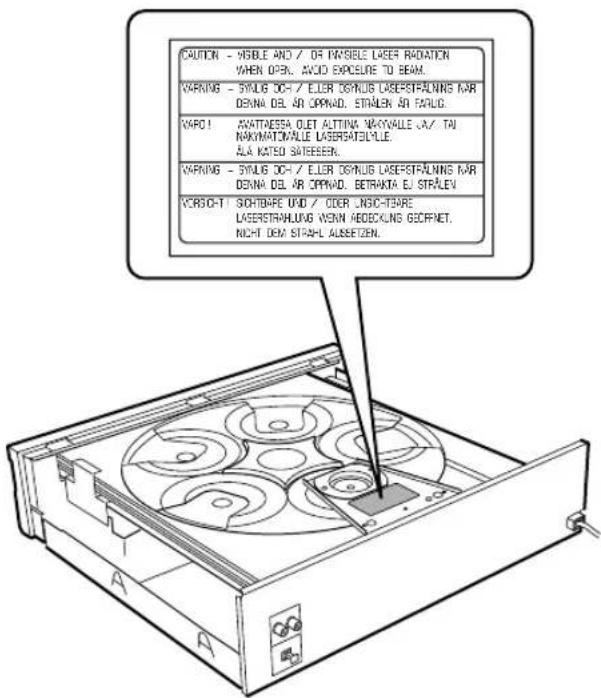
Visible laser radiation when open. Avoid direct exposure to beam.
When this unit is plugged to the wall outlet, do not place your eyes close to the opening of the disc tray and other openings to look into inside.
This unit is designed for home use only. Do not use this unit for business purposes.
Caution for moving this unit
- When moving this unit, first remove all discs from the disc table and close the table by pressing the OPEN/CLOSE button, and then switch off the power after you confirm that the front panel display indicates as follows.

2 3 4 5
Never switch off the power if the front panel display is not pictured as above, otherwise the unit will break down during moving because the internal mechanism is not locked.
Voltage selector [General model]
The voltage selector on the rear panel of this unit must be set for your local main voltage BEFORE plugging into the AC power supply. Voltages are 110/120/220/240 V AC, 50/60 Hz.
FOR CANADIAN CUSTOMERS
To prevent electric shock, match wide blade of plug to wide slot and fully insert.
This Class B digital apparatus complies with Canadian ICES-003.
Special instructions for U.K. model
IMPORTANT:
The wires in the mains lead are coloured in accordance with the following code:
Blue: NEUTRAL
Brown: LIVE
As the colours of the wires in the mains lead of this apparatus may not correspond with the coloured markings identifying the terminals in your plug, proceed as follows: The wire which is coloured BLUE must be connected to the terminal which is marked with the letter N or coloured BLACK. The wire which is coloured BROWN must be connected to the terminal which is marked with the letter L or coloured RED. Making sure that neither core is connected to the earth terminal of the three pin plug.
For U.K. customers
If the socket outlets in the home are not suitable for the plug supplied with this appliance, it should be cut off and an appropriate 3 pin plug fitted. For details, refer to the instructions described above.
Note: The plug severed from the mains lead must be destroyed, as a plug with bared flexible cord is hazardous if engaged in a live socket outlet.
ENGLISH
Introduction
Thank you for purchasing this YAMAHA product. We hope it will give you many years of trouble-free enjoyment. For the best performance, read this manual carefully. It will guide you in operating your YAMAHA product.
Features
- 5-Discs Carousel Auto-changer
• Full Opening Disc Tray for Changing 5 Discs at a Time - PLAYXCHANGE; Disc Changing Capability while Playing Another
- Repeat, Random and Program Play
- Remote Control Capability
Contents
GETTING STARTED
CD Preventive Cares 2
Preparations 3
Supplied Accessories 3
Remote Control Transmitter 3
Connections 4
Controls and Functions .... 5
Front Panel 5
Remote Control Transmitter 6
Display 7
PLAYING CDS
Basic Operation 8
Loading and Playing Discs 8
PLAYXCHANGE 9
Scanning Discs 9
Skipping Tracks 10
Searching 10
CD TEXT 10
Various Functions.... 11
Random Sequence Play 11
Program Play 12
Repeat Play 14
Index Search 14
Adjusting the Level.... 15
Timer Play 15
FUNCTIONS FOR RECORDING
CD Synchronized Recording .... 16
Track Programming for Recording ..... 17
Automatic Tape Programming.... 17
Manual Tape Programming 18
Random Tape Programming 20
Automatic Peak Level Searching ..... 21
ADDITIONAL INFORMATION
Troubleshooting 22
Specifications 23
CD PREVENTIVE CARES
- This compact disc player is designed for playing compact discs bearing the disc and marks only. Never attempt to load any other type of disc into the unit. The unit will also play 8-cm (3-inch) compact discs.
- Compact discs are not subjected to wear during play, but damage to the disc surface when the disc is being handled can adversely affect the disc's play.
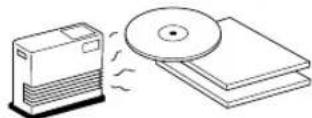
- Do not use cleaning discs or warped discs. All of these could damage the unit.
To prevent a malfunction of this unit
- Do not use any non standard shaped CD (heart, etc.) available on the market, because it may damage the unit.

- Do not use a CD with tape, seals, or paste on it, because damage to the unit may result.
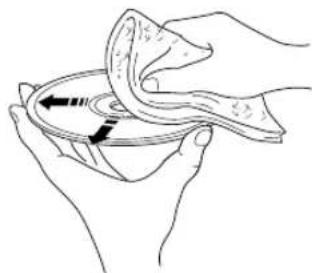
- Compact discs are not affected by small particles of dust or fingerprints on their playing surface, but even so they should be kept clean. Wipe by using a clean, dry cloth. Do not wipe with a circular motion; wipe straight outward from the center.
natural_image
Illustration of hands cleaning a circular object with a cloth (no text or symbols)- Do not try to clean the disc's surface by using any type of disc cleaner, record spray, anti-static spray or liquid, or any other chemical-based liquid, because such substances might irreparably damage the disc's surface.
- Do not expose discs to direct sunlight, high temperature or high humidity for a long period of time, because these might warp or otherwise damage the disc.
No!
PREPARATIONS
Supplied Accessories
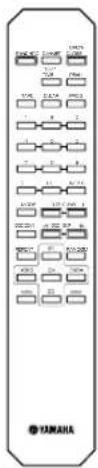
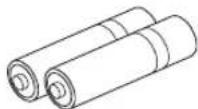
Remote Control Transmitter Batteries (size AA, UM-3, R6) (2)
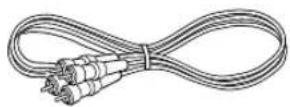
RCA Pin Cable
Remote Control Transmitter
■ Battery installation
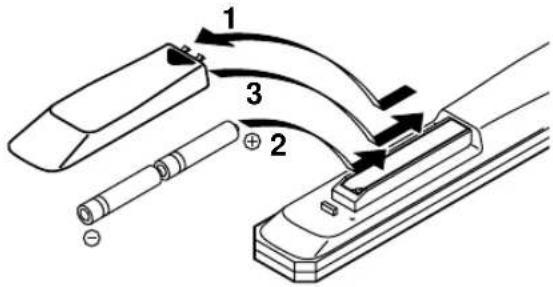
■ Battery replacement
If you find that the remote control transmitter must be used closer to the main unit, the batteries are weak. Replace both batteries with new ones.
Notes
- Use only AA, R6, UM-3 batteries for replacement.
- Be sure the polarities are correct. (See the illustration inside the battery compartment.)
- Remove the batteries if the remote control transmitter will not be used for an extended period of time.
- If batteries leak, dispose of them immediately. Avoid touching the leaked material or letting it come in contact with clothing, etc. Clean the battery compartment thoroughly before installing new batteries.
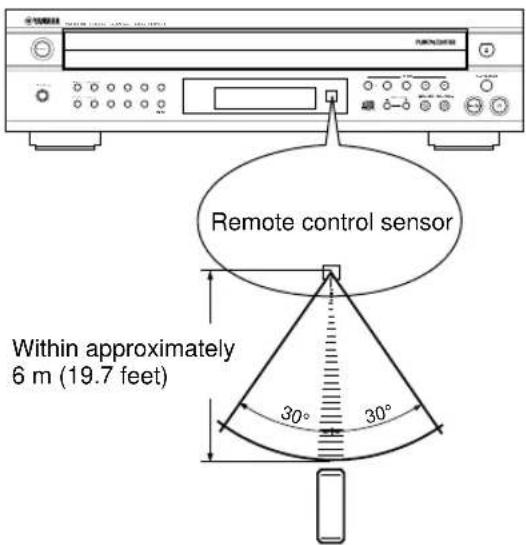
■ Remote control transmitter operation range
Notes
- There should be no large obstacles between the remote control transmitter and the main unit.
- If the remote control sensor is directly illuminated by strong lighting (especially an inverter type of fluorescent lamp, etc.), it might cause the remote control transmitter not to work correctly. In this case, reposition the main unit to avoid direct lighting.
Connections
Never plug in this unit and other components until all connections are completed.
- Before making any connections, switch OFF the power to the unit and the amplifier or other components.
- Connections should be made to the correct input terminals of the amplifier or other components.
- If the placement of this unit causes noise in other equipment, such as a tuner, separate them from each other.
flowchart
graph TD
    A["Pin cable (included)"] --> B["LINE OUT"]
    A --> C["OPTICAL"]
    B --> D["DIGITAL AUDIO OUT"]
    C --> D
    D --> E["REMOTE CONTROL (CDC-685 U.S.A., Canada and Australia models only)"]
    E --> F["To AC outlet"]
    F --> G["VOLTAGE SELECTOR (General model only)"]
    H["CD ANALOG IN"] --> I["OPTICAL DIGITAL IN"]
    J["Amplifier"] --> I
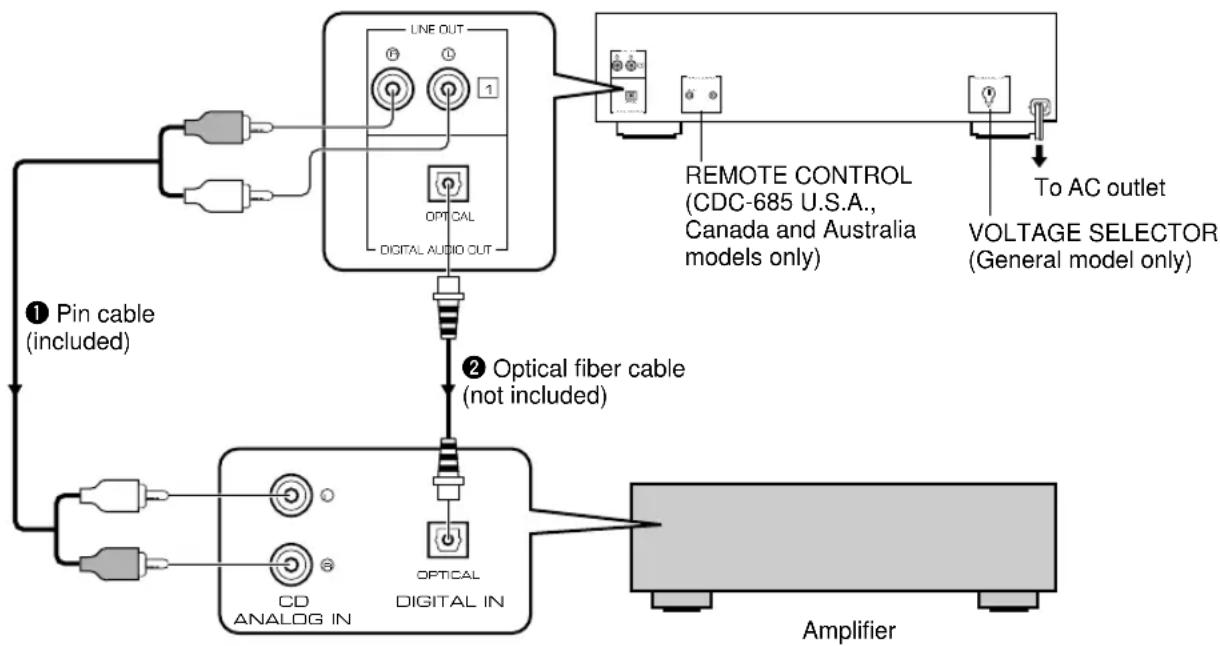
Choose one of the ways listed below to connect this unit to your amplifier.
When the LINE OUT (analog) terminals of this unit are used (1)
- Be sure that the left (L) and right (R) LINE OUT terminals are connected to the corresponding (left and right) terminals of the amplifier or other components.
- Connect the LINE OUT terminals to the “CD” (or “AUX”) terminals of the amplifier. For additional details concerning these connections, refer to the operation instructions for the amplifier being used.
- The LINE OUT terminals of this unit are numbered 1. When connecting this unit with a YAMAHA amplifier or receiver whose terminals on the rear panel are numbered as 1, 2, 3, etc., connect the LINE OUT terminals of this unit to the input terminals numbered 1 on the rear of the amplifier or receiver.
When the DIGITAL AUDIO OUT (OPTICAL) terminal of this unit is used (2)
- Before using this terminal, remove the terminal's cover by pulling it.
- Make the connection from this terminal to the optical input terminal of an amplifier by using a commercially available optical fiber cable.
* Be sure to use a high quality optical fiber cable. Other cables might not function correctly. - Be sure to attach the terminal cover when this terminal is not being used in order to protect the terminal from dust.
CDC-685 only
Set the level of signals output into an amplifier to max. by using the OUTPUT LEVEL -/+ buttons.
For Custom Installer For U.S.A., Canada and Australia models of CDC-685 only REMOTE CONTROL (IN, OUT) terminals
These terminals are used for custom installation system. When this unit is connected to the components for custom installation system, you can operate this unit with the system remote control. Connect the REMOTE CONTROL IN terminal of this unit to the output terminal of the central controller for custom installation system.
By connecting the REMOTE CONTROL OUT terminal of this unit to the REMOTE CONTROL IN terminal of the other component, you can also operate it with the system remote control. In this way, up to 6 components can be connected in series.
CONTROLS AND FUNCTIONS
Front Panel
CDC-685
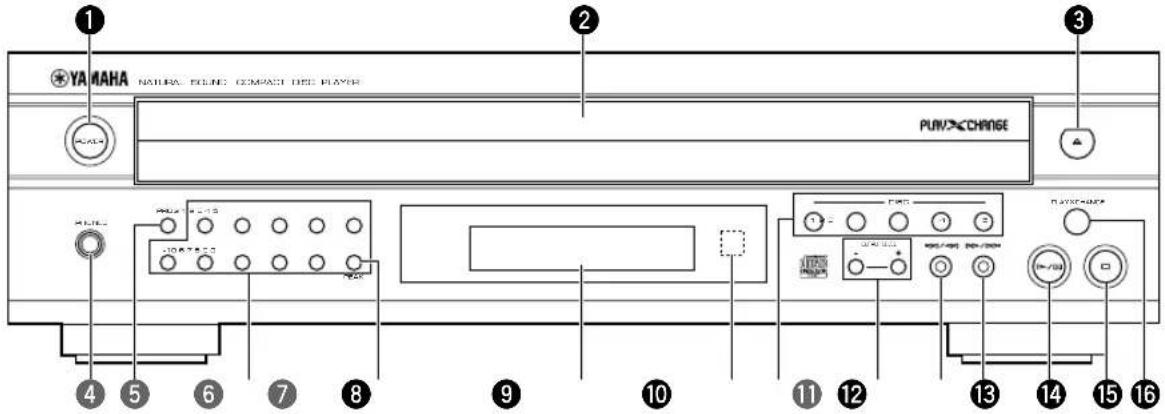
CDC-585
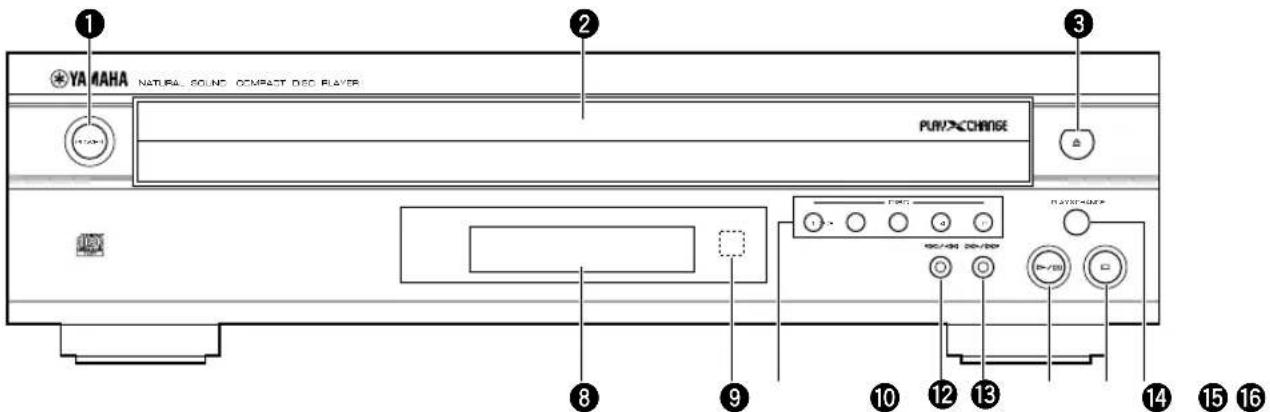
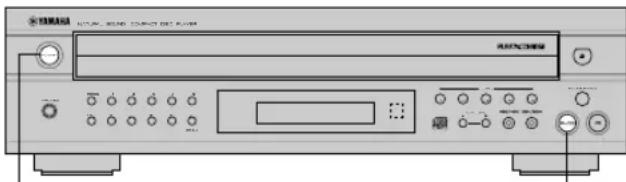
① POWER....P.8,9
② Disc tray P.8,9
3 ≅ (Open/Close)
4 PHONES jack....P.15
5 PROG P.12,18
6 Numeric buttons....P.10
7 PEAK P.16,21
⑧ Display panel ......P.7
⑨ Remote control sensor
⑩ DISC-select P.8
11 OUTPUT LEVEL -/+ P.15
⑫ ↕/◀ (Skip/Search)
⑬ ▷/□□ (Skip/Search)
14 ▷/□□ (Play/Pause)
15 □ (Stop)
16 PLAYXCHANGE P.9
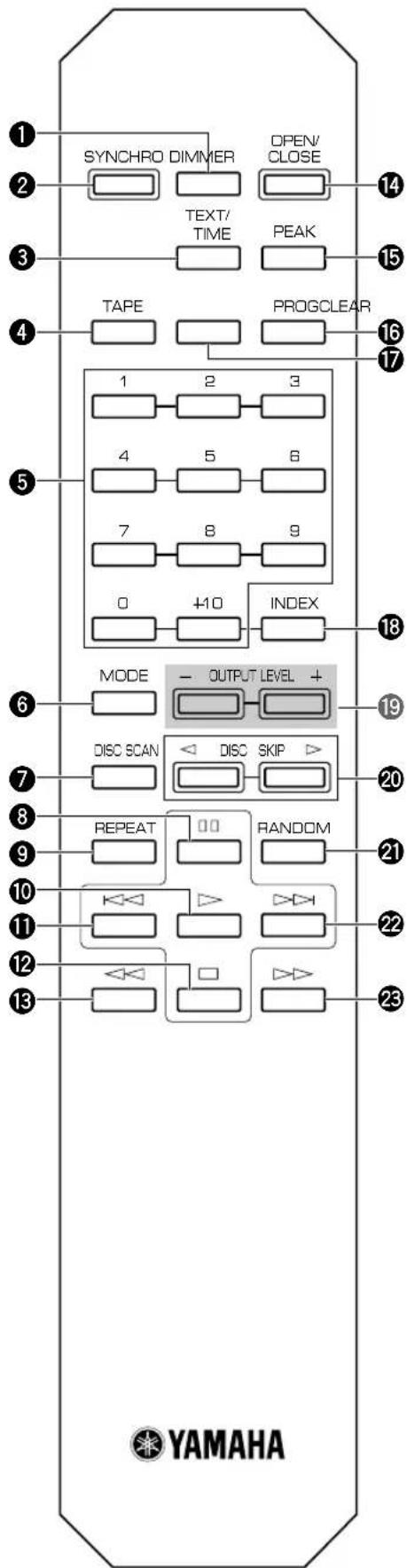
Remote Control Transmitter
Parts in the shaded areas are provided for CDC-685 only.
flowchart
graph TD
    A["SYNCHRO DIMMER"] --> B["TEXT/TIME"]
    B --> C["OPEN/CLOSE"]
    C --> D["PEAK"]
    D --> E["PROGCLEAR"]
    E --> F["INDEX"]
    F --> G["MODE OUTPUT LEVEL +"]
    G --> H["DISC SCAN"]
    H --> I["REPEAT"]
    I --> J["RANDOM"]
    J --> K["21"]
    K --> L["22"]
    L --> M["23"]
    M --> N["YAMAHA"]
① DIMMER P.7
② SYNCHRO.....P.16
③ TEXT/TIME....P.7
④ TAPE P.17
5 Numeric buttons.....P.10
⑥ Disc play MODE-select....P.8
⑦ DISC SCAN P.9
8 (Pause)
⑨ REPEAT....P.14
10 ▷ (Play)
11 (Skip)
12 □ (Stop)
13 ◀◀ (Search)
14 OPEN/CLOSE P.8
15 PEAK P.21
16 PROG P.12
⑰ CLEAR....P.13
18 INDEX P.14
19 OUTPUT LEVEL -/+ P.15
⑳ DISC SKIP ......P.8
21 RANDOM P.8
22 (Skip)
23 ▷▶ (Search)
Display
The display located in the center of this unit provides information about discs.
After closing the disc tray by pressing the OPEN/CLOSE button or selecting any disc by using the DISC SKIP buttons when this unit is stopped, the display shows the total number of tracks and the total recorded time of the selected disc for a few seconds.
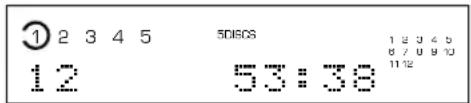
■ Display information at disc play
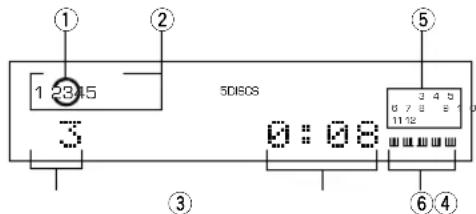
① Encloses the tray number of the selected disc.
② The numbers corresponding to trays that contain discs light up after discs are selected.
③ Shows the selected track number.
④ Shows the time displays. (Refer to “Selecting time displays and the text data” on the right side.)
⑤ Displays the numbers that correspond to the numbers of the tracks (as high as number 20) on the selected disc. After each track is played, its corresponding number disappears so the number of remaining tracks (and their numbers) can be seen at a glance.
⑥ CDC-685 only
Shows the level of signals output into an amplifier or the headphones level adjusted by using the OUTPUT LEVEL -/+ buttons.
■ Changing brightness of the display
If desired, you can change brightness of the display in three degrees by pressing the DIMMER button.
■ Selecting time displays and the text data
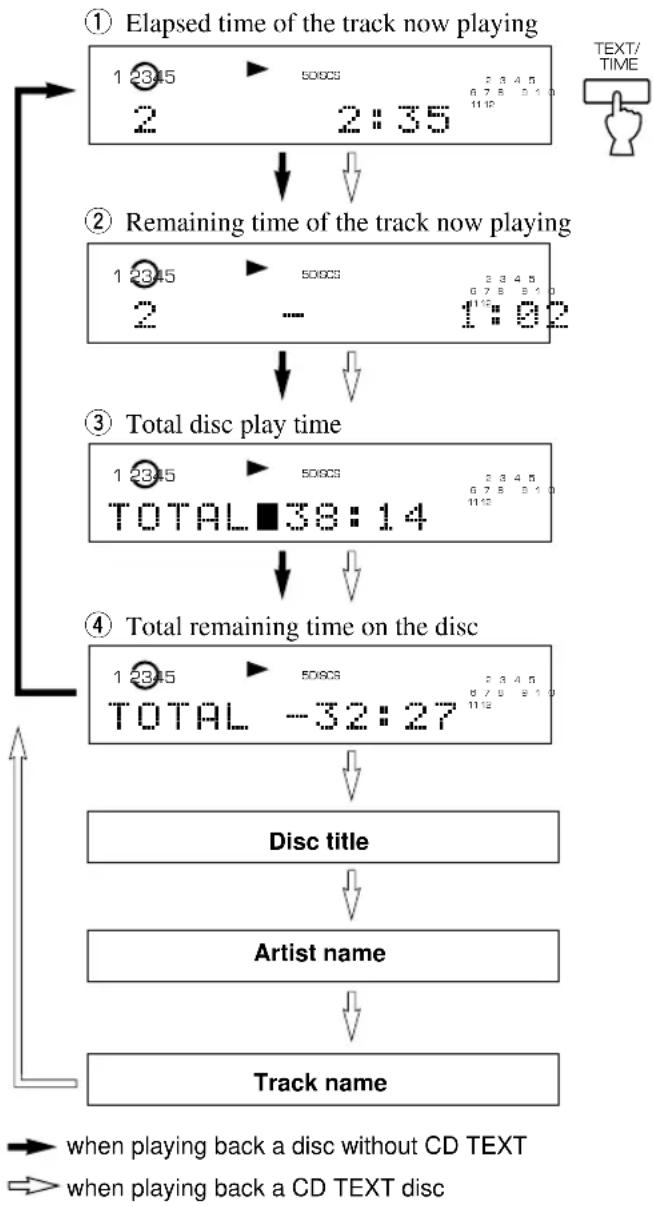
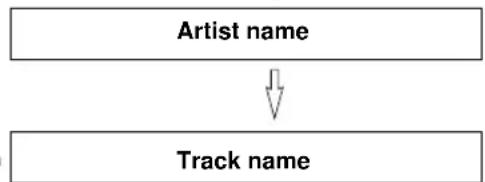
You can select any of the four time displays by pressing the TEXT/TIME display mode-select button. Since this unit is CD TEXT compatible, the disc title, artist name, and track name are also displayed in addition to the time displays when playing a CD with CD TEXT. Each time you press the TEXT/TIME display mode-select button, the display changes as follows.
flowchart
graph TD
    A["① Elapsed time of the track now playing"] --> B["② Remaining time of the track now playing"]
    B --> C["③ Total disc play time"]
    C --> D["④ Total remaining time on the disc"]
    D --> E["Disc title"]
    E --> F["Artist name"]
    F --> G["Track name"]

    style A fill:#f9f,stroke:#333
    style B fill:#f9f,stroke:#333
    style C fill:#f9f,stroke:#333
    style D fill:#f9f,stroke:#333
    style E fill:#ccf,stroke:#333
    style F fill:#ccf,stroke:#333
    style G fill:#ccf,stroke:#333

    note1["TEXT/TIME"] --> A
    note2["when playing back a disc without CD TEXT"] --> A
    note3["when playing back a CD TEXT disc"] --> A
Notes
- The remaining time ② will not be displayed if the track number is 21 or higher.
- The disc title, artist names, or track names may not be displayed with some CD TEXT discs. In this case, “NO ENTRY” appears in the display.
① Elapsed time of the track now playing
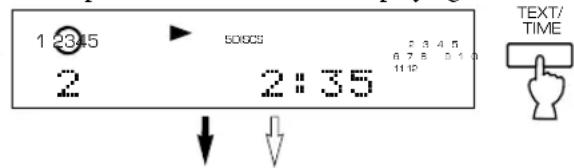
② Remaining time of the track now playing
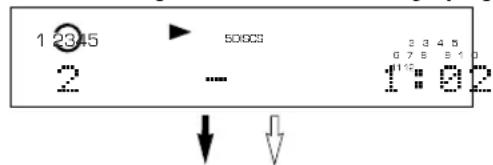
③ Total disc play time
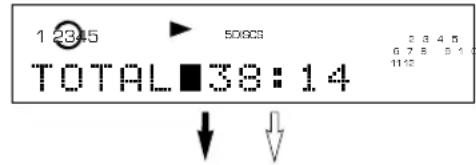
④ Total remaining time on the disc
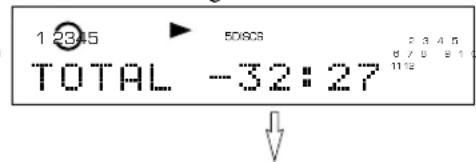
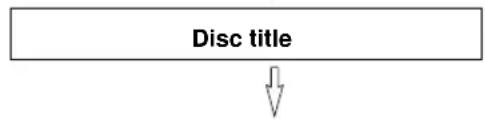
flowchart
graph TD
    A["Disc title"] --> B["↓"]
flowchart
graph TD
    A["Artist name"] --> B["Track name"]
→ when playing back a disc without CD TEXT
when playing back a CD TEXT disc
BASIC OPERATION
This manual describes how to operate this unit by using the remote control transmitter.
To operate this unit on the front panel, use the corresponding buttons on the front panel.
Loading and Playing Discs
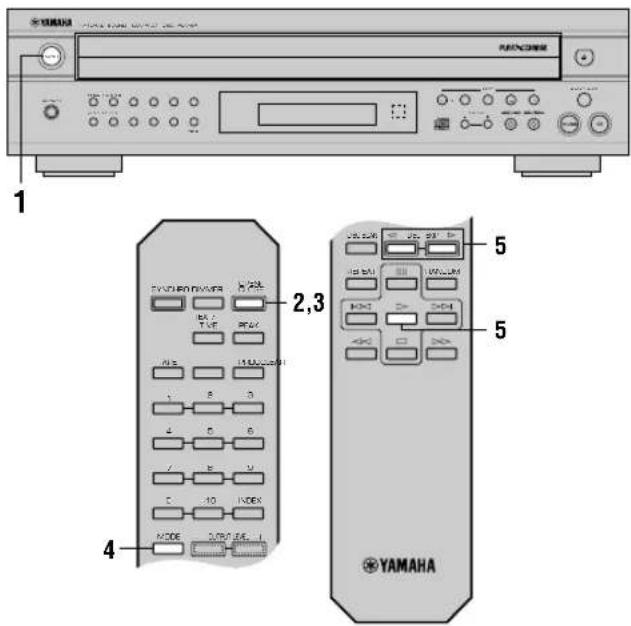
1 Turn the power on.
On the front panel
2 Open the disc tray and load discs.
Use the disc guides to align the discs correctly in the tray.
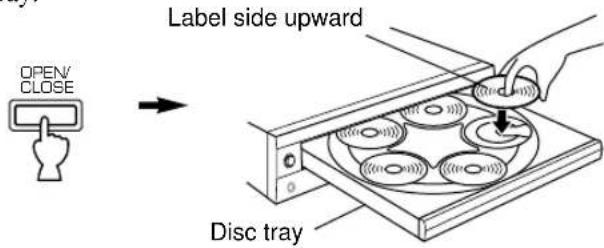
To play an 8-cm (3-inch) CD
Place it in the inner recessed area of the disc tray. Do not put a normal (12-cm/5-inch) CD on top of an 8-cm CD.
3 Close the disc tray.
- You can also close the disc tray by pressing the ▷/□ button on the front panel, a DISC-select button on the front panel, a numeric button or the RANDOM button, or by pressing the front edge of the disc tray gently. If the tray is closed in these ways, play will begin automatically, however, the display will not show the total number of tracks and the total recorded time of the first selected disc.
4 Select a desired disc play mode (1DISC or 5DISCS) confirming it on the display.
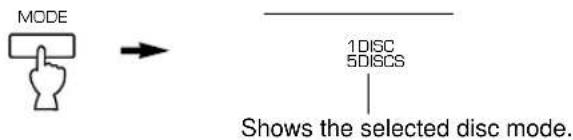
"1DISC" mode: The unit will play a designated disc only.
"5DISCS" mode: The unit will play all discs on the tray in sequence.
5 Start play from the first track of the disc 1.
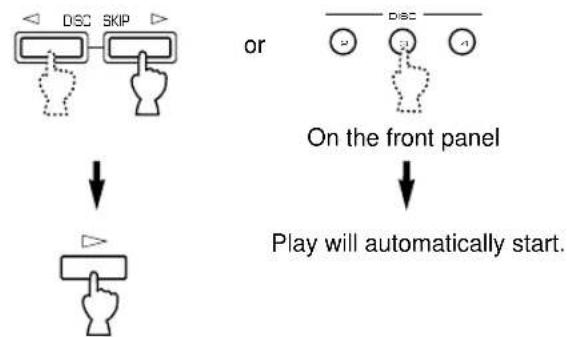
* If necessary, select a desired disc by using the DISC SKIP buttons, or a DISC-select button on the front panel.
flowchart
graph TD
    A["Start"] --> B{DSC SKIP}
    B --> C["Hand icon"]
    D["Start"] --> E["Hand icon"]
    E --> F["On the front panel"]
    F --> G["Play will automatically start."]
■ To stop play temporarily
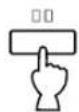
or
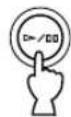
On the front panel
To resume play, press the □ button again (or press the ▷ button).
* The ▷/□□ button on the front panel can also be used to stop play temporarily or to resume play.
■ To stop play completely
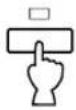
or
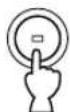
On the front panel
■ To turn off the power
Press the POWER switch again.
On the front panel
PLAYXCHANGE
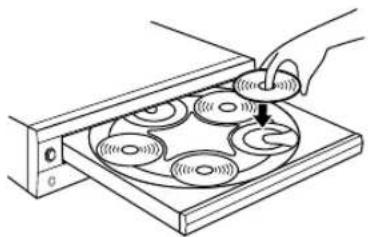
During play, you can open the disc tray by pressing the PLAYXCHANGE button on the front panel without interrupting disc play. However, in this case, pressing the DISC SKIP buttons has no effect. You can load or replace discs on the trays when the disc tray is opening, however, never load a disc on the tray hidden inside the unit. If doing so, the disc and the unit may be damaged, because the tray already has a disc, which is being played.
natural_image
Illustration of a hand using a tool to adjust or install a circular component on a base (no text or symbols visible)Scanning Discs
■ This mode is convenient to search for a desired disc (or to check discs on the disc tray)
When the DISC SCAN button is pressed in stop mode, this unit will play a section of each disc in turn for 8 seconds. If, during this play, you find a disc that you want to listen to, press the DISC SCAN button once again or press the ▷ button to cancel this function. The unit will enter into the normal play mode.
Notes
- During this play, the disc tray numbers blink in the display. Every time the play of a disc is finished, the corresponding tray number is changed from flashing to lighting.
- If the disc being played has a long blank space between tracks, you will hear no sound during disc scan.
Skipping Tracks
■ To play from the beginning of the track following the one now playing
■ To play from the beginning of the track now playing
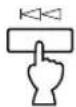
■ To play from the beginning of the track before the one now playing
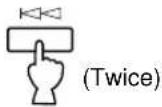
• These operations can also be performed when the unit is paused or stopped.
- When using the ◀◀ or ▶▶ button on the remote control transmitter:
* If the button is pressed and held, the track number is continuously changed to higher numbers (or lower numbers).
- When using the ◀◀/◀◀ or ▷▶/▶▶ button on the front panel:
* Be careful not to press and hold a button, otherwise the selected track is played forward (or backward) rapidly.
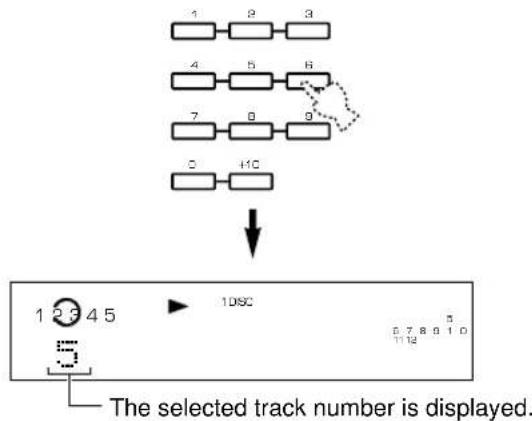
■ DIRECT PLAY
Select a desired track by using the numeric buttons.
flowchart
graph TD
    A["1"] --> B["2"]
    B --> C["3"]
    D["4"] --> E["5"]
    E --> F["6"]
    G["7"] --> H["8"]
    H --> I["9"]
    J["0"] --> K["10C"]
    L["1"] --> M["2"]
    M --> N["3"]
    O["4"] --> P["5"]
    P --> Q["6"]
    R["7"] --> S["8"]
    S --> T["9"]
    U["0"] --> V["10C"]
    W["1"] --> X["2"]
    X --> Y["3"]
    Z["4"] --> AA["5"]
    AB["5"] --> AC["6"]
    AD["6"] --> AE["7"]
    AF["7"] --> AG["8"]
    AH["8"] --> AI["9"]
Example: To select track 25
Press ⑩ twice, then immediately press ⑤ once.
* If a track number higher than the highest track number on the disc is selected, the last track on the disc will be played.
Searching
■ To go forward rapidly
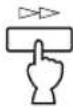
(Press and hold.)
■ To go backward rapidly
(Press and hold.)
- The sound can be heard (although slightly garbled) during manual search in either direction. This is convenient for locating a precise position within a track, or for reviewing the contents quickly.
- Manual search can also be performed while disc play is paused. In this case, no sound will be heard.
- When using the ◀◀/◀◀ or ▶▶/▶▶ button on the front panel:
* Be careful not to release the button just after it is pressed, otherwise the play is skipped to the beginning of the next track or returned to the beginning of the current track.
CD TEXT
This unit is compatible with the CD TEXT function. The CD TEXT disc has information, such as the disc title, artist names, and track names. If the current disc is a CD TEXT disc, the unit reads the disc title, artist name, and track names from the disc. You can display the CD TEXT data (see “Selecting time displays and the text data” on page 7).
VARIOUS FUNCTIONS
Random Sequence Play
You can play the tracks on one or more discs in a random sequence. The unit will automatically mix up tracks from all discs or a designated disc on the disc tray.
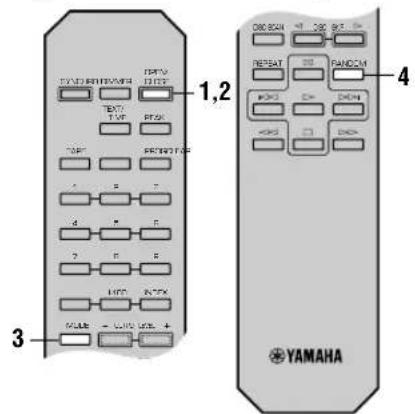
1 Load one or more discs.
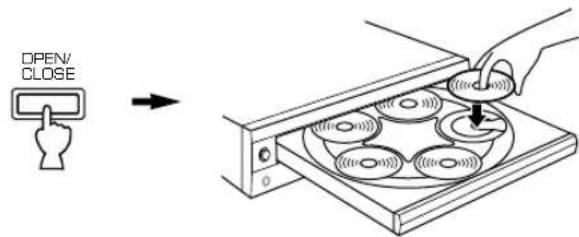
2 Close the disc tray.
3 Select a desired disc play mode (1DISC or 5DISCS).
* If you select "1DISC" mode, next select a desired disc by using the DISC SKIP buttons on the remote control transmitter or a DISC-select button on the front panel.
4 Press the RANDOM button.
“RNDM” lights up in the display.
■ To cancel random-sequence play
Press the □ button or RANDOM button once again, or open the disc tray by pressing the OPEN/CLOSE button.
“RNDM” disappears from the display.
Notes
- This feature will not function during programming, or during program play.
- If the button is pressed during random-sequence play, the next randomly programmed track will be played. If the button is pressed, play will return to the beginning of the track now being played.
- This indication appears while the unit is mixing up tracks.
- Total remaining time on the disc will not be displayed during random-sequence play.
Program Play
You can enjoy listening to your favorite tracks selected from one or more discs in any desired order by programming tracks.
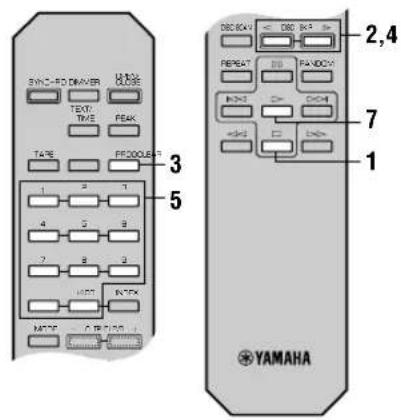
1 Stop the unit.
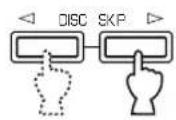
2 If you will select tracks from a disc (or discs) other than the disc on the Disc 1 tray, make this unit display the total recorded time of each disc to be used by pressing the DISC SKIP buttons in turn.
* Without this operation, the total time of the programmed tracks will not be displayed during programming.
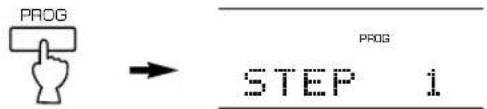
3 Press the PROG button to begin programming.
4 If necessary, select a desired disc.
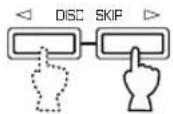
or
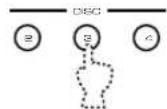
On the front panel
5 Program a desired track by pressing the corresponding numeric button.
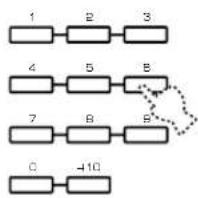
flowchart
graph TD
    A["1"] --> B["2"]
    B --> C["3"]
    D["4"] --> E["5"]
    E --> F["B"]
    G["7"] --> H["8"]
    H --> I["B'"]
    J["C"] --> K["-10"]
6 Repeat steps 4 and 5 to program more tracks. You can select the same track again.
7 When the programming is completed, start playing.
■ Display information during programming
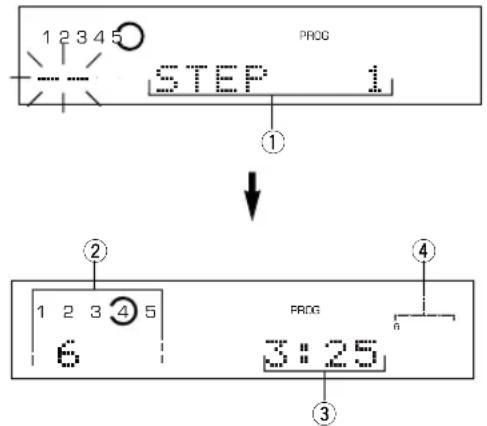
① Shows the program number for the track to be programmed next.
② Shows the selected disc and track number.
③ Shows the total time of the tracks currently programmed.
④ Shows only the numbers of programmed tracks on the selected disc.
* If “STEP 1” does not appear on the display after the PROG button is pressed, press the TEXT/TIME display mode-select button.
* If the total time exceeds 99 minutes and 59 seconds, the time will not be displayed.
Notes
- You can program as many as 40 tracks at one time.
- You can program a whole disc by pressing "0", instead of one track. At that time, "ALL" lights up in the display.
- The total time of the programmed tracks will not be displayed, if a track number higher than 20 is programmed.
- If, during programming, the TEXT/TIME display mode-select button is pressed, the program number display can be changed to display the total time of the programmed tracks or no information. To return to the previous display, press the TEXT/TIME display mode-select button once again.
- The and buttons can be used during playing, but only within the range of the programmed tracks.
- Pressing a numeric button stops the current program and skips to the beginning of the track of the number pressed. Once that track has finished playing, the previously interrupted program resumes play.
- The and buttons can be used during playing to search all tracks, including unprogrammed tracks.
■ To stop program play
Press the □ button. The first programmed track number will be displayed.
To resume play, press the ▷ button. Play will begin from the beginning of the program.
■ To cancel a programmed sequence
There are several methods, as described below.
- Press the □ button or the CLEAR button while the unit is stopped.
- Open the disc tray.
- Switch off the power.
■ To check program data
① During program play, press the □ button.
② Press the PROG button.
③ Each time the ▷▶ button is pressed, the track numbers and sequential order of the programmed tracks can be checked one after another. The display of the track number can be returned (sequentially in reverse order) by pressing the ◀◀ button.
■ To correct program data
① Follow the procedure described in “To check program data”.
② Display the track number to be corrected by pressing the ◀◀◀ or ▶▶◀ button.
③ Press a numeric button to select a track to replace the one displayed. The previously programmed track will be cleared from the memory and the new one will be programmed.
④ After the correction has been completed, press the PROG button or ▷ button once again.
Repeat Play
You can play any desired track or disc (or a set of discs) repeatedly by pressing the REPEAT button. The repeat play mode will change whenever you press the REPEAT button.
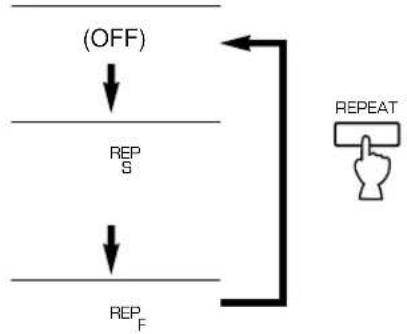
flowchart
graph TD
    A["(OFF)"] --> B["REP_S"]
    B --> C["REP_F"]
    C --> D["REPEAT"]
    D --> E["Feedback Loop"]
■ SINGLE REPEAT (REP S)
A single track is repeatedly played.
* This is also available in the program play mode and the random-sequence play mode. (If the repeat play mode is switched off, the program play mode or the random-sequence play mode will be resumed.)
■ FULL REPEAT (REP F)
In the "1DISC" disc play mode: A designated disc is repeatedly played.
In the “5DISCS” disc play mode: All discs on the disc tray are repeatedly played.
* In the program play mode, all programmed tracks are repeatedly played.
* In the random-sequence play mode, all randomly sequenced tracks on a designated disc (“1DISC”) in the same order, or all randomly sequenced discs and tracks (“5DISCS”) are repeatedly played.
Index Search
If the disc includes index numbers, play can be started from any desired index number.
1 Select a track which has index numbers.
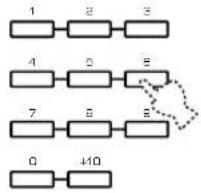
flowchart
graph TD
    A["1"] --> B["2"]
    B --> C["3"]
    D["4"] --> E["5"]
    E --> F["6"]
    G["7"] --> H["6"]
    H --> I["8"]
    J["0"] --> K["410"]
2 Press the INDEX button.
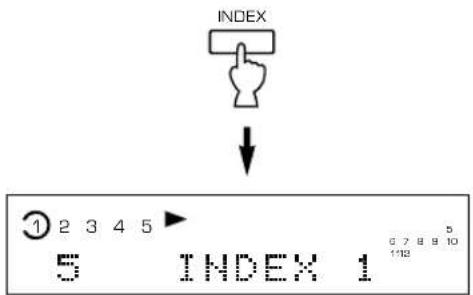
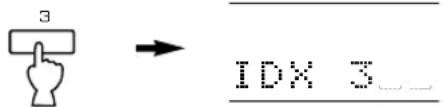
3 Select the desired index number.
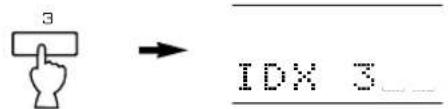
■ To cancel the index search function
Press the INDEX button.
Notes
- Not all discs have index numbers. The index system has a method for sub-dividing tracks into smaller divisions (for example, the movements within classical symphonies) for easier location of those parts. The liner notes with the disc usually tell if such index numbers are included.
- If an index number is selected that is higher than any index number on that disc, play will start from the last index number point on the disc.
- For some discs, play may begin slightly prior to the actual designated index point.
- If the disc has no encoded index points, play will begin from the start of the selected track.
Adjusting the Level
CDC-685 only
■ Adjusting the level of signals output into an amplifier, etc.
You can adjust the level of sound signals output from the LINE OUT terminals on the rear panel into an amplifier, etc. as you prefer by using the OUTPUT LEVEL -/+ buttons.
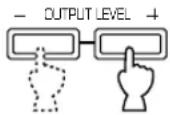
or
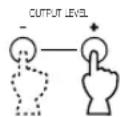
On the front panel
For optimum sound quality
* When the DIGITAL AUDIO OUT (OPTICAL) terminal is used for the connection, set the level of output signals to max.
* The level of output signals can be checked in the display.
[Non-Text]
CDC-685 only
■ When you listen with headphones
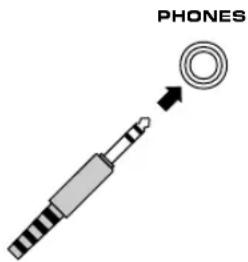
Connect the headphones to the PHONES jack and adjust the volume by using the OUTPUT LEVEL -/+ buttons.
* Note that the use of the OUTPUT LEVEL -/+ buttons will also vary the level of the signal output to an amplifier, etc.
Timer Play
CDC-685 only
You can start play at any specified time by connecting a timer (sold separately). Refer also to the instructions for the timer.
① Select the desired play mode (1DISC or 5DISCS).
② Press the POWER switch to turn the unit off.
③ Press the POWER switch while pressing the ▷/□ button on the front panel.
Shortly thereafter, “TIMER P. ON” appears in the display and the timer play function is on.
(When the timer play function is already on, in which case, “TIMER P. OFF” appears in the display and timer play function is off. In this case, repeat the procedure in steps 2 and 3 to set the timer play function to on.)
④ Set the timer to the desired time.
When the set time comes, the unit turns on and starts play.
natural_image
Front view of a CD-ROM computer with indicator lights and ports (no visible text or labels)2,3
3
-
-
-
-
-
CD SYNCHRONIZED RECORDING
Using a compatible YAMAHA tape deck, you can synchronize the tape deck to start recording automatically when a CD starts playing. With this function, you can record a CD on tape more easily and precisely. (Refer to the tape deck's operation manual to know whether it is compatible or not.)
* This unit and the tape deck must be placed close to each other so that both of them can receive the signals from this unit's remote control transmitter at the same time.
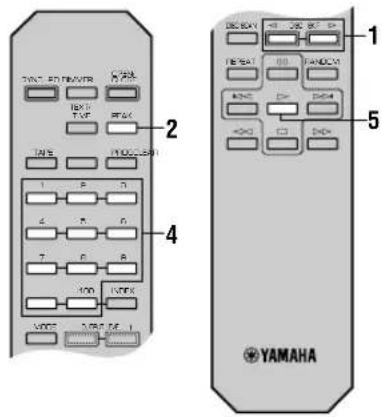
1 Select a disc.
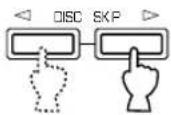
2 Load a tape on the tape deck.
* The peak level searching function of this unit is useful for adjusting recording level on the tape deck. (Refer to page 21.)
3 Press the SYNCHRO button.
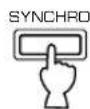
This unit enters into the pause mode, and the tape deck enters into the REC/PAUSE mode.
* In this mode, the time display on this unit blinks.
4 If desired, select the track to be recorded first.
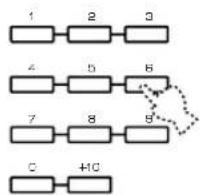
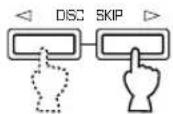
or
5 Press the ▷ button.
Both CD play and tape deck recording begin.
* CD play begins a little later than recording.
6 If you want to stop recording temporarily and restart recording from a desired track, follow steps 3–5 again.
■ To cancel this function
Press the □ button.
Notes
- To finish or stop recording, press the □ button on the tape deck.
- Programmed sequence of tracks can also be recorded with this function, instead of recording an entire disc. (Refer to pages 12–13 for the programming procedure.)
- This function can also be used together with the tape-programming function. (Refer to pages 17–20.)
TRACK PROGRAMMING FOR RECORDING
This convenient feature can be used to program tracks for recording to tape. By only memorizing the tape's total possible recording time, the unit will automatically program tracks or help you to program tracks so they will fit onto the tape with the least amount of unrecorded space remaining at each end of the tape.
The peak level searching function of this unit is useful for adjusting recording level on the tape deck. (Refer to page 21.)
Automatic Tape Programming
The unit will automatically program tracks on a disc with the original order of tracks unchanged.
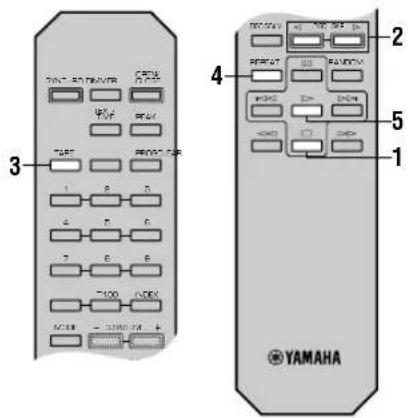
1 Stop the unit.
2 Select the disc.
3 Enter the tape's total possible recording time (tape length).
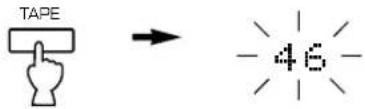
You can select any of four tape lengths by pressing the TAPE button.
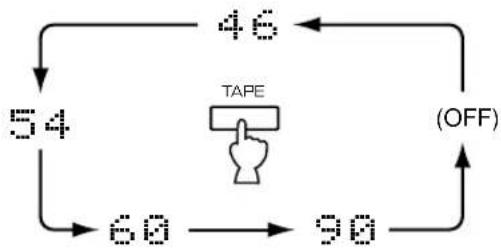
flowchart
graph TD
    A["54"] --> B["60"]
    B --> C["90"]
    C --> D["(OFF)"]
    D --> E["46"]
    E --> A
    F["TAPE"] --> C
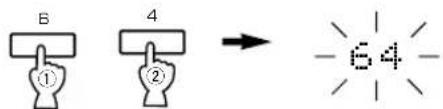
You can also enter the tape's total possible recording time manually.
Example: For a C-64 tape (32 minutes on each side)
4 Press the REPEAT button.
The unit automatically programs tracks for side A and side B separately considering the tape's total time.
* The programmed track numbers and the total number of tracks for side A and B are displayed for a short time.
5 Begin recording on the tape deck and press the ▷ button at the same time.
6 The unit will pause at the end of side A of the tape.
Turn the tape over to side B. Resume recording and, at the same time, press the ▷ or □ button.
Notes
- It is recommended that you use a tape that is slightly longer in length than the CD you are recording, because the programmed tracks on a CD may not fit properly into the time allowed on each half of the tape.
- CD synchronized recording function can be used if your tape deck is compatible with it. In this case, in step 5 and 6, press the SYNCHRO button and then press the ▷ button. Recording automatically begins. (For details, refer to page 16.)
■ Display information during programming
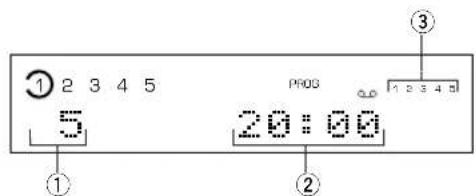
① Shows the number of programmed tracks for each side in turn just after the automatic programming is finished, and then it is replaced by the number of the first programmed track for side A.
② Shows the total time of programmed tracks for each side.
③ Shows the programmed track numbers for each side.
Manual Tape Programming
With this function, you can program tracks from one or more discs in any order to be recorded onto tape.
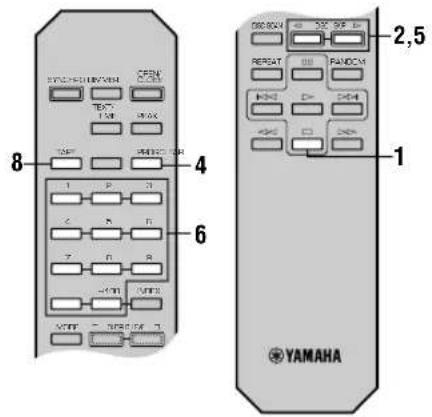
1 Stop the unit.
2 If you will select tracks from a disc (or discs) other than the disc on the Disc 1 tray, make this unit display the total recorded time of each disc to be used by pressing the DISC SKIP buttons in turn.
* This unit will read the contents of a disc by this operation. If there is a disc to which this operation is omitted, tracks on the disc cannot be programmed.
3 Follow step 3 on page 17.
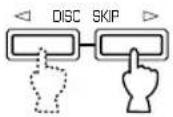
5 If necessary, select a desired disc by pressing the DISC SKIP buttons.
6 Select a desired track.
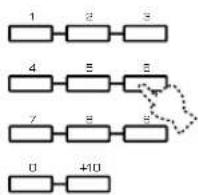
7 Repeat steps 5 and 6 to program more tracks for side A of the tape. You can select the same track again.
* If "ERROR" appears in the display, the track number just selected cannot be programmed because there is no enough time remaining on side A of the tape.
8 When you finish the programming for side A, program the pause mode by pressing the TAPE button.
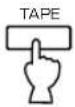
* "PAUSE" lights up in the display, and after then you can begin programming for side B.
9 Repeat steps 5 and 6 to program more tracks for side B of the tape.
You can select the same track again.
* If "ERROR" appears in the display, the track number just selected cannot be programmed because there is no enough time remaining on side B of the tape.
10 Start recording on the tape deck and press the ▷ button at the same time.
The unit will pause at the end of side A of the tape. Turn the tape over to side B. Resume recording and, at the same time, press the ▶ or □ button.
Notes
- In steps 7 and 9, even if "ERROR" appears in the display, you can program another track of which time is shorter than the remaining time on the side of the tape. At this time, if any other track number lights up in the display, you can program it. - CD synchronized recording function can be used if your tape deck is compatible with it. In this case, in steps 10 and 11, press the SYNCHRO button and then press the ▷ button. Recording automatically begins. (For details, refer to page 16.)
Notes on tape programming
- To check, cancel or correct program data, refer to page 13.
- The maximum number of tracks that can be programmed is 40. If, however, the PAUSE mode is inserted, it is counted as one track.
- This function can be used to program up to track number 20. If the disc has more than 20 tracks, tracks with track number 21 and higher cannot be programmed.
■ Display information during programming
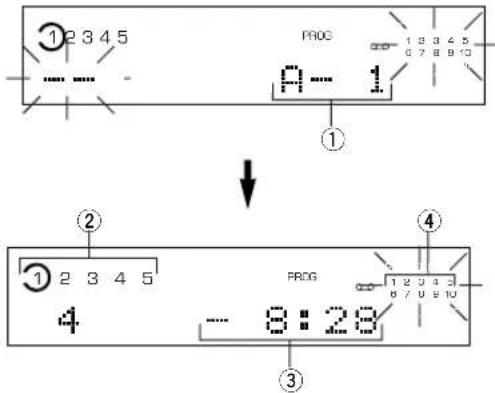
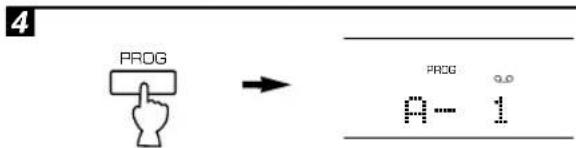
① Shows the side of the tape and the program number for the track to be programmed next.
② Shows the selected disc and track number.
③ Shows the total remaining time on the side of the tape.
④ Programmed track numbers light up and programmable track numbers among the unprogrammed ones blink.
* If "A-1" does not appear in the display after the PROG button is pressed, press the TEXT/TIME display mode-select button.
* If, during programming, the TEXT/TIME display mode-select button is pressed, the program number display can be changed to display the total remaining time on the side of the tape. To return to the previous display, press the TEXT/TIME display mode-select button once again.
Random Tape Programming
The unit will automatically program tracks on a disc in random sequential order for recording to tape.
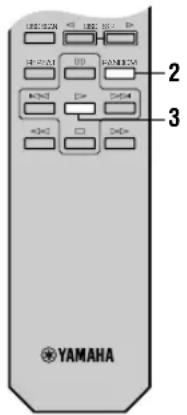
1 Follow steps 1 – 3 on page 17.
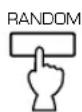
2 Press the RANDOM button.
The unit will automatically program tracks for side A and side B separately considering the tape's total time.
* The programmed track numbers and the total number of tracks for side A and B are displayed for a short time.
3 Start recording on the tape deck and press the ▷ button at the same time.
4 The unit will pause at the end of side A of the tape.
Turn the tape over to side B. Resume recording and, at the same time, press the ▷ or □ button.
Notes
- Because the programmed data changes every time the RANDOM button is pressed, the amount of time remaining at the end of the tape also changes accordingly.
- It is recommended that you use a tape that is slightly longer in length than the CD you are recording, because the programmed tracks on a CD may not fit properly into the time allowed on each half of the tape.
- CD synchronized recording function can be used if your tape deck is compatible with it. In this case, in steps 3 and 4, press the SYNCHRO button and then press the ▷ button. Recording automatically begins. (For details, refer to page 16.)
Display information during programming
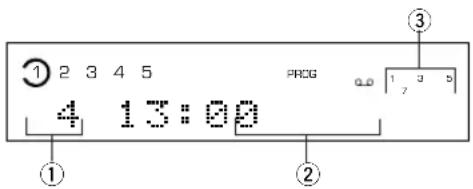
① Shows the number of programmed tracks for each side in turn just after the automatic programming is finished, and then it is replaced by the number of the first programmed track for side A.
② Shows the total time of programmed tracks for each side.
③ Shows the programmed track numbers for each side.
AUTOMATIC PEAK LEVEL SEARCHING
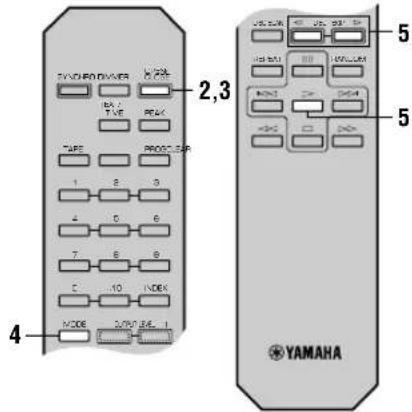
This convenient feature automatically searches a disc for a part where the source level peaks, and next plays the part repeatedly. For recording to tape, this feature is very helpful to adjust the recording level on the tape deck.
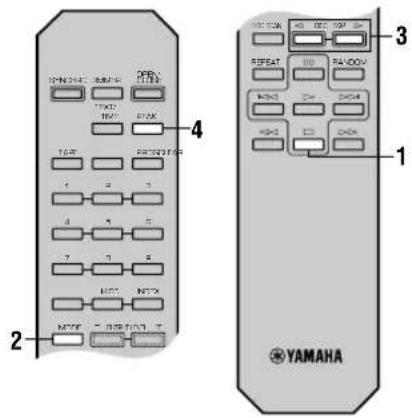
1 Stop the unit.
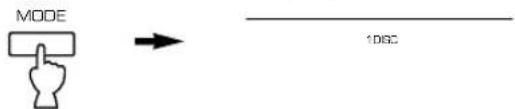
2 Select the "1DISC" disc play mode.
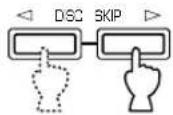
3 Select the disc.
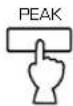
4 Press the PEAK button.
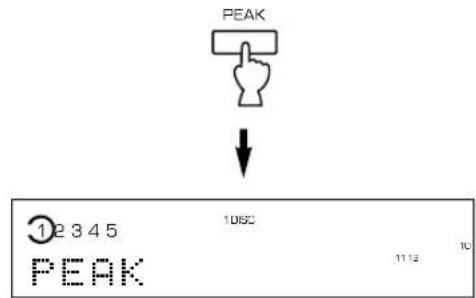
The peak level search is performed on the disc.
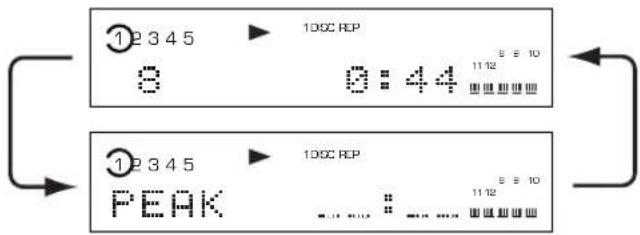
Next, the part where the source level peaks is repeatedly played. Adjust the recording level on the tape deck listening to this repeat play.
■ To cancel this function
Press the □ button.
Notes
- Even if the peak level search is performed twice or more on the same disc, the same part will not be always selected, because this unit will search for the peak level among parts on the disc that are randomly selected by the internal microcomputer.
- In the program play mode, this feature will function among the programmed tracks only. If program play is being performed, first press the button, and then press the PEAK button. If program play is not being performed, only press the PEAK button.
- To search for the peak level through all discs on the disc tray, in step 2, select the "5DISCS" disc play mode.
TROUBLESHOOTING
If the unit fails to operate normally, check the following points to determine whether the problem can be corrected by the simple measures suggested. If it cannot, or if the problem is not listed in the SYMPTOM column, disconnect the unit's power cord and contact your authorized YAMAHA dealer or service center for help.
| SYMPTOM | PROBABLE CAUSE | REMEDY |
| This unit does not switch ON when the POWER switch is pressed. | The power cord is not connected or not completely connected. | Securely connect the power cord. |
| This unit does not work normally. | There is an influence of strong external noise (lightning, excessive static electricity, etc.) or a misoperation was performed while using this unit. | Turn off and disconnect the AC power from the AC outlet. After about 30 seconds, connect the power and try again. |
| The disc tray does not close completely. | A foreign object is obstructing the tray. | Carefully check the disc tray and remove the foreign object. |
| A disc number does not light up on the display. | The disc has been loaded upside down. | Reload the disc with the label side up. |
| The disc is damaged. | Check the disc carefully; replace it if necessary. | |
| There is moisture on the laser pickup. | Wait 20 to 30 minutes after switching the unit ON before trying to play a disc. | |
| Play does not begin. | The disc is damaged. | Check the disc carefully; replace it if necessary. |
| The disc has been loaded upside down. | Reload the disc with the label side up. | |
| The disc is dirty. | Clean the disc. | |
| Play is delayed, or begins at the wrong place. | The disc may be scratched or damaged. | Check the disc carefully; replace it if necessary. |
| No sound. | Improper output cable connections. | Connect the cables properly. If the problem persists, the cables may be defective. |
| Improper amplifier operation. | Set the amplifier controls to the correct input selection. | |
| Sound “skips”. | This unit is being subjected to vibrations or impacts. | Relocate this unit. |
| The disc is dirty. | Clean the disc. | |
| Sound “hums”. | Improper cable connections. | Securely connect the audio cables. If the problem persists, the cables may be defective. |
| Noise from a nearby tuner. | The tuner is too close to this unit. | Move the tuner and this unit farther apart. |
| Noise from inside of the disc tray. | The disc may be warped. | Replace the disc. |
| The remote control transmitter does not work. | The batteries of this remote control transmitter are too weak. | Replace the batteries with new ones. |
| Direct sunlight or lighting (of an inverter type of fluorescent lamp, etc.) is striking the remote control sensor of the main unit. | Change position of the main unit. |
SPECIFICATIONS
Audio Section
Frequency response 2 Hz - 20 kHz, ±0.5 dB
Harmonic distortion+noise (1 kHz).... 0.003%
S/N ratio 106 dB
Dynamic range.... 96 dB
Output level (1 kHz, 0 dB) 2.0±0.5 V
Headphones output (-20 dB) .... 200±40 mV/150 ohms (CDC-685 only)
Laser Diode Properties
Material GaAlAs
Wavelength 780 nm
Emission Duration ......continuous
Laser Output .... max. 44.6μW*
* This output is the value measured at a distance of about 200mm from the objective lens surface on the Optical Pick-up Block.
General
Power requirements
U.S.A. and Canada models.... 120 V, 60 Hz
Australia model 240 V, 50 Hz
Europe and U.K. models 230 V, 50 Hz
General model 110/120/220/240 V, 50/60 Hz
Power consumption 12 W
Dimensions (W x H x D) 435 x 116 x 404 mm
(17-1/8" x 4-9/16" x 15-7/8")
Weight.... 5.85 kg (12 lbs. 12 oz.)
Accessories ...... RCA pin cable
Remote control transmitter
Batteries (size AA, R6, UM-3) (2)
Please note that all specifications are subject to change without notice.
ATTENTION : TENIR COMPTE DES PRECAUTIONS CI-DESSOUS AVANT DE FAIRE FONCTIONNER L'APPAREIL.
natural_image
Simple line drawing of a heart with two crossed diagonal lines crossing the center (no text or symbols)natural_image
Line drawing of hands holding a cloth over a plate with arrows indicating direction (no text or symbols)natural_image
Front view of a beige audio recording device with control knobs and a central display (no visible text or labels)1
natural_image
Diagram of hands operating a CD or DVD disc with a stylus, showing internal components and sound wave patterns (no text or symbols)Consommation.... 12 W
Dimensions (L x H x P).... 435 x 116 x 404 mm
Poids 5,85 kg
natural_image
Simple line drawing of a heart with a cross symbol crossing it, no text or labels present.natural_image
Illustration of hands holding a cloth or towel, with arrows indicating motion direction (no text or symbols)natural_image
Diagram of a hand using a tool to adjust or install a CD or DVD disc component (no text or symbols present)Anspielen der Disks
flowchart
graph LR
    A["PROG"] --> B["STEP 1"]
natural_image
Simple line drawing of a heart with a cross symbol crossing the center (no text or labels)natural_image
Line drawing of hands holding a cloth or towel, with arrows indicating direction (no text or symbols)■ Byte av batterier
natural_image
Diagram of a hand inserting a CD into a rack, showing disc arrangement (no text or symbols)Avsökning av skivor
1 Stoppa enheten.
3 Välj önskat indexnummer.
natural_image
Simple line drawing of a heart with a cross symbol crossing it, no text or labels present.natural_image
Illustration of hands cleaning a circular object with arrows indicating direction (no text or symbols)natural_image
Illustration of a hand using a power switch to move a CD or DVD disc (no text or symbols present)Scansione di dischi
natural_image
Simple line drawing of a heart with a cross symbol crossing it, no text or labels present.natural_image
Illustration of hands cleaning a circular object with a cloth (no text or symbols)PREPARATIVOS
natural_image
Diagram of a hand using a tool to press or install a CD into a tray (no text or symbols visible)natural_image
Simple line drawing of a heart with two crossed lines forming an X shape (no text or symbols)natural_image
Illustration of hands holding a cloth or towel with a curved object inside, no text or symbols presentnatural_image
Illustration of a hand using a tool to press or install a CD into a rack (no text or symbols visible)Scannen van discs
2 Sluit de disc-lade.
natural_image
Front view of a CD-ROM computer with control knobs and indicator lights (no visible text or labels)2,3
3
SYNCHROON-OPNAME VAN CD
Use of controls or adjustments or performance of procedures other than those specified herein may result in hazardous radiation exposure.
ATTENTION
(Except U.S.A, Canada, and Australia models)