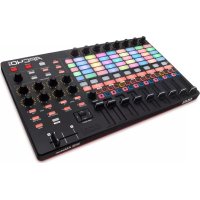
APC40 MK2 - Hi-fi system AKAI - Free user manual and instructions
Find the device manual for free APC40 MK2 AKAI in PDF.



| Product Type | MIDI Controller for Ableton Live |
| Brand | AKAI |
| Model | APC40 MK2 |
| Dimensions (approx.) | 330 x 230 x 40 mm |
| Weight (approx.) | 1.5 kg |
| Power | Via USB port (bus-powered) |
| Connectivity | USB Type B, 6.35 mm sustain pedal input |
| Clip Grid | 8 x 5 RGB backlit buttons |
| Volume Faders | 9 (8 tracks + master) |
| Assignable Buttons | 8 rotary encoders |
| Transport Functions | Play, Record, Session, Stop All Clips, Tap Tempo |
| Device Control | 8 command buttons, device lock |
| Crossfader | Yes |
| Included Software | Ableton Live Lite (downloadable) |
| Security | Kensington lock slot |
| Maintenance and Cleaning | Soft dry cloth, avoid solvents |
| Repairability | Spare parts available on request |
| Compatibility | Windows, macOS; requires Ableton Live |
Frequently Asked Questions - APC40 MK2 AKAI
User questions about APC40 MK2 AKAI
0 question about this device. Answer the ones you know or ask your own.
Ask a new question about this device
Download the instructions for your Hi-fi system in PDF format for free! Find your manual APC40 MK2 - AKAI and take your electronic device back in hand. On this page are published all the documents necessary for the use of your device. APC40 MK2 by AKAI.
USER MANUAL APC40 MK2 AKAI
User Guide (English)
Introduction
Box Contents
APC40
mkll
USB
Cable
Ableton Live Lite (download)
User Guide
Software Download Card
Safety & Warranty Manual
Support
For the latest information about this product (system requirements, compatibility information, etc.) and product registration, visit akaipro.com/apc40-mkii.
For additional product support, visit akaipro.com/support.
Quick Start
- Use the included USB cable to connect APC40 mkII's USB port to an available USB port on your computer (powered on).
- On your computer, open Ableton Live.
-
In Live, open the Preferences:
-
Windows: Options > Preferences
• Mac OS X: Live > Preferences -
Click the MIDI/Sync Tab.
- Click an available Control Surface drop-down menu and select Akai APC40 mkll.
- Click an available Input drop-down menu and select Akai APC40 mkII.
- Click an available Output drop-down menu and select Akai APC40 mkII.
- Close the Preferences window.
You can now use APC40 mkII with Live.
Basic Operation
Refer to this section to learn how to do basic tasks in Ableton Live using APC40 mkII.
Important: Before doing any of the following, set up APC40 mkII as a controller in Live (described in the Quick Start section above).
To start or pause playback, press the Play button.
To start recording, press the Record button (to record normally) or the Session button (to execute Live's Session Record feature).
To stop all clips, press the Stop All Clips button.
To launch a clip, press one of the Clip Launch buttons that corresponds to a clip in the current 8x5 matrix. In Live, this is represented by a rectangle around the clips. The Clip Launch buttons' colors will match the clips' colors as assigned in Live.
To stop a clip, press the Clip Stop button in the same track (column) as the clip you want to stop.
To launch a scene, press one of the five Scene Launch buttons to the right of the 8x5 matrix of Clip Launch buttons.
To move around the matrix of clips, use the Bank Select buttons to shift the viewable 8x5 matrix. In Live, this is represented by a rectangle around the clips. The Clip Launch buttons' colors will match the clips' colors as assigned in Live.
To solo a track, press its Solo button.
To record-arm a track, press its Record-Arm button.
To mute or unmute a track, press its Track Activator (the button with the track's number printed on it, above its Solo button).
To select a track, press its Track Selector (the button below the track's Clip Stop button).
To adjust volumes, use the Track Volume Faders.
To adjust panning, press the Pan button to put APC40 mkll's Assignable Knobs in Pan Mode. The eight Assignable Knobs will control the panning positions of the current eight tracks.
To adjust send levels, press the Sends button to put APC40 mkll's Assignable Knobs in Sends Mode, allowing them to control the levels of Send A for the current eight tracks.
You can select a different send by pressing and holding Sends and then pressing a Track Selector (Track Selector 1 will select Send A, Track Selector 2 will select Send B, etc.).
Note: Your return tracks will be shown in the matrix as the right-most tracks available in the Live Set.
To use the Assignable Knobs to control other functions, press the User button to put APC40 mkII's Assignable Knobs in User Mode. You can then assign them in Live's MIDI Map Mode, allowing them (while in User Mode) to control whatever mappable parameters you want.
To adjust devices:
- Select a track by pressing the desired Track Selector.
- If the Device View is not shown at the bottom of the window, press the Clip/Dev. View until it is.
- Use the Device Left/Right ( ←/→ ) buttons to select the desired device.
- Use the eight Device Control Knobs to control the parameters of the current device's first bank. You can use the Bank Left/Right ( ←/→ ) buttons to select the previous or next bank in that device.
Tip: Alternatively, you can press the Device Lock button to lock or unlock APC40 mkll to or from the currently selected device. When locked, you can use APC40 mkll's controls for that device regardless of where the current focus is in your Live Set.
Features
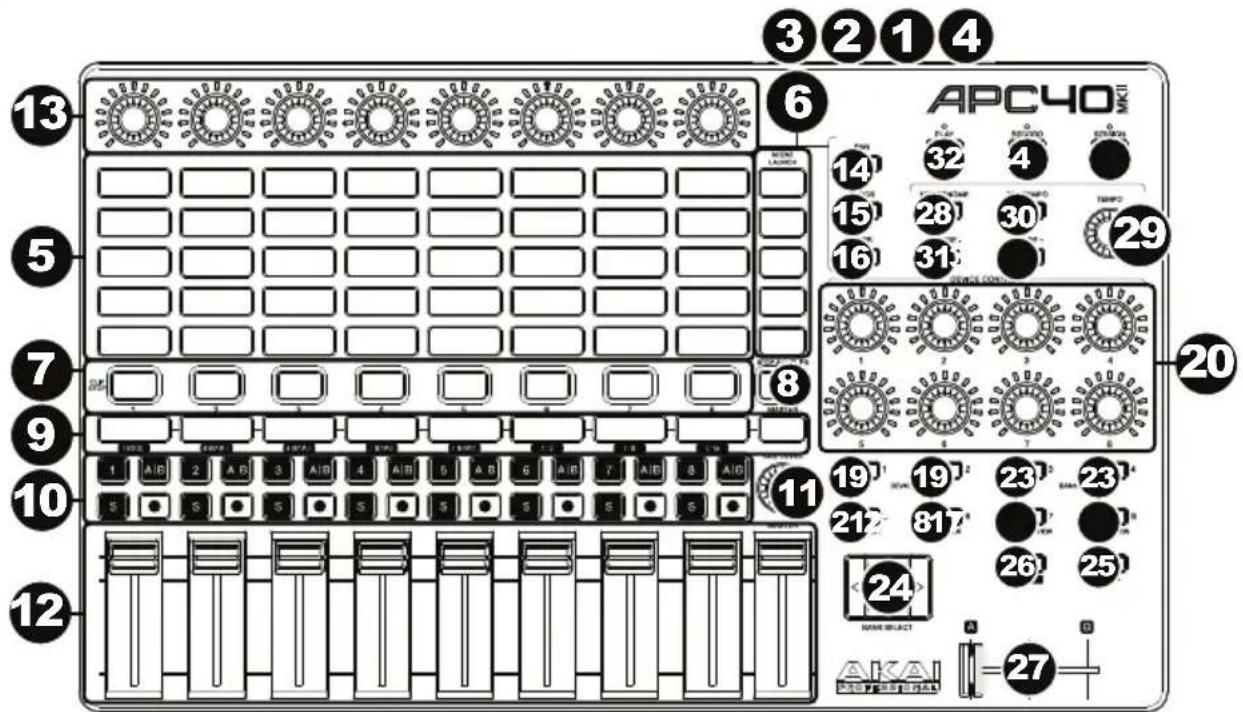
- USB Port: Use a standard USB cable to connect this port to a USB port on your computer. The computer's USB port provides power to APC40 mkII. This connection is also used to send and receive MIDI data to and from your computer.
- Power Switch: Press this button to power APC40 mkll on and off.
- Footswitch Input: Connect an optional 1/4" (6.35mm) TS footswitch to this input.
- Kensington Lock Slot: You can use this Kensington lock slot to secure the APC40 mkII to a table or other surface.
- Clip Launch Buttons: While in Session View, use these buttons in this 8x5 to launch clips. Each button represents a single clip slot. The eight columns represent eight tracks while the five rows represent five scenes. The Clip Launch buttons' colors will match the clips' colors as assigned in Live.
You can launch the entire scene by pressing the Scene Launch buttons to the right of the row of clips.
- Scene Launch Buttons: You can press one of these buttons to launch the corresponding scene, represented by the row of clips to its left.
- Clip Stop Buttons: Press one of these buttons to stop the clip that is playing in the corresponding track, represented by the column of clips just above it.
- Stop All Clips: Press this button to stop all clips when they reach the end.
- Track Selectors: Press one of these buttons to select its track, allowing you to use the Device Control Knobs for a device on that track. The right-most button (labeled Master) selects the Master track.
Press and hold Shift and then press one of the first eight Track Selectors to select a Global Quantization setting: None, 8 Bars, 4 Bars, 2 Bars, 1 Bar, 1/4, 1/8, or 1/16.
-
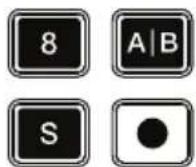
Track Buttons:
-
Track Activator (#): Press this button to activate (unmute) or deactivate (mute) the track.
- Crossfade Assign (A|B): Press this button to cycle through the track's three possible crossfade assignments: A, B, or Off.
- Solo (S): Press this button to solo the track.
- Record-Arm (●): Press this button to record-arm the track.
-
Cue Level: Use this knob to control the Cue Volume.
-
Track Volume Faders: Use these faders to control each track's volume level. The right-most fader (labeled Master) controls the Master track's volume level.
-
Assignable Knobs: Use these knobs controls track panning, track send levels, or other user-assignable parameters. Press the Pan button, Sends button, or User button to put the these knobs in the corresponding mode (described below).
-
Pan: Press this button to put the Assignable Knobs in Pan Mode, allowing them to control the panning positions of the current eight tracks.
-
Sends: Press this button to put the Assignable Knobs in Sends Mode, allowing them to control the levels of Send A for the current eight tracks.
You can select a different send by pressing and holding Sends and then pressing a Track Selector (Track Selector 1 will select Send A, Track Selector 2 will select Send B, etc.).
-
User: Press this button to put the Assignable Knobs in User Mode. You can then assign them in Live's MIDI Map Mode, allowing them (while in User Mode) to control whatever mappable parameters you want.
-
Detail View: Press this button to hide or show Detail View, which contains the Clip View or Device View. (Select which you are viewing by pressing the Clip/Device View button.)
Press and hold Shift and then press this button to select Bank 8 of the currently selected device.
- Clip/Device View: Press this button to switch between Clip View (to view and adjust clip properties) and Device View (to view all devices in the current track).
Press and hold Shift and then press this button to select Bank 7 of the currently selected device.
- Device Left/Right ( ←/→ ): Use these buttons to select the previous or next device in a track's device chain. Each of these buttons will light up if there is an available device in that direction.
Press and hold Shift and then press one of these buttons to select Bank 1 or Bank 2 (respectively) of the currently selected device.
-
Device Control Knobs: Use these eight knobs to control the parameters of the current device's first bank. Use the Bank Left/Right ( ←/→ ) buttons to select the previous or next bank in that device. Use the Device Left/Right ( ←/→ ) buttons to select another device.
-
Device On/Off: Press this button to activate or deactivate the currently selected device.
Press and hold Shift and then press this button to select Bank 5 of the currently selected device.
- Device Lock: Press this button to lock or unlock APC40 mkII to or from a device. When locked, you can use APC40 mkII's controls for that device regardless of where the current focus is in your Live Set.
Press and hold Shift and then press this button to select Bank 6 of the currently selected device.
- Bank Left/Right ( ←/→ ): Use these buttons to select the previous or next bank of controls in a device. Each of these buttons will light up if there is an available bank in that direction. The status bar at the bottom of the window displays the current bank.
Press and hold Shift and then press one of these buttons to select Bank 3 or Bank 4 (respectively) of the currently selected device.
- Bank Select: These cursor buttons move the cursor/selection in your Live Set by one track (left or right) or by one scene (up or down).
Press and hold Bank while using these buttons to move the selection by 8 tracks (left or right) or by 5 scenes (up or down), effectively shifting the entire 8x5 matrix controlled by the Clip Launch buttons (represented in Live by a rectangle). The Clip Launch buttons' colors will match the clips' colors as assigned in Live.
Note: Your return tracks will be shown in the matrix as the right-most tracks available in the Live Set.
-
Bank: Press this button to activate or deactivate while using the Bank Select buttons to move the selection by 8 tracks (left or right) or by 5 scenes (up or down), effectively shifting the entire 8x5 matrix controlled by the Clip Launch buttons (represented in Live by a rectangle). The Clip Launch buttons' colors will match the clips' colors as assigned in Live.
-
Shift: Press and hold this button to access certain buttons' secondary functions.
When holding down this button, the 8x5 matrix of Clip Launch buttons will enter Session Overview Mode. In this view, each Clip Launch button represents an entire 8-track-by-5-scene matrix of clips in Live. You can then press one of them to view that 8x5 matrix in the Clip Launch buttons. This allows you to access and use more than the 5 rows and 8 tracks represented by the Clip Launch buttons. While in Session Overview Mode, the Clip Launch buttons' colors represent the following:
- Off: No clips are present in this 8x5 matrix.
- Amber: Clips are present in this 8x5 matrix, which is currently selected.
- Green: Clips are present in this 8x5 matrix, which contains clip slots that are currently playing.
- Red: Clips are present in this 8x5 matrix, but no clip slots are currently playing.
Note: If the current matrix of Clip Launch buttons is "between" two 8x5 matrices, when you enter Session Overview Mode, both Clip Launch buttons representing those two matrices will light up amber.
-
Crossfader: Use this crossfader to control Live's crossfader.
-
Metronome: Use this to activate or deactivate the metronome.
-
Tempo Knob: Use this knob to adjust the tempo.
-
Tap Tempo: Tap this button at the desired rate to enter a new tempo.
-
Nudge -/+: Use these buttons to temporarily increase or decrease tempo.
-
Play: Press this button to start/resume or pause playback.
-
Record: Press this button to start or stop Arrangement Record.
-
Session: Press this button to start or stop Session Record.
Assistance technique
Ableton Live Lite (download)
Guida per l'uso
Ableton Live Lite (Download)
Benutzerhandbuch
Software Download-Karte
Technical Specifications
| Knobs | 8 360° track pan/send/assignable knobs8 360° device control knobs1 360° cue level knob1 360° tempo knob |
| Clip Launch Buttons 40 | backlit RGB buttons in a 8x5 matrix5 scene launch buttons |
| Faders | 8 45mm track volume faders1 45mm master volume fader1 45mm crossfader |
| Inputs / Outputs 1 USB port | 1 1/4" (6.35mm) TS jack for footswitch input |
| Power | USB-bus-powered |
| Dimensions(width x depth x height; no cable) | 16.7" x 10.0" x 1.8"42.4 cm x 25.4 cm x 4.6 cm |
| Weight(no cable) | 3.97 lbs.1.8 kg |
Specifications are subject to change without notice.
Trademarks and Licenses
Akai Professional is a trademark of inMusic Brands, Inc., registered in the U.S. and other countries.
Ableton and the Ableton Logo are trademarks of Ableton AG.
Mac and OS X are trademarks of Apple Inc., registered in the U.S. and other countries.
Windows is a registered trademark of Microsoft Corporation in the United States and other countries.
Kensington and the K & Lock logo are registered trademarks of ACCO Brands.
All other product or company names are trademarks or registered trademarks of their respective owners.
AKAI
professional
akaipro.com
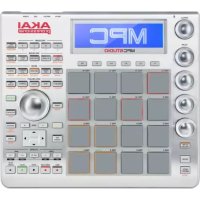
Brand : AKAI
Model : APC40 MK2
Category : Hi-fi system