
StudioDock 4i - Hi-fi system SAMSON - Free user manual and instructions
Find the device manual for free StudioDock 4i SAMSON in PDF.




| Product Type | Hi-Fi System - Active USB Studio Monitors with iPod Dock |
| Brand | Samson |
| Model | StudioDock 4i |
| Active Monitor Dimensions | 168 mm (W) x 229 mm (D) x 232 mm (H) |
| Passive Monitor Dimensions | 168 mm (W) x 194 mm (D) x 232 mm (H) |
| Active Monitor Weight | 4.3 kg |
| Passive Monitor Weight | 3.0 kg |
| Power Supply | Mains with voltage selector (IEC socket) |
| Amplifier Power | 20 W per channel (stereo, class A/B) |
| Frequency Response | 65 Hz - 23 kHz |
| Speakers | 4-inch (10.2 cm) polypropylene woofer with Santoprene surround, 1-inch (2.5 cm) silk dome tweeter with ferrofluid and neodymium magnet |
| Audio Connectivity | Stereo RCA inputs (rear), 3.5 mm mini-jack auxiliary input (front), 3.5 mm mini-jack headphone output (front) |
| USB Interface | USB Type B port for digital audio connection and iPod/iTunes sync |
| Built-in Functions | iPod dock with charging and sync, 16-bit/44.1-48 kHz D/A converter, lockable front volume control, magnetic shielding |
| Baffle Construction | MDF panels with textured black vinyl finish, tuned rear port |
| Care and Cleaning | Clean with a damp cloth. Do not use abrasive cleaners or solvents. |
| Safety | Unplug before cleaning. Do not expose to moisture. Do not block vents. Use only with compatible mains voltage. |
| Spare Parts and Repairability | No user-serviceable parts. Contact an authorized service center for repairs. Three-year warranty. |
| General Information | Designed and manufactured in the USA. Website: www.samsontech.com |
Frequently Asked Questions - StudioDock 4i SAMSON
User questions about StudioDock 4i SAMSON
0 question about this device. Answer the ones you know or ask your own.
Ask a new question about this device
Download the instructions for your Hi-fi system in PDF format for free! Find your manual StudioDock 4i - SAMSON and take your electronic device back in hand. On this page are published all the documents necessary for the use of your device. StudioDock 4i by SAMSON.
USER MANUAL StudioDock 4i SAMSON
natural_image
Close-up of a black and white studio microphone speaker with a circular lens (no visible text or symbols)
Owner's Manual
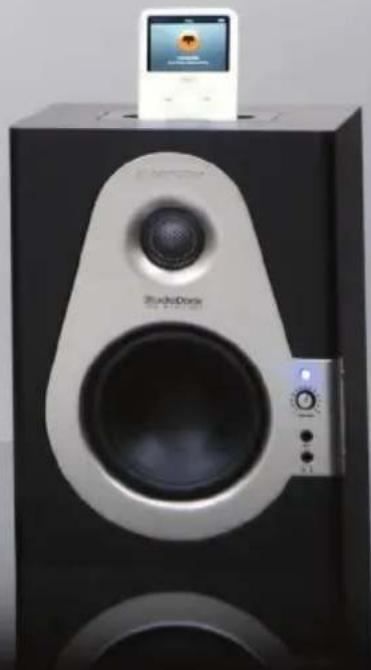
natural_image
Black and white photo of a audio amplifier with a small electronic device on top (no visible text or symbols)WARNING
TO PREVENT FIRE OR SHOCK HAZARD. DO NOT USE THIS PLUG WITH AN EXTENSION CORD, RECEPTACLE OR OTHER OUTLET UNLESS THE BLADES CAN BE FULLY INSERTED TO PREVENT BLADE EXPOSURE. TO PREVENT FIRE OR SHOCK HAZARD. DO NOT EXPOSE THIS APPLIANCE TO RAIN OR MOISTURE. TO PREVENT ELECTRICAL SHOCK, MATCH WIDE BLADE PLUG TO WIDE SLOT AND FULLY INSERT.

This lightning flash with arrowhead symbol, within an equilateral triangle, is intended to alert the user to the presence of uninsulated “dangerous voltage” within the product’s enclosure that may be of sufficient magnitude to constitute a risk of electric shock to persons.
CAUTION
RISK OF ELECTRIC SHOCK DO NOT OPEN
Warning: To reduce the risk of electric shock, do not remove cover (or back). No user-serviceable parts inside. For service, refer to qualified service personnel.

The exclamation point within an equilateral triangle is intended to alert the user to the presence of important operating and maintenance (servicing) instructions in the literature accompanying the appliance.
IMPORTANT SAFETY INSTRUCTIONS
- Read these instructions.
- Keep these instructions.
- Heed all warnings.
- Follow all instructions.
- Do not use this apparatus near water.
- Clean only with dry cloth.
- Do not block any ventilation openings. Install in accordance with the manufacturer's instructions.
- Do not install near any heat sources such as radiators, heat registers, stoves, or other apparatus (including amplifiers) that produce heat.
- Do not defeat the safety purpose of the polarized or grounding type plug. A polarized plug has two blades with one wider than the other. A grounding type plug has two blades and a third grounding prong. The wide blade or the third prong are provided for your safety. If the provided plug does not fit into your outlet, consult an electrician for replacement of the obsolete outlet.
- Protect the power cord from being walked on or pinched particularly at the plugs, convenience receptacles, and at the point where they exit from the apparatus.
- Only use attachments/accessories specified by the manufacturer.
- Use only with the cart, stand, tripod, bracket, or table specified by the manufacturer, or sold with the apparatus. When a cart is used, use caution when moving the cart/apparatus combination to avoid injury from tip-over.

- Unplug the apparatus during lightening, sort or when unused for long periods of time.
Refer all servicing to qualified personnel. Service is required when the apparatus has been damaged in any way, such as power supply cord or plug is damaged, liquid has been spilled or objects have fallen into the apparatus has been exposed to rain or moisture, does not operate normally, or has been dropped. - This appliance shall not be exposed to dripping or splashing water and that no object filled with liquid such as vases shall be placed on the apparatus.
- Caution-to prevent electrical shock, match wide blade plug wide slot fully insert.
- Please keep a good ventilation environment around the entire unit.
THIS DEVICE COMPLIES WITH PART 15 OF THE FCC RULES CLASS B. OPERATION IS SUBJECT TO THE FOLLOWING TWO CONDITIONS: (1) THIS DEVICE MUST NOT CAUSE HARMFUL INTERFERENCE, AND (2) THIS DEVICE MUST ACCEPT ANY INTERFERENCE RECEIVED INCLUDING INTERFERENCE THAT MAY CAUSE UNDESIRED OPERATION. SUITABLE FOR HOME OR OFFICE USE.
Copyright 2008, Samson Technologies Corp.
Printed May, 2008 v1.1
Samson Technologies Corp.
45 Gilpin Avenue
Hauppauge, New York 11788-8816
Phone: 1-800-3-SAMSON (1-800-372-6766)
Fax: 631-784-2201
www.samsontech.com
Table of Contents
ENGLISH
Introduction. 1
StudioDock 3i and 4i Features ..... 2
Front View Layout 3
StudioDock 3i and 4i Layout .... 3
StudioDock 3i and 4i Rear Panel Layout ..... 4
StudioDock 3i and 4i Quick Start. . . . . . . . . . . . . . 5
Setting up the StudioDock 3i and 4i ..... 6
Connecting the StudioDock 3i and 4i. . . . . . . . . . 8
Getting Started with MAC OS X 9
Installing the StudioDock on Windows Vista .....10
Installing the StudioDock on Windows XP. . . . . . .11
Operating the StudioDock 3i and 4i. . . . . . . . . . . . . . . . . . . . . . . . . . . . . . . . . . . . . . . . . . . . . . . . .
StudioDock 3i and 4i Rear Control Panel. . . . . . . .12
Connecting to the Resolv120a Subwoofer. . . . . . . 14
StudioDock 3i and 4i Wiring Guide .....15
Specifications....76
FRANÇAIS
Introduction. 16
Thank you for purchasing the StudioDock 3i or 4i Active USB Monitors from Samson Technologies! Whether you need a monitor system for your digital recording studio, a video production suite, or if you just want better monitors for gaming and for listening to music on your iPod, the StudioDock's are the perfect solution. The StudioDock systems produce a powerful, full-range sound thanks to the high quality internal amplifier matched to a sophisticated speaker system, employing extended range copolymer woofers and silk-dome tweeters. Music playback is simple thanks to the integrated iPod dock, and with the USB connection, you can charge and sync your iPod with iTunes too. The StudioDock 3i and 4i monitors also include an onboard high quality D-to-A converter providing a digital audio connection from your computer over USB for superior audio performance. The monitor systems deliver incredibly deep bass and extended highs in an amazingly compact size. Both StudioDock systems feature one active monitor for the right-side and a passive monitor for the left-side. The right-side unit houses the internal stereo power amplifier to drive both monitors. Located on the front is a convenient control panel with Volume control, Headphone output, and an Aux input for connecting a third signal source. On its rear panel you'll find the RCA inputs, USB connector, terminal cup for connecting the left-side passive monitor, the Power switch and AC-inlet. The precision tuned enclosures incorporate rear venting for extended low frequency response and are finished in an attractive black vinyl covering. The StudioDock 3i or 4i are ideal monitor systems for studios, video post production suites, fixed installations, at home or wherever great sound is desired.
In these pages, you'll find a detailed description of the features of the StudioDock 3i and 4i monitors, as well as a guided tour through its control panel, step-by-step instructions for its setup and use, and full specifications. You'll also find a warranty card enclosed—please don't forget to fill it out and mail it in so that you can receive online technical support and so we can send you updated information about these and other Samson products in the future. Also, be sure to check out our website (www.samsontech.com) for complete information about our full product line.
With proper care and adequate air circulation, your StudioDock 3i and 4i will operate trouble free for many years. We recommend you record your serial number in the space provided below for future reference.
Serial number: ____
Date of purchase: ____
Should your unit ever require servicing, a Return Authorization number (RA) must be obtained before shipping your unit to Samson. Without this number, the unit will not be accepted. Please call Samson at 1-800-3SAMSON (1-800-372-6766) for a Return Authorization number prior to shipping your unit. Please retain the original packing materials and if possible, return the unit in the original carton and packing materials. If you purchased your Samson product outside the United States, please contact your local distributor for warranty information and service.
StudioDock 3i and 4i Features
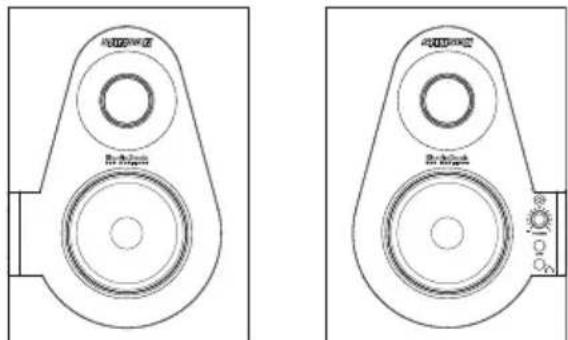
The Samson StudioDock 3i and 4i studio monitor systems with integrated iPod dock provide a smooth response that's accurate, and at the same time pleasant to listen to. Here are some of their main features:
- Two-way, active studio reference monitor with ported tuned enclosure providing extremely accurate monitoring for recording studio, post-production, video gaming and multi-media applications.
- Integrated iPod dock for direct music playback, charging and iTunes syncing.
- Onboard high quality D-to-A (digital-to-analog) converters and USB interface for digital audio playback.
- For tight and controlled low frequency response, the StudioDock Series employ custom designed, inverted cone, copolymer woofers with santoprene surrounds. The StudioDock 3i features an 3-inch woofer and the StudioDock 4i features a 4-inch woofer.
- The StudioDock's 25mm silk dome high frequency driver is set in a custom designed wave guide producing a high frequency response that's accurate and natural.
- Convenient front panel, "pop-out" volume control allows you to easily set the level and then lock it in place.
- You can connect a second stereo input from a MP3 player, keyboard, sound card or any other stereo line level signal to the StudioDock 3i and 4i's front panel 3.5 mm stereo Aux Input jack.
- If you need to listen to your mix on headphones, simply plug in to the front panel 3.5 mm Headphones output jack. The speakers automatically turn off when you plug into the Headphone output.
• Stereo Class A/B internal power amplifier.
• Passive crossovers utilizing a multi-pole design for linear response from bottom to top.
- Convenient RCA inputs accept standard -10 dBV line level input.
- A/V shielded for multimedia applications providing clean operation near computer monitors.
• 2 meter, 20-gauge speaker cable for Left-side Extension monitor included.
• Solid MDF (Medium Density Fiberboard) construction, provides maximum SPL.
- Precision tuned rear vented enclosure, attractively finished in black satin vinyl covering.
• Three-year extended warranty.
StudioDock 3i and 4i Layout
Front View Layout
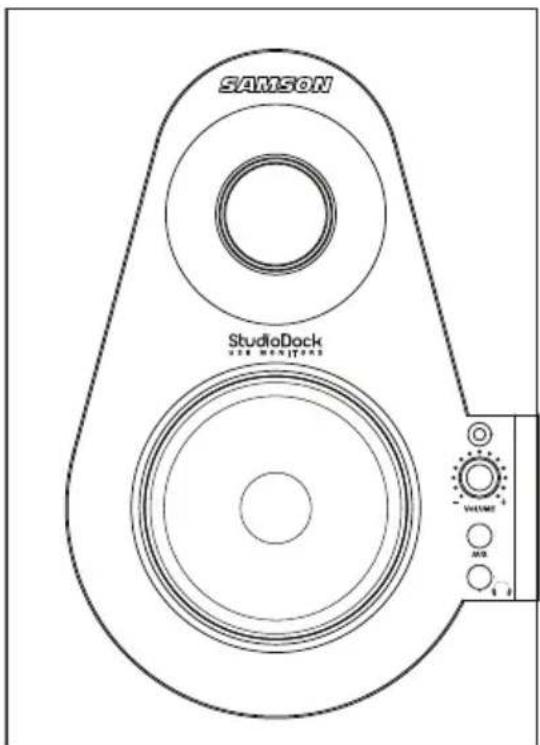
- Silk Dome Tweeter - Smooth high frequency response produced from a 1-inch silk dome tweeter.
- TUNED PORT (rear) - Quiet port design offering extended low frequency response.
- Low Frequency Driver- Heavy duty 3" on the StudioDock 3i, and 4" on the StudioDock 4i, extended range low frequency transducer.
-
POWER LED (active) - Blue LED illuminates indicating the unit is powered on, ready for operation.
-
VOLUME control (Right Side Only) - Controls the overall amount of output level for both speakers.
- Aux Input- 3.5mm stereo input jack for connecting a second line level signal source.
- Headphones- 3.5mm stereo output jack for connecting headphones. The monitors automatically mute when the headphone is connected.
- ENCLOSURE– Rigid and tight MDF construction for maximum output with beautifully appointed trim rings and sleek black textured vinyl finish.
StudioDock 3i and 4i Rear Panel Layout
StudioDock 3i and 4i Layout
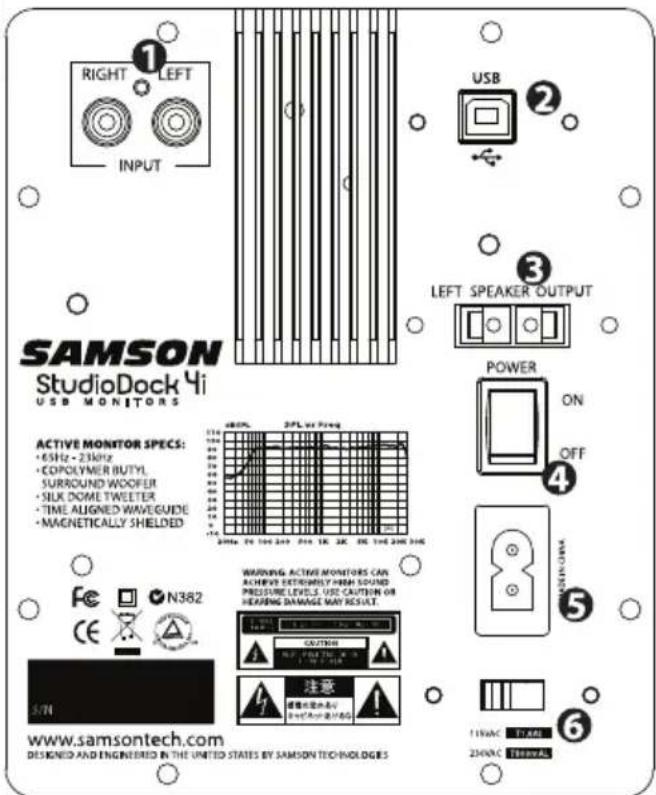
3i and 4i Rear Panel Layout (left speaker)
- RCA INPUT – Used to connect signals from unbalanced, -10dBV devices. The Red connector is the for Right input and the White is for the Left input.
- USB connector- Connect the supplied USB cable to this rear panel USB "B" connector.
- LEFT SPEAKER OUTPUT – Push Terminals for connecting the Left-side Extension Speaker.
- POWER SWITCH– Main power switch. When set to the ON position, the front panel blue LED illuminates indicating the StudioDock 3i and 4i is powered up and ready for operation.
- AC INLET- Connect the supplied IEC power cable here.
- VOLTAGE SELECTION SWITCH This switch is used to select the amplifiers operating voltage.
NOTE: If you are changing the position of this switch, be sure it is set to the correct voltage for your country.
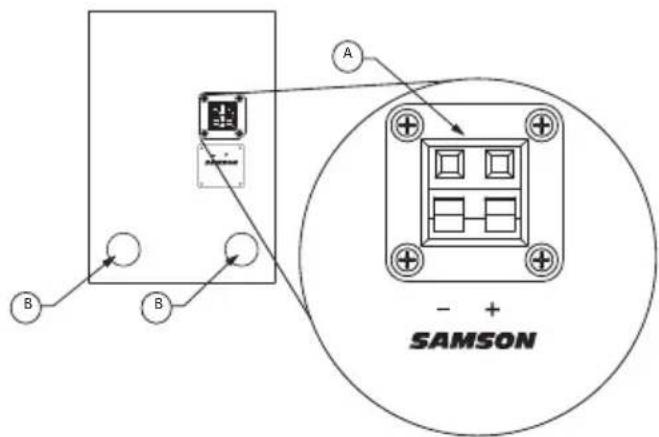
A. TERMINAL CUP – Push Terminals for connecting the Left-side Extension Speaker to the Active (Right-side) speaker.
B. TUNED PORT- Quiet port design offering linear extended low frequency response.
StudioDock 3i and 4i Quick Start
StudioDock 3i and 4i Quick Start - iPod Playback
Your StudioDock system has many sophisticated features, but if you just want to playback music from your iPod, you can follow the simple steps below to get started.
- Unpack the StudioDock system components and included cables. Be sure to save the packaging in case you ever move or need to send the units for service.
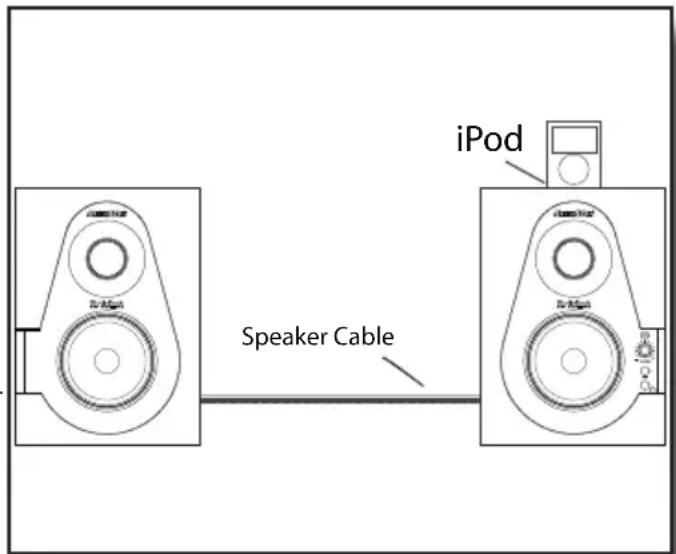
- Set the Studiodock monitors in place near your computer or multi media center. The active speaker (the one with the front panel volume knob and jacks) is the right side speaker and the passive speaker (no knobs and jacks) is the left speaker.
- Locate the included speaker wire and make the connection from the active speaker to the passive speaker. Be sure to check the color code on the wire to insure the proper phase (polarity). For more information, see the sections "StudioDock 3i and 4i Connections" on page 8 and "StudioDock 3i and 4i Wiring Guide" on page 15 in this manual.
- Check that the rear panel POWER switch is set to the off position. Then, plug the supplied power cable into the rear panel inlet, but don't turn the unit on just yet.
- If your iPod came with a dock adapter (most do) install it into the iPod dock on top of the active speaker.
- Next, install your iPod into the StudioDock. Be sure the iPod is seated all the way in and that it's making a good connection in the dock.
- Now power on your StudioDock system using the rear panel POWER switch but keep the volume down to start.
- Now press play on you favorite iPod tune and adjust the StudioDock's front panel volume control until your reach a comfortable listening level.
For more information, see the section "Operating the StudioDock 3i and 4i" on page 12 in this manual.
Setting up the StudioDock 3i and 4i
Background on the StudioDock 3i and 4i Active USB Monitors
The StudioDock 3i and 4i are near field reference monitors featuring a custom designed, 3 or 4-inch copolymer, low frequency driver and a 25mm silk dome tweeters, employing a Ferro fluid cooled voice coil and neodymium magnet. Lactated on the top of both the StudioDock 3i and 4i's right side speaker is an integrated iPod dock supporting most iPod models for playback charging and sync. The monitor's crossover has been carefully designed with high quality components insuring a linear frequency and phase response. The StudioDock 3i and 4i enclosures are constructed from MDF (Medium Density Fiberboard) and are finished in scuff resistant, textured vinyl covering. The monitor's enclosure also includes a tuned vent port that provides extended low-end response, and with a low turbulence design, the low frequency driver can move freely with minimal effect on the overall impedance. On the rear of one enclosure, you'll find StudioDock 3i and 4i's connection panel, which features an RCA unbalanced input, USB "B" style connector and AC power inlet. On the front panel, you'll find the Volume control, along with a 3.5mm Headphone output jack and a 3.5mm Aux input. Both inputs are connected to StudioDock 3i and 4i's internal stereo power module providing 15 watts per channel on the 3i and 20 watts per channel on the 4i through passive crossovers.
Positioning the StudioDock 3i and 4i
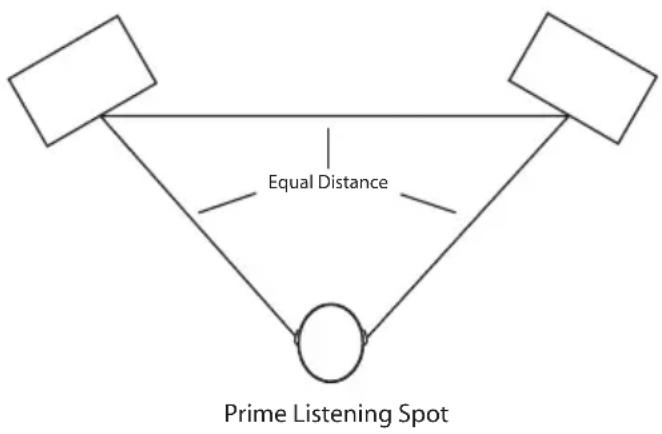
Near field monitoring has become the choice of many engineers in large and small studios because it minimizes the effect of room acoustics. This is especially important in today's project studios since the budget for room acoustics is often close to nothing. By positioning the reference monitors in the near field (close to the listeners), you can greatly reduce the effects of room acoustics. The most important considerations when evaluating the effects of room acoustics are reflective surfaces that are around the monitoring area. These can include flat tabletops, glass mirrors or framed pictures, large open walls and even the surface of your mixing console. Mostly all reflecting sound will eventually reach the listening position, but since it is slightly delayed from the direct source, the result is random cancellation of some frequencies, or comb filtering. If possible, remove any and all reflective surfaces. You may also want to hang some acoustic foam on walls that are close to the monitors. When positioning the monitors, you'll want to set up what is commonly referred to as the "mix triangle". In this ideal configuration, the space between the left and right monitor is equal to the distance from the listener to each monitor, forming an equilateral triangle. (Fig
flowchart
graph TD
    A[" "] --> B[" "]
    C[" "] --> D[" "]
    B --> E[" "]
    D --> E
    E --> F[" "]
    style F fill:#fff,stroke:#000
    note right of F "Equal Distance"
    note bottom of F "Prime Listening Spot"
Figure 1.
Setting up the StudioDock 3i and 4i
Positioning the StudioDock 3i and 4i - continued
Speaker Orientation
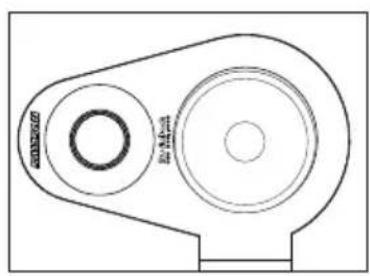
The StudioDock 3i and 4i's can be used in either the vertical or horizontal position. When using the monitors in the horizontal position, be certain to place the left and right side tweeters on the outer most sides. (Figure 2) This will improve the stereo imaging and bass response by increasing the coupling of the low-end drivers.
natural_image
Technical line drawing of a mechanical pulley or belt drive component (no text or symbols)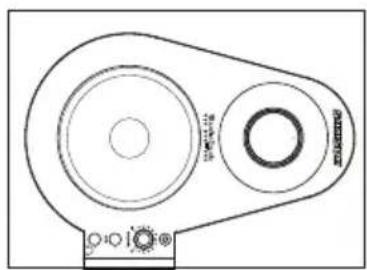
natural_image
Technical line drawing of a belt drive system with two pulleys and a belt (no text or symbols)Figure 2.
A Moment of Reflection
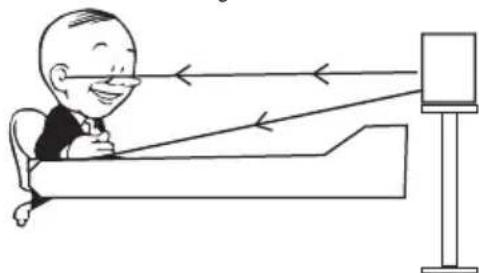
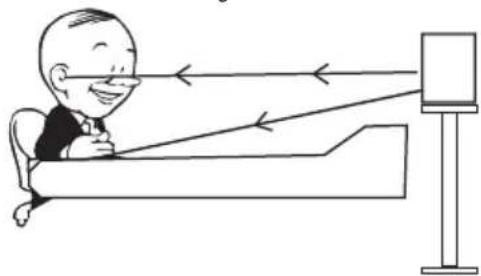
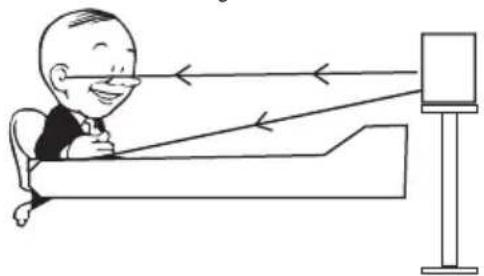
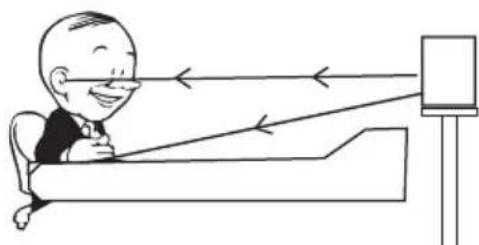
When choosing the height of your monitor system, be careful to avoid reflections off the surface of the mixing console. (Figure 3.) These reflections arrive at the listening position slightly delayed from the original sound resulting in strange cancellations and overall unpredictable response. Visualize straight lines representing the beams of sound radiating from the monitors and choose a height that reduces the occurrence of reflections that will end up in the prime listening spot. (Figure 4.) In most cases, the ideal position is slightly behind and above the mixing console's meter bridge. Also, allow at least 3-inches from the rear of the cabinet to any wall. This will insure proper operation of the tuned bass ports.

natural_image
Illustration of a person using a device to interact with a screen (no text or symbols present)Figure 3.
natural_image
Illustration of a person sitting in bed viewing through a screen with light rays (no text or symbols)Figure 4.
Connecting the StudioDock 3i and 4i
StudioDock 3i and 4i Connections
Note: Before plugging in and turning on, remember the “last on, first off” rule of power amplifiers (and powered monitors). When powering up your system, be sure that all the wires are connected, turn your mixer and any other outboard gear on, and then last turn your StudioDock 3i and 4i’s on. When powering down, turn your StudioDock 3i and 4i’s off first and then your mixer and outboard gear.
The StudioDock 3i and 4i connections can be made via the rear panel RCA Inputs and USB socket. Follow the simple steps and diagram below for a quick connection using a mixer's control room outputs.
- Using the included 20-gauge Extension Speaker cable, connect the Negative (striped) side of the wire to the Black terminal and the positive side to the Red terminal on the Right-side monitor.
- Now, connect the Negative (striped) side of the wire to the Black terminal and the
Positive side to the Red terminal on the Left-side monitor.
Note: Just about all un-shielded speaker wire will have a marking indicating the negative side. To avoid phase cancelation problems, be sure to maintain the correct connection for the positive and negative sides throughout your system.
- Lower your mixer's master outputs to all the way off.
- Connect the mixer's left and right Control Room outputs to the stereo input on the Right-side StudioDock 3i or 4i.
- Set the StudioDock 3i or 4i's input Volume control to the 2 o'clock position. NOTE: If you press the Volume Control, it will extend out making it easier to adjust.
- Run an audio signal (like some music from a CD) through your mixer and raise the Control Room level to a comfortable listening level.
The following sections of this manual will describe how to use the USB interface for digital audio playback from your Mac or Windows computer.
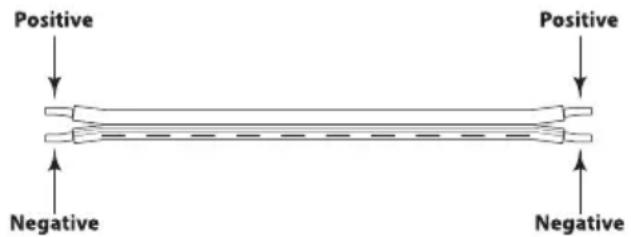
Speaker Cable (Un-Shielded)
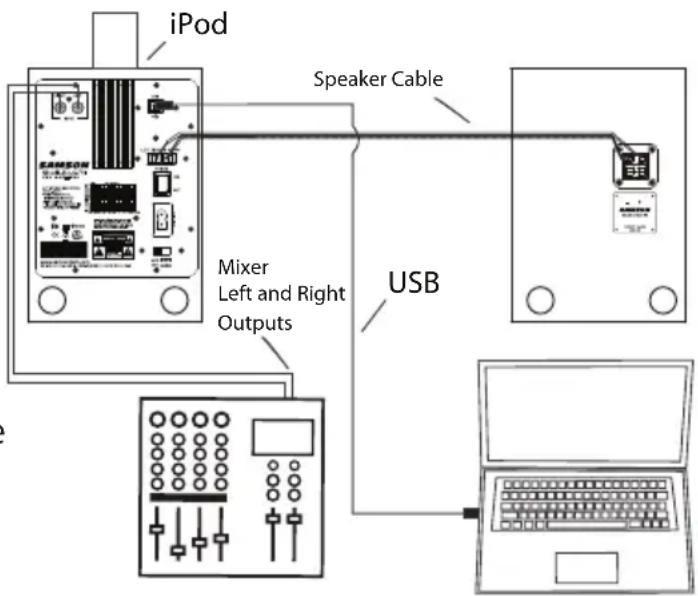
Getting Started with MAC OS X
The following example is for setting up the StudioDock in MAC OS X.
The StudioDock does not require any special drivers or software. Just plug in the StudioDock into a USB port on your computer and everything is installed automatically.
- Make the connection between the StudioDock's rear panel USB connector and any available USB port on your MAC using the supplied USB cable. The MAC will recognize the USB audio device and automatically install a universal driver.
- To select the StudioDock as the computer's audio output, open the System Preferences from the dock or the main Apple Menu (figure 1).
- Next open the Sound preference (figure 2).
- Next, click in the Output tab and select StudioDock. You may notice that the Volume slider sets itself to the full level. This will allow you to have full range using StudioDock's hardware Volume control (figure 3).
At this point you can begin using your StudioDock's with most any audio recording and playback software, but you need to select it as an output device within the DAW. When selecting the output just look for and select the StudioDock.
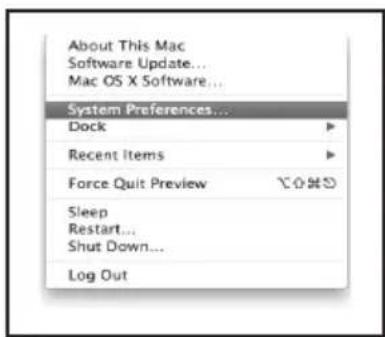
Figure 1
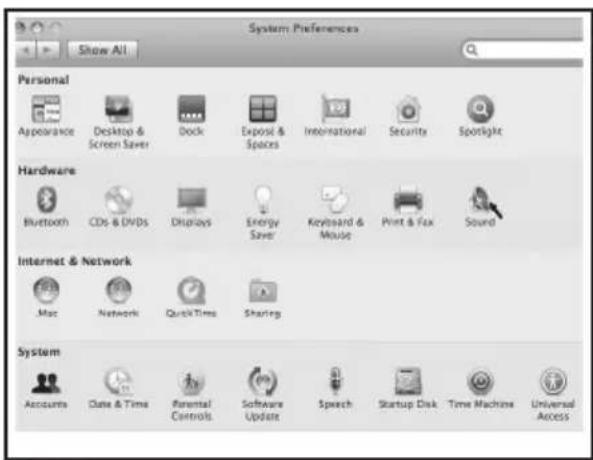
Figure 2
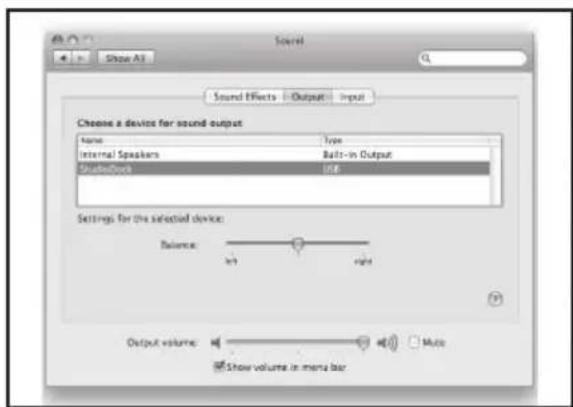
Figure 3
Installing the StudioDock on Windows Vista
Installing the StudioDock is a simple procedure that takes just a few minutes. Since the StudioDock is USB compliant, you can use most any PC, connect the included USB cable and plug and play. You will be able to control your StudioDock using the standard audio interface controls in the MAC or Windows operating system. You will find detailed instructions on setting up Windows Vista in the following sections of this manual.
Getting Started with Windows Vista
The StudioDock does not require any special drivers or software. Just plug in the StudioDock into a USB port on your computer and everything is installed automatically.
- The first time you plug the StudioDock into a USB port, Windows Vista will install the universal drivers for that port. A balloon tip will pop up, telling you it has found the USB Audio codec (figure 4).
- When it is finished installing the drivers, it will say "Your new hardware is installed and ready to use" (figure 5).
Note: This balloon will not pop up again for the same USB port.
-
The StudioDock becomes the Default Device after you plug it in and defaults to maximum volume. Double-check this by hovering over the speaker icon in the bottom right hand corner of the screen. It should show Volume:100 and "StudioDock" (figure 6).
-
If it is not the default device, you can set it under the Sound Properties panel in Control Panel (figure 7).
-
To set the volume, click the speaker icon and drag the volume slider (figure 8).

Figure 4

Figure 5
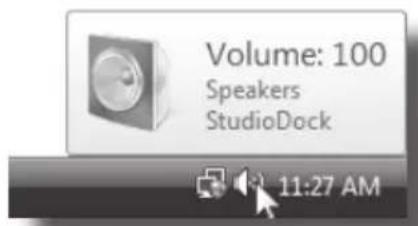
Figure 6
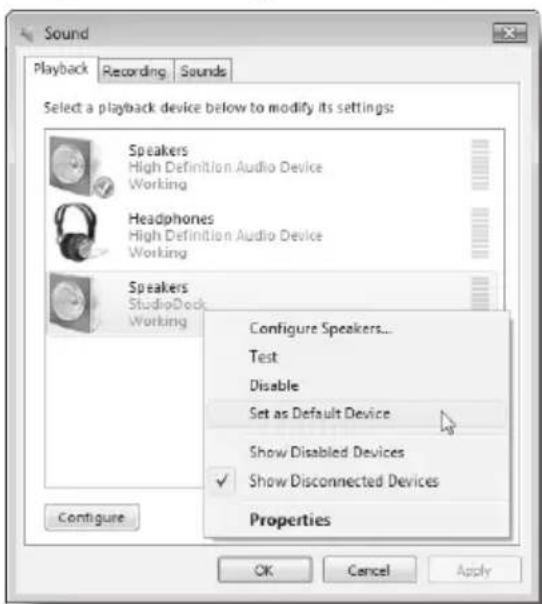
Figure 7
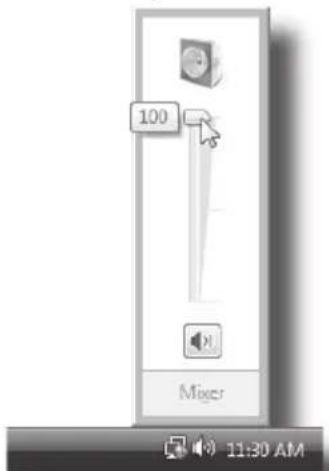
Figure 8
Installing the StudioDock on Windows XP
Getting Started with Windows XP
The StudioDock does not require any special drivers or software. Just plug in the StudioDock into a USB port on your computer and everything is installed automatically.
- The first time you plug the StudioDock into a USB port, Windows XP will install the universal drivers for that port. A balloon tip will pop up, telling you it has found the USB Audio codec (figure 9).
- When it is finished installing the drivers, it will say "Your new hardware is installed and ready to use" (figure 10).
Note: This balloon will not pop up again for the same USB port.
-
Typically, you want the StudioDock to be your default device and be at maximum volume. Set the StudioDock as the default playback device in Sound and Audio Devices Properties in Control Panel (figure 11).
-
Set the volume by clicking the speaker icon in the bottom right hand corner figure 12).
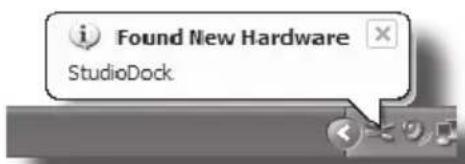
Figure 9

Figure 10
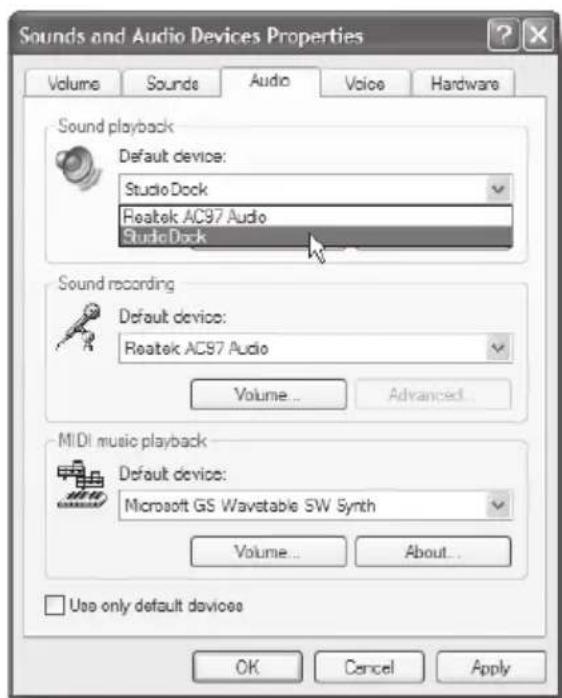
Figure 11
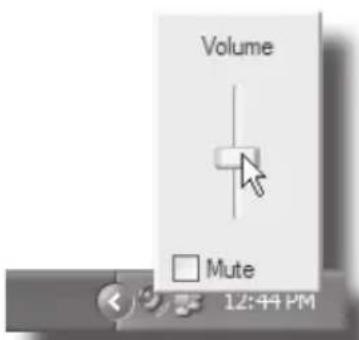
Figure 12
Operating the StudioDock 3i and 4i
StudioDock 3i and 4i Rear Control Panel
The StudioDock 3i and 4i's rear control panel is where you will make your connections for the left side passive monitor, input signals and AC power. The following section details the rear panel connections.
Powering the StudioDock 3i and 4i
Since the StudioDock 3i and 4i are active monitors with on-board power amplifiers, it is necessary to connect the right side monitor to an AC power supply. Make sure that the main Power switch is set to the off position and connect the supplied IEC power cable into the AC inlet.
Things that go Hum!
When running power cables, be careful not to run the AC power cords or AC extension cords in parallel to your input cables. This will help reduce any AC hum that can be picked up. If your have to cross an AC line with an audio line, try to cross them at a 90 degree angle for the least amount of induced hum.
-
Power switch- The POWER switch is used to turn on the StudioDock 3i and 4i's active electronics. When set to the on position, the front panel blue LED illuminates, indicating the StudioDock 3i and 4i are powered up and ready for operation.
-
AC Inlet- Connect the supplied IEC power cable here.
-
Voltage switch - The slide switch is used to select the operating voltage. NOTE: Be sure that the switch is set to the correct voltage for your country.
The Ins and The Outs
The StudioDock 3i and 4i features a stereo pair of input connectors providing easy installation with a variety of audio devices like recording consoles, hard disk recorders, CD players
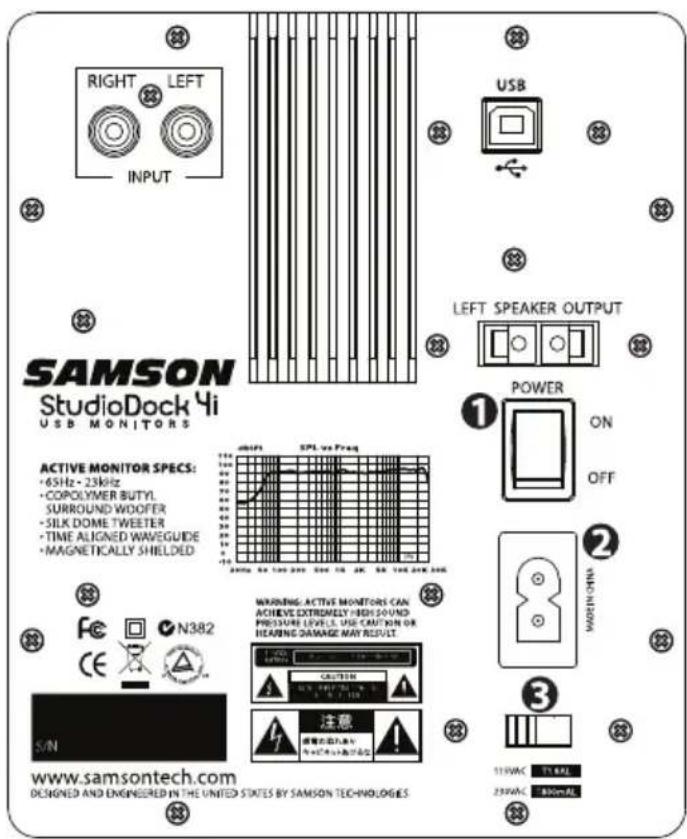
Operating the StudioDock 3i and 4i
StudioDock 3i and 4i Rear Control Panel - continued
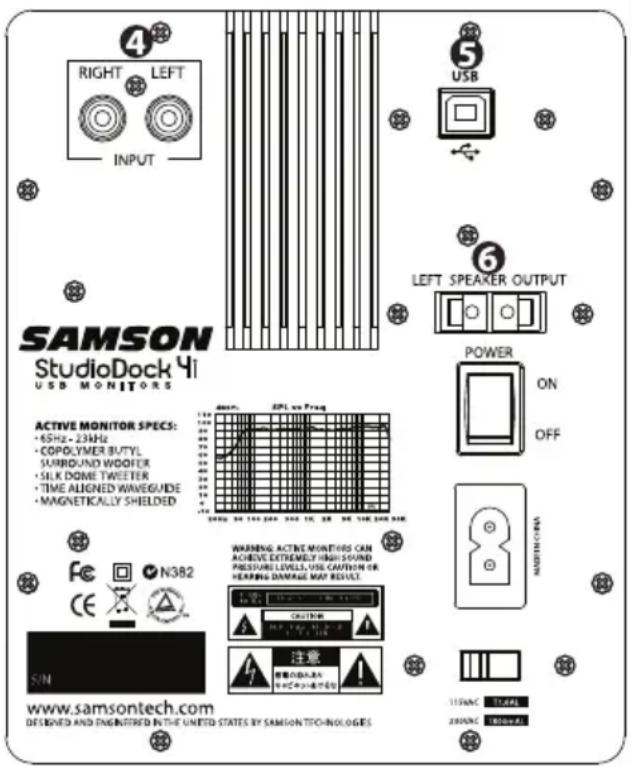
and computer sound cards, to name a few.
The following section details the StudioDock 3i and 4i's input connectors. In addition, there is a detailed cable-wiring diagram on page 15.
-
RCA Input – The RCA input accepts signals from unbalanced -10dBV devices.
-
USB Connector – Using the supplied USB cable, make the connection from the StudioDock's USB connector and any available USB port on your computer. Once connected, you can sync and charge your iPod, and/or playback digital audio from your computer. See the previous sections "Getting Started with Mac OS X" and "Getting Started with Windows Vista and Windows XP" to configure your computer.
-
LEFT SPEAKER OUTPUT – Push Terminals for connecting the Left-side Extension Speaker.
StudioDock 3i and 4i Front Control Panel
-
Power LED - When the Power switch is set to "on", the light will illuminate indicating the system is powered up and ready for operation.
-
Volume Control - (front Panel) The volume control is used to adjust the overall output level of the StudioDock 3i and 4i. When
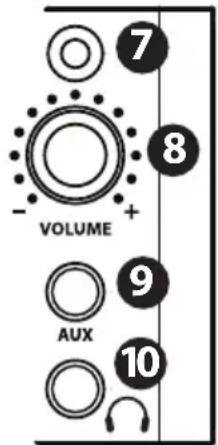
operating the unit for the first time, start with the volume control set all the way off. Slowly raise the Volume control to reach a comfortable listening level. NOTE: If you press the Volume Control, it will extend out making it easier to adjust.
-
AUX Input - You can connect a second stereo input from a MP3 player, keyboard, sound card or any other stereo line level signal to the StudioDock 3i and 4i's front panel 3.5 mm Aux Input jack.
-
Headphone Output - If you need to listen to your mix on headphones, simply plug in to the front panel 3.5mm Headphones output jack. The speakers automatically turn off when you plug into the Headphone output.
StudioDock 3i and 4i with Mono Sub
Connecting to the Resolv120a Subwoofer
Adding a subwoofer and extended low frequency response to your StudioDock 3i or 4i system is easy using the monitors' LINE LEVEL inputs. Below is a typical system set-up using the RESOLV 120a with a mixer and a pair of StudioDock 3i or 4i's satellite speakers. The StudioDock 3i and 4i's inputs utilize industry standard RCA connectors. For a detailed wiring diagram, see the section "StudioDock 3i and 4i Wiring Guide" on page 11. Follow the steps in the diagram below to set up your system.
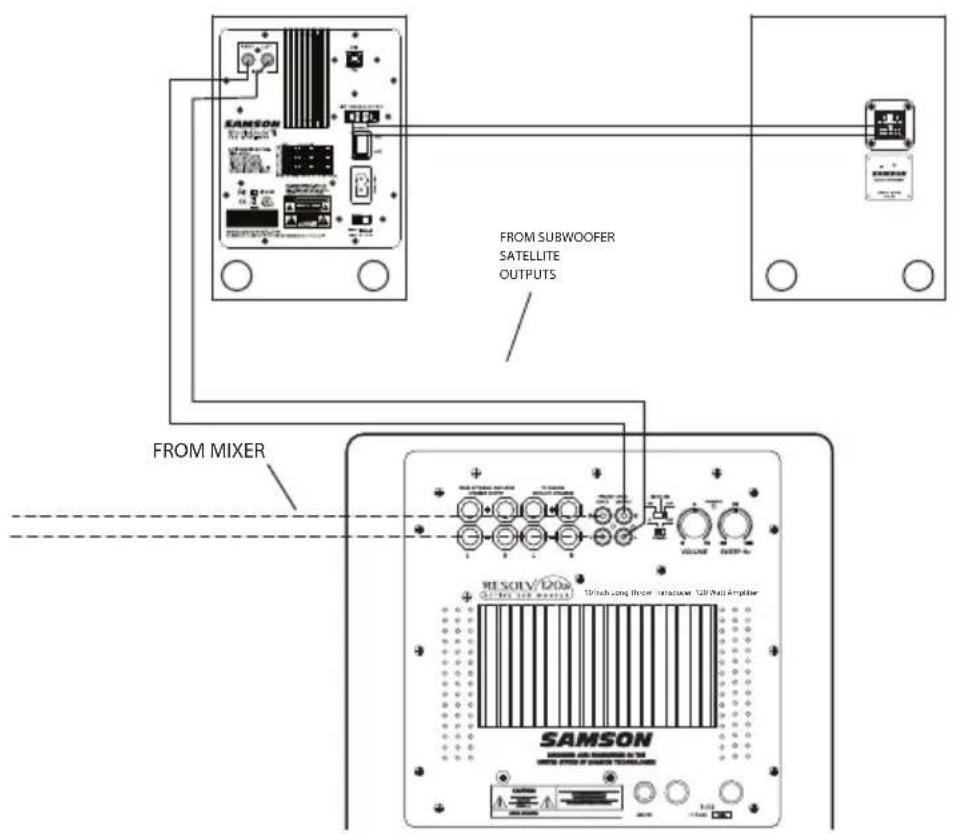
- Lower your mixer's master outputs to all the way off.
- Connect the mixer's left output to the RESOLV 120's LEFT LINE INPUT and the mixer's right output to the RESOLV 120's RIGHT LINE INPUT. Now connect the RESOLV 120's LEFT LINE OUTPUT to the left input of the StudioDock 3i or 4i, and the RESOLV 120's RIGHT LINE OUTPUT to the right input of the StudioDock 3i or 4i.
- Run an audio signal (like some music from a CD) through your mixer and raise the level to a comfortable listening level.
- Now adjust the SWEEP control to the desired frequency. A good place to start with the StudioDock 3i and 4i is about 70 Hz. You can also use your ears by adjusting the SWEEP control to the frequency that sounds good to you.
StudioDock 3i and 4i Wiring Guide
StudioDock 3i and 4i Wiring Guide
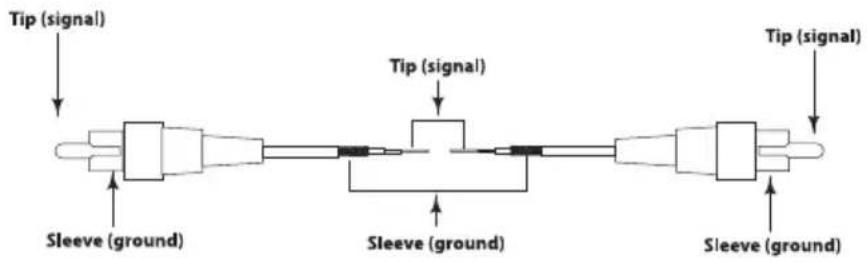
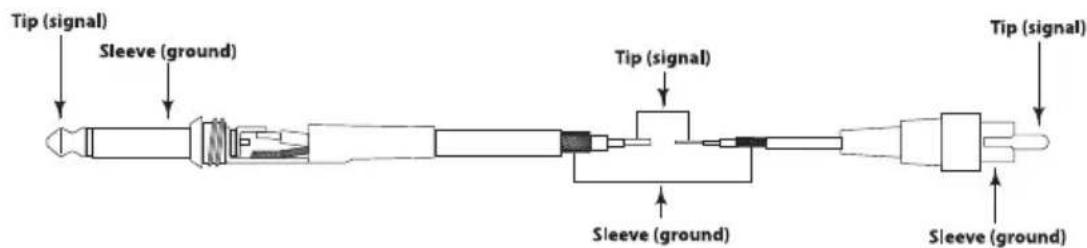
There are several ways to interface the StudioDock 3i and 4i, depending on your exact monitoring set-up. Follow the cable diagrams below for connecting your monitor system.
RCA to RCA Cable
Unbalanced 1/4" to RCA Cable
Un-Balanced XLR to RCA Cable

Introduction
natural_image
Technical line drawing of a mechanical pulley or belt drive (no text or symbols)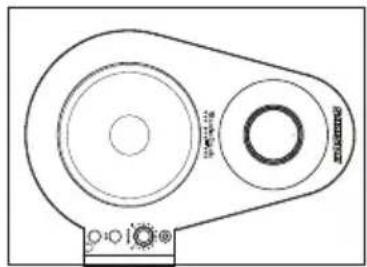
natural_image
Technical line drawing of a mechanical pulley or belt drive system (no text or symbols)Figure 2.
natural_image
Cartoon illustration of a man sitting at a desk with arrows pointing to a rectangular object (no text or symbols)Figure 3.
natural_image
Cartoon illustration of a person sitting in bed with arrows pointing toward a screen (no text or symbols)Figure 4.
Figure 1
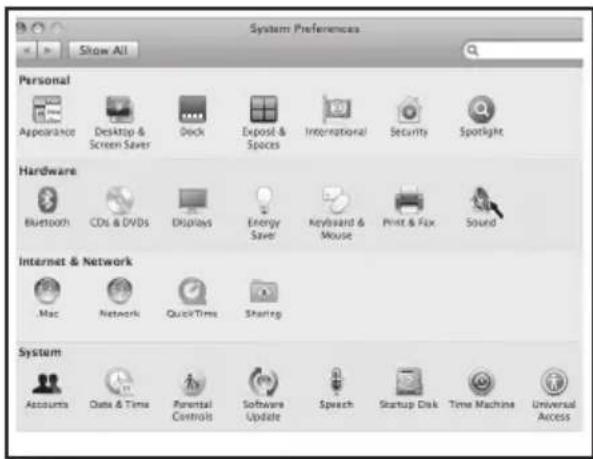
Figure 2
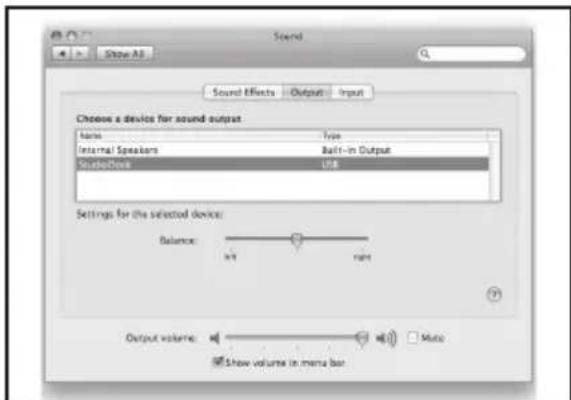
Figure 3
Figure 4

Figure 5
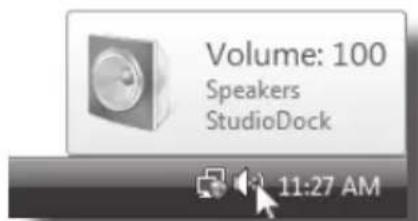
Figure 6
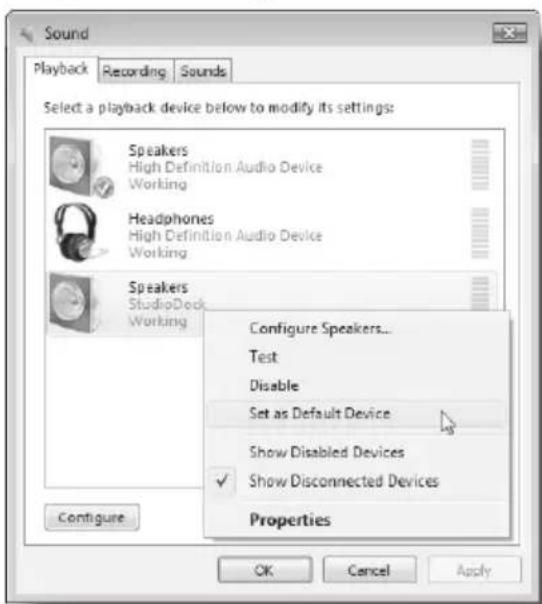
Figure 7
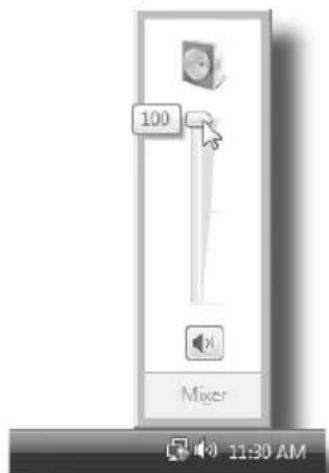
Figure 8
Figure 10
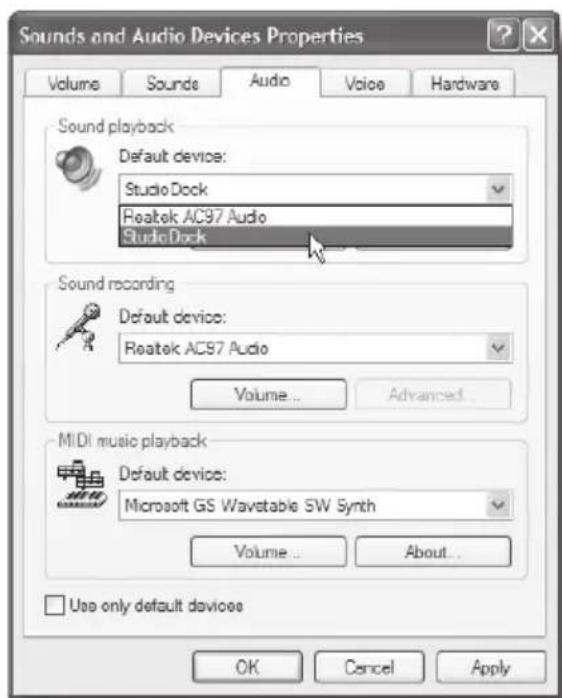
Figure 11
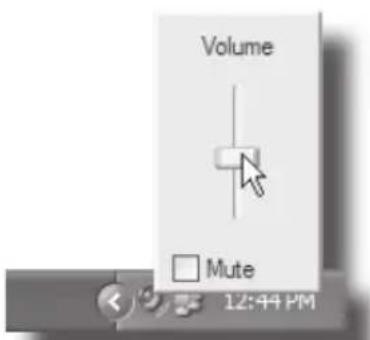
Figure 12
natural_image
Technical line drawing of a mechanical component with two circular features and a central hole (no text or symbols)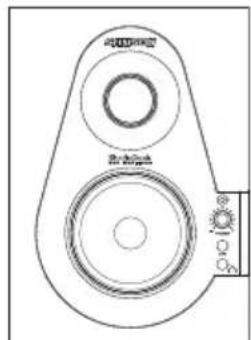
natural_image
Technical line drawing of a mechanical component with two circular features and a labeled dial (no text or symbols present)flowchart
graph TD
    A[" "] --> B[" "]
    C[" "] --> D[" "]
    B --> E[" "]
    D --> E
    E --> F[" "]
    style F fill:#fff,stroke:#000
    note right of F "Equal Distance"
    note bottom of F "Prime Listening Spot"
Abb. 1
natural_image
Technical line drawing of a mechanical pulley or belt drive (no text or symbols)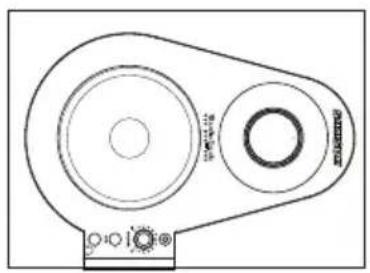
natural_image
Technical line drawing of a belt drive system with two pulleys and a belt (no text or symbols)Abb. 2
Abb. 3
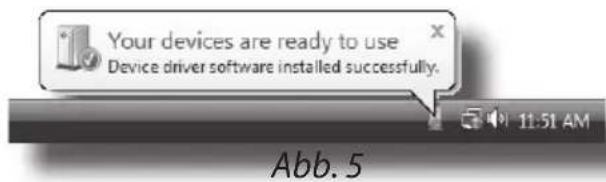
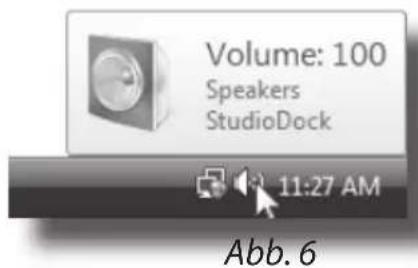
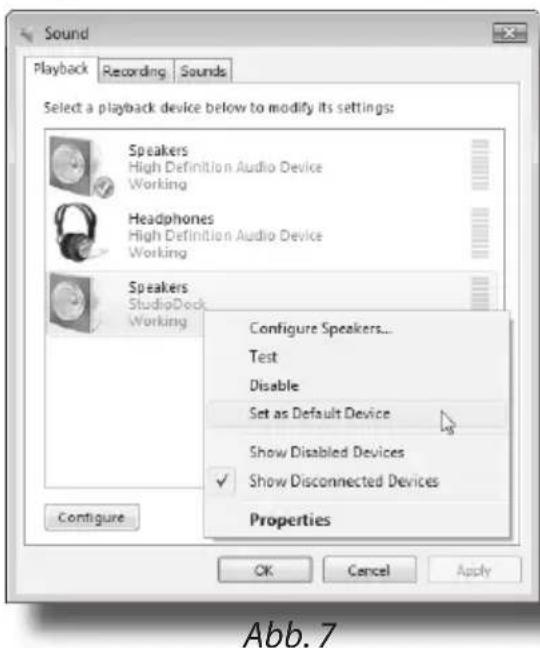
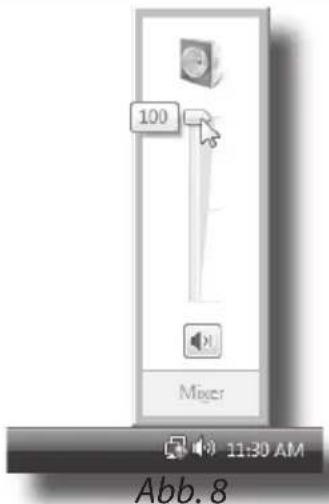
Abb. 10
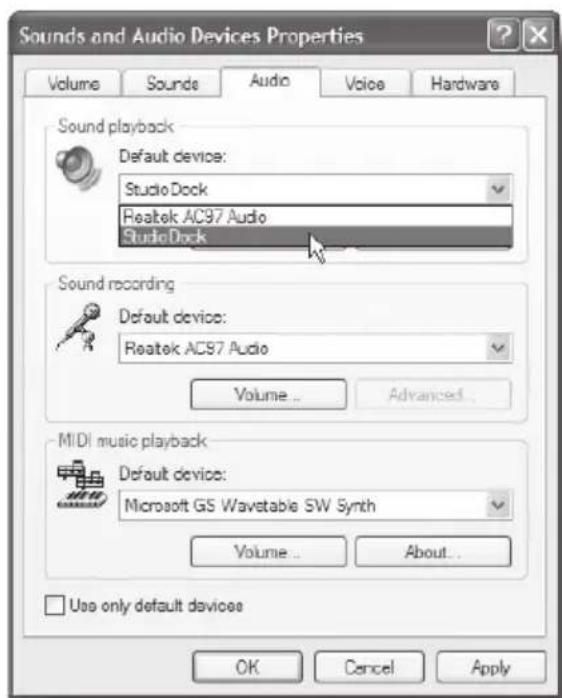
Abb. 11
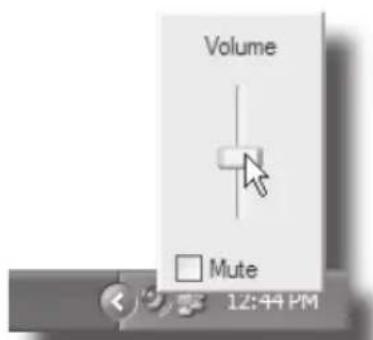
Abb. 12
flowchart
graph LR
    A["End View"] --> B["Solder Points"]
    B --> C["Cold (3)"]
    C --> D["Male XLR"]
    D --> E["Cold Pin 3 (in connection)"]
    E --> F["Sleeve (ground)"]
    E --> G["Sleeve (ground)"]
    D --> H["Tip (signal)"]
    H --> I["Tip (signal)"]
Introducción
natural_image
Technical line drawing of a mechanical component with two circular features and a central hub (no text or symbols)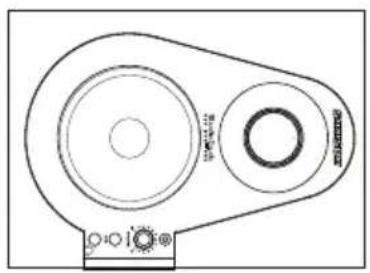
natural_image
Technical line drawing of a belt drive system with two pulleys and a belt (no text or symbols)Figura 2.
natural_image
Simple line drawing of a person sitting at a desk with arrows pointing to a blank rectangular block (no text or symbols)Figura 3.
natural_image
Illustration of a person sitting in bed viewing a screen with light rays, no text or symbols presentFigura 4.
Figura 1
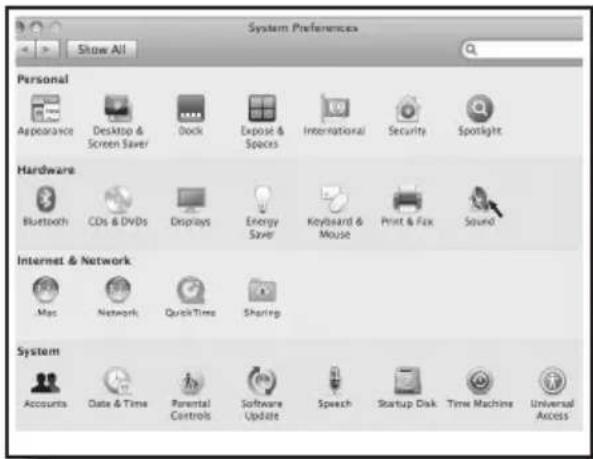
Figura 2
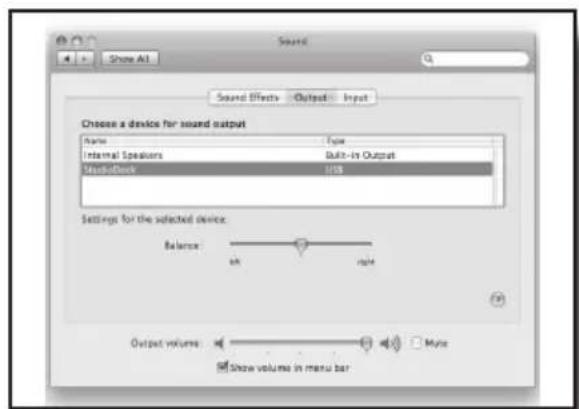
Figura 3
Figura 4

Figura 5
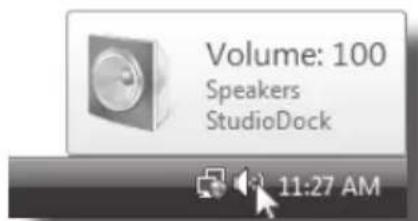
Figura 6
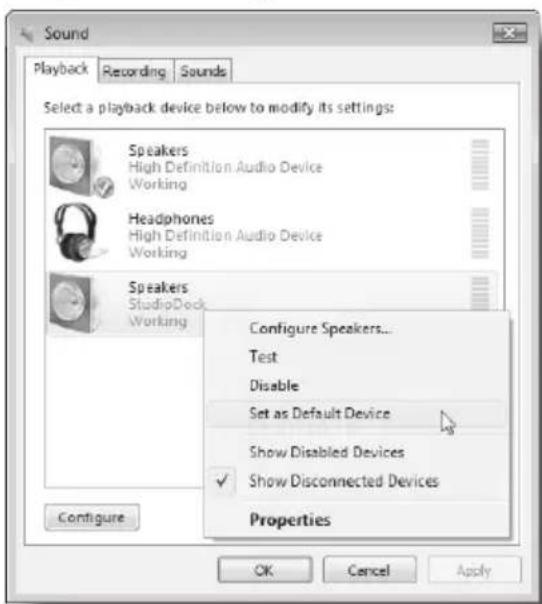
Figura 7
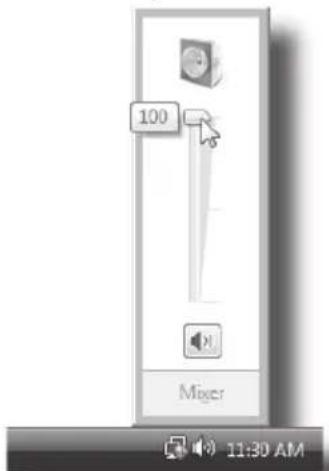
Figura 8
Figura 10
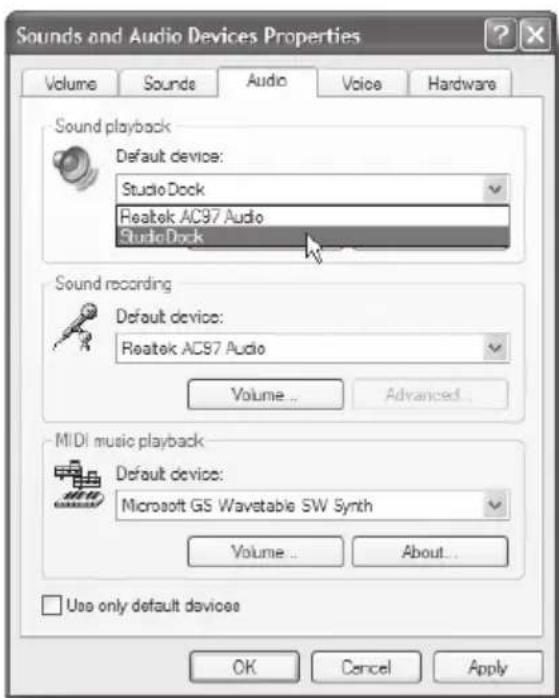
Figura 11
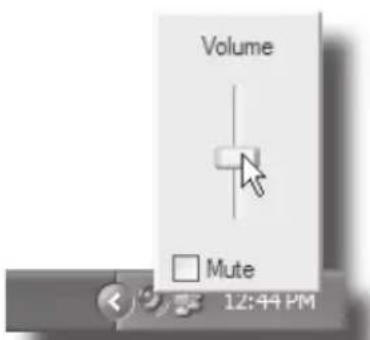
Figura 12
natural_image
Technical line drawing of a mechanical pulley or belt drive (no text or symbols)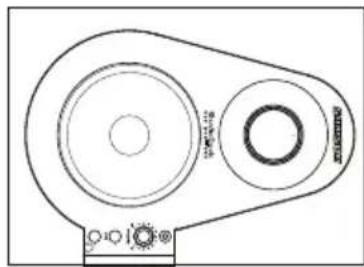
natural_image
Technical line drawing of a mechanical pulley system (no text or symbols)Figura 2.
natural_image
Illustration of a person sitting at a desk with arrows pointing to a blank rectangular object (no text or symbols present)Figura 3.
natural_image
Cartoon illustration of a man sitting in bed with arrows indicating light direction, next to a screen (no text or symbols)Figura 4.
Figura 8
StudioDock 3i ..... 3" polypropylene with santoprene surround,
StudioDock 4i ..... 4" polypropylene with santoprene surround,
Tweeter 1-inch silkdome ferro fluid neodymium tweeter
Frequency response:
StudioDock 3i .....80Hz - 23kHz
StudioDock 4i ..... 65Hz - 23kHz
Amplifier Power Rating:
StudioDock 3i ..... 2 x 15 Watts RMS
StudioDock 4i:....2 x 20 Watts RMS
Crossover Frequency:
StudioDock 3i . . . . . . . . . . . . . . . . . . . . . HPF: 8kHz, 6 dB/oct Butterworth, PTC Protected; LPF: 2kHz, 12 dB/ oct Bessel
StudioDock 4i . . . . . . . . . . . . . . . . . . . . . . . . . . . . . . . . . . . . . . . . . . . . . . . . . . . . . . . . . . . . . . . . . . . . . . . . . . . . . . . . . . . . . . . . . . . . . . HPF: 4kHz, 6 dB/oct Butterworth, PTC Protected; LPF: 1400Hz, 12 dB/oct Linkwitz-Riley
Inputs:
Unbalanced ....-10dBV Line Level
Connectors: RCA (rear panel) 3.5mm (front panel)
USB.... USB 2.0 connection
iPod sync - . . . . . . . . . . . . . . . . . . . . . . . . . . Hi-speed
USB audio .... Full speed
Connector.....B type
DAC (Internal) ..... 16 bit delta sigma, 44.1kHz or 48kHz
Enclosure:
Construction: MDF
Finish: .... Black textured vinyl covering
Dimensions:
StudioDock 3i
Active . . . . . . . . . . . . . . . . . . . . . . . . . . . 5.125"W x 6.75" D x 6.75"H 130 mm W x 172 mm D x 172 mm H
Passive 5.125"W x 6.5"D x 6.75"H 130 mm W x 165 mm D x 172 mm H
StudioDock 4i
Active . . . . . . . . . . . . . . . . . . . . . . . . . . . . . . 6.625"W x 9" D x 9.125"H 168 mm W x 229 mm D x 232 mm H
Passive 6.625"W x 7.625"D x 9.125"H 168 mm W x 194 mm D x 232 mm H
Weight:
StudioDock 3i
Active 5 lbs / 2.3 kg
Active. 9.5 lbs / 4.3 kg
Passive 6.5 lbs / 3 kg
StudioDock 3i .....80 Hz - 23 kHz
StudioDock 4i ..... 65 Hz - 23 kHz
StudioDock 3i ..... 2 x 15 Watts efficace
StudioDock 4i ..... 2 x 20 Watts efficace
USB.... USB 2.0 connection
iPod sync - . . . . . . . . . . . . . . . . . . . . . . . . . . . . . . . . . . . . . . Hi-speed
USB audio....Full speed
StudioDock 3i .....80Hz - 23kHz
StudioDock 4i .....65Hz - 23kHz
USB.... USB 2.0 connection
iPod sync - . . . . . . . . . . . . . . . . . . . . . . . . . . . . . Hi-speed
USB audio .... Full speed
DAC (intern) 16 Bit Delta Sigma, 44.1kHz oder 48kHz
Gehäuse:
Konstruktion: MDF
StudioDock 3i .....80 Hz - 23 kHz
StudioDock 4i ..... 65 Hz - 23 kHz
USB.... USB 2.0 connection
iPod sync - . . . . . . . . . . . . . . . . . . . . . . . . . . . . . Hi-speed
USB audio .... Full speed
DAC (Interno) 16 bits delta sigma, 44,1 kHz o 48 kHz
Recinto acústico:
USB.... USB 2.0 connection
iPod sync - . . . . . . . . . . . . . . . . . . . . . . . . . . . . . . . Hi-speed
USB audio ....Full speed
Convertitori DA (Interni). . . . . . . . . . 16 bit delta sigma, 44,1kHz o 48kHz
Mobile:
Costruzione: MDF
Finitura: . . . . . . . . . . . . . . . . . . . . . . . . Copertura in vinile nero rugoso
Dimensioni:
StudioDock 3i
Attiva 130 (L) x 172 (P) x 172 (A) mm - 5,125" (L) x 6,75" (P) x 6,75" (A)
Passiva 130 (L) x 165 (P) x 172 (A) mm - 5,125" (L) x 6.5" (P) x 6.75" (A)
StudioDock 4i
Attiva 168 (L) x 229 (P) x 232 (A) mm - 6,625" (L) x 9" (P) x 9,125" (A)
Passiva 168 (L) x 194 (P) x 232 (A) mm - 6,625" (L) x 7,625" (P) x 9,125" (A)
Peso:
StudioDock 3i

- WARNING
- CAUTION
- RISK OF ELECTRIC SHOCK DO NOT OPEN
- IMPORTANT SAFETY INSTRUCTIONS
- Table of Contents
- ENGLISH
- FRANÇAIS
- StudioDock 3i and 4i Features
- StudioDock 3i and 4i Layout
- Front View Layout
- StudioDock 3i and 4i Rear Panel Layout
- StudioDock 3i and 4i Quick Start
- StudioDock 3i and 4i Quick Start - iPod Playback
- Setting up the StudioDock 3i and 4i
- Background on the StudioDock 3i and 4i Active USB Monitors
- Positioning the StudioDock 3i and 4i
- Positioning the StudioDock 3i and 4i - continued
- Speaker Orientation
- A Moment of Reflection
- Connecting the StudioDock 3i and 4i
- StudioDock 3i and 4i Connections
- Getting Started with MAC OS X
- Installing the StudioDock on Windows Vista
- Getting Started with Windows Vista
- Installing the StudioDock on Windows XP
- Getting Started with Windows XP
- Operating the StudioDock 3i and 4i
- StudioDock 3i and 4i Rear Control Panel
- Powering the StudioDock 3i and 4i
- Things that go Hum!
- The Ins and The Outs
- StudioDock 3i and 4i Rear Control Panel - continued
- StudioDock 3i and 4i Front Control Panel
- StudioDock 3i and 4i with Mono Sub
- Connecting to the Resolv120a Subwoofer
- StudioDock 3i and 4i Wiring Guide
- Introduction
- Introducción
- Recinto acústico:
Brand : SAMSON
Model : StudioDock 4i
Category : Hi-fi system