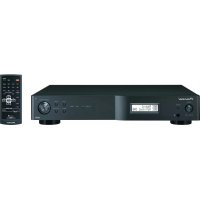
FF6J - AV receiver PIONEER - Free user manual and instructions
Find the device manual for free FF6J PIONEER in PDF.



| Product Type | Audio-Video Receiver (Tuner) |
| Brand | Pioneer |
| Model | FF6J |
| Dimensions (approx.) | 420 x 70 x 330 mm |
| Weight | 4.3 kg |
| Power Supply | 220 – 240 V AC, 50/60 Hz |
| Power Consumption | 12 W (standby: 0.5 W) |
| FM Frequency Range | 87.5 MHz – 108 MHz |
| AM Frequency Range | 531 kHz – 1602 kHz |
| DAB Frequency Range (Band III) | 174.928 MHz – 239.200 MHz |
| DAB Frequency Range (Band L) | 1452.960 MHz – 1490.624 MHz |
| Number of Presets | 200 (DAB: 100, FM/AM: 100) |
| D/A Converter | 192 kHz / 24 bit |
| FM Sensitivity (Mono) | 11.3 dBf (IHF) |
| AM Sensitivity | 350 µV/m (loop antenna) |
| DAB Sensitivity | -100 dBm |
| Analog Audio Output | 1.85 Vrms / 1 kΩ |
| Digital Audio Outputs | Optical and Coaxial |
| RDS Functions | PTY, RT, PS, CT, PTY/TP search |
| Maintenance and Cleaning | Dry or slightly damp soft cloth. Do not use solvents. |
| Safety | Do not expose to water or naked flames. Allow free ventilation (10 cm around). |
| Repairability | No user-serviceable parts. Refer to qualified technician. |
| Included Accessories | Remote control, CR2025 battery, power cable, RCA audio cable, SR cable, AM loop antenna, FM antenna, indoor DAB antenna, warranty card, manual |
Frequently Asked Questions - FF6J PIONEER
User questions about FF6J PIONEER
0 question about this device. Answer the ones you know or ask your own.
Ask a new question about this device
Download the instructions for your AV receiver in PDF format for free! Find your manual FF6J - PIONEER and take your electronic device back in hand. On this page are published all the documents necessary for the use of your device. FF6J by PIONEER.
USER MANUAL FF6J PIONEER
The lightning flash with arrowhead symbol, within an equilateral triangle, is intended to alert the user to the presence of uninsulated "dangerous voltage" within the product's enclosure that may be of sufficient magnitude to constitute a risk of electric shock to persons.
CAUTION
RISK OF ELECTRIC SHOCK
DO NOT OPEN
CAUTION:
TO PREVENT THE RISK OF ELECTRIC SHOCK,DO NOT REMOVE COVER (OR BACK).NO USER-SERVICEABLE PARTS INSIDE.REFER SERVICING TO QUALIFIED SERVICE PERSONNEL.

The exclamation point within an equilateral triangle is intended to alert the user to the presence of important operating and maintenance (servicing) instructions in the literature accompanying the appliance.
D3-4-2-1-1 En-A
WARNING
This equipment is not waterproof. To prevent a fire or shock hazard, do not place any container filled with liquid near this equipment (such as a vase or flower pot) or expose it to dripping, splashing, rain or moisture. D3-4-2-1-3 A En
WARNING
To prevent a fire hazard, do not place any naked flame sources (such as a lighted candle) on the equipment. D3-4-2-1-7a_A_En
Operating Environment
Operating environment temperature and humidity: +5^ to +35^ (+41^ to +95^) less than 85% RH (cooling vents not blocked)
Do not install this unit in a poorly ventilated area, or in locations exposed to high humidity or direct sunlight (or strong artificial light) D3-4-2-1-7c_A_En
WARNING
Before plugging in for the first time, read the following section carefully.
The voltage of the available power supply differs according to country or region. Be sure that the power supply voltage of the area where this unit will be used meets the required voltage (e.g., 230 V or 120 V) written on the rear panel. D3-4-2-1-4_A_En
If the AC plug of this unit does not match the AC outlet you want to use, the plug must be removed and appropriate one fitted. Replacement and mounting of an AC plug on the power supply cord of this unit should be performed only by qualified service personnel. If connected to an AC outlet, the cut-off plug can cause severe electrical shock. Make sure it is properly disposed of after removal. The equipment should be disconnected by removing the mains plug from the wall socket when left unused for a long period of time (for example, when on vacation). D3-4-2-2-1a A En
VENTILATION CAUTION
When installing this unit, make sure to leave space around the unit for ventilation to improve heat radiation (at least 10cm at top, 10cm at rear, and 10cm at each side).
WARNING
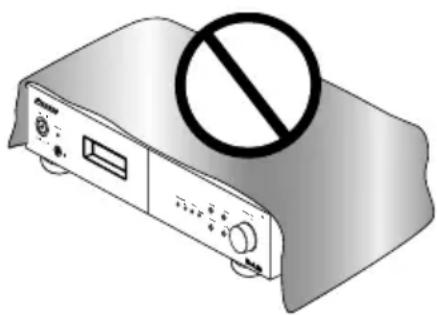
Slots and openings in the cabinet are provided for ventilation to ensure reliable operation of the product, and to protect it from overheating. To prevent fire hazard, the openings should never be blocked or covered with items (such as newspapers, table-cloths, curtains) or by operating the equipment on thick carpet or a bed. D3-4-2-1-7b_A_En
This product complies with the Low Voltage Directive 2006/95/EC and EMC Directive 2004/108/EC.
D3-4-2-1-9a_A_En
This product is for general household purposes. Any failure due to use for other than household purposes (such as long-term use for business purposes in a restaurant or use in a car or ship) and which requires repair will be charged for even during the warranty period.
CAUTION
The POWER switch on this unit will not completely shut off all power from the AC outlet. Since the power cord serves as the main disconnect device for the unit, you will need to unplug it from the AC outlet to shut down all power. Therefore, make sure the unit has been installed so that the power cord can be easily unplugged from the AC outlet in case of an accident. To avoid fire hazard, the power cord should also be unplugged from the AC outlet when left unused for a long period of time (for example, when on vacation). D3-4-2-2-2a A En
POWER-CORD CAUTION
Handle the power cord by the plug. Do not pull out the plug by tugging the cord and never touch the power cord when your hands are wet as this could cause a short circuit or electric shock. Do not place the unit, a piece of furniture, etc., on the power cord, or pinch the cord. Never make a knot in the cord or tie it with other cords. The power cords should be routed such that they are not likely to be stepped on. A damaged power cord can cause a fire or give you an electrical shock. Check the power cord once in a while. When you find it damaged, ask your nearest PIONEER authorized service center or your dealer for a replacement. S002_Er
If you want to dispose this product, do not mix it with general household waste. There is a separate collection system for used electronic products in accordance with legislation that requires proper treatment, recovery and recycling.
Private households in the member states of the EU, in Switzerland and Norway may return their used electronic products free of charge to designated collection facilities or to a retailer (if you purchase a similar new one).
For countries not mentioned above, please contact your local authorities for the correct method of disposal.
By doing so you will ensure that your disposed product undergoes the necessary treatment, recovery and recycling and thus prevent potential negative effects on the environment and human health.
K058 A En
Replacement and mounting of an AC plug on the power supply cord of this unit should be performed only by qualified service personnel.
IMPORTANT: THE MOULDED PLUG
This appliance is supplied with a moulded three pin mains plug for your safety and convenience. A 10 amp fuse is fitted in this plug. Should the fuse need to be replaced, please ensure that the replacement fuse has a rating of 10 amps and that it is approved by ASTA or BSI to BS1362.
Check for the ASTA mark

or the BSI mark

on the body of the fuse.
If the plug contains a removable fuse cover, you must ensure that it is refitted when the fuse is replaced. If you lose the fuse cover the plug must not be used until a replacement cover is obtained. A replacement fuse cover can be obtained from your local dealer.
If the fitted moulded plug is unsuitable for your socket outlet, then the fuse shall be removed and the plug cut off and disposed of safely. There is a danger of severe electrical shock if the cut off plug is inserted into any 13 amp socket.
If a new plug is to be fitted, please observe the wiring code as shown below. If in any doubt, please consult a qualified electrician.
IMPORTANT: The wires in this mains lead are coloured in accordance with the following code:
Blue: Neutral Brown:Live
As the colours of the wires in the mains lead of this appliance may not correspond with the coloured markings identifying the terminals in your plug, proceed as follows;
The wire which is coloured BLUE must be connected to the terminal which is marked with the letter N or coloured BLACK. The wire which is coloured BROWN must be connected to the terminal which is marked with the letter L or coloured RED.
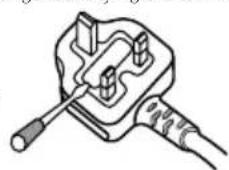
How to replace the fuse: Open the fuse compartment with a screwdriver and replace the fuse.
D3-4-2-1-2-2 B En
Thank you for buying this Pioneer product.
Please read through these operating instructions so that you will know how to operate your model properly. After you have finished reading the instructions, put them in a safe place for future reference.
Contents
01 Before you start
Features 5
What's in the box 5
Inserting the battery 6
Installing the tuner 6
02 Connections
Making cable connections 7
Connecting the antenna terminals 7
Connecting analog audio sources 9
Connecting digital audio sources 9
Connecting RDI 9
Plugging in 9
03 Controls and displays
Front panel 10
Remote control unit 11
04 Listening to FM/AM
Auto preset memory 13
Search Mode 14
Preset stations 16
An introduction to RDS. 17
RDS Search/PTY Search/TP Search 17
Naming station presets. 18
05 Listening to DAB broadcasts
About DAB (Digital Audio Broadcasting) 19
Tuning in DAB (Digital Audio Broadcasting)
broadcasts 20
Preset stations 20
Search Mode 21
Sort Mode (Sorting components) 23
Switching the DAB information display 24
DRC (Dynamic Range Control) 25
Last function memory. 26
Initialization of the microprocessor. 26
06 Other connections
Connecting external antennas. 27
Operating this tuner with the remote sensor
of your Pioneer amplifier 27
07 Additional information
Troubleshooting 28
Specifications 30
Chapter 1:
Before you start
Features
High Quality Audio Parts
- Schottky Barrier Diode
Gold Plated Terminal
RDS (Radio Data System) with Radio Text
MPX mode
What's in the box
Please confirm that the following accessories are in the box when you open it.
- Remote control unit
Lithium battery (CR2025) - Power cord
- RCA/phono stereo audio cable
- SR control cable
AM loop antenna - FM antenna
DAB indoor antenna
Warranty card - Operating instructions
Inserting the battery
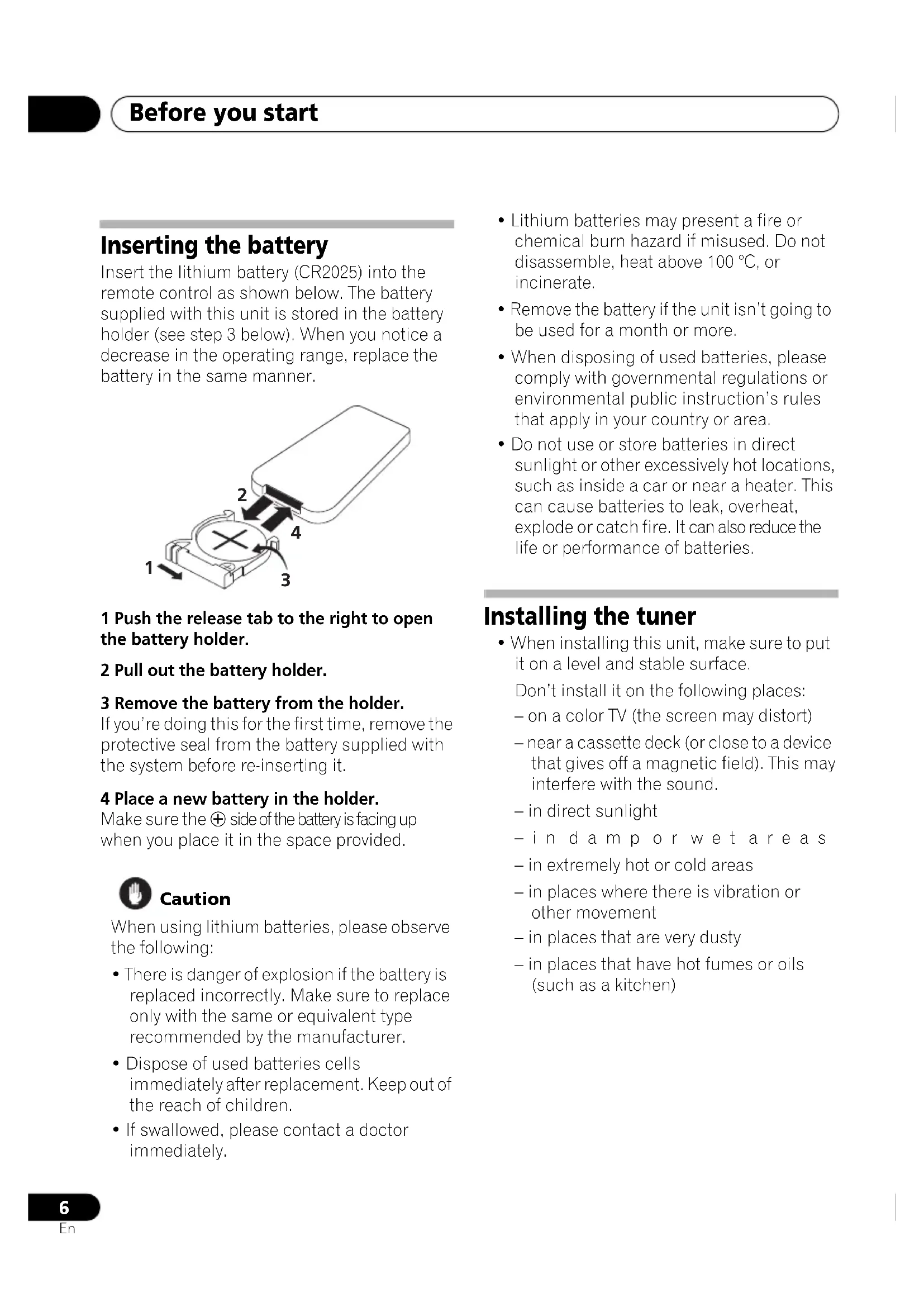
Insert the lithium battery (CR2025) into the remote control as shown below. The battery supplied with this unit is stored in the battery holder (see step 3 below). When you notice a decrease in the operating range, replace the battery in the same manner.
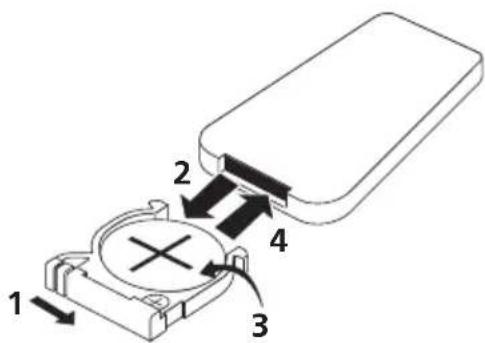
1 Push the release tab to the right to open the battery holder.
2 Pull out the battery holder.
3 Remove the battery from the holder.
If you're doing this for the first time, remove the protective seal from the battery supplied with the system before re-inserting it.
4 Place a new battery in the holder.
Make sure the side of the battery is facing up when you place it in the space provided.

Caution
When using lithium batteries, please observe the following:
- There is danger of explosion if the battery is replaced incorrectly. Make sure to replace only with the same or equivalent type recommended by the manufacturer.
- Dispose of used batteries cells immediately after replacement. Keep out of the reach of children.
-
If swallowed, please contact a doctor immediately.
-
Lithium batteries may present a fire or chemical burn hazard if misused. Do not disassemble, heat above 100^ , or incinerate.
- Remove the battery if the unit isn't going to be used for a month or more.
- When disposing of used batteries, please comply with governmental regulations or environmental public instruction's rules that apply in your country or area.
- Do not use or store batteries in direct sunlight or other excessively hot locations, such as inside a car or near a heater. This can cause batteries to leak, overheat, explode or catch fire. It can also reduce the life or performance of batteries.
Installing the tuner
- When installing this unit, make sure to put it on a level and stable surface.
Don't install it on the following places:
-on a color TV (the screen may distort) - near a cassette deck (or close to a device that gives off a magnetic field). This may interfere with the sound.
-in direct sunlight - in damp por wet areas
- in extremely hot or cold areas
- in places where there is vibration or other movement
- in places that are very dusty
- in places that have hot fumes or oils (such as a kitchen)
Chapter 2: Connections
Making cable connections
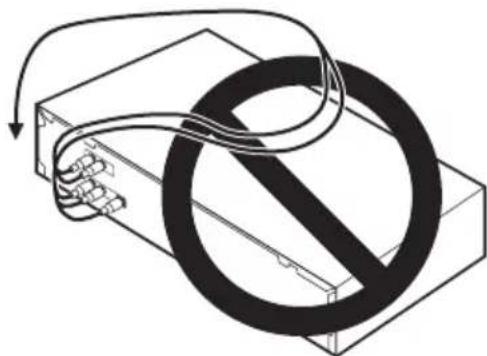
Make sure not to bend the cables over the top of this unit (as shown in the illustration), since the magnetic field produced by the unit's transformers may cause a humming noise in the speakers.

Important
- Before making or changing any connections, switch off the power and disconnect the power cord from the AC outlet.
Connecting the antenna terminals
Connecting an DAB outdoor antenna
- If good reception cannot be achieved with the included DAB indoor antenna, use an DAB outdoor antenna. Connect an F male type connector to the coaxial cable and connect the antenna to the DAB ANTENNA terminal.
Installing the DAB indoor antenna
DAB station reception (page 19).
- U sTuning"aid" to set position at which reception sensitivity is optimum (page 22).
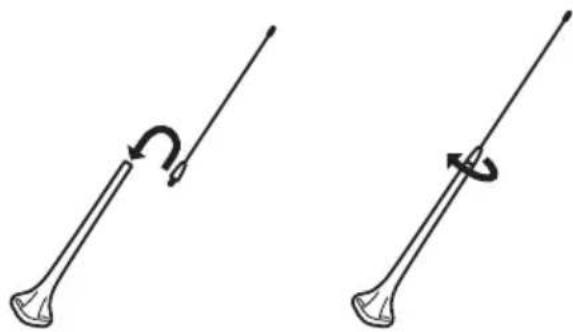
DAB indoor antenna assembly
Mount the antenna's screw to the stand.
Connecting antennas
Connect the AM loop antenna, FM antenna and DAB indoor antenna as shown in the illustration (page 8). To improve reception and sound quality, connect external antennas1 (See Connecting external antennas on page 27).

Note
1 Do not disconnect the AM loop antenna even if an external AM antenna is used.
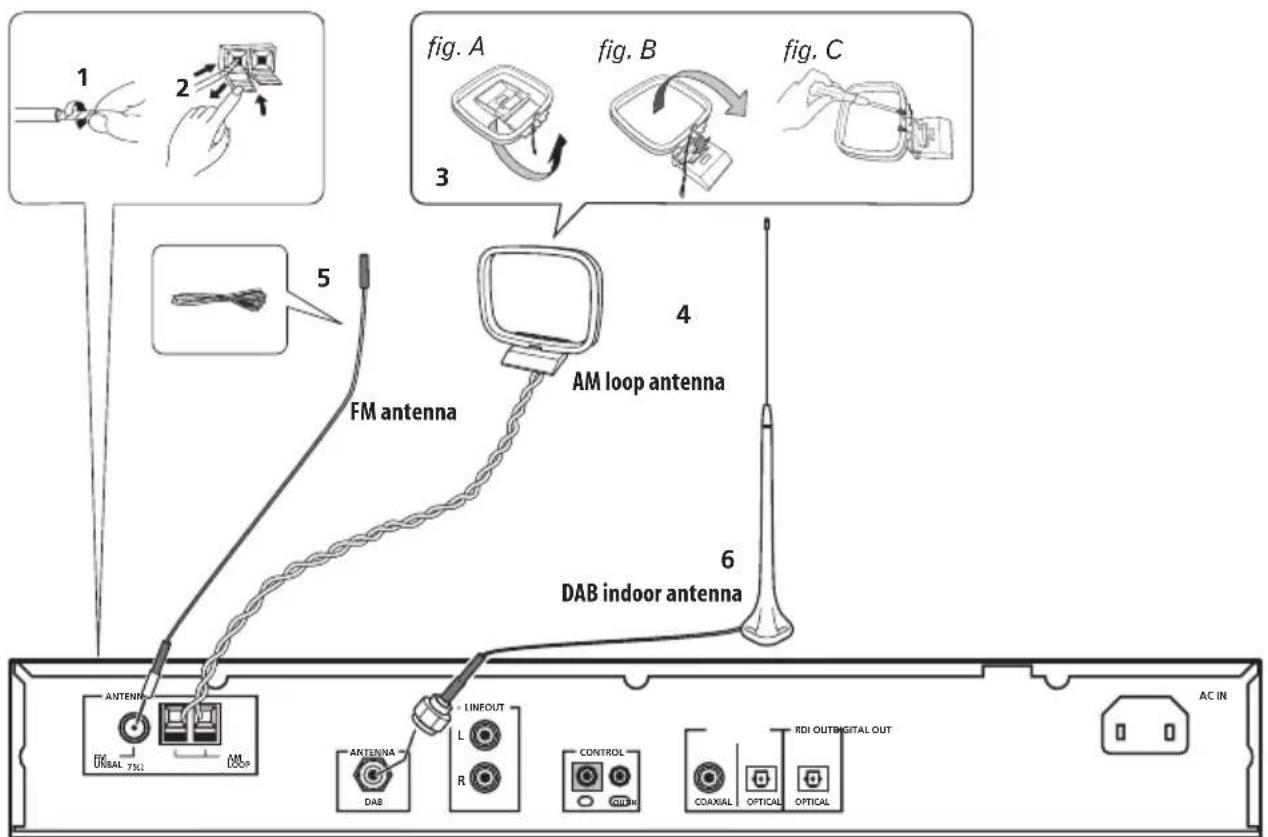
3 Fix the AM loop antenna to the attached stand.
1 Pull off the protective shields of both AM antenna wires.
2 Push open the tabs, then insert one wire fully into each terminal, then release the tabs to secure the AM antenna wires.
To fix the stand to the antenna, bend in the direction indicated by the arrow (fig. A) then clip the loop onto the stand (fig. B).
- If you plan to mount the AM antenna to a wall or other surface, secure the stand with screws (fig. C) before clipping the loop to the stand. Make sure the reception is clear.
4 Place the AM loop antenna on a flat surface, pointing in the direction that produces best reception.
Don't let it come into contact with metal objects and avoid placing near computers, television sets or other electrical appliances.
5 Connect the FM antenna in the same way as the AM loop antenna.
For best results, extend the FM antenna fully and fix to a wall or door frame. Don't drape loosely or leave coiled up.
6 Connect the DAB indoor antenna. 2

Note
1 Do not connect two FM antennas simultaneously.
2 A magnet is located on the bottom surface of the DAB indoor antenna. Keep it away from monitors etc.
Connecting analog audio sources
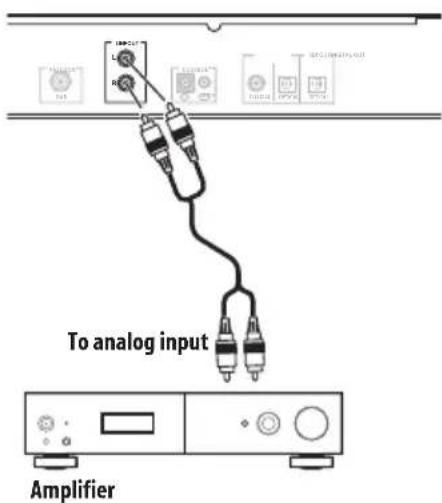
- Use the RCA/phono jack audio cable to connect this unit's LINE OUT connectors to the analog input connectors of an amplifier.
Connecting digital audio sources
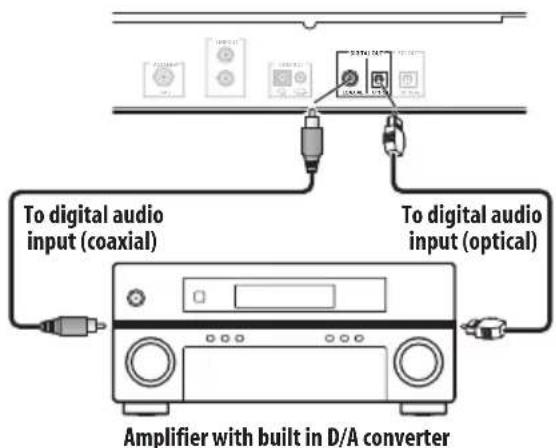
-
If you want to enjoy listening to the digital output audio of the DAB, connect to an amplifier supplied with a digital coaxial or optical input.
-
Digital audio out: Connections with equipment having a digital input such as an amplifier or an MD recorder. The digital audio output terminal of this unit (either DIGITAL OUT OPTICAL or DIGITAL OUT COAXIAL) should be connected with the digital input terminals of an amplifier, MD recorder, or other component (OPTICAL or COAXIAL).
Connecting RDI
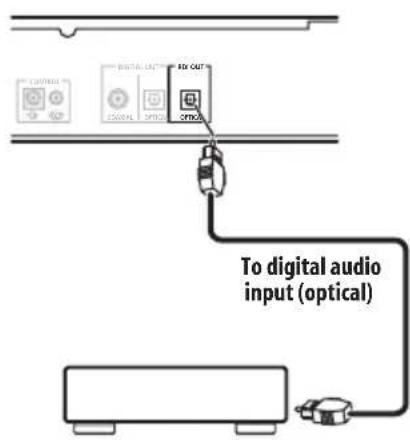
The RDI (Receiver Data Interface) optical connector provides access to multiplex data.
This is used to connect to a computer or other external data source in order to access services that are expected to be added in the future.
These services may not yet be provided in your reception area.
Plugging in
Make sure to complete all connections before connecting to an AC outlet.
- Connect the power cord to the AC inlet (AC IN) on the rear panel of the tuner, then plug into a AC outlet.
Chapter 3:
Controls and displays
Front panel
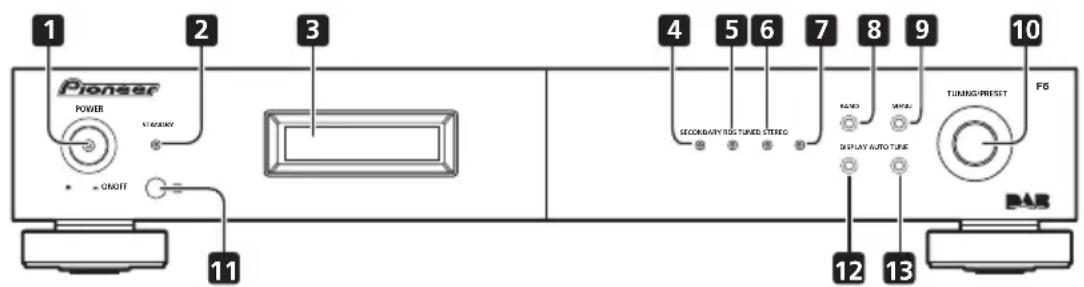
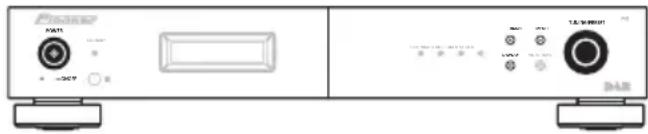
1 POWER OFF ON
2 STANDBY indicator
3 Di s p I a y

Tip
- Liquid Crystal Display
The LCD used in this unit has a tendency to change color in response to the surrounding temperature. The display's color tone may turn gray or its ability to switch between displayed information may slow down when the room is not at optimum temperature, or when the unit has been operating for a long period of time. However, these are only temporary symptoms and regular functionality will be restored once the unit returns to optimum temperature.
4 SECONDARY indicator
Lights when a secondary service is available (page 20).
5 RDS indicator
Lights when an RDS broadcast is received, and flashes during RDS search.
6 TUNEDindicator
Lights when a station is properly tuned in.
7 STEREOindicator
Lights red when a stereo broadcast is received. Goes off when a monaural broadcast is received. Lights blue when the MPX mono mode is selected.
Note
1 - Remember that even when the unit is in the standby mode, it remains connected to the AC line voltage. Be sure to unplug the power cord whenever leaving your home for vacations or when otherwise not using the unit for extended periods of time.
- When the unit is in the standby mode, if the power is turned off by pressing the main unit's POWER button, the power will not turn on if the button is pressed again.
To turn on the power in this case, press either the remote control unit's button or a different button (other than the POWER button) on the main unit. - When the unit is in the standby mode, if the power is turned off by unplugging the power cord, the power will not turn merely by reconnecting the power cord.
To turn on the power in this case, reconnect the power cord and then press either the remote control unit's button or a different button (other than the POWER button) on the main unit.
Controls and displays
8 BAND
Selects DAB, FM or AM.1
9 MENU
Use to enter/exit menu mode.
The unit times out if no operation is performed for about five seconds after the menu mode is set.
10 TUNING/PRESET dial
Press this dial to select an option or execute a command.
Turn this dial to select menu options, radio presets or stations.
In the tuning mode, the reception frequency can be tuned in an increasing or decreasing direction. Turn the dial clockwise to change the reception toward higher frequencies. Turn the dial counterclockwise to tune the reception toward lower frequencies.
In the preset mode, turning this dial moves the selected preset channel up or down. The auto
tuning operation cannot be used when in this mode.
When inputting station names, use this dial to select desired characters (page 18).
11 Remote sensor
12 DISPLAY
Use to select the display mode (page 18, 24).
13 AUTO TUNE
Press to active auto location of all available DAB services.
Hold the button depressed for two seconds or longer during DAB mode to perform full scan operation (Full band and L-band).
Press the button briefly during DAB mode to perform a local scan (UK band III) for UK broadcast services (UK stations are in the range of 11B to 12D).
Remote control unit
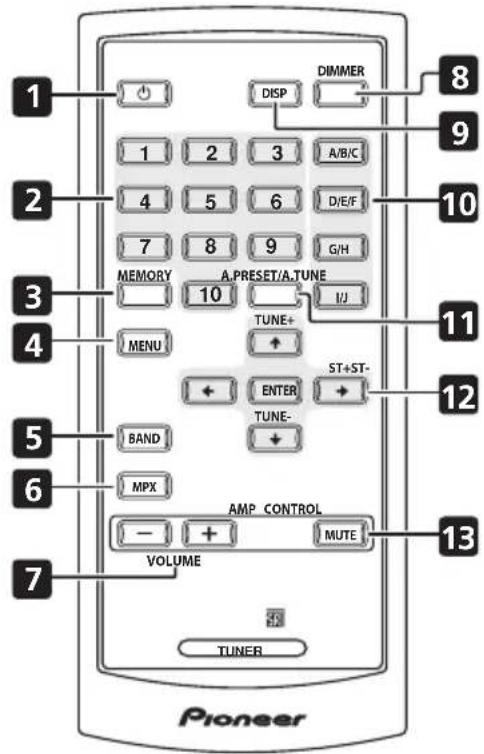
10
Switches the unit between standby and on.
2 Station call buttons ( 1 to 10)
Use these buttons to preset stations, and to recall previously preset stations.
3 MEMORY
Use to preset stations. This button is also used for manual station-name character selection for FM and AM broadcasts, and for Program Type search.
4 MENU
Use to enter/exit menu mode.
5 BAND
Selects DAB, FM or AM.

Note
1 Noise may be generated when receiving AM, FM, or DAB broadcasting if a near-by television set is turned on. The tuner should be used as far away from a television as possible.
2 Effective period of memory back-up is about a month under normal temperature.
6 MPX
Use to switch between stereo and mono reception during FM broadcasts. If the signal is weak, switching to mono may improve the sound quality (page 15).
7 VOLUME
Use to adjust your Pioneer amplifier's sound volume.
8 DIMMER
Dims or brightens the display (or switches the backlight off).
9 DISP
Use to select the display mode (page 18, 24).
10 Preset channel range buttons (A/B/C, D/E/F, G/H, I/J)
Use to tune in preset broadcast stations.
11 A.PRESET/A.TUNE
When pressed during FM or AM mode, receivable stations are automatically stored in the preset memory in order starting from preset channel A1.
Hold the button depressed for two seconds or longer during DAB mode to perform full scan operation (Full band and L-band).
Press the button briefly during DAB mode to perform a local scan (UK band III) for UK broadcast services (UK stations are in the range of 11B to 12D).
12 Tuning buttons
ENTER
Selects an option or executes a command.
TUNE + / -
Use to change reception frequency.
ST + / -
Selects station preset when listening to the radio.
13 MUTE
Use to activate the mute function of your Pioneer amplifier.
Using the remote control
Keep in mind the following when using the remote control:
- Make sure that there are no obstacles between the remote and the remote sensor on the unit.
- The remote has a range of about 7m at an angle of about 30^ from the remote sensor.
- Remote operation may become unreliable if strong sunlight or fluorescent light is shining on the unit's remote sensor.
- Remote controllers for different devices can interfere with each other. Avoid using remotes for other components located close to this unit.
- Replace the battery when you notice a decrease in the operating range of the remote.
Chapter 4:
Listening to FM/AM
Auto preset memory
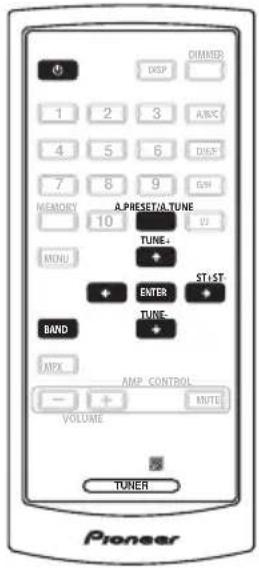
1 Make sure that the unit is in standby mode, and then press the button to turn on the power.
2 Watching the display, press the BAND button to select the desired band (AM or FM).
3 Press the A.PRESET/A.TUNE button.
4 Press the ENTER button.
The unit automatically begins searching for the broadcast stations.
- When the first broadcast station is found, that station is stored in the preset memory at channel A1.
Subsequent stations are automatically stored in order at preset channels A1 to A10, B1 to B10, C1 to C10, D1 to D10, E1 to E10, F1 to F10, G1 to G10, H1 to H10, I1 to I10 and J1 to J10 for a maximum of 100 stations.
-
Channel A1 is tuned in after the auto preset memory operation is completed.
-
If a station cannot be preset automatically due to poor reception, use the "Manual tuning" operation to tune in the station, then preset it using the manual "Preset stations" operation.
- To interrupt this function, press the button.
- This function does not operate with the AUTO TUNE button on the front panel of the unit.
- Perform this operation from the remote control unit.
DEFAULT VALUE
| Auto tuner presets | |
| A1 to A10 | 87.5 MHz/88.0 MHz/90.0 MHz/92.0 MHz/94.0 MHz/96.0 MHz/98.0 MHz/100.0 MHz/102.0 MHz/104.0 MHz |
| B1 to B10 | 106.0 MHz/108.0 MHz/98.0 MHz/98.0 MHz/98.0 MHz/98.0 MHz/98.0 MHz/98.0 MHz/98.0 MHz |
| C1 to C10 | 98.0 MHz |
| D1 to D10 | 98.0 MHz |
| E1 to E10 | 98.0 MHz |
| F1 to F10 | 531 kHz/531 kHz/603 kHz/801 kHz/999 kHz/1197 kHz/1395 kHz/1602 kHz/1602 kHz/999 kHz |
| G1 to G10 | 999 kHz |
| H1 to H10 | 999 kHz |
| I1 to I10 | 999 kHz |
| J1 to J10 | 999 kHz |
Search Mode
Auto tuning
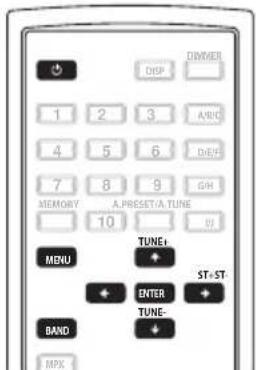
1 Press the POWER or button to turn on the power.
2 Watching the display, press the BAND button to select the desired band (AM or FM).
3 Press the MENU button to select menu.
4 Either turn the TUNING/PRESET dial or press the ST + or ST - button to select the search mode.
5 Press the TUNING/PRESET dial or ENTER button to set the auto tuning mode.
6 Either turn the TUNING/PRESET dial or press the TUNE + or TUNE - button.
Automatic searching will begin, and then stop when a station is received.
- When the unit is in the MPX stereo mode and FM band auto tuning is selected, the front-panel STEREO indicator will light red when a stereo broadcast is received. At open frequencies (no station is received), the sound will be muted and the TUNED and STEREO indicators will turn off.
Manual tuning
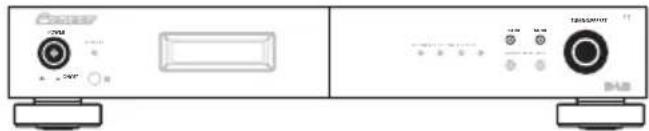
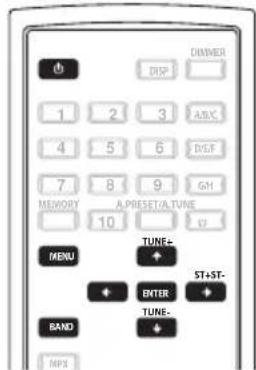
1 Press the POWER or button to turn on the power.
2 Watching the display, press the BAND button to select the desired band (AM or FM).
3 Press the MENU button to select menu.
4 Either turn the TUNING/PRESET dial or press the ST + or ST - button to select the search mode.
5 Press the TUNING/PRESET dial or ENTER button to set the manual tuning mode.
6 Either turn the TUNING/PRESET dial or press the TUNE + or TUNE - button to tune in the desired station.
The frequency changes continuously when the TUNE + or TUNE - button on the remote control unit is held in.
- When the MPX mono mode has been selected, FM stereo broadcasts will be received in monaural, and the STEREO indicator will light blue.

Note
Hold the TUNE + or TUNE - button depressed for 0.5 seconds or more to perform rapid tuning.
Improving FM stereo sound
If the TUNED or STEREO indicator fails to light when tuning into an FM station due to a weak reception signal, press the MPX button to switch the tuner into mono reception mode. This should improve the sound quality and allow you to enjoy the broadcast.
Recalling preset stations
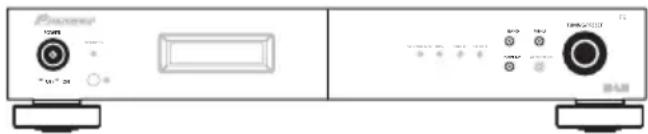
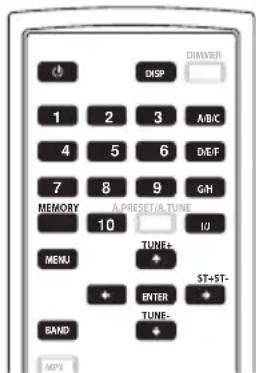
For instructions on presetting stations, see the section "Preset stations" (page 16).
1 Connect the antenna and confirm that reception is possible.
2 Press the POWER or button to turn on the power.
3 Press the MENU button to select menu.
4 Either turn the TUNING/PRESET dial or press the ST + or ST - button to select the search mode.
5 Either turn the TUNING/PRESET dial or press the ST + or ST - button to select "Preset".
6 Press the TUNING/PRESET dial or ENTER button to set the preset mode.
7 Watching the display, either turn the TUNING/PRESET dial, or press the ST + or ST - button to select the desired preset channel.
7-1 Press one of the preset channel range (A to J) buttons to select the desired memory block (A to J).
7-2 Press one of the station call (1 to 10) buttons to select the desired preset channel (1 to 10).
- Steps 1 to 5 can be skipped when using the ST + / - , preset channel range (A to J) and station call (1 to 10) buttons.
The preset mode is set when any of these buttons is pressed, regardless of the menu setting at that time.
Preset stations
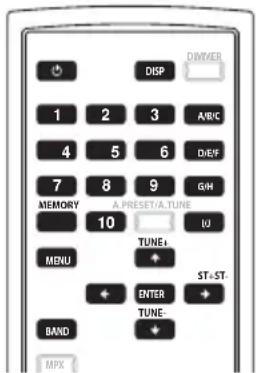
1 Use the "Auto tuning" or "Manual tuning" operation to tune in the station to be preset in the memory.
2 Press the MENU button to select menu.
3 Either turn the TUNING/PRESET dial or press the ST + or ST - button to select "Memory".
4 Press the TUNING/PRESET dial or ENTER button to set the preset mode and make the preset channel number flash.
Steps 1 to 4 can be skipped when using the MEMORY button.
When this button is pressed, the preset memory standby mode is set, regardless of the menu setting at that time.
5 While the preset channel number is flashing, press one of the preset channel range (A to J) buttons to select the desired memory block (A to J).
6 While the preset channel number is flashing, either turn the TUNING/PRESET dial, press the ST + / - or Station call (1 to 10) button to select the desired preset channel (1 to 10).
7 While the preset channel number is flashing, either press the TUNING/PRESET dial or the MEMORY button to store the station in the preset memory.
- To preset other channels, repeat steps 2 to 6.
- A total of 100 broadcast stations can be preset — 10 stations (channels 1 to 10) in each of blocks A to J.2

Note
When the preset channel is A1, pressing the ST - button or rotating the TUNING/PRESET dial to the left will cause the preset channel to move to J10.
2 When a broadcast station is stored in memory, the MPX setting is simultaneously stored.
An introduction to RDS
Radio Data System (RDS) is a system used by most FM radio stations to provide listeners with various kinds of information, such as the name of the station and the kind of show being broadcast.
One feature of RDS is that you can search by type of program. For example, you can search for a station that's broadcasting a show with the program type, JAZZ.
You can search the following program types:
NEWS - News
AFFAIRS - Current Affairs
INFO - General Information
SPORT-Sport
EDUCATE - Educational
DRAMAR - Radio plays, etc.
CULTURE - National or regional culture, theater, etc.
SCIENCE - Science and technology
VARIED - Usually talk-based material, such as quiz shows or interviews.
POP M - Pop music
ROCK M - Rock music
EASY M - Easy listening
LIGHT M - 'Light' classical music
CLASSICS - 'Serious' classical music
OTHER M - Music not fitting above categories
WEATHER - Weather reports
FINANCE - Stock market reports, commerce, trading, etc.
CHILDREN - Programs for children
SOCIAL - Social affairs
RELIGION - Programs concerning religion
PHONE IN - Public expressing their views by phone
TRAVEL - Holiday-type travel information as opposed to traffic announcements.
LEISURE-Leisure interests and hobbies
JAZZ-Jazz
COUNTRY - Country music
NATION M - Popular music in a language other than English
OLDIES - Popular music from the '50s and '60s
FOLK M - Folk music
DOCUMENT - Documentary
RDS Search/PTY Search/TP Search
Searching for RDS programs
One of the most useful features of RDS is the ability to search for a particular kind of radio program. You can search for any of the program types listed above.
1 Press the BAND button to select the FM band.2
2 Press the MENU button to select menu.
3 Select "RDS" by either rotating the TUNING/PRESET dial or pressing the ST + or ST - button, then press either the TUNING/ PRESET dial or ENTER button.
4 Either turn the TUNING/PRESET dial or press ST + or ST -button to select the desired search mode (RDS search, PTY search or TP search).
5 Press the TUNING/PRESET dial or ENTER button to search for the RDS program you want to hear.
The system starts searching through the station presets for a match. When it finds one, the search stops and the station plays for five seconds.
6 If you want to continue listening to the station, press the TUNING/PRESET dial or ENTER button within five seconds.
If you don't press the TUNING/PRESET knob or ENTER button, searching resumes.
If the program type cannot be found, the unit will automatically begin the frequency search mode.3
Note
In addition, ALARM may be displayed. ALARM is used for emergency broadcast announcements. You cannot search for this type of announcement, but the tuner will switch automatically to this RDS signal in the event of a broadcast.
2 RDS is only possible in the FM band.
3 PTY searches station presets only. If no stations have been preset, or if the PTY search could not be found among the station presets NO PTY DATA is displayed.
Displaying RDS information
Use the DISPLAY button to display the different types of RDS information available.
- Press the DISPLAY button for RDS information.
Each press changes the display as follows:
- Radio Text (RT) - Messages sent by the radio station. For example, a talk radio station may provide a phone number as RT.
- Program Service Name (PS) - The name of the radio station.
- Program Type (PTY) - This indicates the kind of program currently being broadcast.
- Clock Time (CT)
Naming station presets
For easier identification, you can name your station presets.
1 Choose the station preset you want to name.
For how to do this, see "Recalling preset stations" (page 15).
2 Press the MENU button to select menu.
3 Select Station Name by either rotating the TUNING/PRESET dial or pressing the ST + or ST - button, then press either the TUNING/ PRESET dial or ENTER button.
4 Input the name you want.
Choose from the following characters for a name up to eight characters long.
ABCDEFGHIJKLMNOPQRSTUVWXYZ abcdefghijklmnopqrstuvwxyz
0123456789
$$ !^{\prime \prime}# \$ \% \& '(.)^{*} + , - . / [ \backslash ]^{\wedge}_{-};: < = >? [space] $$
- Use the TUNING/PRESET dial or ST +/- buttons to select characters.
- Press the TUNING/PRESERT dial or ENTER button to confirm a character. If no character is input, a space is input.
- The name is stored when the TUNING/ PRESET dial or ENTER button is pressed after choosing the fourth character.
5 Either turn the TUNING/PRESET dial, press the preset channel range (A to J) or station call (1 to 10) button.
The display shows Station Name, then a blinking cursor at the first character position.

Tip
- To delete a station name, repeat steps 4 and 5, and input all blank spaces in place of the name.

Note
- If any noise is picked up while displaying the RT scroll, some characters may be displayed incorrectly.
- NO ** DATA will appear when the required data cannot be found.
Chapter 5:
Listening to DAB broadcasts
DAB Service Diagram
DAB Signal

Ensemble
National DAB Ensemble Name
(Service 1) (Service 2) (Service 3)
(Service 4)
Service
Components
Alpha 1
(Primary)
Pop Music
Parliament
(Secondary)
News
Alpha 2
Sports
Alpha 3
Classic
Alpha 4
Educate
Station Name
Programme type
About DAB (Digital Audio Broadcasting)
- Since the DAB system is broadcasted in digital format, DAB system can supply crystal-clear audio and stable reception even in mobile objects. DAB is a new generation radio which can provide data service and supplementary multi-media services.
- DAB broadcasts multiple services under one ensemble called service components.
Each component contains unique programs: news, music, sports, and any more.
Each ensemble and service component has its label, and users can recognize a current broadcasting station and service contents by using the label.
The main service component is broadcast as Primary while the others are broadcast as Secondary.
- Rich character information is supported through dynamic labels, including such information as song title, artist composer etc.
Tuning in DAB (Digital Audio Broadcasting) broadcasts
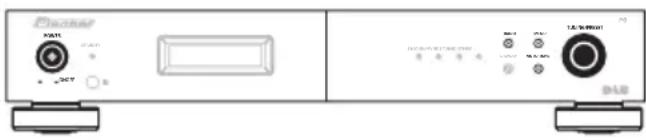
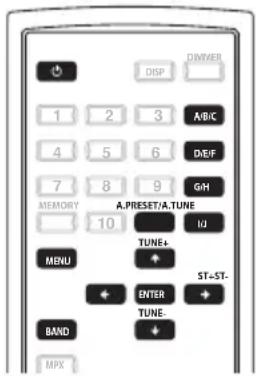
1 Press the POWER or button to turn on the power.
2 Watching the display, press the BAND button to select the desired band (DAB).
3 Watching the display, press the AUTO TUNE or A.PRESET/A.TUNE button to start automatically scanning.
Using the DAB for the first time
When you first switch on the unit and select DAB, the Auto Tuning function scans the Band III and L-band frequencies. After the scanning, the first scanned component will be selected.
- Press the button and release it in less than two seconds to perform a local scan (UK band III). (UK stations are in the range 11B to 12D) (page 31).
-
Press the button for over two seconds to perform the full scan operation (Full band III and L-band: 5A to LW) (page 31).
-
Once auto scanning is completed, the number of broadcast stations is displayed, then the first station is tuned in.
If "Station not available" is displayed, check the antenna's connection (page 7).
4 Either turn the TUNING/PRESET dial or press the ST + or ST - button to select the station.
If the station you select is in stereo, the STEREO indicator will light up.
Secondary services
When receiving a Secondary service, the SECONDARY indicator lights blue.
When either the TUNING/PRESET dial or ENTER button is pressed, the Secondary service Component is received and the SECONDARY indicator lights red.
Press TUNING/PRESERT dial or ENTER button to go back to the primary service again.
5 Press the TUNING/PRESET dial or press the ENTER button to listen to the selected station.
After "Now tuning..." is displayed, the tuned in station appears.
Preset stations
1 Follow steps 1 to 4 under "Tuning in DAB (Digital Audio Broadcasting) broadcasts" (page 20) to tune in the station to be preset.
2 Perform steps 2 to 7 under " Preset stations" (page 16).
- Up to 100 "S-component" can be preset (DAB alone).

Note
1 Normal service components are displayed inside single angle brackets < > ; secondary service components are displayed in double angle brackets < < > > .
Search Mode
Sorted List
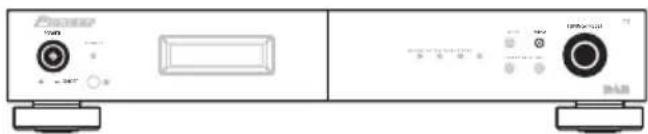
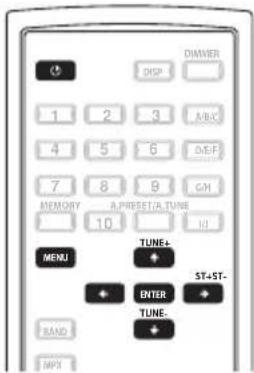
- You can select any audio component from the list of sorted components.
- The sorted components are set in the sort mode (page 23).
1 Press the POWER or button to turn on the power.
2 Press the MENU button to select menu.
3 Either turn the TUNING/PRESET dial or press the ST + or ST - button to display the search mode selection screen.
4 Press the TUNING/PRESET dial or ENTER button to set the search mode.
5 Either turn the TUNING/PRESET dial or press the ST + or ST - button to select "Search Mode/Sorted List".
6 Press the TUNING/PRESET dial or ENTER button to display the first channel on the Sorted List.
- You can select any component from the sorted list.
Preset
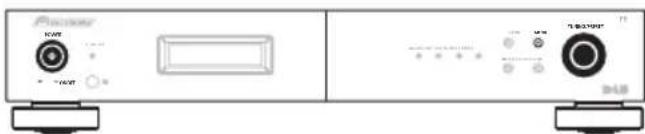
U516u3
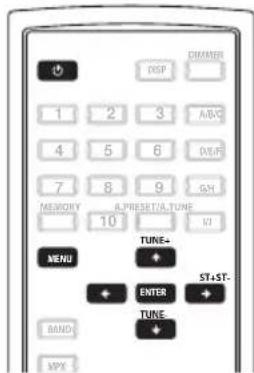
1 Press the POWER or button to turn on the power.
2 Press the MENU button to select menu.
3 Either turn the TUNING/PRESET dial or press the ST + or ST - button to display the search mode selection screen.
4 Press the TUNING/PRESET dial or ENTER button to set the search mode.
5 Either turn the TUNING/PRESET dial or press the ST +or ST - button to select "Search Mode/Preset".
6 Press the TUNING/PRESET dial or ENTER button to display the first channel at Preset.
- You can select any component from the preset.
Tuning aid
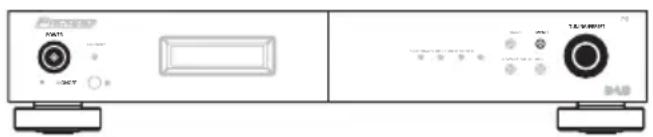
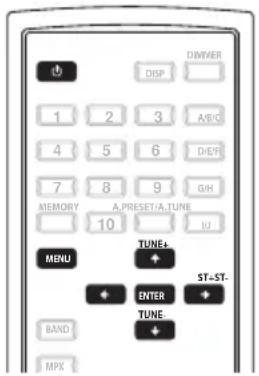
1 Press the POWER or button to turn on the power.
2 Press the MENU button to select menu.
3 Either turn the TUNING/PRESET dial or press the ST + or ST - button to display the search mode selection screen.
4 Press the TUNING/PRESET dial or ENTER button to set the search mode.
5 Either turn the TUNING/PRESET dial or press the ST +or ST - button to select "Search Mode/Tuning aid".
6 Press the TUNING/PRESET dial or ENTER button to display the first channel at Tuning aid.
7 Either turn the TUNING/PRESET dial or press the ST + or ST - button to display the frequency of the ensemble that you want to receive.
8 Press the TUNING/PRESET dial or press the ENTER button to display the numerical signal strength for that ensemble.
Try adjusting the antenna orientation so that the reception sensitivity rises to a value of at least 70.2
Note
1 The sound is automatically muted during use of this function.
2 - A sensitivity value of at least 90 is recommended for optimum reception results.
Good reception may not be possible when values are below 70.
The values noted above may not be applicable, depending on local conditions.
Sort Mode (Sorting components)
- Scanned components can be sorted and listed by S-component, Alphanumeric, or Program type.
- The desired component can then be selected from the list.
S.Components
- An audio S_component can be selected from the list of scanned S_components produced by using the procedure "Tuning in DAB (Digital Audio Broadcasting) broadcasts" (page 20).
- The "S-component" is sorted in the order of the Service component frequencies.
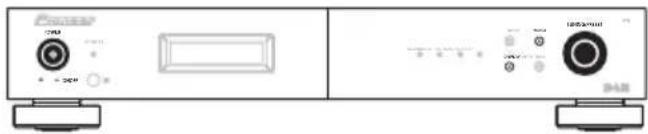
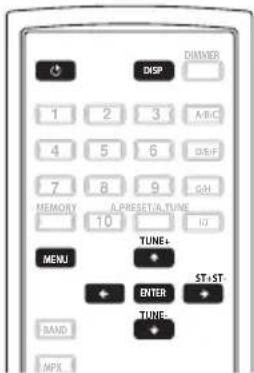
1 Press the POWER or button to turn on the power.
2 Press the MENU button to select menu.
3 Either turn the TUNING/PRESET dial or press the ST + or ST - button to display the sort mode selection screen.
4 Press the TUNING/PRESET dial or ENTER button to set the sort mode.
5 Either turn the TUNING/PRESET dial or press the ST + or ST - button to select "Sort Mode/S-component".
6 Press the TUNING/PRESET dial or ENTER button to set the sort mode to "Sort Mode/ S-component".
- You can select any component from the sorted list.
Alphanumeric
The "S-component" is sorted in alphanumeric order.
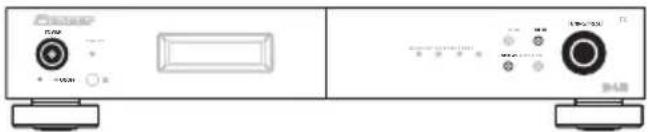
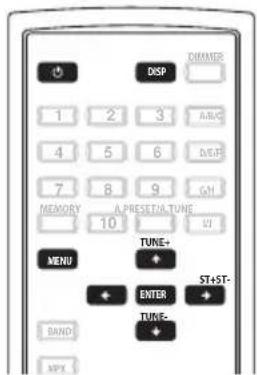
1 P r e P o W E R d C h b u t c t o t u r n on the power.
2 Press the MENU button to select menu.
3 Either turn the TUNING/PRESET dial or press the ST + or ST - button to display the sort mode selection screen.
4 Press the TUNING/PRESET dial or ENTER button to set the sort mode.
5 Either turn the TUNING/PRESET dial or press the ST + or ST - button to select "Sort Mode/Alphanumeric".
6 Press the TUNING/PRESET dial or ENTER button to set the sort mode to "Sort Mode/Alphanumeric".
- You can select any component from the sorted list.
PTY
The "S-component" is sorted in the order of the Programme Type.
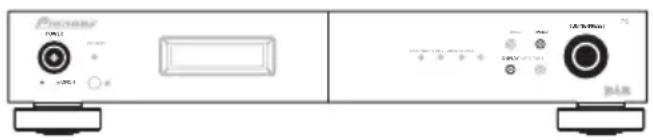
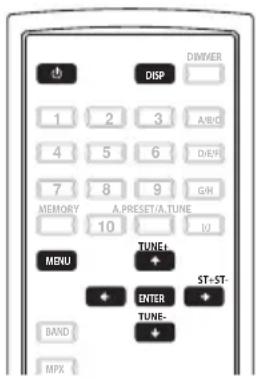
1 Press the POWER or button to turn on the power.
2 Press the MENU button to select menu.
3 Either turn the TUNING/PRESET dial or press the ST + or ST - button to display the sort mode selection screen.
4 Press the TUNING/PRESET dial or ENTER button to set the sort mode.
5 Either turn the TUNING/PRESET dial or press the ST + or ST - button to select "Sort Mode/PTY".
6 Press the TUNING/PRESET dial or ENTER button to set the sort mode to "Sort Mode/PTY".
- You can select any component from the sorted list.
Switching the DAB information display
1 Follow steps 1 to 4 under "Tuning in DAB (Digital Audio Broadcasting) broadcasts" (page 20) to tune in a DAB station.
2 Press the DISPLAY button to switch the DAB reception information.
- The display switches as shown below each time the DISPLAY button is pressed.
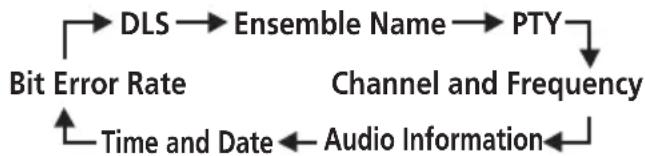
DLS (Dynamic Label Segment):
The text data included in the broadcast scrolls.
Ensemble Name :
The ensemble name is displayed.
The category of the broadcast being received is displayed.
Channel and Frequency :
The frequency is displayed.
Audio Information :
The bit rate and mode of the broadcast being received is displayed.
Time and Date :
The current time and date are displayed.
Bit Error Rate :
Noise may be generated and reception quality may become poor at bit error rates above 20. If a rate above 20 is displayed, move the antenna in different directions to find a position where the rate displayed is less 20.

Note
1 If the required data cannot be found, NO DLS DATA, NO Ensemble Name, NO PTY DATA, NO TIME DATA or UNCOUNTABLE will be displayed.
DRC (Dynamic Range Control)
- The DRC (Dynamic Range Control) function lets you change the dynamic range of the received sound depending on the content of the broadcast so that the sound is easier to hear even when the volume is low.
- The dynamic range can be fine-adjusted in three steps.
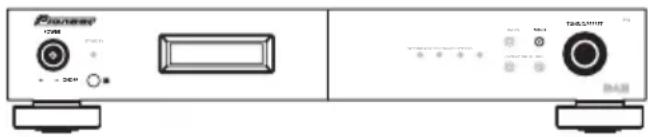
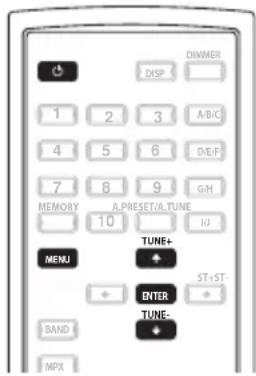
1 Press the POWER or button to turn on the power.
2 Press the MENU button to select menu.
3 Either turn the TUNING/PRESET dial or press the ST + or ST - button to display the DRC value mode selection screen.
4 Press the TUNING/PRESET dial or ENTER button to set the DRC value mode.
5 Either turn the TUNING/PRESET dial clockwise or press the ST + or ST - button.
- The display changes as follows each time the TUNING/PRESET dial is turned clockwise or the ST + or ST - button is pressed.
DRC OFF: DRC is switched off.
Any DRC level broadcast will be ignored. This is the default setting.
DRC ON: Applies DRC level as sent with the broadcast.
- This is effective when listening in environments subjected to surrounding noise, and while listening to quiet sections of broadcast programs.
The broadcast's DRC level is set at the broadcast station.
The DRC can be changed to achieve the optimum level.
Last function memory
- This unit is equipped with a last function memory which stores the input and output setting conditions as they were immediately before the power is switched off.
This function eliminates the need to perform complicated resettings when the power is switch on.
- The unit is also equipped with a back-up memory.
This function provides approximately two week of memory storage when the main unit's POWER button is off and with the power cord disconnected.
Initialization of the microprocessor
- When the indication of the display is not normal or when the operation of the unit does not show the reasonable result, the initialization of the microprocessor is required by the following procedure.
1 Press the unit's POWER button to turn the power off.
2 Press the unit's POWER button to turn the power on while holding down the MENU button.
3 "Memory Clear?" will be displayed in the display. Using the unit's TUNING/PRESET dial, select either "Yes" or "No" and press the TUNING/PRESET dial.
4 | Yes is selected, the memory will be cleared and the unit will then be set to standby mode. If "No" is selected, the unit will be set to standby mode.

Note
- If step 4 does not work, start over from step 1.
If the microprocessor has been reset, all the button settings are reset to the default values (the values set upon shipment from the factory).
Chapter 6:
Other connections

Caution
- Make sure the power is switched off before making or changing the connections.
Connecting external antennas
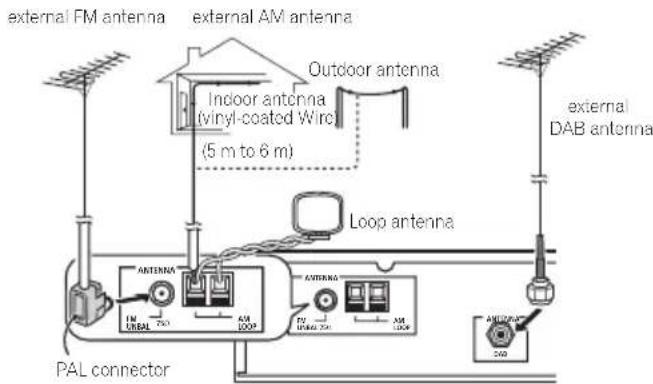
- For an external AM antenna, use 5 m to 6 m of vinyl-insulated wire and set up either indoors or outdoors. Leave the loop antenna connected. Only use the included AM loop antenna.
- For an external FM antenna, use a PAL connector to hook up an external FM antenna.
- For an external DAB antenna, connect a DAB outdoor antenna.
Operating this tuner with the remote sensor of your Pioneer amplifier
Many Pioneer components have SR CONTROL jacks which can be used to link components together so that you can use just the remote sensor of one component. When you use a remote control, the control signal is passed along the chain to the appropriate component.
Note that if you use this feature, make sure that you also have at least one set of analog audio jacks connected to another component for grounding purposes.
1 Connect the CONTROL IN jack of this tuner to the CONTROL OUT jack of your Pioneer amplifier.
Use a cable with a mono mini-plug on each end for the connection.
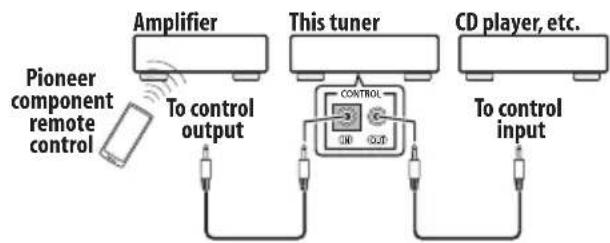
2 This process can be used to form a daisy-chain linkage with other Pioneer components as well.
Chapter 7:
Additional information
Troubleshooting
Incorrect operations are often mistaken for trouble and malfunctions. If you think that there is something wrong with this component, check the points below. Sometimes the trouble may lie in another component. Investigate the other components and electrical appliances being used. If the trouble cannot be rectified even after performing the checks listed below, ask your nearest Pioneer authorized service center or your dealer to carry out repair work.
- If the unit does not operate normally due to external effects such as static electricity, disconnect the power plug from the outlet and insert again to return to normal operating conditions.
Problem Remedy
The power does not turn on.
- Disconnect the power plug from the outlet, and insert again.
- If you're trying to switch on using the remote control, make sure the front panel POWER button is switched on first.
- If the power shuts off automatically, take the unit to your nearest Pioneer authorized service center or your dealer for servicing.
No sound is output. - Turn the amplifier's power on.
- Make sure the amplifier is connected correctly (refer to Connections on page 7).
- Press the MUTE button on your Pioneer amplifier to turn the muting off.
Can't operate the remote control.
- Replace the battery (page 6).
- Operate within 7m,30^ of the remote sensor on the front panel (page 12).
- Remove the obstacle or operate from another position.
- Avoid exposing the remote sensor on the front panel to direct light.
The display is dark or off.
- Press DIMMER on the remote repeatedly to return to the default.
Hissing or buzzing sounds are heard during AM broadcasts.
- Turn off the TV.
- Change the position of the loop antenna.
Install an outdoor antenna (page 27).
(Noise from a TV or interference in the signals sent from the broadcast station.)
Booming sounds (humming) are heard during AM broadcasts.
(Signals transmitted over the power supply cord are modulated by the power source frequency.)
- Insert the plug in the opposite direction.
Install an outdoor antenna (page 27).
Additional information
| Problem Remedy | |
| Considerable noise in radio broadcasts. | ·Connect the AM antenna and adjust the direction and position for best reception. You may also connect an external indoor or outdoor AM antenna (page 27). ·Fully extend the FM wire antenna, position for best reception, and secure to a wall. You may also connect an outdoor FM antenna (page 27). ·Turn off other equipment that may be causing the noise or move it further away. |
| Auto tuning does not pick up some stations. | ·The radio signal is weak. Auto tuning will only detect radio stations with a good signal. For more sensitive tuning, connect an outdoor antenna (page 27). |
| Display says "Station not available". | ·Check that DAB antenna is connected (page 7). |
| I can not access secondary services. | ·At the time of publishing this manual not many secondary services are available, this will increase as more DAB stations start broadcasting. ·If a secondary service station is available, the SECONDARY indicator will light blue. |
| A "burbling" sound is heard on some stations. (DAB like other digital media is good at producing quality audio from a weak signal. However, if the signal level is too low, a "burbling" sound may sometimes be heard.) | ·Try repositioning your antenna to gain maximum signal strength. |
Specifications
FM tuner section
Frequency range . . . . . . . . . . . . . . . . . . . . . . . . . . . . . . . . . . . . . . . . . . . . . . . . . . . . . . . . . . . . . . . . . . . . . 87.5 MHz to 108 MHz
Usable sensitivity
NORMAL. Mono: 11.3 dBf, IHF
(1.0 V / 75
50 dB quieting sensitivity
NORMAL. Mono: 21.3 dBf, IHF
(3.2 V / 75
Signal-to-noise ratio . . . . Mono: 76 dB (at 85 dBf)
Stereo: 75 dB (at 85 dBf)
Distortion. .Stereo: 0.3% (1 kHz)
Alternate channel selectivity
75dB(±400kHz)
Stereo separation . 45 dB (1 kHz)
Frequency response. ± 1 dB (30 Hz to 15 kHz)
Image response ratio 90 dB
IF response ratio 95 dB
Antenna Input 75Ω unbalanced
AM tuner section
Frequency range. 531 kHz to 1602 kHz
Sensitivity (IHF, loop antenna). 350 V/m
Selectivity. 33 dB (±9 kHz)
Signal-to-noise ratio 55 dB
Image response ratio 35 dB
IF response ratio 65 dB
Antenna . Loop Antenna
DAB tuner section
Frequency range
174.928 (5A) MHz to 239.200 (13F) MHz
(BAND III)
1452.960 (LA) MHz to 1490.624 (LW) MHz
(L-BAND)
Sensitivity. -100 dBm
Signal-to-noise ratio 105 dB
THD + N 0.006% (1 kHz)
Channel separation . 100 dB (1 kHz)
Selectivity. 40 dB (at adjacent channel)
Frequency response. ± 0.5 dB (5 Hz to 20 kHz)
Digital output . Optical, Coaxial
Aerial terminal. 75 Ω/ohm, F female
Analog output level. 1.85 Vrms
Audio section
Output (Level/Impedance)
FM (100 % MOD) . 1000 mV/1 kΩ
AM (30 % MOD). 224 mV/1 kΩ
Miscellaneous
Power requirements
AC 220 V to 240 V, 50 Hz/60 Hz
Power consumption 12 W
Power consumption in standby mode. . . . . .0.5 W
Dimensions
Weight (without package). 4.3 kg
Accessories
Remote control unit. 1
Lithium battery (CR2025) 1
Power cord 1
RCA/phono stereo audio cable. 1
SR control cable. 1
AM loop antenna 1
FM antenna 1
DAB indoor antenna 1
Warranty card 1
Operating instructions

Note
- Specifications and design are subject to possible modifications without notice, due to improvements.
Cleaning the unit
- Use a polishing cloth or dry cloth to wipe off dust and dirt.
- When the surface is dirty, wipe with a soft cloth dipped in some neutral cleanser diluted five or six times with water, and wrung out well, and then wipe again with a dry cloth. Do not use furniture wax or cleansers.
- Never use thinners, benzine, insecticide sprays or other chemicals on or near this unit, since these will corrode the surface.
DAB frequency table Band III (174 MHz to 240 MHz)
| Frequency Level Frequency Level | |||
| 174.928 MHz | 5A | 211.648 MHz | 10B |
| 176.640 MHz | 5B | 213.360 MHz | 10C |
| 178.352 MHz | 5C | 215.072 MHz | 10D |
| 180.064 MHz | 5D | 216.928 MHz | 11A |
| 181.936 MHz | 6A | 218.640 MHz | 11B |
| 183.648 MHz | 6B | 220.352 MHz | 11C |
| 185.360 MHz | 6C | 222.064 MHz | 11D |
| 187.072 MHz | 6D | 223.936 MHz | 12A |
| 188.928 MHz | 7A | 225.648 MHz | 12B |
| 190.640 MHz | 7B | 227.360 MHz | 12C |
| 192.352 MHz | 7C | 229.072 MHz | 12D |
| 194.064 MHz | 7D | 230.784 MHz | 13A |
| 195.936 MHz | 8A | 232.496 MHz | 13B |
| 197.648 MHz | 8B | 234.208 MHz | 13C |
| 199.360 MHz | 8C | 235.776 MHz | 13D |
| 201.072 MHz | 8D | 237.488 MHz | 13E |
| 202.928 MHz | 9A | 239.200 MHz | 13F |
| 204.640 MHz | 9B | ||
| 206.352 MHz | 9C | ||
| 208.064 MHz | 9D | ||
| 209.936 MHz | 10A | ||
L-Band (1452 MHz to 1490 MHz)
| Frequency Level Frequency Level | |||
| 1452.960 MHz | LA | 1473.504 MHz | LM |
| 1454.672 MHz | LB | 1475.216 MHz | LN |
| 1456.384 MHz | LC | 1476.928 MHz | LO |
| 1458.096 MHz | LD | 1478.640 MHz | LP |
| 1459.808 MHz | LE | 1480.352 MHz | LQ |
| 1461.520 MHz | LF | 1482.064 MHz | LR |
| 1463.232 MHz | LG | 1483.776 MHz | LS |
| 1464.944 MHz | LH | 1485.488 MHz | LT |
| 1466.656 MHz | LI | 1487.200 MHz | LU |
| 1468.368 MHz | LJ | 1488.912 MHz | LV |
| 1470.080 MHz | LK | 1490.624 MHz | LW |
| 1471.792 MHz | LL | ||
Published by Pioneer Corporation. Copyright © 2007 Pioneer Corporation. All rights reserved.
IMPORTANT

DLS (Dynamic Label Segment):
Réjection image 90 dB
Réponse IF. 95 dB
Entree antenne 75Ω, non equilobre
Section symtoniseur AM
Rejection image 35 dB
Réponse IF. 65 dB
Antenne . Antenne cadre
Section symponiseur DAB
420 mm (L) × 78 mm (H) × 350 mm (P)
Publication de Pioneer Corporation.
© 2007 Pioneer Corporation.
Uber DAB (Digital Audio Broadcasting) 19
DAB (Digital Audio Broadcasting) -
Uber DAB (Digital Audio Broadcasting)
DLS (Dynamic Label Segment):
174,928 (5A) MHz to 239,200 (13F) MHz
(BAND III)
1452,960 (LA) MHz to 1490,624 (LW) MHz
(L-BAND)
WAARSCHUWING NETSNOER
RDS Search/PTY Search/TP Search 17
Over DAB (Digital Audio Broadcasting) 19
Afstemmen op DAB
(Digital Audio Broadcasting)
uitzendingen. 20
Voorkeurzenders 20
Zoekmodus. 21
Sorteermodus (Elementen sorteren). 23
High Performance D/A-converter
(192 kHz/24 bit)
Selecteert DAB, FM of AM.1
9 MENU
Selecteert DAB, FM of AM.
Opmerking
RDS Search/PTY Search/TP Search
Over DAB (Digital Audio Broadcasting)
DLS (Dynamic Label Segment):
Channel and Frequency :
De frequenie.
Audio Information :
IF-responseverholding. 95 dB
IF-responseverholding. 65 dB
Antenne . Raamantenne
DAB-tunergedeelte
Frequentiebereik
174,928 (5A) MHz t/m 239,200 (13F) MHz
(BAND III)
1452,960 (LA) MHz t/m 1490,624 (LW) MHz
(L-BAND)
Copyright © 2007 Pioneer Corporation.
Premere Anything to be selected.
| Preselezioni automatiche sintonizzatore | |
| Da A1 a A10 | 87,5 MHz/88,0 MHz/90,0 MHz/92,0 MHz/94,0 MHz/96,0 MHz/98,0 MHz/100,0 MHz/102,0 MHz/104,0 MHz |
| Da B1 a B10 | 106,0 MHz/108,0 MHz/98,0 MHz/98,0 MHz/98,0 MHz/98,0 MHz/98,0 MHz/98,0 MHz/98,0 MHz |
| Da C1 a C10 | 98,0 MHz |
| Da D1 a D10 | 98,0 MHz |
| Da E1 a E10 | 98,0 MHz |
| Da F1 a F10 | 531 kHz/531 kHz/603 kHz/801 kHz/999 kHz/1197 kHz/1395 kHz/1602 kHz/1602 kHz/999 kHz |
| Da G1 a G10 | 999 kHz |
| Da H1 a H10 | 999 kHz |
| Da I1 a I10 | 999 kHz |
| Da J1 a J10 | 999 kHz |
Modalità di ricerca
DLS (Dynamic Label Segment):
...Da 174,928 (5A) MHz a 239,200 (13F) MHz
(BAND III)
Da 1452,960 (LA) MHz a 1490,624 (LW) MHz
(L-BAND)
.420 mm (L) × 78 mm (A) × 350 mm (P)
| Presintonías de sintonización automática | |
| A1 a A10 | 87,5 MHz/88,0 MHz/90,0 MHz/92,0 MHz/94,0 MHz/96,0 MHz/98,0 MHz/100,0 MHz/102,0 MHz/104,0 MHz |
| B1 a B10 | 106,0 MHz/108,0 MHz/98,0 MHz/98,0 MHz/98,0 MHz/98,0 MHz/98,0 MHz/98,0 MHz/98,0 MHz/98,0 MHz/98,0 MHz/98,0 MHz/98,0 MHz/98,0 MHz/98,0 MHz/98,0 MHz/98,0 MHz/98,0 MHz/98,0MHz |
| C1 a C10 | 98,0 MHz |
| D1 a D10 | 98,0 MHz |
| E1 a E10 | 98,0 MHz |
| F1 a F10 | 531 kHz/531 kHz/603 kHz/801 kHz/999 kHz/1197 kHz/1395 kHz/1602 kHz/1602 kHz/999 kHz |
| G1 a G10 | 999 kHz |
| H1 a H10 | 999 kHz |
| I1 a I10 | 999 kHz |
| J1 a J10 | 999 kHz |
Modo de búsqueda
NORMAL . Mono: 11,3 dBf, IHF (1,0 V/75 Ω)
174,928 (5A) MHz a 239,200 (13F) MHz
(BANDA III)
1452,960 (LA) MHz a 1490,624 (LW) MHz
(BANDAL)
http://www.pioneer.co.uk
http://www.pioneer.fr
http://www.pioneer.de
http://www.pioneer.nl - http://www.pioneer.be
http://www.pioneer.it
http://www.pioneer.es
http://www.pioneer.eu
Published by Pioneer Corporation.
Copyright © 2007 Pioneer Corporation.
All rights reserved.
Publication de Pioneer Corporation.
© 2007 Pioneer Corporation.
PIONEER ELECTRONICS (USA) INC.
P.O. BOX 1540, Long Beach, California 90810-1540, U.S.A. TEL: (800) 421-1404
PIONEER ELECTRONICS OF CANADA, INC.
300 Allstate Parkway, Markham, Ontario L3R 0P2, Canada TEL: 1-877-283-5901, 905-479-4411
PIONEER EUROPE NV
Haven 1087, Keetberglaan 1, B-9120 Melsele, Belgium TEL: 03/570.05.11
PIONEER ELECTRONICS ASIACENTRE PTE. LTD.
253 Alexandra Road, #04-01, Singapore 159936 TEL: 65-6472-7555
PIONEER ELECTRONICS AUSTRALIA PTY. LTD.
178-184 Boundary Road, Braeside, Victoria 3195, Australia, TEL: (03) 9586-6300
PIONEER ELECTRONICS DE MEXICO S.A. DE C.V.
Blvd. Manuel Avila Camacho 138 10 piso Col.Lomas de Chapultepec, Mexico,D.F. 11000 TEL: 55-9178-4270

- CAUTION
- RISK OF ELECTRIC SHOCK
- DO NOT OPEN
- CAUTION:
- WARNING
- Operating Environment
- VENTILATION CAUTION
- POWER-CORD CAUTION
- IMPORTANT: THE MOULDED PLUG
- If the fitted moulded plug is unsuitable for your socket outlet, then the fuse shall be removed and the plug cut off and disposed of safely. There is a danger of severe electrical shock if the cut off plug is inserted into any 13 amp socket.
- Thank you for buying this Pioneer product.
- Contents
- Before you start
- Connections
- Controls and displays
- Listening to FM/AM
- Listening to DAB broadcasts
- Other connections
- Additional information
- Chapter 1:
- Before you start
- Features
- What's in the box
- Inserting the battery
- Installing the tuner
- Chapter 2: Connections
- Making cable connections
- Important
- Connecting the antenna terminals
- Connecting an DAB outdoor antenna
- Installing the DAB indoor antenna
- DAB indoor antenna assembly
- Connecting antennas
- Note
- Connecting analog audio sources
- Connecting digital audio sources
- Connecting RDI
- Plugging in
- Chapter 3:
- Controls and displays
- Front panel
- Tip
- - Liquid Crystal Display
- SECONDARY indicator
- RDS indicator
- TUNEDindicator
- STEREOindicator
- BAND
- MENU
- TUNING/PRESET dial
- Remote sensor
- DISPLAY
- AUTO TUNE
- Remote control unit
- Station call buttons ( 1 to 10)
- MEMORY
- MENU
- BAND
- MPX
- VOLUME
- DIMMER
- DISP
- Preset channel range buttons (A/B/C, D/E/F, G/H, I/J)
- A.PRESET/A.TUNE
- Tuning buttons
- ENTER
- TUNE + / -
- ST + / -
- MUTE
- Using the remote control
- Chapter 4:
- Listening to FM/AM
- Auto preset memory
- Search Mode
- Auto tuning
- Manual tuning
- Improving FM stereo sound
- Recalling preset stations
- Preset stations
- An introduction to RDS
- RDS Search/PTY Search/TP Search
- Searching for RDS programs
- Displaying RDS information
- - Press the DISPLAY button for RDS information.
- Naming station presets
- Choose the station preset you want to name.
- Press the MENU button to select menu.
- Input the name you want.
- ABCDEFGHIJKLMNOPQRSTUVWXYZ abcdefghijklmnopqrstuvwxyz
- Either turn the TUNING/PRESET dial, press the preset channel range (A to J) or station call (1 to 10) button.
- Chapter 5:
- Listening to DAB broadcasts
- About DAB (Digital Audio Broadcasting)
- Tuning in DAB (Digital Audio Broadcasting) broadcasts
- Using the DAB for the first time
- Secondary services
- Sorted List
- Preset
- Tuning aid
- Sort Mode (Sorting components)
- S.Components
- Alphanumeric
- PTY
- Switching the DAB information display
- DRC (Dynamic Range Control)
- Last function memory
- Initialization of the microprocessor
- Chapter 6:
- Other connections
- Connecting external antennas
- Operating this tuner with the remote sensor of your Pioneer amplifier
- Connect the CONTROL IN jack of this tuner to the CONTROL OUT jack of your Pioneer amplifier.
- Chapter 7:
- Additional information
- Troubleshooting
- Problem Remedy
- Specifications
- FM tuner section
- AM tuner section
- DAB tuner section
- Audio section
- Miscellaneous
- Accessories
- Cleaning the unit
- DLS (Dynamic Label Segment):
- Section symtoniseur AM
- Section symponiseur DAB
- Uber DAB (Digital Audio Broadcasting)
- WAARSCHUWING NETSNOER
- Opmerking
- Over DAB (Digital Audio Broadcasting)
- DAB-tunergedeelte
- Modalità di ricerca
- Modo de búsqueda
- PIONEER EUROPE NV
Brand : PIONEER
Model : FF6J
Category : AV receiver