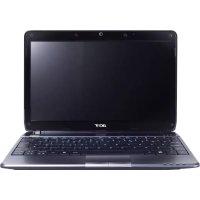
Aspire 1810T - Laptop ACER - Free user manual and instructions
Find the device manual for free Aspire 1810T ACER in PDF.



| Product type | Laptop |
| Brand | Acer |
| Model | Aspire 1810T |
| Category | Notebook |
| Dimensions (approx.) | 285 x 204 x 22 mm |
| Weight | Approximately 1.35 kg |
| Screen | 11.6 inches (1366 x 768) LED |
| Processor | Intel Celeron 743 or Core 2 Solo SU3500 |
| RAM Memory | 2 GB DDR3 (expandable) |
| Storage | SATA hard drive 160/250 GB |
| Optical drive | DVD±RW drive (optional) |
| Connectivity | Wi-Fi 802.11b/g/n, Bluetooth 2.1+EDR, Gigabit Ethernet |
| Ports | 3x USB 2.0, VGA, HDMI, RJ-45, headphone/microphone jack |
| Webcam | Integrated 1.3 MP |
| Battery | 6-cell Li-ion, battery life up to 6 h |
| Power supply | AC adapter 100-240 V, 50-60 Hz |
| Operating system | Windows 7 Home Premium |
| Main features | Webcam, microphone, speakers, touchpad, multimedia keys, SD/MMC card reader |
| Maintenance and cleaning | Clean with a soft, dry cloth. Avoid liquids. Clean the screen with a specific product. |
| Security | Kensington lock slot, BIOS password |
| Spare parts and repairability | Removable battery, access to hard drive and memory via panel |
| General information | Operating temperature: 5°C to 35°C. Humidity: 20% to 80% non-condensing. |
Frequently Asked Questions - Aspire 1810T ACER
User questions about Aspire 1810T ACER
0 question about this device. Answer the ones you know or ask your own.
Ask a new question about this device
Download the instructions for your Laptop in PDF format for free! Find your manual Aspire 1810T - ACER and take your electronic device back in hand. On this page are published all the documents necessary for the use of your device. Aspire 1810T by ACER.
USER MANUAL Aspire 1810T ACER
Aspire Notebook Series
Quick Guide
© 2010. All Rights Reserved.
Aspire Notebook Series Quick Guide
Original Issue: 07/2010
Model number:
Serial number:
Date of purchase:
Place of purchase:
First things first
We would like to thank you for making an Acer notebook your choice for meeting your mobile computing needs.
Your guides
To help you use your Acer notebook, we have designed a set of guides:
First off, the setup poster helps you get started with setting up your computer.
The Aspire Generic User Guide contains useful information applying to all models in the Aspire product series. It covers basic topics such as using the keyboard and audio, etc. Please understand that due to its nature, the Generic User Guide as well as the AcerSystem User Guide mentioned below will occasionally refer to functions or features which are only contained in certain models of the series, but not necessarily in the model you purchased. Such instances are marked in the text with language such as "only for certain models".
The Quick Guide introduces you to the basic features and functions of your new computer. For more on how your computer can help you to be more productive, please refer to the AcerSystem User Guide. This guide contains detailed information on such subjects as system utilities, data recovery, expansion options and troubleshooting. In addition it contains warranty information and the general regulations and safety notices for your notebook. It is available in Portable Document Format (PDF) and comes preloaded on your notebook. Follow these steps to access it:
1 Click on Start > All Programs > AcerSystem.
2 Click on AcerSystem User Guide.

Note: Viewing the file requires Adobe Reader. If Adobe Reader is not installed on your computer, clicking on AcerSystem User Guide will run the Adobe Reader setup program first. Follow the instructions on the screen to complete the installation. For instructions on how to use Adobe Reader, access the Help and Support menu.
Your Acer notebook tour
After setting up your computer as illustrated in the setup poster, let us show you around your new Acer notebook.
Top view

# Icon Item Description
1 Integrated
webcam
Web camera for video communication
(only for certain models).
| # Icon Item Description | ||
| 2 Display screen Also called Liquid-Crystal Display (LCD), displays computer output. | ||
| 3 HDD indicator Indicates when the hard disk drive is active. | ||
| Communication indicator | Indicates the computer's wireless connectivity device status. | |
| 4 Power button / indicator | Turns the computer on and off. Indicates the computer's power status. | |
| 5 Keyboard For entering data into your computer. | ||
| 6 Power indicator Indicates the computer's power status. | ||
| Battery indicator Indicates the computer's battery status. | ||
| 1. Charging: The light shows amber when the battery is charging. | ||
| 2. Fully charged: The light shows blue when in AC mode. | ||
| 7 Click buttons (left and right) | The left and right buttons function like the left and right mouse buttons. | |
| 8 Touchpad Touch-sensitive pointing device which functions like a computer mouse. | ||
| 9 Speaker Delivers audio output. | ||
| 10 Microphone Internal microphone for sound recording. | ||
| 2-in-1 card reader Accepts Secure Digital (SD), MultiMediaCard (MMC). Note: Push to remove/install the card. Only one card can operate at any given time. | ||
Hotkeys
The computer employs hotkeys or key combinations to access most of the computer's controls like screen brightness and volume output.
To activate hotkeys, press and hold the <Fn> key before pressing the other key in the hotkey combination.
| Hotkey Icon Function Description | ||
| +Fn> + <F3> Communication Enables/disables the computer's communication devices. | ||
| +Fn> + <F4> Sleep Puts the computer in Sleep mode. | ||
| +Fn> + <F5> Display toggle Switches display output between the display screen, external monitor (if connected) and both. | ||
| +Fn> + <F6> Screen blank Turns the display screen backlight off to save power. Press any key to return. | ||
| +Fn> + <F7> Touchpad toggle | Turns the internal touchpad on and off. | |
| +Fn> + <F8> Speaker toggle Turns the speakers on and off. | ||
| +Fn> + <F9> Brightness up Increases the screen brightness. | ||
| +Fn> + <F10> Brightness down Decreases the screen brightness. | ||
| +Fn> + <F11> Volume up Increases the sound volume. | ||
| +Fn> + <F12> Volume down Decreases the sound volume. | ||
| +Fn> + /II Play/Pause Play or pause a selected media file. | ||
| +Fn> + Stop Stop playing the selected media file. | ||
| +Fn> + Previous Return to the previous media file. | ||
| +Fn> + Next Jump to the next media file. | ||
Rear view

#Item Description
1 Battery bay Houses the computer's battery pack.
Left view

21
# Icon Item Description
1 DC-in jack Connects to an AC adapter.

display (VGA) port
Connects to a display device (e.g., external monitor, LCD projector).
3 Ethernet (RJ-45) port Connects to an Ethernet 10/100/1000-based network.
4 HDMI port Supports high-definition digital video connections.
5 USB 2.0 port Connect to USB 2.0 devices (e.g., USB mouse, USB camera).
6 Microphone jack Accepts inputs from external microphones.

Headphone/speaker/ line-out jack
Connects to audio line-out devices (e.g., speakers, headphones).
Right view

21 3
Icon Item Description
1 USB 2.0 ports Connect to USB 2.0 devices

(e.g., USB mouse, USB camera).
2 Optical drive Internal optical drive; accepts CDs or
DVDs.
3 Optical drive access Lights up when the optical drive is active.
indicator
4 Optical drive eject
button
Ejects the optical disc from the drive.
5 Emergency eject hole Ejects the optical drive tray when the
computer is turned off.
Note: Insert a paper clip to the
emergency eject hole to eject the optical
drive tray when the computer is off.
6 Kensington lock slot Connects to a Kensington-compatible


computer security lock.
Note: Wrap the computer security lock cable around an immovable object such as a table or handle of a locked drawer. Insert the lock into the notch and turn the key to secure the lock. Some keyless models are also available.
Base view

# Icon Item Description
1 Battery bay Houses the computer's battery pack.

2 Battery release latch Releases the battery for removal.

3 M e Houses the computer's main memory. y

Hard disk bay - Main Houses the computer's hard disk (secured with screws).

4 Battery lock Locks the battery in position.

Environment
Temperature:
-
Operating: 5^ C to 35^ C
Non-operating: -20^ to 65^ -
Humidity (non-condensing):
-
Operating: 20% to 80% .
Non-operating: 20% to 80%
Gammede notebook Aspire
Guide rapide
Notification Regulation Adicional
[Argentina]
are for visse modeller).
2 Skjerm Kalles ogsa LCD-skjerm (Liquid-Crystal
© 2010 Bce npaba coxpanHebl.
KpatkoepykoBOCTBO NOb30BATEHHOY6yka cepn Aspire
Mbl pa3pa6oTann pyd pyKOBoDCTB, KOToPbIe NOMOryT Bam B INCNoMb3OBaHm HooTy6yka Acer:
3TOT nlaKaT NOMOXET BbINOJHHTb NepBOHaJaIbHyIO HAcTpOky KOMNbIoTepa.
Tunoboe pykoBOcTBo nonb3OBaTeI KOMnbIOTepa Aspire coedePKN TNOe3HyO INΦopMaIIO, npIMeHmYIO KO BcEM MoIeIaM cepIN Aspire. B HEM ONscBIAOTcA OCHOBHbIe TeMbI, TaKHe KaK pa6Ota C KJIaBnAtypoJ, 3BykOM n T.D. PoKajNyIcTa, IMeIte B BVdy, YTO Tunoboe pykoBOcTBo nonb3OBaTeI N yNOMaHyToe HIXe AcerSystem User Guide ABJIOTcO obOSeHHbIMN, NO3TOMy B HIX INHOgda BydUT ONscBIBATBCa FyHKUIN IIN CBOICTBa, peALIN3OBaHHbIe He B KUYPeHHoB BamN MOeII, a IINsb B ONpeIeHNbIX MoIeIax 3ToI cepIN. B TakNX cIyqArX B TEKCTe IMeETcI NOMtKa "TOnbKO dIra ONpeIeHNbIX MoIeIe".
KpaTkoe pyKOBOCTBO BnDE 3HaKOMNT Bac C OCHOBHbIMN XapaKTepnCTNKAMN I yHKUIMN BaJero HOBOrO KOMNbIOTepa. YTo6bl y3HaTb 6oNbUe O TOM, KaK IOBbICNTb IpOdyKTINBHOCtB BaJWe pa60tbl C NOMOuBIO KOMNbIOTepa, Bbl MOKeTe o6paTntbcr K AcerSystem User Guide. 3TO pyKOBOCTBO COdEpxNT NOpO6HyIO INOpMaunO CnCTeMHbIX yHKUax, BOCCTaHOBJIeHN DaHHbIX, BO3MOXHOCTRX pauchpeHnY uCTpaHEnn HeNCnPabHOCTeN. KpOME TOrO, OHO COdEpxNT rapaHTnHyIO INOpopMaunO, a TaKxe Obuine npedncaHn I npabnla 6e3OnacHOCTn Pn pa60te C BaUnm HoYt6yKom. PyKOBOCTBO NoCTaBJIeTcR BMeCTe C KOMNbIOTepom, npedBaPntbHo 3arpyKeHoe B Hero B φopMaTe PDF. YTo6bl o6paTntbcr K Hemy, Bam HaDo CDeJaTb CneDyUoUee:
| #ИкonaОбekt Опсанке | |||
| 1 | 00000000 | 00000000 0000000000000000000000000000000000000000000000000000000000000000000000000000000000000000000000000000 | |
| 000000 | (0000 00 000000000000000000000000000000000000000000000000000000000000000000000000000000000000000000000000 | ||
| 2 | 000000 | 000000 00 000000 "000000000000000000" (LCD) 0 0 0 0 0 0 0 0 0 0 0 0 0 0 0 0 0 0 0 0 0 0 0 0 0 0 0 0 0 0 0 0 0 0 0 0 0 0 0 0 0 0 0 0 0 0 0 0 0 0 1 | |
| 3 | 00000000 | 000000 0000 000000000000 0 0 0 0 0 0 0 0 0 0 0 0 0 0 0 0 0 0 0 0 0 0 0 0 0 0 0 0 0 0 0 0 0 0 0 0 0 0 0 0 0 0 0 0 0 0 0 0 0 | |
| 000000 00 | |||
| 00000000 00 | 000000 00 000000 00 0 0 0 0 0 0 0 0 0 0 0 0 0 0 0 0 0 0 0 0 0 0 0 0 0 0 0 0 0 0 0 0 0 0 0 0 0 0 0 0 0 0 0 0 0 0 0 0 1 0 0 0 0 0 0 0 0 0 0 0 0 0 0 0 0 0 0 0 0 0 0 0 0 0 0 0 0 0 0 0 0 0 0 0 0 0 0 0 0 0 0 0 0 0 0 0 0 0 4 0 0 0 0 0 0 0 0 0 0 0 0 0 0 0 0 0 0 0 0 0 0 0 0 0 0 0 0 0 0 0 0 0 0 0 0 0 0 0 0 0 0 0 0 0 0 0 0 0 5 0 0 0 0 0 0 0 0 0 0 0 0 0 0 0 0 0 0 0 0 0 0 0 0 0 0 0 0 0 0 0 0 0 0 0 0 0 0 0 0 0 0 0 0 0 0 0 0 0 6 0 0 0 0 0 0 0 0 0 0 0 0 0 0 0 0 0 0 0 0 0 0 0 0 0 0 0 0 0 0 0 0 0 0 0 0 0 0 0 0 0 0 0 0 0 0 0 0 0 8 9 10 | 000000 00 0 0 0 0 0 0 0 0 0 0 0 0 0 0 0 0 0 0 0 0 0 0 0 0 0 0 0 0 0 0 0 0 0 0 0 0 0 0 0 0 0 0 0 0 0 | |
| 4 | 00000 | D 0 0 0 0 0 0 0 0 0 0 0 0 0 0 0 0 0 0 0 0 0 0 0 0 0 0 0 0 0 0 0 0 0 0 0 0 0 0 0 0 0 0 0 0 0 0 0 0 0 2 7 | |
| 00000000/ | 000000 00 0 0 0 0 0 0 0 0 0 0 0 0 0 0 0 0 0 0 0 0 0 0 0 0 0 0 0 0 0 0 0 0 0 0 0 0 0 0 0 0 0 0 0 0 1 | ||
| 000000 | D D D D D D D D D D D D D D D D D D D D D D D D D D D D D D D D D D D D D D D D D D D D D D D D D D D D D D D D D D D D D D D D D D D D D D D D D D D D D D D D D D D D D D D D D D D D D D D D D D D D D | ||
| 5 | KUUUUUUUUU | D D D D D D D D D D D D D D D D D D D D D D D D D D D D D D D D D D D D D D D D D D D D D D D D D D D D D D D D D D D D D D D D D D D D D D D D D D D D D D D D D D D D D D D D D D D D D D D D D D | |
| D D D D D D D D D D D D D D D D D D D D D D D D D D D D D D D D D D D D D D D D D D D D D D D D D D D D D D D D D D D D D D D D D D D D D D D D D D D D D D D D D D D D D D D D D D D D D D D D D D d. | |||
| D D D D D D D D D D D D D D D D D D D D D D D D D D D D D D D D D D D D D D D D D D D D D D D D D D D D D D D D D D D D D D D D D D D D D D D D D D D D D D D D D D D D D D D D D D D D D D D d. | |||
| 6 | D D D D D D D D D D D D D D D D D D D D D D D D D D D D D D D D D D D D D D D D D D D D D D D D D D D D D D D D D D D D D D D D D D D D D D D D D D D D D D D D D D D D D D D D D D D D D D D D D D | D D D D D D D D D D D D D D D D D D D D D D D D D D D D D D D D D D D D D D D D D D D D D D D D D D D D D D D D D D D D D D D D D D D D D D D D D D D D D D D D D D D D D D D D D D D D D D D D D D E A P E K J A N E: | |
| D D D D D D D D D D D D D D D D D D D D D D D D D D D D D D D D D D D D D D D D D D D D D D D D D D D D D D D D D D D D D D D D D D D D D D D D D D D D D D D D D D D D D D D D D D D D D D D | D D D D d. | ||
| D D D D D D D D D D D D D D D D D D D D D D D D D D D D D D D D D D D D D D D D D D D D D D D D D D D D D D D D D D D D D D D D D D D D D D D D D D D D D D D D D D D D D D D D D D D D D D D | |||
| D d. | |||
| D d. | |||
| D d. | |||
| D d. | |||
| D d. | |||
| D d. | |||
| D d. | |||
| D d. | |||
| D d. | |||
| D d. | |||
| D d. | |||
| D d. | |||
| D d. | |||
| D d. | |||
| D d. | |||
| D d. | |||
| D d. | |||
| D d. | |||
| D d. | |||
| D d. | |||
| D d. | |||
| D d. | |||
| D d. | |||
| D d. | |||
| D d. | |||
Topeu KnaBn
KOMNIObPbT nMa "6bp3n KnaBnHn KOMnHaun 3a 6bp3 DoCTbn Do NOBeueTo OT KOHTpOInTe My, KaTO HApPmep rpkocT Ha dinCnpey n Cnla Ha 3Byka.
3a da akTbBnape 6bp3nte KnaBn, HATNCHeTe n 3aDpBXTe KnaBnla
© 2010 All Rights Reserved.
Aspire ネーつズクイツガイド
初版:2010年7月
モテル番号:
SHIARAL番号:
購入日:
購入場所:
はじてに
© 2010 All Rights Reserved.
Jack headphone/ speaker/line-out
Menghubungkan ke perangkat line-out audio (mis. speaker, headphone).
Tampakkanan

Ikon Item Keterangan
yuzmnu:5oC 35oC
-20°C 65°C
nnaun (nnnnnnnnnnnnn)
20% 80%
20% 80%