USER MANUAL Pixma TS5000 CANON
For the procedure with, you can watch the video tutorials for installing the printer by accessing the following URL or scanning the QR codes.

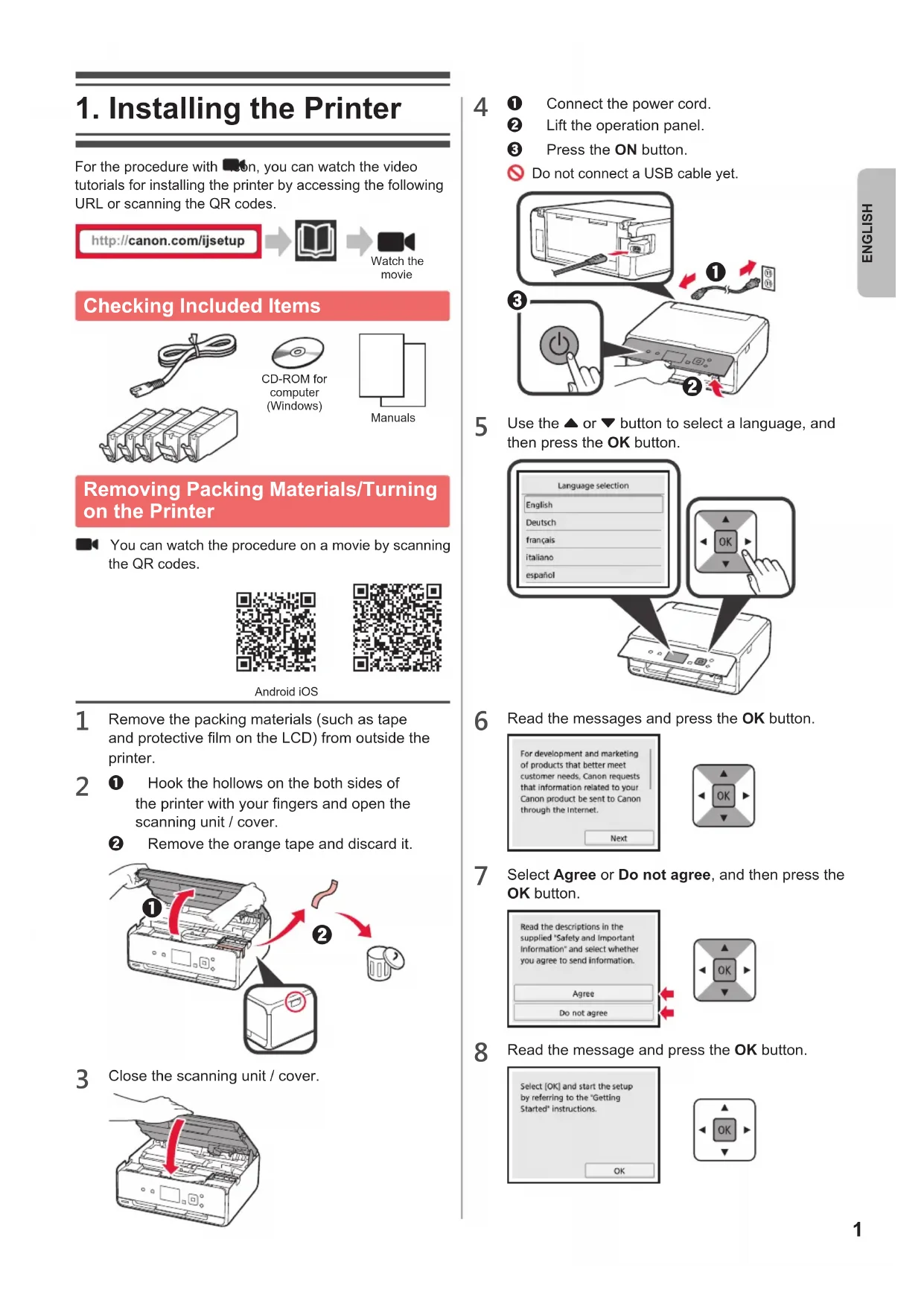
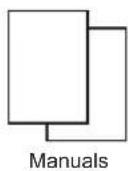
Checking Included Items
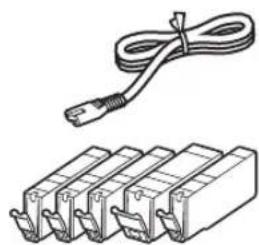
CD-ROM for computer (Windows)
Removing Packing Materials/Turning on the Printer
You can watch the procedure on a movie by scanning the QR codes.

Android iOS

1 Remove the packing materials (such as tape and protective film on the LCD) from outside the printer.
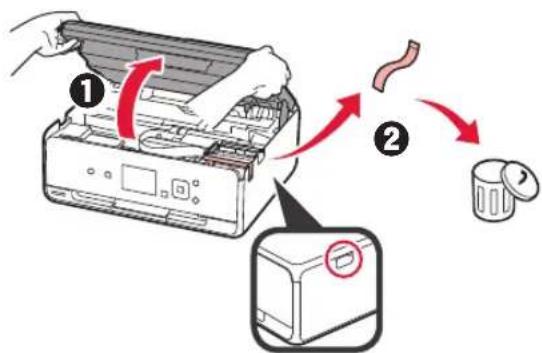
2 Hook the hollows on the both sides of the printer with your fingers and open the scanning unit / cover.
2 Remove the orange tape and discard it.
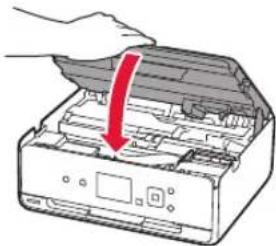
3 Close the scanning unit / cover.
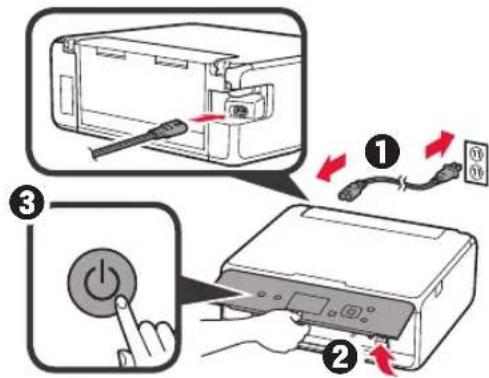
4 Connect the power cord.
Lift the operation panel.
Press the ON button.
Do not connect a USB cable yet.
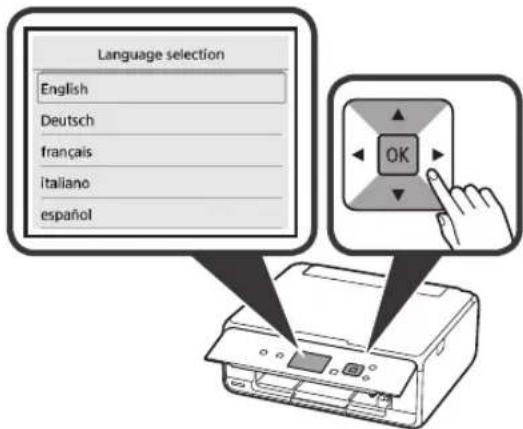
Use the or button to select a language, and then press the OK button.
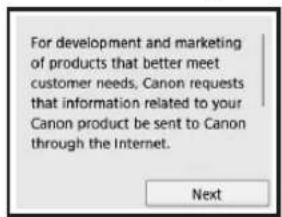
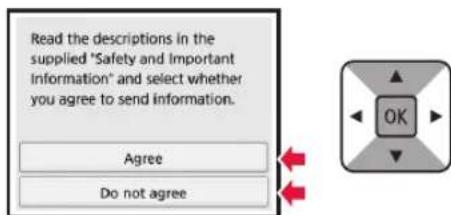
6 Read the messages and press the OK button.
7 Select Agree or Do not agree, and then press the OK button.
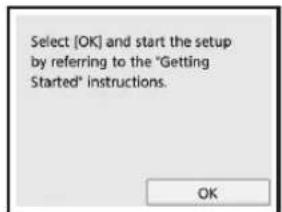
8 Read the message and press the OK button.
Installing the InkTank
You can watch the procedure on a movie by scanning the QR codes.

Android iOS

1 Open the scanning unit / cover.
Do not touch the print head holder (A) until it stops.
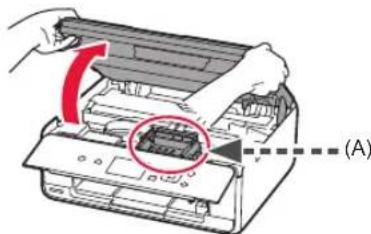
2 Remove the orange tape.
2 Remove the protective wrap.
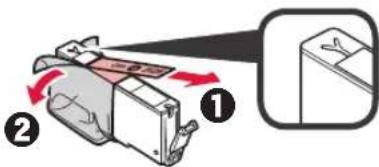
Remove the orange tape completely.
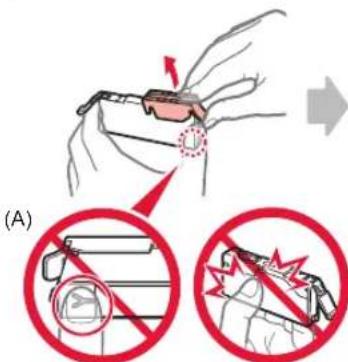
3 Hook the orange cap with your finger to remove it GENTLY.
(A) Do not push the both sides of the ink tank with the Y-shape air hole blocked.
(B) Do not touch.
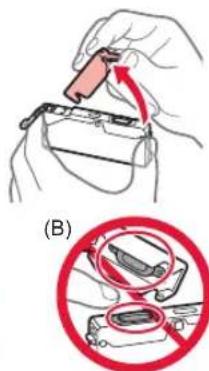
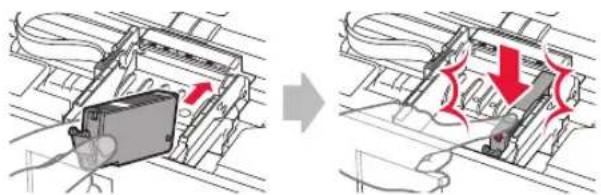
4 Insert the ink tank into the print head holder and push it down firmly until it snaps into place. After the lamp lights up, install the next ink tank.
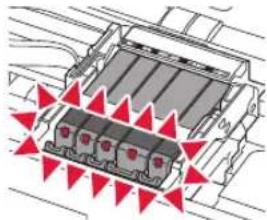
5 Check that all lamps are lit.
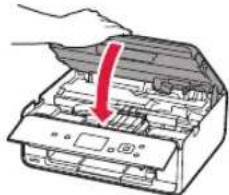
6 Close the scanning unit / cover.
If an error message appears, make sure the ink tanks are installed correctly.
Loading Paper / Aligning the Print Head
You can watch the procedure on a movie by scanning the QR codes.
Android iOS

To obtain better print result, print a pattern for print head alignment and scan it.
1 Open the rear tray cover and pull out the paper support.
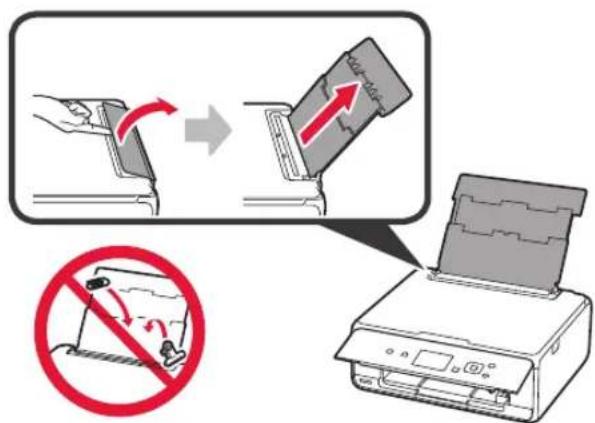
2 1 Open the feed slot cover.
Slide the right paper guide to the end.
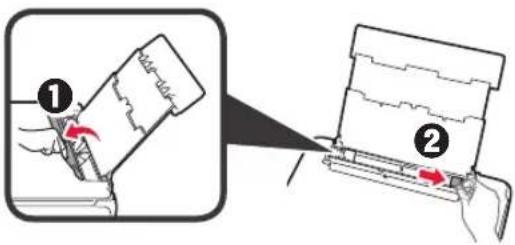
3 Load several sheets of plain paper with the print side facing up.
Slide the right paper guide to align it with the side of the paper stack.
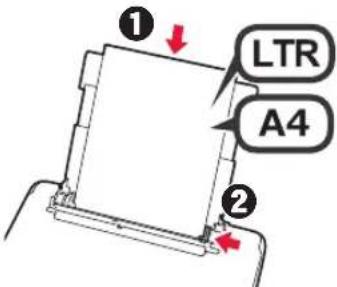
4 Close the feed slot cover.
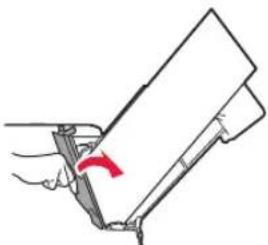
5 Pull out the paper output tray.
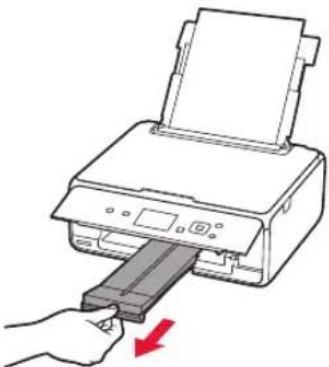
6 Use the or button to select OK, and then press the OK button.
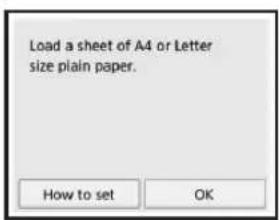
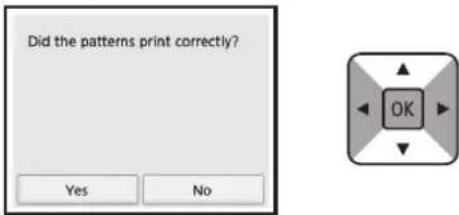
7 When the pattern for print head alignment is printed, select Yes and press the OK button.
8 Follow the on-screen instructions to load the pattern on the platen glass.
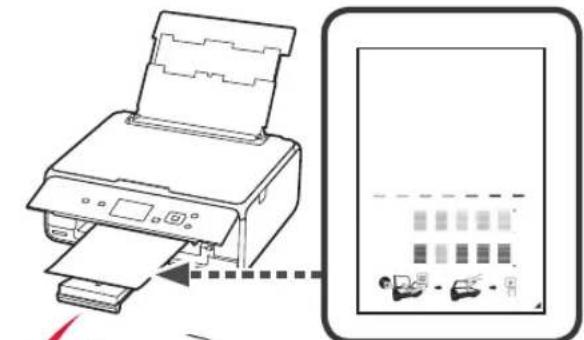
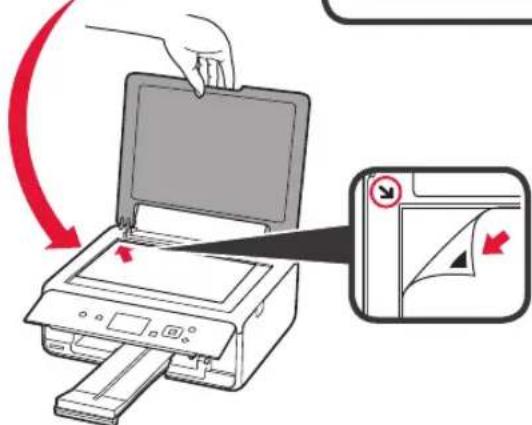
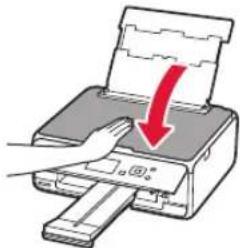
9 Close the document cover, and then follow the on-screen instructions to press the OK button.
10 If the following screen appears, press the OK button.
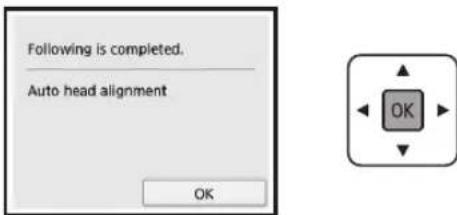
The print head alignment is now complete.
Selecting a Printer Connection Method
The connection method varies depending on how you use the printer. Select a printer connection method according to the table below. In the following description, smartphones and tablet devices are collectively described as smartphone.
| Using the printer with your computer or smartphone connected Using
the printer without
connecting any other devices |
| Wireless LAN connection USB conne
tion Do not connect |
| Connecting the printer to your computer
or smartphone via a wireless router | USB cable | |
| Connecting the printer to your computer
or smartphone directly without a
wireless router * | Use the ▲ or ▼ button to select
Do not connect on the connection
method selecting screen, and then
press the OK button. The setup is
now complete. |
- You may not connect your smartphone to the Internet wirelessly during connecting the printer to the smartphone directly. In that case, you may be charged depending on the contract with your service provider.
- Up to 5 devices can be connected to the printer via wireless LAN connection directly.
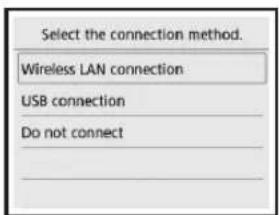
Follow the on-screen instructions to proceed with the setup.
Users who select USB connection: Do not connect a USB cable until you are instructed.
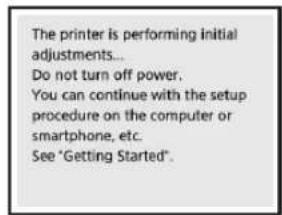
2 If the following screen appears, proceed to the next page.
If you select Wireless LAN connection:
If you select USB connection:
2. Connecting with Computer and Smartphone/Tablet
If you connect the printer to both your computer and your smartphone, connect it to the computer first.
To connect the printer only to your smartphone, proceed to "Connecting with Smartphone" on page 6.
Connecting with Computer
You need connection setup for each computer. Proceed with the setup from step 1 for each computer. The followings describe the procedures for Windows and Mac OS.
If you use a computer except for Windows or Mac OS such as Chrome OS, access "http://canon.com/ijsetup", and then follow the instructions on the Canon website to set up your computer.
1 Select one of the following steps A t B tart up the setup file.
A MacOS Windows
Accessing the Canon website
Visit the Canon website below and click Set Up.

Follow the on-screen instructions to proceed with the setup.
If the following screen appears, click Download.
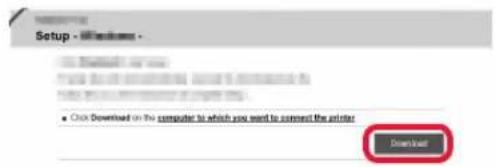
3 Start up the downloaded file.
B Windows
Using the Setup CD
Insert the setup CD into your computer.

When using Windows 10, Windows 8.1 or Windows 8:
2 Click or File Explorer on the taskbar.
3 Select This PC or Computer on the left side of the opened window.
Double-click the CD-ROM icon on the right side of the window.
- If the contents of the CD-ROM appear, double-click MSETUP4.EXE.
2 Click Start Setup.
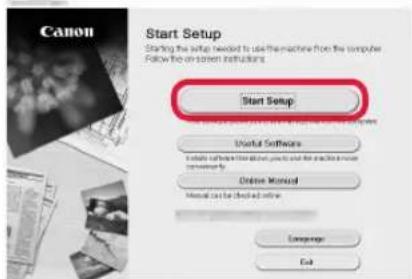
Follow the on-screen instructions to proceed with the setup.
You can set up your smartphone in the middle of the steps.
On the following screen, click Instructions to proceed with setup of your smartphone.
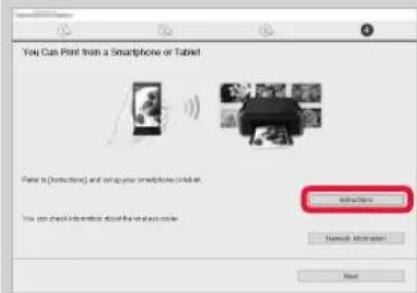
- Depending on your settings, the screen above may not appear. In that case, proceed to "Connecting with Smartphone" on page 6 after finishing the connection to your computer.
3 If the following screen appears, click Exit.
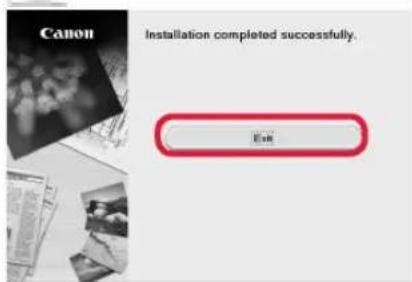
The connection with your computer is now complete. You can print from your computer.
Connecting with Smartphone
You need connection setup for each smartphone. Proceed with the setup from step 1 for each smartphone.
Preparation
- Turn on Wi-Fi on your smartphone.
- If you have a wireless router, connect your smartphone to the wireless router.
- For operations, refer to manuals of your smartphone and the wireless router or contact those manufacturers.
1 Install the application software Canon PRINT Inkjet/SELPHY in your smartphone.
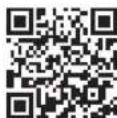
iOS : Search "Canon PRINT" in App Store.
Android : Search "Canon PRINT" in Google Play.
Or access the Canon website by scanning the QR code.
2 Check the display on the printer.
The screen turns off when no operation is made for 10 minutes. Press one of the buttons on the operation panel (except for the ON button) to display the screen.
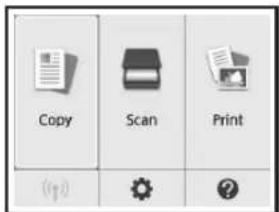
If the following screen appears:
Check the icon on the lower left, and then proceed
to A or B
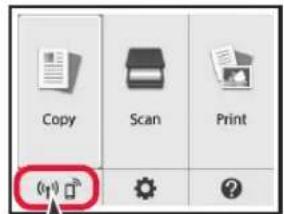
Proceed to B.
If the following screen appears:
The printer is performing initial adjustments...
Do not turn off power.
You can continue with the setup
procedure on the computer or
smartphone,etc
See "Getting Started".
The following icon appears.
(The printer is connected to a network.)

Yes
No (Proceed to B.)
If appears, the printer can not communicate by wireless LAN connection. For details, access "http://canon.com/ijsetup" to see Frequently Asked Questions.

iOS
Android
1 Tap the installed application software.
Follow the on-screen instructions to register the printer.
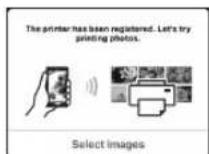
3 Make sure that the following screen appears.
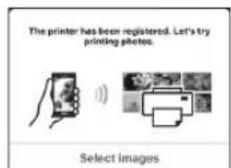
The connection with your smartphone is now complete. You can print from your smartphone.
To print photos, load photo paper. Proceed to "Loading Photo Paper" on page 8.

Procedures below vary depending on iOS or Android. Select your operating system and proceed to its procedure.
iOS
Tap Settings on the HOME screen, and then tap Canon_ij_XXXX on the Wi-Fi settings.
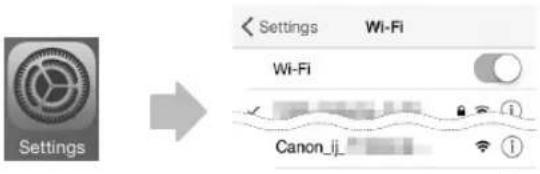
If Canon_ij_XXXX does not appear on the list, see "Preparation of the Printer" below to operate the printer, and then repeat step ①.
2 Tap the installed application software.
Follow the on-screen instructions to register the printer.
Follow the on-screen instructions to proceed with the setup. If you select Auto Select Conn. Method (recommended) on the connection method selecting screen, the appropriate connection method is selected automatically depending on your environment.
4 Make sure that the following screen appears.
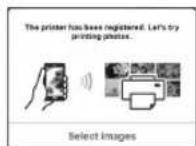
The connection with your smartphone is now complete. You can print from your smartphone.
To print photos, load photo paper. Proceed to "Loading Photo Paper" on page 8.
Preparation of the Printer
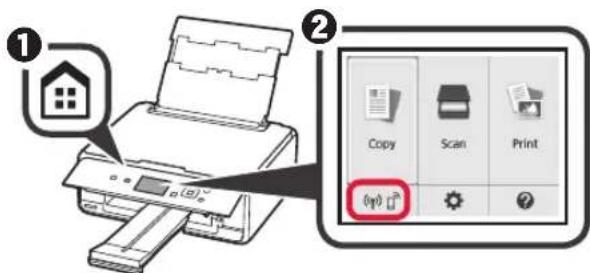
Press the HOME button on the printer.
Use the , , or button to select the icon on the lower left of the HOME screen, and then press the OK button.
Android
Tap the installed application software.
Follow the on-screen instructions to register the printer.
If a message saying "Printer is not registered. Perform printer setup?" does not appear, see "Preparation of the Printer" below to operate the printer, and then wait for a while until a message appears.
Follow the on-screen instructions to proceed with the setup. The appropriate connection method is selected depending on your environment.
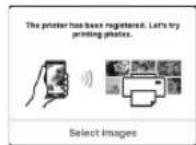
3 Make sure that the following screen appears.
Use the or button to select Yes or No, and then press the OK button.
Use the or button to select LAN settings > Wireless LAN > Wireless LAN setup > Easy wireless connect in order, and then press the OK button.
Use the or button to select Yes, and then press the OK button.
Return to the operation of your smartphone.
Loading Photo Paper
1 Open the rear tray cover and pull out the paper support.
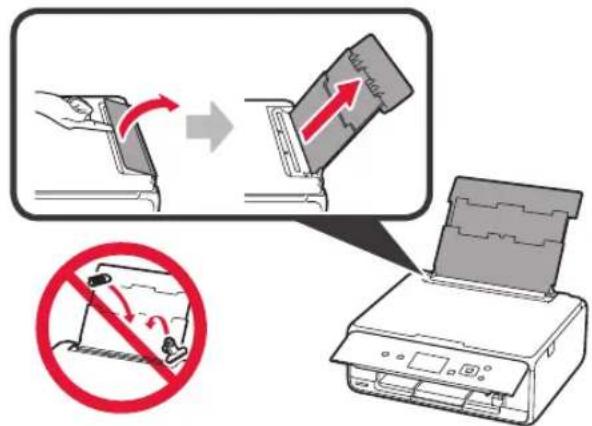
2 ① Open the feed slot cover.
Slide the right paper guide to the end.
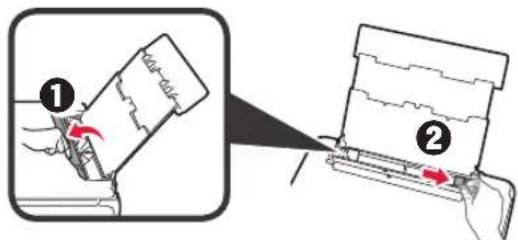
3 1 Load several sheets of photo paper with the print side facing up.
Slide the right paper guide to align it with the side of the paper stack.
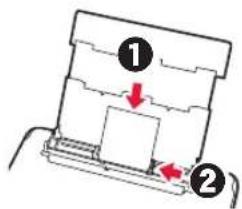
4 Close the feed slot cover.
Read the message on the printer's screen and register the information of the loaded paper.
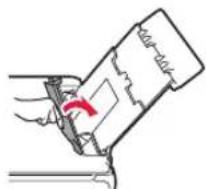
5 Pull out the paper output tray.
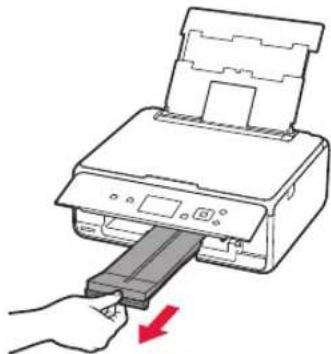
Printing Photos Saved on a Memory Card
You can print photos saved on a memory card with easy operations.
1 Make sure the printer is turned on.
2 Load several sheets of photo paper.
3 Insert the memory card into the card slot.
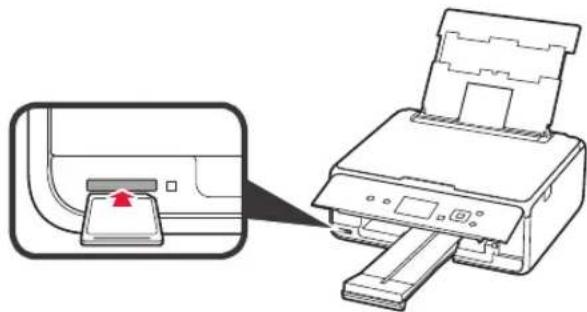
4 Select photos to be printed.
5 Press the Start button. The printer starts printing.
1. Installation de l'imprimante
The printer is performing initial adjustments... Do not turn off power. You can continue with the setup procedure on the computer or smartphone, etc. See "Getting Started".
iOS : Zoek "Canon PRINT" in App Store. Android : Zoek "Canon PRINT" in Google Play.
The printer is performing initial adjustments... Do not turn off power. You can continue with the setup procedure on the computer or smartphone, etc. See "Getting Started".
The printer is performing initial adjustments... Do not turn off power. You can continue with the setup procedure on the computer or smartphone, etc. See "Getting Started".
The printer is performing initial adjustments... Do not turn off power. You can continue with the setup procedure on the computer or smartphone, etc. See "Getting Started".
No (Continu a B.)
The printer is performing initial adjustments... Do not turn off power. You can continue with the setup procedure on the computer or smartphone, etc. See "Getting Started".
Ox1 (Ppoxwnpnte oB.)
Av epaioTeI To Eikovidio, dEKTUTWntc δev μTopei va ETIKOVWnσeI μaupuatn ouvδeON LAN. Iα λεπιομépiε, aTOKtnte πρoβaon oTo «http://canon.com/ijsetup» ia va δeite TIC Σuxvες εpωtnoeic.

iOS
Android
1 PntnoTe to ykateotnueo loyoiikO epapoynsoc.
Akoalouhnte TIG oynieC otnv oovn yia va kataxupnoTe TOV EKTUTWTH.
Bεβaiωθeite oTI εμφaviετaɪ n ἀρακατω Θθόνn.
2 AvoiTe TO kaiumu utofoxnc Tpofooiaic.
2 1 Apne spordekselet for mating.
The printer is performing initial adjustments... Do not turn off power. You can continue with the setup procedure on the computer or smartphone, etc. See "Getting Started".

2 1 Apne spordekselet for mating.
1. Installation of printeren
iOS : Sog after "Canon PRINT" i App Store. Android : Sog after "Canon PRINT" i Google Play.
The printer is performing initial adjustments... Do not turn off power. You can continue with the setup procedure on the computer or smartphone, etc. See "Getting Started".
Frequently Asked Questions