
Z3e - Bluetooth speaker LOGITECH - Free user manual and instructions
Find the device manual for free Z3e LOGITECH in PDF.
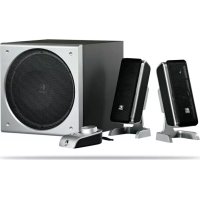



| Product Type | Bluetooth Speaker |
| Brand | Logitech |
| Model | Z3e |
| Total RMS Power | 40 watts |
| Total Peak Power | 80 watts at <10% THD |
| Satellite Speakers | 17 watts RMS (2 x 8.5 watts) into 3 ohms at 1 kHz and 10% THD |
| Subwoofer | 23 watts RMS into 4 ohms at 100 Hz and 10% THD |
| Frequency Response | 35 Hz to 20 kHz |
| Signal-to-Noise Ratio | >92 dB |
| Satellite Speaker Dimensions | 19.68 cm (H) x 13.20 cm (W) x 7.93 cm (D) |
| Subwoofer Dimensions | 22.8 cm (H) x 22.8 cm (W) x 23.8 cm (D) |
| Power Supply | Mains via power cable |
| Connectivity | 3.5 mm audio input (green jack) |
| Remote Control | Wired with volume control, standby, headphone jack |
| Main Functions | Master volume control, standby, headphone jack, subwoofer volume adjustment |
| Care and Cleaning | Unplug before cleaning, use a dry cloth |
| Safety | Do not expose to water or rain, do not block openings, avoid heat sources |
| Warranty | 2 years from date of purchase |
| Repairability | Refer to qualified technician |
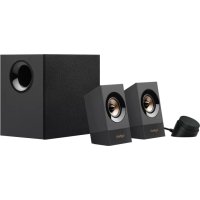
| Included Accessories | Subwoofer, 2 satellite speakers, wired remote control, audio cable, power cable |
Frequently Asked Questions - Z3e LOGITECH
User questions about Z3e LOGITECH
0 question about this device. Answer the ones you know or ask your own.
Ask a new question about this device
Download the instructions for your Bluetooth speaker in PDF format for free! Find your manual Z3e - LOGITECH and take your electronic device back in hand. On this page are published all the documents necessary for the use of your device. Z3e by LOGITECH.
USER MANUAL Z3e LOGITECH
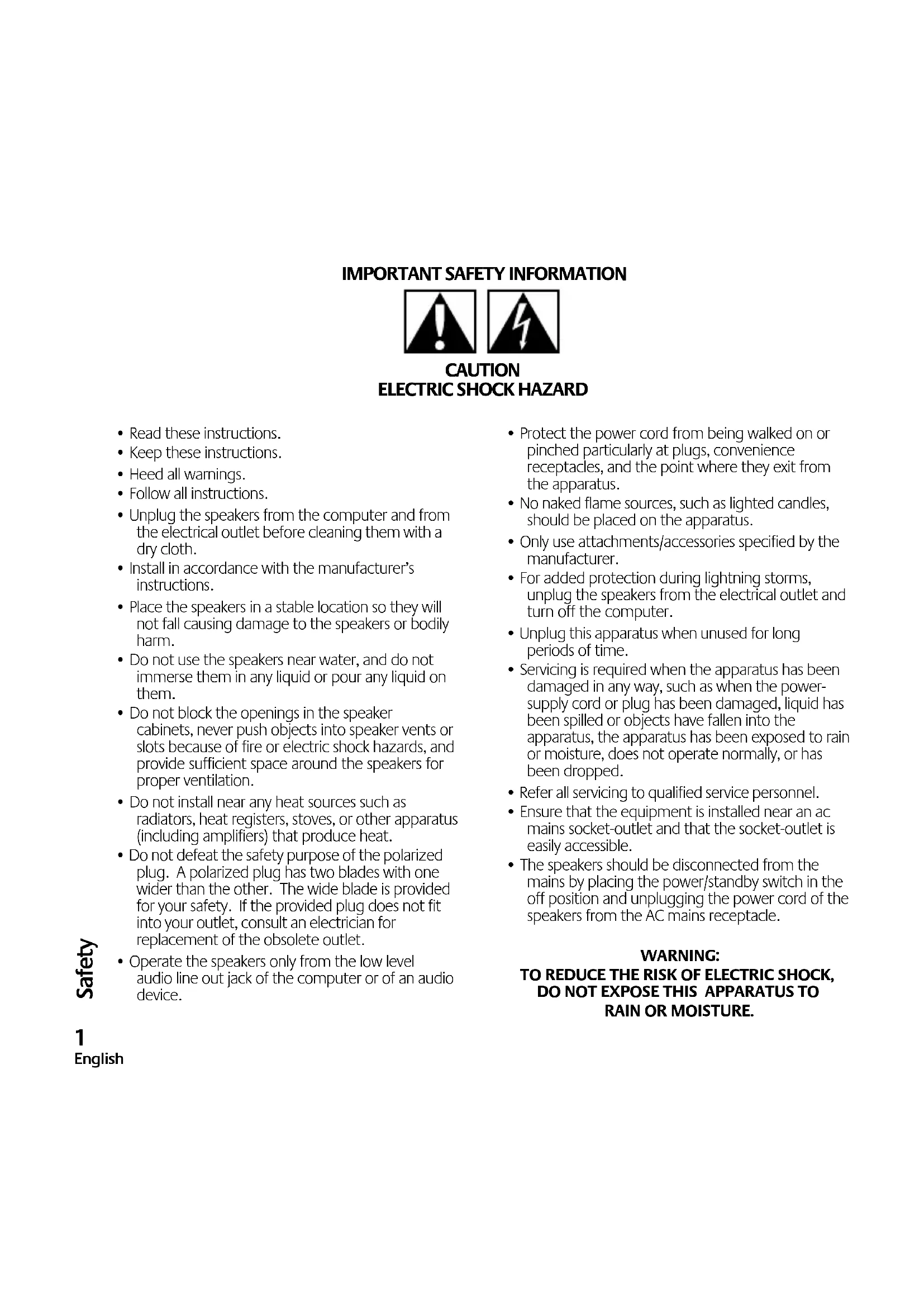
IMPORTANT SAFETY INFORMATION


CAUTION: ELECTRIC SHOCK HAZARD
- Read these instructions.
- Keep these instructions. Heed all warnings.
- Follow all instructions.
- Unplug the speakers from the computer and from the electrical outlet before cleaning them with a dry cloth.
- Install in accordance with the manufacturer's instructions.
- Place the speakers in a stable location so they will not fall, causing damage to the speakers or bodily harm.
- Do not use the speakers near water, and do not immerse them in any liquid or pour any liquid on them.
- Do not block the openings in the speaker cabinets, never push objects into speaker vents or slots because of fire or electric shock hazards, and provide sufficient space around the speakers for proper ventilation.
- Do not install near any heat sources such as radiators, heat registers, stoves, or other apparatus (including amplifiers) that produce heat.
- Do not defeat the safety purpose of the polarized plug. A polarized plug has two blades with one wider than the other. The wide blade is provided for your safety. If the provided plug does not fit into your outlet, consult an electrician for replacement of the obsolete outlet.
- Operate the speakers only from the low level audio line out jack of the computer or of an audio device.
- Protect the power cord from being walked on or pinched, particularly at plugs, convenience receptacles, and the point where they exit from the apparatus.
- No naked flame sources, such as lighted candles, should be placed on the apparatus.
- Only use attachments/accessories specified by the manufacturer.
- For added protection during lightning storms, unplug the speakers from the electrical outlet and turn off the computer.
- Unplug this apparatus when unused for long periods of time. Servicing is required when the apparatus has been damaged in any way, such as when the power-supply cord or plug has been damaged, liquid has been spilled or objects have fallen into the apparatus, the apparatus has been exposed to rain or moisture, does not operate normally, or has been dropped. Refer all servicing to qualified service personnel.
- Ensure that the equipment is installed near an AC mains socket-outlet and that the socket-outlet is easily accessible.
- The speakers should be disconnected from the mains by placing the power/standby switch in the off position and unplugging the power cord of the speakers from the AC mains receptacle.
WARNING: TO REDUCE THE RISK OF ELECTRIC SHOCK, DO NOT EXPOSE THIS APPARATUS TO RAIN OR MOISTURE.
Thank you for purchasing the Z-3 speaker system from Logitech. Your Z-3 speakers are easy to use and produce great sound. To discover more Logitech products, or if you have questions about your Z-3 speakers, visit us on the web at www.logitech.com.
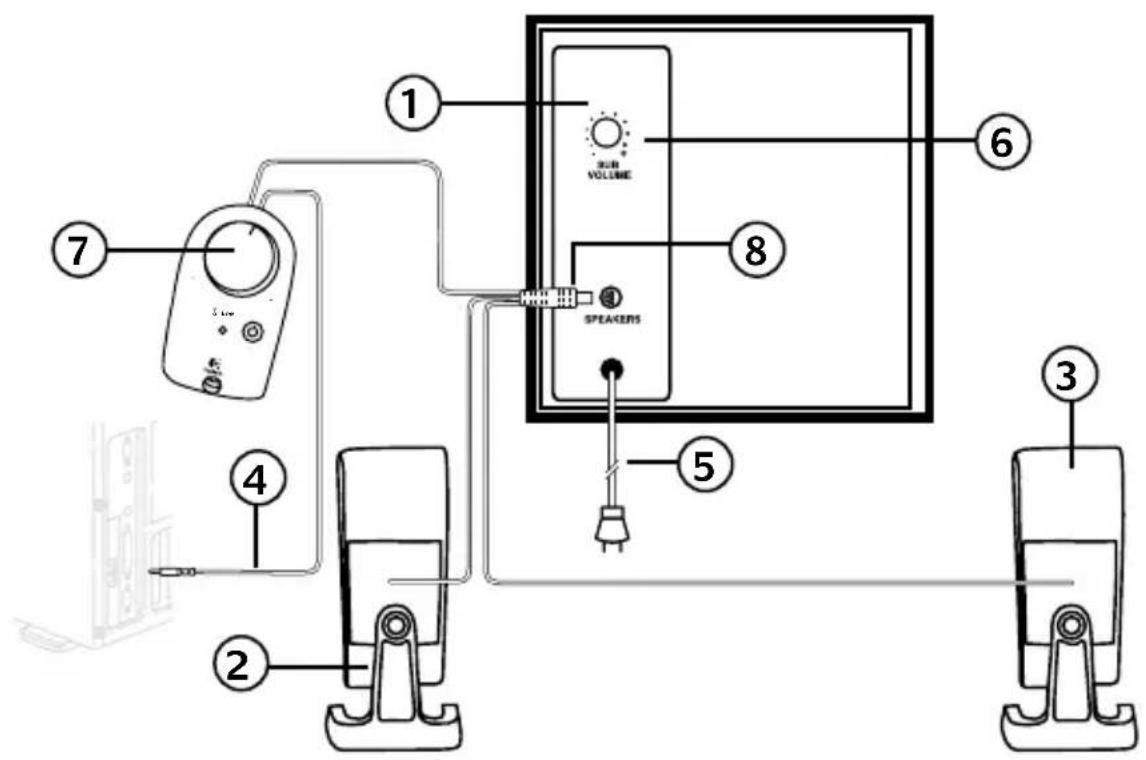
1. Subwoofer 2. Right speaker 3. Left speaker 4. Audio input cable to PC—green plug 5. Power cord 6. Subwoofer volume 7. Wired remote control 8. DIN plug
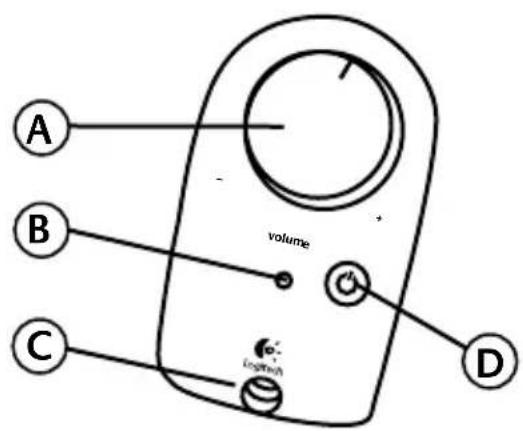
A. System Volume knob B. Power LED C. Headphone jack D. Power/Standby button
Setting up your Logitech® Z-3 speakers
Important: For your safety, set up the system before plugging it into a power source.
- Before attaching the cables to the subwoofer, position the two satellite speakers on either side of your computer. Depending on where you place your speakers, adjust them to direct the sound toward you. For best sound quality, place the subwoofer on the floor beneath your desk. Be sure to allow for adequate ventilation around it. Place the remote control within easy reach.
- Connect the DIN plug from the remote control to the subwoofer as shown on the previous page. Carefully align the pins before inserting the plug.
- A. If you have a PC:
- Plug the green audio input cable from the remote control into the speaker output on your PC.
B. If you have a video game console (PlayStation, PlayStation, Xbox™, or GameCube):
- Purchase a game console adapter, available at many consumer electronic stores.
- Connect the green plug from the audio input cable to the stereo-mini jack on the game console adapter.
- Connect the red and white RCA audio cables from your video game console to the RCA audio jacks on the game console adapter.
- Plug the subwoofer's power cord into an electrical outlet.
Enjoying your Logitech® Z-3 speakers
Access these controls on the remote control:
Power/Standby
Toggles between power on and standby mode.
System Volume
Adjusts the overall system volume.
Headphone Jack
When headphones are used with your Z-3 system, the speakers will mute automatically for private listening.
Headphone volume is controlled by the system volume knob on your remote control pod.
Subwoofer Volume
Located on the subwoofer. Use to adjust subwoofer volume (bass level).
Specifications
Total RMS Power: 40 Watts
Satellites: 17 watts RMS (2 x 8.5 w) into 3 ohms at 1 kHz at 10% THD (total harmonic distortion)
Subwoofer: 23 watts RMS into 4 ohms at 100Hz at 10% THD (total harmonic distortion)
Total Peak Power: 80 Watts at <10% THD - System THD: Better than 0.05% THD before clipping - Signal to noise ratio: >92dB Frequency response: 35Hz - 20kHz - Driver Size: 2" aluminum phase plug satellite drivers, 8" pressure driver subwoofer - Speaker dimensions:
Satellites: (H) 7.75" x (W) 3.75" x (D) 3.125"
Subwoofer: (H) 9" x (W) 9" x (D) 9.375"
Limited Warranty
Logitech warrants that any hardware product accompanying this documentation shall be free from significant defects in material and workmanship for a period of two (2) years from the date of purchase. Logitech's limited warranty is nontransferable and is limited to the original purchaser. This warranty gives you specific legal rights, and you may also have other rights which vary under local laws.
Remedies. Logitech's entire liability and your exclusive remedy for any breach of warranty shall be, at Logitech's option, to: (a) repair or replace the hardware, provided that the hardware is returned to the point of purchase or such other place as Logitech may direct, with a copy of the sales receipt, or (b) refund the price paid. Any replacement hardware will be warranted for the remainder of the original warranty period or thirty (30) days, whichever is longer. These remedies are void if failure of the hardware has resulted from accident, abuse, or misapplication, or any unauthorized repair, modification or disassembly. Upon request from Logitech, you must prove the date of original purchase of the hardware by a dated bill of sale or dated itemized receipt.
Disclaimer of warranty. The warranties expressly set forth in this agreement replace all other warranties. Logitech and its suppliers expressly disclaim all other warranties, including, but not limited to, the implied warranties of merchantability and fitness for a particular purpose and noninfringement of third-party rights with respect to the hardware. No Logitech dealer, agent, or employee is authorized to make any modification, extension, or addition to this warranty. Some jurisdictions do not allow limitations on how long an implied warranty lasts, so the above limitation may not apply to you.
Limitation of liability. In no event will Logitech or its suppliers be liable for any costs of procurement of substitute products or services, lost profits, loss of information or data, or any other special, indirect, consequential, or incidental damages arising in any way out of the sale of, use of, or inability to use any Logitech product or service, even if Logitech has been advised of the possibility of such damages. In no case shall Logitech's and its suppliers' total liability exceed the actual money paid for the Logitech product or service giving rise to the liability. Some jurisdictions do not allow the exclusion or limitation of incidental or consequential damages, so the above limitation or exclusion may not apply to you. The above limitations will not apply in case of personal injury where and to the extent that applicable law requires such liability.
©2003 Logitech. All rights reserved. Logitech, the Logitech logo, and other Logitech marks are owned by Logitech and may be registered. All other trademarks are the property of their respective owners. Logitech assumes no responsibility for any errors that may appear in this manual. Information contained herein is subject to change without notice.
IMPORTANT SAFETY INSTRUCTIONS

CAUTION RISK OF ELECTRIC SHOCK
- IMPORTANT SAFETY INFORMATION
- CAUTION: ELECTRIC SHOCK HAZARD
- WARNING: TO REDUCE THE RISK OF ELECTRIC SHOCK, DO NOT EXPOSE THIS APPARATUS TO RAIN OR MOISTURE
- SETTING UP YOUR LOGITECH® Z-3 SPEAKERS
- ENJOYING YOUR LOGITECH® Z-3 SPEAKERS
- SUBWOOFER VOLUME
- SPECIFICATIONS
- LIMITED WARRANTY
- IMPORTANT SAFETY INSTRUCTIONS
- CAUTION RISK OF ELECTRIC SHOCK
Brand : LOGITECH
Model : Z3e
Category : Bluetooth speaker