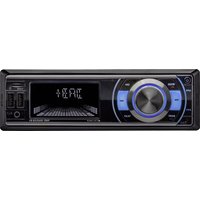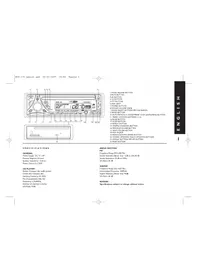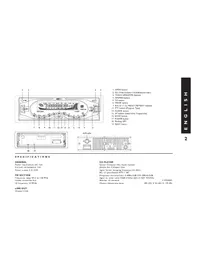
RMN 575BT - Car stereo CALIBER - Free user manual and instructions
Find the device manual for free RMN 575BT CALIBER in PDF.



User questions about RMN 575BT CALIBER
0 question about this device. Answer the ones you know or ask your own.
Ask a new question about this device
Download the instructions for your Car stereo in PDF format for free! Find your manual RMN 575BT - CALIBER and take your electronic device back in hand. On this page are published all the documents necessary for the use of your device. RMN 575BT by CALIBER.
USER MANUAL RMN 575BT CALIBER
text_image
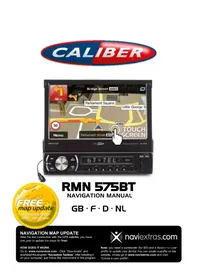
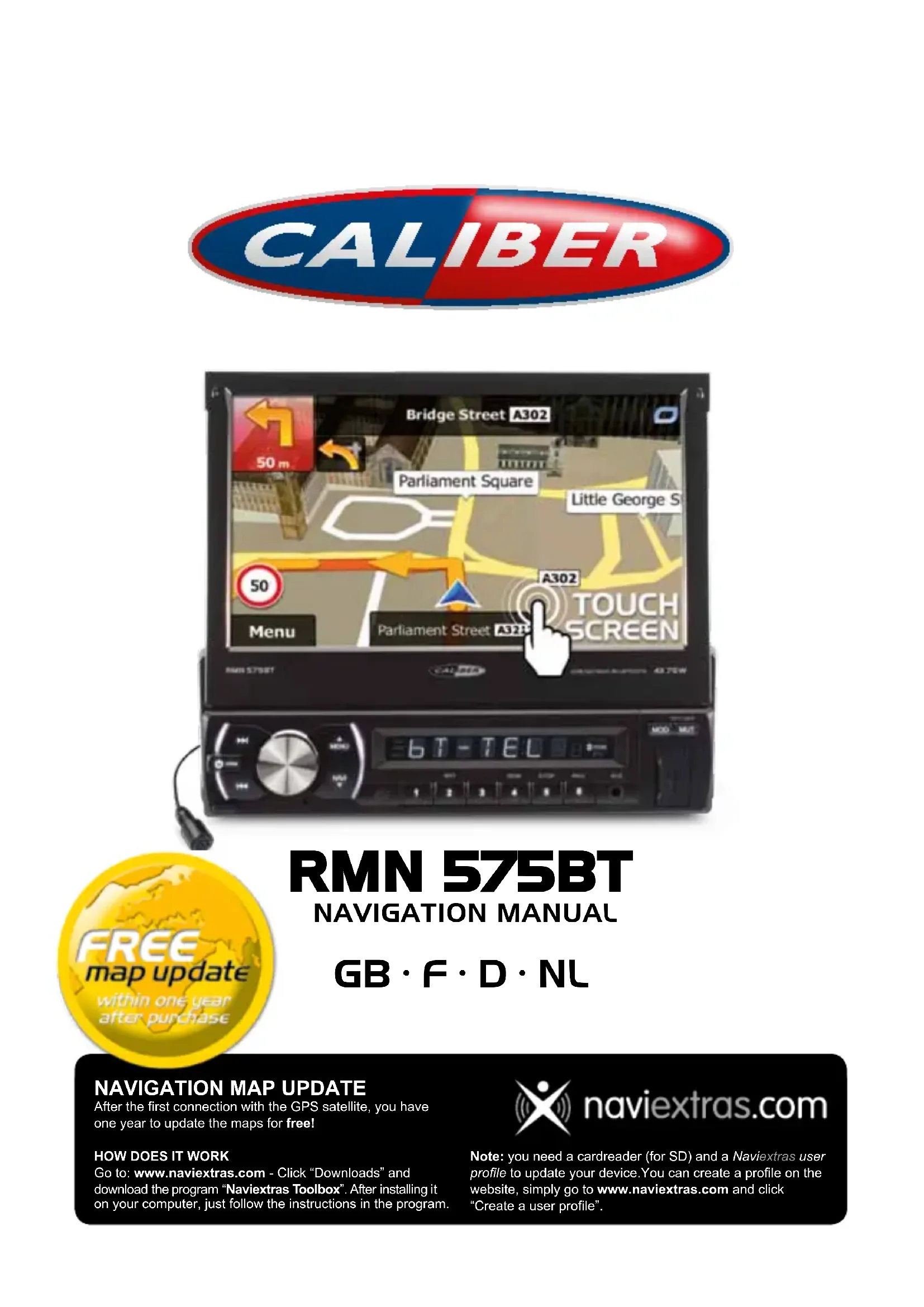
Bridge Street A302 50 m Parliament Square Little George S 50 Menu A302 Parliament Street A32P TOUCH SCREEN AMN 5758T CALIFER 6 T - T E L MOD MUT
text_image
FREE map update within one year after purchaseRMN 575BT
NAVIGATION MANUAL
GB · F · D · NL
NAVIGATION MAP UPDATE
After the first connection with the GPS satellite, you have one year to update the maps for free!
HOW DOES IT WORK
Go to: www.naviextras.com - Click "Downloads" and download the program "Naviextras Toolbox". After installing it on your computer, just follow the instructions in the program.

naviextras.com
Note: you need a cardreader (for SD) and a Naviextras user profile to update your device. You can create a profile on the website, simply go to www.naviextras.com and click "Create a user profile".
User Manual
Navigation software for the Caliber RMN575BT
UK English
Thank you for choosing the Caliber RMN575BT as your navigator. Start using Caliber RMN575BT right away. This document is the detailed description of the navigation software. You can easily discover Caliber while you are using it; however, we still recommend that you read this manual to fully understand the screens and features.
Table of contents
1 Warnings and Safety information ....6
2 Getting started....7
2.1 Navigation menu 8
2.2 Buttons and other controls on the screen....9
2.2.1 Using keyboards 10
2.2.2 Beyond single screen tap 11
2.3 Map screen....12
2.3.1 Navigating on the map.... 12
2.3.2 Position markers 14
2.3.2.1 Vehimarker and Lock-on-Road 14
2.3.2.2 Selected map location (Cursor) and selected map object 14
2.3.3 Objects on the map 14
2.3.3.1 Streets and roads 14
2.3.3.2 Turn preview and Next street 15
2.3.3.3 Lane information and Signposts.... 16
2.3.3.4 Junction view 17
2.3.3.5 Motorway exit services 17
2.3.3.6 3D object types....18
2.3.3.7 Elements of the active route 18
2.3.3.8 Traffic events....19
2.3.4 Manipulating the map 20
2.3.5 Quick menu.... 21
2.3.6 Checking the details of the current position (Where Am I?) 23
3 On-road navigation 25
3.1 Selecting the destination of a route....25
3.1.1 Entering an address or a part of the address.... 25
3.1.1.1 Entering an address 26
3.1.1.2 Entering the midpoint of a street as the destination.... 28
3.1.1.3 Selecting an intersection as the destination 29
3.1.1.4 Selecting a city/town centre as the destination.... 30
3.1.1.5 Entering an address with a postal code 32
3.1.1.6 Tips on entering addresses quickly 34
3.1.2 Selecting the destination from the Places of Interest 34
3.1.2.1 Quick search for a Place of Interest 35
3.1.2.2 Searching for a Place of Interest using preset categories.... 36
3.1.2.3 Searching for a Place of Interest by category.... 38
3.1.2.4 Searching for a Place of Interest by name 41
3.1.2.5 Selecting nearby assistance from 'Where Am I?' 43
3.1.3 Selecting a map location as the destination....45
3.1.4 Selecting the destination from your Favourites 45
3.1.5 Selecting one of the most likely destinations (Smart History).... 46
3.1.6 Selecting a recent destination from the History 47
3.1.7 Entering the coordinate of the destination 48
3.1.8 Building a route from the list of destinations (Create Route) 50
3.2 Viewing the entire route on the map 51
3.3 Checking route parameters and accessing route related functions ....51
3.4 Modifying the route....52
3.4.1 Selecting a new destination when already having a route: New Route, Waypoint or Final Destination....52
3.4.2 Setting a new starting position for the route 53
3.4.3 Editing the list of destinations (Edit Route) 54
3.4.4 Pausing the active route 55
3.4.5 Cancelling the active route....55
3.4.6 Checking route alternatives when planning the route 55
3.4.7 Checking route alternatives for an existing route 57
3.4.8 Changing the vehicle used in route planning....58
3.4.9 Changing the road types used in route planning 59
3.5 Saving a location as a Favourite destination....60
3.5.1 Editing the details of a Favourite destination....61
3.6 Saving a map location as an alert point ....62
3.7 Editing an alert point 63
3.8 Watching the simulation of the route 64
4 Off-road navigation....66
4.1 Selecting the destination of the route 66
4.2 Navigating in off-road mode 66
5 Lorry navigation....67
5.1 Setting up vehicle parameters....67
5.2 Setting up waiting time at waypoints 69
5.3 Setting up driving time alerts 70
6 Reference Guide ....72
6.1 Concepts....72
6.1.1 Smart Zoom 72
6.1.2 Daytime and night colour themes 72
6.1.3 Tunnel view 72
6.1.4 Route calculation and recalculation....73
6.1.5 Green routing....75
6.1.6 Road safety cameras and other proximity alert points 75
6.1.7 Speed limit warning....76
6.1.8 GPS position quality indicator and current time 76
6.1.9 Traffic information in route planning 77
6.1.9.1 Historical traffic 78
6.1.9.2 Real-time traffic information (TMC)....78
6.2 'More' menu....80
6.3 Settings menu 81
6.3.1 Sound and Warnings....82
6.3.2 Customise Quick menu....84
6.3.3 Driving time management 84
6.3.4 Traffic settings 85
6.3.5 Route settings....85
6.3.6 User profiles....89
6.3.7 Map settings....90
6.3.8 Visual guidance settings 91
6.3.9 Display settings....92
6.3.10 Regional settings....93
6.3.11 Trip monitor settings....93
6.3.12 Log collection settings....94
7 Glossary....95
8 Copyright note....97
1 Warnings and Safety information
The navigation system helps you find your way to your destination with the built-in GPS receiver. Caliber does not transmit your GPS position; others cannot track you.
If you accept it when first using the application, Caliber collects usage information and GPS logs that may be used for improving the application and the quality and coverage of maps. The data is processed anonymously; no one will be able to track any personal information. If you change your mind later, you can enable or disable the log collection in Settings (page 94).
It is important that you look at the display only when it is safe to do so. If you are the driver of the vehicle, we recommend that you operate Caliber before you start your journey. Plan the route before your departure and stop if you need to change the route.
You must obey the traffic signs and follow the road geometry. If you deviate from the recommended route, Caliber changes the instructions accordingly.
Never place Caliber RMN575BT where it obstructs the driver's view, where it is in the deployment zone of an airbag or where it might cause injuries in an accident.
2 Getting started
Caliber is optimised for in-car use. You can use it easily by tapping the screen buttons and the map with your fingertips.
When using the navigation software for the first time, an initial setup process starts automatically. Do as follows:
- Select the written language of the application interface. Later you can change it in Regional settings (page 93).
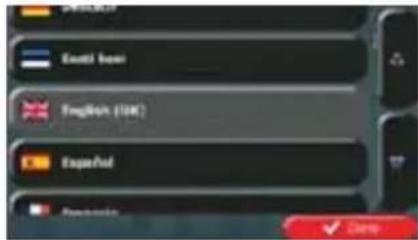
text_image
English E-mail: baoi English (UK) Spanish English- You are now asked whether you allow the software to collect usage information and GPS logs that may be used for improving the application and the quality and coverage
of maps. Tap to allow the anonymous statistics or disable this function. Later you can turn them on or off individually in Log collection settings (page 94).
-
The Configuration wizard starts. Tap to continue.
-
Select the language and speaker used for voice guidance messages. Later you can change it in Sound and Warnings settings (page 93).
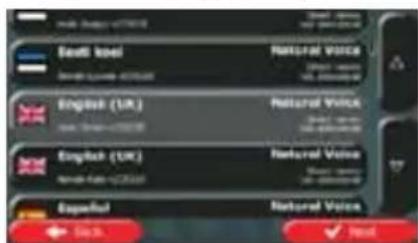
text_image
Saudi Arabia NATIONAL VOICE English (UK) NATIONAL VOICE English (UK) NATIONAL VOICE Españal NATIONAL VOICE + 50% ✓ Post- If needed, modify the time format and unit settings. Later you can change them in Regional settings (page 93).
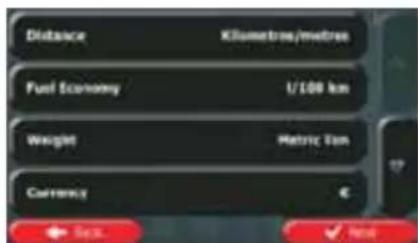
text_image
Distance Kilometres/metres Fuel Economy 1/100 km Weight Metric ton Currency € Sep. Nov- If needed, modify the default route planning options. Later you can change them in Route settings (page 85).
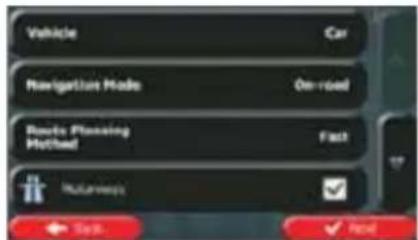
text_image
Vehicle Car Navigation Mode On-road Route Planning Method Fast Navigation OK Cancel Finish- The initial setup is now complete. The Configuration wizard can be restarted later from the Settings menu (page 81).
After the initial setup, the Navigation menu appears and you can start using Caliber.
2.1 Navigation menu
You can reach all parts of Caliber from the Navigation menu.
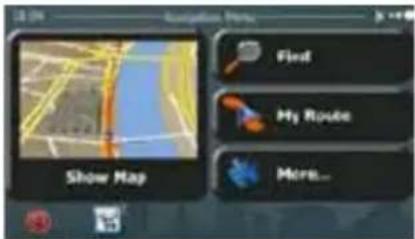
text_image
Show Map Flvd My Route More...You have the following options:

- Tap to select your destination by entering an address or selecting a place of interest, a location on the map or one of your Favourite destinations. You can also look up your recent destinations from the Smart History or enter a coordinate.

- Tap to display the route parameters and the route in its full length on the map. You can also perform route-related actions such as editing or cancelling your route, setting a start point for the route, picking route alternatives, avoiding parts of the route, simulating navigation or adding the destination to your Favourites.

- Tap to customise the way the navigation software works, to simulate demo routes or to run some additional applications.
- Tap to start navigating on the map. The button itself is a miniature live map that shows your current position, the recommended route and the surrounding map area. Tap the button to enlarge the map to the full screen.

- Tap to open the Traffic Summary screen.

- Tap to stop navigation and exit the software.
2.2 Buttons and other controls on the screen
When you are using Caliber, you usually tap buttons on the touch screen.
You only need to confirm selections or changes if the application needs to restart, it needs to perform a major reconfiguration, or you are about to lose some of your data or settings. Otherwise, Caliber saves your selections and applies the new settings without confirmation as soon as you use the controls.
| Type | Example | Description | How to use it |
| Button |  | Tap it to initiate a function, to open a new screen, or to set a parameter. | Tap it once. |
| Button with value |  | Some buttons display the current value of a field or setting. Tap the button to change the value. After the change, the new value is shown on the button. | Tap it once. |
| Icon |  | Shows status information. | Some icons also function as a button. Tap them once. |
| List |  | When you need to select from several options, they appear in a list. | Grab the list anywhere and slide your finger up or down. Depending on the speed of the sliding, the list will scroll fast or slow, only a bit or till the end.Alternatively, move between pages with theand tap the value that you want. |
| Radio button |  | When there are only a few choices, radio buttons may be used instead of lists. Only one value can be selected. | Tap one of the buttons to select a new value. |
| Switch |  | When there are only two choices, a checkmark shows whether the feature is enabled. | Tap it to turn the switch on or off. |
| Slider |  | When a feature can be set to different values in a range, Caliber shows an indicator on a gauge that displays and sets the value. | Drag the handle to move the slider to its new position.Tap the slider where you want the handle to appear; the thumb jumps there. |
| Virtual keyboard | 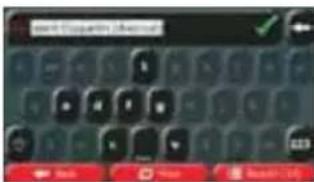 | Alphabetic and alphanumeric keyboards to enter text and numbers. | Each key is a touch screen button. |
2.2.1 Using keyboards
You only need to enter letters or numbers when you cannot avoid it. You can type with your fingertips on the full-screen keyboards and you can switch between various keyboard layouts, for example English, Greek or numerical.
| Task | Instruction |
| Switching to another keyboard layout, for example from an English keyboard to a Greek keyboard | Tap the  the new keyboard layout from the list. the new keyboard layout from the list. |
| Correcting your entry on the keyboard | Tap move the unneeded character(s). Tap and hold the button to delete several characters or the entire input string. |
| Entering a space, for example between a first name and a family name or in multi-word street names | Tap the at the bottom centre of the screen. |
| Entering upper and lower case letters | When entering a text, the first character appears in upper case while the rest of the text is in lower case. Tap enter an upper case letter or tap twice to turn on Caps Lock. Tap again and lower case letters return. |
| Entering numbers and symbols | Tap switch to a keyboard offering numeric and symbol characters. |
| Finalising the keyboard entry (opening the list of search results) | [3CXXK] Results Tap |
| Finalising the keyboard entry(saving your input) | Tap  |
| Cancelling the keyboardentry (returning to theprevious screen) | Tap  |
2.2.2 Beyond single screen tap
You usually need to tap the screen only once. However, some useful features can be accessed with combined touch screen tapping. Those are the following:
| Action | Details |
| Tapping and holding the screen | Tap and keep pressing the following buttons to reach extra functions: Tap and hold on list and menu screens: the Map screen appears. Tap and hold on list and menu screens: the Map screen appears.     Tap and hold any of the , , , , , , , andbuttons on the Map screen: you can rotate, tilt or scale the map continuously.Tap and hold on keyboard screens: you can delete several characters quickly.Tap and hold or in long lists: you can scroll pages continuously. Tap and hold any of the , , , , , , , andbuttons on the Map screen: you can rotate, tilt or scale the map continuously.Tap and hold on keyboard screens: you can delete several characters quickly.Tap and hold or in long lists: you can scroll pages continuously. |
| Gestures (drag&drop) | You need to drag and drop the screen only in cases like:Moving the handle on a slider.Scrolling the list: grab the list anywhere and slide your finger up or down. Depending on the speed of the sliding, the list will scroll fast or slow, only a bit or till the end.Moving the map in map browsing mode: grab the map, and move it in the desired direction. |
2.3 Map screen
2.3.1 Navigating on the map
The Map screen is the most frequently used screen of Caliber.
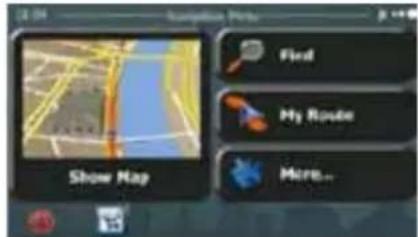
A small live map is displayed on the Navigation menu, as a part of the button.
Show Map
text_image
Show Map Field My Route More...Show Map
To enlarge this small map and open the Map screen, tap
This map shows the current position (the Vehimarker, a blue arrow by default), the recommended route (an orange line), and the surrounding map area.
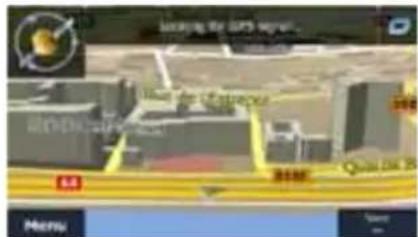
When there is no GPS position, the Vehimarker is transparent. It shows your last known position.
You see coloured dots circling around a satellite symbol in the top left corner. The more green dots you see, the closer you are to get the valid GPS position.
text_image
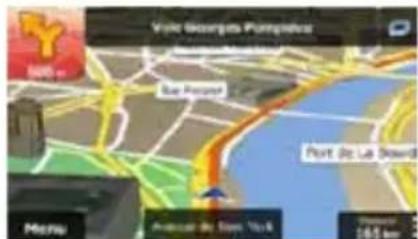
New York New York New York New York MenuWhen GPS position is available, the Vehimarker is displayed in full colour, now showing your current position.
text_image
Vale Gouarapa Pompelvar SARO Background Port (a) Lab Island McNu Anaclear By Sven, York 1065 kmThere are screen buttons and data fields on the screen to help you navigate. During navigation, the screen shows route information.

The button gives quick access to frequently used functions. You can change the available functions in Settings.
By default, only one data field is displayed in the bottom right corner. Tap this field to see all route data fields. Tap any of the data fields to suppress others and display only the selected one.
The data fields are different when you are navigating an active route and when you have no specified destination (the orange line is not displayed).
Default data fields when cruising without a destination (tap and hold any of the fields to change its value):
| Field | Description |
| Speed61 km/h | Shows your current speed given by the GPS receiver. |
| Speed Limit70 km/h | Shows the speed limit of the current road if the map contains it. |
| Time17:11 | Shows the current time corrected with time zone offset. The accurate time comes from the GPS satellites, and the time zone information comes from the map or it can be set manually in Regional settings.(The current time is always displayed in the top left corner of menu screens.) |
Default data fields when navigating a route (tap and hold any of the fields to change its value):
| Field | Description |
| Distance16.9 km | Shows the distance you need to travel on the route before reaching your final destination. |
| Time Left0:16 | Shows the time needed to reach the final destination of the route based on information available for the remaining segments of the route.If Caliber RMN575BT is capable of receiving live traffic information, the calculation takes into account traffic delays affecting your route if they are received. However, this calculation is rarely accurate.Historical traffic data can also be taken into account if data is available. |
| Arrival Time17:22 | Shows the estimated arrival time at the final destination of the route based on information available for the remaining segments of the route.If Caliber RMN575BT is capable of receiving live traffic information, the calculation takes into account traffic delays affecting your route if they are received. However, this calculation is rarely accurate.Historical traffic data can also be taken into account if data is available. |
2.3.2 Position markers
2.3.2.1 Vehimarker and Lock-on-Road
When your GPS position is available, Caliber marks your current position with the Vehimarker. This marker is a blue arrow.
When on-road navigation is selected, the Vehimarker may not show your exact GPS position and heading. If roads are near, it is aligned to the nearest road to suppress GPS position errors, and the direction of the icon is aligned to the direction of the road.
If you select off-road navigation: The Vehimarker is at your exact GPS position. The direction of the icon shows your current heading.
2.3.2.2 Selected map location (Cursor) and selected map object
You can mark a map location in the following ways:
- Tap the map when navigating,
- Tap the map when you are asked to confirm the destination at the end of a search, or
• Tap the map in Find on Map (page 45)
When a map location is selected, the Cursor appears at the selected point on the map. The
Cursor is displayed with a radiating red dot ( ) to make it visible at all zoom levels.
The location of the Cursor can be used as the destination of the route, a new alert point, you can search for Places around it, or you can save this location as one of your Favourite destinations.
You can also select some of the objects on the map. If you tap the map at the icon of a Place of Interest or an alert point, the object will be selected (you see a red circling border around the object), and you can get information about this object or use it as a route point.
2.3.3 Objects on the map
2.3.3.1 Streets and roads
Caliber shows the streets in a way that is similar to how the paper road maps show them. Their width and colours correspond to their importance: you can easily tell a motorway from a small street.
2.3.3.2 Turn preview and Next street
When navigating a route, the top section of the Map screen shows information about the next route event (manoeuvre) and the next street or the next city/town.
text_image
Visit Georges Pumped Backward Port, 30 Ltr Reward Main Andross By Pass, York Distance: 145.4 kmThere is a field in the top left corner that displays the next manoeuvre. Both the type of the event (turn, roundabout, exiting motorway, etc.) and its distance from the current position are displayed.
A smaller icon shows the type of the second next manoeuvre if it is near the first one. Otherwise, only the next manoeuvre is displayed.
Most of these icons are very intuitive. The following table lists some of the frequently shown route events. The same symbols are used in both fields:
| Icon | Description |
 | Turn left. |
 | Turn right. |
 | Turn back. |
 | Bear right. |
 | Turn sharp left. |
 | Keep left. |
 | Continue straight in the intersection. |
 | Go left on the roundabout, 3rd exit (next manoeuvre). |
 | Enter roundabout (second next manoeuvre). |
| Enter motorway. | |
| Exit motorway. | |
| Board ferry. | |
| Leave ferry. | |
| Approaching a waypoint. | |
| Approaching the destination. |
2.3.3.3 Lane information and Signposts
When navigating on multilane roads, it is important to take the appropriate lane in order to follow the recommended route. If lane information is available in the map data, Caliber displays the lanes and their directions using small arrows at the bottom of the map. Highlighted arrows represent the lanes you need to take.
Where additional information is available, signposts substitute arrows. Signposts are displayed at the top of the map. The colour and style of the signposts are similar to the real ones you can see above road or by the roadside. They show the available destinations and the number of the road the lane leads to.
All signposts look similar when cruising (when there is no recommended route). When navigating a route, only the signpost that points to the lane(s) to be taken is displayed in vivid colours; all others are darker.
If you want to hide the currently displayed signposts, tap any of them and the normal Map screen returns until new signpost information is received.
text_image
→ 34000000000 1.3 km Meizu 544 km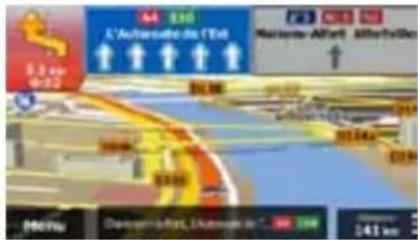
text_image
L'Automotive in Côt Marseille-Afrika A3 100 5.3 km +20 61.00 2017 41km Domeport-Rat, Amsterdam in Côt 341 km2.3.3.4 Junction view
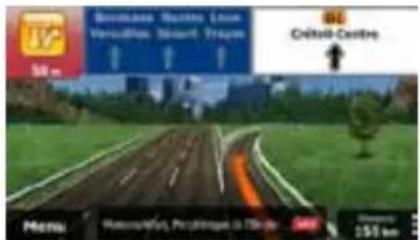
If you are approaching a motorway exit or a complex intersection and the needed information exists, the map is replaced with a 3D view of the junction. The lanes you need to take are displayed with arrows. Signposts can also be present if information is available.
If you want to hide the currently displayed junction, tap the picture and the Map screen returns.
text_image
Bonnais, Nantes, Loure Versailles, Stavart, Trayou 50 m Civitas Centre Menu: Motorcycles, Postings in Inside Distance: 150 km2.3.3.5 Motorway exit services
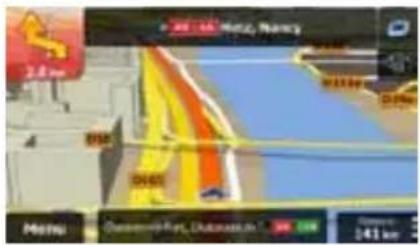
You may need a petrol station or a restaurant during your journey. This feature displays a new button on the map when you are driving on motorways.
text_image
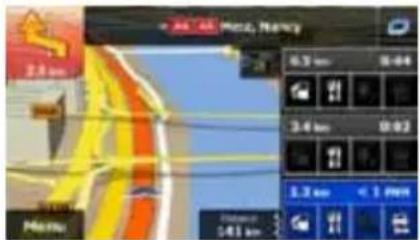
2.8 km Speed M000 M001 M002 M003 M004 M005 M006 M007 M008 M009 M010 M011 M012 M013 M014 M015 M016 M017 M018 M019 M020 M021 M022 M023 M024 M025 M026 M027 M028 M029 M030 M031 M032 M033 M034 M035 M036 M037 M038 M039 M040 M041 M042 M043 M044 M045 M046 M047 M048 M049 M050 M051 M052 M053 M054 M055 M056 M057 M058 M059 M060 M061 M062 M063 M064 M065 M066 M067 M068 M069 M070 M071 M072 M073 M074 M075 M076 M077 M078 M079 M080 M081 M082 M083 M084 M085 M086 M087 M088 M089 M090 M091 M092 M093 M094 M095 M096 M097 M098 M099 M100Tap this button to open a panel with the details of the next few exits or service stations.
text_image
2.8 km 3.4 km 1.3 km < 1 PMTap any of them to display the exit area on the map. You can now easily add this exit as a waypoint to your route if needed.
If you want to display other types of Places for the exits, you can change the icons in Visual Guidance settings (page 91).
2.3.3.6 3D object types
Caliber supports the following 3D object types:
| Type | Description |
| 3D terrain 3D terrain map data shows changes in terrain, elevations or depressions in the land when you view the map in 2D, and use it to plot the route map in 3D when you navigate. Hills and mountains are shown in the background of the 3D map, and illustrated by colour and shading on the 2D map. | |
| Elevated roads | Complex intersections and vertically isolated roads (such as overpasses or bridges) are displayed in 3D. |
| 3D landmarks | Landmarks are 3D artistic or block representations of prominent or well-known objects. |
| 3D buildings | 3D block representation of full city building data containing actual building size and position on the map. |
2.3.3.7 Elements of the active route
Caliber shows the route in the following way:
| Symbol | Name | Description |
 | Current GPS position and Start point | Your current position displayed on the map. If roads are near, it is aligned to the nearest road.Normally if GPS position is available, the route starts from the current position. If there is no valid GPS position, Caliber uses the last known position as the start point. |
 | Waypoint (intermediate destination) | An intermediate destination of the route before reaching the final destination. |
 | Destination (end point) | The final destination of the route. |
| Route colour | The route always stands out with its colour on the map, both in daytime and in night colour mode. | |
| Streets and roads that are excluded from the navigation | You can choose whether you want to use or avoid certain road types (page 85). However, when Caliber cannot avoid such roads, the route will include them and it will show them in a colour that is different from the route colour. | |
| Streets and roads that are affected by traffic events | Road segments may be affected by traffic events received. These streets and roads are displayed in an alternate colour, and small symbols displayed along the route show the type of the traffic event. | |
2.3.3.8 Traffic events
Road segments affected by traffic events are displayed with an alternate colour on the map, and small symbols above the road show the nature of the event:
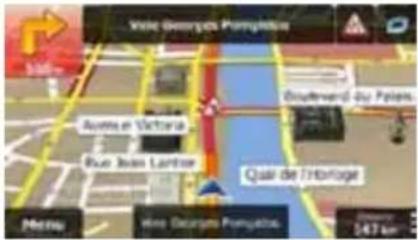
text_image
Vale Georges Pampa Boutherd 45 Paies. Aurita et Victoria Blue Juan Luntner Quai de l'Hortoge Menu Vale Desports Pampa 247 km1. Tap

to open the Traffic Summary screen.
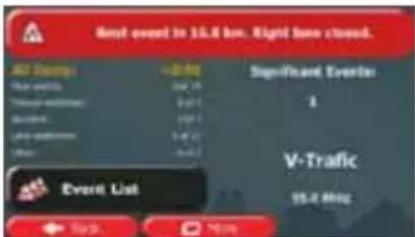
text_image
Next event to 15.4 km. Right tone closed. UST Daily +2.0 kg Significant Events 3 Time with 9:30 Time with 9:30 V-Traffic 15.4 MHz Event List Back More2. Tap
to open the list of event categories.
to see the list
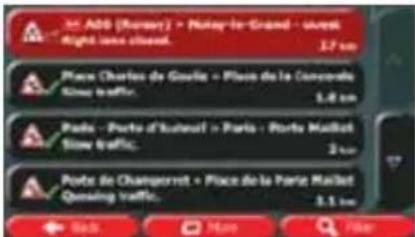
- Tap the traffic category you are interested in, or tap of all events:
text_image
ADD (Russer) • Nutsar-le-Grand • 2005 Night, once closed. 3.7 km Places Charles de Goulie • Place de la Concevalle Slow traffic. 1.4 km Ports • Porto d'Ismail • Paris • Porto Maillet Slow traffic. 2 km Ports de Changerret • Place de la Porte Maillet Gaining traffic. 3.1 km Sols More File- Now tap any of the list items to see its details, and to display the affected road segment in its full length on the map:
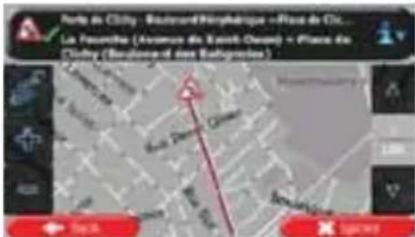
If there are traffic events on the recommended route that the application has not

bypassed, the 📄 icon will open the list of significant traffic events to let you quickly check them.
2.3.4 Manipulating the map
Tap the map anywhere to browse it during navigation. The map stops following the current position (the Vehimarker, a blue arrow by default, is not locked in a fix position on the screen any more) and control buttons appear to help you modify the map view.
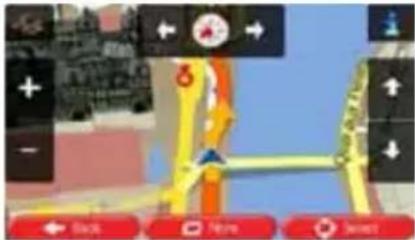
text_image
Mobile app interface screenshot showing navigation controls and a map with directional arrows and icons| Action | Button(s) | Description |
| Moving the map with drag&drop | No buttons | You can move the map in any direction: tap and hold the map, and move your finger towards the direction you want to move the map. |
| Zooming in and out |  | Changes how much of the map is displayed on the screen.Caliber uses high-quality vector maps that let you examine the map at various zoom levels, always with optimised content. It always displays street names and other text with the same font size, never upside-down, and you only see the streets and objects that you need.Map scaling has a limit in 3D map view mode. If you zoom out further, the map switches to 2D view mode.Tap the button once to modify the view in large steps, or tap and hold the button to modify it continuously and smoothly. |
| Tilting up and down |  | Changes the vertical view angle of the map in 3D mode.Tap the button once to modify the view in large steps, or tap and hold the button to modify it continuously and smoothly. |
| Rotating left and right |  | Changes the horizontal view angle of the map.Tap the button once to modify the view in large steps, or tap and hold the button to modify it continuously and smoothly. |
| 2D or 3D view |  | Tap this button to switch between the 3D perspective and 2D top-down map view modes. |
| Compass in 2D map view mode |  | The direction of the compass shows North. Tap the button to switch to North-up view, and then tap again to rotate the map in the previous direction. |
| Compass in 3D map view mode |  | The direction of the compass shows North. Tap the button to switch to North-up view, and then tap again to rotate the map in the previous direction. |
| Location information |  | Tap this button to open a new screen with information about the selected map point, the Cursor. | |
| Return to normal navigation |  | Tap this button to move the map back to follow the current GPS position. Automatic map rotation is also re-enabled.The map manipulation buttons disappear and navigation continues. | |
| Additional options |  | Tap this button to open a list of additional features like saving the Cursor as a Favourite destination, or searching for Places around the Cursor. | |
| Selecting destination |  | Tap this button to select the Cursor as a new destination. The route is automatically calculated. | |
2.3.5 Quick menu
The Quick menu is a selection of controls and functions that are frequently needed during
navigation. It can be opened directly from the Map screen by tapping

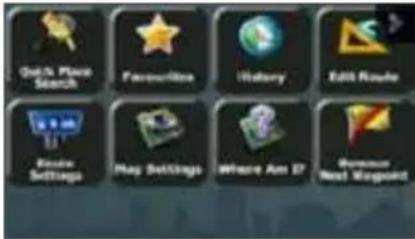
text_image
QoS Place Search Favorites History Edit Route Route Settings Play Settings Where Are It Boolean Next Mission
The menu will close after a few seconds of inactivity or if you tap
Most of these functions are shortcuts. They are accessible from the menu system.
There are more functions available than the number of buttons in the menu. In Settings, you can choose the function of each button (page 84). The following options are available:
| Button | Description | Shortcut for |
 | This function lets you search for a Place by its name. The search is carried out either along your route or around your current location if there is no route calculated. | Find / Find Places / Quick Search (page 35) |
 | This button opens the list of your Favourite destinations. | Find / Favourite (page 45) |
 | This button opens the History list. You can select one of your previous destinations. | Find / History (page 47) |
 | This button opens the route editing function. | My Route / Edit Route |
 | This button opens the route related settings. | More / Settings / Route Settings (page 85) |
 | This button opens the map related settings. | More / Settings / Map Settings (page 90) |
 | This button opens a special screen with information about the current position and a button to search for nearby emergency or roadside assistance. For details, see the next chapter. | Tap the Current Street field on the Map screen |
 | This button cancels the route and stops navigation. The button is replaced with the next one if waypoints are given. | My Route / Cancel Route (page 55) |
 | This button skips the next waypoint from the route. | n/a |
 | This button opens a 2D map scaled and positioned to show the entire route. | My Route / Overview (page 51) |
 | This button opens the Visual Guidance settings screen. | More / Settings / Visual Guidance (page 91) |
 | This button opens the Traffic Summary screen. | Tap the Traffic icon in the Navigation menu or on the Map screen |
 | This button lets you bypass parts of the recommended route. | My Route / Avoidances |
 | This button opens the Trip Monitor screen where you can manage your previously saved trip logs and track logs. | More / Trip Monitor (page 80) |
 | This button opens the list of manoeuvres (the itinerary). | Tap the top of the Map screen during navigation. |
 | With this function you can save the active route for later use. | My Route / More / Save Route |
 | With this function you can replace the active route with a previously saved route. | My Route / More / Load Route |
 | With this function you can search for Places of Interest in various different ways. | Find / Find Places (page 34) |
 | This button opens the Map screen and starts simulating the active route. | My Route / More / Simulate Navigation (page 64) |
 | This button opens the GPS Information screen with satellite position and signal strength information. | Tap the top of the Map screen when there is no GPS reception |
 | This button opens the parameters of the selected Vehicle profile. | More / Settings / Route (page 85) |
 | This button opens the Lorry settings screen. | More / Settings / Lorry (page 67) |
 | This button opens the Driving timer configuration screen. | More / Settings / Lorry / Configure Driving Timers (page 70) |
2.3.6 Checking the details of the current position (Where Am I?)
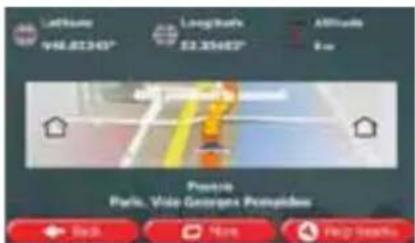
This screen contains information about the current position (or about the last known position if GPS reception is not available) and a button to search for useful Places nearby.
text_image
Affinity V6L81340° Long tracks 52.85482° Affitudes 9 cm Pavetro Park, Vice Georges PrompidusYou can access this screen from the map in one of the following ways:
- If the current street is displayed below the Vehimarker (the current position on the map), tap it to open the Where Am I? screen.
- Open the Quick menu and tap the button.
Information on this screen:


- Latitude and Longitude (coordinate of the current position according to the widely used WGS84 format).

Altitude (elevation information coming from the GPS receiver - often rate).

House number on the left.
House number on the right.
- In the middle of the screen you can see whether the position is current, or the time left since it was last updated.
- Address details (when available) of the current position are displayed at the bottom.
You can also perform some actions on this screen:

to save the current position as a Favourite destination.
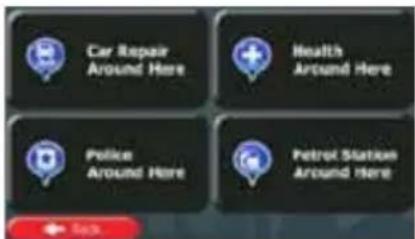
You can also search for assistance near your current position. Tap to open a new screen for the Quick search:
text_image
Car Repair Around Here Health Around Here Police Around Here Petrol Station Around HereThe following services can be searched around the current position or the last known position:

Car Repair Around Here
• Around Here : Car repair and roadside assistance services

Police Around Here
• Around Here : Police stations

Health Around Here
• Around Here : Medical and emergency services

Gas Station Around Here
Tap any of the buttons, select a Place from the list, and navigate to it.
3 On-road navigation
When first started, Caliber calculates routes using the road network of the high quality vector maps provided with the product.
You can set up your route in different ways:
- If you need a route for immediate navigation, you can select the destination and start navigating to it right away (normal navigation).
- You can also plan a route independently of your current GPS position or even without GPS reception. To achieve this you need to set a new starting point in My Route / Edit Route by tapping the flag icon at the current position. This will also turn off the GPS receiver so that the route is not recalculated when a new position is received.
You can plan routes with multiple destinations. Select the first destination. Then select a second destination and add it to your route to create a multi-point route. You can add as many destinations to your route as you like.
You can also use Caliber for off-road navigation. For details, see page 66.
3.1 Selecting the destination of a route
Caliber offers you several ways of choosing your destination:
- Enter a full address or a part of an address, for example a street name without a house number or the names of two intersecting streets (page 25).
- Enter an address with postal code (page 32). This way you do not need to select the name of the city/town and the search for street names might be faster as well.
- Use a built-in Place of Interest as your destination (page 34).
- Select a location on the map with the Find on Map feature (page 45).
• Use a previously saved Favourite destination (page 45). - Select a location from the History of previously used destinations (page 47).
- Enter the coordinate of the destination (page 48).
3.1.1 Entering an address or a part of the address
If you know at least a part of the address, it is the quickest way to select the destination of the route.
Using the same screen, you can find an address by entering:
• the exact address, including house number
• the centre of a city/town
- an intersection
• the midpoint of a street
• any of the above, starting the search with the postal code (page 32)
3.1.1.1 Entering an address
To enter an address as the destination, do as follows:

to return to the Navigation
- If you are on the Map screen, tap menu.

-
In the Navigation menu, tap the following buttons:
-
By default, Caliber proposes the country and city/town where you are. If needed, tap

enter the first few letters of the country name on the keyboard, y from the list of results.
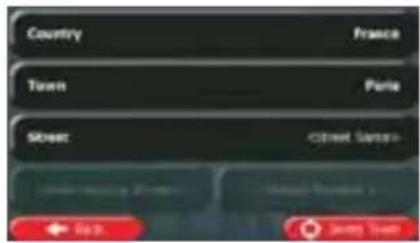
text_image
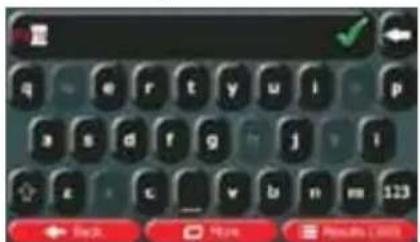
Country France Town Paris Street (Creet Sanso) New York City New York Park Sunny Town- Select a new city/town:
a. Tap

b. Start entering the name of the city/town on the keyboard.
c. Find the city/town you need:
- The most likely city/town name is always shown in the input field. To accept it, just tap the field you entered the first letters in.
- If the desired name does not show up, the names that match the string appear in a list after entering a couple of characters (to open the list of
results before it appears automatically, tap the city/town from the list.

). Select
text_image
Screenshot of a mobile keyboard interface showing standard input and control buttons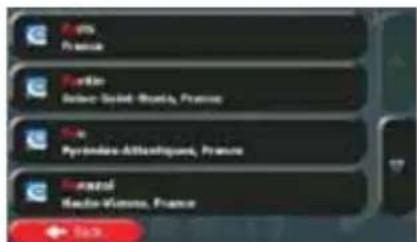
text_image
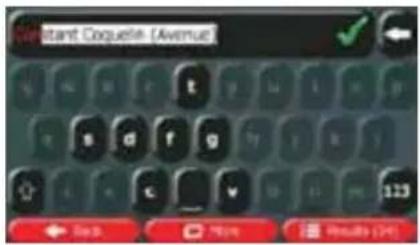
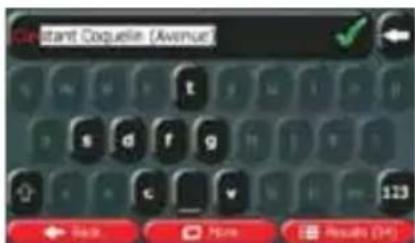
Fruit France Veille Solee-Solid - Moche, France Ole Pyromide-Attainique, France Mensal Mende-Vienne, France- Enter the street name:
a. Tap

b. Start entering the street name on the keyboard.
c. Find the street you need:
- The most likely street name is always shown in the input field. To accept it, just tap the field you entered the first letters in.
- If the desired name does not show up, the names that match the string appear in a list after entering a couple of characters (to open the list of results before it appears automatically, tap the street from the list). Select
text_image
Constant Coqueline [Avenue]
text_image
Avenue Lincoln Courtyard 75001 Paris, Série Annouissement Paris Avenue du Nouveau Gervatoire 75010 Paris, 350m² Annouissement Paris Carrefour de la Conservation 75012 Paris, 350m² Annouissement Paris Club Cardiers 75005 Paris, Série Annouissement Paris- Enter the house number:
a. Tap

b. Enter the house number on the keyboard. (To enter letters, tap

c. Tap

to finish entering the address. (If the entered house the midpoint of the street is selected as the
text_image
Indicator Response Button [7-10]- A full screen map appears with the selected point in the middle. If necessary, tap the
map somewhere else to modify the destination. The Cursor ( ) appears at the new
location. Tap
to confirm the destination, or tap

to select a different destination.
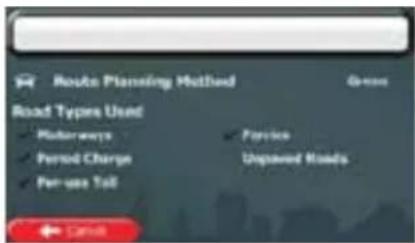
- After a short summary of the route parameters, the map appears showing the entire
route. The route is automatically calculated. Tap

to modify route
parameters, or tap

and start your journey.
text_image
Route Planning Method Road Types Used Motorways Period Charge Per-use Talk Service Unpaved Roads Cancel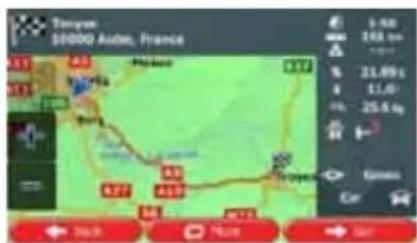
text_image
Tangye 10000 Austin, France 9.48 248 km 21.69 s 11.0 25.6 kg Green Car ← North → South → East3.1.1.2 Entering the midpoint of a street as the destination
You can navigate to the midpoint of a street if the house number is not available:

to return to the Navigation
- If you are on the Map screen, tap menu.

- In the Navigation menu, tap the following buttons:
- If necessary, modify the country and city/town as described earlier (page 26).
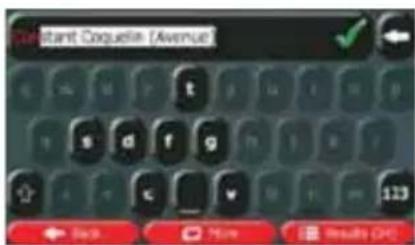
- Enter the street name:
a. Tap

b. Start entering the street name on the keyboard.
c. Find the street you need:
- The most likely street name is always shown in the input field. To accept it, just tap the field you entered the first letters in.
- If the desired name does not show up, the names that match the string appear in a list after entering a couple of characters (to open the list of
results before it appears automatically, tap the street from the list.
text_image
Constant Coqueline [Avenue] Back More Results (OK)
text_image
Avenue Canant Coquette 75003 Paris, Téve Arrondissement Paris Avenue du Nouveau Conservatoire 75010 Paris, 650me Arrondissement Paris Carrefour de la Conservation 75012 Paris, 650me Arrondissement Paris Cité Carrefour 75004 Paris, Sisne Arrondissement Paris- Instead of entering the house number, tap street is selected as the destination.

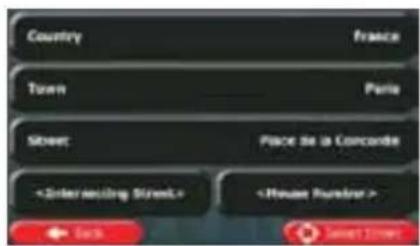
The midpoint of the
text_image
Country Town Street- A full screen map appears with the selected point in the middle. If necessary, tap the
map somewhere else to modify the destination. The Cursor ( ) appears at the new
location. Tap

to confirm the destination, or tap

to select a different destination.
- After a short summary of the route parameters, the map appears showing the entire
route. The route is automatically calculated. Tap

to modify route
parameters, or tap

and start your journey.
text_image
Route Planning Method Road Types Used Motorways Period Charge Per-use Toll Service Unpaired Roads ← CASH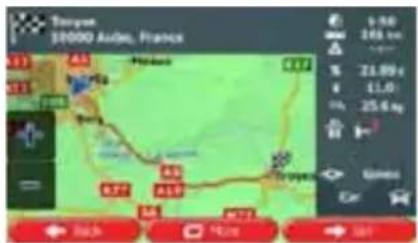
text_image
Tanyue 10000 Aides, France 9.50 246 km 21.80 g 11.0 25.6 kg Gains Back 400km 3013.1.1.3 Selecting an intersection as the destination
To enter an address as the destination, do as follows:
Menu
- If you are on the Map screen, tap menu.
to return to the Navigation

-
In the Navigation menu, tap the following buttons:
-
If necessary, modify the country and city/town as described earlier (page 26).
-
Enter the street name:
a. Tap
b. Start entering the street name on the keyboard.
c. Find the street you need:
- The most likely street name is always shown in the input field. To accept it, just tap the field you entered the first letters in.
- If the desired name does not show up, the names that match the string appear in a list after entering a couple of characters (to open the list of
results before it appears automatically, tap the street from the list.
text_image
Cleitant Coqueline [Avenue] Back More Results (H)
- Enter the intersecting street name:
a. Tap

- If only a few intersecting streets exist, their list appears immediately.
- In case of a longer street, the keyboard screen appears. Start entering the name of the intersecting street on the keyboard. As soon as the street names that match the entered string can be shown on one screen, their list appears automatically. Select from the list.
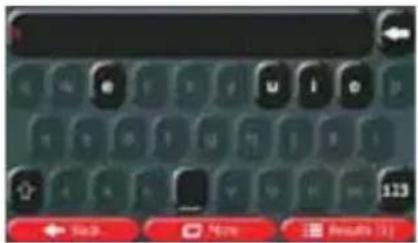
text_image
Screenshot of a mobile keyboard interface showing navigation buttons and status indicators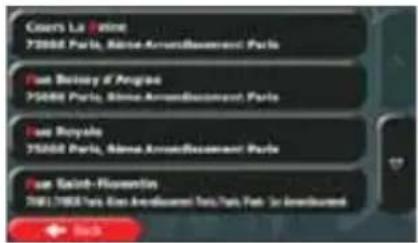
text_image
Coers La Palme 75000 Paris, Blaine Award/Bourcement Paris Fain Béchay d'Argène 75000 Paris, Blaine Award/Bourcement Paris Fain Royale 75000 Paris, Blaine Award/Bourcement Paris Fain Saint-Flororentin 75017500 Paris, Blaine Award/Bourcement Paris, Path 34 Award/Bourcement Bunch- A full screen map appears with the selected point in the middle. If necessary, tap the
map somewhere else to modify the destination. The Cursor ( ) appears at the new
location. Tap



Back
to select a different destination.
- After a short summary of the route parameters, the map appears showing the entire
route. The route is automatically calculated. Tap

to modify route
parameters, or tap

and start your journey.
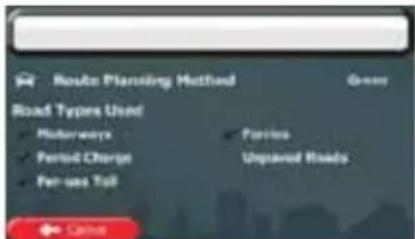
text_image
Route Planning Method Road Types Used Motorways Period Charge Fee-fee Toll Ferries Unpaved Roads Cash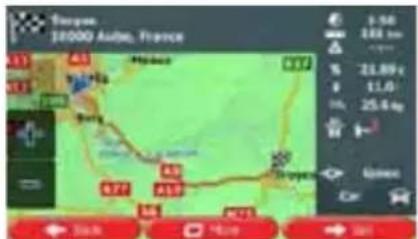
text_image
Touyors 18000 Aube, France A3 B4 Hainab B7 Soy B7 A3 A5 A7 B7 9.56 244 km 21.89 € 11.0 25.4 kg Car ← 3km → 5km → 3km3.1.1.4 Selecting a city/town centre as the destination
The city/town centre is not the geometric centre of the city/town but an arbitrary point the map creators have chosen. In towns and villages, it is usually the most important intersection; in larger cities, it is one of the important intersections.
Menu
- If you are on the Map screen, tap menu.
to return to the Navigation
- In the Navigation menu, tap the following buttons:

-
If necessary, modify the country as described earlier (page 26).
-
Select the destination city/town:
a. Tap

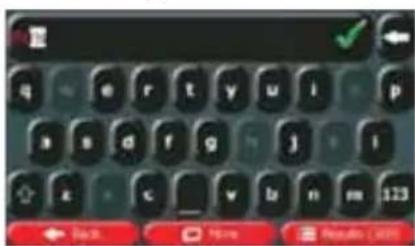
b. Start entering the name of the city/town on the keyboard.
c. Find the city/town you need:
- The most likely city/town name is always shown in the input field. To accept it, just tap the field you entered the first letters in.
- If the desired name does not show up, the names that match the string appear in a list after entering a couple of characters (to open the list of
results before it appears automatically, tap the city/town from the list.

). Select
text_image
Screenshot of a mobile keyboard with navigation buttons and a 'Back' button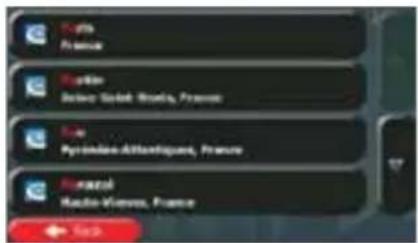
text_image
Fremont France Fremont Baboe Saint-Brasil, France Fremont Pyrémides-Atlantiqués, France Fremont Macto-Vivens, France
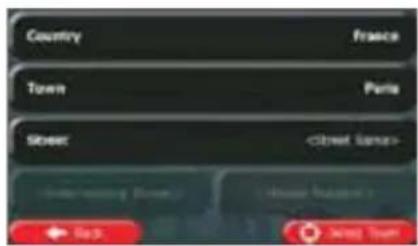
- Instead of entering the street name, tap the displayed city/town becomes the de
. This way the centre of
text_image
Country France Town Paris Street- A full screen map appears with the selected point in the middle. If necessary, tap the
map somewhere else to modify the destination. The Cursor ( ) appears at the new
location. Tap



Back
to select a different destination.
- After a short summary of the route parameters, the map appears showing the entire
route. The route is automatically calculated. Tap

to modify route
parameters, or tap

and start your journey.
text_image
Route Planning Method Road Types Used Muirways Period Charge Per-use Toll Forries Unpaid Roads ← Cause
text_image
Tangye, 18000 Auto, France 9:50 166 km 21.50 g 11.0 25.6 kg Gains: ← Back → Home → On3.1.1.5 Entering an address with a postal code
All of the above address searching possibilities can be performed with entering the postal code instead of the city/town name. Find below an example with a full address:
Menu
to return to the Navigation
- If you are on the Map screen, tap menu.


- In the Navigation menu, tap the following buttons:
- If necessary, modify the country as described earlier (page 26).
- Enter a new city/town using its postal code:
a. Tap


b. If necessary, tap
to open the numeric keypad.
c. Start entering the postal code.
d. Find the city/town you need:
- The most likely postal code is always shown in the input field. To accept it, just tap the field you entered the first numbers in.
- If the desired number does not show up, open the list of results by
tapping

Select the postal code from the list.
text_image
OK 1 2 3 4 5 6 7 8 0 ← Back → Help → Results Live
text_image
12.100 la Hunsenling, Bautenland, Great le Chittens, Russia 12.200 la Rupar Sikitsi, Harquille, Aliyama, Willes, Creplina 12.310 la Tame Ita, la Tour de Tava, Malville, la Laia de Lira, Russia 12.370 Avanz: Consequena-Bigorkha, Cretoho, Maljaz Start- Enter the street name:
a. Tap

b. Start entering the street name on the keyboard.
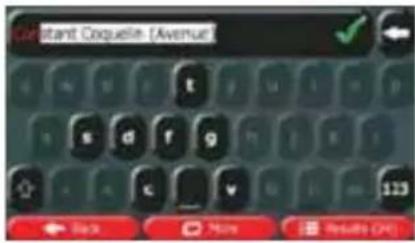
c. Find the street you need:
- The most likely street name is always shown in the input field. To accept it, just tap the field you entered the first letters in.
- If the desired name does not show up, the names that match the string appear in a list after entering a couple of characters (to open the list of
results before it appears automatically, tap the street from the list.

). Select
text_image
Constant Coqueline [Avenue] Back More Results Off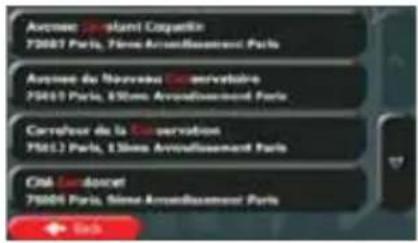
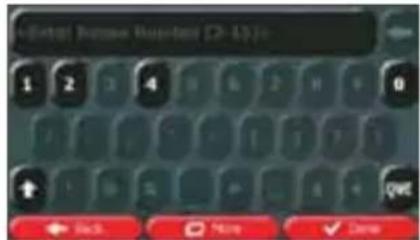
- Enter the house number:
a. Tap
b. Enter the house number on the keyboard. (To enter letters, tap

c. Tap

to finish entering the address. (If the entered house the midpoint of the street is selected as the
text_image
Metal House Button 2-15%- A full screen map appears with the selected point in the middle. If necessary, tap the
map somewhere else to modify the destination. The Cursor ( ) appears at the new
location. Tap

to confirm the destination, or tap

to select a different destination.
- After a short summary of the route parameters, the map appears showing the entire
route. The route is automatically calculated. Tap

to modify route
parameters, or tap

and start your journey.
text_image
Route Planning Method Road Types Used Motorways Period Charge Per-use Toll Passive Unpaved Roads ← Cancel
text_image
Touyau $5000 Auén, France 9.50 246 km 31.89 € 11.0 25.6 kg Green Black 700m 500m 500m3.1.1.6 Tips on entering addresses quickly
- When you are entering the name of a city/town or a street:
- Only those letters are offered on the keyboard that appear in possible search results. All other characters are greyed out.
- As you are typing, the most likely result is always displayed in the input field. If the guess is correct, just tap to select it.

• After entering a couple of letters, tap contain the specified letters.
to list the items that
- You can speed up finding an intersection:
- Search first for the street with a less common or less usual name; fewer letters are enough to find it.
-
If one of the streets is shorter, search for that one first. You can then find the second one faster.
-
You can search for both the type and the name of a road. If the same word appears in several names, for example in the name of streets, roads and avenues, you can obtain the result faster if you enter the first letter of the street type: For example, enter 'PI A' to obtain Pine Avenue and skip all Pine Streets and Pickwick Roads.
- You can also search in postal codes. As postal codes consist of only a few characters, this is usually faster than entering the name of the city/town.
3.1.2 Selecting the destination from the Places of Interest
You can select your destination from the Places of Interest included with Caliber.
Using the same screen, you can find a Place in different ways:
• with the Quick search feature, you can quickly find a nearby Place by its name
- with the Preset search feature, you can find frequently searched types of Places with only a few screen taps
- you can search for a Place by its category
- you can search for a Place by its name
In addition, you can search for special services from the 'Where Am I?' screen.
3.1.2.1 Quick search for a Place of Interest
The Quick search feature lets you quickly find a Place by its name. The search is always carried out along the recommended route if it exists or around your current location if there is no destination given.
- Start the Quick search function.
• If you are on the Map screen, tap

and then tap

• If you are in the Navigation menu, tap


tap

- Using the keyboard, start entering the name of the Place.

text_image
Enter the Right of the Right Q W E R T Y U I O P A S D F G H J K L + Z X C V B N M 123 ← Back → Here → Results (M)
- After entering a few letters, tap to open the list of Places with names containing the entered character sequence.
- (optional) The Places in the list are ordered by the length of the necessary detour (when navigating a route) or by their distance from the current position (when no
destination is given). If you need to reorder the list, tap

-
Browse the list if necessary and tap one of the list items. A full screen map appears with the selected point in the middle. The name and address of the Place is displayed at the top of the screen.
-
(optional) Tap to see the details of the selected Place. Tap to return to the map.

- If necessary, tap the map somewhere else to modify the destination. The Cursor

text_image
( ) appears at the new location. Tap to confirm the destination, or tap ← Back to select a different de- After a short summary of the route parameters, the map appears showing the entire

text_image
route. The route is automatically calculated. Tap parameters, or tap → Go! More to modify route and start your journey.
text_image
Route Planning Method Road Types Used Motorways Period Charges Per-use Toll Perivex Unpaired Roads Cancel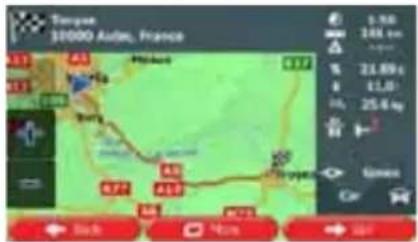
text_image
Torque 10000 Aides, France 3.98 248 cm kilos 21.69 kg 11.0 25.6 kg Green Car Back Huang Sar3.1.2.2 Searching for a Place of Interest using preset categories
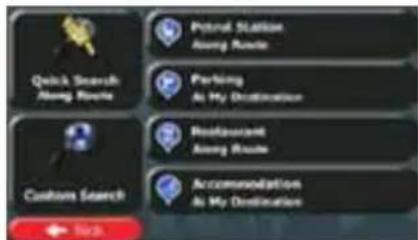
The Preset search feature lets you quickly find the most frequently selected types of Places.

- If you are on the Map screen, tap menu.
to return to the Navigation
- In the Navigation menu, tap the following buttons:
text_image
Quick Search Along Route Potsai Station Along Route Parking As My Destination Restaurant Along Route Custom Search Accommodation As My Destination Pick- The preset search categories appear:

- If an active route exists, petrol stations are searched along the route.
- If there is no active route (destination is not selected), they are searched around the current position.
- If the current position is not available either (no GPS signal), they are searched around the last known position.


- If an active route exists, parking lots are searched around the destination of the route.
- If there is no active route (destination is not selected), they are searched around the current position.
- If the current position is not available either (no GPS signal), they are searched around the last known position.
- If an active route exists, restaurants are searched along the route.
- If there is no active route (destination is not selected), they are searched around the current position.
- If the current position is not available either (no GPS signal), they are searched around the last known position.
- If an active route exists, accommodation is searched around the destination of the route.
- If there is no active route (destination is not selected), they are searched around the current position.
-
If the current position is not available either (no GPS signal), they are searched around the last known position.
-
Tap any of the quick search buttons to get an instant list of Places.
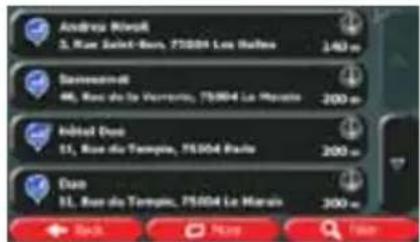
text_image
Andreas Marelli 3, Rue Saint-Bour, 75/04 La Roche 140 m Saviesmarkt 46, Rue de la Vorreria, 75/04 La Marais 200 m Inbet Doo 11, Rue de Temple, 75/04 Paule 200 m Doo 11, Rue de Temple, 75/04 La Marais 300 m Back Help Finish- (optional) The Places in the list are ordered by their distance from the current or last known position, from the destination or by the length of the necessary detour. If you
need to reorder the list, tap

-
Browse the list if necessary and tap one of the list items. A full screen map appears with the selected point in the middle. The name and address of the Place is displayed at the top of the screen.
-
(optional) Tap to see the details of the selected Place. Tap to return to the map.

- If necessary, tap the map somewhere else to modify the destination. The Cursor

text_image
( ) appears at the new location. Tap to confirm the destination, or tap ← Back → Next to select a different de- After a short summary of the route parameters, the map appears showing the entire

text_image
route. The route is automatically calculated. Tap parameters, or tap → Go! to modify route and start your journey.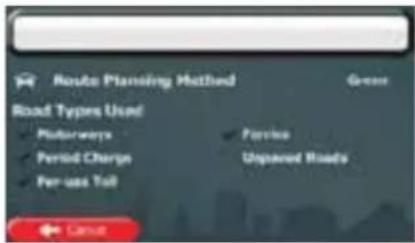
text_image
Route Planning Method Road Types Used Motorways Period Charge Per-use Tail Service Unpaired Roads Cancel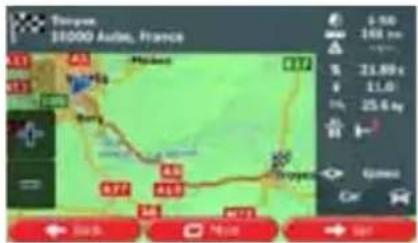
text_image
Tanyou 10000 Auto, France A3 B4 C5 D6 E7 F8 G9 H0 I1 J2 K3 L4 M4 N5 O6 P7 Q8 R9 S0 T0 U1 V1 W1 X1 Y1 Z1 A4 B4 C5 D6 E7 F8 G9 H0 I1 J2 K3 L4 M4 N5 O6 P7 Q8 R9 S0 U1 V1 W1 X1 Y1 Z1 A4 B4 C5 D6 E7 F8 G9 H0 I1 J2 K3 L4 M4 N5 O6 P7 Q8 R9 S03.1.2.3 Searching for a Place of Interest by category
You can search for Places of Interest by their categories and subcategories.
Menu
- If you are on the Map screen, tap menu.
to return to the Navigation
- In the Navigation menu, tap the following buttons:


- Tap

- Select the area around which the Place should be searched for:

- Tap to search for a place within a selected city/town. (The result list will be ordered by the distance from the centre of the selected city/town.)
- Tap to search along the active route, and not around a given point. This is useful when you search for a later stopover that results in a minimal detour only, such as searching for upcoming petrol stations or restaurants. (The result list will be ordered by the length of the necessary detour.)
- Tap to search around the current position or if it is not available, around the last know position. (The result list will be ordered by the distance from this position.)

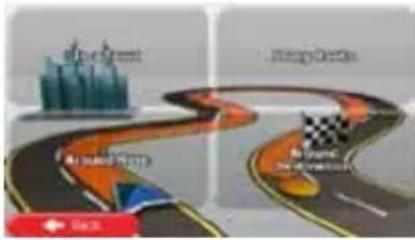
- Tap Destination to search for a place around the destination of the active route. (The result list will be ordered by the distance from the destination.)
flowchart
graph TD
    A["Top Green"] --> B["Cityscape"]
    B --> C{Decision}
    C -->|Yes| D["Top Green"]
    C -->|No| E["Checkmark"]
    E --> F["End"]

- (optional) If you have selected , select the city/town to search in.
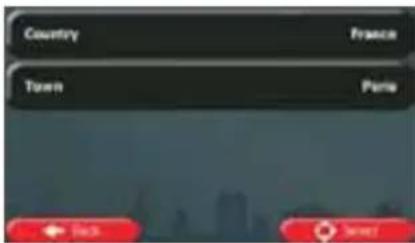
text_image
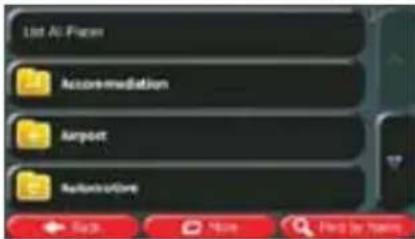
Country France Town Paris Pick Save- Select one of the main Place categories (e.g. Accommodation) or tap

to list all Places around the selected location or along the route.
text_image
List AI Plan Accommodation Airport Referral Next More Find by Next
- Select one of the Place subcategories (e.g. Hotel or Motel) or tap to list all Places in the selected main category around the selected location or along the route.
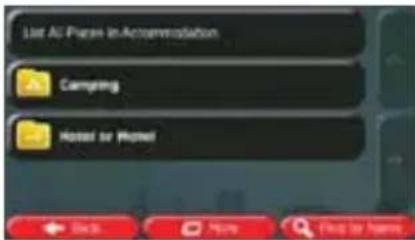
text_image
List All Plans in Accommodation Camping Hotel or Hotel- Sometimes the list of brands in the selected Place subcategory appears. Select one

brand or tap
to list all Places in the selected subcategory around
the selected location or along the route.
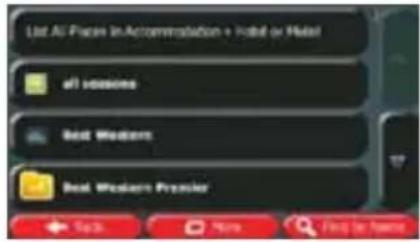
text_image
List All Sessions in Accommodation + Hotel or Hotel all sessions Best Western Best Western Preview ← Search → Home → Find it from- Finally, the results appear in a list.
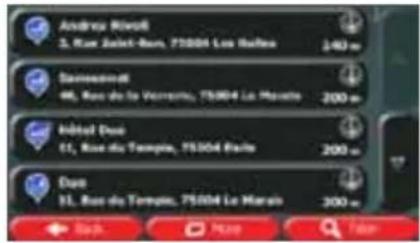
text_image
Andreas Meiss 3, Rue Saint-Ben, 75004 Les Roules 240 m Saviesmarkt 46, Rous de la Vivierru, 75004 La Maro 200 m Inbital Due 11, Rous du Temple, 75004 Paris 200 m Due 11, Rous du Temple, 75004 La Maro 200 m Bash Map Fian- (optional) The Places in the list are ordered by their distance from the current or last known position, from the selected city/town, from the destination or by the length of the
necessary detour. If you need to reorder the list, tap

- Browse the list if necessary and tap one of the list items. A full screen map appears with the selected point in the middle. The name and address of the Place is displayed at the top of the screen.

- (optional) Tap to see the details of the selected Place. Tap to return to the map.

- If necessary, tap the map somewhere else to modify the destination. The Cursor

text_image
( ) appears at the new location. Tap to confirm the destination, or tap ← Back to select a different de- After a short summary of the route parameters, the map appears showing the entire
route. The route is automatically calculated. Tap

to modify route
parameters, or tap

and start your journey.
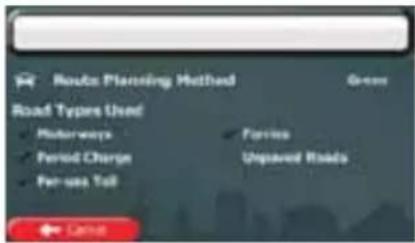
text_image
Route Planning Method Road Types Used Honeways Period Charge Per-use Talk Perife Unpaved Roads Cancel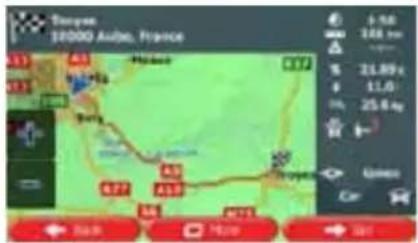
text_image
Touyne 10000 Auib, France 6.58 144 km 21.89 € 11,0 25,6 kg Ginero Car 31.89 € 11,0 25,6 kg 31.89 € 144 km 21.89 € 11,0 25,6 kg 31.89 € 144 km 21.89 € 144 km3.1.2.4 Searching for a Place of Interest by name
You can search for Places of Interest by their names. You can search around different locations or along your route in the whole Place database or in one Place category or subcategory only.
Menu
- If you are on the Map screen, tap menu.
to return to the Navigation


-
In the Navigation menu, tap the following buttons:
-
Tap

- Select the area around which the Place should be searched for:

- Tap
to search around the current position or if it is not know position. (The result list will be ordered by the n.)

- Tap
to search for a place within a selected city/town. (The by the distance from the centre of the selected

- Tap
to search for a place around the destination of the st will be ordered by the distance from the destination.)
- Tap
Along Route
Tap to search along the active route, and not around a given point. This is useful when you search for a later stopover that results in a minimal detour only, such as searching for upcoming petrol stations or restaurants. (The result list will be ordered by the length of the necessary detour.)
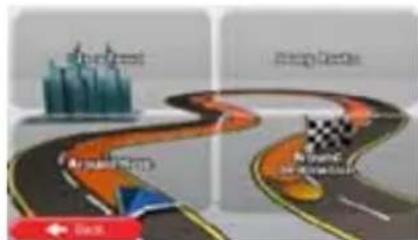
flowchart
graph TD
    A["shortest"] --> B["medium"]
    B --> C["longest"]
    style A fill:#f9f,stroke:#333
    style B fill:#ccf,stroke:#333
    style C fill:#cfc,stroke:#333
- (optional) If you have selected
, select the city/town to search in.
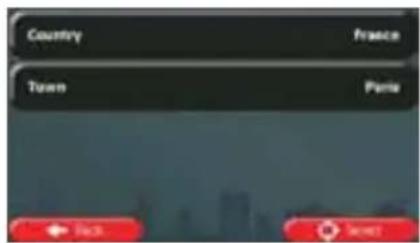
text_image
Country France Town Paris Back Next- Select one of the main Place categories (e.g. Accommodation) to search in or tap

Find by Name
to search among all Places.
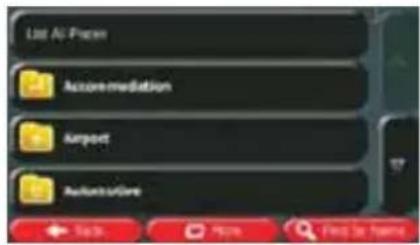
text_image
List Air Pass Accommodation Airport AvailableCare- Select one of the Place subcategories (e.g. Hotel or Motel) to search in or tap

Find by Name
to search in the selected Place category.
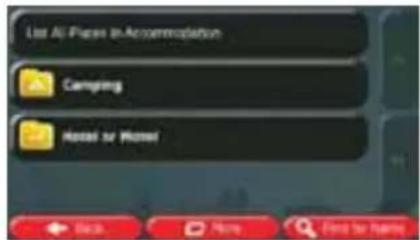
text_image
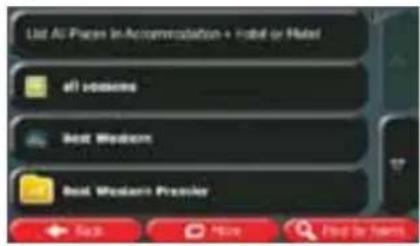
Live All-Planes to Accommodation Camping Hotel for Hotel- Tap

Find by Name
if you have not done it before.
text_image
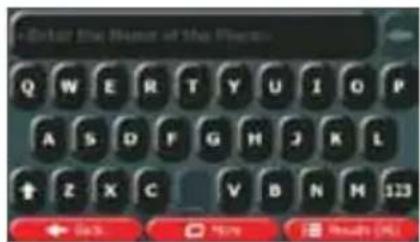
List All Places in Accommodation + Hotel or Hotel all listings Best Webinars Best Western Promoter Each More Find for Home- Using the keyboard, start entering the name of the Place.
text_image
Enter the Name of the Room Q W E R T Y U I O P A S D F G H J K L + Z X C V B N M 123 ← Back → Here → Results (R)- After entering a few letters, tap names containing the entered character sequence.

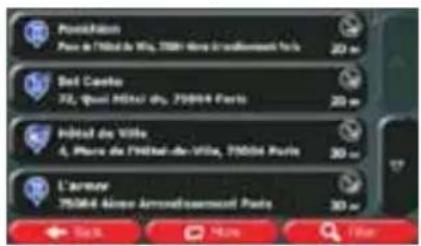
text_image
Pavichisation Pays de l'Etat de Vila, 75001 Paris l'ouillissement Paris 20 m Bel Ceille 72, Quot Etat du, 75004 Paris 20 m Inédé de Ville 4, Piers de l'Etat-de-Ville, 75004 Paris 30 m L'Armour 75004 Aïrnon Arrendissement Paris 30 m 17 Sau Mou L'un- (optional) The Places in the list are ordered by their distance from the current or last known position, from the selected city/town, from the destination or by the length of the
necessary detour. If you need to reorder the list, tap

More

- (optional) Tap to see the details of the selected Place. Tap to return to the map.

- If necessary, tap the map somewhere else to modify the destination. The Cursor


destination, or tap

to select a different destination.
- After a short summary of the route parameters, the map appears showing the entire
route. The route is automatically calculated. Tap

to modify route
parameters, or tap

and start your journey.
text_image
Route Planning Method Road Types Used Percol Percol Charge Per-sec Talk Fories Unpaired Roads Cancel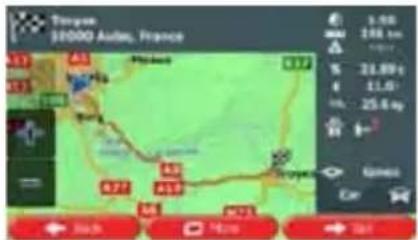
text_image
Troyne 10000 Aides, France 3.98 246 km 5 21.89 t 4 11.0 in. 25.6 kg Gines: Car Black Pérez Sau3.1.2.5 Selecting nearby assistance from 'Where Am I?'
You can quickly search for nearby assistance from the 'Where Am I?' screen.
- On the Map screen, tap

to open the Quick menu.
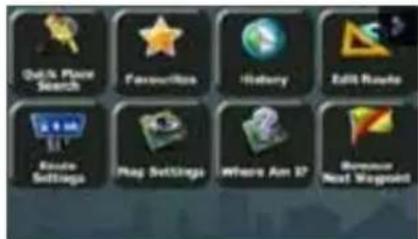
text_image
Quick Place Search Favorites History Edit Rooms Route Settings Play Settings Where Are 27 Universe Next Waypoint- Tap
and then

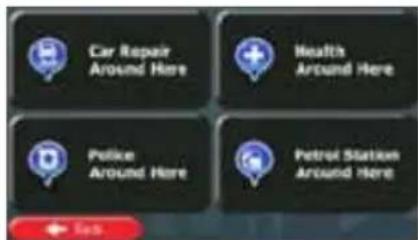
text_image
Car Repair Around Here Health Around Here Police Around Here Petrol Station Around Here- Preset search categories appear, all for searching around the current position (or around the last known position if the current position is not available):

Car Repair Around Here
: Car repair and roadside assistance services

Health Around Here
: Medical and emergency services

Police Around Here
: Police stations

Gas Station Around Here
: Petrol stations
- Tap any of the quick search buttons to get an instant list of that type of Places.
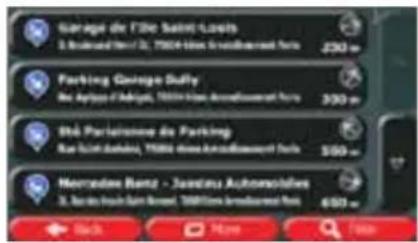
text_image
Garage de l'Île Saint-Lossis S. Bouraud Hill St, 15004-Hès Annallesourt Paris 250 m Parking Garage Duffy Sac Aptors d'Algiers, 15004-Hès Annallesourt Paris 300 m Sté Parlaissoue de Parking Rac Saint Darbini, 15004-Hès Annallesourt Paris 500 m Mercedes-Benz - Juandau Autonsolves S. Bouraud Hill Saint Barret, 15004-Hès Annallesourt Paris 600 m Back Myone Finish- (optional) The Places in the list are ordered by their distance from the current or last known position, from the selected city/town, from the destination or by the length of the
necessary detour. If you need to reorder the list, tap

-
Browse the list if necessary and tap one of the list items. A full screen map appears with the selected point in the middle. The name and address of the Place is displayed at the top of the screen.
-
(optional) Tap to see the details of the selected Place. Tap to return to the map.

- If necessary, tap the map somewhere else to modify the destination. The Cursor

) appears at the new location. Tap

destination, or tap

to select a different destination.
- After a short summary of the route parameters, the map appears showing the entire
route. The route is automatically calculated. Tap

to modify route
parameters, or tap

and start your journey.
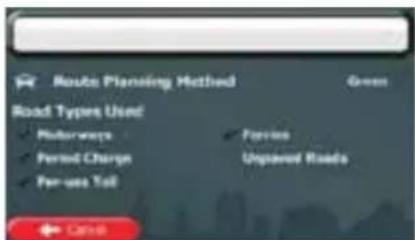
text_image
Route Planning Method Green Road Types Used Motorways Period Charges Fare use Toll Fare Use Unpaired Roads Cashbox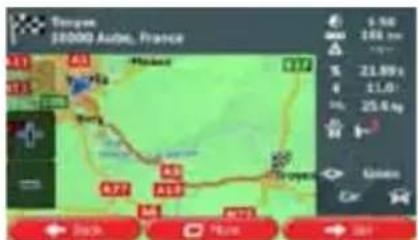
text_image
Tangye 18000 Auto, France A11 A3 Hainou A12 Bany A7 A5 A19 A4 A73 9.56 186 km 21.59 x 11.0 25.6 kg Green Car Black P/E/N S/N3.1.3 Selecting a map location as the destination
Menu
- If you are on the Map screen, tap menu.
to return to the Navigation


-
In the Navigation menu, tap the following buttons:
-
Locate your destination on the map: move and scale the map as needed.
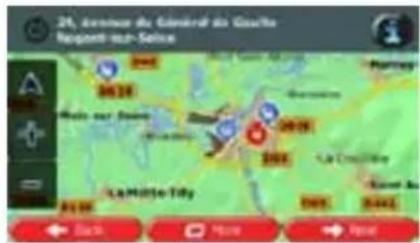
- Tap the location that you want to select as your destination. The Cursor ( ) appears there.


-
Tap to select the Cursor as the destination.
-
After a short summary of the route parameters, the map appears showing the entire
route. The route is automatically calculated. Tap

to modify route
parameters, or tap

and start your journey.
text_image
Route Planning Method Road Types Used Holarways Period Charge Per-use Talk Perires Unpaved Roads Cancel
text_image
Tayama 10000 Aides, France A3 B4 Hindad C77 Soy A5 A19 A27 A18 A75 9.50 104 km 21.69 € 11.0 25.6 kg Green Car Black Huang → 503.1.4 Selecting the destination from your Favourites
You can select a location that you have already saved as a Favourite to be your destination. Adding a location to the list of Favourite destinations is described on page 60.
- Access the list of Favourites:
• If you are on the Map screen, tap

to open the Quick menu.
- If you are in the Navigation menu, tap


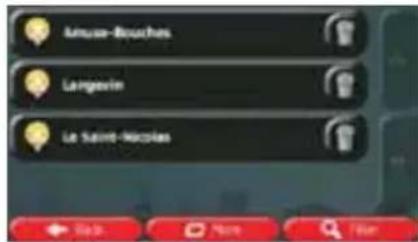
- Tap The Is of Favourite destinations is displayed.
text_image
Limous-Bouches Langevin Le Saint-Nicolas- Tap the Favourite that you want to set as your destination. If necessary, browse down
Filter to see more of the list or tap and enter a few letters from the name of the Favourite destination.
- A full screen map appears with the selected point in the middle. If necessary, tap the
map somewhere else to modify the destination. The Cursor ( ) appears at the new location. Tap Next to confirm the destination, or tap Back to select a different destination.
- After a short summary of the route parameters, the map appears showing the entire
route. The route is automatically calculated. Tap → Go! to modify route parameters, or tap and start your journey.
text_image
Route Planning Method Road Types Used ● Subways ● Period Charge ● Per-use Tail ● Fories Unpaired Roads Cancel
text_image
Toupons, $1000 Auto, France 3.56 248 km S 24.89 x 4 11.01 Inc 25.6 kg Green Car Map 740km 500km3.1.5 Selecting one of the most likely destinations (Smart History)
The destinations that you have set earlier appear in the History list. Two of those recent destinations are shown in the Destination menu for easy access. Smart History offers these locations based on your navigation habits, using parameters like the current time of day, the day of week, and the current location. The more you use the navigation software, the better it can guess your desired destination.
- If you are on the Map screen, tap menu.

to return to the Navigation
- In the Navigation menu, tap

text_image
Find Address Find Flance Find on Map Pavision #1 5. Rue Albert Thomas Foisins History #2 24. Avenue du Général de Camilla Rogent-sur-Seine

-
Tap the or the nation in the History field.
-
A full screen map appears with the selected point in the middle. If necessary, tap the
map somewhere else to modify the destination. The Cursor ( ) appears at the new
location. Tap


Back
to select a different destination.
- After a short summary of the route parameters, the map appears showing the entire
route. The route is automatically calculated. Tap

to modify route
parameters, or tap

and start your journey.
text_image
Route Planning Method Road Types Used ● Motorways ● Period Charge ● Private Toll Green ● Service Unpaved Roads OK
text_image
Tayama 10000 Aides, France 9.50 246 km 21.80 g 11.0 25.6 kg Ginero Car Air Air Air Air Air Air Air Air Air Air Air Air3.1.6 Selecting a recent destination from the History
The destinations that you have set earlier appear in the History.
- Access the History:
• If you are on the Map screen, tap

and then tap

- If you are in the Navigation menu, tap

and then tap

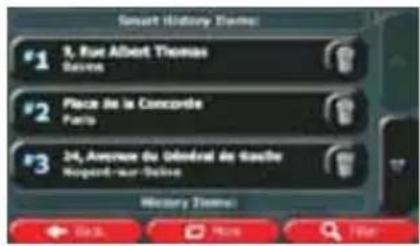
- The list of recent destinations appears. Smart History promotes three destinations to the first page based on your previous routes (most likely destinations). The rest of the destinations are ordered by time they were last selected. If necessary, scroll the list to see earlier destinations.
text_image
Smart History Theme: #1 3, Rue Albert Thomas Basse #2 Place de la Concorde Paris #3 24, Avenue du Obérad de Gauche Norges-Par-Dalise History Theme: ← 0.00 → 0.00 → 0.00 → 0.00- Select a destination from the list.
- A full screen map appears with the selected point in the middle. If necessary, tap the
map somewhere else to modify the destination. The Cursor ( ) appears at the new
location. Tap

to confirm the destination, or tap

Back
to select a different destination.
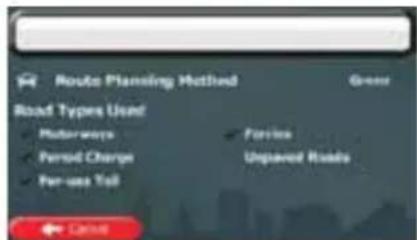
- After a short summary of the route parameters, the map appears showing the entire
route. The route is automatically calculated. Tap

to modify route
parameters, or tap

and start your journey.
text_image
Route Planning Method Road Types Used Motorways Ferred Charge Far-use Toll Passes Unpaired Roads Carls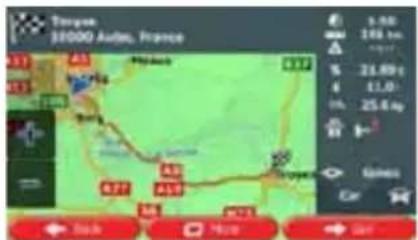
text_image
Tangye $10000 Audie, France 3.50 246 km up 21.89 € € 11,0 in. 25,6 kg Gines Car Back Top Side3.1.7 Entering the coordinate of the destination
You can also select a destination by entering its coordinate. Do as follows:

to return to the Navigation
- If you are on the Map screen, tap menu.

- In the Navigation menu, tap

menu and tap

-
Open the
-
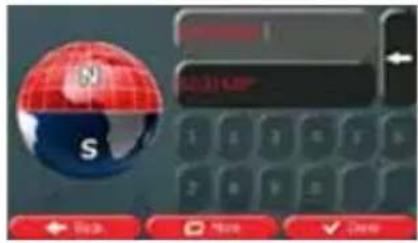
You can enter the latitude and longitude values in any of the following formats: decimal degrees; degrees and decimal minutes; or degrees, minutes and decimal seconds.
text_image
10.31 KB S

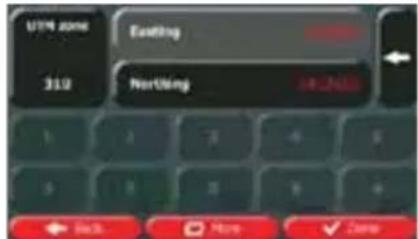
- (optional) If necessary, tap the coordinate in UTM format.
text_image
UTM zone 310 Existing Nothing 14-25% ← Back → More ✓ Zone
-
When finished, tap
-
A full screen map appears with the selected point in the middle. If necessary, tap the map somewhere else to modify the destination. The Cursor ( ) appears at the new
location. Tap → Next to confirm the destination, or tap ← Back to select a different destination.
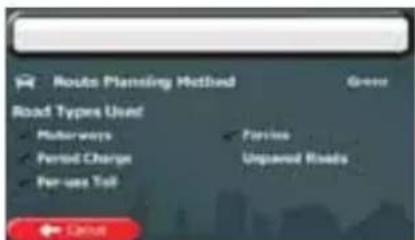
- After a short summary of the route parameters, the map appears showing the entire
route. The route is automatically calculated. Tap → Go! to modify route parameters, or tap and start your journey.
text_image
Route Planning Method Road Types Used Mushrooms Period Charge Per-use Toll Perife Unpaired Roads Cancel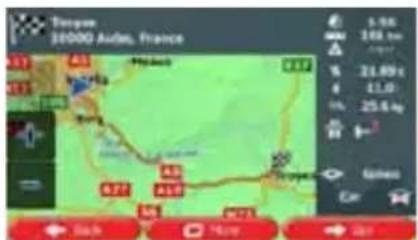
text_image
Tangye 10000 Aides, France A1 B1 C1 D1 E1 F1 G1 H1 I1 J1 K1 L1 M1 N1 O1 P1 Q1 R1 S1 T1 U1 V1 W1 X1 Y1 Z1 A2 B2 C2 D2 E2 F2 G2 H2 I2 J2 K2 L2 M2 N2 O2 P2 Q2 R2 S2 T2 U2 V2 W2 X2 Y2 Z2 A3 B3 C3 D3 E3 F3 G3 H3 I3 J3 K3 L3 M3 N3 O3 P3 Q3 R3 S3 T3 U3 V3 W3 X3 Y3 Z3 A4 B4 C4 D4 E4 F4 G4 H4 I4 J4 K4 L4 M4 N4 O4 P4 Q4 R4 S4 T4 U4 V4 W4 X4 Y4 Z43.1.8 Building a route from the list of destinations (Create Route)
You can also build your route destination by destination from the My Route menu.

- If you are on the Map screen, tap menu.
to return to the Navigation
- In the Navigation menu, tap
- Tap
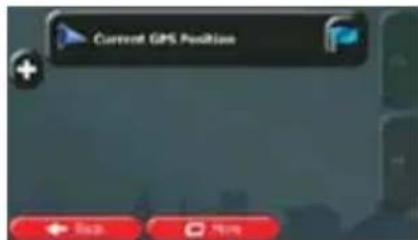
text_image
Current GPS Position Back View-
There is only one line in the list of route points, the start point of the route, normally the current GPS position.
-
Tap to select the destination.
-
The Destination menu appears and you can select the destination of the route the same way as described in the previous sections.
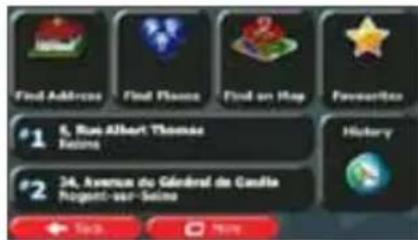
text_image
Find Address Find Flance Find on Hay Favorite #1 5, Rue Albert Thomas Reims History #2 34, Avenue du Général de Candia Rogent-sur-Suisse- When the new destination is selected, the list returns.
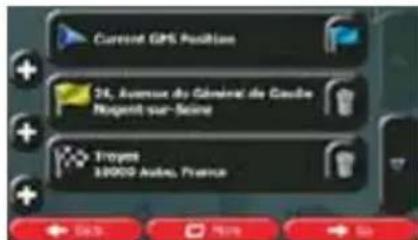
text_image
Current GPS Position 24, Avenue du Général de Gaube Nusenit sur-Seine Troyes 38000 Andes, France- To add more destinations, tap where you want to insert the new route point in the list, and repeat the above procedure.

- After you have added all the route points, tap calculated.

3.2 Viewing the entire route on the map
It is easy to get a map overview of the active route. Do as follows:

- If you are on the Map screen, tap menu.
to return to the Navigation
- In the Navigation menu, tap
- Tap
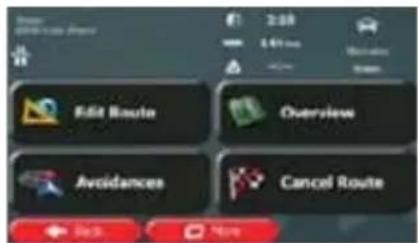
The active route is displayed in its full length on the map formation and controls.
text_image
Edit Route Overview Avoidances Cancel Route3.3 Checking route parameters and accessing route related functions
You can check different parameters of the route recommended by Caliber.

- If you are on the Map screen, tap menu.
to return to the Navigation
- In the Navigation menu, tap
- The following pieces of information are displayed:
• The name and/or address of the destination.
- Warning icons (if any). They provide extra information about your route (e.g. unpaved roads or toll roads to be taken).
• The total time of the route.
• The total length of the route.
• Estimated delay calculated from traffic events on your route.
• The symbol of the vehicle type used in route calculation.
• The route planning method (e.g. Fast).

text_image
Traves 10000 Auto, France 2:10 144 km Alternative Green- You have the following options on this screen (for detailed instructions on how to use them, see the next chapter):

- Tap
to edit the route: to add or remove destinations or you can also set a route start point other than your be useful to plan and save a future trip.
- Tap
- Tap

- Tap
to display the entire route on the map.
- Tap

to bypass a part of the route.
- Tap

to delete the active route.

to open a list with more options like selecting from using route parameters, simulating the route, saving the previously saved route.
to return to the Navigation menu.
3.4 Modifying the route
When Caliber is already started, there are several ways to modify the active route. The following sections show some of those options.
3.4.1 Selecting a new destination when already having a route: New Route, Waypoint or Final Destination
If you already have a recommended route and you select a new destination as described in the above sections, the application will ask you whether to start a new route, add a new waypoint (intermediate destination) to the route or append the newly selected destination at the end of the current route.
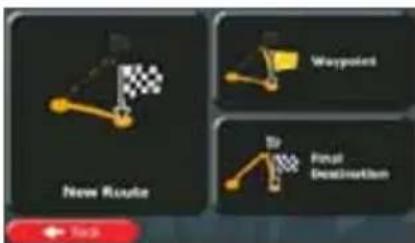
text_image
New Route Waypoint Target Destination
- Tap to plan a new route to the newly selected location. The previous destination and waypoint(s) are deleted.
- Tap to add the newly selected location as an intermediate destination to your route. The other destinations of the route remain intact. Note: the new waypoint is placed among destinations to keep the route optimal. To decide where a waypoint to appear, use the Edit Route feature.

- Tap to append the newly selected destination at the end of the route. The other destinations of the route remain intact. The previous final destination is now the last waypoint.
3.4.2 Setting a new starting position for the route
For normal navigation, all routes are planned from the current position. In order to check future routes, simulate them or see their length in time and distance, you can turn off the GPS receiver. Then you can set the starting point of the route to a different location than the current GPS position.

- If you are on the Map screen, tap menu.
to return to the Navigation
- In the Navigation menu, tap
- If you already have a route, tap
tap

If you are starting a new route,
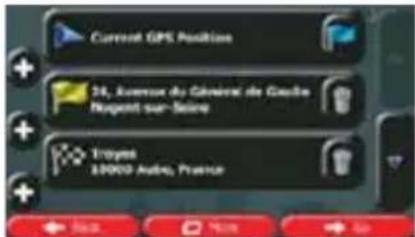
text_image
Current GPS Position + ← Stop → Help- The first line is the start of the route, normally the current GPS position. Tap confirm your action at the warning message.

and

text_image
Set Start Point Cancel- The Destination menu appears and you can select the start point of the route the same way you select a destination.
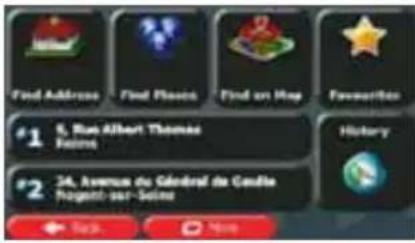
text_image
Find Address Find Flange Find on Map Favorites #1 6, Rue Albert Thomas Foisins #2 24, Avenue du Général de Coudie Pugenti-sur-Seigne Back Home
-
When the new start point is set, tap
-
The map returns with a transparent Vehimarker (showing that there is no GPS reception). If an active route already existed, it is now recalculated starting from the selected location.
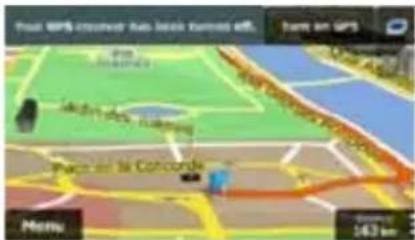
text_image
Pacar GPS-Interest Auto Base Kpnnted off Home on GPS Pacar la Concorde Menu 143 km
- To return to normal navigation, tap
3.4.3 Editing the list of destinations (Edit Route)
You can edit the route by modifying the list of destinations. You can add or remove destinations, modify the start position or reorder the list.
- If you are on the Map screen, tap menu.

to return to the Navigation
- In the Navigation menu, tap
- Tap
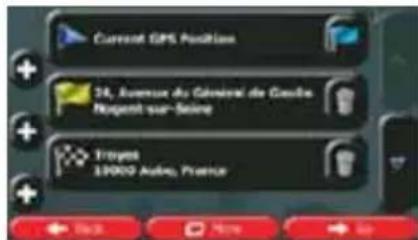
text_image
Current GPS Position 34, Avenue du General de Gaoitre. Norges sur-Seine Troyes 19000 Audio, France- You have the following options:
- Tap

to add a new destination.

- Tap
ete a destination.
- Tap

- Tap

More
to reorder the list. You can do it manually or you can be the route for you.
3.4.4 Pausing the active route
You do not need to pause the active route: when you start driving again, Caliber restarts the voice instructions from your position.
3.4.5 Cancelling the active route
To cancel the navigated route, do one of the following:
• If you are on the Map screen, tap

and then tap
(If you have a route
with waypoints, you need to tap

until all waypoints are deleted.)
• In the Navigation menu, tap
and then tap
3.4.6 Checking route alternatives when planning the route
You can select from different route alternatives or change the route planning method after you have selected a new destination. Do as follows:
- Select a destination as explained earlier, and get to the route confirmation screen.

text_image
Toulouse 10000 Aides, France 5.96 248 km 31.89 t 11.0 25.6 kg S###s Car 44km 4km 2km- Tap

text_image
Route Alternatives Timeline Route Settings Open- Tap

- You see the basic details of three route alternatives with the selected route planning method. Tap any of them to see it on the map.
text_image
Roads after survey 3.00 100 km 3.00 100 km 3.00 100 km Mount Results- Or if you cannot find a good alternative, tap routes with different routing methods.

and scroll down for
text_image
Aviation After Rainfall 1.00 200 cm 3.00 400 cm 5.00 600 cm 7.00 8.00 9.00 10.00 11.00 12.00 13.00 14.00 15.00 16.00 17.00 18.00 19.00 20.00 21.00 22.00 23.00 24.00 25.00 26.00 27.00 28.00 29.00 30.00 31.00 32.00 33.00 34.00 35.00 36.00 37.00 38.00 39.00 40.00 41.00 42.00 43.00 44.00 45.00 46.00 47.00 48.00 49.00 50.00 51.00 52.00 53.00 54.00 55.00 56.00 57.00 58.00 59.00 60.00 61.00 62.00 63.00 64.00 65.00 66.00 67.00 68.00 69.00 70.00 71.00 72.00 73.00 74.00 75.00 76.00 77.00 78.00 79.00 80.00 81.00 82.00 83.00 84.00 85.00 86.00 87.00 88.00 89.00 90.00 91.00 92.00 93.00 94.00 95.00 96.00 97.00 98.00 99.00 100.0- Select one of the route alternatives and tap

to return to the
previous screen. Caliber recalculates the route. The orange line now shows the new recommended route.
3.4.7 Checking route alternatives for an existing route
To recalculate the active route with a different route planning method, you can modify the Route settings (page 85). There is another way to do this and to compare different route alternatives with the same route planning method. Do as follows:

- If you are on the Map screen, tap menu.
to return to the Navigation
- In the Navigation menu, tap
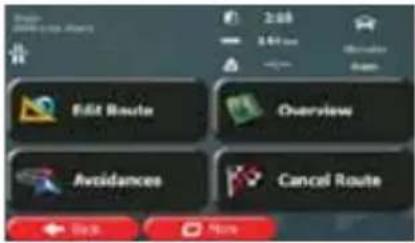
text_image
Edit Route Overview Avoidances Cancel Route- Tap

text_image
Route Alternatives Timeline Route Settings OK- Tap

- You see the basic details of three route alternatives with the selected route planning method. Tap any of them to see it on the map.
text_image
Route after returns 1.00 2.00 3.00 4.00 5.00 6.00 7.00 8.00 9.00 10.00 11.00 12.00 13.00 14.00 15.00 16.00 17.00 18.00 19.00 20.00 21.00 22.00 23.00 24.00 25.00 26.00 27.00 28.00 29.00 30.00 31.00 32.00 33.00 34.00 35.00 36.00 37.00 38.00 39.00 40.00 41.00 42.00 43.00 44.00 45.00 46.00 47.00 48.00 49.00 50.00 51.00 52.00 53.00 54.00 55.00 56.00 57.00 58.00 59.00 60.00 61.00 62.00 63.00 64.00 65.00 66.00 67.00 68.00 69.00 70.00 71.00 72.00 73.00 74.00 75.00 76.00 77.00 78.00 79.00 80.00 81.00 82.00 83.00 84.00 85.00 86.00 87.00 88.00 89.00 90.00 91.00 92.00 93.00 94.00 95.00 96.00 97.00 98.00 99.00 100.0- Or if you cannot find a good alternative, tap routes with different routing methods.
and scroll down for
text_image
Mobile app screenshot showing a map with location markers and a weather monitoring interface displaying real-time weather data.
- Select one of the route alternatives then tap and hold
for a few
seconds to return to the Map screen. Caliber recalculates the route. The orange line now shows the new recommended route.
3.4.8 Changing the vehicle used in route planning
To recalculate the active route for a different vehicle, do as follows. These changes can also be made in Settings (page 85).
- On the Map screen, tap

and then tap
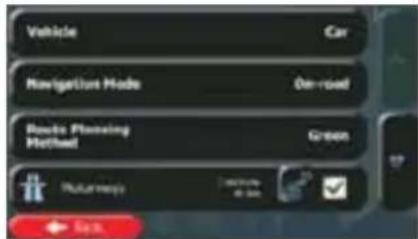
text_image
Vehicle Car Navigation Mode On-road Routes Planning Method Green Pathway with a bit OK SaaS- Tap

and then tap one of the following:
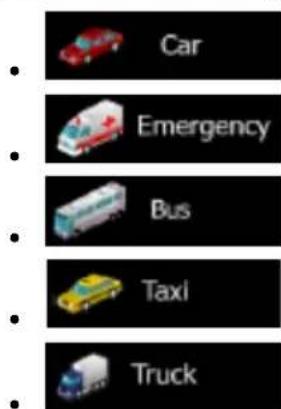
text_image
Car Emergency Bus Taxi Truck- Caliber recalculates the route optimised for the new vehicle type. The orange line now shows the new recommended route.
3.4.9 Changing the road types used in route planning
To recalculate the active route with different road type preferences, do as follows. These changes can also be made in Settings (page 85).
- On the Map screen, tap
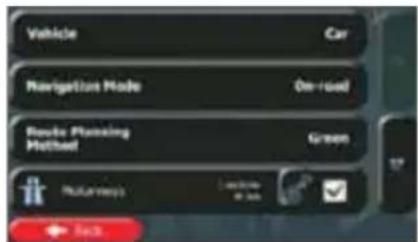
text_image
Vehicle Car Navigation Mode On-road Route Planning Method Green Routreepics Location in km Back- Tap any of the listed road types to modify the route. If needed, scroll the list for all road types. You have the following options (their order depends on the selected vehicle type):
- You might need to avoid motorways when you are driving a slow car or you are towing another vehicle.
- Charge roads are pay roads where you can purchase a pass or vignette to use the road for a longer period of time. They can be enabled or disabled separately from toll roads.
- Caliber includes toll roads (pay roads where there is a per-use charge) in the routes by default. If you disable toll roads, Caliber plans the best toll-free route.

- Caliber includes ferries in a planned route by default. However, a map does not necessarily contain information about the accessibility of temporary ferries. You might also need to pay a fare on ferries.
- Caliber excludes unpaved roads by default: unpaved roads can be in a bad condition and usually you cannot reach the speed limit on them.

- The route has already been recalculated. Tap screen. The orange line now shows the new
to return to the Map
3.5 Saving a location as a Favourite destination
You can add any location to Favourites, the list of frequently used destinations. Planning a route to one of the Favourite destinations is described on page 45.
- Select a destination as described before. It can be an address, a Place, any location on the map, a previously used destination from History, etc.
- When the full screen map appears with the selected location in the middle, tap

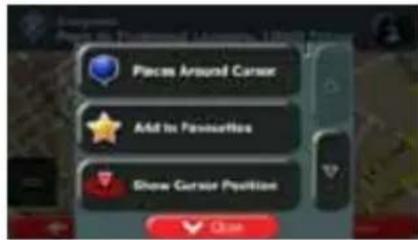
text_image
Places Around Cursor Add In Preference Show Cursor Position Close- Tap

- (optional) Using the keyboard, you can change the name offered for the Favourite. Tap

to enter numbers or symbols.
text_image
Get to a New! for the Favorites > Q W E R T Y U I O P A S D F G H J K L ↑ Z X C V B N M 123 ← Back ↑ Home ✓- Tap

to save the location as a new Favourite destination.
3.5.1 Editing the details of a Favourite destination
You can select a location that you have already saved as a Favourite and edit its details. Adding a location to the list of Favourite destinations is described on page 60.
- Access the list of Favourites:
text_image
• If you are on the Map screen, tap and then tap • If you are in the Navigation menu, tap Find and then tap- The list of Favourite destinations is displayed.
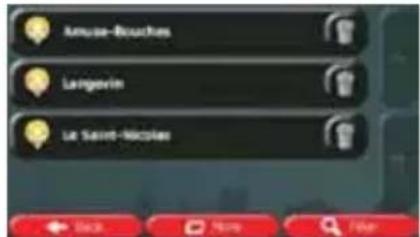
text_image
Amuse-Bouches Langovin Le Saint-Micrales- Tap the Favourite that you want to edit. If necessary, browse down to see more of the
list or tap and enter a few letters from the name of the Favourite destination.
- A full screen map appears with the selected point in the middle.

-
Tap to see the details of the selected Place.
-
Tap any of the data fields and modify its content.
-
Tap and hold to return to the map.

3.6 Saving a map location as an alert point
You can save any map location as an alert point (for example a speed camera or a railway crossing).
-
Browse the map and select a location. The red Cursor appears there.
-
Tap

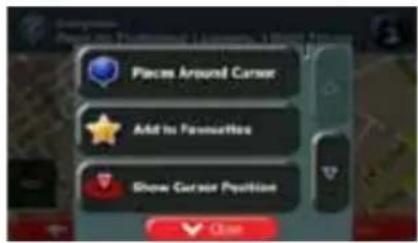
text_image
Place Around Cursor Add to Favorites Show Cursor Position- Scroll down the list and tap
- On the newly opened screen, select the type of the alert point, the direction from which you expect the alert, and (if applicable) the speed limit for this alert point.
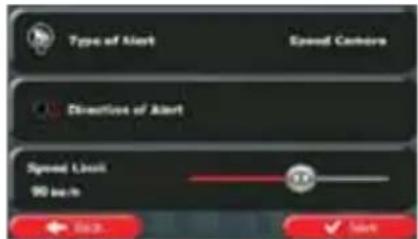
text_image
Type of Alert Speed Camera Direction of Alert Speed Limit 90 sec- Tap

to save the location as a new alert point.
3.7 Editing an alert point
You can edit a previously saved or uploaded alert point (for example a speed camera or a railway crossing).
-
Browse the map and select the alert point to edit. The red circle appears around the alert point.
-
Tap

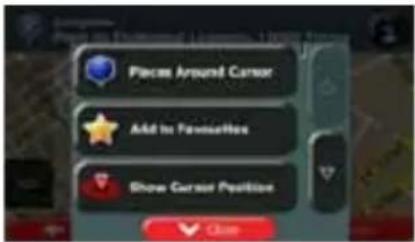
text_image
Place Around Cursor Add to Favorites Show Cursor Position Close
-
Scroll down the list and tap
-
On the newly opened screen, modify the type of the alert point, the direction from which you expect the alert, or (if applicable) the speed limit for this alert point.
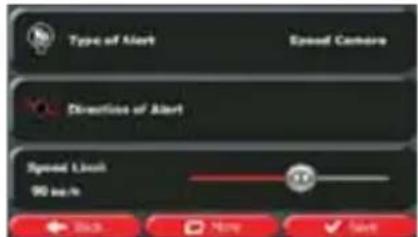
text_image
Type of Alert Speed Camera Direction of Alert Speed Ligh 90 inch Back More Cancel- Tap

to save the changes to the alert point.
3.8 Watching the simulation of the route
You can run a simulated navigation that demonstrates the active route. Do as follows:

- If you are on the Map screen, tap menu.
to return to the Navigation
- In the Navigation menu, tap
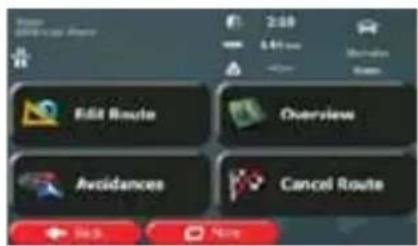
text_image
Edit Route Overview Avoidances Cancel Route- Tap

text_image
Route Alternatives Treasury Route Settings
- Scroll down the list and tap starting point of the route, recommended route.
The simulation starts from the
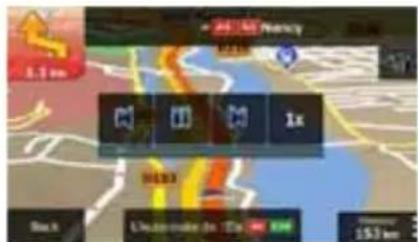
text_image
24.160 Accuracy 5.1 km 1x 8000 Unamake de 1000 km 157 kma. (optional) You have the following controls during the simulation (the control buttons disappear after a few seconds but you can open them again if you tap the map):


• : Input to the previous route event (manoeuvre).
- Tap to increase the speed of the simulation to 4, 8 or 16 times faster. Now tap again to return to the normal speed.
b. Tap

to stop the simulation.
4 Off-road navigation
When first started, Caliber calculates routes using the road network of the high quality vector maps provided with the product. You can switch the application to off-road mode in Navigation settings in one of the following ways: You can switch the application to off-road mode in the following way:
• From the Main menu, tap
• From the Map screen, tap
Most of the procedures described for on-road navigation also apply to off-road navigation. However, there are some that are not available in this navigation mode (for example you cannot open the itinerary as you have no manoeuvres just route points and straight lines between them).
4.1 Selecting the destination of the route
Selecting the start point or a destination (waypoint or final destination) is the same as described at on-road navigation. The only difference is that route points are linked to form a route with straight lines regardless of the road network and traffic regulations.
4.2 Navigating in off-road mode
The real difference between the on-road and off-road modes is the navigation itself. When you are on the Map screen with an off-road route:
- your position and heading is not aligned with the nearest road and
- there is no turn by turn navigation just a recommended direction.
You see a orange line drawn between your current position and the next destination to reach. The Turn Preview field in the top left corner shows a compass with your bearing and the distance of the next destination.
text_image
83 km Rue Jaccu de Gama 130 kmWhen you reach a waypoint, the orange line will show the direction to the next destination. When you reach the final destination, navigation ends.
5 Lorry navigation
The navigation software gives more options for lorry drivers:
- You can enter the parameters of your vehicle and Caliber calculates your routes with taking available weight, height, etc. restrictions into account (this feature is accurate only if restrictions are available for all roads between your position and the destination)
- Based on the dimensions and other entered parameters of your vehicle, Caliber warns you when you are approaching a restricted road segment or such roads must be used in your route.
- You can set a waiting (loading) time for each destination of the route. This way the arrival time calculation can take into account the idle times at intermediate destinations. In addition, time dependent restrictions and statistical traffic information can also be considered for the whole route.
- When selecting lorry as the vehicle type, U-turns are disabled from routes as much as possible.
Disable U-Turns
- By using the button in the vehicle profile, you can even forbid turning back on divided roads.
- You can use countdown timers to alert you when compulsory breaks must be taken (timers can be set for one driver or two alternate drivers)
Warnings are both visual and audible. There are different kinds of warnings:
- When approaching a restricted road segment without a route, you are warned that there is a restricted area ahead.
- Restricted road segments are excluded from your routes but in some cases some restricted roads need to be used to reach the given destination. In this case you receive a warning and you must accept that you have restricted roads in your route or you can stop the navigation and continue without an active route.
Note!
Please note that lorry navigation is only as accurate and comprehensive as the restrictions received with the map. Restrictions may not cover lower priority roads and in most cases the coverage changes as you move around your map region. You are obliged to always obey the restrictions displayed on the road.
5.1 Setting up vehicle parameters
When you use Caliber with a lorry, you need to select a lorry type vehicle profile in Route settings and enter the parameters of your vehicle. These parameters are used in route calculation to bypass roads that are restricted for your lorry. Do as follows:
Menu
- If you are on the Map screen, tap menu.
to return to the Navigation


- In the Navigation menu, tap
and then
3. Tap

text_image
Vehicle Car Navigation Mode On-road Route Planning Method Green Maturways Lockery at bus OK4. Tap

- There is one Default Lorry profile at the end of the list. You can either:

- tap the button at the Default Lorry profile or
- create a new profile by tapping then and selecting Lorry as the vehicle type.

- The list of vehicle profile parameters appear. Scroll the list and tap any of the lines to change the parameters. The parameters are intuitive. In addition, you have the following options:
Confirm Parameters for Each Route Planning
- Each Route Planning: When enabled, the list of vehicle parameters always appears before route calculation. This helps you quickly adjust the parameters when some of them (the actual weight for instance) often change.
Disable U-Turns
- When selecting lorry as the vehicle type, U-turns are disabled from routes as much as possible. With this button you can even forbid turning back on divided roads.
text_image
Name Time Max. Speed Customs Parameters for Each Route Planning Lorry Lorry 80 (m/s) ✓ Sign7. When finished with the vehicle parameters:

text_image
• tap ← Back if you have modified an existing vehicle profile or • tap ✓ Done if you have created a new profile.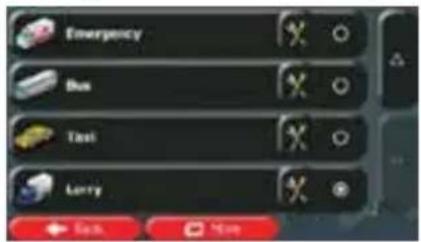
text_image
Emergency Bus Test Larry ← Back NextWhile this profile is selected, the parameters of your vehicle are taken into account when planning routes. Note that this leads to a safe route for your lorry only if map data contains the weight, height, etc. restrictions of the road network in your area.
| Tip! | Speed limits for lorries may not be available for all roads. It is advised to enter the maximum allowed speed in your area for your vehicle instead of the maximum speed your lorry is capable of. |
| Tip! | When you often use your vehicle with typical configurations of parameters (for example with or without a trailer that also affects the length, the height, the number of axles and the weight), it is better to create different vehicle profiles for the typical setups and change between the profiles instead of always modifying parameters. |
5.2 Setting up waiting time at waypoints
In order to receive a better arrival time estimation and to be able to use time restrictions and statistical traffic information for future legs of the route, you can enable this feature and specify a waiting time for each stop on your route.
If you enable the feature as described below, the application will ask you to enter the time you will spend at a stopover every time you enter a new destination.
text_image
1. If you are on the Map screen, tap menu. 2. In the Navigation menu, tap Menu to return to the Navigation More... and then

- Tap

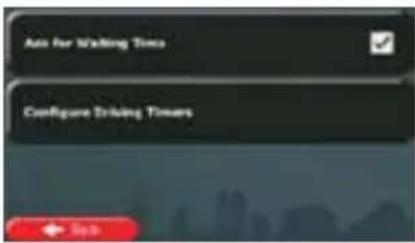
text_image
Auto for Waiting Time Configure Driving Towers- Tap

to enable or disable this option.
- When finished, tap and hold

to return to the Map screen.
5.3 Setting up driving time alerts
In order to obey the regulations regarding continuous and daily driving, you can set countdown timers to alert you when you need a break or a sleep. This feature can be set for one driver or two alternate drivers.
- If you are on the Map screen, tap menu.

to return to the Navigation
- In the Navigation menu, tap
, and then
- Tap
text_image
Auto for Waiting Time Configure Driving Timers- Tap

and set the driving timer defaults for the driver.
- (optional) Tap the switch to use the vehicle with two drivers. The timer defaults are the same but the timers will count down for each driver individually.
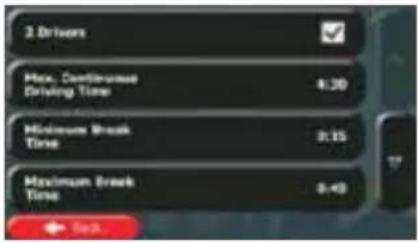
text_image
3 Drivers Max. Continuous Driving Time 4:30 Minimum Break Time 0:15 Maximum Break Time 0:43- When finished, tap and hold

to return to the Map screen.
Whenever the vehicle stops, the current driver receives a message a few minutes later whether this stop means a break.
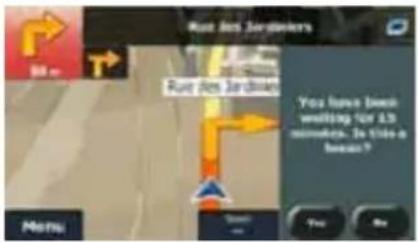
text_image
Rue Des Jardiers 80 m Rue Des Jardiers You have been waiting for 1.5 seconds. Is this a break? Menu Yes NoWhen a break is initiated, the continuous driving timer stops and it is reset to its default value, the daily driving timer also stops, and the break timer starts counting down (the break starts from the moment when the vehicle stopped). When the vehicle is in motion again, the break timer is reset, and both driving timers start counting down again.
6 Reference Guide
On the following pages you will find the description of the different concepts and menu screens of Caliber.
6.1 Concepts
6.1.1 Smart Zoom
Smart Zoom provides much more than just a usual automatic zoom feature:
- While following a route: when approaching a turn, it will zoom in and raise the view angle to let you easily recognise your manoeuvre at the next junction. If the next turn is at a distance, it will zoom out and lower the view angle to be flat so you can see the road in front of you.
- While driving without an active route: Smart Zoom will zoom in if you drive slowly and zoom out when you drive at high speed.
6.1.2 Daytime and night colour themes
Caliber uses different colour themes during the day and during the night for both the map and the menu screens.
• Daytime colours are similar to paper road maps, and the menus are bright.
- The night colour themes use dark colours for large objects to keep the average brightness of the screen low.
Caliber offers different daytime and night colour profiles. It can also switch automatically between the daytime and the night schemes based on the current time and GPS position a few minutes before sunrise, when the sky has already turned bright, and a few minutes after sunset, before it becomes dark.
6.1.3 Tunnel view
When entering a tunnel, the map is replaced with a generic tunnel image so that surface roads and buildings cannot distract you.
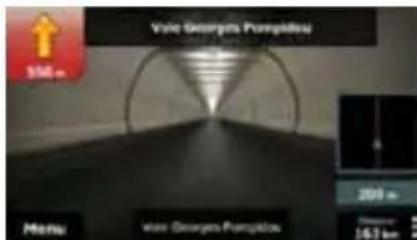
text_image
Vale Georges Pumpkins 100 m Menu Vale Georges Pumpkins 200 m Distance 16.7 kmThe top-down overview of the tunnel helps you orientate yourself. The remaining distance in the tunnel is also displayed.
After leaving the tunnel, the original map view returns.
This feature can be turned off in Settings (page 91).
6.1.4 Route calculation and recalculation
Caliber calculates the route based on your preferences:
- Route planning methods:
- Fast: Gives a quick route if you can travel at or near the speed limit on all roads. Usually the best selection for fast and normal cars.
- Short: Gives a route that has the smallest total distance of all possible routes. It can be practical for slow vehicles.
- Green: Gives a quick but fuel efficient route based on the fuel consumption data given in Route settings (page 85). Travel cost and CO_2 emission calculations are estimations only. They cannot take elevations, curves and traffic conditions into account.
- Economical: For vehicle types where Green routing is not available, this method combines the benefits of Fast and Short: Caliber calculates as if it were calculating the Fast route, but it takes other roads as well to save fuel.
- Easy: Results in a route with fewer turns and no difficult manoeuvres. With this option, you can make Caliber to take, for example, the motorway instead of a series of smaller roads or streets.
- Vehicle types:
When creating a new vehicle profile, select one of the below vehicle types. Besides the below mentioned conditions, dimension, weight and freight hazard restrictions can also be taken into account when planning a route.

- Manoeuvre restrictions and directional constraints are taken into account when planning a route.
- Roads are used only if access for cars is allowed.
- Private roads and resident-only roads are used only if they are inevitable to reach the destination.
• Walkways are excluded from routes.
- All manoeuvres are available in intersections.
- Directional constraints are taken into account the way that opposite direction is allowed with a low speed.
- A private road is used only if the destination is there.
- Walkways are excluded from routes.

- Manoeuvre restrictions and directional constraints are taken into account when planning a route.
- Roads are used only if access for buses is allowed.
- Private roads, resident-only roads and walkways are excluded from routes.

- Manoeuvre restrictions and directional constraints are taken into account when planning a route.
- Roads are used only if access for taxis is allowed.
- Private roads, resident-only roads and walkways are excluded from routes.

- Manoeuvre restrictions and directional constraints are taken into account when planning a route.
- Roads are used only if access for lorries is allowed.
- Private roads, resident-only roads and walkways are excluded from routes.
- U-turns are excluded from routes (turning back on a divided road is not considered as a U-turn).
- Road types used or avoided in route calculation:
text_image
Motorways Period Charge Per-use Toll Ferries Unpaved RoadsWhenever data exist, route calculation takes into account statistical traffic data for the given day of week and time of day (page 78).
Real-time Traffic events are also taken into account and sometimes greatly modify the route.
Caliber automatically recalculates the route if you deviate from the proposed itinerary or if a newly received Traffic event concerns a part of the recommended route.
For further information about Route settings, see page 85.
6.1.5 Green routing
Route calculation is not only about finding the quickest or shortest route. For some of the vehicle types, you can also check the fuel consumption and CO _2 emission when planning a route, and you can create cost effective routes with less effect on the environment.
In Route settings, you can edit the parameters of the selected vehicle. Enter the fuel consumption values and the price of the fuel. You can also select whether you want to see the difference between your route and the green route even if the selected routing method is not Green.
Green
After the above parameters are set, select as route planning method to get a fast but also fuel efficient route. Note that travel cost and CO _2 emission calculations are estimations only. They cannot take elevations, turns, curves and traffic conditions into account. Also, this routing is not meant to give you the "greenest" route of all. It is still important to travel quickly so the result is a fast route with low fuel consumption and CO emission.
With a vehicle type where green routing is selectable, whichever route planning method is selected, the Green details are also shown when you confirm the route:
text_image
Tégon 10000 Aude, France 5.90 104 mm km 21,899 s 11,61 25,8 kg Green Car Side 40 km OUTIf the selected route planning method is not Green, and you have allowed the application to show the green alternative, the price, fuel consumption and CO _2 emission differences between your selected route and the Green route are also shown on this screen:
text_image
Tougem 10000 Auto, France 411 421 431 441 451 461 471 481 491 501 511 521 531 541 551 561 571 581 591 601 611 621 631 641 651 661 671 681 691 701 711 721 731 741 751 761 771 781 791 801 811 821 831 841 851 861 871 881 891 901 911 921 931 941 951 961 971 981 991 1001Tap the field with these details to switch the route to Green immediately.
6.1.6 Road safety cameras and other proximity alert points
There is a special proximity warning for road safety cameras (like speed or red light cameras) and other proximity alert points (like schools or railroad crossings). These alert points are not part of Caliber. You can download them from www.naviextras.com or you can upload points in a specific text file if needed.
You can also add your own alert points or edit the previously uploaded points. See page 62 for details.
The application can warn you when you approach road safety cameras like speed cameras or dangerous areas like railroad crossings or school zones. You can set up the different alert types individually in Sound and Warnings settings (page 82).
The following alert types are available:
- Audio warning: beeps can be played while you are approaching one of these points, or extra alert sounds if you exceed the given speed limit while approaching.
- Visual warning: the type of the alert point, its distance and the related speed limit appear on the Map screen while you are approaching one of these cameras.
For some of the alert points, the enforced or expected speed limit is available. For these points, the audio alert can be different if you are below or above the given speed limit.
- Only when speeding: The audio alert is only played when you exceed the given speed limit.
- When approaching: The audio alert is always played when approaching one of these alert points. In order to draw your attention, the alert can is different when you exceed the speed limit.
Note!
The warning for road safety cameras is disabled when you are in a country where road safety camera warning is prohibited. However, you must ensure on your own liability that using this feature is legal in the country where you intend to use it.
6.1.7 Speed limit warning
Maps may contain information about the speed limits of the road segments. Caliber is able to warn you if you exceed the current limit. This information may not be available for your region (ask your local dealer), or may not be fully correct for all roads in the map.
The maximum speed set in the vehicle profile is also used for this warning. Caliber alerts you if you exceed the preset value even if the legal speed limit is higher.
Speed warning can be fine-tuned in Sound and Warnings settings (page 82).
You can set the relative speed above which the application initiates the warning.
The following alert types are available:
- Audio warning: you receive a verbal warning when you exceed the speed limit with the given percentage.
• Visual warning: the current speed limit is shown on the map when you exceed it (for
example: 50).
You can also choose to see the speed limit sign on the map all the time.
6.1.8 GPS position quality indicator and current time
You can find useful information in the top corners of menu screens.
The current time is displayed in the top left corner.
In the top right corner, the GPS reception quality icon shows the current accuracy of the position information.
| Icon | Description |
 | Caliber has no connection to the GPS receiver: GPS navigation is not possible.Devices with a built-in GPS receiver are permanently connected. On such devices, the icon does not appear in normal circumstances. |
 | Caliber is connected to the GPS receiver, but the signal is too weak and the receiver cannot determine the GPS position.GPS navigation is not possible. |
 | Only a few satellites are received. Position information is available, but elevation (altitude) cannot be calculated.GPS navigation is possible, but the position error may be significant. |
 | Altitude information is available, the position is a 3D position.GPS navigation is possible. |
6.1.9 Traffic information in route planning
The recommended route is not always the same between two points. Offline statistical traffic information (historical speed information or traffic patterns) can be taken into account in the route calculation based on the time of day and the day of week whenever suitable data exists. In addition, real-time traffic information can help you avoid current traffic events like temporary road closures or a traffic jam caused by an accident. Both functions are subject to data availability.
You can display the historical traffic information on the map if you browse the map and select this option from the More menu. A 2D map is displayed with road segments coloured by the density of the traffic in the given period. The current information is shown when you open the screen. Modify the day of week and the time of day to see the desired period.
text_image
TARE: 20.00 E.M. Moules Airport 458 Witney-Port Street Credford N3 219 74% + 10%You can display the live traffic information on the map if you browse the map and select this option from the More menu. A 2D map is displayed with road segments coloured by the
severity of traffic events. Tap the event type icon at the road segment and then tap the button to get information about the traffic event.

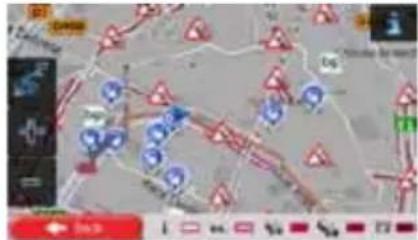
text_image
Scanned map image with location markers and legend, showing road networks and symbols6.1.9.1 Historical traffic
If statistical traffic information is stored with the map data, Caliber can take them into account when planning a route. In normal cases, these statistics help you avoid usual traffic jams on the given day of week in the given hour but in some cases like on public holidays that fall on normal weekdays, they can be misleading. You can disable this feature in Traffic settings (page 85).
You can display statistical traffic information on the map if you browse the map and select this option from the More menu.
6.1.9.2 Real-time traffic information (TMC)
TMC (Traffic Message Channel) can provide you with the real-time status of the traffic. Route calculation can avoid road blocks or unexpected traffic jams caused by an accident.
TMC is a specific application of the FM Radio Data System (RDS) used for broadcasting real-time traffic and weather information.
Using traffic information is enabled by default in Caliber.

Note!
TMC is not a global service. It may not be available in your country or region. Ask your local dealer for coverage details.
Caliber RMN575BT contains the TMC receiver that is needed to receive Traffic events.
If public Traffic data is broadcast at your location, Caliber automatically takes into account the traffic events received. You do not need to set anything in the program. The receiver will automatically search the FM radio stations for TMC data, and the decoded information will immediately be used in route planning. When Caliber receives traffic information that may affect your route, the program will warn you that it is recalculating the route, and navigation will continue with a new route that is optimal considering the most up-to-date traffic conditions.
To fine-tune this recalculation, you can set the minimum delay that can trigger a route recalculation, or you can instruct Caliber to have you confirm the new recommended route before it takes effect. You can do these in Traffic settings (page 85).
A special icon ( [icon] ) is displayed on the Map screen to show you whether traffic events are received. The icon shows the status of the traffic receiver when there are no traffic events on your route, otherwise it shows the type of the next traffic event on your route.
Road segments affected by traffic events are displayed with an alternate colour on the map, and small symbols above the road show the nature of the event:

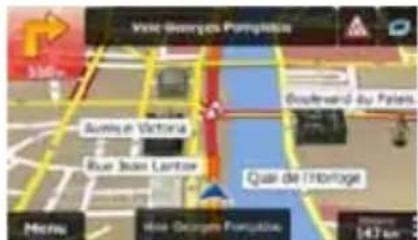
text_image
Vale Georges Pumplekia 300km Buenin Victoria Rue John Lantier Goutward du Palen Qual de l'Hôbrige Metro Vale Georges Pumplekia 147 km
1. Tap
to open the Traffic Summary screen:
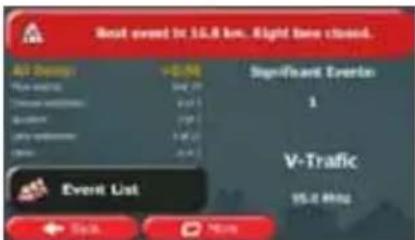
text_image
Best event in 15.8 km. Eight times closed. All Events +0.5% Year ended May 29 Treasurer schedule 2:31 On account 17% SaaS schedule 1:32 Date 2:41 Significant Events 1 V-Traffic 15.8 MHz Event List Start Next
2. Tap
to open the list of of event categories.
- Tap the traffic category you are interested in, or tap of all events:
to see the list
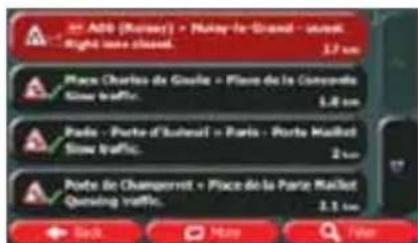
text_image
Add (Kossey) • Nutsy-le-Grand - urban Right sea closed. 1.7 km Place Charles de Gaulle • Place de la Converde Snow traffic. 1.8 km Pode - Porte d'Isbouel • Paris - Porte Maillet Snow traffic. 2 km Porte de Changerret • Place de la Parte Maillet Qensing traffic. 3.1 km Back More Far- Now tap any of the list items to see its details, and to display the affected road segment in its full length on the map:
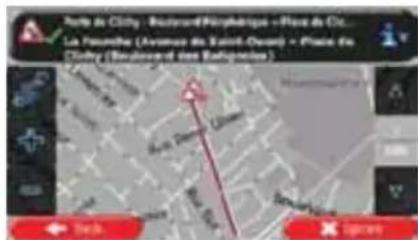
text_image
Joulis de City - Boulevard Paris La Founche (Avonnes du Saint-Ouay) - Paine de City (Boulevard des Balances) Taka X (pren)Note!
If there are traffic events on the recommended route that the application has not
icon will open the list of significant traffic events to let you
6.2 'More' menu
The 'More' menu provides you with various options and additional applications. Tap the
following buttons:

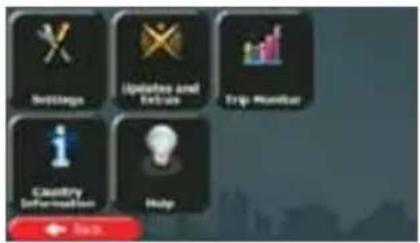
text_image
Buildings Updates and Enclosures Trip Monitor Quality Deformation Help| Button | Description |
 | You can configure the program settings, and modify the behaviour of Caliber. Fine-tune route planning options, change the look of the Map screen, turn on or of warnings, or restart the Configuration wizard, etc.See the next chapter for details. |
 | Visit www.naviextras.com to get additional content, such as new maps or 3D landmarks and useful applications. |
 | If you save your trip logs when you arrive at some of your destinations or let the application automatically save the trip logs for you, those logs are all listed here. Tap one of the trips to see the trip statistics, speed and altitude profile. If track log has also been saved, you can display it on the map with the selected colour. Track logs can be exported to GPX files for later use. |
 | Select a country from the list and see useful driving information about the selected country. Information may include speed limits on different road types, the maximum blood alcohol level and any compulsory equipment you need to show when stopped by the police. |
 | Run the Demo and watch sample route simulations to see how navigation works.The About section provides you with product information. Read the Software a Database End User License Agreement, or check the map and other contents the application. You can also access program usage statistics. |
6.3 Settings menu
You can configure the program settings, and modify the behaviour of Caliber. Tap the


following buttons:
The Settings menu has several options. Tap

or scroll with your finger to see the full list.
text_image
Sound and Warnings Customize Quick Menu Driving Time Management Traffic. ← Back| Button | Description |
 | Adjust the sound volume, mute your device or change the voice guidance language. In addition, you can enable and set up different warnings and alerts. |
 | The content of the Quick menu (page 21) is fully customisable. Tap the button you want to change, and select its new function from the list. |
 | To calculate a better arrival time, it is necessary to include the waiting or loading times spent at each waypoint. Driving timers allow you to be warned when you need a rest or you have driven enough for the day. |
 | The recommended route is not always the same between two points Whenever suitable data exists, traffic information can be taken into account in the route calculation. |
 | These settings determine how routes will be calculated. Select the type of vehicle you are driving, the road types used in route planning, and the route planning method. |
 | If more drivers use Caliberfor navigating, their settings can be remembered by using one of the user profiles. |
 | You can fine-tune the appearance of the Map screen. Adjust the map view to your needs, choose suitable colour themes from the list for both daytime and night use, show or hide 3D buildings, turn track logging on or off,and manage the visibility of Place markers (which Places to show on the map). |
 | Adjust how the software helps you navigate with different kinds of route related information on the Map screen. |
 | Display | Display related settings include menu animations and separate skins for daytime and night use. |
 | Regional | These settings allow you to customise the application for your local language, measurement units, time and date settings and formats, as well as to choose the time zone. |
 | Trip Monitor | Trip logs and track logs contain useful information about your trips. Trip logs can be saved manually when you reach your destination or you can turn on the automatic saving here. |
 | Log Collection | The application collects usage information and GPS logs that may be used for improving the application and the quality and coverage of maps. Here you can enable or disable collecting these logs. |
 | start Configuration Wizard | Modify the basic software parameters set during the initial setup process. For details, see page 7. |
 | set to Defaults | Delete all saved data and reset all settings to their factory defaults. |
6.3.1 Sound and Warnings
Adjust the sound volume, mute your device or change the voice guidance language. In addition, you can enable and set up different warnings and alerts.
| Button | Description |
| Volume | Tap this button to adjust the volume of the different sounds in the application. A new screen shows the different sound types and their controls. See below for details. |
| Voice Language | This button shows the current voice guidance profile. By tapping the button, you can select a new profile from the list of available languages and speakers. Tap any of these to hear a sample voice prompt. Just tap  Back when you have selected the new spoken language. Back when you have selected the new spoken language. |
| TTS Pro | Tap this button to adjust the enhanced TTS features. The following settings are available:You can set the feature to read out traffic messages.Whenever a route is calculated, the software can read out the quick summary of the route.When you cross country borders, the application can read out the information about the country you have just entered.All system messages can also be announced. |
| Verbosity Level | Tap this button to set the verbosity of the voice instructions: how much they tell and how often they speak. |
Speed Warning Settings
Maps may contain information about the speed limits of the road segments. Caliber is able to warn you if you exceed the current limit. This information may not be available for your region (ask your local dealer), or may not be fully correct for all roads in the map.
The maximum speed set in the vehicle profile is also used for this warning. Caliber alerts you if you exceed the preset value even if the legal speed limit is higher.
This setting lets you decide whether you wish to receive visible and/or audible warnings.
Adjust the slider to set the relative speed above which the application initiates the warning.
The following alert types are available:
- Audio warning: you receive a verbal warning when you exceed the speed limit with the given percentage.
- Visual warning: the current speed limit is shown on the map when you exceed it.
If you prefer to see the speed limit sign on the map all the time (normally it is shown only if your speed exceeds it), you can set it here.
Alert Point Settings
This feature allows you to receive a warning when approaching a Road Safety Camera or other alert points like school zones or railroad crossings. You must ensure on your own liability that using this feature is legal in the country where you intend to use it.
You can set the warning type for the different alert point categories individually. The following warning types are available:
- Audio warning: beeps can be played while you are approaching one of these points, or extra alert sounds if you exceed the given speed limit while approaching.
- Visual warning: the type of the alert point, its distance and the related speed limit appear on the Map screen while you are approaching one of these cameras.
For some of the alert points, the enforced or expected speed limit is available. For these points, the audio alert can be different if you are below or above the given speed limit.
- Only when speeding: The audio alert is only played when you exceed the given speed limit.
- When approaching: The audio alert is always played when approaching one of these alert points. In order to draw your attention, the alert is different when you exceed the speed limit.
Warning Sign Alerts
Maps may contain driver alert information that is displayed as traffic signs on the map screen. Tap this button to enable or disable the warning for these road segments (for example, dangers, sharp curves). For each category of warning signs, set the warning type (audio or visual) and the distance from the hazard to receive the warning at.
You can control the volume of the following sound types:
| Button | Description |
| Master | This is the main volume control. These controls affect all below sounds. |
| Guidance | These controls affect the volume of the guidance sounds (verbal instructions). |
| Ding | Turn off the attention tone preceding verbal instructions or adjust its volume. |
| Alert Beeps | These controls affect the volume of the non verbal alert sounds (beeps). |
| Key | Key sounds provide audible confirmation of tapping the touch screen. These controls affect key sounds. |
Controls for each sound type:
| ButtonVolume slider | DescriptionAdjusts the volume of the related sound.Use the switch to mute the related sound. The slider becomes inactive.Tap again to re-enable. |
6.3.2 Customise Quick menu
The content of the Quick menu (page 21) is fully customisable. Tap the button you want to change, and select its new function from the list.
The list of available functions and their descriptions are on page 21.
6.3.3 Driving time management
To calculate a better arrival time, it is necessary to include the waiting or loading times spent at each waypoint. Driving timers allow you to be warned when you need a rest or you have driven enough for the day. You have the following options:
| Button | Description |
| Ask for Waiting Time | Turn this switch on to be able to set the waiting time for all waypoints of the route. This way the arrival time calculation can take into account the idle times at intermediate destinations. In addition, time dependent restrictions and statistical traffic information can also be considered for the whole route. |
| Configure Driving Timers | Set up and use countdown timers to monitor the continuous and daily driving times as described on page 70. |
6.3.4 Traffic settings
The recommended route is not always the same between two points. Whenever suitable data exists, traffic information can be taken into account in the route calculation.
| Button | Description | |
 | Historical Traffic | Use this switch to enable or disable historical traffic data and traffic patterns. This locally stored information can be very useful in normal circumstances but for example on public holidays it may be better to turn off in order not to take into account normal weekday traffic jams. |
 | Traffic Receiver | Use this switch to enable or disable the TMC receiver that can receive real-time traffic information. The rest of the buttons below are all related to the TMC function and are available only if the receiver is enabled. |
 | Detour | This setting determines how Caliber uses the received real-time traffic information in route calculation. When calculating a new route, or when recalculation becomes necessary based on the received Traffic events, Caliber avoids traffic events if it makes sense.You can also set the minimum delay that triggers route recalculation and you can instruct the application if you want to confirm every recalculation. |
 | Event Types | Tap this button to open the list of traffic event types, and select which events to take into account in route calculation. |
6.3.5 Route settings
These settings determine how routes will be calculated.
| Button | Description |
| Vehicle | You can set the type of vehicle you will use to navigate the route. Based upon this setting, some of the road types can be excluded from the route, or some of the restrictions may not be taken into account in route calculation.You can edit the parameters of the selected vehicle profile, or you can even create new vehicle profiles if you tap More. |
 igation Mode igation Mode | On-road navigation creates a turn by turn itinerary using the road network on the map. Switch to off-road navigation to navigate between destinations in a straight line. |
 Planning Method Planning Method | The route calculation can be optimised for different situations and vehicle types by changing the planning method. See below for details. |
To let the route fit your needs, you can also set which road types are to be considered for or to be excluded from the route if possible.
Excluding a road type is a preference. It does not necessarily mean total prohibition. If your destination can only be accessed using some of the excluded road types, they will be used but only as much as necessary. In this case a warning icon will be shown on the My Route
screen, and the part of the route not matching your preference will be displayed in a different colour on the map.
In the list of road types you can see in how many segments and what total length of the road type is used in the current route.
| Button | Description | |
 | Motorways | You might need to avoid motorways when you are driving a slow car or you are towing another vehicle. |
 | Period Charge | Charge roads are pay roads where you can purchase a pass or vignette to use the road for a longer period of time. They can be enabled or disabled separately from toll roads. |
 | Per-use Toll | Caliber includes toll roads (pay roads where there is a per-use charge) in the routes by default. If you disable toll roads, Caliber plans the best toll-free route. |
 | Ferries | Caliber includes ferries in a planned route by default. However, a map does not necessarily contain information about the accessibility of temporary ferries. You might also need to pay a fare on ferries. |
 | Unpaved Roads | Caliber excludes unpaved roads by default: unpaved roads can be in a bad condition and usually you cannot reach the speed limit on them. |
 | Calculate Green Alternative | If the selected routing method is not Green, you can have your route compared to the best green alternative on the screen when confirming the route. If this alternative is much better than the selected method, you can quickly switch to Green mode. |
Vehicle profiles:
When you first tap by default vehicle profiles. You have the following options:
| Button | Description |
 | You can edit the parameters of the vehicle profile. |
 More More | Tap this button to reveal the below options. |
 Add Profile Add Profile | Tap this button to create your own vehicle profile. |
 Restore All Profiles Restore All Profiles | Tap this button to reset all vehicle profiles to their default settings. |
When creating a new vehicle profile, first you need to select the vehicle type. Then you need to set the following parameters (some of them may not exist for the selected vehicle type). You can modify the same parameters when you edit an existing profile:
| Button | Description |
| Name | Tap this button to rename the profile for something meaningful. |
| Fuel Consumption Urban | Enter the average consumption of your vehicle when used in built-up areas. The unit for consumption can be set in Regional Settings. |
| Fuel Consumption Rural | Enter the average consumption of your vehicle when used on highways. The unit for consumption can be set in Regional Settings. |
| Engine Type | Select the engine and fuel type of your vehicle. This helps in estimating the CO2 emission. |
| Fuel Price | Enter the average fuel price for travel cost calculation. The currency can be set in Regional Settings. |
| Max. Speed | Set the maximum speed you travel with the vehicle. |
| Use Extended Settings | Check this box to enable more settings for the below parameters. |
| Length | Set the total length of the vehicle. |
| Width | Set the width of the vehicle. |
| Height | Set the height of the vehicle. |
| Trailer | Set if there is a trailer attached to the vehicle. |
| Maximum Allowed Weight | Set the maximum allowed weight of the vehicle. |
| Actual Weight | Set the actual weight of the vehicle. |
| Freight | Select one or more hazard types if the vehicle carries dangerous material. |
Vehicle types:
When creating a new vehicle profile, select one of the below vehicle types. Besides the below mentioned conditions, dimension, weight and freight hazard restrictions can also be taken into account when planning a route.

- Manoeuvre restrictions and directional constraints are taken into account when planning a route.
- Roads are used only if access for cars is allowed.
- Private roads and resident-only roads are used only they are inevitable to reach the destination.
• Walkways are excluded from routes.

- All manoeuvres are available in intersections.
- Directional constraints are taken into account the way that opposite direction is allowed with a low speed.
- A private road is used only if the destination is there.
• Walkways are excluded from routes.

- Manoeuvre restrictions and directional constraints are taken into account when planning a route.
- Roads are used only if access for buses is allowed.
- Private roads, resident-only roads and walkways are excluded from routes.

- Manoeuvre restrictions and directional constraints are taken into account when planning a route.
- Roads are used only if access for taxis is allowed.
- Private roads, resident-only roads and walkways are excluded from routes.

- Manoeuvre restrictions and directional constraints are taken into account when planning a route.
- Roads are used only if access for lorries is allowed.
- Private roads, resident-only roads and walkways are excluded from routes.
- U-turns are excluded from routes (turning back on a divided road is not considered as a U-turn).
Route Planning Method types:
| Button | Description |
| Fast | Gives a quick route if you can travel at or near the speed limit on all roads. Usually the best selection for fast and normal cars. |
| Short | Gives a short route to minimise the distance to travel. It can be practical for slow vehicles. Searching for a short route regardless of the speed, this route type is rarely practical for normal vehicles. |
| Green | Gives a quick but fuel efficient route based on the fuel consumption data given in Route settings (page 85). Travel cost and CO _2 emission calculations are estimations only. They cannot take elevations, curves and traffic conditions into account. |
| Economical | For vehicle types where Green routing is not available, this method combines the benefits of Fast and Short: Caliber calculates as if it were calculating the Fast route, but it takes other roads as well to save fuel. |
| Easy | Results in a route with fewer turns and no difficult manoeuvres. With this option, you can make Caliber to take, for example, the motorway instead of a series of smaller roads or streets. |
6.3.6 User profiles
If more drivers use Caliberfor navigating, their settings can be remembered by using one of the user profiles. Rename the profiles after tapping the edit button on the right so that all users know which profile to use and switch between profiles by tapping its name. If you select a new profile, the application restarts so that the new settings can take effect.
text_image
Driver profile 01 Driver profile 02 Driver profile 03 Driver profile 046.3.7 Map settings
You can fine-tune the appearance of the Map screen. Adjust the map view to your needs, choose suitable colour themes from the list for both daytime and night use, show or hide 3D buildings, turn track logging on or off, and manage the visibility of Place markers (which Places to show on the map).
The map is always shown on the screen so that you can see the effect when you change a setting.
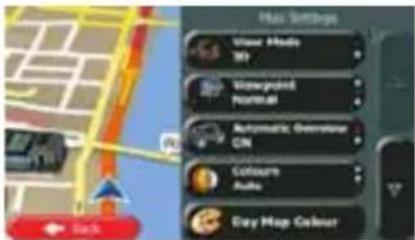
text_image
Max Settings Ulinear Media 30 Automotive Operator CIN Colour Audio Every Map Colour| Button | Description |
 | Switch the map view between a 3D perspective view and a 2D top down view. |
 | Adjust the basic zoom and tilt levels to your needs. Three levels are available. |
 | When selected, the map zooms out to show an overview of the surrounding area if the next route event (manoeuvre) is far. When you get close to the event, the normal map view returns. |
 | Switch between daytime and night colour modes or let the software switch between the two modes automatically a few minutes before sunrise and a few minutes after sunset. |
 | Select the colour scheme used in daytime mode. |
 | Select the colour scheme used in night mode. |
 | Show or suppress 3D landmarks, 3D artistic or block representations of prominent or well-known objects. |
 | Show or suppress 3D city models, 3D artistic or block representation of full city building data containing actual building size and position on the map. |
 | Show or suppress the 3D elevation of the surrounding terrain. |
 | Turn on or off track log saving, that is, saving the sequence of the locations your journeys go through. |
| Select which Places to show on the map while navigating. Too many Places make the map crowded so it is a good idea too keep as few of them on the map as possible. For this, you have the possibility to save different Place visibility sets. You have the following possibilities: Tap the checkbox to show or hide the Place category. Tap the name of the Place category to open the list of its subcategories. Tap to save the current Place visibility set or to load a previously saved one. Here you can also revert to the default visibility settings. |
6.3.8 Visual guidance settings
Adjust how the software helps you navigate with different kinds of route related information on the Map screen.
 | Data Fields | The data fields in the corner of the Map screen can be customised. Tap this button and select the values you want to see. The values can be different when you navigate a route from when you are just cruising without a given destination. You can select general trip data like your current speed or the altitude, or route data related to your final destination or the next waypoint on your route. |
 | Offer Motorway Services | You may need a petrol station or a restaurant during your journey. This feature displays a new button on the map when you are driving on motorways. Tap this button to open a panel with the details of the next few exits or service stations. Tap any of them to display it on the map and add it as a waypoint to your route if needed. |
 | Facility Types | Select the service types displayed for the motorway exists. Choose from the POI categories. |
 | Signposts | Whenever adequate information is available, lane information similar to the real ones on road signs above the road is displayed at the top of the map. You can turn this feature on or off. |
 | Junction View | If you are approaching a motorway exit or a complex intersection and the needed information exists, the map is replaced with a 3D view of the junction. You can turn this feature on or let the map be displayed for the whole route. |
 | Tunnel View | When entering tunnels, the surface roads and buildings can be disturbing. This feature shows a generic picture of a tunnel instead of the map. A top-down overview of the tunnel and remaining distance are also displayed. |
 | Turn on the route progress bar to see your route as a straight line on the left side of the map. The blue arrow represents your current position and moves up as you travel. Waypoints and Traffic events are also displayed on the line. |
 | When you slow down while driving on a motorway, there is a channel that you are in a traffic jam so Caliber offers you a detour using the next exit. The message shows you distance of the exit and the difference in distance and estimated time compared to the original route. You can choose from one of the following options:Cancelif you want to keep the original route.Tap one of the suggested detour options and you will see the overview of the original route and the detour to make the decision. You can accept the detour as offered or increase the bypassed motorway segment before accepting.Turn to the suggested new direction and the route will be automatically recalculated. |
 | Similar to the above possibility, alternative routes can be suggested when driving on normal roads. Caliber will select a different turn in the upcoming intersection and offers you a different route for the next section of the route.Your options are the similar as above but you cannot modify the offered detour. |
 | Parking at the destination may not be easy in city areas. As you approach the destination, Caliber can offer parking category Places near your destination. Tap the "P" button to open a top-down map with the destination and the offered parking Places. Select one and modify the route accordingly. |
 | If you leave the recommended route and suddenly exit the motorway, the application offers different alternatives near the exit like petrol stations or restaurants. Also, if there are avoidable parts of the original route ahead (like a tunnel, a toll road or a ferry), you will find them in the list in case you want to bypass them with the help of Caliber. |
6.3.9 Display settings
Display related settings include menu animations, separate skins for daytime and night use and the brightness of the display.
| Menu Animation | When animation is turned on, buttons on menus and keyboard screens appear in an animated way.Screen transitions are also animated. |
 | Select the style and colours of the application used in daytime mode. |
 | Select the style and colours of the application used in night mode. |
Current Backlight
Adjust the display backlight.
6.3.10 Regional settings
These settings allow you to customise the application for your local language, measurement units, time and date settings and formats, as well as to choose the time zone.
| Button | Description |
| Program language | This button displays the current written language of the user interface. By tapping the button, you can select a new language from the list of available languages. The application will restart if you change this setting; you are asked to confirm this. |
| Units and Formats | You can set the distance units to be used by the program. Caliber may not support all the listed units in some voice guidance languages.Select between 12 and 24 hours time display and the various international date display formats.You can also set other country specific units used to display different values in the application. |
| Time Zone | By default, time zone is taken from the map information and adjusted by your current location. Here you can set time zone and daylight saving manually. |
6.3.11 Trip monitor settings
Trip logs contain useful information about your trips. Trip logs can be saved manually when you reach your destination or you can turn on the automatic saving here. You can access these logs in the Trip monitor. Trip monitor is available from the More menu.
| Enable Auto-Saving | Trip monitor can record statistical data of your trips. If you need these logs later, you can let the application save them automatically for you. |
| Trip Database Size | This is not a button. This line shows the current size of the trip database, the sum of all trip and track logs saved. |
| Save Track Log | Track logs, the sequence of the positions given by the GPS receive can be saved together with trip logs. They can later be displayed on the map. You can let the application save the track log whenever it saves a trip. |
6.3.12 Log collection settings
If you accept this when first using the application, it collects usage information and GPS logs that may be used for improving the application and the quality and coverage of maps. The data is processed anonymously; no one will be able to track any personal information.
Here you can enable or disable collecting these logs.
 | Anonymous statistical information on using the navigation software is collected for later development purposes. Understanding how different people use the application can help us improve the user interface and the program workflow. |
 | Anonymous track logs are collected for later development purposes. Your trips can help us improve the quality and coverage of maps. |
7 Glossary
2D/3D GPS reception
The GPS receiver uses satellite signals to calculate its (your) position and needs at least four signals to give a three-dimensional position, including elevation. Because the satellites are moving and because objects can block the signals, your GPS device might not receive four signals. If three satellites are available, the receiver can calculate the horizontal GPS position but the accuracy is lower and the GPS device does not give you elevation data: only 2D reception is possible.
Active route
The currently navigated route. Whenever the destination is set, the route is active until you delete it, reach your destination or you quit Caliber. See also: Route.
City Centre
The city/town centre is not the geometric centre of the city/town but an arbitrary point the map creators have chosen. In towns and villages, it is usually the most important intersection; in larger cities, it is one of the important intersections.
Colour theme
Caliber comes with different colour themes for daytime or night use of the map and menu screens. Themes are custom graphic settings and they can have different colours for streets, blocks or surface waters in 2D and 3D modes, and they display shades or shadows in different ways in 3D mode.
One daytime scheme and one night scheme is always selected for the map and for the menus. Caliber uses them when it switches from day to night and back.
GPS accuracy
Several factors have impact on the deviation between your real position and the one given by the GPS device. For example, signal delay in the ionosphere or reflecting objects near the GPS device have a different and varying impact on how accurately the GPS device can calculate your position.
Map
Caliber works with digital maps which are not simply the computerised versions of traditional paper maps. Similarly to the paper road maps, the 2D mode of digital maps show you streets, roads, and elevation is also shown by colours.
In 3D mode, you can see the altitude differences, for example valleys and mountains, elevated roads, and in selected cities 3D landmarks and 3D buildings are also displayed.
You can use digital maps interactively: you can zoom in and out (increase or decrease the scale), you can tilt them up and down, and rotate them left and right. In GPS-supported navigation, digital maps facilitate route planning.
North-up map orientation
In North-up mode the map is rotated so its top always faces North. This is the orientation for example in Find on Map.
Road Safety Camera
Special alert points for speed, red light or bus lane cameras. Different data sources are available. You can configure Caliber to warn you when you approach one of these cameras.
Detecting the location of Road Safety Cameras is prohibited in certain countries. It is the sole responsibility of the driver to check whether this feature can be used during the trip.
The software is capable of showing and warning for more than just cameras. Various other types of proximity alert points like school zones and railway crossings are also available.
Route
A sequence of route events, i.e. manoeuvres (for example, turns and roundabouts) to reach the destination. The route contains one start point and one or more destinations. The start point is the current (or last known) position by default. If you need to see a future route, the start point can be replaced with any other given point.
Track-up map orientation
In Track-up mode the map is rotated so its top always points in the current driving direction. This is the default orientation in 3D map view mode.
Vehimarker
The current position is shown with a blue arrow on the map by default. The direction of the blue arrow shows the current heading. This position marker can be replaced with different 3D vehicle symbols. You can even specify different Vehimarkers for different route types (depending on which vehicle type is selected for route calculation).
8 Copyright note
The product and the information contained herein are subject to change without prior notification.
This manual may not, in whole or in part, be reproduced or transmitted in any form either electronically or mechanically, including photocopying and recording, without the express written consent of Caliber.
© 2016 - Caliber
© 2006 – 2016 TomTom. All rights reserved. This material is proprietary and the subject of copyright protection, database right protection and other intellectual property rights owned by TomTom or its suppliers. The use of this material is subject to the terms of a license agreement. Any unauthorized copying or disclosure of this material will lead to criminal and civil liabilities.
All rights reserved.
5 Navigation Camion....76
text_image
42 100 Menu Islet Dervape Pernonia 30-60% 30-60% 30-60% 30-60%
text_image
Vire Georges Pompidou Vale Mens Vale-Daragoa Champutou 6/27 pm 2:00 14:59text_image
2D > Proxim, Tropak 30.5m 2019 158.4m Menu
text_image
Screenshot of a map navigation interface with directional arrows and navigation controlstext_image
Screenshot of a mobile keyboard interface showing standard keys and status indicators
text_image
Paris France Boston Gale-Saint-Owens, France P.O.M. Pyroville-Atlantiquers, France Newel Hastie-Vienne, France Neweltext_image
Start Coupon (Avenue) 123
text_image
Avenue Canérent Coupélin 73007 Paris, Vôme Arrondissement Paris Avenue du Nouveau de servatoire 75015 Paris, L'Hôte Arrondissement Paris Carrefour de la Co consultation 73012 Paris, L'Homme Arrondissement Paris Cité Canérent 73009 Paris, Duits Arrondissement Paristext_image
Saint Coquette (Avenue)
text_image
Start Coquelin (Avenue)
text_image
Avenue Canatent, Corpentin 75007 Paris, Vème Arrondissement Paris Avenue du Nouveau Tour servatoire 75015 Paris, L'Orno Arrondissement Paris Carrefour de la Tour servisation 75012 Paris, L'Orno Arrondissement Paris CROE Carvercut 75009 Paris, Deme Arrondissement Paristext_image
Close-up of a keyboard with red function buttons and numeric display, likely from an old Windows application interface.
text_image
Cours La Vienne P3008 Paris, Blaise Arrondissement Paris Tune Belroy d'Angloin P3008 Paris, Blaise Arrondissement Paris Tune Royale P3008 Paris, Blaise Arrondissement Paris Tune Sainte-Plomaetin P3117P3008 Paris, Blaise Arrondissement Paris, Paris, Paris (en revoulement) Jewentext_image
Screenshot of a mobile keyboard interface showing the number 1 to 7 with status indicators and navigation buttons.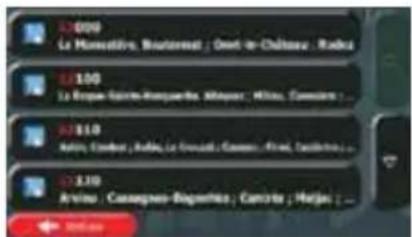
text_image
Start Coquitin (Avonuc)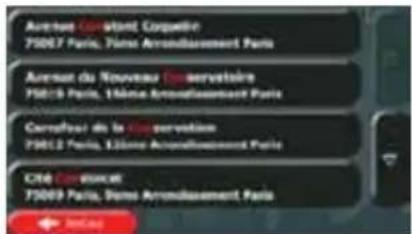
text_image
Avenue Corollant, Courative 75007 Paris, Paris Arrondissement Paris Avenue du Nouveau Tour servatoire 75019 Paris, 16ème Arrondissement Paris Courafour de la Co-servection 75012 Paris, 13ème Arrondissement Paris CITE CORNOLER 75009 Paris, Paris Arrondissement Paristext_image
Other responsive [3-80%] 1 2 3 4 5 6 Setup Plug Servicetext_image
Q W E R T Y U I O F A S D F G H J K L + 2 X C V B N M 123 ← Adder Plan Showable [OK]
text_image
Diagram illustrating a road with a speedometer and a castle, featuring Chinese text labels.
text_image
Reportable Issue Management Camping Hôtel as moteltext_image
Reported Web Jobs Management - Wild number all services Autre Best Western Help Add Deletetext_image
Diagram illustrating a winding road with city skyline and a speedometer, featuring Chinese text labels.
text_image
Reportants from Sales Management - Paid up home all services Autre Best Westerntext_image
Q W E R T Y U I O P A S D F G H J K L 2 X C V B N M 123 ← Resetio → Plus → Microsoft 50text_image
Digital interface screenshot showing a globe with 'N' and 'S' text, alongside a keyboard with 'OK', 'Finish', and 'Finish' buttons.text_image
Zome U134 36U Yes Print Yes to Read [ ]
text_image
Position GPS controller + ← Action Edittext_image
Position GPS instance Route name: non Routoufs Troupe 18000 Auto, France
text_image
Position SPS actuate + ← 90.00 → Fulltext_image
Mobile app interface screenshot showing a map with route markers and status bar displaying real-time metrics in Chinese.
text_image
Map interface screenshot showing route data and navigation controls with Chinese labels
text_image
Map interface screenshot showing route data and navigation controls with Chinese labels
text_image
Q W E R T Y U I O F A S D F G H J K L + 2 X C V R N M 123 ← Break → Put- Touchez favorite.

text_image
Urgence Buy Taxi Cartiantext_image
Screenshot of a map interface with location markers and directional indicators, showing traffic flow or movement paths.text_image
Ritigreges Extra in minutes & your Hypnotour Vrijab Online and in pay Aidetext_image
Screenshot of a map interface showing navigation controls and location markers in Spanishtext_image
Screenshot of a mobile keyboard interface showing standard input and function buttons
text_image
Slant and Coigadin (Avamay)
text_image
Avenue Can Saint Courduire 75067 Paris, Télène Arrondissement Paris Avenue du Nouveau Servatoire 75019 Paris, L'Étienne Arrondissement Paris Carrefour de la Servoise 75012 Paris, L'Étienne Arrondissement Paris Cité Corseurant 75009 Paris, Dens Arrondissement Paris
text_image
Close-up of a keyboard with red and black buttons indicating status or function keys
text_image
Courta La Tourne 75000 Paris, Blume Arronibouement Paris Lone Boutey d'Angles 75000 Paris, Blume Arronibouement Paris Lone Royale 75000 Paris, Blume Arronibouement Paris Lone Sable-Plumette 75017500 Paris, Blume Arronibouement Paris, Paris, Paris zur neoblissant → 24000text_image
Close-up of a black keyboard with red function buttons at the bottom, showing typing and editing options.
text_image
Lock Breakbox Paste Start with Opentext_image
Close-up of a keyboard interface showing numeric keypad and status buttons
text_image
12.000 La Marmadini, Bocatsonet; Onset de Chisana; Rudus 12.100 La Europa-Salena-Marcosillo, Algeyaz; Willes, Coupia 12.110 Nau Gama: Aha e Staudhane; Rassella e La Sofia; Nada Fina Eudine 12.120 Arvin, Caesangrove-Bigaminski; Centres, Waljez: Zorocktext_image
Screenshot of a mobile keyboard interface showing numeric keypad and function buttonstext_image
Q W E R T Y U 1 O P A S D F G H J K L 2 X C V B N M 123 JONNA PDFtext_image
Road to the City 1x Zoonstonetext_image
Q W E R T Y U I O P A S D F G H J K L 2 X C V B N M 123 OKKA PDF For youtext_image
Red Riverbar Plaza Province Red Riverbar Plaza 2006 East Lake East Lake 2006 East Lake 2006 Peggy JAKAKA Fipin Vineautext_image
Air Route Co. Rappos Buffels Grill Troyes Parking Areatext_image
Digital interface screenshot showing a globe icon with 'N' and 'S' text, alongside a calculator keypad and navigation buttons.text_image
1 2 #1 Rave Fourier-Neason Precision #2 Straße 6, Rose delta Maroline xaur: Series Latino Zeik ← Quick → PDFtext_image
Map interface screenshot showing geographic coordinates and transportation data panels with Chinese labels
text_image
PKW Notfall Bus Taxi Lkwtext_image
Q W E R T Y U 1 O P A S D F G H J K L 2 X C V B N M 133 JANANA POP- Tippen Sie auf

text_image
Airs Natureville Do Bayon Ruffalo Grill Troyes Parking Areatext_image
Color-coded map interface showing navigation and road markings with distance markers and directional indicatorstext_image
Readfall Buy Take Low 20003text_image
Avecus John Kennedy Route 321 Maschow Sue seffler met will 18 Miochow. Si'll Don't like Poore gallons? Move: 179 km Do Sharetext_image
Screenshot of a map interface with location markers and navigation controls, showing traffic flow and route numbers.text_image
Vertals Auto Navigationbox Wing RedeceptionMethod Swell Swell Page 60%2.2.2 Beyond single screen tap
text_image
Visit Georgia Puntake Hart Bayi Voice not Dergar Ria 100 km 6:37 15:49 Mota Voice Changes Puntaketext_image
45 km L Submarine Rd. PT&I ↑ ↑ ↑ ↑ Mauwara-Albani Alkaryllides 97000 50000 137 nm Distance to Park, Submarine Rd. 28 km Distance to Park, Submarine Rd. 137 nm2.3.3.4 Knooppuntweergave
text_image
Screenshot of a map interface showing navigation controls and location markers in Chinesetext_image
Région 103000 Aulon, Paris-Rge 1.46 587 km 23.68 p 15.4 m 26.4 m Green Auto → ← → → → → → → → → → → → → → → → → → → → → → → → → → → → → → → → → → → → → → → → → → → → → → → → → → → ← 587 kmtext_image
Stock Company (Avonel)
text_image
Aurémian Désuant Compaction 75087 Part(s), 3ème Arrondissement Paris Avenue du Nourvieu Conservatoire 75015 Part(s), 3ème Arrondissement Paris Correfour de la Cébravision 75012 Part(s), 12ème Arrondissement Paris Cité Donôrcat 75099 Part(s), 6ème Arrondissement Paristext_image
Troyne 103000 Aalm, Pachitibi (73) Black Lake due to Park A2 A3 A4 B3 B4 B5 C3 Ginger Auto ← 99% 5km 100% 1.00text_image
Screenshot of a mobile keyboard interface showing status bar, navigation buttons, and numeric display
text_image
Cours La Tomme 710000 Partje, Steve Arreadissement Paris Sue Boisey d'Anglois 710000 Partje, Steve Arreadissement Paris Sue Royski 710000 Partje, Steve Arreadissement Paris Sue Saint-Florestin 7001 7000 Partje, Des Immissement des Paris, Paris le l'Industrieurtext_image
123456780 ← String → Help → Benuelemei Us!
text_image
L105 La Nourcédine, Broutement, Chari-le-Châmes, Ralais L2100 La Roja-Sainte-Marguerte, Alloyes, Rilieu, Camadilla ... L3110 sam Jins, d'ouin-leuut, Desi desmés à Coudé-deau, fat, etc. L4220 Arvise, Canaignes-Rapartis, Contrats, Mosps ...text_image
Screenshot of a mobile keyboard interface showing numeric keypad and function buttons
text_image
Q W E R T Y U I O P A S D F G H J K L Z X C V B N M 123
text_image
Treyen 183000 Aulna, Pachila 1.00 187km 22.68 p 11.4 m 30.8 kg Grenos Sato ← 95mg → 1000 → 1000000000000000000000000000000000000000000000000000000000000000000000000000000 Dard Mour des Iréniers Park Park Park Park Park Park Park Park Park Park Park Park Park Park Park Park Park Park Park Park Park Park Park Park Park Park Park Park Park Park Park Park Park Park Park Park Park Park Park Park Park Park Park Park Park Park Park Park Park Park Pachilatext_image
Type site placement Accommodative Automotive Cuffs of barToon alle plaatsen
text_image
Door side placement in Accommodates Camping Hotel/medaltext_image
New-alk platforms in Accommodians > MakeModel All Services Anders Best Wearerstext_image
Diagram illustrating road design with labeled sections and directional arrows, including Chinese text labels.
text_image
Race site placement Accommodation Automotive Calls of Bantext_image
User able to place in Accommodates Compling Hotel/metal
- Tik op
text_image
Tour able platform in Accommodials > Metalmetal all services Andrew Best Weathertext_image
Q W E R T Y U I O P A S D F G H J K L Z X C V B N M 123text_image
Trayman 18300 Axton, Phoenix 415 Black Mountain Ave Invader Park 672 R57 1311 1-0% 18.7km 22.680 15.8 39.8mp Grenner Nuts ← ↑ → → → → → → → → → → → → → → → → → → → → → → → → → → → → → → → → → → → → → → → → → → → → → → → → → → ← ← ← ← ← ← ← ← ← ← ← ← ← ← ← ← ← ← ← ← ← ← ← ← ← ← ← ← ← ← ← ← ← ← ← ← ← ← ← ← ← ← ← ← ← ← ← ← ← ← → ← ↑ ↓ ↑ ↓ ↑ ↑ ↑ ↑ ↑ ↑ ↑ ↑ ↑ ↑ ↑ ↑ ↑ ↑ ↑ ↑ ↑ ↑ ↑ ↑ ↑ ↑ ↑ ↑ ↑ ↑ ↑ ↑ ↑ ↑ ↑ ↑ ↑ ↑ ↑ ↑ ↑ ↑ ↑ ↑ ↑ ↑ ↑ ↑ ↑ ↑ ↑ ↑ ↑ ↑ ↓ 10.7km 22.680 15.8 39.8mptext_image
Digital keyboard interface with globe icon and function buttons, showing 'Z' and 'OK' labelstext_image
Map interface screenshot showing geographic coordinates and mobile phone status indicators with red arrows and labels
text_image
Alternative routes Routebeachy. Route-instellungen4. Tik op

text_image
Map interface screenshot showing navigation controls and map display with red markers and numerical data labels
text_image
Playleon random career Aan favoraton havenega Curcorpoetika team
text_image
Q W E R T Y U I O P A S D F G H J K L Z X C V B N M 123
- Tik op