KRFV5570D - AV receiver KENWOOD - Free user manual and instructions
Find the device manual for free KRFV5570D KENWOOD in PDF.



| Product type | Multi-channel audio-video receiver |
| Brand | Kenwood |
| Model | KRFV5570D |
| Dimensions (W x H x D) | 440 x 143 x 303 mm |
| Net weight | 8.5 kg |
| Power consumption | 280 W |
| Power supply | AC 230 V (Europe/UK) / AC 120 V (USA/Canada) |
| Output power (stereo) | 2 x 100 W into 6 Ω (DIN/IEC, 0.7% THD) |
| Output power (surround) | 5 x 100 W into 6 Ω (front, center, surround) + 100 W subwoofer |
| Frequency response (CD/DVD) | 20 Hz – 70 kHz (+0 dB, -3 dB) |
| Compatible audio formats | Dolby Digital, Dolby Pro Logic II, DTS, PCM (up to 96 kHz) |
| DSP modes | ARENA, JAZZ CLUB, THEATER, STADIUM, DISCO |
| FM tuner | 87.5 – 108.0 MHz, RDS (Radio Data System) |
| AM tuner | 531 – 1,602 kHz |
| Audio inputs | CD/DVD, AUX, TUNER, MD/TAPE, VIDEO 1, VIDEO 2, DVD (digital and analog) |
| Video inputs | Composite (VIDEO 1, VIDEO 2, DVD) |
| Outputs | Speakers (front, center, surround, subwoofer), headphones, subwoofer pre-out, recording (TAPE REC) |
| Switched AC outlet | 1 outlet (90 W max.) |
| Special features | ACTIVE EQ, Night Mode, attenuation (MUTE), system control (SYSTEM CONTROL), programmable remote control |
| Maintenance and cleaning | Clean, dry cloth; do not use thinner, gasoline, or alcohol |
| Safety | Do not expose to rain or humidity; do not open; refer servicing to qualified personnel |
| Supplied accessories | Remote control (RC-R0628), R6/AA batteries (2), AM loop antenna, indoor FM antenna, user manual |
| Serial number | Located on the rear of the unit |
Frequently Asked Questions - KRFV5570D KENWOOD
User questions about KRFV5570D KENWOOD
0 question about this device. Answer the ones you know or ask your own.
Ask a new question about this device
Download the instructions for your AV receiver in PDF format for free! Find your manual KRFV5570D - KENWOOD and take your electronic device back in hand. On this page are published all the documents necessary for the use of your device. KRFV5570D by KENWOOD.
USER MANUAL KRFV5570D KENWOOD
This instruction manual is for some models. Model availability and features (functions) may differ depending on the country and sales area.
About the supplied remote control
Compared to standard remote controls, the remote control supplied with this receiver has several operation modes. These modes enable the remote control to control other audio/video components. In order to effectively use the remote control it is important to read the operating instructions and obtain a proper understanding of the remote control and how to switch its operation modes (etc.). Using the remote control without completely understanding its design and how to switch the operation modes may result in incorrect operations.
Units are designed for operation as follows.
U.S.A. and Canada AC 120 V only
Australia AC 240 V only
Europe and U.K. AC 230 V only
China and Russia AC 220 V only
Other countries ...... AC 110-120 / 220-240 V switchable*
Maintenance of the unit
When the front panel or case becomes dirty, wipe with a soft, dry cloth. Do not use thinner, benzine, alcohol, etc. for these agents may cause discoloration.
In regard to contact cleaner
Do not use contact cleaner because it could cause a malfunction. Be specially careful not to use contact cleaners containing oil, for they may deform the plastic component.
Safety precautions
WARNING :
TO PREVENT FIRE OR ELECTRIC SHOCK, DO NOT EXPOSE THIS APPLIANCE TO RAIN OR MOISTURE.

CAUTION
RISK OF ELECTRIC SHOCK DO NOT OPEN

CAUTION: TO REDUCE THE RISK OF ELECTRIC SHOCK, DO NOT REMOVE COVER (OR BACK). NO USER-SERVICEABLE PARTS INSIDE. REFER SERVICING TO QUALIFIED SERVICE PERSONNEL.

THE LIGHTNING FLASH WITH ARROWHEAD SYMBOL, WITHIN AN EQUILATERAL TRIANGLE, IS INTENDED TO ALERT THE USER TO THE PRESENCE OF UNINSULATED "DANGEROUS VOLTAGE" WITHIN THE PRODUCT'S ENCLOSURE THAT MAY BE OF SUFFICIENT MAGNITUDE TO CONSTITUTE A RISK OF ELECTRIC SHOCK TO PERSONS.

THE EXCLAMATION POINT WITHIN AN EQUILATERAL TRIANGLE IS INTENDED TO ALERT THE USER TO THE PRESENCE OF IMPORTANT OPERATING AND MAINTENANCE (SERVICING) INSTRUCTIONS IN THE LITERATURE ACCOMPANYING THE APPLIANCE.
How to use this manual
This manual is divided into four sections, Preparations, Operations, Remote Control, and Additional Information.
Preparations
Shows you how to connect your audio and video components to the receiver and prepare the surround processor.
Since this receiver works with all of your audio and video components, we will guide you in setting up your system to be as easy as possible.
Operations
Shows you how to operate the various functions available on the receiver.
Remote Control
Shows you how to operate other components using the remote control, as well as a detailed explanation of all remote control operations. Once you have registered your components with the proper setup codes, you'll be able to operate both this receiver and your other AV components (TV, VCR, DVD player, CD player, etc.) using the remote control supplied with this receiver.
Additional Information
Shows you additional information such as "In case of difficulty" (troubleshooting) and "Specifications".
Memory back up function
Please note that the following items will be deleted from the unit's memory if the power cord is disconnected from the AC outlet for approximately 1 day.
- Power mode. • SUBWOOFER ON/OFF.
- Input selector settings. • SW RE-MIX ON/OFF.
- Picture output. • Distance setting
- Speaker ON/OFF. • Input mode setting.
• Volume level. • Midnight mode setting. - BASS, TREBLE, INPUT level. • PRO LOGIC II mode setting.
- TONE ON/OFF. • Broadcast band.
- LOUDNESS ON/OFF. • Frequency setting.
- Dimmer level. • Preset stations.
- MD/TAPE settings. • Tuning mode.
- Listen mode setting. • ACTIVE EQ mode.
- SP SYSTEM. • DSP mode.
- Speaker settings.
Contents
Caution : Read the pages marked carefully to ensure safe operation.
!
Before applying the power 2
⚠️ Safety precautions ...... 2
How to use this manual 2
Unpacking 4
Preparing the remote control 4
Special features 5
Names and functions of parts 6
Main Unit 6
Remote control unit (RC-R0627)
(KRF-V5070D) 7
Remote control unit (RC-R0628) (KRF-V4070D/
V5570D) 8
Preparations
Setting up the system 9
Connecting audio components 10
Connecting video components 11
Digital connections 12
Connecting a DVD player (6-channel input)
(For KRF-V5070D only) 13
Connecting the speakers 14
Connecting the terminals 15
Connecting the antennas 15
Connecting the system control 16
Preparing for surround sound 17
Speaker settings 17
Operations
Normal playback.... 19
Preparing for playback 19
Listening to a source component 19
Adjusting the sound 20
Recording 21
Recording audio (analog sources) 21
Recording video 21
Recording audio (digital sources) 21
Listening to radio broadcasts 22
Tuning (non-RDS) radio stations 22
Using RDS (Radio Data System) 22
Presetting radio stations manually 23
Receiving preset stations 23
Receiving preset stations in order (P.CALL) ... 23
Using the RDS DISPLAY key 24
Presetting RDS stations (RDS AUTO
MEMORY) 24
Tuning by Program TYpe (PTY search) 25
Ambience effects 26
Surround modes 26
Surround play 28
DVD 6-channel playback
(For KRF-V5070D only) 29
Convenient functions 29
Remote Control
Basic remote control operations for other components 31
DVD player operation keys .... 31 CASSETTE deck, CD player & MD recorder operations .... 32
Additional Information
In case of difficulty.... 33 ⚠ Specifications .... 35
Unpacking
Unpack the unit carefully and make sure that all accessories are present.
FM indoor antenna (1) AM loop antenna (1)
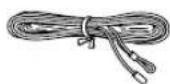
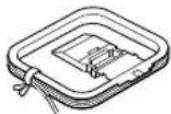
For KRF-V5070D
Remote control unit (1) Batteries (R6/AA) (2) RC-R0627
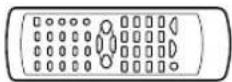
For KRF-V4070D and KRF-V5570D
Remote control unit (1) Batteries (R6/AA) (2) RC-R0628
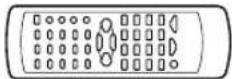
If any accessories are missing, or if the unit is damaged or fails to operate, notify your dealer immediately. If your unit was shipped to you directly, notify your shipper immediately. Kenwood recommend that you retain the original carton and packing materials in case you needs to move or ship the unit in the future.
Keep this manual handy for future reference.
Preparing the remote control
Loading the batteries
①Remove the cover. ②Insert the batteries.
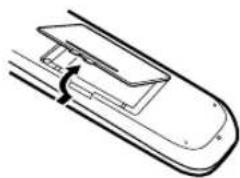
natural_image
Simple line drawing of a device with a handle and scroll, no text or symbols present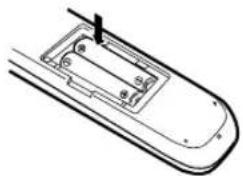
natural_image
Line drawing of a mobile phone casing with internal compartments and a handle (no text or symbols)③Close the cover.
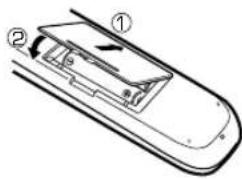
- Insert two AA-size (R6) batteries as indicated by the polarity markings.
Operation
When the STANDBY indicator is lit, the power turns ON when you press the POWER ⏻ key on the remote control. When the power comes ON, press the key you want to operate.
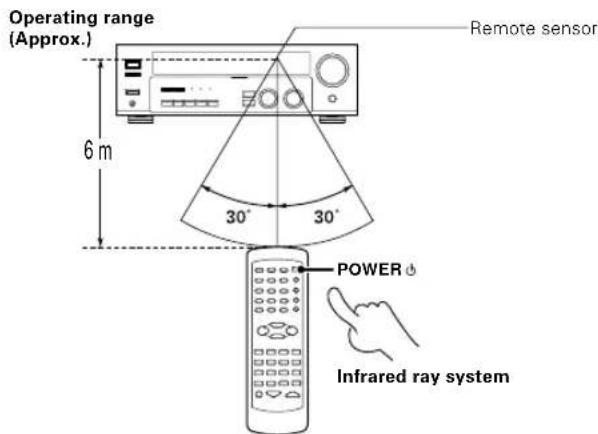
- When pressing more than one remote control key successively, press the keys securely by leaving an interval of 1 second or more between keys.
Notes
- The supplied batteries may have shorter lives than ordinary batteries due to use during operation checks.
- When the remote-controllable distance gets shorter than before, replace both batteries with new ones.
- Placing the remote sensor in direct sunlight, or in direct light from a high frequency fluorescent lamp may cause a malfunction.
In such a case, change the location of the system installation to prevent malfunction.
Special features
True home theater sound
This receiver incorporates a wide variety of surround modes to bring you maximum enjoyment from your video software. Select a surround mode according to your equipment or the software you are going to play and enjoy! →[26]
Dolby Digital
The DOLBY DIGITAL mode lets you enjoy full digital surround from software processed in the Dolby Digital format. Dolby Digital provides up to 5.1 channels of independent digital audio for better sound quality and more powerful presence than conventional Dolby Surround.
Dolby PRO LOGIC II
DOLBY PRO LOGIC II, whilst totally compatible with its predecessor PRO LOGIC, provides greater advantages in surround sound. It allows user to enjoy the conventional stereo or Dolby Surround with a convincing "5.1 like" presentation. PRO LOGIC II offers special features for controlling the overall spatial, dimensionality and frontal sound field imaging. PRO LOGIC II produces an impressive surround sound from video software marked ☒ DOLEY SURROUND and three-dimensional space from music CD. When listening to music, you will be able to enjoy the experience of sheer STEREO surround sound.
DTS
DTS (Digital Theater System) is a 5.1 channel digital audio format that provides five full-spectrum channels and one low-frequency (subwoofer) channel for unprecedented clarity, optimum channel separation and a (wide) dynamic range.
In the DTS mode, the 5.1 channel digital input from a DTS CD, LD or DVD disc (carrying the "DTS" marking) can be played in Digital Surround. Important:
When a DTS disc is played on a CD, LD or DVD player, noise may be output from the analog output. It is recommended that you connect the digital output of the player to the digital input of this unit.
DSP surround modes
The DSP (Digital Signal Processor) used for this receiver incorporates a variety of high quality adjustable sound fields, like "ARENA", "JAZZ CLUB", THEATER", STADIUM" and "DISCO". It is compatible with almost any kind of program source.
DVD 6-channel input (For KRF-V5070D only)
If you own a DVD player equipped with 6-channel output, this receiver allows you to obtain the full surround sound impact of DVD source material featuring multi-channel encoding. Since the source signals are digital and each channel is input independently, the resulting ambience is far superior to what can be achieved with conventional surround sound systems.
ACTIVE EQ
ACTIVE EQ mode will produce a more dynamic sound quality in any condition. You can enjoy a more impressive sound effect when ACTIVE EQ is turned on during Dolby Digital and DTS playback.
IR (InfraRed) remote control
In addition to the basic receiver operations, this IR remote control supplied can also operate Kenwood cassette deck, MD recorder or CD player which are connected using the system control cords.
This remote control can also control Kenwood DVD players directly without using the DVD players' remote control.
RDS (Radio Data System) tuner
The receiver is equipped with an RDS tuner that provides several convenient tuning functions: RDS Auto Memory, to automatically preset up to 40 RDS stations broadcasting different programs; station name display, to show you the name of the current broadcast station; and PTY search to let you tune stations by program type.
PTY (Program TYpe) search
Tune the stations by specifying the type of program you want to hear.
Main Unit
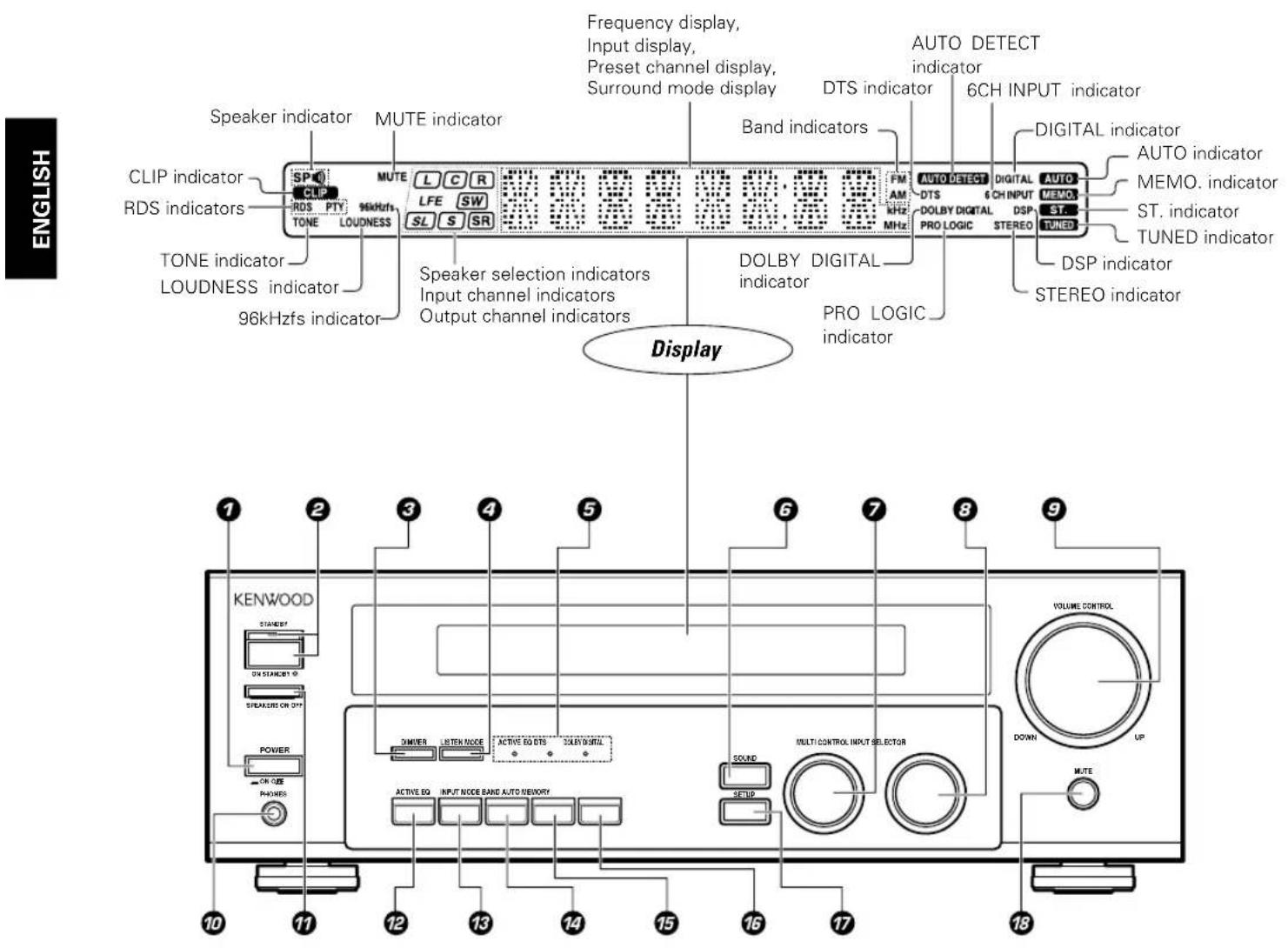
⑦POWER ON/OFF key → 17
Use to turn the main power ON/OFF.
②ON/STANDBY ⏻ key - 17
Use to switch the power ON/STANDBY when the POWER is turned ON.
STANDBY indicator
③DIMMER key
Use to select the REC MODE. →21
Use to adjust the brightness of the display. - 30
④LISTEN MODE key → 28
Use to select the listening mode.
⑤Surround LED (light-emitting diode) indicators
ACTIVE EQ mode LED indicator → 20
Lights when the receiver is in the ACTIVE EQ mode.
DTS mode LED indicator → 28
Lights when the receiver is in the DTS mode.
DOLBY DIGITAL mode LED indicator → 28
Lights when the receiver is in the Dolby Digital mode.
⑥SOUND key → 29
Use to adjust the sound quality and the ambience effects.
⑦ MULTI CONTROL knob → 17
Use to control a variety of settings.
③INPUT SELECTOR knob - 19
Use to select the input sources.
③VOLUME CONTROL knob - 19
10PHONES jack - 20
Use for headphone listening.
⑰SPEAKERS ON/OFF key - 19
Use to turn the speakers ON/OFF.
12ACTIVE EQ key - 20
Use to select ACTIVE EQ setting.
⑬INPUT MODE key → 9
Use to switch between full auto, digital and analog inputs.
14BAND key → 22
Use to select the broadcast band.
15 AUTO key
Use to change "TAPE" indication to "MD".
→19
Use to select the auto tuning mode. →22
16 MEMORY key → 23
Use to store radio stations in the preset memory.
⑰SETUP key -17
Use to select the speakers' settings etc.
18MUTE key → 20
Use to temporarily mute the sound.
Standby mode
While the standby indicator is lit, a small amount of power is supplied to the system to back-up the memory. This is called standby mode. Under the condition, the system can be turned ON by the remote control unit.
Connection at POWER ON/OFF key
The power in this equipment will not be completely cut off from the AC wall outlet when the main switch is turned OFF.
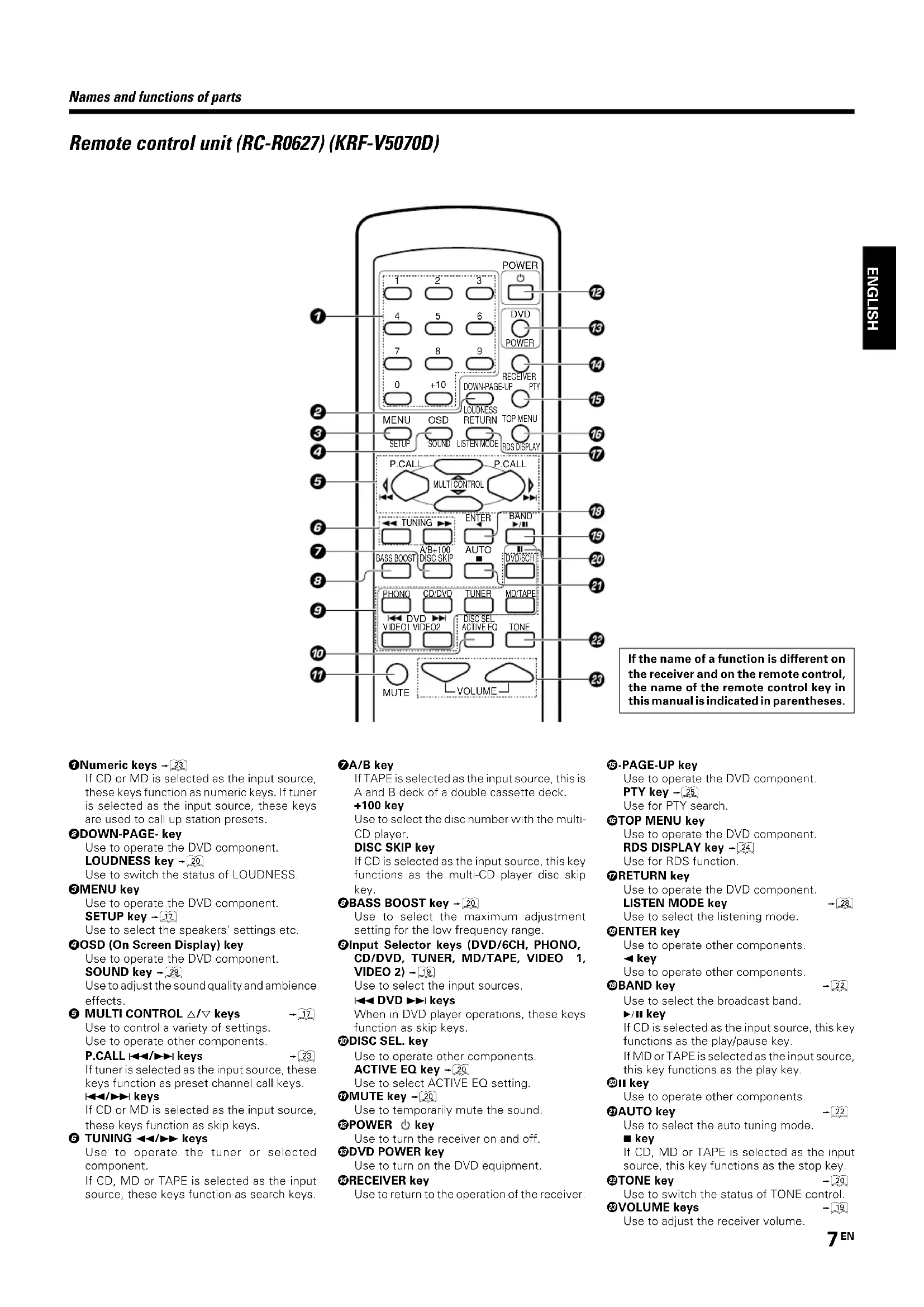
Remote control unit (RC-R0627) (KRF-V5070D)
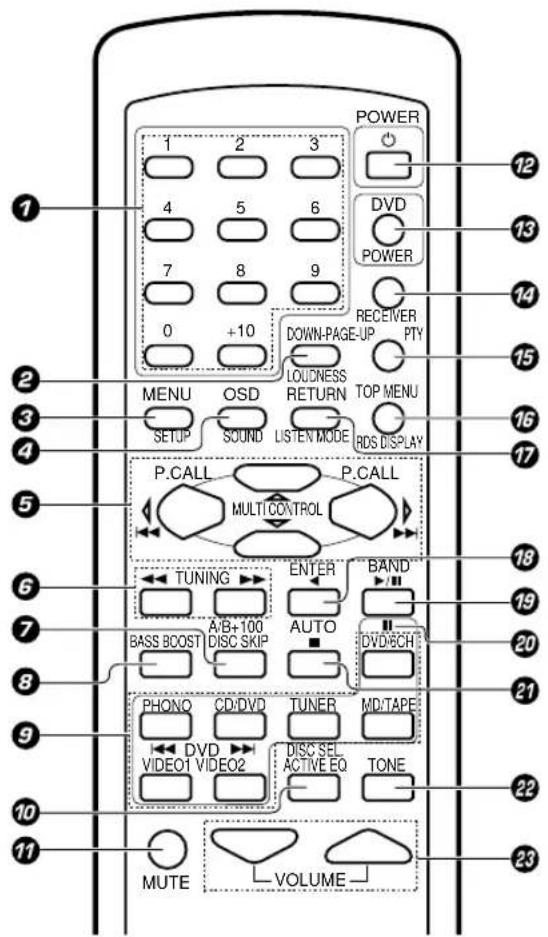
If the name of a function is different on the receiver and on the remote control, the name of the remote control key in this manual is indicated in parentheses.
⑦Numeric keys → 23
If CD or MD is selected as the input source, these keys function as numeric keys. If tuner is selected as the input source, these keys are used to call up station presets.
②DOWN-PAGE-key
Use to operate the DVD component.
LOUDNESS key - 20
Use to switch the status of LOUDNESS.
③MENU key
Use to operate the DVD component.
SETUP key → 17
Use to select the speakers' settings etc.
4OSD (On Screen Display) key
Use to operate the DVD component.
SOUND key - 29
Use to adjust the sound quality and ambience effects.
⑤ MULTI CONTROL △/▽ keys
Use to control a variety of settings.
Use to operate other components.
P.CALL ◀◀◀/▶▶ keys
→17
If tuner is selected as the input source, these keys function as preset channel call keys.
keys
If CD or MD is selected as the input source, these keys function as skip keys.
⑥ TUNING ◀◀/▶▶ keys
Use to operate the tuner or selected component.
If CD, MD or TAPE is selected as the input source, these keys function as search keys.
⑦A/B key
If TAPE is selected as the input source, this is A and B deck of a double cassette deck.
+100 key
Use to select the disc number with the multi-CD player.
DISC SKIP key
If CD is selected as the input source, this key functions as the multi-CD player disc skip key.
⑧BASS BOOST key → 20
Use to select the maximum adjustment setting for the low frequency range.
⑨Input Selector keys (DVD/6CH, PHONO, CD/DVD, TUNER, MD/TAPE, VIDEO 1, VIDEO 2) - 19
Use to select the input sources.
DVD keys
When in DVD player operations, these keys function as skip keys.
⑩DISC SEL. key
Use to operate other components.
ACTIVE EQ key - 20
Use to select ACTIVE EQ setting.
⑪MUTE key - 20
Use to temporarily mute the sound.
12 POWER ⏻ key
Use to turn the receiver on and off.
⑬DVD POWER key
Use to turn on the DVD equipment.
14RECEIVER key
Use to return to the operation of the receiver.
15-PAGE-UP key
Use to operate the DVD component.
PTY key → 25
Use for PTY search.
TOP MENU key
Use to operate the DVD component.
RDS DISPLAY key - 24
Use for RDS function.
17RETURN key
Use to operate the DVD component.
LISTEN MODE key
Use to select the listening mode.
18 ENTER key
Use to operate other components.
▲ key
Use to operate other components.
19BAND key
Use to select the broadcast band.
▶/II key
If CD is selected as the input source, this key functions as the play/pause key.
If MD or TAPE is selected as the input source, this key functions as the play key.
2011 key
Use to operate other components.
21 AUTO key
Use to select the auto tuning mode.
■ key
If CD, MD or TAPE is selected as the input source, this key functions as the stop key.
22 TONE key
Use to switch the status of TONE control.
23VOLUME keys
Use to adjust the receiver volume.
Remote control unit (RC-R0628) (KRF-V4070D/V5570D)
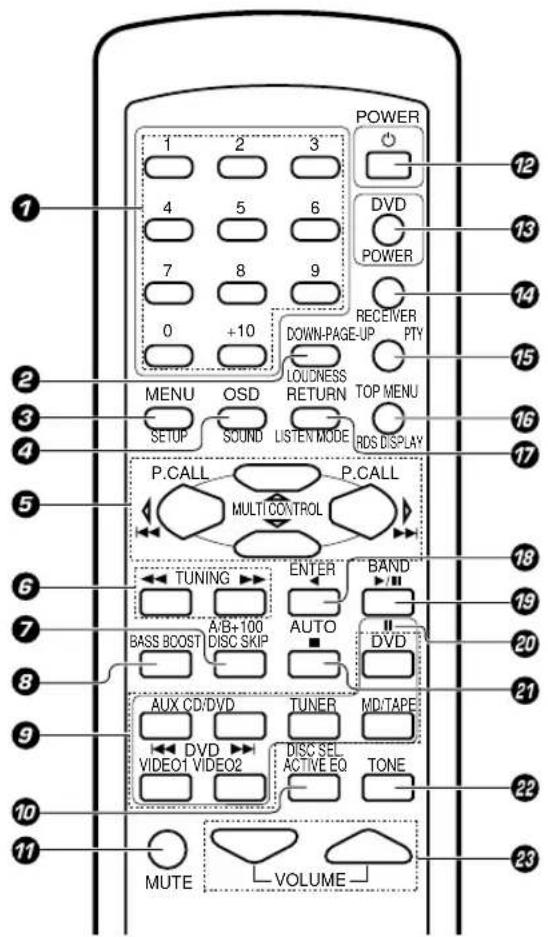
If the name of a function is different on the receiver and on the remote control, the name of the remote control key in this manual is indicated in parentheses.
①Numeric keys - [23]
If CD or MD is selected as the input source, these keys function as numeric keys. If tuner is selected as the input source, these keys are used to call up station presets.
2DOWN-PAGE-key
Use to operate the DVD component.
LOUDNESS key → 20
Use to switch the status of LOUDNESS.
③MENU key
Use to operate the DVD component.
SETUP key → 17
Use to select the speakers' settings etc.
④OSD (On Screen Display) key
Use to operate the DVD component.
SOUND key - 29
Use to adjust the sound quality and ambience
effects.
⑤ MULTI CONTROL △/▽ keys
Use to control a variety of settings.
Use to operate other components.
P.CALL ◀◀◀/▶▶ keys
→17
If tuner is selected as the input source, these keys function as preset channel call keys.
|◀◀/▶▶| keys
If CD or MD is selected as the input source,
these keys function as skip keys.
⑥ TUNING ◀◀/▶▶ keys
Use to operate the tuner or selected component.
If CD, MD or TAPE is selected as the input source, these keys function as search keys.
⑦A/B key
If TAPE is selected as the input source, this is A and B deck of a double cassette deck.
+100 key
Use to select the disc number with the multi-CD player.
DISC SKIP key
If CD is selected as the input source, this key functions as the multi-CD player disc skip key.
⑧BASS BOOST key - 20
Use to select the maximum adjustment setting for the low frequency range.
③Input Selector keys (DVD, AUX, CD/DVD,
TUNER, MD/TAPE, VIDEO 1, VIDEO 2)→19
Use to select the input sources.
DVD keys
When in DVD player operations, these keys function as skip keys.
⑩DISC SEL. key
Use to operate other components.
ACTIVE EQ key → 20
Use to select ACTIVE EQ setting.
⑰MUTE key → 20
Use to temporarily mute the sound.
12 POWER ⏻ key
Use to turn the receiver on and off.
⑬DVD POWER key
Use to turn on the DVD equipment.
14RECEIVER key
Use to return to the operation of the receiver.
15-PAGE-UP key
Use to operate the DVD component.
PTY key - 25
Use for PTY search.
16 TOP MENU key
Use to operate the DVD component.
RDS DISPLAY key → 24
Use for RDS function.
⑰RETURN key
Use to operate the DVD component.
LISTEN MODE key
→28
Use to select the listening mode.
18 ENTER key
Use to operate other components.
◀ key
Use to operate other components.
19 BAND key
→22
Use to select the broadcast band.
▶/II key
If CD is selected as the input source, this key functions as the play/pause key.
If MD or TAPE is selected as the input source, this key functions as the play key.
2011 key
Use to operate other components.
21 AUTO key
-22
Use to select the auto tuning mode.
■ key
If CD, MD or TAPE is selected as the input source, this key functions as the stop key.
22 TONE key
-20
Use to switch the status of TONE control.
②3VOLUME keys
→19
Use to adjust the receiver volume.
Make connections as shown in the following pages.
When connecting the related system components, be sure to refer to the instruction manuals supplied with the components you are connecting.
Do not connect the power cord to a wall outlet until all connections are completed.
Notes
- Be sure to insert all connection cords securely. If their connections are imperfect, the sound may not be produced or there will be noise interference.
- Be sure to remove the power cord from the AC outlet before plugging or unplugging any connection cords. Plugging/unplugging connection cords without disconnecting the power cord can cause malfunctions and may damage the unit.
- Do not connect power cords from components whose power consumption is larger than what is indicated on the AC outlet at the rear of this unit.
Analog connections
Audio connections are made using RCA pin cords. These cables transfer stereo audio signal in an "analog" form. This means the audio signal corresponds to the actual audio of two channels. These cables usually have 2 plugs at each end, red for the right channel and white for the left channel. These cables are usually packed together with the source unit, or are available at your local electronics retailer.
Microcomputer malfunction
If operation is not possible or an erroneous display appears, even though all connections have been made properly, reset the microcomputer by referring to "In case of difficulty". →33
Input mode settings
CD/DVD, VIDEO2 and DVD or DVD/6CH (KRF-V5070D only) inputs each include jacks for digital audio input and analog audio input. After completing connections and turning on the receiver, follow the steps below.
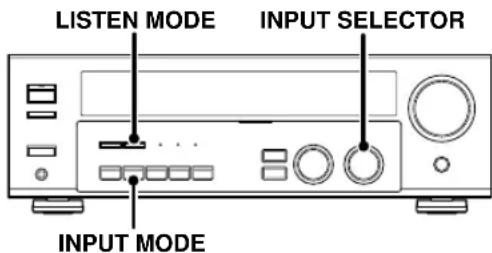
⑦Use the INPUT SELECTOR knob to select CD/DVD, VIDEO2, DVD or DVD/6CH (KRF-V5070D only).
②Press the INPUT MODE key.
Each press switches the setting as follows:
In DTS play mode
①F-AUTO (digital input, analog input)
②D-MANUAL (digital input)
In CD/DVD, VIDEO2, DVD or DVD/6CH (KRF-V5070D only) play mode
①F-AUTO (digital input, analog input)
②D-MANUAL (digital input)
③6CH INPT (DVD/6CH input)
④ANALOG (analog input)
Digital input:
Select this setting to play digital signals from a DVD, CD, or LD player.
Analog input:
Select this setting to play analog signals from a cassette deck, VCR, or record player.
Auto detect:
In "F-AUTO" (full auto) mode (AUTO DETECT and DIGITAL indicators light up), the receiver detects the digital or analog input signals automatically. Priority is given to digital signal during input mode selection. The receiver will select the input mode and listening mode automatically during playback to match the type of input signal (Dolby Digital, PCM, DTS) and the speaker setting. The initial factory setting is full auto.
To keep the receiver set to the currently selected listening mode, use the INPUT MODE key to select "D-MANUAL" (digital manual). However, even when this setting is selected, there may be cases in which the listening mode is selected automatically to match a Dolby Digital source signal depending on the combination of listening mode and source digital.
In D-MANUAL mode, if the audio reproduction stops in the middle due to change in the input signals, etc, press the LISTEN MODE key.
If the INPUT MODE key is pressed quickly, sound may not be produced. Press the INPUT MODE key again.
Connecting audio components
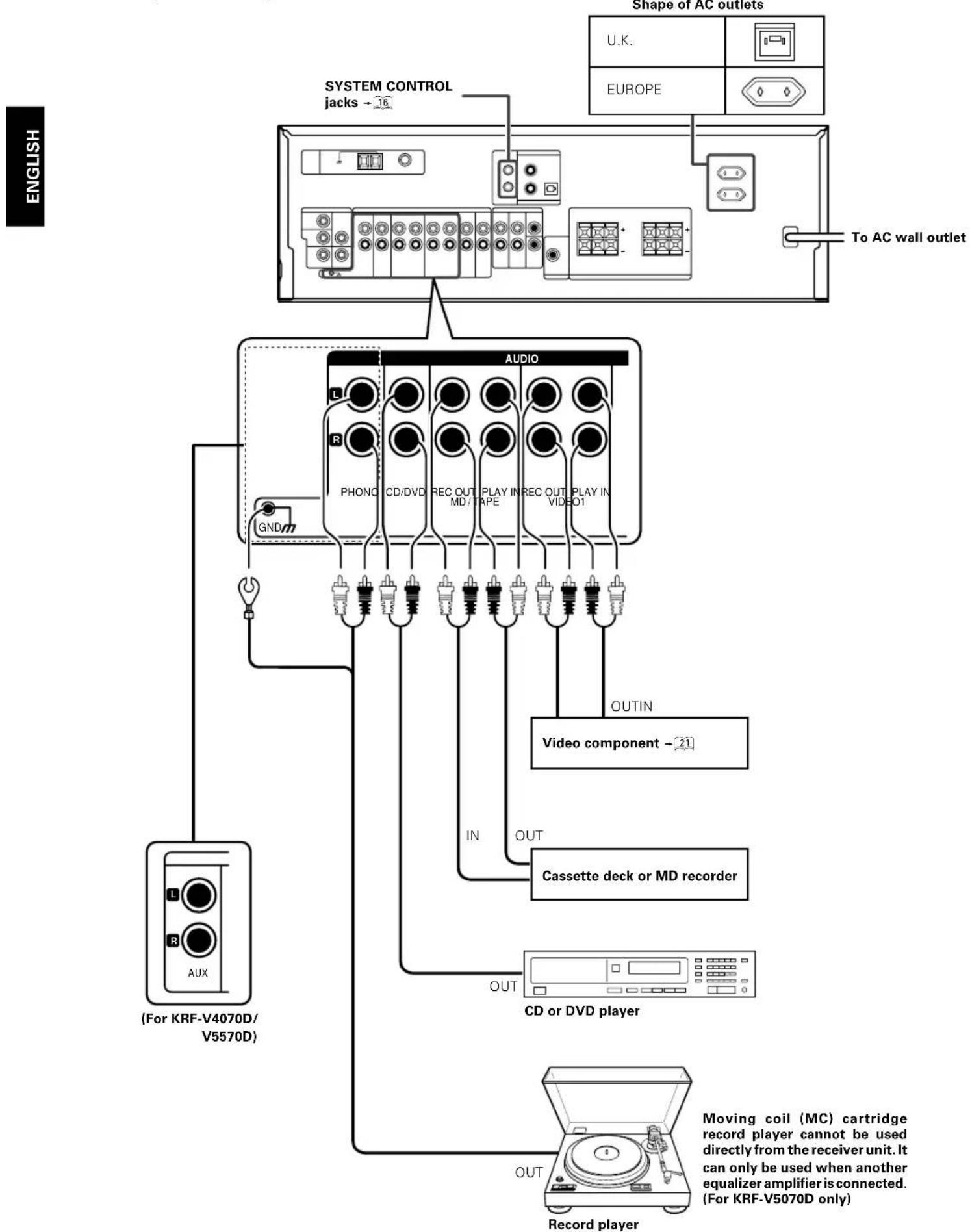
flowchart
graph TD
    A["To AC wall outlet"] --> B["Audio"]
    B --> C["CD or DVD player"]
    C --> D["Record player"]
    D --> E["Video component - 21"]
    E --> F["OUTIN"]
    F --> G["IN"]
    G --> H["PHONG CD/DVD REC OUT/MP/TAPE RECO OUT/VIDEO1"]
    H --> I["OUT"]
    I --> J["CD or DVD player"]
    J --> K["OUT"]
    K --> L["(For KRF-V4070D/V5570D)"]
    M["UNLESSY"] --> N["SYSTEM CONTROL jacks - 16"]
    O["U.K."] --> P["EUROPE"]
    Q["ENGLISH"] --> R["ENGLISH"]
Connecting video components
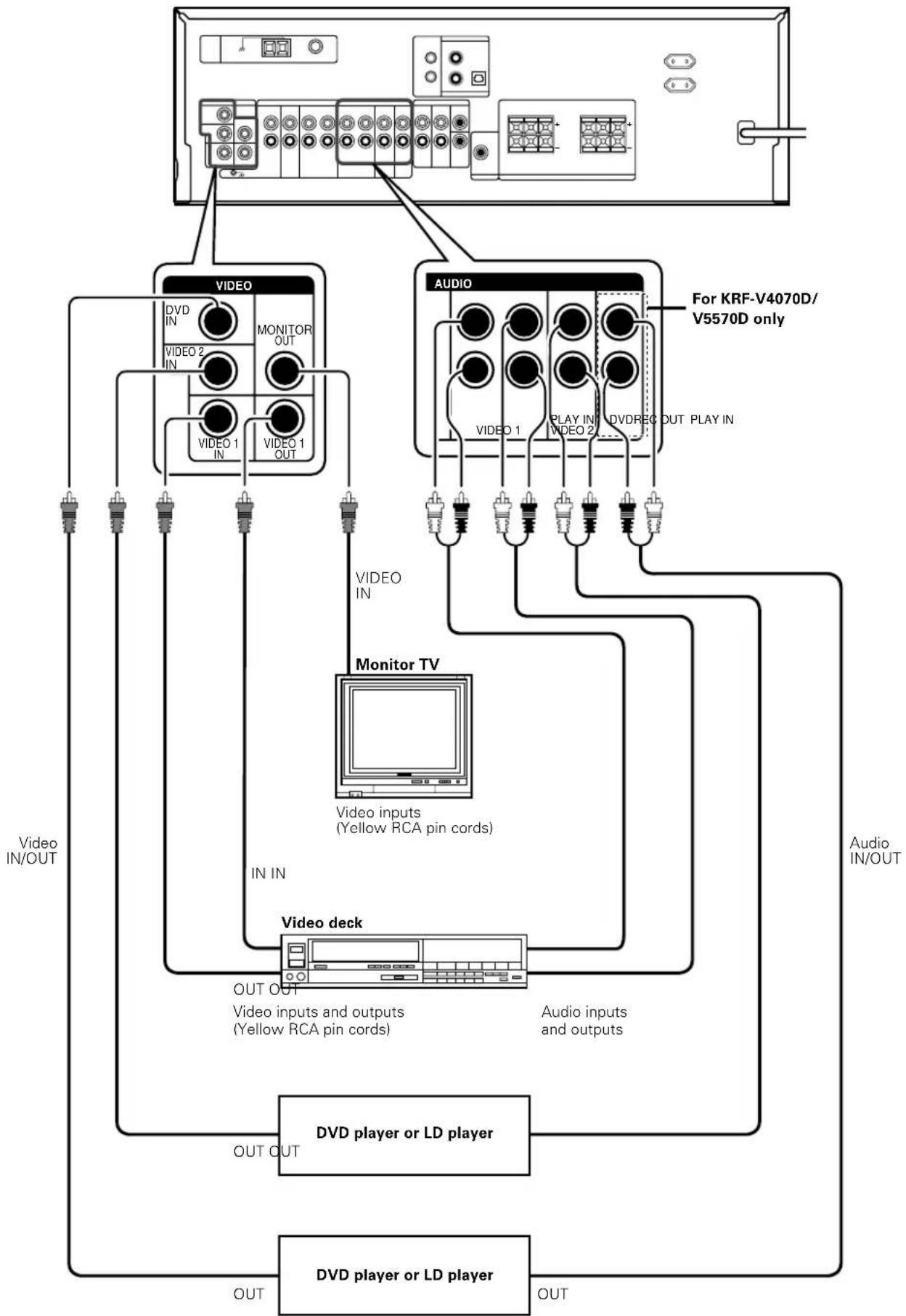
flowchart
graph TD
    A["Video"] --> B["MONITOR OUT"]
    B --> C["VIDEO 1 IN"]
    B --> D["VIDEO 1 OUT"]
    E["VIDEO"] --> F["MONITOR OUT"]
    F --> G["VIDEO 2 IN"]
    F --> H["VIDEO 1 IN"]
    I["VIDEO"] --> J["MONITOR OUT"]
    J --> K["VIDEO 1 OUT"]
    L["VIDEO"] --> M["MONITOR OUT"]
    M --> N["VIDEO 1 OUT"]
    O["VIDEO"] --> P["MONITOR OUT"]
    P --> Q["VIDEO 1 OUT"]
    R["VIDEO"] --> S["MONITOR OUT"]
    S --> T["VIDEO 1 OUT"]
    U["VIDEO"] --> V["MONITOR OUT"]
    V --> W["VIDEO 1 OUT"]
    X["VIDEO"] --> Y["MONITOR OUT"]
    Y --> Z["VIDEO 1 OUT"]
    AA["VIDEO"] --> AB["MONITOR OUT"]
    AB --> AC["VIDEO 1 OUT"]
    AD["VIDEO"] --> AE["MONITOR OUT"]
    AE --> AF["VIDEO 1 OUT"]
    AG["VIDEO"] --> AH["MONITOR OUT"]
    AH --> AI["VIDEO 1 OUT"]
    AJ["VIDEO"] --> AK["MONITOR OUT"]
    AK --> AL["VIDEO 1 OUT"]
    AM["VIDEO"] --> AN["MONITOR OUT"]
    AN --> AO["VIDEO 1 OUT"]
    AP["VIDEO"] --> AQ["MONITOR OUT"]
    AQ --> AR["VIDEO 1 OUT"]
    AS["VIDEO"] --> AT["MONITOR OUT"]
    AT --> AU["VIDEO 1 OUT"]
    AV["VIDEO"] --> AW["MONITOR OUT"]
    AW --> AX["VIDEO 1 OUT"]
    AY["Monitor TV"] --> AZ["Video inputs (Yellow RCA pin cords)"]
    BA["Video deck"] --> BB["Video inputs and outputs (Yellow RCA pin cords)"]
    BC["Audio"] --> BD["Audio inputs and outputs"]
    BE["DVD player or LD player"] --> BF["DVD player or LD player"]
    BG["VDA"] --> BH["VDA player or LD player"]
A video component with digital audio outputs should be connected to the VIDEO 2 jacks.
Digital connections
The digital in jacks can accept DTS, Dolby Digital, or PCM signals. Connect components capable of outputting DTS, Dolby Digital, or standard PCM (CD) format digital signals.
If you have connected any digital components to the receiver, be sure to read the "Input mode settings" section carefully.
→9
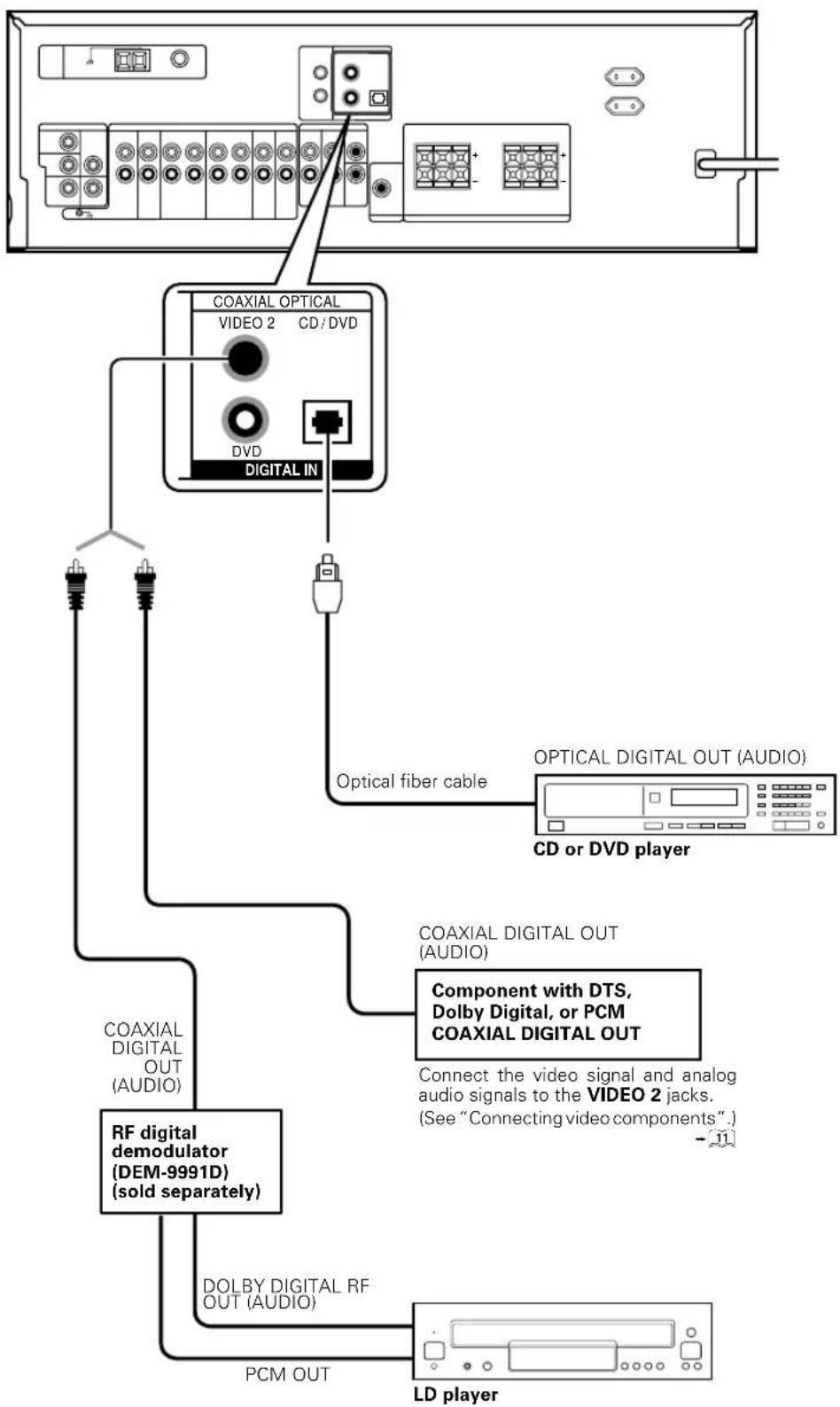
flowchart
graph TD
    A["Coaxial Digital OUT (AUDIO)"] --> B["CD or DVD player"]
    B --> C["Optical fiber cable"]
    C --> D["VIDEO 2"]
    D --> E["COAXIAL OPTICAL"]
    E --> F["DVD DIGITAL IN"]
    F --> G["RF digital demodulator (DEM-9991D) (sold separately)"]
    G --> H["LD player"]
    G --> I["DOLBY DIGITAL RF OUT (AUDIO)"]
    I --> J["PCM OUT"]
    J --> K["Component with DTS, Dolby Digital, or PCM COAXIAL DIGITAL OUT"]
    K --> L["Connect the video signal and analog audio signals to the VIDEO 2 jacks. (See "Connecting video components".)"]
To connect an LD player with a DIGITAL RF OUT, connect the LD player to the KENWOOD RF digital demodulator (DEM-9991D).
Next, connect the DIGITAL OUT jacks of the demodulator to the DIGITAL IN jacks of the receiver.
Connect the video signal and analog audio signals to the VIDEO 2 jacks. (See "Connecting video components".)
Connecting a DVD player (6-channel input) (For KRF-V5070D only)
If you have connected a DVD player to the receiver with digital connection, be sure to read the "Input mode settings" section carefully.
→9
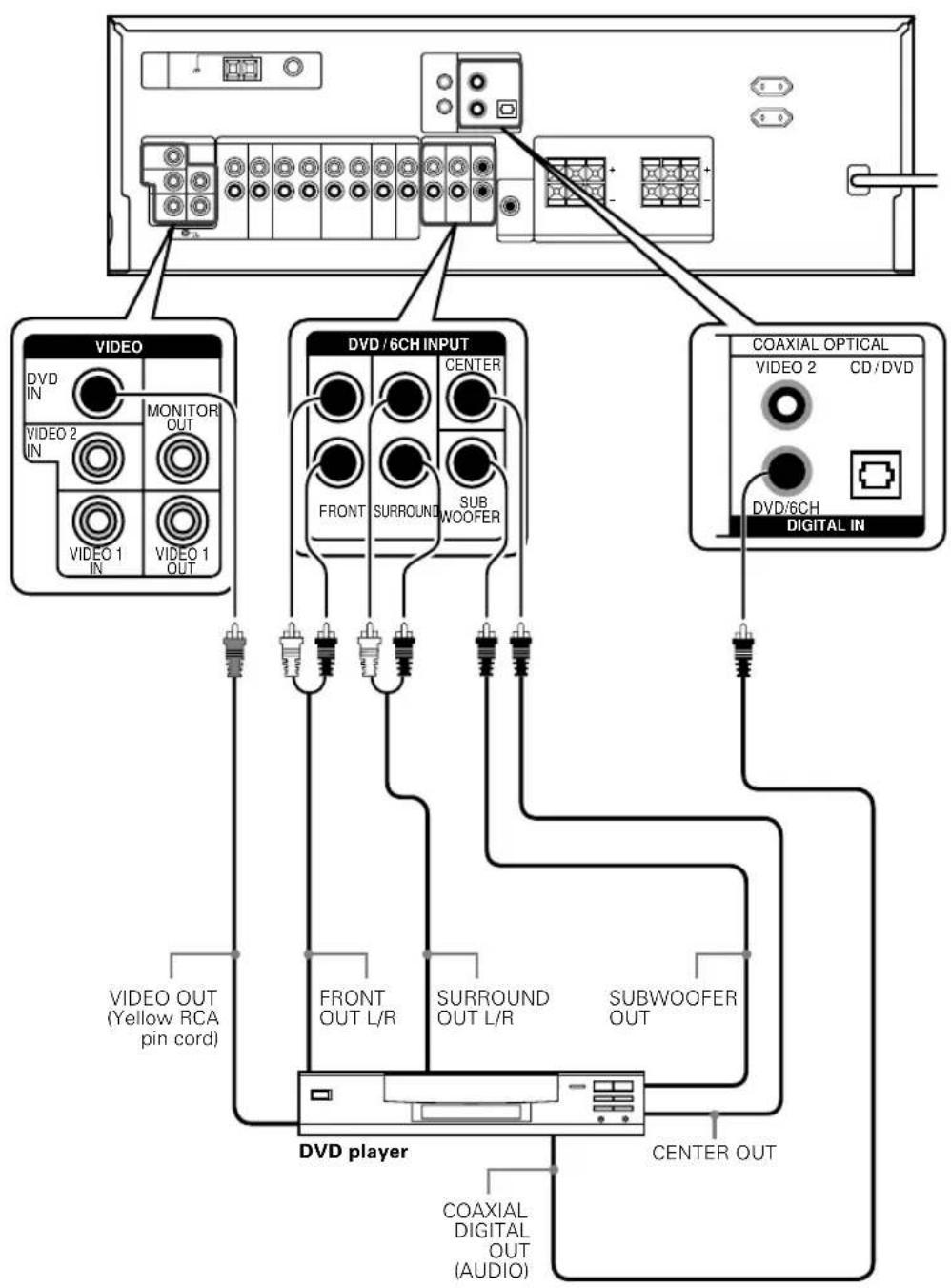
flowchart
graph TD
    A["Video"] --> B["MONITOR OUT"]
    B --> C["VIDEO 1 IN"]
    B --> D["VIDEO 1 OUT"]
    E["DVD / 6CH INPUT"] --> F["CENTER"]
    F --> G["FRONT SURROUND SUB WOOFER"]
    G --> H["COAXIAL OPTICAL"]
    H --> I["VIDEO 2 CD/DVD"]
    I --> J["DVD/6CH DIGITAL IN"]
    K["VIDEO OUT (Yellow RCA pin cord)"] --> L["FRONT OUT L/R"]
    L --> M["SURROUND OUT L/R"]
    M --> N["SUBWOOFER OUT"]
    O["DVD player"] --> P["CENTER OUT"]
    P --> Q["COAXIAL DIGITAL OUT (AUDIO)"]
CAUTION
Be sure to adhere to the following, or proper ventilation will be blocked causing damage or fire hazard.
- Do not place any object impairing heat radiation onto the top of the unit.
- Leave a space around the unit (from the largest outside dimension including projection) equal or greater than, shown below.
Top panel : 50 cm Side panel : 10 cm Back panel : 10 cm
Connecting the speakers
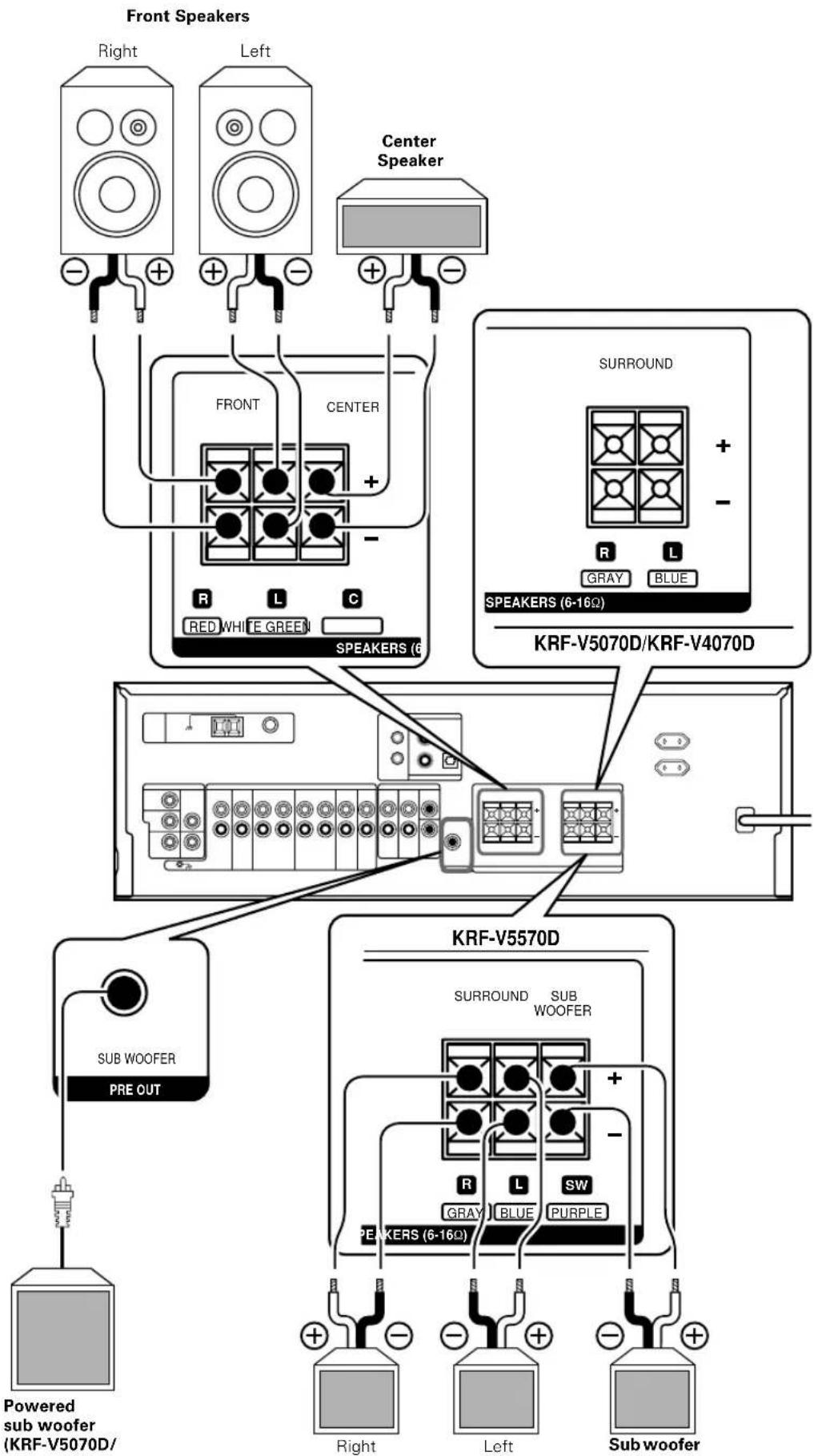
flowchart
graph TD
    A["Powered sub woofer (KRF-V5070D)"] --> B["Sub woofer PRE OUT"]
    B --> C["Center Speaker"]
    C --> D["Front Speaker"]
    D --> E["Left Speaker"]
    E --> F["Right Speaker"]
    G["KRF-V5570D"] --> H["Sub woofer"]
    H --> I["Pre OUT"]
    I --> J["Center Speaker"]
    J --> K["SURROUND"]
    K --> L["+/-"]
    L --> M["RED WHITE GREEN SPEAKERS (6)"]
    K --> N["GRAY BLUE SPEAKERS (6-16Ω)"]
    K --> O["Blue"]
    P["Sub woofer"] --> Q["Left Sub woofer"]
    Q --> R["Right Sub woofer"]
    S["Powered sub woofer (KRF-V5070D)"] --> T["Sub woofer"]
    T --> U["Pre OUT"]
    U --> V["Center Speaker"]
    V --> W["SURROUND"]
    W --> X["+/-"]
    X --> Y["RED WHITE GREEN SPEAKERS (6)"]
    W --> Z["Gray BLUE SPEAKERS (6-16Ω)"]
    W --> AA["Blue Purple SPEAKERS (6-16Ω)"]
    W --> AB["Blue Purple SPEAKERS (6-16Ω)"]
    W --> AC["Blue Purple SPEAKERS (6-16Ω)"]
    style A fill:#f9f,stroke:#333
    style G fill:#ccf,stroke:#333
    style P fill:#cfc,stroke:#333
Surround Speakers
(Be sure to connect both surround speakers)
Connecting the terminals
⑦Strip coating.
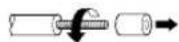
②Push the lever.
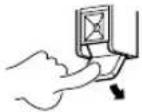
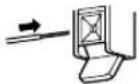
③Insert the cord. ④Return the lever.
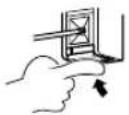
- Never short circuit the + and - speaker cords.
- If the left and right speakers are connected inversely or the speaker cords are connected with reversed polarity, the sound will be unnatural with ambiguous acoustic imaging. Be sure to connect the speakers correctly.
Speaker impedance
After confirming the speaker impedance indications printed on the rear panel of the receiver, connect speakers with matching impedance ratings. Using speakers with a rated impedance other than that indicated on the rear panel of the receiver could result in malfunctions or damage to the speakers or receiver.
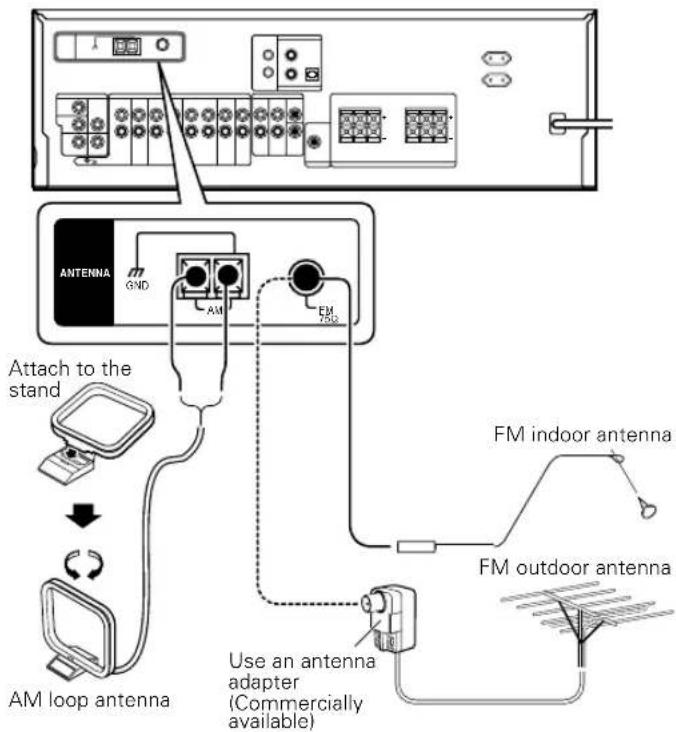
Connecting the antennas
AM loop antenna
The supplied loop antenna is for use indoors. Place it as far as possible from the receiver, TV set, speaker cords and power cord, and adjust the direction for best reception.
AM antenna terminal connections
① Push lever.
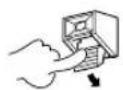
② Insert cord.
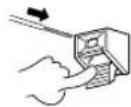
③ Release lever.
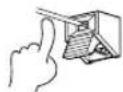
FM indoor antenna
The supplied indoor antenna is for temporary use only. For stable signal reception we recommend using an outdoor antenna. Disconnect the indoor antenna when you connect one outdoors.
FM antenna terminal connections
Insert cord.
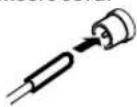
FM outdoor antenna
Lead the 75Ω coaxial cable connected to the FM outdoor antenna into the room and connect it to the FM 75Ω terminal.
Connecting the system control
Connecting system control cords after connecting a KENWOOD audio component system lets you take advantage of convenient system control operations.
This unit is compatible only with the [SL-16] mode. The system control operation is not available if the unit is connected in the [XS8], [XS], or [XR] connection mode.
If your component has the mode select switch, set the connected components to the [SL16] mode.
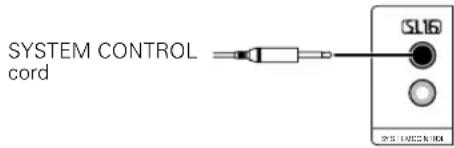
- You may connect the system control cord to either the up or down jack.
EXAMPLE: [SL16] mode connections
The underlined portion represents the setting of the system control mode.
![KENWOOD KRFV5570D - EXAMPLE: [SL16] mode connections - 1](/content/2026/02/373458/images/817bb8ac6a46cb0be5b0a59d45341b7dc17fcb61fc0f8419109438dd58f5ff1f.jpg)
flowchart
graph TD
    A["SL16"] --> B["Receiver"]
    C["SL16"][XS][XS8][XR] --> D["Cassette deck or MD recorder"]
    E["SL16"][XS][XS8] --> F["CD player"]
    G["XS"] --> H["Record player"]
    I["SYSTEM CONTROL cord"] --> D
    I --> F
- In order to take advantage of the system control operations, the components must be connected to the correct jacks. To use a CD player it must be connected to the CD jacks. To use a cassette deck (or MD recorder) it must be connected to the MD/TAPE jacks. When using more than one CD player (etc.) only the one connected to the specified jacks may be connected for system control.
- Some CD players and cassette decks are not compatible with the [SL16] system control mode. Do not make system connections with equipment that is not [SL16] compatible.
- Some MD players are not system control compatible. You cannot make system control connections to this kind of equipment.
Notes
- [SL16] equipment cannot be combined with [XR], [XS], and [XS8] equipment for system operations. If your equipment consists of this kind of combination, please do not connect any system control cords. Even without system control cords, normal operations can be carried out without affecting performance.
- Do not connect system control cords to any components other than those specified by KENWOOD. It may cause a malfunction and damage your equipment.
- Be sure the system control plugs are inserted all the way in to the system control terminals.
Lets you operate this unit with the system remote supplied with the receiver.
Automatic Operation
When you start playback from a source component, the input selector on this unit switches to that component automatically.
Synchronized Recording
Lets you synchronize recording with the start of playback when recording from CD, MD or analog discs.
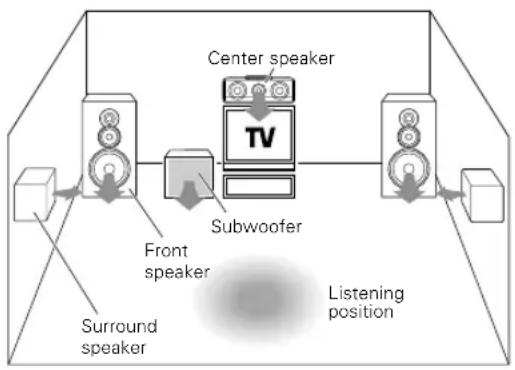
Speaker placement
flowchart
graph TD
    A["Front speaker"] --> B["Subwoofer"]
    B --> C["Center speaker"]
    C --> D["Listening position"]
    style A fill:#f9f,stroke:#333
    style B fill:#ccf,stroke:#333
    style C fill:#cfc,stroke:#333
    style D fill:#fcc,stroke:#333
Front speakers : Place to the front left and right of the listening position. Front speakers are required for all surround modes.
Center speaker : Place front and center. This speaker stabilizes the sound image and helps recreate sound motion. Required for surround playback.
Surround speakers : Place to the direct left and right, or slightly behind, the listening position at even heights, approximately 1 meter above the ears of the listeners. These speakers recreate sound motion and atmosphere. Required for surround playback.
Subwoofer : Reproduces powerful deep bass sounds.
- Although the ideal surround system consists of all the speakers listed above, if you don't have a center speaker or a subwoofer, you can divide those signals between the available speakers in the speaker settings steps to obtain the best possible surround reproduction from the speakers you have available.
Speaker settings
To enable you to obtain optimum enjoyment from the receiver's listening modes, make sure to complete the speaker settings (subwoofer, front, center, and surround speakers) as described below.
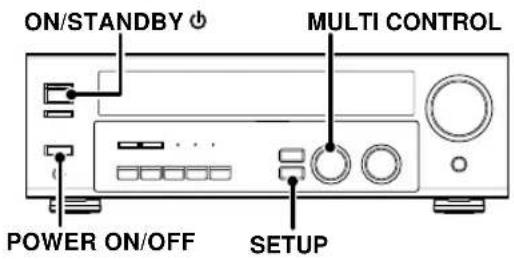
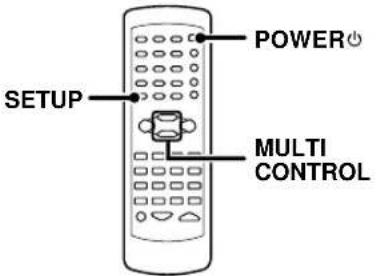
1 Turn on the power to this receiver by pressing POWER ON/OFF and ON/STANDBY or POWER key.
2 Press the SETUP key to enter the SETUP mode and use the MULTI CONTROL knob or keys for the following displays.
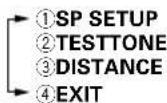
The flow of the SETUP is as follows;
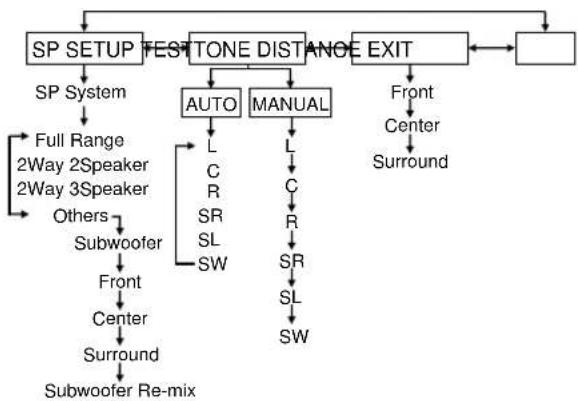
flowchart
graph TD
    A["SP SETUP TEST TONE DISTANCE EXIT"] --> B["SP System"]
    A --> C["AUTO"]
    A --> D["MANUAL"]
    A --> E["EXIT"]
    C --> F["Full Range 2Way 2Speaker 2Way 3Speaker Others Subwoofer Front Center Surround Subwoofer Re-mix"]
    D --> G["Front Center Surround"]
    C --> H["L C R SR SL SW"]
    D --> I["L C R SR SL SW"]
3 Select a speaker system.
Select SP SETUP and press the SETUP key again so that the speaker system indication "SP SYSTEM" scrolls across the display.

② Use the MULTI CONTROL knob or keys to select the speaker system setting.
①FULL RANGE: For selected Kenwood speaker – for example, KS-207HT.
② 2WAY 2SPKR: For selected Kenwood speaker – for example, KS-307HT.
③ 2WAY 3SPKR: For selected Kenwood speaker – for example, KS-707HT.
④OTHERS: For general speakers.
- The selection of FULL RANGE, 2WAY 2SPKR or 2WAY 3SPKR should only be used with 5 channels speaker system setting.
- When the setting FULL RANGE, 2WAY 2SPKR or 2WAY 3SPKR is selected, the procedure skips to step 4.
③ For general speaker setting, use the MULTI CONTROL knob or keys to select OTHERS and press the SETUP key again.
- The subwoofer setting indication "SUBW ON" appears.

④ Use the MULTI CONTROL knob or keys to select the appropriate subwoofer setting.
① SUBW ON : Subwoofer setting mode to the receiver is ON. ② SUBW OFF : Subwoofer setting mode to the receiver is OFF.
- The initial setting is "SUBW ON".
- When the setting "SUBW OFF" is selected, the front speakers are automatically set to "FRNT LRG" and the procedure skips to step 8.
Before step 8, press the SETUP key to accept the setting.
- When subwoofer output sound is required, select "FRNT NML".
⑤ Press the SETUP key to accept the setting.
- The front speakers setting indication "FRNT NML" appears.

⑥ Use the MULTI CONTROL knob or keys to select the appropriate front speakers setting.
① FRNT NML (normal): Average size front speakers are connected to the receiver. ② FRNT LRG (large): Large front speakers are connected to the receiver.
- For "FRNT LRG" selection, no sound will be heard from subwoofer speaker even when it is set to ON. However, if you select "SW RE-MIX ON" when subwoofer is selected, you will be able to hear sound from the subwoofer. When in STEREO mode, the sound goes directly to front speaker.
⑦ Press the SETUP key to accept the setting.
- The center speaker setting indication "CNTR NML" appears.
⑧ Use the MULTI CONTROL knob or keys to select the appropriate center speaker setting.
If you have selected "LRG" as the front speakers setting,
① CNTR NML (normal): An average size center speaker is connected to the receiver. ② CNTR LRG (large): A large center speaker is connected to the receiver. ③ CNTR OFF: Center speaker setting mode to the receiver is OFF.
If you have selected "NML" as the front speakers setting,
①CNTR ON: Center speaker setting mode to the receiver is ON. ②CNTR OFF: Center speaker setting mode to the receiver is OFF.
9 Press the SETUP key again to accept the setting.
- The surround speaker setting indication "SURR NML" appears.
⑩ Use the MULTI CONTROL knob or keys to select the appropriate surround speaker setting.
If you have selected "LRG" as the center speaker setting,
① SURR NML (normal): Average size surround speakers are connected to the receiver. ② SURR LRG (large): Large surround speakers are connected to the receiver. ③ SURR OFF: Surround speaker setting mode to the receiver is OFF.
Continued to next page
If you have selected other than "LRG" as the center speaker setting,
① SURR ON : Surround speaker setting mode to the receiver is ON. ② SURR OFF : Surround speaker setting mode to the receiver is OFF.
Press the SETUP key again to accept the setting.
- The subwoofer re-mix setting indication "SW RE-MIX" scrolls across the display.

- If subwoofer is turned OFF, subwoofer re-mix setting is not visible.
⑫ Use the MULTI CONTROL knob or keys to select the appropriate subwoofer re-mix setting.
① RMX ON : Subwoofer re-mix set mode to the receiver is ON. ② RMX OFF : Subwoofer re-mix set mode to the receiver is OFF.
43 Press the SETUP key to accept the setting.
- The receiver enters the speaker volume level adjustment mode. - In step 4 and 5, indications appear only for the selected channels of the speakers that require adjusting.
4 Adjust the speaker volume level.
From your usual listening position, adjust the volume levels. The volume levels from each speaker should be the same.
⑦ Press the SETUP key to begin TEST TONE.
The selection of AUTO/MANUAL TEST TONE is done by the MULTI CONTROL knob or keys.
①AUTO ②MANUAL
2 Press the SETUP key again to select either AUTO or MANUAL.
Use the MULTI CONTROL knob or keys to adjust the volume level of the test tone output from the speaker channel to be adjusted.
For AUTO selection, the test tone is heard from the speakers in the following sequence for 2 seconds each:
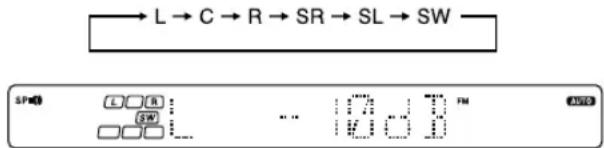
- If you change the volume level settings for the speakers while listening to music, the settings referred to on this page are also changed. → 29
- If any of the speakers is set as OFF during SP SETUP, the TEST TONE adjustment for that speaker will be skipped.
③ Press the SETUP key.
- The test tone is turned off. The receiver enters the mode for inputting the distance to the speakers.
For MANUAL selection, press the SETUP key each time to select the speaker channel.
5 Input the distance to the speakers.
① Select the DISTANCE from the set up displays and press the SETUP key again.
② Measure the distance from the listening position to each of the speakers.
Jot down the distance to each of the speakers.
Distance to front speakers : ____ feet (meters) Distance to center speaker : ____ feet (meters) Distance to surround speakers : ____ feet (meters)
③ Use the MULTI CONTROL knob or keys to select the distance to the front speakers.
The speaker indicator to be adjusted blinks.

Indication in feet Indication in meters
- The allowable setting range is 1 to 30 feet (0.3m to 9.0m), adjustable in 1 foot (0.3m) increments.
④ Press the SETUP key to accept the settings.
⑤ Repeat steps ③ and ④ to input the distance for each of the speakers.
⑤ Setup is complete when the EXIT indication appears.
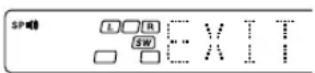
- The speakers you have selected should appear on the display. Confirm that all the speakers have been correctly selected.
⑦ Press the SETUP key to exit the SETUP mode.
Input level adjustment (analog sources only)
If the input level of an analog source signal is too high, the CLIP indicator will blink to indicate the source signal. Adjust the input level.
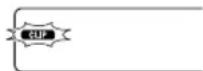
① Use the INPUT SELECTOR knob to select the source of which the input level you want to adjust.
- You can store a separate input level for each input source.
② Press the SOUND key repeatedly until the "INPUT" indication appears.
③ Use the MULTI CONTROL knob or keys to adjust the input level.

- The input level may be adjusted to any one of three settings: 0dB, -3dB, and -6dB. (The initial setting is 0dB.)
4 Press the SOUND key again to return to the input indication.
Preparing for playback
Some preparatory steps are needed before starting playback.
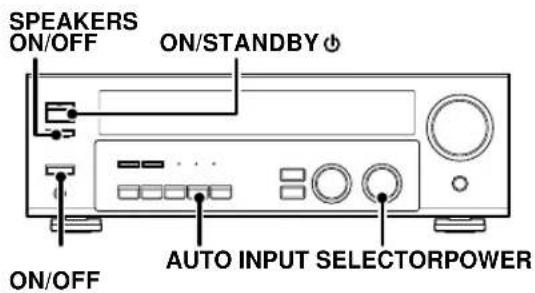
Turning on the receiver
⑦Turn on the power to the related components.
②Turn on the power to this receiver by pressing POWER ON/OFF and ON/STANDBY ⏻ key.
Selecting the input mode
If you have selected a component connected to the CD/DVD, VIDEO2, DVD or DVD/6CH (KRF-V5070D only) jacks, make sure that the input mode setting is correct for the type of audio signal to be used. - [8]
Selecting MD/TAPE
Select the source name corresponding to the component connected to the MD/TAPE jacks. The initial factory setting is "TAPE". To change the source to "MD", follow the steps below:
⑦Use the INPUT SELECTOR knob to select "TAPE".
②Hold down the AUTO key for more than 2 seconds.
- The source indication changes to "MD".
- To return to the original indication, repeat procedure 2.
Setting the speaker status
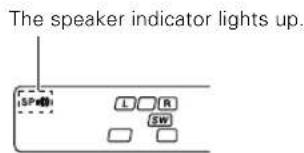
Press the SPEAKERS ON/OFF key to switch the speaker on or off.
Listening to a source component
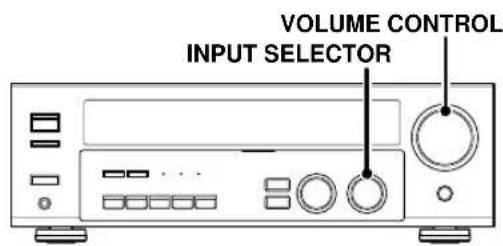
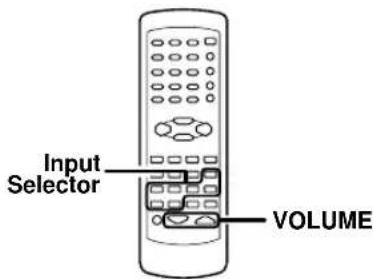
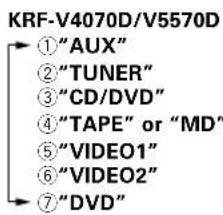
1 Use the INPUT SELECTOR knob or keys to select the source you want to listen to.
The input sources change as shown below:
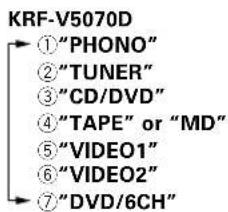
2 Start playback from the selected source.
3 Use the VOLUME CONTROL knob or VOLUME keys to adjust the volume.
Adjusting the sound
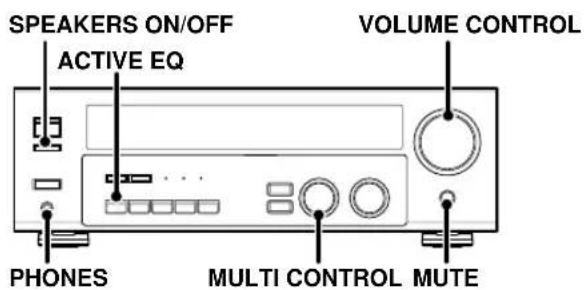
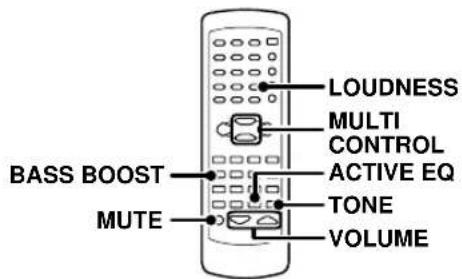
Adjusting the TONE (remote control only)
You can adjust the sound quality when the receiver is in the PCM stereo and analog stereo mode.
⑦Press the TONE key to select the TONE mode.
② Use the MULTI CONTROL knob or keys to select TONE ON/OFF.

③When in TONE ON selection, press the TONE key for the following displays.
BASS : Select this to adjust the low frequency range. TREB : Select this to adjust the high frequency range.
④Use the MULTI CONTROL knob or keys to adjust the sound quality.

- The bass and treble levels are adjustable from -10 to +10 in 2 step increments.
Once-touch low frequency emphasis (BASS BOOST) (remote control only)
You can adjust the sound quality when the receiver is in the PCM stereo and analog stereo modes.
Press the BASS BOOST key.
- Press the key once to select the maximum (+10) low frequency emphasis setting.
• TONE will automatically be turned ON. - This key does not function when the receiver is in the sound quality or ambience effects adjustment mode. 26 +30
Switching back the previous setting
Press the BASS BOOST key again.
Adjusting the LOUDNESS mode (remote control only)
You can adjust the Loudness function which controls the low volume settings to maintain the music's richness. The adjustment can be made when the receiver is in the PCM stereo and analog stereo mode.
Press the LOUDNESS key to turn the LOUDNESS setting ON.
To cancel
Press the LOUDNESS key again so that the "LOUDNESS" indicator goes off.
Muting the sound
The MUTE key lets you mute the sound of the speakers.
Press the MUTE key.
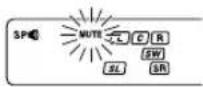
To cancel
Press the MUTE key again so that the "MUTE" indicator goes off.
- MUTE ON can also be deactivated by turning the volume control knob.
ACTIVE EQ mode
You can enjoy a more impressive sound effect when ACTIVE EQ is turned ON during Dolby Digital and DTS playback and, when in PCM and analog stereo mode
Press the ACTIVE EQ key for the following selections;
① ACTIVE EQ MUSIC : Effective when listening to music. (The ACTIVE EQ LED indicator lights up.)
② ACTIVE EQ CINEMA : Effective when watching a movie.
(The ACTIVE EQ LED indicator lights up.)
③ ACTIVE EQ TV : Effective when watching TV.
(The ACTIVE EQ LED indicator lights up.)
④ ACTIVE EQ OFF : The ACTIVE EQ function is turned OFF.
(The ACTIVE EQ LED indicator goes off.)
- ACTIVE EQ function will not be available when REC MODE, AUTO TUNING or PRESET MEMORY is ON and during 96kHz LPCM playback.
Listening with headphones
⑦Press the SPEAKERS ON/OFF key so that the speaker indicator goes off.
Make sure the SP indicator is turned OFF.
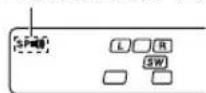
- If you turn off all of the speakers when in surround mode, the surround mode will be canceled as well, resulting in stereo playback.
②Connect headphones to the PHONES jack.
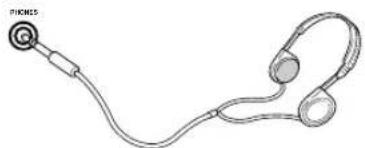
natural_image
Line drawing of a handheld ear with two stethoscope (no text or symbols)③Use the VOLUME CONTROL knob or VOLUME keys to adjust the volume.
Recording audio (analog sources)
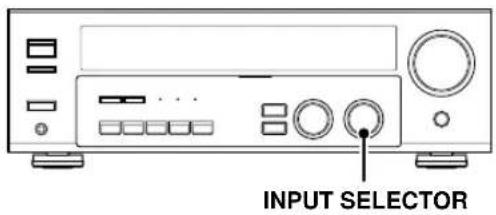
Recording a music source
⑦Use the INPUT SELECTOR knob to select the source (other than "MD/TAPE") you want to record.
②Set the MD or TAPE recorder to record.
③Start playback, then start recording.
Recording video
⑦Use the INPUT SELECTOR knob to select the video source (other than "VIDEO1") you want to record.
②Set the video deck connected to VIDEO 1 to record.
- Select the REC MODE to record a digital input source.
③Start playback, then start recording.
- Recording may not be normal for some video software. This is due to the copy guard condition. - [33]
Recording audio (digital sources)
Switch on the REC mode to record a digital input source.
Usually use the A-REC (Auto-Record) mode to record audio input sources. When the digital mode changes during recording in the A-REC mode, the audio input source may be interrupted momentarily.
Recording music in A-REC or M-REC mode
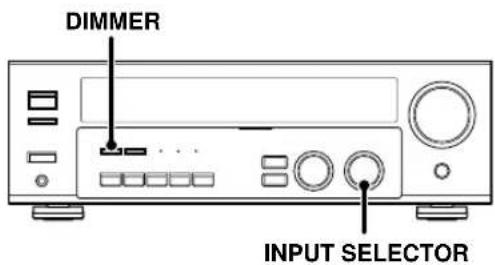
⑦Use the INPUT SELECTOR knob to select the source [CD/DVD, DVD or DVD/6CH (KRF-V5070D only) or VIDEO2] you want to record.
②Set the MD or TAPE recorder to record.
⑨Press and hold the DIMMER key for more than 2 seconds to select the A-REC or M-REC mode during digital input.
① Rec mode off : The digital input record mode is switched off. ② A-REC mode : The digital input signals (DTS, Dolby Digital, or PCM) are identified automatically and converted into stereo signals that are ready for recording. ③ M-REC mode : The input signal type at the moment this mode is selected is held throughout this mode.
For A-REC mode:
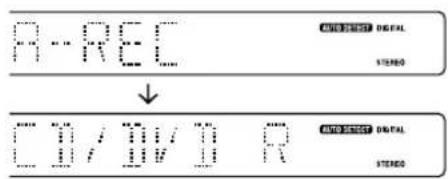
For M-REC mode:
![M-REC ↓ [0/0] 8 DIGITAL STENIO DIGITAL STENIO](/content/2026/02/373458/images/af5a71547eb9831e8d27e30491e4e07f041940b83d5ff7675d631f7e81099fa5.jpg)
④Start playback, then start recording.
- If the audio reproduction stops in the middle due to change in the input signals, etc., press the DIMMER key.
The receiver can store up to 40 stations in the memory and recall them by one-touch operation.
Radio stations can be classified into RDS (Radio Data System) stations and other stations. To listen to or store RDS stations in the preset memory see "Using RDS (Radio Data System)".
Tuning (non-RDS) radio stations
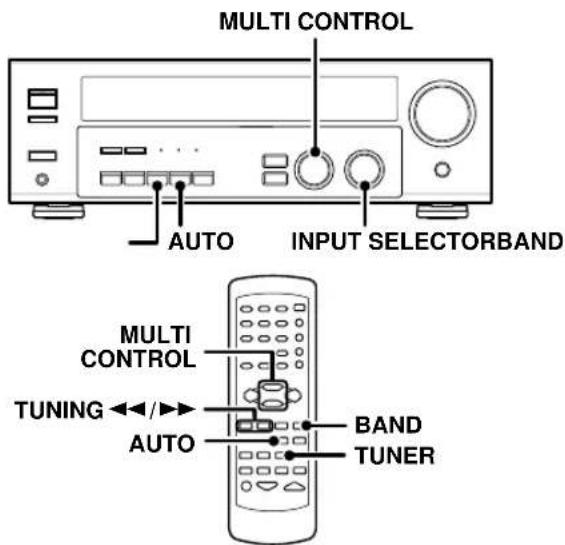
1 Use the INPUT SELECTOR knob or TUNER key to select the tuner.
2 Use the BAND key to select the desired broadcast band.
Each press switches the band as follows:

"AM" or "FM" indicator appears in the display
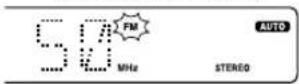
3 Use the AUTO key to select the desired tuning method.
Each press switches the tuning method as follows:

"AUTO" indicator lights up in the display.
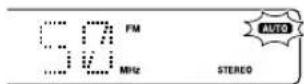
- Normally, set to "AUTO" (auto tuning). If the radio waves are weak and there is a lot of interference, switch to manual tuning. (With manual tuning, stereo broadcasts will be received in monaural.)
4 Use the MULTI CONTROL knob or keys, or TUNING ◀◀/▶▶ keys to select the station.

Auto tuning : The next station is tuned automatically.
Manual tuning : Turn the knob (press the key) to select the desired station.
Using RDS (Radio Data System)
RDS is a system that transmits useful information (in the form of digital data) for FM broadcasts along with the broadcast signal. Tuners and receivers designed for RDS reception can extract the information from the broadcast signal for use with various functions, such as automatic display of the station name.
RDS functions:
PTY (Program TYPE Identification) Search → 25
Automatically tunes to a station that is currently broadcasting the specified program type (genre).
PS (Program Service Name) Display
Automatically displays the station name transmitted by the RDS station.
RDS AUTO MEMORY function - 24
Automatically selects and stores up to 40 RDS stations in the preset memory.
If fewer than 40 RDS stations have been stored in the preset memory, regular FM stations will be stored in the remaining places.
Radio Text function
Displays the radio text data transmitted by some RDS stations when you press the RDS DISPLAY key. There is "NO RT" display if no text data is transmitted.
The "RDS" indicator lights up when an RDS broadcast (signal) is received.

Note
Some functions and function names may differ for certain countries and areas.
Before using a function utilizing the RDS, be sure to perform the RDS Auto Memory operation by referring to the description in "Presetting RDS stations (RDS AUTO MEMORY)". - [24]
Presetting radio stations manually
The RDS auto memory function assigns preset numbers to RDS stations starting from preset number "1". Therefore, be sure to execute the RDS auto memory function before using the following operations to manually store AM stations and other FM stations, and RDS stations. See "Presetting RDS stations (RDS AUTO MEMORY)". →24
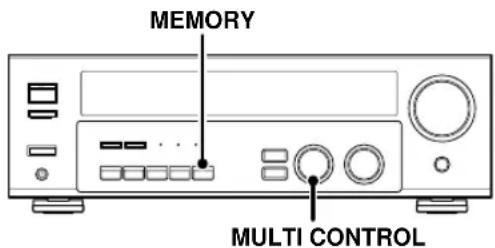
1 Tune to the station you want to store.
2 Press the MEMORY key while receiving the station.
Blinks for 5 seconds Lights for 5 seconds
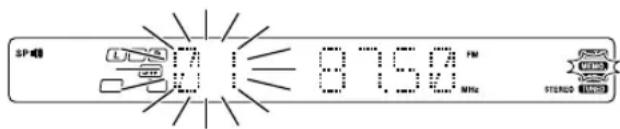
Proceed to step 3 within 5 seconds. (If more than 5 seconds elapse, press the MEMORY key again).
Use the MULTI CONTROL knob to select one of the station presets (1 - 40).
4 Press the MEMORY key again to confirm the setting.
- Repeat steps 1, 2, 3, and 4 to store as many stations as necessary.
- If you store a station at a previously used preset, the previous station will be replaced by the new one.
Receiving preset stations
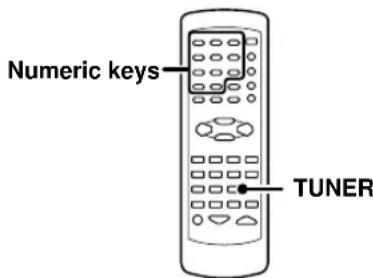
1 Press the TUNER key to select tuner as the source.
2 Enter the number of the preset station you want to receive (up to "40").
Press the numeric keys in the following order:
For "15", press....+10, 5 For "20", press....+10, +10, 0
- If you make a mistake entering a two digit number, press the +10 key repeatedly to return to the original display and start again.

Receiving preset stations in order (P.CALL)
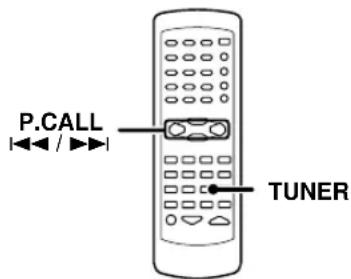
1 Press the TUNER key to select tuner as the source.
2 Use the P.CALL |◀◀/▶▶| key to select the desired station.
• Each time you press the key, another preset station is received in order.
Pressing the P.CALL ▶▶does the following : → 01 → 02 → 03 → ... → ... → 38 → 39 → 40
Pressing the P.CALL ◀◀ does the following :

Holding down the ▶▶ or ◀◀ key, lets you skip through the presets, receiving each preset station at 0.5 second intervals.
Using the RDS DISPLAY key
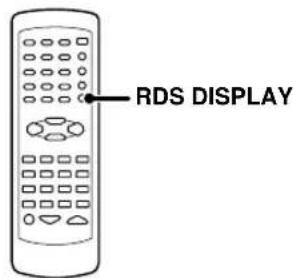
Pressing the RDS DISPLAY key changes the contents of the display.
Each press switches the display mode as follows:
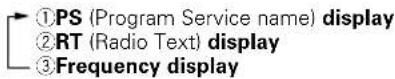
⑦PS (Program Service name) display:
The station name is displayed automatically when an RDS broadcast is received.
If no PS data was sent, "NO PS" is displayed.

2RT (Radio Text) display:
Text data accompanying the RDS broadcast scrolls across the display. "NO RT" or "RT----" is displayed if the current RDS station does not provide RT data.

③Frequency display:
Displays the frequency of the current station.

Presetting RDS stations (RDS AUTO MEMORY)
This function automatically stores up to 40 RDS stations in the preset memory. In order to use the PTY function, the RDS stations must be stored in the preset memory using the RDS AUTO MEMORY function.
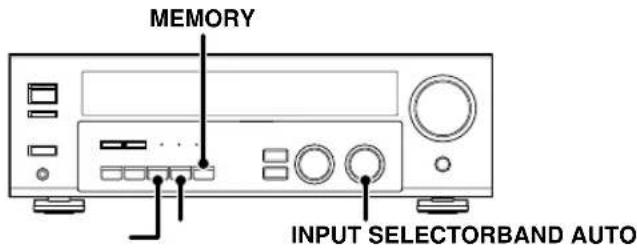
1 Use the INPUT SELECTOR knob to select the tuner.
2 Use the BAND key to set the broadcast band to "FM".
3 Press and hold the MEMORY key for more than 2 seconds.
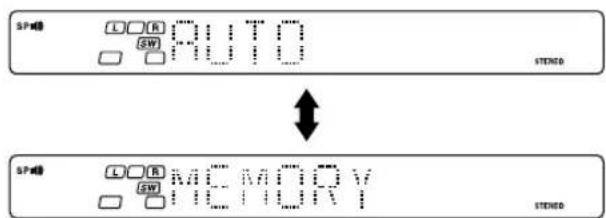
- After a few minutes, up to 40 RDS stations are preset in order from channel "01".
- Stations already stored in the preset memory may be replaced by RDS stations. (i.e., If the RDS AUTO MEMORY function detects 15 RDS stations, the stations currently preset at numbers 01\~15 will be replaced by the RDS stations.)
Tuning by Program TYpe (PTY search)
This function lets you set the tuner to automatically search for stations which are currently broadcasting the type of program (genre) you want to listen to.
Under certain receiving conditions, it may take more than 1 minute to complete the search.
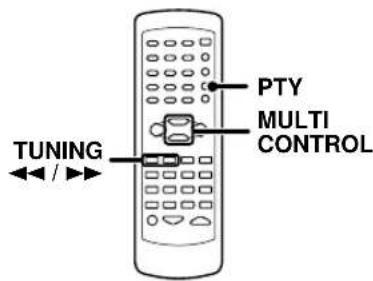
Preparations
- Execute the RDS auto memory procedure.
- Set the broadcast band to FM.
- Tune to an RDS station.
1 Press the PTY key to activate the PTY search mode.

When an RDS broadcast is received, the program type is shown on the display. If no PTY data is available, or if the station is not an RDS station, "NONE" is displayed.
2 While the "PTY" indicator is lit, use the MULTI CONTROL or TUNING ◀◀ /▶▶ keys to select the program type of your choice.
Program type table
| Program Type Name Display | Program Type Name Display | ||
| Pop Music POP M | Weather | WEATHER | |
| Rock Music ROCK M | Finance | FINANCE | |
| Easy Music EASY M | Children's Program | CHILDREN | |
| Light Classical Music LIGHT M | Social Affairs | SOCIAL | |
| Serious Classical Music CLASSICS | Religion | RELIGION | |
| Other Music OTHER M | Phone In | PHONE IN | |
| News NEWS | Travel | TRAVEL | |
| Current Affairs AFFAIRS | Leisure | LEISURE | |
| Information INFO | Jazz Music | JAZZ | |
| Sport | SPORT | Country Music COUNTRY | |
| Education | EDUCATE | National Music | NATION M |
| Drama | DRAMA | Oldies Music | OLDIES |
| Culture | CULTURE | Folk Music | FOLK M |
| Science | SCIENCE | Documentary | DOCUMENT |
| Varied Speech | VARIED | ||
"NO PROG" is displayed if this operation is attempted before performing the RDS Auto Memory operation.
3 Press the PTY key to start searching.
EXAMPLE: Searching for a Rock Music broadcast.
Display while searching.

Display when a station is received.
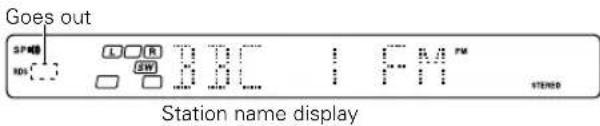
- No sound is heard while "PTY" is blinking.
- If the desired program type cannot be found, "NO PROG" is displayed, then after several seconds the display returns to the original display.
To select another program type
Repeat steps 1, 2 and 3.
This receiver is equipped with listening modes that allow you to enjoy an enhanced sonic ambience with a variety of video sources.
In order to obtain the optimum effect from the surround modes, make sure to input the proper speaker settings beforehand. -17
Surround modes
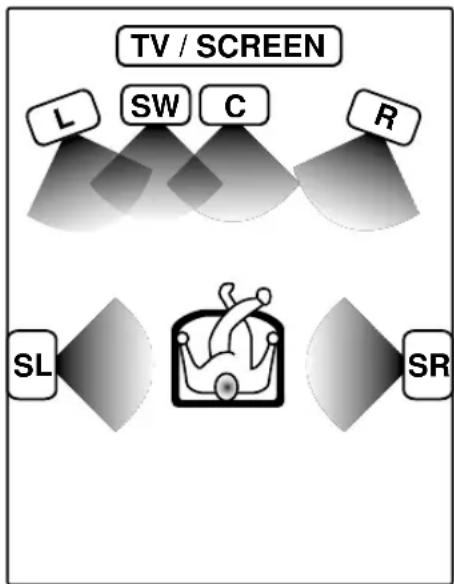
The below speaker placements are for 5.1 channel surround sound system which are;
- Dolby Digital
- Dolby Pro Logic II
• DTS
• DSP
• DVD 6-channel (For KRF-V5070D only)
flowchart
graph TD
    TV["TV / SCREEN"] --> L["L"]
    TV --> SW["SW"]
    TV --> C["C"]
    TV --> R["R"]
    SL["SL"] --> Heart["Hong"]
    SR["SR"] --> Heart
    Heart -->|dotted circle| Heart
    style Heart fill:#f9f,stroke:#333
L Front left speaker
SW Subwoofer
C Center speaker
R Front right speaker
SL Surround left speaker
SR Surround right speaker
Manufactured under license from Dolby Laboratories. "DOLBY", the double-D symbol and "PRO LOGIC" are trademarks of Dolby Laboratories.
"DTS" and "DTS Digital Surround" are registered trademarks of Digital Theater Systems, Inc.

Dolby Digital
The Dolby Digital surround format lets you enjoy up to 5.1 channels of digital surround sound from Dolby Digital program sources (such as Laserdisc or DVD software marked DOLBY). Compared with previous Dolby surround, Dolby Digital provides even better sound quality, greater spatial accuracy, and improved dynamic range.
Although a full set of speakers (front left, right, and center, surround left and right, and a subwoofer) is required for true 5.1 channel Dolby Digital surround sound, this receiver lets you enjoy Dolby Digital (and Dolby Surround) program sources, even if you connect only the front speakers.
Although only Dolby Digital soundtracks incorporate a separate low frequency channel, connecting a subwoofer will also improve deep bass performance in the other surround modes.
The indication "LFE" appears in the display when a signal is being input for this channel.
Dolby PRO LOGIC II
Dolby Pro Logic II was designed specifically to provide a new sense of spatiality, directionality and articulation of sounds from Dolby Surround encoded sources (such as video and Laserdisc software marked ☐ [DOLBY SURROUND]). This is achieved with an intelligent, built-in feedback logic design, a matrix surround decoding and the decoding of stereo, full bandwidth surround outputs. The PRO LOGIC II modes programmed into this receiver are "MOVIE", "MUSIC" and "PRO LOGIC". The "MOVIE" mode of the PRO LOGIC II has preset characteristics to produce a calibrated, high-level surround sound playback while the "MUSIC" mode has user-adjustable characteristics to offer the three optional controls, like "Dimension", "Center Width" and "Panorama" modes to allow optimization of the soundfields as desired. The "Dimension" control allows the user to gradually adjust the soundfield either towards the front or towards the rear; the "Center Width" control allows various adjustment of the left-center-right speakers' balance; the "Panorama" extends the front stereo image to include the surround speakers for an exciting "wraparound" effect with side wall imaging.
Note
LFE = Low Frequency Effects. This channel delivers separate non-directional bass signals to the subwoofer for more dynamic deep bass sound effects.
DTS mode
The DTS multi-channel audio format is available on CD, LD and DVD software. DTS is a strictly digital format and cannot be decoded inside most CD, LD or DVD players. For this reason, if you attempt to listen to DTS encoded software through the analog output of your new CD, LD or DVD player, you will experience digital noise in most cases. This noise can be quite loud if the analog output is connected directly to a high power amplification system. Proper measures for playing the digital output as described below should be taken to avoid this situation. To enjoy DTS Digital Surround playback, an external 5.1 channel DTS Digital Surround decoder system or an amplifier with a built-in DTS Digital Surround decoder must be connected to the digital output (S/P DIF, AES/EBU or TosLink) of a CD, LD or DVD player.
All models are incorporated with the DTS decoder.
DTS has a .1 or LFE channel.
The indication "LFE" appears in the display when a signal is being input for this channel. →26
DSP mode
The DSP mode lets you add the atmosphere of a live concert or hall to almost any type of program source. These modes are particularly effective when used with stereo program sources, like CD, television, and FM radio. You might enjoy trying the ARENA, JAZZ CLUB, THEATER, STADIUM or DISCO mode the next time you watch a concert or sporting event!
What's DSP?
DSP stands for Digital Signal Processor.
The way a sound is heard in an actual environment depends on a variety of different factors. One of the most important is reverberation (the act of decaying elements of sound echoing in various places).
The DSP modes produce the feeling of presence by using the DSP to create reverberation, without spoiling the sound quality of the original signal.
DVD 6-channel mode (For KRF-V5070D only)
Using a DVD player or the like equipped with six (5.1) output channels and the receiver, you can enjoy multi-channel encoded DVD source material in all its splendor. Since the source signals are digital and each channel is input independently, the resulting sound quality, sense of spaciousness, and dynamic range are superb.
The indication "LFE" appears in the display during DVD 6-channel mode selection. →26
Surround play
The DTS compatible models can reproduce a CD, DVD, or LD carrying the DTS mark. DOLBY DIGITAL can be used when playing DVD or LD software bearing the ☒ DOLBY digital format and DOLBY DIGITAL format digital broadcasts (etc.). DOLBY PRO LOGIC can be used when playing video, DVD, or LD software bearing the ☒ DOLBY SURROUND mark.
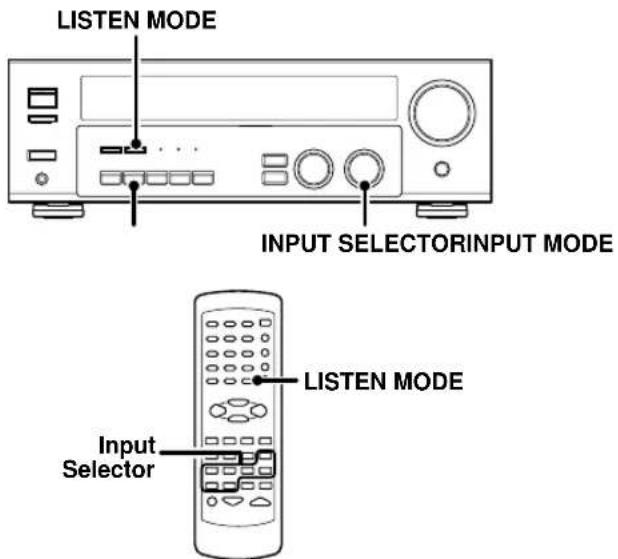
Preparations
- Turn ON related components.
- Complete "Preparing for surround sound" (speaker settings). - [17]
- Use the INPUT SELECTOR to select the component you wish to play back with surround sound.
- Use the INPUT MODE key to select the input mode (analog or digital) for the source you wish to playback. →9
- Noise will be produced when a DTS source is played by selecting the analog input.
1 Start playing the video software.
2 Press the LISTEN MODE key to select the listening mode.
The listening mode settings are stored separately for each input. If the input mode is set to full auto ("AUTO DETECT" lights), the receiver selects the optimal listening mode automatically based on the type of input signal and the speaker settings.
Each press of the LISTEN MODE key switches the setting as listed.
The listening mode settings are different depending on the type of input signal.
When the DOLBY DIGITAL signal is input:
(The DOLBY DIGITAL, PRO LOGIC, or STEREO indicator lights up.)
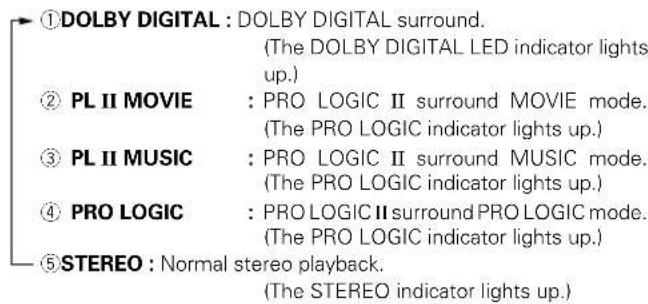
When you select DOLBY DIGITAL
"DOLBY DIGITAL" will scroll from right to left.

When the DTS signal is input:
(The DTS LED indicator lights up.)
①DTS : DTS surround
②STEREO : Normal stereo playback
When the analog signal or the digital signal (except for DOLBY DIGITAL or DTS signal) is input:
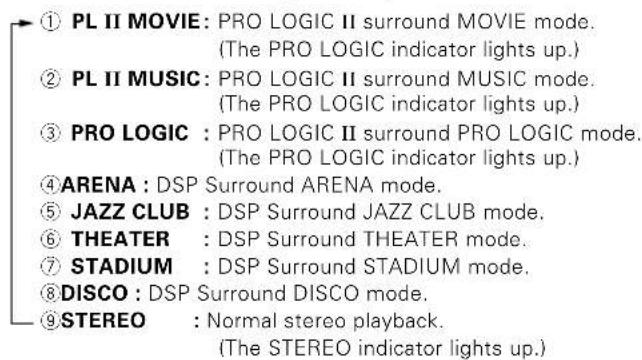
- Dolby Digital or DTS signal having more channels than the maximum number of playback channels available using the receiver's current settings is input, downmixing is performed to match the number of available channels.
3 Adjust the volume.
Notes
- Depending on the type of the signal or speaker setting, some listening modes cannot be selected.
- When playback is started, the sound may be cut or interrupted before the input source is confirmed as Dolby Digital.
- To enjoy Dolby Digital surround (as well as all the other listening modes) from a single component, be sure to use a Dolby Digital compatible source component.
DVD 6-channel playback (For KRF-V5070D only)
Using a DVD player or the like equipped with six (5.1) output channels and the receiver, you can enjoy surround sound playback. Connecting a DVD player which can decode the surround signal itself is also acceptable.
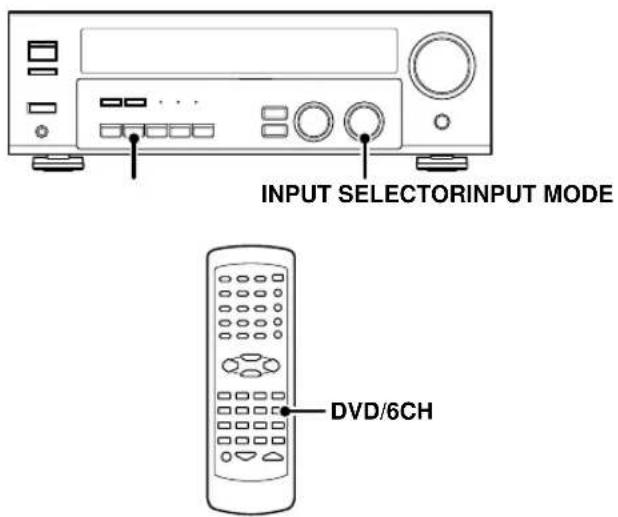
Preparations
- Connect your DVD player to the DVD/6CH jacks of the receiver.
- Turn on all other components that will be used.
- Complete "Preparing for surround sound". → 17
1 Select "DVD/6CH" as the input source.
2 Select "6CH INPT" by pressing the INPUT MODE key.
3 Start playback of the DVD software.
4 Adjust the volume.
- It is not possible to adjust the volume level or sound quality (SETUP, SOUND, LISTEN MODE, ACTIVE EQ and TONE keys will not be functional) of the channels separately when the receiver is in the 6CH INPUT mode. Adjust the volume with the controls of the DVD player. For the powered subwoofer, you can adjust the volume of the subwoofer using the subwoofer's own volume control.
Convenient functions
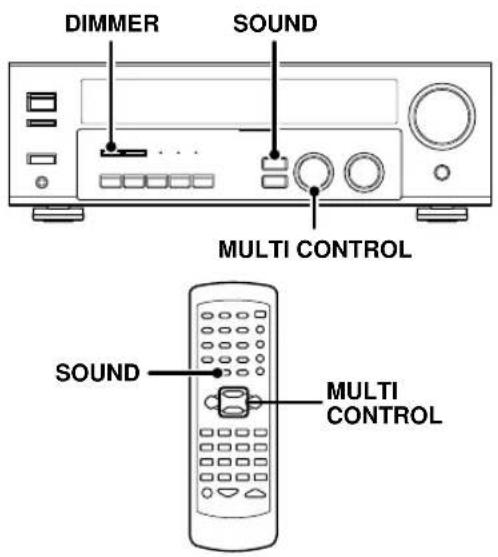
Adjusting the sound
You can make further adjustments to the sound while listening to playback in the surround mode.
⑦Press the SOUND key until the desired item appears in the display.
Each time you press the button, the menu changes as follows: Note that some items are not displayed in certain modes.
①C (center speaker level adjustment)*
②SR (right surround speaker level adjustment)*
③SL (left surround speaker level adjustment)*
④SW (subwoofer level adjustment)*
⑤ INPUT (input level adjustment - analog mode only) - [18]
⑥NIGHT (midnight mode ON/OFF - Dolby Digital mode only)
⑦PANORAMA (panorama mode ON/OFF) ^**
⑧DIMENSION (dimension adjustment) ^4
⑨CENTER WIDTH (center width adjustment) **
* The adjustment is only temporary for the current input selection. The value will return automatically to the original setup value when the power is turned on/off or when the input selection is changed.
** Pro Logic II Music mode only.
②Use the MULTI CONTROL knob or keys to adjust the setting as desired.
Midnight mode (Dolby Digital mode only)
When watching movies at night, you might not be able to raise the volume as loud as normal. Midnight mode compresses the dynamic range of previously specified heavy sound passage of the Dolby Digital sound track (like scenes with sudden increases in volume) to minimize the difference in volume between the scenes with heavy sound passage and scenes with normal sound passage. This makes it easy to hear all of the sound track, even when listening at low volumes.
⑦Press the SOUND key repeatedly until "NIGHT" appears on the display.
- This can be selected only if CD/DVD, DVD or DVD/6CH (KRF-V5070D only), or VIDEO2 is selected as the source and the listen mode is set to "DOLBY DIGITAL."
②Use the MULTI CONTROL knob or keys to select the ON or OFF setting.

- Some Dolby Digital software may not be compatible with the Midnight mode.
Panorama mode (Pro Logic II Music mode only)
When listening to music, you will be able to enjoy the "wraparound" sound effect when you adjust the panorama mode.
⑦Press the SOUND key repeatedly until "PANORAMA" appears on the display.
- The PANORAMA setting indication scrolls across the display.
"PANORAMA" will be scrolled from right to left.

①ON : PANORAMA mode is ON.
②OFF: PANORAMA mode is OFF.

Dimension mode (Pro Logic II Music mode only)
When listening to music with certain recordings, you will also be able to achieve a suitable balance from all the speakers by adjusting the dimension mode.
⑦Press the SOUND key repeatedly until "DIMENSION" appears on the display.
- The DIMENSION indication scrolls across the display.
②Use the MULTI CONTROL knob or keys to adjust the soundfield towards the rear or the front.
Soundfield is adjusted towards the front.

Soundfield is in neutral position.

Soundfield is adjusted towards the rear.

Center Width mode (Pro Logic II Music mode only)
Center Width adjustment allows you to enjoy an enhanced sound when listening to music through center image from only center speaker, or left and right speakers or various combinations adjustments.
⑦Press the SOUND key repeatedly until "CENTER WIDTH" appears on the display.
- The CENTER WIDTH indication scrolls across the display.
- When the center speaker is switched OFF, this mode will not be effective.
②Use the MULTI CONTROL knob or keys to adjust the left-center-right output.
Center image will be heard from center speaker only.

Center image will be heard from left and right speakers only.

- When in other positions, center image from center speaker, left and right speakers can be heard simultaneously with various combinations.
Display dimmer adjustment
The dimmer function lets you select the brightness of the receiver's display. You might find this useful if you darken your room to watch movies or listen to music.
Each time you press the DIMMER key, the display brightness changes among the three available settings. Select the brightness level you find most pleasing.
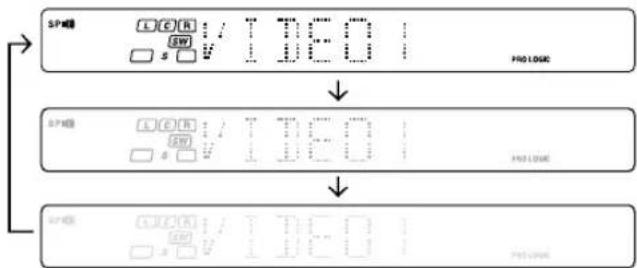
flowchart
graph TD
    A["SP48"] --> B["SP49"]
    B --> C["SP50"]
    D["PRO LOGO"] --> E["PRO LOGO"]
    F["SP48"] --> G["SP49"]
    G --> H["SP50"]
    I["PRO LOGO"] --> J["PRO LOGO"]
96kHz LPCM playback
The receiver is compatible with the 96kHz LPCM playback. To play a 96kHz DVD, set the listen mode to "STEREO".
- In F-AUTO input mode, the listen mode will automatically be STEREO.
- When in D-MANUAL input mode (listen mode is not STEREO), "FS 96kHz" will appear in the display and no sound can be heard from the speakers.
Press the LISTEN MODE key (the listen mode changes to the STEREO mode) to output sound from the speakers.
DVD player operation keys
The remote control of this unit can control two groups of KENWOOD DVD players directly without using the remote control supplied with the DVD player.
Group-1 : DV-4900, DV-4070B, DV-2070, DV-203, DVF-9010, DVF-K7010, DVF-5010, DVF-R9030, DVF-R7030, DVF-3530, DV-402, DV-5900, DV5700, DVF-R9050, DVF-J6050, DV-505, DV-503, DV-502, DVF-3550, DVF-3050, DVF-R4050, DVF-605, DV-6050, DVF-R5060, DVF-3060, DVF-3060K, DV-705, DVF-R5070 and DVF-3070
Group-2 : DV-4050, DV-303, DVF-R6030, DVF-K5020, DVF-5020, DVF-3020 and DVF-3030.
Depending on your KENWOOD DVD model, you need to set up your receiver remote control as follows:
To set for Group-1 DVD players:
Press the numeric "1" key while pressing the "POWER ⏻" key (not the DVD Power key) on your remote control.
To set for Group-2 DVD players:
Press the numeric "2" key while pressing the "POWER ⏻" key (not the DVD Power key) on your remote control.
- If your DVD player is not listed in the list above, perform the set up for either Group-1 or Group-2. When the set up is successful, then your DVD player falls into that particular group.
How to operate the DVD player with the remote control
-
Pressing the DVD Power key for more than 2 seconds turns the DVD player on or off.
-
To carry out the functions of the DVD player, first press the DVD Power key, then press each key for each operation as explained in the DVD operation pages in the operating instructions. In this case, the DVD operation mode is retained for 15 seconds after pressing any of those DVD operation buttons.
(To turn the receiver operation mode within 15 seconds, press the RECEIVER key.)
DVD player operation keys
You can perform these basic operations using the keys described below when connected to KENWOOD DVD player.
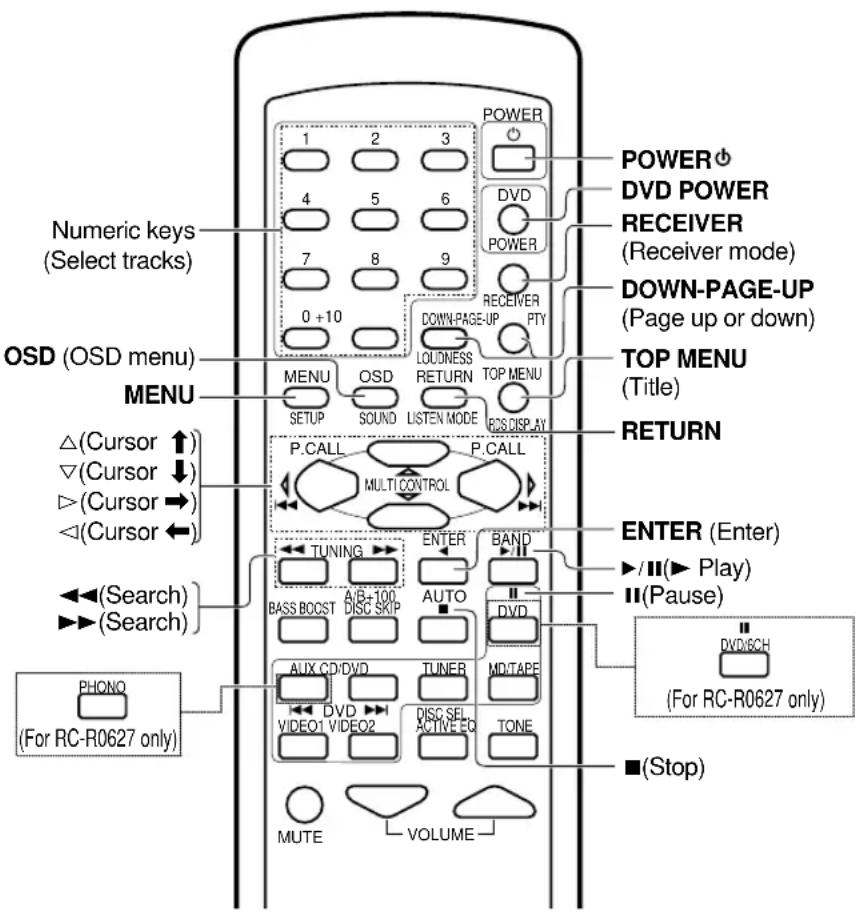
CASSETTE deck, CD player & MD recorder operations
You can perform these basic operations using the keys described below when connected to KENWOOD cassette deck, MD recorder or CD player equipped with system control operations. → 16
Cassette deck operations' keys CD player operations' keys
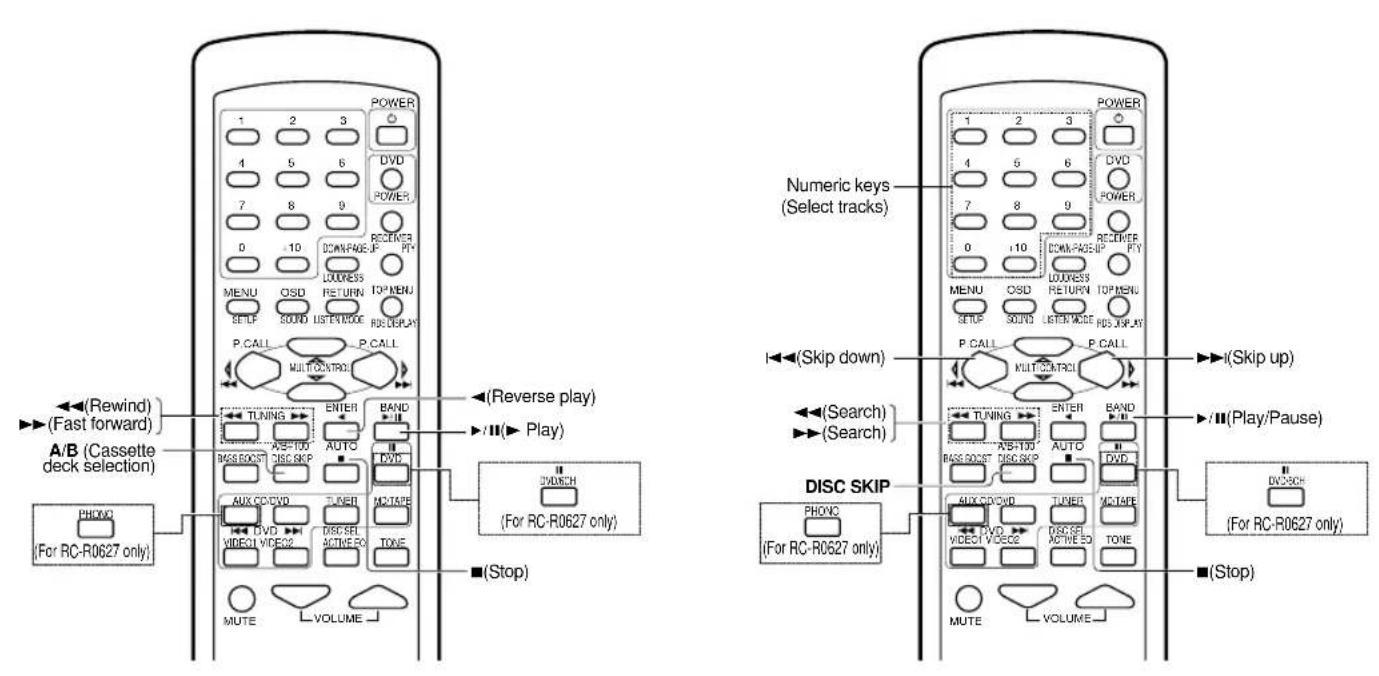
MD recorder operations' keys
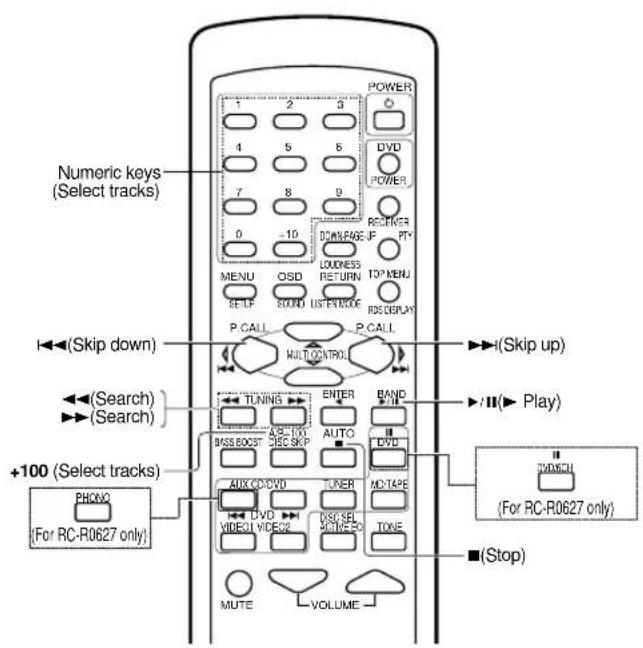
Notes
1. Certain codes may only operate some of the function available on a given model.
2. The pictures above show the typical functions available for each component. Some manufacturers use different key combinations to perform similar functions. For that reason, we have programmed extra functions on some of the unused number keys to help you control your equipment.
Resetting the Microcomputer
The microcomputer may malfunction (unit cannot be operated, or shows an erroneous display) if the power cord is unplugged while the power is ON, or due to some other external factor. If this happens, execute the following procedure to reset the microcomputer and return the unit to its normal operating condition.
With the power cord plugged in, turn the POWER ON/OFF key OFF. Then, while holding down the ON/STANDBY ⏻ key, press POWER ON/OFF key.
- Please note that resetting the microcomputer will clear the contents of the memory and return the unit to the state it was in when it left the factory
Amplifier
| Symptom | Cause | Remedy |
| No sound from the speakers. | The speaker cords are disconnected.VOLUME is set to the minimum position.MUTE is ON.The SPEAKERS switches are set to OFF. | Connect them properly referring to “Connecting the speakers”.→14Adjust the volume to a proper level.Turn OFF the MUTE.→20Set the SPEAKERS switch to ON.→19 |
| The standby indicator blinks and sound is not output. | Speaker cords are short-circuited. | Turn the power off, eliminate the short-circuiting, then turn on the power again. |
| Sound is not output from one of the speakers. | The speaker cord is disconnected. | Connect it properly referring to “Connecting the speakers”.→14 |
| Sound is not output from the surround speakers and / or the center speaker, or their sound is very soft. | The surround speaker cords and/or the center speaker cord is disconnected.A surround mode has not been activated.The surround and/or center volume controls are set to the minimum level. | Connect it properly referring to “Connecting the speakers”.→14Select a surround mode.Adjust the speaker levels using the test tone.→18 |
| A humming noise is generated when the PHONO input selector is selected. | The audio cord from the record player is not connected to the PHONO jacks.The record player is not grounded. | Insert the audio cord plugs securely into the PHONO jacks.Connect the grounding wire to the GND terminal on the rear panel. |
| When playing a Dolby Digital source signal using a DVD player, the sound is cut off soon after it starts. | There are many possible causes for this problem, depending on the type of DVD player used. | Set the input mode to digital manual before starting playback of the Dolby Digital source.→9 |
| No sound is produced during playback from a DVD player. | The input mode is set to digital manual. | Press the INPUT MODE key to select to full auto mode.→9 |
| A video source cannot be recorded normally. | The software is copy-guarded. | Copy-guarded video software cannot be recorded. |
Tuner
| Symptom | Cause | Remedy |
| Radio stations cannot be received. | No antenna is connected.The broadcast band is not set properly.The frequency of the desired station is not tuned. | Connect an antenna. →15Set the broadcast band properly.Tune the frequency of the desired station.→22 |
| Interference. | Noise due to ignition of an automobile.Noise due to interference from an electric appliance.Noise due to a nearby TV set. | Install the outdoor antenna away from the road.Turn off the power to the appliance.Install the receiver farther away from the TV. |
| A station which was preset cannot be received by pressing the corresponding numeric key. | The preset station belongs to a frequency that cannot be received.The preset memory was cleared because the power cord had been unplugged for a long period of time. | Preset a station with a receivable frequency.Preset the station again. |
Remote control unit
| Symptom | Cause | Remedy |
| Remote control operation is not possible. | The remote control is set to a different operation mode.Batteries are exhausted.The remote control unit is too far away from the main system, controlling angle is too large, or there is an obstacle between the receiver and the remote.The audio cords and system control cords are not connected properly.No tape or CD is placed in the source component.An attempt is made to play a tape which is being recorded in the cassette deck. | Press the source select keys or DVD POWER keys to select the appropriate operation mode.Replace with new batteries.Operate the remote control unit within the controllable range.Connect properly referring to “Setting up the system”.Place the tape or CD in the source component which you want to play.Wait for recording to complete. |
AUDIO section (KRF-V5070D/V5570D)
Rated power output during STEREO operation
DIN/IEC (63 Hz \~ 12.5 kHz, 0.7% T.H.D., at 6Ω)
100 W + 100 W
Effective power output during SURROUND operation
FRONT (1 kHz, 0.7% T.H.D. at 6Ω one channel driven)
100 W + 100 W
CENTER (1 kHz, 0.7% T.H.D. at 6Ω one channel driven)
100 W
SURROUND (1 kHz, 0.7% T.H.D. at 6Ω one channel driven)
100 W + 100 W
SUBWOOFER (80Hz, 0.7% T.H.D. at 6Ω one channel driven)
(KRF-V5570D) 100 W
Total harmonic distortion 0.05% (1kHz, 50 W, 6Ω)
Frequency response (IHF'66)
CD/DVD 20 Hz \~ 70 kHz, +0 dB, -3.0 dB
Signal to noise ratio (IHF'66)
PHONO (MM) (KRF-V5070D) 74 dB
CD/DVD, AUX, TAPE, VIDEO 1, VIDEO 2 95 dB
Input sensitivity / impedance
PHONO (MM) (KRF-V5070D) 7.5 mV / 27 kΩ
CD/DVD 550 mV / 47 kΩ
DVD/6CH INPUT (KRF-V5070D).... 550 mV / 47 kΩ
Output level / impedance
TAPE REC 550 mV / 1 kΩ
PRE OUT (SUBWOOFER) (KRF-V5070D) 1.5 V / 2.2 kΩ
Tone control
BASS.... ±10 dB (at 100 Hz)
TREBLE .... ±10 dB (at 10 kHz)
Loudness control
VOLUME at -30dB level +8 dB (at 100 Hz)
AUDIO section (KRF-V4070D)
Rated power output during STEREO operation
(DIN 1 kHz 0.7% T.H.D., at 6Ω) 50 W + 50 W
Effective power output during SURROUND operation
FRONT (1 kHz, 0.7% T.H.D. at 6Ω one channel driven)
50 W + 50 W
CENTER (1 kHz, 0.7% T.H.D. at 6Ω one channel driven)
50 W
SURROUND (1 kHz, 0.7% T.H.D. at 6Ω one channel driven)
50 W + 50 W
Total harmonic distortion 0.15% (1 kHz, 20 W, 6Ω)
Frequency response (IHF'66)
CD/DVD 20 Hz \~ 60 kHz, +0 dB, -3.0 dB
Signal to noise ratio (IHF'66)
CD/DVD, AUX, TAPE, VIDEO 1, VIDEO 2 95 dB
Input sensitivity / impedance
CD/DVD 400 mV / 47 kΩ
Output level / impedance
TAPE REC 400 mV / 1 kΩ
PRE OUT (SUBWOOFER) 1.5 V / 2.2 kΩ
Tone control
BASS.... ±10 dB (at 100 Hz)
TREBLE ....±10 dB (at 10 kHz)
Loudness control
VOLUME at -30dB level +8 dB (at 100 Hz)
DIGITAL AUDIO section
Sampling frequency .... 32 kHz, 44.1 kHz, 48 kHz, 96kHz
Input level / impedance / wave length
Optical ....(-15 dBm \~ -21 dBm), 660 nm ±30nm
Coaxial 0.5 Vp-p / 75 Ω
VIDEO section
VIDEO inputs / outputs
VIDEO (composite) 1 Vp-p / 75 Ω
FM tuner section
Tuning frequency range 87.5 MHz \~ 108.0 MHz
Usable sensitivity (DIN at 75 Ω)
MONO.... 1.3 μV / 13.2 dBf (40 kHz DEV., S/N 26 dB)
STEREO ....45 μV / 42.1 dBf (46 kHz DEV., S/N 46 dB)
Total harmonic distortion (1 kHz)
MONO.... 0.2% (71.2 dBf input)
STEREO 0.8% (71.2 dBf input)
Signal to noise ratio (DIN weighted at 1 kHz)
MONO.... 65 dB (40 kHz DEV., 71.2 dBf input)
STEREO 60 dB (46 kHz DEV., 71.2 dBf input)
Stereo separation (DIN 1 kHz) 36 dB
Selectivity (DIN ±300 kHz) 64 dB
Frequency response .... (30 Hz \~ 15 kHz), +0.5 dB, -3.0 dB
AM tuner section
Tuning frequency range 531 kHz \~ 1,602 kHz
Usable sensitivity 16 μV / (600 μV/m)
Signal to noise ratio (30% mod. 1 mV input) .... 50 dB
GENERAL
Power consumption
KRF-V5070D/V5570D 280W
KRF-V4070D 200W
AC outlet
SWITCHED (total 90 W max.)
Dimensions W : 440 mm (17-5/16")
H : 143 mm (5-5/8")
D : 303 mm (11-15/16")
Weight (Net)
KRF-V5070D/V5570D 8.5 kg (18.74 lb)
KRF-V4070D 8.9 kg (19.62 lb)
KENWOOD
For your records
Record the serial number, found on the back of the unit, in the spaces designated on the warranty card, and in the space provided below. Refer to the model and serial numbers whenever you call upon your dealer for information or service on this product.
Model____ Serial Number____
KENWOOD
RECEPTEUR AUDIOVISUEL SURROUND
natural_image
Simple line drawing of a device with a handle and internal components (no text or symbols)natural_image
Line drawing of a mobile phone control panel with buttons and an arrow pointing to the screen (no text or symbols)③Refermez le couvercle.
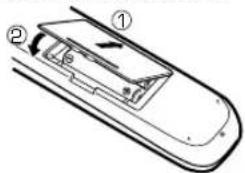
⑤Indicateurs LED (diode
⑰Touche SPEAKERS ON/OFF → 19
[SL16] [XS] [XS8] [XR]
[SL16] [XS] [XS8]
[XS]
Récepteur
flowchart
graph TD
    A["SP SETUP TEST TONE DISTANCE EXIT"] --> B["SP System"]
    A --> C["AUTO MANUAL"]
    A --> D["Front Center Surround"]
    C --> E["L C R SR SL SW"]
    C --> F["L C R SR SL SW"]
    E --> G["Full Range 2Way 2Speaker 2Way 3Speaker Others"]
    F --> H["Subwoofer Front Center Surround Subwoofer Re-mix"]
natural_image
Line drawing of a handheld ear ear with a circular head and cord (no text or symbols)Remarque
②Affichage RT (Radio Text):
Mode "minuit" (mode Dolby Digital uniquement)
Mode Dimension (mode Music Pro Logic II uniquement)
Mode Center Width (mode Music Pro Logic II uniquement)
Section DIGITAL AUDIO
natural_image
Symbol of a trash bin crossed out by a diagonal line, representing no waste or elimination (no text present)Surroundklangmodi 26
Surroundklangwiedergabe 28
natural_image
Line drawing of a mechanical component with a handle and internal structure (no text or symbols)Taste RDS DISPLAY → 24
Taste RDS DISPLAY → 24
flowchart
graph TD
    A["Deutsch"] --> B["AUX (Beim KRF-V4070D/V5570D)"]
    B --> C["CD-oder DVD-Player"]
    C --> D["Audio"]
    D --> E["An eine Netzsteckdose"]
    D --> F["Plattenplayer"]
    D --> G["Chamber with Audio"]
    D --> H["Chamber with Video"]
    D --> I["Chamber with Audio"]
    D --> J["Chamber with Audio"]
    D --> K["Chamber with Audio"]
    D --> L["Chamber with Audio"]
    D --> M["Chamber with Audio"]
    D --> N["Chamber with Audio"]
    D --> O["Chamber with Audio"]
    D --> P["Chamber with Audio"]
    D --> Q["Chamber with Audio"]
    D --> R["Chamber with Audio"]
    D --> S["Chamber with Audio"]
    D --> T["Chamber with Audio"]
    D --> U["Chamber with Audio"]
    D --> V["Chamber with Audio"]
    D --> W["Chamber with Audio"]
    D --> X["Chamber with Audio"]
    D --> Y["Chamber with Audio"]
    D --> Z["Chamber with Audio"]
    D --> AA["Chamber with Audio"]
    D --> AB["Chamber with Audio"]
    D --> AC["Chamber with Audio"]
    D --> AD["Chamber with Audio"]
    D --> AE["Chamber with Audio"]
    D --> AF["Chamber with Audio"]
    D --> AG["Chamber with Audio"]
    D --> AH["Chamber with Audio"]
    D --> AI["Chamber with Audio"]
    D --> AJ["Chamber with Audio"]
    D --> AK["Chamber with Audio"]
    D --> AL["Chamber with Audio"]
    D --> AM["Chamber with Audio"]
    D --> AN["Chamber with Audio"]
    D --> AO["Chamber with Audio"]
    D --> AP["Chamber with Audio"]
    D --> AQ["Chamber with Audio"]
    D --> AR["Chamber with Audio"]
    D --> AS["Chamber with Audio"]
    D --> AT["Chamber with Audio"]
    D --> AU["Chamber with Audio"]
    D --> AV["Chamber with Audio"]
    D --> AW["Chamber with Audio"]
    D --> AX["Chamber with Audio"]
    D --> AY["Chamber with Audio"]
    D --> AZ["Chamber with Audio"]
    D --> BA["Chamber with Audio"]
    D --> BB["Chamber with Audio"]
    D --> BC["Chamber with Audio"]
    D --> BD["Chamber with Audio"]
    D --> BE["Chamber with Audio"]
    D --> BF["Chamber with Audio"]
    D --> BG["Chamber with Audio"]
    D --> BH["Chamber with Audio"]
    D --> BI["Chamber with Audio"]
    D --> BJ["Chamber with Audio"]
    D --> BK["Chamber with Audio"]
    D --> BL["Chamber with Audio"]
    D --> BM["Chamber with Audio"]
    D --> BN["Chamber with Audio"]
    D --> BO["Chamber with Audio"]
    D --> BP["Chamber with Audio"]
    D --> BQ["Chamber with Audio"]
    D --> BR["Chamber with Audio"]
    D --> BS["Chamber with Audio"]
    D --> BT["Chamber with Audio"]
    D --> BU["Chamber with Audio"]
    D --> BV["Chamber with Audio"]
    D --> BW["Chamber with Audio"]
[SL16] [XS] [XS8] [XR]
[SL16] [XS] [XS8]
[XS]
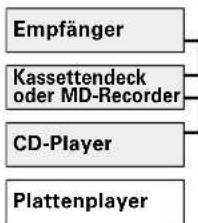
flowchart
graph TD
    A["SP SETUP TEST TONE DISTANCE EXIT"] --> B["SP System"]
    A --> C["AUTO"]
    A --> D["MANUAL"]
    A --> E["Front"]
    A --> F["Center"]
    A --> G["Surround"]
    C --> H["L"]
    C --> I["C"]
    C --> J["R"]
    C --> K["S"]
    D --> L["L"]
    D --> M["C"]
    D --> N["R"]
    D --> O["S"]
    D --> P["S"]
    D --> Q["S"]
    H --> R["Full Range 2Way 2Speaker 2Way 3Speaker Others Subwoofer Front Center Surround Subwoofer Re-mix"]
    I --> S["SW"]
    J --> T["SW"]
    K --> U["SW"]
    L --> V["SW"]
    M --> W["SW"]
natural_image
Line drawing of a stethoscope with a circular head and ear (no text or symbols)Nur M-REC-Modus:
![M-REC ↓ [0/0V] R DIGITAL STENSO DIGITAL STENSO](/content/2026/02/373458/images/3d7b261cad88ad3c8a839e91e0c34c82959c4ca117156a339dab40cfd53ad59b.jpg)
Abtastfrequenz 32 kHz, 44,1 kHz, 48 kHz, 96 kHz
natural_image
Simple line drawing of a device with a scroll wheel and handle (no text or symbols)natural_image
Diagram of a device interior with a handle and internal components (no text or symbols)[SL16] [XS] [XS8] [XR]
[SL16] [XS] [XS8]
[XS]
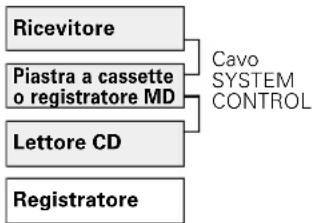
natural_image
Line drawing of a stethoscope with earplugs (no text or symbols)Nota
flowchart
graph TD
    A["SP read"] --> B["S read"]
    B --> C["I/O lock"]
    C --> D["SP read"]
    D --> E["S read"]
    E --> F["I/O lock"]
    F --> G["SP read"]
Risposta in frequenza (IHF' 66) CD/DVD ...... 20 Hz \~ 70 kHz, +0 dB, -3,0 dB
Rapporto segnale rumore (IHF' 66) PHONO (MM) (KRF-V5070D) .... 74 dB CD/DVD, AUX, TAPE, VIDEO 1, VIDEO 2 .... 95 dB
Sensibilità/impedenza di ingresso PHONO (MM) (KRF-V5070D) .... 7,5 mV / 27 kΩ CD/DVD .... 550 mV / 47 kΩ DVD/6CH INPUT (KRF-V5070D) .... 550 mV / 47 kΩ
Livello/impedenza di uscita TAPE REC .... 550 mV / 1 kΩ PRE OUT (SUBWOOFER) (KRF-V5070D) .... 1,5 V / 2,2 kΩ
Risposta in frequenza (IHF' 66) CD/DVD 20 Hz \~ 60 kHz, +0 dB, -3,0 dB
Rapporto segnale rumore (IHF' 66) CD/DVD, AUX, TAPE, VIDEO 1, VIDEO 2 .... 95 dB
Control remoto (1) Pilas (R6/AA) (2) RC-R0627
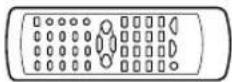
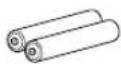
natural_image
Simple line drawing of a device with a handle and internal components (no text or symbols)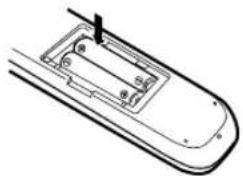
natural_image
Line drawing of a mobile phone casing with internal compartments and a pointer (no text or symbols)[SL16] [XS] [XS8] [XR]
[SL16] [XS] [XS8]
[XS]
Receptor
flowchart
graph TD
    A["SP SETUP TEST TONE DISTANCE EXIT"] --> B["SP System"]
    A --> C["AUTO MANUAL"]
    A --> D["Front Center Surround"]
    C --> E["Full Range 2Way 2Speaker 2Way 3Speaker Others"]
    C --> F["Subwoofer Front Center Surround Subwoofer Re-mix"]
    C --> G["C R SR SL SW"]
    C --> H["L C R SR SL SW"]
natural_image
Line drawing of a handheld electronic device with two earphones (no text or symbols)Nota
Modo Center Width (sólo modo Pro Logic II Music)
- About the supplied remote control
- Maintenance of the unit
- In regard to contact cleaner
- Safety precautions
- WARNING :
- CAUTION
- How to use this manual
- Preparations
- Operations
- Remote Control
- Additional Information
- Memory back up function
- Contents
- !
- Before applying the power 2
- Names and functions of parts 6
- Setting up the system 9
- Preparing for surround sound 17
- Normal playback.... 19
- Recording 21
- Listening to radio broadcasts 22
- Ambience effects 26
- Basic remote control operations for other components 31
- Unpacking
- For KRF-V5070D
- For KRF-V4070D and KRF-V5570D
- Preparing the remote control
- Loading the batteries
- Operation
- Notes
- Special features
- True home theater sound
- Dolby Digital
- Dolby PRO LOGIC II
- DTS
- DSP surround modes
- DVD 6-channel input (For KRF-V5070D only)
- ACTIVE EQ
- IR (InfraRed) remote control
- RDS (Radio Data System) tuner
- PTY (Program TYpe) search
- Main Unit
- ⑦POWER ON/OFF key → 17
- ②ON/STANDBY ⏻ key - 17
- STANDBY indicator
- ③DIMMER key
- ④LISTEN MODE key → 28
- ⑤Surround LED (light-emitting diode) indicators
- DTS mode LED indicator → 28
- DOLBY DIGITAL mode LED indicator → 28
- ⑥SOUND key → 29
- ⑦ MULTI CONTROL knob → 17
- ③INPUT SELECTOR knob - 19
- ③VOLUME CONTROL knob - 19
- 10PHONES jack - 20
- ⑰SPEAKERS ON/OFF key - 19
- 12ACTIVE EQ key - 20
- ⑬INPUT MODE key → 9
- 14BAND key → 22
- AUTO key
- →19
- MEMORY key → 23
- ⑰SETUP key -17
- 18MUTE key → 20
- Standby mode
- Connection at POWER ON/OFF key
- Remote control unit (RC-R0627) (KRF-V5070D)
- ⑦Numeric keys → 23
- ②DOWN-PAGE-key
- ③MENU key
- 4OSD (On Screen Display) key
- ⑤ MULTI CONTROL △/▽ keys
- P.CALL ◀◀◀/▶▶ keys
- keys
- ⑥ TUNING ◀◀/▶▶ keys
- ⑦A/B key
- +100 key
- DISC SKIP key
- ⑧BASS BOOST key → 20
- ⑨Input Selector keys (DVD/6CH, PHONO, CD/DVD, TUNER, MD/TAPE, VIDEO 1, VIDEO 2) - 19
- DVD keys
- ⑩DISC SEL. key
- ACTIVE EQ key - 20
- ⑪MUTE key - 20
- POWER ⏻ key
- ⑬DVD POWER key
- 14RECEIVER key
- 15-PAGE-UP key
- TOP MENU key
- 17RETURN key
- LISTEN MODE key
- ENTER key
- ▲ key
- 19BAND key
- ▶/II key
- key
- AUTO key
- ■ key
- TONE key
- 23VOLUME keys
- Remote control unit (RC-R0628) (KRF-V4070D/V5570D)
- Analog connections
- Microcomputer malfunction
- Input mode settings
- In DTS play mode
- Digital input:
- Analog input:
- Auto detect:
- Digital connections
- Connecting a DVD player (6-channel input) (For KRF-V5070D only)
- Connecting the speakers
- Connecting the terminals
- Speaker impedance
- Connecting the antennas
- AM loop antenna
- AM antenna terminal connections
- FM indoor antenna
- FM antenna terminal connections
- FM outdoor antenna
- Connecting the system control
- EXAMPLE: [SL16] mode connections
- Automatic Operation
- Synchronized Recording
- Speaker settings
- Input level adjustment (analog sources only)
- Preparing for playback
- Selecting the input mode
- Selecting MD/TAPE
- Setting the speaker status
- Listening to a source component
- Adjusting the sound
- Adjusting the TONE (remote control only)
- Once-touch low frequency emphasis (BASS BOOST) (remote control only)
- Press the BASS BOOST key.
- Switching back the previous setting
- Adjusting the LOUDNESS mode (remote control only)
- To cancel
- Muting the sound
- ACTIVE EQ mode
- Press the ACTIVE EQ key for the following selections;
- Listening with headphones
- ②Connect headphones to the PHONES jack.
- Recording audio (analog sources)
- Recording a music source
- Recording video
- Recording audio (digital sources)
- Recording music in A-REC or M-REC mode
- Tuning (non-RDS) radio stations
- Using RDS (Radio Data System)
- RDS functions:
- PTY (Program TYPE Identification) Search → 25
- PS (Program Service Name) Display
- RDS AUTO MEMORY function - 24
- Radio Text function
- Presetting radio stations manually
- Receiving preset stations
- Receiving preset stations in order (P.CALL)
- Using the RDS DISPLAY key
- ⑦PS (Program Service name) display:
- 2RT (Radio Text) display:
- ③Frequency display:
- Presetting RDS stations (RDS AUTO MEMORY)
- Tuning by Program TYpe (PTY search)
- Surround modes
- DTS mode
- DSP mode
- What's DSP?
- DVD 6-channel mode (For KRF-V5070D only)
- Surround play
- Start playing the video software.
- Press the LISTEN MODE key to select the listening mode.
- When the DOLBY DIGITAL signal is input:
- When you select DOLBY DIGITAL
- When the DTS signal is input:
- When the analog signal or the digital signal (except for DOLBY DIGITAL or DTS signal) is input:
- Adjust the volume.
- DVD 6-channel playback (For KRF-V5070D only)
- Select "DVD/6CH" as the input source.
- Select "6CH INPT" by pressing the INPUT MODE key.
- Start playback of the DVD software.
- Adjust the volume.
- ⑦Press the SOUND key until the desired item appears in the display.
- ②Use the MULTI CONTROL knob or keys to adjust the setting as desired.
- Midnight mode (Dolby Digital mode only)
- ⑦Press the SOUND key repeatedly until "NIGHT" appears on the display.
- Panorama mode (Pro Logic II Music mode only)
- Dimension mode (Pro Logic II Music mode only)
- Center Width mode (Pro Logic II Music mode only)
- Display dimmer adjustment
- 96kHz LPCM playback
- DVD player operation keys
- Depending on your KENWOOD DVD model, you need to set up your receiver remote control as follows:
- To set for Group-1 DVD players:
- To set for Group-2 DVD players:
- How to operate the DVD player with the remote control
- CASSETTE deck, CD player & MD recorder operations
- Resetting the Microcomputer
- AUDIO section (KRF-V5070D/V5570D)
- AUDIO section (KRF-V4070D)
- DIGITAL AUDIO section
- VIDEO section
- FM tuner section
- AM tuner section
- GENERAL
- KENWOOD
- For your records
- ⑤Indicateurs LED (diode
- ②Affichage RT (Radio Text):
- Mode "minuit" (mode Dolby Digital uniquement)
- Mode Dimension (mode Music Pro Logic II uniquement)
- Mode Center Width (mode Music Pro Logic II uniquement)
- Section DIGITAL AUDIO
- Modo Center Width (sólo modo Pro Logic II Music)
Brand : KENWOOD
Model : KRFV5570D
Category : AV receiver