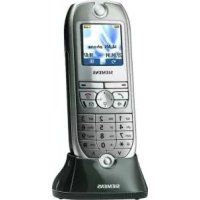
Gigaset Micro 4000s - Téléphone SIEMENS - Free user manual and instructions

Find the device manual for free Gigaset Micro 4000s SIEMENS in PDF.

Page 125
View the manual : Français FR Deutsch DE English EN Español ES Italiano IT
Manual assistant
Powered by ChatGPT
Waiting for your message
Product information

Brand : SIEMENS

Model : Gigaset Micro 4000s

Category : Téléphone

Download the instructions for your Téléphone in PDF format for free! Find your manual Gigaset Micro 4000s - SIEMENS and take your electronic device back in hand. On this page are published all the documents necessary for the use of your device. Gigaset Micro 4000s by SIEMENS.

USER MANUAL Gigaset Micro 4000s SIEMENS

Gigaset Communications GmbH is the legal successor to

Siemens Home and Office Communication Devices GmbH &

Co. KG (SHC), which in turn continued the Gigaset business

of Siemens AG. Any statements made by Siemens AG or

SHC that are found in the user guides should therefore be

understood as statements of Gigaset Communications

We hope you enjoy your Gigaset.

Office Communication Devices GmbH & Co. KG (SHC)-yri-

Gigaset Communications GmbH is a trademark

licensee of Siemens AG

© Gigaset Communications GmbH 2008

All rights reserved.

Subject to availability. Rights of modifications

companiei Siemens Home and Office Communication

Communication Devices GmbH & Co. KG (SHC)'nin yasal

Gigaset Communications GmbH is a trademark

licensee of Siemens AG

© Gigaset Communications GmbH 2008

All rights reserved.

Subject to availability. Rights of modifications

Service (Customer Care)

– Accepter communic.

G Activer/désactiver le service. D

Customer Care (Service)

ENGLISH Operating instructions

and safety precautions

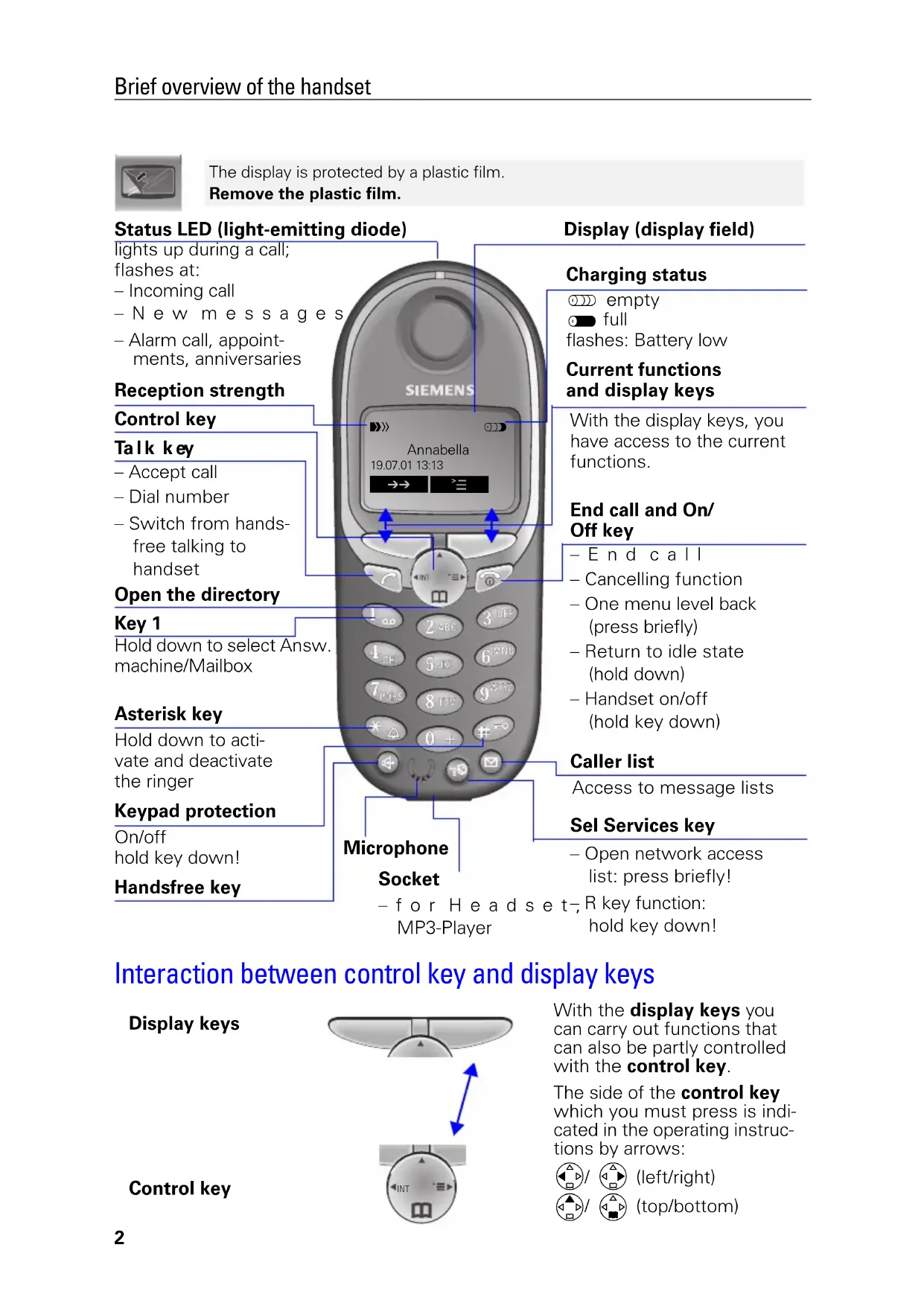
!Brief overview of the handset

06.05.02 Brief overview of the handset Interaction between control key and display keys

The display is protected by a plastic film.

Remove the plastic film.

Ñe Annabella19.07.01 13:13{ ¨ Socket

– Return to idle state

– Switch from hands-

flashes: Battery low

With the display keys, you

have access to the current

– Open network access

lights up during a call;

– Alarm call, appoint-

ments, anniversaries

Access to message lists

Display (display field)

With the display keys you

can carry out functions that

can also be partly controlled

with the control key.

The side of the control key

which you must press is indi-

cated in the operating instruc-

INTBrief overview of the handset

Gigaset 4000 Micro, De-It-Fr-Sp-GB, A31008-G4000-B027-1-

4000COU.FM 06.05.02 Important menus

Display symbols The following symbols appear above the display keys depending on the situation: * Not available in all countriesDisplay keys Meaning

¨ Menu key: Activates the main menu when the phone is idle. During a call, it activates a menu for the particular situation. Z Selects and confirms the menu function. Ends and saves an entry. W Delete key (Backspace): Deletes characters from right to left. { Automatic redial key: Opens a list of the last five numbers dialled. I Displayed if SMS*, answering machine, mail service box or caller list is active Í One menu level back, cancel © Text Message*Select Services Add. FeaturesCalendar/ClockSound SettingsCall Charges OKƒ H/Set SettingsBase SettingsVoice MailHandset VolumeRinger SettingsAdvisory Tones D New EntryAnne Barbara Chris :

© Display NumberDelete EntryCopy EntryDelete ListSend ListAvailable MemorySafety precautions

Gigaset 4000 Micro, De-It-Fr-Sp-GB, A31008-G4000-B027-1-

4000COU.FM 06.05.02 Safety precautions

Only use the power supply unit supplied as indicated on the underside of the device. Only insert approved rechargeable batteries of the same type. Never use ordi- nary (non-rechargeable) batteries as they may pose a health hazard or cause injury. Make sure the rechargeable battery is inserted the right way roundUse the battery specified in these operating instructions The phone may affect medical equipment so always switch your phone off before entering hospitals or doctors’ practices.The handset may cause an unpleasant humming noise in hearing aids.Do not operate the phone in places where there is a risk of explosion (such as paint workshops). The handset is not splash-proof (see page 25).Drivers must not use the phone while driving (including the Walk and Talk function).

The phone must be switched off at all times in an aircraft (including the Walk and Talk function). Make sure it cannot be switched on accidentally. If you give your Gigaset to someone else you should also give them the operating instructions. Dispose of batteries and the phone carefully. Do not pollute the environment. Not all the functions described in these operating instructions are available in all countries. !

Inserting the battery

Preparing the handset

Gigaset 4000 Micro, De-It-Fr-Sp-GB, A31008-G4000-B027-1-6419

4000CO.FM 06.05.02 Preparing the handset

Delivery package Gigaset 4000 Micro handset, one battery, charging unit, belt clip, operating instructions. Inserting the battery

Registering the handset Step 1: © Open the menu. åååååååååååååååååååååååååååååååå

D H/Set Settings [ Select and confirm. åååååååååååååååååååååååååååååååå

D Register H/Set [ Select and confirm. D [ Select base ( , , or ).o [ Key in PIN and confirm (as supplied: 0000): is displayed, for example.Step 2: Press down the key on the back of the Gigaset 4010i

Micro base and keep it pressed down for a while. The handset will be automatically assigned the next free in-ternal number (1–3). The internal number 6 will be over-written if all positions are already occupied. The handset will return to the idle condition following successful registration. The internal number (e.g. “INT1”) is displayed.The default display language on your handset is Italian. To set the desired language, see page 8.Gigaset 4000

Preparing the handset

Gigaset 4000 Micro, De-It-Fr-Sp-GB, A31008-G4000-B027-1-6419

4000CO.FM 06.05.02 Charging the battery

Leave the handset for approx. 5,5 hours in

the charging unit to charge the battery, as

they are not charged when they leave the

factory. The charging status icon flashes on

the handset to indicate that the battery are

See the appendix for a list of recommended battery.

Attaching the belt clip

Push the belt clip onto the back of the handset until the

lugs at the side click into place.

4010/4015 Hold down the key on the underside of

station until you hear signal tones.

in the menu at the base sta-

Press the LED – it will flash during regis-

To register at “GAP base stations”, follow

the relevant operating instructions

The battery heat up during charging. This is normal

Opening the battery compartment unnecessarily

may cause the wrong charging status to be dis-

Preparing the handset

[ Save the settings. Changing the display language

© Open the menu.åååååååååååååååååååååååååååååååå D H/Set Settings [ Confirm the function.åååååååååååååååååååååååååååååååå D Language [ The current language is marked with a ✓

D[ Select the language you want and confirm. Dialling an emergency number You can dial the emergency numbers saved in the base station even if the telephone lock is activated. Please refer to the operating instructions for your base station.You will find a.table on the last page of this booklet.9 Press Keys:Making calls Gigaset 4000 Micro, De-It-Fr-Sp-GB, A31008-G4000-B027-1-6419

4000CO.FM 06.05.02 Making calls

Making an external call o Enter the telephone number. If you make a mistake use the X

to correct individual digits. c Press the talk key. a Press the end call key to end the call. Making internal calls

F Open the list of internal users. Your own handset is identified by “<".D E

c Select the handset you want and press the talk key.or e. g. Ÿ Enter the internal number of the handset. or

« All handsets are called. a Press the end call key to end the call. Answering a call Your telephone will ring (ringing tone) and the status LED will flash. c

/ u Press the talk key or handsfree key. or Simply remove the handset from the charging unit (factory setting: “Auto talk”).

● You can also press the talk key c

first and then enter the telephone number - each digit will be di-alled immediately. ● You can cancel the dialling operation by pressing the end call key a . ● You can insert a pause: After entering the prefix, open the menu using the display key © and se- lect “insert pause”. Call All k

A message appears in the display and the status LED flashes to indicate that there are new calls/messages. ? Press Handsfree talking

Handsfree talking when dialling o Dial the telephone number. u Press the handsfree key. Handsfree talking during a call

u Activate handsfree talking.To s e t t h e v o l u m e : Press the handsfree key u once more.

F G Raise or lower the volume. Save Save the volume level. c Change from handsfree talking to the handset a End the call. Forwarding an external call, enquiry call You can forward an external call to another handset or make an internal enquiry call. F Open the list of internal users.

c Select the internal user and call.If the internal user answers: ● To fo r w a r d t h e c a l l : Press the end call key a

● To end the enquiry call: Use End to return to the waiting party.* Not available in all countries When handsfree talking is activated, the handsfree key u and the status LED are lit.11

Manual redial You have access to the last five telephone numbers di-alled. z D Display and select the telephone number. c Press the talk key. Automatic redial The handsfree key flashes and open listening is activat-ed. The function is deactivated after ten unsuc-cessful call attempts or if a call was made in the meantime.Press Off or any key if the person you called is not avail-able. z D Display and select the telephone number. © Open the menu.ååååååååååååååååååååååååååååååååAutomatic Redial [ Activate. c If the other person answers press the talk key. Deleting a number from the redialling list

z D Display and select the telephone number. © Open the menu.åååååååååååååååååååååååååååååååå D Delete Entry [ The telephone number is deleted. Copying a telephone number to the directory

z D Display and select the telephone number. © Open the menu.åååååååååååååååååååååååååååååååå D Copy to Directory [ The telephone number is entered. o If you like you can change the number and enter a name (you can also enter an anniversary s. page 16).For notes on how to enter letters and characters s. page 14. © Open the menu.åååååååååååååååååååååååååååååååå

Save Entry [ Save the entry.This function is not available in all countries.12

Directory and network access list

Gigaset 4000 Micro, De-It-Fr-Sp-GB, A31008-G4000-B027-1-6419

4000CO.FM 06.05.02 Directory and network access

list With the D directory you can store up to 200 tele-phone numbers and then dial them at the push of a button. You can save the prefixes (Call-by-Call) * of telephone companies in the network access list C . The direc-tory and network access list are used in exactly the same way. Storing an entry

Save Entry [ Store the entry Dialling with the directory

D Open the directory.e. g. ^^

Enter the first letter of the name. For example for “E” press the ^ key twice or scroll with the D

key. c Press the talk key.* Not available in all countriesAfter selecting the name you can also open the menu, select , extend/change the number and dial with the talk key c

Directory and network access list

C Open the network access list. D© Select call-by-call number and open the menu.ååååååååååååååååååååååååååååååååDisplay Number [ Select the menu item and confirm. o Enter the telephone number of the person you want to call. or

DD [ Select the telephone number in directory and confirm. c Press the talk key. The telephone number is dialled. Speed dialling from the network

access list You can store 8 speed dialling numbers in the network access list. Enter a speed dialling number (2–9) before the name. Dialling with speed dialling e. g. Ÿ

Hold down the key: The stored network provider's name is displayed.e. g. o Enter the telephone number or

DD [ Select an entry from the directory and confirm. c Press. Example: Press speed dial key 2 and then enter the network provider's name.14

Directory and network access list

Gigaset 4000 Micro, De-It-Fr-Sp-GB, A31008-G4000-B027-1-6419

4000CO.FM 06.05.02 Character map

Press the relevant key repeatedly or hold down:

* Other characters on this key: “,‘,;,_

The first letter of the name is automatically written

in uppercase and the rest in lowercase.

To chan ge one letter from uppercase to lowercase or

Control the cursor with

X Letters are always inserted to the left of the cursor.

before a name takes that name to

the top of the directory (for example “ Karla”).

Directory and network access list

C Open the directory/network access list.

D Select the entry you want.

View all the information for the entry. Change Open the input field and make the necessary changes.

Go to the name field and change the name.

For notes on entering letters and characters

Confirm the changes.

C Open the directory/network access list.

D Select the relevant entry.

You will hear a confirmation tone. The entry has been

Copying an entry to another handset

You can copy an entry to another Micro/Comfort hand-

C Open the directory/network access list.

D Select the required entry.

Select the menu item and confirm.

Select the internal user (receiving handset) and con-

Copying a further entry:

D Select the required number.

Initiate the copy process.16

Directory and network access list

Gigaset 4000 Micro, De-It-Fr-Sp-GB, A31008-G4000-B027-1-6419

4000CO.FM 06.05.02 Copying the directory/network access list

You can copy the entire directory/network access list

to another Micro/Comfort handset.

See “Copying an entry to another handset”.

Deleting the directory/network access list

C Open the directory/network access list.

D Select the required entry.

Select the menu item and confirm.

YES Confirm delete all entries.

Entering anniversaries (birthdays and so on)

You can store the date and time of anniversaries so you

can be reminded of them.

D Open the directory.

Select and display the entry. Change Open the input field.

D Move the cursor into the birthday/anniversary field. Change Confirm.

o Enter or change the date (day/month).

o Scroll forward one line and enter the time.

D Scroll forward one line.

F G Choose the indicator for the alarm.

Use the display key Delete to delete the anniversary

Transmission is interrupted:

if the memory of the receiving handset is full.

if you receive a call.

Copying of an entry is terminated.17

Setting the alarm clock If activated, the alarm clock ( ¼ icon) on your handset will ring every day at the time entered. With the handset idle: © Open the menu.åååååååååååååååååååååååååååååååå D Calendar/Clock [ Select the menu item and confirm.åååååååååååååååååååååååååååååååå D Alarm Clock [ Select the menu item and confirm.The current setting is displayed. F G Select .

D Scroll forward one line. Þ £Þ Þ Enter the hours/minutes. The example here is 06.00. D Scroll forward one line. F G Choose the ringer melody for the alarm call. Save Save the settings. Deactivating the alarm clock

The alarm clock is set but you do not want it to ring.

© Open the menu.åååååååååååååååååååååååååååååååå D Calendar/Clock [ Select the menu item and confirm.åååååååååååååååååååååååååååååååå D Alarm Clock [ Select the menu item and confirm. F G Select . Save Save the settings. Turning off the alarm call An alarm call is signalled like an incoming call. Press any key to turn it off. On An alarm call will not be made if room monitoring (ba-byphone) is activated or during automatic redialling. Off18

4000CO.FM 06.05.02 Setting an appointment Your handset is able to remind you of one appoint-ment. If you have set an appointment, this is indicated by the ¼ icon in the display.With the handset idle. © Open the menu. åååååååååååååååååååååååååååååååå

D Calendar/Clock [ Select the menu item and confirm. åååååååååååååååååååååååååååååååå Set Appoints. [ Select the menu item and confirm. F G Select to activate the appointment alarm. D Scroll forward one line. Ÿ Þ Þ ¢ Enter the day/month. The example here is 20th May. D Scroll forward one line. Þ ¬ ^ Þ Enter the hours/minutes. The example here is: 9.30. D Scroll forward one line.

F G Choosing the ringer melody for the appointment alarm. Save Save the settings. Turning off the appointment alarm An appointment alarm is signalled in the same way as an incoming call; press any key to turn it off. On An appointment alarm will only ring when the handset is idle. An appointment alarm is not made when room monitoring is activated or during automatic redial.19

4000CO.FM 06.05.02 Missed appointments and anniversaries An appointment and anniversaries that have been sig-nalled on the handset but not been accepted are saved in a list.If you want to view your appointment again, proceed as follows: © Open the menu. åååååååååååååååååååååååååååååååå

D Calendar/Clock [ Select the menu item and confirm. åååååååååååååååååååååååååååååååå

D Missed Dates [ Select the menu item and confirm. D [ Select a missed appointment

Information on this entry is displayed. Use the display key Delete to delete the appointment/anniversary. Handset and loudspeaker volume

© Open the menu. åååååååååååååååååååååååååååååååå

D Sound Settings [ Select the submenu. åååååååååååååååååååååååååååååååå Handset Volume [ You will hear the current handset volume. F G Set the required handsfree talking volume. D Scroll forward one line.

F G Save Select the required level for the handset volume and confirm. Setting the ringer volume/melody

You can choose from five ringer volumes, “crescen-

do” ring (increasing volume), ringer off and any of ten ringer melodies: © Open the menu. åååååååååååååååååååååååååååååååå

D Sound Settings [ Select the menu item and confirm. åååååååååååååååååååååååååååååååå

You will hear the current ringer volume and its level will be displayed. F G Select the ringer volume. D Scroll forward one line.

Select the required ringer melody (1–10) and confirm. A new missed appointment/anniversary is indicated by Appt.. Press the right display key to display the list Events list. Then select [

. Missed Appoint. ¼20

]¢ÞÞ from 11:00 to 15:00. DF G Scroll forward one line and select the ringer volume Save EntrySave the settings. Save

a Press. Activating/deactivating warning and

= function on). ½ The current setting is marked with a ✓22

Room monitoring (babyphone)

4000CO.FM 06.05.02 Resetting to the factory defaults The directory, the network access list and the caller list are not deleted when you reset the handset. Registra-tion at the base station is not affected. © Open the menu. åååååååååååååååååååååååååååååååå

D Reset Handset [ Select the menu item and confirm. YES Confirm. Room monitoring (babyphone) You can use your handset as a baby monitor. The handset should be placed at least 1 to 2 meters away from your baby. If a certain noise level is reached (for example if your baby is crying) the handset will automati- cally dial the number you stored (internal or external). When the room monitor is active, incoming calls are merely displayed.Function Factory settingHandset volume 1 Ringer volume (“ring tone”,) 5 Ringer melody 1Auto talk OnBattery low beep OnHandsfree volume 3Room monitor level highTime control offDisplay language localVibration alarm off23

Room monitoring (babyphone)

D Add. Features [ Select the menu item and confirm. åååååååååååååååååååååååååååååååå

D Room Monitor. [ Select the menu item and confirm. F G Select

or . D Scroll forward one line.ChangeOpen the entry field for the telephone number. Delete an existing external number with X

. Delete an existing internal number with YES (you will be asked to confirm). F

o Open the list of internal users and select the internal number. [ Save the number. or

D Open the directory. D [ Select an external user. © Open the menu. åååååååååååååååååååååååååååååååå Save Entry [ Confirm the setting. D Go down one line.

F G Set sensitivity to “high” or “low”.

Save Save the setting.Room monitoring can be deactivated with the display key . On Off You can deactivate the room monitor from an exter- nal number (from your mobile phone for example). Answer a call made from the room monitor.Deactivate with »

. The room monitor is now deactivated. The room mon-itor will no longer call. Off24

Gigaset 4000 Micro, De-It-Fr-Sp-GB, A31008-G4000-B027-1-6419

4000CO.FM 06.05.02 Walk and Talk mode In Walk and Talk mode, handsets are not available for incoming calls. Activating Walk and Talk mode on the handset

© Open the menu.åååååååååååååååååååååååååååååååå D Add. Features [ Select the function.åååååååååååååååååååååååååååååååå D Walk and Talk [ Activate Walk and Talk mode.Walk and Talk mode can be deactivated with the display key . Using Walk and Talk mode Two handsets are in Walk and Talk mode:Calling handset: Call Press.Called handset:The call is indicated by a message on the display. SilentPress. c Press.The two handsets are connected to one another. a Press. The call is ended.Requirements: The handsets must have the same base settings (e.g. best base station) or they must not be registered at any base station. (Walk and Talk mode reduces the handset's talk time considerably). Off25

Operating on base stations in the Gigaset family

Gigaset 1000/2000/3000

The following functions on your 4000i Micro/Comfort handset are not

supported by base stations in this Gigaset family:

Setting the time (the time is not transferred after the handset has

Room monitoring (cannot be switched off externally)

SMS transfer (SMS-compatible base stations only)*

Gigaset 4010/4015 Classic

The following functions on your 4000i Micro/Comfort handset are not

supported by the above-mentioned base stations:

Setting authorisation stages * Not available in all countries Looking after your phone

Wipe the base station and handset with a damp cloth or an antistatic

wipe. Never use a dry cloth as this can cause static discharge.

If the handset should come into contact with liquid,

on no account switch the device on.

Remove all batteries immediately.

Allow the liquid to drip out of the device, and then dab all parts of the

Keep the handset with the batteries removed in a warm, dray place for

at least 72 hours. In many cases, you will then be able to use it again.

4000CO.FM 06.05.02 Recommended batteries:

The handset’s operating times/charging time:

Battery charging capacity falls after a number of years.

The handset will operate away from the base station up to about 300

m outdoors and up to 50 m indoors.

Desktop charging station

The desktop charging station for Siemens mobile telephones can also

be used to charge your handset.

(Accessory for Siemens C45, ME45, S45 mobile telephones)

Order No. L36880-N4501-A101

This equipment guarantee applies to end users (“customers”). This

guarantee does not in any way affect the customer's statutory

The guarantee applies to the supplied devices and all their

components but not to their installation or configuration or to the

services provided by the dealer. Manuals and any software supplied

on a separate data medium are excluded from the guarantee. This

guarantee does not apply to decorative covers or any other

personalised parts or software not included in the scope of supply.

The guarantee also does not apply to decorative top or bottom

shells for special editions.

Nickel-Metal-Hydride (NiMH), 500 mAh.

Order No. V30145-K1310-X125 or

Order No. V30145-K1310-X229

500 up to 300 approx. 16 approx. 5.5

When a Gigaset handset is being charged in the desktop charg-

ing station, a spare battery will not be charged up while the

handset is in the charging station.

The charge display LED is always lit.27

The guarantee provides for devices or components that, despite

proper care and use, have demonstrably developed defects due to

faulty workmanship and/or faulty materials to be replaced or

repaired at our discretion free of charge. The guarantee does not

cover normal wear and tear. Alternatively, we reserve the right to

replace the defective device with a successor model or reimburse

the original purchase price on return of the defective device. Our

decision is final. Any legal claims are excluded.

Claims under the guarantee cannot be made if

– the defect or damage was caused by improper care or use.

Improper care or use includes the following:

– Opening the device (this is classed as third-party intervention)

– Manipulating components on the printed circuit board

– Manipulating the software

– Defects or damage caused by dropping, breaking, lightning or

ingress of moisture. This also applies if defects or damage was

caused by mechanical, chemical, radio interference or thermal

factors (e.g. microwave, sauna, etc.).

– Repairs or other work done by persons not authorised by us.

– Devices fitted with accessories not authorised by Siemens.

Any further claims due to damage are excluded, such as damage

arising outside the device, provided this was not due to gross

negligence and/or intent on our part.

Claims under the guarantee must be made as soon as the defect is

A till receipt showing the date of purchase must be presented as

proof. Each claim under the guarantee is accepted with the express

reservation that subsequent investigations confirm the validity of

Any devices or components that are replaced become our property.

The costs of materials and labour will be borne by us, but not the

costs of transport, postage or freight.

We are entitled, at our discretion, to make technical changes (such

as firmware updates) beyond repair or replacement in order to

upgrade the device to the latest state of the art. There is no

additional charge to the customer for this work. Our decision is final.

Any legal claims are excluded.

The guarantee is valid in the country of purchase. It applies only if

the device is operated in the relevant geographical area in

accordance with the information on the packaging and in the

operating instructions.

Any further claims are excluded. Siemens is not liable in any

circumstances for downtime, loss of profits, loss of data or loss of

any other information. The customer alone is responsible for

safeguarding such data and information.28

Changes to this guarantee require prior approval by Siemens in

The guarantee applies in countries in the EU from 1 January 2002

for a period of 24 months.

In all other countries the guarantee period shall be the relevant

minimum statutory guarantee period, but no longer than 24

The guarantee period starts on the day of purchase by the

A successful claim under the guarantee does not extend the

Work under the guarantee is handled by our Customer Care

To redeem the guarantee please contact your local Customer

Care Center (see back cover).29

Customer Care Service

You can get assistance easily when you have technical questions or

questions about how to use your device by using our online support

service on the Internet at:

www.my-siemens.com/customercare

If the device needs to be repaired, please contact one of our service

Service telephone number see back cover.

The CE symbol indicates that the telephone complies with the essen-

tial requirements of the R&TTE directive.

The 4000i Micro handset is approved for use in Switzerland and

throughout the EU.30

When registering the handset with the Gigaset 4010i base station,

the languages marked with an * can be set:

Einstellungen Sprache

04.07.02 We, Siemens AG, declare, that the above mentioned product is manu-factured according to our Full Quality Assurance System certified by CE-TECOM ICT Services GmbH with the registration number „Q810820M“ in compliance with ANNEX V of the R&TTE-Directive 99/05/EC. The presumption of conformity with the essential requirements regarding Council Directive 99/05/EC is ensured.Senior Approval ManagerThe Declaration of Conformity (DoC) has been signed. In case of need, a copy of the original DoC can be made available via the company hot-line. &

Information and Communication mobile

All rights reserved. Subject to availability.

Right of modification reserved.

Printed in Germany (05/2002).