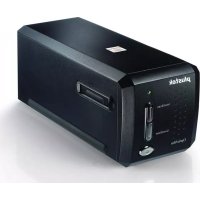
OpticFilm 8200i SE - To scan PLUSTEK - Free user manual and instructions
Find the device manual for free OpticFilm 8200i SE PLUSTEK in PDF.


| Product type | 35 mm film scanner (slides and negatives) |
| Brand | Plustek |
| Model | OpticFilm 8200i SE |
| Optical resolution | 7200 dpi |
| Maximum optical density | 3.6 |
| Light source | LED |
| Interface | USB 2.0 |
| Power supply | Via USB port |
| Dimensions (L x W x H) | 120 x 120 x 120 mm |
| Weight | 1.5 kg |
| Supported file formats | TIFF, PSD, JPEG, JP2 |
| Included software | SilverFast 8 SE |
| Key features | Film scanning, dust and scratch removal (iSRD), color restoration (ACR), automatic optimization |
| Maintenance and cleaning | Clean with a soft, dry cloth; avoid dust; use a blower for lenses |
| Safety | Unplug the device before cleaning; do not expose to moisture |
| Spare parts and repairability | Film adapter available; contact support for repairs |
| General information | Dedicated 35 mm film scanner, compatible with Windows and Mac |
Frequently Asked Questions - OpticFilm 8200i SE PLUSTEK
User questions about OpticFilm 8200i SE PLUSTEK
0 question about this device. Answer the ones you know or ask your own.
Ask a new question about this device
Download the instructions for your To scan in PDF format for free! Find your manual OpticFilm 8200i SE - PLUSTEK and take your electronic device back in hand. On this page are published all the documents necessary for the use of your device. OpticFilm 8200i SE by PLUSTEK.
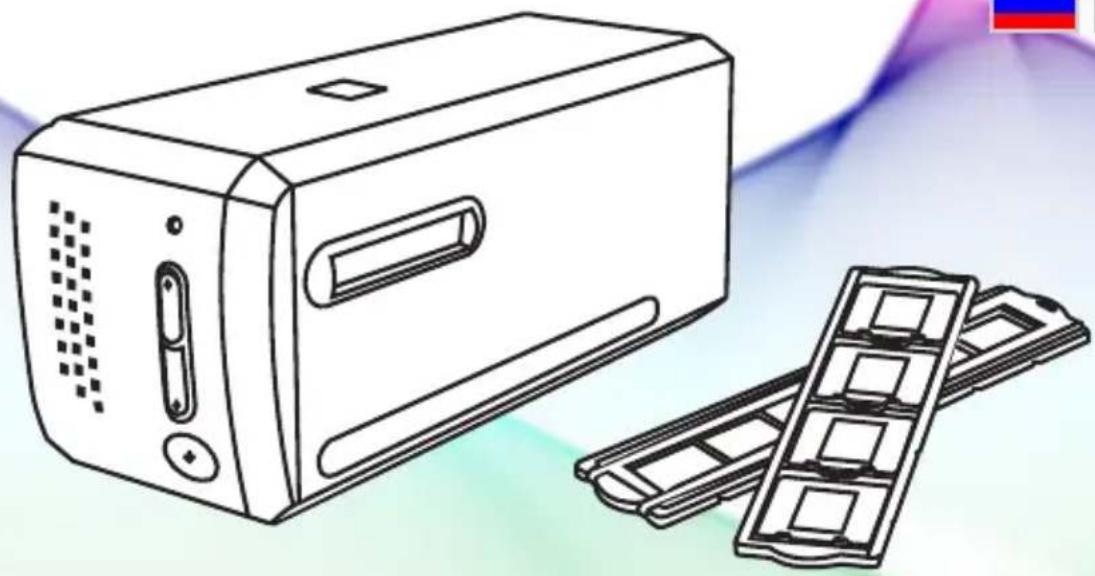
USER MANUAL OpticFilm 8200i SE PLUSTEK
Professional Scanner Software
plustek

DEUTSCH

ENGLISH

FRANÇAIS

ESPANOL

ITALIANO

PORTUGUES

PYCCKME
SilverFast® Archive Suite - the worry-free Archiving Solution
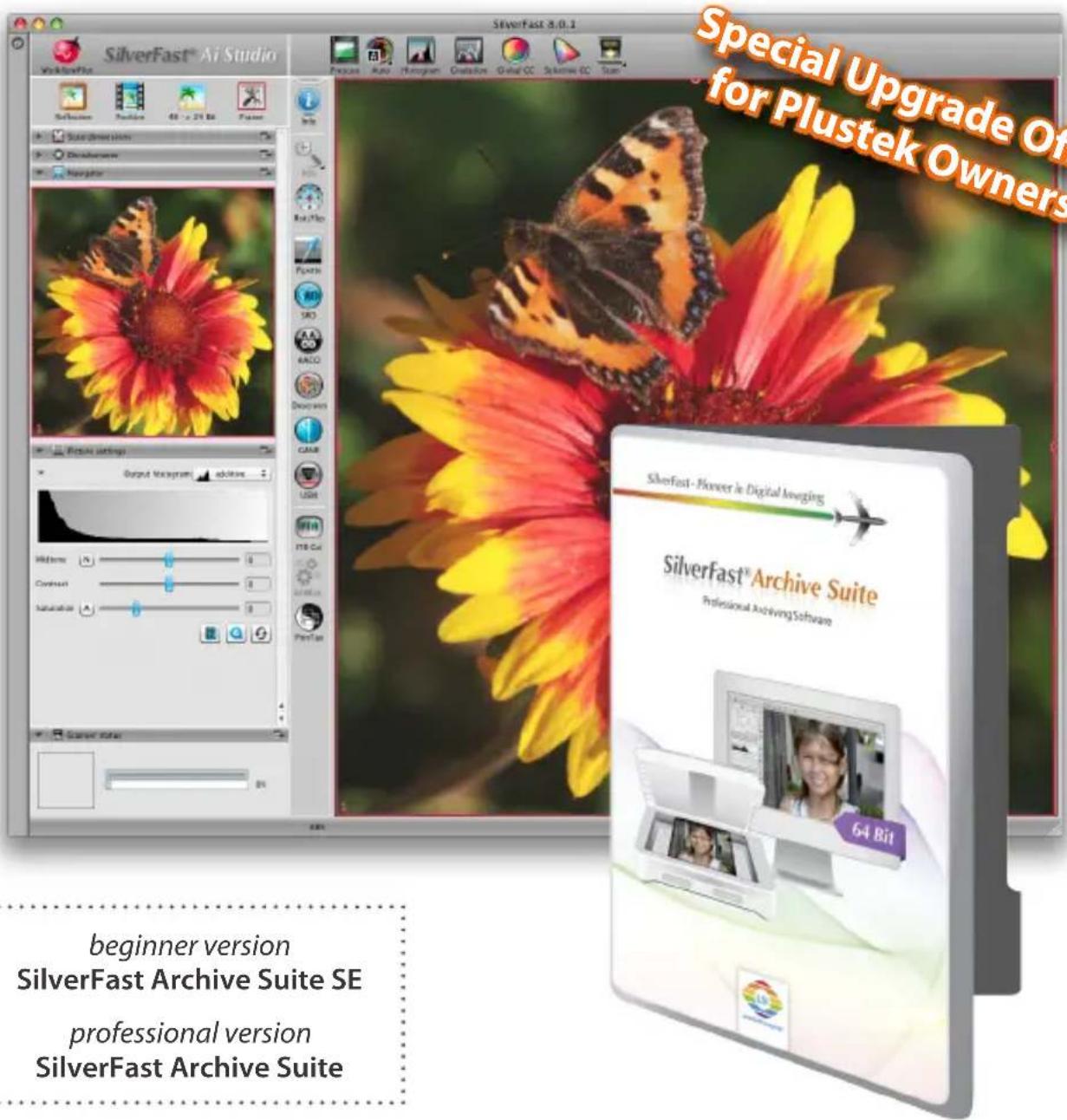
beginner version SilverFast Archive Suite SE
professional version SilverFast Archive Suite
LaserSoft Imaging presents a unique solution for fast and easy archiving of slides, negatives and reflective originals with subsequent processing in SilverFast HDR Studio.
With SilverFast Archive Suite you get a bundle of two programs: Scanner software SilverFast Ai Studio and image processing software SilverFast HDR Studio. An integrated color management system that meets professional standards completes this convincing package.
Lossless RAW data · 64bit HDRi/ 48bit HDR Concept
iSRD® with SilverFast HDR - embedded infrared data
Consistent Colors · integrated Auto IT8 Calibration
Correct Brightness & Color · Gamma Synchronization
Increased Dynamic Range · SilverFast Multi-Exposure
Rapid Opening of large image files · Unique HiRePP
Automatic Frame Detection • SilverFast Automatic
Easy Handling · QuickTime Movies for all important features

The unusual beauty of this Archive Suite is its very efficient batch scancapability that includes the infrared iSRD data in a 64bit raw scanner file.
David Brooks (Photographer and Senior Editor of Shutterbug Magazine)

Deutsch 4-15
- Software License 16
- Preface, Support & Contact Information 17
- Installation, serialization & Registration 18-19
SilverFast 8 WorkflowPilot - Working with SilverFast 20-27

Français 28-39
Do not open the software package and do not use the SilverFast software until you have read and agreed to the terms and conditions of this Software License Agreement. If you do not agree with these terms and conditions, immediately return the unopened software sealed in its original packaging to LaserSoft Imaging AG. SilverFast is a software package comprising software and supporting documentation for a method of generating an image file for the subsequent production of color separations or print files. This is a license and not a purchase agreement. LaserSoft Imaging AG has developed SilverFast and is the owner of all rights in the software and the copy thereof:
1. Copyright
(1) The licensee acknowledges that LaserSoft Imaging AG is the owner of the copyright in the software both with regard to the source and the object code.
(2) The documentation and the software are copyrighted. Unauthorized use, including the use of all visual and video material, gives rise to claims for compensatory damages.
2. License
(1) LaserSoft Imaging AG grants the licensee an exclusive and non-transferable license to use the software object code of SilverFast and the supporting documentation supplied for his or her own personal use. The term of the license is limited to the term of this Software License Agreement.
(2) With this license the licensee is authorized to use the licensed product on a single personal computer at a time. In order to use the licensed product on multiple processors and/or at different places at the same time, several licenses are required.
(3) The licensee is not allowed to copy the software in whole or in part except for the purpose of making a backup copy for personal use. The same applies to the documentation.
(4) The software contains confidential information. With this license the licensee may not alter, adjust, decompile, disassemble the software nor in any other way try to find out the source code.
(5) The licensee may not rent, lease, sublicense or lend the software to third parties. Passing on of the software in any case requires the written approval of LaserSoft Imaging AG. LaserSoft Imaging AG will grant approval provided (a) the licensee presents a written declaration of the new user in which the new user undertakes to adhere to the license agreement concluded for the software and (b) the licensee does not retain any (backup) copies and warrants to LaserSoft Imaging AG in writing that the licensee passed on original copies of the software to the third party and deleted all copies the licensee made.
(6) LaserSoft Imaging AG may include a licensee's company name and logo for public relation and marketing for the purpose to name the licensee as a LaserSoft Imaging AG customer.
3. Effective Date and Term of the License
(1) This license takes effect on the day the software package is opened. It remains in force until the day LaserSoft Imaging AG or the licensee terminates the License Agreement.
(2) This License Agreement may be terminated as follows:
(a) LaserSoft Imaging AG may terminate this license upon written notice to the licensee if the licensee is in breach of this Agreement or parts thereof.
(b) The licensee may terminate this license upon written notice to LaserSoft Imaging AG under the terms and conditions of No. 4, if he/she returns the opened software package to LaserSoft Imaging AG and deletes the copy on his/her PC and the copy he/she may have made for backup purposes.
4. Warranty
(1) The software is provided "as is". LaserSoft Imaging AG does not warrant - neither expressly nor implied - the usability of the software for a particular purpose nor that the software meets the licensee's requirements. Although every development effort has been made to eliminate errors, LaserSoft Imaging AG does not warrant that the software is free of defects.
(2) The licensee shall examine the software for visible, major defects within 14 days. These defects must be notified to LaserSoft Imaging AG in writing. Hidden defects are to be notified in the same manner upon detection. Otherwise software and supporting documentation are deemed to be approved without reserve.
(3) In the event of major defects LaserSoft Imaging AG may at its discretion either deliver a new version to the licensee (replacement delivery) or rectify the defect within a reasonable period of time (rectification of defects). If LaserSoft Imaging AG does not succeed to allow contractual use of the software within this given period, the licensee has the option to request reduction of the price or to cancel the contract.
(4) Upon assertion of warranty claims the licensee is obliged to return the software together with the notice of receipt at the charge of LaserSoft Imaging AG.
5. Limitation of Liability
(1) LaserSoft Imaging AG assumes full liability for intent or gross negligence, for personal injury or death, under the stipulations of the German Product Liability Act (Produktfaltungsgesetz) as well as within the framework of a warranty granted by LaserSoft Imaging AG.
(2) In the event of a slightly negligent breach of an obligation which is essential in order to fulfill the contractual purpose (cardinal obligation) the liability of LaserSoft Imaging AG shall be limited to the amount of the damage foreseeable and typical for the kind of transaction in question.
(3) Any liability of LaserSoft Imaging AG beyond that is excluded. In particular LaserSoft Imaging AG shall not be liable for any initial defects provided the conditions of part 1 and 2 are not met.
(4) The limitation of liability stated above also applies to the personal liability of employees, representatives and bodies of LaserSoft Imaging AG.
6. Trademarks
SilverFast and other trademarks (including those of other companies) mentioned in the documentation are (registered) trademarks of LaserSoft Imaging AG or their respective owners. The use of these names, trademarks, logos, documentation, screenshots etc. requires approval by LaserSoft Imaging AG and/or the respective owners of the trademarks. Unauthorized use gives rise to claims for compensatory damages.
7. Ineffective Provisions
Should individual provisions of this Agreement, for any reason, be or become ineffective, or should a gap arise that needs to be filled, this shall not affect the remaining provisions of the Agreement. A provision that is closest in the scope of the legal possibilities of what the parties originally intended shall replace the ineffective provision or shall fill the gap, if necessary also retrospectively.
8. Amendments
Amendments to this Agreement shall be made in writing.
9. Applicable Law
This Agreement is governed by German law. Application of the United Nations Convention on Contracts for the International Sale of Goods (CISG) is hereby expressly excluded.
Preface
Dear Customer,
We are pleased that you have chosen a quality product from LaserSoft Imaging. Meanwhile for over 15 years, we are developing and distributing our imaging software SilverFast, which is long considered as the world- wide standard especially in the field of scanner software.
The WorkflowPilot which has been specially developed for SilverFast 8 can be described as quintessence of the experience our experts have
gained over decades. This intuitive-to-use tool guides you in the correct order through all steps that are required for your individual workflow. The WorkflowPilot was inspired from my experience as a Pilot with a commercial license. Pilots are using check lists assuring and safeguarding the success of all operations in aviation. Likewise we are now giving you, as SilverFast user a safeguarding process to achieve brilliant results with all your images.
The SilverFast Preview Concept makes it especially easy to work with SilverFast. Any change you carry out is immediately visible in the preview window.
The SilverFast SE version is our entry-level software that, thanks to features like WorkflowPilot, automatic image optimization and QuickTime movies, is especially easy to use. Nevertheless, the range of functionality with unique highlights such as NegaFix, SRD and iSRD leaves nothing more to desire.
SilverFast SE Plus for advanced users provides valuable additional features such as Multi-Exposure® and AACO. Thus, SilverFast SE Plus satisfies even the highest demands.
You will enjoy the full range of functionality with our pro-level version SilverFast Ai Studio including Auto IT8 Calibration and all other SilverFast features and highlights.
Have fun and success digitizing your slides, photos and negatives with your new SilverFast software.
« SilverFast - Pioneer in Digital Imaging »
Sincerely yours,
Karl-Heinz Zahorsky
President and Founder of LaserSoft Imaging, Kiel, Germany, September 2011

Support and Contact Information
Homepage: http://www.SilverFast.com
Online Support: http://www.SilverFast.com/support
Forum: http://forum.SilverFast.com
Support Hotline: (+49) (0)431-5600938
Fax: (+49) (0)431-562847

Please install the manufacturers scanner drivers before you start the installation of SilverFast 8.
Installation on Apple Mac OS X
SilverFast 8 supports Intel Mac (OS X v10.5 - 10.7)
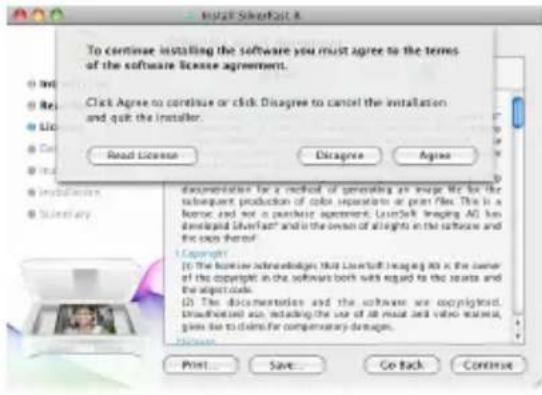
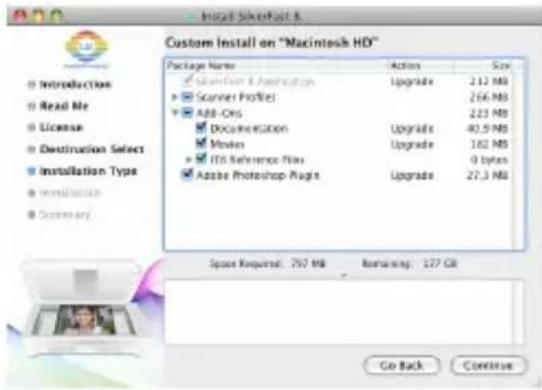
- Insert your SilverFast DVD into a drive or download the accordant file from the SilverFast website. Start the installation program.
- Please read the "Important Information" that will be displayed at the start of the installation process. Afterwards, please read and accept our licensing agreements.
- Next, you can decide which additional components such as QuickTime movies or documentation files should be installed. To do this, simply tick the appropriate checkboxes.
- Click on "Install" and SilverFast is copied to your Mac.
- Before using SilverFast for the first time, it is important that you serialize your version. Please refer to the section "Serialization & Registration".
Installation on Microsoft Windows
SilverFast 8 supports Windows 7, Vista and XP
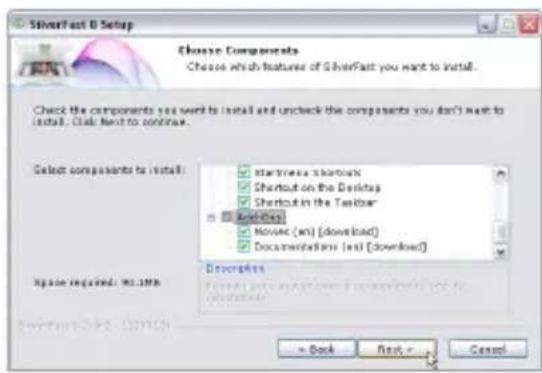
- Insert your SilverFast DVD into a drive or download the accordant file from the SilverFast website. Start the installation program.
- First, select a desired language.
- Please read and accept our license agreements.
- Next, you can decide which additional components such as QuickTime movies or documentation files should be installed. To do this, simply tick the appropriate checkboxes.
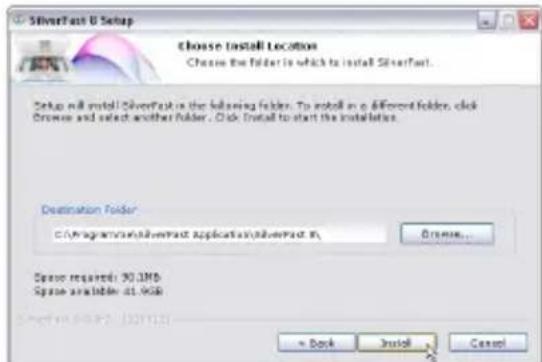
- Choose a location on your hard drive you want SilverFast to be installed to.
- Click on "Install" and SilverFast is copied to your PC.
- After the installation you can open the "Read Me" file that contains some important information.
- Before using SilverFast for the first time, it is important that you serialize your version. Please refer to the section "Serialization & Registration".
Serialization
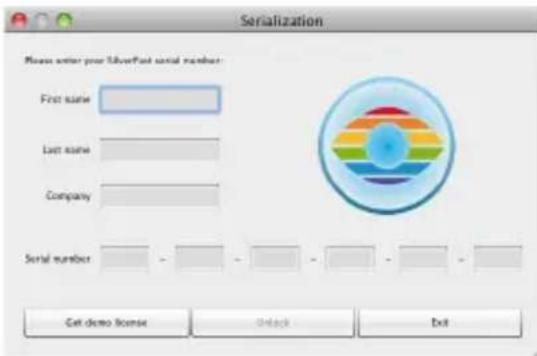
Before you begin to work with SilverFast, a serialization, which means entering the serial number you received when purchasing, is required.

Please switch on your scanner before you start SilverFast 8.
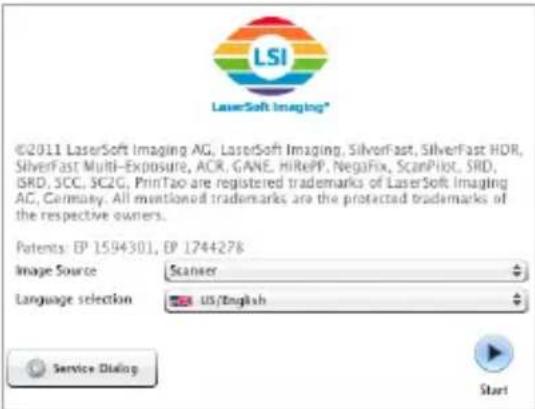
- Switch on your scanner, then start SilverFast 8.
- Choose your scanner under "Image Source".
- Choose your language under "Language Selection".
- Click the "Start" button.
When you are starting SilverFast for the first time, a dialog window for entering your serial number opens.
- For serialization please enter your first name, last name and serial number.
- Afterwards click on "Unlock", please.
SilverFast 8 is ready for you.

Please enter your first name and last name, which you have used for purchase. If you have purchased SilverFast on DVD, please insert it into your DVD drive.
If you do not have a SilverFast 8 serial number yet, you can also ask for a demo license to test SilverFast for 30 days at this point.
Registration
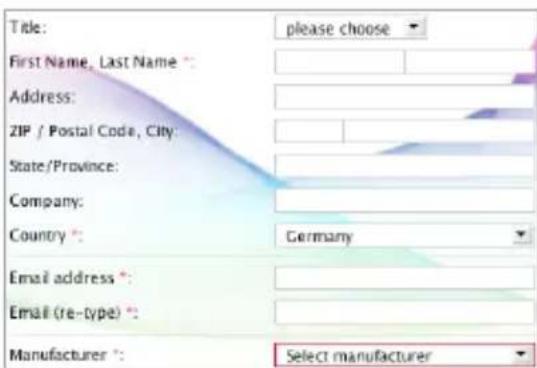
After serializing SilverFast, we offer the opportunity to register SilverFast online. Therefore, a dialog window opens automatically.
Once you have registered SilverFast, you can download regular program updates free of charge from our website.
During the registration, we recommend you to subscribe to our newsletter. We will send great offers and interesting and useful information individually for your scanner about every two months.
Yes, please. I'd like to receive the Silverfish newsletter (approximately 6 times a year).
No. thanks, I don't want to receive your newsletter.
SilverFast 8 Concept: New WorkflowPilot
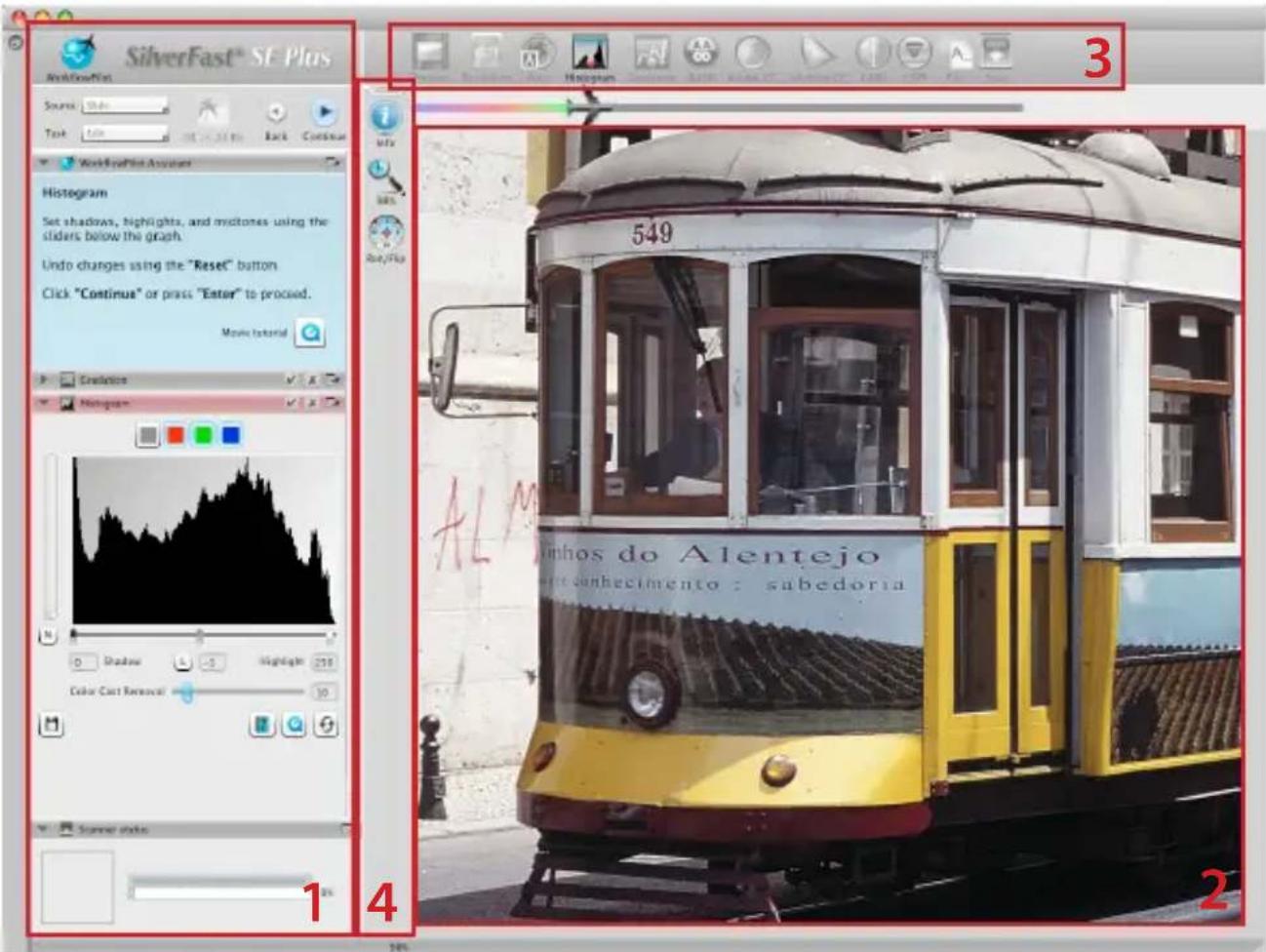
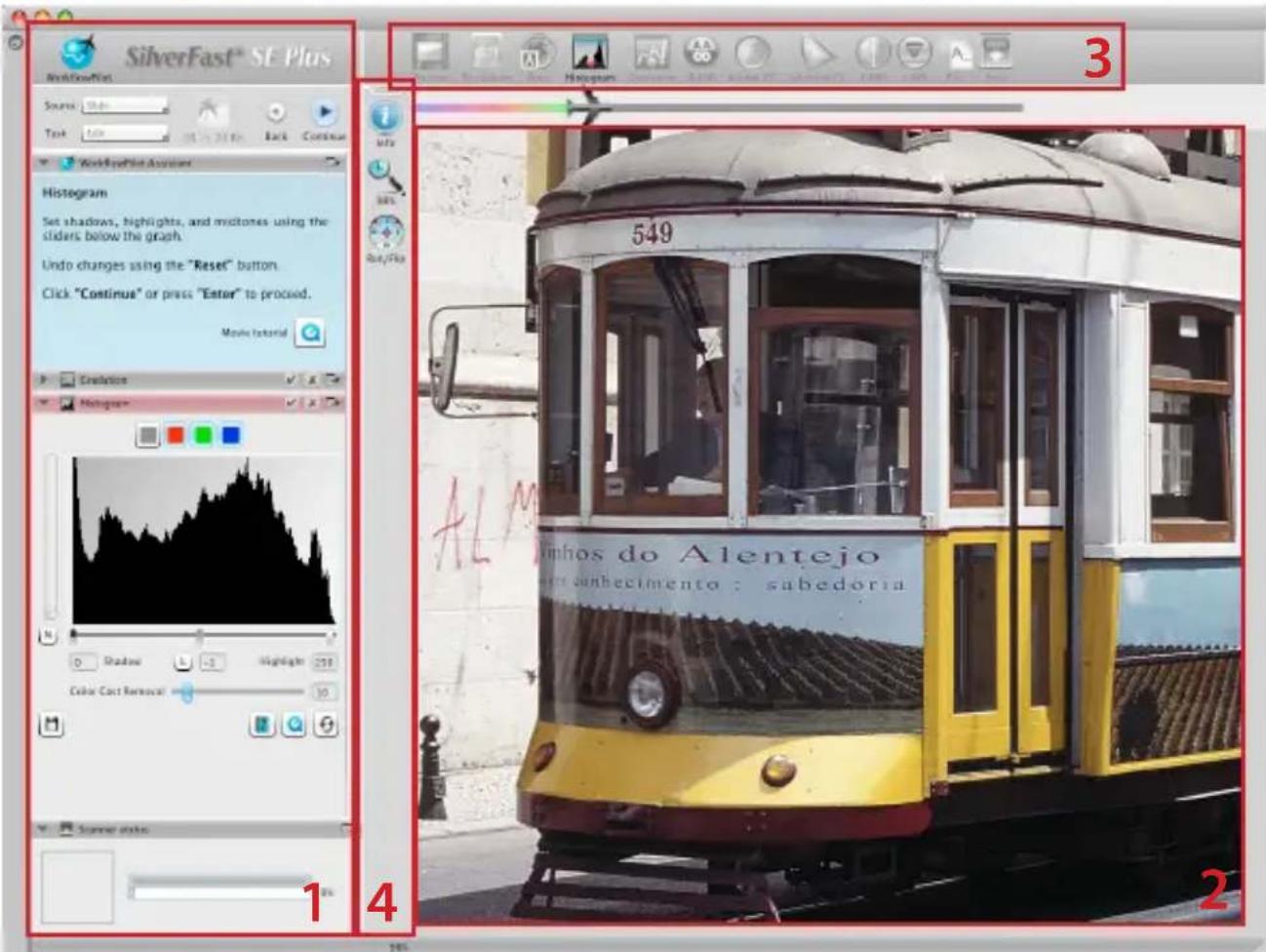
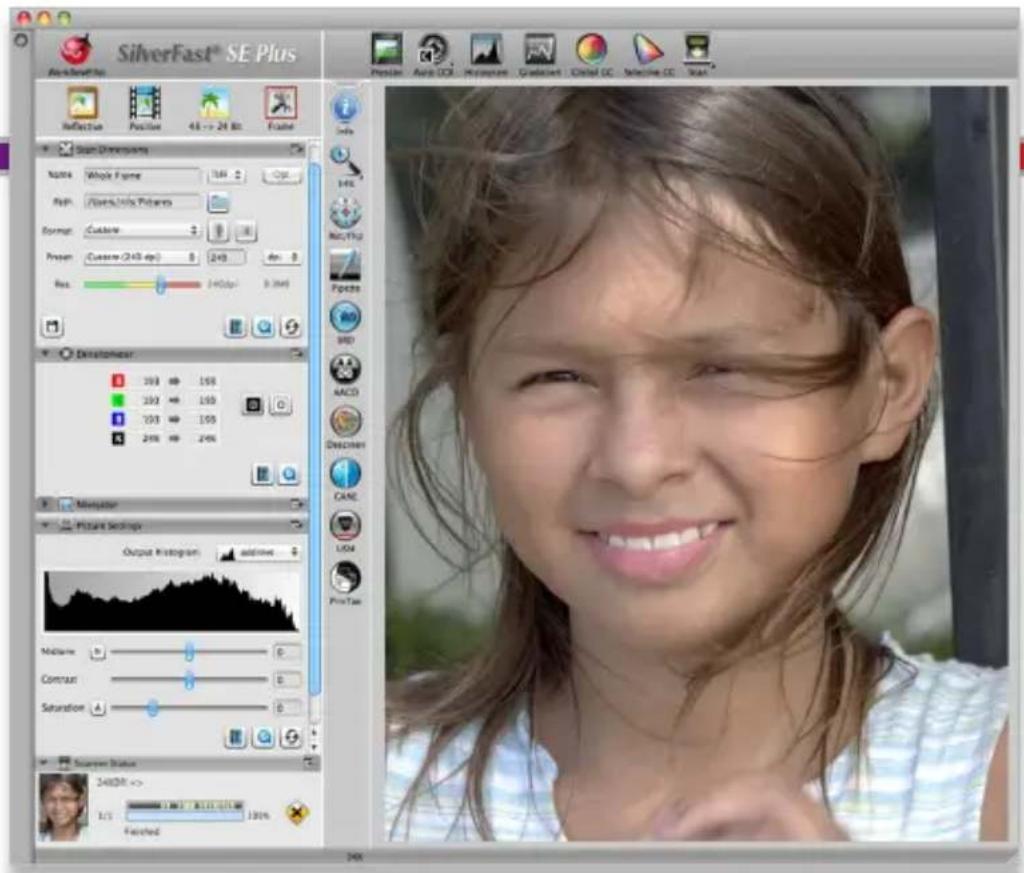
1. Controls Dock 2. Preview Window 3. Standard Toolbar 4. Special Toolbar
Heart of SilverFast® 8 is the unique WorkflowPilot. A consequent evolution of the established ScanPilot has developed into this modern high-end workflow tool for the process of scanning, inspiring beginners and professionals alike.
Tightly integrated into SilverFast, the WorkflowPilot guides through all the necessary processing steps in correct order, thus allowing perfect scans to be made.
Depending on the material and the purpose you want to digitize it for, there are different workflows accordingly. Just follow step by step after starting the WorkflowPilot. This way, potential errors, which could result from applying the SilverFast's tools in a wrong sequence, will be avoided. As an advanced user, you may, of course, work completely independently without using the WorkflowPilot.
Activating / Deactivating the WorkflowPilot
- A mouse-click on the symbol in the upper left controls dock activates or respectively deactivates the WorkflowPilot at any time.
- We recommend in general, but especially for beginners, to activate the WorkflowPilot.

When switching from manual mode to the WorkflowPilot mode, all previously made adjustments are discarded.

active inactive
SilverFast 8 Concept: Control Elements
Following section presents the main components of the SilverFast 8 User Interface.
1. Controls Dock
The controls dock contains a series of dialogs that let you configure the SilverFast tools. By clicking on the arrow button, you can expand and collapse any dialog.
If you are using the WorkflowPilot, the controls dock will automatically open the relevant tool dialog which is the next step of your workflow.
By setting or removing the check-mark, you can activate or deactivate any tool respectively.
The "x" button terminates a tool entirely. Actual settings will be lost.
2. Preview Window
The large preview window is always showing your current PreScan. Here, each image optimization is simulated in real time. Thus, you always have a good preview of the final scan result on screen.
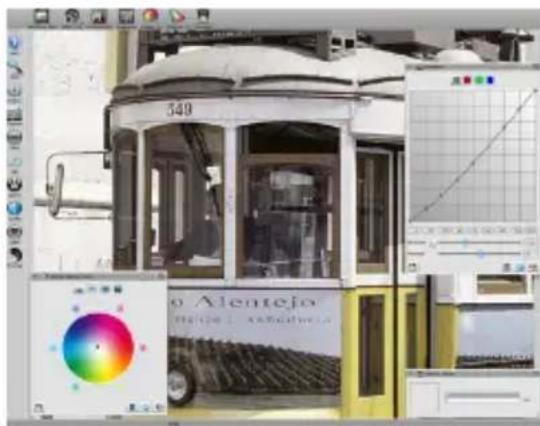
You can also use available space in the preview window to place and arrange dialogs from the controls dock. Therefore, use your mouse to simply drag a dialog to the desired location. Click on the "dock" button and the dialog will move back to the controls dock.
3. Standard Toolbar
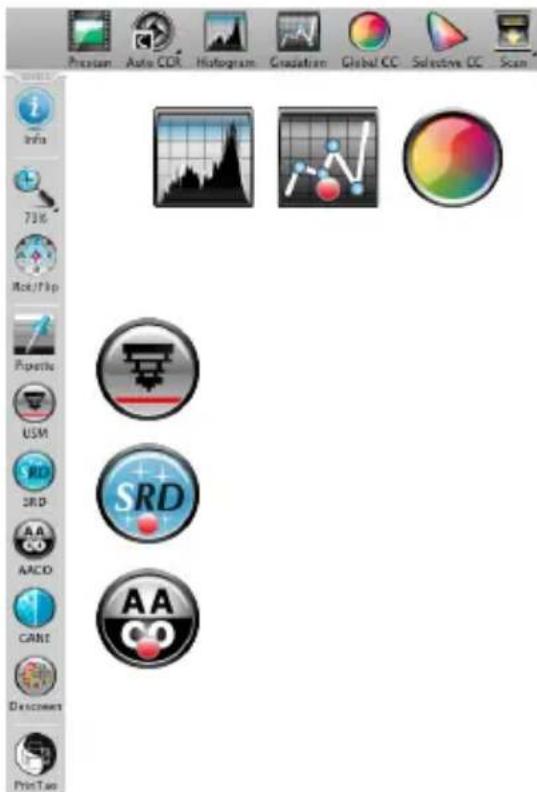
The horizontal toolbar contains the standard tools you might need quite often. A red dot inside the symbol indicates that this tool is active and an image optimization has been performed.
If you use the WorkflowPilot other special tools necessary for your workflow will appear here. You will step through these tools from left to right, with the active one displayed in color
4. Special Toolbar
The vertical toolbar contains some additional special features that are not required for every image original. Here also, active tools are marked with a red dot.
The 5 steps of Scanning using the WorkflowPilot
- Select type of original and scanning purpose
- Preview Scan
- Select Resolution for Scanning
- Adjust Image Optimizations
- Choose Destination and Start Scanning
1. Select Type of Original, Scanning Purpose and Color Mode
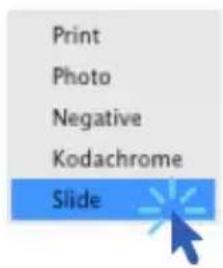
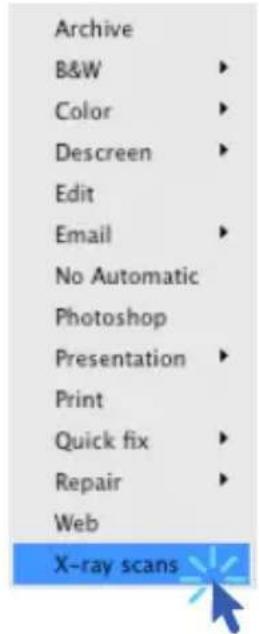
- At first, select in the controls dock under Source, which kind of original you would like to scan. Depending on your Scanner, you can choose from "Print", "Photo", "Negative", "Kodachrome" or "Slide".
Secondly, pick a purpose for which your scan is intended under "Task". Choose between "Archive", "Edit", "Print", "Web" and other options such as "Quick fix" for rapid repair of problematic originals. - Use the Color Mode button next to Source and Task to determine whether you want to create a color scan or a black and white scan.


2. Preview Scan
- Start the WorkflowPilot using the "Start" button in the controls dock. The WorkflowPilot will guide you through all necessary processing steps, depending on your previous settings. Initially, a preview scan is generated and displayed in the large preview window.
- Afterwards, use your mouse to drag the red scanning frame to the desired size. Make sure that the scanning frame is completely inside the original and that it does not include any white or black area of the preview window outside the original.
- A dialog with controls for adjusting SilverFast's tools will open in the controls dock on the left for every processing step. Each dialog contains buttons to save your adjustments, to reset your changes and to directly open a corresponding help file and a QuickTime movie explaining how to use this tool.
- Click on the "Continue" button in the controls dock after each individual processing step to continue with the next SilverFast tool. The WorkflowPilot allows to use a "Back" button to return to the previous processing step at any time. Your current settings will be retained.

Start

Save Settings

Reset values to defaults

Open help / tutorial PDF

Open tutorial QuickTime movie
Back Continue

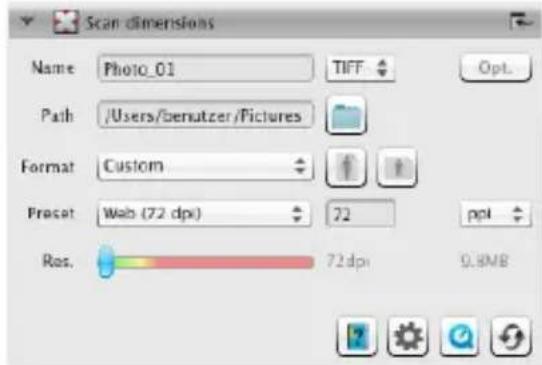
3. Select Resolution for Scanning
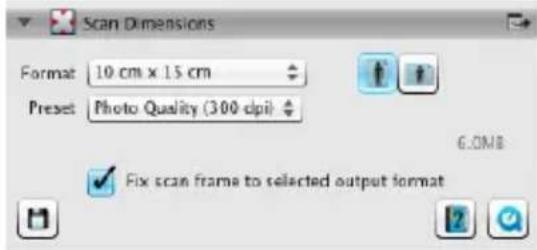
- Select format and resolution of your scan in the window "Scan dimensions" that has opened in the controls dock.
- For printing with inkjet or laser printer a resolution of 200 to 300 dpi is recommended, for archiving, choose a higher resolution respectively.

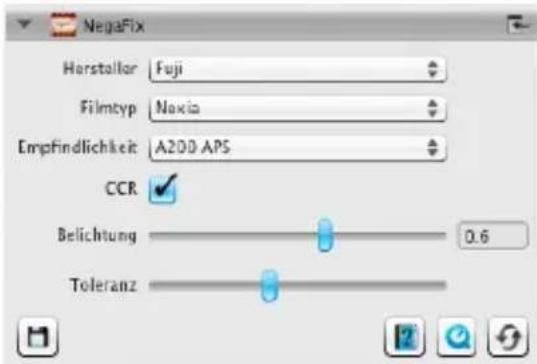
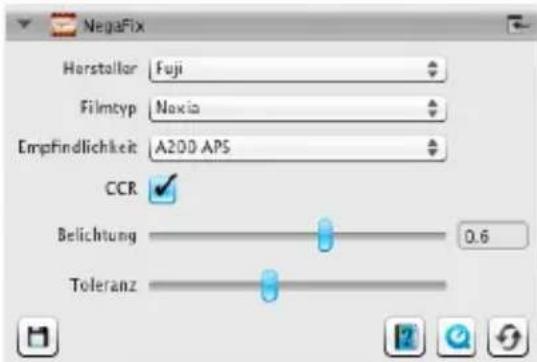
If you have selected "Negative" as image source, you will additionally find the "NegaFix" dialog below. Select the manufacturer, film type and exposure speed of your negatives.
4. Adjust Image Optimizations
- Depending on the selected workflow the WorkflowPilot will guide you step by step through a set of standard tools that allow you to perform various image corrections. Any change is directly visible in the large preview window in real time and true to color.


If you selected "Archive" as the destination format, the image data is archived unchanged. You can proceed directly with Step 5.

In the Ai Studio version, every tool dialog features an additional button to activate the expert mode.
The expert dialog provides advanced functionality for fine adjustments.
Some tool dialogs of the Ai Studio version are therefore slightly differing from the descriptions in this booklet.
4-1. Automatic Image Optimization

The intelligent SilverFast Auto Adjust starts now to analyze your original and automatically applies different SilverFast tools for image optimization.
- You can modulate these adjustments during the following steps 4-2. to 4-11. or you can reset them at all to make your own changes.
4-2. Histogram
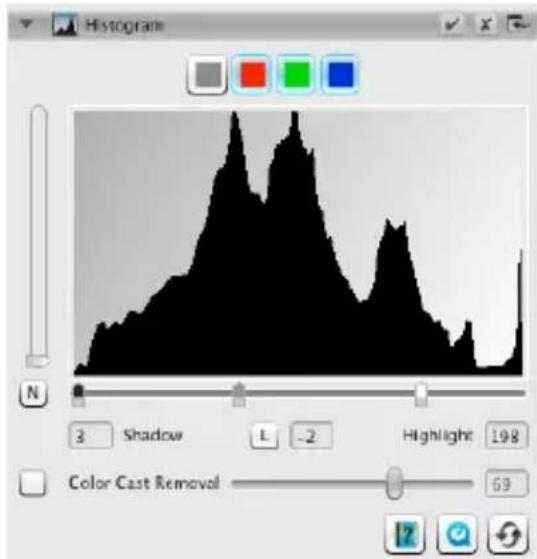
The histogram shows the frequency of tonal values that occur in an image as a metrical scaled diagram of vertical bars. It provides information about contrast range and brightness of the image. The histogram can be used to easily remove under- and overexposure.
- There are three sliders below the histogram. Move the left slider to adjust the black point and the right slider to adjust the white point. The button "N/L" is used to switch between linear and logarithmic representation.
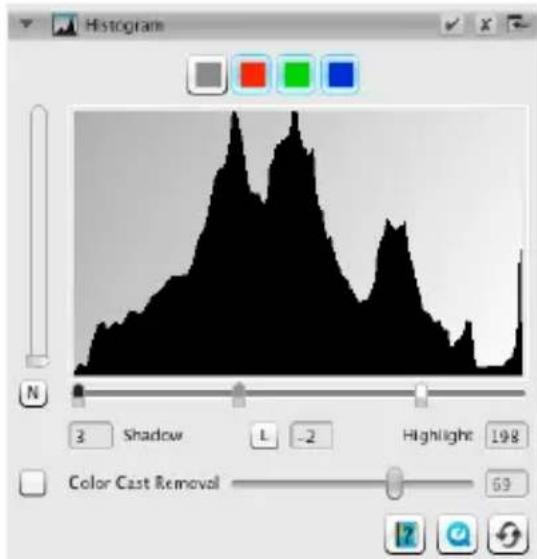
- If you like to adjust the histogram for a RGB color channel separately, select it with respectively colored button above the curve. The gray button stands for all three color channels.
- The slider "Color Cast Removal" removes color casts the more it is pushed to the right.
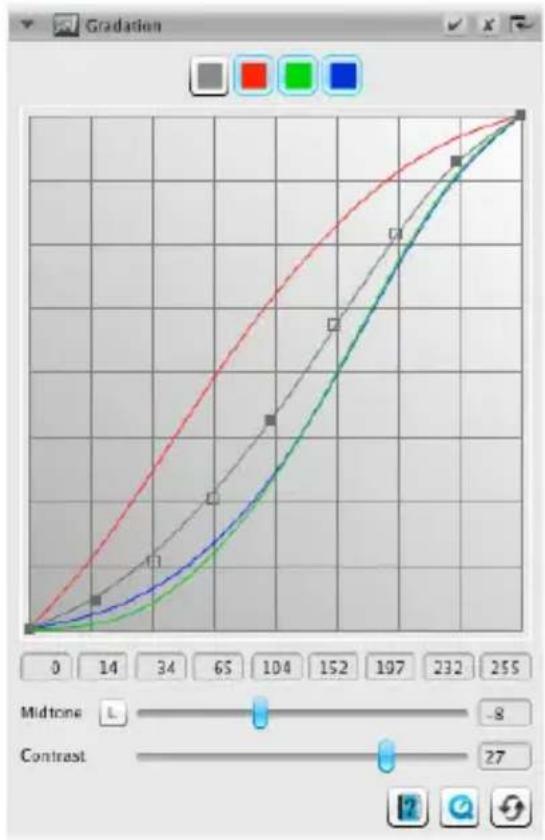
4-3. Gradation

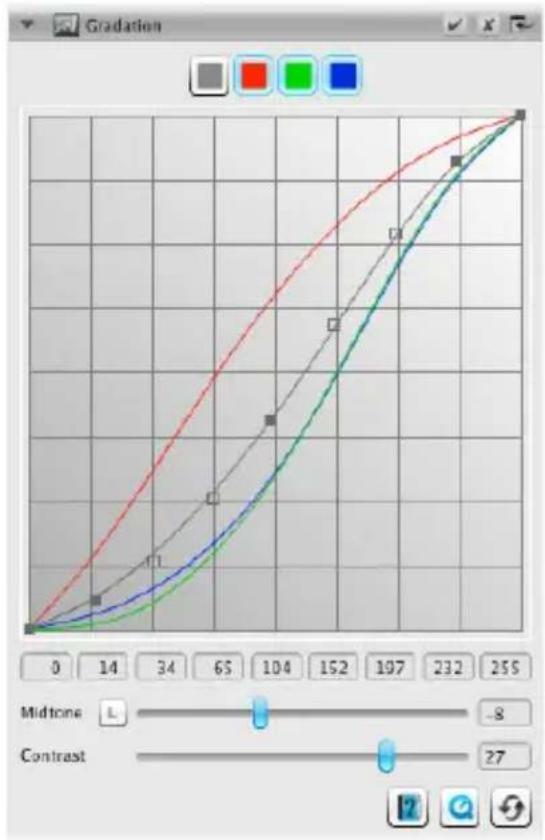
In photography the gradation or density curve describes the relationship between exposure and optical density of the film. The slope of the curve is called gamma value, the difference between maximum and minimum density is called density range. Adjusting the gradation curve can work out more details in shadows and highlights.
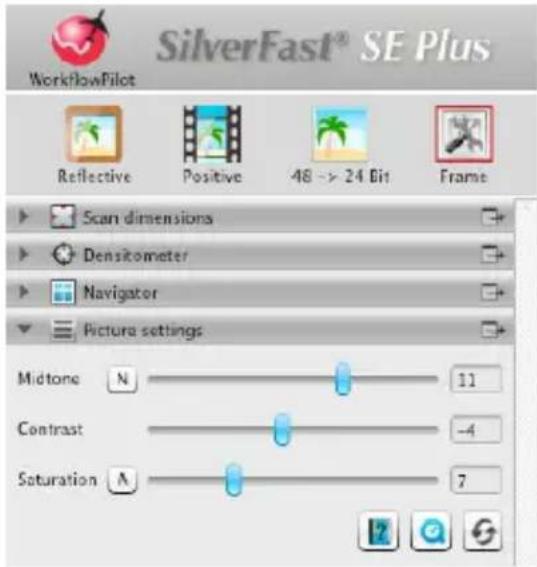
- Move the midtone slider below the curve to control the overall brightness. You can also adjust the contrast with the corresponding slider. For fine tuning you can directly move the curve control points with your mouse.
- If you like to adjust gradation of any RGB color channel separately, click onto any of the red green or blue button above the curve. The gray button stands for all three color channels.
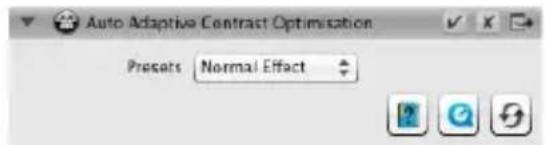
4-4. AACO (Auto Adaptive Contrast Optimization)

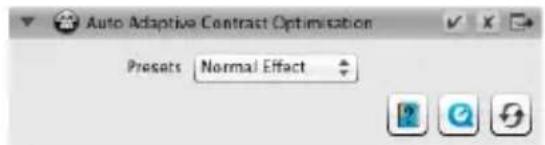
AACO is a tool for correcting contrast in darker image areas without influencing details in lighter areas. Thus, AACO can be very useful to uncover more details in dark areas.
- Choose "Low Effect", "Normal Effect" or "High Effect" as preset in the controls dock for low, medium or strong contrast enhancement.
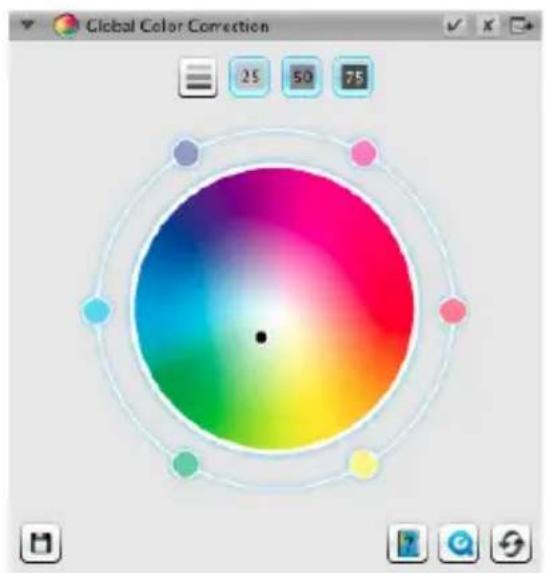
4-5. GCC (Global Color Correction)

Control the color balance of the whole image with SilverFast Global Color Correction. Color casts, that often appear on older film and slides, can already be removed before scanning.
- For a global color correction simply move the black dot inside the color wheel to a suitable position. Any change is immediately displayed in the preview window.
- For fine tuning you can use your mouse to click on one of the color patches positioned around the color wheel. The color balance of the image will then shift towards that color.
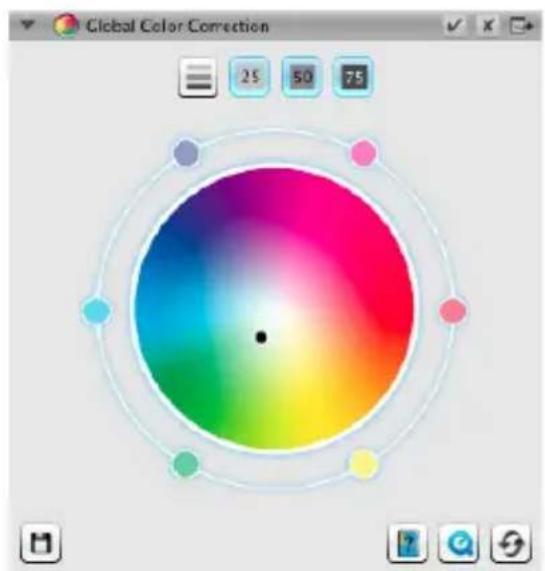
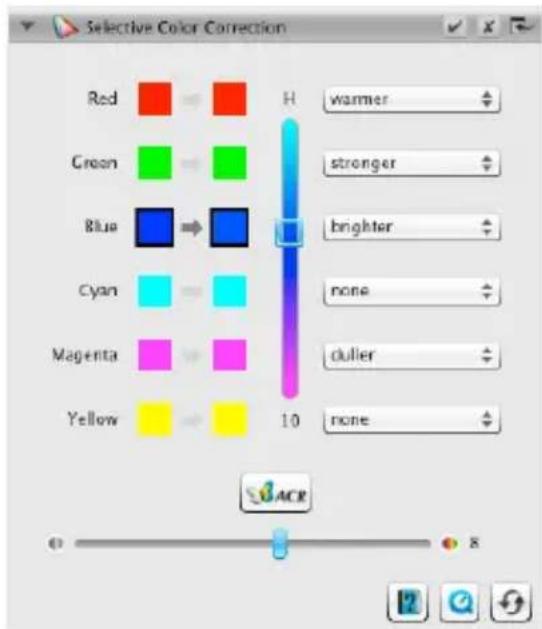
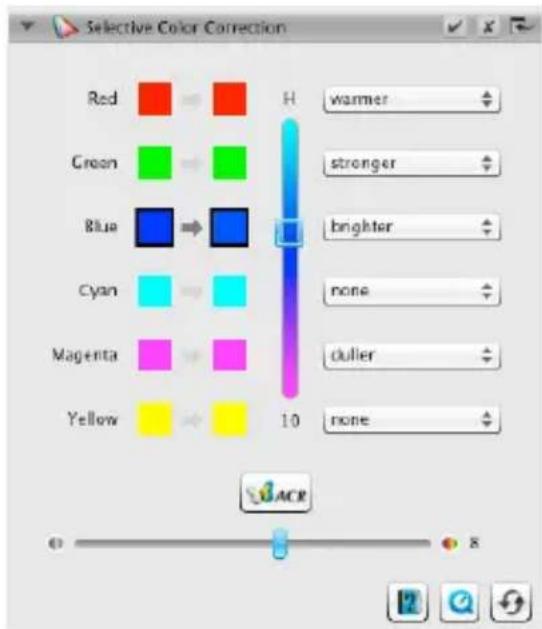
4-6. SCC (Selective Color Correction) ACR (Adaptive Color Restoration)

By using the Selective Color Correction SCC it is possible to specifically change and optimize individual colors without affecting any other colors. The Adaptive Color Restoration ACR is a tool to correct pale, faded colors and also to adapt super-saturated colors.
- Select the color you want to adjust by clicking into your picture. Then choose from the corresponding pop-up list which of the entries best describes the color change that you intend to apply. As an example, the entry "greener +" is a major shift of the chosen color towards green than just "greener" is. Afterwards, adjust the color to your preference using the vertical Hue slider.
- Click on the "ACR" button for an automatic color restoration or adjust the color saturation yourself using the horizontal slider.
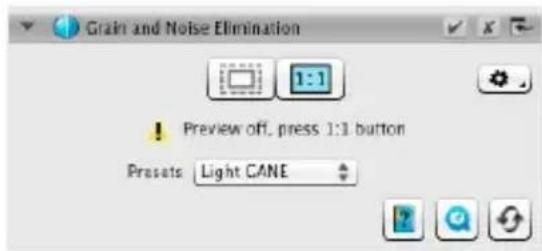
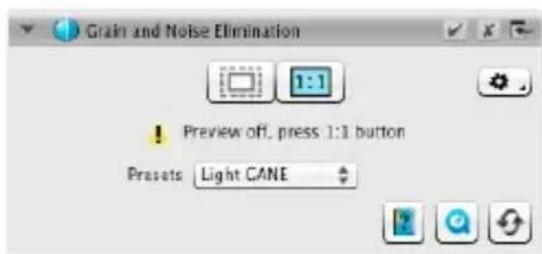
4-7. GANE (Grain and Noise Elimination)

At very high scan resolutions, the film grain of the photographic material can become visible on the scan. Similarly unattractive is the noise that can occur with digital recording processes for various reasons. The grain and noise suppression GANE eliminates these effects or reduces them significantly.
- The GANE® Grain and Noise Elimination can be adjusted in three stages. Choose from presets "Light GANE", "Medium GANE" or "Strong GANE" for a light, medium or strong noise reduction.
- For previewing your settings, a detailed PreScan of a representative image section is required. Therefore, click on the "1:1" button.
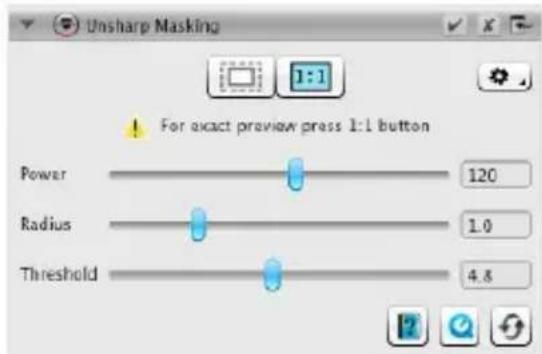
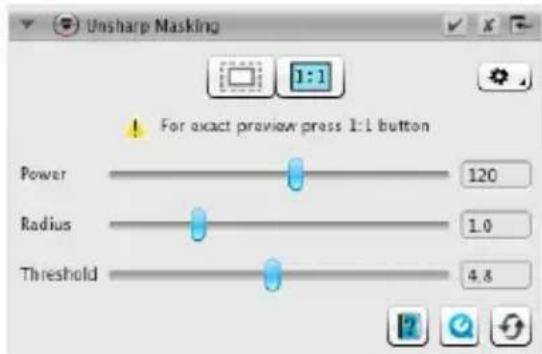
4-8.USM (Unsharp Masking)

Unsharp Masking is a name for a method of increasing an image's sharpness with a blurred copy of that same image. SilverFast uses additional parameters such as brightness values for sharpening, so that saturation and color values of the image are not affected.
- Select an appropriate level of sharpening with a preset from "Lowest Auto Sharpness" to "Highest Auto Sharpness" in the controls dock or define the exact degree of sharpening using the slider directly.
- For previewing your settings, a detailed PreScan of a representative image section is required. Therefore, click on the "1:1" button.
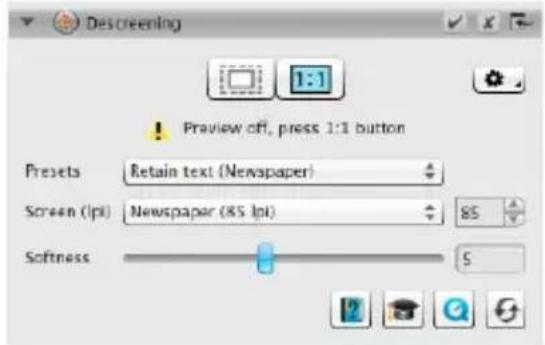
4-9. Descreening

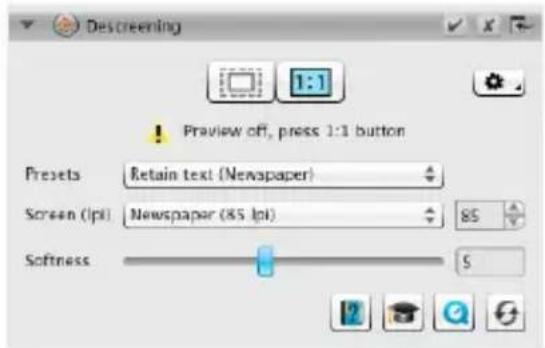
Printed originals will always have a screen that is created during the printing process from the individual printer dots. When scanning with high resolution this screen can become visible and overlap with other screens to very annoying Moiré effects. The SilverFast Descreening can automatically detect and remove this printing screen.
- If you know the printing screen of your original, you can directly set it in the controls dock. Select the menu item "Custom" from the "Screen" menu and adjust the screen in lpi. If you don't know your originals screen, select the menu item "Auto" or a suitable default value.
- Below you will find a slider that is for determining the threshold from which the descreening functionality is taking effect.
- For previewing your settings, a detailed PreScan of a representative image section is required. Therefore, click on the "1:1" button.
4-10. SilverFast Multi-Exposure

The Dynamic Range, i.e. the number of gray levels of transparent originals can be so large that conventional scanners can not completely capture it. In this case image details are lost especially in the shadows. SilverFast Multi-Exposure increases the scanner's effective Dynamic Range by performing two scans with different exposure times. These two scans are then merged to become the final enhanced image.
- You can activate and deactivate Multi-Exposure by clicking onto the icon in the standard tools bar above the preview window. Multi-Exposure requires more time for performing the scan, but in return, visibly improves the results.

Multi-Exposure can only be applied to transparent originals. Not every scanner is capable of supporting Multi-Exposure.
www.SilverFast.com/sf/Multi-Exposure


active inactive
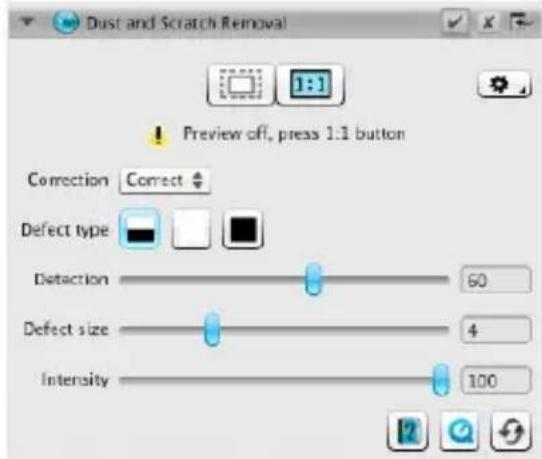
4-11. iSRD® (infrared based Dust and Scratch Removal)

Slides and negatives often have minor scratches or dust particles that can get very striking by the magnification of scanning. iSRD uses the scanner's infrared channel to detect these defects, which an intelligent algorithm then removes from the image. SRD in contrast does not require an infrared channel.
- Select "Automatic" from the "Correction" menu in the iSRD dialog to use iSRD in automatic mode. If you want to adjust the strength of defect detection yourself, select menu item "Correct". Use the slider "Detection" below to adjust detection strength.
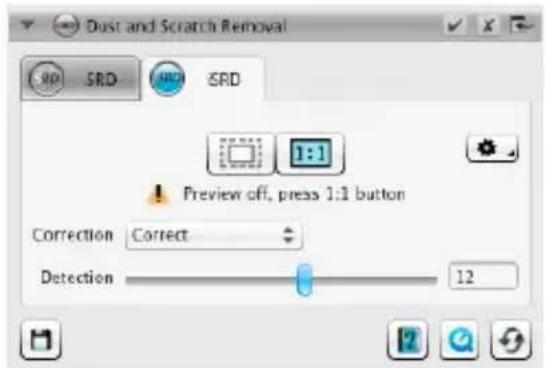

iSRD can only be applied to transparent originals, SRD also to reflective originals. Not every scanner is capable of supporting iSRD.
www.SilverFast.com/sf/iSRD
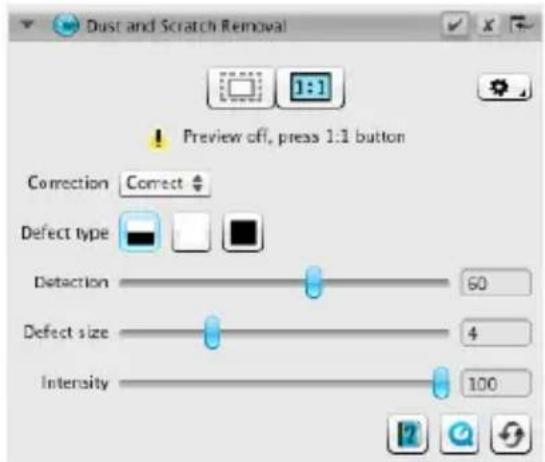
- SRD is very similar to use, but there is no automatic mode. Besides the defect detection strength you have to use two additional sliders to also set the size from which and the intensity with which defects shall be treated.
- Use the black and white buttons to determine whether dark, light, or both types of artifacts are to be corrected.
- For previewing your settings, a detailed PreScan of a representative image section is required. Therefore, click on the "1:1" button.
5. Choose Destination and Start Scanning
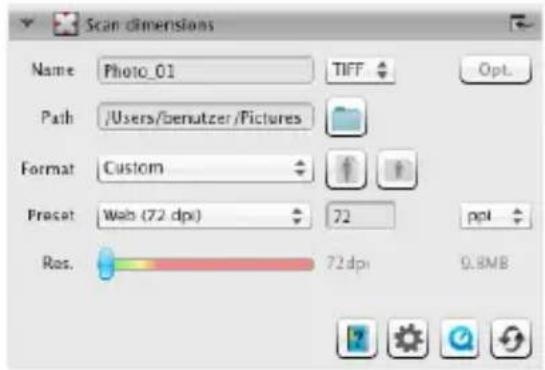
- Choose your desired file format (TIFF, PSD, JPEG, JP2) from the drop-down menu in the controls dock. Use the "Opt." button to adjust file format settings where necessary.
- Use the text field "Name" to type in a name for the image file to be created and click on the folder icon button to choose a folder, where you like to save your scan. Alternatively, you can directly enter the destination for your scan in the text field "Path".
- All important settings are adjusted now and you can start the actual scan. Therefore, click on the "Continue" button in the upper controls dock.
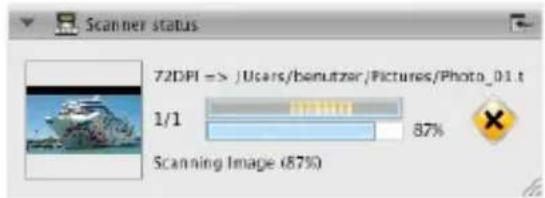
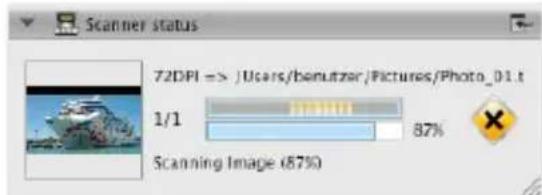
- A progress bar informs about the remaining time required for the scan. Afterwards, the image file is stored on your hard disk and SilverFast is reset enabling you to continue with the next scan.
- If you have accidentally started the scanning process, you can abort it with a mouse click on the yellow "Cancel" button.
Chere client, cher client,
O2011. LaserSoft Imaging AG, LaserSoft Imaging, SilverFast, SilverFast HDR, SilverFast Multi-Exposure, ACR, GANE, HRePP, Negafix, ScanPilot, SRD, ISRD, SCC, SC2C. PrintTao are registered trademarks of LaserSoft Imaging AG, Germany. All mentioned trademarks are the protected trademarks of the respective owners.
Patents: EP 1594301, EP 1744278
Fuente de la imagen
www.SilverFast.com/sf/iSRD
9. Diritto applicable
Supporto online: http://www.SilverFast.com/support
Forum: http://forum.SilverFast.com
Yes, please. I'd like to receive the SilverFast newsletter (approximately 6 times a year).
No thanks, I don't want to receive your newsletter.
SilverFast 8: II novo WorkflowPilot
www.SilverFast.com/sf/iSRD
Homepage: http://www.SilverFast.com/pt
Suporte on-line: http://www.SilverFast.com/support
Fórum: http://forum.SilverFast.com/
Hotline de suporte: (+49) (0)431-5600938
Fax: (+49) (0)431-562847

Yes, please. I'd like to receive the SilverFast newsletter (approximately 6 times a year).
No. thanks, I don't want to receive your newsletter.
3. BctynlneHnBcunnycnpckdeIeCTbnaIinceHnn
6. ToproboeMapKu6peHdbi
SilverFast, TAKK KAK IN BCE Dpyrye yINOMAHyTBe B DOkymeHTaun TopROBble MapKn 6peHbI -TAKKE IN DpyrX KOMNAHN -ABJNTc3 (3apeRCTpnpoBAHbIM) TopROBIMn MapkAMn LaserSoft Imaging AG nIN INx 3akOHbIX BnaJeBueB. McNolb3OBAHme 3TxN IMEH, TOBAPbIX 3NaKOB, DOkymeTAUIN, CKPHWOTOB IN TOMY NOO6HOrO pIn yCIOBn OOnbpeHn LasERSoft Imaging AG nIN ee BnaJeBueB. HecahKNUHOHPOBAHHe NcNob3OBAHme BneyET 3a C60B TpeBOAHme BO3Meuen yUep6a.
7.HeJeIcTButEnbHocTb nyHKTA
Ecn OTeBnHbIe NIOXeHn HAcToaUero DOrOBopa, He3abuCmO No KOKo PnpUHe, ABNHO TcIM CTaHOBraTcH HeDeCTBHTbHbIMn NIO B03NaKaet npo6en, POJnxKaun 3aONHeHIO, DOROBop 6yET B OCTaBHom He 3aTpoHyT. Ha MeTO HeJeCTBNTbHoro NIOXeHn NIO npo6ena, NOIeKAsero 3aONHeHIO, DOnKHO BCTynTB NIOXeHne, BCnyae Heo6xOumOCTn TaKke ObpaTHCNbl, KOtOpoe BpaMkax OpuDueckn BO3MOHHoro, BmKx BcERo KOTMeHHOMy.
8.ИзменияДоговopa
I3MeHeHn DOrOBopa B03MOxHO NIMbB NIMcbMeHHo fOpMe.
9.Ппименягеме Право
DAnHHbI DOrOBp peryInpyeTcH HeMezKIM npabOM. CornaaHeHn OBeEINHeHbIX Haun o DorOBopax No MeXdyHapOHO Kynn-PrdoJx TOBAPoB (TIO6aJIbHoe KOMMepueckoe npabo) KaTEROpuCeKN ICKIoUeHo.
Ppeuocobne
YBaXaembIe KIneHTbI IN NOKyNaTeN,
MbI paIbI, yTO Bbl OCTaHOBNi CBOB BBIOp Ha BbICOKOKaueCTBeHHOM npOdyKTe Doma LaserSoft Imaging. YXe 60Jee 15-n let MbI pa3pa-6aTbIBaem n npOdaem Hau naKeT npOrpamMHoro oecneueHn IJn O6pa6OTKn n3O6paXeHn SilverFast, KOtOpbI daBHO npu3HaN BO BCEM MInpe B KaueCTBe cTaHdapTa npOrpAMMHoro oecneueHn B o6JaCTn cKaHnpOBaHn.
Hobbi, pa3pa6oTahnbl dny SilverFast 8, WorkflowPilot - 3TO KBH- T3CCEHnra DeCAYIeTN ObIta Hauix CneuaJIncTOB. 3TOHTyNTuBHO ynpabIeMbI INCTpymEt npOBeTe BAC B npABINbHom nopJKe uepe3 BCE Heo6xOdImbIe 3TaNBI BaIero INDIBUYalbHoro pa6oUero npouceca. K IDee WorkflowPilot meHa INcpePPOBaI MoI ONbIT pa6OBy B KaueCTBe NIIOTa C Kompeckoi NlueH3nei. B abuaun nnIOtBi NOB3YOTc KOHTPOlbHbIMn CNickamn dny CTpaxOBKn kKdoRo pa6oUero npouceca. ToH0 Tak Jze, Mbl npedlaeraem Bam Tepeb, Kaon noB3OBaTeIIO SilverFast, HAdexKhbl npoucc DoCTnXeHnna pe3yIbTaTata - 6puiIinaHTOBoro n3O6paXeHnra.
KoHcEunI npedBapnteHoro npocmoTpa SilverFast oc6eHNO o6neruT Bam Pa60Tu, TaK kaK IIO6bIe N3MeHHeN, KOtOpBie Bbl npedpnpHmaeTe, HnOscpeDCTBeHNO OtpaKaHO TcB OKHe npedBapnteHoro npocmoTpa. C BepCnei SilverFast SE BblraTeEcBbIaIeMbIeM HaJero nporpaMMHoro NaKeTa HauJIbHoro yPobH, KOtOpBIM oc6eHNo Ierko ynpabIaTb 6IarOdApA hannuio WorkflowPilot, aBTOMatNuecko KoppeKznn n3o-6paXeHn i QuickTime -BnDeo. Odnako, 6oraTajakmmyHnKaIbHMn OC6eHHOCrMaN KaK NegaFix 已 SRD 已 ISRD 已 yHKUHOHaJIbHOCTb, He OCTaBnEeT JKeNaTb HnUero lyUwero.
SilverFast SE Plus Дд npoBHyToRo NOb3ObaTeI npednaeT HeoceHmble DononHnTeNbHbIe yHKuN, TakaK KaAOC O Multi-Exposure®, Tak YTO SilverFast SE Plus yDObIeTBopReT NOHocTbIO DaKe DOCTaTOUHO BblCOKne 3Anpocbl. CHaWeBepCne IpoΦecCNoHaHbHorO yPobHra - SilverFast Ai Studio - Bbl HacJaxJaTeEc b ONHbIM Ha6OpOM MHorOo6pa3HbIX φyHKcN c ABTo-IT8-KaIIb6paQneN BCEMN DpyrMn BO3MOxHOctaMn N Oco6eHHOCTaMn.
MbljKeIaem Bam Mhoro paOCTn uycnexa npn dnrntan3aunn Baunx cnaIOB, oToorpaqni n HeraTNOB C HOBbIM npoRpaMMbIM oecneueHem SilverFast.
Yes, please. I'd like to receive the Silverfish newsletter (approximately 6 times a year).
No. thanks, I don't want to receive your newsletter.
Hobar koncenza SilverFast 8: WorkflowPilot (Pa6oyn nnnot)
- KoHTpoJIb-IOK 2. OkHO npeIbapuTeIbHoro npocMoTpa
3.CtahapthbIe HhctpyMeHTbl 4.CneuaJIbHbIe HhCTpyMeHTbl
Cepdoum SilverFast 8 yBnEeTcY hKaIbHbI WorkflowPilot. NocToHHoe pa3BNTue 3HaKOMoRo ScanPilot nopoxdan IJIy cKaHnpOBaHne yHKaIbHbI BbICOKOkaeCTBeHHbI Workflow-UNCTpymEt, KOtopoe OINHaKOBO BDOXHOBJaET n HaunHaUOxN IN pOfecCNOHaNoB.
Techo nHTerpnpoBaHb pa6OuH pIIOr HappaBraT Bac B npaBnIbHOM npraJKe uepe3 BCE Heo6xo- dMbIe 3TaIb o6pa6OTKn I NO3BOJAE TdeAebHOe cKaHnpoBaHn.
B 3aBucnMoCTn OT TORO, kakoi MaTePuaN I dny kakoi Zeni Bbl XOTnTe OunΦpoBaTb, fOpMnpyeTcH HnaI NOcNeIOBaTeNbHOCTb Opeauin pa6oery npouecca, KOtOpu Bbl MoXe TnpouTn NoTAnHo nocne 3anycKa WorkflowPilot. Takm o6pa3om, WorkflowPilot npedotBpaaet notenzuaNBhe OUn6Kn He npabunbHOn NocneIOBaTeNbHOCTn Opeauin, KOtOpbIe MOryt BO3HNKHyTb BO BpeMnCNoB3OBaHHe SilverFast-nHCTpyMeHTob. KaonbTHbI NOnb3OBaTeNb, cAmO co6oJ pa3yMeETcR, Bbl MoXe TaKke COBepseHNO CBO6OdHOb pa6oTaTb n 6e3 WorkflowPilot.
WorkflowPilot BkIouThb / BblKIOuHTb
- WorkflowPilot MoXHO B JIO6yO MNHyTu BKJIOUHTb, IN COOTBeTCTBeHHO BbIKJIIOUHTb, ODNHM UeJYKOM MblHIN NO JeBOMy BEPxHEMy 3HaUKy B KOHTPOJb-DOK.
- Odnako Mbl pekomehyem, oco6eHno hauHaIOuM, nCNoJIb3OBAtB WorkflowPilot.

Pn nepexode ot MahyaIbHoro peKmAbpekm WorkflowPilot, Bce pyuHbIe HacTpoKn, 6ydt c6pOWeHbl.

aKTHBbIN HeaKTHBbI
KoHcEeZnA SilverFast 8: ΘIeMeHTbI ynpaBHeHnA
B cneyuouem pa3dene 6yuyr npedctabneHbIO OCHOBHbI KJIIOUeBBIE KOMIOHEHTbI INHTepceca NJIb3OBaTeJI SilverFast 8.
1. KoHTpOJIb-ДOK
KoHTpoJIb-DOK COepeXeT PRA DNAnIorOB, C NOMOuBIO KOToPbIX Bbl MoXeTe KOHfNpypOpBaTb INCTpyMeHTbI SilverFast. OdHM HaxKaTneM KHOIIKN Co CTpeJIKOc NOMOuBIO MbIiBn Bbl MoXeTe pa3BepHyTb n CBepHyTb IIO60I dHaIOr.
Bo Bpempa6oTbIC WorkflowPilot B KoHTponb-DOK aBToMaTnueckn BcERda OTKpbIbaeTcA COOTBeTCTBYIOUIN dHaJNOr IHCTpyMeHtA, KOTOpbI DaHHbIM MOMENT AIBJIeTcA Tekyuim Warom B BaWem Workflow.
IocpeCTBOM NOCTaBHeHn nn ydaJeHH raNoUckn, Bbl MoKeTe aKTbNbPoBaTb nn DeaKTbNbPoBaTb IIO6oH NHTpyMeHT.
KhONKa «X» 3aKpbIbAeT INHCTpyMeHT nonHOctbIO. PpN 3TOM n3MeHeHne napamETPOB INHCTpyMeHtA 6yDyT NOTePraHbl.
2. Okho npedBapntelbHoro npocMoTpa
B 60nbwom OKHe npedBapnteIbHoro npocmToPa noctoHHO 6ydt OTO6paKaTcBaaAkyaIbHbI npedBaPnTeIbHbI cKaH. IIO6aOnTNIM3aunu N3O6paKeHna 6ydt CmUInpOBAHa 3deCb B pealbHom BpeMeHn, TaK UTO BOKHe npedBapnteIbHoro npocmToPa MoxHo JERKO npocneHTb, KaN IOBlnraet N3MeHeHne napameTpOB Ha KOHeHb pe3yNbTa T cKaHdnpOBAHn.
Bbl moxete TaKxe nCnoB3OBaTb DOCTynHoe npoctpaHCTBO OKHa npeDbapnteJbHoro npocmotpa, c zelbu pa3MeueHn DnaIorob N3 KOHTpOlb-oka. Ipocto nepetauNTe DnaIor C NOMoBIO MbIu B XeNaemoe Bam MeTo. Odnm igeukom Ha KHONKe «CTbIKOBka》 ()DnaIor6ydet CHOba BCTpoEH B KOHTpOlb DOK.
3. BbI6op pa3peWeHne cKaHnpOBaHnA
- OnpeDenIte B KoHTpOJ-DOK B nAnKe «Pa3Mep n pa3peWeHne cKaHnpOBaHnR» φOpMaT n pa3peWeHne, KOTOpBie BaW cKaHep 6yDet npHmAtb.
-Дяпати настуном плларером пинтpepekomeHyemoe pa3peweHne 200do 300 Tnd;дя apxNBPOBaHn, bbl6epnte MaKcImaJIbHO BO3MOxHoe pa3peweHne.

EcnBbIb6paHn «HeratNB» KaK nCTouHnK n3o6paxKeHn, Bbl6epnte B dnaIore «Negafix» npoun3BODNTen, TIN PJIeHNN IN BpeM 3Kcno3nCn.
4. Hac tropona Koppekuzn u3o6pajkeHna
B 3abncmocn OT BbIbpaHoro pa6oery npouecca, WorkflowPilot npoBeTe Bac uepe3 pRd cTaHapTHbIX nHCTpyMeHTOB, KOtOpbie IIO3BOJIAOT Bam BblIOJIHNb pa3nnuHbIe KoppeKTIPOBKn I3O6paXeHn. JIO6oe n3MeHeHne Bbl MoXeT npn Eton OTCNeDHTb B 60nb- WOM OKHe PpeBaPntelbHoro npocMOTpa.


EcnBb6paHn《HeraTINK KaK nCTouHnK n3o6paxKeHH, Bbl6epnte B dnaIore «Negafix》 npoun3BODNTen, TnN PJIeHNu BpeMa 3Kcno3nU.


B Bepcn Ai Studio kaxKdIbI dnaIor-nHCTpymEnTMMeET Ondy donoHNTeJIbHyO KHONKy aKTNBn
3aunn 3KcnepeTHoro pexmama pa6oTbl.
Dnaor 3KcnepTa npedocTabnaret OONHHTeBHyO yHKUHOHaHb-HOCTB Bda6aBOK K TOHKO HAcTPOKe.
IOnToMy HeKoTOpbIe dHaIoru HnCTpyMeHTOB BepCnn Ai Studio HEMHOrO OTnUaIOTc rOT ONuCaHHaDAHHoro pyKOBOdCTBO.
4-1.ABTOMaTnueckaONTNMn3aunuN3o6paXeHn

HHTeJIeKTyIbHaA aBTo peryInpOBKa n3o6paXeHn SilverFast aHaIIN3uPyET cEnyac BaW opINrHaN I aBTOMaTnueckn npImeHer et pa3nUHbIe INCTpyMeHTbI SilverFast dIra ONTIMn3aUHn n3o6paXeHn.
Bo BpemcneyioxuX 4-2. 104-11.,Bb moKeTe no Baewemy BKcCy OTpeRynipOBaTb 3TN KOppeKtnPobKn NIN NOHOCTBIO C6pocNTb IN, YTO6bl CdeLaTb CBON CO6CTBeHHbIe N3MeHeHn.
4-2. TncTarpomMa
Tnctorpamma Bocnpoun3Bodnt yactoty TaHaIbHOrO 3NaueHnB N3o6paXeHnKa Kc MeTpnueeckn MacuTa6upOBaHHy DnaPamMy BeptNkAJIbHOJ YePTOn I ObecneuHBAe TnΦOpMaqU O KOHTpAcTHOCTn I RPKOCTn N3o6paXeHnC NOMOUsIO TnCTorpaMMbl MOxHo JERKO ydaNTb HxKHy N BepxHyo NepeDeppKy.
- Iod rncTaRpOMMoHaxOaTcTprNo3yHka. NepemecTe JEBbI No3yHOK dJa onpeDeJeHnue HEPbIX ToUeK INpaBbI No3yHOK dJa onpeDeJeHnue 6JIbIX ToUeK.KHOJKA N / L nCNoJb3yETcJa npeKIOUeHnE MExdNy IINHeHbIM nIorapNΦMnueckm npedctabHeHnEM.
- Ecln Bbl xotnte hactpontb rncTOrpaMMy dny kaxdoR0 RGB cBeToBoro kaHana otJeNbHo, Bbl6epnTe cooTBeCTByIOUyIO cBeToByo KHOKNy HAD KPNBOc. Cepa KHOKNka DnA BCex TpeX KaHaNoB cBeta.
-ПолзунК «Удалене OTteнkaцьета» устраиет OTTeHOKцьета-чemдальшеHa парBO,Temбольшe.
4-3.Градацья
BΦOTOrpaΦHn ONcMbAe rpaDaζnoHHa KpNBa HnKpNBa NlOTHOCn CBz3b MExdy 3KcNo3nqne n NoepHeHem nIeHKn. Bo3poCTaHne KpNBo Ha3bBAeTc3HaueHEm raMMbl, a pa3HnUa MeKdY MaKcMunAbHOu MNHMaNbHO nnOTHOCTbO Ha3bBAeTc DaNa3oHOM NlOTHOCn. KoppeKtnpOBkOr rpa DaunOHn KpNBo MoXHO BbIBNTb 60Jee NOIpO6HbIe DeTaII NTehyBbIX n CBeTOBbIX ΦΦeKTOB.
-ДяocbeueHnIIN3aTeMHHeHnI NOlyTOHOB,nepeMeCTNTe NOn3yHOK NOlyTOHOB NOI rpaauNoHHoKpIBO. TaKxe Bbl MoXeTe HAcTpoNTb KOHTpACTHOCTbC NOMOuBIO COOTBeTCTByUoJero NOI3yHka.ДЯ TOHKOHAcTPOKn Bbl MoXeTe HEnOCpeDCTBeHHO nepemeuAusbKOHTPONBHbIE TOUKN KpIBOc NOMOuBbMObln
Ecni Bby xotnte hactpontb rpaauu no nna KaKdoRo UBeToKaHaHa RGB OTdEnbHo, Bbl6epnte COOTBeTCTByIOyUo CBetOByIO KhoNky HnKpNbO. Cepa KhoNka npedHa3HaueHa dIg BCex TpeX TbeTaKaHaIOB.
4-4. AACO (AByo-aanTnBnaonTMn3aun KaHTpaCTHOCTN)

AACO YBJIaETcHCTpyMeHTOM dIe KOppeKUHN KOHTpactHOcN B TEmhIx yAcTkax N3ObpaKeHH, He BIIy Ipn 3Tom Ha DeTaNN B CBtIbIX O6NaCTAx. TaKIM Obpa3OM 6oJbWe DeTaIeB TEMHIX ObnaCTx CTAHOBATcR BUNIMbIMN.
Bb6epnte B KOHTpOJB-DOK n3 IpeCet «Hn3Kn J 3000EKT》,《HopMaJIbHbI N3000EKT》nnN «BbICOKN 3000EKT」ДЯ Hn3KoH,HOpMaJIbHOH NnN BbICOKO ONTNMn3aUIN KOHTpactHOCTN.
4-5. GCC (ГлобалнаяцБЕТOKОРKEЦИА)

IIO6aJIbHna YBeTOKOppeKUy npaBnAe TBeTOBbIM 6aHaHCOM BCero n3O6paXKeHHa. TaKIM O6pO3OM MOxHO ydaNtB OTTeHOK CBeTa yXe NpeD cKaHnPOBaHHeM.
-Дяглобальон корpeкцин CBetaпермecnte чуHyю TOUky BHTPN CBETOBОN OKpyxHOCTN B COOTBETCTBYUOIONo3uIIO. KaKdoe N3MeHeHne MOMENTaIbHO OTO6paXaETcB OKHe ПрEDBapNTeHBOrnpocMToTa.
ДЯТОнКоH NaCTPOnK, Bbl MoKeTe C NOMOuB Mbln HaxKaTb Ha OJHO n3 ZBeTOBbIX nIaTeH, paCNoJoxeHHbIX BOKpyr ZBeTOBOrO Kpyra. B 3tOM cIyuae ZBeTOB0B 6aJIaHC n3O6paXeHn8 6ydet MeHrtbcR B CTOpOHy daHHO rBaTa.
4-6. SCC® (CeneKTnBHaA uBeToKOppeKuH) & ACR(AaantNBHOe BOcTOHOBJeHne uBeTa)

CeneKTHBHa cBeToKOppeKuia SCC daet BO3MOXHOCTb N3MeHeHua INOTUMN3aun OTdIbHbIX cBETOB, He 3aTparnBa Jpyrne cBetaa. AanTnBHOe BocTaHOBJeHne cBetaa ACR, 3to nHcTpymeHT, no3BOJIOUIN uCnpabLraTb cna6bie, NCKaKeHHbIe cBetaa n aanTnpoBaTb nx K nepeHaCbIeHHbIM cBetam.
BbIeNTe c nOMoBIOMbIIN B SCC-dnaiore zBet, KOtOpBb Bbl xOTeN 6bl aAnTnpOBaTB.3aTeM Bbl6epnt E B COOTBeTCTBYUoE M KOHTeKCTHom MEHIO NyHK, HANyUWM O6pa3OM ONcBBAUoN N3MeHeHne CBeTa, KOTOpoe Bbl co6bPaTeCb IprImeHtB. PpN 3OM NyHK T3eHee +> O3Haayet 60lbuN CDBur Bbl6paHHoro Ubeta B CTOPHy 3eJeHOrO, Yem «3eJeHee>. 3aTeM HaCTpoTe ZBet NO BaWemy BKcy, INcNoJb3yR BePTNaBbHbI NOn3yHOK.
- Μεικητητε Ha Khoŋky «ACR» ДЯ abTOMaTHueCKOrO BOCCTaHOBJIeHnI ΚBETA nIIN peYJNpyIte erO hAcblIeHHOCbC NOMOuBIO rOpN3OHTaNbHOrO nON3yHOKa.
4-7. GANE (YcTpaHeHne 3epHnctHoCTn n Wyma)

Pn ouHb BbICOKnx pa3peWeHnx cKaHnpoBaHn 3epHnCTOCTb fOTomATEpnaJa MOxET CTaTb BNIMOn. AHaIOruHbIM O6pa3OM MOxET 6bITb N BInDeH Wym fOTomATEpnaJa, KOTOpBn IIO pa3JIuHbIM IpiuHnHAM MOxET NOBIArTbcra BO Bpemr Ipocecca uΦpOBoB 3aNcN. YcTaPaHeHne 3epHnCTHOCTn U Wyma (GANE) ycTpaHReT 3Tu 3ΦΦeKtBu INn 3HaunTeJbHo CHnKaet IX.
GANE -noaBHeHne 3epnctOCTn u Wyma, perynnyetc B Tpex 3tanax. Bby6epnte n3 IpecET «Cna6aGANE》,«CpeDHee GANE» nnn «CbIbHaA GANE» dnia Cna6oro, cpeHero n cnIbHoro CHHXeHnA Wyma COOTBETCTBEHNO.
-Дя npocmOTpa 3TORO nHCTpyMeHTa, Tpe6yeTcA DeTaIbHbI cKaH npeBapNTeNbHO rnpocmToPa, OdHoro npeCTaBnTeNbHO Bblpe3a n3o6paXeHn.ДЯ 3TORO HaKMITE KHonkY «1:1».
4-8. USM (Hepe3Koe mackinpobaHne)

Hepe3Koe mackinpobAHne - 3TO MeTOD NOBbIeHnpe3KOCTn n3O6paXeHn C NOMOuBIO Hepe3Ko KOnnn DaHHoro n3O6paXeHn. SilverFast npumehre TnyBEnueHnpe3KoCTn DOnONHHTeNbHbIe napaMeTpbl, TaKne KaK 3HaueHne AApKoCTn, TaK UTO, HAcblIeHHOCtB N 3HaueHn cBETA n3O6paXeHn OCTaIOTc 6e3 N3MeHeHn.
Bb6epnte B KoHTpoJb-0K n3 PpeCet OT «Camaa Hn3kAABTO Pe3KocTb» Do «Camaa BbICOKa ABTO Pe3KocTb» COOTBeTCTByIOUm ypOBeHb pe3KocTn nnn yctahOBnTe eO C NOMOuBIO NOI3yHa.
ДлгпрсмOTpa 3TORO nHCTpyMeHTa, Tpe6yETcA DeTalbHbI cKaH npeBapNTeHoro npocMOTpa, OdHoro npeCTaBnTeHoro Bblpe3a n3o6paXeHn.ДлглТOrO HaKMITE KHonkY «1:1».
4-9. Chytne cetkn

NeuThbIe opunHaJIbI Bcerda nMeeHOT cETKy, KOtOpaR CO3JaETCra npn NeuaTe n3 OTdJIbHbIX TOueK npInTEpa. Pn CkaHnpOBaHN C BbICOKIM pa3peWeHnEM 3Ta cETKa MoKeT CTaTb 3aMeTHoN, N COBnaDAR C DpyrMM cETKaAMN, npNBecTu K pa3dpaxaIoUeMy rna3 Myap-000ekTy.Chrtne cETKn SilverFast, MoKeT aBTOMaTnueckn O6HApyKntb n ydaJIInTb 3Ty cETKy.
- EcIn Bam n3BecTeH TnCetKn neaTu Bauero opuTnHaJa, Bbl moKeTe yCTaHOBntb erO B KoHTpOJIb-DOK nyHKT «ChrTne CETKn. Bbl6epNTe n3 MeHIO «PpeCtBi» nyHKT «OnpeJeHHeIe NOnb3OBAteJeMe» n yCTaHOBtE 3NaueHHe cETKn neaTu B CHD. EcIn Xe Bam He n3BecTeH TnCetKn neaTu, Bbl6epNTe npHKT MeHIO «ABTomatueckn» nnn noDxOJaUee CtaHdapTHoe 3NaueHHe.
Hnke Bbl haJeTe NOn3yHOK, C NOMOuBo KOTOPoB0 BbMOKeTe yCTaHOuNTb 3HaueHne nopora dJa cHrtne ceTKn.
-Дя npocmOTpa 3TOrO nHcTpymeHTa, Tpe6yetc Детаьньс KaHпрдВapnteHoro npocmOTpa, Онloro npedctabNTbHoro Bblpe3a n3O6paXeHn. Дя 3TOrO haxMITE KHonky «1:1».
4-10. SilverFast Multi-Exposure

DnHaMnueckn Dnana30H, T. e. YncNo ypOBHe ToHOB ceporo B npO3paHbIX opnIHnHaJAX MoKet 6bItb HAcTOnbKO BeJIko, QTO O6bIuHbIe cKaHepBi He B COCToRHN NOLHOCTbIO erO BocnpnHrTb. B 3tOM Cnyae, TePraOTc DeTaIIuN3O6paXKeHn, OcoBeHNO B TeHx. Multi-Exposure SilverFast yBEnuHNaEt KeTnBhIn DnHaMnueckn Dnana30H cKaHepa, BblONHra Dba CkaHa C pa3NIuHbIM OCBeUeHHem.
BbMOKeTe aKTHBnPOBaTb HIN DeaKTNBnPOBaTb FyHKuHO MHarokpaTHoN 3KcNo3nHn, Haxab Ha NKOHky Bblse, B cTaHapTHoN NaHeIe NHCTpyMeHTOB. MultiExposure Tpe6yET 60JbWe BpemeHn DnA BblOnHeHnCKaHnPOBaHn, HO B CBOIO OuepeB, 3aMeTHO yNyUHa-et pe3yNbTaTbl.

Multi-Exposure MoKet 6bITb npimHeHa TOnbKO K npo3paHbIM opuRnHaanm.He KaJdbi cKaHep Cnocoben NODepXNBaTb MHorokpArHyIO EKCNO3NIO.
www.SilverFast.com/sf/Multi-Exposure

aKTHBbI

HeaKTNBbI
www.SilverFast.com/sf/iSRD
Bb npimehare SRD aHaIorHbIM o6pa3OM,ToIbko 6e3 abTomatnueckoro pexkma. Kpome cnbl obHa-pykeHnA deEKTOB, Bbl moKeTe nCIONb3OBaTb DBa donONHtEnbHbIX non3yHka dnycTaHOBKn Pa3Mepa n HHTeHCNBHOCTN, c NOMOuBIO KOToPbIX DOJXHbI O6pa-6aTBiBaTbcra DeEKTbl.
C NOMOUI OePHoN 6eON KHOHOK, Bbl MoKeTe yCTOHOBITb TEMHbIe, CBETIIbe IIN Oba apTnphiKTA, KOtOpBIE DOJXHbI 6bITb CKoppeKTIupOBaHHbl.
-Дя npocmTopa yctaHOBOK, Tpe6yeTcra DeTaIbHbIn cKaH npeCTaBnTeJbHO Bblpe3a n3O6paXeHn.ДЯ 3TOrO HaxMITE KhONKy «1:1».
5. Onpeidenenue celenboro faa n 3anyck cKaHnpoBaHnA
Bb6epnte B KOHTpOJIb-IOK n3 MeHIO XeJaembl oopMat faiNa (TIFF, PSD, JPEG, JP2, PDF). C nomoubIO KHOKN «OIT». Bbi MoXeTe peYIINPOBaTb napaMeTpbl oOpMaTa faiNa, ecn 3To Heo6xOJMo.
BBeHNTe B TEKCTOBOM NONE «IMRA, IMRAДЯco3dAbaemorO faiHa N Bb6epntc C NOMOUBHO KHONK CO 3HaYKOM nank MeCTo, rde Bbl 6bl xoteN coXpaHHTb BaunCKaHnPOBaHHble DOKyMeHTbl. AInbTePHaTINBO, BIMOXeHENoCpeDCTBeHNO B TEKCTOBOM NOJIe «IpyTB BBecTI NYHKT Ha3HaueHnDAckAHNPOBAHnIA.
- Tenepb yxe BCE BaxHbIe napaMeTpbl HaCTpoEnbl N Bbl MoXeTe Hauatb TeKyUee cKaHnpOBaHne. IJIa 3TOrO HaxMITE B KOHTpOJIb-DOK Ha KONKe «Jaanee»
- INHnkaTOp nporpecca nHphiOpMnpyet Bac o npoDnHexn npouceca cKaHnpOBaHnB. B 3akIoueHne pe3yNbTaTbI BaJero cKaHnpOBaHn6yDyT coXpaHehbl, a HacTpOkn SilverFast c6pOWeHbl, TaK yTO Bbl MoKeTe NpeeyK cLeydyUoSeMy cKaHnpOBaHnIO.
- Ecnn Bbl 3anyctn nn cKaHnpoBaHne no Own6Ke, Bbl MoXeTe npexKdEbpemHNO OCTaHOBNTb BeCb npOceCC Nnsh haxab Ha JeNtYIO KhoNkY «OTmeHa».

LaserSoft Imaging AG
LaserSoft Imaging, Inc.
PO Box 15949 • Sarasota • 34277 Florida • USA
Phone: (+1) 941-312-0690
Fax: (+1) 941-312-0608
Support: www.SilverFast.com/support
Info: www.SilverFast.com
System Requirements:
Mac OS:
Intel®-Processor
Mac OS X v10.5 through 10.7 Windows:
- Processor: Minimum 2 GHz
- Microsoft® Windows® XP with Service Pack 3, Windows Vista® Home Premium, Business, Ultimate or Enterprise (32 bit and 64 bit) or Windows 7 (32 bit and 64 bit)
- 2 GB of RAM (4GB of RAM recommended)
- 10 GB of available hard-disk space
- 1024 x 768 display resolution
DVD-ROM drive - QuickTime® Player, PDF Reader
*SilverFast is individually adjusted to scanners and operating systems. Please check the availability of software and features for your device and operating system at:
www.SilverFast.com/sf/product
SilverFast® and LaserSoft Imaging™ are registered trademarks of LaserSoft Imaging AG, Germany. All mentioned trademarks are the protected trademarks of the respective owners (Patents: EP 1594301, EP 1744278).