Luna SST - Docking station XTREMEMAC - Free user manual and instructions
Find the device manual for free Luna SST XTREMEMAC in PDF.



User questions about Luna SST XTREMEMAC
0 question about this device. Answer the ones you know or ask your own.
Ask a new question about this device
Download the instructions for your Docking station in PDF format for free! Find your manual Luna SST - XTREMEMAC and take your electronic device back in hand. On this page are published all the documents necessary for the use of your device. Luna SST by XTREMEMAC.
USER MANUAL Luna SST XTREMEMAC
natural_image
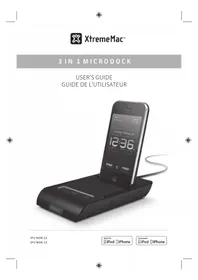
Black electronic device with 12:36 time display and two remote control devices (no visible text or symbols on main body)IPU-LSS-11
IPU-LSS-13
Made for
iPod iPhone
Conçu pour
iPod iPhone
Contents
04 English
10 Française
17 Italiano
24 Deutsch
31 Español
38 Português

XtremeMac
Congratulations on your purchase!
Thank you for purchasing Luna SST dual alarm clock with detachable speaker. The following pages explain the features and operation of Luna SST, so please take a few moments to read through this manual.

For a customized waking experience and full integration with this product, download the free XtremeMac alarm clock app from the iTunes App Store. Note: app only works with iPhone and iPod touch models.
PACKAGE CONTENTS:
• Liña SST
- Wireless remote
• 4" & 120" speaker connection cards
- AC power adapter
• 4 global wall adapters *
- Dock adapters for current iPod/iPhone
• User guide / Warranty statement
* WALL ADAPTERS INCLUDED IN THE INTERNATIONAL REVISION ONLY
IMPORTANT
Please read all safety instructions before proceeding. The answers to most set up and performance questions can be found in this manual or in the Troubleshooting Tips. If you have any further questions about the operation or use of this product, please contact our consumer care team for assistance before returning it to the place of purchase.
CUSTOMER SERVICE
Email:
support@xtremomac.com
Telephone number:
1 865 392-9800 (Tell free within the United States)
Hours of operation:
Monday through Friday, 12pm - 9pm EST
PRODUCT SAFETY
When used in the directed manner, this unit has been designed and manufactured to ensure your personal safety. However, improper use can result in potential electrical shock or fire hazards. Please read all safety and operating instructions carefully before installation and use, and keep these instructions handy for future reference.

The lightning flash with arrowhead, within an equilateral triangle, is intended to alert the user to the presence of uninsulated "dangerous voltage" within the product's enclosure that may be of sufficient magnitude to constitute a risk at electric shock to persons.

Caution: To prevent the risk of electric shock, do not remove cover (or back). No user-serviceable parts inside. Refer servicing to qualified service personnel.

The exclamation point within an equilateral triangle is intended to alert the user to the presence of important operating and maintenance (servicing) instructions in the literature accompanying the appearance.
CAUTION: To prevent electric shock do not use this (polarized) plug with an extension cord, receptacle or other outlet unless the blades can be fully inserted to prevent blade exposure.
WARNING: To reduce the risk of fire or electric shock, do not expose this appliance to rain or moisture.
The image is too blurry to recognize any text content.
IMPORTANT SAFETY INSTRUCTIONS
- Read these instructions.
- Keep these instructions.
-
Need all to ensure
-
Follow all instructions.
-
Do not use this apparatus near water. This apparatus shall not be exposed to dripping or splashing, and no objects filled with liquids, such as eases, shall be placed on the apparatus.
-
Clean only with dry cloth
-
Do not block any ventilation openings, install in accordance with the manufacturer's instructions. The apparatus should not be situated on a bed, sofa, rug or similar surface that may block the ventilation openings.
-
Do not install near any heat sources such as radiators, heat registers, stoves, or other apparatus (including amplifiers) that produce heat.
-
No naked flame sources, such as lighted candles, should be placed on the apparatus.
-
Protect the power cord from being walked on or pinched—particularly at plugs, convenience receptacles, and the
-
Do not install in an area which impedes the access to the power plug. Disconnecting the power plug is the only way to completely remove power to the product and must be readily accessible at all times.
-
Power source—Use only the power supply that is included with this unit. Do not substitute with any other power
-
Unplug this apparatus during lightning storms or when unused for long periods of time.
-
Refer all servicing to qualified service personnel. Servicing is required where the apparatus has been damaged in any way, such as power supply card or plug is damaged, liquid has been spilled or objects have fallen into the apparatus, the apparatus has been exposed to rain or moisture, does not operate normally, or has been crooped. For service, refer to qualified service personnel, return to the dealer, or call the XtremeVac service line for assistance.

XtremeMac
FC
In comparison, we have introduced a found to comply with the limit for a specific digital printing, at least 1st February of the 20th floor. These lines are consistent to provide information about harmful contents in the context of introduction. The application quality, as well as our scale (not requiring enough and not equal) of the material, is also indicated in this literature, may cause harmful content to work in other terms or methods, however, we do guarantee that interventions all be secure a particular difficulty, so if, we can get into two types of harmful items in each other type, which are necessary, and can be determined by turning the plant and soil. We are ever longer to correct the interference by the case of some of the following forms:
- Replanting the 'solar properties
- In order the square between the component and center. - Correct: the component is an entire, an exact difference from this is which the component represents.
- On behalf of the largest market in the U.S.
Tracian Eglia opera a.2009.12.13 Canada (CES-05)
GETTING STARTED
-
Remove unit and AC adapter from the box and properly dispose of any plastic or foam packaging material. Gently peel off the protective film from the center of unit.
-
Place unit on a level to close to a power outlet following the precautions listed in the safety warnings.
- Open battery compartment cover on the bottom of the unit by sliding it back and lifting up the edge without the perforated dots. Insert on 3 AAA batteries for alarm and time-backup and close cover
-

XtremeMac
-
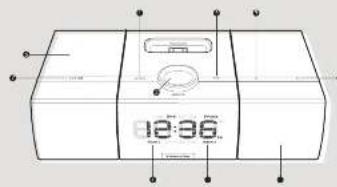
LED display
-
Control knob volume/spanze/
FM frequency - Play/pause con
- SOURCE CONTROL
- Alarm/1 St auto presets
- Detachable speaker - Alarm 1 sound
- Squeeze and alarm 1 on/off control
- Alarm 2 sound (attached speaker)
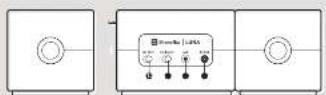
- SST OFF switch
- Set clock switch
- AUX in jack
- 12V-24 power jack
natural_image
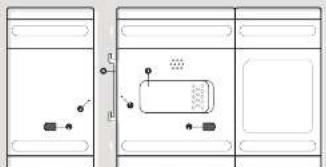
Pure electrical circuit lines without any symbols- Battery compartment
- Speaker cable jack
- Detachable speaker alignment dots
-
Speaker brackets
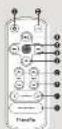
-
Power button
-
Source
- Volume controls
- Play:ouse
- Next / previous track
- Base controls
- Tschle control
- Alarm (FM radio presets
c. Sponze/na+cleo contro


XtremeMac
USING LUNA SST WITH SPEAKER CONNECTED
- Untie and extend the FM antenna connected on the back of the unit for best reception.
- If located in the US, skip to step 5. If located outside the US, select the appropriate wall adapter. If already attached to the unit, skip to step 5.
- Using a small object like a pen, press the button under the wall adapter to release the adapter
- Gently slide in the appropriate wall adapter. You will hear a click when it is properly locked into place.
- Connect the AC adapter jack to the back of the unit labeled 12V and then connect the other end of the adapter to a power outlet.
USING LUNA SST WITH THE SPEAKER DETACHED
PLACE SPEAKER UP TO 10 FEET/3 METERS AWAY FROM MAIN UNIT
-
Gently turn over the unit with the display and speakers facing toward you.
-
Remove shorter speaker cable from the jacks by pushing in the tab and pulling up. Repeat or other end and put cable in a safe spot for reconnecting at a later date.
- Connect longer speaker cable to the jacks on the bottom of the unit by inserting the cable until you hear a click.
- With the unit display facing toward you, gently slide the right speaker toward you and pull outward.
- Remove the two brackets on the speaker or unit by gently sliding to unlock and pulling outward. Keep brackets in a safe place for reconnecting.
- Turn main unit upright and place back on a flat surface close to a power outlet. Place the detachable wired speaker on a flat surface up to 10 feet/2 meters away
- Untic and extend the FM antenna connected on the back of the unit for best reception.
- If located in the US, skip to step 21. If located outside the US, select the appropriate wall adapter. If already attached to the unit, skip to step 21.
- Using a small object like a pen press the button under the wall adapter to release the adapter.
- Gently slide in the appropriate wall adapter. You will hear a
click when it is properly locked into place.
- Connect the AC adapter jack to the back of the unit labeled 12V and then connect the other end of the adapter to a power outlet.
Note. For an enhanced and customized walking experience, don't forget to download the Xeremotax also in clock app from the Times App store to your phone or road touch device.
RECONNECTING THE SPEAKER
- Unplug the AC adapter from the power outlet.
- Bring detachable speaker closer to the main unit and remove the speaker cable on the bottom of the unit.
- With the unit display facing toward you, place the two brackets (one on the top of the unit and one on the bottom) into the main unit by sliding and locking into place
- With the speaker facing you, line up the dot on the bottom center of the main unit with the dot on the bottom center of the detachable speaker and gently slice back into place.
- Connect the shorter speaker cable to the jacks or the bottom of the unit and set the SST switch on the back of the unit to off.
- Connect the AC adapter jack to the back of the unit labeled 12V and then connect the other end of the adapter to a power outlet.
SETTING THE TIME WITH YOUR IPOD OR IPHONE
Make sure the switch on the back of the unit is set to "Auto". Duck your iPod or iPhone and the unit will automatically pull the time from your device.
To change the time to 24 hour time, press and hold the source button. The display will blink with 10 or 24 hour time mode. Turn the control knob to choose 24 hour and press to confirm the setting.
SETTING THE TIME MANUALLY
- Make sure the switch on the back of the unit is set to 'Set'.
- Press and hold the source button. The display will blink with 12 or 24 hour time made. Turn the control knob to choose between 12 hour and 24 hour time and press the control to set. The display will then silence to set the time.
- Turn the control knob to change the hour, AM or PM in 12


XtremeMac™
hour mode (indicated by an AM or PM on the right of the
Time) and press to accept and advance to the minutes. 4. Turn the control knob to change the minutes and press to accept. The time is now set.
SETTING THE ALARMS
- Press and hold the alarm 1 or alarm 2 button on the top of the unit or on the remote. The display will show the alarm time and the hour will blink.
- Turn the control knob to change the hour and press to accept and advance to the minutes
- Turn the control knob to change the minutes and press to accept and advance to the wake to source. The source will be displayed at the top of the display.
Turn the control knob to change the source IChime, iPod/iPhone, or radio; and press to accept and advance to set the alarm volume level. - Turn the control knob to change the alarm volume level (from 3 to 4c) and press to accept. The alarm is now set.
- Repeat process for second alarm.
TURNING ON AND OFF THE ALARM
To activate the alarm, press the alarm 2 or alarm 2 button on the unit or the remote. Lune SST will show "Alarm 1" and/or "Alarm 2" on the display to show that it is activated. If you do not see the appropriate alarm on the display, press the corresponding alarm button on the top of the unit or on the remote to turn on the alarm. Press the corresponding alarm button again to turn off the alarm.
Note, if the source is set to iPod/Phone, select the track on your device that would live to wave to otherwise the alarms will sound to the next song on your iPod. If the source is set to radio, select a radio station that you would like to wake to otherwise the alarms will sound to the last radio station played.
USING THE SST FEATURE
On the back of the unit set the switch to SST. This feature is for using the detachable speaker for a companion or separate sounding alarm. When activated, alarm will sound only from the detached speaker and alarm will sound only from the speaker on the main unit. If the alarm is set to crime, the buzzer will sound from the bottom of the main unit only.
Name: When playing music, I'm there will play /are back speakers for him inside mental
When music is not playing and the alarm is not sounding, simply turn the control knob to adjust the display brightness. When music is playing, press the control knob once and "Simmer" will appear on the display. Turn the control knob to adjust the display brightness. The unit will time out after about five seconds and return back to volume mode.
USING THE SNOOZE/NAP/SLEEP CONTROL
To snooze: Alarm must be sounding.
Press the control knob on either the main unit or the snooze button on the detachable speaker to snooze when the alarm sounds. The default snooze time is 9 minutes, but can be adjusted through the XtremeMac alarm clock app. To cancel the snooze, turn off the alarm by pressing the corresponding alarm button.
To Activate Nap Timer: No audio can be sounding
Press and hold the control knob until the nap timer appears on the display. Turn the control knob to adjust the nap time from 1 - 120 minutes and press to set. The unit will sound with your iPhone/iPad if docked or the buzzer if no device is docked. To view and change remaining nap time, press the control knob once and retiate the knob to adjust the duration.
Press and hold the control knob to cancel. "Nap" will disappear from the display.
To Activate Sleep Timer: Audio must playing either than from an alarm)
Press and hold the control knob until the sleep timer appears on the display. Turn the control knob to adjust the sleep time from 1 - 6a minutes and press to set. To view and adjust remaining sleep time, press the control knob once and rotate the knob to adjust the duration.
Press and hold the control knob to cancel "Sleep" will disappear from the display.
Hawer turning will the analysis will also turn will the assay results.
PLAYING AND CHARGING YOUR IPOD/IPHONE
1 Use the insert designed for your iPhone or iPod and gently press it into the universal dock well.
The image is too blurry to recognize any text content.
- Carefully place your device into the clock well.
- Press play on the device or on the on the unit and use the controls on the unit or the included remote to adjust the volume.
LISTENING TO THE FM RADIO
- Press the source button on the top of the unit until radio is shown on the top of the display.
- Turn the control knob or use the remote to change the frequency. The tuning mode on the unit will time out after 5 seconds and the control knob will then control the volume. Press the source button to enter back into tuning mode.
- Use the control knob on the unit or use the remote to control the volume.
SETTING THE RADIO PRESETS
- When listening to the radio, use the control knob to tune to the station you want to set as a preset.
- Press and hold the preset button (alarm 1 or 2) on the unit or on the remote until the corresponding number appears on the display. Repeat for second preset.
- To recall the radio presets, simply press the corresponding preset button while in FM radio mode.
USING THE LINE-IN JACK
- Connect a 3.5mm audio cable (available at www.xtrememac.com) to the headphone or line out jack of an audio device and plug the other end of the cable into the "Aux" jack on the back of the unit.
- Press the source button on the unit to Aux and press play on the device. Use the controls on the unit or the device to control the volume.
USING THE ALARM CLOCK APP TO SET THE ALARMS
The XtremeMac alarm clock app will allow you to enhance and customize your waking experience. You can set your alarms on the go, specify snooze time, set volume ramping for the alarms and much more.
1. Download the XtremeVac alarm clock app from the iTunes App Store to your iPhone or iPad touch model.

XtremeMac
- Launch the app and customize your alarm settings.
- When all settings are complete, dock your iPhone or iPod touch and press the sync button for each alarm you would like to sync with the unit. The unit is now set with the updated alarm times.
TROUBLESHOOTING TIPS
NO POWER
Check AC adapter connection
Connect the AC adapter into the jack in the back of Luna labeled "Power" and then plug the AC adapter into the wall outlet.
Check wall outlet function
Plug another device into the same outlet to confirm the outlet is working.
Push the source button on the top of the unit or on the remote to select the desired audio source.
Check volume level
Turn the control knob or use the remote to adjust the volume
Check iPod connection
Remove your iPod from the dock well and re-dock to make sure it is properly connected.
Check the iPod/iPhone
Try restarting your device and then re docking to ensure a proper connection.
POOR FM RECEPTION
Check FM antenna
Untie and extend the FM antenna on the back of the unit. With the FM radio on, play with the positioning of the antenna.
The image is too blurry to recognize any text content.

XtremeMac
Félicitations!
Available on the App Store
The image is too blurry to recognize any text content.
INSTRUCTIONS DE SÉCURITÉ IMPORTANTES
For application in the words of these Post materials, we also need to be a well-
PREMIERS CONTACTS
-
Commandes Lecture/ Pause
-
Commande Source
-
Préréclages Alarme : Radic FM
-
(How) not sure it is possible.
c. Haut-partie
(1) 2017年
- Lammohne koppel-3 alarme et alarme
active / desactree
- In focus on the cement, adaptable to natural condition.
The image contains a graphical symbol, not text. According to the instructions, non-text figures/diagrams are to be ignored. Therefore, no OCR output is generated.
MAUVAISE RÉCEPTION FM
The image is too blurry to recognize any text content.
- Collegiate hierarchical data processing and analysis of the research methodology
Verificare iPod/iPhone
The image is too blurry to recognize any text content.
In the following: group of social workers, class of work and service, work in various groups and hand-to-hand association and selection for a breakdown of workers
The following work is not a result of the results that are not possible. The results are not
ulizare encode, adreeda: Uganda: 100% (or half)
- An eigenvalue of the system and ten endogenous systems,
• Sichan towards: coreter of ibrogen and hydroxybenzene
Historical: Mr. close of welcome and outside definite to Alzheimer's lung scillo Sia and Arla, Danielle Chemotherapy and X-ray/Ala, Am. Turbo, Age Stove and the iPhone oder ihren iPod touch reninserzuladen
ERNEUTES VERBINDEN DES LAUTSPRECHERS
The image contains a graphical symbol, not text. According to the instructions, non-text figures/diagrams are to be ignored. Therefore, no OCR output is generated.
ANPASSEN DER DISPLAYHELLIGKEIT:
The image is too blurry to recognize any text content.
[No a Estate ELL, GM1-7]
Data operate logical discrete example in non-vatience neural network (CCS-avg
PRIMEROS PASOS
The image contains a graphical symbol, not text. According to the instructions, non-text figures/diagrams are to be ignored. Therefore, no OCR output is generated.
The image is too blurry to recognize any text content.
INSTRUÇÕES DE SEGURANÇA IMPORTANTES
The image is too blurry to recognize any text content.
PARA REPRODUZIR E CARREGAR SEU IPOD OU IPHONE
USING THE ALARM CLOCK APP TO SET THE ALARMS:
The image is too blurry to recognize any text content.

XtremeMac
DICAS PARA A SOLUÇÃO DE PROBLEMAS
SEM ALIMENTAÇÃO
Verifique a conexão de adaptador de CA
Made in China | Fabrique en Chine. Designed in the USA, o Imation Corp XtremeMac, Luna and the "X" logo part trademarks of Imation Corp. "Made for iPod" and "Made for iPhone" mean that an electronic accessory has been designed to connect specifically to iPod or iPhone, respectively, and has been certified by the developer to meet Apple performance standards. Apple is not responsible for the operation of this device or its compliance with safety and regulatory standards. iPhone, iPod, iPod classic, iPod name and iPod touch are trademarks of Apple Inc., registered in the U.S. and other countries.
Distributed by Imation Enterprises Corp., Oakdale, MN, USA. Imation shall not be liable for any lost data or incidental or consequential damages related to this product.
Printed in China 05242010