3 in 1 Microdock - Speaker XTREMEMAC - Free user manual and instructions
Find the device manual for free 3 in 1 Microdock XTREMEMAC in PDF.


User questions about 3 in 1 Microdock XTREMEMAC
0 question about this device. Answer the ones you know or ask your own.
Ask a new question about this device
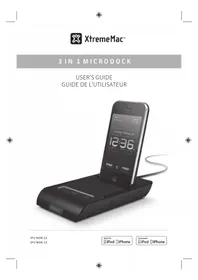
Download the instructions for your Speaker in PDF format for free! Find your manual 3 in 1 Microdock - XTREMEMAC and take your electronic device back in hand. On this page are published all the documents necessary for the use of your device. 3 in 1 Microdock by XTREMEMAC.
USER MANUAL 3 in 1 Microdock XTREMEMAC
Congratulations on your purchase!
Thank you for purchasing the 3 in 1 Microdock - the charging audio dock for iPod and iPhone. The following pages explain the features and operation of the 3 in 1 Microdock, so please take a few moments to read through this manual.

For a customized waking experience and full integration with this product, download the free XtremeMac alarm clock app from the iTunes App Store.
Note: app only works with iPhone and iPod touch models.
IN THE BOX:
3 in 1 Microdock
ACadapter
4 global wall adapters
Travel pouch
- Dock adapters for current iPod/iPhone
- User guide/warranty statement
- Wall adapters included in the international version only
IMPORTANT
Please read all safety instructions before proceeding. The answers to most set up and performance questions can be found in this manual or in the Troubleshooting Tips. If you have any further questions about the operation or use of this product please contact our consumer care team for assistance before returning it to the place of purchase.

XtremeMac
CUSTOMER SERVICE
Email:
support@xtrememac.com
Telephone number:
1-866-392-9800 (Toll free within the United States)
Hours of operation:
Monday through Friday, 12pm - 9pm EST
PRODUCT SAFETY
When used in the directed manner, this unit has been designed and manufactured to ensure your personal safety. However, improper use can result in potential electrical shock or fire hazards. Please read all safety and operating instructions carefully before installation and use, and keep these instructions handy for future reference.
The lightning flash with arrowhead, within an

equilateral triangle, is intended to alert the user to the presence of uninsulated "dangerous voltage" within the product's enclosure that may be of sufficient magnitude to constitute a risk of electric shock to persons.
Caution: To prevent the risk of electric shock, do not

remove cover (or back). No user-serviceable parts inside. Refer servicing to qualified service personnel.
The exclamation point within an equilateral triangle is

intended to alert the user to the presence of important operating and maintenance (servicing) instructions in the literature accompanying the appliance.
CAUTION: To prevent electric shock do not use this (polarized) plug with an extension cord, receptacle or other outlet unless the blades can be fully inserted to prevent blade exposure.
WARNING: To reduce the risk of fire or electric shock, do not expose this appliance to rain or moisture.


XtremeMac
IMPORTANT SAFETY INSTRUCTIONS
- Read these instructions.
- Keep these instructions.
- Heed all warnings.
- Follow all instructions.
- Do not use this apparatus near water - This apparatus shall not be exposed to dripping or splashing, and no objects filled with liquids, such as vases, shall be placed on the apparatus.
- Clean only with dry cloth
- Do not block any ventilation openings. Install in accordance with the manufacturer's instructions. The apparatus should not be situated on a bed, sofa, rug or similar surface that may block the ventilation openings
- Do not install near any heat sources such as radiators, heat registers, stoves, or other apparatus (including amplifiers) that produce heat.
- No naked flame sources, such as lighted candles, should be placed on the apparatus.
- Protect the power cord from being walked on or pinched—particularly at plugs, convenience receptacles, and the point where they exit from the apparatus.
- Do not install in an area which impedes the access to the power plug. Disconnecting the power plug is the only way to completely remove power to the product and must be readily accessible at all times.
- Power source—Use only the power supply that is included with this unit. Do not substitute with any other power supply.
- Unplug this apparatus during lightning storms or when unused for long periods of time.
- Refer all servicing to qualified service personnel. Servicing is required when the apparatus has been damaged in any way, such as power-supply cord or plug is damaged, liquid has been spilled or objects have fallen into the apparatus, the apparatus has been exposed to rain or moisture, does not operate normally, or has been dropped. For service, refer to qualified service personnel, return to the dealer, or call the XtremeMac service line for assistance.
GETTING STARTED
- Remove unit and AC adapter from the box and properly dispose of any plastic or foam packaging material.
- Place unit on a level surface following the precautions listed in the safety warnings.


XtremeMac
- If in the US, skip to step 6. If outside the US, select the appropriate wall adapter for your region. If already attached, skip to step 6.
- Using a small object like a pen, press the button under the wall adapter to release the adapter.
- Gently slide in the appropriate wall adapter. You will hear a click when it is properly locked into place.
- Connect the AC adapter jack to the back of the unit labeled 5V and then connect the other end of the adapter to a power outlet.
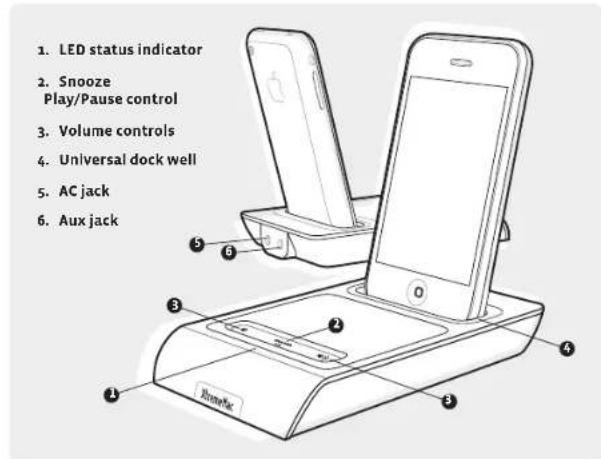
Note: For best results, don't forget to download the XtremeMac alarm clock app from the iTunes App Store to your iPhone or iPod touch.
System Specs:
Total power: 4W RMS Signal to noise ratio: 65dB
Speaker Specs:
Dual 1.25" neodymium drivers
Unit Specs:
3.15" w x 5.30" d x 0.70" h 4.7 oz unit weight

XtremeMac
USING THE ALARM CLOCK FUNCTION
SETTING THE ALARM
- Download the XtremeMac alarm clock app from the iTunes App Store to your iPhone or iPod touch model.
- Launch the app and press o customize your alarm settings. Do not exit the app.
- When all settings are complete, dock your iPhone or iPod touch.
- The LED on the unit will light up to show that an alarm is set.
Note: if the led is not lit, the alarms set through the xtrememac app will not sound. the alarms set through apple's included clock app will sound, but the led will not be lit and the snooze button on the unit will not work.
TO SNOOZE
Press the snooze button on your device or press the button on the unit. The unit will snooze for the amount of time you set with the app and "snoozing" will appear on the home screen.
TO TURN THE ALARM OFF
Press the alarm off on the app or press the home button to exit the app. You may also remove your device from the unit.
PLAYING AND CHARGING YOUR IPOD/IPHONE
- Use the insert designed for your iPhone or iPod and gently press it into the universal dock well.
- Carefully place your device into the dock well.
- Press play on the device or on the on the unit and use the controls on the unit to adjust the volume.
Note: The unit will charge your device while docked.
8


XtremeMac
USING THE LINE-IN JACK
- Connect a 3.5mm audio cable (available at www.xtrememac.com) to the headphone or line out jack of an audio device and plug the other end of the cable into the "Aux" jack on the back of the Microdock.
- Press play on the device and use the controls on the unit or the device to control the volume.
Note: The play/pause and snooze controls will not work when a device is connected through the line in jack.
TROUBLESHOOTING TIPS
NO POWER
Check AC adapter connection.
Connect the AC adapter into the jack in the back of Microdock labeled "SV" and then plug the AC adapter into the wall outlet. Make sure the AC adapter is not plugged into the Aux jack on the back of the unit.
Make sure to press play on your device or on the unit.
Check volume level
Press the volume control on the unit to raise the volume.
Check iPod/iPhone connection
Remove your iPod from the dock well and re-dock to ensure a proper connection.
Check the iPod/iPhone
Try restarting your device and then re-docking to ensure a proper connection.

9

XtremeMac
ALARM DID NOT SOUND
Check app
Make sure the XtremeMac alarm clock app is running when docked. Do not press the home button which will exit the app.
Check app settings
Make sure the alarm is set for the appropriate day and time.
FC
This equipment has been tested and found to comply with the limits for a Class B digital device, pursuant to Part 35 of the FCC Rules. These limits are designed to provide reasonable protection against harmful interference in a residential installation. This equipment generates, uses and can radiate radio frequency energy and, if not installed and used in accordance with the instructions, may cause harmful interference to radio communications. However, there is no guarantee that interference will not occur in a particular installation. If this equipment does cause harmful interference to radio or television reception, which can be determined by turning the equipment off and on, the user is encouraged to try to correct the interference by one or more of the following measures:
Reorient or relocate the receiving antenna.
Increase the separation between the equipment and receiver.
Connect the equipment into an outlet on a circuit different from that to which the receiver is connected
Consult the dealer or an experienced radio/TV technician for help.
This class B digital apparatus complies with Canadian ICES-003.
1011


XtremeMac
Felicitations!
For a customized waking experience and full integration with this product, download the free XtremeMac alarm clock app from the iTunes App Store.
Note: La aplicaciónsoleo的功能con los modelosiPhone y iPod touch.
IN THE BOX:
Available on the AppStore
Made in China | Fabrique en Chine. Designed in the USA. © Imation Corp. XtremeMac and the "X" logo are trademarks of Imation Corp. "Made for iPod" and "Made for iPhone" mean that an electronic accessory has been designed to connect specifically to iPod or iPhone, respectively, and has been certified by the developer to meet Apple performance standards. Apple is not responsible for the operation of this device or its compliance with safety and regulatory standards. iPhone, iPod, iPod classic, iPod nano and iPod touch are trademarks of Apple Inc., registered in the U.S. and other countries. Distributed by Imation Enterprises Corp., Oakdale, MN, USA. Imation shall not be liable for any lost data or incidental or consequential damages related to this product.
Printed in China 05242010