Incharge FM - Speaker XTREMEMAC - Free user manual and instructions
Find the device manual for free Incharge FM XTREMEMAC in PDF.


User questions about Incharge FM XTREMEMAC
0 question about this device. Answer the ones you know or ask your own.
Ask a new question about this device
Download the instructions for your Speaker in PDF format for free! Find your manual Incharge FM - XTREMEMAC and take your electronic device back in hand. On this page are published all the documents necessary for the use of your device. Incharge FM by XTREMEMAC.
USER MANUAL Incharge FM XTREMEMAC
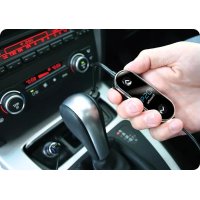
Wirelessly transmit music from iPod to any FM stereo

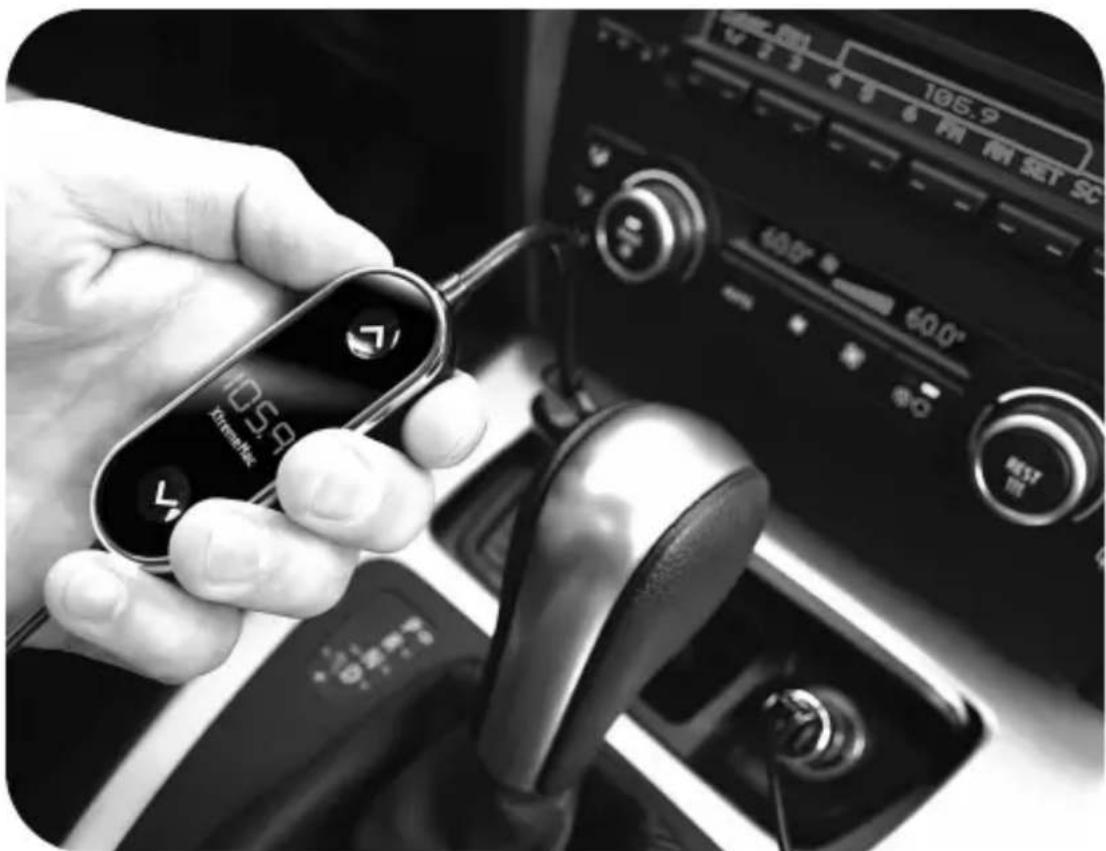
natural_image
Close-up of a hand holding a smartwatch with display, interacting with a car gear shift (no visible text or symbols)Table of contents
English 04
Française 10
Italiano 16
Deutsch 22
Español 29
Congratulations on your purchase!
Thank you for purchasing XtremeMac's InCharge FM – the best solution for charging and playing your iPod wirelessly through your car's FM stereo. InCharge FM is simple to use and is compatible with all iPod models with a dock connector. It charges while transmitting for unlimited playtime!
Package Contents
• InCharge FM transmitter
- Removable 12V accessory plug
- User manual

FCC ID: STQIPD10
Federal Communication Commission: Verified to comply with FCC Rules for Radiated and Conducted Emission, Part 15, Subpart B, for Class B Equipment.
This device complies with Part 15 of the FCC Rules. Operation is subject to the following two conditions: This device may not cause harmful interference. This device must accept any interference received, including interference that may cause undesired operation. Note that FCC regulations provide that changes or modifications not expressly approved by XtremeMac could void your authority to operate this equipment.



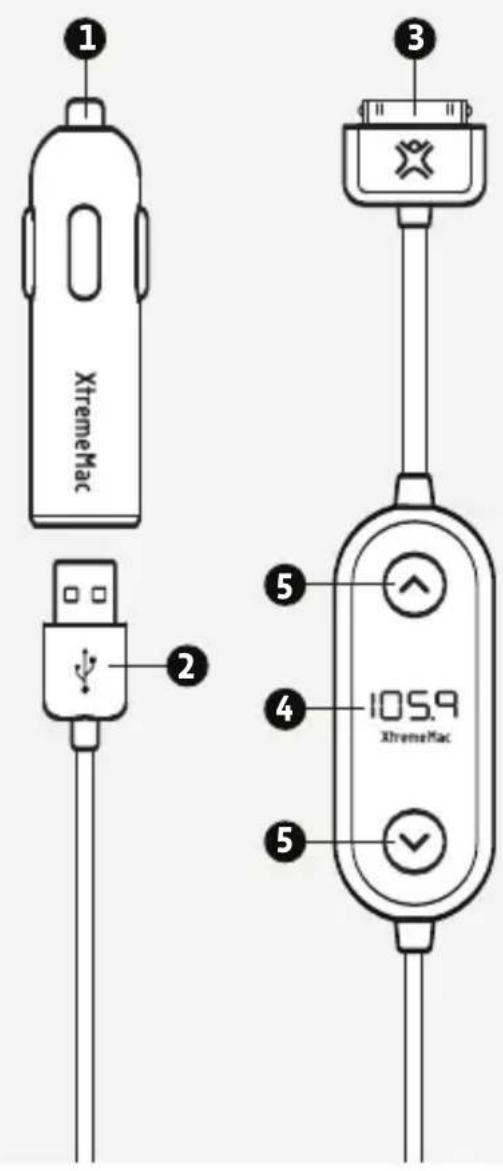
- 12v power adapter
- Removable USB cable
- Dock connector for i P o d
Frequency display
-
Tuning buttons
-
Preset buttons
- Mono/stereo switch
- Play/pause/next track b u tton


Getting Started
Step 1 - Tune your FM stereo
Locate a frequency that has only static – no talk or music. If you can't find a frequency with only static, tune to one that has the most amount of static and the least amount of talk or music.
Step 2 – Connect InCharge FM to your iPod
Make sure the USB end of the cable is plugged tightly into the car charger base. Then plug the car charger into your car's 12V accessory/cigarette lighter outlet. A blue power indicator will illuminate on the base indicating a proper connection. Next, attach the dock connector to your iPhone or iPod.
Step 3 - Tune InCharge FM
Once you connect InCharge FM to your iPod, the unit will activate and display a digital FM frequency. Use the buttons on the face of the unit to tune to the same frequency as the one on your FM stereo. The bottom button tunes down the frequency and the top button tunes up the frequency. Once the frequency on InCharge FM matches the one on your car stereo, press play on your iPhone or iPod and the unit will begin transmitting your music through your car stereo. Please note that while driving your selected frequency may fade or experience interference. If the signal becomes poor or the sound quality drops you should tune to a different frequency on your FM radio and repeat this step.
Step 4 – Programming and Using Preset Stations
Your InCharge FM offers two preset options for the FM frequencies that you use most often. To set, tune InCharge FM to the frequency you wish to select. Hold down either the one dot button or two dot button on the side of the unit until the displayed frequency begins to blink and then release. Repeat for your second preset option. When finished, simply press the button for the preset you would like to use.
Additional Features
Play/Pause/Next Track Button
InCharge FM includes this convenient button to play/pause the iPod or advance to the next track without having to access the touch screen. Press this button once to play/pause your music or press twice to advance to the next song.
Stereo and Mono Modes
InCharge FM allows you to choose between stereo (LX) and mono (DX) modes to ensure the clearest signal. Mono produces a stronger signal and is perfect for using in markets with a crowded FM dial or while listening to audio books. To switch between modes, simply slide the switch on the side of the unit.
Trouble Shooting Tips
NO POWER
Check InCharge Connections
Connect the USB end of the cable into the base and press the base firmly into the 12V accessory outlet.
Check iPod connection
Connect the dock connector end of the cable to the iPod.
NO SOUND
Check FM station
Tune your radio to a frequency that has the most amount of static and the least amount of talking or music. Tune the display on InCharge to the same frequency.
Check radio volume
Adjust the volume on the stereo, not on the iPod.
Warranty Information
What Does The Warranty Cover?
XtremeMac warrants that its products shall be free from defects in materials or workmanship, with the exceptions stated below.
What Is The Period Of Coverage?
This warranty runs for 90 days from the date of purchase.
What Does The Warranty Not Cover?
This warranty does not cover any defect, malfunction or failure that occurs as a result of: misuse or failure to follow the product directions; abuse; or use with improper, unintended or faulty equipment. Also, consequential and incidental damages are not recoverable under this warranty. Further, opening up the unit or removing any pieces from the product will immediately render your warranty null and void.
What Will XtremeMac Do To Correct The Problem?
XtremeMac will, at its option, repair or replace any product that proves to be defective in material or workmanship. If your product is no longer being manufactured, or is out of stock, at its option, XtremeMac may replace your product with a similar or better XtremeMac product.
How To Get Warranty Service?
To get a covered product repaired or replaced, you must contact XtremeMac during the warranty period by either calling (866) 392-9800 if you are in the U.S., or by e-mail (support@xtrememac.com). If you email XtremeMac, you must include your name, address, email address, telephone number, date of purchase and a complete description of the problem you are experiencing. If the problem appears to be related to a defect in material or workmanship, XtremeMac will provide you a return authorization and instructions for return shipment. Return shipments shall be at the customer's expense, and the return
must be accompanied by the original proof of purchase and in the original packaging. You should insure the shipment as appropriate because you are responsible for the product until it arrives at XtremeMac.
The above limited warranties and remedies do not extend to the iPod used with the product.

“Made for iPod” means that an electronic accessory has been designed to connect specifically to iPod and has been certified by the developer to meet Apple performance standards. Apple is not responsible for the operation of this device or its compliance with safety and regulatory standards.
Félicitations !
natural_image
Pure electrical circuit lines without any symbolsDROITE

Premiers contacts
natural_image
Pure electrical circuit lines without any symbolsDESTRA