
Pocket Cinema T25 - Projector AIPTEK - Free user manual and instructions
Find the device manual for free Pocket Cinema T25 AIPTEK in PDF.
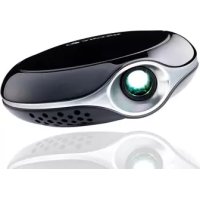



| Product type | Pico projector (mini projector) |
| Brand | Aiptek |
| Model | Pocket Cinema T25 |
| Optical technology | LCoS |
| Light source | RGB LED |
| LED life | More than 20,000 hours |
| Contrast ratio | 400:1 |
| Brightness | Up to 25 Lumens (mains power) / 18 Lumens (USB power) |
| Aspect ratio | 4:3 |
| Native resolution | 800 x 600 pixels (SVGA) |
| Projected image size (diagonal) | 5 to 73 inches (12.7 to 185.4 cm) |
| Projection distance | 20 to 300 cm |
| Focus | Manual (adjustment ring) |
| Power supply | USB 2.0 port (2 cables) or 5V/2A mains adapter |
| Dimensions (diameter x height) | 100 mm x 33 mm |
| Weight | 170 g |
| Package contents | Projector, USB cable, mains adapter, case, tripod, user guide |
| System requirements | Windows XP SP2 or later, dual-core processor, 2 GB RAM, 2 USB 2.0 ports |
| Maintenance and cleaning | Soft dry cloth, do not block ventilation openings |
| Safety | Do not look directly at the beam, use between 0 and 35°C, humidity 20-80% |
| Warranty | Refer to the warranty card provided |
Frequently Asked Questions - Pocket Cinema T25 AIPTEK
User questions about Pocket Cinema T25 AIPTEK
0 question about this device. Answer the ones you know or ask your own.
Ask a new question about this device
Download the instructions for your Projector in PDF format for free! Find your manual Pocket Cinema T25 - AIPTEK and take your electronic device back in hand. On this page are published all the documents necessary for the use of your device. Pocket Cinema T25 by AIPTEK.
USER MANUAL Pocket Cinema T25 AIPTEK
Thank you for purchasing this PocketCinema T25 from Aiptek.
PocketCinema T25 is the latest generation of Pico Projectors. You can easily connect it by USB to your computer. With its compact design and light weight, it fits perfectly in every bag. Thanks to the latest development, T25 offers a bright, colorful, and clear picture and is best for business presentations, slideshows, or just watching movies.
Before you start using the product, we recommend reading this manual step by step to obtain the best results with your new Pico Projector. We wish you a lot of fun.
Best regards
Your Aiptek Team
T25's User's Manual
Safety Notice:
- Do not let the projector fall down, and do not damage or detach the product; otherwise, your warranty will be void.
- Avoid any contact of the device with water and dry your hands before using the device.
- Do not expose the projector to high temperatures and direct sunlight.
- Handle the product with care. Avoid contact with sharp objects. Keep the device away from metallic objects.
- For your own safety, do not use the projector during thunderstorms or lightning.
- Only use accessories recommended by the manufacturer.
- Keep the projector out of reach of children.
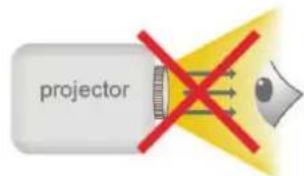
- Avoid facing directly into the projector's lens.
FCC Compliance Statement:
This device complies with Part 15 of the FCC Rules. Operation is subject to the following two conditions: (1) this device may not cause harmful interference, and (2) this device must accept any interference received, including interference that may cause undesired operation.
This equipment has been tested and found to comply with the limits for a Class B digital device, pursuant to Part 15 of the FCC rules. These limits are designed to provide reasonable protection against harmful interference in residential installations. This equipment generates, uses, and can radiate radio frequency energy, and if not installed and used in accordance with the instructions, may cause harmful interference to radio communications.

However, there is no guarantee that interference will not occur in a particular installation. If this equipment does cause harmful interference to radio or television reception, which can be determined by turning the equipment off and on, the user is encouraged to try to correct the interference by one or more of the following measures:
- Reorient or relocate the receiving antenna.
- Move the equipment away from the receiver.
- Plug the equipment into an outlet on a circuit different from that to which the receiver is connected.
- Consult the dealer or an experienced radio/television technician for additional suggestions.
You are cautioned that any changes or modifications to the equipment not expressly approved by the party responsible for compliance could void your authority to operate such equipment.
T25's User's Manual



If this product is at the end of its life, please recycle it properly. It cannot be treated as municipal waste. It must be disposed of separately through the appropriate return and collection systems available.
Care and Safety Information for Projectors:
Please follow all warnings, precautions, and maintenance as recommended in this user's guide.
Avoid Hearing Damage:
Listening at high volume for a long period of time could cause damage to your ears.

Eye Safety Warnings!
Avoid staring or facing directly into the projector beam at all times.
Usage Notice:
Do:
Turn off and unplug the power before cleaning the product.
Use a soft dry cloth with mild detergent to clean the display housing.
Unplug the power if the product is not used for a long period of time.
Ensure that the ambient room temperature is within 0 - 35°C.
Relative Humidity is 20 - 80% (80% Max.) non-condensing.
It's normal that the projector will feel warm with continuous use due to its high performance.
Do not:

Block the ventilation opening.
Use abrasive cleaners, waxes or solvents to clean the unit.
Use under the following conditions:
In extremely hot, cold or humid environments. In areas susceptible to excessive dust and dirt. Near any appliance generating a strong magnetic field. In direct sunlight.
T25's User's Manual
Table of Contents
ENDE
Package Contents Product Overview.. 5 Power the projector . 6 System Requirements.. 6 Install the Driver.. 6 Start the Projection Projection Size and Distance. Specifications . Page 9 Troubleshooting Page 10 Warranty
T25's User's Manual
Package Contents
Please check that the package contains the following items:
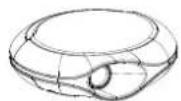

USB projector USB cable User's guide
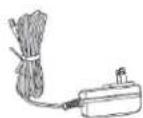
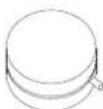
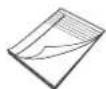
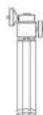
AC Power Adapter Pouch Tripod
Product Overview
PocketCinema T25 provides several connections and for operation:
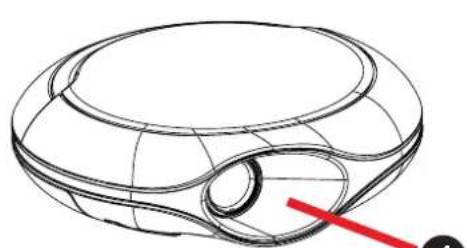
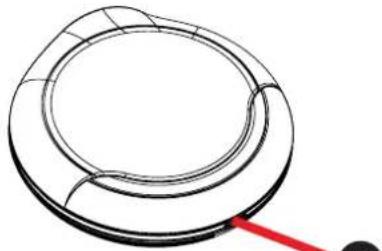
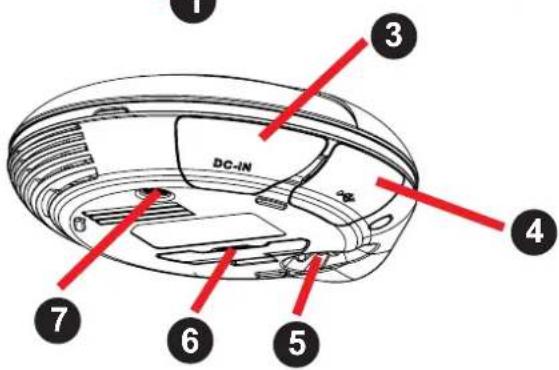
Lens Blue Power LED, lid when T25 has power 3 DC-In: To connect with power adapter USB Jack: To connect with USB cable to PC/Notebook
Focus Ring: To adjust projection focus by rolling the ring. 6 Stand: To project picture to a higher level without using tripod Tripod Socket: To use the tripod to bring projection to a higher level
Power the projector
PocketCinema T25 can get the power in two different ways
- Power adapter: If power adapter is connected the brightness can reach 25 peak lumens. In power mode it's not necessary to connect the second (yellow) USB cable with your PC/Notebook.
- USB Mode: In USB mode, both USB cables (black for data and yellow for power) need to be connected with T25. The brightness can reach 18 peak lumens in USB mode.
System Requirements
Your system should have at least the following specifications to make PocketCinema T25 working smoothly on your system:
Operating System: Windows XP SP2 or higher, Windows Vista, Windows 7
CPU: Dual Core CPU or higher
RAM: 2GB DDR RAM or higher
Interface: 2x free USB 2.0 Ports (1x free USB port if AC adapter is used)
Hard Disk: 50MB free space
Install the Driver
Before using the projector to projection, you need to install the Pico Projector driver on your Notebook/PC.
- Use USB cable to connect the device to your Notebook/PC. The T25 is detected as mass storage device and a pop-up window appear. Click the icon to open the folder and than "Pico Projector.exe" to start the driver installation.
- The Setup Wizard will appear to select the language you prefer. Simply follow the on-screen instructions to continue the installation.
- During the driver installation, Hardware Installation dialog may pops up. Please click Continue Anyway on the Hardware Installation dialog window.
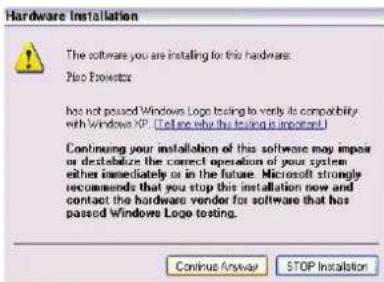
For Windows XP For Windows Vista /7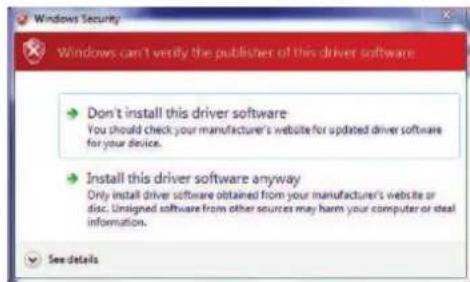
T25's User's Manual
- When the driver installation is completed, a Computer Restart dialog will pop up. Please choose "Yes" to reboot your computer, and then click "Finish" to close the program.
- After rebooting, the Pico Projector is installed in your Notebook/PC successfully.
Start the Projection
After installation, you will find the Pico Projector icon on your desktop. Click on the icon to start the projection. After a few seconds, the Control Panel of the projector will appear on the screen and the projection starts automatically. Then the control icon of the Pico Projector will appear in the function bar next to the clock.
The Control Panels show three functions:
- Full Screen: The projected image has the same resolution as your PC. The picture is displayed 1:1 and shrunk to the native resolution of the Pico Projector automatically. Use this mode on powerful PCs if you need the full resolution.
- Compatible Mode: In compatible mode, the resolution of your PC is reduced to 800x600 pixels and projects with T25. The advantage is a possibly better picture quality and better performance of your system.
- Exit: This mode will turn off the projector and close the driver.
Please remember that every time you want to use the projector, please follow the steps below:
- Use a USB cable to connect the projector with your Notebook/PC. Use a second USB or adapter for needed power.
- Open the Pico Projector application by clicking the icon on the desktop.
- Choose the best mode for your projection.
Using a netbook with an Atom CPU or other single-core processor may affect the performance of your system. Some suggestions might help make the projection smoother.
- Adjust the video resolution to below 640x480.
T25's User's Manual
- Select "Compatible Mode" to project.
- Use the following license-free media player for video playback from
http://kmplayer.en.softonic.com
To save power, unplug the USB cable from the notebook/PC when you have finished your presentation.
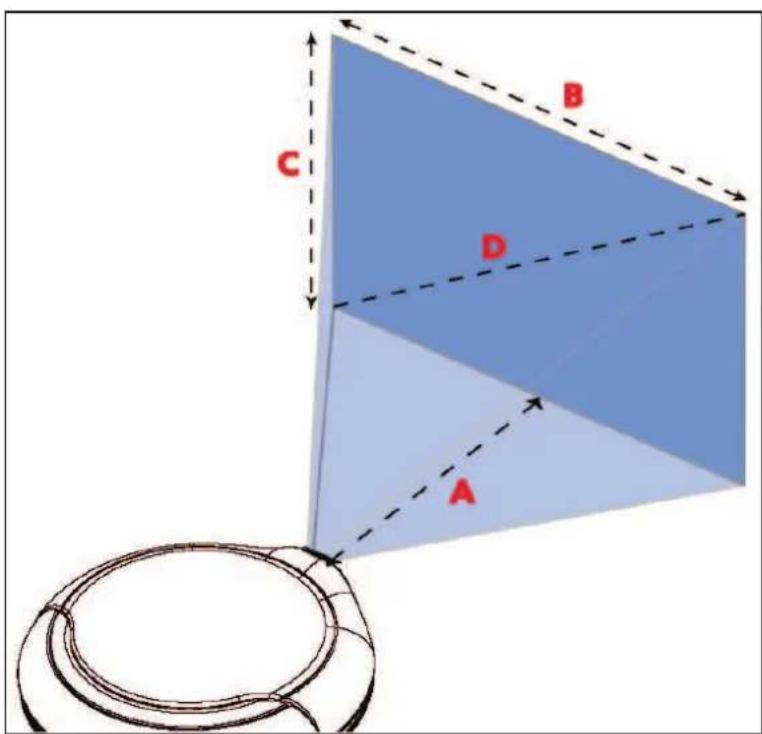
Projection Size and Distance
| Projection Distance (A) | Screen Size-Width (B) | Screen Size-Height (C) | Screen Diagonal (D) | ||||
| cm inch | cm inch | cm inch cm | inch | ||||
| 20.0 | 7.9 9.5 3 | 8 7.6 3.0 | 12.7 5.0 | ||||
| 100.0 | 39.4 46.5 | 18.3 37.2 | 14.6 62 | 0 24.4 | |||
| 131.2 | 51.7 61.0 | 24.0 48.8 | 19.2 81 | 3 32.0 | |||
| 172.4 | 67.9 80.0 | 31.5 64.0 | 25.2 10 | 6.7 42.0 | |||
| 213.5 | 84.1 99.1 | 39.0 79.2 | 31.2 13 | 2.1 52.0 | |||
| 246.5 | 97.0 114. | 3 45.0 91. | 4 36.0 1 | 52.4 60.0 | |||
| 300.0 | 118.1 139. | 9.1 54.8 | 11.3 43.8 | 185.4 73.0 | |||
Specifications
| Optical Technology LCoS | |
| Light Source RGB LED | |
| LED Lifetime > 20,000h | |
| Contrast 400:1 | |
| Brightness | USB Power: Up to 18 Lumens |
| AC Power: Up to 25 Lumens | |
| Aspect Ratio 4:3 | |
| Native Resolution 800 x600 (SVGA) | 600 (SVGA) |
| Projection Image Size 5' ~ 73" (12.7cm ~ 185.4cm) (Diagonal) | |
| Projection Distance 20cm ~ 300cm | |
| Zoom & Focus Manual | |
| Display mode | Mirror mode (Full Screen, Compatible Mode) |
| Projection Source | Notebook or Netbook PC via USB 2.0 |
| Power Supply | From Notebook/PC USB port(s) or 5V/2A AC adapter |
| Driver installation | Manual |
| Dimension | Diameter: 100mm x Height: 33mm |
| Weight | 170g |
| Model Code | RTS (T25) |
| Humidity | 20-80%, 80% (Max.), non-condensing |
| Operating Temperature | 0-35°C |
Troubleshooting
If your projector does not seem to be functioning properly, check the items below before contacting an authorized service center.
| Symptom Check Point | |
| The projector cannot be turned on | Check to make sure that all connectors are plugged in · correctly. Make sure the USB port is USB 2.0. · Try a different USB 2.0 port or another computer. · Check the power led indicator is · ON. Try connecting to USB port of the Notebook directly instead of through the hub. Unplug all other USB devices from the system. · · Make sure to restart your computer after thedriver installation. · Unplug the device and re-insert it. |
| The projected image is too dark | · Use the projector in a darker environment. ·Increase the brightness by using the AC power adapter. ·Decrease the size of projected image. |
| The projected image is dim | ·Adjust the focus. Please refer to “Adjusting the Projected Image”. ·Check if the lens is dirty. |
| Can not click Pico Projector application | If you have problems during the boot up process, start · your computer in Safe Mode and un-install the driver. |
| The surface temperature of projector ascended | ·Because of the high-luminance LED equipped, it is normal for this projector to generate heat in long-time use. This will not affect the performance of projector. The projector case will help to dissipate heat so that its surface temperature will ascend. Always keep the ventilation slots free of dirt or obstructions and operate the projector in a properly ventilated environment. |
Warranty
Please note the supplied warranty card to learn more about warranty conditions, the Aptek Service, and contact information for your country.


- T25'S USER'S MANUAL
- SAFETY NOTICE
- FCC COMPLIANCE STATEMENT
- CARE AND SAFETY INFORMATION FOR PROJECTORS
- AVOID HEARING DAMAGE
- EYE SAFETY WARNINGS
- USAGE NOTICE
- DO NOT
- TABLE OF CONTENTS
- ENDE
- PACKAGE CONTENTS
- PRODUCT OVERVIEW
- POWER THE PROJECTOR
- SYSTEM REQUIREMENTS
- INSTALL THE DRIVER
- START THE PROJECTION
- TROUBLESHOOTING
- WARRANTY
Brand : AIPTEK
Model : Pocket Cinema T25
Category : Projector