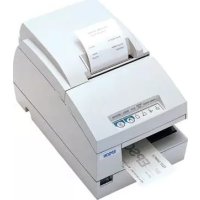
TMU675P - Printer EPSON - Free user manual and instructions
Find the device manual for free TMU675P EPSON in PDF.



| Product Type | Impact Matrix Printer |
| Brand | Epson |
| Model | TM-U675P |
| Print Method | 9-pin serial impact dot matrix |
| Print Speed | Approx. 5.14 LPS (40 columns at 17.8 CPP) |
| Character Sets | 95 alphanumeric, 37 international, 128 × 12 extended graphic pages |
| Interfaces | RS-232C / Bidirectional Parallel / RS-485 (option) |
| Data Buffer | Selectable for 45 bytes or 4 KB |
| Paper Formats | Receipt, slip, endorsement |
| Receipt Paper Width | 76 mm or 82.5 mm |
| Number of Copies | 1 original + 2 copies |
| Ink Ribbon | ERC-32(P) – life span 6 million characters |
| Power Supply | +24 VDC ± 10%, consumption 1.8 A |
| Operating Temperature | 5°C to 45°C |
| Humidity | 10 to 90% non-condensing |
| Dimensions (H × W × D) | 195 mm × 186 mm × 298 mm |
| Weight | Approx. 4.8 kg (without cutter) / 5.8 kg (with cutter) |
| Reliability | MTBF 180,000 hours, MCBF 37 million lines |
| Special Functions | Magnetic character reader (factory option) |
| Maintenance | Clean print head and magnetic reader with suitable cleaning sheet |
| Standards | CE, FCC/ICES-003 Class A, VCCI Class A |
Frequently Asked Questions - TMU675P EPSON
User questions about TMU675P EPSON
0 question about this device. Answer the ones you know or ask your own.
Ask a new question about this device
Download the instructions for your Printer in PDF format for free! Find your manual TMU675P - EPSON and take your electronic device back in hand. On this page are published all the documents necessary for the use of your device. TMU675P by EPSON.
USER MANUAL TMU675P EPSON
This manual is applied to the TM-U675/TM-U675P with an autocutter (factory option) and without an autocutter. The illustrations used in this manual might be different from your printer.
All rights reserved. No part of this publication may be reproduced, stored in a retrieval system, or transmitted in any form or by any means, electronic, mechanical, photocopying, recording, or otherwise, without the prior written permission of Seiko Epson Corporation. No patent liability is assumed with respect to the use of the information contained herein. While every precaution has been taken in the preparation of this book, Seiko Epson Corporation assumes no responsibility for errors or omissions. Neither is any liability assumed for damages resulting from the use of the information contained herein.
Neither Seiko Epson Corporation nor its affiliates shall be liable to the purchaser of this product or third parties for damages, losses, costs, or expenses incurred by purchaser or third parties as a result of: accident, misuse, or abuse of this product or unauthorized modifications, repairs, or alterations to this product, or (excluding the U.S.) failure to strictly comply with Seiko Epson Corporation's operating and maintenance instructions.
Seiko Epson Corporation shall not be liable against any damages or problems arising from the use of any options or any consumable products other than those designated as Original Epson Products or Epson Approved Products by Seiko Epson Corporation.
EPSON and ESC/POS are registered trademarks of Seiko Epson Corporation.
NOTICE: The contents of this manual are subject to change without notice.
Copyright © 1999 by Seiko Epson Corporation, Nagano, Japan.
EMC and Safety Standards Applied
Product Name: TM-U675/U675P
Model Name: M146A (without autocutter)
M146B (with autocutter)
The following standards are applied only to the printers that are so labeled. (EMC is tested using the EPSON PS-170 power supply.)
Europe: CE marking
Safety: EN 60950
North America: EMI: FCC/ICES-003 Class A Safety: UL 1950/CSA C22.2 No. 950
Japan: EMC: VCCI Class A JEIDA-52
Oceania: EMC: AS/NZS 3548 Class B
WARNING
The connection of a non-shielded printer interface cable to this printer will invalidate the EMC standards of this device.
You are cautioned that changes or modifications not expressly approved by SEIKO EPSON Corporation could void your authority to operate the equipment.
CE Marking
The printer conforms to the following Directives and Norms:
Directive 89/336/EEC EN 55022 Class B
EN 55024
EN 61000-4-2
EN 61000-4-3
EN 61000-4-4
EN 61000-4-5
EN 61000-4-6
EN 61000-4-11
Directive 90/384/EEC EN45501
FCC Compliance Statement For American Users
This equipment has been tested and found to comply with the limits for a Class A digital device, pursuant to Part 15 of the FCC Rules. These limits are designed to provide reasonable protection against harmful interference when the equipment is operated in a commercial environment.
This equipment generates, uses, and can radiate radio frequency energy and, if not installed and used in accordance with the instruction manual, may cause harmful interference to radio communications.
Operation of this equipment in a residential area is likely to cause harmful interference, in which case the user will be required to correct the interference at his own expense.
FOR CANADIAN USERS
This Class A digital apparatus complies with Canadian ICES-003.
Safety Precautions
This section presents important information intended to ensure safe and effective use of this product. Please read this section carefully and store it in an accessible location.

WARNING:
Shut down your equipment immediately if it produces smoke, a strange odor, or unusual noise. Continued use may lead to fire or electric shock. Immediately unplug the equipment and contact your dealer or a SEIKO EPSON service center for advice.
Never attempt to repair this product yourself. Improper repair work can be dangerous.
Never disassemble or modify this product. Tampering with this product may result in injury, fire, or electric shock.
Be sure to use the specified power source. Connection to an improper power source may cause fire or shock.
Never insert or disconnect the power plug with wet hands. Doing so may result in severe shock.
Do not allow foreign matter to fall into the equipment. Penetration of foreign objects may lead to fire or shock.
If water or other liquid spills into this equipment, unplug the power cord immediately, and then contact your dealer or a SEIKO EPSON service center for advice. Continued usage may lead to fire or shock.
Do not place multiple loads on the power outlet (wall outlet).
Overloading the outlet may lead to fire.
Always supply power directly from a standard domestic power outlet.
Handle the power cord with care. Improper handling may lead to fire or shock.
Do not modify or attempt to repair the cord.
Do not place any object on top of the cord.
Avoid excessive bending, twisting, and pulling.
Do not place cord near heating equipment.
Check that the plug is clean before plugging it in.
Be sure to push the prongs all the way in.
If the cord becomes damaged, obtain a replacement from your dealer or a SEIKO EPSON service center.

CAUTION:
Do not connect cables in ways other than those mentioned in this manual. Different connections may cause equipment damage and burning.
Be sure to set this equipment on a firm, stable, horizontal surface.
Product may break or cause injury if it falls.
Do not use in locations subject to high humidity or dust levels. Excessive humidity and dust may cause equipment damage, fire, or shock.
Do not place heavy objects on top of this product. Never stand or lean on this product. Equipment may fall or collapse, causing breakage and possible injury.
To ensure safety, please unplug this product prior to leaving it unused for an extended period.
Do not touch the print head. Wait for the head to cool. The head can be very hot after printing for a long time. Touching it may cause burns.
Labels

WARNING:
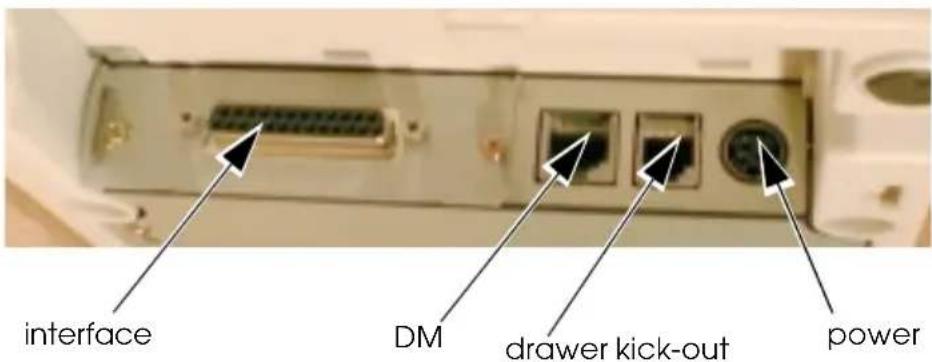
Do not connect a telephone line to the drawer kick-out connector or the display module connector; otherwise the printer and the telephone line may be damaged.


CAUTION:
Do not touch the print head. Wait for the head to cool. The head can be very hot after printing for a long time. Touching it may cause burns.
Connectors
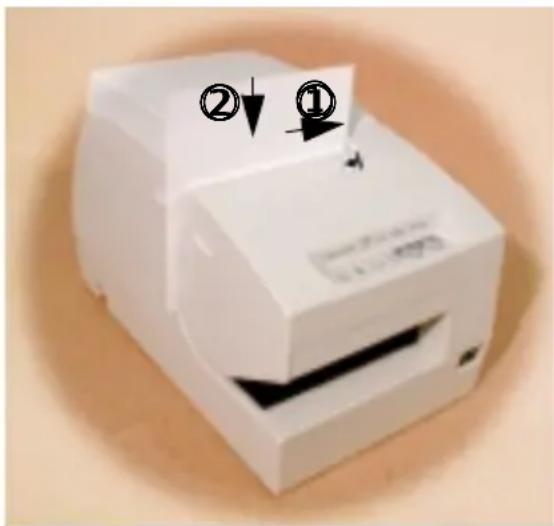
Opening the Paper Roll Cover
If you open the cover of an autocutter-equipped printer except to install a paper roll, be sure to follow the steps below to prevent a paper jam.
- Feed the roll paper approximately 50mm (1.97").
- Cut the paper with the manual cutter.
- Close the cover.
without an autocutter
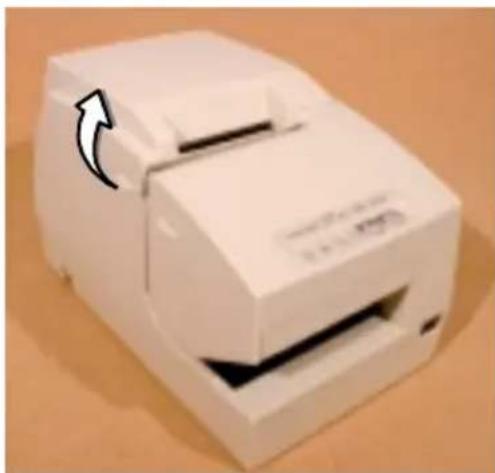
with an autocutter
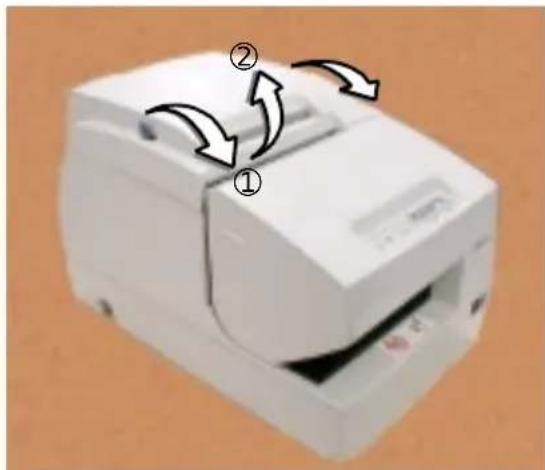
Installing the Paper Roll
Note:
Do not use paper rolls that have the paper glued or taped to the core because they might cause a paper jam.
You need to install a paper roll even if you are using only the slip or validation sections of the printer.
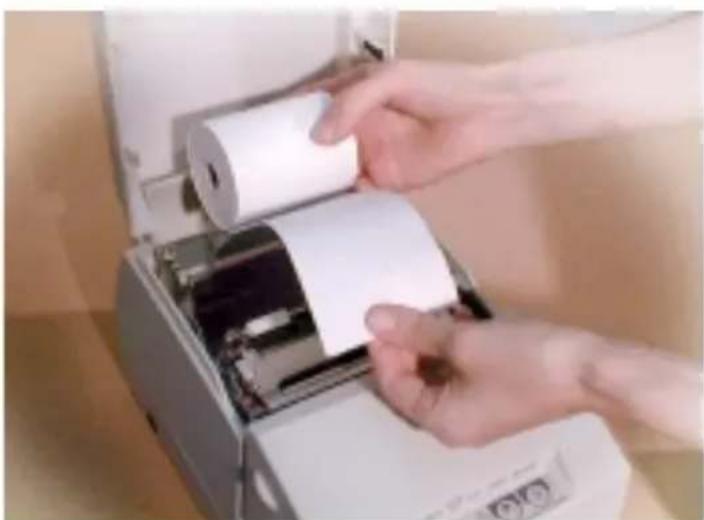

Turn on the printer. Hold both edges of the paper and insert it into the paper slot. It will be fed automatically into the printer.
For 2-ply paper, insert the journal paper into the take-up spool as shown below. Be sure that 40mm to 60~mm (1.5" to 2.25") of paper extends beyond the spool and that the edge of the paper is against the flange.
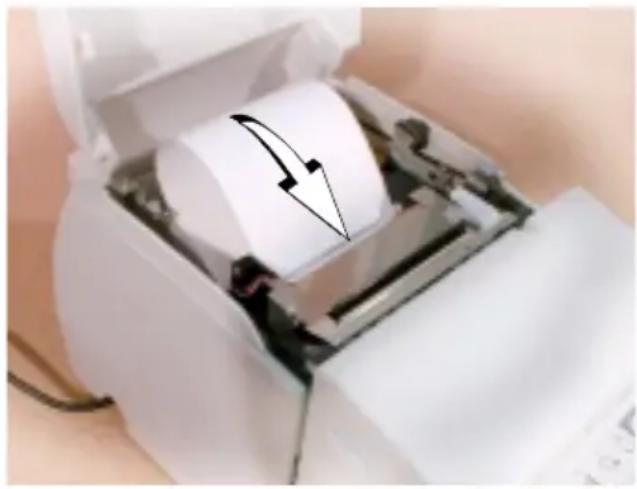
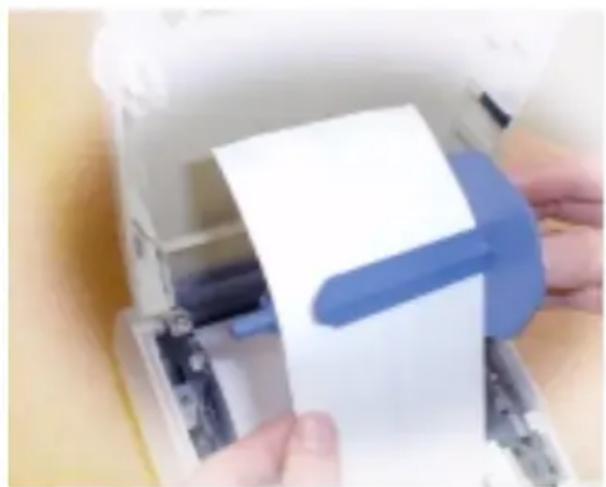
Insert the take-up spool and tear off the receipt paper, as shown below.
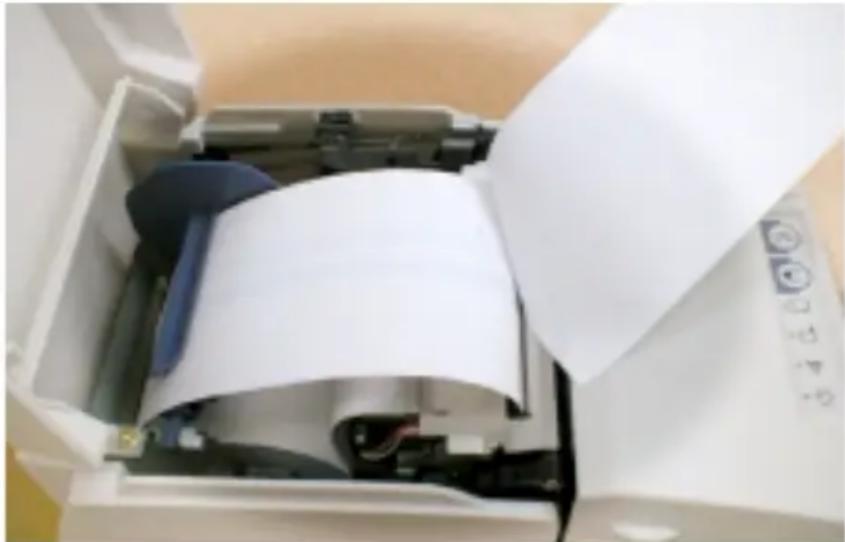
If you need to remove roll paper before it is all gone, follow these steps:
- Lift up the take-up spool with the journal paper attached.
- Cut the paper off behind the paper insert slot.
- Push the release lever (located on the right side of the paper roll).
English
Then pull out the remaining paper in the paper feed direction. Always pull paper in the paper feed direction to prevent damage to the printer mechanism.
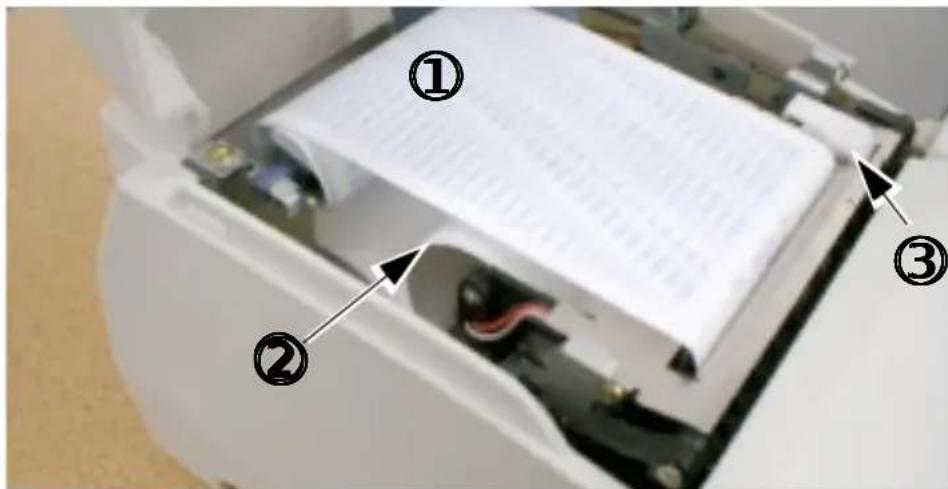
Installing the Ribbon
EPSON recommends the use of genuine EPSON ribbon cassettes.
Turn on the printer. Turn the knob on the ribbon cartridge. Open the front cover of the printer, and insert the new ribbon. Turn the knob two or three times and check the ribbon position.
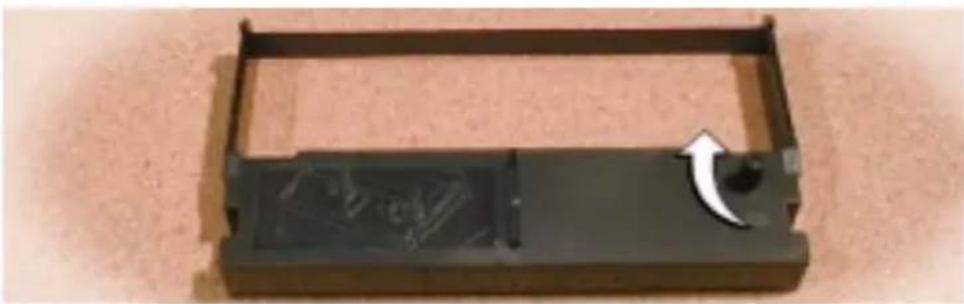
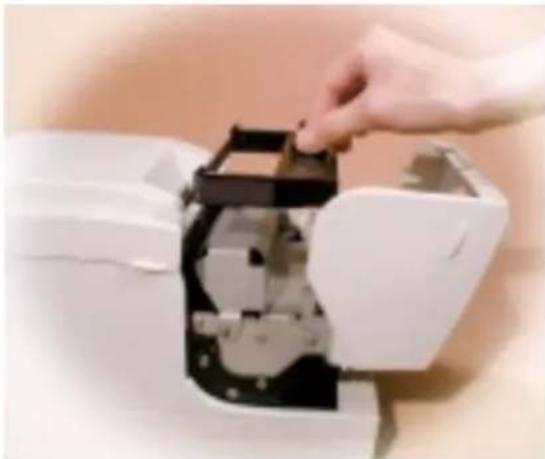
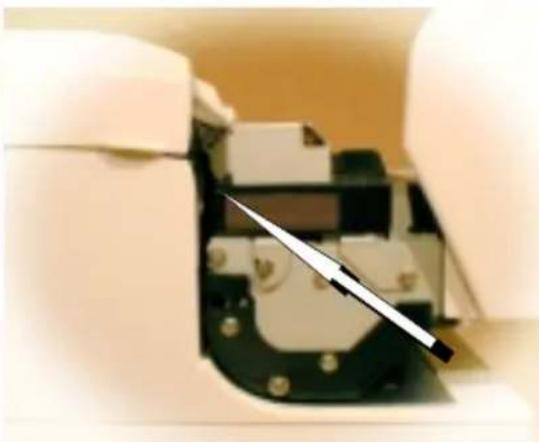
ribbon position
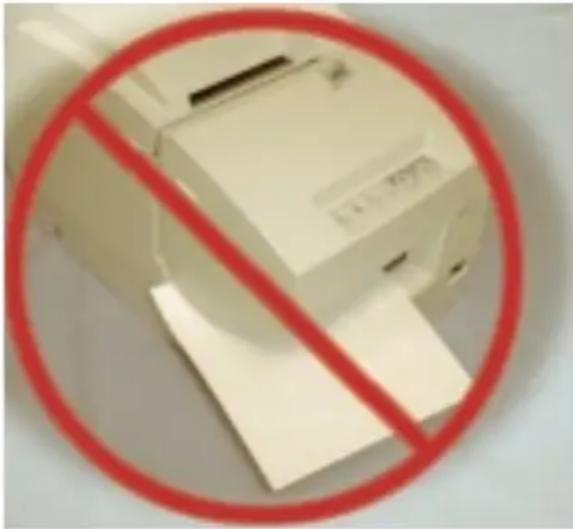
Inserting Slip Paper
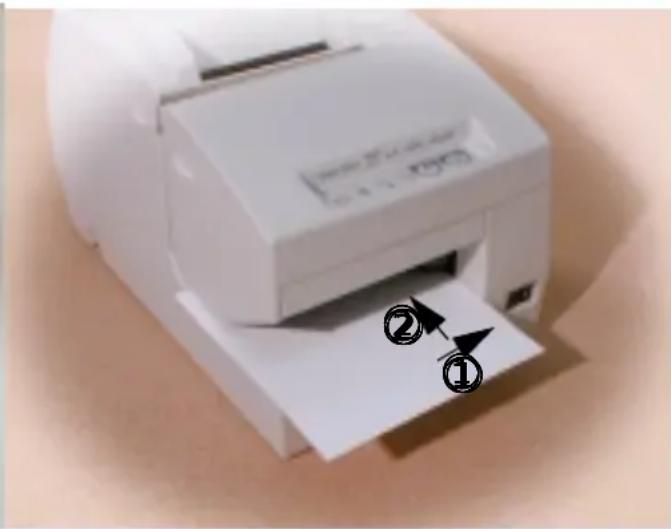
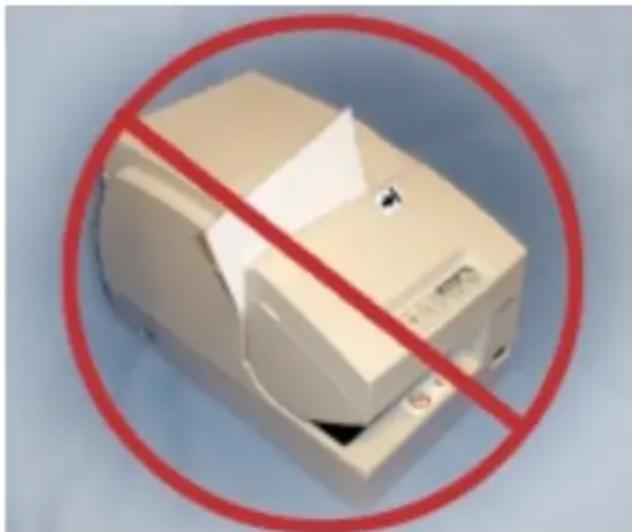
Inserting Validation Paper
Troubleshooting
Error light on or blinking.
Make sure that the printer cover is properly closed.
Turn off the printer and check for a paper jam. After removing the paper jam, turn on the printer.
Opening the printer mechanism
For difficult paper jams or to remove objects that have fallen in the printer, follow the steps below:
- Turn off the printer and open the paper roll cover. Raise the mechanism by pushing the levers backward in the direction indicated by the arrows.
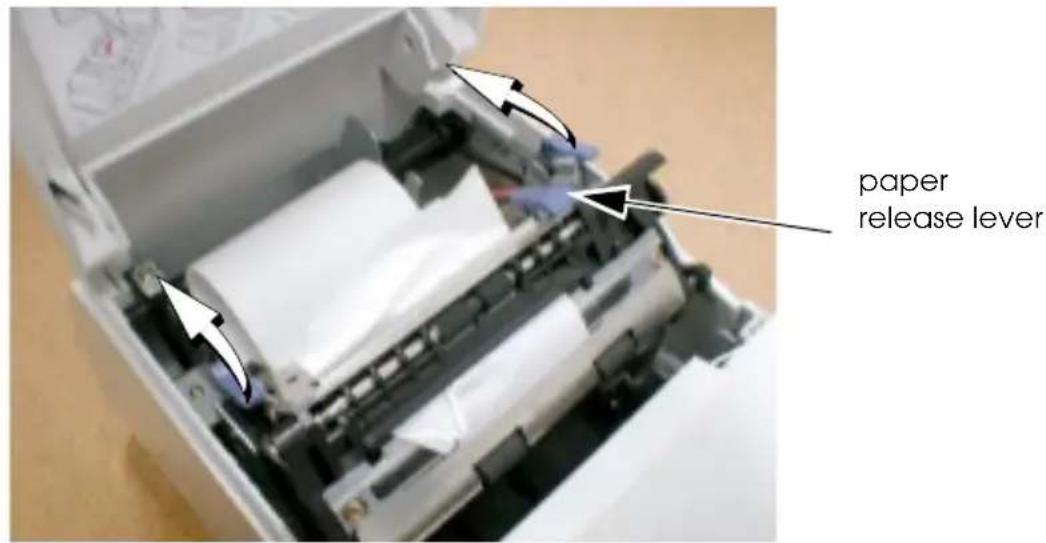
- Press the paper release lever and pull the jammed paper out in the paper feed direction or remove the object that was dropped in the printer. Always pull paper in the paper feed direction to prevent damage to the printer mechanism. Then push the mechanism back into place until you feel it click.
Turn on the printer. If you cannot solve the problem, contact your dealer or a qualified service person.
MICR Option (factory option)
Reading MICR Characters On Personal Checks

CAUTION:
Do not insert checks with staples in them. This may cause paper jams,
MICR reading errors, and damage to the MICR head.
Be sure the checks are flat, without curls, folds, or wrinkles.
- Wait until the SLIP light blinks. Then insert the check face up with the right side of the check against the right side of the paper inlet as far as it will go. Be sure that the MICR characters are on the right.
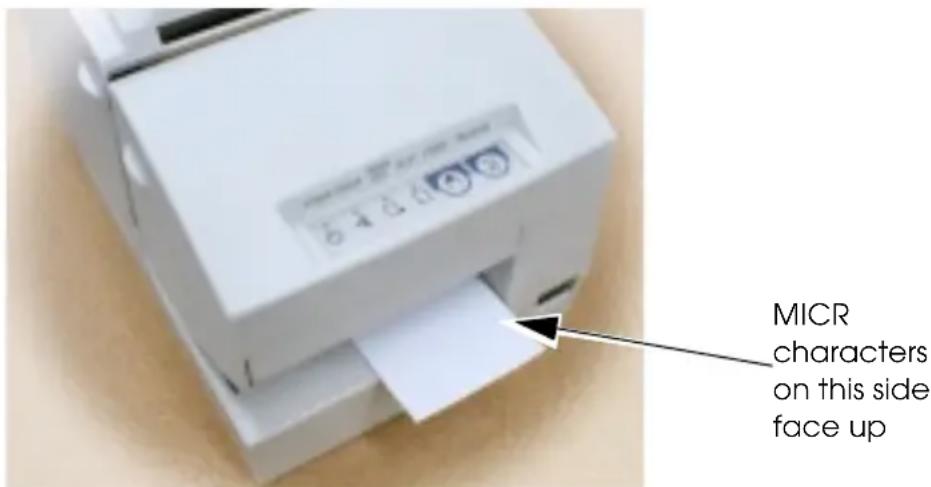
- The printer will detect the check and start drawing it in. When the printer starts drawing it in, let go of the check immediately. When the printer ejects the check and the SLIP light starts blinking again; remove the check by pulling it straight up; do not pull it at an angle.
Cleaning the MICR Mechanism
Once a year clean the MICR head with a moistened cleaning sheet.
Use the following or an equivalent commercially available cleaning sheet:
PRESAT brand (KIC) "CHECK READER CLEANING CARD."
Note:
Be sure not to use an adhesive cleaning sheet.
Follow the steps below:
- Load a paper roll in the printer; turn off the power; then open the paper roll cover and turn the power back on while holding down the RELEASE button.
- Press the RELEASE button seven times; then close the paper roll cover. The printer prints the following message on receipt paper and the SLIP light flashes.
RECOGNITION MODE **** Please set check.
- Insert the cleaning sheet like a standard check.

CAUTION:
Be sure that the sheet is inserted with the correct side up and that it is inserted in the correct direction.
Use a cleaning sheet only one time; then discard it.
- When the sheet is ejected, press the RELEASE button, and remove the sheet from the printer.
Notes on Using the MICR Reader
Do not install the printer near any magnetic fields. Be especially careful where you install your display device and be sure to check the recognition rate of the MICR reader with the display device in place.
Make sure that the printer is not subjected to any impact or vibration when it is performing a MICR reading.
TM-U675/U675P Specifications
| Print method: | 9-pin serial impact dot matrix |
| Print font: | 5 · 9 / 7 · 9 |
| Columns: | 37 / 50 columns (receipt) 45 / 60 columns (slip/Validation) |
| Character size: | 1.56 mm · 3.1 mm / 1.24 mm · 3.1 mm {0.006" · 0.12" / 0.49" · 0.12"} |
| Character sets: | 95 alphanumeric, 37 international characters 128 · 12 pages extended graphic characters |
| Print speed: | Approximately 5.14 LPS* (40 columns at 17.8 CPI**) |
| Paper dimensions: | |
| Receipt: | paper width: 76 mm ± 0.5 mm {2.99" ± 0.0197"} or 82.5 mm ± 0.5 mm {3.25" ± 0.0197"} outside diameter: 60 mm {2.36"} or less for single-ply journal 89 mm {3.50"} or less for single-ply receipt 83 mm {3.27"} or less for 2-ply or 3-ply spool diameter (inside): 10 mm {0.39"} or more |
| Slip: | 70 mm -148 mm · 150 mm - 210 mm {2.76" - 5.83" · 5.9" - 8.27"} (W·L) |
| Validation: | 148 mm -150 mm · 70 mm - 210 mm {5.83" - 5.9" · 2.76" - 8.27"} (W·L) |
| Paper thickness (1-ply): | Receipt: 0.06 mm - 0.085 mm {0.0024" - 0.0033"} Slip/Validation: 0.09 mm - 0.2 mm {0.0035" - 0.0079"} |
| Copy capability: | Receipt: 1 original + 2 copies Slip/Validation: 1 original + 2 copies |
| Inked ribbon: | ERC-32(P) |
| Ribbon life: | 6 million characters |
| Interface (compatible): | RS-232C / Bidirectional parallel / RS-485 (dealer option) |
| Data buffer: | Selectable for 45 bytes or 4 Kbytes using DIP switch |
| D.K.D. function: | 2 drives |
| Power supply: | +24 VDC ± 10% |
| Current consumption: | 1.8 A (mean) |
| Temperature: | Operating: 5°C to 45°C {41°F to 113°F} Storage: -10°C to 50°C {14°F to 122°F} |
| Humidity: | 10 to 90 % without condensation |
| Reliability: | MTBF: 180,000 hours MCBF: 37 million lines |
| Overall dimensions: | 195 mm · 186 mm · 298 mm {7.68" · 7.32" · 11.73"} (H·W·D) |
| Weight: | Approximately 4.8 Kg. {10.6 lb} With an autocutter: approximately 5.8 Kg. {12.8 lb} |
- LPS: Lines Per Second
** CPI: Characters Per Inch, CPI means the number of characters per 25.4 mm
TM-U675/U675P
Bedienungsanleitung
Abbildungen
Copyright © 1999 Seiko Epson Corporation, Nagano, Japan.
Directive 90/384/EEC EN45501
POUR LES UTILISATEURS CANADIENS
Veja as ilustracoes na网页 7.