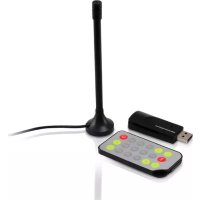
CTVDIGUSB2 - Digital decoder CONCEPTRONIC - Free user manual and instructions
Find the device manual for free CTVDIGUSB2 CONCEPTRONIC in PDF.


| Product Type | USB DVB-T Digital TV Tuner |
| Brand | Conceptronic |
| Model | CTVDIGUSB2 |
| Dimensions | Approx. 8 x 3 x 1 cm (dongle) |
| Weight | Approx. 30 g |
| Power | Via USB port (5V DC) |
| Interface | USB 2.0 |
| Reception | DVB-T (Terrestrial Digital TV) |
| Included Antenna | Magnetic DVB-T Antenna |
| Remote Control | Yes, with CR2025 battery |
| Provided Software | ArcSoft TotalMedia 3.5 |
| Main Functions | Watch digital TV, digital radio, recording, time shifting, screenshot, EPG guide |
| Compatible Operating Systems | Windows 7, Vista |
| Care and Cleaning | Unplug before cleaning, use a soft dry cloth, avoid liquids |
| Safety | Use only with compliant USB ports, do not expose to moisture |
| Spare Parts and Repairability | Not user-serviceable, contact Conceptronic support for replacement |
| General Information | Turns a PC into a digital TV, compatible with free-to-air DTT channels |
Frequently Asked Questions - CTVDIGUSB2 CONCEPTRONIC
User questions about CTVDIGUSB2 CONCEPTRONIC
0 question about this device. Answer the ones you know or ask your own.
Ask a new question about this device
Download the instructions for your Digital decoder in PDF format for free! Find your manual CTVDIGUSB2 - CONCEPTRONIC and take your electronic device back in hand. On this page are published all the documents necessary for the use of your device. CTVDIGUSB2 by CONCEPTRONIC.
USER MANUAL CTVDIGUSB2 CONCEPTRONIC
Conceptronic CTVDIGUSB2
Gebruiksaanwijzing
Congratulations on the purchase of your Conceptronic USB Digital TV Receiver.
This user manual gives you a step-by-step explanation of how to install and use the Conceptronic USB Digital TV Receiver.
When you need more information or support for your product, we advise you to visit our Service & Support website at www.conceptronic.net/support and select one of the following options:
- FAQ
: Frequently Asked Questions database
- Downloads
: Manuals, Drivers, Firmware and more downloads
- Contact
: Contact Conceptronic Support
For general information about Conceptronic products visit the Conceptronic website at www.conceptronic.net.
The information in this manual is based on Windows 7 and Vista, but can differ from your computer when you are using a different operating system.
1. Introduction
Watch Free-to-Air digital TV or listen to Free-to-Air digital radio, wherever you are, either at home, on holiday or business trip. With this solution, you can easily turn your PC, notebook or netbook into a digital TV or radio.
The USB DVB-T (Digital Video Broadcasting Terrestrial) receiver is compatible with all Free-to-Air TV and radio channels. High quality TV can be watched in full screen or can be scheduled to record.
2. Package contents
The following items are present in the package of the Conceptronic USB Digital TV Receiver:
- Conceptronic USB Digital TV Receiver (CTVDIGUSB2)
- Magnetic DVB-T antenna
Remote control with battery (CR2025)
Product CD-ROM - Multilanguage quick installation guide
Warranty card & CE declaration booklet
3. Hardware installation
Before installing the drivers and software, you need to connect the USB digital TV receiver to your computer.
A. Turn on your computer.
B. Connect the DVB-T antenna to the antenna input of the USB digital TV receiver.
C. Connect the USB digital TV receiver to a free USB port on your computer.
Tip : If you want to extend the distance between the USB digital TV receiver and your computer, you can use the included USB extension cable.
Your computer will recognize new hardware and show the hardware installation wizard. You can ignore this hardware installation wizard and continue with the driver and software installation in chapter 4.
4. Driver & Software installation
When the USB digital TV receiver is connected to your computer, you can install the drivers and software.
A. Insert the CD-ROM in the optical drive of your computer. The AutoPlay option will be shown automatically. Click on "Run Autorun.exe" to start the autorun menu.
Note: If the AutoPlay option is not shown, you can start the autorun menu by browsing to "Computer" and double clicking on your optical drive.
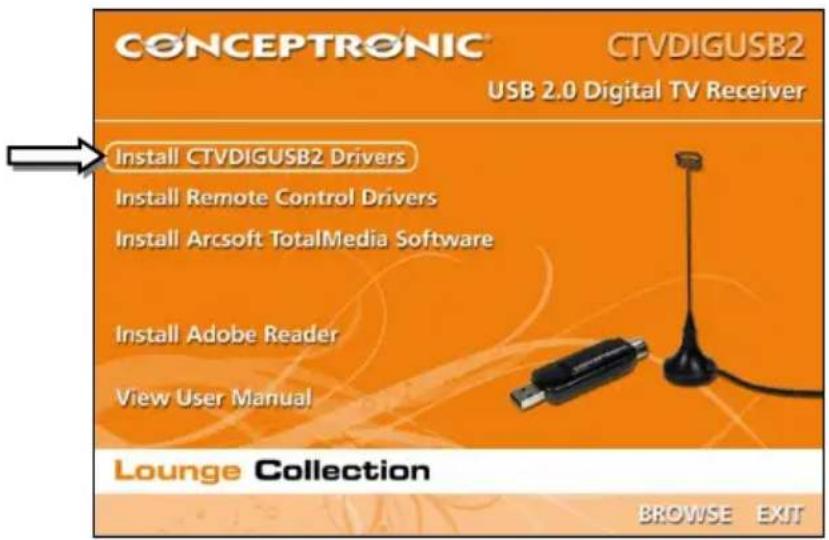
You need to install 3 packages in order to use the USB digital TV receiver: The CTVDIGUSB2 drivers, the Remote Control drivers and the Arcsoft TotalMedia software.
B. Select the option "Install CTVDIGUSB2 Drivers" from the Autorun Menu. The Driver Setup Wizard will appear.
C. Click "Start" to install the drivers on your computer.
D. When the installation is finished, click "OK" to close the Driver Setup Wizard.
You can now proceed with installing the Remote Control drivers.
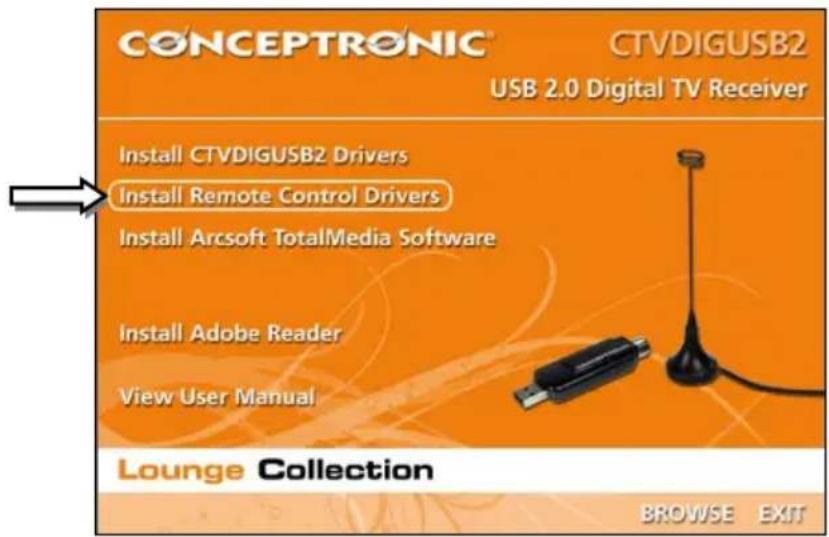
E. Select the option "Install Remote Control Drivers" from the Autorun Menu. The Setup Wizard will appear.
F. Click "Next" to install the remote control drivers on your computer.
When the installation is finished, the Setup Wizard will be closed automatically.
You can now proceed with installing the Arcsoft Totalmedia software.
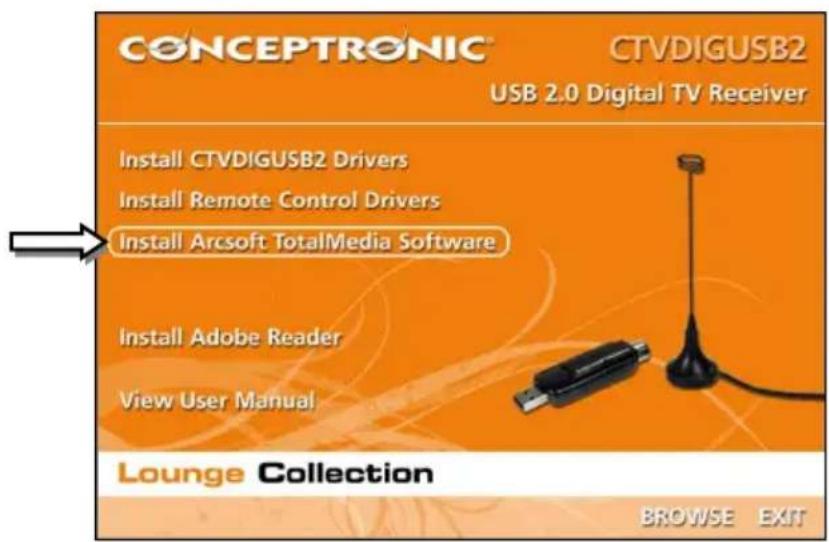
G. Select the option "Install Arcsoft TotalMedia Software" from the Autorun Menu. The Setup Wizard will appear.
H. Select your language in the Setup Wizard and click "OK" to continue.
I. The Setup Wizard introduction page will be shown. Click "Next" to continue.
J. Accept the Licence Agreement by clicking "Yes" to continue.
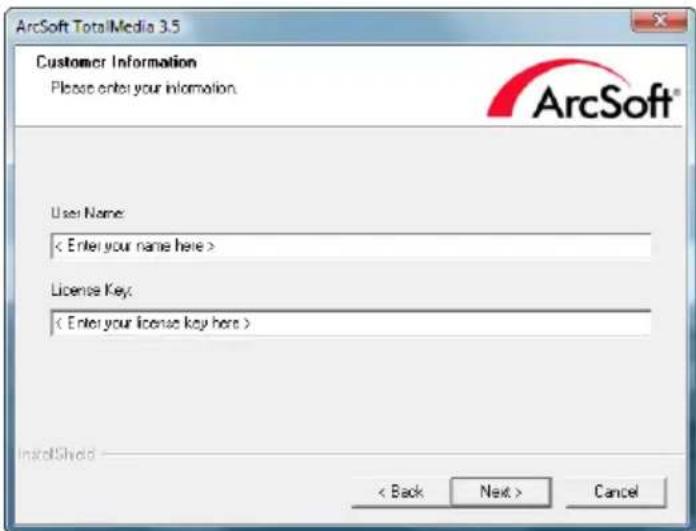
K. Enter your name in the "UserID" field and your license key in the "License Key" field. Click "Next" to continue.
Note: You can find your license key on the sleeve of the product CD-ROM.
L. Change the installation directory by clicking the "Browse" button or keep the default location. Click "Next" to continue.
M. Change the program folder name or keep the default name. Click "Next" to continue.
The Setup Wizard will now install the software in the selected language on your computer.
N. When the installation is finished, click "Finish" to close the Setup Wizard.
Note: It is advised to restart your computer after the installation.
The software is now ready to use. You can proceed with chapter 5 of this manual for instructions how to use the USB digital TV receiver.
5. Using the USB digital TV receiver
5.1 Starting TotalMedia
When the installation of the drivers and software is finished and your computer is restarted, you can start using the USB digital TV receiver with the TotalMedia software. You can start the TotalMedia software in various ways:
- Click on "Start", "All Programs", ArcSoft TotalMedia 3.5", "TotalMedia 3.5".
- Doubleclick on the TotalMedia shortcut on your desktop.
- Press the 'Power' Button on the Remote Control.
- Press Ctrl + Alt + F12 on your keyboard.
- Doubleclick on the TotalMedia systemtray icon.
When the TotalMedia application is started, you will see the main menu of the software:
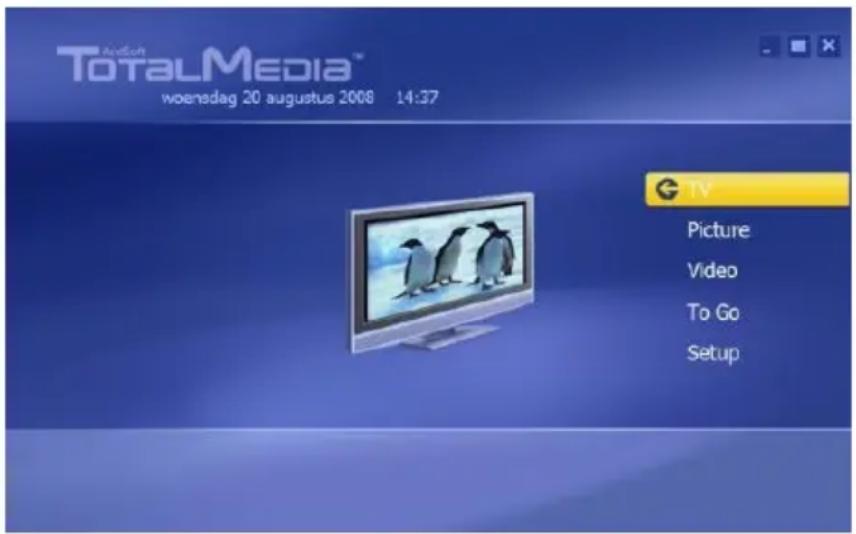
The TotalMedia menu offers several options for playback of TV, media files and the setup of the application:
TV Watch TV
Picture View pictures
Video Play recordings or other video files
To Go Use the TotalMedia To Go for mobile devices
Setup Configure TotalMedia
5.2 Setting up your TV & radio channels
A. Select the option "TV" with the keyboard, mouse or the remote control.
The TotalMedia software will load the TV section of the software.
When the TotalMedia software is not used before to watch digital TV, the TV Signal Wizard will appear on your screen to assist you in setting up your DVB-T signal.
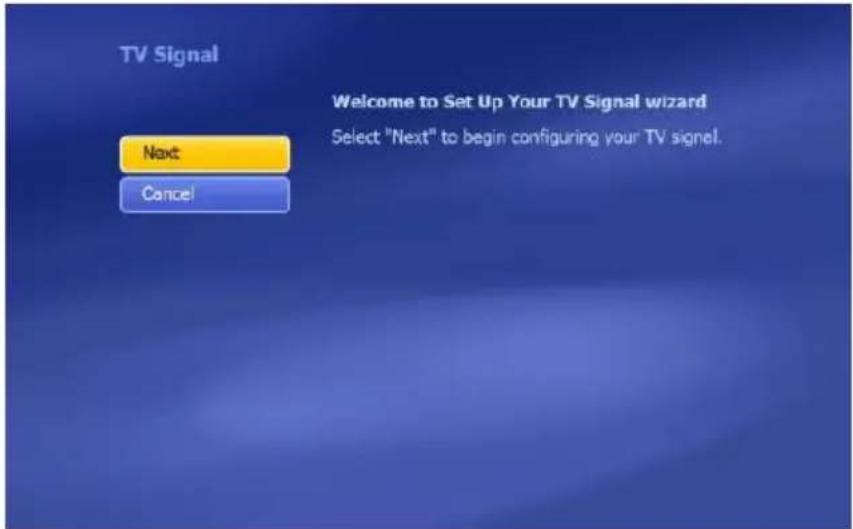
B. Select "Next" to continue to the next wizard screen.
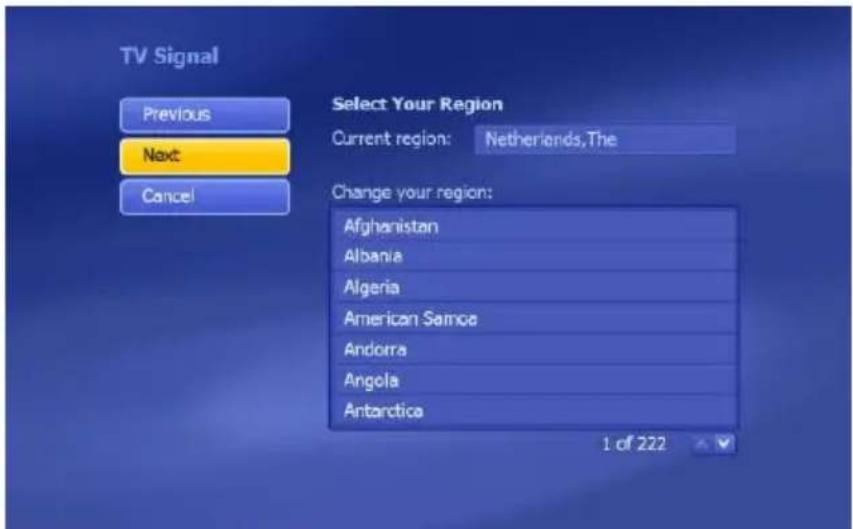
C. Select your region in the region list and select "Next" to continue to the next wizard screen.
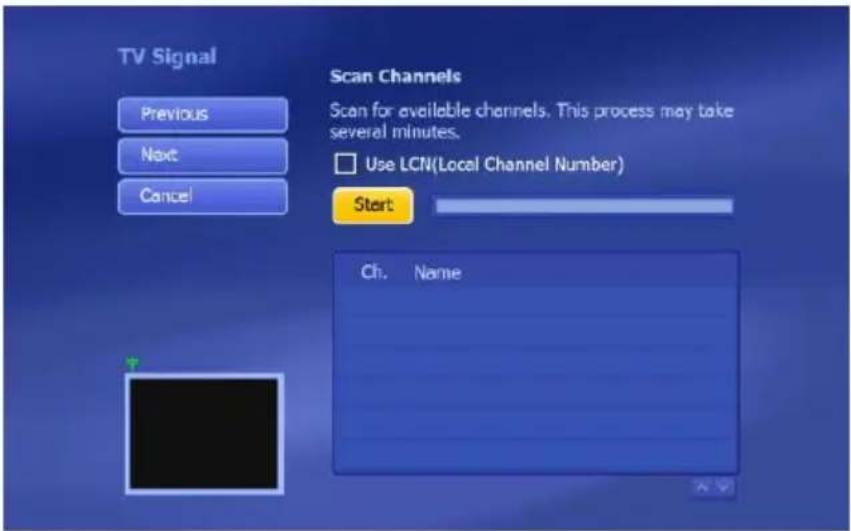
D. The wizard is now ready to scan your channels. Select "Start" to begin the channel scan.
During the scan you will see a progress bar indicating the scanning progress. The found channels are listed in the channel list below the progress bar.
When the channel scan is complete, wizard will show you a popup message telling how many channels are found.
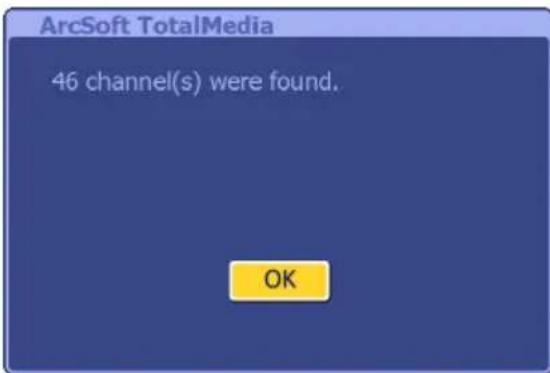
E. Select "OK" to continue to the next wizard screen.
The wizard will show the list of found channels and a preview of the first channel in the list.
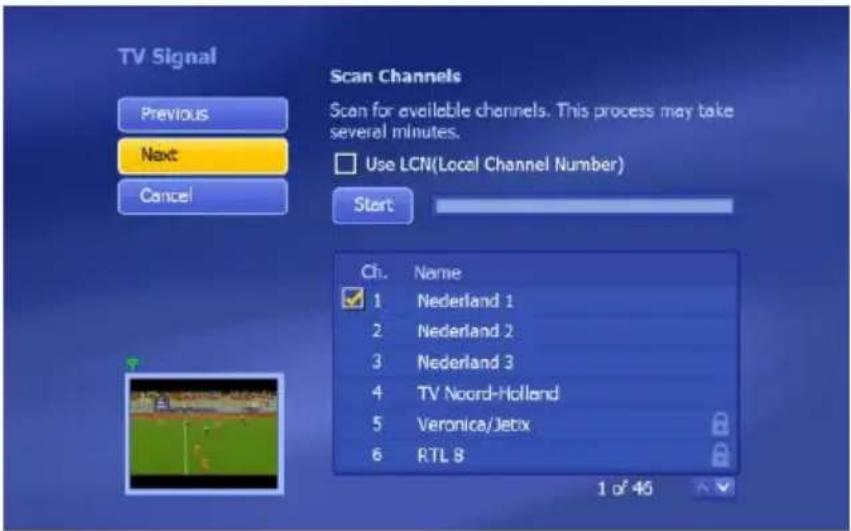
F. Select "Next" to continue to the next wizard screen.
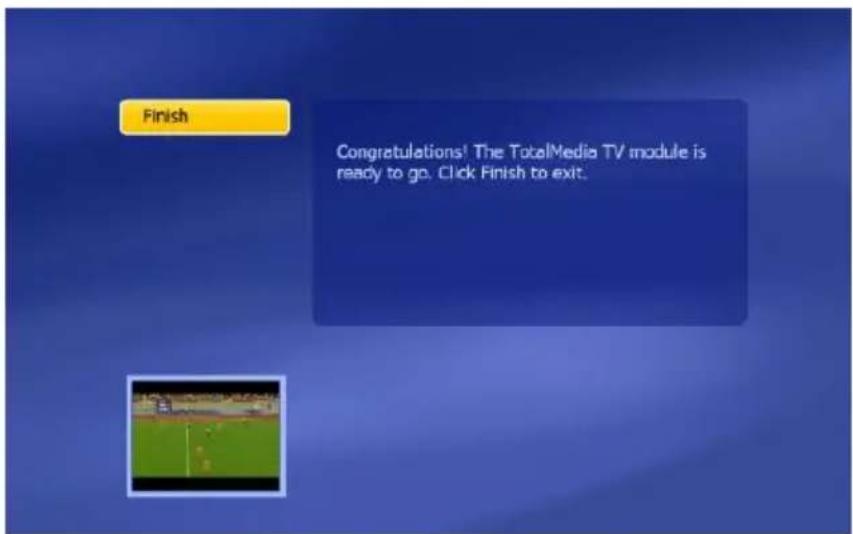
The wizard is now ready and your USB digital TV receiver is ready to use.
G. Select "Finish" to close the TV channel setup.
5.3 Watching TV
To watch TV, select "TV" in the main menu of TotalMedia.
TotalMedia will open the TV window and shows the currently active channel.

You can navigate through the channels with the CH + and CH - buttons on the remote control.
Note: If there are also Free-To-Air radio channels in your area, these channels will also be listed in your TV channel list. When selecting one of the radio channels, the sound will be played through your speakers and a radio icon will be shown in the TV window.
5.4 The remote control
The USB digital TV receiver is delivered with a remote control. This remote control can be used to operate the TotalMedia software, which is installed in the previous chapter.
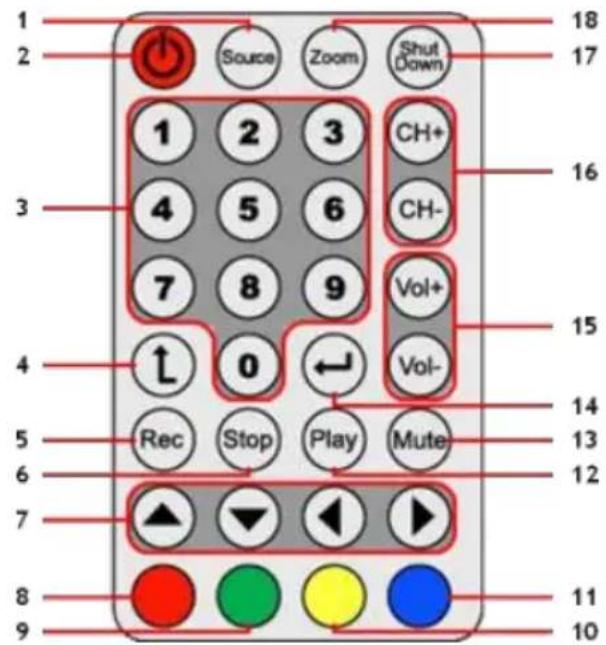
Nr Button Description
1 Source < No function >
2 Power Start the TotalMedia software
3 Numeric keys Direct channel selection
4 Back Switch to the previous channel
5 Rec Start recording
6 Stop Stop recording / Stop playback
7 Arrow keys Navigate through the TotalMedia software
8 Return (Red) Return to the previous screen
9 Snapshot (Green) Make a snapshot of the current TV screen
10 TV (Yellow) Jump directly to the TV mode of the TotalMedia software
11 EPG (Blue) Show the EPG guide
12 Play Start playback
13 Mute Mute/unmute the sound
14 Enter Confirm selection
15 Vol + / Vol - Increase volume / decrease volume
16 CH + / CH - Next channel / previous channel
17 Shutdown Shutdown the computer
18 Zoom Toggle fullscreen TV mode
In order to use the remote control, you need to remove the plastic battery strip at the bottom of the remote control.
Shutdown Note:
When you are in Windows and you press the 'Shutdown' button on the remote control, a shutdown popup will be shown on your screen. Press the 'Power' button on the remote control to turn off your computer, or press another button to cancel the shutdown procedure.
5.5 Keyboard shortcut explanation
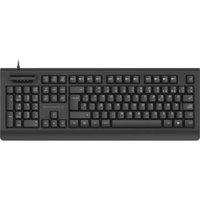
The TotalMedia software can also be operated with the keyboard. With keyboard shortcuts, you can reach specific features of the software. The most common keyboard shortcuts are listed below, but you can find the complete list in the TotalMedia help, which can be reached by pressing the 'F1' button on your keyboard.
Key Shortcut Description
Arrow Keys Navigate through TotalMedia
Enter Activate selection
Backspace Return to previous screen
F1 Open TotalMedia Help
F2 Activate Time Shifting
F5 Take a snapshot of the displayed TV Channel
F6 Switch Sound Channel (Only for Multichannel TV Sound)
F8 Mute Sound
F9 Decrease Volume
F10 Increase Volume
F11 Switch between 2 last channels
Ctrl + [+] Channel Up
Ctrl + [-] Channel Down
Ctrl + Alt + F12 Enter / Exit TotalMedia
Ctrl + T Start Live TV
Ctrl + I Start Picture Mode
Ctrl + E Start Video Mode
Alt + Enter Enter / Exit Full screen Mode
TotalMedia Note: For more information about the functions and options of TotalMedia, you can use the built-in help feature, which can be accessed by pressing 'F1' on your keyboard while the software is running.
Enjoy the use of your USB digital TV receiver!
CTVDIGUSB2 de Conceptronic
Manual de usuario
- CONCEPTRONIC CTVDIGUSB2
- GEBRUIKSAANWIJZING
- CONGRATULATIONS ON THE PURCHASE OF YOUR CONCEPTRONIC USB DIGITAL TV RECEIVER
- INTRODUCTION
- PACKAGE CONTENTS
- HARDWARE INSTALLATION
- DRIVER & SOFTWARE INSTALLATION
- USING THE USB DIGITAL TV RECEIVER
- 5.1 STARTING TOTALMEDIA
- 5.2 SETTING UP YOUR TV & RADIO CHANNELS
- 5.3 WATCHING TV
- 5.4 THE REMOTE CONTROL
- NR BUTTON DESCRIPTION
- SHUTDOWN NOTE
- 5.5 KEYBOARD SHORTCUT EXPLANATION
- KEY SHORTCUT DESCRIPTION
- CTVDIGUSB2 DE CONCEPTRONIC
- MANUAL DE USUARIO
Brand : CONCEPTRONIC
Model : CTVDIGUSB2
Category : Digital decoder