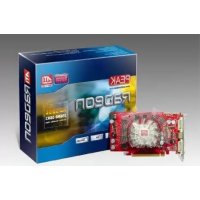
Radeon HD 3850 - Graphic card Peak - Free user manual and instructions
Find the device manual for free Radeon HD 3850 Peak in PDF.


| Product type | Graphics card |
| Brand | Peak |
| Model | Radeon HD 3850 |
| Graphics processor | ATI Radeon HD 3850 |
| Interface | PCI Express or AGP (depending on version) |
| Video memory | GDDR3 |
| Output connectors | VGA, DVI, S-Video |
| Multi-monitor support | Yes (up to 2 monitors with adapter) |
| Auxiliary power | Requires a power cable (depending on model) |
| Software installation | CD included with drivers and Catalyst suite |
| Supported operating systems | Windows (98, ME, 2000, XP) |
| PEAK identification code | 4 to 6 digits + 4 letters (e.g., XXPK) |
| Security | Sensitive to static electricity; handle with care |
| Main functions | 3D acceleration, HD video, multiple display |
| Maintenance | Clean with a soft dry cloth; avoid moisture |
Frequently Asked Questions - Radeon HD 3850 Peak
User questions about Radeon HD 3850 Peak
0 question about this device. Answer the ones you know or ask your own.
Ask a new question about this device
Download the instructions for your Graphic card in PDF format for free! Find your manual Radeon HD 3850 - Peak and take your electronic device back in hand. On this page are published all the documents necessary for the use of your device. Radeon HD 3850 by Peak.
USER MANUAL Radeon HD 3850 Peak
User Manual (English) P1
Thank you for choosing this PEAK graphics accelerator card. Combining powerful features and easy installation, you can enjoy the latest in video technology. Powered by one of the most powerful AetekRademusyou can finally enjoy a lifelike high-definition multimedia experience on your PC. We will guide you through the entire installation process. Please read this guide carefully before installing your PEAK graphics accelerator card. If you have any questions to visit us at www.peakhardware.com/support .
> Installing your VGA Card
Please remove your old video card and its software driver before installing the new PEAK ATI graphics accelerator card. Follow the steps below to remove the old video card driver:
- Click on Start, and then select Control Panel.
- Locate and select Add or Remove Programs.
- Locate and select the old video card driver and click on Change/Remove to uninstall the driver.
- Close all applications, shut down Windows and turn off the computer.
Section 1. Hardware Installation
CAUTION: This graphics accelerator card contains delicate Integrated Circuit chips which are sensitive to static electricity and other forms of physical damage. Always use extreme caution when working around electronic components. The manufacturer assumes no liability for any damages, caused directly or indirectly, by improper installation of any components by unauthorized service personnel. Consult a qualified computer technician if you don't feel comfortable performing the installation.
1.Unplug the computer and remove the cover.
2.Remove the current graphics card.
(Remember to dishearingly at itouching an unpainted, metal surface of the computer chassis).
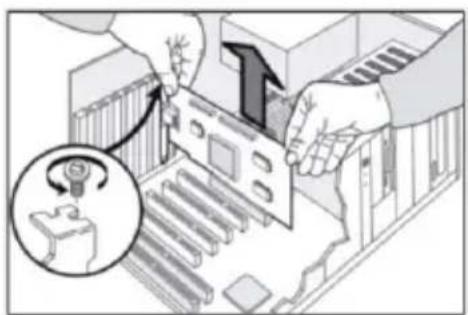
- Locate the PCI-E/AGP slot and carefully insert the New graphics accelerator card into the appropriate slot until it is firmly seated. Secure it to the chassis with the correct screw.
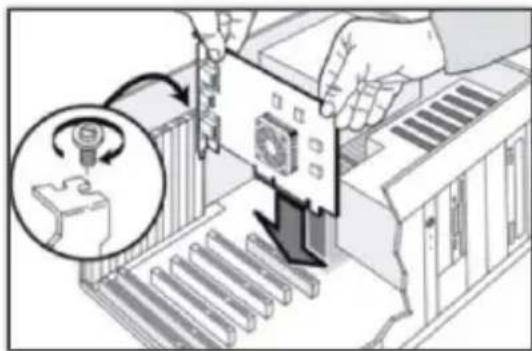
- Attach the 6 pin auxiliary power cable to the power supply if applicable.
5.Reconnect all cables and replace the cover.
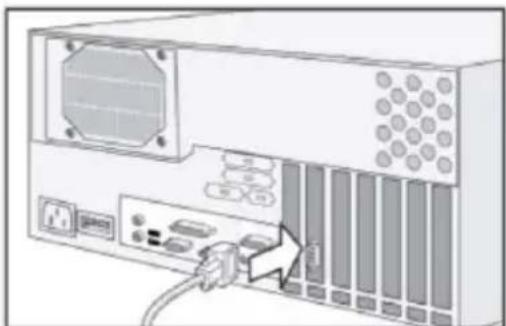
- Connect your monitor with the newly installed graphics card. Plug the VGA or DVI display cable into the appropriate connector. (See diagram)
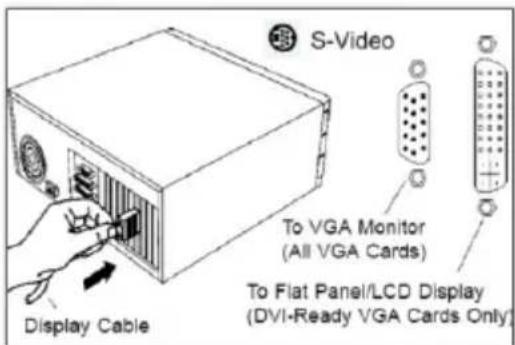
You have now finished the Hardware Installation. Please note the following:
- Before turning on your computer, please make sure the VGA card has been seated firmly and all cables are connected.
- Do NOT connect or disconnect the TV-out cable while your TV or PC is turned on.
- If applicable, please make sure you have plugged in the 6-pin auxiliary power cable for your graphics card.
Please proceed to the next section for Software Installation.
Section 2. Software Installation
Locate the driver CD and follow the steps below to install the driver software for your new graphics card.
1.Close down all applications.
2.Insert the installation CD disc into your CD-ROMdrive
3.The CD should autorun. Note: if the CD does not autorun, click on "Start" button on the taskbar "Run" then type in D:\atsetup.exe and click "OK".
(Substitute D with the correct CD-ROM drive letter)
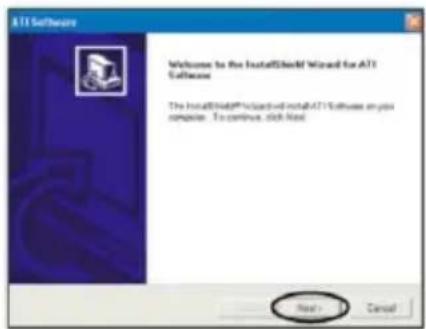
- When the Welcome box appears, Click on the "Next" button to go to the next step.
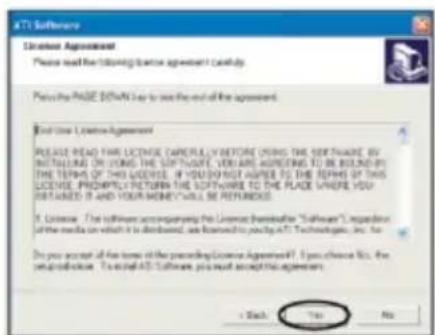
- Click "YES" to agree to the License Agreement.
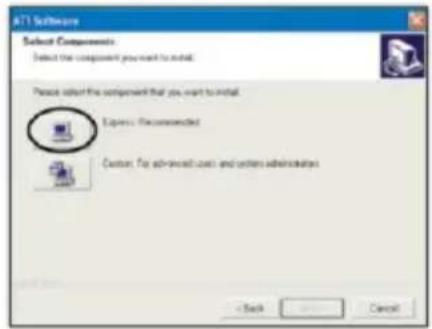
- The "Select Components" dialog box appears. Choose "Express" installation process.
- Windows will ask you to restart the computer once the Driver installation process has been completed. Restart your computer to finish the installation process.
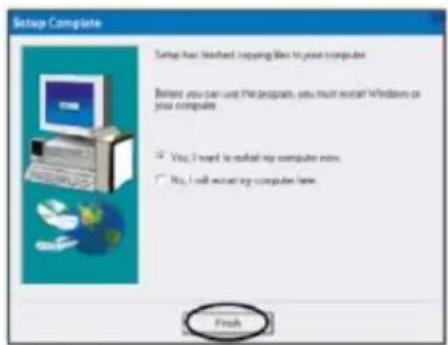
Congratulations! You can now enjoy your new PEAK graphics card.
In addition to CD installation, you can also download the latest ATI driver for your graphics card from http://ati.amd.com/support/driver.html.
Follow the steps below to download and install a new driver for your graphics accelerator card.
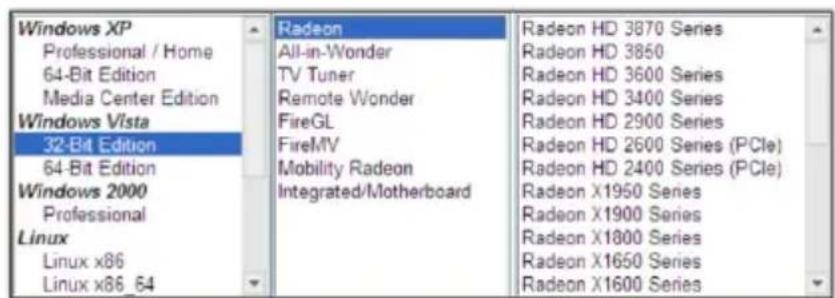
- On the ATI driver downloading page, select your Operating System Series Model
-
After clicking on "GO" button, you will be giving the choice to choose between "Catalyst Software Suite" (which includes the video card driver), or driver only. It is recommended to download the entire Catalyst suite to take advantage of all the latest features ATI has to offer.
-
After the driver has been downloaded successfully, double click on the icon to start the installation wizard.
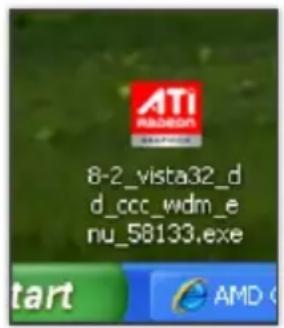
- Follow the on-screen instructions to complete the software installation process.
Congratulations! You can now enjoy your new PEAK graphics card.
Display properties
In this section, you'll find a step-by-step instruction on how to set up and adjust some of the most commonly used display properties.
1.How do I connect multiple monitors to my graphics card?
- Turn off your computer and connect the necessary cables. (Depending on your application, it could be S-Video cable or normal VGA monitor cables. Refer to the Hardware Installation section for more information).
- After Windows starts up, right-click anywhere on the desktop and choose Properties → Settings.
- Select the display type and resolution for each monitor and click "OK"
- (To set up the extended desktop, check the Extend my Windows desktop onto this monitor check box.) For additional help, please visit the following web address: http://ati.de/products/catalyst/multimonitor_Guide.pdf
2.I'm having problems setting up multiple monitors, what cando?
- Click on the following link for the official Catalyst help guide from ATI.
Http://ati.de/products/catalyst/HDTV_Setup_Guide.pdf
FAQ & Troubleshooting
Q1.What is the PEAK code and where can I find it?
- The PEAK code is an identification code for each PEAK product. It consists of a 4- or 6-digit number plus a 4-letter code, such as #XXXXXXXXXXPK or #XXXXXXXXXXPK. The PEAK code is located either at the back of the device or on the box.
Q2.Where can I find the ATI VGA driver?
- All PEAKHARDWARE ATI VGA cards use standard ATI Catalyst Driver. Please download the newest driver from the link below: http://ati.amd.com/support/driver.html
Q3. Why does my screen have artefacts?
- Try lowering the refresh rate in the Windows Display Properties panel to isolate whether this is the source of the artefacts. Sometimes the driver's default resolution may be unsuitable for your monitor-try changing the display resolution in Windows Display Properties Panel.
Q4. Why does my screen look funny after I install a new display card?
This may be caused by display driver conflicts. To avoid any software/driver conflicts, we recommend following the standard installation steps as below:
-
Remove the original VGA Driver from the system by going to Start Settings Control Panel and clicking Remove/Add Program. Locate and select the old video card driver and click on Change/Remove to uninstall the driver. Shut down Windows, power off the PC and remove both the Power and VGA cords from the computer.
-
Remove the old VGA card (you may need to unlock the AGP slot lock, depending on the motherboard) and remove the screw on the system chassis, then carefully pull the card straight up off the motherboard.
- Install your new AGP card into the PC by inserting it into the AGP slot, secure the card by locking the AGP slot lock and insert the chassis screw.
- Reconnect the Power and VGA cords to the computer, then turn on the PC.
- Place the enclosed CD into your CD-ROM drive, select auto-run and install driver.
- Adjust the display resolution by right-clicking on the desktop, select Properties → Settings → Display Resolution. The refresh frequency can be adjusted in Advanced tab → Monitor → Screen Refresh Rate.
Q5.Windows XP is warning me that my driver has not passed Windows Logo testing and can impair or destabilize the correct operation of my operating system. Is it safe for me to proceed with the installation of my driver?
Drivers provided by PEAKHARDWARE on the www.peakhardware.com downloads page have been fully tested by PEAKHARDWARE for operating under Windows XP. However, on occasion, we may release a driver which has not been digitally signed by Microsoft, which will result in a Microsoft Windows XP warning message being posted during installation of the PEAKHARDWARE driver. This warning message can be safely ignored.
Alternatively, you can disable this message from appearing as follows:
- Go into your Control Panel.
- Double-click on the System icon.
- Click on the Hardware tab.
- Click on the Driver Signing button.
- Choose the Ignore option and then press the OK button.
For the latest specifications and product information, visit us at www.peakhardware.com
If you are still having problem with your PEAK Graphics Card, please contact the original place of purchase store or E-mail our technical support at service@peakhardware.com
Www.peakhardware.com/support
>Instalando su tarjeta VGA
http://ati.de/products/catalyst/multimonitor_Guide.pdf
2.Y MeH B03HKnI npo6nembl npu yCTaHOBKe HeCKOJIbKnx MOHTOPOB, YTO MHe DeNaTb?
Ipeennte no cneyuoue Ccblke nra 03HaKOMnHnC oHnauhBbIM cnpaBOOHbIM pyKOBoDCTBOM Catalyst ot KOMnAHN ATI. http://ati.de/products/catalyst/HDTV_Setup_Guide.pdf
OTBetbHaBonpocbIyctpaHeHne HenoJaok
Q1.4to takoE KOd PEAK n rde y mory ero haTn?
KoD PEAK 3TO nIeHTnФИKaUHbI KOd IJI KAKdoRo npOyKTA PEAK. OH COCTOnT n3 YeTbIpEx- INN WecTn3HaHoro HOMepa uYeTbIpEx6yKBeHHoro KoJa, HanpIMep «#XXPK» INN «#XXPK». KoD PEAK haxoITcra INN Ha 3aHne NaHeIN yCTpoiCTBa, INN HA Kopo6Ke.
www.peakhardware.com PEAK Service Contact:
service@peakhardware.com