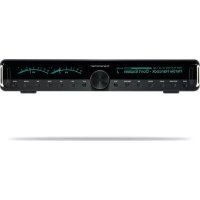
Transporter 930000052 - Media player LOGITECH - Free user manual and instructions
Find the device manual for free Transporter 930000052 LOGITECH in PDF.



| Product Type | Media Player |
| Brand | Logitech |
| Model | Transporter 930000052 |
| Dimensions (W x H x D) | 433 mm x 72 mm x 311 mm |
| Power Supply | 100–240 V, 50/60 Hz, 500 mA (built-in fuse) |
| Network Connectivity | Ethernet 100 Mbps, Wi-Fi 802.11g |
| Audio Connectivity | Analog outputs: RCA and XLR, digital outputs: optical TOSLINK, coaxial RCA, BNC, XLR AES/EBU, word clock input |
| Supported Audio Formats | Apple Lossless, FLAC, WMA Lossless, AIFF, WAV, PCM, MP3, AAC, Ogg Vorbis, WMA |
| Display | Dual high-resolution fluorescent, 640x32 pixels, grayscale |
| Remote Control | Backlit infrared, 31 buttons, 2 AA batteries |
| Main Functions | Digital music playback, Internet radio, alarms, RSS feeds, podcasts, graphic visualizations, alarm clock |
| Alarm Clock | 6 programmable alarms (for each day of the week) |
| Visualizations | Analog and digital VU meters, stereo spectrum analyzer |
| Control | Front panel with buttons and TransNav wheel with tactile feedback |
| User Interface | Front panel and web interface (http://localhost:9000) |
| Required Software | SqueezeCenter version 6.5 or later |
| Package Contents | Transporter unit, power cord, user guide, remote control, 2 AA batteries |
| Warranty | Logitech limited hardware warranty |
| Safety | Do not expose to water, do not block vents, unplug during storms, repairs by qualified personnel only |
Frequently Asked Questions - Transporter 930000052 LOGITECH
User questions about Transporter 930000052 LOGITECH
0 question about this device. Answer the ones you know or ask your own.
Ask a new question about this device
Download the instructions for your Media player in PDF format for free! Find your manual Transporter 930000052 - LOGITECH and take your electronic device back in hand. On this page are published all the documents necessary for the use of your device. Transporter 930000052 by LOGITECH.
USER MANUAL Transporter 930000052 LOGITECH
System Requirements 3
Installing the SqueezeCenter Software 4
Installing on Windows 4
Installing on Mac OS X 5
Instaing on Linux or Other Operating System 5
Connecting Transporter 6
Audio Connections 7
Analog Outputs 7
Digital Outputs and Inputs 7
Using Transporter as a Standalone DAC 7
Configuring Transporter 8
Set Up Networking.. 8
Select a Music Source 9
Using the Remote 10
Using the Front Panel Controls. 12
Playing Your Music 14
Using the Remote or Front Panel to Play Music 14
Searching for Music with the Remote or Front Panel 15
Creating and Saving a Playlist 15
Listening to Internet Radio 16
SqueezeNetwork 17
Using SqueezeNetwork 18
Special Features 19
Alarm Clock. 19
Graphic Visualizers 20
Using Transporter as a Wireless Bridge 20
Crosstading Between Tracks 21
RSS News Ticker 21
Podcasts 22
Controlling Multiple Players with one SqueezeCenter 22
Wake-on-LAN 23
RS-232 Serial Control 23
Infrared Input and Output 23
Analog Output Attenuation 24
Detailed Specifications 25
Troubleshooting 29
Getting More Information 32
FCC Notice 34
Limited Warranty 36
4 Logitech
\~Owner's Guide
5Transporter
About Transporter
Thank you for purchasing a Transporter network music player. Transporter lets you play your digitized music collection through your stereo system using your wireless or ethernet network. With Transporter, you can also listen to Internet radio stations, set alarms, display RSS feeds, and more!
Transporter was designed to appeal to the most discerning audiophiles and music lovers. It streams digital music with sound quality that surpasses even the most exotic compact disc players.
At the heart of Transporter is a "no compromise" attitude to component selection and electronic design.
The rotary TransNav controller uses dynamic tactile feedback to provide fast access to any song even in the largest music collection. The sleek, beckit, infrared remote and dual fluorescent displays make it easy to use from anywhere in the room.
Transporter's back panel features a complete set of professional-grade connectors, including both balanced and unbalanced signals for its analog and digital interfaces.
Transporter's AK4396 "Miracle DAC" was chosen for its high dynamic range and low distortion. Its low out-of-band noise allows for the use of low-order output filters with higher cutoffs, resulting in preservation of phase and reduced distortion in the audible band. This extraordinary accuracy at higher frequencies allows Transporter to resolve the exact staging of instruments and the finer details of any recording. In addition, Transporter's digital inputs allow its built-in DAC to be used with other sources.
Transporter's digital path is not only "bit perfect", but also extremely accurate in timing precision. Clock signals in Transporter are handled not as ones and zeroes, but as precision analog signals. Specialized crystal oscillators, careful clock management, and linear-regulated logic supplies ensure the lowest possible jitter throughout the system.
Transporter's DAC and output amplifiers are powered by Super Regulators, based on the legendary design by Wall Jung. These regulators offer lower output impedance, faster response, and better noise rejection than standard three-terminal regulators. The result is an incredibly natural sound, with a pitch-black background and a shocking level of detail.
This user guide includes setup and basic operating instructions for your new player. We are continually adding new features to Transporter, some new capabilities may not be covered here. You can find additional information about the latest Transporter features, as well as detailed documentation for developers, on our web site, http://www.sllmdevecom.com/.
Transporter is powered by the open source SqueezeCenter software, which is the result of the efforts of software developers worldwide working together in an open community. We are grateful to everyone who helped create transporter.
We hope you enjoy Transporter and that you'll tell a friend about our products.
Before You Begin
If you already have a wireless or ethernet network and a computer to use as a server, setting up Transporter and SqueezeCenter lakes just a few minutes—all you need to get your music playing through Transporter is in this owner's guide.
- First, collect your digitized music into one place on your computer. You can put all the files in a single directory, or create a series of subdirectories. The software you use to 'rip' your CDs, such as iTunes, may already do this and organize your music files by album or by artist.
- Next, download the latest version of the SqueezeCenter software to the same computer as your music collection.
Note: Transporter needs SqueezeCenter version 6.5 or greater to access the music you have on your local computer. If you already have SqueezeCenter installed, you must update to version 6.5.0 or later to use with your Transporter you can find the latest version of SqueezeCenter at: http://www.slimdevices.com/download
System Requirements
Macintosh: Mac OS X 10.3 or later, 256MB RAM, ethernet or wireless network, and 20MB of hard disk space for SqueezeCenter
- Windows XP/2000 NT: 733 MlZ Pentium, 256MB RAM, ethernet or wireless network, and 20MB hard disk space for SqueezeCenter
Linux/BSD/Solaris/Other: Perl 5.8.3 or later, 256MB RAW, ethernet or wireless network, and 20MB hard disk space for SqueezoCenter
- Broadband internet connection for internet radio and SqueezeNetwork
Installing the SqueezeCenter Software
Installing on Windows
- Download the SqueezeCenter Installer program to a location you can find again on your computer. Your Desktop is a good choice.
Note: Transporter needs SqueezeCenter version 6.5 or greater to access the music you have on your local computer. If you already have SqueezeCenter installed, you must update to version 6.5.0 or later to use with your Transporter You can find the latest version of SqueezeCenter at: http://www.silmdevices.com/download - When the file has finished downloading, double click on the SqueezeCenter Installer icon. The SqueezeCenter Setup Wizard starts.
Tip: You may see an 'Open File - Security Warning', if so, click Run.
3. Follow the Instructions to set up SqueezeCenter, and specify:
Where to install the SqueezeCenter software
Where on your computer your music collection is (you can change this later)
- Where to save and look for any playlists you create
Where to place shortcuts and icons for the application
- Click Next to accept the default value at each panel. If you want to go back and change your selection, click Back.
When you have finished configuring your installation, the Setup Wizard displays a summary of your choices. - Click Install.
SqueezeCenter is installed and the *Completing the SqueezeCenter Setup Wizard* panel is displayed. - Click OK.
- An icon will appear in your Windows System Tray at the bottom right of your screen, right-click on this icon to show a menu and choose to open the SqueezeCenter software, Stop SqueezeCenter or go to the Slim Devices web site.
Installing on Mac OS X
- Save the.cimg file to your Desktop.
Note: Transporter needs SqueezeCenter version 6.5 or greater to access the music you have on your local computer. If you already have SqueezeCenter installed, you must update to version 6.5.0 or later to use with your Transporter you can find the latest version of SqueezeCenter at: http://www.slimdevices.com/download - When the file has finished downloading, double click on the disk image file (img) to make it appear on your desktop. Your web browser may do this for you automatically.
- Double-click on the SqueezeCenter Installer icon. The SqueezeCenter Installer will start.
- You can choose whether you want to install SqueezeCenter for all users or just for the current user. If you want to install SqueezeCenter for all users, you must provide an administrator password.
Tip: If you install SqueezeCenter for all users, the user that starts SqueezeCenter will be the only user who can stop SqueezeCenter later on.
5. Click Install. After the Installer completes the installation, click OK.
6. System Preferences will open and show you the SqueezeCenter preference pane. Here you can choose whether you would like the SqueezeCenter to start automatically whenever you start or log in to your computer.
7. Click Start Server. After a few seconds you can click on the Web Access button. The SqueezeCenter web interface will open in your web browser. Feel free to bookmark this page so you can get back to it quickly in the future.
Installing on Linux or Other Operating System
If you are running Red Hat Linux or other compatible distributions, you can install the RPM file using the rpm tool.
Debian and Ubuntu users can use the Debian package provided by Logitech. Detailed instructions for installation are available at
http://wiki.sllmdevices.com/index.cgi?DebianPackage.
If you are using another Unix platform, you can download the SqueezeCenter software perl scripts available in gzipped tar or zip format. Instructions for starting the perl server are included with the scripts.
Additional information about installing SqueezeCenter on other platforms can be found on our web site at http://wiki.slimdevices.com or in our forums at http://forums.slimdevices.com.
8 Logitech
Owner's Guide
5Transpartier
Connecting Transporter
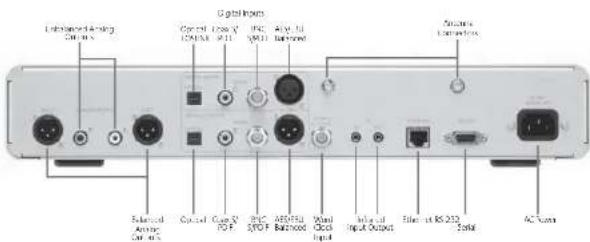
- Connect an output from the Transporter to your stereo amplifier, preamp, or receiver with the appropriate Interconnect.
The most common connection uses the unbalanced analog output red and white RCA connectors to connect to a line-level input, such as a CD or TAPE input. (Note: Transporter's outputs are not compatible with PHONO inputs.) More details about Transporter's audio connections are available in the Audio Connections section.
- If you are using an Ethernet network connection with your Transporter, connect an ethernet cable from your hub or switch to Transporter. Otherwise, screw the included wireless antennae to the two gold antenna connectors on Transporter.
- Put the two AA batteries into the remote control.
- Connect the included power cable to Transporter and plug it in.
You can leave Transporter plugged in all the time. When not in use, it enters standby mode and dims the display. You can also dim the display by pressing the BRIGHTNESS button on the remote or front panel.
Audio Connections
Transporter has a host of both digital and analog connections to choose from. Picking the one that's right for you depends on how your current audio system is set up. For instance, if balanced inputs are available on your amplifier or preamplifier, or receiver, it's usually better to use those rather than the unbalanced inputs.
Transporter also provides a set of digital input connections to allow other digital audio sources to use Transporter as a digital to analog converter. You can select from these inputs using the remote control or front panel controls.
Transporter has the following audio connections available:
Analog Outputs
- Unbalanced RCA connections [2Vrms/5.7Vpp, 100 ohms impedance, with selectable attenuation]
Balanced XUR connectors (3Vrms/9.5Vpp, 100 ohms impedance, fixed attenuation)
Digital Outputs and Inputs
TOSLINK optical connector (660nm wavelength, IEC 958 | S/FIDF encoding)
Capacitor-coupled coaxial RCA connector (500mWpp into 75 ohms, IEC-958 / S) PDF encoding
- Transformer-coupled coaxial BNC connector (500mVpp into 75 ohms, IEC-958) / SPDB encoding
Balanced xR connector (4.7Vpp into 110 ohms, AES/EBU encoding)
- Word clock input for use with an external word clock generator
Using Transporter as a Standalone DAC
You can use Transporter as a standalone digital-to-analog converter (DAC) to convert SIP/DIP or AES/EBU signals from a CD player or other digital source to analog for connection to an amplifier or preamp.
When not connected to SqueezeCenter or SqueezeNetwork (you will see Transporter Setup on the top line of the display), use the remote control or knob to scroll to the digital input you'd like to use then press the light arrow button, the center of the knob or the PLAY button. That input will remain selected until you choose another or connect to SqueezeCenter or SqueezeNetwork.
If Transporter is connected to SqueezeCenter or SqueezeNetwork, scroll to the Digital Inputs menu, go right, then press PLAY to use the selected input.
10Loglux
\~Owner's Guide
T
Configuring Transporter
The instructions below use the remote control to set up Transporter. You can also use the front panel controls. To scroll up and down, turn the knob on the front panel. Pressing the center of the knob is equivalent to pressing the RIGHT arrow on the remote. Pressing the BACK button on the front panel is the same as pressing the LEFT arrow. The other buttons on the front panel are the same as the corresponding buttons on the remote.
When you plug in Transporter, the Slim Devices logo is displayed briefly, followed by a welcome message.
Set Up Networking
- Press the RIGHT arrow on the remote control. The Set Up Networking menu option is displayed.
- Press theRIGHT arrow to enter networking setup.
- Choose whether you want to connect Transporter to a wireless or wired network by pressing the UP and DOWN arrows on the remote. When you have made your selection, press the RIGHT arrow. If you are using an ethernet connection, skip to step 7.
- Transporter prompts you for your local region or country. Scroll using the DOWN arrow on the remote until you find the local region. Press the RIGHT arrow to select your region.
Note: Failure to select the appropriate region may violate local laws.
- Transporter will scan to find your wireless network. Select your network name (SSID) and press the RIGHT arrow.
If you are in an area where there are multiple wireless networks, you can scroll down using the remote until you find the one you want to use. If your router is not broadcasting your network name, you will need to select "Enter a network name".
Tip: You can use the number buttons on the remote to enter text as you might on a cell phone. Use the PLAY button on the remote as a backspace and the ADD button to insert a letter.
- If your network is secured with WEP or WPA encryption, you'll need to enter the network password or key using the numbers and letters on the remote and press the RIGHT arrow. If your network supports more than one type of encryption at a time or is not broadcasting its SSID, Transporter may first ask you to choose your encryption method.
Tip: WEP keys consist of a string of ten or twenty-six digits or letters A through F.
WPA passwords are a string of letters, numbers or punctuation.
Enter the subnet mask for the network, the default gateway IP address, and the address of your DNS server, pressing theRIGHT arrow on the remote to move to each one.
Tip: If you are having trouble connecting to your wireless network, check the Frequently Asked Questions section at the end of this guide.
Select a Music Source
- If SqueezeCenter isn't already running, start it now.
Transporter will scan your local network to find the computer that's running SqueezeCenter. If you started SqueezeCenter after confi guring Transporter, you may need to scroll to find it.
Tip: If SqueezeCenter is running on your computer and you don't see it in this menu, check the Troubleshooting section at the end of this guide and make sure that any fi rewal software you have installed is confi gured properly.
You can also choose to connect to the SqueezeNetwork internet service.
See the Squeezenework section of this guide for more information. - Select the computer you want to use, if you are running SqueezeCenter on multiple computers on your local network, you can use the DOWN arrow to scroll to the one you want to use.
- Press theRIGHT arrow on the remote to connect.
Setup is complete.
Tip: If you want to go back to setup later press the LEFT arrow on the remote down and hold it for five seconds. Transporter will return to the Set Up Networking menu.
12xj
Owner's Guide
13T
Using the Remote
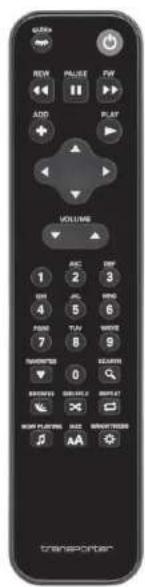
Press POWER to put Transporter into standby mode. This will dim the display, stop the music and show a clock. Press POWER again to wake Transporter.
Press SLEEP to tell Transporter to turn it off at the end of the currently playing song. Press SLEEP again to turn off in 15 minutes. Add 15 minute increments (up to a total of 90 minutes) by pressing SLEEP repeatedly. If you wish to cancel the Sleep function, press SLEEP until the player displays Sleep Cancelled.
Press REW to immediately begin the current song again. Press REW twice to skip to the previous song. Press and hold REW to scan backwards through the current song.
Press PAUSE to pause the current song. Press PAUSE again to continue. Press and hold PAUSE to stop playback.
Press FWD to skip to the next song. Press and hold FWD to scan forward through the current song.
Press PLAY to play the songs contained within the displayed selection. If you press PLAY while displaying:
Genre, artist or album Transporter plays all the songs for the displayed genre, artist, or album
Song-Transporter plays that song, if that song is displayed within the rest of an album, the whole album is played, starting at the song on the display.
- Playlist: Transporter plays all of the songs in that playlist.
- Folder—Transporter plays all songs in that folder and subFolders.
Tip: To save a playlist, press NOW PLAYING then press and hold PLAY. You will be prompted to save the current playlist for use later.
Press ADD to append the displayed selection to the end of the current playlist. If you press_ADD while displaying a
Genre, artist or album-Transporter adds all the songs for the displayed genre, artist, or album to the end of the how playing playlist
Song-Transporter adds that song to the end of the list.
- Playlist—Transporter adds all of the songs in that playlist.
- Folder—Transporter adds all the songs in that folder and subFolders.
Tip: You can press and hold ADD to insert the item on the screen to be played immediately after the currently playing song.
Tip: When in the Now Playing list: Press ADD to remove the visible song from the playlist. Press and hold ADD to move the song from the current playlist to the end to a special playlist called Zapped Songs. The Zapped Songs list can be found in the Saved Playlists area.
Use the UP, DOWN, LEFT, and RIGHT arrows to navigate within the music library. UP displays the previous item within a list; DOWN the next item. Press LEFT to go out of the current list. Press RIGHT to go into the item or to display additional information about a song.
Use the number buttons to enter letters (just like entering text with a cell phone.) For example, press the 2 button once for "A," twice for "B," three times for "C," and four times for "2". Use 0 for spaces. Press 1 to cycle through punctuation. Press RIGHT to see the results of your search.
Tip: In sorted lists such as lists of artists, albums or genres, press the number buttons to jump to the first item that starts with the corresponding letter. Tip: In unsorted lists such as playlists, press a number button to jump proportionally through the list. For example, in a list of 100 songs, pressing the 3 button will jump you to the top of the list; 0 will jump you to the end and 5 will jump you to the middle of the list.
Use the VOLUME buttons to adjust the loudness of the audio Transporter is producing.
Press FAVORITES to jump to the list of favorite items you've saved. Press and hold FAVORITES while displaying a song, radio station or playlist name to add it to your favorites list.
To recall a favorite, you can also press and hold the number button on the remote corresponding to the favorite you've added. For example, to play your first favorite, press and hold the 1 button on the remote and it will begin playing.
Press SEARCH to search for Albums, Artists, or Songs. When Transporter displays Search Music, press the RIGHT arrow to enter your search text.
Press BROWSE to browse through your music library by Genre, Artist, Album, and more.
Press SHUFFLE to cycle between the following settings:
Shuffle All Songs
Shuffie By Albu
No Shuffie
Press REPEAT to cycle between the following settings:
Repeat Off (stop playing at the end of the current playlist)
Repeat Current Song
Repeat All Songs
Press NOW PLAYING to display the song you are listening to. Press NOW PLAYING again to cycle through different display formats for the now playing song, including graphic visualizers and progress meters.
Press SIZE to cycle between different display font sizes. You can do this while Transporter is powered on or off.
14 Logjext
Press BRIGHTNESS to cycle through Transporter display brightness levels. You can do this while Transporter is powered either on or off. If you want to dim the display completely, press BRIGHTNESS to cycle to a completely dark screen. If Transporter is powered off, it will stay dark until you power it back on or press BRIGHTNESS again. If Transporter is powered on, press any button on the remote to turn on the display.
Using the Front Panel Controls

Transporter includes a number of controls on the front panel to allow you to fi nd and control the music you listen to.
The TransNav KNOB provides an intuitive way to quickly scroll through lists. The knob provides force feedback to indicate individual items in a list, indicate the beginning and ending limits in a list and more. Press the center of the knob to move right and into the item or to display additional information about a song.
Press POWER to put Transporter into standby mode. This will dim the display, stop the music and show a clock. Press POWER again to wake Transporter.
Press NOW PLAYING to display the song you are listening to. Press NOW PLAYING again to cycle through different display formats for the now playing song, including progress meters.
Press SEARCH to search for Albums, Artists, or Songs. When Transporter displays Search Music, press the RIGHT arrow to enter your search text.
Press BROWSE to browse through your music library by Genre, Artist, Album, and more.
Press SIZE to cycle between different display font sizes. You can do this while Transporter is powered on or off.
Press BRIGHTNESS to cycle through Transporter display brightness levels. You can do this while Transporter is powered either on or off. If you want to dim the display completely, press BRIGHTNESS to cycle to a completely dark screen. If Transporter is powered off, it will stay dark until you power it back on or press BRIGHTNESS again. If Transporter is powered on, press any button on the remote to turn on the display.
Press BACK to move left and out of the current list.
Owner's Guide
15Transporter
Press PLAY to play the songs contained within the displayed selection. If you press PLAY while displaying:
- Centre, artist or album—Transporter plays all the songs for the displayed genre, artist, or album
Song-Transporter plays that song. If that song is displayed within the rest of an album, the whole album is played, starting at the song on the display. - Playlist—Transporter plays all of the songs in that playlist.
- Folder—Transporter plays all songs in that folder and sub-folders.
Tip: To save a playlist, press NOW PLAYING then press and hold PLAY. You will be prompted to save the current playlist for use later.
Press ADD to append the displayed selection to the end of the current playlist. If you press ADD while displaying a:
- Genre, artist or album—Transporter adds all the songs for the displayed genre, artist, or album to the end of the Now Playing playlist
- Song—Transporter adds that song to the end of the list.
- Playlist—Transporter adds all of the songs in that playlist.
- Folder—Transporter adds all the songs in that folder and sub-folders.
Tip: You can press and hold ADD to insert the item on the screen to be played immediately after the currently playing song.
Tip: When in the Now Playing list, press ADD to remove the visible song from the playlist. Press and hold ADD to move the song from the current playlist to the end of the Zapped Songs playlist.
Press REW to immediately begin the current song again. Press REW twice to skip to the previous song. Press and hold REW to scan backwards through the current song.
Press PAUSE to pause the current song. Press PAUSE again to continue. Press and hold PAUSE to stop playback.
Press FWD to skip to the next song. Press and hold FWD to scan forward through the current song.
The VOLUME button puts the knob into volume mode. Press the VOLUME button and then turn the knob to adjust the loudness of the audio Transporter is producing. Press the VOLUME button again to exit volume adjustment or wait a few seconds and Transporter will exit automatically.
Press the VISUAL button to cycle through a variety of visual settings on the display, including:
- Analog style VU meters
Digital VUMeters
A high resolution stereo spectrum analyzer
A constant display of the title of the currently playing song
16 Logitech
Owner's Guide
17Transxion
Playing Your Music
Transporter plays music that you select with the remote control, front panel controls or web interface.
Using the Remote or Front Panel to Play Music
- Press the BROWSE button to jump to the Browse list.
- You can scroll down to browse by artist, genre, year, new music, existing playlists, or browse the contents of your music folder.
- To browse an album, artist, or genre, press the RIGHT arrow (or the center of the knob) to select it, then scroll through the list.
- When you find an album, artist, genre or song you want to listen to, pressPLAY to play all the songs associated with the displayed item.
Tip: If you want to play the selected songs after the songs that you are already listening to, press ADD and they will be added to the end of the list.
- Press NOW PLAYING to jump to the list of songs that you have selected to play. Scroll through the list with the UP and DOWN arrows. Press the LEFT arrow to return to the main Transporter Home menu.
Using the Web Interface to Play Music
- Open the web interface in your browser.
If you are using the computer where you installed SqueezeCenter, go to http://localhost:9000/
If you are using a different computer on the same local network as the SqueezeCenter computer, use http://kPaddress>9000/ where kPaddress is the IP address or name of the SqueezeCenter computer. See the Troubleshooting section at: the end of this guide for details.
Tip: Windows users can use the SqueezeCenter System Tray icon to bring up the web Interface automatically on their SqueezeCenter computer. Mac users can use the SqueezeCenter pane in System Preferences to bring up the web interface.
2. From the left pane of the web interface, you can browse by a variety of categories, including album, artist, genre, album cover art (if available), new music, by year, and more.
3. When you find an album, artist, track, or playlist you want to listen to, click on the play icon to the right of it to hear it immediately. To add an item to be played at the end of the playlist, click on the add icon.
Searching for Music with the Remote or Front Panel
You can enter the name of the song, artist or album you are looking for in two ways. In each case, the cursor automatically advances three seconds after you press a button, if the button you want next is different from the last button you pressed, you can proceed as quickly as you want. If you have to press the same button consecutively, wait for the cursor to advance before pressing the button again, or press the RIGHT arrow to move on.
Tip: You don't have to enter the entire album name, artist name, or song title to search successfully; just enter the first few letters and pressRIGHT, then scroll down through the results using the DOWN arrow.
Using the arrows or knob to enter letters or numbers:
- Press theUP or DOWN arrows or turn the knob until the character you want is displayed.
- Press the RIGHT arrow or center of the knob once to advance one space to the right.
- Fix errors by pressing the LEFT arrow or the BACK button.
- After you've entered all of the text you want to use for the search, press the RIGHT arrow twice to run the search.
Using the "cellphone" method to enter letters or numbers with the remote:
- Press the black number buttons (2 - 9) one, two, three or four times for letters and numbers.
- Press theo (zero) button for a space.
- Press the1 button repeatedly to cycle through punctuation.
- Press the LEFT arrow to erase letters. Press and hold to erase more than one character.
- Press theRIGHT arrow when you are finished entering text to run the search.
Creating and Saving a Playlist
You can use the remote control or the web interface to create playlists and save them for later. Before you create and save a playlist, make sure you have specified a folder for Transporter to use for saving playlists.
To specify a playlists folder:
- From the web interface, click the Server Settings link.
- In the Playlists Folder section, enter the path to the folder on your hard drive that you want Transporter to use for saving playlists, and click Change.
To create a playlist using the web interface:
- Search or browse through your music library for music you want to put in the playlist.
- When you locate a song, album, artist or genre you want to put in the playlist, click the plus (+) sign next to it. It is added to the current Now Playing playlist.
- To change the order of the tracks in the playlist, use the up and down arrows to move tracks up and down the list.
- To save the playlist, click the SAVE button at the top of the current playlist, on the right half of the page. The new playlist should appear on the left side of the page. Enter the name you want to give this playlist and click Save. The playlist is saved to the folder you specified. To find it again, use the Browse Playlists feature.
18.0000
*Owner's Guide
Transporter
To create a playlist using the remote control or front panel:
- Search or browse through your music library for music you want to put in the playlist.
- When you locate a song, album, artist or genre you want to put in the playlist, press ADD. It is added to the Now Playing playlist.
- To save the playlist, press NOW PLAYING and then press and hold PLAY. Using the remote or front panel, enter the name you want to give this playlist and press the RIGHT arrow.
- The playlist is saved. To find it again, use Browse Playlists.
Listening to Internet Radio
You can listen to thousands of internet radio stations with Transporter. To access internet radio stations using the remote or front panel:
- Press LEFT or BACK to go back to Transporter Home. (You may have to press more than once.)
- Press DOWN or turn the knob to scroll to Internet Radio, then press RIGHT or the center of the knob.
- Press DOWN or turn the knob to scroll through a list of Internet radio providers. Slim Devices Picks is a frequently updated list of stations recommended by Slim Devices. Other providers show more stations organized by genre, type, name, popularity or recommendation.
- Press RIGHT or the center of the knob to enter a provider's area. Navigate through the choices to display the station you'd like to tune to.
- Press PLAY to tune into the station. It may take a few seconds to connect to an internet radio station.
To play an Internet radio station that's not shown in the Internet Radio area:
- Using the SqueezeCenter web interface, click the Radio Tune In link.
- Enter the URL for the radio station you want to listen to in the Radio URL field and click Tune in.
SqueezeNetwork
SqueezeNetwork" is an always-on service that provides access to Internet Radio, alarm clock, natural sounds, news feeds and more, even when your computer is off. Your Transporter connects to SqueezeNetwork using your broadband Internet connection. When your Transporter is connected to SqueezeNetwork, it's not connected to your SqueezeCenter computer.
To connect to SqueezeNetwork, press the left button until Transporter Setup or Transporter Home are displayed on the screen. Then use the DOWN button to scroll to SqueezeNetwork and press RIGHT.
The first time you connect to SqueezeNetwork, you'll be asked to choose a language and time zone. You'll then be provided with a Personal Identification Number (PIN) for your Transporter. Visit http://www.squeezenetwork.com/ with your web browser to create an account on SqueezeNetwork and enter your PIN to register. From that web site you can add favorites to your SqueezeNetwork account, add and modify your favorite radio stations, RSS News feeds and more.
If you ever need to find your PIN again later, connect to SqueezeNetwork with your remote and scroll DOWN to Settings, press RIGHT, then scroll to Transporter PIN and press RIGHT again.
Tip: Your player's SqueezeNetwork PIN number is not permanent and may change. To switch back to your SqueezeCenter from SqueezeNetwork, press LEFT until you see SqueezeNetwork on the top line of the display, then scroll to Sign Off, then press RIGHT.
Tip: "Where am I?" Press LEFT repeatedly until you get to the top most menu. If you are connected to SqueezeNetwork, you'll see SqueezeNetwork on the top line. If you are connected to your SqueezeCenter computer, you'll see Transporter Home. If you are using the large text mode, you may need to press the SIZE button on the remote to get to the small or medium text size to see the fi st line of the display.
Using SqueezeNetwork
You can use the remote or front panel controls to navigate around SqueezeNetwork like you do when connected to SqueezeCenter or visit http://www.squeezeetwork.com/ with your web browser to control your Transporter from the web.
If you are a subscriber to any of the internet music services that SqueezeNetwork supports, such as Live365 or RadiolO, visit the SqueezeNetwork web site to enter your account information so you can tune in directly from Transporter even when your computer is not on.
Pandora
Pandora lets you use SqueezeNetwork to create custom Internet radio streams based on what you like and what you don't like. You can give it feedback using the remote control to customize your audio listening experience.
When you connect to SqueezeNetwork with your Transporter, you also have the option of a 90 day free trial of the Pandora service. To sign up, visit http://www.squeezenetwork.com, log in with your user name and password and click on the Pandora tab at the top of the screen.
When connected to SqueezeNetwork, use the remote or front panel controls to scroll
20 Logitech
\~Owner's Guide
21Transponder
to Pandora and go right to enter the name of an artist or song you like. Pandora will create a unique music station for you.
When you're playing songs with Pandora, you can press the right arrow or the center of the knob on the song and you've given several options. Some of those include:
I like this song - gives it a thumbs up and plays similar songs
- I don't like this song - gives it a thumbs down and tries not to play songs similar to the one that's currently playing.
- Add this song to my Pandora.com personal page - makes it so you can always access this song. Used in case you really want to remember a song.
- Why did I play this song? - tells you why Pandora recommended and played this song for you.
- Make a new station from this song - lets you create a station based on the facets of the particular song that's playing.
After that more information about the current song and stream are listed, including the artist name, album, bitrate and more.
Special Features
Transporter has a beautiful high-resolution vacuum fluorescent display. In addition to displaying the name of the track or internet radio station you're currently listening to, you can tell Transporter to show you dynamic content via RSS feeds, gorgeous graphic music visualizers, as well as a variety of screenshots, games and more.
There are wide range of settings to let you customize your Transporter to your liking. Explore! You won't be sorry. Here are a few to get you started.
Alarm Clock
Transporter has a built-in alarm clock feature with eight alarms—one for each day of the week and another that goes off every day at the same time.
To set the alarms using the remote control:
- Press the LEFT arrow until you see Transporter Home or SqueezeNetwork on the top line of the display. Scroll down until you see Settings and press theRIGHT arrow.
- Scroll down until you see Alarm Clock then press the RIGHT arrow.
- To set an alarm that goes off every day;
Press RIGHT when displaying Set Alarm Time to enter the alarm time. Use the arrow keys to move and set the time. Press LEFT when you've set the time.
Press DOWN to see Alarm Playlist, then press right. Choose from this list the playlist that you'd like to hear when the alarm goes off. Press LEFT once you've chosen your playlist.
Press DOWN to see Alarm Volume, then press right. Use the UP and DOWN buttons to adjust the volume for the alarm. Press RIGHT when you've finished.
Press DOWN to see Alarm Clock Off. Press RIGHT to turn on the alarm. Press RIGHT again to turn it off.
4. To set alarms for individual days of the week, press DOWN until you see Weekday Alarms.
Press RIGHT to see a list of days of the week. Scroll to the day you want to change and press RIGHT.
Press RIGHT when displaying Set Alarm Time to enter the alarm time. Use the arrow keys to move and set the time. Press LEFT when you've set the time.
Press DOWN to see Alarm Playlist, then press right. Choose from this list the playlist that you'd like to hear when the alarm goes off. Press LEFT once you've chosen your playlist.
Press DOWN to see Alarm Volume, then press right. Use the UP and DOWN buttons to adjust the volume for the alarm. Press RIGHT when you've finished.
Press DOWN to see Alarm Clock Off. Press RIGHT to turn on the alarm. Press RIGHT again to turn it off.
22 Luqilch
Owner's Guide
23Transporter
To set alarms using the web interface:
- Open the SqueezeCenter web interface and click on Player Settings for the player.
- Click on the Alarm tab on the top left area of the page.
- Use the form to choose which alarms you'd like to set, the time you'd like them to go off and what playlist you'd like to hear when the alarm goes off. Click Change to save your choices.
Once you've set the alarms you like, your Transporter will wake up on the day and time you've set and start playing.
Tip: You can set unique alarm times for each day of the week under the additional
weekday setting.
Graphic Visualizers
Transporter can display graphic visualizers such as spectrum analyzers and vu meters that beat to the music as it's playing. You can choose to show visualizers on the display all the time or as a screenshot.
Press the VISUAL button on the front panel to rotate through the different visualizers which are displayed on the right side of the display.
To choose a graphic visualizer to display as a screenshot:
- Under settings, choose Player Settings, then scroll to Screensavers.
- Choose from the list of screenshotsavers.
Using Transporter as a Wireless Bridge
Transporter has both 802.11g and ethernet connections. You can easily connect non-wireless devices (such as a TiVo, PlayStation, Xbox, or a home theatre PC) to your wireless network. To set up Transporter as a wireless bridge:
- Plug the device that you want to connect to your wireless network into the ethernet port on the back of transporter using an ethernet crossover cable. You can purchase a crossover cable at most retail computer stores.
- Press and hold the LEFT arrow on the remote for five seconds to enter the Transporter setup screens.
- Press UP to scroll to the Set Up Networking selection and press RIGHT.
- Go through the network setup screens, choosing to connect to a wireless network and then select your region.
- You are presented with the option to turn on wireless bridging. Select Yes and then press RIGHT.
- Continue pressing RIGHT to finish setting up your wireless connection. At the end, your Transporter will be acting as a wireless bridge.
Crossfading Between Tracks
Transporter can crossfade between songs. You can change the type of fade or turn it off completely.
- From the web interface, click Player Settings.
- From the menu at the top, click Audio.
- In the Transition section, choose the type of transition you want from the drop down list and click Change. Choose from:
Crossfading between the two songs
Fading in at the beginning of a song
Fading out at the end of a song
Fading out and in at song transitions
No fading at all
- In the Transition Duration section, enter the number of seconds you want. The transition between tracks to last and click Change.
Transporter will now crossfade between tracks as you specified.
RSS News Ticker
Transporter can display RSS news feeds on its display. SqueezeCenter is pre-confi gured with subscriptions to several RSS news feeds.
To view an existing RSS feed:
- Press LEFT to go back to Transporter Home. (You may have to press LEFT more than once.)
- Press DOWN to scroll to Plugs, then press RIGHT.
- Press DOWN to scroll to the RSS News Ticker option. Press RIGHT.
- Press DOWN to scroll through the list of available news feeds.
- Press RIGHT to view the list of items in that feed, press again to view the details of a specific feed.
To change the list of RSS feeds available on Transporter:
- From the web interface, click Server Settings, then Plugins.
- Scroll down to the RSS News Tickers section and enter the URI for an RSS feed into one of the fields.
You can replace the existing subscriptions, add one to the end, or delete them entirely.
24 Luqilch
*Owner's Guide
25Transporter
To view RSS feeds as a screenshot:
- From the web interface, choose Player Settings, then scroll to Screensavers.
- Choose the RSS News Ticker from the list ofscreensaver choices. Click Change.
Podcasts
Transporter is capable of playing back podcast recordings from the Internet. SqueezeCenter is pre-confedured with subscriptions to a few podcasts.
To listen to a subscribed podcast:
- Press LEFT to go back to Transporter Home. (You may have to press LEFT more than once.)
- Press DOWN to scroll to Plugs, then press RIGHT.
- Press DOWN to scroll to the Podcasts option. Press RIGHT.
- Press DOWN to scroll through the list of available podcast feeds.
- Press RIGHT to view the list of podcast in that feed. You can now press RIGHT on a particular Podcast feed to see what's new.
- Press DOWN to scroll through the list of available casts inside the feed. When you find a podcast you'd like to hear, press PLAY.
To change the list of podcast feeds available on Transporter:
- From the web interface, click Server Settings, then Plugs.
- Scroll down to the Podcasts section and enter the URL for a podcast feed into one of the fi fields.
You can replace the existing subscriptions, add one to the end, or delete them entirely.
Controlling Multiple Players with one SqueezeCenter
Any number of Transporters or Squeezeboxes can connect to a single SqueezeCenter. Each player operates independently of the others, so you can play different music on each one. You can also synchronize them to play the same music in every room of your house simultaneously.
If you have more than one player connected to your SqueezeCenter, a drop-down list will appear in the upper right-hand corner of the web interface so that you can choose which player to control.
To synchronize multiple players with the web interface:
- In the web interface, click on Player Settings, then Audio.
- In the Synchronize section of the page, choose the player that you'd like to synchronize. Click Change.
Wake-on-LAN
Your computer may be confi gured to wake up when you access it with your remote control. This works by sending a special packet to the ethernet port on your computer; it does not work with computers connected via wireless network adaptors. To use Wake-on-LAN:
Mac: Open the System Preferences and click on the Energy Saving icon, then click Options. Check the box "Wake for Ethernet network administrator access." Note that Mac laptops need to be connected to the power adaptor for Wake-on-LAN to work.
Windows XP: From the Start menu, choose Control Panel, then choose Network Connections. Open Local Area Connection, then click on Properties... Click on Conf igure, then Power Management. Check the boxes marked "Allow this device to bring the computer out of standby" and "Only allow management stations to bring this computer out of standby." Then click OK.
Now, when your computer is asleep, you can press the POWER button on the Transporter remote to wake it up.
RS-232 Serial Control
Transporter has an RS-232 (DE-9) TIA-574 style serial port for controlling the Transporter and SqueezeCenter via another hardware device, for instance a Creston or AMX home automation controller, or your computer. The control protocol used for this interface is the same as the command line interface used by the server on TCP port 9090.
For technical information on the protocol, please see the command line Interface documentation in the SqueezeCenter web interface, by clicking Technical Information under Help, then clicking on The Command Line Interface.
The pinout of the RS-232 connector is:
1.Unused
2.TxD(Transmit from Transporter) 7.Unused
3.RxD (Receive to Transporter) 8.Unused
-
Unused
-
Signal Ground
-
Unused

9.
Unused
Infrared Input and Output
Transporter is equipped with an infrared input for control from other systems (IR repeaters, home automation controllers with IR blasters, etc.) Transporter will respond to signals on this input identically to signals received via the IR receiver on the front panel and can be directly connected to IR transmitter devices via a 3.5mm to 3.5mm mono cable as if connecting to an IR LED dongle.
Transporter also has an infrared output for the Transporter to control other interfaces, for instance turning on a receiver or preamp and setting the receiver to a particular input that the Transporter is connected to. This output requires an IR emitter connected via the 3.5mm mono connection and that the SqueezeCenter IR Blaster plugin software is installed and configured appropriately. The IR Blaster software can be found under "Plugins" at http://wiki.slimddevices.com/.
26 Lqilch
Owner's Guide
27Transporter
Analog Output Attenuation (For Qualified Personnel Only)
Transporter has a set of internal attenuators that can be used to reduce the voltage level of the unbalanced analog outputs. If you are connecting Transporter directly to an amplifier that does not have an input gain control, you may need to change the attenuation level.
To change the attenuation level, you'll need to remove the cover of your Transporter and move a pair of jumpers.
You'll need a 1/16" hex key to remove the screws holding the cover on. To do this:
- Unplug Transporter from the AC power.
- Using a 1 / 16^ hex key, remove four screws on each side of Transporter that hold the top in place. (You do not need to remove any of the screws on the bottom of Transporter.)
- Slide the top off towards the back of the unit.
- Near the unbalanced analog outputs, you'll see a set of jumpers, like in the picture below:
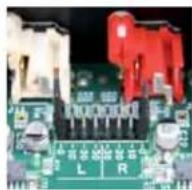
As it comes from the factory, Transporter is set for 0 dB attenuation. To adjust the attenuation, gently pull the black jumper conductors at the 0 dB position and move them to the position corresponding to the attenuation level xyl'd like. Choices include -10cdb, -20cdb and -30db.
- Slide the top cover back on and replace the eight hex screws.
Detailed Specifications
Audio Outputs
Digital and analog outputs
Gold-plated RCA, XLR, and BNC connectors
Volume control is provided for all outputs
Multiple outputs may be used at the same time
Analog Outputs
AKM AK1395 Multi-bit delta sigma digital-to-analog converter (DAC)
Signal-to-noise, Dynamic Range: 120dB
THD+Noise:106dB(0.00005%)
- Linear Super-Regulated power supplies for DAC and line-out stages
Balanced Analog Outputs
- Connectors: XLR gold-plated
Level: 3Vrms (8.5Vpp)
Impedance: 100 Ohms
Attenuation: Fixed-0dB
Unbalanced Analog Outputs
- Connectors: RCA gold-plated
Level:2Vrms(5.7Vpp)
Impedance 100 Chms (at -0dB) - Attenuation: Selectable -0, -10, -20, -30dB (Selectable via internal jumpers)
Digital Outputs and Inputs
Optical, coax, BNC, and XLR digital connectors
Word clock input for synchronization with an external clock
- Linear-regulated power for all clock paths
Dedicated high-precision crystal oscillators (no PLL, no resampling)
Standard IEC-958 (S/PDF) or AES/EBU encoding
Optical connector: TOSLINK 660nm
- RCA connector: capacitor-coupled 500mVpp into 75 ohms
BNC connector: transformer-coupled, 500mVpp into 75 ohms
28 Luqilch
~Owner's Guide
29Transporter
XLR connector: 4.7Vpp into 110 ohms
Sample rates: 44.1kHz, 48kHz, 96kHz
Audio format: linear PCM, 16 or 24 bits per sample
- Jitter (standard deviation):
11ps at oscillator (ntrinsic jitter)
- 17ps at DAC
35ps at S/PDIF receiver
Audio Formats
- Lossless Formats (Apple Lossless, FLAC, WMA Lossless)
"Bit-perfect CD audio streaming, with reduced storage and bandwidth usage.
Approximately 2:1 compression ratio - Uncompressed formats (AIFF, WAV, PCM)
Supports raw pass-through of uncompressed PCM audio formats
Digital passthrough to S/PDF for DTS
Compressed formats (MP3, AAC, Ogg Vorbis, MP2, MusePack, WMA)
- MPEG decoding uses VAD software, widely regarded as the most accurate, most compatible MP3 decoder.
High accuracy 24-bit synthesis
Supports all MP3 data rates and sample rates, including VBR
- May be streamed in PCM (raw), MP3 (transcoded), or FLAC (transcoded) formats
Sound Check and Replay Gain support for automatic volume control. - Some formats may require additional software installation (e.g. Quick-time), depending on platform.
Internet Radio
- "Always-on" Internet Radio, powered by SqueezeNetwork, lets you tune in to Internet Radio streams even when the home PC is switched off.
- Quick selection from hundreds of Internet Radio streams offered by Slim Devices' partners.
- Internet Radio favorites can be saved in a playlist for easy access.
- Displays song title information during playback
Support for MP3, Ogg Vorbis, and WMA formatted Internet Radio streams
Firmware
- Flash upgradable firmware
Network settings are stored in non-volatile memory
Auto-configuration for most networks
Easy setup for wireless networks
Architecture
325 MHz 8-way multithreaded RISC processor
- "Pure software" SlimDSP architecture
Field-upgradable Xilinx CPLD
64Mb high-speed RAW
16Mb program flash
- Low power design, fanless
Network : Wireless Interface
True 802.11g wireless networking (can be disabled)
- Bridging capability allows ethernet devices to connect to the network through the wireless interface
Throughput up to 54Mbps, high speed PCI interface to radio module
- Dual external antennas for improved range and throughput
Supports all 802.11b and 802.11g access points
- Automatically detects available wireless networks for quick setup
Supports both WPA Personal (WPA1+TKIP, WPA2+AFS) and 641'28-bit WFP encryption
- Wireless radio disabled when using ethernet connection
Network : Ethernet Interface
True 100Mbps throughput
30 Logitech
\~Owner's Guide
3TTransponder
- Shielded CAT5 RJ-45 connector
- Connects to any 100Mbps or 10Mbps network
- Auto-detects full duplex and half duplex modes
Automatic receive polarity correction
Maximum cable length: 100 meters [328 feet]
Home Automation Interface
RS-232 connector for serial integration with Crestron and other home automation systems
- 3.5mm infrared input connector
- 3.5mm Infrared emitter connector
Power Input
100-240v,50-601zAC
Internal Fuse:500mA
Standard IEC power connector
- Included IEC power cable specific to shipping destination
Power Supply
- Separate linear supplies for Analog, DAC, and clocks
Auto-ranging, relay-controlled AC input
Three Super Regulators for analog stages (+15, -15, +5)
High-efficiency, low noise SMPS for CPU, Display
Continuous AC voltage monitoring
Automatic over-voltage protection - Low-power "deep sleep" mode
What's Included:
Transporter Network Music Player
- AC Power cable (appropriate plug by region)
- User's manual
- SqueezeCenter software (requires download)
Backlit 31-key infrared remote, with 2 AA batteries
Physical:General
Dimensions: 17^× 3^× 12.25^ (433mm x 72mm x 311mm)
Case: Aircraft grade aluminum available in black or clear anodized finishes
Physical:Front Panel
- Two large, high-resolution vacuum fluorescent displays
- 640x32 greyscale pixels, combined display
- Beautiful high-speed, full-screen visualizers
- Bitmapped graphics, multiple fonts, animation, and images
- Brightness control
14 machined push buttons
TransNav haptic force feedback rotary encoder
Infrared Remote
Standard 38Khz IR
- Iland-held remote, 31 backlit buttons
Durable black finish
- Includes "SmartScroll" algorithms to quickly access favorite songs within large lists
Custom codes do not conflict with other devices
Data format fully compatible with most programmable and universal remotes
- Templates available for Pronto and other infrared remote controls
Supports discrete on/off and other "shortcut" codes
Temperature and Humidity
Operating temperature range 0^ to 35^ 32o to 95F
32 Luqilch
*Owner's Guide
33Transporter
Storage temperature range -20 to 45 C (4 to 113 F)
Maximum humidity (operating) 95%
Troubleshooting
The following tips and answers to frequently asked questions will help resolve problems you may encounter. You can find answers to additional questions on our web site at http://faq.silmdevices.com/.
How do I get back to the Transporter Setup menu?
Press and hold the LEFT arrow for five seconds to bring Transporter back to the setup menu.
How do I reset Transporter to factory default settings?
Plug the power connector into Transporter while holding down the ADD button on the remote until you see Factory Reset followed by the Welcome To Transporter prompt.
The player doesn't obtain an IP address.
Check all your network connections, and make sure that the DHCP server is running. Try a different ethernet cable, even if the hub indicates a good link. Make sure you are using the latest firmware for your router or access point.
Can I connect Transporter directly to my computer?
You can connect Transporter directly to your computer (without a local network or hub) using an ethernet crossover cable. You can purchase a crossover cable at most retail computer stores. Conflgure your network adaptor and Transporter with static IP addresses so that they can find each other. Visit http://faq.sllmndevices.com and search for crossover for additional information.
I can't enter my wireless password.
If your network is using WEP encryption, you'll need the hexadecimal WEP key for your wireless network. Hexadecimal keys are either 10 or 26 digits of 0-9 or the letters A to F. Some wireless access points or routers use text passwords for WLP. The configuration software for your wireless device can show the key in hexadecimal. Airport users can use Airport Admin Utilities. Use the Base Station menu to find the Equivalent Network Password and use the value displayed.
The web interface won't come up, even though Transporter is working.
Try using the following URL: http://127.0.0.1:9000/, (Be sure to type the "http://" part, as some versions of Internet Explorer require it when accessing a URI by IP address.)
My Transporter is not seen by SqueezeCenter ("Player not found") but it does appear to be working properly.
Your Transporter is probably connected to SqueezeNetwork, rather than your local SqueezeCenter. To tell if this is the case, go to the main menu (tap the LEFT arrow a couple of times), and see if the first line of the display says "SqueezeNetwork (X of Y)". If it does, press down until you see Sign Off and press the RIGHT arrow.
How do I find the IP address of the computer where I have installed SqueezeCenter?
On Windows: Click Start > Run, type in cmd and hit enter. In the DOS window, type ipconfig and hit enter.
On Mac OS X: Go to System Preferences > Network. Under the 'Show' drop-down, pick the network interface you are using, then click TCP/IP. Your IP address will be displayed.
On Linux or UNIX: Open up a shell and type ifconfig and hit enter.
Transporter can't connect to my computer running SqueezeCenter.
This could be due to a firewall being active on the computer.
Macintosh: You will have to create a new exception in the built-in fi rewall to allow the Transporter to connect to SqueezeCenter. To do this:
- Open System Preferences > Sharing, and click 'Firewall'
- Click 'New...' to create a new rule
- For 'Port Name: choose 'Other'
- For 'Port Number, Range or Series: type 3483, 9000'
- For UDP Port Number(s): specify '3483' (Mac OS 10.4 only)
-
For 'Description', type 'SqueezeCenter'
-
Click OK, and ensure that your new exception is checked on
Windows: Windows XP Service Pack 2 turns on a built-in firewall by default. You will need to config purge the fiRWAL to allow access to SqueezeeCenter. To do this:
- Go to Control Panel
- Click Security Center
- Click Windows Firewall under "Manage security settings for"
- Click the Exceptions tab
Add an exception for the following three ports by clicking 'Add Port...':
- Port number: 3483 (TCP) - Name: SqueezeCenter Control
Port number: 3483 (UDP) - Name: SlimDiscovery
Port Number: 9000 (TCP) - Name: SqueezeCenter Web
34 Luqilch
*Owner's Guide
35Transporter
Third-Party Firewalls: Instructions for configuring common firewall applications, including Norton Personal Firewall, Norton Internet Security, ZoneAlarm, McAfee Security Center, Trench-Micro PC-Glln, can be found by searching the FAQ for the firewall name at: http://faq.slmdevices.com/. If your firewall allows you to open specific ports, the ports you need to open are:
Fort 3483 UDP protocol
Fort 3483 (TCP protocol)
Port 9000 (TCP protocol)
Transporter can't connect to my computer running SqueezeCenter and I've already checked my fi refillall.
VPN clients for connecting to corporate networks remotely can also cause this behavior. If you can find firewall options in your VPN client. Some examples of VPN clients include Cisco VPN Client and Checkpoint VFN+Firewall-1.
My computer is displaying an error that says that another device on my network is using the same IP address.
If you have a Transporter and you have connected it, using both ethernet and wireless, your Transporter may be set up for bridging and has created a "loop" in your network and you need to disconnect one of your network connections. Unplug the ethernet connection or go back to the setup screens to set up your Transporter to connect using ethernet.
I'm trying to use a mapped network drive like Y:\ for my Music Folder on my Windows computer and it does not work.
Use a UNC style path to specify your music library in the Server Settings page. Instead of X:\path for a mounted volume, use \\SERVERNAME\path\style addressing. This works for some servers where direct volume letter mapping does not. You may have to use the IP address of the machine sharing the network drive (for example: \\192,168,1,105}/Music). Please note that in order for this to work, the network share must not require authentication (a username or password).
How do I use multiple folders or disks with my music library?
You can create links or shortcuts to other folders and place them in your specified Music Library folder. The contents of the linked folders will then be part of your Music Library. More information about this can be found in the FAQ at http://faq.slimdevices.com/.
I added some music to my library but it's not showing up.
If you add music to your music library, you may need to tell SqueezeCenter to rescan your music library. From the web interface, click Server Settings, and click Rescan. SqueezeCenter begins to examine your music folder, looking for new music.
Depending on how much music you have, this could take several minutes. The new music will not appear in your music library on the SqueezeCenter until the rescan is complete.
Some of the songs in my iTunes library don't show up on Transporter or say STOPPED when I try to play them. What's up with that?
If you've moved your iTunes music files around, iTunes may export Incorrect Information about the songs in its library. You'll need to make sure that iTunes has the correct folder for your music library. In iTunes, open Preferences and click on the Advanced tab. If the path to your Music Library folder is Incorrect, you'll need to correct it. If it is correct, try changing it to a different folder and then change it back to the correct folder. iTunes will then update the information about your music and export that data correctly. (This process won't move any of your music, but it will force iTunes to scan your music library and update the paths to all the songs. iTunes may prompt you to organize your music library—letting it do this will move and rename your songs.)
My question wasn't answered here, where can I find more answers?
We keep an up-to-date list of frequently asked questions on our web site at http://jfaq.slimdevices.com.
Getting More Information
Where can I find more documentation?
Check out the Help area at the bottom of your SqueezeCenter home page, or visit the support area of our web site at:
http://www.sllmdevices.com/
36 Luqilch
*Owner's Guide
37Transporter
AC POWERED PRODUCTS: IMPORTANT SAFETY INFORMATION
CAUTION ELECTRIC SHOCK HAZARD
Do not use this apparatus near water.
- Do not block any ventilation openings. Install in accordance with the manufacturer's instructions.
- Do not push objects into apparatus vents or slots because fire or electric shock hazards could result.
- Maintain a minimum distance of at least 6 inches around apparatus for sufficient ventilation.
- ventilation should not be impeded by covering the ventilation openings with items, such as newspapers, table clothes, curtains, etc.
- No naked (open) flame sources, such as lighted candles, should be placed on or near the apparatus.
- Place apparatus in a stable location so it will not fail causing product damage or bodily harm.
- Do not install near any heat sources such as radiators, heat registers, stoves, or other apparatus (including amplifiers) that produce heat.
- Do not defeat the safety purpose of the polarized plug. A polarized plug has two blades with one wider than the other. The wide blade is provided for your safety, if the provided plug does not fit into your outlet, consult an electrician for replacement of the obsolete outlet.
- Protect the power cord from being walked on or pinched particularly at plugs, convenience receptacles, and the point where they exit from the apparatus.
Only use attachments/accessories specified by the manufacturer.
- Unplug this apparatus during lightning storms or when unused for long periods of time.
- Refer all servicing to qualified service personnel. Servicing is required when the apparatus has been damaged in any way, such as power-supply cord or plug is damaged, liquid has been spilled or objects have fallen into the apparatus, the apparatus has been exposed to rain or moisture, does not operate normally, or has been dropped.
- The apparatus shall be disconnected from the mains by unplugging the power cord of the apparatus from the AC mains receptacle.
- The socket-outlet shall be installed near the equipment and shall be easily accessible.
WARNING: TO REDUCE THE RISK OF FIRE OR ELECTRIC SHOCK, DO NOT EXPOSE THIS APPARATUS TO RAIN OR MOISTURE.
This product complies with EN and UL 60950-1 requirements.
FCC Compliance and Advisory Statement
This hardware device complies with Part 15 of the FCC Rules. Operation is subject to the following two conditions: 1) This device may not cause harmful interference, and 2) This device must accept any interference received, including interference that may cause undesired operation. This equipment has been tested and found to comply with the limits for a Class B digital device, pursuant to Part 15 of the FCC Rules. These limits are designed to provide reasonable protection against harmful interference in a residential installation. This equipment generates, uses, and can radiate radio frequency energy and, if not installed or used in accordance with the instructions, may cause harmful interference to radio communications. However, there is no guarantee that interference will not occur in a particular installation. If this equipment does cause harmful interference to radio or television reception, which can be determined by turning the equipment off and on, the user is encouraged to try to correct the interference by one or more of the following measures: 1) reorient or relocate the receiving antenna; 2) Increase the separation between the equipment and the receiver; 3) connect the equipment to an outlet on a circuit different from that to which the receiver is connected; 4) consult the dealer or an experienced radio/TV technician for help. Any changes or modifications not expressly approved by the party responsible for compliance could void the user's authority to operate the equipment. Where shielded interface cables have been provided with the product or specified additional components or accessories elsewhere defined to be used with the installation of the product, they must be used in order to ensure compliance with FCC regulations.
FCC Radiation Exposure Statement. This equipment complies with FCC radiation exposure limits set forth for an uncontrolled environment. End users must follow the specific operating instructions for satisfying RF exposure compliance. This transmitter must not be co-located or operating in conjunction with any other antenna or transmitter.
Canadian DOC Statement: This digital device does not exceed the Class B limits for radio noise emissions from digital apparatus specifically in the interference-causing equipment standard entitled "Digital Apparatus," ICES-003 of the Department of Communications. This device complies with RSS-210 of Industry and Science Canada. Operation is subject to the following two conditions: 1) this device may not cause interference, and 2) this device must accept any interference, including interference that may cause undesired operation of the device.
Interference Information for 2.4 GHz Cordless Products: Your Logitech 2.4 GHz cordless product uses channel and frequency-hopping technology to avoid interference with other cordless devices. Your product has been extensively tested with other 2.4 GHz cordless devices and RF (radio frequency) emitting devices (cordless phones, cordless headsets, wireless networks, cordless cameras, AV senders/receivers, etc.). Most likely you will not experience any RF interference between your Logitech cordless product and the devices listed above. In some cases, however, it is possible that interference may occur. This interference could result in erratic behavior or a complete loss of signal in the other cordless devices. If you notice this behavior (or static, clicking, or humming) in the other cordless devices, there are two actions you can take to reduce or eliminate the interference. 1. Increase the distance between your Logitech cordless product (including the receiver) and the other cordless devices/receivers. 2. When using your Logitech cordless product, turn off the other cordless devices that are in close proximity.
[EN] Use of this product is authorized in the following countries:
[FR] L'utilisation de ce produit est autorisé dans les pays suivants:
[DE] Verbrauch dieses Produktes wird in den folgenden Ländern autorisiert:
AT, CY, BE, BGR, DK, UK, FI, FR*, DE, GR, HU, IE, LU, NL, PT, ES, SE, IS, LI, NO, CH, CZ, PL, RO, SK, SI, EE, LV, LT, MT
[EN] General license require for outdoor use; For indoor use only
[FR] * Pernis général requiqs pour l'usage extérieur; ** Pour l'usage d'intérieur seulment
[DE]*Allgemeine Lizenz erfordert fur im Freiengebrauch; Furu nur Innengebrauch
BATTERY WARNING
Your product uses batteries. Please follow the battery manufacturer's instructions as well as these important safety tips. Exercise care when handling batteries. Do not open or mutilate them. When batteries are misused, they may leak or explode causing burns and personal injury. Conducting materials can also short out a battery causing it to overheat and leak. Do not put batteries in a fire, expose them to heat above 130F (54C), or rinse them in water. If your batteries leak, use caution and discard the batteries immediately according to the battery manufacturer's instructions and your local laws. When replacing batteries, remove all used batteries. Mixing old and new batteries may cause battery leakage or rupture. When possible use alkaline battery replacements. You may use other battery types, but do not mix them with alkalines. Make sure that you insert the batteries correctly. When not using your product for long periods of time, remove the batteries and store them in cool, dry place at normal room temperature.
POWER SUPPLY WARNING
Your product has a power supply so please follow these safety guidelines: 1) The power supply is for Indoor use only. 2) Use the power supply that comes with your product; do not use any other power supply. 3) Do not use a damaged power supply or attempt to repair one that is damaged. 4) Do not immerse the power supply in water or subject it to physical abuse. 5) Inspect the power supply regularly for damage to its cable, plug, and body.
40 Logitech
Logitech Hardware Product Limited Warranty
Logitech warrants that your Logitech hardware product shall be free from defects in material and workmanship (for loss (2) years, beginning from the date of purchase. Except where provided by applicable law, this warranty is nontransferable and is limited to the original purchaser. This warranty gives you specific legal rights, and you may also have other rights that vary under local laws.
Remedies, Logotech's entire liability and your exclusive remedy for any breach of warranty shall be, at Logotech's option, (1) to repair or replace the hardware, or (2) to refund the price paid, provided that the hardware is returned to the point of purchase or such other place as Logotech may direct with a copy of the sales receipt dated writtenized by the firm, shipping and handling charges may apply except where published by applicable law. Logotech may, in its option, use new or refurbished used parts in good working condition to replace or replace any hardware product. Any replacement hardware product will be warranted for the remainder of the original warranty period or thirty (30) days, whichever is longer or for any additional period of time that may be applicable in your jurisdiction.
This warranty does not include problems or damage resulting from (1) accidents, abuse, misuse, or any unauthorized repair, modification or disassembly; (2) improper operation or maintenance, usage not in accordance with product instructions or connection to improper voltage supply; or (3) use of consumables, such as replacement batteries, not supplied by retailers except where such restriction is prohibited or applicable law.
How to Obtain Warranty Support. Before submitting a warranty claim, we recommend you visit the support section at www.logitech.com for technical assistance. Void warranty claims are generally processed through the point of purchase during the first thirty (30) days after purchase; however, this period of time may vary depending on where you purchased your product - please check with Logitech or the retailer where you purchased your product for details. Warranty claims that cannot be processed through the point of purchase and any other product related questions should be addressed directly to Logitech. The addresses and customer service contact information for Logitech can be found in the documentation accompanying your product and on the web at www.logitech.com/contanctus.
Limitation of liability. LOGICTH SHALL NOT BE LIABBLE FOR ANY SPECIAL, INDIRECT, INCIDENTL OR CONSEQUENTAL DAMAGES WHATsoever, INCLUDING BUT NOT LIMITED TO LOSS OF PROFITS, REVENUE OR DATA (WHILHER DIRECT OR INDIRECT) OR COMMERCIAL LOSS FOR PREACH OR ANY EXPRESS OR IMplied WARANLY ON YOUR PRODUCT EVEN IF I USE THE PROPOS OF SUCH DAMAGES. SOME INDUSTRIES do not allow the excusion or limitation of special, indirect, incidental or consequentd damages, so the above limitation or exclusion may not apply to you.
Duration of Impaired Warranties. EXCEPT TO THE EXTIN PROHIBITED BY APPLICABLE I ANY IMPROED WARRANTY OR CONDITION OF MERCHANTIABILITY OR FITNESS FOR A PARTICULAR AREPOST ON THIS HARDWARD PRODUCT IS LIMITED IN DURATION TO THE DURATION OF THE APPLICABLE WARRANTY PERIOD FOR YOUR PRODUCT. Some jurisdictions do not allow limitations on how long an impuired warranty lasts, so the above limitation may not apply to you.
National Statutory Rights. Consumers have legal rights under applicable national legislation governing the sale of consumer goods. Such rights are not affected by the warranties in this Limited Warranty.
No Other Warranties. No Logits in devices, applets, or emochery is authorized to make any modification, extension, or additions in this warranty.
Logitech Address. Logitech Europe S.A., 21. Moulin du Choc D, 1122 Romanci/Morgcs, Switzerland
www.logitech.com
008208 logitm. All rights reserved. gtteh the igatht hgo, anther oghtt rans are mated by igctt and may be registered. All other tranere are the property of their owners. toght assumes no responsibility for any costs that may appear in this manil. Information contained herein is subject to change without notice.
620-001244
42 Logitech
: Benulzerhandbuch
43Transporter
Inhaltsverzeichnis
http://www.slimdevices.com/
MIT WECHSELSTROM BETRIEBENE CERATE: WICHTIG SICHERHEITSINFORMATIONEN
[EN] Use of this product is authorized in the following countries:
[EN]* General license require for outdoor use; For indoor use only
http://www.slimdevices.com/
CONSIGNES DE SECURITE IMPORTANTE SDCONCERNANT L'UTILISATION DES PRODUITS ALIMENTES SUR SECTEUR
ATTENTION: RISQUE D' ELECTROCUTION
[EN] Use of this product is authorized in the following countries:
[EN] General license require for outdoor use; For indoor use only
http://www.slimdevices.com/
148logjxh
\~Guida dellutente
147Transporlur
PRODOTI ALIMENTATI A CORRENTE CA: INFORMAZIONI IMPORTANT SULLA SICUREZZA
ATTENZIONE - PERICOLO DI SCOSSE ELETTRICHE
Control series RS-232 25
http://wiki.slimdevices.com/index.cgi?DebianPackage.
True 802.11g wireless networking (can be disabled)
- Bridging capability allows ethernet devices to connect to the network through the wireless interface
Throughput up to 54Mbps, high speed PCI interface to radio module
- Dual external antennas for improved range and throughput
Supports all 802.11b and 802.11g access points
- Automatically detects available wireless networks for quick setup
Supports both WPA Personal (WPA1+TKP, WPA2+AES) and 641'28-bit WEP encryption
- Wireless radio disabled when using ethernet connection
Red: Interfaz Ethernet
http://www.slimdevices.com/
184 logluxh
*Manual del usatio
185Theorem
PRODUCTOS QUE FUNCIONAN CON CA: INFORMACION IMPORTANTE SOBRE SEGURIDAD
PRECAUCION: PELIGRO DE DESCARGAS ELECTRICAS
http://jwiki.slimdevices.com/index.cgi?DebianPackage.
De set-up is voltoold.
Veritiesvijr indelingen (Apple Lossless, FLAC, WVA Lossless)
http://www.slimdevices.com/
222 Logitech
Gebruikersgijds
223Transporter
PRODUCTEN OP WISSELSTROOM: BELANGRIKE VEILIGHEIDSINFORMATIE
WAARSCHUWING: GEVAAR OP ELEKTRISCHE SCHOK
[EN] Use of this product is authorized in the following countries:
[FR] L'utilisation de ce produit est autorisée dans les pays suivants:
[DE] Verbrauch dieseres Produktles wird in den folgenden Ländern autorisiert:
AT, CY, BE, BGR, DK, UK, FI, FR*, DE, GR, HU, IE, LU, NL, PT, ES, SE, IS, LI, NO, CH, CZ, PI, RO, SK, SI, EE, LV, LT, MT
' Algemene licentie vereist voor gebruik buitenshuis; 'Alleen voor gebruik binnenshuis
[FR] * Permis général requis pour l'usage extérieur; ** Pour l'usage d'intérieur seulement
[DE] * Allgemeine Lizenzen erfordert für Im Freiengebrauch; ** Für nur Innengebrauch

224 Logitech
Gebruikersgijds
225Transporter
BATTERIJWAARSCHUWING
WAARSCHUWING VOOR STROOMTOEVOER
- Before You Begin
- System Requirements
- Installing the SqueezeCenter Software
- Installing on Windows
- Installing on Mac OS X
- Installing on Linux or Other Operating System
- Connecting Transporter
- Audio Connections
- Analog Outputs
- Digital Outputs and Inputs
- Using Transporter as a Standalone DAC
- Configuring Transporter
- Set Up Networking
- Select a Music Source
- Using the Remote
- Using the Front Panel Controls
- Playing Your Music
- Using the Remote or Front Panel to Play Music
- Searching for Music with the Remote or Front Panel
- Creating and Saving a Playlist
- Listening to Internet Radio
- SqueezeNetwork
- Using SqueezeNetwork
- Pandora
- Special Features
- Alarm Clock
- weekday setting.
- Graphic Visualizers
- Using Transporter as a Wireless Bridge
- Crossfading Between Tracks
- RSS News Ticker
- Podcasts
- Controlling Multiple Players with one SqueezeCenter
- Wake-on-LAN
- RS-232 Serial Control
- Infrared Input and Output
- Analog Output Attenuation (For Qualified Personnel Only)
- Detailed Specifications
- Audio Outputs
- Balanced Analog Outputs
- Unbalanced Analog Outputs
- Audio Formats
- Internet Radio
- Firmware
- Architecture
- Network : Wireless Interface
- Network : Ethernet Interface
- Home Automation Interface
- Power Input
- Power Supply
- What's Included:
- Physical:General
- Physical:Front Panel
- Infrared Remote
- Temperature and Humidity
- Troubleshooting
- How do I get back to the Transporter Setup menu?
- How do I reset Transporter to factory default settings?
- The player doesn't obtain an IP address.
- Can I connect Transporter directly to my computer?
- I can't enter my wireless password.
- The web interface won't come up, even though Transporter is working.
- My Transporter is not seen by SqueezeCenter ("Player not found") but it does appear to be working properly.
- How do I find the IP address of the computer where I have installed SqueezeCenter?
- Transporter can't connect to my computer running SqueezeCenter.
- Getting More Information
- AC POWERED PRODUCTS: IMPORTANT SAFETY INFORMATION
- CAUTION ELECTRIC SHOCK HAZARD
- WARNING: TO REDUCE THE RISK OF FIRE OR ELECTRIC SHOCK, DO NOT EXPOSE THIS APPARATUS TO RAIN OR MOISTURE.
- FCC Compliance and Advisory Statement
- BATTERY WARNING
- POWER SUPPLY WARNING
- Logitech Hardware Product Limited Warranty
- www.logitech.com
- Inhaltsverzeichnis
- MIT WECHSELSTROM BETRIEBENE CERATE: WICHTIG SICHERHEITSINFORMATIONEN
- CONSIGNES DE SECURITE IMPORTANTE SDCONCERNANT L'UTILISATION DES PRODUITS ALIMENTES SUR SECTEUR
- ATTENTION: RISQUE D' ELECTROCUTION
- PRODOTI ALIMENTATI A CORRENTE CA: INFORMAZIONI IMPORTANT SULLA SICUREZZA
- ATTENZIONE - PERICOLO DI SCOSSE ELETTRICHE
- Red: Interfaz Ethernet
- PRODUCTOS QUE FUNCIONAN CON CA: INFORMACION IMPORTANTE SOBRE SEGURIDAD
- PRECAUCION: PELIGRO DE DESCARGAS ELECTRICAS
- PRODUCTEN OP WISSELSTROOM: BELANGRIKE VEILIGHEIDSINFORMATIE
- WAARSCHUWING: GEVAAR OP ELEKTRISCHE SCHOK
- BATTERIJWAARSCHUWING
- WAARSCHUWING VOOR STROOMTOEVOER
Brand : LOGITECH
Model : Transporter 930000052
Category : Media player