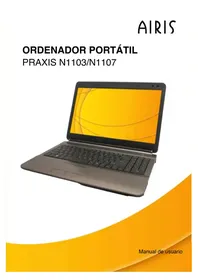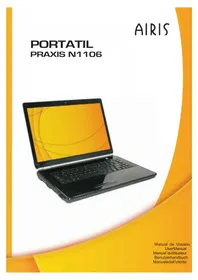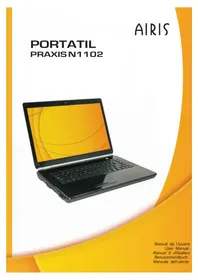
Xtreme N1700 - Laptop AIRIS - Free user manual and instructions
Find the device manual for free Xtreme N1700 AIRIS in PDF.



User questions about Xtreme N1700 AIRIS
0 question about this device. Answer the ones you know or ask your own.
Ask a new question about this device
Download the instructions for your Laptop in PDF format for free! Find your manual Xtreme N1700 - AIRIS and take your electronic device back in hand. On this page are published all the documents necessary for the use of your device. Xtreme N1700 by AIRIS.
USER MANUAL Xtreme N1700 AIRIS
Concise User's Guide
Introduction (English)
This Concise User's Guide introduces the main features of your computer. The English version of this guide begins on page 1. The expanded User's Manual is on the Device Drivers & Utilities + User's Manual CD-ROM.
Notice 1
About this Concise User Guide 2
Instructions for Care and Operation 3
System Startup 6
System Software 7
System Map: Front View with LCD Panel Open 8
LED Indicators 9
Hot-Key Buttons & Keyboard 10
System Map: Front & Rear Views 13
System Map: Right & Left Views 14
System Map: Bottom View 15
Windows Vista Start Menu & Control Panel 16
Video Features 17
Audio Features 19
Power Management Features 20
Driver Installation 21
Security Modules (TPM & Fingerprint) 26
TPM (Trusted Platform Module) 26
Fingerprint Reader Module 28
TV Tuner Module 31
Troubleshooting 34
Specifications 36
Inhalt
TPM (Trusted Platform Module) 106
TPM (Trusted Platform Module) 146
The company reserves the right to revise this publication or to change its contents without notice. Information contained herein is for reference only and does not constitute a commitment on the part of the manufacturer or any subsequent vendor. They assume no responsibility or liability for any errors or inaccuracies that may appear in this publication nor are they in anyway responsible for any loss or damage resulting from the use (or misuse) of this publication.
This publication and any accompanying software may not, in whole or in part, be reproduced, translated, transmitted or reduced to any machine readable form without prior consent from the vendor, manufacturer or creators of this publication, except for copies kept by the user for backup purposes.
Brand and product names mentioned in this publication may or may not be copyrights and/or registered trademarks of their respective companies. They are mentioned for identification purposes only and are not intended as an endorsement of that product or its manufacturer.
©June 2007
Trademarks
This product incorporates copyright protection technology that is protected by method claims of certain U.S. patents and other intellectual property rights owned by Macrovision Corporation and other rights owners. Use of this copyright protection technology must be authorized by Macrovision Corporation, and is intended for home or other limited viewing uses only unless otherwise authorized by Macrovision Corporation. Reverse engineering or disassembly is prohibited.
Intel and Intel Core are trademarks/registered trademarks of Intel Corporation.
SRS() is a trademark of SRS Labs, Inc.
WOW technology is incorporated under license from SRS Labs, Inc.
Concise User's Guide
About this Concise User Guide
This quick guide is a brief introduction to getting your system started. This is a supplement, and not a substitute for the expanded English language User's Manual in Adobe Acrobat format on the Device Drivers & Utilities + User's Manual CD-ROM supplied with your computer. This CD-ROM also contains the drivers and utilities necessary for the proper operation of the computer.
Some or all of the computer's features may already have been setup. If they aren't, or you are planning to re-configure (or re-install) portions of the system, refer to the expanded User's Manual. The Device Drivers & Utilities + User's Manual CD-ROM does not contain an operating system.
Regulatory Information
Regulatory notices and information are contained in the expanded User's Manual on the Device Drivers & Utilities + User's Manual CD-ROM.

Wireless Device Operation Aboard Aircraft
The use of any portable electronic transmission devices aboard aircraft is usually prohibited. Make sure the modules are OFF if you are using the computer aboard aircraft.
2 - About this Concise User Guide
Instructions for Care and Operation
The computer is quite rugged, but it can be damaged. To prevent this, follow these suggestions:
- Don't drop it, or expose it to shock. If the computer falls, the case and the components could be damaged.
- Keep it dry, and don't overheat it. Keep the computer and power supply away from any kind of heating element. This is an electrical appliance. If water or any other liquid gets into it, the computer could be badly damaged.
- Avoid interference. Keep the computer away from high capacity transformers, electric motors, and other strong magnetic fields. These can hinder proper performance and damage your data.
- Follow the proper working procedures for the computer. Shut the computer down properly and don't forget to save your work. Remember to periodically save your data as data may be lost.
Take care when using peripheral devices.
Servicing
Do not attempt to service the computer yourself. Doing so may violate your warranty and expose you and the computer to electric shock. Refer all servicing to authorized service personnel. Unplug the computer from the power supply. Then refer servicing to qualified service personnel under any of the following conditions:
- When the power cord is damaged or frayed.
- If the computer has been exposed to any liquids.
If the computer does not work normally when you follow the operating instructions. - If the computer has been dropped or damaged (do not touch the poisonous liquid if the LCD panel breaks).
- If there is an unusual odor, heat or smoke coming from your computer.
Concise User's Guide
Power Safety
The computer has specific power requirements:
- Only use an AC/DC adapter approved for use with this computer.
- Your AC/DC adapter may be designed for international travel but it still requires a steady, uninterrupted power supply. If you are unsure of your local power specifications, consult your service representative or local power company.
The AC/DC adapter may have either a 2-prong or a 3-prong grounded plug. The third prong is an important safety feature; do not defeat its purpose. If you do not have access to a compatible outlet, have a qualified electrician install one. - When you want to unplug the power cord, be sure to disconnect it by the plug head, not by its wire.
Make sure the socket and any extension cord(s) you use can support the total current load of all the connected devices. - Before cleaning the computer, make sure it is disconnected from any external power supplies.

Power Safety Warning
Before you undertake any upgrade procedures, make sure that you have turned off the power, and disconnected all peripherals and cables (including telephone lines). It is advisable to also remove your battery in order to prevent accidentally turning the machine on.
Power Off Before Traveling
Make sure that your notebook is completely powered off before putting it into a travel bag (or any such container). Putting a notebook which is powered on in a travel bag may cause the vent(s) to be blocked. To prevent your computer from overheating make sure nothing blocks the vent(s) while the computer is in use.
Cleaning
Do not apply cleaner directly to the computer, use a soft clean cloth. Do not use volatile (petroleum distillates) or abrasive cleaners on any part of the computer.
4 - Instructions for Care and Operation
Battery Precautions
Only use batteries designed for this computer. The wrong battery type may explode, leak or damage the computer.
- Do not continue to use a battery that has been dropped, or that appears damaged (e.g. bent or twisted) in any way. Even if the computer continues to work with a damaged battery in place, it may cause circuit damage, which may possibly result in fire.
- Recharge the batteries using the notebook's system. Incorrect recharging may make the battery explode.
- Do not try to repair a battery pack. Refer any battery pack repair or replacement to your service representative or qualified service personnel.
- Keep children away from, and promptly dispose of a damaged battery. Always dispose of batteries carefully. Batteries may explode or leak if exposed to fire, or improperly handled or discarded.
- Keep the battery away from metal appliances.
- Affix tape to the battery contacts before disposing of the battery.
- Do not touch the battery contacts with your hands or metal objects.

Battery Disposal & Caution
The product that you have purchased contains a rechargeable battery. The battery is recyclable. At the end of its useful life, under various state and local laws, it may be illegal to dispose of this battery into the municipal waste stream. Check with your local solid waste officials for details in your area for recycling options or proper disposal.
Danger of explosion if battery is incorrectly replaced. Replace only with the same or equivalent type recommended by the manufacturer. Discard used battery according to the manufacturer's instructions.
Concise User's Guide

Shutdown
Note that you should always shut your computer down by choosing the Shut Down command from the Lock Button Menu in Windows Vista. This will help prevent hard disk or system problems.
System Startup
- Remove all packing materials.
- Place the computer on a stable surface.
- Securely attach any peripherals you want to use with the notebook (e.g. keyboard and mouse) to their ports.
- Attach the AC/DC adapter to the DC-In jack at the rear of the computer, then plug the AC power cord into an outlet, and connect the AC power cord to the AC/DC adapter.
- Move the LCD latches at the front of the computer outwards towards the sides of the computer to release the top cover.
- Raise the lid/LCD to a comfortable viewing angle, and press the power button.
- Adjust the LCD panel to a comfortable viewing angle.
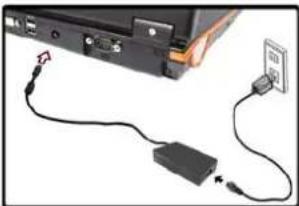
Figure 1 - AC/DC
Adapter In
Model Differences
This notebook series includes two different design types, however only one design is pictured in this manual.
6 - System Startup
System Software
Your computer may already come with system software pre-installed. Where this is not the case, or where you are re-configuring your computer for a different system, you will find this manual refers to the Microsoft Windows Vista operating system. Further information on installing the drivers and utilities is available in Chapters 4 & 7 of the expanded User's Manual on the Device Drivers & Utilities + User's Manual CD-ROM.
Table 1 - Operating Systems Supported
| Operating System & Version Note | |
| *Windows XP (Home or Professional) | |
| Windows Vista (64-bit) Home Basic Edition | In order to run Windows Vista without limitations or decreased performance, your computer requires a minimum 1GB of system memory (RAM). |
| Windows Vista (64-bit) Home Premium/Business/Enterprise/Ultimate Editions |
*For information on the Windows XP OS (see the Device Drivers & Utilities + User's Manual CD-ROM).
Drivers
If you are installing/re-installing new system software, you will need to install the appropriate drivers. It is very important that you install the drivers in the order listed in Table 6, on page 21.

TV Tuner Module Support
Note that the TV Tuner module (factory) options in Windows Vista are supported by the Windows Media Center software which comes built-in to the Windows Vista Home Premium and Ultimate Editions only.
If your purchase includes a TV Tuner option, and you are re-configuring your system for a different system, you should install either Windows Home Premium or Ultimate Editions only.
Concise User's Guide
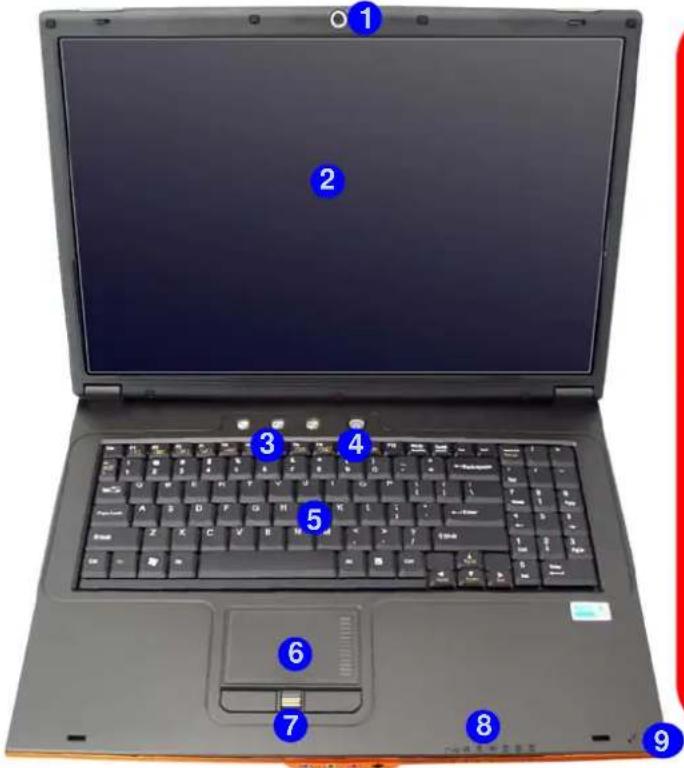
Figure 2
Front View with LCD Panel Open
- Built-In PC Camera (optional)
- LCD
- Hot-Key Buttons
- Power Button
- Keyboard
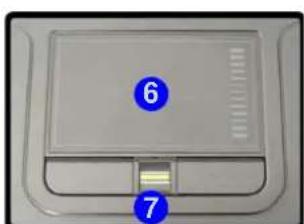
- TouchPad and Buttons
- Fingerprint Reader Module (optional)
- LED Indicators
- Built-In Microphone
System Map: Front View with LCD Panel Open

Wireless Device Operation Aboard Aircraft
The use of any portable electronic transmission devices (e.g. WLAN or Bluetooth) aboard aircraft is usually prohibited. Make sure any wireless modules are OFF if you are using the computer aboard aircraft.
Use the appropriate function key combination (see Table 4, on page 11) to toggle power to any wireless modules, and check the LED indicators to see if any modules are powered on or not (see Table 2, on page 9).
8 - System Map: Front View with LCD Panel Open
LED Indicators
The LED indicators on the computer display helpful information about the current status of the computer.
Table 2 - LED Indicators
| Icon | Color | Description | Icon | Color | Description |
| D/1 | Green The Computer is On Orange The Battery | is Charging | |||
| Blinking Green | The Computer is In Sleep Mode | III | Blinking Orange | The Battery has Reached Critically Low Power Status | |
| Orange The AC/DC Adapter is Plugged In Green | The Battery is Fully Charged | ||||
| 1 | Green Number Lock is Activated Green Hard Disk Activity | ||||
| A | Green | Caps Lock is Activated | ((>) | Orange | The Bluetooth Module is Powered On |
| ↓ | Green | Scroll Lock is Activated | Green | The WLAN Module is Powered On | |

Concise User's Guide
Hot-Key Buttons & Keyboard
These buttons give instant access to the default Internet browser and e-mail program, and to a user-defined application (see "Application Hot-Key Button" on page 12), with one quick button press.
Table 3 - Hot-Key Buttons
| Hot-Key Button Function | |
| Activate the Default E-Mail Browser | |
| Activate the Default Internet Program | |
| Activate the user specified application e.g. Microsoft Word or Excel | |
The keyboard includes a numeric keypad (on the right side of the keyboard) for easy numeric data input. Pressing the Num Lk key turns on/off the numeric keypad. It also features Function Keys to allow you to change operational features instantly.
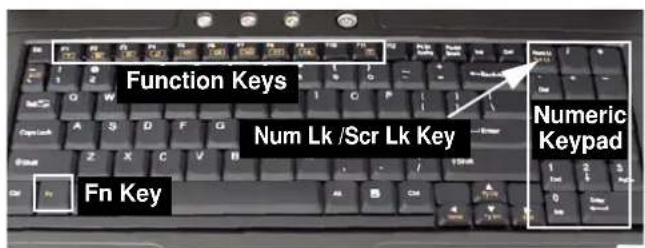
Figure 3 - Keyboard

Some software applications allow the number-keys to be used with Alt to produce special characters. These special characters can only be produced by using the numeric keypad. Regular number keys (in the upper row of the keyboard) will not work. Make sure that the numeric keypad (Num Lk) is on.
10 - Hot-Key Buttons & Keyboard
Function Keys & Visual Indicators
The function keys (F1 - F12 etc.) will act as hot keys when pressed while the Fn key is held down. In addition to the basic function key combinations, visual indicators (see the table below) are available when the Hot-Key driver is installed. After installing the driver an icon will appear in the taskbar.
| Keys | Function/Visual Indicators | Keys | Function/Visual Indicators | ||
| Fn + ~ Play/Pause (in Audio/Video Programs) | Fn + F8/F9 | Brightness Decrease/ Increase | Brightness | ||
| Fn + F1 TouchPad Toggle Fn + | F10 | PC Camera Module Power Toggle | Power on Power off | ||
| Fn + F2 | Turn LCD Backlight Off (Press a key to or use TouchPad to turn on) | Fn + F11 | WLAN Module Power Toggle | Radio on Radio off | |
| Fn + F3 Mute Toggle Fn + F12 | Volume On Volume Mute | Bluetooth Module Power Toggle | Power on Power off | ||
| Fn + F4 Sleep Toggle | Fn + Scr Lk | Scroll Lock Toggle | |||
| Fn + F5/F6 | Volume Decrease/ Increase | Num Lk Number Lock (Numeric Keypad) Toggle | |||
| Fn + F7 Display Toggle | Table 4 - Function Keys & Visual Indicators | ||||

Concise User's Guide
Application Hot-Key Button
To configure a program to open when the application Hot-Key button ±b is pressed (Windows Media Player is the default program), follow the instructions below.
- Double-click the Hot-Key driver icon the taskbar.
- Click Launch user specified application (button)
- An Open dialog box will appear on the screen.
- Browse to the directory where the desired application.exe program exists (button).
- Double-Click on the program file or choose Open, and click OK.
- Press the application Hot-Key button to open the program (as long as the Hot-Key driver is running in the taskbar).
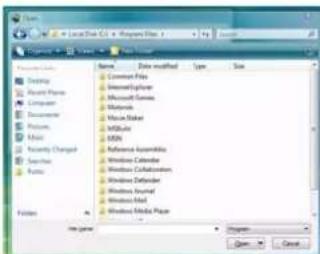
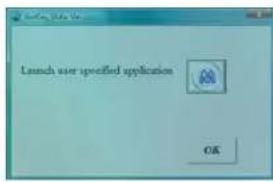

Figure 4 - Hot-Key Driver
Application.exe
You will need to locate the actual application executable (.exe) file, not just the shortcut. To find the application right-click its shortcut on the desktop and click Properties. Click the shortcut (tab) and see where the executable file is located by clicking the Open File Location (button).
Hot-Key Driver
If you click the Close icon run the program from the file location:
(C:\Program Files (x86)Hotkey_Driver\HotkeyDriver.exe).
12 - Hot-Key Buttons & Keyboard
System Map: Front & Rear Views
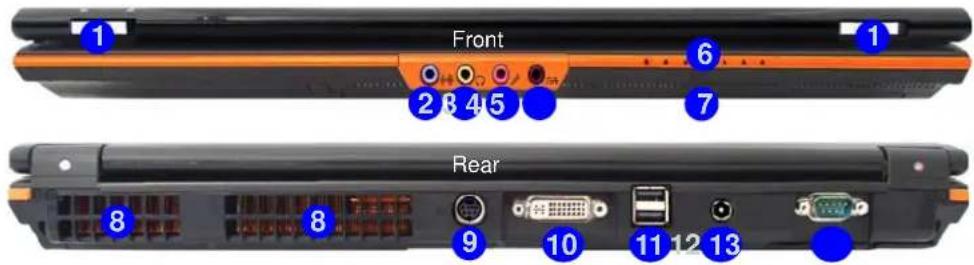
Figure 5 Front & Rear Views
- LCD Latches
- Line-In Jack
- Headphone-Out Jack
- Microphone-In Jack
- S/PDIF-Out Jack
- LED Indicators
- Infrared & Consumer Infrared Transceiver
- Vent
- S-Video-Out Jack
- DVI-Out Port
11.2* USB 2.0 Ports - DC-In Jack
- Serial Port

Overheating
To prevent your computer from overheating make sure nothing blocks the Vent/Fan Intake/Out let while the computer is in use.
USB Ports
Note that the connections to the USB ports only fit one way, do not force them.
Concise User's Guide
Figure 6 Right & Left Views
- ExpressCard Slot
- 7-in-1 Card Reader
3.2*USB 2.0 Ports - Mini-IEEE 1394 Port
5.RJ-11 Phone Jack
6.RJ-45 LAN Jack - Cable (CATV) Antenna Jack (Enabled With TV Tuner Only)
- Speaker
- Security Lock Slot
- Optical Device Drive Bay
- Emergency Eject Hole
System Map: Right & Left Views



CD/DVD Emergency Eject
If you need to manually eject a CD/DVD (e.g. due to an unexpected power interruption) you may push the end of a straightened paper clip into the emergency eject hole. Do not use a sharpened pencil or any object that may break and become lodged in the hole. Don't try to remove a floppy disk/CD/DVD while the system is accessing it. This may cause the system to "crash".

Mini-IEEE 1394 Port
Both Mini-IEEE 1394 ports only support SELF POWERED IEEE 1394 devices.
ExpressCard Slot
The ExpressCard Slot accepts either ExpressCard/34 or ExpressCard/54 formats.
14 - System Map: Right & Left Views
System Map: Bottom View
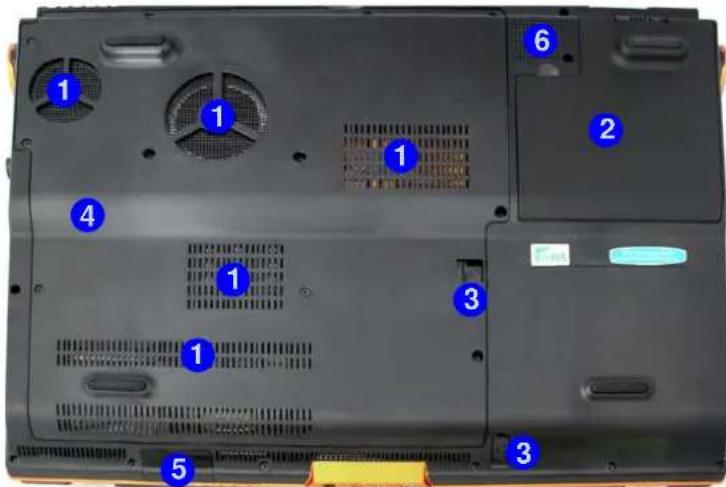
Figure 7 Bottom View
- Vent
- Battery
- Optical Device Release Latches
- Component Bay Cover
- Infrared & Consumer Infrared Transceiver
- Sub Woofer
Battery Information
Always completely discharge, then fully charge, a new battery before using it. Completely discharge and charge the battery at least once every 30 days or after about 20 partial discharges.
Concise User's Guide
Windows Vista Start Menu & Control Panel
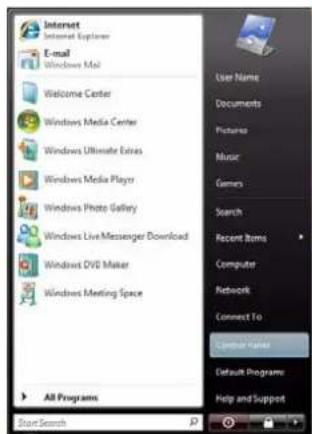
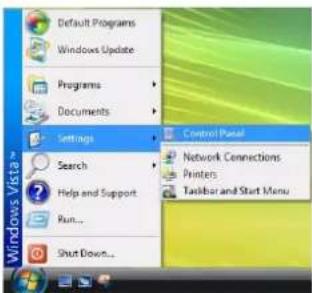
Most of the control panels, utilities and programs within Windows Vista (and most other Windows versions) are accessed from the Start menu. When you install programs and utilities they will be installed on your hard disk drive, and a shortcut will usually be placed in the Start menu and/or the desktop. You can customize the look of the Start menu by right-clicking the Start menu and selecting Properties from the menu.
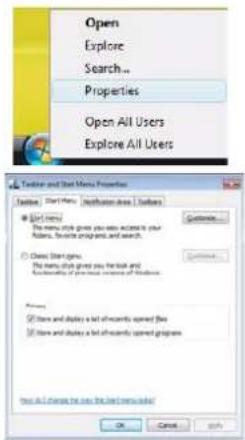

Click here to toggle Classic View
Figure 8 - Start Menu & Control Panel
In many instances throughout this manual you will see an instruction to open the Control Panel. The Control Panel is accessed from the Start menu, and it allows you to configure the settings for most of the key features in Windows (e.g. power, video, network, audio etc.). Windows Vista provides basic controls for many of the features, however many new controls are added (or existing ones are enhanced) when you install the drivers provided. To see all controls it may be necessary to swith to Classic View.
16 - Windows Vista Start Menu & Control Panel
Video Features
You can configure display options, from the Display Settings control panel in Windows as long as the appropriate video driver is installed.
To access Display Settings in Windows:
- Click Start, and click Control Panel (or point to Settings and click Control Panel).
- Click Adjust screen resolution under the Appearance and Personalization menu (or double-click Personalization > Display Settings).
- Move the slider to the preferred setting in Resolution: (Figure 9 on page 18).
- Click the arrow, and scroll to the preferred setting In Colors: (Figure 9 on page 18).
- Click Advanced Settings (button) 3 (Figure 9 on page 18).
- Click GeForce.... (tab).
- Click Start the NVIDIA Control Panel 4 (Figure 9 on page 18) to access the control panel.
- The NVIDIA Control Panel can also be accessed by right-clicking the desktop, and then clicking NVIDIA Control Panel.
Video Card Options
Note that card types, specifications and drivers are subject to continual updates and changes. Check with your service center for the latest details on video cards supported.
Concise User's Guide
Display Devices & Options
Besides the built-in LCD, you can also use an external VGA monitor (CRT)/external Flat Panel Display (connected to the DVI-Out port) or TV (connected to the S-Video-Out jack) as your display device.
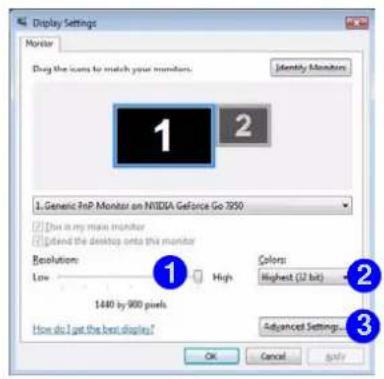
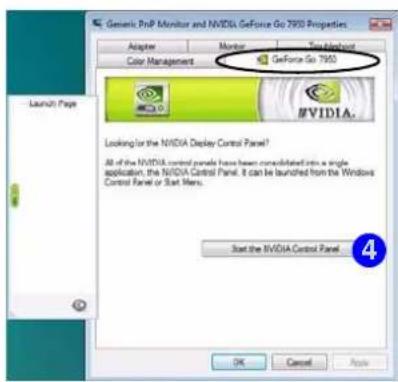
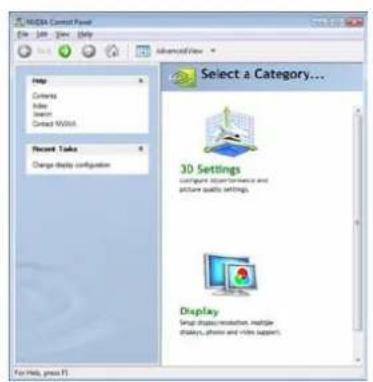
Figure 9 - Display Settings & NVIDIA Control Panel
Table 5 - Display Modes
| Display Mode Description | |
| Single One display device is used | |
| Clone Both connected displays output the same view | |
| Dualview | Both connected displays are treated as separate devices, and act as a virtual desktop |
18 - Video Features
Audio Features
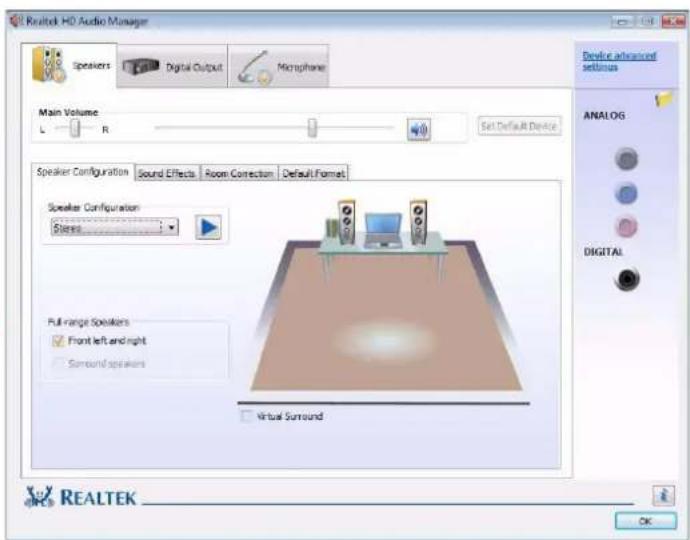
You can configure the audio options on your computer from the Sound control panel in Windows, or from the Realtek HD Audio Manager con in the taskbar/control panel (right-click the taskbar icon to bring up an audio menu). The volume may also be adjusted by means of the Fn + F5/F6 key combination.
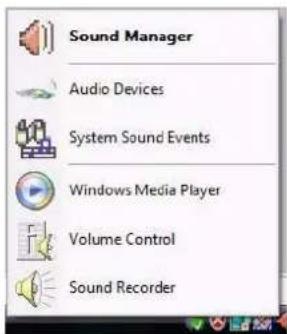
Right-click the icon to access the menu above.

Sound Volume Adjustment
The sound volume level is set using the volume control within Windows (and the volume function keys on the computer). Click the Volume icon in the taskbar to check the setting.
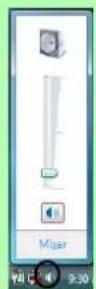
Figure 10 Realtek Audio Manager
Concise User's Guide
Power Management Features
The Power Options (Hardware and Sound menu) control panel icon in Windows (see page 16) allows you to configure power management features for your computer. You can conserve power by means of power plans and configure the options for the power button, sleep button, computer lid (when closed), display and sleep mode from the left menu. Note that the Power saver plan may have an affect on computer performance.
Click to select one of the existing plans, or click Create a power plan in the left menu and select the options to create a new plan. Click Change Plan Settings and click Change advanced power settings to access further configuration options.
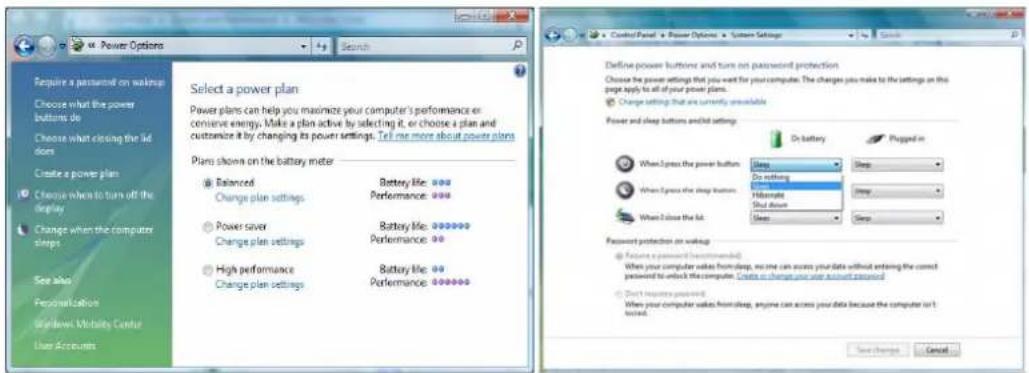
Note: Sleep is the default power saving state in Windows Vista
Figure 11 - Power Options
20 - Power Management Features
Driver Installation
The Device Drivers & Utilities + User's Manual CD-ROM contains the drivers and utilities necessary for the proper operation of the computer. Table 6 lists what you need to install, and it is very important that the drivers are installed in the order indicated. Only install drivers for modules (WLAN, Bluetooth, PC Camera, TPM, Fingerprint and TV Tuner) included in your purchase option.
Installation Methods
You may choose to install the drivers from the autorun program, or install them manually. Insert the Device Drivers & Utilities + User's Manual CD-ROM and click Install Drivers (button), or Optional (button) to access the Optional driver menu.
Note: Click to select the driver you wish to install. After installing each driver it will become grayed out (if you need to reinstall any driver, click Unlock).
Table 6 - Driver Installation
| Driver (Windows Vista) | Page |
| Chipset | page 22 |
| Video | page 22 |
| Audio | page 22 |
| Modem | page 22 |
| Card Reader/ExpressCard page 22 | |
| LAN page 22 | |
| TouchPad page 22 | |
| Hot-Key page 22 | |
| WLAN (optional) | page 23 |
| Bluetooth (optional) | page 24 |
| PC Camera (optional) | page 25 |
| TPM (Trusted Platform Module) (optional) | page 26 |
| Fingerprint Reader (optional) | page 28 |
| Consumer Infrared (optional) | page 32 |
| TV-Tuner (optional) | page 32 |
Manual Driver Installation
Click the Browse CD button in the Drivers Installer application and browse to the executable file in the appropriate driver folder.
Concise User's Guide
Chipset
- Click Install Drivers.
- Click 1.Install Chipset Driver > Yes.
- Click Next > Yes > Next > Next.
- Click Finish to restart the computer.
Video
- Click Install Drivers.
- Click 2.Install Video Driver > Yes.
- Click Next.
- Click Finish to restart the computer.
Audio
- Click Install Drivers.
- Click 3.Install Audio Driver > Yes.
- Click Next.
- Click Finish to restart the computer.
Modem
- Click Install Drivers.
- Click 4.Install Modem Driver > Yes.
- Click OK.
- The modem is now ready for configuration.
Card Reader/ExpressCard
- Click Install Drivers.
- Click 5.Install CardReader Driver > Yes.
- Click Next > Next.
- Click Finish to restart the computer.
LAN
- Click Install Drivers.
- Click 6.Install LAN Driver > Yes.
- Click Next > Install.
- Click Finish.
TouchPad
- Click Install Drivers.
- Click 7.Install Touch Pad Driver > Yes.
- Click Next > Next > Next.
- Click Finish to restart the computer.
Hot-Key
- Click Install Drivers.
- Click 8.Install Hotkey Driver > Yes.
- Click Next > Install.
- Click Finish > Finish to restart your computer.
22 - Driver Installation
Wireless LAN

Power Toggle for the Wireless LAN Module
Enable power to the Wireless LAN module by using the Fn + F11 key combination. When the Wireless LAN module is powered on, the LED will be green and the indicator will briefly be displayed.
- Make sure the module is powered on.
- Click Optional (button).
- Click 1.Install Intel WLan driver > Yes.
- Click Install Software.
- Click the button to accept the license and click Next.
- Click Next > OK.
Note: The operating system is the default setting for Wireless LAN control in Windows Vista.
Connecting to a Wireless Network
Make sure the Wireless LAN module is turned on.
- Click the taskbar wireless icon, and then click Connect to a network (or right-click the icon, and then click Connect to a network).
- In the Show list, click to choose Wireless from the dropdown menu.
- A list of currently available networks will appear.
- Click a network, and then click Connect.
- If you do not see a network you want to connect to, click Set up a connection or network (a list of options will appear allowing manual searching, and creating a new network).
- Move the cursor over the taskbar icon to see the connection status.
- To disconnect from the wireless network you can click the taskbar wireless icon and then select Connect or disconnect to access the network menu, and click Disconnect (or right-click the icon and then click Disconnect from).
Concise User's Guide
Bluetooth
Power Toggle for the Bluetooth Module
Enable power to the Bluetooth module by using the Fn + F12 key combination. When the Bluetooth module is powered on, the LED will be orange and the indicator will briefly be displayed.
- Make sure the module is powered on.
- Click Optional (button).
- Click 2.Install BlueTooth driver > Yes.
- Choose the language you prefer, and click OK > Next.
- Click the button to accept the license agreement, and then click Next.
- Click Next > Install.
- Click Finish, and the BlueSoleil icon will appear on the desktop.
- You can configure the settings at any time by going to the IVT Corporation BlueSoleil - Main Window (Start > Programs/All Programs > IVT BlueSoleil > BlueSoleil), or by clicking the desktop icon
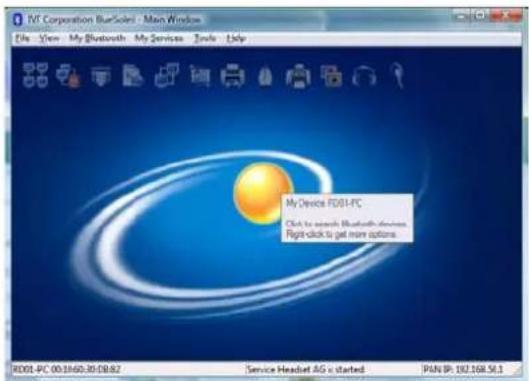
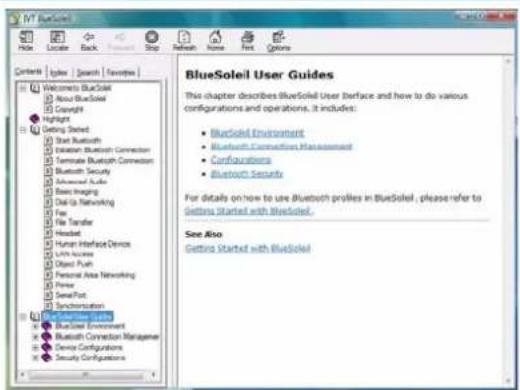
Figure 12 - BlueSoleil Main Window & Help
24 - Driver Installation
PC Camera
- Turn on the module using Fn + F10 (the indicator will briefly be displayed when the module is powered on).
- Click Optional (button).
- Click 3.PC Camera, Web cam > Yes.
- Choose the language you prefer and click Next.
- Click Next.
- Click Finish to restart the computer.
- Run the BisonCap application program from the BisonCam shortcut on the desktop, or from the BisonCam item in the Start > Programs/All Programs menu (if the hardware is turned off use the Fn + F10 key combination to turn it on again).
BisonCap
BisonCap is a video viewer useful for general purpose video viewing and testing, and can capture video files to .avi format.
Concise User's Guide
Security Modules (TPM & Fingerprint)
The encrypted channel between the Trusted Platform Module (TPM) security chip and the optional fingerprint reader Protector Suite Software provides a high level of security for your computer.
TPM (Trusted Platform Module)
Before setting up the TPM functions you must initialize the security platform.
Activating TPM
- Restart the computer.
- Enter the PhoenixBIOS Setup Utility by pressing F2 during the POST.
- Use the arrow keys to select the Security menu.
- Select TPM Support and set the item to Enabled.
- The TPM State menu will then appear.
- Use the arrow keys to select the TPM State menu.
- Select TPM State, and set the item to Enable & Activate.
-
Press F10 to save the changed BIOS information, exit the BIOS and restart the computer.
-
If you make any changes to the TPM State you will be asked to Execute/Reject the change after restart.
- You can now install the TPM utility.
TPM Utility Installation
- Click Optional (button).
- Click 4.Install TPM Utility > Yes.
- Click Next.
- Click the button to accept the license agreement, and then click Next.
- Click Next > Next > Install.
- Click Finish.
- Run the TPM application program (Security Manager) from the shortcut on the desktop, or from the TPM Secure Tools item in the Start > Programs/All Programs menu.
Initializing TPM
On the first run of the program you will need to initialize the TPM.
- Run the application from the Security Manager shortcut on the desktop, or from the TPM Secure Tools item in the Start > Programs/All Programs menu.
- If the Wizard does not appear click Initialize Owner, and then click Next.
- Type a TPM Owner Password, and then retype to confirm the password.
- Click Next > Next to begin the owner initialization process.
-
Click Finish to start the user Initialization process.
-
Click Next.
- Type a TPM User Password, and then retype to confirm the password.
- Click Next > Next to begin the user initialization process.
- Click Finish.
- Enter the user password and click Logon (click Logon in the top menu to log on at any time).
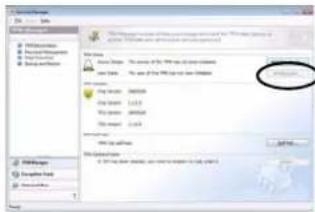
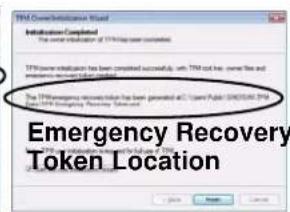
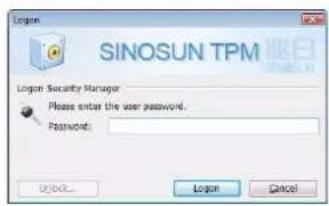
Figure 13 - TPM User Initialization & Logon

Password Warning
Do not lose the password. If you do so you will be unable to make administrative changes unless you clear the TPM. This could then result in data loss.
Recovery Token
Note the location of the emergency recovery token. It is recommended that you save the file to removable media such as a USB Flash drive (or backup using the tool provided).
Concise User's Guide

Help & Manual
Right-click the taskbar icon to bring up the menu to select Help.
Insert the Device Drivers & Utilities + User's Manual CD-ROM and click Optional (button). Click Unlock (button) and then click 5.Install FingerPrint Driver > Yes.
Click Documentation to open the folder containing the manual in .pdf format.
To install the Adobe Acrobat Reader software to read the file, insert the Device Drivers & Utilities + User's Manual CD-ROM and click User's Manual (button), and click Install Acrobat Reader (button).
Fingerprint Reader Module
If you have included the fingerprint reader in your purchase option you will need to install the driver as per the instructions below.
Make sure you have administrator's rights to your computer, and have a Windows password enabled for full security protection.
Before beginning the enrollment process it is recommended that you go through the fingerprint tutorial. To run the tutorial click Start > Programs/All Programs > Protector Suite QL > Fingerprint Tutorial after installing the driver.
Fingerprint Driver Installation
- Click Optional (button).
- Click 5.Install FingerPrint Driver > Yes.
- Click Software Installation.
- Click Next > Next > Next.
- Click Finish > Yes to restart the computer.
- If an Invalid TPM Status message appears after restart, click the message and click Next > Finish to initialize the TPM (see Figure 15 on page 30).
User Enrollment
- Click Start > Programs/All Programs > Protector Suite QL > User Enrollment, or double click the taskbar icon
- On the first run of the program you will be asked to click the button to accept the license, and then click OK.
- Click Next ("Enrollment to the hard disk" will automatically be selected), and click Finish.
- If you have not set a Windows password you will be prompted to do so (note: If you have not set a password Protector Suite QL cannot secure access to your computer).
- Click Next, and you will then be prompted to enter your Windows password.
- Click Next > Next (if you have the "Run interactive tutorial" tickbox selected you will run through the Fingerprint Tutorial).
- Click Next for each window of the tutorial (you can click the button to "skip tutorial" at any time).
- Click the button above any of the fingers to begin the enrollment process for that finger.
- Swipe the finger three times to enroll that finger.
- Repeat the process for all the fingers you wish to enroll (see sidebar), and then click Next.
- Click Finish (click any of the headings under "Learn more about:" to get more information on any topic), and click Close.
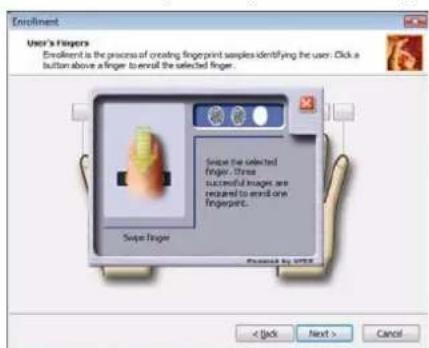
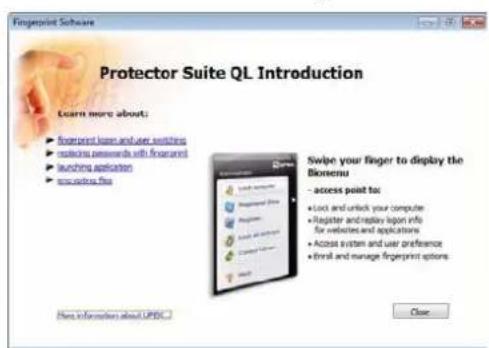

Figure 14 - Fingerprint Enrollment
Concise User's Guide
- Restart the computer.
- If you have not already initialized the TPM the computer will show the message "Invalid TPM status" after the restart.
- Click the message to start the TPM Initialization Wizard.
- Click Next > Finish.
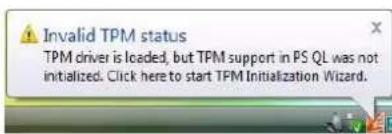
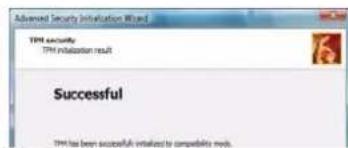
Figure 15 - TPM Initialized
- Right-click the taskbar icon to bring up the menu that allows you to Edit Fingerprints, Start Control Center, access the Help menu etc. You can run the Control Center etc. from the Protector Suite QL item in Programs/All Programs menu.
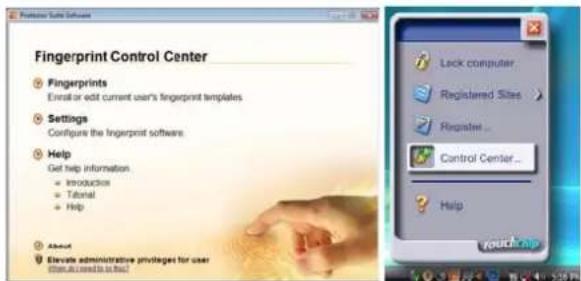
Figure 16 - Control Center & Biomeu
- If you swipe your finger over the reader at any time you can access the Biomenu to lock the computer, register websites, open the Control Center and access the Help menu (see "Help & Manual" on page 28 for further details).
- The Control Center allows you to change the Settings, enroll Fingerprints and get Help.
30 - Fingerprint Reader Module
TV Tuner Module
A CD containing drivers, software and a user guide will be supplied if your purchase configuration includes the optional Mini-PCI TV Tuner module. In addition a driver is provided on the Device Drivers & Utilities + User's Manual CD-ROM for the remote control supplied with the TV Tuner.
You will also be supplied with a remote control unit and appropriate antenna and fittings for the Mini-PCI TV Tuner module.
The optional TV Tuner allows you to watch TV, play music CDs, video conference and capture still images and video on your PC.
The Cable (CATV) antenna jack will only be enabled when the TV Tuner module is installed. Make sure you install the driver before connecting the TV antenna.


Figure 17
TV Antenna
The TV antenna supplied with any TV Tuner module is intended for indoor use only. Please do not use your TV Tuner module outdoors.
TV Tuner Remote
Point the remote at the consumer IR transceiver to change channels etc.
TV Tuner Ports/ Jacks
- Infrared & Consumer Infrared Transceiver
- Cable (CATV) Antenna Jack
Concise User's Guide

TV Tuner Module Support
Note that the TV Tuner module options in Windows Vista are supported by the Windows Media Center software which comes built-in to the Windows Vista Home Premium and Ultimate Editions only.
If your purchase includes a TV Tuner option, and you are re-configuring your system for a different system, you should install either Windows Home Premium or Ultimate Editions only.
Consumer Infrared Driver Installation
- Click Optional (button).
- Click 6.Install ITE CIR Driver > Yes.
- Click Next > Yes > Next > Finish.
MPC788/MPC718 Driver & Software Installation
- Insert the MPC788 or MPC718 Driver CD-ROM into the CD/DVD drive.
- Click Vista Driver Setup.
- Click Install > OK.
MPC788 Module
- This TV Tuner module requires the installation of the software encoder supplied before running Windows Media Center.
- Insert the Cyberlink Software Encoder CD-ROM into the CD/DVD drive.
- Click Next > Yes > Next > Finish.
- The multimedia functions are supported by Windows Media Center in Windows Vista (Home Premium Edition & Ultimate Edition).
- Run Windows Media Center directly from the Start menu (Start > Programs > Windows Media Center).
- Windows Help and Support provides information on the Windows Media Center functions. Click Start 2 and select Help and Support, and then type "Media Center" in the Search Help box and click the magnifying glass icon to bring up the results.
MPC718 Module
- This TV Tuner module is fully supported by Windows Media Center in Windows Vista (Home Premium Edition & Ultimate Edition).
- Run Windows Media Center directly from the Start menu (Start > Programs > Windows Media Center).
- Windows Help and Support provides information on the Windows Media Center functions. Click Start and select Help and Support, and then type "Media Center" in the Search Help box and click the magnifying glass icon to bring up the results.
Digital TV Broadcast Signal
The antenna is the most crucial factor in receiving a clear digital terrestrial TV broadcast signal. The passive antenna provided should provide a clear signal when placed beside a window. If the signal is not clear then you can purchase an active antenna (it should also be placed beside a window) to improve the signal. You should also check with any related government website which provides information on digital terrestrial TV coverage for your area. Note that (unlike standard analog TV) if the digital signal is weak then no picture will appear on the TV at all.
TV Recording and Power Plans
If you intend to use the optional TV Tuner to record live TV, then go to the Power Options control panel and create a power plan to prevent the power saving options from adjusting the computer's performance level.
Remote Control Unit
The remote control unit allows you to remotely start and send the system into a power saving state, to run Windows Media Center and to navigate the Media Center menus etc. The remote control unit also gives full control over all TV and video functions.
Concise User's Guide
Troubleshooting
| Problem Possible | Cause - Solution |
| The DVD regional codes can no longer be changed. | The code has been changed the maximum 5 times. DVD region detection is device dependent, not OS-dependent. You can select your module's region code 5 times. The fifth selection is permanent. This cannot be altered even if you change your operating system or you use the module in another computer. |
| The TouchPad doesn't work. | The TouchPad has been disabled. Press the Touchpad toggle (Fn + F1) key combination (make sure you have installed the Touchpad driver. |
| The sound cannot be heard or the volume is very low. | The volume might be set too low. Check the volume control in the Volume Control Panel in the Windows taskbar, or use the key combination Fn + F5/F6 to adjust (see “Function Keys & Visual Indicators” on page 11). |
| The Wireless LAN/Bluetooth modules cannot be detected. | The modules are off. Check the appropriate LED indicator (p) see if the modules are on or off (see “LED Indicators” on page 9). If the LED indicator is off, then press the appropriate function key combination in order to enable the modules. |
| The PC Camera software displays a black screen when the PC Camera software is run. | The software is using the incorrect device. If you have both an optional PC Camera and an optional TV Tuner module present, you will need to select which device to use with the BisonCap program. Go to the Devices menu in the BisonCap program and select the BisonCam, NB Pro device. |
34 - Troubleshooting
Screen Resolution Error
If you are experiencing either screen resolution reduction, or screen flickering after resuming from Sleep in Windows Vista only then follow the instructions below to fix this problem. This error arises in compliance with Windows Vista policy, which triggers TMM (Transient Multimon Manager) when the notebook lid (S3) is closed. TMM disconnects the LCD display from the OS and then adds the LCD display back when the lid is opened. This may trigger TMM to restore an old display setting which may result in screen flickering or a screen resolution change.
- Go to the Control Panel in the Windows OS and double-click the Administrative Tools icon (System and Maintenance).
- Double-click Task Scheduler (Schedule Tasks)
- Double-click Task Scheduler Library > Microsoft > Windows, and click MobilePC to open the control panel.
- Right-click TMM and select Disable, and then close all the control panels.
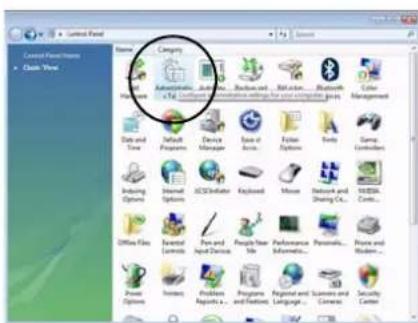
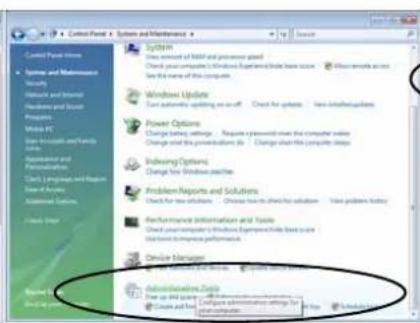
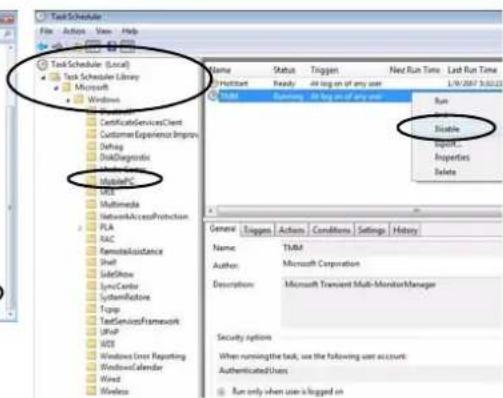
Figure 18 - Control Panel System and Maintenance
Concise User's Guide
Specifications
Latest Specification Information
The specifications listed in this Appendix are correct at the time of going to press. Certain items (particularly processor types/speeds and CD/DVD device types) may be changed, updated or delayed due to the manufacturer's release schedule. Check with your service center for details.
| Feature Specification | ||
| Processor Types Intel® Core™2 Duo Processor (478-pin) Micro-FC-PGA Package, Socket P T7100 | 65nm (65 Nanometer) Process Technology 2MB On-die L2 Cache & 800MHz FSB 1.80 GHz | |
| Intel® Core™2 Duo Processor (478-pin) Micro-FC-PGA Package, Socket P T7300/ T7500/ T7700 | 65nm (65 Nanometer) Process Technology 4MB On-die L2 Cache & 800MHz FSB 2.0/ 2.2/ 2.4 GHz | |
| Core Logic Intel(R) PM965 + ICH8M Chipset | ||
| Memory | Two 200 Pin SO-DIMM Sockets Supporting DDRII (DDR2) 533 / 667 MHz Memory Expandable up to 4GB | |
36 - Specifications
| Feature Specification | |
| LCD Options 17" W | XGA (1280*800) TFT LCD (Glare Type) 17" WXGA (1280*800) TFT LCD (Non Glare Type) 17" WSXGA+ (1600*1050) TFT LCD (Glare Type) 17" WUXGA (1920*1200) TFT LCD (Glare Type) |
| Security Security (Kensington® Type) Lock SlotTPM (Trusted Platform Module) V1.2 (FactoryOption) | BIOS PasswordFingerprint Reader Module (Factory Option) |
| Video AdapterOptions | NVIDIA GeForce Go 7950G71GM-UU Modular512MB DDR3 Video RAM On BoardPCI-Express * 16MS DirectX® 9.0 compatibleMXM-IVNVIDIA GeForce 8700M GTNB8E-SE Modular512MB DDR3 Video RAM On BoardPCI-Express * 16MS DirectX® 10.0 compatibleMXM-IIISupports HDCP |
| BIOS One 8Mb Flash ROM Phoenix™ BIOS | |

Concise User's Guide
| Feature Specification | |
| Storage | One Changeable 12.7mm(h) Optical Device (CD/DVD) Type Drive (see “Optional” on page 40 for drive options) Easy Changeable 2.5" 9.5 mm (h) SATA HDD |
| Card Reader Embedded 7-in-1 Card Reader (MS/ MS Pro/ SD/ Mini SD/ MMC/ RS MMC/ MS Duo) Note: MS Duo/ Mini SD/ RS MMC Cards Require a PC Adapter | |
| Audio Intel® High Definition Audio Interface (HDA) 3D Stereo Enhanced Sound System | S/PDIF Digital Output 7.1CH Built-In Microphone |
| SRS® SRS WOW Surround Sound Technology | 2 * Built-In Speakers (1.5W, 8Ω) |
| Inside | One Subwoofer (2W, 8Ω) |
| Sound-Blaster PRO™ Compatible | |
| Keyboard & Pointing Device | Full Size Winkey Keyboard with Numeric Keypad Built-In TouchPad (Scroll Functionality Included) |
| ExpressCard Slot ExpressCard/34/54 Slot | |
38 - Specifications
| Feature Specification | ||
| I/O Ports Four USB | 2.0 PortsOne DVI-Out Port (Supports Dual Link)One Headphone/Speaker-Out JackOne Microphone-In JackOne S/PDIF Out JackOne Line-In Jack for Audio InputOne Serial PortOne Mini-IEEE1394 PortOne Infrared Transceiver | One RJ-11 Modem JackOne RJ-45 Giga LAN JackOne DC-In JackOne 7-Pin S-Video-Out Jack for TV & HDTVOutputOne Cable (CATV) Antenna (Analog/Digital) Jack(Functions with Optional TV Tuner Module)One Consumer Infrared Transceiver(Functions with Optional TV Tuner Module) |
| Communication Built-In 56K MDC Modem with V.90 & V.92CompliantBuilt-In Gigabit Ethernet LANIntel® Wireless Wi-Fi Link 4965AGN withMiniCard, PCIe Interface (Option) | Mini-PCI TV Tuner Module (Factory Option)Bluetooth 2.0 + EDR (Enhanced Data Rate)Module (Factory Option)1.3M Pixel USB PC Camera Module (FactoryOption) | |
| PowerManagement | Supports ACPI 3.0 Supports Resume from Modem RingSupports Wake on LAN | |
| Power | Full Range AC/DC Adapter – AC in 100 - 240V, 50 - 60Hz, DC Output 20V, 6.0A (120 Watts)Easy Changeable 8-Cell Smart Lithium-Ion 4400mAh Battery | |

Concise User's Guide
| Feature Specification | ||
| Environmental Spec | Temperature | Relative Humidity |
| Operating: 5°C | -Operating: 20% - 80% | |
| Non-Operating: -20°C | Non-Operating: 10% - 90% | |
| Physical Dimensions & Weight | 397mm (w) * 284mm (d) * 22 - 44mm (h) Around 3.95kg (+/- 5%) with 8 Cell Battery | |
| Optional Optical Drive Module Options: | TPM (Trusted Platform Module) V1.2 (Factory Option) | |
| DVD/CD-RW Combo Drive Module | Fingerprint Reader Module (Factory Option) | |
| DVD-Super Multi Drive Module | ||
| Mini-PCI TV Tuner Module (Factory Option) | ||
| Intel® Wireless Wi-Fi Link 4965AGN with MiniCard, PCIe Interface | ||
| Bluetooth 2.0 + EDR (Enhanced Data Rate) | ||
| Module (Factory Option) | ||
| 1.3M Pixel USB PC Camera Module (Factory Option) | ||
40 - Specifications
Hinweis
TPM (Trusted Platform Module)
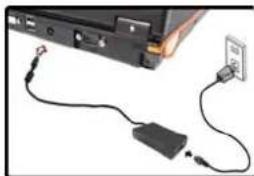
Figure 1 Adaptateur CA/CC branché
TPM (Trusted Platform Module)
120 - Specifications