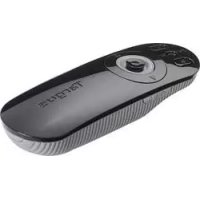
AMP09 - Remote control TARGUS - Free user manual and instructions
Find the device manual for free AMP09 TARGUS in PDF.



| Product type | Multimedia presentation remote with laser pointer |
| Brand | Targus |
| Model | AMP09 |
| Wireless technology | 2.4 GHz |
| Maximum range | 15 meters |
| Power supply | 2 AAA batteries (included) |
| Estimated battery life | 6 months under normal use |
| Connectivity | Mini USB receiver (plug-and-play) |
| Compatible operating systems | Windows 2000/XP/Vista/7, Mac OS X 10.4 or higher |
| Main functions | Red laser pointer, slide control (next/previous), start/stop slideshow, blank screen, volume +/-, key lock (KeyLock), mouse mode with joystick |
| LED indicator | Green (on), Red (lock) |
| Approximate dimensions | 120 x 40 x 15 mm |
| Approximate weight | 80 g (with batteries) |
| Box contents | Remote, mini USB receiver, 2 AAA batteries, user manual |
| Safety | Class 2 laser - do not look directly, keep out of reach of children |
| Maintenance | Clean with a soft, dry cloth, do not use chemicals |
| Software compatibility | Microsoft PowerPoint, Apple Keynote |
Frequently Asked Questions - AMP09 TARGUS
User questions about AMP09 TARGUS
0 question about this device. Answer the ones you know or ask your own.
Ask a new question about this device
Download the instructions for your Remote control in PDF format for free! Find your manual AMP09 - TARGUS and take your electronic device back in hand. On this page are published all the documents necessary for the use of your device. AMP09 by TARGUS.
USER MANUAL AMP09 TARGUS
410-1680-293A/AMP98U
B2009 Manufactured or reported by Targue Europe Ltd., Hounaouc, Middlesex, TW4 5D2, UK. All rights reserved. Targue is either a registered trademark or a trademark of Targue Group International, Inc. in the United States and/or the United Kingdom. The use of this term may not be permitted to change without notice. All trademarks and registered trademarks are the property of their respective owners.


User Guide
Table of Contents
GB-English
Targus Multimedia Presentation Remote 6
BG-BbIraPCKn(e3NK)
DnCTaHIOHO ynpabneHHe 3a npesHTaunTargus 16
CZ-Cestina
Multimedialni dalkovy prezenter Targus 26
DE-Deutsch
Targus Multimedia Presenter 36
DK-Dansk
Targus Multimedia Presentationsfjernbetjing 46
EE-Eesti
Targus multimeedia esitluspult 56
ES-Espanol
Presentador Mutimedia de Targus 66
Targus Multimedia Presentation Remote
Targus Multimedia Presentation Remote
NL - Netherlands
Targus Multimedia Presentation Remote (Targus Afstandsbediening voor Multimediapresentations) 156
NO-Norsk
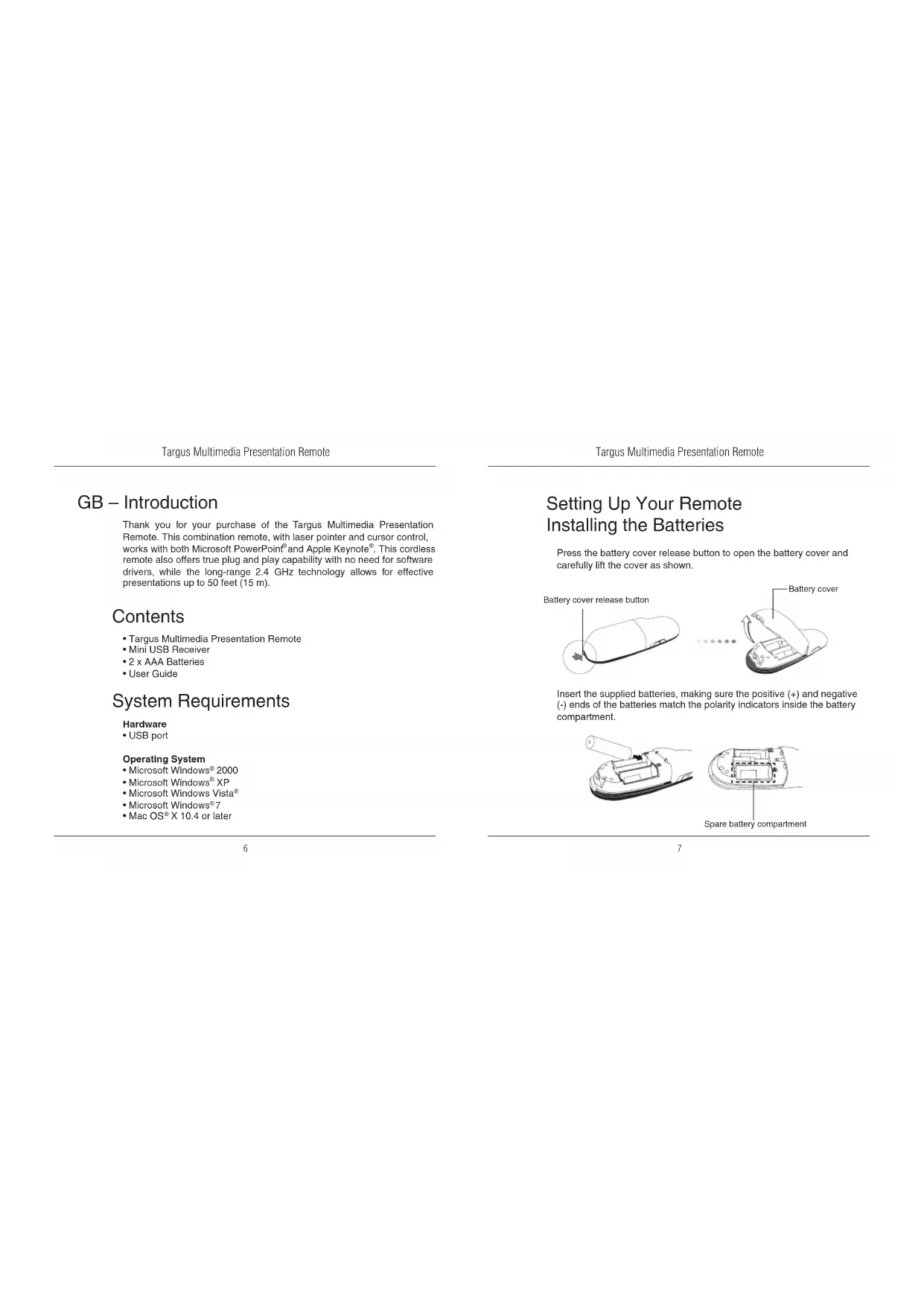
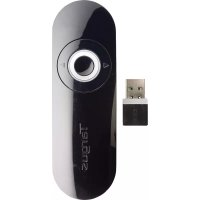
Thank you for your purchase of the Targus Multimedia Presentation Remote. This combination remote, with laser pointer and cursor control, works with both Microsoft PowerPoint and Apple Keynote. This cordless remote also offers true plug and play capability with no need for software drivers, while the long-range 2.4 GHz technology allows for effective presentations up to 50 feet (15 m).
Contents
Targus Multimedia Presentation Remote
- Mini USB Receiver
- 2 x AAA Batteries
-User Guide
System Requirements
Hardware
- USB port
Operating System
Microsoft Windows 2000
Microsoft Windows XP
Microsoft Windows Vista
Microsoft Windows7
Mac OSX 10.4 or later
Setting Up Your Remote Installing the Batteries
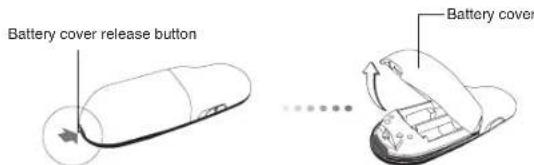
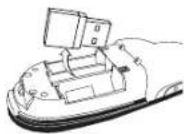
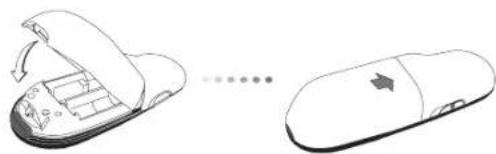
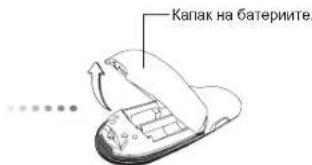
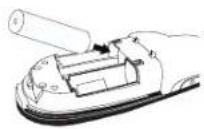
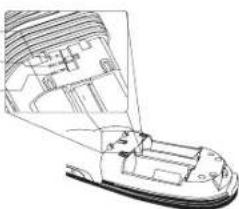
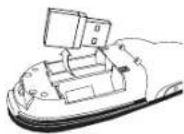
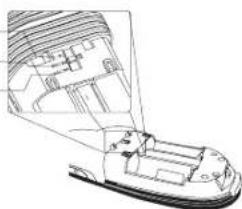
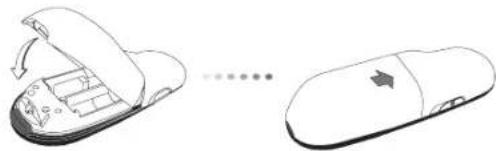
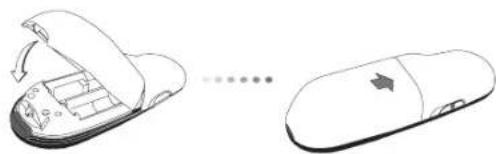
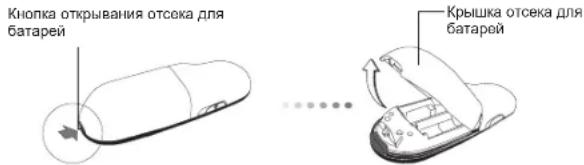
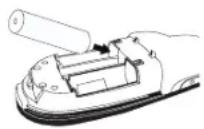
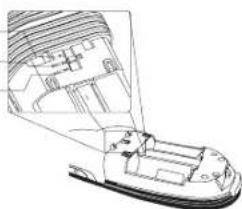
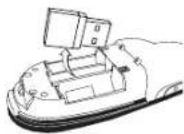
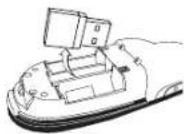
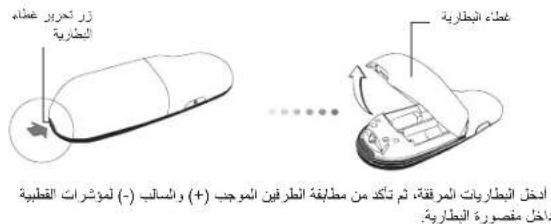
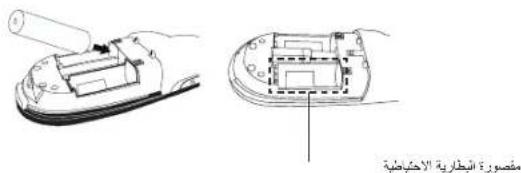
Press the battery cover release button to open the battery cover and carefully lift the cover as shown.
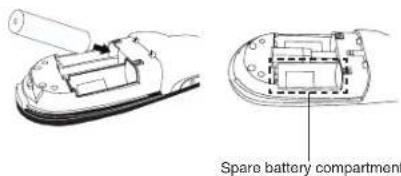
Insert the supplied batteries, making sure the positive (+) and negative (-) ends of the batteries match the polarity indicators inside the battery compartment.
Targus Multimedia Presentation Remote

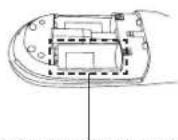
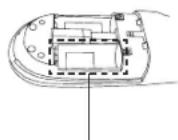
NOTE: THE SPARE BATTERY COMPARTMENT PROVIDES CONVENIENT STORAGE FOR A SEPARATE BATTERY (INcluded) WHICH CAN BE USED FOR EMERGENCY POWER.
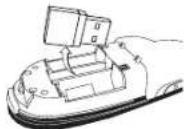
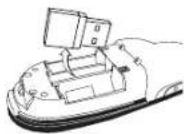
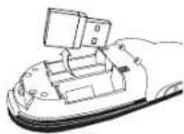
Remove the mini USB receiver stored inside the center compartment.
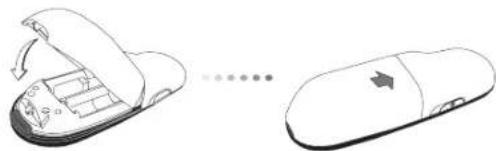
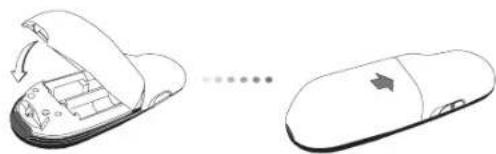
Slide the battery cover back into position until it "clicks" firmly into place.
Targus Multimedia Presentation Remote
Using Your Remote
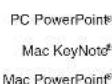
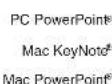
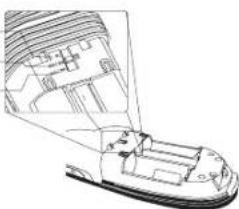
Before using the remote, please select your computer type and preferred presentation software. Locate the switch inside the battery compartment as shown.
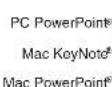
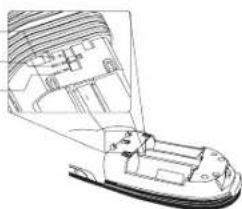

NOTE: SELECT "PC POWERPOINT" IF YOU USE A COMPUTER MADE BY: HP/COMPAQ, DELL, TOSHIBA, GATEWAY, PANASONIC, FUJITSU, SONY, IBM/LENOVO, ACER, ASUS, ETC.
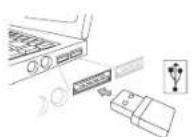
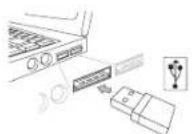
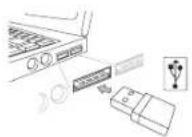
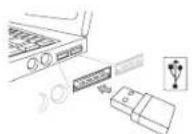
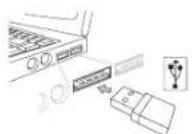
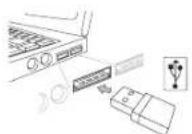
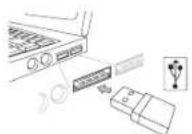
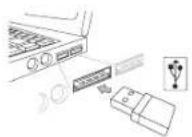
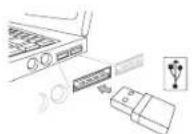
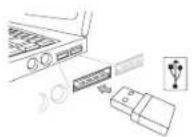
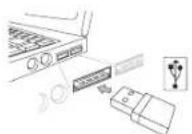
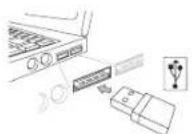
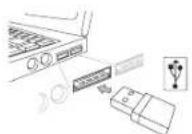
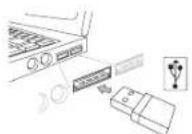
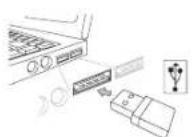
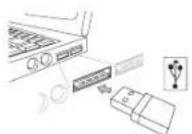
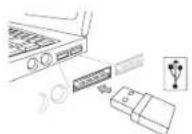
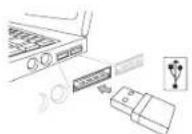
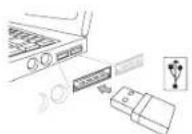
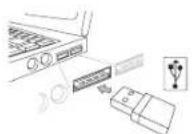
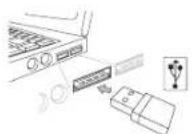
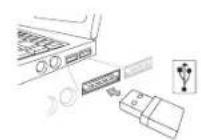
This remote is a plug and play device. It will automatically operate when the USB receiver is connected to the computer. Plug the mini USB receiver into any available USB port on your computer.
Targus Multimedia Presentation Remote
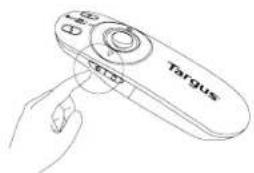
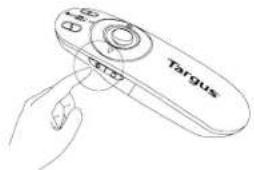
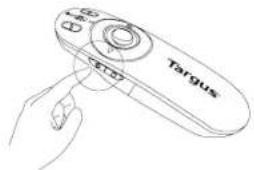
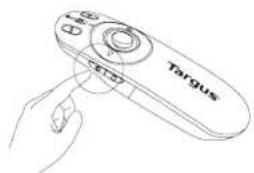
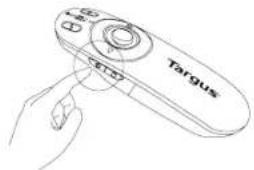
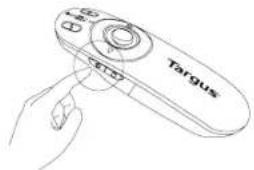
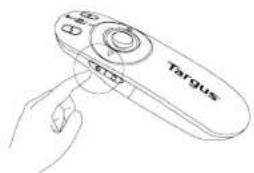
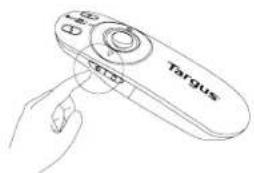
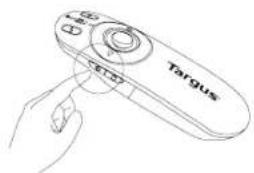
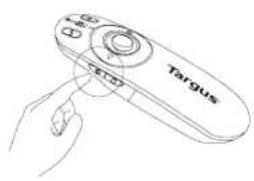
Turn on the remote by pressing and holding the On/Off power button for 3 seconds.
Targus Multimedia Presentation Remote
Keys and Functions
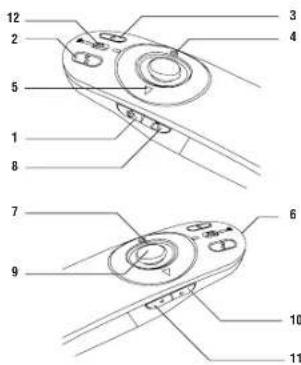
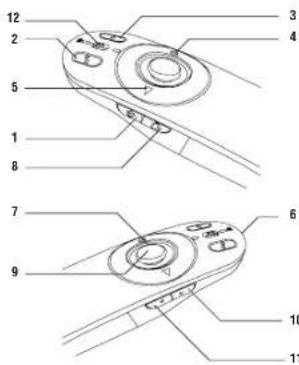
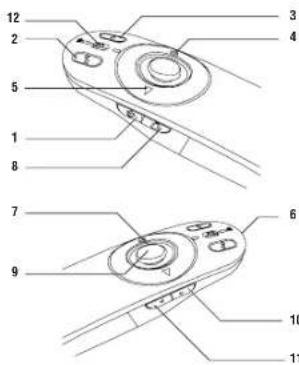
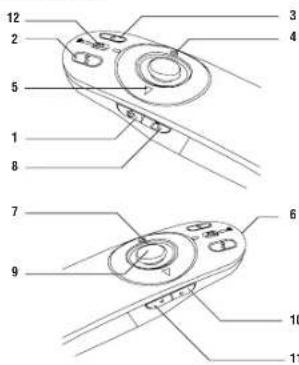
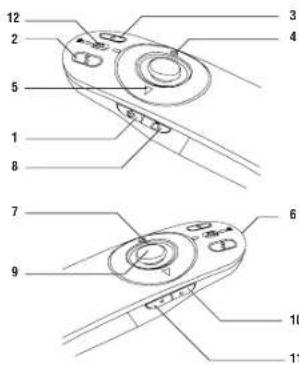
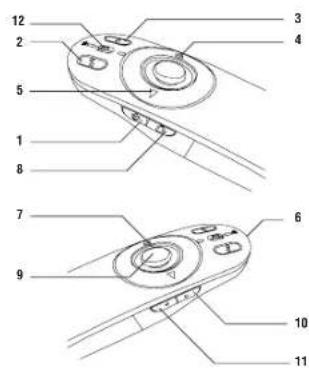
This device can function as a presenter or a wireless mouse by using the mode switch (12).
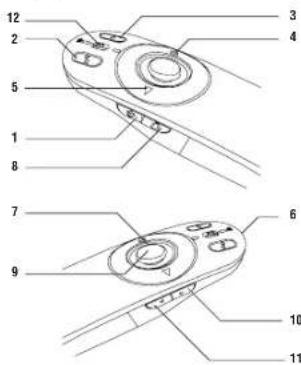
| 1 | Power button | Press and hold for 3 seconds to turn on the remote. LED ring will turn green. |
| Press and hold for 3 seconds to turn off the remote. LED ring will shut off. |
Using the Device - Presenter Mode
| 2 | Blank screen button The | screen will become blank/dark. |
| 3 | Slide show | Start - Press once to begin. |
| Stop - Press and hold for 2 seconds to stop the slide show. | ||
| 4 | Page Forward/Next slide Press once to go to next slide. | |
| 5 | Page Backward/Previous slide | Press once to go back one slide. |
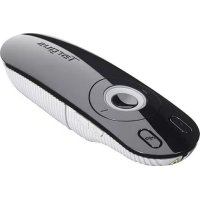
| 6 | Laser pointer Laser light is emitted from the opening. | |
| 7 | LED ring Power and KeyLock indicator. | |
| 8 | KeyLock button | Press once to enable KeyLock function. - Disables all keys except the laser, page forward/next slide and page backward/previous slide buttons. - LED ring will become RED. |
| Press once to exit the KeyLock function. - LED ring will return to GREEN. | ||
| 9 | Laser pointer button Press and hold to activate the laser pointer. | |
| 10 | Volume up button Press to increase the volume. | |
| 11 | Volume down button Press to decrease the volume. | |
Using the Device - Mouse Mode
| 4 | Right mouse click Right mouse click. |
| 5 | Left mouse click Left mouse click. |
| 7 | LED ring Power indicator. |
| 8 | KeyLock button Disabled in mouse mode. |
| 9 | Joystick Pressing the joystick resembles left mouse click. Moves the mouse cursor. |
| 10 | Volume up button Press to increase the volume. |
| 11 | Volume down button Press to decrease the volume. |
Safety Measures
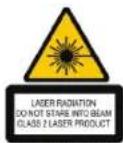
- To avoid possible eye damage, never point the remote's laser at people, especially their faces, or look directly into the remote's laser beam.
- Avoid pointing the remote's laser beam at a mirror or other highly-reflective surface.
- Keep the remote away from young children.
- Never view the remote's laser beam using telescopic devices, such as a microscope or binoculars.
- Any attempt to disassemble, adjust or repair the remote may result in exposure to laser light or other safety hazards.
Troubleshooting
What do I do if the response time of the remote is slow or it intermittently stops working?
- Make sure that the remote is within 50 feet (15 m) of the mini USB receiver and computer.
- Increase the distance between the remote's receiver and the base units of other wireless devices.
- Turn off any wireless devices and their base units that are near the remote's receiver.
- Replace the battery.

Complies with EN 60825-1: CFR A+1+A2 and Complies with CFR 1049.10 and 1049.11 except for deviation pursuant to Laser Notice No.50, dated July 26, 2001.
AVOID EXPOSURE — HAZARDOUS ELECTROMAGNETIC RADIATION EMITTED FROM THIS APERTURE
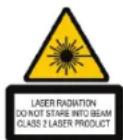
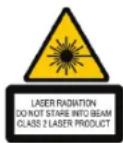
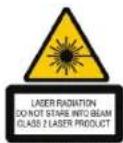
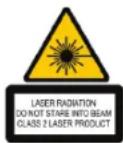
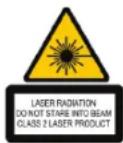
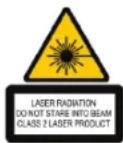
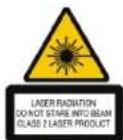
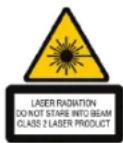
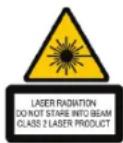
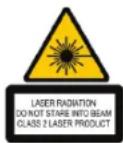
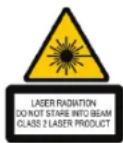
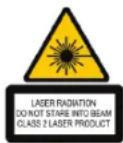
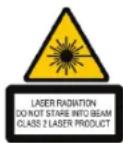
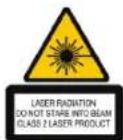
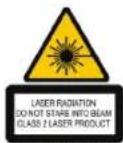
LASER RADIATION. DO NOT STARE INTO THE BEAM OR VIEW DIRECTLY WITH OPTICAL INSTRUMENTS. CLASS 2 LASER PRODUCT.
NEVER POINT A LASER BEAM INTO A PERSON'S EYES OR VIEW A LASER BEAM DIRECTLY, AS PROLONGED EXPOSURE CAN BE HAZARDOUS TO THE EYES. MOMENTARY EXPOSURE FROM A LASER POINTER. SUCH AS AN INADVERTENT SWEEP OF THE LIGHT ACROSS A PERSON'S EYES, MAY CAUSE TEMPORARY FLASH BLINDNESS SIMILAR TO THE EFFECT OF A CAMERA FLASH BULB. ALTHOUGH THIS CONDITION IS TEMPORARY, IT CAN BECOME MORE DANGEROUS IF THE EXPOSED PERSON IS ENGAGED IN A VISION-CRITICAL ACTIVITY SUCH AS DRIVING.
CAUTION: ANY CHANGES OR MODIFICATIONS NOT EXPRESSLY APPROVED BY THE PARTY RESPONSIBLE FOR COMPLIANCE COULD VOID THE USER'S AUTHORITY TO OPERATE THE EQUIPMENT.
THIS DEVICE AND ITS ANTENNA(S) MUST NOT BE CO-LOCATED OR OPERATING IN CONJUNCTION WITH ANY OTHER ANTENNA OR TRANSMITTER. YOUR DEVICE CONTAINS A LOW POWER TRANSMITTER. WHEN DEVICE IS TRANSMITTED IT SENDS OUT RADIO FREQUENCY (RF) SIGNAL. NOTE: THE MANUFACTURER IS NOT RESPONSIBLE FOR ANY RADIO OR TV INTERFERENCE CAUSED BY UNAUTHORIZED MODIFICATIONS TO THIS EQUIPMENT. SUCH MODIFICATIONS COULD VOID THE USER'S AUTHORITY TO OPERATE THE EQUIPMENT.
BG-BbBedeHne
Bnroapm3a nokykataHa nctahunnoHnypabneHne 3a npeshtauu Targus. Kombmaeta O nctahunhoU npabneHne, naephao nokaaIaN KOHTpon Ha Kypcopa paoTb KaTO C Microsoft PowerPoint Taka n c Apple Keynote. BezMnHTo DoCTauHNO H npaybaHne npedara BbMOXHOCT 3a plug-n-play, 6e3Hyka o ToBnHHTenH npaiBepa, aTexHONrHtA 3a wipok 0xbat2.4 GHz no30bnBa npeshtauu do 50 pfya (15 m.)
CbDpbXaHne
-ДиctaHOnHOynpaBHeHne3a npe3eHTauNTargus
- MHHN USB npHemHHK
Batepnu 2 x AAA
PbKOBOOCTBOHaITOp6NTeTn
CNCTEMHIN3NCKBaHnA
Xapnyebp
-USB INTEPpeic
OnepaHnHa cnCTema
Microsoft Windows 2000
Microsoft Windows XP
Microsoft Windows Vista
Microsoft Windows 7
Mac OS X 10.4 Hnn no-HOBA
HacpoiKa Ha nctaHcnoHHoTo ynpabJIeHne IocTabrHe Ha 6aTepuNTe
HaTnCHHe6yToHa 3a OcBSo6XdBaHae Ha KanaKa Ha 6aTePmTe, 3a Da ro OTBOpHe. IOBmHHeTe KaNaKa, KaKTo e NOKa3aHo.
BtoTn 3aOcb06XdAabeHn KaKAnKa Hb4ePnIne.
Noctabete batepnte ot kOMNIeKta, Kato ce yebepnte, ye NoNOXkHTeHHN (+) n OTPuATeTNHn (-) kpa H a BCsKa batepna CbOTBcTBA HA INdNKaTOPte 3a NOIpaNTe B OTDeJIeMeTO 3a batepn.
OtdeneHne 3a peaebpBn bATEpnn
Targus Multimedia Presentation Remote

3A5EJIKKA:OTDENEHNEI03APE3EPBHN BATEPNNOCINPYRABAYDO5HO MRCTO 3A CbXPAHEHNE HA OTENHA BATEPNA (B KOMPTKETA),KORTO MOKE DA CE INOT3BA 3AOCINPYRABE HAXPAHBAHE PPN CNEIWHOCT.
OTcpaHete MmHaTIOpHn USB npMEMnK,cbxpaHraBaH B cpeHTo OTdJeHHe.
Pb3Hete Kaaka Ha OTdeneHMeTo 3a 6aTePm,doKaTo upaKHe Ha MRCTo.
Targus Multimedia Presentation Remote
N3noJ3BaHe Ha dNCTaHcNOHHOTO ynpabJIeHne.
PpeDn da 3aONOHETe yNtpe6bata Ha nCTaHIOHHTO npabIeHHe,
n36peTe BMDa HA KOMNtBpa H npeDNOHTaHATA nporpama 3a
npesHTaun. NocTaBeTe KInOuA B OTDeneHMeTo 3a BaTePmTe, KaKTo e
nOKa3AHO.
PCPowerPoint
Mac KeyNote
MacPowerPoint

3A5EJEKEKA :N36EPETE "PC/POWERPOINT", AKO N3NON3BATE KOMNIOTbP OT MAPKATE : HP/ COMPAQ, DELL, TOSHIBA, GATEWAY, PANASONIC, FUJITSU, SONY, IBM/LENOVO, ACER, ASUS, ETC.
ДИСТАЦИМНОTOуралбене eустpoисТВО оТ tINn 'plug-n-play'.To ТРББДа злароче да равOTАВOTOMATNHO рпь BКИПЧАЕ на USB примнкь KMКOMПТБа.БКЛЮЧTe MHHUS NpIMEMNHKA KBM примбонеCBGODEH USP nOT h KOMNtBpa.
Targus Multimedia Presentation Remote
BKnIOHETe DnCTaHmOHHOTynpaBHeHne, Kato HATNCHETe N3aDpbXnTE 6yToHa 3a BKnIOUbaHo/M3KnIOHbHa He Ha 3axpaHbHaTe 3a TpN cekyHn.
Targus Multimedia Presentation Remote
KniouOBe nФункиN
YCTPOCTBOTO MOKe Da pa60Tn Kato Ipe3eHTaHNoHE MoyU INN KATO 6e3KUNHa MNsKa, Ype3 HaNTcKaHe H ppeBKnIObATErna 3a peKIM (12)
| 1 | Bytoh 3a zaxpahtnbe | Hattichete H 3adpbkte 3a 3 cekydm, 3a da bckcnithe dikctbnkohno-oto ynpaanlne. PpIcTebnt ha caettnnnnna kndikatot lue cebteh a 3e9nlo. |
| Hattichete H 3adpbkte 3a 3 cekydm, 3a da bckcnithe dikctbnkohno-oto ynpaanlne. PpIcTebnt ha caettnnnna kndikatot lue c2e kncnlo. |
Ppe3eHTaUHOHe pexIM
Complies with EN 60825-1: CFR-A1+A2 and Complies with CFR 1049.10 and 1049.11 except for deviation pursuant to Laser Notice No.50, dated July 28, 2001.
N38YBAIITE IN3AFAHE-BPEDAENEKTPOMANHTHA PADNAJCAI CE N3JIbHBAOTO3IOTOBP.
JANEPHA PADMAJHA HE CE B3VPAANTE BITBA N HE ITIEAANTE DINEKTHO BOTNTHNOTBOP.
IA3PHEPAJAIAIAH. HE CE B3VAPATE B 5Ua H I HE IPEJADEI PAKEKTHC OINTINH NHCPTPEMEHTN.IA3PEHPIOQDKT K12AC
HHKOTA HE HACOBAIATE N3APEEH TbB OOHTE HA JPYT, KAKTO H HE PIIAPATE INPEKTHO B I3APEEH TbH, TbH KATO NPOJbIKITEHOTO IN3NAFAHE MOKE DA E BEPDHO 3AOHTE.
MOMEHTHOTNI3HAIE HA CBETNHITAHATA NT APEHNA KOKA31KAKO HAPIMME CIIYJAHOTNIPREMINAHABHE HA IJIaI PINE3 OMTTE PNIYOTPBEA MOKE DA IPINIHNB PBMEHNO 3ACNTBRAHA, NODEHO HA EKEFTA OT CBTKABNJLA HA FOATOANAPAT. BbIPKNE YOB TORA CTOCTORNHVE EBPMEHHO TO MOKE DA ENOACHOA, AKO JIJIETO INIOKEO HE KA IJIaI N3BPUBA DEIHOCT, 3A KORTO PONRTA HA 3PEHIME E KPMTNUVA, KATO HAPIMME YIPRANBEHNA HB AMTOBMOJ.
BHAMAHIE:BCKAKBIMHEMEHNEI MDMOKALINI KOTHOECA HMIPOHO ODPESEHOTPAHATAOTOBAPHA3CbOTBTCTBEOHO MATOFHYMPATIPABOMOHTA HA NOTPEBTEJIJA NIOJ3BA OBOPYBAHETO. TOBA YCTPOCTBOHETOBATA AHTHE(A) HE TPRBA JDA E CAMHPA HA EJOHO CBJIO MPTOHIMOJA PABOTOMA3AEHO C DPTVA AHTHEIA INPDEBABATEB ABAIETO YCTPOCTBO C bJDPBKATPACMTEPC HCKA MOHOCKT. KOATOYCTPONTBOTO PIPDBA. TO IINPPAAIA PADHOCETOTE (RF) CTHHAI, EEEKIXA. IPON3BQIDTERT HE HOCN OTTOBPOHCT 3A PAIO NOI TEPEBUNOH CMUJEHHI. PEPD3BKAHAI CT HEPEPNAMEHTPAHMODAHKAUHNA HOA OBOPYBAHE. IOIOBEHN MOOKNKALINI MOT A HYIPMTIP ABOPOMOHTTA HA NTOPBTEJIYA DA NIO13BA OBOPYBAHETO.
CZ- Uvod
Dekujeme vam, ze jste si zakoupili Multimediai dalkovy prezenter od spoletonst Targus. Tuto kombinaci dalkoveho ovladani, laseroveho ukazteabe o voldani kurzoru ize pouzit v Microsoft PowerPoint * Apple Keynote Tento bezdratovy prezenter ma take schopnost plug-n-play, kdy nejsou potfba softwareve ovlideace. 2.4GHz technologie dlouheho dosahu omounjfe efektivni prezente az ze vdaldenosti 15 m.
Obsah
Multimedia ní dalkovy prezenté Targus
- Prijimač mini USB
- 2 baterie typu AAA
- Návod k obsluze
Systémové požadavky
Hardware
- Rozhrani USB
Operacni systém
Microsoft Windows® 2000
Microsoft Windows XP
Microsoft Windows Vista
Microsoft Windows 7
Mac OS X 10.4 nebo vyssi
Targus Multimedia Presentation Remote

POZNAMKA:DO PROSTORU PRO NAHRADNI BATERI LZE ULOZIT NAHRADNI BATERI (ZAHRNUTA), KTEROU LZE POUZIT JAKO NAHRADNI ZDROJ ENERGIE.
Prijima mini USB vyjmete z stredoveho ulozneho prostoru.
Targus Multimedia Presentation Remote
Targus Multimedia Presentation Remote
Targus Multimedia Presentation Remote
Klávesy a funkce
Complies with EN 60825:1:1994+A1+A2 and Complies with C 21 CFR 1040.10 and 1040.11 except for deviation pursuant to Laser Notice No.50, dated July 26, 2001.
VYHNETE SE KONTAKTU - ZARIZENI EMITUJE NEBEZPECNE ELEKTROMAGNETICKE ZARENI.
LASEROVYE VYZAROVANI. NEDIVEJE SE DO NOPAPRSKU ANI POMOCI OPTICKEHO ZARIZENJ.
LASEROVYE VYZAROVANI. NEDIVEJTE SE DO PAPRSKU ANI POMOCI OPTICKEHO ZARIZENI. PRODUKT LASEROVÉ TRÍDY 2LASEROVYM PAPRSKEM NIDKY NEMIRTE DO OCI JINE OSOBY ANI SE NEDIVEJTE PRIMO DO PAPRSKU, PROTOZE DELSI KONTAKM MUZE BYT OICN NEBZPEÇNY. CHVILKOVY KONTAKT S LASEROVYM UKAOVATKEM, JAKO JE NAPR.
NAHODNE PREJEJti OLCASEREM, MUZE ZPUSOBIT DOCASNE ZABLESKPODOBENE BLESKU FOTOAPARATU. MUZE BYT NEBZPECNESI, POKUD SE TATO OSOBA VENUJE CINNOSTI NAROCNE NA SLEDOVANI, NAPR. RIZENI.UPOZORENNI: ZMENY NEBO UPRAY, KTERE NEBYLY VYSLOVNE POVOLENYSTRANOU ZODPOVEDNOU Z SHODU, MOHOU VEST KE ZTRATE
OPRAVNIENI UZIVATELE POUZIVAT ZARIZENI. TOTO ZARIZENI A JHEO ANTENA (ANTENY) NESMI BYT UIMSTENY POBLI ZEBO NESMI BYTE VSEPOJENI S JINOU ANTENOU C VI YSILACEM. VASE ZARIZENI OBSAHJE PRENASEC S NIKYM VYKONEM. POKUD ZARIZENI VYSILA, ODESILA RADIOFREKVENCI (RF) SIGNAL. POZNAMKA: VYROBCE NENESE ODPOVEDNOST RAUSENI RADIVA NEBO TELEVIZE, KTERE BYLO ZPUSOBENO NEAUTORIZOVANO UPRAVOU TOHOTO ZARIZENI. TYTO UPRAVY BY MOHLY VEST KE ZTRATE OPRAVNENI UZIVATELE POUZIVAT ZARIZENI.
DE-Einführung
Targus Multimedia Presentation Remote

HINWEIS: DAS EXTRA-BATTERIEFACH BIETET BEQUEMEN LAGERPLATZ FÜR EINE SEPARATE BATTERIE (ENTHALTEN), DIE ALS NOT-ENERGIEQUELLE VERWENDET WERDEN KANN.
Targus Multimedia Presentation Remote
Targus Multimedia Presentation Remote
Targus Multimedia Presentation Remote
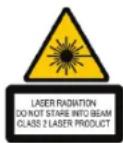
Complies with EN 60825-1: C + 4A + 1A + 2 and Complies with C 21 CFR 1040.10 and 1040.11 except for deviation pursuant to User Notice No. 50, dated July 26, 2001.
DAS GERAT NICT OFTNENI DAS GERAT ERZEUGT GEFAHRliche ELEKTRMAGNETISCHE STRAHLUNG. LASERSTRAHLING. NINT IN DEN STRAHL BICKEN ODER MIT DEM STRAHL DIREKT AUF OPTISCHE GERATE ZEIGEN. DIES IST EIN LASERPRODUKT DER KLASSE 2. DER LASERSTRAHL DARF NICT AUF DIE AUGEN EIER ANDEREN PERSON GERICHTET ODER. DIREKT ANGESEHEN WERDEN, WEIL EINE LANGERE BICKKONTAKT SCHADLICH FUR DIE AUGEN IST.
Targus Multimedia Presentation Remote

NB: DET EKSTRA BATTERIRUM GIVER MULIGHED FOR OPBEVARING AF ET EKSTRA BATTERI (LEVERET), SOM KAN BRUGES I EN NODSITUATION.
Targus Multimedia Presentation Remote
Sadan bruges din fjernbetjening
Targus Multimedia Presentation Remote
Targus Multimedia Presentation Remote
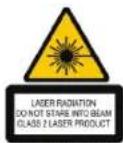
Complies with EN 60825-1: CFR-A1+A2 and Complies with CFR 1049.10 and 1049.11 except for deviation pursuant to Laser Notice No.50, dated July 28, 2001.
UNDCGA UDSAETTELSE - FARLG ELEKTHROMAGNETISK STRALING FRA DETTE APPARAT LASERSTRALING. SE IKKE DIREKTE P A STRALEN ELLER MED OPTISK UDSYR. KLASSE 2 LASERPRODUCT.
PEG ALDRIG LASERSTRÄLEN DIREKTE PÄ EN PERSONS JUNE ELLER SE DIREKTE PÄ
LASERSTRÄLEN, DA VEDVARENDE USDSETTALSE KAN SKADE JUNENE.
KORT UDSFETELSE FRA EN LASRPEGPIND. SOM VED AT FEJE LYSFEN HEN OVER JUNENE
VED EN FEJL, KAN GIVE MIDLERTIDG BLINHDED, SOM SVARER TIL EFFEKEN AF EN BLITZ.
SELV OM DET KUNER MIDLERTIDG BLINHDED, ER DET MERE FARLIGT. HVS PERSONEN
ER I GANG MED FEKS. AT KOR, HVN HOR BRUGER JUNENE. ADVARSE: AENDRINGER
FOREIAGET SEM IKKER ER GODKENDT AF DEN FOR OVERHOLODE ANSVARLIGE KAN
RESULTERE I AT BRUGEREN IKKE LENGERE TILLADES AT BRUGE USDSTYRET. DETTE APPARAT
DG DETS ANTENNE(R) MA IKKE SAMMENSTITLES ELLER BRUGES IF FORBINDSELME MED EN
ANDEN ANTENNE ELLER SENDER. DIT APPARAT INDEHOLDER EN LAVKRRAFTSSENTER. NAR
APPEARATET SENDER, SENDER DEN RADIOFREKVENSIGNAL (RF) NB: PRODUCENTEN ER IKKE
ANSVARLIG FOR RADIO ILLER TV INTERFERENS SEM OR ET RESULTAT AF UAUTORISERDE
AENDRING AF DETTE USDTYR. SADANNE AENDRINGER KAN RESULTERE I, AT BRUGEREN IKKE
LIENGERE TILLADES AT BRUGE USDSTYRET.
EE-Sissejuhatus
Targus Multimedia Presentation Remote

MÄRKUS: VARUPATAREI PESA PAKUB KÄEPRAST VÖIMALUST VARUPATAREI (SEADMEGA KAASAS) HOIDMISEKS, MIDA SAAB KASUTADA TAGAVARA VOOLU-ALLIKANA.
Targus Multimedia Presentation Remote
Puldi kasutamine
Targus Multimedia Presentation Remote
Targus Multimedia Presentation Remote
Complies with EN 60825-1: CFR A+1+A2 and Complies with CFR 1049.10 and 1049.11 except for deviation pursuant to Laser Notice No.50, dated July 26, 2001.
VALTIGE KOKKUPUUDET-SELEST SEADMEST ERALDUB OHTLIKU ELEKTRIMAGNETKIRGUST.
LASERKIRGUS. ARGE VAADAK LASERKIIRT EGA VAADAK OTSE OPTILISTE INSTRUMENTIDEGA, KLASS 2 LASERTOODE.
ARGE SUINAKE LASSERKIRT TEISE INIMESE SILMA EGA VAADAK LASERKIRT OTSE.
SEST PIKEM KOKKUPUDE VOIB SILMI KAHJUSTDA. HETKELINE KOKKUPUDE LASEROSUTA/JAGA, NAGU TAHMATI VALGUSE SUINAMINE ULE TEISE INIMESE SILMADTE.
VOIB POHJUSTADA AJUTIST PIMEDUST SARNASELT FOTOAPARAADI VALGUE. KUGI SEE SEISUND ON A JUTINE. VOIB SEE MUITUDA OHTLIKUMAKS. KUI PIMESTATUD INIMENE TEGELEB NACEMISVAJADUSEEGA TEGVUEVSA GAGN AUTOGA SOTMINE.
ETTEVAUST1 VASTAVUSE EEST VASTUTAVA OASPOODES SEGESONALNE NOUSCLEKUTA MUIDATUSTE TEGEENVE MO THISTADKA KASUTA JOIGUSE VARUSTUST KASUTADA. SEADE JA SELLE ANTENNID) EI TOHI ASUDA EGA TOOTADA KOOS TESTE ANTENNIDE VOI SAATJATEGA TEIE SEADMES ON MADALPINGESAATJA. SEADE SAADAB TOOTADES VALJA RAADIOSAGEDUSEL (RF) SIGNAALE.
MARKUS: TOOTJA EI VASTURA RAIDGO EVA TV HAIRET EEST. MIDA POHJUSTAVAD SELLE VARUSTUSE VOLITAMATA TEHTUD MUIDATUSED. SELLISED MUIDATUSED VOIVAD TUHISTADA KASUTA JOIGUSE VARUSTUST KASUTADA.
ES - Introduccion
Targus Multimedia Presentation Remote

NOTA: EL COMPARTIMENO PARA PILAS DE RECAMBIO PERMITE ALMACENAR COMODAMENTE UNA PILA DE REPUESTO (INCLUDE) QUE SE PUEDE UTILizar EN CASO DE EMERGENCY.
Targus Multimedia Presentation Remote
Uso del Presentador
Targus Multimedia Presentation Remote
Targus Multimedia Presentation Remote
Targus Multimedia Presentation Remote
Targus Multimedia Presentation Remote
Complies with EN 60825-1: CFR-A1+A2 and Complies with CFR 1049.10 and 1049.11 except for deviation pursuant to Laser Notice No.50, dated July 28, 2001.
EVITE LA EXPLOSION A RADIACION ELECTROMAGNETICA PELIGROSA EMITIDA POR ESTA ABERTURA.
RADIANZ LASER, NO MIRE FIAMENTE AL HAZ NI DIRECTAMENTE CON INSTRUMENTOS OPTICOS. PRODUCTO LASER CLASE 2.
Targus Multimedia Presentation Remote

HUOM: VARAPARISTOLOKERO TARJOAA KATEVAN TILAN YLIMARAISEN
PARISTON (SISALTYU TUOTTEESEEN) SAILYTKSEEN. SITA VoidAAN KAYTTAA
LISAVIRTAA TARVITTAESSA.
Targus Multimedia Presentation Remote
Targus Multimedia Presentation Remote
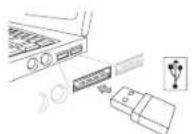
Targus Multimedia Presentation Remote
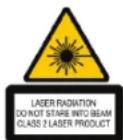
Complies with EN 60825-1: 1994+A1+A2 and Complies with CTR 1040.10 and 1040.11 except for deviation pursuant to Laser Notice No.50, dated July 26 2001.
VÄLTÄ ALTISTUMISTA - TAMA LAITE SÄTEILEE HAITALLISTA SAHKÖMAGNEETTISTA
SATEILYA LASER SÄTEILYA, ALA KATSU SUORAAN LASERSÄTESEEN TAI TARKASTELE
OPTISILLA VALINELLA. TOISEN LUOKAN LASERTUQE. ALA KOSKAAN OSOITA
LASERSÄDETTA SIORANAEN KENKENAA SILMÄN TAI KATSO SÄDETTA, KOSKA
PIKTÄIAKAINEN ALTISTUMINEN LASERVALOLLE SAATTAA VAHINGOITTAA SILMIA. LYHYT
ALTISTUMINEN LASERVALOLLE. KUTEN SATEEN TAHATON PYHKÄKSY SILMÄN OHI.
SAATTAA SOKAISTA HETKELLISESTI SAMOIN KUNI ESIMERIKSI KAMERAN SALAMAN
VALO. VAIIKKAKIN KYSEINEN TILA ON VÄLIAKAINEN, SAATTAA SE KUITENKIN VAARANTAA
SOKAISTUN HEN KILON TURVALLUSUIDEN. JOS HENKILÜ SATTUU ESIMERIKKI ASJAMAAN
AUTOA TAI HÄNEN TURVALLISUENTNA MUTFEN RIIPPUU HÄNEN NAKÖKYVYSTAAN JUURI
SOKAISTUMINEN HETKELLA VAROTUGIS: SÄADÖKSISTA VASTUSSA OLEVAN OSAPUÖLEN
HYVÄSKYMATTOMAT MUUKOKSET LAITEESEEN SAATTAVAT POISTAA LAITTEEN
KAYTIÖIOKEUEN SEN KAYTJAJÄTÀ. TATA LAITETTA, JA SAN ANTENNA/ANTENNEJA EI
TULISI SÄLTYTÄ TAI KAYTTA TOISTEN ANTENNIEN TAI LAHETTIMI LAHEISYDESSA
LAITEEES SISALTTA HEKON LAHETIMEN. LAITTEEN OLLESKA YAKTSSA SE LAHETTAA
RADIOAALTOSIGNAIALA. HUOMIO. LAITTEEN VALMISTAJA EI OTA MINKÄANLAISTA
VASTUJA LAITEELE LUVATOMASTI TEHYJEN MUUTOSTEN AIHEUTTAMASTA RADIO
JA TELEDISA HPAIRINNASSTA.SELLASEM MUUKOKSET LAITEESEEN SAATTAVAT POISTAA
KAYTTRAJÄLTA LAITTEEN KAYTTOIKEUEN
FR - Introduction
Targus Multimedia Presentation Remote

REMARQUE: LE COMPARTIMENT POUR UNE PILLE DE SECOURS (FOURNIE) VOUS PERMET DE TOUJOURS DISPOSER D'UNE ALIMENTATION ELECTRIQUE D'URGENCE.
Targus Multimedia Presentation Remote
Targus Multimedia Presentation Remote
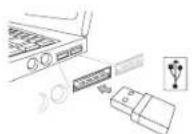
Targus Multimedia Presentation Remote
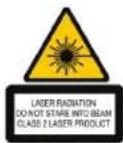
Complies with EN 60825-1: CFR-A1+A2 and Complies with CFR 1049.10 and 1049.11 except for deviation pursuant to Laser Notice No.50, dated July 28, 2001.
EVITEZ L'EXPOSITION - RADIATION ELECTROMAGNETIQUE DANGEREUSE ÉMISE DE CETTE OUVERTRE.
RADIATION LASER,NE. REGARDEZ PAS LE RAYON -DIRECTEMENT OU A LAIDE D'INSTRUMENTS OPTIQUES.PRODUIT LASER DE CLASSES 2
NE DIRGUE JAMAIS UN RAYON LASER VERS LES YEUX D'UNE PERSONNE ET NE REGARDE PAS UN RAYON LASER DIRECTEMENT, CAR L'EXPOSITION PROLONGE PÉT ÀRÉ TÉRE DANGEREUSPE FOURS LEYX. EXPOSITION MOMENTANEE A UN INDICATEUR LASER, TELLE QUTUN PASSAGE INATTENDU DE LUMière A TRAVERS LES YEUX D'UNE PERSONNE, PEUT CALISER LA CÉCITE PROVISIONÉ SEMBLELÀ L'EFFET DUN FLASH D'APPEARIL PHOTO. BIEN QUE CETTE CONDITION SOIT PROVISIONÉ, ÉLÉPE PÉT DEVENIR. PLUS DANGEREUSSE SI LA PERSONNE EXPOSEE EST ENGAGEMENT DANS UN ACTIVITE CRITIQUE DE VISION COMME LA CONDUITE.
AVERTISSEMENT: CHAQUE CHANGESMENTS OU MODIFICATIONS NON EXPRESSEMENT APPROVUEES PAR LA PARTIE RESPONSABLE DE LA CONFORMITE POURRAIT ANNULER L'AUTORISATION DE LUTILISATEUR DE FAIRE FONCTIONNER L'ÉQUIPMENT. CE DISPOSITIF ET SON ANTENNE(S) NE DOINTPAS ETRPLECAGESOU EXPLOITES ENSEMBLE AVEC UNE AUTRE ANTENNE OU UN EMETTEUR. VOTRE DISPOSITIF CONTENT UN EMETTEUR A BASSE PUSSANCE. QUAND LE DISPOSITIF EST EN TRANSMISSION I ENVOIE UN SIGNAL DE FREQUENCY RADIO (FR). NOTE: LE FABRICANT NEST PAS RESPONSABLE DAUCUNE RADIO DU TV L'INTEREERENCE CAUSES PAR DES MODIFICATIONS NON AUTORISEES DE CET ÉQUIPMENT, DE TELLES MODIFICATIONS PEUVENT ANNULER L'AUTORISATION DE LUTILISATEUR DE FAIRE FONCTIONNER L'ÉQUIPMENT.
GR-Eiogaywyn
Zac euxapiotoue touyopaoate to tnaexeiptinpo ts Targus yia Taupouoaeis tonmuow. To ouykepiyevo tnaexeiptinpo auovoucei deiktn aeicep kai eeyxo mebpouea ka uvepyacetai tooo pe to Microsoft PowerPoint 0do kai me To Aplee Keynote EInlanc, to aapuato auto tnaexeiptinpo tpoaepetai ia totoBenton kai aean aeitoupyia xwpic va xpeiaetai npoypaumata obinyonns loiyaukoukai, taopaalnla. Me my TeXVoiOyia paKpac esEbeleiac2.4 GHz dive n duvatontia yia atoteaatikec napouaiec anto aToTaan ews kai 15 etpvw (50 trodiiv).
περιεχόμενα
TnExeiptio Targus yia npouoideic nloupeow
Mividekntc USB
- 2 μmatapiec AAA
Omyocxipatn
Anaiinnoic ouotnauoC
YAIKO
- IETaHn USB
AeIoupyiko ouotnua
Targus Multimedia Presentation Remote

Targus Multimedia Presentation Remote
XpnoTou TnAExEpiOtnpiou oac
PpOTo xPnOIOtoIOeTo INxEciPIaTIPO, EIIAEcTe Tov TUTo UTOAOYIOI OAG KAI TO PpOITUWUE VO AoiuIKO TAPouOIaEwU. Me To UTOeIKVUoVE POTo, EVOTIOte TO DIAKOTTN Tou BpIakETAI JEA aT OIApePiO To PVtATApUw.

ZHMEIΩSH: ENIΛEΕΤΕ «PC POWERPOINT» AN XPHSIMONIOIEITAI YN0ANIOIETH TQN KATAEKEYAETQN: HP/ COMPAQ, DELL, TOSHIBA, GATEWAY, PANASONIC, FUJITSU, SONY, IBM/LENOVO, ACER, ASUS K.AΠ.
Touyekpiévo TLeexepiTnpoEvai oukeun yia totoetan kai aean leoupyia. Oa leoupyoei autoata stav ouvdeote to deknt USB otov utoloyoiotn oac. Suovde to bucau tu miiv deknt USB 0 Kaioia diaeogm npua USB tou utoloyoiotn oac.
Targus Multimedia Presentation Remote
EveyotoiInote to TnExeiipTnpio TIOVOTs kai KpatWvTs Tatnevo yia 3DeutepoAeTTaTOKouMTI EVEytoiOnns/ATVEyToiOnns.
Targus Multimedia Presentation Remote
Complies with EN 60825:1:1994+A1+A2 and Complies with C 2 CFR 1040,10 and 1040,11 except for deviation pursuant to Laser Notice No.50, dated July 26, 2001.
ANO TO ANOIMA KENMIETAI EIKINAYH HAEKTPOMAFNHTIHK AKTINOBOIAA -AIOFQYETE THN EKGEX2
AKTINOBOLA AEIZEP ANOYFETYE NA KOITAETE 2TH DEEMH THA KITINAAS H NAA THE DELE AYEOYIEAIO ANO TO ANOIMA OTTIKN OPANIOND. AKTINOBOLA AEIZEP ANOYFETYE NA KOITAETE 2TH DEEMH THA AKTINAS H NAA THE DELE AYEOYIEAIA ME OITTONI OPIANA. PIONOI EAZEP KATHIOPAI 2. NOTE MH STPEPDEI THN AKTINA AEFZEP STA MATA KATOIOY KAI MHN THA BAEENTE ME YFMNO MAI, FIATI H NAPATETAMENH EKOGESH 102 ANOBEI ENIKNAYNI FA THN OPAZEA ZA. H STMIIAMA EKOGESH 2E KEITHD AIEZEP ME MIA DEXMH QTOE IOY PIETEI TYXIA ETA MATIA MAI, MTPOEI NA IPOKAAEEI IPOZOPINO IPOBHAIMO OPAZHE, SAN AYTO IYOI IPOKYITEI ANO TO PAAS ΦOTFIOPAΦHK MHXANHE. NIAPOO IYOI TO IPOBHAEMA AYTO EINAI IPOZOPINO. 102 FINEI IIOI EIKINIKNYAN AO AYTOI OEYIKETOJAI 2TH NAKTINOBOLA AZXAOTAIE M NEAPZTHPIHTOA NY AIAITE AP1H OPAZH, OTOH ZO AHDTHHZ. IPOSOXH: AAAEES T HPOTONIOHEIEO YEN DEN EINAI PHTA EKFKIPIMENEAN AO I MOPEOY IOY PEPIH TN EYGYNH FA TYMMPOPOZH GA MNTPOPOYIANA KATAZETHOYN AKHYN THN EKPIKH AEITOYPIAIS TO EONIAIAO MYAO IYOXPH. H SYZKEYH KAI H KEPAIA (H OI KEPAIES TH) 4EN I PENEI NA EINAI TONOGETHMENZE STIO IAIO HYME OYTE NA AEOYTOPIVYE 5YNDAYZMO ME AAH KEPAIA HAANO NOMIO. H SYZKEYH ZA5 PIEREIXI ENAN NOMO XAMAHIE IXZYX. KATA TH METAOZOH EKMEPIEZA HMA PADIOZXNYNOTHON (RF). SHMEIOZH: O KATAKEYEAYTHEN DEEN PEPIE EGYNYH PAIDAONIKKH TH HEAOITIKH PAEMBOAH YOHO IPOKA/AIET AIQIO MH EEOYIOAOHTHMENON TPOTONIOHQN 5STON EONIAIOMO. O TPOTONIOHQN EAYOTOY TOY EIAOYG BA MNTPOYIANA NKAYPH THN EKPIZH AEITOYPTIA2 TOY EEOIANTMO AO IYO IN TOXPH2TH.
HR-Uvod
Zahvaljumeno na kupnj Targus multimedjskog daljinskog upravljaca prezentacijama. Ova kombinacija daljinskog upravljaca s laserskim potzavacem i kontrolom kursora kompatbilna je i s Microsoftvim PowerPoint® i Appleovim Keynoteom. Ovj bezični uredj u potpunosti funkcionira na principu uljuliči-radi, bez potrebe za instaliranjem pogonskih programa, dok 2,4 GHz tehnologija omogucije efikasno upravljane prezentacijama na udaljenosti do 50 ft (15 metara).
Sadrzaj
Targus multimediajsdalijinski upravlia za prezentacione
- Mini USB prijamnik
- 2 AAA baterije
Korisnicke upute
Zahtjevi sustava
Hardver
- USB suelje
Operativni sustav
Microsoft Windows® 2000
Microsoft Windows XP
Microsoft Windows Vista
Microsoft Windows 7
Mac OSX 10.4 iii novija verzija
Podesavanje vaseg daljinskog upravljača Umetanje baterija
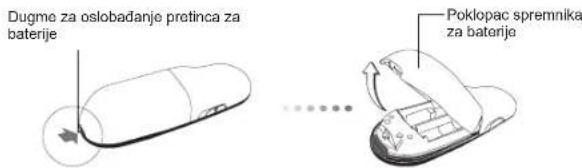
SkinitePoklopac spremnika zabaterije takado pritisnete dugme za oslobadanje i zatim pazljivo podignitePoklopac prema gore.
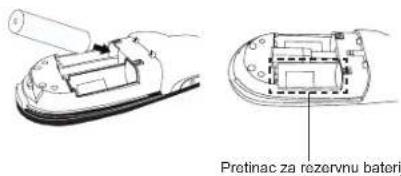
Umetnile prilozene baterije pazeci da se positivni (+) i negativni (-) polovi svake baterijePoklapaju s indicatorima povalu u spremniku za baterije.
Targus Multimedia Presentation Remote

NAPOMENA: PRETINAC ZA REZERVNU BATERIJU OMOGUCJUE
SPREMANJE REZREVNE BATERIJE (PRILOZENA) KOJA SLUZI ZA
SLUÇAJ DA JE JEDNA OD BATERIJA PRAZNA.
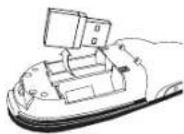
Izvadite mini USB prijammik iz sredijsnej pretinca.
KliznimPokretomvratitepoklopacpretincaza baterije na mesto dok ne cujete skljocaj.
Targus Multimedia Presentation Remote
Targus Multimedia Presentation Remote
Targus Multimedia Presentation Remote
Tipke i njihove funkcije
Ovaj uredj moze raditi kao prezenter ili bezi ci mi s pomocu prekida za promjenu naica rada (12)
| 1 | Gumb za napajanie | Za alklučenje daljinskog upravljica, pritisnite i držite 3 sekunde. LED pristen ce zasvjelititi zeLONc. |
| Za isklučenje daljinskog upravljica, pritisnite i držite 3 sekunde LED pristen ce takoder isklučitii. |
Complies with EN 60825-1: CFR A+1+A2 and Complies with CFR 1049.10 and 1049.11 except for deviation pursuant to Laser Notice No.50, dated July 26, 2001.
IZBJEGNITE IZLAGANJE - IZ OVE LECE EMITIRA SE OPASNO
ELEKTROMAGNETNO ZRAÇENJE. LASERSKO ZRAÇENJE. NE GLEDAJITE U
ZRAKU ILI IZRAVNO UZ OPTICKE INSTRUMENTE. LASERSKO ZRAÇENJE.
NE GLEDAJITE U ZRAKU ILI IZRAVNO UZ OPTICKE INSTRUMENTE. KLASA
2 LASERSKI PROZIVOD. NIKADA NE UPIRITE LASERSKO ZRAKU OSOBAMA
U OCI I NE GLEDAJIte IZRAVNO U ZRAKU, JER PRODULENO IZLAGANJE
MOZE BITI OPASNO PO OCI. TRENUTACNA IZLOZENOST LASERSKOJ
ZRAKI, KAO STO JE NENAMJERNI PRIJELAZ ZRAKE SVJETLA PREKO
OCIJU NEKE OSOBE, MOSE PROUZROCTI PRIVREMENU ZABLJESTENOST
OCIJU, SLIĆ NO EFEKTU BLICA NA FOTOAPARATU. IAKO JE OVO STANJE
PRIVREMANO, ONO MOPE POSTATI OPASNIJE UKOLIKI IOZLOZENA OSoba
OBAVLJA VIZUALNO KRITICNU AKTIVNOST, KAO STO JE VOZNJA. OPREFZ:
PROMJIENE IILI ZIMJENE NA OPREMI, KOJE NIJE ODOBRILA STRANA KOJA
JE ODGOVORNA ZA SUKLADNOST, MOGU PONISTI PRAVO VLASNIKA
NA KORISTENJE OVE OPREME. OVAJ UREDAJ INJEGOVAA/ANTENA/NE
SMIJU BITI POSTAVLJeni U BLIZINI NITI RADITI SKUPA S DRUGIM ANTENAMA
ILI PRIJENOSNICIMA VAŠ UREDAJ SADRŽI PRIJENOSNIK MALE SNAGE.
KADA UREDAJ OBAVLJA PRIJENOS, ON SALJE RADIOFREKVENCIJSKI (RF)
SIGNAL. NAPOMENA: PROZIVBAC NIJE ODGOVORAN ZA BILO KAKVE
RADJISKE ILI TV SMJETNJE KOJE MOZE PROUZROCTI NEOVLASTENO
OBAVLANJE IZMJENA NA OVOJ OPREMI. TAKVE IZMJENE MOGU PONISTI
PRAVO VLASNIKA NA KORISTENJE OVE OPREME.
HU - Bevezétés
Targus Multimedia Presentation Remote

MEGJEGYZES: A TARTALEKELEM-TARTOBAN KENYELMESEN TAROLHATO A TARTALEK ELEM (MELLEKELVE), AMIT VESZHEY-ZET ESETEN HASZNALNI LEHET.
Targus Multimedia Presentation Remote
Targus Multimedia Presentation Remote
Targus Multimedia Presentation Remote
Complies with EN 60825:1:1994+A1+A2 and Complies with C 2 CFR 1040,10 and 1040,11 except for deviation pursuant to Laser Notice No.50, dated July 26, 2001.
KERÜLJE A KITETTSEGET - A BERENDEZES NYILASAVESZÉLYES
ELEKTROMAGNES SUGARZAST BOCSAT KI LEZER SUGARZÁKOVZETLENUL, VAGY OPTIKAI NYILASSAL NE NZENZBELE A SUGARNYALABBA. LÉZER SUGARZÁKQVETLENUL, VAGY OPTIKAI ESZKOZZEL NE NZENZBELE A SUGARNYALABBA. 2. OSZTÁLYU LÉZER TERMKE SOSE MUTASSON A LEZERNYALABBA VALAMELY
SZEMLÉ YZEMEBE, VALAMINT NE NZENZ KÖVZETLENUL A SUGARNYALABBA, MIVEL A HOSSZAN TARTO SUGARZASN KALO KITETSEG KÁROSITJA A SZEMET. A LEZER MUTATONAK VALO PLLANATNYI KITETSEG. MINT PL. A SUGAR VALAKI ZSEME ELOT TORTENELHÜZASAKOR TORTEN NÉ
SZANDEKÉB SEBLEVIAGITAS ATMENETI LATAŠKIESEST OKOZHAT. HASONLOAN A FENYKEPEZÖG PAVUK ALTAL ELÖDÉZETT HATASHOZ. ANNAK ELLENERE, HOGY EZ AZ ALLAPOT ATMENETI, VESZÉLYES LEHET, HA KITETT EPPEN OLYAN TEVEKENYESET VEGEZ, PL. AUTÖVIZERT AMINEL A LATASKIESÉS VESZÉLYES HELYZEDET ERTEM FIGYELEM: A MGELELOSESEGT FELELOS FIEJEZETT ENDEGELEY NELKUL VEGREHAJTOTT MODOSITASOK A FELHASNZALO
BERENDEZÉS MUKÖDTETESÉRE VONATKOZO JOGANAK MEGVONASÁVAL
JARHATNAK AZ ESZKÖTZ ES ANTENAJAT MÁSZKÖZÖK ANTENNAIT, VAGY AODEVÖVNT NEM ZAVARVA KELL ELHELYZENI ES MUKÖDTENI AZ ESZKÖZ KISTELSJEMTENV UAOVÖDET TARTMALAZ. ADAS KÖZBN AZ ESZKÖZ RADI FREKVICNCI YLEEKET (RF) BOCSAT KI. MEGJEGYZÉS: A GYARTO NEM VALLAR FELLOSSÉGET A BERENDEZÉS JOGOSULATLAN MODOSITASABOL ADODO RADIO, VAGY TV JELZAVARASERT. AZ IYEN MODOSITAS FELFUGGESZTHETA I FELHASNZALO BERENDEZÉS MUKÖDTETESÉRE VONATKOZO JOGAT.
IT - Introduzione
Targus Multimedia Presentation Remote

NOTA:IL VANO DELLA BATTERIA DI SCORTA FORNISCE UN POSTO CONVENI-ENTE PER RIPORRE UNA BATTERIA EXTRA (IN DOTAZIONE) CHE SI PUO USARE IN CASO DI EMERGENZA
Targus Multimedia Presentation Remote
Targus Multimedia Presentation Remote
Targus Multimedia Presentation Remote
Tasti e funzioni
Complies with EN 60825-1: 1984+A1+A2 and Complies with C 2 CFR 1040.10 and 1040.11 except for deviation pursuant to Laser Notice No.50, dated July 26, 2001.
EVITARE LESPOZIONE-DA QUESTA APERTURA VENGONO EMESSE RADIATIONI ELETTROMAGNETICHE NOCIVE
RADIAZIONE LASER. NON FISSARE O GUARDARE CON STRUMENTI OTTICI DIRRETTAMENTE IL RAGIO. PRODITOLO LASER DI CLASSE 2.
NON PUNTARE MAI I RAGGIO LASER DIRITAMENTE NEGLI OCCHI DI UNA PERSONA,POICHE L ESPOSIZIONE PROLUNGATA PUO ESSERE NOCINA PER GLI OCCHI.LESPOZIONE MONTANETA AL RAGGIO LASER,COPE PER ESEMPIO UN MOVIMENTO INVOLTARIO DEL RAGGIO NEGLI OCCHI DI UNA PERSONA,PUO CAUSAIRE TEMPOANEA CEDTA SIMILE ALL EFFETTO DEL
FLASH DI UNA MACCHINA FOTORAGICA, SEBRENE QUESTA CONDITIONA SI TEMPORANEA, PUO DIVENTARE PIU PERICOLOSO SE LA PERSONA ESPOSTA IN UNA SITUAZIONE CRITICA PER LA VISTA, COME PER ESEMPIO LA GUIDA DI UN VEICLO ATTENZIONE QUALISAI CABIAMENTO O MODIFICIA NON APPROVATA ES PRESSAMENTE E CONFUMERANTE DAL RESPONSA BALLE DELLA PARTE PUO ANULLARE L'AUTORITA DELLUTENTE ALL'UTILIZZO DELL'APPARECCIURA.
QUESTO DISPOSITIVO E LA SUA ANTENNAE) NON DEVONG ESSEFE COLLOCATI O FUNZIONARE INSEME A QUALIASIA ALTRA ANTENNAO CTRASMETITORE. IVL VOSTRO DISPOSITIVO CONTENTE UN TRASMETITORE A BASSA POTENZA. QUANDO IL DISPOSITIVO TRASMETTE, MANDA SEGNALI A FREQUENZA RADIO (IRF).
NOTA: IL COSTRUITORE NONE RESPONSABLE DI NESSUNA INTERFERENZA RADIOI TV CAUSATA DA MODIFICHE NON AUTORIZZARE A QUESTA APPARECCHIATURA. TALI MODIFICHE POSSONO ANNUULLARE L'AUTORITA DEL'TUTENTE ALL UTILIZZO DELL'APPARECCHIATURA.
LT-Jvadas
Targus Multimedia Presentation Remote

PASTABA: ATSARGINIS BATERIJU SKYRELIS YRA PATOGUS LAIKYTI ATSARGINES BATERIJAS (PRIDEDAMA), KURIAS GALIMA PANAUDOTI PRTRUKUS SROVES.
Targus Multimedia Presentation Remote
Targus Multimedia Presentation Remote
Ijungimo (ijsjungimo) mygtuka,
Targus Multimedia Presentation Remote
Complies with EN 60825:1:1994[A1+A2 and Complies with 21 CFR 1040.10 and 1040.11 except for deviation pursuant to Laser Notice No.50, dated July 26, 2001].
VENKITE TIESIOGENES - PAVOJINGOS ELEKTROMAGNETINES RADIACIJOS SKLINDIÇIOS IŞ SOS ANGOS.
LAZERIO RADIACJIA, NESPOKSOKITE AR SU OPTIKOS PRIETAISI
TIESIOGIAI NEZIUREKITE | SPINDULI, 2 KLASES LAZERIO PRODUKTAS.
NIEKADA NENUKREIPKTE LAZERIO SPINDULIO AKIS AR NEZIUREKITE
TIESIOGIAI | SPINDULI, KADANGI ILGESNIS ZIUREJIMAS GALI BUTI
PAVJONGAS AKIMS.
MOMENTINIS ZVILGTEREGJIMAS [LAZERO ZMYIKL], KAIP PAVYZDZUII, NETYCINIS MOSTELEJIMAS PRIES ZMOGAUS AKIS, GALI LAIKINAI, APAKINTI, SUKELDAMAS PANASU POVEIGA KAP KAMEROS BLYKSTE, NO. S1 BUSENA YRA LAIKINA, TAI GALI TAPTI PAVOJINGA, JEIGU APAKINIA, ASMuo ATLIEKA DARBA, KUR LABAI SVARBI REGEGJIMO FUNKCIJA, KAVYZDZUI, VAIRAVIMAS.
ISPEJIMAS: PAKEITIMAI AR PERDARYMAI, NEPATVIRTINTI ATSAKINGOS SALIES DEL SUDERINAMUMO, GALI ANULUOTI VARTOTOJO TEISES NAUDOTIS SIUO IRENGINIU. SIS PRIETAIS AS BEI JO ANTENA(OS)NEGALI BUTI PERKELAMOS AR VEIKTI BENDRAI SU KOKIA KITA ANTENA AR SIUSTUVU. JUSU PRIETAISE YRA MAZASROVIS SIUSTUVAs. PERDAVIMO METU PRIETAIS SIUNCIA RADIJO DAZNIU (RD) SIGNALA, PASTABA: GAMINOJAS NERA ATSAKINGAS UZ JOKIA RADIJO AR TELEVIZJOS SAVEIKA, ATSIRADUSIA DEL NETEISETU SIO IRENGINIO PAKEITIMU. SIE PAKEITIMAI GALI PANAIKINTI VARTOTOJO TEISES SIUO IRENGINIU.
LV - levads
Apsveicam, ka esat iegadajies Targus multivides prezentaciju pulti. Ši kombinětā prezentaciju pufts ar lázera rădītaju un kursora vadibu darbojas gan ar Microsoft PowerPoint®, gan Apple Keynote®, Sai bezudav puftjir ar ir standarta plug-n-play savietojamiba, kad nav nepiecišami programmatūras dziri, un plaşa diapazona 2,4 GHz tehnologija lauj efektivi vadit prezentaciju lidz pat no 15 m attaluma.
Satures
Targus Multimedia Presentation Remote
- Mini USB Receiver
- 2 x AAA Batteries
-User Guide
Sistemas prasibas
Aparatura
- USB interfeiss
Operetalsistema
Microsoft Windows® 2000
Microsoft Windows XP
Microsoft Windows Vista
Microsoft Windows*7
Mac OS X 10.4 vai jaunaka
Targus Multimedia Presentation Remote

IEVEROJIET: REZERVES BATERIJU NODALIJUMS SNIEDZ ERTU VETU, KUR UZGLABAT REZERVES BATERIJU (IEKLAUTA KOMPLEKTÄ), KO VAR IZMANTOT ARKARTAS BAROSANAI.
Izneiemit mini USB uztveju, kas atrodas vidja nodlljuma.
lebidiet bateriju nodalljuma vaciu atpakai vietafidz tas nokliksk.
Targus Multimedia Presentation Remote
Pults izmantošana
Pirms pults izmantoşanas, ludzu, izvěliéties sava datora veidu un vělamo prezentácu programmatúru. Atrodiel baterju nodalijumă sleždi, kā paradīts attëla.
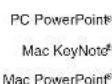
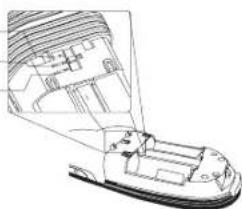

IEVEROJIET: IZVELIETIES "PC POWERPOINT" (DATORA KONTAKTLIGZDA), JA JUS LIETOJAT DATORU, KO RAZOJIS HP/COMPAQ, DELL, TOSHIBA, GATEWAY, PANASONIC, FUJITSU, SONY, IBM/LENOVO, ACER, ASUS, UTT.
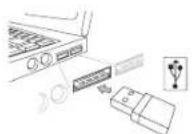
Sai pultij ir standarts plug-n-play. Tā automatiski saks darbodies, tikidz USB uztverejs tiks avsienots ar datoru. Iespraudiet mini USB uztvereju brjavá datora USB pieslégvietá.
Targus Multimedia Presentation Remote
lesledziet prezentaciju pulti, nospiezot un turot nospiestu ieslegsanas/ izslegsanas pogu 3 sekundes.
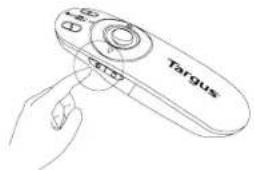
Targus Multimedia Presentation Remote
Tausti un funkijas
Sierice var darboties kā prezentaciju pults vai bezvadu pele, izmantojot rezimu sledzi (12).
| 1 | Barošanas poga | Nospiediet un turiet nospiesti sio pogu 3 sekundes, liai lesegtu puiit. LED nijveida indicators klus zaës. |
| Nospiediet un turiet nospiesti sio pogu 3 sekundes, liai szilëgtu puiit. LED nijveida indicators izdžis. |
lerices izmantošana - prezentaciju pults režims
| 2 | Melna ekrăna poga Ekra,ns klus tukş#/tumş. |
| 3 | Sifrida Start - nospiediet vienreiz, lia saki tsiadradi. |
| Stop - Nospiediet un turiet nospiestu 2 sekundes, lia apturetu sildradi. | |
| 4 | Näkose lapa/silds Nospiediet vienreiz, lia ietu uz nikoso sildu. |
| 5 | Ieprieksejā lapa/silds Nospiediet vienreiz, lia ietu uz ieprieksejo sildu. |
| 6 | Lázera rǎdlajs Lázera stars izstarojas no alveres. |
| 7 | LED rinkveida indicatoris Baroşanas un KeyLockTM indikators |
| 8 | Taustiju noblokeşanas poga Nospiediet vienreiz, lia iespëjotu taustiju noblokeşanas funckju. - Alspejovius taustipus, izremot lázera pogu, nikoso lapa/silds un ieprieksejā lapa/silds pogu. - LED rinkveida indicatoris klos SARKANS. |
| Nospiediet vienreiz, lia pärtrauktu taustiu noblokeşanas funckju. - LED rinkveida indicatoris klos atkai ZAL§. | |
| 9 | Lázera rǎdlajpa poga Nospiediet un turiet nospiestu, lia aktvizētu lázera rǎdlaju. |
| 10 | Poga "Skajak" Nospiediet, lia paliinătu skanu. |
| 11 | Poga "Klusak Nospiediet, lia samazinătu skanu. |
Ierices izmantošana - Peles režims
| 4 | Peles labais klikškjis Peles labais klikškjis |
| 5 | Peles kreisais klikškjis Peles kreisais klikškjis |
| 7 | LED rinkveida indicatoris Barošanas indicatoris. |
| 8 | Taustiŋu noblokëšanas poga Atspijota peles rezimā |
| 9 | Kursorsvira Kursorsvira nospiešana lidzinas peles kreisajam klikškjm. Virza peles kursoru. |
| 10 | Poga "Skajak" Nospiediet, lai paliinătu skajumu. |
| 11 | Poga "Klusak Nospiediet, lai samazinătu skajumu. |
Drośības pasākumi
Lai Izvartlos no lespajamas acu traumas, peshnclidret al la zera radlau zu civsekim, ipaši tosejá, kā ari neskatieties tišëpu lzaša starà.
- Nespidiniet pulsitszera starupoguivalti citla atalarojosajpriksemata.
Gliabajet pulti berniennopiejamaViesta.
- Neapskatli pults lāzera staru, izmantojot teleskopiskas ierfces, piemērām, mikroskopusk vai binokus.
- Mõiginajums izjaukt, piolagot vail labot puli var radit bistamu ietekmi uz lazera gaismu vai Citationes brosibai.
Traucejummeklesana
Ko darit, ja prezentaciju puls ts abildes laiks ir tss vai ta ureziz vairs nedarbojas?
- Parleccinieties, ka prezentacjpu puls atrodas 15 m attaluma no mini USB uztvejra.
- Palleliniet attalumu starp uztvereju un citam bezvadu iertcem.
Izlsdziej bezvadu ierfci un to pamatierifices, kas atore prezentaciju pults uztveredja tuvumá. - Nomainiet bateriju.
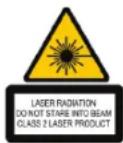
Complies with EN 60825:1:1994+A1+A2 and Complies with C 2 CFR 1040,10 and 1040,11 except for deviation pursuant to Laser Notice No.50, dated July 26, 2001.
IZVAIRIETIES NO APZILBINASANAS - SIERICE IZSTARO
ELEKTROMAGNETISKORADIACIJU.
LAZERA RADIACIJA, NESKATIETIES STARAVAI TIESIAROTISKAJEMINSTRUMENTIEM.2.KLASES LAZERAPRODUCTS.
NEKAD NESPIDINIET STARUVAI KADACILEVKA ACIS UN NESKATIETIESTIESU ZLAZERA STARU,JO ILGSTOSAKITISANAS VABBUT BISTAMACIM.
NEVAQEJOTIES NOVERSIETIES NO LAZERA RADITAJA KARI NEJAUSINEIESTEZERSARU CITA CILVEKA ACIS,JO TAS VAR IZRAISITPAIGAUDKALUMU,LDZIGU KAMERAS ZIBSPULDZES RADITAJAM.LAI GANSISTAVOKLIS IR ISLACKIGTSARVABUTLOTI BISTAMS,JAPZILBINATAPASONA NODARBOJAS AR REDZEVI SAVIRG DARBUBU,PIEMERAMBAUKSANU.UZMANIBU:JEBKADASIZMAJNASVI MODIFIKACIJAS,KONAVAPSTIPRINJAUIS ATBILDIGPUSEVAR SABOJAT IERICI.SIERICEUN TS ANTENA(S)NEDRIKSTNOVIEGT BLAKUS VAI ISELEGT,TJA TAM IRSASKARE JEBKADU CITU ANTENU VAII RAITAJU.
JUSI IERICE SATUR MAZAS JAUDAS RAIDITAJU.KADIERICE IRESLEGTA RA BADARADIOFFREVCENES (RF) SIGNALAU.IEVEROJET.RAZOTAJSSNEZNEMAS ATBILDUBPARADIOVAI TELEVIZJAS IEJAUKSANOS,KIOIZRAISIJUAS NEAUTORIZETAS SIS IERICESIZMAINAS.SIS MODIFIKACIJASVAR SABOJAT IERICI.
NL - Introductie
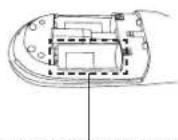
Reserve batterjcompartment
Targus Multimedia Presentation Remote

OPMERKING: HET RESERVE BATTERIJCOMPARTIMENT VOORZIET IN EEN HAN-DIGE OPBERGRUIMTE VOOR EEN LOSSE BATTERIJ (INBEGREPEN), DIE GEBRUKT KAN WORDEN ALS NOODBATTERIJ.
Targus Multimedia Presentation Remote
Targus Multimedia Presentation Remote
Targus Multimedia Presentation Remote
Toetsen en functies
Complies with EN 60825-1: C + 4A + 1A + 2 and Complies with C 2F 1040.10 and 1040.11 except for deviation pursuant to User Notice No.50, dated July 26, 2001.
VOORKOM BLOOSTELLING-GEVAARLUKE ELEKTROMAGNETISCHE STRALING UITGESTRAALDOOR DEZE OPENING.LASERSTRALING.KLK NIET IN DE LASERSTRAAL OF BEKLUOKOINCTIRECT MET OPTISCHIE INSTRUMENTEN.KLASSE2LASERPRODUCT. RICHT NOODI EEN LASERSTRAAL IN DE OGEN VAN IEMAND EN KUKJ NET RECHSTREEEKS IN EEN LASERSTRAAL:DOOR LANGDURIGBLOOSTELLING KAN DIT GEVAARLUK ZUN VOOR DE OGEN.KORTSTONDIGBLOOSTELLING UIT EEN LASERAANWJZER.ZOAALS EEN ONVERHOEDSE ZWAAIANV HET LICH OVER DE OGEN VAN IEMAND.KAN TUIDELLIKE FLUTSBLINDHEID VEROORZAKEN GELIK AAN HET EFFECT VAN EEN CAMERA FLITSLAMPJE. HOWEEL DEZE TOESTAND TUDELIK IS, KAN HE TGEVAARLUK WORIDEN WANNEER DE BLOOTGESTELDE PERSOON BETROKKEN IS BUEN GEZICHSKRITISCHE BEZIGHED ZOAALS AUTORIJDEN.WAARSCHUUNG. ENIGE VERANDERING OF WUZIGING DIE NIT UDTRIUKKELIKU IS GODEGEKEUR DOOR DE VERANTWOORDLUKE PARTIJ ZOU DE GEBRUJKERS TOESTEMMING OM DE APPARATUUR TE KUNNEN BEDIENEN ONGELDIG KUNNEN MAKEN.DEZE APPARATUUR EN HAAR ANTERNE(S) MOET NIET GEPLAIST OF BEDIEND WORDN IN COMBINATIE MET ENIGE ANDERE ANTENNE OF ZENDER. UW APPARATUUR BEVAT EEN ZENDER MET LAAG VERMGN.WANNEER MET DE APPARATUUR WORDT GEZONDEN ZENDT ZU EEN RADIOFRECENTIE (HOOGFRECNT) SIGNALAUI.AANTEKENING:DE FABRIKANT IS NIET VERANTWOORDLUK VOOR ENIGE RADIO OF TV INTERFERENTIE VEROORZAAKT DOOR NIET-GEAUTORISEEPDE WUZIGINGEN IN DEZE APPARATUUR, EEN DERGLIEKU WUZIGING ZOU DE TOESTEMMING AAN DE GEBRUKER OM DE APPARATUUR TE BEDIENEN ONGELDOG KUNNEN MAKEN.
NO - Introduksjon
Targus Multimedia Presentation Remote

MERK: DETEKSTA BATTERIHUSET GIR PRACTISK OPPBEVARINGSPLASS FOR ET SEPARAT BATTERI (MEDFOLGER) SOM KAN BRUKES SOM NODSTROM.
Targus Multimedia Presentation Remote
Targus Multimedia Presentation Remote
Targus Multimedia Presentation Remote
Complies with EN 60825-1: CFR A+1+A2 and Complies with C 21 CFR 1049.10 and 1049.11 except for deviation pursuant to Laser Notice No.50, dated July 26, 2001.
UNNGA EKSPONERING - FARLG ELEKTROMAGNETISK STRALING AVGIS FRA DENNE LYSAPINGEN. LASERSTRALING. IKKE STIRR INN 1STRALEN ELLER SE DIREKTE PAn DEN MED OPTISKE INSTRUMENTER. LASERPRODUCT KLASSE 2 PEK ALDR EN LASERSTRALE INN I BYNENE PA NOEN ELLER SE DIREKTE PAn EN LASERSTRALE. DA VEDVARENDE EKSPONERING KAN VIAE FARLG FOR BYNENE. MIDLERTDIGEKSPONERING FRA EN LASERPEKER. SLIK SOM UAKTSOM STEBIFING AV LYS OVER EN PERSONS BYN, KAN FORARSAKE MIDLERTDIG BLINDHTJ LIKE EN KAMERABLITZ, SELV CMENDE TILSTANDEN ER MIDLERTDIG, KAN DEN VARE FARLG DERSON DEM EKSPONERTE PERSONEN UTBRER EN AKTIVET DER SYNET EH AVGJRENDNE. SLIK SOM A KJBE BIL ADVARSEL: FORANDRINGER ELLER MODIFISERINGER SOM IKKE ER EKSPUSITT GOKJENT AV PARTET SEM ER ANSVARLING FOR TILPASINNG. KAN UGYLDIGGBRE BRUKERENS AUTORITER TIL A BRAUKE UTSTYRET. DETTE APPARATET CG DETS ANTENNER MA KIFLYETES ELLER OPERERES SAMMEN MED NOEN ANNEN ANTENNE ELLER EN ANNEN SENDER APPARATE TDT INNEHOLDER EN LAVYTELESSENDER. NAR APPARATET OVERFRES, SENDER DET UT RADIOFREKNSSIGNALER (RF). MERK. FORHANDLEREN ER IKKE ANSVARLING FOR EV. RADIO- ELLER FJERNSYNNNIRKING SOM FALGE AV UAUTORISERITE MODIFIKASIONER AV DETTE UTSTYRET. SLIKE MODIFIKASIONER KAN UGYLDIGGBRE BRUKERENS AUTORITER TIL A OPERERE UTSTYRET.
PL-Wstep
Targus Multimedia Presentation Remote

UWAGA: KOMORA NA BATERIE ZAPASOWE STANOWI UDOGODNIE- N UMOZLIWIJACE PRZECHOWYWYWANIE (DOSTARCZNONYCH) BATERII ZAPASOWCK, THORE MOZNA UZYC W NAGLYM WYPADKU W RAZIE WYOCZERPANIA SIE BATERII.
Targus Multimedia Presentation Remote
Uzytkowanie pilota
Targus Multimedia Presentation Remote
Targus Multimedia Presentation Remote
Przyciski f Funkcje
Complies with EN 60825:1:1994+A1+A2 and Complies with C 2 CFR 1040,10 and 1040,11 except for deviation pursuant to Laser Notice No.50, dated July 26, 2001.
UNIKAO PRZEDLUZONEGO KONTAKTU - URZADZENIE EMITUJE NIEBEEPICKCNE PROMIENOWANIE ELEKTRMAGNETYCNE PROMIENIWANIE LASEROWE. NIE PATRZEČ BEPOSRDENO LUB PRZY POMOCY INSTRUMENTOW OPTYCZYNCH W PROMIEN LASERA, URZADZENIE LASEROWE KLASY 2. NIGDY NEEDIEROWA PROMIENIA LASERA W OZCY INNEJ OSOBY ANI NIE PATRZEČ BEZPOSSRDNO W PROMIEN LASERA, GDYZ DLUGOTRWALE NARAZENIE NA JEGO DZIALIANE MOSE BYC SZKODLIWE DLA WZRKOU. CHWILLOWE SPOJRZENIE WE WSKAZNIK LASEROWA, NY PRZYKLAD W WYNIKU PRZYPADKOWEGO RUCHU WSKIAZNIKA W CZASIE PREZENTACJI MOZE WYWOLAC CHWILOWA SLEPOTE, PODOBNA DO REAKCJI NA BLYSK FLESZA. CHOICAZ JEST TO STAN CHWILOWY, TO MOZE BYC GROZNY, JESLI DANA OSOBA WYKONJUE DZIAIANTW YWAGMAJACE UZYWANIA WZROKU, NP. PROWADZI SAMOCHOD. OSTRZENIE: WSZELKIE ZMIANY LUB MODYFIKACIE NIE ZATWERDZONE PRZEZ STRONE ODPOWIEDZIALNA ZA ZGODNOSC URZADZENIA Z NORMAMI MOGA POZBAWIC UZYTKOWNIKA PRAWA DO KORZYSTANIA Z PRODUCTU. URZADZENIA I JEGO ANTEN(Y) NO MNZA UZYWAC W POBLIZU ANI W POLACZENIJ Z INNYMI ANTENAMI LUB PRZEKAZNIKAMI URZADZENIE JEST WYPOSAZONE W PRZEKAZNIK O NISKJE MOCY. PRZEKAZNIK WYSYL SYGNALY RADIOWE (RF). UWAGA: PRODUCENT N PONOSI ZADNEJ OPDOWIEDZIALNOSC Z A ZAKLOGENIA RADIOWE CZY TV WYNIKAJACE Z NIEAUTORYZOWANEJ MODYFIKACJI URZADZENIA. WPROWADZENIE TAKICH ZMIAN MOZE UNIEWAÑNIC PRAWO UZYTKOWNA DO KORZYSTANIA Z URZADZENIA.
PT-Introducao
Targus Multimedia Presentation Remote

NOTA: O COMPARTimento DA BATERIA SOBRESSALENTE É MUITO U'TIL PARA GUESTAR UMA BATERIA DE RECURSO (INCLUDE), QUE PODE SER USADA NUMA EMERGENCIÀ DE FALTA DE CORRENTE.
Targus Multimedia Presentation Remote
Targus Multimedia Presentation Remote
Ligue o remoto correngando e segurar no botao on/off (ligar/desligar) durante 3 segundos.
Targus Multimedia Presentation Remote
Teclas e funções
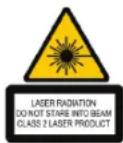
Complies with EN 60825-1: CFR A+1+A2 and Complies with C 21 CFR 1049.10 and 1049.11 except for deviation pursuant to Laser Notice No.50, dated July 26, 2001.
EVITE A EXPOSÇÃO - RADIÇÃO ELECTROMAGNETICA PERIGOSA EMISSIDA A PARTIR DESTA ABERTURA. RADIÇÃO LASER. NAO OLHE FIXAMENTE NÉ OLHE DIRECTAMENTE PARA INSTRUMENTOS OPTICOS. PRODUTO LASER CLASSES 2. NUNCA APONTE UM FEIXE LASER PARA OS OLHOS DAS PESSOs NÉ OLHE DIRECTAMENTE PARA UM FEIXE LASER, DADO QUE A EXPOSÇÃO PROLONGADA PODE SER PERIGOSA PARA OS OLHOS. A EXPOSÇÃO MOMENTANÉA A UM APONTADOR LASER. TAL COMO UM VARRIMENTO POR INADVERTÊNCIA DA LUX ATRAVES DOS OLHOS DE UMA PESSOA, PODE CAUSAR CEGUEIRA DE FLASH TEMPORÁRIA. SEMELHANTE AO EFEITO DE UMA LAMPADA DE FLASH DE UMA CÂMARA. EMBORA ESTA SITUÇÃO SEJA TEMPORária, PODE TORNAR-SE MAIS PERIGOSA. CUIDADO: QUALQUER ALTERação OU MODIFICAÇÃO NÃO EXPRESSAMENTE APROVADA PELA PARTE RESPONSÁVEL PELA CONFORMÍDA PODE ANULAR A AUTORIDA DO UTILIZADOR PARA OPERAR O EQUIPAMENTO.
ESTE APARELHO F (S) SUA(S) ANTENA(S) NAO DEMV SER COLOCADOS OU UTILIZADOS JIJUNTAMENTE COM QUALQUER OUTRA ANTENA OU TRANSMISSOR. O SEU APARELHO CONTÉM U M TRANSMISSOR DE BAIXA TENSÉO. QUANDO O APARELHO TRANSMITE, ENVI UM SINAL DE RADIOFREQUENCY (RF).
NOTAO FABRICANTE NAO E RESPONSAVEL. POR QUALQUER INTERFERECIA DE RADIO OU TV PROVOCADA POR MODIFICACOs NAO Autorizadas DESTE EQUIPAMENTO. TAIS MODIFICACOs PODEM ANULAR A AUTORIDA DO UTILIZADOR PARA UTILizar ESTE EQUIPAMENTO.
RO - Introducere
Targus Multimedia Presentation Remote

NOTÁ: LOCAŞUL PENTRU BATERIA DE REZERVÀ OFERÀ UN SPATI U DE DEPOZITARE COMOD PENTRU O BATERIE SEPARATA (INCLUS), CARE POATE FI FOLOSITA CA ALIMENTARE DE URGENTÁ.
Targus Multimedia Presentation Remote
Targus Multimedia Presentation Remote
Targus Multimedia Presentation Remote
Taste.si functii
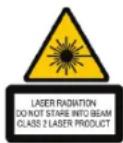
Complies with EN 60825-1: CFR A+1+A2 and Complies with C 21 CFR 1049.10 and 1049.11 except for deviation pursuant to Laser Notice No.50, dated July 26, 2001.
EVIATI EXPUNEREA LA RADIATILE ELECTROMAGNETICE PERICULOASE EMISE PRIN DIAFRAGMA DISPOZITIVULU.
RADIATI LASER.NU PRIVITIDIRECT IN LUMINA LASER CU OCHIUL LIBER SAU CU INSTRUMENTE OPTICE.
RADIATI LASER.NU PRIVITIDIRECT IN LUMINA LASER CU OCHIUL LIBER SAU CU INSTRUMENTE OPTICE.PRODUS LASER CLASCA2
NU INDREPTATI NICIODATA LUMINA LASER DIRECT INSPRE OCHI
DUMNEAVOASTRA SAU AI ALTOR PEROANE,DEOARECE EXPUNERAEA INDLUNGATA POATE FI PERICULOASAPENTRU DCHEXEPUNERA TEMPERATUREA LA LUMINA LASER.DE EXEMPLIN CAZUL INDREPTARII DIN NEGLIJNTA A RAZEIS PREO CHOI UNEI PEROANE,POATE CAUZA UN DISCONFORT AL VEDERII ASEMANATOR EFFECTULTI PRODUS DE BLITUL UNUI APARAT FOTO.CHIAR DACACAESCT EFFECT ESTE TEMPORAR,POATE DEVENI PERICULOS DACA PEROANOVA EXPUSAESTE ANGAJATA INTR-O ACTIVATE IN CARE VEDEREA THIS ESSENTIALA.CUM AR FI SOFATUL ATENTIE:ORICE SCHIMBARI SAU MODIFICARI NEAPROBATEC CATRE PARTEA RESPONSABILSAU CONFORMITATEA PRODUSULU POATE ANULA AUTORITATA UTILIZERULU DE A FOLOSI ECHIPAMENTL.ACESST DISPOSITIVT S ANTENA (ANTENELE) CORESPUNZATOARE NU TREBUVE MONTATE SAU UTILIZATE IMPRUNA CU ALTE ANTENAE SAA TRANSMITATIOARE COST DISPOSITIVT CONTINE UN TRANSMITATOR DE TENSIUNE REDUSA.INTIMUL TRANSMISIEI.DISPOSITIVTUL EMITE SEMNALE RF (FRECVENTA RADIO).NOTA:PRODUCATORUL NU ESTE RASPUNZATORPENTRU EVENTUALELE INTERFERENTE RADIO SAU TV CAUZATE DE MODIFICARI NEAUTORIZE ALE PRODUSULU.ASTFEL DE MODIFICARI AR PUTEA ANULA DREPTUL UTILIZERULU DE A FOLOSI ECHIPAMENTL.
RU-BBeDeHne
Bnaorapnma 3 npnopeTeHne yctpoCTBa DnA nctaunHOHOr ynpabnHnM MybTmHeMnH Ope3eHTaueM (npesHTepa) Targus. DaHHoe KOMbHnnpBaHOHe yctpoCTBO DnA nctauHnHOHOr ynpabnHnC Na3epHOn YkAKKn I BO3MOXHOCTbIO ynpABNeHn KYPCOPOM pa6oTaet C Microsoft PowerPoint® N Apple Keynote® DaHHbI npe3eHTep o6eCNHBAET FyHKUHOHaBHOCTb plug-and-play ("BKIOUHN INrpa") He Tpe6yN porpAMMHbIX pAnBePOB, IN BO3MOXHOCTb EΦΦEKTHBO npOBoHTb Ppe3eHTaUHO H PaCCToRHM Do 50 cyTOB (15 M) BnaorapdAp texHOITM BeCnPBoDHOH nepeAaB D mIanaOaEO 2,4 ITU.
CopepkaHne
- YcTpoCTBO DnIaNCTAHUHNOHOro ynpaBNeHrMaYnbTmEduHOI np3eHTaUnei (ppe3eHTep) Targus
- MHHN USB-pecnBep
-26atapenTtnA AAA
PykoBODCTBO noIb3OBATeTn
CnCTeMHbIe Tpe6oBaHnA
AnnapaTHbIe cpeDcTBA
- INTEPpeicn USB
OnepaunonHnacntema
Microsoft Windows 2000
Microsoft Windows XP
Microsoft Windows Vista
Microsoft Windows 7
Mac OSX 10.4 nn6oene no3dHne Bepcnn
Hac troka npe3eHTepa YcTaHObKa 6atapei
HaxMMTe HA KONky OTKpbIbAHNA OTCKa DnA GbATEeN AKKypaTHO NOHMITE KpblkY, KaK NOKa3HO H PNCyHke.
BCTABBE BOKOJIHNE B KOMNIKET 6aTapeN TAK, YTO6bI KOHTAKTBI PIIOC (+) INMHyc(-) KAKJOI 6aTapee COOTBETCBOBAJIN 3HAKAM NIONPHOCTN B OTECE DnI B6aTepe.
OTepeHne nna 3anachbix 6aTapei
Targus Multimedia Presentation Remote

IPMMEAHHE: B OTDELEHIN DIA 3AIIACHbIX BATAPEI XPAHTRc3AIIACHbIE BATAPEN (BXOJITB KOMPIEKT), KOTOPBE MOXHO INCIOJIb3OBATb KAK PE3EPBbIb NCTOHTHK IITAHNIA.
BbHbTe MmH USB-pecnBep, KToTpbl XpaHHTcBHytpn UeHTpA horo OTdEHeHH.
3aBnHbTe kpylKy OTeKa DnA BatapeHa MeTo Do 1eUkA.
Targus Multimedia Presentation Remote
Popraok paobtbc npe3eHTepom
Ppexde, cem nIOIb3ObaT np3eHTep, Heo6xmoBbl6paT INTN KMOJIbOTepaHne6xOIMOE npORPAMMHOe oeceneHne Inna Ppe3eHaUm. YCTAHOBITpeKIOuATenB OTOCEKe IINBaTaepaek, KaK NOKa3AHO Ha pMCYHke.

INPIMEYAHIE: BbIePNTE PC POWERPOINT', ECIN Bbl NnB3yETEcB KOMNBIOTEPOM, INPOUN3BEEHHHM: HP/ COMPAQ, DELL, TOSHIBA, GATEWAY, PANASONIC, FUJITSU, SONY, IBM/LENOVO, ACER, ASUS U T.D.
DAnHHn npE3eHep pa6oTaET no npiHunny plug-n-play ("BkKnOuN i npA"). OH OJpKHe ABOMATHEcck Ha p6Oy NOcNE NOdkIOHHeNA USB-peCHeBa K KOmblBoTepy. NOKKnOuHTe MHN USBpeCHeBep K DOctynHomy USB-NopTy KOMNbIbTepa.
Targus Multimedia Presentation Remote
HaxMMTE uyeepKuBAte KhoNNy BKN/ByKn (on/off) nMaTHnB TceHeH3 cekyH, YTO6bbl BKNIOHTb ppe3eHTep.
Targus Multimedia Presentation Remote
KhoNkNΦyHKU
DaHHeO yCtPOHCTBO MOKET pa60TaB kAK Ipe3EHTep Hm 6ecnpoOBHOH Mblb. BbOp pexMma pa60Tb OcyueCTBnaTc C nomouhbo nepeKIOHQuATEY (12).
YcTpaHHe HeNCpPaBHOCTe
Yto denatb, cncn enpma otknkna npesentepa oonbe oobHOrno Hn yucptoebtro nepouduqneupeaetae paetabot?
Y6EgTeTBeC, YTO pIe3eHTeP HAXOITcH PAACCToHMM He 60nee 50 cytoB (15 M) OT MMN USP-DECIBERA KOMBIbETPA.
· YBeHNbTbePACOTBMEKHeYpeCIBEBOPmPp3eHTepaIpnHIMMAOUIMM 63AAMpytIXh ECbpOAOBHyxUyCTPOBHy.
BbKIOHOTe Sce 6cEBPOBODHLbe YCTOPRCTBA, HAXOJIaIINIEcR PRAOM cPecINBOPM pereTepHeBa, INx PprrnHMAUIOHE 6a3by.
-3aMeHHTe 6aTapeko.
Complies with EN 60825:1:1994+A1+A2 and Complies with C 2 CFR 1040,10 and 1040,11 except for deviation pursuant to Laser Notice No.50, dated July 26, 2001.
N3EFAIATE B03EETCBTHIA3EPBHXIYEN-OTBPECTVEIA3EPAI NCIYCKAET BFEHDNEI3KETPOMAIHTHIOHEIINHIEHE
JIA3EPHOE M3JIyueHAE. HE CMOTPNTE IIPRMO B JIA3EPHBIN JIyU
HEBOOPYKHEHIMIQAOMIINYEPE3OITNHECKMEHYCHTPMEHTbI.1A3EPHOE YCTPOPTBTO KNACCA2 EHN HAPANBPOTIOIPOJNTIOIPOJNTIOIPOJNTIOIPOJNTIOIPOJNTIOIPOJNTIOIPOJNTIOIPOJNTIOIPOJNTIOIPOJNTIOIPOJNTIOIPOJNTIOIPOJNTIOIPOJNTIOIPOJNTIOIPOJNTIOIPOJNTIOIPOJNTIOIPOJNTIOIPOJNTIOIPOJ
KPKTOBPEMEHNA BCHIIHKA CEBTA OT LASEPHOMY UKA3KI, HAPIMPEN, PPI EE CYIAYAHOM HAPIPABIEHN BY IITAA 3EYEBOEKA, MOKET PIPNECTIN KBPHEMHOMCYOJIENHIO XCQDHOMV C BO3DENTBVMG BCHIIHKA FOTOKAMEPLHECMOTPMHA TO YTO DAHHN 3D4EKT BYRTRCNTCEP BPEMEHMBAHMOH, OH MOKET Bb1b0 NTACBHIMECIM NOBEPRIEEECB O3D3EHTMBIO IMLO Bb10NIRHT BND DETEHLHOCTIN, B KOTOPOM SPHEM KVPATHECKN BAKHX, HAPYPME, YTPBABRET ABTOMOBNIEM. BHAMAHOE: NIOBIE M3MEHEHNA IMMOIDN KAUKMAL, 3AIKCNIOHEHUM ODOPBEHXb OTBTCTBEHHON 3A COOTBETBAACTBI HOCTPOOH, MOYPTIPNECTIN K OTMEHE PABNA NOB3OBATEBN HA KCNPTUANIA DAIHORO OSOPDYBAHMA. DAHOHE YCTPONTBO ENO AHTHEHNA (AHTHEHb) DONTKHb BY b1b0 YCTAHOBHEb N PABOTATb C YETOM PIPNCYCTBN DYINTX AHENTH INI PEPDAHTNKBO BAUIYCTPOCTBO OSOPDYABHO PEPEDATKOM HMQIOHOCB, N POLECEPC PABOTb YCTPONTBO PEPEDAET PAHOACTOTBn CNHAN, PIPMEVAHAHE. IPIN3BODATEJB HE HECET OTBETCTBEHHOCB 3A JIKBIE PIOMEXI PIPEMY PADMO INI TEJEIB3MOHCB CNTHAOI NOB3DENTBMM EHPA3PEUEHBBXb MODNIAKALI DAHNOBO OBPOPAHBO NIOE6MIAKILM OMYFT PIPNECTIN K OTMEHE PABBA NOB3OBATEBN HA KCNPTUANIO DAHHO T OSOPDYBAHMA
SE - Introduktion
Targus Multimedia Presentation Remote

OBS:RESEVBATTERIFACKET TILLHANDAHALTER TILLRACKLIGT MED UTRYMME FOR ETT SEPARAT BATTERI (MEDFOLJER) SOM KAN ANVANDAS VI OLKA NODLAGEN.
Avlagsna mini USB-mottagaren som forvaras inuti det mittersta facket
Targus Multimedia Presentation Remote
Targus Multimedia Presentation Remote

Targus Multimedia Presentation Remote
Complies with EN 60825-1: 1994+A1+A2 Complies with C 21 CFR 1049.10 and 1040.11 except for deviation pursuant to Laser Notice No. 50, dated July 26, 2001.
UNDVIK EXPONERING-SKADLIG ELEKTROMAGNETISK STRALNING SANDS UT FRAN OPPENING, LASERSTRALNING. STIRBA INTE IN I STRALEN OCH TITTA INTE DIREKT IN I STRALEN MED OPTISKT INSTRUMENT. KCLASS 2 LASERPRODUKT. PEKA ALDRIG MED EN LASERSTRALEN MOT NAGONS OGON ELLER TITTA INTE DIREKT PA EN LASERSTRALE, EFTERSOM FÖRLANGD EXPONERING KAN VIA VARA SKADLIG FÖGONEN TILLFÄLLIG EXPONERING FRAN EN LASERPEKARE, SASOM VID EN SVEPANDE RÖRSELE AV LJUSET OVER EN PERSONS OGON. KAN FORORSAKA TILLFÄLLI BLIXTBLINDHT LIONKANDE DEN EFFEKT SOM EN KAMERABLIXT FÖROSAKAR. AVEN OM DE HAR FÖRHALLANDENA AR TILLFÄLLIGA, KAN DET VARA FARLIGT OM DEN EXPONERADE PERSONEN AR MITT I EN VISIONKRITISK AKTIVETI SASOM BILKÖRNNG. VARNING: ANDRINGER ELLER MODIFIERING ER DIREKT GODKANDA AV DEN ANSVARIJA PARTEN FÖR OVERENSSTAMMELSE KAN FORORSAKA ATT ANVANDAREN INTE KAN ANVANDA UTRUSTINEN. DEN HAR UTRUSTINENO CH DESS ANTENNER) KAN INTE PIACRAS TILLSAMMANS ELLER ANVANDAS TILLSAMMENDMS MID ANDRA, ANTENNER) ELLER SANDARE. DIN APPARAT INHEHALLER EN LAGENERGISANDARE. NAR APPARATEN SANDER UT SKICKAR DEN UT RADIOFREKNISSIGNALER (RF). OBSERVERA: TILLVERKAREN AR INTE ANSYARIC FOR RADIO ELLER TVSTÖRNNGAR FORORSAKADE AV EJ AUKTORISERADE MODIFIERING PAR DEN HAR UTRUSTINEN. SADANA MODIFIERING KAN FORORSAKA ATT ANVANDAREN INTE KAN ANVANDA UTRUSTINEN.
SI-Uvod
Targus Multimedia Presentation Remote

OPOMBA: DODATEN PROSTOR ZA BATERIJE NUDI PRIKLADEN NACIN ZA SHRANJEVANJE LOCENE BATERIJE (PRIOZENA), KAR JE LAHKO UPORABNO V PRIMERU, KO NUJNO POTREBUJETE DODATNO NAPAJANJE.
Targus Multimedia Presentation Remote
Targus Multimedia Presentation Remote
Vkljucite daljinski upravljalnik, takao pritisnete in 3 sekunde drzite gumb za vklop/izklop.
Targus Multimedia Presentation Remote
Tipke in funkcije
Complies with EN 60825-1: C + 4A + 1A + 2 and Complies with C 2F 1040.10 and 1040.11 except for deviation pursuant to User Notice No.50, dated July 26, 2001.
IZOGNITE SE IZPOSTAVLJANJU -TA NAPRAVA SEVA NEVARNO ELEKTRAMAGNETNO ZARCENJE. LASERSKO SEVANE. NE GLEJE V LASERSKI ZAREK DIREKTNO ALI Z OPTICNIIM INSTRUMENTI. IZDELEK VSEBUJE LASER RAZREDA 2. LASERSKEGA ZARKA NIKOLI NE USMERJAJE V OCI LIJUDI IN SAMI NE GLEJE NARAVNONST V LASERSKI ZAREK, KER LAHKO POSKODUJE VASE OCI. KRATKOTAKRJINI STIK Z LASERSKIM KASZALNIKOM IN NENAMORNO USMERJANJE V OCI LIJUDI LAHKO - TAKO KOT PRI BLISKOVKI FOTOAPARATA - PREHODNO VZDRAZI OCI. CEPRAV JE TO DRAZENJE PREHODNO LAHKO POSTANE NEVARNO, CE OSEBA OPRAVLJA DEJAVNOST, KJR POTREBUJE VID -KOT NA PRIMER VOZNJA Z AVTOMOBILOM. OPOZORIO: VSAKRSNSPREMEMBE ALI PREDELAVE, KI NI IZRECNO DOVOLILA STRANKA, ODGOVORNA Z SKLADNOST, LAHKO RAZVELJAV UPORABNIKOVO DOVOLJENJE Z DELO Z NAPRAVO. NAPRAVA IN NJEGOVA ANTENA NO SMETA BITI NAMESCENI ALI DELOVATI SKUPAJ Z DRUGIMI ANTNAMI ALI ODDAJNIKI. NAPRAVA VSEBUJE ODDAJNIK Z NIZKO MOCJO. KO NAPRAVA ODDAJA, IZHAJAO IZ NJE SIGLAI Z RADISKO FREKVENCO (RF).POMNITE: IZDELOVALEC NE ODGOVARJA Z MOREBITNE MOTNJE PRI RADIU ALI TV, KI SOP POSLEDICA NE POPEOBLASCENIH SPREMBETE PE OMRETE. TAKSNE SPREMBEMA LAHKO POVZROCU JO PRENEHANJE UPORABNIKOVIH PRAVIC AZ UPRAVLJIAJE OPREME.
SK- Uvod
Dakujeme vam za nakup multimedia neho prezentneho dialkoveho ovladania od spoclonosti Targus. Tato kombiniacia dialkoveho ovladania s laserovym ukapovatelom a ovladanim kurzora pracuje s Microsoft PowerPointaj Apple Keynote. Toto bezdrotve oldkovoe ovladanie prinasa moznost' pripojenia plug-n-play bez potreby softverovych ovladacov a 2,4 GHz technologia s velkym dosahom umoznjue efektivnu presentaziu az 15 m.
Obsah
- Multimédialne prezentáncé dialkové ovladanie Targus
- Mini USB prijima
- 2x AAA baterie
- Navod na použitie
Targus Multimedia Presentation Remote

POZNÁMKA: PRIESTOR PRE NAHRADNU BATERIUPOSKYTUJE PO-HODLNY PRIESTOR PRE SKLADOVANIE OSOBITNEJ BATERIE (JE SUCASTOU DODAVKY), KTORU JE MOZNÉ POUZITAKO NAPAJANIE V MIMORIADNOM PRIPADE.
Targus Multimedia Presentation Remote
Targus Multimedia Presentation Remote
Pre vypnutie zariadenia na 3 sekundy podrzte stlačene tlačidlo napájania on/off (zap./vyp.).
Targus Multimedia Presentation Remote
Tlačidlá ich funkcie
Toto zariadenie moze fungovat'ako prezentacne zariadenie alebo bezdrtova mys pouzitim prepinaoca rezimu (12).
Complies with EN 60825-1: CFR A+1+A2 and Complies with C 21 CFR 1049.10 and 1049.11 except for deviation pursuant to Laser Notice No.50, dated July 26, 2001.
VYHYBAJTE SA VYSTAVENI NEBEZPECNEJ ELEKTROMAGNETICKEJ
RADIACI YVZAROVANEJ TMYTO ZARIADINIM. LASEROVYE ZAIARENIE.
NEPOZERAJE SA NA LUC A NEVYSTAVUJE PRIAMEMU ZIARENIU OPTICKE
ZARIADENIA. LASEROVYE ZARIADENIE 2 TRIEDY NIKDY NESMERUITE
LASEROVY LUC NA OCI A NEOZERAJTE SA NA LUC,
PRETOZE DLHOTRVAJUE VYSTAVOVANIE SA LUC MUZO SPOSOBIT
POSKODENIE OCI. KRATKODOBE VYSTAVENIE SA ZIARENIU Z
LASEROVHEO UKAZOVATELA, NAPRIKLAD NEUMYSELNE OSVETLENIE OCI
OSOB MZE SPOSOBIT DOCASNE OSLEPNIE PODOBNE AKO PRI BLESKU
FOTOAPARATU. AJ KED JE TENTO STAV DOCASNY, MOZE BYT VELMI
NEBZECNY V PRIPADE, ZE ZASIAHNUTA OSOBA VYKONAVA AKTVITU,
KTORA SI VZYADUJE POZORNE SLEDOVANIE, NAPRIKLAD SOFEROVANIE.
UPOZORNENIE: ZMENY ALEBO MANIPULACIA SO ZARIADENIM, KTORA NIE
JE V SULADE S PREDPISM, ZBAVUVE POUZIVATELA PRVA NA PRIPADNU
REKLAMACI VIYROBUK. TOTO ZARIADENIA J. HEO ANTENA(Y) NESMU BYT
UMIESTNENE ALEBO PREVADZKOVANE V BLIZKOSTI INYCH ANTEM ALBO
VYSIELACOV. TOTO ZARIADENIE OBSAHJE NIZKO VYKONOV VYSIELAC.
KED ZARIADENIE PRENA UDAJE, VYSIELA RADIO FREKVENCY (RF)
SIGNAL, POZNAMKA: VYROBCA NIE JE ZODPOVEDNEY ZA AKEKOLVEK
RADIOVE ALEBO TELEVIZE RUSSENIE SPOSOBENE NEOPRAVINENUO
MODIFIKACIOU TOHTO ZARIADENIA. TAKETO ZMENY ZBAVUUJU
POUZIVATELA PRVA NA PRIPADNU REKLAMACIU VYROBUK.
TR-Giris
Targus Multimedia Presentation Remote

NOT: YEDEK PIL BOLMESI ACIL DURUMLARDA KULLANILMAK ÜZERE YEDEK PILI (DAHILDIR) SAKLAMAK IÇIN UYGUN BIR YER SAGLAR.
Merkez bolmede bulunan mini USB alici yi sikarin.
Targus Multimedia Presentation Remote
Targus Multimedia Presentation Remote
Aca/kapama duigmesine 3 saniye basarak uzaktan kumandayi agin.
Targus Multimedia Presentation Remote
Tuşlar ve ilevleri
Complies with EN 60825-1: 1994+A1+A2 Complies with C 21 CFR 1049.10 and 1040.11 except for deviation pursuant to Laser Notice No. 50, dated July 26, 2001.
ISIGARUZ KALMAYI KACININ-BU AYGITTAN TEHLIKELI ELEKTROMANYETIK RADYASYON YAYILYOR. LZAER RADYASONU OPTIK ALETLERIE ISINA VGE GORUSE KARI DOGRUDAN SABIT BAKMAYIN 2. SINIF LAZER URUNU. BIR LAZERI ASLA KISININ GOZUNE DOGRULTAMYIN VEYA BIR LAZERIN ISININA DOGRUDNA BAKMAYIN, SUREKLISIK TUTMAK GOZLER IUC IN TEHLIKELI OLABILIR. BIR LAZER ISARETCIGINDEN ANI ISIK TUTMA, KISININ GOZLERICINDEN DIKKATSIZ TARAMA GIBI, FOTOGRAF MAKINESI FLASINA BENZER GECECI FLASH KORLUGUE SEEBP OLABILIR. ANCAK BU DURUM NEKADER GECECI OLSA DA, ISINLANAN KSI ARAG SURMEK GIBI GORMEYE BAGLI BIR AKTIVITE YAPIYORSA, COK DAHA TEHLIKELI OLABILIR UYARI KULLANICININ CIHAZI KULLANMASINA ENGELOLACAK HER HANGI DEGISIKLIK VEYA MODIFASKYON UYUMDAN SORUMLU EKIP TARAFINDAN KESINLKLE ONAYLANMAZ. BU AYGITIN ANTEN(LER) I HER HANGI BASKA ANTEN VEYA VERICI ILE BIRLIKTE BULUNMAMALI VE CALISMAMALI AYGITINIZ DUSUK GUCLU BIR VERICI ICERIYOR. AYGIT ILETTIENDE DISARIYA RADYKO FREKANS (RS) SINFALLERI GONDERIYOR. NOT: AYGITIN IzINSIZ DEGISITIRIMESINDEN DOLAYI DOGAN HER HANGI RADY VOYA TV KARISIKLIGINDAN DOLAYI URETICI SORUNLU DEGILDIR. BU TUR DEGISITIRMELER KULLANCININ AYGITI KULLANMA YETKISINI IPTAL EDEBILIR.
AR
e jua Targus 10000000000000000000000000000000000000000000000000000000000000000000000000000
y
Targus j#s#i#l l#j#j#e #j#j#
albill cllibio
USB
Microsoft Windows 2000 Microsoft WindowsXP Microsoft Windows Vista Microsoft Windows7 Mac OSX10.4
y j 1
y
Targus Multimedia Presentation Remote
a a a a a a a a a a a a a a a a a a a a a
y

Targus Multimedia Presentation Remote
y
Jiaaii jaiy jaiy yjuy jay jay jay jay jay jay jay jay jay jay jay jay jay jay jay jay jay jay jay jay jay jay jay jay jay jay jay jay jay jay jay jay jay jay jay jay jay jay jay jay jay jay jay jay jay jay jay jay jay jay
y 1
PCPowerPoint
Mac KeyNote
MacPowerPoint
HP:/p/pc powerpoint
Targus Multimedia Presentation Remote
y
Targus Multimedia Presentation Remote
Jalilsc Jolbs
(12) 1
| 1 | ### |
jzgl
| 2 | العربية الحرفية | العربية الحرفية |
| 3 | العربية الحرفية | العربية الحرفية (العربية) Start |
| العربية الحرفية (العربية) Stop | ||
| 4 | العربية الحرفية (العربية) | العربية الحرفية (العربية) |
| 5 | العربية الحرفية (العربية) | العربية الحlder (العربية) |
| 6 | العربية الحرفية (العربية) | العربية (العربية) |
| 7 | العربية (العربية) KeyLock | العربية (العربية) |
| 8 | KeyLock | KeyLock (العربية) (العربية) (العربية) (العربية) (العربية) (العربية) (العربية) (العربية) (العربية) (العربية) (العربية) (العربية) (العربية) (العربية) (العربية) (العربية) (العربية) (العربية) (العربية) (العربية) (العربية (العربية) (العربية) (العربية) (العربية) (العربية) (العربية) (العربية) (العربية) (العربية) (العربية) (العربية) (العربية) (العربية) (العربية) (العربية) (العربية) (العربية) (العربية) (العربية) (العربية)(العربية) (العربية) (العربية) (العربية) (العربية) (العربية) (العربية) (العربية) (العربية) (العربية) (العربية) (العربية) (العربية) (العربية) (العربية) (العربية) (العربية) (العربية) (العربية) (العربية) |
| KeyLock (العربية) (العربية) (العربية) (العربية) (العربية) (العربية) (العربية) (العربية) (العربية) (العربية) (العربية) (العربية) (العربية) (العربية) (العربية) (العربية) (العربية) (العربية) (العربية) (AL) (AL) (AL) (AL) (AL) (AL) (AL) (AL) (AL) (AL) (AL) (AL) (AL) (AL) (AL) (AL) (AL) (AL) (AL) (AL) (AL) (AL) (AL) (AL) (AL) (AL) (AL) (AL) (AL) (AL) (AL) (AL) (AL) (AL) (AL) (AL) (AL) (AL) (AL) (AL) (AL) (AL) (AL) (AL) (AL) (AL) (AL) (AL) (AL) (AL) (AL) (AL) (AL) (AL) (AL) (AL) (AL) (AL) (AL) (AL) (AL) (AL) (AL) (AL) (AL) (AL) (AL) (Al) (AL) (AL) (AL) (AL) (AL) (AL) (AL) (AL) (AL) (AL) (AL) (AL) (AL) (AL) (AL) (AL) (AL) (AL) (AL) (AL) (AL) (AL) (AL) (AL) (AL) (AL) (AL) (AL) (AL) (AL) (AL) (AL) (AL (AL) (AL) (AL) (AL) (AL) (AL) (AL) (AL) (AL) (AL) (AL) (AL) (AL) (AL) (AL) (AL) (AL) (AL) (AL) (AL) (AL) (AL) (AL) (AL) (AL) (AL) (AL) (AL) (AL) (AL) (AL) (AL) (AL) | ||
| 9 | العربية (العربية) | العربية (العربية) (العربية) (العربية) (العربية) (العربية) (العربية) (العربية) (العربية) (العربية) (العربية) (العربية) (العربية) (العربية) (العربية) (العربية) (العربية) (العربية) (العربية) (العربية) (AL) (Al) (Al) (Al) (Al) (Al) (Al) (Al) (Al) (Al) (Al) (Al) (Al) (Al) (Al) (Al) (Al) (Al) (Al) (Al) (Al) (Al) (Al) (Al) (Al) (Al) (Al) (Al) (Al) (Al) (Al) (Al) (Al) (Al) (Al) (AL) (AL) (AL) (AL) (AL) (AL) (AL) (AL) (AL) (AL) (AL) (AL) (AL) (AL) (AL) (AL) (AL) (AL) (AL) (AL) (AL) (AL) (AL) (AL) (AL) (AL) (AL) (AL) (AL) (AL) (AL) (AL) (AL) (Al) (Al) (Al) (Al) (Al) (Al) (Al) (Al) (Al) (Al) (Al) (Al) (Al) (Al) (Al) (Al) (Al) (Al) (Al) (Al) (Al) (Al) (Al) (Al) (Al) (Al) (Al) (Al) (Al) (Al) (Al) (Al) (Al) (AL) (AL) (AL) (AL) (AL) (AL) (AL) (AL) (AL) (AL) (AL) (AL) (AL) (AL) (AL) (AL) (AL) (AL) (AL) (AL) (AL) (AL) (AL) (AL) (AL) (AL) (AL) (AL) (AL) (AL) (AL) (AL) (AL) (AL) (AL) (AL) (AL) (AL) (AL) (AL) (AL) (AL) (AL) (AL) (AL) (AL) (AL) (AL) (AL) (AL) (AL) (AL) (AL) (AL) (AL) (AL) (AL) (AL) (AL) (AL) (AL) (AL) (AL) (AL) (AL) (Al) (AL) (AL) (AL) (AL) (AL) (AL) (AL) (AL) (AL) (AL) (AL) (AL) (AL) (AL) (AL) (AL) (AL) (AL) (AL) (AL) (AL) (AL) (AL) (AL) (AL) (AL) (AL) (AL) (AL) (AL) (AL) (AL) (AL) (Al) (Al) (Al) (Al) (Al) (Al) (Al) (Al) (Al) (Al) (Al) (Al) (Al) (Al) (Al) (Al) (Al) (Al) (Al) (Al) (Al) (Al) (Al) (Al) (Al) (Al) (Al) (Al) (Al) (Al) (Al) (Al) (Al) (Al) (AL) (AL) (AL) (AL) (AL) (AL) (AL) (AL) (AL) (AL) (AL) (AL) (AL) (AL) (AL) (AL) (AL) (AL) (AL) (AL) (AL) (AL) (AL) (AL) (AL) (AL) (AL) (AL) (AL) (AL) (AL) (AL) (AL) (AL) |
| 10 | العربية (العربية) | العربية (العربية) (العربية) (العربية) (العربية) (الع-ie) (AL) (AL) (AL) (AL) (AL) (AL) (AL) (AL) (AL) (AL) (AL) (AL) (AL) (AL) (AL) (AL) (AL) (AL) (AL) (AL) (AL) (AL) (AL) (AL) (AL) (AL) (AL) (AL) (AL) (AL) (AL) (AL) (AL)\n |
| 11 | العربية (العربية) | العربية (الع-ie) (AL) (AL) (AL) (AL) (AL) (AL) (AL) (AL) (AL) (AL) (AL) (AL) (AL) (AL) (AL) (AL) (AL) (AL) (AL) (AL) (AL) (AL) (AL) (AL) (AL) (AL) (AL) (AL) (AL) (AL) (AL) (Al) (Al) (Al) (Al) (Al) (Al) (Al) (Al) (Al) (Al) (Al) (Al) (Al) (Al) (Al) (Al) (Al) (Al) (Al) (Al) (Al) (Al) (Al) (Al) (Al) (Al) (Al) (Al) (Al) (Al) (Al) (Al) (Al)\n |
Targus Multimedia Presentation Remote
a_i = a_1a_i - 1
p 1 p 1 p 1 p 1 p 1 p 1 p 1 p 1 p 1 p 1 p 1 p 1 p 1 p 1 p 1 p 1 p 1 p 1 p 1 p 1 p 1 p 1 p 1 p 1 p 1 p 1 p 1 p 1 p 1 p 1 p 1 p 1 p 1 p 1 p
S_ OBC = S_ COD + S_ BOC - S_ BOC
1 50 50 50 50 50 50 50 50 50 50 50 50 50 50 50 50 50 50 50 50 50 50 50 50 50 50 50 50 50 50 50 50 50 50
Targus Multimedia Presentation Remote
Complies with EN 60825-1: 1984+A1+A2 and Complies with C 2 CFR 1040.10 and 1040.11 except for deviation pursuant to Laser Notice No.50, dated July 26, 2001.

- Table of Contents
- NL - Netherlands
- NO-Norsk
- Contents
- System Requirements
- Setting Up Your Remote Installing the Batteries
- Using Your Remote
- Keys and Functions
- Safety Measures
- Troubleshooting
- BG-BbBedeHne
- CbDpbXaHne
- CNCTEMHIN3NCKBaHnA
- HacpoiKa Ha nctaHcnoHHoTo ynpabJIeHne IocTabrHe Ha 6aTepuNTe
- N3noJ3BaHe Ha dNCTaHcNOHHOTO ynpabJIeHne.
- KniouOBe nФункиN
- CZ- Uvod
- Obsah
- Systémové požadavky
- Hardware
- Operacni systém
- Klávesy a funkce
- DE-Einführung
- Sadan bruges din fjernbetjening
- EE-Sissejuhatus
- Puldi kasutamine
- ES - Introduccion
- Uso del Presentador
- FR - Introduction
- GR-Eiogaywyn
- περιεχόμενα
- Anaiinnoic ouotnauoC
- XpnoTou TnAExEpiOtnpiou oac
- HR-Uvod
- Sadrzaj
- Zahtjevi sustava
- Podesavanje vaseg daljinskog upravljača Umetanje baterija
- Tipke i njihove funkcije
- HU - Bevezétés
- IT - Introduzione
- Tasti e funzioni
- LT-Jvadas
- LV - levads
- Satures
- Sistemas prasibas
- Pults izmantošana
- Tausti un funkijas
- Drośības pasākumi
- Traucejummeklesana
- NL - Introductie
- Toetsen en functies
- NO - Introduksjon
- PL-Wstep
- Uzytkowanie pilota
- Przyciski f Funkcje
- PT-Introducao
- Teclas e funções
- RO - Introducere
- Taste.si functii
- RU-BBeDeHne
- CopepkaHne
- CnCTeMHbIe Tpe6oBaHnA
- Hac troka npe3eHTepa YcTaHObKa 6atapei
- Popraok paobtbc npe3eHTepom
- KhoNkNΦyHKU
- YcTpaHHe HeNCpPaBHOCTe
- SE - Introduktion
- SI-Uvod
- Tipke in funkcije
- SK- Uvod
- Tlačidlá ich funkcie
- TR-Giris
- Tuşlar ve ilevleri
- AR
- y
- albill cllibio
- Targus Multimedia Presentation Remote
- a_i = a_1a_i - 1
- S_ OBC = S_ COD + S_ BOC - S_ BOC
Brand : TARGUS
Model : AMP09
Category : Remote control