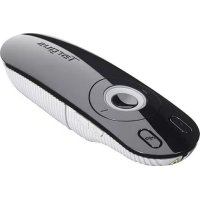
AMP13CA - Remote control TARGUS - Free user manual and instructions
Find the device manual for free AMP13CA TARGUS in PDF.


| Brand | Targus |
| Model | AMP13CA |
| Product type | Laser presentation remote control |
| Connectivity technology | Wireless 2.4 GHz |
| Maximum range | 15 meters |
| Power supply | 2 AAA batteries + spare battery compartment |
| System compatibility | Windows 2000, XP, Vista, 7; Mac OS X 10.4 or later |
| Main functions | Laser pointer, slideshow control (next, previous, start, stop), white screen, key lock, volume adjustment |
| Laser pointer type | Red laser |
| LED indicator | Green (on), red (key lock) |
| Receiver | Mini USB, plug & play |
| Box contents | Remote control, mini USB receiver, 2 AAA batteries, user manual |
| Warranty | 1 year |
| Care and cleaning | Clean with a soft dry cloth |
| Safety | Do not point the laser at eyes or reflective surfaces; keep out of reach of children |
| Repairability | Not user-repairable (do not disassemble) |
| Compatible applications | Microsoft PowerPoint, Apple Keynote |
| Manufacturer | Targus Group International, Inc. |
Frequently Asked Questions - AMP13CA TARGUS
User questions about AMP13CA TARGUS
0 question about this device. Answer the ones you know or ask your own.
Ask a new question about this device
Download the instructions for your Remote control in PDF format for free! Find your manual AMP13CA - TARGUS and take your electronic device back in hand. On this page are published all the documents necessary for the use of your device. AMP13CA by TARGUS.
USER MANUAL AMP13CA TARGUS
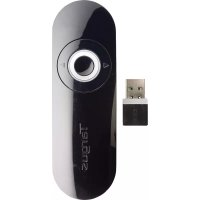
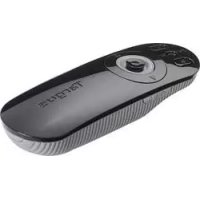
Thank you for your purchase of the Targus Laser Presentation Remote. This combination remote with laser pointer, controls both Microsoft PowerPoint and Apple Keynote. This cordless remote also offers true plug and play capability with no need for software drivers, while long-range 2.4 GHz technology allows for effective presentations up to 50 feet (15 m).
Contents
- Targus Laser Presentation Remote
- Mini USB Receiver
- 2 x AAA Batteries
- User Guide
System Requirements
Hardware
- USB port
Operating System
- Microsoft Windows® 2000
- Microsoft Windows® XP
- Microsoft Windows Vista®
- Microsoft Windows® 7
Mac OS® X 10.4 or later
Setting Up Your Remote Installing the Batteries
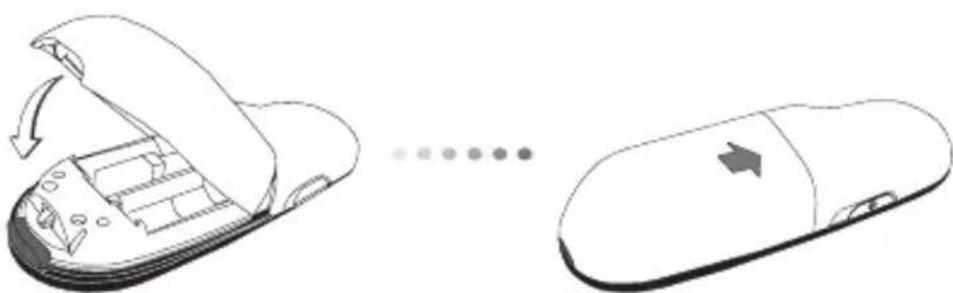
Press the battery cover release button to open the battery cover and carefully lift the cover as shown.
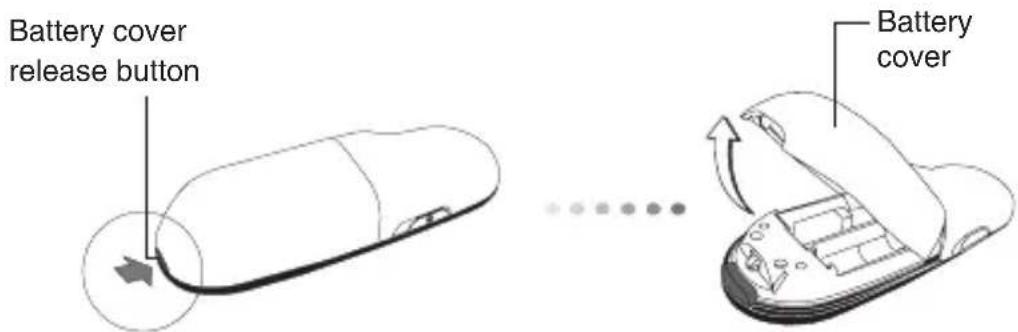
Insert the supplied batteries, making sure the positive (+) and negative (-) ends of the batteries match the polarity indicators inside the battery compartment.
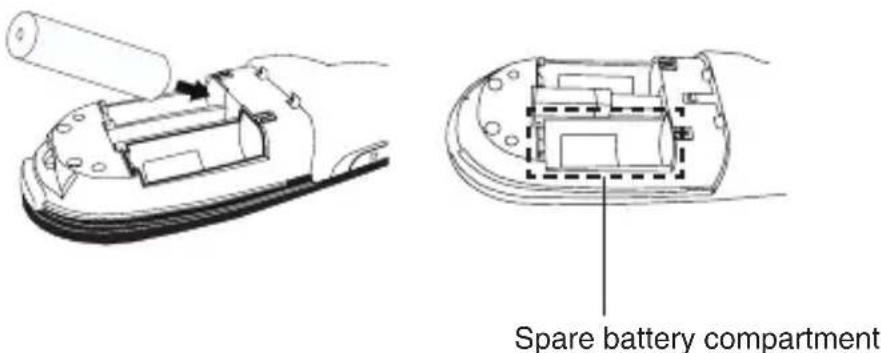

NOTE: THE SPARE BATTERY COMPARTMENT PROVIDES CONVENIENT STORAGE FOR A SEPARATE BATTERY (INCLUDED) WHICH CAN BE USED FOR EMERGENCY POWER.
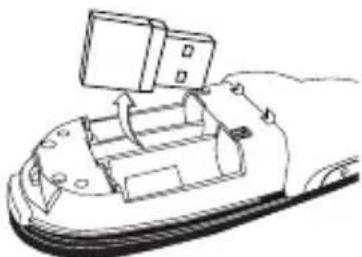
Remove the mini USB receiver stored inside the center compartment.
Slide the battery cover back into position until it "clicks" firmly into place.
Using Your Remote
Before using the remote, please select your computer type and preferred presentation software. Locate the switch inside the battery compartment as shown.
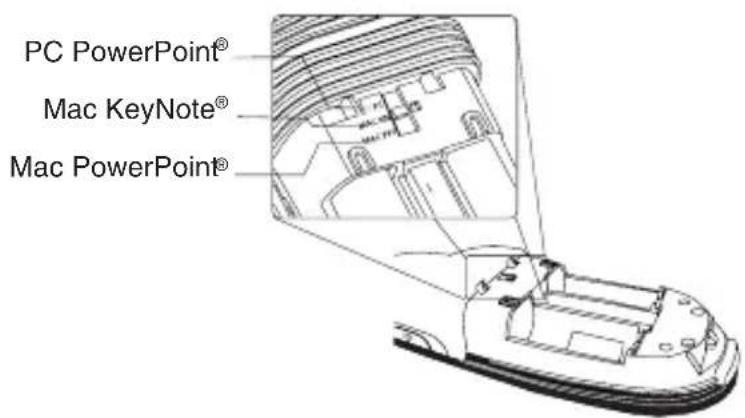

NOTE: SELECT "PC POWERPOINT" IF YOU USE A COMPUTER MADE BY: HP/COMPAQ, DELL, TOSHIBA, GATEWAY, PANASONIC, FUJITSU, SONY, IBM/LENOVO, ACER, ASUS, ETC.
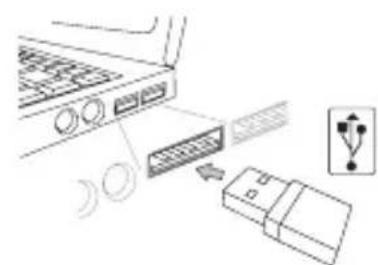
This remote is a plug and play device. It will automatically operate when the USB receiver is connected to the computer. Plug the mini USB receiver into any available USB port on your computer.
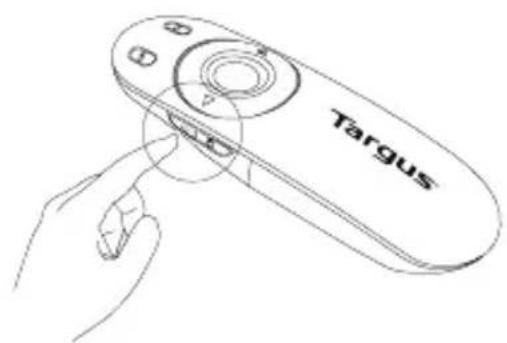
Turn on the remote by pressing and holding the On/Off power button for 3 seconds.
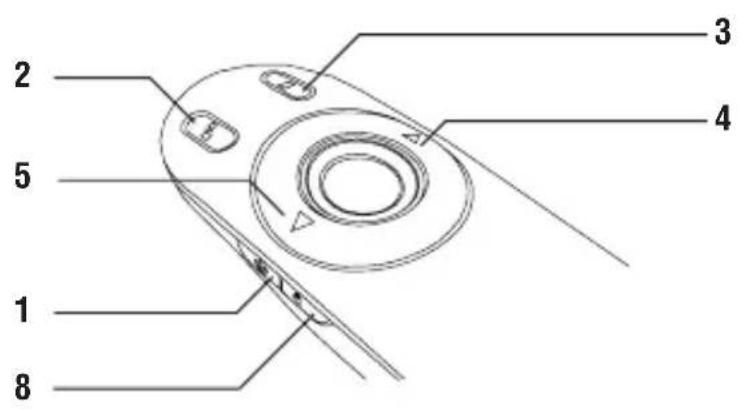
Keys and Functions
| 1 | Power button | Press and hold for 3 seconds to turn on the remote. LED ring will turn green. |
| Press and hold for 3 seconds to turn off the remote. LED ring will shut off. | ||
| 2 | Blank screen button The | screen will become blank/dark. |
| 3 | Slide show | Start - Press once to begin. |
| Stop - Press and hold for 2 seconds to stop the slide show. | ||
| 4 | Page Forward/Next slide Press once to go to next slide. | |
| 5 | Page Backward/Previous slide | Press once to go back one slide. |
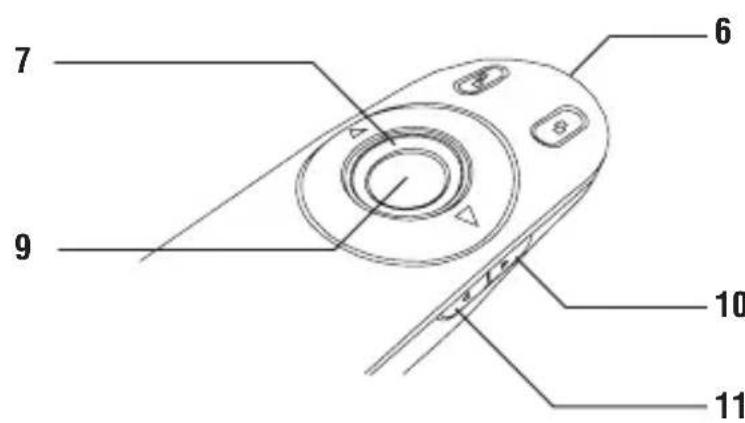
| 6 | Laser pointer Laser light is emitted from the opening. | |
| 7 | LED light ring Power and KeyLockTM indicator. | |
| 8 | KeyLock button | Press once to enable KeyLock function. - Enables all keys except the laser, page forward/next slide and page backward/previous slide buttons. - LED ring will become RED. |
| Press once to disable the KeyLock function. - LED ring will return to GREEN. | ||
| 9 | Laser pointer button Press and hold to activate the laser pointer. | |
| 10 | Volume up button Press to increase the volume. | |
| 11 | Volume down button Press to decrease the volume. | |
Safety Measures
- To avoid possible eye damage, never point the remote's laser at people, especially their faces, or look directly into the remote's laser beam.
- Avoid pointing the remote's laser beam at a mirror or other highly-reflective surface.
- Keep the remote away from young children.
- Never view the remote's laser beam using telescopic devices, such as a microscope or binoculars.
- Any attempt to disassemble, adjust or repair the remote may result in exposure to laser light or other safety hazards.
Troubleshooting
What do I do if the response time of the remote is slow or it intermittently stops working?
- Make sure that the remote is within 50 feet (15 m) of the mini USB receiver and computer.
- Increase the distance between the remote's receiver and the base units of other wireless devices.
- Turn off any wireless devices and their base units that are near the remote's receiver.
- Replace the battery.
Technical Support
For technical questions, please visit:
Internet: www.targus.com/support.asp
Email: info.cn@targus.com
Product Registration
Targus recommends that you register your Targus accessory shortly after purchasing it. Go to:
http://www.targus.com/registration.asp
You will need to provide your full name, email address, country of residence and product information.
Warranty
Targus warrants this product to be free from defects in materials and workmanship for one year. If your Targus accessory is found to be defective within that time, we will promptly repair or replace it. This warranty does not cover accidental damage, wear and tear, or consequential or incidental loss. Under no conditions is Targus liable for loss of, or damage to devices; nor loss of, or damage to, programs, records, or data; nor any consequential or incidental damages, even if Targus has been informed of their possibility. This warranty does not affect your statutory rights.
Regulatory Compliance
This device complies with Part 15 of the FCC Rules. Operation is subject to the following two conditions: (1) This device may not cause harmful interference, and (2) This device must accept any interference received, including interference that may cause undesired operation.
This Class B digital apparatus complies with Industrial Canada RSS-210
FCC Statement
Tested to Comply
This equipment has been tested and found to comply with the limits of a Class B digital device, pursuant to Part 15 of the FCC Rules. These limits are designed to provide reasonable protection against harmful interference in a residential installation. This equipment generates, uses, and can radiate radio frequency energy and if not installed and used in accordance with the instructions, may cause harmful interference to radio communications. However, there is no guarantee that interference will not occur in a particular installation. If this equipment does cause harmful interference to radio or television reception, which can be determined by turning the equipment off and on, the user is encouraged to try to correct the interference by one or more of the following measures:
- Reorient or relocate the receiving antenna;
- Increase the separation between the equipment and receiver;
- Connect the equipment into an outlet on a circuit different from that to which the receiver is connected;
- Consult the dealer or an experienced radio/TV technician for help.
Changes or modifications not authorized by the party responsible for compliance could void the user's authority to operate this product.
Microsoft, Windows, and Windows Vista are either registered trademarks or trademarks of Microsoft Corporation in the United States and/or other countries. All trademarks and registered trademarks are the properties of their respective owners. All rights reserved.
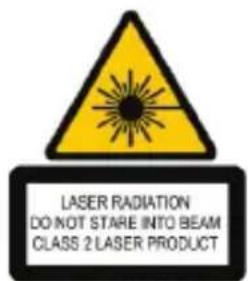
Complies with EN 60825-1: 1994+A1+A2 and Complies with 21 CFR 1040.10 and 1040.11 except for deviation pursuant to Laser Notice No.50, dated July 26, 2001.
AVOID EXPOSURE — HAZARDOUS ELECTROMAGNETIC RADIATION EMITTED FROM THIS APERTURE.
LASER RADIATION. DO NOT STARE INTO THE BEAM OR VIEW DIRECTLY WITH OPTICAL INSTRUMENTS. CLASS 2 LASER PRODUCT.
NEVER POINT A LASER BEAM INTO A PERSON'S EYES OR VIEW A LASER BEAM DIRECTLY, AS PROLONGED EXPOSURE CAN BE HAZARDOUS TO THE EYES. MOMENTARY EXPOSURE FROM A LASER POINTER, SUCH AS AN INADVERTENT SWEEP OF THE LIGHT ACROSS A PERSON'S EYES, MAY CAUSE TEMPORARY FLASH BLINDNESS SIMILAR TO THE EFFECT OF A CAMERA FLASH BULB. ALTHOUGH THIS CONDITION IS TEMPORARY, IT CAN BECOME MORE DANGEROUS IF THE EXPOSED PERSON IS ENGAGED IN A VISION-CRITICAL ACTIVITY SUCH AS DRIVING.
CAUTION: ANY CHANGES OR MODIFICATIONS NOT EXPRESSLY APPROVED BY THE PARTY RESPONSIBLE FOR COMPLIANCE COULD VOID THE USER'S AUTHORITY TO OPERATE THE EQUIPMENT.
THIS DEVICE AND ITS ANTENNA(S) MUST NOT BE CO-LOCATED OR OPERATING IN CONJUNCTION WITH ANY OTHER ANTENNA OR TRANSMITTER. YOUR DEVICE CONTAINS A LOW POWER TRANSMITTER. WHEN DEVICE IS TRANSMITTED IT SENDS OUT RADIO FREQUENCY (RF) SIGNAL. NOTE: THE MANUFACTURER IS NOT RESPONSIBLE FOR ANY RADIO OR TV INTERFERENCE CAUSED BY UNAUTHORIZED MODIFICATIONS TO THIS EQUIPMENT. SUCH MODIFICATIONS COULD VOID THE USER'S AUTHORITY TO OPERATE THE EQUIPMENT.
Introduction
Complies with EN 60825-1: 1994+A1+A2 and Complies with 21 CFR 1040.10 and 1040.11 except for deviation pursuant to Laser Notice No.50, dated July 26, 2001.
ÉVITEZ L'EXPOSITION — RADIATION ÉLECTROMAGNETIQUE DANGEREUSE ÉMISE DE CETTE OUVERTURE.
RADIATION LASER. NE REGARDEZ PAS LE RAYON - DIRECTEMENT OU A L'AIDE D'INSTRUMENTS OPTIQUES. PRODUIT LASER DE CLASSE 2.
NE DIRIGEZ JAMAIS UN RAYON LASER VERS LES YEUX D'UNE PERSONNE ET NE REGARDEZ PAS UN RAYON LASER DIRECTEMENT, CAR L'EXPOSITION PROLONGEE POT ETRE DANGEREUSE POUR LES YEUX. L'EXPOSITION MOMENTANEE A UN INDICATEUR LASER, TELLE QU'UN PASSAGE INATTENDU DE LUMIÈRE À TRAVERS LES YEUX D'UNE PERSONNE, PEUT CAUSER LA CÉCITÉ PROVISOIRE SEMBLABLE À L'EFFET D'UN FLASH D'APPAREIL PHOTO. BIEN QUE CETTE CONDITION SOIT PROVISOIRE, ELLE POT DEVENIR PLUS DANGEREUSE SI LA PERSONNE EXPOSEE EST ENGAGÉE DANS UNE ACTIVITE CRITIQUE DE VISION COMME LA CONDUITE.
AVERTISSEMENT : CHAQUE CHANGES OU MODIFICATIONS NON EXPRESSEMENT APPROUVÉES PAR LA PARTIE RESPONSABLE DE LA CONFORMITE POURRAIT ANNULER L'AUTORISATION DE L'UTILISATEUR DE FAIRE FONCTIONNER L'ÉQUIPEMENT.
CE DISPOSITIF ET SON ANTENNE(S) NE DOIVENT PAS ETRE PLACES OU EXPLOITÉS ENSEMBLE AVEC UNE AUTRE ANTENNE OU UN ÉMETTEUR. VOTRE DISPOSITIF CONTIENT UN ÉMETTEUR A BASSE PUISSANCE. QUAND LE DISPOSITIF EST EN TRANSMISSION IL ENVOIE UN SIGNAL DE FREQUENCY RADIO (FR). NOTE: LE FABRICANT N'EST PAS RESPONSABLE D'AUCUNE RADIO OU TV L'INTERFERENCE CAUSEE PAR DES MODIFICATIONS NON AutorISEES DE CET ÉQUIPEMENT. DE TELLES MODIFICATIONS PEUVENT ANNULER L'AUTORISATION DE L'UTILISATEUR DE FAIRE FONCTIONNER L'ÉQUIPEMENT.

1 YEAR LIMITED WARRANTY: We pride ourselves on the quality of our products. For complete warranty details and a list of our worldwide offices, please visit www.targus.com. Microsoft, Windows, Windows Vista and PowerPoint are registered trademarks or trademarks of Microsoft Corporation in the United States and/or other countries. Mac and Keynote are registered trademarks of Apple Inc., registered in the U.S. and other countries. All trademarks and registered trademarks are the property of their respective owners. ©2009 Targus Group International, Inc. All rights reserved.

Brand : TARGUS
Model : AMP13CA
Category : Remote control