ManualGo.com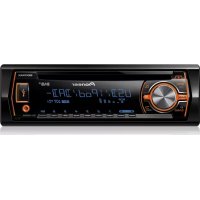
CD RDS Tuner - Car stereo PIONEER - Free user manual and instructions
Find the device manual for free CD RDS Tuner PIONEER in PDF.



Download the instructions for your Car stereo in PDF format for free! Find your manual CD RDS Tuner - PIONEER and take your electronic device back in hand. On this page are published all the documents necessary for the use of your device. CD RDS Tuner by PIONEER.
USER MANUAL CD RDS Tuner PIONEER
CD RDS-ONTVANGER CD RDS ПРИЕМНИК DEH-X6500DAB English NederlandsDeutschEspañolItalianoFrançais РусскийThank you for purchasing this PIONEER product To ensure proper use, please read through this manual before using this product. It is especially important that you read and observe WARN- INGs and CAUTIONs in this manual. Please keep the manual in a safe and accessible place for future reference. If you want to dispose this product, do not mix it with general household waste. There is a separate collection system for used elec- tronic products in accordance with legislation that requires proper treatment, recovery and recycling. Private households in the member states of the EU, in Switzerland and Nor way may return their used electronic products free of charge to desig- nated collection facilities or to a retailer (if you purchase a similar new one). For countries not mentioned above, please con- tact your local authorities for the correct method of disposal. By doing so you will ensure that your disposed product undergoes the necessary treatment, re- covery and recycling and thus prevent potential negative effects on the environment and human health. About this unit The tuner frequencies on this unit are allocated for use in Western Europe, Asia, the Middle East, Africa and Oceania. Use in other areas may result in poor reception. The RDS (radio data system) function only operates in areas with broadcasting RDS signals for FM stations. CAUTION This product is a class 1 laser product classi- fied under the Safety of laser products, IEC 60825-1:2007. CAUTION ! Do not allow this unit to come into contact with liquids. Electrical shock could result. Also, damage to this unit, smoke, and over- heating could result from contact with liquids. ! The Pioneer CarStereo-Pass is for use only in Germany. ! Always keep the volume low enough to hear outside sounds. ! Avoid exposure to moisture. ! If the battery is disconnected or discharged, any preset memory will be erased. Note Function setting operations are completed even if the menu is canceled before the operations are confirmed. About this manual ! In the following instructions, USB memories and USB audio players are collectively re- ferred to as “USB storage device”. ! In this manual, iPod and iPhone will be re- ferred to as “iPod”. In case of trouble Should this unit fail to operate properly, please contact your dealer or nearest authorized PIONEER Service Station. Before you start
Section Before you start
(list) b 1/ to 6/ 5 Disc loading slot c DISP 6 USB port d AUX input jack (3.5 mm stereo jack) 7 DAB e Detach button CAUTION ! Use an optional Pioneer USB cable (CD- U50E) to connect the USB storage device as any device connected directly to the unit will protrude out from the unit, which could be dangerous. ! Do not use unauthorized products. Display indication
Main informa- tion section ! Tuner: band and fre- quency ! RDS: program serv- ice name, PTY infor- mation and other literal information ! CD player, USB stor- age device and iPod: elapsed playback time and text infor- mation
Appears when a lower tier of folder or menu ex- ists.
Shows when 12H is se- lected under 12H/24H and CLOCK is selected under INFO DISPLAY.
(list) The list function is being operated.
Sub informa- tion section Sub information is dis- played. 6 LOC Local seek tuning is on.
TP (traffic pro- gram identifica- tion) A TP station is tuned in.
TA (traffic an- nouncements) TA function is on. Indicator State
(random/ shuffle) Random play is on. The iPod source is se- lected and the shuffle or shuffle all function is on.
(repeat) Track or folder repeat is on.
(iPod con- trol) This unit’s iPod function is operated from your iPod. Set up menu When you turn the ignition switch to ON after in- stallation, set up menu appears on the display. You can set up the menu options below. 1 After installation of this unit, turn the ignition switch to ON. SET UP appears. 2 Turn M.C. to switch to YES. # If you do not operate for 30 seconds, the set up menu will not be displayed. # If you prefer not to set up at this time, turn M.C. to switch to NO. Press to select. If you select NO, you cannot set up in the set up menu. 3 Press M.C. to select. 4 Perform the following procedures to set the menu. To proceed to the next menu option, you need to confirm your selection. LANGUAGE (multi-language) This unit can display the text information from a compressed audio file even for information em- bedded in English or Russian. ! If the embedded language and the selected language setting are not the same, text infor- mation may not display properly. ! Some characters may not be displayed prop- erly. 1 Turn M.C. to select the desired setting. ENG (English)—РУС (Russian) 2 Press M.C. to confirm the selection. CLOCK SET (setting the clock) 1 Turn M.C. to adjust hour. 2 Press M.C. to select minute. 3 Turn M.C. to adjust minute. 4 Press M.C. to confirm the selection. FM STEP (FM tuning step) Normally, the FM tuning step employed by seek tuning is 50 kHz. When AF or TA is on, the tuning step automatically changes to 100 kHz. It may be preferable to set the tuning step to 50 kHz when AF is on. ! The tuning step remains at 50 kHz during man- ual tuning. 1 Turn M.C. to select the FM tuning step. 50 (50 kHz)—100 (100 kHz) 2 Press M.C. to confirm the selection. QUIT appears. 5 To finish your settings, turn M.C. to select YES. # If you prefer to change your setting again, turn M.C. to switch to NO. Press to select. 6 Press M.C. to select. English Operating this unit
Section Operating this unit
02Notes ! You can set up the menu options from the system menu. For details about the settings, refer to System menu on page 10. ! You can cancel set up menu by pressing SRC/OFF. Basic operations Important ! Handle gently when removing or attaching the front panel. ! Avoid subjecting the front panel to excessive shock. ! Keep the front panel out of direct sunlight and high temperatures. ! To avoid damaging the device or vehicle inte- rior, remove any cables and devices attached to the front panel before detaching it. Removing the front panel to protect your unit from theft 1 Press the detach button to release the front panel. 2 Push the front panel upward (M) and then pull it toward (N) you. 3 Always keep the detached front panel in a pro- tection device such as a protection case. Re-attaching the front panel 1 Slide the front panel to the left. Make sure to insert the tabs on the left side of the head unit into the slots on the front panel. 2 Press the right side of the front panel until it is firmly seated. If you cannot attach the front panel to the head unit successfully, make sure that you are placing the front panel onto the head unit cor- rectly. Forcing the front panel into place may result in damage to the front panel or head unit. Turning the unit on 1 Press SRC/OFF to turn the unit on. Turning the unit off 1 Press and hold SRC/OFF until the unit turns off. Selecting a source 1 Press SRC/OFF to cycle between: DAB (digital audio broadcasting)—TUNER (tuner)—CD (CD player)—USB (USB)/iPod (iPod)—AUX (AUX) ! If a source other than DAB is selected, you can switch to DAB by pressing DAB. Adjusting the volume 1 Turn M.C. to adjust the volume. CAUTION For safety reasons, park your vehicle when re- moving the front panel. Note When this unit’s blue/white lead is connected to the vehicle’s auto-antenna relay control termi- nal, the vehicle’s antenna extends when this unit’s source is turned on. To retract the anten- na, turn the source off. Frequently used menu operations Returning to the previous display Returning to the previous list (the folder one level higher) 1 Press /DIMMER. Returning to the ordinary display Canceling the main menu 1 Press BAND/
Returning to the ordinary display from the list 1 Press BAND/
DAB (Digital Audio Broadcasting) To receive DAB signals, connect a DAB antenna (AN-DAB1) sold separately to the unit. DAB stands for Digital Audio Broadcasting and has the following features: ! High sound quality (nearly as high as for CDs, although it may be reduced in some cases in order to allow more services to be broadcast) ! Interference-free reception Note Some stations perform broadcast testing. Basic operations Selecting a band 1 Press BAND/ until the desired band (D1, D2, or D3) is displayed. Manual tuning (step by step) 1 Press c or d. EnsembleServicePrimary Service ComponentPress
Primary Service ComponentSecondary Service ComponentSecondary Service ComponentService Some individual services in an ensemble may be further subdivided into Service Components. The main Service Component is called the Primary Service Component, and any auxiliary Service Components are called Secondary Service Com- ponents. Seeking 1 Press and hold c or d , and then release. Operating this unit
Section Operating this unit
02Pausing You can use the pause function to temporarily stop listening to a DAB. % Press DAB to pause or resume. ! This unit stores recent broadcasts to memory automatically. The memory capacity of this unit will var y depending on the bit rate of the Service Component used. The approximate memory capacity is five minutes for 192 kbps. ! If the duration that a selection is paused ex- ceeds the length of the memory capacity, playback will resume from the beginning of the selection in memory. This function is disabled while time shift is on. For more details about time shift, refer to Listen- ing to a recent broadcast (time shift) on this page. Storing and recalling stations for each band Using preset tuning buttons 1 When you find a station that you want to store in memory, press one of the preset tuning buttons (1/ to 6/ ) and hold until the preset number stops flashing. 2 Press one of the preset tuning buttons (1/ to 6/ ) to select the desired station. Switching the display Selecting the desired text information 1 Press DISP to cycle between the following: ! SERVICE LABEL (service label or channel) ! BRDCST INFO (service label/PTY label/en- semble label/channel and frequency) ! DYNAMIC LABEL (dynamic label) ! CLOCK (source name and clock) Notes ! If the service label cannot be acquired in SERVICE LABEL, the channel is displayed in- stead. If the service label is detected, the service label will be displayed. ! BRDCST INFO text information will change automatically. ! For more details about PTY list, refer to PTY list on the next page. ! This function is disabled while pausing. For more details about pausing, refer to Pausing on this page. ! Depending on the band, text information can be changed. ! Text information items that can be changed depend on the area. Listening to a recent broadcast (time shift) You can navigate through recent broadcasts from the selected Service Component. 1 Press /DIMMER to switch to time shift mode. Press again to resume the live broadcast. 2 Press c or d to adjust the playback point. ! Press c to skip back one minute. ! Press d to skip forward one minute. This unit stores recent broadcasts to memory automatically. The memory capacity of this unit will vary depending on the bit rate of the Service Component used. The approximate memory ca- pacity is five minutes for 192 kbps. Stored selections that are older than what can be stored in the memory will not be available. Selecting a Service Component You can select a Service Component from the following service list. 1 Press (list) to switch to the service list mode. 2 Turn M.C. to change the service list and press to select. Once selected, the following Service Component functions can be adjusted. SERVICE (service label) You can select a Service Component from the list of all components. 1 Turn M.C. to select a Service Component. 2 Press M.C. to receive a broadcast from the se- lected Service Component. Using alphabet search 1 Press (list). 2 Turn M.C. to select a letter. 3 Press M.C. to display the alphabetical list. 4 Turn M.C. to select a Service Component. 5 Press M.C. to receive a broadcast from the se- lected Service Component. PROGRAM TYPE (PTY label) You can select a Service Component from PTY in- formation. 1 Turn M.C. to scroll to the desired PTY informa- tion and press it to select.
NEWS/INFO—POPULAR—CLASSICS—
OTHERS 2 Turn M.C. to select a Service Component. 3 Press M.C. to receive a broadcast from the se- lected Service Component. ENSEMBLE (ensemble label) You can select a Service Component from the rele- vant ensemble. 1 Turn M.C. to scroll to the desired ensemble and press it to select. 2 Turn M.C. to select a Service Component. 3 Press M.C. to receive a broadcast from the se- lected Service Component. Updating service list information You can receive updates to the service list. % Press and hold down (list). To cancel, press (list) again. Function settings 1 Press M.C. to display the main menu. 2 Turn M.C. to change the menu option and press to select FUNCTION. Once selected, the function below can be ad- justed. S.FOLLOW (alternative Service Component search) If the tuner cannot get good reception, the unit will automatically search for another ensemble that supports the same Service Component. If no alternative Service Component can be found or re- ception remains poor, this function will automati- cally switch to an identical FM broadcast. 1 Press M.C. to turn alternative Service Compo- nent search on or off. Tuner Basic operations Selecting a band 1 Press BAND/ until the desired band (FM1, FM2,FM3 for FM or MW/LW) is displayed. Switching preset stations 1 Press c or d. ! Select PCH (preset channel) under SEEK to use this function. For details about the set- tings, refer to SEEK (left/right key setting) on page 7. English Operating this unit
Section Operating this unit
02Manual tuning (step by step) 1 Press c or d. ! Select MAN (manual tuning) under SEEK to use this function. For details about the set- tings, refer to SEEK (left/right key setting) on the next page. Seeking 1 Press and hold c or d, and then release. You can cancel seek tuning by briefly pressing c or d. While pressing and holding c or d, you can skip stations. Seek tuning starts as soon as you release c or d. Note This unit’s AF (alternative frequencies search) function can be turned on and off. AF should be off for normal tuning operation (refer to AF (al- ternative fre quencies search) on this page). Storing and recalling stations for each band Using preset tuning buttons 1 When you find a station that you want to store in memory, press one of the preset tuning buttons (1/ to 6/ ) and hold until the preset number stops flashing. 2 Press one of the preset tuning buttons (1/ to 6/ ) to select the desired station. Switching the display Selecting the desired text information 1 Press DISP to cycle between the following: ! FREQUENCY (program service name or frequency) ! BRDCST INFO (program service name/PTY information) ! CLOCK (source name and clock) Notes ! If the program service name cannot be ac- quired in FREQUENCY, the broadcast fre- quency is displayed instead. If the program service name is detected, the program serv- ice name will be displayed. ! BRDCST INFO text information will change automatically. ! Depending on the band, text information can be changed. ! Text information items that can be changed depend on the area. Using PTY functions You can tune in to a station using PTY (program type) information. Searching for an RDS station by PTY information You can search for general types of broadcasting programs, such as those listed in the following section. Refer to this page. 1 Press (list). 2 Turn M.C. to select a program type.
NEWS/INFO—POPULAR—CLASSICS—
OTHERS 3 Press M.C. to begin the search. The unit searches for a station broadcasting that type of program. When a station is found, its program service name is displayed. ! To cancel the search, press M.C. again. ! The program of some stations may differ from that indicated by the transmitted PTY. ! If no station is broadcasting the type of program you searched for, NOT FOUND is displayed for about two seconds and then the tuner returns to the original station. PTY list NEWS/INFO (news and information) NEWS (News), AFFAIRS (Current affairs), INFO (Information), SPORT (Sports), WEATHER (Weath- er), FINANCE (Finance) POPULAR (popular) POP MUS (Popular music), ROCK MUS (Rock music), EASY MUS (Easy listening), OTH MUS (Other music), JAZZ (Jazz), COUNTRY (Country music), NAT MUS (National music), OLDIES (Oldies music), FOLK MUS (Folk music) CLASSICS (classics) L. CLASS (Light classical), CLASSIC (Classical) OTHERS (others) EDUCATE (Education), DRAMA (Drama), CUL- TURE (Culture), SCIENCE (Science), VARIED (Var- ied), CHILDREN (Children’s), SOCIAL (Social affairs), RELIGION (Religion), PHONE IN (Phone in), TOURING (Travel), LEISURE (Leisure), DOCU- MENT (Documentaries) Function settings 1 Press M.C. to display the main menu. 2 Turn M.C. to change the menu option and press to select FUNCTION. 3 Turn M.C. to select the function. Once selected, the following functions can be adjusted. # If MW/LW band is selected, only BSM, LOCAL and SEEK are available. BSM (best stations memory) BSM (best stations memory) automatically stores the six strongest stations in the order of their sig- nal strength. 1 Press M.C. to turn BSM on. To cancel, press M.C. again. REGION (regional) When AF is used, the regional function limits the selection of stations to those broadcasting region- al programs. 1 Press M.C. to turn the regional function on or off. LOCAL (local seek tuning) Local seek tuning lets you tune in to only those radio stations with sufficiently strong signals for good reception. 1 Press M.C. to select the desired setting.
The highest level setting allows reception of only the strongest stations, while lower levels allow the reception of weaker stations. TA (traffic announcement standby) 1 Press M.C. to turn traffic announcement standby on or off. AF (alternative frequencies search) 1 Press M.C. to turn AF on or off. NEWS (news program interruption) 1 Press M.C. to turn the NEWS function on or off. Operating this unit
Section Operating this unit
02SEEK (left/right key setting) You can assign a function to the left and right keys of the unit. Select MAN (manual tuning) to tune up or down manually or select PCH (preset channel) to switch between preset channels. 1 Press M.C. to select MAN or PCH. CD/CD-R/CD-RW and USB storage devices Basic operations Playing a CD/CD-R/CD-RW 1 Insert the disc into the disc loading slot with the label side up. Ejecting a CD/CD-R/CD-RW 1 Press h. Playing songs on a USB storage device 1 Open the USB port cover. 2 Plug in the USB storage device using a USB cable. Playback is performed automatically. Stopping playback of files on a USB storage de- vice 1 You may disconnect the USB storage device at any time. The unit stops playback. Selecting a folder 1 Press 1/ or 2/ . Selecting a track 1 Press c or d. Fast forwarding or reversing 1 Press and hold c or d. ! When playing compressed audio, there is no sound during fast for ward or reverse. Returning to root folder 1 Press and hold BAND/
Switching between compressed audio and CD-DA 1 Press BAND/
Switching between playback memory devices You can switch between playback memory devices on USB storage devices with more than one Mass Storage Device-compatible memory device. 1 Press BAND/
! You can switch between up to 32 different memory devices. Note Disconnect USB storage devices from the unit when not in use. Operations using the MIXTRAX button Turning MIXTRAX on or off You can use this function when USB is selected as the source. 1 Press 3/MIX to turn MIXTRAX on or off. ! For more details about MIXTRAX, refer to About MIXTRAX on page 11. ! For more details about MIXTRAX functions, refer to MIXTRAX menu on page 11. ! When MIXTRAX is in use, the sound retriever function is disabled. Switching the display Selecting the desired text information 1 Press DISP to cycle between the following: CD-DA ! ELAPSED TIME (track number and play- back time) ! CLOCK (source name and clock) ! SPEANA (spectrum analyzer) CD-TEXT ! TRACK INFO (track title/track artist/disc title) ! ELAPSED TIME (track number and play- back time) ! CLOCK (source name and clock) ! SPEANA (spectrum analyzer)
! TRACK INFO (track title/artist name/album title) ! FILE INFO (file name/folder name) ! ELAPSED TIME (track number and play- back time) ! CLOCK (source name and clock) ! SPEANA (spectrum analyzer) Notes ! TRACK INFO and FILE INFO text information will change automatically. ! Depending on the version of iTunes used to write MP3 files to a disc or media file types, incompatible text stored within an audio file may be displayed incorrectly. ! Text information items that can be changed depend on the media. Selecting and playing files/ tracks from the name list 1 Press to switch to the file/track name list mode. 2 Use M.C. to select the desired file name (or folder name). Selecting a file or folder 1 Turn M.C. Playing 1 When a file or track is selected, press M.C. Viewing a list of the files (or folders) in the se- lected folder 1 When a folder is selected, press M.C. Playing a song in the selected folder 1 When a folder is selected, press and hold M.C. Operations using special buttons Selecting a repeat play range 1 Press 6/ to cycle between the following: CD/CD-R/CD-RW ! ALL – Repeat all tracks ! ONE – Repeat the current track ! FLD – Repeat the current folder USB storage device ! ALL – Repeat all files ! ONE – Repeat the current file ! FLD – Repeat the current folder Playing tracks in random order 1 Press 5/ to turn random play on or off. Tracks in a selected repeat range are played in random order. ! To change songs during random play, press d to switch to the next track. Pressing c restarts playback of the current track from the begin- ning of the song. Pausing playback 1 Press 4/PAUSE to pause or resume. Function settings 1 Press M.C. to display the main menu. English Operating this unit
Section Operating this unit
022 Turn M.C. to change the menu option and press to select FUNCTION. Once selected, the function below can be ad- justed. ! S.RTRV is not available when MIXTRAX is turned on. S.RTRV (sound retriever) Automatically enhances compressed audio and restores rich sound. 1 Press M.C. to select the desired setting. 1—2—OFF (off) 1 is effective for low compression rates, and 2 is effective for high compression rates. iPod Basic operations Playing songs on an iPod 1 Open the USB port cover. 2 Connect an iPod to the USB cable using an iPod Dock Connector. Playback is performed automatically. Selecting a song (chapter) 1 Press c or d. Selecting an album 1 Press 1/ or 2/ . Fast forwarding or reversing 1 Press and hold c or d. Notes ! The iPod cannot be turned on or off when the control mode is set to CONTROL AUDIO. ! Disconnect headphones from the iPod be- fore connecting it to this unit. ! The iPod will turn off about two minutes after the ignition switch is set to OFF. Operations using the MIXTRAX button Turning MIXTRAX on or off 1 Press 3/MIX to turn MIXTRAX on or off. ! For more details about MIXTRAX, refer to About MIXTRAX on page 11. ! For more details about MIXTRAX functions, refer to MIXTRAX menu on page 11. Switching the display Selecting the desired text information 1 Press DISP to cycle between the following: CONTROL AUDIO/CONTROL iPod ! TRACK INFO (track title/artist name/album title) ! ELAPSED TIME (track number and play- back time) ! CLOCK (source name and clock) ! SPEANA (spectrum analyzer) CONTROL APP ! CONTROL APP (APP MODE is displayed) ! CLOCK (source name and clock) ! SPEANA (spectrum analyzer) Note TRACK INFO text information will change auto- matically. Browsing for a song 1 Press to switch to the top menu of list search. 2 Use M.C. to select a category/song. Changing the name of the song or category 1 Turn M.C. Playlists—artists—albums—songs—podcasts —genres—composers—audiobooks Playing 1 When a song is selected, press M.C. Viewing a list of songs in the selected category 1 When a category is selected, press M.C. Playing a song in the selected category 1 When a category is selected, press and hold M.C. Searching the list by alphabet 1 When a list for the selected category is dis- played, press to switch to alphabet search mode. ! You also can switch to alphabet search mode by turning M.C. twice. 2 Turn M.C. to select a letter. 3 Press M.C. to display the alphabetical list. ! To cancel searching, press /DIMMER. Notes ! You can play playlists created with the PC ap- plication (MusicSphere). The application will be available on our website. ! Playlists that you created with the PC appli- cation (MusicSphere) are displayed in abbre- viated form. Operations using special buttons Selecting a repeat play range 1 Press 6/ to cycle between the following: ! ONE – Repeat the current song ! ALL – Repeat all songs in the selected list ! When the control mode is set to CONTROL iPod/CONTROL APP, the repeat play range will be same as what is set for the connected iPod. Selecting a random play range (shuffle) 1 Press 5/ to cycle between the following: ! SNG – Play back songs in the selected list in random order. ! ALB – Play back songs from a randomly se- lected album in order. ! OFF – Not play back in random order. Playing all songs in random order (shuffle all) 1 Press and hold 5/ to turn shuffle all on. ! To turn off shuffle all, select OFF in shuffle. For details, refer to Selecting a random play range (shuffle) on this page. Pausing playback 1 Press 4/PAUSE to pause or resume. Playing songs related to the currently playing song You can play songs from the following lists.
- Album list of the currently playing artist
- Song list of the currently playing album
- Album list of the currently playing genre 1 Press and hold to switch to link play mode. 2 Turn M.C. to change the mode; press to select. ! ARTIST – Plays an album of the artist cur- rently being played. ! ALBUM – Plays a song from the album cur- rently being played. Operating this unit
Section Operating this unit
02! GENRE – Plays an album from the genre cur- rently being played. The selected song/album will be played after the currently playing song. Notes ! The selected song/album may be canceled if you operate functions other than link search (e.g. fast forward and reverse). ! Depending on the song selected to play, the end of the currently playing song and the be- ginning of the selected song/album may be cut off. Operating this unit’s iPod function from your iPod This unit's iPod function can be operated from a connected iPod. If you switch to APP Mode, you can have the sound from your iPod applications be output from your car's speakers. CONTROL iPod is not compatible with the fol- lowing iPod models. ! iPod nano 1st generation ! iPod with video CONTROL APP is compatible with the following iPod models. ! iPod touch 4th generation ! iPod touch 3rd generation ! iPod touch 2nd generation ! iPod touch 1st generation ! iPhone 4S ! iPhone 4 ! iPhone 3GS ! iPhone 3G ! iPhone % Press BAND/ to switch the control mode. ! CONTROL iPod – This unit’s iPod function can be operated from the connected iPod. ! CONTROL APP – This unit’s iPod function can be operated from the connected iPod. The unit will play back the sound from your iPod applications. ! CONTROL AUDIO – This unit’s iPod function can be operated from this unit. Notes ! Switching the control mode to CONTROL iPod/CONTROL APP pauses song playback. Operate the iPod to resume play- back. ! The following operations are still accessible from the unit even if the control mode is set to CONTROL iPod/CONTROL APP. — Pausing — Fast forward/reverse — Selecting a song (chapter) ! The volume can only be adjusted from this unit. Function settings 1 Press M.C. to display the main menu. 2 Turn M.C. to change the menu option and press to select FUNCTION. 3 Turn M.C. to select the function. Once selected, the following functions can be adjusted. ! AUDIO BOOK is not available when CONTROL iPod/CONTROL APP is selected in the control mode. For details, refer to Operat- ing this unit’s iPod function from your iPod on this page. AUDIO BOOK (audiobook speed) 1 Press M.C. to display the setting mode. 2 Turn M.C. to select your favorite setting. ! FASTER – Playback at a speed faster than normal ! NORMAL – Playback at normal speed ! SLOWER – Playback at a speed slower than normal S.RTRV (sound retriever) Automatically enhances compressed audio and restores rich sound. 1 Press M.C. to select the desired setting. 1—2—OFF (off) 1 is effective for low compression rates, and 2 is effective for high compression rates. Audio adjustments 1 Press M.C. to display the main menu. 2 Turn M.C. to change the menu option and press to select AUDIO. 3 Turn M.C. to select the audio function. Once selected, the following audio functions can be adjusted. ! FADER is not available when SUB.W/SUB.W is selected in SP-P/O MODE. For details, refer to SP-P/O MODE (rear output and preout set- ting) on page 12. ! SUB.W, SUB.W CTRL and HPF SETTING are not available when REAR/REAR is selected in SP-P/O MODE. For details, refer to SP-P/O MODE (rear output and preout set- ting) on page 12. ! SUB.W CTRL and HPF SETTING are not avail- able when SUB.W is selected in OFF. For de- tails, refer to SUB.W (subwoofer on/off setting) on the next page. FADER (fader adjustment) 1 Press M.C. to display the setting mode. 2 Turn M.C. to adjust the front/rear speaker bal- ance. BALANCE (balance adjustment) 1 Press M.C. to display the setting mode. 2 Turn M.C. to adjust the left/right speaker bal- ance. EQ SETTING (equalizer recall) 1 Press M.C. to display the setting mode. 2 Turn M.C. to select the equalizer.
The equalizer band and equalizer level can be customized when CUSTOM1 or CUSTOM2 is selected. If selecting CUSTOM1 or CUSTOM2, complete the procedures outlined below. If selecting other options, press M.C. to return to the pre- vious display. ! CUSTOM1 can be set separately for each source. However, USB and iPod are all set to the same setting automatically. ! CUSTOM2 is a shared setting used in com- mon for all sources. 3 Press M.C. to display the setting mode. 4 Press M.C. to cycle between the following: Equalizer band—Equalizer level 5 Turn M.C. to select the desired setting. Equalizer band: 80HZ—250HZ—800HZ— 2.5KHZ—8KHZ Equalizer level: +6 to –6 LOUDNESS (loudness) Loudness compensates for deficiencies in the low- frequency and high-frequency ranges at low vol- ume. 1 Press M.C. to select the desired setting. OFF (off)—LOW (low)—MID (mid)—HI (high) English Operating this unit
Section Operating this unit
02SUB.W (subwoofer on/off setting) This unit is equipped with a subwoofer output which can be turned on or off. 1 Press M.C. to select the desired setting. NOR (normal phase)—REV (reverse phase)— OFF (subwoofer off) SUB.W CTRL (subwoofer adjustment) Only frequencies lower than those in the selected range are outputted from the subwoofer. 1 Press M.C. to display the setting mode. 2 Press M.C. to cycle between the following: Cut-off frequency—Output level—Slope level Rates that can be adjusted will flash. 3 Turn M.C. to select the desired setting. Cut-off frequency: 50HZ—63HZ—80HZ— 100HZ—125HZ—160HZ—200HZ Output level: –24 to +6 Slope level: –6— –12 BASS BOOST (bass boost) 1 Press M.C. to display the setting mode. 2 Turn M.C. to select a desired level. 0 to +6 is displayed as the level is increased or decreased. HPF SETTING (high pass filter adjustment) When you do not want low sounds from the sub- woofer output frequency range to play from the front or rear speakers, turn on the HPF (high pass filter). Only frequencies higher than those in the selected range are output from the front or rear speakers. 1 Press M.C. to display the setting mode. 2 Press M.C. to cycle between the following: Cut-off frequency—Slope level 3 Turn M.C. to select the desired setting. Cut-off frequency: OFF—50HZ—63HZ—80HZ —100HZ—125HZ—160HZ—200HZ Slope level: –6— –12 SLA (source level adjustment) SLA (Source level adjustment) lets you adjust the volume level of each source to prevent radical changes in volume when switching between sour- ces. ! Settings are based on the FM volume level, which remains unchanged. ! The MW/LW volume level can also be adjusted with this function. ! When selecting FM as the source, you cannot switch to SLA. ! USB and iPod are all set to the same setting automatically. 1 Press M.C. to display the setting mode. 2 Turn M.C. to adjust the source volume. Adjustment range: +4 to –4 System menu Important PW SAVE (power saving) is canceled if the ve- hicle battery is disconnected and will need to be turned back on once the battery is reconnected. When PW SAVE (power saving) is off, depend- ing on connection methods, the unit may con- tinue to draw power from the battery if your vehicle’s ignition doesn’t have an ACC (acces- sory) position. 1 Press M.C. to display the main menu. 2 Turn M.C. to change the menu option and press to select SYSTEM. 3 Turn M.C. to select the system menu function. Once selected, the following system menu func- tions can be adjusted. LANGUAGE (multi-language) This unit can display the text information from a compressed audio file even for information em- bedded in English or Russian. ! If the embedded language and the selected language setting are not the same, text infor- mation may not display properly. ! Some characters may not be displayed prop- erly. 1 Turn M.C. to select the desired setting. ENG (English)—РУС (Russian) CLOCK SET (setting the clock) 1 Press M.C. to display the setting mode. 2 Press M.C. to select the segment of the clock display you wish to set. Hour—Minute 3 Turn M.C. to adjust the clock. 12H/24H (time notation) 1 Press M.C. to select the desired setting. 12H (12-hour clock)—24H (24-hour clock) INFO DISPLAY (sub information) The type of text information displayed in the sub information section can be toggled. 1 Press M.C. to display the setting mode. 2 Turn M.C. to select the desired setting.
SPEANA—LEVEL METER—SOURCE—CLOCK
—OFF ! The signal bar indicator displays for SPEANA or LEVEL METER when the source is set to DAB or TUNER. AUTO PI (auto PI seek) The unit can automatically search for a different station with the same programming, even during preset recall. 1 Press M.C. to turn Auto PI seek on or off. AUX (auxiliary input) Activate this setting when using an auxiliary de- vice connected to this unit. 1 Press M.C. to turn AUX on or off. MUTE MODE (mute mode) Sound from this system is automatically muted or attenuated when a signal from equipment with a mute function is received. 1 Press M.C. to display the setting mode. 2 Turn M.C. to select the desired setting. You can select any one of the options in the fol- lowing list: ! MUTE – Muting ! 20dB ATT – Attenuation (20dB ATT has a stronger effect than 10dB ATT) ! 10dB ATT – Attenuation PW SAVE (power saving) Switching this function on enables you to reduce the consumption of battery power. ! Turning on the source is the only operation al- lowed when this function is on. 1 Press M.C. to turn the power save on or off. Selecting the key color You can select desired colors for the keys of this unit. 1 Press M.C. to display the main menu. 2 Turn M.C. to display ILLUMI and press to select. 3 Turn M.C. to display KEY COLOUR and press to select. 4 Turn M.C. to select the illumination color. You can select any one of the options in the fol- lowing list: ! Preset colors (ranging from WHITE to ROSE) ! SCAN (cycle through all colors) Operating this unit
Section Operating this unit
02! Sets of colors (WARM, AMBIENT, CALM) ! CUSTOM (customized illumination color) Notes ! When SCAN is selected, the system auto- matically cycles through the preset colors. ! When WARM is selected, the system auto- matically cycles through the warm colors. ! When AMBIENT is selected, the system au- tomatically cycles through the ambient col- ors. ! When CALM is selected, the system auto- matically cycles through the calm colors. ! When CUSTOM is selected, the customized color saved is selected. Selecting the display color You can select the desired colors for the display of this unit. 1 Press M.C. to display the main menu. 2 Turn M.C. to display ILLUMI and press to select. 3 Turn M.C. to display DISP COLOUR and press to select. 4 Turn M.C. to select the illumination color. You can select any one of the options in the fol- lowing list: ! Preset colors (ranging from WHITE to ROSE) ! SCAN (cycle through all colors) ! Sets of colors (WARM, AMBIENT, CALM) ! CUSTOM (customized illumination color) Note For details about colors on the list, refer to Se- lecting the key color on the previous page. Selecting key and display color You can select the desired colors for the keys and display of this unit. 1 Press M.C. to display the main menu. 2 Turn M.C. to display ILLUMI and press to select. 3 Turn M.C. to display BOTH COLOUR and press to select. 4 Turn M.C. to select the illumination color. You can select any one of the options in the fol- lowing list: ! Preset colors (ranging from WHITE to ROSE) ! SCAN (cycle through all colors) Notes ! Once you select a color in this function, col- ors on the keys and display of this unit auto- matically switch to the color you selected. ! For details about colors on the list, refer to Selecting the key color on the previous page. Switching the dimmer setting You can adjust the brightness of illumination. 1 Press M.C. to display the main menu. 2 Turn M.C. to display ILLUMI and press to select. 3 Turn M.C. to display DIMMER and press to select the desired setting. OFF (off)—ON (on) ! You can also change the dimmer setting by pressing and holding /DIMMER. Customizing the illumination color You can create custom illumination colors for both KEY COLOUR and DISP COLOUR. 1 Press M.C. to display the main menu. 2 Turn M.C. to display ILLUMI and press to select. 3 Turn M.C. to display KEY COLOUR or DISP COLOUR. Press to select. 4 Press M.C. and hold until the customizing illumination color setting appears in the dis- play. 5 Press M.C. to select the primary color. R (red)—G (green)—B (blue) 6 Turn M.C. to adjust the brightness level. Adjustment range: 0 to 60 # You cannot select a level below 20 for all three of R (red), G (green), and B (blue) at the same time. # You can also perform the same operation on other colors. Note You cannot create a custom illumination color while SCAN, WARM, AMBIENT or CALM is se- lected. About MIXTRAX MIXTRAX technology is used to insert a variety of sound effects in between songs, allowing you to experience your music as a nonstop mix com- plete with visual and lighting effects. Notes ! Depending on the file/song, sound effects may not be added. ! MIXTRAX includes a MIXTRAX flashing color mode that when switched on turns the flash- ing colors on and off in time with the audio track. If you find the feature distracting while driving, please turn MIXTRAX off. Refer to Op- erations using the MIXTRAX button on page 7. MIXTRAX menu 1 Press M.C. to display the main menu. 2 Turn M.C. to change the menu option and press to select MIXTRAX. 3 Turn M.C. to select the MIXTRAX func- tion. Once selected, the following MIXTRAX functions can be adjusted. The function is enabled when MIXTRAX is on. SHT PLAYBACK (short playback mode) You can select the length of the playback time. 1 Press M.C. to display the setting mode. 2 Turn M.C. to select the desired setting.
—3.0 MIN (3.0 minutes)—OFF (off) ! Turn this option OFF if you want to play a selec- tion all the way through from start to finish. FLASH AREA (flash area) You can select areas for flashing colors. 1 Press M.C. to display the setting mode. 2 Turn M.C. to select the desired setting. KEY/DISPLAY (key and display)—KEY (key)— OFF (off) ! When OFF is selected, the color set under IL- LUMI is used as the display color. FLASH PATTERN (flash pattern) English Operating this unit
Section Operating this unit
02You can select flashing color patterns. 1 Press M.C. to display the setting mode. 2 Turn M.C. to select the desired setting. You can select any one of the options in the fol- lowing list: ! SOUND LEVEL 1 to SOUND LEVEL 6 – Flashing colors will flash on and off in syn- chronization with the sound level in a song. Select the desired mode. ! LOW PASS 1 to LOW PASS 6 – Flashing colors will flash on and off in synchroniza- tion with the bass level in a song. Select the desired mode. ! RANDOM 1 – The pattern for the flashing colors is randomly selected from the sound level mode and low pass mode. ! RANDOM 2 – The pattern for the flashing colors is randomly selected from the sound level mode. ! RANDOM 3 – The pattern for the flashing colors is randomly selected from the low pass mode. DISPLAY FX (display effect) The MIXTRAX special effects display can be turned on or off. 1 Press M.C. to select the desired setting. ON (MIXTRAX special effects display)—OFF (normal display) CUT IN FX (manual cut-in effect) You can turn on or off the MIXTRAX sound effects while manually changing tracks. 1 Press M.C. to select the desired setting. ON (on)—OFF (off) Initial menu 1 Press and hold SRC/OFF until the unit turns off. 2 Press and hold SRC/OFF until the main menu appears in the display. 3 Turn M.C. to change the menu option and press to select INITIAL. 4 Turn M.C. to select the initial menu func- tion. Once selected, the following initial menu func- tions can be adjusted. FM STEP (FM tuning step) Normally, the FM tuning step employed by seek tuning is 50 kHz. When AF or TA is on, the tuning step automatically changes to 100 kHz. It may be preferable to set the tuning step to 50 kHz when AF is on. ! The tuning step remains at 50 kHz during man- ual tuning. 1 Press M.C. to select the FM tuning step. 50 (50 kHz)—100 (100 kHz) SP-P/O MODE (rear output and preout setting) The rear speaker leads output and the RCA output of this unit can be used to connect a full-range speaker or subwoofer. Select a suitable option for your connection. 1 Press M.C. to display the setting mode. 2 Turn M.C. to select the desired setting. You can select any one of the options in the fol- lowing list: ! REAR/SUB.W – Select when there is a full- range speaker connected to the rear speak- er leads output and there is a subwoofer connected to the RCA output. ! SUB.W/SUB.W – Select when there is a subwoofer connected directly to the rear speaker leads output without any auxiliary amp and there is a subwoofer connected to the RCA output. ! REAR/REAR – Select when there is a full- range speaker connected to the rear speak- er leads output and the RCA output. If there is a full-range speaker connected to the rear speaker leads output and the RCA output is not used, you may select either REAR/SUB.W or REAR/REAR. System menu 1 Press and hold SRC/OFF until the unit turns off. 2 Press and hold SRC/OFF until the main menu appears in the display. 3 Turn M.C. to change the menu option and press to select SYSTEM. 4 Turn M.C. to select the system menu function. Once selected, the following system menu func- tions can be adjusted. For details, refer to System menu on page 10. Using an AUX source 1 Insert the stereo mini plug into the AUX input jack. 2 Press SRC/OFF to select AUX as the source. Note AUX cannot be selected unless the auxiliary set- ting is turned on. For more details, refer to AUX (auxiliary input) on page 10. Switching the display Selecting the desired text information 1 Press DISP to cycle between the following: ! Source name ! Source name and clock If an unwanted display appears Turn off the unwanted display using the proce- dures listed below. 1 Press M.C. to display the main menu. 2 Turn M.C. to change the menu option and press to select SYSTEM. 3 Turn M.C. to display DEMO OFF and press to select. 4 Turn M.C. to switch to YES. 5 Press M.C. to select. Operating this unit
Section Operating this unit
02Connections Important ! When installing this unit in a vehicle without an ACC (accessory) position on the ignition switch, failure to connect the red cable to the terminal that detects operation of the ignition key may result in battery drain.
ACC position No ACC position ! Use of this unit in conditions other than the following could result in fire or malfunction. — Vehicles with a 12-volt battery and negative grounding. — Speakers with 50 W (output value) and 4 W to 8 W (impedance value). ! To prevent a short-circuit, overheating or mal- function, be sure to follow the directions below. — Disconnect the negative terminal of the bat- tery before installation. — Secure the wiring with cable clamps or adhe- sive tape. Wrap adhesive tape around wiring that comes into contact with metal parts to protect the wiring. — Place all cables away from moving parts, such as the shift lever and seat rails. — Place all cables away from hot places, such as near the heater outlet. — Do not connect the yellow cable to the battery by passing it through the hole to the engine compartment. — Cover any disconnected cable connectors with insulating tape. — Do not shorten any cables. — Never cut the insulation of the power cable of this unit in order to share the power with other devices. The current capacity of the cable is limited. — Use a fuse of the rating prescribed. — Never wire the negative speaker cable directly to ground. — Never band together negative cables of multi- ple speakers. ! When this unit is on, control signals are sent through the blue/white cable. Connect this cable to the system remote control of an ex- ternal power amp or the vehicle’s auto-anten- na relay control terminal (max. 300 mA 12 V DC). If the vehicle is equipped with a glass antenna, connect it to the antenna booster power supply terminal. ! Never connect the blue/white cable to the power terminal of an external power amp. Also, never connect it to the power terminal of the auto antenna. Doing so may result in battery drain or a malfunction. ! The black cable is ground. Ground cables for this unit and other equipment (especially, high-current products such as power amps) must be wired separately. If they are not, an accidental detachment may result in a fire or malfunction. This unit
1 DAB antenna input To receive DAB signals, connect a DAB an- tenna (AN-DAB1) sold separately to the unit. 2 Power cord input 3 Rear output or subwoofer output 4 Front output 5 Antenna input 6 Fuse (10 A) 7 Wired remote input Hard-wired remote control adapter can be connected (sold separately). Power cord
1 To power cord input 2 Depending on the kind of vehicle, the func- tion of 3 and 5 may be different. In this case, be sure to connect 4 to 5 and 6 to
3 Yellow Back-up (or accessory) 4 Yellow Connect to the constant 12 V supply termi- nal. 5 Red Accessory (or back-up) 6 Red Connect to terminal controlled by ignition switch (12 V DC). 7 Connect leads of the same color to each other. 8 Black (chassis ground) 9 Blue/white The pin position of the ISO connector will dif- fer depending on the type of vehicle. Connect 9 and b when Pin 5 is an antenna control type. In another type of vehicle, never con- nect 9 and b. a Blue/white Connect to system control terminal of the power amp (max. 300 mA 12 V DC). b Blue/white Connect to auto-antenna relay control termi- nal (max. 300 mA 12 V DC). c Yellow/black If you use an equipment with Mute function, wire this lead to the Audio Mute lead on that equipment. If not, keep the Audio Mute lead free of any connections. d Speaker leads White: Front left + White/black: Front left * Gray: Front right + Gray/black: Front right * Green: Rear left + or subwoofer + Green/black: Rear left * or subwoofer * Violet: Rear right + or subwoofer + Violet/black: Rear right * or subwoofer * e ISO connector In some vehicles, the ISO connector may be divided into two. In this case, be sure to con- nect to both connectors. Notes ! Change the initial menu of this unit. Refer to SP-P/O MODE (rear output and preout set- ting) on the previous page. The subwoofer output of this unit is monau- ral. ! When using a subwoofer of 70 W (2 W), be sure to connect the subwoofer to the violet and violet/black leads of this unit. Do not connect anything to the green and green/ black leads. English Installation
Section Installation
03Power amp (sold separately) Perform these connections when using the op- tional amplifier.
1 System remote control Connect to Blue/white cable. 2 Power amp (sold separately) 3 Connect with RCA cables (sold separately) 4 To Front output 5 Front speaker 6 To Rear output or subwoofer output 7 Rear speaker or subwoofer Installation Important ! Check all connections and systems before final installation. ! Do not use unauthorized parts as this may cause malfunctions. ! Consult your dealer if installation requires drilling of holes or other modifications to the vehicle. ! Do not install this unit where: — it may interfere with operation of the vehicle.— it may cause injury to a passenger as a resultof a sudden stop. ! The semiconductor laser will be damaged if it overheats. Install this unit away from hot places such as near the heater outlet. ! Optimum performance is obtained when the unit is installed at an angle of less than 60°. 60° ! When installing, to ensure proper heat dis- persal when using this unit, make sure you leave ample space behind the rear panel and wrap any loose cables so they are not block- ing the vents. 5cmcm Leave ample space 5 cm 5 cm DIN front/rear mount This unit can be properly installed using either front-mount or rear-mount installation. Use commercially available parts when instal- ling. DIN Front-mount 1 Insert the mounting sleeve into the dash- board. For installation in shallow spaces, use the sup- plied mounting sleeve. If there is enough space, use the mounting sleeve that came with the ve- hicle. 2 Secure the mounting sleeve by using a screwdriver to bend the metal tabs (90°) into place.
1 Dashboard2 Mounting sleeve# Make sure that the unit is installed securely inplace. An unstable installation may cause skippingor other malfunctions. DIN Rear-mount 1 Determine the appropriate position where the holes on the bracket and the side of the unit match. 2 Tighten two screws on each side.
1 Tapping screw (5 mm × 8 mm)2 Mounting bracket3 Dashboard or console Removing the unit 1 Remove the trim ring. 1 Trim ring2 Notched tab! Releasing the front panel allows easier ac-cess to the trim ring.! When reattaching the trim ring, point theside with the notched tab down. 2 Insert the supplied extraction keys into both sides of the unit until they click into place. 3 Pull the unit out of the dashboard. Removing and re-attaching the front panel You can remove the front panel to protect your unit from theft. Press the detach button and push the front panel upward and pull it toward you. For details, refer to Removing the front panel to protect your unit from theft and Re-attaching the front panel on page 4. Installation
Section Installation
03Troubleshooting Symptom Cause Action The display automatically returns to the ordinary dis- play. You did not per- form any opera- tion within about 30 sec- onds. Perform operation again. The repeat play range changes un- expectedly. Depending on the repeat play range, the se- lected range may change when another folder or track is being selected or during fast forwarding/re- versing. Select the repeat play range again. A subfolder is not played back. Subfolders can- not be played when FLD (fold- er repeat) is se- lected. Select another re- peat play range. NO XXXX ap- pears when a display is changed (NO TITLE, for ex- ample). There is no em- bedded text in- formation. Switch the display or play another track/file. The unit is malfunction- ing. There is inter- ference. You are using a device, such as a cellular phone, that transmits elec- tric waves near the unit. Move electrical devices that may be causing the in- terference away from the unit. Error messages When you contact your dealer or your nearest Pioneer Service Center, be sure to note the error message. Common Message Cause Action AMP ERROR Unit fails to op- erate or speaker connection is incorrect; pro- tective circuit is activated. Check the speak- er connection. If the message fails to disappear even after the engine is switched off/on, contact your deal- er or an author- ized Pioneer Service Station for assistance. DAB tuner Message Cause Action ANTENNA ERROR The antenna connection is incorrect. Check the anten- na connection. If the message fails to disappear even after the engine is switched off/on, contact your deal- er or an author- ized Pioneer Service Station for assistance. CD player Message Cause Action ERROR-07, 11, 12, 17, 30 The disc is dirty. Clean the disc. The disc is scratched. Replace the disc. ERROR-07, 10, 11, 12, 15, 17, 30,
There is an elec- trical or me- chanical error. Turn the ignition switch OFF and back ON, or switch to a differ- ent source, then back to the CD player. ERROR-15 The inserted disc is blank. Replace the disc. ERROR-23 Unsupported CD format. Replace the disc. FORMAT READ Sometimes there is a delay between the start of playback and when you start to hear any sound. Wait until the message disap- pears and you hear sound. NO AUDIO The inserted disc does not contain any playable files. Replace the disc. SKIPPED The inserted disc contains DRM protected files. Replace the disc. PROTECT All the files on the inserted disc are em- bedded with DRM. Replace the disc. USB storage device/iPod Message Cause Action FORMAT READ Sometimes there is a delay between the start of playback and when you start to hear any sound. Wait until the message disap- pears and you hear sound. NO AUDIO There are no songs. Transfer the audio files to the USB storage device and connect. The connected USB storage de- vice has secur- ity enabled. Follow the USB storage device in- structions to dis- able the security. SKIPPED The connected USB storage de- vice contains files embedded with Windows Mediaä DRM 9/
Play an audio file not embedded with Windows Media DRM 9/10. PROTECT All the files in the USB storage device are em- bedded with Windows Media DRM 9/10. Transfer audio files not em- bedded with Windows Media DRM 9/10 to the USB storage de- vice and connect. N/A USB The USB device connected to is not supported by this unit. ! Connect a USB Mass Storage Class compliant device. ! Disconnect your device and replace it with a compatible USB storage device. English Additional information
Appendix Additional information EnMessage Cause Action CHECK USB The USB con- nector or USB cable has short- circuited. Check that the USB connector or USB cable is not caught in some- thing or dam- aged. CHECK USB The connected USB storage de- vice consumes more than maxi- mum allowable current. Disconnect the USB storage de- vice and do not use it. Turn the ignition switch to OFF, then to ACC or ON and then connect only compliant USB storage devices. CHECK USB The iPod oper- ates correctly but does not charge. Make sure the connection cable for the iPod has not shorted out (e.g., not caught in metal objects). After checking, turn the ignition switch OFF and back ON, or dis- connect the iPod and reconnect. Message Cause Action ERROR-19 Communication failed. Perform one of the following op- erations. –Turn the ignition switch OFF and back ON. –Disconnect the USB storage de- vice. –Change to a dif- ferent source. Then, return to the USB source. iPod failure. Disconnect the cable from the iPod. Once the iPod’s main menu is dis- played, reconnect the iPod and reset it. ERROR-23 USB storage de- vice was not for- matted with FAT12, FAT16 or FAT32. USB storage de- vice should be for- matted with FAT12, FAT16 or FAT32. ERROR-16 The iPod firm- ware version is old. Update the iPod version. iPod failure. Disconnect the cable from the iPod. Once the iPod’s main menu is dis- played, reconnect the iPod and reset it. STOP There are no songs in the current list. Select a list that contains songs. Message Cause Action NOT FOUND No related songs. Transfer songs to the iPod. Handling guidelines Discs and player Use only discs that feature either of the following two logos. Use 12-cm discs. Do not use 8-cm discs or an adapter for 8-cm discs. Use only conventional, fully circular discs. Do not use shaped discs. Do not insert anything other than a CD into the CD loading slot. Do not use cracked, chipped, warped, or other- wise damaged discs as they may damage the play- er. Unfinalized CD-R/RW discs cannot be played back. Do not touch the recorded surface of the discs. Store discs in their cases when not in use. Do not attach labels, write on or apply chemicals to the surface of the discs. To clean a CD, wipe the disc with a soft cloth out- ward from the center. Condensation may temporarily impair the player’s performance. Let it rest for about one hour to ad- just to a warmer temperature. Also, wipe any damp discs off with a soft cloth. Playback of discs may not be possible because of disc characteristics, disc format, recorded applica- tion, playback environment, storage conditions, and so on. Road shocks may interrupt disc playback. Read the precautions for discs before using them. When using discs that can be printed on label sur- faces, check the instructions and the warnings of the discs. Depending on the discs, inserting and ejecting may not be possible. Using such discs may result in damage to this equipment. Do not attach commercially available labels or other materials to the discs. ! The discs may warp making the disc unplay- able. ! The labels may come off during playback and prevent ejection of the discs, which may result in damage to the equipment. USB storage device Address any questions you have about your USB storage device to the manufacturer of the device. Connections via USB hub are not supported. Do not connect anything other than a USB stor- age device. Additional information
Appendix Additional information EnFirmly secure the USB storage device when driv- ing. Do not let the USB storage device fall onto the floor, where it may become jammed under the brake or accelerator pedal. Depending on the USB storage device, the follow- ing problems may occur. ! Operations may vary. ! The storage device may not be recognized. ! Files may not be played back properly. ! The device may generate noise in the radio. iPod Do not leave the iPod in places with high tempera- tures. To ensure proper operation, connect the dock con- nector cable from the iPod directly to this unit. Firmly secure the iPod when driving. Do not let the iPod fall onto the floor, where it may become jammed under the brake or accelerator pedal. About iPod settings ! When an iPod is connected, this unit changes the EQ (equalizer) setting of the iPod to off in order to optimize the acoustics. When you dis- connect the iPod, the EQ returns to the original setting. ! You cannot set Repeat to off on the iPod when using this unit. Repeat is automatically changed to All when the iPod is connected to this unit. Incompatible text saved on the iPod will not be dis- played by the unit. DualDiscs DualDiscs are two-sided discs that have a record- able CD for audio on one side and a recordable DVD for video on the other. Since the CD side of DualDiscs is not physically compatible with the general CD standard, it may not be possible to play the CD side with this unit. Frequent loading and ejecting of a DualDisc may result in scratches on the disc. Serious scratches can lead to playback problems on this unit. In some cases, a DualDisc may become stuck in the disc loading slot and will not eject. To prevent this, we recommend you refrain from using DualDisc with this unit. Please refer to the information from the disc man- ufacturer for more detailed information about DualDiscs. Compressed audio compatibility (disc, USB) WMA File extension: .wma Bit rate: 48 kbps to 320 kbps (CBR), 48 kbps to 384 kbps (VBR) Sampling frequency: 32 kHz, 44.1 kHz, 48 kHz Windows Media Audio Professional, Lossless, Voice/DRM Stream/Stream with video: Not com- patible MP3 File extension: .mp3 Bit rate: 8 kbps to 320 kbps (CBR), VBR Sampling frequency: 8 kHz to 48 kHz (32 kHz,
22.05 kHz and 44.1 kHz (MS ADPCM)
AAC Compatible format: AAC encoded by iTunes File extension: .m4a Sampling frequency: 11.025 kHz to 48 kHz Transmission rate: 16 kbps to 320 kbps, VBR Apple Lossless: Not compatible AAC file bought from the iTunes Store (.m4p file extension): Not compatible Supplemental information Only the first 32 characters can be displayed as a file name (including the file extension) or a folder name. Russian text to be displayed on this unit should be encoded in one of the following character sets: ! Unicode (UTF-8, UTF-16) ! A character set other than Unicode that is used in a Windows environment and is set to Russian in the multi-language setting This unit may not operate correctly depending on the application used to encode WMA files. There may be a slight delay at the start of playback of audio files embedded with image data or audio files stored on a USB storage device that has nu- merous folder hierarchies. Disc Playable folder hierarchy: up to eight tiers (A prac- tical hierarchy is less than two tiers.) Playable folders: up to 99 Playable files: up to 999 File system: ISO 9660 Level 1 and 2, Romeo, Joliet Multi-session playback: Compatible Packet write data transfer: Not compatible Regardless of the length of blank sections be- tween the songs from the original recording, com- pressed audio discs play with a short pause between songs. USB storage device Playable folder hierarchy: up to eight tiers (A prac- tical hierarchy is less than two tiers.) Playable folders: up to 500 Playable files: up to 15 000 Playback of copyright-protected files: Not compati- ble Partitioned USB storage device: Only the first par- tition can be played. There may be a slight delay when starting play- back of audio files on a USB storage device with numerous folder hierarchies. English Additional information
Appendix Additional information EnCAUTION ! Pioneer cannot guarantee compatibility with all USB mass storage devices and assumes no responsibility for any loss of data on media players, smart phones, or other devi- ces while using this product. ! Do not leave discs or a USB storage device in any place that is subject to high tempera- tures. iPod compatibility This unit supports only the following iPod mod- els. Supported iPod software versions are shown below. Older versions may not be supported. Made for ! iPod touch 4th generation (software version
! iPod touch 3rd generation (software version
! iPod touch 2nd generation (software version
! iPod touch 1st generation (software version
! iPod classic 160GB (software version 2.0.4) ! iPod classic 120GB (software version 2.0.1) ! iPod classic (software version 1.1.2) ! iPod with video (software version 1.3.0) ! iPod nano 6th generation (software version 1.2) ! iPod nano 5th generation (software version
! iPod nano 4th generation (software version
! iPod nano 3rd generation (software version
! iPod nano 2nd generation (software version
! iPod nano 1st generation (software version
! iPhone 4S (software version 5.1.1) ! iPhone 4 (software version 5.1.1) ! iPhone 3GS (software version 5.1.1) ! iPhone 3G (software version 4.2.1) ! iPhone (software version 3.1.2) Depending on the generation or version of the iPod, some functions may not be available. Operations may vary depending on the software version of iPod. When using an iPod, an iPod Dock Connector to USB Cable is required. A Pioneer CD-IU51 interface cable is also avail- able. For details, consult your dealer. About the file/format compatibility, refer to the iPod manuals. Audiobook, Podcast: Compatible CAUTION Pioneer accepts no responsibility for data lost on the iPod, even if that data is lost while this unit is used. Sequence of audio files The user cannot assign folder numbers and specify playback sequences with this unit. Example of a hierarchy
: Folder : Compressed audio file 01 to 05: Folder number 1 to 6: Playback sequence Disc Folder selection sequence or other operation may differ depending on the encoding or writing software. USB storage device Playback sequence is the same as recorded se- quence in the USB storage device. To specify the playback sequence, the following method is recommended. 1 Create a file name that includes numbers that specify the playback sequence (e.g., 001xxx.mp3 and 099yyy.mp3). 2 Put those files into a folder. 3 Save the folder containing files on the USB storage device. However, depending on the system environment, you may not be able to specify the playback se- quence. For USB portable audio players, the sequence is different and depends on the player. Russian character chart D: C D: C D: C D: C D: C : А : Б : В : Г : Д : Е, Ё : Ж : З : И, Й : К : Л : М : Н : О : П : Р : С : Т : У : Ф : Х : Ц : Ч
: Ы : Ь : Э : Ю : Я D: Display C: Character Copyright and trademark iTunes Apple and iTunes are trademarks of Apple Inc., registered in the U.S. and other countries. MP3 Supply of this product only conveys a license for private, non-commercial use and does not con- vey a license nor imply any right to use this prod- uct in any commercial (i.e. revenue-generating) real time broadcasting (terrestrial, satellite, cable and/or any other media), broadcasting/ streaming via internet, intranets and/or other networks or in other electronic content distribu- tion systems, such as pay-audio or audio-on-de- mand applications. An independent license for such use is required. For details, please visit http://www.mp3licensing.com. WMA Windows Media is either a registered trademark or trademark of Microsoft Corporation in the United States and/or other countries. This product includes technology owned by Microsoft Corporation and cannot be used or distributed without a license from Microsoft Licensing, Inc. iPod & iPhone iPhone, iPod, iPod classic, iPod nano, and iPod touch are trademarks of Apple Inc., registered in the U.S. and other countries. “Made for iPod” and “Made for iPhone” mean that an electronic accessory has been designed to connect specifically to iPod or iPhone, respec- tively, and has been certified by the developer to meet Apple performance standards. Apple is not responsible for the operation of this device or its compliance with safety and regulator y standards. Please note that the use of this ac- cessory with iPod or iPhone may affect wireless performance. Additional information
- Appendix Additional information EnMIXTRAX MIXTRAX is a trademark of the PIONEER CORPORATION. Specifications General Power source .4 V DC (10.8 V to 15.1 V al- lowable) Grounding system p. 14
- Negative type Maximum current consumption p. 10
- .0 A Dimensions (W × H × D): DIN Chassis p. 178
- mm × 50mm × 165 mm Nose mm × 58mm × 15 mm p. 188
1.0 MIN (1,0 minute)—1.5 MIN (1,5 minutes)—
2.0 MIN (2,0 minutes)—2.5 MIN (2,5 minutes)
Section Installation
Section Installation
FM: OFF—LV1 —LV2—LV3—LV 4
NEWS/INFO—POPULAR—CLASSICS—OT-
NEWS/INFO—POPULAR—CLASSICS—OT-
NEWS/INFO—POPULAR—CLASSICS—OT-
Замените диск. ERROR-07, 10, 11, 12, 15, 17, 30,