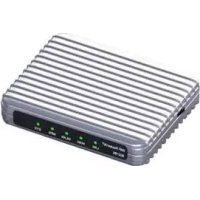
LCSWARCN - Access Point Longshine - Free user manual and instructions
Find the device manual for free LCSWARCN Longshine in PDF.



User questions about LCSWARCN Longshine
0 question about this device. Answer the ones you know or ask your own.
Ask a new question about this device
Download the instructions for your Access Point in PDF format for free! Find your manual LCSWARCN - Longshine and take your electronic device back in hand. On this page are published all the documents necessary for the use of your device. LCSWARCN by Longshine.
USER MANUAL LCSWARCN Longshine
IEEE 802.11n Wireless 1T1R Router
User's Manual
English Deutsch Espanol Francais Italiano
IEEE 802.11n Wireless Series
Wireless 11n 1T1R Router
text_image
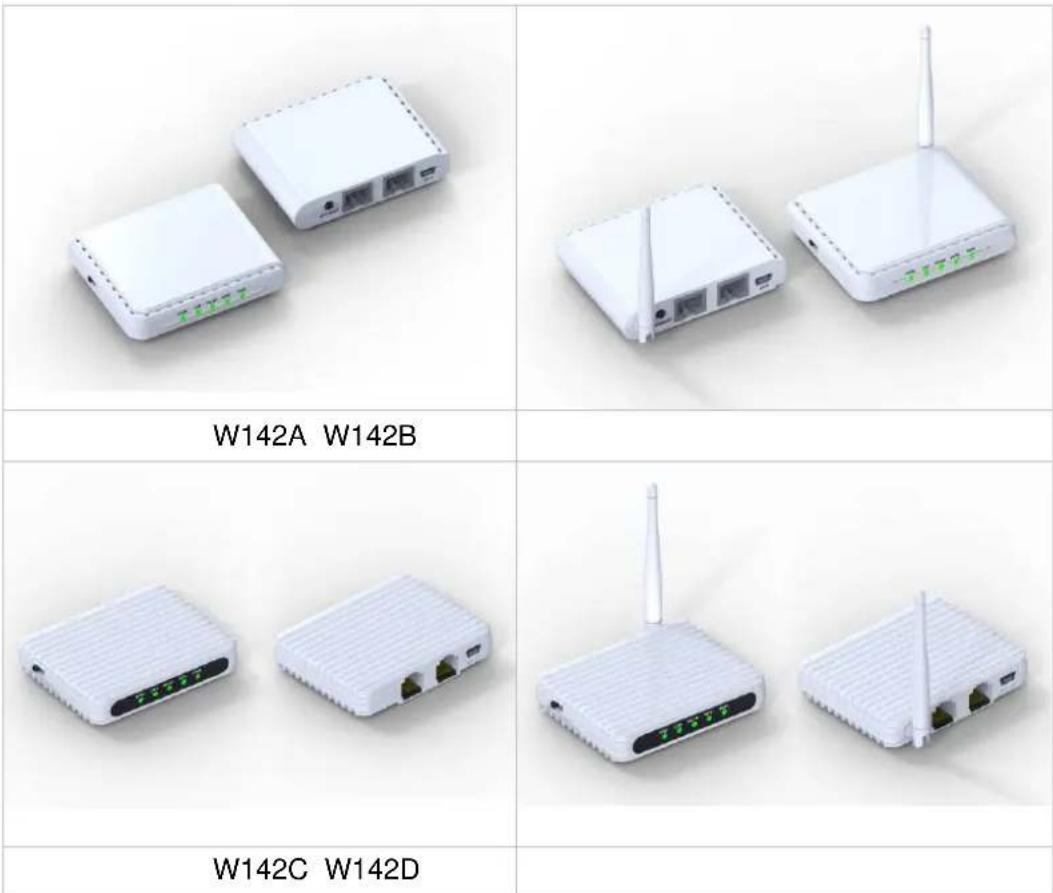
W142A W142B W142C W142DUser Manual
Version 2.1
Date: September 17, 2010
FCC Certifications

Federal Communication Commission Interference Statement
This equipment has been tested and found to comply with the limits for a Class B digital device, pursuant to Part 15 of the FCC Rules. These limits are designed to provide reasonable protection against harmful interference in a residential installation. This equipment generates, uses and can radiate radio frequency energy and, if not installed and used in accordance with the instructions, may cause harmful interference to radio communications. However, there is no guarantee that interference will not occur in a particular installation. If this equipment does cause harmful interference to radio or television reception, which can be determined by turning the equipment off and on, the user is encouraged to try to correct the interference by one of the following measures:
-Reorient or relocate the receiving antenna.
-Increase the separation between the equipment and receiver.
-Connect the equipment into an outlet on a circuit different from that to which the receiver is connected.
-Consult the dealer or an experienced radio/TV technician for help.
This device complies with Part 15 of the FCC Rules. Operation is subject to the following two conditions: (1) This device may not cause harmful interference, and (2) this device must accept any interference received, including interference that may cause undesired operation.
FCC Caution: Any changes or modifications not expressly approved by the party responsible for compliance could void the user's authority to operate this equipment.
IMPORTANT NOTE:
FCC Radiation Exposure Statement:
This equipment complies with FCC radiation exposure limits set forth for an uncontrolled environment. This equipment should be installed and operated with minimum distance 20cm between the radiator & your body.
This transmitter must not be co-located or operating in conjunction with any other antenna or transmitter.
CE Mark Warning

This equipment complies with the requirements relating to electromagnetic compatibility, EN 55022 class B for ITE, the essential protection requirement of Council Directive 2004/108/EC on the approximation of the laws of the Member States relating to electromagnetic compatibility and R&TTE Directive 1999/5/EC to meet the regulation of the radio equipment and telecommunications terminal equipment.
Company has an on-going policy of upgrading its products and it may be possible that information in this document is not up-to-date. Please check with your local distributors for the latest information. No part of this document can be copied or reproduced in any form without written consent from the company.
Trademarks:
All trade names and trademarks are the properties of their respective companies.
Copyright © 2010, All Rights Reserved.
Contents
Unpacking Information 6
Chapter 1 Introduction to the Wireless Router 7
1.1 General Description....7
1.2 Key Features 7
1.3 The Front Panel 8
1.4 The Rear Panel 9
Chapter 2 Installation and Basic Configuration ……11
2.1 Operation Mode....11
2.2 Connect This Router to Your Network 11
2.3 Configure the IP Address of Your Computer 12
Chapter 3 Web-Based Management....15
3.1 Start the Web-Based Management Interface 15
3.2 The Graphic User Interface 16
3.3 Setup Wizard 18
3.4 Wireless 22
3.4.1 Basic Settings 22
3.4.2 Advanced Settings 24
3.4.3 Security 25
3.4.4 Access Control 30
3.4.5 Wireless Site Survey 30
3.4.6 WPS Settings 35
3.5 TCP/IP Settings 37
3.5.1 LAN Interface Setup 37
3.5.2 WAN Interface Setup 39
3.6 Firewall Settings 43
MAC Filtering 43
3.7 Management 43
3.7.1 Status 43
3.7.2 Statistics 44
3.7.3 Log 45
3.7.4 Upgrade Firmware 46
3.7.5 Save/Reload Setting 47
3.7.6 Password 47
3.7.7 Logout 48
Appendix A: Product Specifications 49
Appendix B: Glossary 50
Unpacking Information
Thank you for purchasing the product. Before you start, please check all the contents of this package.
The product package should include the following:
- One Wireless Router
- One USB cable
- One CD
Note:
Make sure that the package contains the above items. If any of the listed items are damaged or missing, please contact with your distributor.
Conventions
The router mentioned in this guide stands for IEEE 802.11n Wireless 1T1R Router without any explanation.
Chapter 1 Introduction to the Wireless Router
1.1 General Description
This is a wireless router with 1T1R MIMO technology, providing an excellent network solution for home, SOHO and hotspot users. It complies with standards IEEE 802.11n with data rate up to 150 Mbps, and IEEE 802.11b/g with maximum data rate of 54 Mbps. It can also interoperate with all the 11/54 Mbps wireless (802.11b/g) products.
The router allows multiple users to share one broadband connection, as well as secures your private network. LAN users can share files, printers, or playing network games all at a blazing speed in a large area.
As to information security, this router supports up-to-date security encryption, such as WPA, WPA2, open shared key, and pair-wise key authentication services, ensuring you the best encryption types. What's more, this router supports energy efficient Ethernet and saves power consumption, preferring a cost-effective network connection.
1.2 Key Features
Comply with IEEE 802.11n and IEEE802.11b/g wireless standards
➢ 2.4GHz frequency band and 1T1R
➢ High speed transfer rate up to 150Mbps
➢ Support auto-MDI/MDI-X, backpressure and flow control
➢ Support IEEE802.1x port-based and MAC-based network access control
➢ Support wireless data encryption with WPA, WPA2, Open shared key, and pair-wise key authentication services
➢ Support Static IP, DHCP Client, PPPoE, Firewall and NAT IP Sharing
➢ Support IEEE802.3az Energy Efficient Ethernet
Provide one WPS/RESET button
Provide one slide switch to control AP/Router/Client mode
1.3 The Front Panel
The front panel of the Wireless Router:
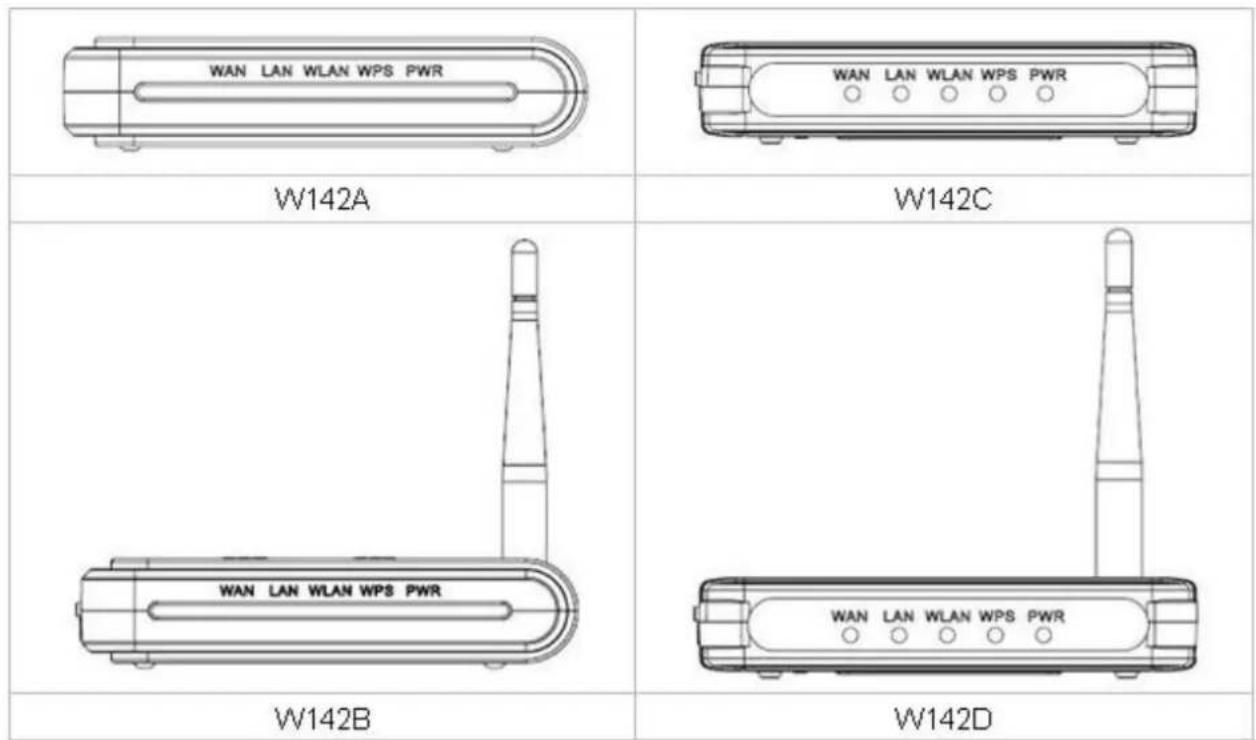
| Name Status Indication | ||
| PWR | Green | Power on |
| Dark | Power off | |
| WPS | Blink green one time System reboot | |
| Blink green WPS connecting | ||
| Dark | System stability | |
| WLAN | Off The wireless function is disabled. | |
| Flashing The wireless function is enabled. | ||
| Flashing fast Sending or receiving data over wireless. | ||
| WAN / LAN | Off | There is no device linked to the corresponding port or the connection is dropping off. |
| On | There are devices linked to the corresponding ports but no data transmitted or received. | |
| Flashing Sending or receiving data over corresponding port. | ||
1.4 The Rear Panel
The rear panel of the Wireless Router is shown below.
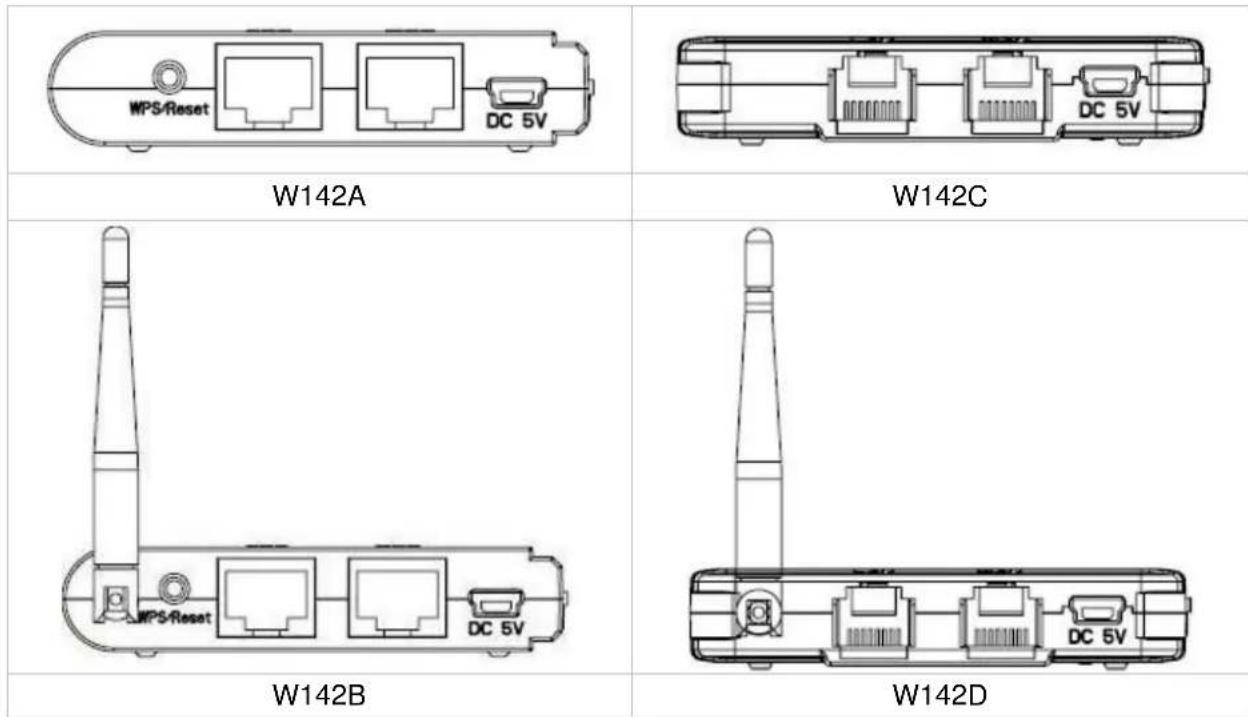
● LAN: Through this port, you can connect the router to your PCs and the other Ethernet network devices.
● WAN: This WAN port is where you will connect the cable/DSL Modem, or Ethernet.
- DC IN:
Plug the circle end of the power adapter firmly into the rear panel of the router, and put the other end into an electric service outlet, then the system is ready.
- WPS/Reset Button:
Click this button for once it means to start PBC configuration method, in which users can easy setup WPS connection.
If you push the button for more than 5 seconds and then release it, the system will return to factory default setting. In the meantime, system rewrites flash to default value and then system reboot. Approximately 60 seconds later, the whole system parameters have returned to factory default value. If the process has been interrupted by any reason(like power off), the system will fail. Before perform the process, please ensure a safe operating environment!
- Antenna (W142B/W142D only): The function of the antenna is to enhance the wireless signal and expand the range of signal.
Warning : Incomplete factory setting recovery procedure will cause the Wireless Router malfunction ! If you are unfortunately in this situation, do not try to repair it by yourself. Consult your local distributor for help!
Chapter 2 Installation and Basic Configuration
This chapter will guide you steps by steps to install and configure the Wireless Router. We suggest you go over the whole chapter first and then do more advanced operation.
2.1 Operation Mode
In this device, there are three modes for your selection:
AP mode
Router mode
▶ Client mode
Different mode functions different. You can glide the slide switch on the left side of the device to the left hand side (AP mode), middle (Router mode) or right hand side (Client mode) to choose the mode you want.
Before installation, please choose an operation mode first and then go on other configurations.
2.2 Connect This Router to Your Network
Steps to build up the network:
- Connect the phone line from the wall socket to the line-in port on the ADSL modem, or the coaxial cable to the line-in port on the cable modem.
- A---Router Mode: Connect the ADSL or cable modem to the Ethernet WAN port on the back of the Wireless Router by using the UTP cable.
B---AP Mode: Connect a router to one of the two ports on the back of this device by using the UTP cable.
C---Client Mode: Skip step 1 and Go to steps 3 directly.
- Plug-in the power adapter to the modem and turn on the power. Install the Ethernet card into the computer by referring to the User Guide that came with the card.
- Connect the computer to the Wireless Router by using standard twisted-pair Ethernet cable from the computer's Ethernet card to a 10/100Mbps Ethernet LAN port on the back of the Wireless Router. (In AP/Client mode both the ports can be used as LAN ports)
- Plug-in the power adapter to the router and the other side to the wall outlet.
2.3 Configure the IP Address of Your Computer
In order to communicate with this Wireless Router, you have to configure the IP address of your computer to make it compatible with the device.
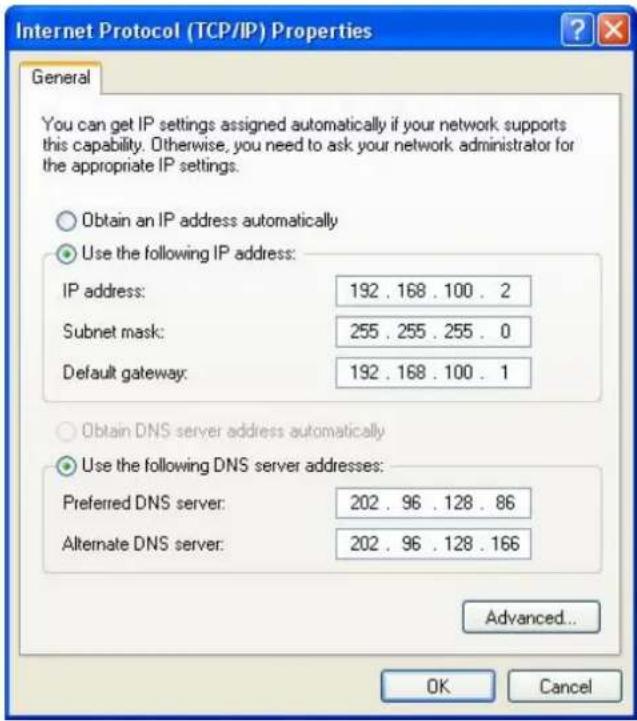
Note: The router supports DHCP server and it is enabled as default. Users who configure his IP address as "Obtain an IP address automatically" may skip the following IP configuration instruction.
- The default network setting of the device:
IP address: 192.168.100.1
Subnet Mask: 255.255.255.0
DHCP Server: enable
- In the following TCP/IP configuration guide, the IP address "192.168.100.2" is assumed to be your IP address if you want to specify IP addresses manually. Please DO NOT choose "192.168.100.1" as the IP address, for the IP address "192.168.100.1" has been set as the default IP for this device.
- The following TCP/IP configuration guide uses windows XP as the presumed operation system.
Procedures to configure IP addresses for your computer:
- If you are in Classic Start menu view, click Start > Settings > Network Connections. If you are in Start menu view, click Start > Control Panel > Network Connections.
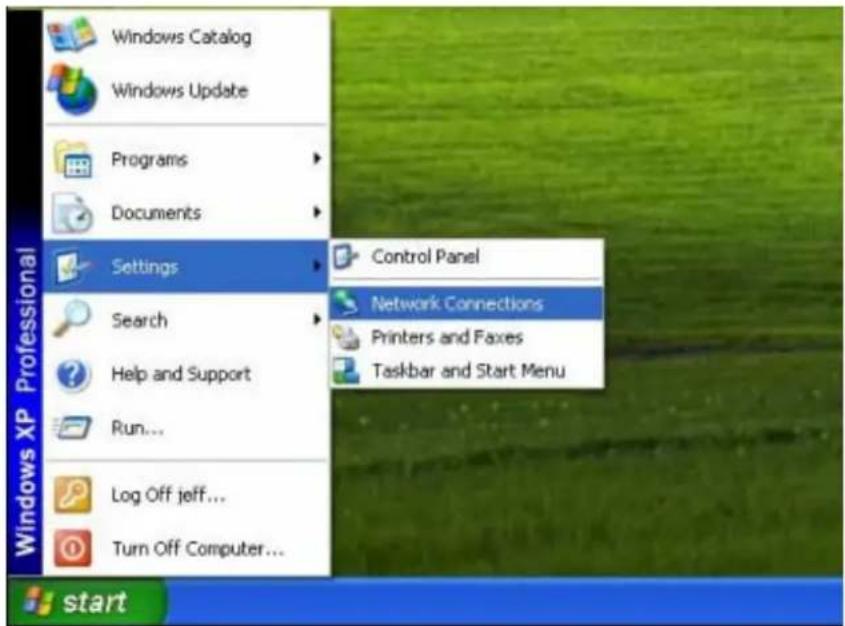
text_image
Windows Catalog Windows Update Programs Documents Settings Search Help and Support Run... Log Off jeff... Turn Off Computer... Control Panel Network Connections Printers and Faxes Taskbar and Start Menu start2. Right-click Local Area Connection item and click Properties.
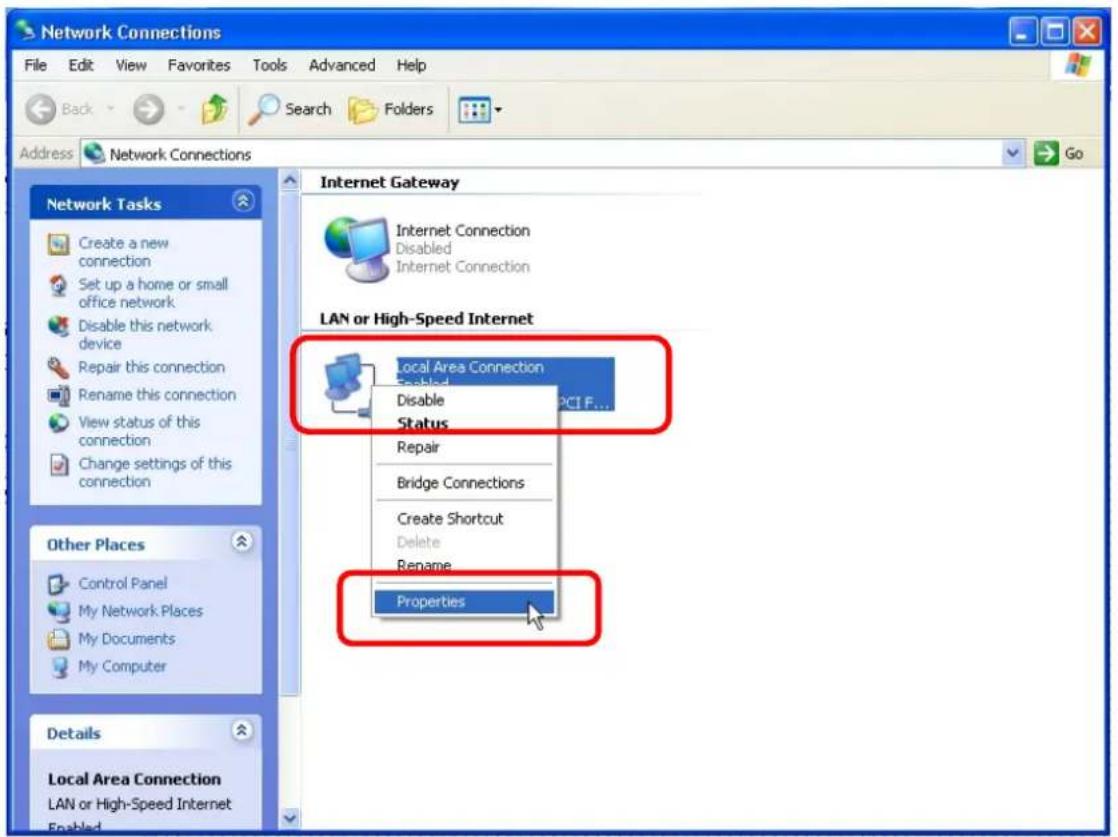
text_image
Network Connections File Edit View Favorites Tools Advanced Help Back Search Folders Address Network Connections Internet Gateway Internet Connection Disabled Internet Connection LAN or High-Speed Internet Local Area Connection Enabled Disable Status Repair Bridge Connections Create Shortcut Delete Rename Properties Other Places Control Panel My Network Places My Documents My Computer Details Local Area Connection LAN or High-Speed Internet Enabled3. Choose Internet Protocol (TCP/IP) and click Properties.
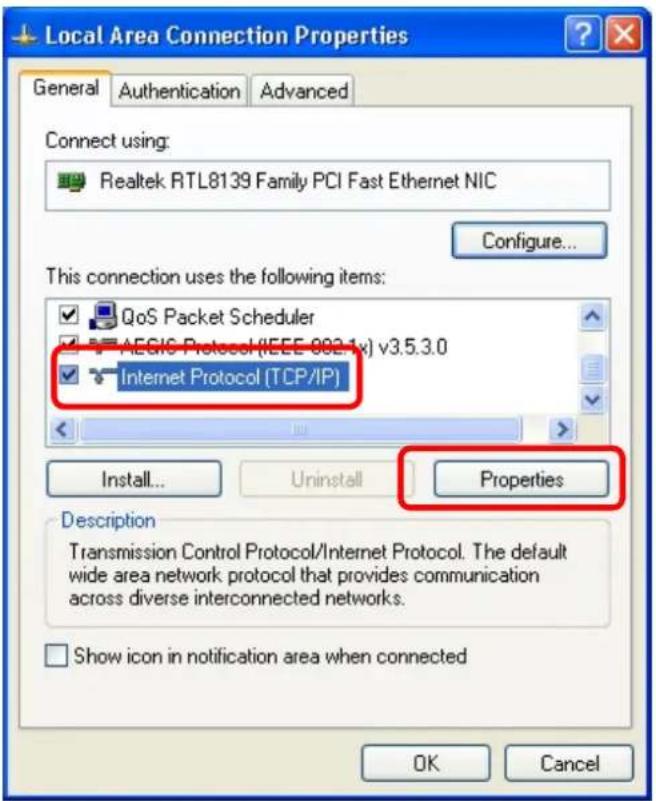
text_image
Local Area Connection Properties General Authentication Advanced Connect using: Realtek RTL8139 Family PCI Fast Ethernet NIC Configure... This connection uses the following items: QoS Packet Scheduler AEGIC Protocol (IEEE 002.1x) v3.5.3.0 Internet Protocol (TCP/IP) Install... Uninstall Properties Description Transmission Control Protocol/Internet Protocol. The default wide area network protocol that provides communication across diverse interconnected networks. Show icon in notification area when connected OK Cancel- You may choose Obtain an IP address automatically (recommend) to get an IP address automatically. Or you can choose Use the following IP address to specify an IP address manually. Please click the OK button after your configuration.
text_image
Internet Protocol (TCP/IP) Properties General You can get IP settings assigned automatically if your network supports this capability. Otherwise, you need to ask your network administrator for the appropriate IP settings. Obtain an IP address automatically Use the following IP address: IP address: 192 . 168 . 100 . 2 Subnet mask: 255 . 255 . 255 . 0 Default gateway: 192 . 168 . 100 . 1 Obtain DNS server address automatically Use the following DNS server addresses: Preferred DNS server: 202 . 96 . 128 . 86 Alternate DNS server: 202 . 96 . 128 . 166 Advanced... OK CancelChapter 3 Web-Based Management
3.1 Start the Web-Based Management Interface
The device uses Web as the management interface. You can use a browser to access the management interface easily. Please follow the steps listed below.
- Open the Internet Web browser.
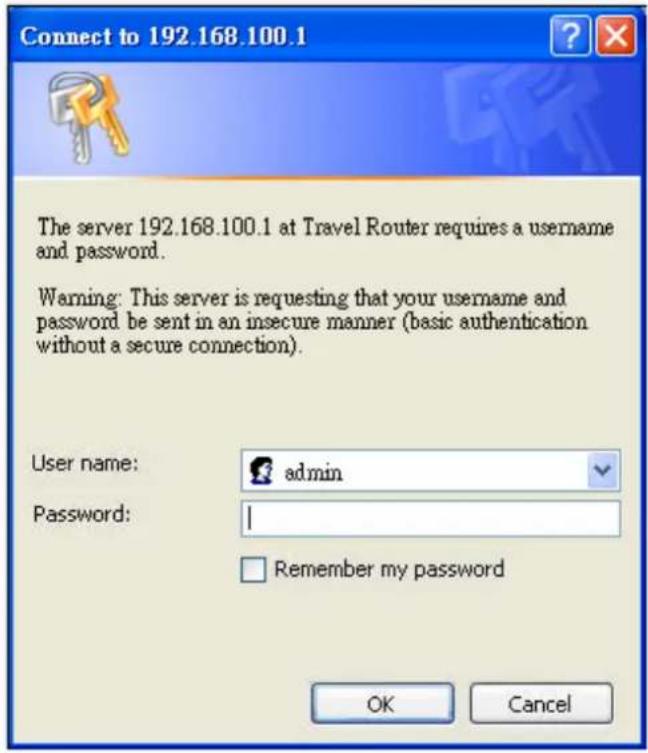
- Type 192.168.100.1 into the URL Web address location and press Enter.
- The Login window appears.
- Enter admin in the User Name location (default value).
- Enter admin in the Password location (default value).
- Click OK button.
text_image
Connect to 192.168.100.1 The server 192.168.100.1 at Travel Router requires a username and password. Warning: This server is requesting that your username and password be sent in an insecure manner (basic authentication without a secure connection). User name: admin Password: | Remember my password OK Cancel3.2 The Graphic User Interface
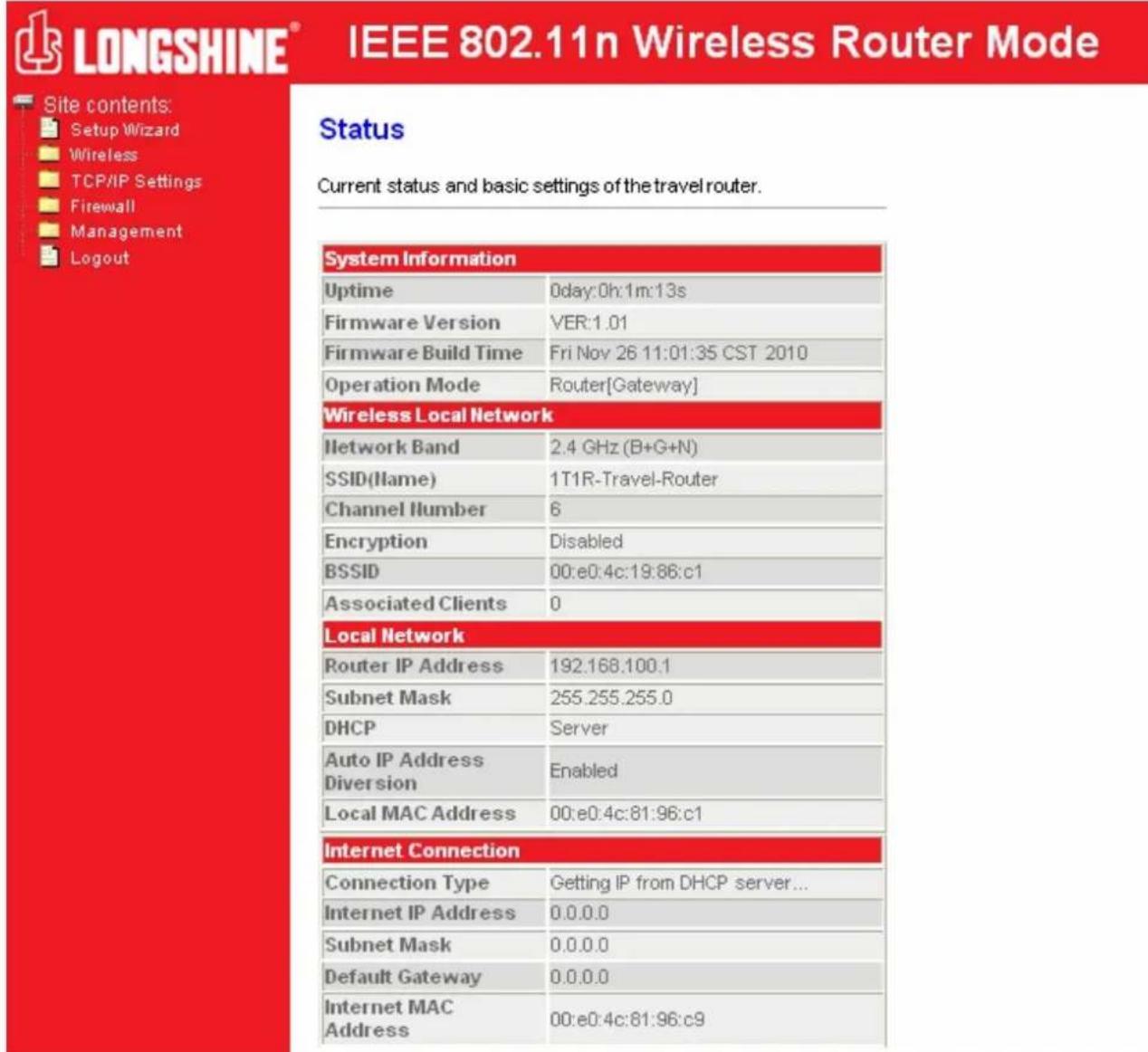
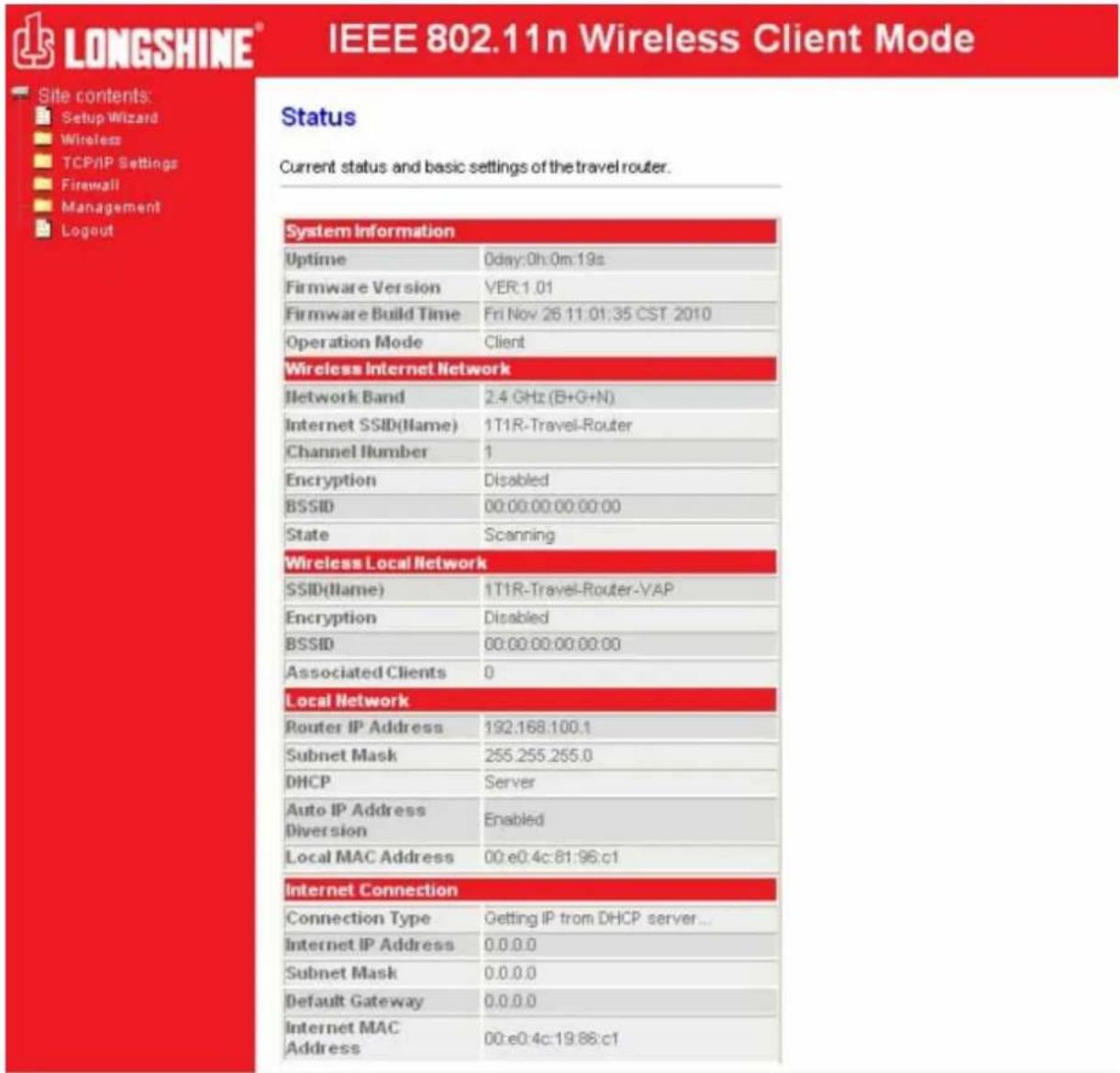
After the password authorization, the information page shows up as the home page of the graphic user interface. You may click the menu link on left column of the window to get access to each configuration page.
Router Mode:
text_image
LONGSHINE® IEEE 802.11n Wireless Router Mode Site contents: Setup Wizard Wireless TCP/IP Settings Firewall Management Logout Status Current status and basic settings of the travel router. System Information Uptime 0day:0h:1m:13s Firmware Version VER:1.01 Firmware Build Time Fri Nov 26 11:01:35 CST 2010 Operation Mode Router[Gateway] Wireless Local Network Network Band 2.4 GHz (B+G+N) SSID(Name) 1T1R-Travel-Router Channel Humber 6 Encryption Disabled BSSID 00:e0:4c:19:86:c1 Associated Clients 0 Local Network Router IP Address 192.168.100.1 Subnet Mask 255.255.255.0 DHCP Server Auto IP Address Diversion Enabled Local MAC Address 00:e0:4c:81:96:c1 Internet Connection Connection Type Getting IP from DHCP server... Internet IP Address 0.0.0.0 Subnet Mask 0.0.0.0 Default Gateway 0.0.0.0 Internet MAC Address 00:e0:4c:81:96:c9AP Mode:

LONGSHINE®
IEEE 802.11n Wireless AP Mode

Site contents
Setup Wizard
Wireless
TCP/IP Settings
Management
Logout
Status
Current status and basic settings of the travel router.
System Information
| Uptime | 0day:0h:1m:18s |
| Firmware Version | VER:1.01 |
| Firmware Build Time | Fri Nov 26 11:01:35 CST 2010 |
| Operation Mode | AP[Bridge] |
Wireless Local Network
| Network Band | 2.4 GHz (B+G+N) |
| SSID(Name) | 1T1R-Travel-Router |
| Channel Number | 6 |
| Encryption | Disabled |
| BSSID | 00:e0:4c:19:86:c1 |
| Associated Clients | 0 |
Local Network
| Router IP Address | 192.168.100.1 |
| Subnet Mask | 255.255.255.0 |
| DHCP | Client |
| Auto IP Address Diversion | Enabled |
| Local MAC Address | 00:e0:4c:81:96:c1 |
Client Mode:
text_image
LONGSHINE® IEEE 802.11n Wireless Client Mode Site contents: Setup Wizard Wireless TCP/IP Settings Firewall Management Logout Status Current status and basic settings of the travel router. System Information Uptime Oday:0h:0m:19s Firmware Version VER:1.01 Firmware Build Time Fri Nov 26 11:01:35 CST 2010 Operation Mode Client Wireless Internet Network Network Band 2.4 GHz (B+G+N) Internet SSID(Name) 1T1R-Travel-Router Channel Humber 1 Encryption Disabled BSSID 00:00:00:00:00:00 State Scanning Wireless Local Network SSID(Name) 1T1R-Travel-Router-VAP Encryption Disabled BSSID 00:00:00:00:00:00 Associated Clients 0 Local Network Router IP Address 192.168.100.1 Subnet Mask 255.255.255.0 DHCP Server Auto IP Address Enabled Diversion Local MAC Address 00:e0:4c:81:96:c1 Internet Connection Connection Type Getting IP from DHCP server... Internet IP Address 0.0.0.0 Subnet Mask 0.0.0.0 Default Gateway 0.0.0.0 Internet MAC Address 00:e0:4c:19:88:c13.3 Setup Wizard (Router mode and Client mode)
If you are using the router for the first time, please follow the procedures of the setup wizard to do a step-by-step configuration.
Note: The configurations in AP, Router and Client modes are almost the same. The following guide mainly introduces this device under the Router mode environment. Users want to do management in AP/Client mode please refer to the Router mode. The following instruction makes an overall introduction to the Setup Wizard
- Click "Setup Wizard" on the left menu link, and then click the "Next" button to proceed.
Setup Wizard
This setup wizard will help you to configure the travel router. Please follow the directions step-by-step.
Welcome to Setup Wizard.
The Wizard will guide you the through following steps. Begin by clicking on Next.
- Setup LAN Interface
- Setup WAN Interface
- Wireless Network Basic Settings
- Wireless Security Setup
Next>>
- Click "Next" button, the "LAN Interface Setup" pops out.
LAN Interface Setup
This page is used to configure the parameters for local area network which connects to the LAN port of your Access Point. Here you may change the setting for Router IP address, subnet mask, etc..
Router IP Address: 192.168.100.1
Subnet Mask: 255.255.255.0
Cancel
<<Back
Next>>
- Click "Next" button, the "WAN Interface Setup" pops out. Or you can click "Back/Cancel" for any changing. You may get those parameters from your ISP. WAN Access Type: Static IP, DHCP Client and PPPoE.
WAN Interface Setup
Configure the parameters for the Internet network which connects to the WAN port of your travel router. Here you may change the access method to a static IP address, DHCP client, or PPPoE client.
WAN Access Type:
DHCP Client
Cancel
<<Back
Next>>
- Click "Next" button, the "Wireless Network Basic Settings" pops out.
Wireless Network Basic Settings
This page is used to configure the parameters for wireless LAN clients which may connect to your Access Point.
□ Disable Wireless Network
Network Band: 2.4 GHz (B+G+N)
SSID(Router Name): 1T1R-Travel-Router
Channel Width: 40MHz
Channel Number: Auto
Cancel
<<Back
Next>>
- Click "Next" button, the "Wireless Security Setup" pops out.
Wireless Security Setup
This page allows you setup the wireless security. Turn on WEP or WPA by using Encryption Keys could prevent any unauthorized access to your wireless network.
Encryption:
None

Cancel
<<Back
Finished
Having finished these steps, you can use the router to surf the Internet. If you need more detailed information, please refer to the following instruction.
3.4 Wireless
3.4.1 Basic Settings
You can set up the configuration of your Wireless basic settings and monitor the Wireless Clients associate with your router.
Wireless Basic Settings
Configure the parameters for wireless LAN clients connecting to the travel router. You can also modify the wireless security settings and network parameters.
□ Disable Wireless Network
Network Band:
2.4 GHz (B+G+N)
Multiple AP
SSID(Router Name):
1T1R-Travel-Router
Channel Width:
40MHz
Channel Number:
Auto
Country:
USA(FCC)
Broadcast SSID:
Enabled
Associated Clients:
Show Active Clients
Apply Changes
Reset
* Please click on the Apply Changes button or the Reset button at the bottom to save/reset the configurations.
| Items Information | |
| Disable Wireless LAN Interface | Mark the checkbox to disable interface of Wireless LAN. |
| Multiple AP | The Multiple AP button is to show and update the wireless settings for Multiple APs. Click this button to do more configurations. |
| SSID | Service set identifier (SSID) for the name of the wireless network. |
| Channel Width | Select 20MHz or 40MHz as the wireless channel frequency. |
| Control Sideband | Upper, Lower |
| Channel Number | Select a channel (Auto, 1~11) for the wireless network of this device. |
| Country | It contains USA(FCC), Canada(IC), Europe(ETSI), Spain, France, Japan(MKK) for your selection. |
| Broadcast SSID | If you enable "Broadcast SSID", every wireless station located withinthe coverage of this wireless router can discover this wireless router easily. If you are building a public wireless network, enabling this feature is recommended. Disabling "Broadcast SSID" can be more safe. |
| Associated Client | Click "Show Active Clients" button, then an "Active Wireless Client Table" will pop up. You can see the status of all active wireless stations that are connecting to the access point. |
1. Multiple APs
This is the window that pops up after clicking the Multiple AP button.
Multiple APs
This page shows and updates the wireless setting for multiple APs.
| No. | Enable | SSID | Broadcast SSID | Active Client List |
| SSID2 | 1T1R-Travel-Rot | Enabled | Show | |
| SSID3 | 1T1R-Travel-Rot | Enabled | Show | |
| SSID4 | 1T1R-Travel-Rot | Enabled | Show |
Apply Changes
Reset
Click "Enable" to activate this AP, and then click the button "Show", "Active Wireless Client Table – AP1" window pops up as the following:
Active Wireless Client Table - AP1
This table shows the MAC address, transmission, reception packet counters and encrypted status for each associated wireless client.
| MAC Address | Mode | Tx Packet | Rx Packet | Tx Rate (Mbps) | Power Saving | Expired Time (s) |
| None | --- | --- | --- | --- | --- | --- |
Refresh
Close
2. Active Wireless Client Table
This is the window that pops up after clicking the Show Active Clients button.
Active Wireless Client Table
This table shows the MAC address, transmission, reception packet counters and encrypted status for each associated wireless client.
| MAC Address | Mode | Tx Packet | Rx Packet | Tx Rate (Mbps) | Power Saving | Expired Time (s) |
| None | --- | --- | --- | --- | --- | --- |
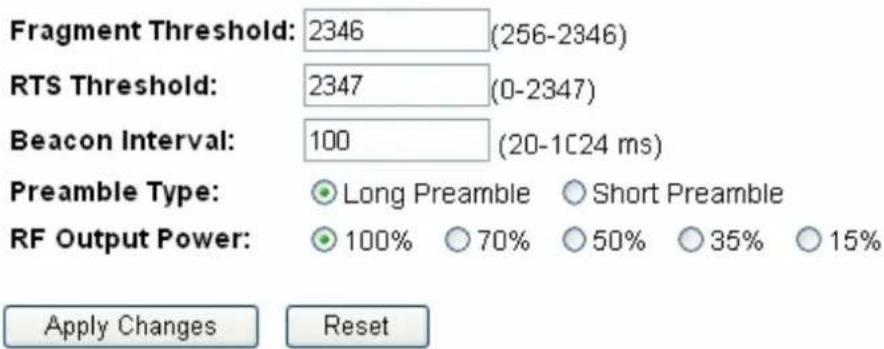
3.4.2 Advanced Settings
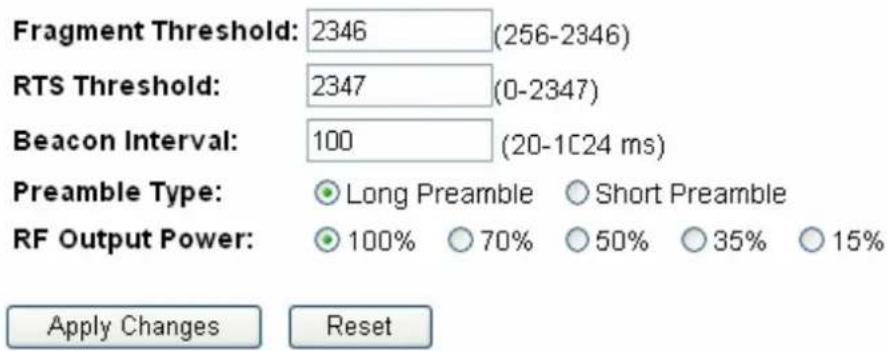
You can set advanced wireless LAN parameters for this router. We recommend not changing these parameters unless you know what changes will be on this router.
Wireless Advanced Settings
For technically advanced users who have a sufficient knowledge of wireless LANs. These settings should not be modified unless you know the effect the changes will have on your travel router.
text_image
Fragment Threshold: 2346 (256-2346) RTS Threshold: 2347 (0-2347) Beacon Interval: 100 (20-1C24 ms) Preamble Type: ● Long Preamble ○ Short Preamble RF Output Power: ● 100% ○ 70% ○ 50% ○ 35% ○ 15% Apply Changes Reset* Please click on the Apply Changes button or the Reset button at the bottom to save/reset the configurations.
| Items Information | |
| Fragment Threshold | This value should remain at its default setting of 2346. If you experience a high packet error rate, you may slightly increase your fragmentation threshold within the value range of 256 to 2346. Setting the fragmentation threshold too low may result in poor performance. |
| RTS Threshold | Request To Send threshold. This value should remain at its default setting of 2347. If you encounter inconsistent data flow, only minormodifications to the value range between 0 and 2347 are recommended. |
| Beacon Interval | Beacons are packets sent by an access point to synchronize a wireless network. Specify a beacon interval value. Default (100ms) is recommended. |
| Preamble Type | The length of CRC blocks in the frames during the wireless communication. |
| RF Output Power | Select the signal strength for the wireless network. |
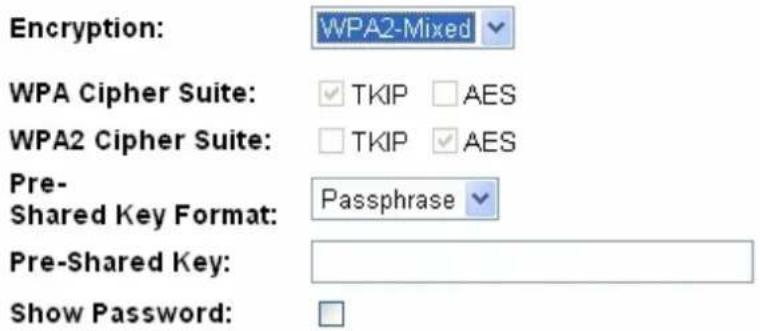
3.4.3 Security
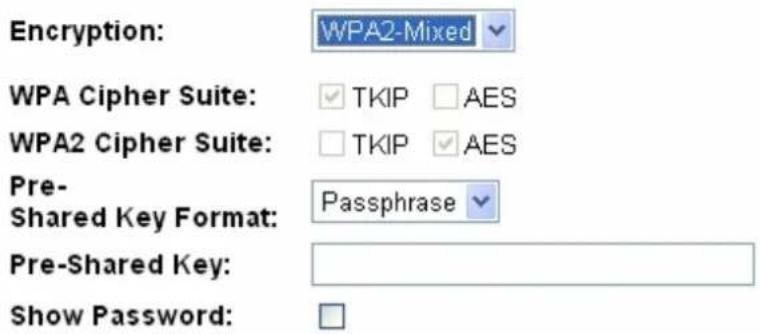
The Security function protects your wireless network from invasion. We provide WEP and WPA encryption to secure your wireless network. Please select "Disable", "WEP", "WPA", "WPA2", or "WPA2-Mixed" in the drop list. If you select "Disable", any data will be transmitted without encryption and any station can access the router.
Wireless Security Setup
Configure the wireless security for the travel router. Enable WEP or WPA encryption to prevent unauthorized access to your wireless network.
Select SSID: 1T1R-Travel-Router Apply Changes Reset
text_image
Encryption: WPA2-Mixed WPA Cipher Suite: ✓ TKIP □ AES WPA2 Cipher Suite: □ TKIP ✓ AES Pre- Shared Key Format: Passphrase Pre-Shared Key: Show Password:| Items Information | |
| Select SSID | Please choose a SSID you have set for this router in theWireless >Basic Settingsfrom the drop-down list. The SSID will be shown on the wireless network for recognizing. |
| Encryption | There are 5 modes for you to select: Disable, WEP, WPA, WPA2, and WPA2-Mixed. Please refer to the following description. |
| Show Password | Select to show the password or not. |
* Please click on the Apply Changes button or the Reset button to save/reset the configurations.
1. Security Mode – Disable
Select "Disable" means to access your wireless network without any encryption.
Wireless Security Setup
Configure the wireless security for the travel router. Enable WEP or WPA encryption to prevent unauthorized access to your wireless network.
Select SSID: 1T1R-Travel-Router Apply Changes Reset
Encryption:
Disable
2. Security Mode -- WEP
Wireless Security Setup
Configure the wireless security for the travel router. Enable WEP or WPA encryption to prevent unauthorized access to your wireless network.
Select SSID: 1T1R-Travel-Router Apply Changes Reset
Encryption:
WEP
Authentication:
Open System Shared Key Auto
Key Length:
64-bit
Key Format:
Hex (10 characters)
Encryption Key:
The image contains no text or characters. The horizontal line is a stylistic or background element and must be ignored according to the rules.
Show Password:
□
* Please click on the Apply Changes button or the Reset button to save/reset the configurations.
| Items Information | |
| Select SSID | Please choose a SSID you have set for this router in the Wireless > Basic Settings from the drop-down list. The SSID will be shown on the wireless network for recognizing. |
| Encryption | Select a security encryption mode for this router. |
| Authentication | There provide three options for selecting: Open System, Shared Key, Auto. |
| Key Length | Select “64-bit” or “128-bit” as the key encryption length. |
| Key Format | Select “ASCII ^1 ” or “Hex ^2 ” to setup the key value. |
| Encryption Key | Enter the key according to the key format you select. |
| Show Password | Select to show the password or not. |
3. Security Mode – WPA / WPA 2
Wireless Security Setup
Configure the wireless security for the travel router. Enable WEP or WPA encryption to prevent unauthorized access to your wireless network.
Select SSID:
1T1R-Travel-Router

Apply Changes
Reset
Encryption:
WPA-PSK

WPA Cipher Suite:
TKIP
□AES
Pre-
Shared Key Format:
Passphrase

Pre-Shared Key:
Show Password:

Wireless Security Setup
Configure the wireless security for the travel router. Enable WEP or WPA encryption to prevent unauthorized access to your wireless network.
Select SSID: 1T1R-Travel-Router Apply Changes Reset
Encryption:
WPA2-PSK
WPA2 Cipher Suite:
□ TKIP √ AES
Pre-
Shared Key Format:
Passphrase
Pre-Shared Key:
Show Password:
The Ground Truth image displays a single, solid horizontal line. According to Rule 2 (UNDERSCORE & LINE RULES), if the GT contains lines used for stylistic emphasis or as background elements (like ruled paper), the OCR result must ignore them. The line in the GT is clearly a stylistic or background line, not a placeholder for text. Therefore, the OCR should not have output any underscores. Outputting `____` constitutes an error under Rule 2, as it hallucinates placeholder symbols where none are semantically intended. Hence, the OCR result is inconsistent with the Ground Truth.
□
| Items Information | |
| Select SSID | Please choose a SSID you have set for this router by clicking “Wireless > Basic Settings” from the drop-down list. The SSID will be shown on the wireless network for your recognition. |
| Encryption | Select a security encryption mode for this router. |
| WPA/WPA2 Cipher Suite | WPA Cipher Suite: the default setting is TKIP.WPA2 Cipher Suite: the defaulting setting is AES |
| Pre-Shared Key Format | To decide the format, select “Passphrase” or “Hex” in the drop list. |
| Pre-Shared Key | Enter the “Pre-shared Key” according to the pre-shared key format you select. This is the shared secret between AP and STA. This field must be filled with character longer than 8 and less than 64 lengths. |
| Show Password | Select to show the password or not. |
- Please click on the Apply Changes button or the Reset button to save/reset the configurations.
4. Security Mode – WPA2-Mixed
Wireless Security Setup
Configure the wireless security for the travel router. Enable WEP or WPA encryption to prevent unauthorized access to your wireless network.
Select SSID: 1T1R-Travel-Router Apply Changes Reset
Encryption:
WPA2-Mixed
WPA Cipher Suite:
√ TKIP □ AES
WPA2 Cipher Suite:
□ TKIP √ AES
Pre-
Shared Key Format:
Passphrase
Pre-Shared Key:
Show Password:

| Items Information | |
| Select SSID | Please choose a SSID you have set for this router by clicking “Wireless > Basic Settings” from the drop-down list. The SSID will be shown on the wireless network for your recognition. |
| Encryption | Select a security encryption mode for this router. |
| WPA / WPA2 Cipher Suite | The Cipher Suite is mixed (TKIP and AES). |
| Pre-Shared Key Format | To decide the format, select “Passphrase” or “Hex” in the drop list. |
| Pre-Shared Key | Enter the “Pre-shared Key” according to the pre-shared key format you select. This field must be filled with character longer than 8 and less than 64 lengths. |
| Show Password | Select to show the password or not. |
* Please click on the Apply Changes button or the Reset button to save/reset the configurations.
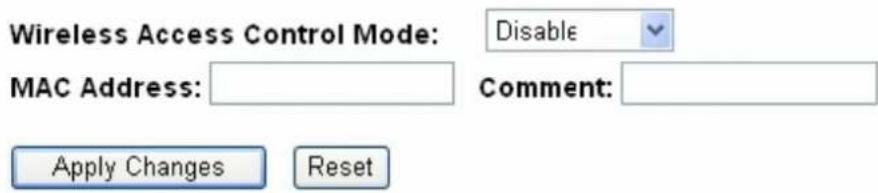
3.4.4 Access Control
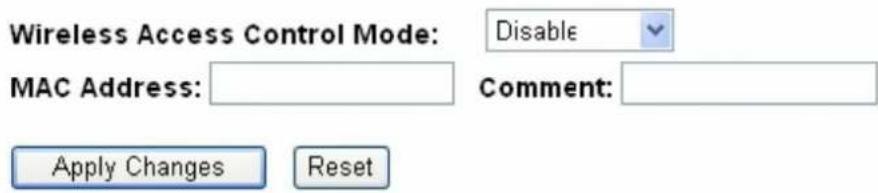
To restrict the station access authentication of the clients, you can set up the control list in this page.
Wireless Access Control
"Allow Listed", wireless clients with a MAC address listed in the access control list will be able to connect to the travel router. "Deny Listed" wireless clients will not be able to connect to the travel router.
text_image
Wireless Access Control Mode: Disable MAC Address: Comment: Apply Changes ResetCurrent Access Control List:

text_image
MAC Address Comment Select Delete Selected Delete All Reset| Items Information | |
| Wireless Access Control Mode | Click the drop list to choose the access control mode. You may select “Allow listed” to give those MAC addresses access to this device or select “Deny Listed” to ban it or select “Disable”. |
| MAC Address & Comment | Fill in the MAC address that you wish to control, and give a definition to it. |
| Current Access Control list | List the MAC Access Control settings you have added before. Click on the list to change configuration. To Delete the station on the list, mark the check box in the select item and click the “Delete Selected”. If you want to delete all stations on the list, click “Delete All” to remove all of them. |
* Please click on the Apply Changes button or the Reset button to save/reset the configurations.
3.4.5 Wireless Site Survey (only in Client mode)
If you are under the Client mode, click Wireless > Wireless Site Survey in the menu links to display the screen as shown below.
- The following page which provides tool to scan the wireless network pops out.
Wireless Site Survey
This page provides tool to scan the wireless network. If any Access Point or IBSS is found, you could choose to connect it manually when client mode is enabled.
Site Survey
| SSID | BSSID | Channel | Type | Encrypt | Signal | Select |
| None |
Next>>
- Click the "Site Survey" button can scan nearby Router and AP. This page shows the available wireless networks information. When you use this device as a station (STA), you may connect to other AP.
Wireless Site Survey
This page provides tool to scan the wireless network. If any Access Point or IBSS is found, you could choose to connect it manually when client mode is enabled.
Site Survey
| SSID | BSSID | Channel | Type | Encrypt | Signal | Select |
| 1T1R-Router-1 | 00:08:54:6a:95:28 | 9(B+G+N) | AP | no | 64 | ○ |
| notYours | 00:00:00:00:00:22 | 1(B+G+N) | AP | WPA-PSKWPA2-PSK | 48 | ○ |
| ZuniConnect | 00:25:9c:09:c0:cb | 6(B+G+N) | AP | no | 42 | ○ |
| shawn test ap | 00:e0:4c:81:aa:99 | 1(B+G+N) | AP | WPA2-PSK | 40 | ○ |
| W440A | 00:e0:7d:c0:c7:d1 | 1 (B+G) | AP | WPA-PSK | 38 | ○ |
| Ikjslfksjdlf | 12:36:54:78:90:12 | 11(B+G+N) | AP | no | 34 | ○ |
| chenlibing-gw | 00:e0:4c:00:00:b1 | 11(B+G+N) | AP | no | 32 | ○ |
| E-ZY.NET_EZ1 | 00:11:7c:ff:33:e0 | 11 (B+G) | AP | WEP | 14 | ○ |
| vip room | 00:e0:4c:81:26:b1 | 11(B+G+N) | AP | no | 10 | ○ |
Next>>
- Select one of the networks existing in the list of the site survey table and then click "Next" button, then the following page pops out.
Wireless Site Survey
This page provides tool to scan the wireless network. If any Access Point or IBSS is found, you could choose to connect it manually when client mode is enabled.
Site Survey
| SSID | BSSID | Channel | Type | Encrypt | Signal | Select |
| 1T1R-Router-1 | 00:08:54:6a:95:28 | 9(B+G+N) | AP | no | 64 | |
| notYours | 00:00:00:00:00:22 | 1(B+G+N) | AP | WPA-PSK/WPA2-PSK | 48 | |
| ZuniConnect | 00:25:9c:09:c0:cb | 6(B+G+N) | AP | no | 42 | |
| shawn test ap | 00:e0:4c:81:aa:99 | 1(B+G+N) | AP | WPA2-PSK | 40 | |
| W440A | 00:e0:7d:c0:c7:d1 | 1 (B+G) | AP | WPA-PSK | 38 | |
| Ikjslfksjdlf | 12:36:54:78:90:12 | 11(B+G+N) | AP | no | 34 | |
| chenlibing-gw | 00:e0:4c:00:00:b1 | 11(B+G+N) | AP | no | 32 | |
| E-ZY.NET_EZ1 | 00:11:7c:ff:33:e0 | 11 (B+G) | AP | WEP | 14 | |
| vip room | 00:e0:4c:81:26:b1 | 11(B+G+N) | AP | no | 10 |
Next>>
- In this page, you can input the selected AP's password, then click "connect" button to start connection with wireless network.
Wireless Site Survey
This page provides tool to scan the wireless network. If any Access Point or IBSS is found, you could choose to connect it manually when client mode is enabled.
Encryption: WPA2
Authentication Mode:
○ Enterprise (RADIUS) ● Personal (Pre-Shared Key)
WPA2 Cipher Suite:
□ TKIP □ AES
Pre-Shared Key Format:
Passphrase
Pre-Shared Key:
<<Back Connect
- In connection process, the following page pops out. Please waiting for the connection result.
Wireless Site Survey
This page provides tool to scan the wireless network. If any Access Point or IBSS is found, you could choose to connect it manually when client mode is enabled.
Please wait...
- When connection is successful, the following page pops up.
Connect successfully!
OK
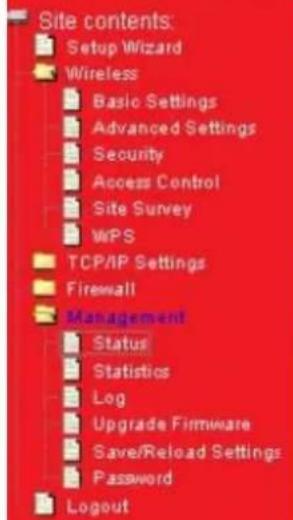
- You can go back to the Management > Status page and confirm the connection's states.

LONGSHINE®
IEEE 802.11n Wireless Client Mode
text_image
Site contents: Setup Wizard Wireless Basic Settings Advanced Settings Security Access Control Site Survey WPS TCP/IP Settings Firewall Management Status Statistics Log Upgrade Firmware Save/Reload Settings Password LogoutStatus
Current status and basic settings of the travel router.
System Information
| Uptime | 0day:0h:11m:17s |
| Firmware Version | VER:1.01 |
| Firmware Build Time | Fri Nov 26 11:01:35 CST 2010 |
| Operation Mode | Client |
Wireless Internet Network
| Network Band | 2.4 GHz (B+G+N) |
| Internet SSID(llame) | shawntest ap |
| Channel llumber | 1 |
| Encryption | WPA2 |
| BSSID | 00:e0:4c:81:aa:99 |
| State | Connected |
Wireless Local Network
| SSID(Name) | 1T1R-Travel-Router-VAP |
| Encryption | Disabled |
| BSSID | 00:e0:4c:19:86:c1 |
| Associated Clients | 0 |
Local Network
| Router IP Address | 192.168.100.1 |
| Subnet Mask | 255.255.255.0 |
| DHCP | Server |
| Auto IP Address Diversion | Enabled |
| Local MAC Address | 00:e0:4c:81:96:c1 |
Internet Connection
| Connection Type | DHCP |
| Internet IP Address | 192.168.52.106 |
| Subnet Mask | 255.255.255.0 |
| Default Gateway | 192.168.52.1 |
| Internet MAC Address | 00:e0:4c:19:86:c1 |
3.4.6 WPS Settings
The primary goal of Wi-Fi Protected Setup (Wi-Fi Simple Configuration) is to simplify the security setup and management of Wi-Fi networks. This router supports the configuration setup using PIN configuration method or PBC configuration method through an internal or external registrar.
Wi-Fi Protected Setup
Change the WPS (Wi-Fi Protected Setup) settings for the travel router. This feature lets you automatically synchronize wireless client settings and quickly connect with the travel router.
□ Disable WPS
WPS Status:
- Configured - UnConfigured
Reset to UnConfigured
Self-PIN Number:
83035234
Push Button Configuration:
Start PBC
Apply Changes
Reset
Current Key Info:
| Authentication | Encryption | Key |
| WPA2 PSK | AES | 1234567890 |
Client PIN Number:
Start PIN
| Items Information | |
| Disable WPS | Click this checkbox to undo WPS. |
| WPS Status | You cannot manually select the items here. The WPS Status will change from “UnConfigured” to “Configured” after you enable WPS function and setup a wireless security key for this device. |
| Self-PIN Number | If you use this device as a client, you can use this code when trying to connect this device to other AP by using the PIN method. |
| Push Button Configuration | Push Button Communication (PBC) method uses a simple action of pushing a button on both the AP and the new STA to reach the function of easy setup WPS connection. You can simply click the Start PBC button in this GUI page or click the WPS button under the case of the router. After click on the button, please run the client’s WPS and push the PBC button within 2 minutes. |
| Current Key Info | This field displays the current key information you configured. |
| Client PIN Number | Personal Identification Number (PIN) method. Users have to fill in the PIN code of enrollee device and click the Start PIN button to make communication between the AP and the enrollee device. After click on the button, please run the client’s WPS and push the PIN button within 2 minutes. |
*Please click on the Apply Changes button or the Reset button at the bottom to save/reset the configurations.
If you are under the Client mode, the interface is different.
Click Wireless > WPS in the menu links to display the screen as shown below.
In this page you can connect your device to other networks by using PIN or PBC methods
Wi-Fi Protected Setup
Change the WPS (Wi-Fi Protected Setup) settings for the travel router. This feature lets you automatically synchronize wireless client settings and quickly connect with the travel router.
□ Disable WPS
Self-PIN Number: 83035234
PIN Configuration: Start PIN
Push Button Configuration: Start PBC
Apply Changes
Reset
| Items Information | |
| Disable WPS | Mark to disable the WPS, and clear to enable. |
| Self-PIN Number | If you use this device as a client, you can use this code when trying to connect this device to other AP by using the PIN method. |
| PIN Configuration | After the AP or router you share has fill in your self-pin number and click the Start PIN button in this GUI page at this moment you can click the Start PIN button in 2 minutes to establish the connection. |
| Push Button Configuration | You can simply click the Start PBC button (or the WPS button) together with the AP or router you want share in 2 minutes for connection. |
3.5 TCP/IP Settings
3.5.1 LAN Interface Setup
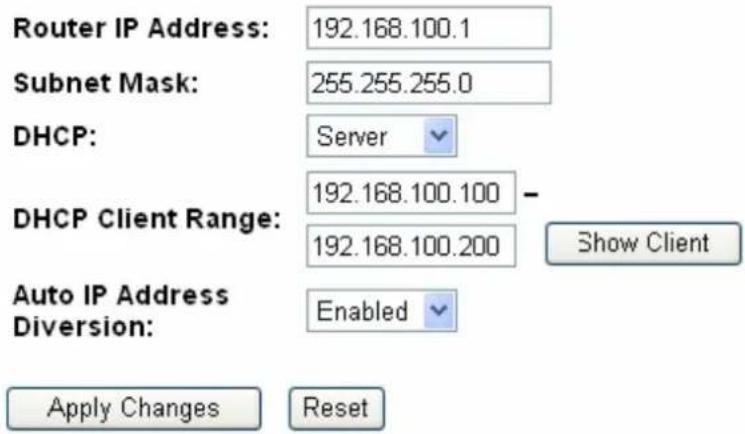
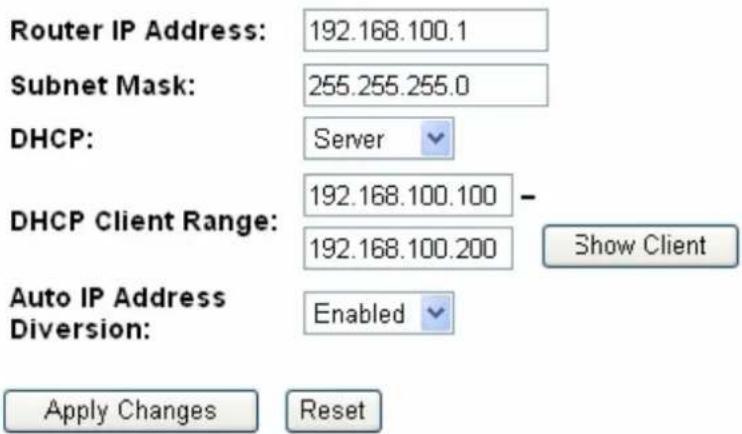
To set up the configuration of LAN interface, private IP of your router LAN port and subnet mask for your LAN segment.
LAN Interface Setup
Configure the parameters for the local area network which connects to the LAN port and Wi-Fi clients of your travel router. Here you can change the settings for IP address, subnet mask, DHCP, etc.
text_image
Router IP Address: 192.168.100.1 Subnet Mask: 255.255.255.0 DHCP: Server DHCP Client Range: 192.168.100.100 - 192.168.100.200 Show Client Auto IP Address Diversion: Enabled Apply Changes Reset| Items Information | |
| IP Address | The IP of your Router LAN port (default 192.168.100.1). |
| Subnet Mask | Subnet Mask of you LAN (default 255.255.255.0). All devices on the network must have the same subnet mask to communicate on the network. |
| Default Gateway | Enter the “IP Address” of the router in your network. |
| DHCP Client Range | DHCP stands for Dynamic Host Configuration Protocol. It is a protocol for assigning dynamic IP addresses “automatically”.This field asks you to specify the DHCP Client IP address range (default 100~200). You can also click the “Show Client” button to list those connected DHCP clients.Note: in Router/Client mode, DHCP Server default setting is enabled, however in AP mode, DHCP Server default setting is disabled. |
* Please click on the Apply Changes button or the Reset button at the bottom to save/reset the configurations.
Active DHCP Client List
This is the window that pops up after clicking the Show Client button. It shows the information of IP address, MAC address and expire time of the DHCP clients that have connected with this device.
Active DHCP Client Table
This table shows the assigned IP address, MAC address and time expired for each DHCP leased client.
| IP Address | MAC Address | Time Expired(s) |
| 192.168.100.100 | 00:0e:a6:03:0d:44 | 862749 |
3.5.2 WAN Interface Setup (Router mode and Client mode)
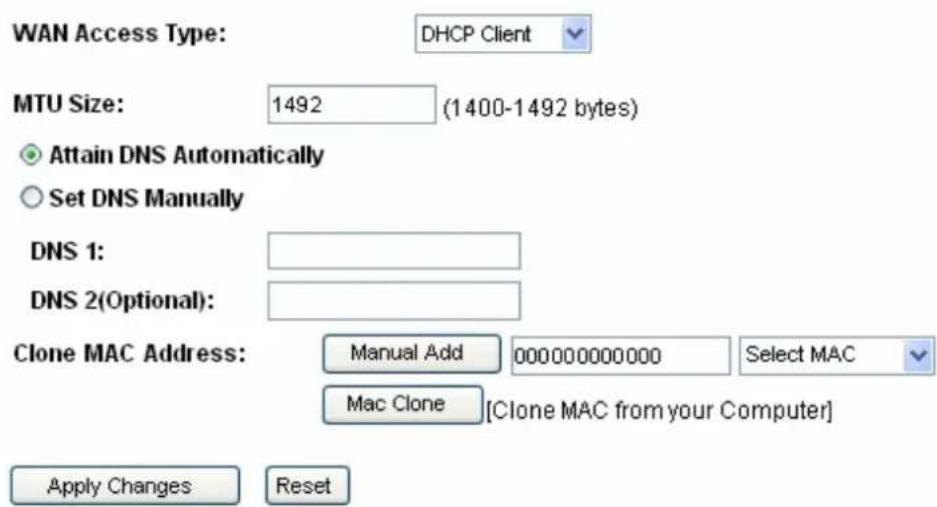
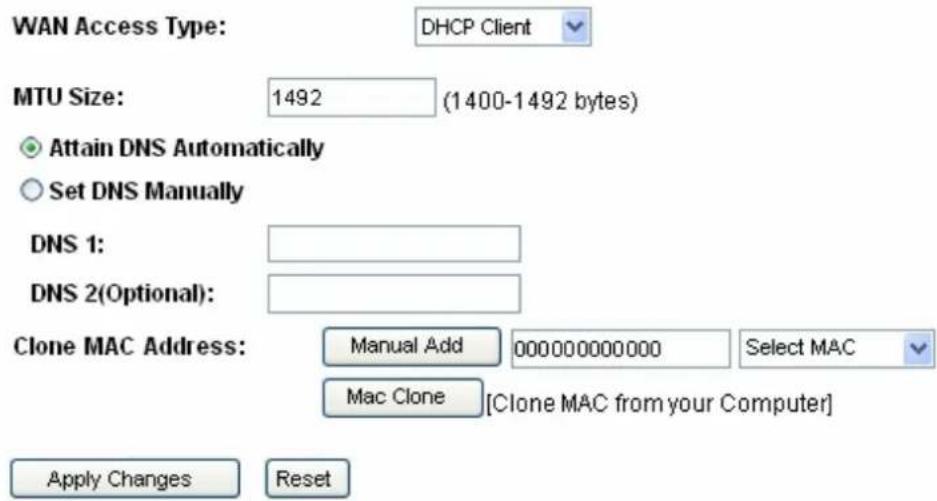
This page allows users to configure those parameters for connecting to Internet. You may select the Internet connection type from the drop list besides "WAN Access Type" and configure the parameters for each mode. There are three modes for your selection: Static, DHCP and PPPoE.
WAN Interface Setup
This page is used to configure the parameters for the Internet network which connect to the WAN port of your travel router. Here you may change the access method to a static IP address, DCHP client, or PPPoE client
text_image
WAN Access Type: DHCP Client MTU Size: 1492 (1400-1492 bytes) Attain DNS Automatically Set DNS Manually DNS 1: DNS 2(Optional): Clone MAC Address: Manual Add 000000000000 Select MAC Mac Clone [Clone MAC from your Computer] Apply Changes ResetHistory MAC Table:
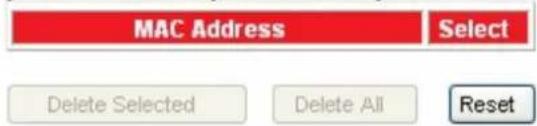
The maximum of the history MAC entry is three. when the table is full, you can't save any MAC unless you delete some mac entries from the MAC table.
text_image
MAC Address Select Delete Selected Delete All ResetItems Information
| WAN Access Type | Select the mode to access the WAN as Static, DHCP Client or PPPoE. |
| MTU Size | To Enable the Maximum Transmission Unit of router setup. Any packet over this number will be chopped up into suitable size before sending. Larger number will enhance the transmission performance.Enter the MTU number in the blank to set the limitation. |
| Attain DNS Automatically | If your DNS provided by ISP is dynamic, choose “Attain DNS automatically. |
| Set DNS Manually | To specify the Domain Name System (DNS). The DNS server translates domain names into IP addresses. Enter the DNS provided by your ISP in DNS 1 and DNS 2. |
| Clone MAC Address | There are two ways to clone MAC address.One way is directory input MAC address in text box. Maybe you need to save the MAC Address, you can click 'Manual Add' button and add it to “History MAC Table” for easily backup; another is click 'MAC Clone' button, then it will copy the MAC address from your network card in the computer.Note: The 'History MAC Table' can save maximum three MAC Addresses. |
| History MAC Table | To Delete the MAC Address you add before, mark the check box in the select item on the right hand and click the “Delete Selected”. If you want to delete all the MAC Addresses, click “Delete All” to remove all of them. |
* Please click on the Apply Changes button or the Reset button at the bottom to save/reset the configurations.
1. Static Mode (fixed IP)
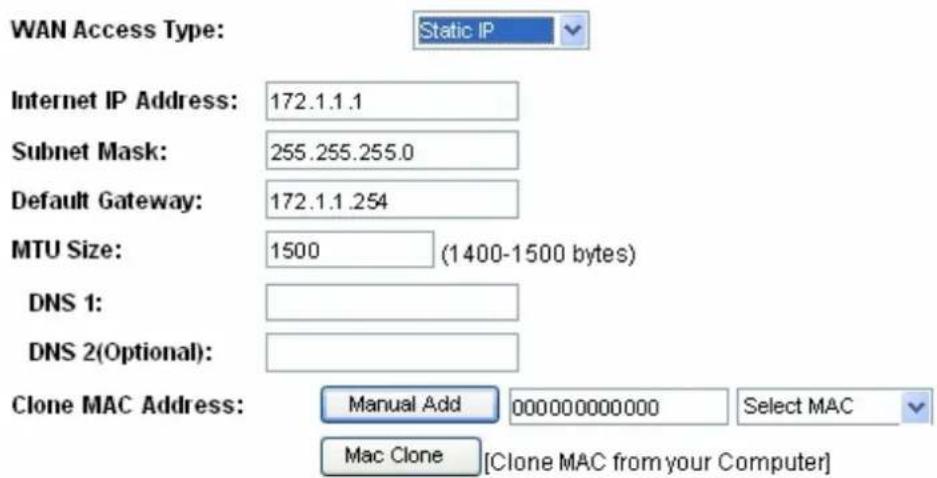
text_image
WAN Access Type: Static IP Internet IP Address: 172.1.1.1 Subnet Mask: 255.255.255.0 Default Gateway: 172.1.1.254 MTU Size: 1500 (1400-1500 bytes) DNS 1: DNS 2(Optional): Clone MAC Address: Manual Add 000000000000 Select MAC Mac Clone [Clone MAC from your Computer]| Items Information | |
| IP Address, Subnet Mask and Default Gateway | Fill in the IP address, Subnet Mask and Default Gateway that provided by your Internet Service Provider (ISP). |
| MTU Size | To Enable the Maximum Transmission Unit of routersetup. Any packet over this number will be chopped up into suitable size before sending. Larger number will enhance the transmission performance.Enter the MTU number in the blank to set the limitation (default 1500 bytes). |
| DNS 1~2 | To specify the Domain Name System (DNS). The DNS server translates domain names into IP addresses. Enter the DNS provided by your ISP in DNS 1 and DNS 2. |
2. DHCP (Auto Config)
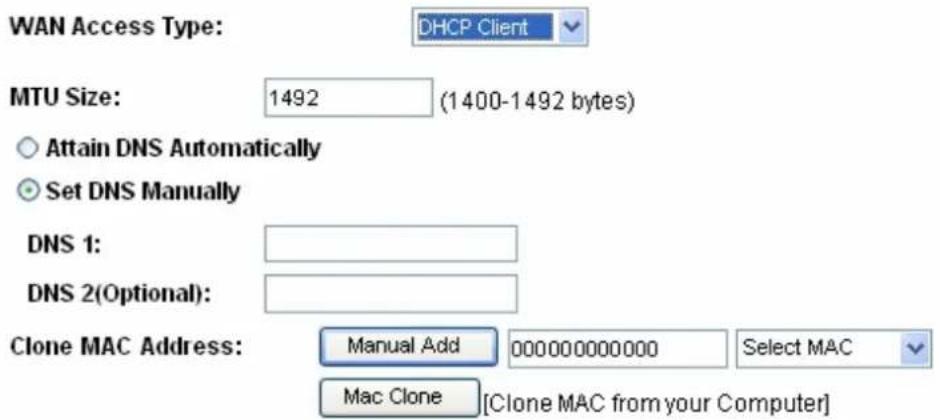
text_image
WAN Access Type: DHCP Client MTU Size: 1492 (1400-1492 bytes) Attain DNS Automatically Set DNS Manually DNS 1: DNS 2(Optional): Clone MAC Address: Manual Add 000000000000 Select MAC Mac Clone [Clone MAC from your Computer]| Items Information | |
| MTU Size | To Enable the Maximum Transmission Unit of Router setup. Any packet over this number will be chopped up into suitable size before sending. Larger number will enhance the transmission performance.Enter your MTU number in the text-box to set the limitation (default 1492 bytes). |
| Attain DNS Automatically | If your DNS provide by ISP is dynamic, choose “Attain DNS automatically. |
| Set DNS Manually | To specify the Domain Name System (DNS). The DNS server translates domain names into IP addresses. Enter the DNS provided by your ISP in DNS 1 and DNS 2. |
3. PPPoE (ADSL)
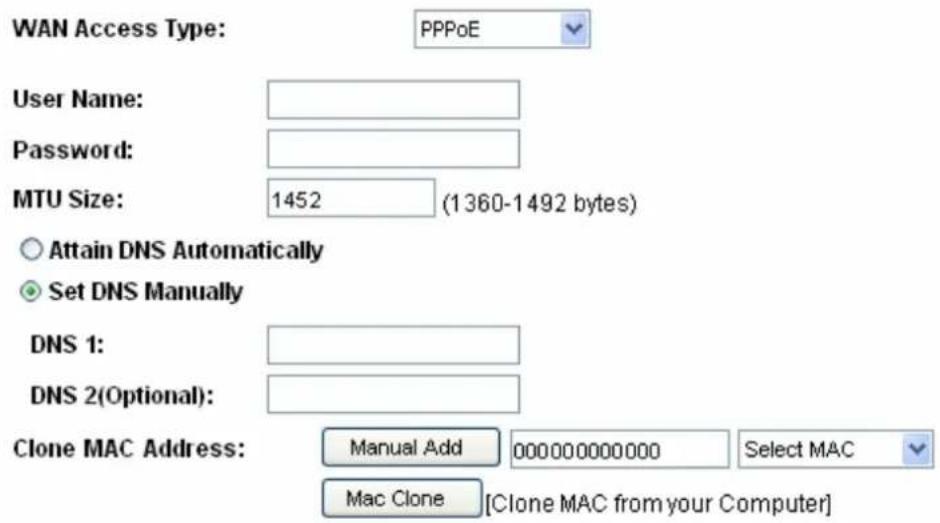
text_image
WAN Access Type: PPPoE User Name: Password: MTU Size: 1452 (1360-1492 bytes) Attain DNS Automatically Set DNS Manually DNS 1: DNS 2(Optional): Clone MAC Address: Manual Add 000000000000 Select MAC Mac Clone [Clone MAC from your Computer]| Items Information | |
| User Name&Password | Fill in the User Name and password that provided by your ISP. |
| MTU Size | To Enable the Maximum Transmission Unit of router setup.Any packet over this number will be chopped up into suitable size before sending. Larger number will enhance the transmission performance.Enter your MTU number in the text-box to set the limitation (default 1452 bytes). |
| Attain DNS Automatically | If your DNS provided by ISP is dynamic, choose “Attain DNS automatically. |
| Set DNS Manually | To specify the Domain Name System (DNS). The DNS server translates domain names into IP addresses. Enter the DNS provided by your ISP in DNS 1 and DNS 2. |
3.6 Firewall Settings (Router mode and Client mode)
MAC Filtering
The Wireless Router could filter the outgoing packets for security or management consideration.
MAC Filtering
Entries in this table are used to restrict the passage of certain types of data packets from your local network to the Internet through the travel router. Use of such filters can be helpful in securing or restricting your local network.
Enable MAC Filtering
MAC Address: Comment:
Apply Changes Reset
Current Filter Table:
MAC Address
Comment
Select
Delete Selected
Delete All
Reset
| Items Information | |
| Enable MAC Filtering | Mark to enable the configuration, and clear to disable. |
| MAC Address | Fill in the MAC address of wireless stations you want to forbid to access the Internet through the Gateway. |
| Comment | Input any text to describe this mapping. |
| Current Filter Table | Lists the MAC Filter Settings you have added before. To delete the settings on the list, click the check box in the select item and click the “Delete Selected”. If you want to delete all the MAC addresses, click “Delete All” to remove all of them. |
Please click on the Apply Changes button or the Reset button at the bottom to save/reset the configurations.
3.7 Management
3.7.1 Status
This information page shows the current status and basic settings of this device. You could check if the parameters match your configuration.
Status
Current status and basic settings of the travel router.
| System Information | |
| Uptime | 0day:0h:4m:38s |
| Firmware Version | VER:1.01 |
| Firmware Build Time | Fri Nov 26 11:01:35 CST 2010 |
| Operation Mode | Router[Gateway] |
| Wireless Local Network | |
| Network Band | 2.4 GHz (B+G+N) |
| SSID(Name) | 1T1R-Travel-Router |
| Channel Humber | 11 |
| Encryption | Disabled |
| BSSID | 00:e0:4c:19:86:c1 |
| Associated Clients | 0 |
| Local Network | |
| Router IP Address | 192.168.100.1 |
| Subnet Mask | 255.255.255.0 |
| DHCP | Server |
| Auto IP Address Diversion | Enabled |
| Local MAC Address | 00:e0:4c:81:96:c1 |
| Internet Connection | |
| Connection Type | Getting IP from DHCP server... |
| Internet IP Address | 0.0.0.0 |
| Subnet Mask | 0.0.0.0 |
| Default Gateway | 0.0.0.0 |
| Internet MAC Address | 00:e0:4c:81:96:c9 |
3.7.2 Statistics
This page shows users the information of data transfer, and monitors the status of this router including receiving and sending packets. To see the latest report, click Refresh button.
Statistics
Packet counts for wired and wireless Ethernet connections.
| Wireless LAN | Sent Packets | 81 |
| Received Packets | 14432 | |
| Ethernet LAN | Sent Packets | 855 |
| Received Packets | 551 | |
| Ethernet WAN | Sent Packets | 66 |
| Received Packets | 0 |
Refresh
3.7.3 Log
This System Log page shows the information of the current activities on the router. To enable system log function:
- Mark the "Enable Log" checkbox.
- To see all information of the system, select the "system all" checkbox.
To see wireless information only, select the "wireless" checkbox.
- Click the Apply Changes button to activate. You could also click the Refresh button to
refresh the log information or click the Clear button to clean the log table.
System Log
Set remote log server parameters and view the system log.
Enable Log
□ system all
wireless
Apply Changes

natural_image
Blank white image with a thin border and corner handles (no text or symbols)Refresh
Clear
3.7.4 Upgrade Firmware
Sometimes a new firmware may be issued to upgrade the system of this device. You could upgrade the firmware you got in this page. To upgrade the firmware, please click the Browse... button, locate the firmware in your computer and then click the Upload button to execute.
Upgrade Firmware
Upgrade the travel router firmware.
PLEASE NOTE: Do not power off the device during the upgrade process, as this may cause damage to the device.
Firmware Version:
Select File:
VER:1.01

Upload
Reset
3.7.5 Save/Reload Setting
The Save/Reload Setting page allows users to save and upload the configuration settings of the device or restore the factory default configuration.
Save/Reload Settings
Save the current settings to a backup file, or reload the setting from a previously saved file. You can also restore the travel router to the factory defaults.
Save Settings to File:
Save...
Load Settings from File:
Browse... Upload
Reset Settings to Default:
Reset
| Items Information | |
| Save Settings to File | Click the Save... button to save the currently configure settings. |
| Load Settings from File | Click Browse... to select the file that you save, and then click Upload to start to update the system configuration settings. Please wait until it is complete. |
| Reset Settings to Default | Click Reset to start to load default settings. |
3.7.6 Password
To set up the Administrator Account information, enter the Username, New password, and reenter the password on the text box. Don't forget to click the Apply Changes to save the configuration.
Password Setup
Set or change the travel router ADMINISTRATOR user name and password. Leaving the user name and password fields empty will disable login protection.
User Name:

New Password:

Confirmed Password:

Apply Changes
Reset
3.7.7 Logout
Click Apply Change then you will save the settings and log off the management interface.
Logout
This page is used to logout of the travel router.
Are you certain you want to logout?
Apply Change
Appendix A: Product Specifications
| Standard | IEEE 802.11n, IEEE 802.11g, IEEE 802.11b, IEEE 802.3, IEEE 802.3u |
| Interface | LAN: One 10/100Mbps RJ-45 portWAN: One 10/100Mbps RJ-45 portOne WPS/RESET buttonOne slide switch to control AP/Router/Client modeOne USB DC JACK |
| Antenna(W142B/W142D only) | Antenna type: DipoleAntenna connector type: FixedAntenna standard: 1.2dBi |
| WAN Connection | Ethernet 10/100 Mbps |
| Cable Connections | RJ-45 (10BASE-T): Category 3,4,5 UTPRJ-45 (100BASE-TX): Category 5 UTP |
| Transmission Mode | Auto-Negotiation (Full-duplex, Half-duplex) |
| Security | 64/128-bit WEP, WPA, WPA2, WPA2-Mixed |
| Network Data Rate | 802.11b: 1,2,5.5, and 11Mbps802.11g: 6,9,12,18,24,36,48 and 54Mbps802.11n: up to 150Mbps |
| Receiver Sensitivity | 802.11n Typical -68 dBm802.11g Typical -73 dBm802.11b Typical -84 dBm |
| Transmit Power | 16dBm typically @ 802.11b14dBm typically @ 802.11g13dBm typically @ 802.11n |
| LED indications | 1*WAN, 1*LAN, 1*WLAN, 1*WPS, 1*PWR |
| Channel | USA 11, Europe 13, Japan 14 |
| Range Coverage | Indoor 35~100 metersOutdoor 100~300 meters |
| Temperature | Operating: 0°C ~ 40°C (32°~104°F)Storage: -20°C ~ 70°C (-4°~158°F) |
| Humidity | Operating: 10% ~ 90% RH, non-condensingStorage: 5%~90% RH, non-condensing |
| Certification | FCC, CE, VCCI Class B |
Appendix B: Glossary
- 802.11b - The 802.11b standard specifies a wireless networking at 11 Mbps using direct-sequence spread-spectrum (DSSS) technology and operating in the unlicensed radio spectrum at 2.4GHz, and WEP encryption for security. 802.11b networks are also referred to as Wi-Fi networks.
- 802.11g - specification for wireless networking at 54 Mbps using direct-sequence spread-spectrum (DSSS) technology, using OFDM modulation and operating in the unlicensed radio spectrum at 2.4GHz, and backward compatibility with IEEE 802.11b devices, and WEP encryption for security.
- 802.11n - 802.11n builds upon previous 802.11 standards by adding MIMO (multiple-input multiple-output). MIMO uses multiple transmitter and receiver antennas to allow for increased data throughput via spatial multiplexing and increased range by exploiting the spatial diversity, perhaps through coding schemes like Alamouti coding. The Enhanced Wireless Consortium (EWC) was formed to help accelerate the IEEE 802.11n development process and promote a technology specification for interoperability of next-generation wireless local area networking (WLAN) products.
- DHCP (Dynamic Host Configuration Protocol) - A protocol that automatically configure the TCP/IP parameters for the all the PC(s) that are connected to a DHCP server
- DNS (Domain Name System) – An Internet Service that translates the names of websites into IP addresses.
- Domain Name - A descriptive name for an address or group of addresses on the Internet.
- DSL (Digital Subscriber Line) - A technology that allows data to be sent or received over existing traditional phone lines.
- ISP (Internet Service Provider) - A company that provides access to the Internet.
- MTU (Maximum Transmission Unit) - The size in bytes of the largest packet that can be transmitted.
- NAT (Network Address Translation) - NAT technology translates IP addresses of a local area network to a different IP address for the Internet.
- PPPoE (Point to Point Protocol over Ethernet) - PPPoE is a protocol for connecting remote hosts to the Internet over an always-on connection by simulating a dial-up connection.
- SSID - A Service Set Identification is a thirty-two character (maximum) alphanumeric key identifying a wireless local area network. For the wireless devices in a network to communicate with each other, all devices must be configured with the same SSID. This is typically the configuration parameter for a wireless PC card. It corresponds to the ESSID in the wireless Access Point and to the wireless network name.
- WEP (Wired Equivalent Privacy) - A data privacy mechanism based on a 64-bit or 128-bit or 152-bit shared key algorithm, as described in the IEEE 802.11 standard.
● Wi-Fi - A trade name for the 802.11b wireless networking standard, given by the Wireless
Ethernet Compatibility Alliance (WECA, see http://www.wi-fi.net), an industry standards group promoting interoperability among 802.11b devices.
- WLAN (Wireless Local Area Network) - A group of computers and associated devices communicate with each other wirelessly, which network serving users are limited in a local area.
IEEE 802.11n Wireless Serien
Wireless 11n 1T1R Router
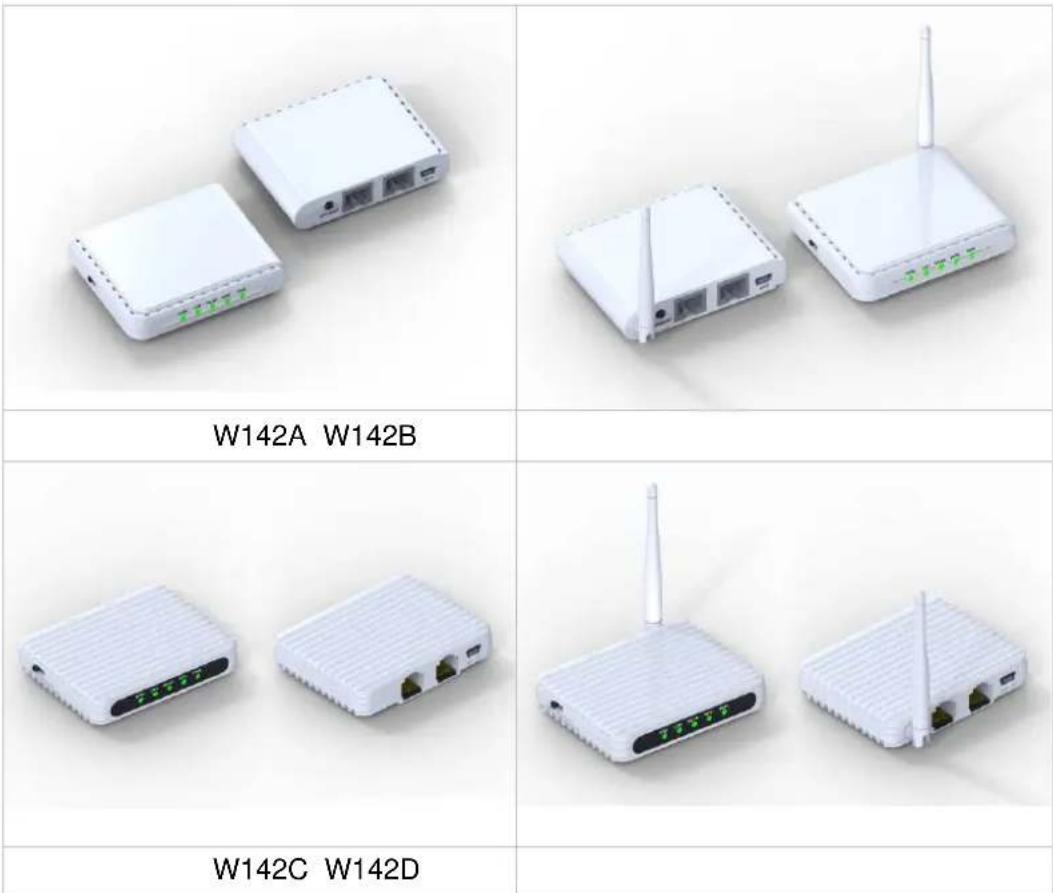
text_image
W142A W142B W142C W142DBedienungsanleitung
Version 2.1
Datum: 17. September 2010
text_image
Windows Catalog Windows Update Programs Documents Settings Search Help and Support Run... Log Off jeff... Turn Off Computer... control panel Network Connections Printers and Faxes Taskbar and Start Menu starttext_image
Network Connections File Edit View Favorites Tools Advanced Help Back Search Folders Address Network Connections Internet Gateway Internet Connection Disabled Internet Connection LAN or High-Speed Internet Local Area Connection Enabled Disable Status Repair Bridge Connections Create Shortcut Delete Rename Properties Other Places Control Panel My Network Places My Documents My Computer Details Local Area Connection LAN or High-Speed Internet Enabledtext_image
Local Area Connection Properties General Authentication Advanced Connect using: Realtek RTL8139 Family PCI Fast Ethernet NIC Configure... This connection uses the following items: QoS Packet Scheduler AEGIS Protocol (IEEE 802.1v) v3.5.3.0 Internet Protocol (TCP/IP) Install... Uninstall Properties Description Transmission Control Protocol/Internet Protocol. The default wide area network protocol that provides communication across diverse interconnected networks. Show icon in notification area when connected OK Canceltext_image
Internet Protocol (TCP/IP) Properties General You can get IP settings assigned automatically if your network supports this capability. Otherwise, you need to ask your network administrator for the appropriate IP settings. Obtain an IP address automatically Use the following IP address: IP address: 192 . 168 . 100 . 2 Subnet mask: 255 . 255 . 255 . 0 Default gateway: 192 . 168 . 100 . 1 Obtain DNS server address automatically Use the following DNS server addresses: Preferred DNS server: 202 . 96 . 128 . 86 Alternate DNS server: 202 . 96 . 128 . 166 Advanced... OK Canceltext_image
Connect to 192.168.100.1 The server 192.168.100.1 at Travel Router requires a username and password. Warning: This server is requesting that your username and password be sent in an insecure manner (basic authentication without a secure connection). User name: admin Password: | Remember my password OK Canceltext_image
LONGSHINE® IEEE 802.11n Wireless Router Mode Site contents: Setup Wizard Wireless TCP/IP Settings Firewall Management Logout Status Current status and basic settings of the travel router. System Information Uptime 0day:0h:1m:13s Firmware Version VER:1.01 Firmware Build Time Fri Nov 26 11:01:35 CST 2010 Operation Mode Router[Gateway] Wireless Local Network Network Band 2.4 GHz (B+G+N) SSID(Name) 1T1R-Travel-Router Channel llumber 6 Encryption Disabled BSSID 00:e0:4c:19:86:c1 Associated Clients 0 Local Network Router IP Address 192.168.100.1 Subnet Mask 255.255.255.0 DHCP Server Auto IP Address Diversion Enabled Local MAC Address 00:e0:4c:81:96:c1 Internet Connection Connection Type Getting IP from DHCP server... Internet IP Address 0.0.0.0 Subnet Mask 0.0.0.0 Default Gateway 0.0.0.0 Internet MAC Address 00:e0:4c:81:96:c9AP-Modus:

LONGSHINE®
IEEE 802.11n Wireless AP Mode

Site contents
Setup Wizard
Wireless
TCP/IP Settings
Management
Logout
Status
Current status and basic settings of the travel router.
System Information
| Uptime | 0day:0h:1m:18s |
| Firmware Version | VER:1.01 |
| Firmware Build Time | Fri Nov 26 11:01:35 CST 2010 |
| Operation Mode | AP[Bridge] |
Wireless Local Network
| Network Band | 2.4 GHz (B+G+N) |
| SSID(Name) | 1T1R-Travel-Router |
| Channel Number | 6 |
| Encryption | Disabled |
| BSSID | 00:e0:4c:19:86:c1 |
| Associated Clients | 0 |
Local Network
| Router IP Address | 192.168.100.1 |
| Subnet Mask | 255.255.255.0 |
| DHCP | Client |
| Auto IP Address Diversion | Enabled |
| Local MAC Address | 00:e0:4c:81:96:c1 |
Client-Modus:
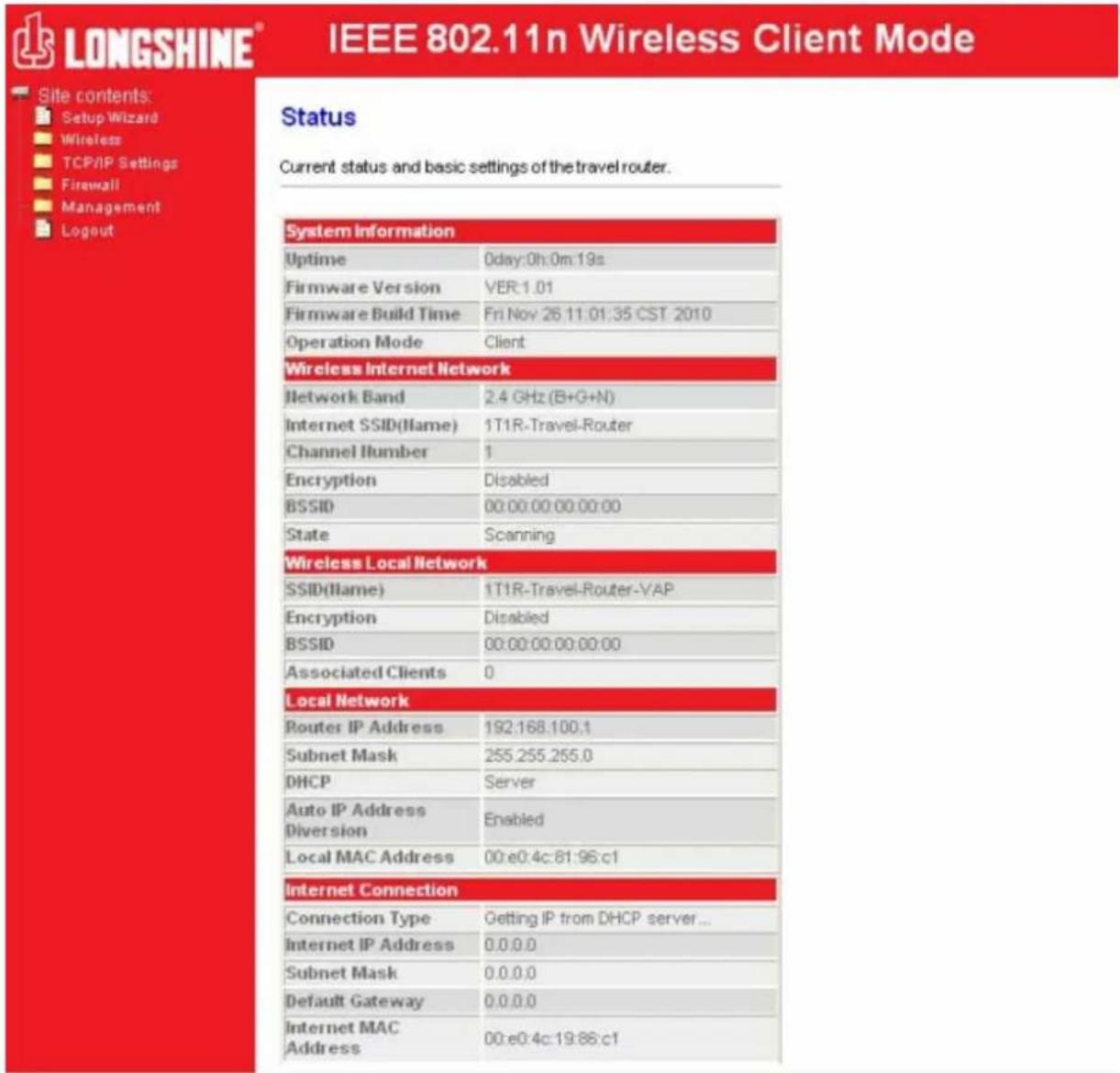
text_image
LONGSHINE® IEEE 802.11n Wireless Client Mode Site contents: Setup Wizard Wireless TCP/IP Settings Firewall Management Logout Status Current status and basic settings of the travel router. System Information Uptime 0day:0h:0m:19s Firmware Version VER:1.01 Firmware Build Time Fri Nov 26:11:01:35 CST 2010 Operation Mode Client Wireless Internet Network Network Band 2.4 GHz (B+G+N) Internet SSID(Name) 1T1R-Travel-Router Channel Humber 1 Encryption Disabled BSSID 00:00:00:00:00:00 State Scanning Wireless Local Network SSID(Name) 1T1R-Travel-Router-VAP Encryption Disabled BSSID 00:00:00:00:00:00 Associated Clients 0 Local Network Router IP Address 192:168.100.1 Subnet Mask 255.255.255.0 DHCP Server Auto IP Address Enabled Diversion Local MAC Address 00:e0:4c:61:96:c1 Internet Connection Connection Type Getting IP from DHCP server... Internet IP Address 0.0.0.0 Subnet Mask 0.0.0.0 Default Gateway 0.0.0.0 Internet MAC Address 00:e0:4c:19:86:c1This setup wizard will help you to configure the travel router. Please follow the directions step-by-step.
Welcome to Setup Wizard.
The Wizard will guide you the through following steps. Begin by clicking on Next.
- Setup LAN Interface
- Setup WAN Interface
- Wireless Network Basic Settings
- Wireless Security Setup
Next>>
This page is used to configure the parameters for local area network which connects to the LAN port of your Access Point. Here you may change the setting for Router IP address, subnet mask, etc..
Router IP Address: 192.168.100.1
Subnet Mask: 255.255.255.0
Cancel
<<Back
Next>>
Configure the parameters for the Internet network which connects to the WAN port of your travel router. Here you may change the access method to a static IP address, DHCP client, or PPPoE client.
WAN Access Type:
DHCP Client
Cancel
<<Back
Next>>
Wireless Network Basic Settings
This page is used to configure the parameters for wireless LAN clients which may connect to your Access Point.
□ Disable Wireless Network
Network Band: 2.4 GHz (B+G+N)
SSID(Router Name): 1T1R-Travel-Router
Channel Width: 40MHz
Channel Number: Auto
Cancel
<<Back
Next>>
Wireless Security Setup
This page allows you to setup the wireless security. Turn on WEP or WPA by using Encryption Keys could prevent any unauthorized access to your wireless network.
Encryption:
None

Cancel
<<Back
Finished
Wireless Basic Settings
Configure the parameters for wireless LAN clients connecting to the travel router. You can also modify the wireless security settings and network parameters.
□ Disable Wireless Network
Network Band:
2.4 GHz (B+G+N)
Multiple AP
SSID(Router Name):
1T1R-Travel-Router
Channel Width:
40MHz
Channel Number:
Auto
Country:
USA(FCC)
Broadcast SSID:
Enabled
Associated Clients:
Show Active Clients
Apply Changes
Reset
This page shows and updates the wireless setting for multiple APs.
| No. | Enable | SSID | Broadcast SSID | Active Client List |
| SSID2 | 1T1R-Travel-Rou | Enabled | Show | |
| SSID3 | 1T1R-Travel-Rou | Enabled | Show | |
| SSID4 | 1T1R-Travel-Rou | Enabled | Show |
Apply Changes
Reset
Active Wireless Client Table - AP1
This table shows the MAC address, transmission, reception packet counters and encrypted status for each associated wireless client.
| MAC Address | Mode | Tx Packet | Rx Packet | Tx Rate (Mbps) | Power Saving | Expired Time (s) |
| None | --- | --- | --- | --- | --- | --- |
Refresh
Close
Active Wireless Client Table
This table shows the MAC address, transmission, reception packet counters and encrypted status for each associated wireless client.

text_image
MAC Address Mode Tx Packet Rx Packet Tx Rate (Mbps) Power Saving Expired Time (s) None --- --- --- --- --- --- Refresh CloseWireless Advanced Settings
For technically advanced users who have a sufficient knowledge of wireless LANs. These settings should not be modified unless you know the effect the changes will have on your travel router.
text_image
Fragment Threshold: 2346 (256-2346) RTS Threshold: 2347 (0-2347) Beacon Interval: 100 (20-1C24 ms) Preamble Type: ● Long Preamble ○ Short Preamble RF Output Power: ● 100% ○ 70% ○ 50% ○ 35% ○ 15% Apply Changes ResetWireless Security Setup
Configure the wireless security for the travel router. Enable WEP or WPA encryption to prevent unauthorized access to your wireless network.
Select SSID: 1T1R-Travel-Router Apply Changes Reset
Encryption:
WPA2-Mixed
WPA Cipher Suite:
√ TKIP □ AES
WPA2 Cipher Suite:
□ TKIP √ AES
Pre-
Shared Key Format:
Passphrase
Pre-Shared Key:
The image contains no text or characters. The horizontal line is a stylistic or background element and must be ignored according to the rules.
Show Password:
□
Wireless Security Setup
Configure the wireless security for the travel router. Enable WEP or WPA encryption to prevent unauthorized access to your wireless network.
Select SSID:
1T1R-Travel-Router

Apply Changes
Reset
Encryption:

Wireless Security Setup
Configure the wireless security for the travel router. Enable WEP or WPA encryption to prevent unauthorized access to your wireless network.
Select SSID:
1T1R-Travel-Router

Apply Changes
Reset
Encryption:
WEP

Authentication:

Open System ○ Shared Key ● Auto
Key Length:
64-bit

Key Format:
Hex (10 characters)

Encryption Key:
Show Password:

Wireless Security Setup
Configure the wireless security for the travel router. Enable WEP or WPA encryption to prevent unauthorized access to your wireless network.
Select SSID:
1T1R-Travel-Router

Apply Changes
Reset
Encryption:
WPA-PSK

WPA Cipher Suite:
TKIP

Pre-
Shared Key Format:
Passphrase

Pre-Shared Key:
Show Password:

Wireless Security Setup
Configure the wireless security for the travel router. Enable WEP or WPA encryption to prevent unauthorized access to your wireless network.
Select SSID:
1T1R-Travel-Router

Apply Changes
Reset
Encryption:
WPA2-PSK

WPA2 Cipher Suite:
□TKIP

Pre-
Shared Key Format:
Passphrase

Pre-Shared Key:
Show Password:


Wireless Security Setup
Configure the wireless security for the travel router. Enable WEP or WPA encryption to prevent unauthorized access to your wireless network.
Select SSID: 1T1R-Travel-Router Apply Changes Reset
text_image
Encryption: WPA2-Mixed WPA Cipher Suite: ✓ TKIP □ AES WPA2 Cipher Suite: □ TKIP ✓ AES Pre- Shared Key Format: Passphrase Pre-Shared Key: Show Password: □Wireless Access Control
"Allow Listed", wireless clients with a MAC address listed in the access control list will be able to connect to the travel router. "Deny Listed" wireless clients will not be able to connect to the travel router.
text_image
Wireless Access Control Mode: Disable MAC Address: Comment: Apply Changes ResetCurrent Access Control List:

text_image
MAC Address Comment Select Delete Selected Delete All ResetThis page provides tool to scan the wireless network. If any Access Point or IBSS is found, you could choose to connect it manually when client mode is enabled.
Site Survey
| SSID | BSSID | Channel | Type | Encrypt | Signal | Select |
| None |
Next>>
This page provides tool to scan the wireless network. If any Access Point or IBSS is found, you could choose to connect it manually when client mode is enabled.
Site Survey
| SSID | BSSID | Channel | Type | Encrypt | Signal | Select |
| 1T1R-Router-1 | 00:08:54:6a:95:28 | 9(B+G+N) | AP | no | 64 | ○ |
| notYours | 00:00:00:00:00:22 | 1(B+G+N) | AP | WPA-PSKWPA2-PSK | 48 | ○ |
| ZuniConnect | 00:25:9c:09:c0:cb | 6(B+G+N) | AP | no | 42 | ○ |
| shawn test ap | 00:e0:4c:81:aa:99 | 1(B+G+N) | AP | WPA2-PSK | 40 | ○ |
| W440A | 00:e0:7d:c0:c7:d1 | 1 (B+G) | AP | WPA-PSK | 38 | ○ |
| IkjsIfksjdlf | 12:36:54:78:90:12 | 11(B+G+N) | AP | no | 34 | ○ |
| chenlibing-gw | 00:e0:4c:00:00:b1 | 11(B+G+N) | AP | no | 32 | ○ |
| E-ZY.NET_EZ1 | 00:11:7c:ff:33:e0 | 11 (B+G) | AP | WEP | 14 | ○ |
| vip room | 00:e0:4c:81:26:b1 | 11(B+G+N) | AP | no | 10 | ○ |
Next>>
This page provides tool to scan the wireless network If any Access Point or IBSS is found, you could choose to connect it manually when client mode is enabled.
Site Survey
| SSID | BSSID | Channel | Type | Encrypt | Signal | Select |
| 1T1R-Router-1 | 00:08:54:6a:95:28 | 9(B+G+N) | AP | no | 64 | |
| notYours | 00:00:00:00:00:22 | 1(B+G+N) | AP | WPA-PSK/WPA2-PSK | 48 | |
| ZuniConnect | 00:25:9c:09:c0:cb | 6(B+G+N) | AP | no | 42 | |
| shawn test ap | 00:e0:4c:81:aa:99 | 1(B+G+N) | AP | WPA2-PSK | 40 | |
| W440A | 00:e0:7d:c0:c7:d1 | 1 (B+G) | AP | WPA-PSK | 38 | |
| Ikjslfksjdlf | 12:36:54:78:90:12 | 11(B+G+N) | AP | no | 34 | |
| chenlibing-gw | 00:e0:4c:00:00:b1 | 11(B+G+N) | AP | no | 32 | |
| E-ZY.NET_EZ1 | 00:11:7c:ff:33:e0 | 11 (B+G) | AP | WEP | 14 | |
| vip room | 00:e0:4c:81:26:b1 | 11(B+G+N) | AP | no | 10 |
Next>>
This page provides tool to scan the wireless network. If any Access Point or IBSS is found, you could choose to connect it manually when client mode is enabled.
Encryption: WPA2
Authentication Mode:
○ Enterprise (RADIUS) ● Personal (Pre-Shared Key)
WPA2 Cipher Suite:
□ TKIP √ AES
Pre-Shared Key Format:
Passphrase
Pre-Shared Key:
The image contains no text or characters. It is a blank rectangular box with no visible content, figures, or markings. Therefore, there is no OCR result to generate.
<<Back
Connect
This page provides tool to scan the wireless network. If any Access Point or IBSS is found, you could choose to connect it manually when client mode is enabled.
Please wait...
Connect successfully!
OK
Setup Wizard
Wireless
Basic Settings
Advanced Settings
Security
Access Control
Site Survey
WPS
Status
Statistics
Log
Upgrade Firmware
Save/Reload Settings
Password
TCP/IP Settings
Firewall
Managemand
Logout
Status
Current status and basic settings of the travel router.
System Information
| Uptime | 0day:0h:11m:17s |
| Firmware Version | VER:1.01 |
| Firmware Build Time | Fri Nov 26 11:01:35 CST 2010 |
| Operation Mode | Client |
Wireless Internet Network
| Network Band | 2.4 GHz (B+G+N) |
| Internet SSID(IIame) | shawntest ap |
| Channel llumber | 1 |
| Encryption | WPA2 |
| BSSID | 00:e0:4c:81:aa:99 |
| State | Connected |
Wireless Local Network
| SSID(IIame) | 1T1R-Travel-Router-VAP |
| Encryption | Disabled |
| BSSID | 00:e0:4c:19:86:c1 |
| Associated Clients | 0 |
Local Network
| Router IP Address | 192.168.100.1 |
| Subnet Mask | 255.255.255.0 |
| DHCP | Server |
| Auto IP Address Diversion | Enabled |
| Local MAC Address | 00:e0:4c:81:96:c1 |
Internet Connection
| Connection Type | DHCP |
| Internet IP Address | 192.168.52.106 |
| Subnet Mask | 255.255.255.0 |
| Default Gateway | 192.168.52.1 |
| Internet MAC Address | 00:e0:4c:19:86:c1 |
Wi-Fi Protected Setup
Change the WPS (Wi-Fi Protected Setup) settings for the travel router. This feature lets you automatically synchronize wireless client settings and quickly connect with the travel router.
□ Disable WPS
WPS Status:
- Configured ○ UnConfigured
Reset to UnConfigured
Self-PIN Number:
83035234
Push Button Configuration:
Start PBC
Apply Changes
Reset
Current Key Info:
| Authentication | Encryption | Key |
| WPA2 PSK | AES | 1234567890 |
Client PIN Number:
Start PIN
Wi-Fi Protected Setup
Change the WPS (Wi-Fi Protected Setup) settings for the travel router. This feature lets you automatically synchronize wireless client settings and quickly connect with the travel router.

Disable WPS
Self-PIN Number:
83035234
PIN Configuration:
Start PIN
Push Button Configuration:
Start PBC
Apply Changes
Reset
Configure the parameters for the local area network which connects to the LAN port and Wi-Fi clients of your travel router. Here you can change the settings for IP address, subnet mask, DHCP, etc.
text_image
Router IP Address: 192.168.100.1 Subnet Mask: 255.255.255.0 DHCP: Server DHCP Client Range: 192.168.100.100 - 192.168.100.200 Show Client Auto IP Address Diversion: Enabled Apply Changes ResetThis table shows the assigned IP address, MAC address and time expired for each DHCP leased client.
| IP Address | MAC Address | Time Expired(s) |
| 192.168.100.100 | 00:0e:a6:03:0d:44 | 862749 |

This page is used to configure the parameters for the Internet network which connect to the WAN port of your travel router. Here you may change the access method to a static IP address, DCHP client, or PPPoE client
text_image
WAN Access Type: DHCP Client MTU Size: 1492 (1400-1492 bytes) Attain DNS Automatically Set DNS Manually DNS 1: DNS 2(Optional): Clone MAC Address: Manual Add 000000000000 Select MAC Mac Clone [Clone MAC from your Computer] Apply Changes ResetHistory MAC Table:
The maximum of the history MAC entry is three. when the table is full, you can't save any MAC unless you delete some mac entries from the MAC table.
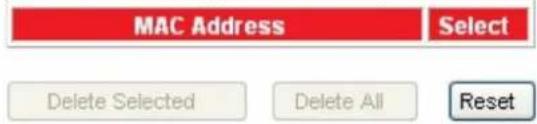
text_image
MAC Address Select Delete Selected Delete All Resettext_image
WAN Access Type: Static IP Internet IP Address: 172.1.1.1 Subnet Mask: 255.255.255.0 Default Gateway: 172.1.1.254 MTU Size: 1500 (1400-1500 bytes) DNS 1: DNS 2(Optional): Clone MAC Address: Manual Add 000000000000 Select MAC Mac Clone [Clone MAC from your Computer]text_image
WAN Access Type: DHCP Client MTU Size: 1492 (1400-1492 bytes) Attain DNS Automatically Set DNS Manually DNS 1: DNS 2(Optional): Clone MAC Address: Manual Add 000000000000 Select MAC Mac Clone [Clone MAC from your Computer]text_image
WAN Access Type: PPPoE User Name: Password: MTU Size: 1452 (1360-1492 bytes) Attain DNS Automatically Set DNS Manually DNS 1: DNS 2(Optional): Clone MAC Address: Manual Add 000000000000 Select MAC Mac Clone [Clone MAC from your Computer]Entries in this table are used to restrict the passage of certain types of data packets from your local network to the Internet through the travel router. Use of such filters can be helpful in securing or restricting your local network.

Enable MAC Filtering
MAC Address:
Comment:
Apply Changes
Reset
Current Filter Table:
MAC Address
Comment
Select
Delete Selected
Delete All
Reset
Current status and basic settings of the travel router.
| System Information | |
| Uptime | 0day:0h:4m:38s |
| Firmware Version | VER:1.01 |
| Firmware Build Time | Fri Nov 26 11:01:35 CST 2010 |
| Operation Mode | Router[Gateway] |
| Wireless Local Network | |
| Network Band | 2.4 GHz (B+G+N) |
| SSID(Name) | 1T1R-Travel-Router |
| Channel Humber | 11 |
| Encryption | Disabled |
| BSSID | 00:e0:4c:19:86:c1 |
| Associated Clients | 0 |
| Local Network | |
| Router IP Address | 192.168.100.1 |
| Subnet Mask | 255.255.255.0 |
| DHCP | Server |
| Auto IP Address Diversion | Enabled |
| Local MAC Address | 00:e0:4c:81:96:c1 |
| Internet Connection | |
| Connection Type | Getting IP from DHCP server... |
| Internet IP Address | 0.0.0.0 |
| Subnet Mask | 0.0.0.0 |
| Default Gateway | 0.0.0.0 |
| Internet MAC Address | 00:e0:4c:81:96:c9 |
3.7.2 Statistik
Packet counts for wired and wireless Ethernet connections.
| Wireless LAN | Sent Packets | 81 |
| Received Packets | 14432 | |
| Ethernet LAN | Sent Packets | 855 |
| Received Packets | 551 | |
| Ethernet WAN | Sent Packets | 66 |
| Received Packets | 0 |
Refresh
3.7.3 Log
natural_image
Blank white image with a thin border and corner handles (no text or symbols)Refresh
Clear
3.7.4 Upgrade Firmware
Upgrade the travel router firmware.
PLEASE NOTE: Do not power off the device during the upgrade process, as this may cause damage to the device.
Firmware Version:
VER:1.01
Select File:

Upload
Reset
Save the current settings to a backup file, or reload the setting from a previously saved file. You can also restore the travel router to the factory defaults.
Save Settings to File: Save...
Load Settings from File:
Reset Settings to Default:

Reset
Set or change the travel router ADMINISTRATOR user name and password. Leaving the user name and password fields empty will disable login protection.
User Name:

New Password:

Confirmed

Password:
Apply Changes
Reset
3.7.7 Logout
This page is used to logout of the travel router.
Are you certain you want to logout?
Apply Change
IP address: 192.168.100.1
Subnet Mask: 255.255.255.0
DHCP Server: enable
text_image
Windows Catalog Windows Update Programs Documents Settings Search Help and Support Run... Log Off jeff... Turn Off Computer... Control Panel Network Connections Printers and Faxes Taskbar and Start Menu starttext_image
Network Connections File Edit View Favorites Tools Advanced Help Back Search Folders Address Network Connections Internet Gateway Internet Connection Disabled Internet Connection LAN or High-Speed Internet Local Area Connection Enabled Disable Status Repair Bridge Connections Create Shortcut Delete Rename Properties Other Places Control Panel My Network Places My Documents My Computer Details Local Area Connection LAN or High-Speed Internet Enabled- Seleccione Internet Protocol (TCP/IP) y haga clic en Properties.
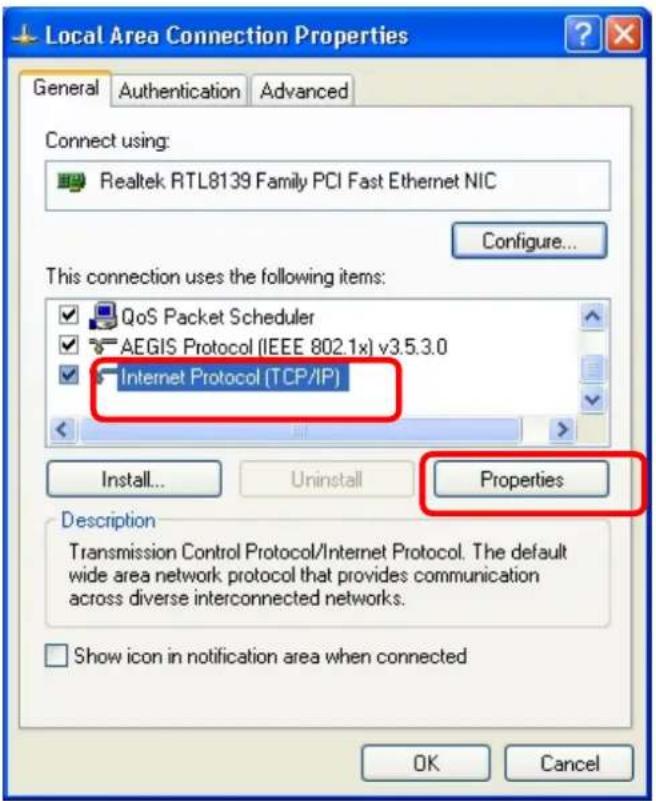
text_image
Local Area Connection Properties General Authentication Advanced Connect using: Realtek RTL8139 Family PCI Fast Ethernet NIC Configure... This connection uses the following items: QoS Packet Scheduler AEGIS Protocol (IEEE 802.1x) v3.5.3.0 Internet Protocol (TCP/IP) Install... Uninstall Properties Description Transmission Control Protocol/Internet Protocol. The default wide area network protocol that provides communication across diverse interconnected networks. Show icon in notification area when connected OK Canceltext_image
Internet Protocol (TCP/IP) Properties General You can get IP settings assigned automatically if your network supports this capability. Otherwise, you need to ask your network administrator for the appropriate IP settings. Obtain an IP address automatically Use the following IP address: IP address: 192 . 168 . 100 . 2 Subnet mask: 255 . 255 . 255 . 0 Default gateway: 192 . 168 . 100 . 1 Obtain DNS server address automatically Use the following DNS server addresses: Preferred DNS server: 202 . 96 . 128 . 86 Alternate DNS server: 202 . 96 . 128 . 166 Advanced... OK Canceltext_image
Connect to 192.168.100.1 The server 192.168.100.1 at Travel Router requires a username and password. Warning: This server is requesting that your username and password be sent in an insecure manner (basic authentication without a secure connection). User name: admin Password: | Remember my password OK Canceltext_image
LONGSHINE® IEEE 802.11n Wireless Router Mode Site contents: Setup Wizard Wireless TCP/IP Settings Firewall Management Logout Status Current status and basic settings of the travel router. System Information Uptime 0day:0h:1m:13s Firmware Version VER:1.01 Firmware Build Time Fri Nov 26 11:01:35 CST 2010 Operation Mode Router[Gateway] Wireless Local Network Network Band 2.4 GHz (B+G+N) SSID(Name) 1T1R-Travel-Router Channel llumber 6 Encryption Disabled BSSID 00:e0:4c:19:86:c1 Associated Clients 0 Local Network Router IP Address 192.168.100.1 Subnet Mask 255.255.255.0 DHCP Server Auto IP Address Diversion Enabled Local MAC Address 00:e0:4c:81:96:c1 Internet Connection Connection Type Getting IP from DHCP server... Internet IP Address 0.0.0.0 Subnet Mask 0.0.0.0 Default Gateway 0.0.0.0 Internet MAC Address 00:e0:4c:81:96:c9Modo AP:

LONGSHINE®
IEEE 802.11n Wireless AP Mode

Site contents
Setup Wizard
Wireless
TCP/IP Settings
Management
Logout
Status
Current status and basic settings of the travel router.
System Information
| Uptime | 0day:0h; 1m:18s |
| Firmware Version | VER:1.01 |
| Firmware Build Time | Fri Nov 26 11:01:35 CST 2010 |
| Operation Mode | AP[Bridge] |
Wireless Local Network
| Network Band | 2.4 GHz (B+G+N) |
| SSID(Name) | 1T1R-Travel-Router |
| Channel Number | 6 |
| Encryption | Disabled |
| BSSID | 00:e0:4c:19:86:c1 |
| Associated Clients | 0 |
Local Network
| Router IP Address | 192.168.100.1 |
| Subnet Mask | 255.255.255.0 |
| DHCP | Client |
| Auto IP Address Diversion | Enabled |
| Local MAC Address | 00:e0:4c:81:96:c1 |
Modo Cliente:
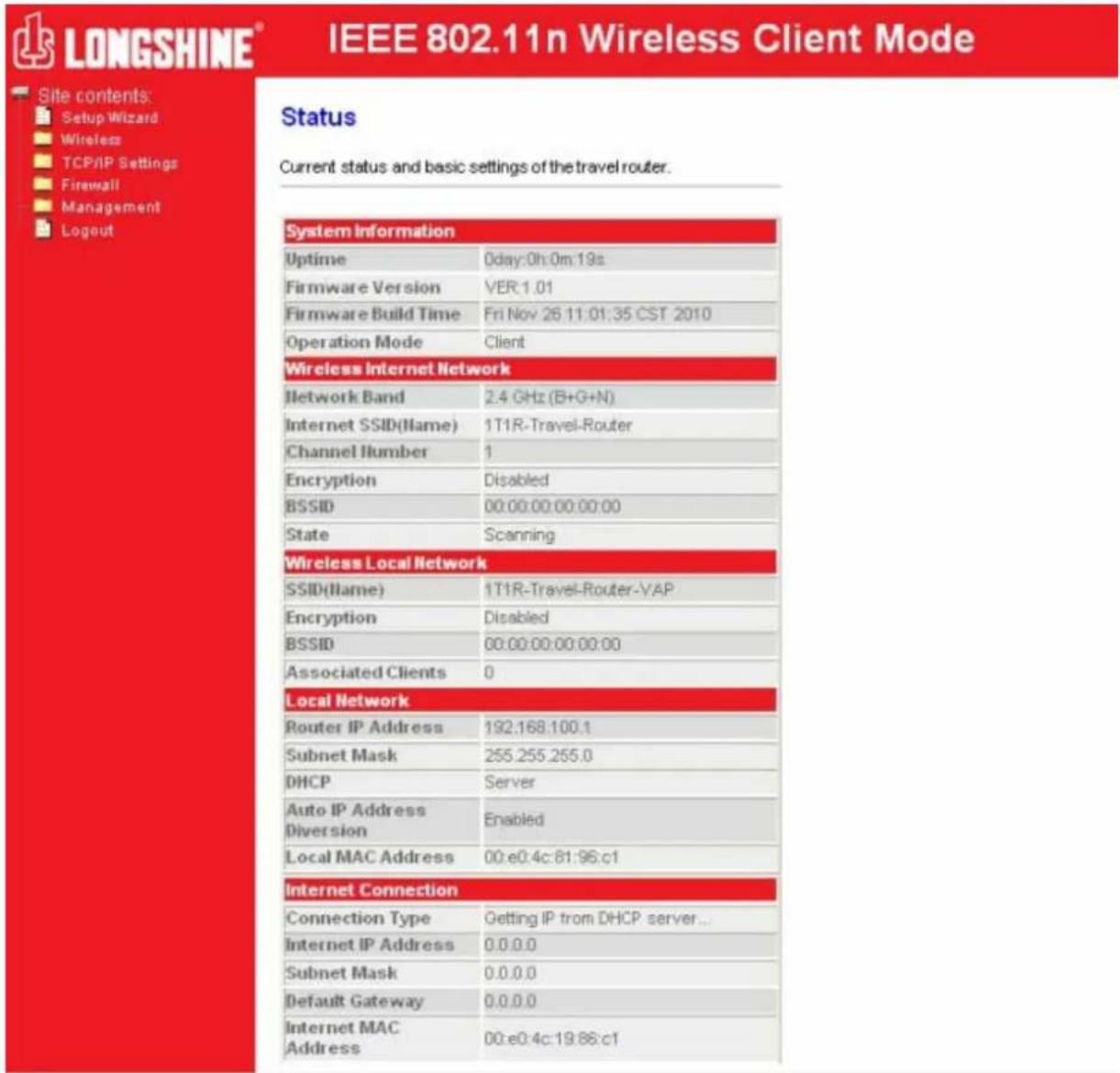
text_image
LONGSHINE® IEEE 802.11n Wireless Client Mode Site contents: Setup Wizard Wireless TCP/IP Settings Firewall Management Logout Status Current status and basic settings of the travel router. System Information Uptime Oday:0h:0m:19s Firmware Version VER:1.01 Firmware Build Time Fri Nov 26 11:01:35 CST 2010 Operation Mode Client Wireless Internet Network Network Band 2.4 GHz (B+G+N) Internet SSID(Name) 1T1R-Travel-Router Channel Humber 1 Encryption Disabled BSSID 00:00:00:00:00:00 State Scanning Wireless Local Network SSID(Name) 1T1R-Travel-Router-VAP Encryption Disabled BSSID 00:00:00:00:00:00 Associated Clients 0 Local Network Router IP Address 192.168.100.1 Subnet Mask 255.255.255.0 DHCP Server Auto IP Address Enabled Diversion Local MAC Address 00:e0:4c:81:96:c1 Internet Connection Connection Type Getting IP from DHCP server... Internet IP Address 0.0.0.0 Subnet Mask 0.0.0.0 Default Gateway 0.0.0.0 Internet MAC Address 00:e0:4c:19:88:c1This setup wizard will help you to configure the travel router. Please follow the directions step-by-step.
Welcome to Setup Wizard.
The Wizard will guide you the through following steps. Begin by clicking on Next.
- Setup LAN Interface
- Setup WAN Interface
- Wireless Network Basic Settings
- Wireless Security Setup
Next>>
This page is used to configure the parameters for local area network which connects to the LAN port of your Access Point. Here you may change the setting for Router IP address, subnet mask, etc..
Router IP Address: 192.168.100.1
Subnet Mask: 255.255.255.0
Cancel
<<Back
Next>>
Configure the parameters for the Internet network which connects to the WAN port of your travel router. Here you may change the access method to a static IP address, DHCP client, or PPPoE client.
WAN Access Type:
DHCP Client
Cancel
<<Back
Next>>
Wireless Network Basic Settings
This page is used to configure the parameters for wireless LAN clients which may connect to your Access Point.
□ Disable Wireless Network
Network Band: 2.4 GHz (B+G+N)
SSID(Router Name): 1T1R-Travel-Router
Channel Width: 40MHz
Channel Number: Auto
Cancel
<<Back
Next>>
Wireless Security Setup
This page allows you to setup the wireless security. Turn on WEP or WPA by using Encryption Keys could prevent any unauthorized access to your wireless network.
Encryption:
None

Cancel
<<Back
Finished
Wireless Basic Settings
Configure the parameters for wireless LAN clients connecting to the travel router. You can also modify the wireless security settings and network parameters.
□ Disable Wireless Network
Network Band:
2.4 GHz (B+G+N)
Multiple AP
SSID(Router Name):
1T1R-Travel-Router
Channel Width:
40MHz
Channel Number:
Auto
Country:
USA(FCC)
Broadcast SSID:
Enabled
Associated Clients:
Show Active Clients
Apply Changes
Reset
This page shows and updates the wireless setting for multiple APs.
| No. | Enable | SSID | Broadcast SSID | Active Client List |
| SSID2 | 1T1R-Travel-Roi | Enabled | Show | |
| SSID3 | 1T1R-Travel-Roi | Enabled | Show | |
| SSID4 | 1T1R-Travel-Roi | Enabled | Show |
Apply Changes
Reset
Active Wireless Client Table - AP1
This table shows the MAC address, transmission, reception packet counters and encrypted status for each associated wireless client.
| MAC Address | Mode | Tx Packet | Rx Packet | Tx Rate (Mbps) | Power Saving | Expired Time (s) |
| None | --- | --- | --- | --- | --- | --- |
Refresh
Close
2. Tabla "Active Wireless Client Table"
Active Wireless Client Table
This table shows the MAC address, transmission, reception packet counters and encrypted status for each associated wireless client.

text_image
MAC Address Mode Tx Packet Rx Packet Tx Rate (Mbps) Power Saving Expired Time (s) None --- --- --- --- --- --- Refresh CloseWireless Advanced Settings
For technically advanced users who have a sufficient knowledge of wireless LANs. These settings should not be modified unless you know the effect the changes will have on your travel router.
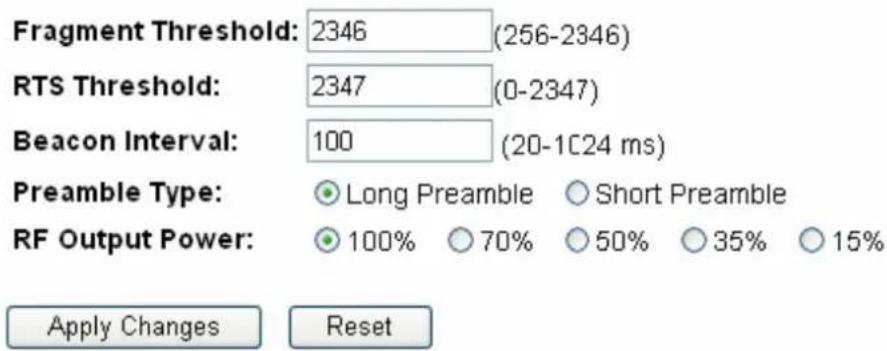
text_image
Fragment Threshold: 2346 (256-2346) RTS Threshold: 2347 (0-2347) Beacon Interval: 100 (20-1C24 ms) Preamble Type: Long Preamble Short Preamble RF Output Power: 100% 70% 50% 35% 15% Apply Changes ResetWireless Security Setup
Configure the wireless security for the travel router. Enable WEP or WPA encryption to prevent unauthorized access to your wireless network.
Select SSID: 1T1R-Travel-Router Apply Changes Reset
Encryption:
WPA2-Mixed
WPA Cipher Suite:
√ TKIP □ AES
WPA2 Cipher Suite:
□ TKIP √ AES
Pre-
Shared Key Format:
Passphrase
Pre-Shared Key:
Show Password:

Wireless Security Setup
Configure the wireless security for the travel router. Enable WEP or WPA encryption to prevent unauthorized access to your wireless network.
Select SSID: 1T1R-Travel-Router Apply Changes Reset
Encryption:
Disable
Wireless Security Setup
Configure the wireless security for the travel router. Enable WEP or WPA encryption to prevent unauthorized access to your wireless network.
Select SSID: 1T1R-Travel-Router Apply Changes Reset
Encryption:
WEP
Authentication:
Open System Shared Key Auto
Key Length:
64-bit
Key Format:
Hex (10 characters)
Encryption Key:
The image contains no text or characters. The horizontal line is a stylistic or background element and must be ignored according to the rules.
Show Password:
□
Wireless Security Setup
Configure the wireless security for the travel router. Enable WEP or WPA encryption to prevent unauthorized access to your wireless network.
Select SSID: 1T1R-Travel-Router Apply Changes Reset
Encryption:
WPA-PSK
WPA Cipher Suite:
√ TKIP □ AES
Pre-
Shared Key Format:
Passphrase
Pre-Shared Key:
Show Password:

Wireless Security Setup
Configure the wireless security for the travel router. Enable WEP or WPA encryption to prevent unauthorized access to your wireless network.
Select SSID:
1T1R-Travel-Router

Apply Changes
Reset
Encryption:
WPA2-PSK
WPA2 Cipher Suite:
□TKIP √AES
Pre-
Shared Key Format:
Passphrase
Pre-Shared Key:
Show Password:

Wireless Security Setup
Configure the wireless security for the travel router. Enable WEP or WPA encryption to prevent unauthorized access to your wireless network.
Select SSID:
1T1R-Travel-Router

Apply Changes
Reset
Encryption:
WPA2-Mixed

WPA Cipher Suite:
TKIP
□AES
WPA2 Cipher Suite:
□TKIP
AES
Pre-
Shared Key Format:
Passphrase

Pre-Shared Key:
Show Password:

Wireless Access Control
"Allow Listed", wireless clients with a MAC address listed in the access control list will be able to connect to the travel router. "Deny Listed" wireless clients will not be able to connect to the travel router.
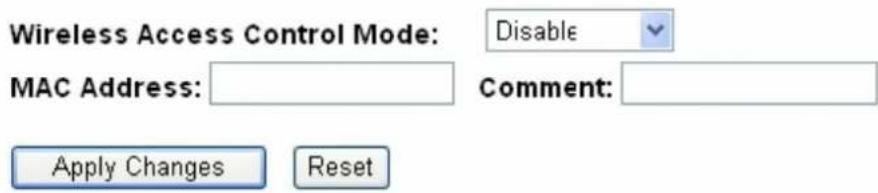
text_image
Wireless Access Control Mode: Disable MAC Address: Comment: Apply Changes ResetCurrent Access Control List:

text_image
MAC Address Comment Select Delete Selected Delete All ResetThis page provides tool to scan the wireless network. If any Access Point or IBSS is found, you could choose to connect it manually when client mode is enabled.
Site Survey
| SSID | BSSID | Channel | Type | Encrypt | Signal | Select |
| None |
Next>>
This page provides tool to scan the wireless network. If any Access Point or IBSS is found, you could choose to connect it manually when client mode is enabled.
Site Survey
| SSID | BSSID | Channel | Type | Encrypt | Signal | Select |
| 1T1R-Router-1 | 00:08:54:6a:95:28 | 9(B+G+N) | AP | no | 64 | ○ |
| notYours | 00:00:00:00:00:22 | 1(B+G+N) | AP | WPA-PSK/WPA2-PSK | 48 | ○ |
| ZuniConnect | 00:25:9c:09:c0:cb | 6(B+G+N) | AP | no | 42 | ○ |
| shawn test ap | 00:e0:4c:81:aa:99 | 1(B+G+N) | AP | WPA2-PSK | 40 | ○ |
| W440A | 00:e0:7d:c0:c7:d1 | 1 (B+G) | AP | WPA-PSK | 38 | ○ |
| Ikjslfksjdlf | 12:36:54:78:90:12 | 11(B+G+N) | AP | no | 34 | ○ |
| chenlibing-gw | 00:e0:4c:00:00:b1 | 11(B+G+N) | AP | no | 32 | ○ |
| E-ZY.NET_EZ1 | 00:11:7c:ff:33:e0 | 11 (B+G) | AP | WEP | 14 | ○ |
| vip room | 00:e0:4c:81:26:b1 | 11(B+G+N) | AP | no | 10 | ○ |
Next>>
This page provides tool to scan the wireless network If any Access Point or IBSS is found, you could choose to connect it manually when client mode is enabled.
Site Survey
| SSID | BSSID | Channel | Type | Encrypt | Signal | Select |
| 1T1R-Router-1 | 00:08:54:6a:95:28 | 9 \ (B+G+N) | AP | no | 64 | |
| notYours | 00:00:00:00:00:22 | 1 \ (B+G+N) | AP | WPA-PSK/WPA2-PSK | 48 | |
| ZuniConnect | 00:25:9c:09:c0:cb | 6 \ (B+G+N) | AP | no | 42 | |
| shawn test ap | 00:e0:4c:81:aa:99 | 1 \ (B+G+N) | AP | WPA2-PSK | 40 | |
| W440A | 00:e0:7d:c0:c7:d1 | 1 (B+G) | AP | WPA-PSK | 38 | |
| Ikjslfksjdlf | 12:36:54:78:90:12 | 11 \ (B+G+N) | AP | no | 34 | |
| chenlibing-gw | 00:e0:4c:00:00:b1 | 11 \ (B+G+N) | AP | no | 32 | |
| E-ZY.NET_EZ1 | 00:11:7c:ff:33:e0 | 11 (B+G) | AP | WEP | 14 | |
| vip room | 00:e0:4c:81:26:b1 | 11 \ (B+G+N) | AP | no | 10 |
Next>>
This page provides tool to scan the wireless network. If any Access Point or IBSS is found, you could choose to connect it manually when client mode is enabled.
Encryption: WPA2
Authentication Mode: Enterprise (RADIUS) Personal (Pre-Shared Key)
WPA2 Cipher Suite: □ TKIP √ AES
Pre-Shared Key Format: Passphrase
Pre-Shared Key:
<<Back
Connect
This page provides tool to scan the wireless network. If any Access Point or IBSS is found, you could choose to connect it manually when client mode is enabled.
Please wait...
Connect successfully!
OK
Basic Settings
Advanced Settings
Security
Access Control
Site Survey
WPS
TCP/IP Settings
Firewall
Managemant
Status
Statistics
Log
Upgrade Firmware
Save/Reload Settings
Password
Logout
Status
Current status and basic settings of the travel router.
System Information
| Uptime | 0day:0h:11m:17s |
| Firmware Version | VER:1.01 |
| Firmware Build Time | Fri Nov 26 11:01:35 CST 2010 |
| Operation Mode | Client |
Wireless Internet Network
| Network Band | 2.4 GHz (B+G+N) |
| Internet SSID(llame) | shawn test ap |
| Channel llumber | 1 |
| Encryption | WPA2 |
| BSSID | 00:e0:4c:81:aa:99 |
| State | Connected |
Wireless Local Network
| SSID(IIame) | 1T1R-Travel-Router-VAP |
| Encryption | Disabled |
| BSSID | 00:e0:4c:19:86:c1 |
| Associated Clients | 0 |
Local Network
| Router IP Address | 192.168.100.1 |
| Subnet Mask | 255.255.255.0 |
| DHCP | Server |
| Auto IP Address Diversion | Enabled |
| Local MAC Address | 00:e0:4c:81:96:c1 |
Internet Connection
| Connection Type | DHCP |
| Internet IP Address | 192.168.52.106 |
| Subnet Mask | 255.255.255.0 |
| Default Gateway | 192.168.52.1 |
| Internet MAC Address | 00:e0:4c:19:86:c1 |
Wi-Fi Protected Setup
Change the WPS (Wi-Fi Protected Setup) settings for the travel router. This feature lets you automatically synchronize wireless client settings and quickly connect with the travel router.
□ Disable WPS
WPS Status:
- Configured ○ UnConfigured
Reset to UnConfigured
Self-PIN Number:
83035234
Push Button Configuration:
Start PBC
Apply Changes
Reset
Current Key Info:
| Authentication | Encryption | Key |
| WPA2 PSK | AES | 1234567890 |
Client PIN Number:
Start PIN
Wi-Fi Protected Setup
Change the WPS (Wi-Fi Protected Setup) settings for the travel router. This feature lets you automatically synchronize wireless client settings and quickly connect with the travel router.
□ Disable WPS
Self-PIN Number: 83035234
PIN Configuration: Start PIN
Push Button Configuration: Start PBC
Apply Changes
Reset
Configure the parameters for the local area network which connects to the LAN port and Wi-Fi clients of your travel router. Here you can change the settings for IP address, subnet mask, DHCP, etc.
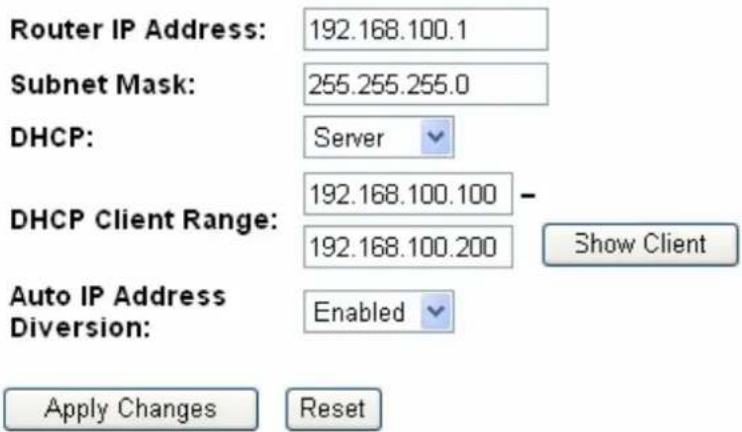
text_image
Router IP Address: 192.168.100.1 Subnet Mask: 255.255.255.0 DHCP: Server DHCP Client Range: 192.168.100.100 - 192.168.100.200 Show Client Auto IP Address Diversion: Enabled Apply Changes ResetThis table shows the assigned IP address, MAC address and time expired for each DHCP leased client.
| IP Address | MAC Address | Time Expired(s) |
| 192.168.100.100 | 00:0e:a6:03:0d:44 | 862749 |
Refresh
Close
This page is used to configure the parameters for the Internet network which connect to the WAN port of your travel router. Here you may change the access method to a static IP address, DCHP client, or PPPoE client
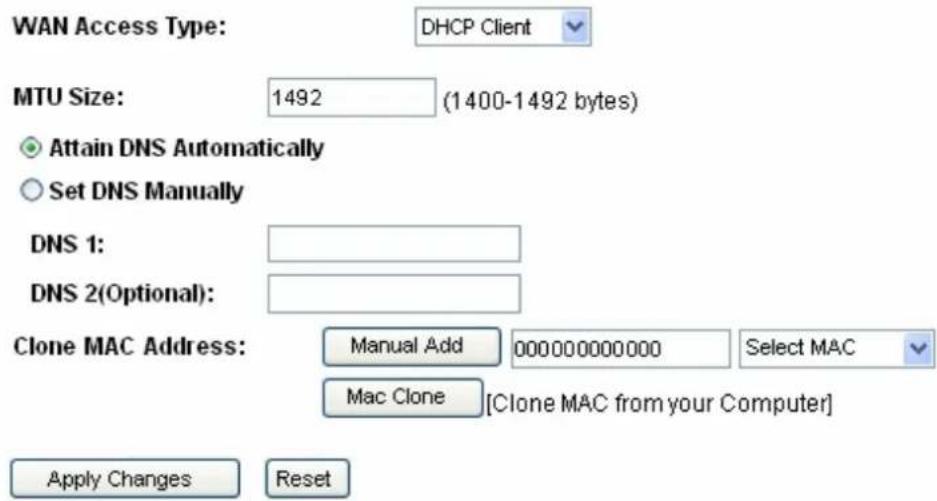
text_image
WAN Access Type: DHCP Client MTU Size: 1492 (1400-1492 bytes) Attain DNS Automatically Set DNS Manually DNS 1: DNS 2(Optional): Clone MAC Address: Manual Add 000000000000 Select MAC Mac Clone [Clone MAC from your Computer] Apply Changes ResetHistory MAC Table:
The maximum of the history MAC entry is three. when the table is full, you can't save any MAC unless you delete some mac entries from the MAC table.
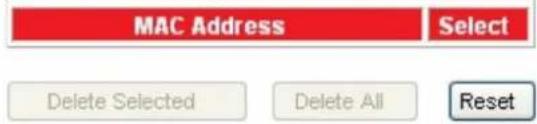
text_image
MAC Address Select Delete Selected Delete All Resettext_image
WAN Access Type: Static IP Internet IP Address: 172.1.1.1 Subnet Mask: 255.255.255.0 Default Gateway: 172.1.1.254 MTU Size: 1500 (1400-1500 bytes) DNS 1: DNS 2(Optional): Clone MAC Address: Manual Add 000000000000 Select MAC Mac Clone [Clone MAC from your Computer]text_image
WAN Access Type: DHCP Client MTU Size: 1492 (1400-1492 bytes) Attain DNS Automatically Set DNS Manually DNS 1: DNS 2(Optional): Clone MAC Address: Manual Add 000000000000 Select MAC Mac Clone [Clone MAC from your Computer]text_image
WAN Access Type: PPPoE User Name: Password: MTU Size: 1452 (1360-1492 bytes) Attain DNS Automatically Set DNS Manually DNS 1: DNS 2(Optional): Clone MAC Address: Manual Add 000000000000 Select MAC Mac Clone [Clone MAC from your Computer]Entries in this table are used to restrict the passage of certain types of data packets from your local network to the Internet through the travel router. Use of such filters can be helpful in securing or restricting your local network.
Enable MAC Filtering
MAC Address: Comment:
Apply Changes
Reset
Current Filter Table:
MAC Address
Comment
Select
Delete Selected
Delete All
Reset
Current status and basic settings of the travel router.
| System Information | |
| Uptime | 0day:0h:4m:38s |
| Firmware Version | VER:1.01 |
| Firmware Build Time | Fri Nov 26 11:01:35 CST 2010 |
| Operation Mode | Router[Gateway] |
| Wireless Local Network | |
| Network Band | 2.4 GHz (B+G+N) |
| SSID(Name) | 1T1R-Travel-Router |
| Channel Humber | 11 |
| Encryption | Disabled |
| BSSID | 00:e0:4c:19:86:c1 |
| Associated Clients | 0 |
| Local Network | |
| Router IP Address | 192.168.100.1 |
| Subnet Mask | 255.255.255.0 |
| DHCP | Server |
| Auto IP Address Diversion | Enabled |
| Local MAC Address | 00:e0:4c:81:96:c1 |
| Internet Connection | |
| Connection Type | Getting IP from DHCP server... |
| Internet IP Address | 0.0.0.0 |
| Subnet Mask | 0.0.0.0 |
| Default Gateway | 0.0.0.0 |
| Internet MAC Address | 00:e0:4c:81:96:c9 |
3.7.2 Estadísticas
Packet counts for wired and wireless Ethernet connections.
| Wireless LAN | Sent Packets | 81 |
| Received Packets | 14432 | |
| Ethernet LAN | Sent Packets | 855 |
| Received Packets | 551 | |
| Ethernet WAN | Sent Packets | 66 |
| Received Packets | 0 |
Refresh
3.7.3 Registro
Upgrade the travel router firmware.
PLEASE NOTE: Do not power off the device during the upgrade process, as this may cause damage to the device.
Firmware Version:
VER:1.01
Select File:

Upload
Reset
Save the current settings to a backup file, or reload the setting from a previously saved file. You can also restore the travel router to the factory defaults.
Save Settings to File:
Save...
Load Settings from File:

Reset Settings to Default:
Reset
Set or change the travel router ADMINISTRATOR user name and password. Leaving the user name and password fields empty will disable login protection.
User Name:

New Password:

Confirmed Password:

Apply Changes
Reset
3.7.7 Cerrar sesión
This page is used to logout of the travel router.
Are you certain you want to logout?
Apply Change
Mode AP
Mode Routeur
▶ Mode client
text_image
Windows Catalog Windows Update Programs Documents Settings Search Help and Support Run... Log Off jeff... Turn Off Computer... Control Panel Network Connections Printers and Faxes Taskbar and Start Menu starttext_image
Network Connections File Edit View Favorites Tools Advanced Help Back Search Folders Address Network Connections Internet Gateway Internet Connection Disabled Internet Connection LAN or High-Speed Internet Local Area Connection Enabled Disable Status Repair Bridge Connections Create Shortcut Delete Rename Properties Other Places Control Panel My Network Places My Documents My Computer Details Local Area Connection LAN or High-Speed Internet Enabledtext_image
Local Area Connection Properties General Authentication Advanced Connect using: Realtek RTL8139 Family PCI Fast Ethernet NIC Configure... This connection uses the following items: QoS Packet Scheduler AEGIC Protocol (IEEE 802.1x) v3.5.3.0 Internet Protocol (TCP/IP) Install... Uninstall Properties Description Transmission Control Protocol/Internet Protocol. The default wide area network protocol that provides communication across diverse interconnected networks. Show icon in notification area when connected OK Canceltext_image
Internet Protocol (TCP/IP) Properties General You can get IP settings assigned automatically if your network supports this capability. Otherwise, you need to ask your network administrator for the appropriate IP settings. Obtain an IP address automatically Use the following IP address: IP address: 192 . 168 . 100 . 2 Subnet mask: 255 . 255 . 255 . 0 Default gateway: 192 . 168 . 100 . 1 Obtain DNS server address automatically Use the following DNS server addresses: Preferred DNS server: 202 . 96 . 128 . 86 Alternate DNS server: 202 . 96 . 128 . 166 Advanced... OK Canceltext_image
Connect to 192.168.100.1 The server 192.168.100.1 at Travel Router requires a username and password. Warning: This server is requesting that your username and password be sent in an insecure manner (basic authentication without a secure connection). User name: admin Password: | Remember my password OK Canceltext_image
LONGSHINE® IEEE 802.11n Wireless Router Mode Site contents: Setup Wizard Wireless TCP/IP Settings Firewall Management Logout Status Current status and basic settings of the travel router. System Information Uptime 0day:0h:1m:13s Firmware Version VER:1.01 Firmware Build Time Fri Nov 26 11:01:35 CST 2010 Operation Mode Router[Gateway] Wireless Local Network Network Band 2.4 GHz (B+G+N) SSID(Name) 1T1R-Travel-Router Channel Humber 6 Encryption Disabled BSSID 00:e0:4c:19:86:c1 Associated Clients 0 Local Network Router IP Address 192.168.100.1 Subnet Mask 255.255.255.0 DHCP Server Auto IP Address Enabled Diversion Local MAC Address 00:e0:4c:81:96:c1 Internet Connection Connection Type Getting IP from DHCP server... Internet IP Address 0.0.0.0 Subnet Mask 0.0.0.0 Default Gateway 0.0.0.0 Internet MAC Address 00:e0:4c:81:96:c9Mode AP:

LONGSHINE®
IEEE 802.11n Wireless AP Mode

Site contents
Setup Wizard
Wireless
TCP/IP Settings
Management
Logout
Status
Current status and basic settings of the travel router.
| System Information | |
| Uptime | 0day:0h:1m:18s |
| Firmware Version | VER:1.01 |
| Firmware Build Time | Fri Nov 26 11:01:35 CST 2010 |
| Operation Mode | AP[Bridge] |
| Wireless Local Network | |
| Network Band | 2.4 GHz (B+G+N) |
| SSID(Name) | 1T1R-Travel-Router |
| Channel Number | 6 |
| Encryption | Disabled |
| BSSID | 00:e0:4c:19:86:c1 |
| Associated Clients | 0 |
| Local Network | |
| Router IP Address | 192.168.100.1 |
| Subnet Mask | 255.255.255.0 |
| DHCP | Client |
| Auto IP Address Diversion | Enabled |
| Local MAC Address | 00:e0:4c:81:96:c1 |
Mode Client:
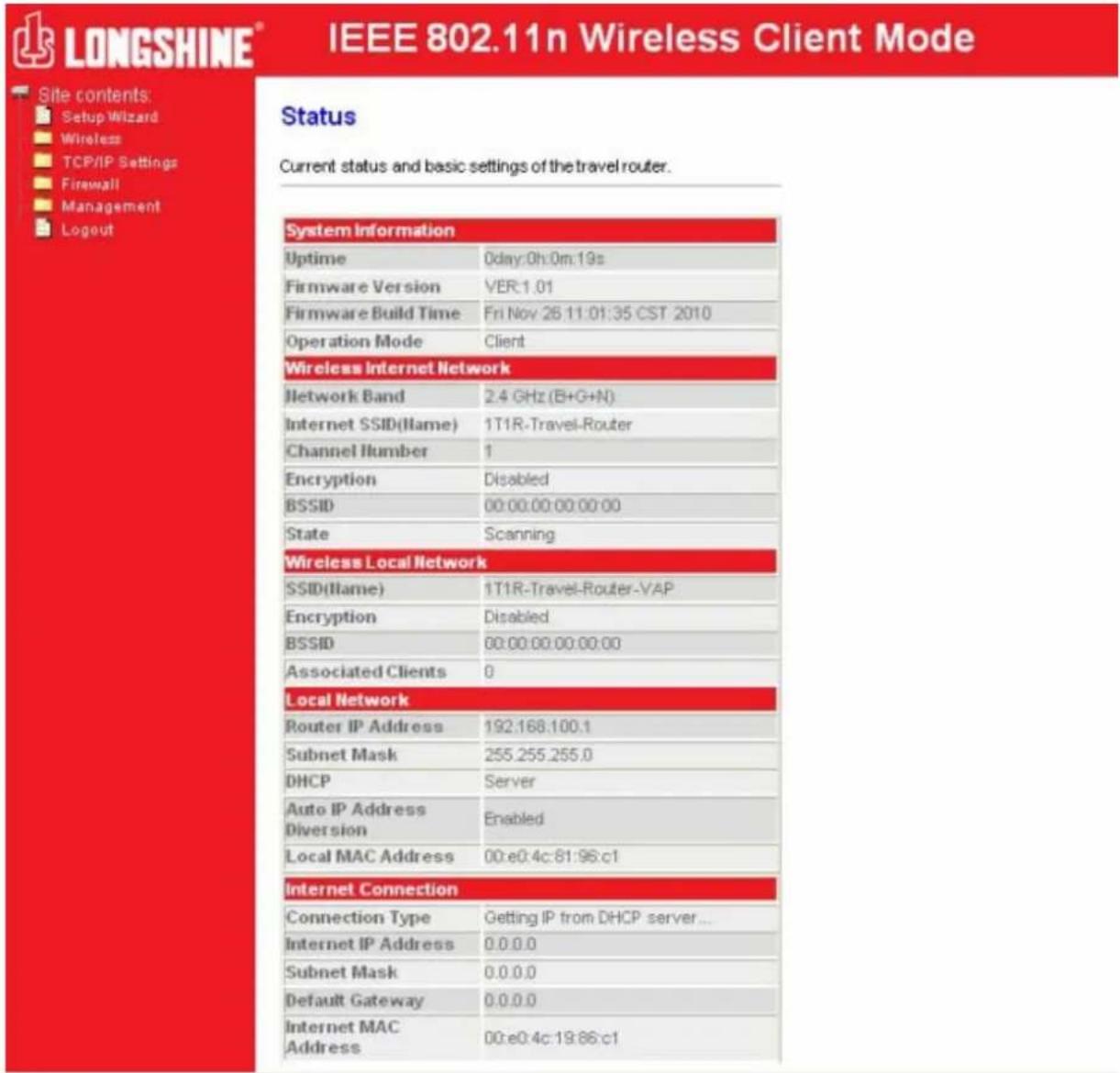
text_image
LONGSHINE® IEEE 802.11n Wireless Client Mode Site contents: Setup Wizard Wireless TCP/IP Settings Firewall Management Logout Status Current status and basic settings of the travel router. System Information Uptime 0day:0h:0m:19s Firmware Version VER:1.01 Firmware Build Time Fri Nov 26 11:01:35 CST 2010 Operation Mode Client Wireless Internet Network Network Band 2.4 GHz (B+G+N) Internet SSID(Name) 1T1R-Travel-Router Channel Humber 1 Encryption Disabled BSSID 00:00:00:00:00:00 State Scanning Wireless Local Network SSID(Name) 1T1R-Travel-Router-VAP Encryption Disabled BSSID 00:00:00:00:00:00 Associated Clients 0 Local Network Router IP Address 192.168.100.1 Subnet Mask 255.255.255.0 DHCP Server Auto IP Address Enabled Diversion Local MAC Address 00:e0:4c:81:96:c1 Internet Connection Connection Type Getting IP from DHCP server... Internet IP Address 0.0.0.0 Subnet Mask 0.0.0.0 Default Gateway 0.0.0.0 Internet MAC Address 00:e0:4c:19:86:c1This setup wizard will help you to configure the travel router. Please follow the directions step-by-step.
Welcome to Setup Wizard.
The Wizard will guide you the through following steps. Begin by clicking on Next.
- Setup LAN Interface
- Setup WAN Interface
- Wireless Network Basic Settings
- Wireless Security Setup
Next>>
This page is used to configure the parameters for local area network which connects to the LAN port of your Access Point. Here you may change the setting for Router IP address, subnet mask, etc..
Router IP Address: 192.168.100.1
Subnet Mask: 255.255.255.0
Cancel
<<Back
Next>>
Configure the parameters for the Internet network which connects to the WAN port of your travel router. Here you may change the access method to a static IP address, DHCP client, or PPPoE client.
WAN Access Type:
DHCP Client
Cancel
<<Back
Next>>
Wireless Network Basic Settings
This page is used to configure the parameters for wireless LAN clients which may connect to your Access Point.
□ Disable Wireless Network
Network Band: 2.4 GHz (B+G+N)
SSID(Router Name): 1T1R-Travel-Router
Channel Width: 40MHz
Channel Number: Auto
Cancel
<<Back
Next>>
Wireless Security Setup
This page allows you to setup the wireless security. Turn on WEP or WPA by using Encryption Keys could prevent any unauthorized access to your wireless network.
Encryption:

Cancel
<<Back
Finished
Wireless Basic Settings
Configure the parameters for wireless LAN clients connecting to the travel router. You can also modify the wireless security settings and network parameters.
□ Disable Wireless Network
Network Band:
2.4 GHz (B+G+N)
Multiple AP
SSID(Router Name):
1T1R-Travel-Router
Channel Width:
40MHz
Channel Number:
Auto
Country:
USA(FCC)
Broadcast SSID:
Enabled
Associated Clients:
Show Active Clients
Apply Changes
Reset
This page shows and updates the wireless setting for multiple APs.
| No. | Enable | SSID | Broadcast SSID | Active Client List |
| SSID2 | 1T1R-Travel-Roi | Enabled | Show | |
| SSID3 | 1T1R-Travel-Roi | Enabled | Show | |
| SSID4 | 1T1R-Travel-Roi | Enabled | Show |
Apply Changes
Reset
Active Wireless Client Table - AP1
This table shows the MAC address, transmission, reception packet counters and encrypted status for each associated wireless client.
| MAC Address | Mode | Tx Packet | Rx Packet | Tx Rate (Mbps) | Power Saving | Expired Time (s) |
| None | --- | --- | --- | --- | --- | --- |
Refresh
Close
Active Wireless Client Table
This table shows the MAC address, transmission, reception packet counters and encrypted status for each associated wireless client.
| MAC Address | Mode | Tx Packet | Rx Packet | Tx Rate (Mbps) | Power Saving | Expired Time (s) |
| None | --- | --- | --- | --- | --- | --- |

Wireless Advanced Settings
For technically advanced users who have a sufficient knowledge of wireless LANs. These settings should not be modified unless you know the effect the changes will have on your travel router.
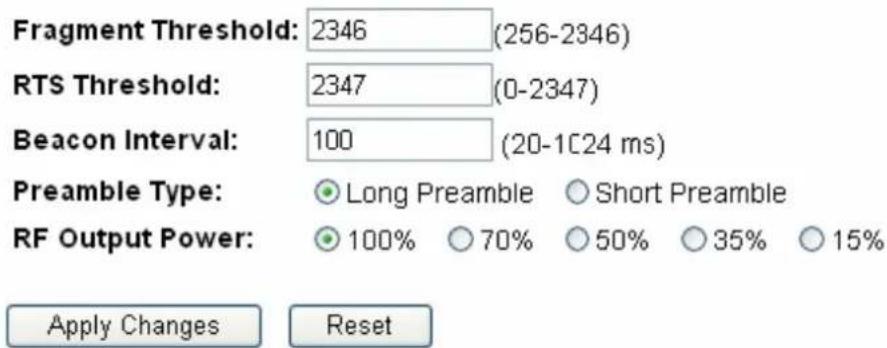
text_image
Fragment Threshold: 2346 (256-2346) RTS Threshold: 2347 (0-2347) Beacon Interval: 100 (20-1C24 ms) Preamble Type: ● Long Preamble ○ Short Preamble RF Output Power: ● 100% ○ 70% ○ 50% ○ 35% ○ 15% Apply Changes ResetWireless Security Setup
Configure the wireless security for the travel router. Enable WEP or WPA encryption to prevent unauthorized access to your wireless network.
Select SSID:
1T1R-Travel-Router

Apply Changes
Reset
Encryption:
WPA2-Mixed

WPA Cipher Suite:


WPA2 Cipher Suite:


Pre-
Shared Key Format:
Passphrase
Pre-Shared Key:
Show Password:

Wireless Security Setup
Configure the wireless security for the travel router. Enable WEP or WPA encryption to prevent unauthorized access to your wireless network.
Select SSID:
1T1R-Travel-Router

Apply Changes
Reset
Encryption:

Wireless Security Setup
Configure the wireless security for the travel router. Enable WEP or WPA encryption to prevent unauthorized access to your wireless network.
Select SSID:
1T1R-Travel-Router

Apply Changes
Reset
Encryption:

Authentication:
Open System Shared Key Auto
Key Length:
Key Format:
Hex (10 characters)
Encryption Key:
Show Password:

Postes Information
Wireless Security Setup
Configure the wireless security for the travel router. Enable WEP or WPA encryption to prevent unauthorized access to your wireless network.
Select SSID: 1T1R-Travel-Router Apply Changes Reset
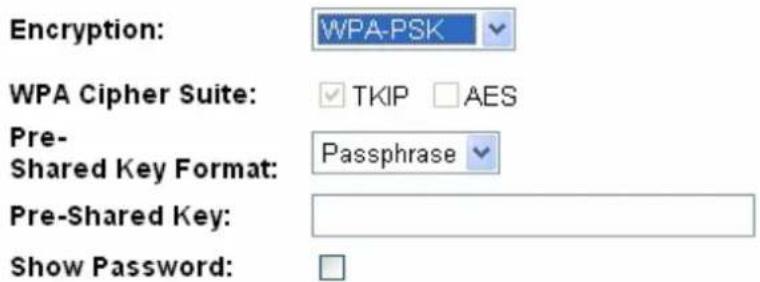
text_image
Encryption: WPA-PSK WPA Cipher Suite: TKIP AES Pre- Shared Key Format: Passphrase Pre-Shared Key: Show Password:Wireless Security Setup
Configure the wireless security for the travel router. Enable WEP or WPA encryption to prevent unauthorized access to your wireless network.

text_image
Select SSID: 1T1R-Travel-Router Apply Changes ResetEncryption:

WPA2 Cipher Suite:

Pre- Shared Key Format:
Pre-Shared Key:

Show Password:

Wireless Security Setup
Configure the wireless security for the travel router. Enable WEP or WPA encryption to prevent unauthorized access to your wireless network.
Select SSID:
1T1R-Travel-Router

Apply Changes
Reset
Encryption:
WPA2-Mixed

WPA Cipher Suite:
TKIP
□AES
WPA2 Cipher Suite:
□TKIP
AES
Pre-
Shared Key Format:
Passphrase

Pre-Shared Key:
Show Password:

Wireless Access Control
"Allow Listed", wireless clients with a MAC address listed in the access control list will be able to connect to the travel router. "Deny Listed" wireless clients will not be able to connect to the travel router.
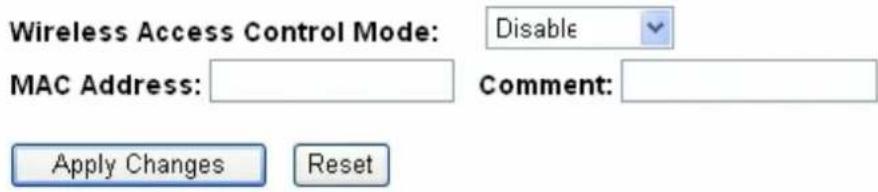
text_image
Wireless Access Control Mode: Disable MAC Address: Comment: Apply Changes ResetCurrent Access Control List:

text_image
MAC Address Comment Select Delete Selected Delete All ResetThis page provides tool to scan the wireless network. If any Access Point or IBSS is found, you could choose to connect it manually when client mode is enabled.
Site Survey
| SSID | BSSID | Channel | Type | Encrypt | Signal | Select |
| None |
Next>>
This page provides tool to scan the wireless network. If any Access Point or IBSS is found, you could choose to connect it manually when client mode is enabled.
Site Survey
| SSID | BSSID | Channel | Type | Encrypt | Signal | Select |
| 1T1R-Router-1 | 00:08:54:6a:95:28 | 9(B+G+N) | AP | no | 64 | ○ |
| notYours | 00:00:00:00:00:22 | 1(B+G+N) | AP | WPA-PSKWPA2-PSK | 48 | ○ |
| ZuniConnect | 00:25:9c:09:c0:cb | 6(B+G+N) | AP | no | 42 | ○ |
| shawn test ap | 00:e0:4c:81:aa:99 | 1(B+G+N) | AP | WPA2-PSK | 40 | ○ |
| W440A | 00:e0:7d:c0:c7:d1 | 1 (B+G) | AP | WPA-PSK | 38 | ○ |
| Ikjslfksjdlf | 12:36:54:78:90:12 | 11(B+G+N) | AP | no | 34 | ○ |
| chenlibing-gw | 00:e0:4c:00:00:b1 | 11(B+G+N) | AP | no | 32 | ○ |
| E-ZY.NET_EZ1 | 00:11:7c:ff:33:e0 | 11 (B+G) | AP | WEP | 14 | ○ |
| vip room | 00:e0:4c:81:26:b1 | 11(B+G+N) | AP | no | 10 | ○ |
Next>>
This page provides tool to scan the wireless network. If any Access Point or IBSS is found, you could choose to connect it manually when client mode is enabled.
Site Survey
| SSID | BSSID | Channel | Type | Encrypt | Signal | Select |
| 1T1R-Router-1 | 00:08:54:6a:95:28 | 9 \ (B+G+N) | AP | no | 64 | ○ |
| notYours | 00:00:00:00:00:22 | 1 \ (B+G+N) | AP | WPA-PSK/WPA2-PSK | 48 | ○ |
| ZuniConnect | 00:25:9c:09:c0:cb | 6 \ (B+G+N) | AP | no | 42 | ○ |
| shawn test ap | 00:e0:4c:81:aa:99 | 1 \ (B+G+N) | AP | WPA2-PSK | 40 | ○ |
| W440A | 00:e0:7d:c0:c7:d1 | 1 (B+G) | AP | WPA-PSK | 38 | ○ |
| Ikjslfksjdlf | 12:36:54:78:90:12 | 11 \ (B+G+N) | AP | no | 34 | ○ |
| chenlibing-gw | 00:e0:4c:00:00:b1 | 11 \ (B+G+N) | AP | no | 32 | ○ |
| E-ZY.NET_EZ1 | 00:11:7c:ff:33:e0 | 11 (B+G) | AP | WEP | 14 | ○ |
| vip room | 00:e0:4c:81:26:b1 | 11 \ (B+G+N) | AP | no | 10 | ○ |
Next>>
This page provides tool to scan the wireless network. If any Access Point or IBSS is found, you could choose to connect it manually when client mode is enabled.
Encryption: WPA2
Authentication Mode: ○ Enterprise (RADIUS) ● Personal (Pre-Shared Key)
WPA2 Cipher Suite: □ TKIP √ AES
Pre-Shared Key Format: Passphrase
Pre-Shared Key:
<<Back
Connect
This page provides tool to scan the wireless network. If any Access Point or IBSS is found, you could choose to connect it manually when client mode is enabled.
Please wait...
Connect successfully!
OK
Basic Settings
Advanced Settings
Security
Access Control
Site Survey
WPS
TCP/IP Settings
Firewall
Management
Status
Statistics
Log
Upgrade Firmware
Save/Reload Settings
Password
Logout
Status
Current status and basic settings of the travel router.
System Information
| Uptime | 0day:0h:11m:17s |
| Firmware Version | VER:1.01 |
| Firmware Build Time | Fri Nov 26 11:01:35 CST 2010 |
| Operation Mode | Client |
Wireless Internet Network
| Network Band | 2.4 GHz (B+G+N) |
| Internet SSID(IIame) | shawn test ap |
| Channel Humber | 1 |
| Encryption | WPA2 |
| BSSID | 00:e0:4c:81:aa:99 |
| State | Connected |
Wireless Local Network
| SSID(Name) | 1T1R-Travel-Router-VAP |
| Encryption | Disabled |
| BSSID | 00:e0:4c:19:86:c1 |
| Associated Clients | 0 |
Local Network
| Router IP Address | 192.168.100.1 |
| Subnet Mask | 255.255.255.0 |
| DHCP | Server |
| Auto IP Address Diversion | Enabled |
| Local MAC Address | 00:e0:4c:81:96:c1 |
Internet Connection
| Connection Type | DHCP |
| Internet IP Address | 192.168.52.106 |
| Subnet Mask | 255.255.255.0 |
| Default Gateway | 192.168.52.1 |
| Internet MAC Address | 00:e0:4c:19:86:c1 |
3.4.6 Réglages WPS
Wi-Fi Protected Setup
Change the WPS (Wi-Fi Protected Setup) settings for the travel router. This feature lets you automatically synchronize wireless client settings and quickly connect with the travel router.
□ Disable WPS
WPS Status:
- Configured - UnConfigured
Reset to UnConfigured
Self-PIN Number: 83035234
Push Button Configuration: Start PBC
Apply Changes
Reset
Current Key Info:
| Authentication | Encryption | Key |
| WPA2 PSK | AES | 1234567890 |
Client PIN Number:
Start PIN
Wi-Fi Protected Setup
Change the WPS (Wi-Fi Protected Setup) settings for the travel router. This feature lets you automatically synchronize wireless client settings and quickly connect with the travel router.
□ Disable WPS
Self-PIN Number: 83035234
PIN Configuration: Start PIN
Push Button Configuration: Start PBC
Apply Changes
Reset
Configure the parameters for the local area network which connects to the LAN port and Wi-Fi clients of your travel router. Here you can change the settings for IP address, subnet mask, DHCP, etc.
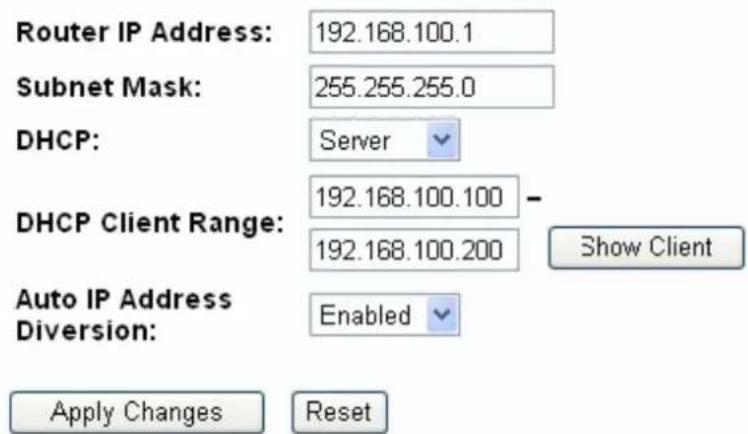
text_image
Router IP Address: 192.168.100.1 Subnet Mask: 255.255.255.0 DHCP: Server DHCP Client Range: 192.168.100.100 - 192.168.100.200 Show Client Auto IP Address Diversion: Enabled Apply Changes ResetThis table shows the assigned IP address, MAC address and time expired for each DHCP leased client.
| IP Address | MAC Address | Time Expired(s) |
| 192.168.100.100 | 00:0e:a6:03:0d:44 | 862749 |
This page is used to configure the parameters for the Internet network which connect to the WAN port of your travel router. Here you may change the access method to a static IP address, DCHP client, or PPPoE client
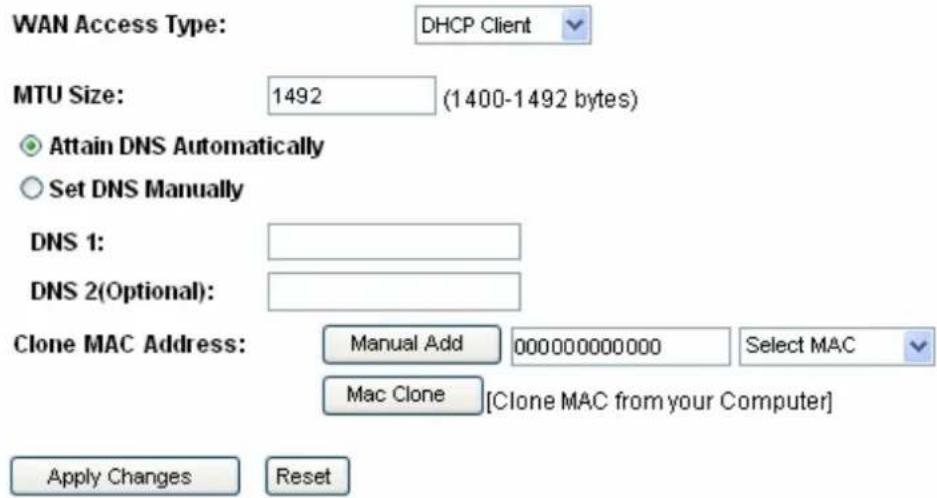
text_image
WAN Access Type: DHCP Client MTU Size: 1492 (1400-1492 bytes) Attain DNS Automatically Set DNS Manually DNS 1: DNS 2(Optional): Clone MAC Address: Manual Add 000000000000 Select MAC Mac Clone [Clone MAC from your Computer] Apply Changes ResetHistory MAC Table:
The maximum of the history MAC entry is three. when the table is full, you can't save any MAC unless you delete some mac entries from the MAC table.
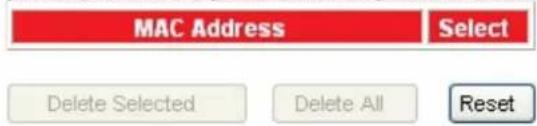
text_image
MAC Address Select Delete Selected Delete All Resettext_image
WAN Access Type: Static IP Internet IP Address: 172.1.1.1 Subnet Mask: 255.255.255.0 Default Gateway: 172.1.1.254 MTU Size: 1500 (1400-1500 bytes) DNS 1: DNS 2(Optional): Clone MAC Address: Manual Add 000000000000 Select MAC Mac Clone [Clone MAC from your Computer]text_image
WAN Access Type: DHCP Client MTU Size: 1492 (1400-1492 bytes) Attain DNS Automatically Set DNS Manually DNS 1: DNS 2(Optional): Clone MAC Address: Manual Add 000000000000 Select MAC Mac Clone [Clone MAC from your Computer]○ Attain DNS Automatically
Set DNS Manually
DNS 1:
DNS 2(Optional):
Clone MAC Address:

text_image
Manual Add 000000000000 Select MAC Mac Clone [Clone MAC from your Computer]Entries in this table are used to restrict the passage of certain types of data packets from your local network to the Internet through the travel router. Use of such filters can be helpful in securing or restricting your local network.
Enable MAC Filtering
MAC Address:
Comment:
Apply Changes
Reset
Current Filter Table:
MAC Address
Comment
Select
Delete Selected
Delete All
Reset
Current status and basic settings of the travel router.
| System Information | |
| Uptime | 0day:0h:4m:38s |
| Firmware Version | VER:1.01 |
| Firmware Build Time | Fri Nov 26 11:01:35 CST 2010 |
| Operation Mode | Router[Gateway] |
| Wireless Local Network | |
| Network Band | 2.4 GHz (B+G+N) |
| SSID(Name) | 1T1R-Travel-Router |
| Channel Humber | 11 |
| Encryption | Disabled |
| BSSID | 00:e0:4c:19:86:c1 |
| Associated Clients | 0 |
| Local Network | |
| Router IP Address | 192.168.100.1 |
| Subnet Mask | 255.255.255.0 |
| DHCP | Server |
| Auto IP Address Diversion | Enabled |
| Local MAC Address | 00:e0:4c:81:96:c1 |
| Internet Connection | |
| Connection Type | Getting IP from DHCP server... |
| Internet IP Address | 0.0.0.0 |
| Subnet Mask | 0.0.0.0 |
| Default Gateway | 0.0.0.0 |
| Internet MAC Address | 00:e0:4c:81:96:c9 |
3.7.2 Statistiques
Packet counts for wired and wireless Ethernet connections.
| Wireless LAN | Sent Packets | 81 |
| Received Packets | 14432 | |
| Ethernet LAN | Sent Packets | 855 |
| Received Packets | 551 | |
| Ethernet WAN | Sent Packets | 66 |
| Received Packets | 0 |
Refresh
natural_image
Blank white image with a thin border and corner handles (no text or symbols)Refresh
Clear
Upgrade the travel router firmware.
PLEASE NOTE: Do not power off the device during the upgrade process, as this may cause damage to the device.
Firmware Version:
VER:1.01
Select File:
Browse...
Upload
Reset
3.7.5 Régler sauvegarder/recharger
Save the current settings to a backup file, or reload the setting from a previously saved file. You can also restore the travel router to the factory defaults.
Save Settings to File:
Save...
Load Settings from File:

Reset Settings to Default:
Reset
Set or change the travel router ADMINISTRATOR user name and password. Leaving the user name and password fields empty will disable login protection.
User Name:
New Password:
Confirmed Password:
Apply Changes Reset
This page is used to logout of the travel router.
Are you certain you want to logout?
Apply Change
Chapter 1 Introduction to the Wireless Router 7
1.1 General Description....7
1.2 Key Features 7
1.3 The Front Panel 8
1.4 The Rear Panel 9
Chapter 2 Installation and Basic Configuration ……11
2.1 Operation Mode....11
2.2 Connect This Router to Your Network 11
2.3 Configure the IP Address of Your Computer 12
Chapter 3 Web-Based Management....15
3.1 Start the Web-Based Management Interface.... 15
3.2 The Graphic User Interface 16
3.3 Setup Wizard 18
3.4 Wireless 22
3.4.1 Basic Settings 22
3.4.2 Advanced Settings 24
3.4.3 Security 25
3.4.4 Access Control 30
3.4.5 Wireless Site Survey 30
3.4.6 WPS Settings 35
3.5 TCP/IP Settings 37
3.5.1 LAN Interface Setup 37
3.5.2 WAN Interface Setup 39
3.6 Firewall Settings 43
MAC Filtering 43
3.7 Management 43
3.7.1 Status 43
3.7.2 Statistics 44
3.7.3 Log 45
3.7.4 Upgrade Firmware 46
3.7.5 Save/Reload Setting 47
3.7.6 Password 47
3.7.7 Logout 48
Appendix A: Product Specifications 49
Appendix B: Glossary 50
text_image
Windows Catalog Windows Update Programs Documents Settings Search Help and Support Run... Log Off jeff... Turn Off Computer... Control Panel Network Connections Printers and Faxes Taskbar and Start Menu starttext_image
Network Connections File Edit View Favorites Tools Advanced Help Back Search Folders Address Network Connections Internet Gateway Internet Connection Disabled Internet Connection LAN or High-Speed Internet Local Area Connection Enabled Disable Status Repair Bridge Connections Create Shortcut Delete Rename Properties Other Places Control Panel My Network Places My Documents My Computer Details Local Area Connection LAN or High-Speed Internet Enabledtext_image
Local Area Connection Properties General Authentication Advanced Connect using: Realtek RTL8139 Family PCI Fast Ethernet NIC Configure... This connection uses the following items: QoS Packet Scheduler AEGIC Protocol (IEEE 802.1x) v3.5.3.0 Internet Protocol (TCP/IP) Install... Uninstall Properties Description Transmission Control Protocol/Internet Protocol. The default wide area network protocol that provides communication across diverse interconnected networks. Show icon in notification area when connected OK Canceltext_image
Internet Protocol (TCP/IP) Properties General You can get IP settings assigned automatically if your network supports this capability. Otherwise, you need to ask your network administrator for the appropriate IP settings. Obtain an IP address automatically Use the following IP address: IP address: 192 . 168 . 100 . 2 Subnet mask: 255 . 255 . 255 . 0 Default gateway: 192 . 168 . 100 . 1 Obtain DNS server address automatically Use the following DNS server addresses: Preferred DNS server: 202 . 96 . 128 . 86 Alternate DNS server: 202 . 96 . 128 . 166 Advanced... OK Canceltext_image
Connect to 192.168.100.1 The server 192.168.100.1 at Travel Router requires a username and password. Warning: This server is requesting that your username and password be sent in an insecure manner (basic authentication without a secure connection). User name: admin Password: | Remember my password OK Canceltext_image
LONGSHINE® IEEE 802.11n Wireless Router Mode Site contents: Setup Wizard Wireless TCP/IP Settings Firewall Management Logout Status Current status and basic settings of the travel router. System Information Uptime 0day:0h:1m:13s Firmware Version VER:1.01 Firmware Build Time Fri Nov 26 11:01:35 CST 2010 Operation Mode Router[Gateway] Wireless Local Network Network Band 2.4 GHz (B+G+N) SSID(Name) 1T1R-Travel-Router Channel llumber 6 Encryption Disabled BSSID 00:e0:4c:19:86:c1 Associated Clients 0 Local Network Router IP Address 192.168.100.1 Subnet Mask 255.255.255.0 DHCP Server Auto IP Address Diversion Enabled Local MAC Address 00:e0:4c:81:96:c1 Internet Connection Connection Type Getting IP from DHCP server... Internet IP Address 0.0.0.0 Subnet Mask 0.0.0.0 Default Gateway 0.0.0.0 Internet MAC Address 00:e0:4c:81:96:c9Modalità AP:

LONGSHINE®
IEEE 802.11n Wireless AP Mode

Site contents
Setup Wizard
Wireless
TCP/IP Settings
Management
Logout
Status
Current status and basic settings of the travel router.
System Information
| Uptime | 0day:0h:1m:18s |
| Firmware Version | VER:1.01 |
| Firmware Build Time | Fri Nov 26 11:01:35 CST 2010 |
| Operation Mode | AP[Bridge] |
Wireless Local Network
| Network Band | 2.4 GHz (B+G+N) |
| SSID(Name) | 1T1R-Travel-Router |
| Channel Number | 6 |
| Encryption | Disabled |
| BSSID | 00:e0:4c:19:86:c1 |
| Associated Clients | 0 |
Local Network
| Router IP Address | 192.168.100.1 |
| Subnet Mask | 255.255.255.0 |
| DHCP | Client |
| Auto IP Address Diversion | Enabled |
| Local MAC Address | 00:e0:4c:81:96:c1 |
Modalità Client:
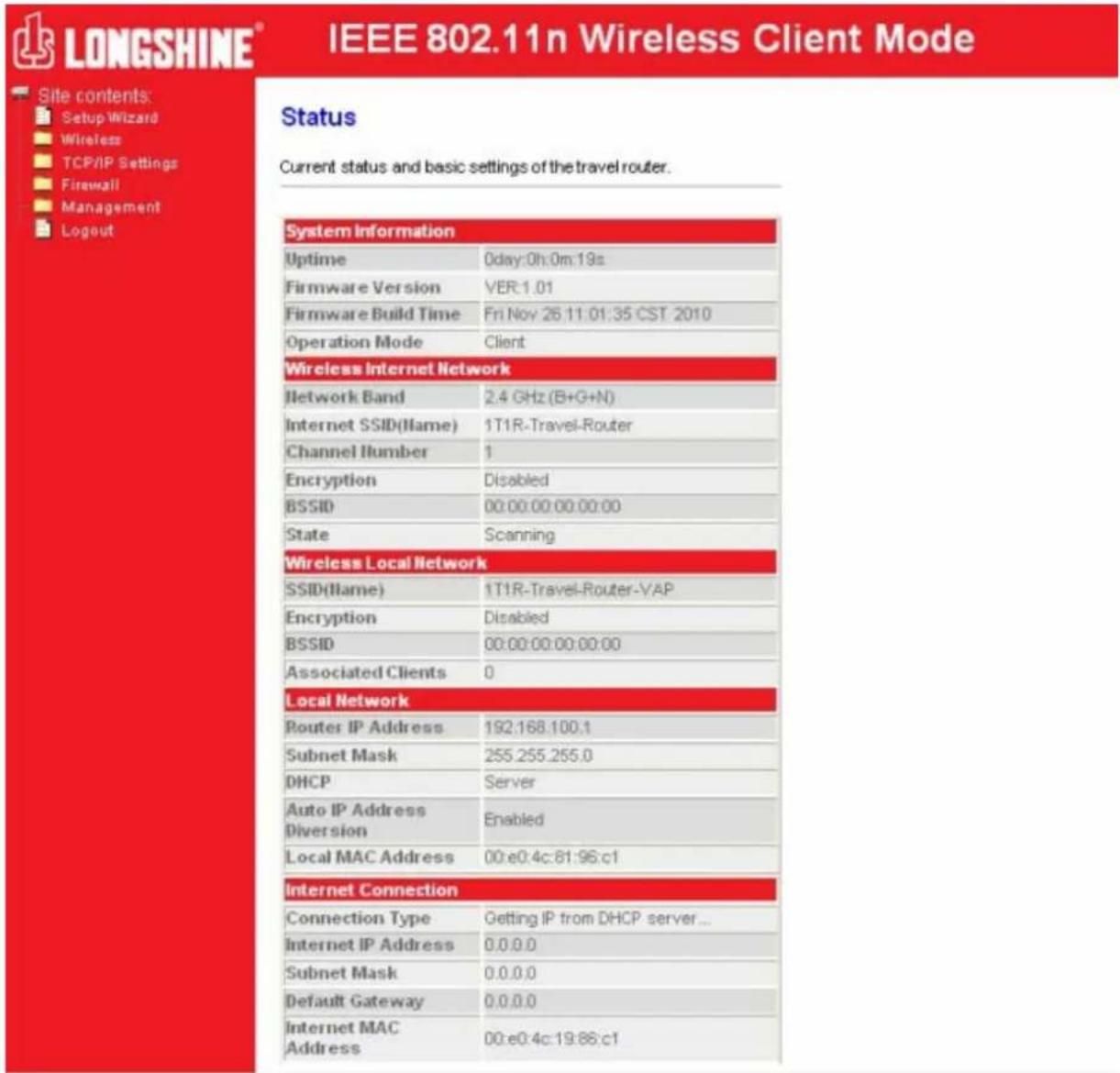
text_image
LONGSHINE® IEEE 802.11n Wireless Client Mode Site contents: Setup Wizard Wireless TCP/IP Settings Firewall Management Logout Status Current status and basic settings of the travel router. System Information Uptime 0day:0h:0m:19s Firmware Version VER:1.01 Firmware Build Time Fri Nov 26:11:01:35 CST 2010 Operation Mode Client Wireless Internet Network Network Band 2.4 GHz (B+G+N) Internet SSID(Name) 1T1R-Travel-Router Channel Humber 1 Encryption Disabled BSSID 00:00:00:00:00:00 State Scanning Wireless Local Network SSID(Name) 1T1R-Travel-Router-VAP Encryption Disabled BSSID 00:00:00:00:00:00 Associated Clients 0 Local Network Router IP Address 192:168.100.1 Subnet Mask 255.255.255.0 DHCP Server Auto IP Address Enabled Diversion Local MAC Address 00:e0:4c:61:96:c1 Internet Connection Connection Type Getting IP from DHCP server... Internet IP Address 0.0.0.0 Subnet Mask 0.0.0.0 Default Gateway 0.0.0.0 Internet MAC Address 00:e0:4c:19:86:c1This setup wizard will help you to configure the travel router. Please follow the directions step-by-step.
Welcome to Setup Wizard.
The Wizard will guide you the through following steps. Begin by clicking on Next.
- Setup LAN Interface
- Setup WAN Interface
- Wireless Network Basic Settings
- Wireless Security Setup
Next>>
This page is used to configure the parameters for local area network which connects to the LAN port of your Access Point. Here you may change the setting for Router IP address, subnet mask, etc..
Router IP Address: 192.168.100.1
Subnet Mask: 255.255.255.0
Cancel <
Configure the parameters for the Internet network which connects to the WAN port of your travel router. Here you may change the access method to a static IP address, DHCP client, or PPPoE client.
WAN Access Type:
DHCP Client
Cancel
<<Back
Next>>
Wireless Network Basic Settings
This page is used to configure the parameters for wireless LAN clients which may connect to your Access Point.
□ Disable Wireless Network
Network Band: 2.4 GHz (B+G+N)
SSID(Router Name): 1T1R-Travel-Router
Channel Width: 40MHz
Channel Number: Auto
Cancel
<<Back
Next>>
Wireless Security Setup
This page allows you to setup the wireless security. Turn on WEP or WPA by using Encryption Keys could prevent any unauthorized access to your wireless network.
Encryption:
None

Cancel
<<Back
Finished
Wireless Basic Settings
Configure the parameters for wireless LAN clients connecting to the travel router. You can also modify the wireless security settings and network parameters.
□ Disable Wireless Network
Network Band:
2.4 GHz (B+G+N)
Multiple AP
SSID(Router Name):
1T1R-Travel-Router
Channel Width:
40MHz
Channel Number:
Auto
Country:
USA(FCC)
Broadcast SSID:
Enabled
Associated Clients:
Show Active Clients
Apply Changes
Reset
This page shows and updates the wireless setting for multiple APs.
| No. | Enable | SSID | Broadcast SSID | Active Client List |
| SSID2 | 1T1R-Travel-Rot | Enabled | Show | |
| SSID3 | 1T1R-Travel-Rot | Enabled | Show | |
| SSID4 | 1T1R-Travel-Rot | Enabled | Show |
Apply Changes
Reset
Active Wireless Client Table - AP1
This table shows the MAC address, transmission, reception packet counters and encrypted status for each associated wireless client.
| MAC Address | Mode | Tx Packet | Rx Packet | Tx Rate (Mbps) | Power Saving | Expired Time (s) |
| None | - | - | - | - | - | - |
Refresh
Close
Active Wireless Client Table
This table shows the MAC address, transmission, reception packet counters and encrypted status for each associated wireless client.
| MAC Address | Mode | Tx Packet | Rx Packet | Tx Rate (Mbps) | Power Saving | Expired Time (s) |
| None | - | - | - | - | - | - |
Refresh
Close
Wireless Advanced Settings
For technically advanced users who have a sufficient knowledge of wireless LANs. These settings should not be modified unless you know the effect the changes will have on your travel router.
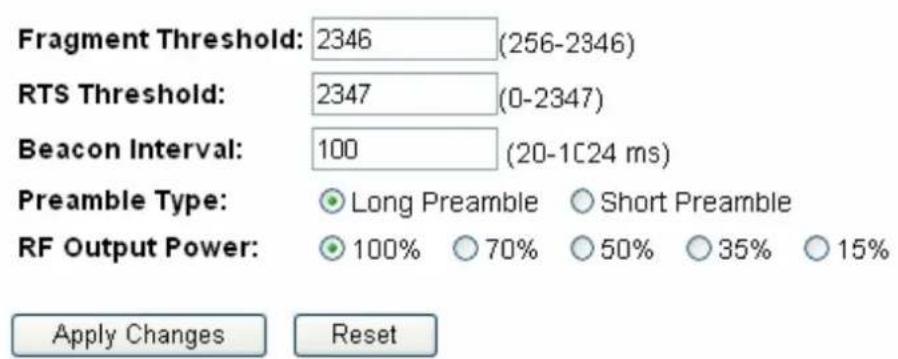
text_image
Fragment Threshold: 2346 (256-2346) RTS Threshold: 2347 (0-2347) Beacon Interval: 100 (20-1C24 ms) Preamble Type: ● Long Preamble ○ Short Preamble RF Output Power: ● 100% ○ 70% ○ 50% ○ 35% ○ 15% Apply Changes ResetWireless Security Setup
Configure the wireless security for the travel router. Enable WEP or WPA encryption to prevent unauthorized access to your wireless network.

text_image
Select SSID: 1T1R-Travel-Router Apply Changes ResetEncryption:

WPA Cipher Suite:
√ TKIP □ AES
WPA2 Cipher Suite:
□ TKIP √ AES
Pre-
Shared Key Format:
Pre-Shared Key:
Show Password:

Wireless Security Setup
Configure the wireless security for the travel router. Enable WEP or WPA encryption to prevent unauthorized access to your wireless network.
Select SSID:
1T1R-Travel-Router

Apply Changes
Reset
Encryption:

Wireless Security Setup
Configure the wireless security for the travel router. Enable WEP or WPA encryption to prevent unauthorized access to your wireless network.
Select SSID:
1T1R-Travel-Router

Apply Changes
Reset
Encryption:

Authentication:
Open System Shared Key Auto
Key Length:
Key Format:
Hex (10 characters)
Encryption Key:

Show Password:

Wireless Security Setup
Configure the wireless security for the travel router. Enable WEP or WPA encryption to prevent unauthorized access to your wireless network.
Select SSID: 1T1R-Travel-Router Apply Changes Reset
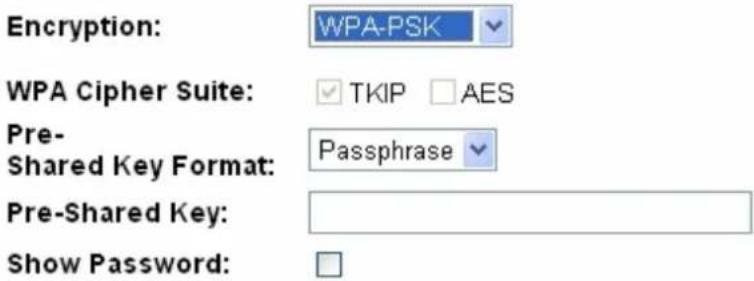
text_image
Encryption: WPA-PSK WPA Cipher Suite: ✓ TKIP □ AES Pre- Shared Key Format: Passphrase Pre-Shared Key: Show Password: □Wireless Security Setup
Configure the wireless security for the travel router. Enable WEP or WPA encryption to prevent unauthorized access to your wireless network.
Select SSID: 1T1R-Travel-Router Apply Changes Reset
Encryption:
WPA2-PSK
WPA2 Cipher Suite:
□ TKIP √ AES
Pre-
Passphrase
Shared Key Format:
Pre-Shared Key:
Show Password:
The image contains no text or characters. It is a blank rectangular box with no visible content, figures, or markings. Therefore, there is no OCR result to generate.
□
Wireless Security Setup
Configure the wireless security for the travel router. Enable WEP or WPA encryption to prevent unauthorized access to your wireless network.
Select SSID:
1T1R-Travel-Router

Apply Changes
Reset
Encryption:


WPA Cipher Suite:


WPA2 Cipher Suite:


Pre-
Passphrase

Shared Key Format:
Pre-Shared Key:
Show Password:

Wireless Access Control
"Allow Listed", wireless clients with a MAC address listed in the access control list will be able to connect to the travel router. "Deny Listed" wireless clients will not be able to connect to the travel router.
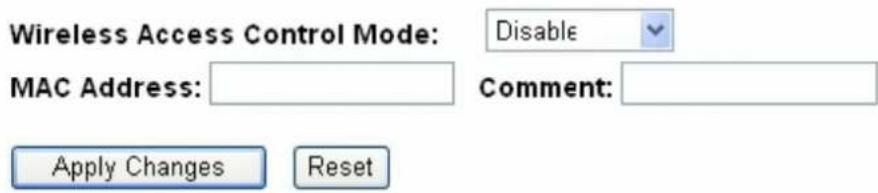
text_image
Wireless Access Control Mode: Disable MAC Address: Comment: Apply Changes ResetCurrent Access Control List:

text_image
MAC Address Comment Select Delete Selected Delete All ResetThis page provides tool to scan the wireless network. If any Access Point or IBSS is found, you could choose to connect it manually when client mode is enabled.
Site Survey
| SSID | BSSID | Channel | Type | Encrypt | Signal | Select |
| None |
Next>>
This page provides tool to scan the wireless network. If any Access Point or IBSS is found, you could choose to connect it manually when client mode is enabled.
Site Survey
| SSID | BSSID | Channel | Type | Encrypt | Signal | Select |
| 1T1R-Router-1 | 00:08:54:6a:95:28 | 9(B+G+N) | AP | no | 64 | ○ |
| notYours | 00:00:00:00:00:22 | 1(B+G+N) | AP | WPA-PSK/WPA2-PSK | 48 | ○ |
| ZuniConnect | 00:25:9c:09:c0:cb | 6(B+G+N) | AP | no | 42 | ○ |
| shawn test ap | 00:e0:4c:81:aa:99 | 1(B+G+N) | AP | WPA2-PSK | 40 | ○ |
| W440A | 00:e0:7d:c0:c7:d1 | 1 (B+G) | AP | WPA-PSK | 38 | ○ |
| Ikjslfksjdlf | 12:36:54:78:90:12 | 11(B+G+N) | AP | no | 34 | ○ |
| chenlibing-gw | 00:e0:4c:00:00:b1 | 11(B+G+N) | AP | no | 32 | ○ |
| E-ZY.NET_EZ1 | 00:11:7c:ff:33:e0 | 11 (B+G) | AP | WEP | 14 | ○ |
| vip room | 00:e0:4c:81:26:b1 | 11(B+G+N) | AP | no | 10 | ○ |
Next>>
This page provides tool to scan the wireless network If any Access Point or IBSS is found, you could choose to connect it manually when client mode is enabled.
Site Survey
| SSID | BSSID | Channel | Type | Encrypt | Signal | Select |
| 1T1R-Router-1 | 00:08:54:6a:95:28 | 9(B+G+N) | AP | no | 64 | |
| notYours | 00:00:00:00:00:22 | 1(B+G+N) | AP | WPA-PSK/WPA2-PSK | 48 | |
| ZuniConnect | 00:25:9c:09:c0:cb | 6(B+G+N) | AP | no | 42 | |
| shawn test ap | 00:e0:4c:81:aa:99 | 1(B+G+N) | AP | WPA2-PSK | 40 | |
| W440A | 00:e0:7d:c0:c7:d1 | 1 (B+G) | AP | WPA-PSK | 38 | |
| Ikjslfksjdlf | 12:36:54:78:90:12 | 11(B+G+N) | AP | no | 34 | |
| chenlibing-gw | 00:e0:4c:00:00:b1 | 11(B+G+N) | AP | no | 32 | |
| E-ZY.NET_EZ1 | 00:11:7c:ff:33:e0 | 11 (B+G) | AP | WEP | 14 | |
| vip room | 00:e0:4c:81:26:b1 | 11(B+G+N) | AP | no | 10 |
Next>>
This page provides tool to scan the wireless network. If any Access Point or IBSS is found, you could choose to connect it manually when client mode is enabled.
Encryption: WPA2
Authentication Mode:
○ Enterprise (RADIUS) ● Personal (Pre-Shared Key)
WPA2 Cipher Suite:
□ TKIP √ AES
Pre-Shared Key Format:
Passphrase
Pre-Shared Key:
The image contains no text or characters. It is a blank rectangular box with no visible content, figures, or markings. Therefore, there is no OCR result to generate.
<<Back
Connect
This page provides tool to scan the wireless network. If any Access Point or IBSS is found, you could choose to connect it manually when client mode is enabled.
Please wait...
Connect successfully!
OK
Setup Wizard
Wireless
Basic Settings
Advanced Settings
Security
Access Control
Site Survey
WPS
Status
Statistics
Log
Upgrade Firmware
Save/Reload Settings
Password
TCP/IP Settings
Firewall
Managemant
Logout
Status
Current status and basic settings of the travel router.
System Information
| Uptime | 0day:0h:11m:17s |
| Firmware Version | VER:1.01 |
| Firmware Build Time | Fri Nov 26 11:01:35 CST 2010 |
| Operation Mode | Client |
Wireless Internet Network
| Network Band | 2.4 GHz (B+G+N) |
| Internet SSID(IIame) | shawntest ap |
| Channel IIumber | 1 |
| Encryption | WPA2 |
| BSSID | 00:e0:4c:81:aa:99 |
| State | Connected |
Wireless Local Network
| SSID(IIame) | 1T1R-Travel-Router-VAP |
| Encryption | Disabled |
| BSSID | 00:e0:4c:19:86:c1 |
| Associated Clients | 0 |
Local Network
| Router IP Address | 192.168.100.1 |
| Subnet Mask | 255.255.255.0 |
| DHCP | Server |
| Auto IP Address Diversion | Enabled |
| Local MAC Address | 00:e0:4c:81:96:c1 |
Internet Connection
| Connection Type | DHCP |
| Internet IP Address | 192.168.52.106 |
| Subnet Mask | 255.255.255.0 |
| Default Gateway | 192.168.52.1 |
| Internet MAC Address | 00:e0:4c:19:86:c1 |
Wi-Fi Protected Setup
Change the WPS (Wi-Fi Protected Setup) settings for the travel router. This feature lets you automatically synchronize wireless client settings and quickly connect with the travel router.
□ Disable WPS
WPS Status:
- Configured ○ UnConfigured
Reset to UnConfigured
Self-PIN Number:
83035234
Push Button Configuration:
Start PBC
Apply Changes
Reset
Current Key Info:
| Authentication | Encryption | Key |
| WPA2 PSK | AES | 1234567890 |
Client PIN Number:
Start PIN
Wi-Fi Protected Setup
Change the WPS (Wi-Fi Protected Setup) settings for the travel router. This feature lets you automatically synchronize wireless client settings and quickly connect with the travel router.

Disable WPS
Self-PIN Number:
83035234
PIN Configuration:
Start PIN
Push Button Configuration:
Start PBC
Apply Changes
Reset
Configure the parameters for the local area network which connects to the LAN port and Wi-Fi clients of your travel router. Here you can change the settings for IP address, subnet mask, DHCP, etc.
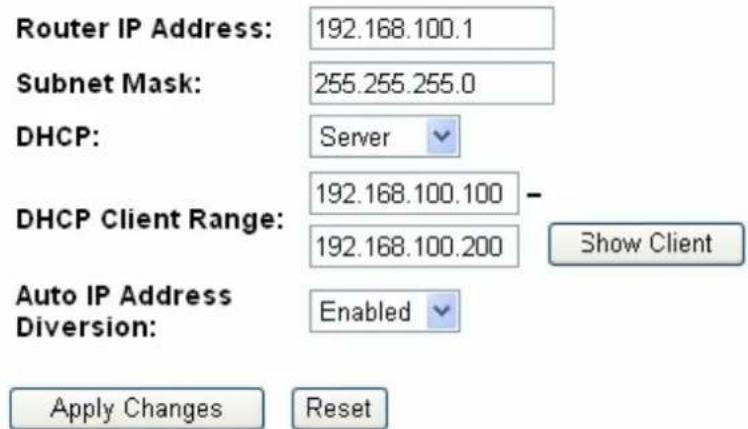
text_image
Router IP Address: 192.168.100.1 Subnet Mask: 255.255.255.0 DHCP: Server DHCP Client Range: 192.168.100.100 - 192.168.100.200 Show Client Auto IP Address Diversion: Enabled Apply Changes ResetThis table shows the assigned IP address, MAC address and time expired for each DHCP leased client.
| IP Address | MAC Address | Time Expired(s) |
| 192.168.100.100 | 00:0e:a6:03:0d:44 | 862749 |
This page is used to configure the parameters for the Internet network which connect to the WAN port of your travel router. Here you may change the access method to a static IP address, DCHP client, or PPPoE client
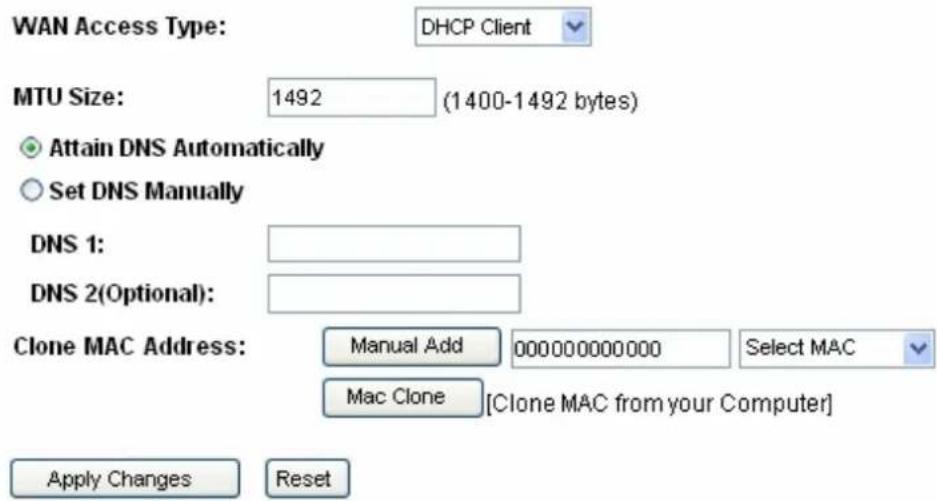
text_image
WAN Access Type: DHCP Client MTU Size: 1492 (1400-1492 bytes) Attain DNS Automatically Set DNS Manually DNS 1: DNS 2(Optional): Clone MAC Address: Manual Add 000000000000 Select MAC Mac Clone [Clone MAC from your Computer] Apply Changes ResetHistory MAC Table:
The maximum of the history MAC entry is three. when the table is full, you can't save any MAC unless you delete some mac entries from the MAC table.
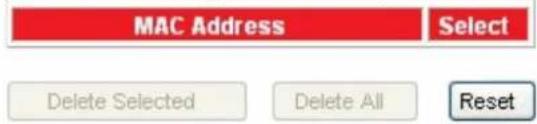
text_image
MAC Address Select Delete Selected Delete All Resettext_image
WAN Access Type: Static IP Internet IP Address: 172.1.1.1 Subnet Mask: 255.255.255.0 Default Gateway: 172.1.1.254 MTU Size: 1500 (1400-1500 bytes) DNS 1: DNS 2(Optional): Clone MAC Address: Manual Add 000000000000 Select MAC Mac Clone [Clone MAC from your Computer]text_image
WAN Access Type: DHCP Client MTU Size: 1492 (1400-1492 bytes) Attain DNS Automatically Set DNS Manually DNS 1: DNS 2(Optional): Clone MAC Address: Manual Add 000000000000 Select MAC Mac Clone [Clone MAC from your Computer]text_image
WAN Access Type: PPPoE User Name: Password: MTU Size: 1452 (1360-1492 bytes) Attain DNS Automatically Set DNS Manually DNS 1: DNS 2(Optional): Clone MAC Address: Manual Add 000000000000 Select MAC Mac Clone [Clone MAC from your Computer]Entries in this table are used to restrict the passage of certain types of data packets from your local network to the Internet through the travel router. Use of such filters can be helpful in securing or restricting your local network.
Enable MAC Filtering
MAC Address: Comment:
Apply Changes Reset
Current Filter Table:
MAC Address
Comment
Select
Delete Selected
Delete All
Reset
Current status and basic settings of the travel router.
| System Information | |
| Uptime | 0day:0h:4m:38s |
| Firmware Version | VER:1.01 |
| Firmware Build Time | Fri Nov 26 11:01:35 CST 2010 |
| Operation Mode | Router[Gateway] |
| Wireless Local Network | |
| Network Band | 2.4 GHz (B+G+N) |
| SSID(Name) | 1T1R-Travel-Router |
| Channel Humber | 11 |
| Encryption | Disabled |
| BSSID | 00:e0:4c:19:86:c1 |
| Associated Clients | 0 |
| Local Network | |
| Router IP Address | 192.168.100.1 |
| Subnet Mask | 255.255.255.0 |
| DHCP | Server |
| Auto IP Address Diversion | Enabled |
| Local MAC Address | 00:e0:4c:81:96:c1 |
| Internet Connection | |
| Connection Type | Getting IP from DHCP server... |
| Internet IP Address | 0.0.0.0 |
| Subnet Mask | 0.0.0.0 |
| Default Gateway | 0.0.0.0 |
| Internet MAC Address | 00:e0:4c:81:96:c9 |
3.7.2 Statistiche
Packet counts for wired and wireless Ethernet connections.
| Wireless LAN | Sent Packets | 81 |
| Received Packets | 14432 | |
| Ethernet LAN | Sent Packets | 855 |
| Received Packets | 551 | |
| Ethernet WAN | Sent Packets | 66 |
| Received Packets | 0 |
Refresh
3.7.3 Registro
natural_image
Blank white image with a thin border and corner handles (no text or symbols)Refresh
Clear
Upgrade the travel router firmware.
PLEASE NOTE: Do not power off the device during the upgrade process, as this may cause damage to the device.
Firmware Version:
VER:1.01
Select File:

Upload
Reset
Save the current settings to a backup file, or reload the setting from a previously saved file. You can also restore the travel router to the factory defaults.
Save Settings to File:
Save...
Load Settings from File:

Reset Settings to Default:
Reset
Set or change the travel router ADMINISTRATOR user name and password. Leaving the user name and password fields empty will disable login protection.
User Name:

New Password:

Confirmed Password:

Apply Changes
Reset
This page is used to logout of the travel router.
Are you certain you want to logout?
Apply Change
| DECLARATION OF CONFORMITY IN ACCORDANCE WITH THE RADIO AND TELECOMMUNICATIONS TERMINAL EQUIPMENT ACT (FTEG) AND DIRECTIVE 1999/5/EC (R & TTE DIRECTIVE)
CE....=European-Community-Conformity-Mark.
We, Manufacturer/Importer
Longshine Technologie (Europe) GmbH
An der Strusbek 9+
22926 Ahrensburg
Germany+
Declare that the Product.
LCS-WARC-N
IEEE 802. N Wireless 1T1R Travel Router


Is-In-Conformity-With:
| Standards | Results |
| EN 301489-1-V1.8.1 (2008-04) | Pass |
| EN 301489-17V2.1.1 (2009-05) | Pass |
| EN 55022:2006+A1:2007 Class B | Pass |
| EN 61000-3-2:2006 Class A | Pass |
| EN 61000-3-3:2008 | Pass |
| IEC 61000-4-2:2008/EN 61000-4-2:2009 | Pass |
| IEC 61000-4-3:2006+A1:2007+A2:2010 | Pass |
| EN 61000-4-3:2006+A1:2008+A2:2010 | Pass |
| IEC 61000-4-4:2004+A1:2010/EN 61000-4-4:2004+A1:2010 | Pass |
| IEC 61000-4-5:2005/EN 61000-4-5:2006 | Pass |
| IEC 61000-4-6:2008/EN 61000-4-6:2009 | Pass |
| IEC 61000-4-11:2004/EN 61000-4-11:2004 | Pass |
4)
-
Identification of signatory empowered to bind the manufacturer or his authorized representative.
4
Signature
Manufacturer/Importer

Date: 24.11.2010

4