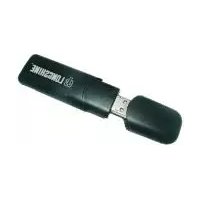
LCS-PL200-KIT - Network card / adapter Longshine - Free user manual and instructions
Find the device manual for free LCS-PL200-KIT Longshine in PDF.


| Product Type | Powerline Network Adapter Kit |
| Model | LCS-PL200-KIT |
| Brand | Longshine |
| Data Transfer Rate | Up to 200 Mbps |
| Standard | HomePlug AV |
| Interface | 1 x RJ45 Ethernet Port |
| Security | 128-bit AES Encryption |
| Power Supply | Integrated AC Plug (Direct Wall Socket) |
| Dimensions (Each) | Approx. 70 x 50 x 30 mm |
| Weight (Each) | Approx. 100 g |
| Power Consumption | < 5 W (Active), < 1 W (Standby) |
| Operating Temperature | 0°C to 40°C |
| LED Indicators | Power, Ethernet Link, Data Activity |
| Pairing Button | Yes (Secure Connect) |
| Compatibility | All routers with Ethernet port |
| Package Contents | 2 Powerline Adapters, 2 Ethernet Cables, Quick Installation Guide |
| Cleaning Instructions | Wipe with dry cloth; do not use liquids |
| Safety Certifications | CE, FCC |
| Warranty | 2 Years Limited |
Frequently Asked Questions - LCS-PL200-KIT Longshine
User questions about LCS-PL200-KIT Longshine
0 question about this device. Answer the ones you know or ask your own.
Ask a new question about this device
Download the instructions for your Network card / adapter in PDF format for free! Find your manual LCS-PL200-KIT - Longshine and take your electronic device back in hand. On this page are published all the documents necessary for the use of your device. LCS-PL200-KIT by Longshine.
USER MANUAL LCS-PL200-KIT Longshine
Instant Network for Internet Access...and More!Instant Netw
Solution for SOHO, SMALL OFFICE AND HOME OFFICE
Utility Program User Guide for
200Mbps PLC-ETHERNET BRIDGE
Index
1. Introduction......3
1.1. System Requirements....3
1.2. Installation....3
1.3. Run the Utility....4
2. How to use ....5
2.1. Main Tab....5
2.2. Privacy Tab 9
2.3. Diagnostics Tab.... 11
2.4. About Tab 14
1. Introduction
This Utility Program enables users to find 200Mbps PLC-Ethernet Bridge devices on the Powerline network, measures data rate performance, ensures privacy and performs diagnostics by setting user defined secure Powerline networks.
1.1. System Requirements
| Operating System Microsoft Windows 2000 , XP , Vista | |
| Browser Microsoft Internet Explorer 5.0 or later. | |
| CPU Intel Pentium III or better, clock rate faster than 2 recommended .0GHz | |
| RAM At least 128MB | |
| Free Disk Space At least 20MB | |
| Network Interface | At least one Fast Ethernet (100 Mbps) network card, and Ethernet Cord |
1.2. Installation
First step, you need to verify that there is no any other Powerline Utility installed on your computer before installing this utility. If there is another utility installed, please uninstall it and restart your computer.
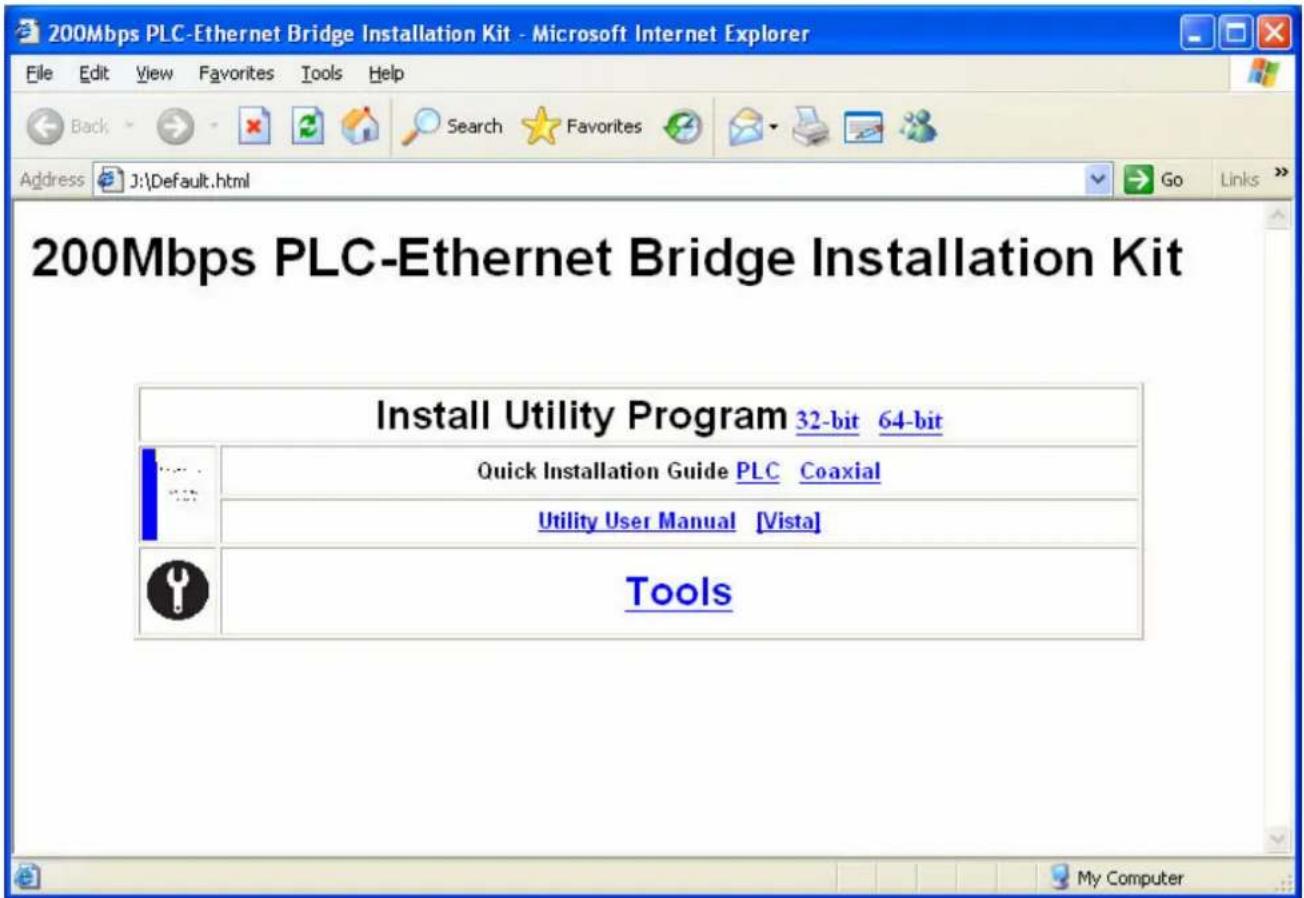
Second step, please insert the Utility CD-ROM into the computer's CD-ROM drive. The CD will launch a IE browser for installation as shown in Figure 1. Click the necessary link to start installation. If IE browser is not your default browser, please run the setup.exe at D:\Software\PLC_x86Setup\ (for 32-bit OS) or D:\Software\PLC_x64Setup\ (for 64-bit OS). (Please change D: to your CD-ROM drive).
Follow the steps to install the Utility Program. No password or CD-Key is needed.
text_image
200Mbps PLC-Ethernet Bridge Installation Kit Install Utility Program 32-bit 64-bit Quick Installation Guide PLC Coaxial Utility User Manual [Vista] ToolsFigure 1: Installation Browser Snapshot
1.3. Run the Utility
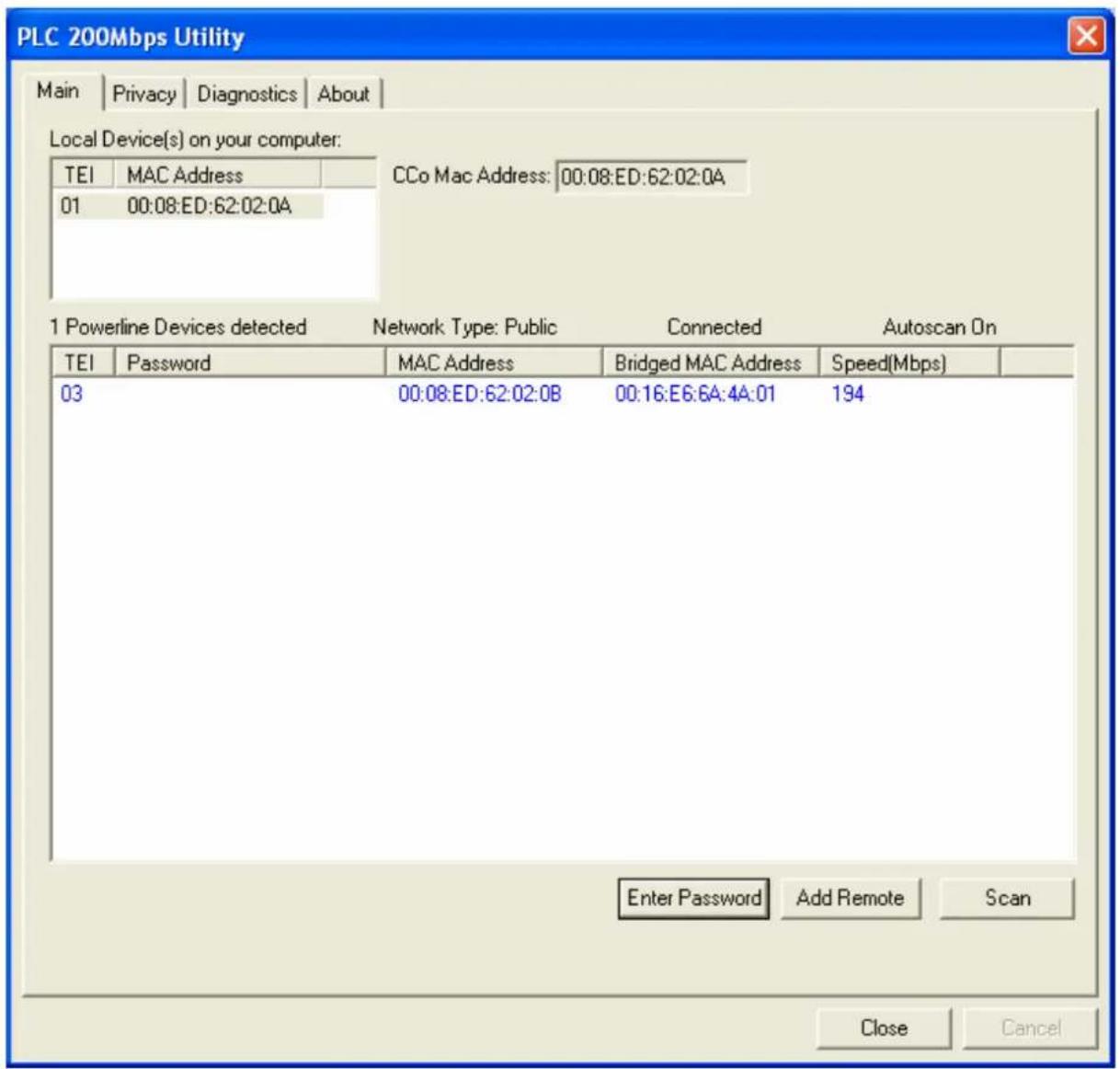
After installing the Utility Program, please run the Utility Program from the Start / All Programs or double-click the utility icon on the desktop. Figure 2 is the main tab screen of the utility program. This screen shows a 200Mbps PLC-Ethernet Bridge device connected as a local device and another 200Mbps PLC-Ethernet Bridge device as remote devices.
2. How to use
There are four Tabs (Main, Privacy, Diagnostics, About) in the Utility program layout. Each Tab will provide different functions. Sec. 2.1\~2.4 explains each tab's functions:
2.1. Main Tab
The “Main” tab will list all the 200Mbps PLC-Ethernet Bridge devices logically connected in current available Powerline networks.
Upper Window
The upper window, entitled “Local Device(s) on your computer”, shows all the local 200Mbps PLC-Ethernet Bridge devices directly connected to your computer via Ethernet. In most cases, there is only one device shown in the window. If you have more than one NIC (Network Interface Card) on your computer and each of them connects 200Mbps PLC-Ethernet Bridge devices, you will find more than one local 200Mbps PLC-Ethernet Bridge devices shown in the upper window. The Utility will scan the Powerline network periodically to search for all the 200Mbps PLC-Ethernet Bridge devices, and keep the information updated.
CCo MAC Address
This window shows the MAC Address of the "CCo"(Central Coordinator) inside this Powerline network. The CCo is automatically appointed by the Powerline network and cannot be changed unless the original CCo is unplugged.
Lower Window
The lower window lists all the 200Mbps PLC-Ethernet Bridge devices discovered in the current logical Powerline networks. This window will report each 200Mbps PLC-Ethernet Bridge device's connection status, as shown in Figure 2:
text_image
PLC 200Mbps Utility Main | Privacy | Diagnostics | About | Local Device(s) on your computer: TEI MAC Address 01 00:08:ED:62:02:0A CCo Mac Address: 00:08:ED:62:02:0A 1 Powerline Devices detected Network Type: Public Connected Autoscan On TEI Password MAC Address Bridged MAC Address Speed(Mbps) 03 00:08:ED:62:02:0B 00:16:E6:6A:4A:01 194 Enter Password Add Remote Scan Close CancelFigure 2: The main tab screen
The “TEI” column shows the unique “Terminal Equipment Identifier” of each 200Mbps PLC-Ethernet Bridge inside the Powerline network. This TEI value is automatically appointed by the Powerline network and cannot be changed unless the device is unplugged.
The "Password" column shows each 200Mbps PLC-Ethernet Bridge's password. You can input the password by clicking the "Enter Password" button.
The "MAC Address" column shows the 200Mbps PLC-Ethernet Bridge's MAC address.
The “Bridged MAC Address” column shows the NIC (Network Interface Card) this 200Mbps PLC-Ethernet Bridge connects to. If no NIC is connected, its default
value is "ff:ff:ff:ff:ff:ff".
The "Speed(Mbps)" column shows the remote device's mutual transmit speed with the local device, in Mbps(Million bits per second).
"Enter Password" button
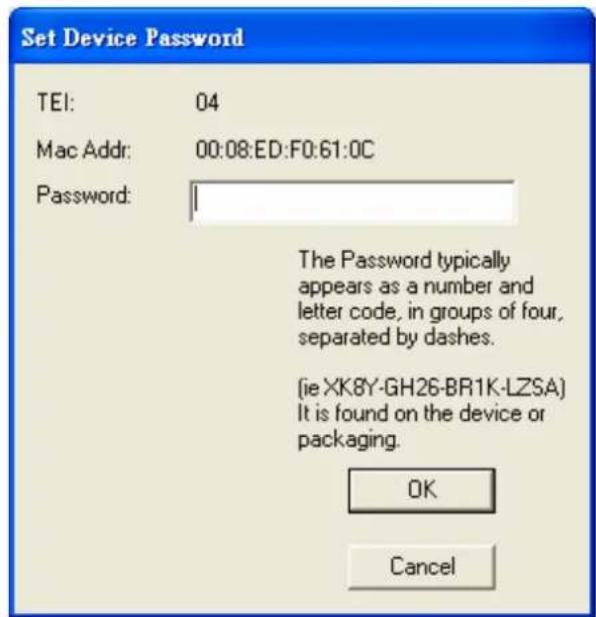
If you want to create a private network, you need to enter the device password first. Please click on the intended device to make it highlighted then click the “Enter Password” button, and the “Set Device Password” dialog box will show up (Figure 3). The selected device’s TEI and MAC address are shown in the dialog box. After entering the password, click “OK” button. If the input password does not match the device’s real password, error message will be shown and please retry again.
text_image
Set Device Password TEI: 04 Mac Addr: 00:08:ED:F0:61:0C Password: The Password typically appears as a number and letter code, in groups of four, separated by dashes. (jie XK8Y-GH26-BR1K-LZSA) It is found on the device or packaging. OK CancelFigure 3: Set Device Password
"Add Remote" button
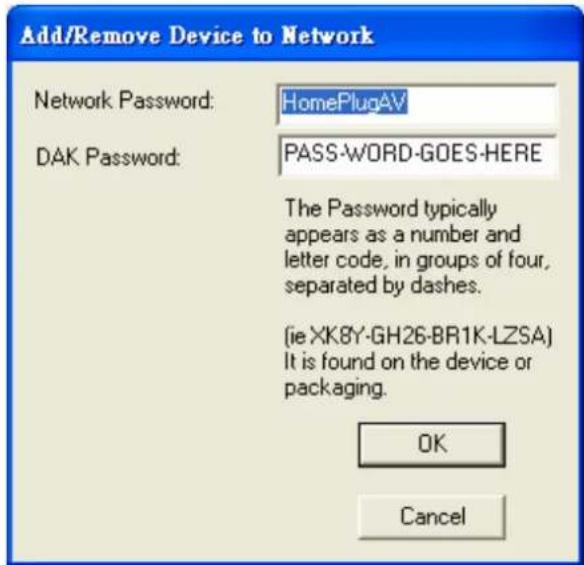
The “Add Remote” button is used to add a remote device which is not listed in the lower window to your logical network (for example, a device is currently in another logical network). You can click the “Add Remote” button to add the device to your logical network. The dialog box in Figure 4 is shown after clicking the “Add Remote” button, and it allows you to enter both the device name and the password. The device will be added to your logical network only if the Network and DAK passwords are both correct. Like the “Enter Password” function, incorrect passwords will be warned and denied.
text_image
Add/Remove Device to Network Network Password: HomePlugAV DAK Password: PASS-WORD-GOES-HERE The Password typically appears as a number and letter code, in groups of four, separated by dashes. (ie XK8Y-GH26-BR1K-LZSA) It is found on the device or packaging. OK CancelFigure 4: Add Remote Device
"Scan" button
The “Scan” button is used to search for the 200Mbps PLC-Ethernet Bridge devices connected to your logical network immediately. By default setting, It will automatically scan every 10 seconds and updates the display lists.
2.2. Privacy Tab
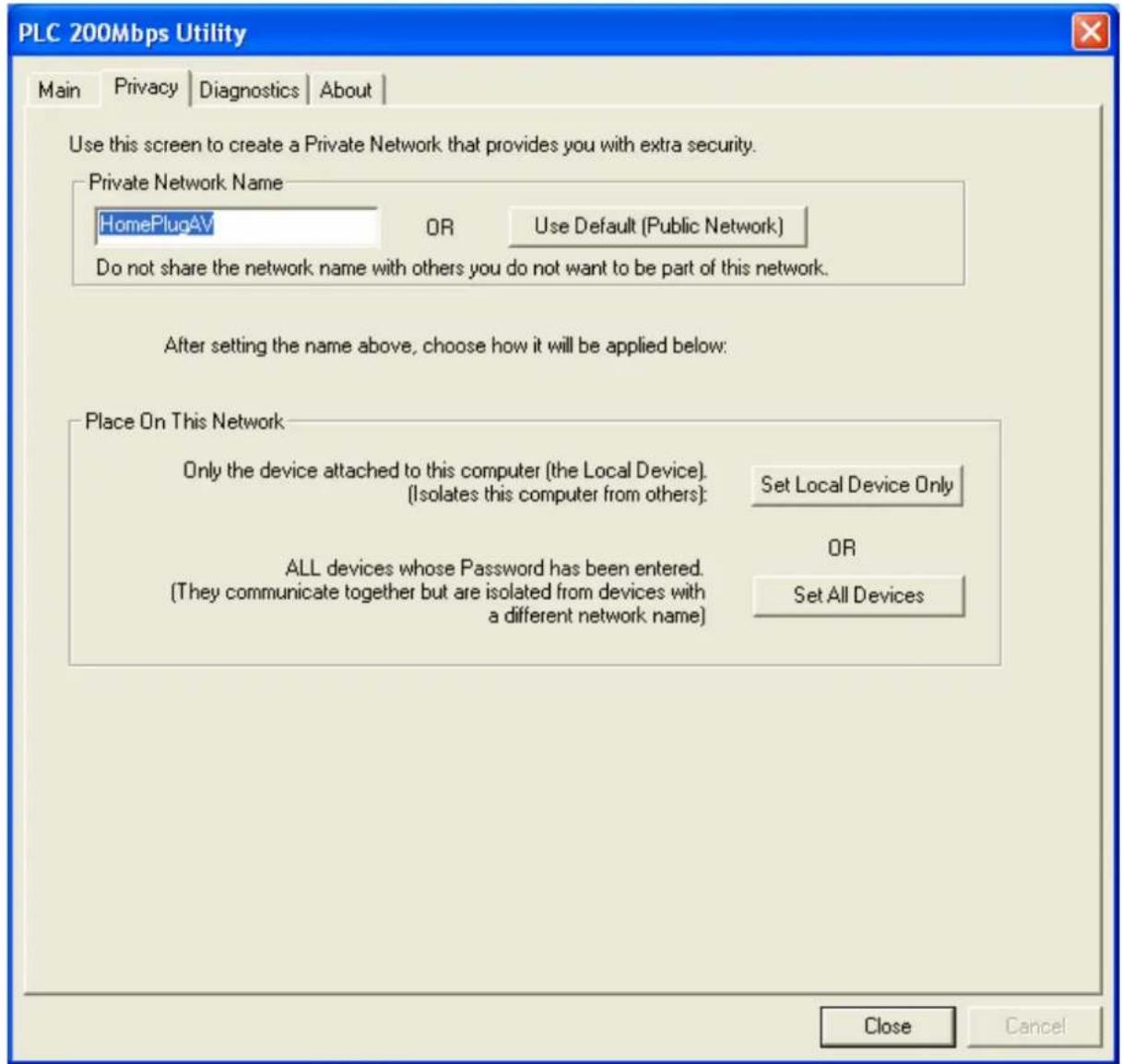
When rolling out of factory, every 200Mbps PLC-Ethernet Bridge device carries a default logical network name: "HomePlugAV". The "Privacy" tab provides functions to manage this logical network name and create private network.
"Use Default (Public Network)" button
You can directly set the network name back to the default "HomePlugAV" by clicking the "Use Default (Public Network)" button first, then press the "Set Local Device Only" button.
text_image
PLC 200Mbps Utility Main | Privacy | Diagnostics | About | Use this screen to create a Private Network that provides you with extra security. Private Network Name HomePlugAV OR Use Default (Public Network) Do not share the network name with others you do not want to be part of this network. After setting the name above, choose how it will be applied below: Place On This Network Only the device attached to this computer (the Local Device). (Isolates this computer from others): Set Local Device Only ALL devices whose Password has been entered. (They communicate together but are isolated from devices with a different network name) OR Set All Devices Close CancelFigure 5: Privacy Tab Screen
"Set Local Device Only" button
The “Set Local Device Only” button is used to change the network name of the local device only. After changing the network name to a new one, all the devices existing in the same network before will no longer be able to communicate or respond to you, because they will not have the same network name with the local device.
"Set All Devices" button
The “Set All Devices” button is used to change the whole logical network’s devices, both local and remote, that showed in the Main Tab. Please fill in each remote device’s password in advance following the instructions in Sec 2.1 (“Enter Password” button) so that this function can proceed normally.
2.3. Diagnostics Tab
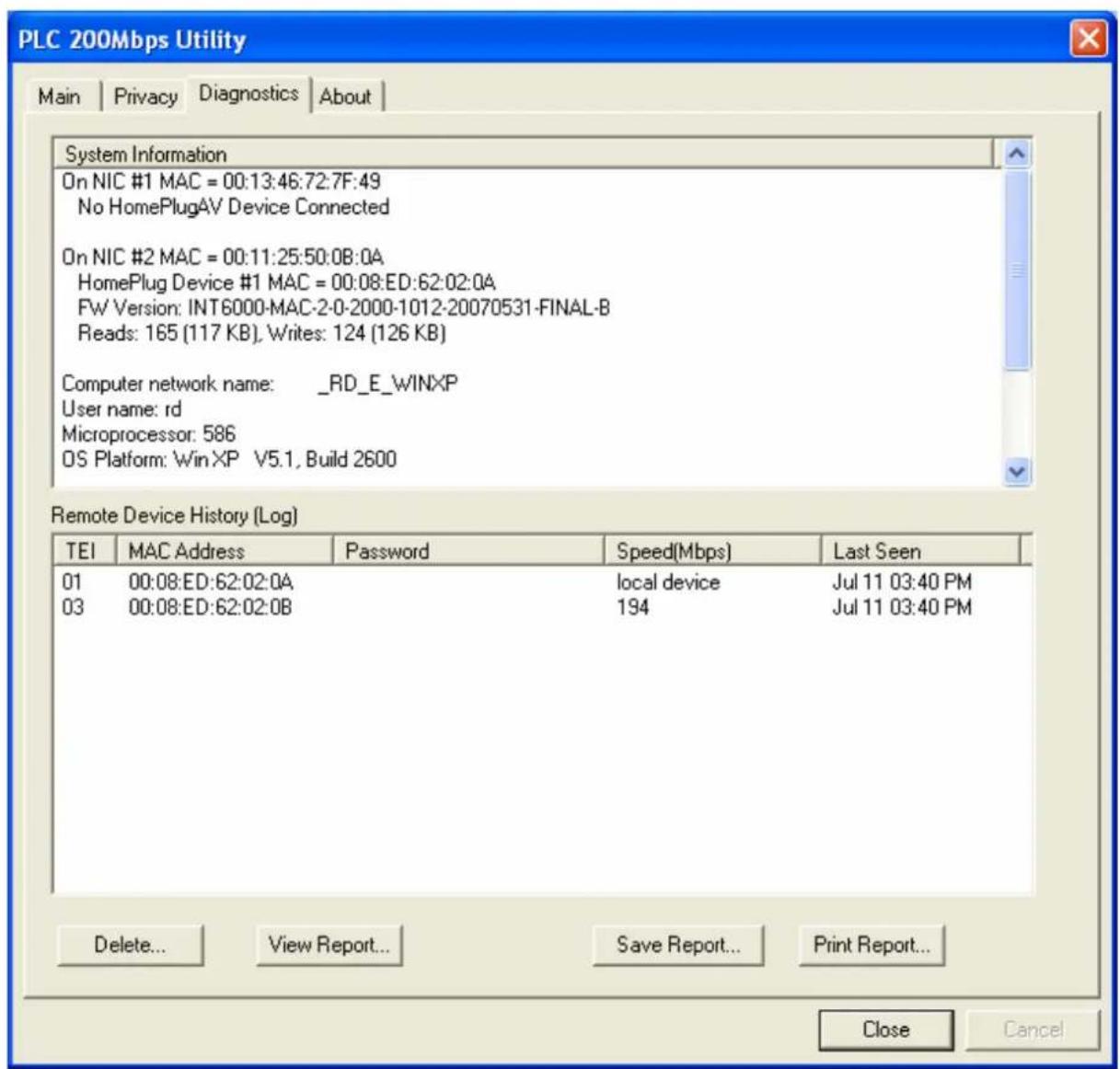
The “Diagnostics” tab shows the system information and the history of all the devices that have been found before (Figure 6).
The upper window of Diagnostics tab shows the host computer's system data and it shows:
● MAC Address of all NICs (network interface card)
- MAC Address and the firmware version of the 200Mbps PLC-Ethernet Bridge device which is connected to each NIC
- Computer name
- User name
● Processor and operating system information
● Utility program version
- Versions of all the driver DLLs and libraries used
text_image
PLC 200Mbps Utility Main | Privacy | Diagnostics | About | System Information On NIC #1 MAC = 00:13:46:72:7F:49 No HomePlugAV Device Connected On NIC #2 MAC = 00:11:25:50:08:0A HomePlug Device #1 MAC = 00:08:ED:62:02:0A FW Version: INT6000-MAC-2-0-2000-1012-20070531-FINAL-B Reads: 165 (117 KB), Writes: 124 (126 KB) Computer network name: _RD_E_WINXP User name: rd Microprocessor: 586 OS Platform: Win XP V5.1, Build 2600 Remote Device History (Log) TEI MAC Address Password Speed(Mbps) Last Seen 01 00:08:ED:62:02:0A local device Jul 11 03:40 PM 03 00:08:ED:62:02:0B 194 Jul 11 03:40 PM Delete... View Report... Save Report....Print Report... Close CancelFigure 6: Diagnostics Tab Screen
The lower window of Diagnostics tab contains the history of all remote devices which have been found by the computer previously. All the devices will be shown here, regardless of they are currently active or not. The following information is available from the list:
• TEI
- MAC Address
- Password
- Speed(Mbps)
- Last Seen
The diagnostics information displayed on the upper and lower window could be saved
to text file or print out by printers. Devices which no longer existed in the network can be deleted using the "Delete..." button.
"Delete..." button
Select the device which is no longer existed in the network by clicking its record first, then click this button to delete the record.
"View Report..." button
Click this button to view all the device information displayed on the upper and lower window by the default text editor.
"Save Report..." button
Click this button to save all the device information displayed on the upper and lower window to a text file directly.
"Print Report..." button
Click on this button to print the all diagnostics information to your default printer directly.
2.4. About Tab
The “About” Tab shows the software version, and manufacturer information.