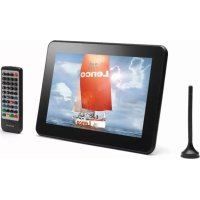
DFT1010 - Digital photo frame LENCO - Free user manual and instructions
Find the device manual for free DFT1010 LENCO in PDF.


| Product Type | Digital photo frame with digital TV receiver (DVB-T) |
| Screen Size | 10.1 inches |
| Display Resolution | 800 x 480 pixels |
| Screen Format | 16:9 |
| Supported Image Formats | JPEG |
| Supported Audio Formats | MP3, WMA |
| Supported Video Formats | MPEG-1, MPEG-2, MPEG-4 |
| External Storage Media | SD, MMC, MS cards, USB flash drive |
| Internal Memory | Yes (for screen saver and favorite photos) |
| Connectivity | AV jack (output), headphone jack |
| Power Supply | DC 12 V, 1.0 A |
| Power Consumption | 10 W |
| Speakers | 2 x 1 W |
| Remote Control | Yes (included) |
| Additional Functions | Clock, alarm, calendar, slideshow with background music, transition effects |
| Display Settings | Brightness, contrast, saturation |
| Menu Languages | French, English, German, Spanish, Dutch |
| Firmware Update | Yes (via USB flash drive) |
| Dimensions (approx.) | 260 x 170 x 25 mm |
| Weight (approx.) | 500 g |
| Care and Cleaning | Clean with a soft, dry cloth. Do not use abrasive cleaners or solvents. |
| Safety | Do not expose to moisture or extreme temperatures. Use only the supplied power adapter. |
| Spare Parts and Repairability | Contact Lenco after-sales service. The device contains no user-serviceable parts. |
| General Information | Suitable for indoor use. TV reception varies according to DVB-T coverage. |
Frequently Asked Questions - DFT1010 LENCO
User questions about DFT1010 LENCO
0 question about this device. Answer the ones you know or ask your own.
Ask a new question about this device
Download the instructions for your Digital photo frame in PDF format for free! Find your manual DFT1010 - LENCO and take your electronic device back in hand. On this page are published all the documents necessary for the use of your device. DFT1010 by LENCO.
USER MANUAL DFT1010 LENCO
natural_image
Tablet displaying a red Lenco sailboat on water under cloudy sky (no text or symbols on the boat itself)USER MANUAL
Features:
Digital TV (DVB-T)
●●With Digital TV and Digital Photo Frame functions.
●●With DVB-T and MPEG-2 standard.
●●Modulation format: QPSK, 16-QAM, 64-QAM.
●●Bandwidth: 6, 7 or 8 MHz.
●Input frequency: VHF 170-230MHz, UHF 470-862MHz.
●●Code rate:1/2,2/3,3/4,5/6,7/8.
●●Support EPG.
●●Support Teletext and Subtitle.
●●Support automatic and manual search for TV channels in many countries (England, Germany, Italy, France, Spain, Portugal and Holland, etc.).
- Channel Manage functions including favorite programs, channel lock, program sort, delete TV channels. Support switch among favorite programs, and TV or radio programs preview.
●●Support program schedule.
●●Support parental lock.
●●Support TV programs display in thumbnail mode.
●●Support show information of signal strength and quality of programs.
●●Supported display type: 4:3PS, 4:3LB, 16:9.
●●Multi OSD languages: English, German, Italian, French, Spanish, Portuguese, Dutch and Polish (optional).
Digital Photo Frame (DPF)
●●10.1 inch Digital LCD screen display.
●●Screen Size Mode: 16:9.
- Simply insert a compatible memory card into the device to show photos, play music or supported video files.
●●Support JPEG / MP3 / WMA / MPEG-1/ MPEG-2/ MPEG-4 files.
● Support SD, MMC, MS card, and USB Disk.
●●Built-in AV signal output jack and earphone jack.
●●Automatic slideshow with multiple transition effects.
●●Play slideshow with music on the background.
●● Slideshow intervals of 5s/10s/15s/30s/1m/3m.
●●Easily functioned by remote control or button adjustment.
Accessories
●●With clock, alarm and calendar function.
● Supports Firmware update.
Buttons
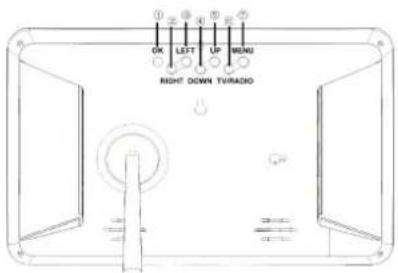
OK
RIGHT
LEFT
DOWN
UP
TV/RADIO
MENU
Remote Control
●key function description
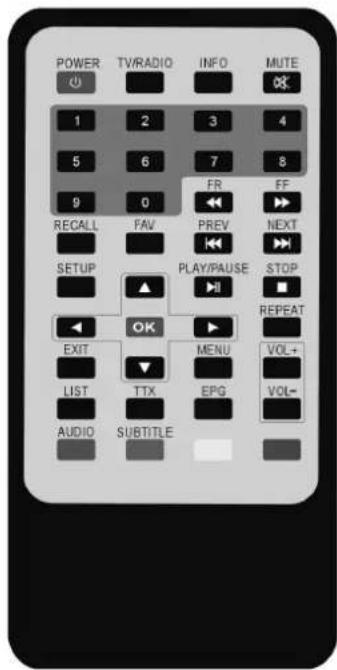
SYMBOL BE DESCRIPTION
| LCD on/off | |
| TV/RADIO | Switch between TV/Radio |
| INFO | Show the present channel information |
| Mute | |
| 1-9, 0 | For channel select |
| Fast backwards | |
| Fast forwards | |
| RECALL | Return to the previous channel |
| FAV | Turn on favorite program function| |
| Backward skip | |
| Forward skip | |
| SETUP | Setup |
| Play/pause | |
| Stop | |
| Direction button / Photo flip horizontally / Channel up | |
| Direction button / Photo flip vertically / Channel down | |
| OK | Enter |
| Direction button / Photo rotate | |
| Direction button / Photo rotate | |
| REPEAT | Repeat |
| EXIT | Exit |
| MENU | Get back to main menu |
| LIST | Program list |
| TTX | Teletex mode |
| EPG | Enter to EPG mode |
| VOL+ | Increase volume |
| VOL- | Decrease volume |
| AUDIO | Enter to audio mode |
| SUBTITLE | Enter to subtitle mode |
Main Menu
When the product is turning on, you can see four buttons:【Digital TV】, 【DPF】, 【Setup】 and Accessories on the main menu. You can choose by pressing ▲▼ ◀▶, and press OK or to enter.
1. Digital TV (DVB-T)
1.1 DVB-T Setup Menu
Program List
●●TV Program
After choosing TV Program, then pressing OK or enter it, it'll go to a program edit table. Users can edit the TV program list. There are three options: Favor, Move, and Del.
- Radio Program
After choosing Radio Program, then pressing OK or ▶ to enter it, it'll go to a program edit table. Users can edit the Radio program list. There are three options: Favor, Move, and Del.
- Sort
Users can set the types of sort in this model, three options: By Name, By Service ID, and By Channel No.
Program Search
●●Automatic Search
After choosing Automatic Search, then pressing OK or ▶ to enter it, it'll go to a dialogue for your choice.
●●Manual Search
After choosing Manual Search, then pressing OK or to enter it, it will go the mode of Manual Search.
parental Control
- Channel Lock
This option is for users to lock the channel or not.
Two options: Yes, No. If no, then users have to enter the pin set before.
- Parental Setting
This option is to set the pin.
✨●System Setting
- Country
This option is to set the country. When users select the country, the OSD language will automatically change to its native language.
●●Language
After choosing Language and pressing OK or ▶, it'll enter the mode of language. Four options: 1st Audio, 2nd Audio, Subtitle, and Exit. Users can set the language of 1st Audio, 2nd Audio, and Subtitle.
●●GMT Usage
Two options: Off, On.
●●Time Zone
This option is for users to select the time zone.
●●System Schedule
This option is for users to edit the TV or radio program schedule; it'll automatically turn to the scheduled TV or radio program at the scheduled time. After choosing System Schedule and pressing OK or ▶, it'll enter the mode of System Schedule. Users can set 10 tasks at most at the same time. When entering the task mode, there are five options to set: Mode, Frequency, Channel type, and Time setting.
◇●Exit
Exit [DVB-T Setup Menu].
1.2 Digital TV
After choosing 【Digital TV】on the main menu and pressing OK or ▶, it'll enter the mode of Digital TV.
- Press MUTE to be silent, and then press again to get sound.
- Press VOL+ or VOL- buttons to adjust volume while playing.
- Press MENU button to get back to the main menu while playing.
- Press TTX button to read the teletext message of the playing TV program while playing. Press any key to exit it.
- Press SUBTITLE button, it'll show the subtitle on the screen.
- Press AUDIO button, it'll show the audio information on the screen.
- Press EPG to enter the mode of electronic program guide. Users can get to know the program list and information which is playing now and/or will be played in the future. And users can edit the TV program schedule in the mode.
- Press INFO button it will show the information of the playing channel while playing, such as channel No., channel name, strength, and quality.
- Press TV/RADIO button to switch between TV and radio mode.
2. Digital Photo Frame (DPF)
2.1 DPF Setup Menu
Photo Setting
●●Interval Time
Slideshow intervals for your option.
●●Transition Effect
Different transition effects for your option.
●●Show type
Two options for your choice: Fit Screen, Full Screen. When user choose
【Fit Screen】or Full【screen 1】, then it will go to 【Fit Screen】or Full
Screen】mode when slideshow photos.
●●Browse
This option is used for choosing picture browse mode. Two options for choices:
【Thumbnail】File[manager .
Auto-Play
This option provides users to choose
◇●Exit
Exit [DPF Setup Menu].
2.2 DPF Menu
2.2.1 Photo/Music/Movie
After choosing 【Photo】/ 【Music】/【Movie】and pressing OK or ▶, it'll check automatically whether USB or memory card is ready. It will come back to [DPF Menu] if it's not ready.
Note
It does not support reading multi devices at the same time.
◇●It'll play pictures / music / movie directly if setting [auto-play] in
If setting
choose the file you'd like to play, you can press OK or to play it.
2.2.2 Photo+Music
After choosing Photo+Music and pressing OK or, it'll check automatically whether USB or memory card is ready. It will come back to [DPF Menu] if it's not ready.
- It'll automatically play music while slideshow pictures. If pressing STOP, it'll come back to [DPF Menu].
2.2.3 Edit
After choosing Edit and pressing OK or, It'll will enter [Edit] mode. Three options for your choice: Copy, Delete and Exit.
- Copy
This option is used for users to copy pictures from USB or Memory card to internal memory, and set them as screen savers. Users can select pictures by pressing ▲▼, then press OK or ▶ to confirm selection. It'll cancel selection by pressing OK or ▶ again. When users accomplish selections, you can come to [Save] option by pressing ◀▶, press [Save] to store pictures.
- Delete
This option is used for users to delete screen savers stored. Users can come to [Delete] option, press OK or ▶ to enter [Delete] mode. Users can select the pictures by pressing direction buttons, then press OK or ▶ to delete the selected one. Or choose [Delete All] to delete all the pictures. Users can also choose [Sort] option to change the slideshow order of the screen savers. Firstly, select the wanted picture, then press OK or ▶, then press ◀ ▶ to change the slideshow order. Finally, users can choose [Slide Show] to browse the pictures in screen saver mode.
2.2.4 Favorite
- This option is for you to slideshow your pictures saved in internal flash.
3. Accessories Menu
3.1 Calendar
After choosing【Calendar】in [Accessories Menu] and pressing OK or ▶, it'll
enter calendar setting interface.
●●Display
This option is to display Calendar. The date of calendar shown is set by system. Except showing the present date, you can browse different months by using ▲▼, or checking different years by pressing ◀▶
●●Set Date
You can set date of system.
●●Exit
Get back to [Accessories Menu].
3.2 Clock
- It'll enter the clock setting interface, after choosing Clock in [Accessories Menu] and pressing OK or .
3.3 Alarm
- It'll enter the alarm setting interface, after choosing Alarm in [Accessories Menu] and pressing OK or ▶.
4. Setup Menu
4.1 System Setting
✨●Language Setup
●●OSD Language
This option is used to set OSD language.
●●Encoding
Two options: Western European, Central European.
✨●Display Setup
Users can set up TV Standard, AV Output, Display type, Brightness, Contrast, TFT Brightness, TFT Contrast and TFT Saturation in this menu.
Note
When users set the TV Standard, the TV format change could only be seen on TV screen, but can not be seen on the engine screen.
Note
When users select the AV Output, there are two options: "TV", "Panel". When you select "TV", then you could see the AV output function workable.
Preference
●●Change Pin
This option is to change pin.
●●Default
After choosing this option, all the settings will turn back to factory setting..
◇●Exit
Exit [Setup Menu].
Technical Parameters
| Panel Size | 10.1 inches |
| Resolution | 800 x 3RGBx480 |
| Screen Size Mode | 16 : 9 |
| Modulation format | QPSK,16-QAM,64-QAM |
| Bandwidth | 6,7or8MHz |
| Input Frequency | VHF 170-230MHz,UHF 470-862MHz |
| Trans Mode | 2k or 8k FFT |
| Power Requirement | DC 12V / 1.0A |
| Power Consumption | 10W |
| Speaker Output | 1W x2 |
Note
Digital Reception is dependant on your area, please check coverage before buying.
For more information and support visit
http://www.lenco.eu
If at any time in the future you should need to dispose of this product please note that: Waste electrical products should not be disposed of with household waste. Please recycle where facilities exist. Check with your Local Authority or retailer for recycling advice. (Waste Electrical and Electronic Equipment Directive)
Lenco
natural_image
Tablet displaying a red Lenco sailboat on water under cloudy sky (no text or symbols on the boat itself)BEDIENUNGSANLEITUNG
natural_image
Tablet displaying a red Lenco sailboat on water under cloudy sky (no text or symbols on the boat itself)●☆TV Program (TV Programma)
✨✨Language Setup (Taal setup)
● ✦ OSD Language (OSD-Taal)
- Encoding (Codering)
Twee opties: Western European, Central European.
✨✨ Display Setup
Gebruikers kunnen TV Standard (TV Standaard), AV Output (AV Uitvoer), Display type, Brightness (Helderheid), Contrast, TFT Brightness (TFT Helderheid), TFT Contrast en TFT Saturation (TFT Verzadiging) instellen in dit menu.
Opmerking
natural_image
Tablet displaying a red Lenco sailboat on water under cloudy sky (no text or symbols visible)MANUEL DE L'UTILISATEUR
Caractéristiques:
natural_image
Tablet displaying a red Lenco sailboat on water under cloudy sky (no text or symbols on the boat itself)MANUAL DEL USUARIO
Características:
TV Digital (DVB-T)

- Features:
- Digital TV (DVB-T)
- Digital Photo Frame (DPF)
- Accessories
- Main Menu
- Digital TV (DVB-T)
- DVB-T Setup Menu
- Digital TV
- Digital Photo Frame (DPF)
- DPF Setup Menu
- DPF Menu
- Photo/Music/Movie
- Note
- Photo+Music
- Edit
- Favorite
- Accessories Menu
- Calendar
- Clock
- Alarm
- Setup Menu
- System Setting
- Lenco
- Opmerking
- Caractéristiques:
- Características:
- TV Digital (DVB-T)
Brand : LENCO
Model : DFT1010
Category : Digital photo frame