
DF-704 - Digital photo frame LENCO - Free user manual and instructions
Find the device manual for free DF-704 LENCO in PDF.


| Product Type | Digital Photo Frame |
| Brand | Lenco |
| Model | DF-704 |
| Screen Size | 7 inches |
| Display Resolution | 800 x 480 pixels |
| Supported Image Formats | JPEG, BMP |
| Supported Storage | SD/SDHC card, USB flash drive |
| Slideshow Modes | On/Off, Interval, Transition Effects |
| Additional Functions | Clock, Calendar, Alarm |
| Power Supply | 5V DC via AC adapter (included) |
| Power Consumption | ~5 W |
| Dimensions (L x H x D) | 200 x 150 x 30 mm |
| Weight | 0.5 kg |
| Cleaning | Wipe with a soft, dry cloth. Do not use liquid cleaners. |
| Safety Precautions | Keep away from moisture and direct sunlight. Do not disassemble. |
| Repairability | No user-serviceable parts. Contact Lenco support for service. |
Frequently Asked Questions - DF-704 LENCO
User questions about DF-704 LENCO
0 question about this device. Answer the ones you know or ask your own.
Ask a new question about this device
Download the instructions for your Digital photo frame in PDF format for free! Find your manual DF-704 - LENCO and take your electronic device back in hand. On this page are published all the documents necessary for the use of your device. DF-704 by LENCO.
USER MANUAL DF-704 LENCO
7" Digital photo frame
Model No.: DF-704
natural_image
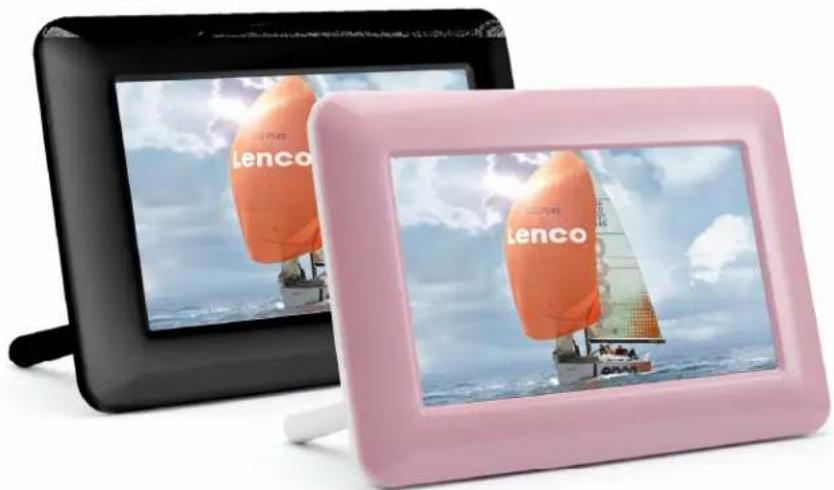
Two Lenco brand televisions displayed side by side, one black and one pink, against a cloudy sky background (no text or symbols on the devices themselves)PARTS LIST
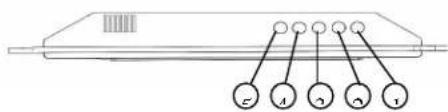
1 Setup
2 Exit
3 Right
4 Left
5 Play/Pause/on/off
OPERATION METHOD
1) Please use the 5V DC power adapter supplied with this product.
2) Please remove the power adapter from the main outlet before cleaning the unit.
3) Clean the case, LCD screen and buttons with slightly damp, soft cloth. DO not use coarse cloth, sprayers or chemical cleaners such as alcohol, benzene, etc. Do not allow residue to enter the DC power socket or SD/MMC/MS slot.
TECHNICAL SPECIFICATION
Power:5V 1. A
FEATURES:
- 7 inch TFT LCD screen .resolution 480*234
- Three cards in one card slot
- Slideshow supporting JPEG files
- Slideshow intervals adjustable
- Auto play when insertion memory card
- Buttons for easy control of inserted card
- Easy operation
- Supports Hi-res photos.
9.Supports upright and landscape positions
Operation:
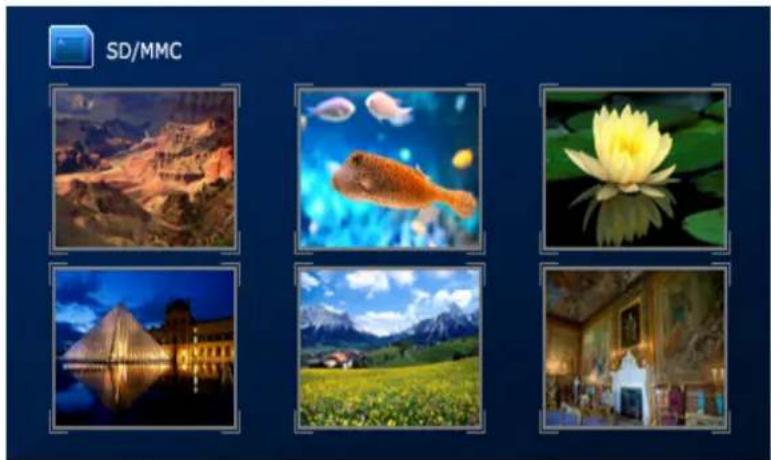
- When a SD/MMC/MS card is inserted, the frame would slideshow automatically. Press "Exit" and a photo thumbnail shall appear
natural_image
Six-panel collage of nature and tourism images including landscapes, fish, water lily, pyramid, grassland, and interior (no text or symbols)1.1 Press Left/Right Buttons to select the picture
1.2 Press Play button to enter single photo display mode and display the selected picture, Press Play button again to enter slideshow mode
1.3 Press"On&Off"button for about 2-3 seconds to turn off the frame and another 2--3 seconds if you want to turn on the frame again.
Remark: It would take longer time to load the picture when its resolution is bigger than 480*2342. When in the single photo display (Pause) mode, press Setup button to access utility menu.
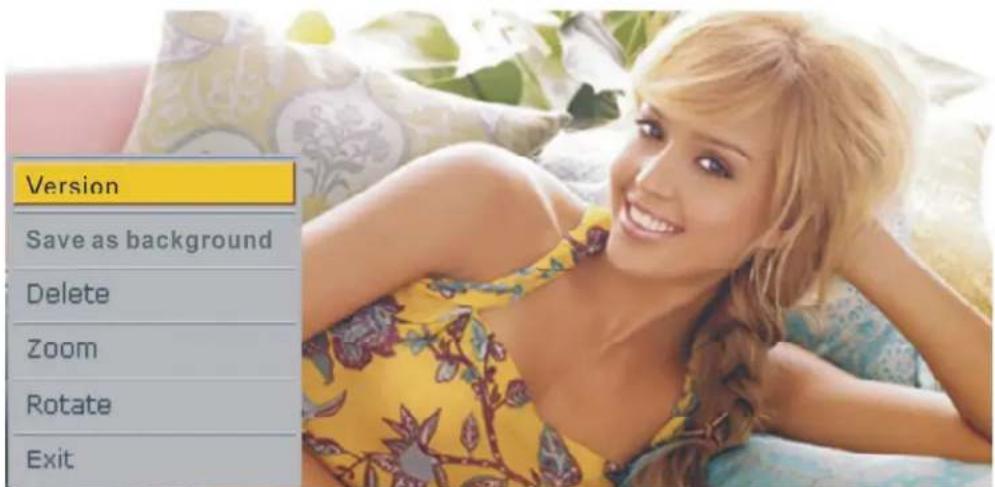
Version
Save as background
Delete
Zoom
Rotate
Exit
2.1 Select Version and press Play button to display the information of the photo
2.2 Select Save As Background and press Play button to save the photo as start-up logo
2.3 Select Delete and press Play button to delete the photo
2.4 Select Zoom and press Play button to zoom in or out the photo
2.5 Select Rotate and press Play button to rotate the photo by 90°/180°/270°/360°
2.6 Select Exit and press Play button to return to thumbnail
- When a SD/MMC/MS card is inserted, press Exit then a photo thumbnail shall appear, press Setup button to set up the functions:
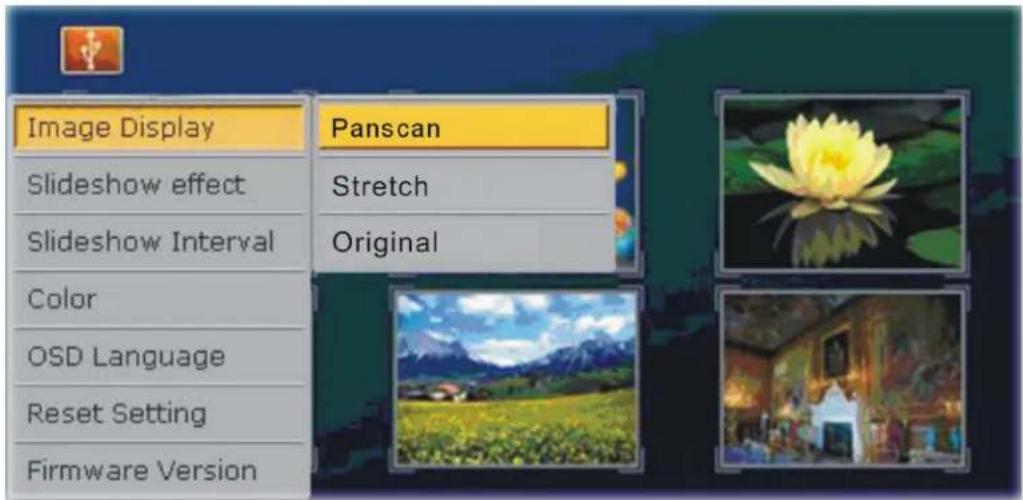
Select Image Display and then press Play button to show "Stretch/Panscan/Original options, use Left/Right arrows to select desired photo display option and press Play button to confirm selection:

natural_image
Tropical beach scene with a leaning palm tree and clear turquoise water under a blue sky (no text or symbols)Panscan

natural_image
Tropical beach scene with a leaning palm tree and turquoise water under a clear blue sky (no text or symbols)Stretch

natural_image
Tropical beach scene with a leaning palm tree and turquoise water under a clear blue sky (no text or symbols)Original
Select Slideshow Effect and then press Play button to show all slideshow effect options, use Left/Right arrows to select desired slideshow effect and press Play button to confirm selection:
Select Slideshow Interval and then press Play button to show slideshow interval options: 3S/10S/1Minute/10Minute.PIs use Left/Right arrows to select desired slideshow interval and press Play button to confirm selection
Select Color and then press Play button to show options of color properties: Brightness/Contrast/Saturation/Hue. Use Left/Right arrows to select desired option and press
Play button to confirm selection. A bar shall appear, use Left/Right arrows to adjust the property and press Play button to confirm. (Press Exit to leave setting)
Select OSD Language and then press Play button to show OSD options:
English/French/Spanish/ Dutch/German. use Left/Right arrows to select desired OSD language and press Play button to confirm.
Select Reset Setting and then press Play button, an option of Yes/No shall appear, select Yes and press Play button to return to factory default setting
Select Firmware version and then press Play button to show the version and time of the firmware
Important Safety Precaution
Keep away from water or moisture and dusty areas
- Ambient Temperature 0-40 ^ C. Never store in hot and very cold areas
- Be carefully to keep it without dropping it or strong impact
- Do not try to open the case alone without technical support
- Connect the AC adapter to the DC IN jack and to power outlet
- Only use attachments/accessories specified by the manufacture
- When left unused for a long period of time, the unit should be unplugged from the household AC outlet
- Do not place the Digital Photo Frame on an unstable cart, stand, tripod, bracket, or table. The unit may fall causing injury to you and serious damage to the product
- Position the Digital Photo Frame away from sources of high heat such as radiators or stoves Warning: To reduce the risk of the fire or electric shock, do not expose to rain, moisture, dripping or splashing.
Troubleshooting
No power
- Check to make sure the power plug is plugged into the power outlet
- Make sure there is power to the outlet of the product, when in doubt disconnect and connect again.
Unable to view photos on the Digital Photo Frame
- Not all JPEG files are compatible, Please open files in the computer and resave them as JPEG files (and/or different resolution) and try to playback in the device
- Check if using compatible memory cards
If picture display seems slow
- Use lower resolution picture

If at any time in the future you should need to dispose of this product please note that: Waste electrical products should not be disposed of with household waste. Please recycle where facilities exist. Check with your Local Authority or retailer for recycling advice. (Waste Electrical and Electronic Equipment Directive)
Brand : LENCO
Model : DF-704
Category : Digital photo frame