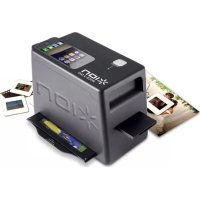
iPics2Go - To scan ION - Free user manual and instructions
Find the device manual for free iPics2Go ION in PDF.



| Product type | Slide, negative, and photo scanner |
| Brand | ION |
| Model | iPics2Go |
| Dimensions (L x W x H) | 210 x 121 x 155 mm |
| Weight | 0.45 kg |
| Power | 4 AA batteries (not included) |
| iOS compatibility | iPhone 4 and iPhone 4S |
| Required app | iPics2Go (free download from the App Store) |
| Scan formats | Slides, negatives, 3x5 and 4x6 photos |
| Included accessories | Negative/slide holder, photo holder, 4 AA batteries, quick start guide, safety and warranty booklet |
| Main functions | Scanning via iPhone camera, white balance adjustment, saving, email sending, Facebook sharing |
| Care and cleaning | Clean with a soft, dry cloth. Do not use abrasive products. |
| Safety | Do not expose to moisture. Use only recommended batteries. Do not disassemble. |
| Spare parts and repairability | Scan holders are available on the manufacturer's website. For repairs, contact technical support. |
| General information | Product registration recommended on ionaudio.com for optimized technical support. |
Frequently Asked Questions - iPics2Go ION
User questions about iPics2Go ION
0 question about this device. Answer the ones you know or ask your own.
Ask a new question about this device
Download the instructions for your To scan in PDF format for free! Find your manual iPics2Go - ION and take your electronic device back in hand. On this page are published all the documents necessary for the use of your device. iPics2Go by ION.
USER MANUAL iPics2Go ION
Photo Tray (3" x 5" / 4" x 6")
4 AA Batteries
Quickstart Guide
Safety and Warranty Information Booklet
REGISTRATION
Please go to http://www.ionaudio.com to register your iPICS2GO. Registering your product ensures that we can keep you up-to-date with any new product developments and provide you with world-class technical support, should you run into any problems.
COMPATIBLE iOS DEVICES
iPICS2GO is compatible with the following iOS devices (not included):
iPhone 4*
iPhone 4S*
USING iPICS2GO
Note: Before using iPICS2GO, download the iPICS2GO app from the App Store to your iPhone 4 or iPhone 4S.
To use the iPICS2GO app:
-
Open the App Store on your iPhone (not included) and download the iPICS2GO app.
-
Open the iPICS2GO app.
-
Turn on iPICS2GO scanner. When the power light illuminates, place iPhone in the iPhone cradle with the screen facing up.
-
Place your slide, negative, or photo into the appropriate holder.
-
Insert the holder into the scanner. (Make sure the second, unused holder is removed from the scanner.)
-
In the app, touch the button for your film type: Slides, Negatives, 3 x 5, or 4 x 6.
-
Adjust the holder so your image appears in the "crop box" on the camera screen. (4 x 6 uses the whole screen.) The crop area will differ depending on the film type that is chosen.
See examples of the crop box areas below:

natural_image
Simple white rectangle centered on black background (no text or symbols)Negatives and slides

natural_image
Empty rectangular frame with black border (no text or symbols)3×5

natural_image
Blank white image with a thin border (no text, symbols, or markings)4×6
-
You may need to adjust the camera's "white balance." To do this, touch the screen in darker or lighter areas of the image being scanned. Also, make sure your camera's flash is Off.
-
Touch the camera icon to take the picture. If you are satisfied with the resulting scan, touch Use or touch Retake to try again.
-
When your scanned image appears in the app, you can then touch: Save (save it to your iPhone Photo Album), Email (e-mail it to someone), or Facebook (upload it to Facebook). Please note that selecting Email or Facebook won't save it to your iPhone Photo Album. For more information, visit www.ionaudio.com/ipics2go.
* iPhone 4S and iPhone 4 are trademarks of Apple Inc., registered in the U.S. and other countries.
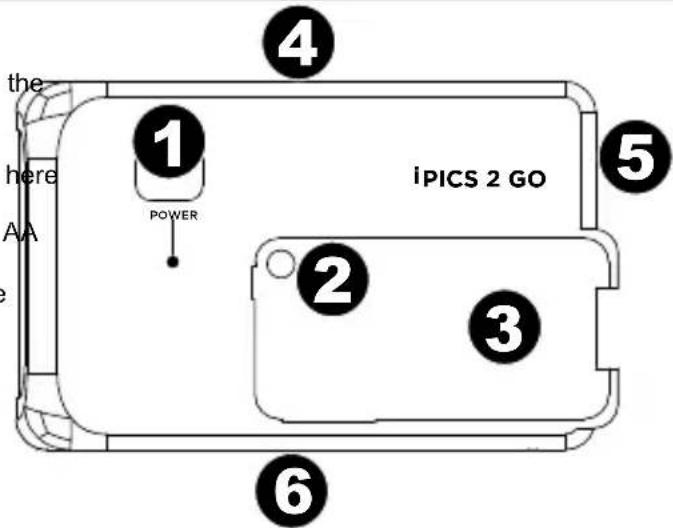
FEATURES
- Power – This button turns iPICS2GO on/off.
- iPhone Camera Aperture – Have iPhone camera facing this hole to capture the image source.
- iPhone Cradle – Place the iPhone when you are ready to scan.
- Battery Compartment - Insert 4 batteries here to power iPICS2GO.
- Slide/Negative Tray - Insert the slide/negative tray here.
- Photo Holder Tray – Insert the included photo holder here.
SPECIFICATIONS
DIMENSIONS: (W x D x H): 8.25" x 4.75" x 6.1" (210mm x 121mm x 155mm)
WEIGHT: 1 lb (.45 kg)
CONTENIDO DE LA CAJA
iPICS2GO
natural_image
Simple white rectangle centered on black background, no text or symbols presentNegativi e diapositive 3 x 5

natural_image
Empty rectangular frame with black border (no text or symbols)
natural_image
Blank white image with a thin gray border (no text, symbols, or markings)4 x 6


Brand : ION
Model : iPics2Go
Category : To scan