Video Cruiser - Media player INTENSO - Free user manual and instructions
Find the device manual for free Video Cruiser INTENSO in PDF.


| Product Type | Media Player |
| Brand | Intenso |
| Model | Video Cruiser |
| Supported audio formats | MP3 (8-320 kbps), WMA (32-384 kbps) |
| Supported video format | AVI (320x240 pixels) |
| Supported photo format | JPEG (max 3520x2816 pixels) |
| Supported text format | TXT |
| Display | TFT 2.4 inches |
| Battery | Rechargeable Li-polymer, battery life up to 13 hours |
| Memory | Internal + microSD/microSDHC card (up to 8 GB) |
| Connectivity | USB 2.0 |
| Audio output | Stereo earphones (5 mW + 5 mW) |
| Main functions | MP3 player, AVI video, JPEG slideshow, Tetris game, text bookmarks, A-B repeat, custom equalizer, system settings |
| Care and cleaning | Use a dry cloth, avoid chemicals |
| Safety | Do not disassemble, avoid shocks, humidity, magnetic fields, extreme temperatures |
| General information | Warranty included; manufacturer: Intenso, 49377 Vechta, Germany; website: www.intenso.de |
Frequently Asked Questions - Video Cruiser INTENSO
User questions about Video Cruiser INTENSO
0 question about this device. Answer the ones you know or ask your own.
Ask a new question about this device
Download the instructions for your Media player in PDF format for free! Find your manual Video Cruiser - INTENSO and take your electronic device back in hand. On this page are published all the documents necessary for the use of your device. Video Cruiser by INTENSO.
USER MANUAL Video Cruiser INTENSO
Intenso Video Cruiser 2.4"
- Index 1
- Cautions 2
- Key Features 2
- Package Content 2
- Before Using 3
- Basic operation 5
- Playing music 6
- Playing videos 6
- Viewing photos 6
- Reading Text 7
- Browsing all files 7
- Deleting a file 7
- Playing a game 8
14.Customizing Settings 8 - Troubleshooting 10
- Technical Specifications 11
- Notice 12
2. Cautions
- Protect the device from blows and don't drop it.
- Do not use the player in extreme heat or cold, or dusty or damp areas. Do not expose it to direct sunshine.
- Back up the data frequently in case of accidental data loss.
- Avoid using the player in a strong magnetic field.
- Keep the device away from water or other liquids. In the event that water or other liquids enter the device, power off the product immediately, and clean the device.
- Do not use chemical solutions to clean the device in order to avoid corrosion. Clean it with a dry cloth.
- We are not responsible for damage or lost data caused by malfunctions, misuse, repairing the device or battery replacement.
- Do not attempt to disassemble, repair or modify the product. This will void the guarantee.
- The use of earphones or headphones at high volume can cause permanent damage to your sense of hearing.
3. Key Features
MP3&WMA Player
AVI Video player
JPEG image viewer
Memory card reader
- Folder navigation
- Removable storage device
Game
- Rechargeable li-polymer battery
- Customized settings
4. Package Content
Please check the package for the following items. If any one of them is missing, please contact the vendor:
- Intenso Video Cruiser
- Stereo earphones
USB cable
Conversion tool on mini-CDR - User manual and warranty card
5. Before Using
Connecting to the PC
If your PC's operating system is Windows 98/SE, please install a driver before connecting the player to your PC. (Driver downloads are available at www.intenso.de). It is not necessary to install a driver if your operating system is WIN 2000/XP/ME/Vista.
Please proceed as follows:
(1) Remove the plastic card from the Micro SD Card slot before use.
(2) Connect the player to a USB connector on the PC.
(3) The 'Intenso' window opens. You can now save data from your hard disk to the removable medium.
Safe removal from the PC
For Windows 2000/XP/ME/Vista:
Right click the 'Safely Remove Hardware' icon in the taskbar at the bottom right. Left click 'Remove USB storage device' in the context menu that appears. Please first make sure that the data transfer has been completed.
You can now remove the device.
For Windows 98/SE:
Left click the device in the Device Manager. Now click the menu item 'Remove'. Make sure in this case too that the data transfer has been completed.
You can now disconnect the device from the PC.
Charging the battery:
The device has a built-in rechargeable li-polymer battery. The battery is charged via the USB connection to your PC. Before using the device for the first time, please make sure that the battery is fully charged. This usually takes about 3 hours.
To charge the battery, connect the device to the PC using the USB cable. The charging procedure begins automatically. If you wish to check the current status of the charging procedure, please disconnect the device from the PC. You can see a battery symbol at the top right of the display. If this symbol lights up green, then the battery is fully charged.
Note: for optimum performance, the li-polymer battery must be used regularly. If this is not the case, fully charge the battery at least once per month.
Using the memory card
The device has a memory card slot for reading data from a micro-SD card.
To use a memory card:
(1) Insert a Micro-SD card into the card slot on the unit body.
(2) Press and hold the MENU button to display the main menu.
(3) Select "Navigation" and press the MENU button to enter folder browser mode.
(4) In folder browser mode, you will see two folders named "Inside Memory" and "SD Card". To play the audio or video files stored on the memory card, access the "Inside Memory" folder.
Key Descriptions
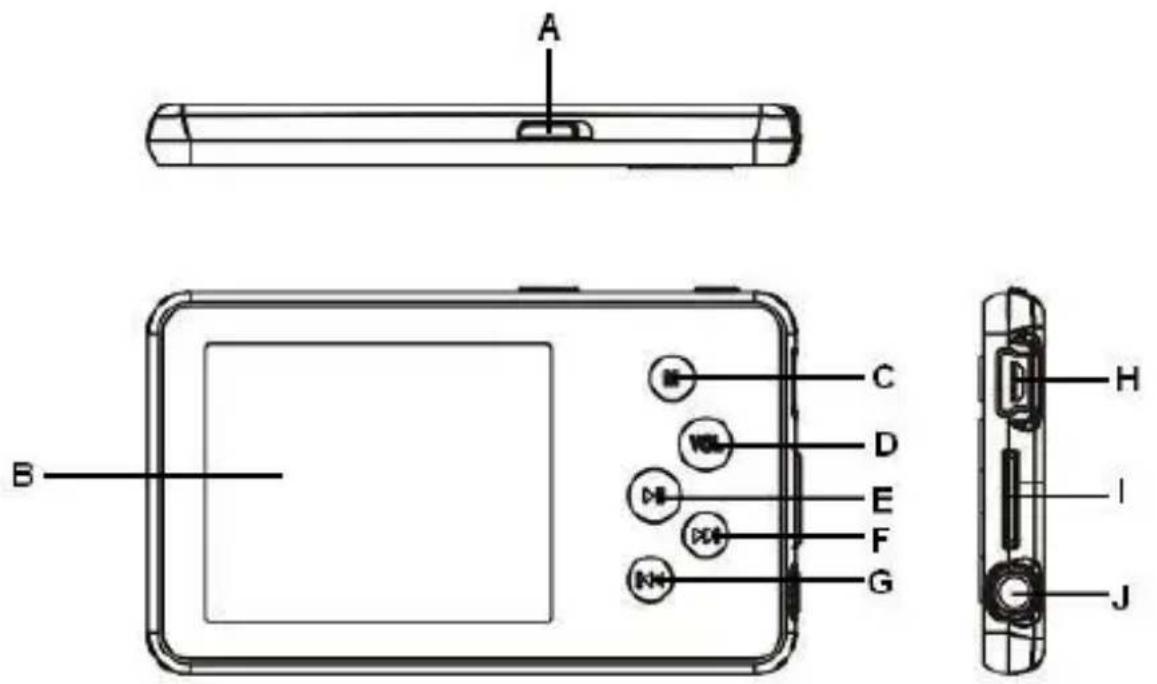
A. Power Switch: Turn the power on or turn off
B. LCD Display
C. MENU: Hold for a while to enter the main menu. Briefly press to confirm selection or enter folder navigation mode.
D. VOL (volume): Adjust the volume. Also return to the previous screen.
E. Play/Pause: Turn the device on or off. Also play or pause audio files.
F. Next: Play the next track. Also move down.
G. Previous: Play the previous track. Also move up.
H. USB Port: Connect to a computer
I. Memory Card Slot: For inserting a Micro SD-card
J. Earphone Jack
Power On/Off
To switch on,
(1) Slide the ON/OFF Switch to the right to turn on the power.
(2) Press and hold the PLAY/PAUSE button until the display starts.
To switch off,
(1) Press and hold the PLAY/PAUSE button until the display stop.
(2) Slide the ON/OFF Switch to the left to turn off the power.
Note: This player has a power-saving feature which enables the device to power off automatically if it is idle for about 3 minutes.
6. Basic operation
Play/Pause
Press the PLAY/PAUSE button to play or pause.
Adjust Volume
Briefly press the VOL button to see a red volume icon animation.
Press the PREVIOUS/NEXT button to decrease or increase volume.
Press the VOL button to confirm.
Previous Track
Briefly press the PREVIOUS button.
Next Track
Briefly press the NEXT button.
Fast Forward
Press and hold the NEXT button.
Rewind
Press and hold the PREVIOUS button.
Lock/unlock buttons
Hold down the PLAY/PAUSE and VOL button simultaneously.
A-B Repeat To repeat a specific section of a track,
(1) During play, briefly press the VOL button to enter A-B repeat mode.
(2) Press the MENU button again to select the start point.
(3) Press the MENU button again to select the end point.
(4) To stop A-B repeat, press the MENU button, and then press the VOL button to exit.
7. Playing music
Entering music mode
Press and hold the MENU button to display the main menu. Use the PREVIOUS/NEXT button to select "Music" menu, and press the MENU button to confirm selection. Now you are in MUSIC mode, referring to music playing using the basic operations.
Folder navigation
To navigate through folders:
In MUSIC mode, briefly press the MENU button to enter folder navigation mode. Press the PREVIOUS/NEXT button to select a folder or track, and press the MENU button to confirm selection.
8. Playing videos
(1) Press and hold the MENU button to display the main menu.
(2) Use the PREVIOUS/NEXT button to select "Video" menu, and press the MENU button to enter video player mode.
(3) Press the PREVIOUS/NEXT button to search a video file that you want to play, and press the MENU button to play. For detailed information about playing, see the "Basic Operation" section.
(4) During playing, you can briefly press the MENU button to enter folder navigation mode.
Note: This player can only play AVI videos.
9. Viewing photos
To view photos,
(1) Press and hold the MENU button to display the main menu.
(2) Select "Photo" and press the MENU button to confirm. Press the PREVIOUS/NEXT button to select a folder or image, and press MENU to confirm.
(3) Select the photo that you want to display and press the MENU button to enlarge it to the full screen. In full screen mode, you can press the PREVIOUS/NEXT button to display the previous or the next photo. Press the PLAY/PAUSE to start an automatic slide show, or press the MENU button to enter folder navigation mode.
Note: Some images may not be displayed. Try to use an image viewer (ACDSee for example) to convert them. See "Appendix - Convert image file" for details.
10. Reading Text
Reading
(1) Press and hold the MENU button to display the main menu.
(2) Select "Text" and press the MENU button to confirm.
(3) Press the PREVIOUS/NEXT button to select a .txt file, and press the MENU button to open the selected file.
(4) Press the PREVIOUS/NEXT button to page up or page down, or press the PLAY/PAUSE button to page up or down automatically (by setting the time interval between 1 and 5 in Settings/Auto Slide show/Text).
(5) During reading, you can use the bookmark to mark the page to resume reading later. For information about the bookmark, see "Using the bookmark" section.
Using the bookmark
(1) Go to the page that you want to mark.
(2) Press and hold the VOL button to display a "SaveBookmark" window for saving bookmarks.
(3) Press the PREVIOUS/NEXT button to select one line on the menu and press the MENU button to confirm. The bookmark is saved. It starts from the first line of current page.
(4) To read the page that you marked, briefly press the VOL button to display the "Load Bookmark" window. Select the bookmark and press the MENU button to confirm. You will be guided to that page.
Note: Some TXT files may not be read. This may because the format is not supported. Skip it or reload another file.
11. Browsing all files
To browse all files stored in the player,
(1) Press and hold the MENU button to display the main menu.
(2) Select "Navigation" and press the MENU button to enter browser mode.
(3) Press PREVIOUS/NEXT button to select a file that you want to view, and press the MENU button to play or display it.
12. Deleting a file
To delete a file,
(1) In folder navigation mode, select the file that you want to delete.
(2) Press and hold the VOL button until a dialogue box appears.
(3) Use the PREVIOUS/NEXT button to select "YES" and press the MENU button to confirm.
13. Playing a game
This player provides a popular and fun game - Tetris World. To activate the game, on the main menu, select "Game" and press the MENU button to enter gaming mode. The basic operation is as follows:
Start game Press the PLAY/PAUSE button
Move the block left and right Press NEXT and VOL button
Rotate the block Press PREVIOUS button
Insert the block Press the MENU button
Exit the Game Press the PLAY/PAUSE Button to stop the G and hold then the ME
14.Customizing Settings
To customize the player settings:
(1) On the main menu, select the "Settings" option and press the MENU button to enter system settings mode.
(2) Press the PREVIOUS/NEXT button to select the settings option and press the MENU button to confirm or press the VOL button to cancel/return.
Music
Repeat Mode
(1) Once: Play current track once and then stop
(2) Repeat 1: Repeat current track
(3) Folder once: Play all audio files in the current folder and stop after playing
(4) Folder Repeat: Repeat all audio files in the current folder
(5) All Once: Play all audio files stored in the player and stop after playing all
(6) All Repeat: Repeat all audio files stored in the player
(7) Intro: Play the first 10 seconds of every audio file
Play mode
(1) Order: Play audio files in order
(2) Shuffle: Play audio files randomly
EQ Select
Normal, 3D, Rock, Pop, Classical, Bass, Jazz, User EQ
User EQ Set
(User-defined equalizer setting)
(1) Press the VOL button to change EQ column.
(2) Press the PREVIOUS/NEXT button to adjust value.
(3) Repeat pressing the VOL button until the cursor is on the YES button, and then press the MENU button to confirm.
(4) Go to the EQ Select menu, and select User EQ to enable the equalizer setting.
Auto Browse
Text Browse
(Set interval between the previous and the next page when the device is in auto page up/down mode.)
Photo Browse
(Set interval between the previous and the next slide in auto slide show mode.)
Display
Bright Time
5 seconds, 10 seconds, 15 seconds, 20 seconds, 30 seconds, Always On.
Lum
(Set the brightness of the screen)
Bright Mode
Normal
Power Save (Turn off the screen when there is no activity within a certain time)
System
About: Information about the product
Upgrade: Upgrade the firmware
Default Set: Restore the player to default setting
Power Off
(Set the continuous playing time before the player is turned off automatically.)
Off, 10 minutes, 15 minutes, 30 minutes, 60 minutes, 120 minutes
Language
(Select language in which the on-screen text is displayed)
Here you can choose between different languages
15. Troubleshooting
Problem - Possible Cause - Solution
- The LCD displays nothing when the device is started.
(1) Battery is too low. Charge the battery.
(2) The keys are locked. Unlock the Hold switch by holding down the PLAY/PAUSE and VOL button.
The player doesn't respond when the Play button is pressed to play an audio file.
(1) The keys are locked by the Hold switch Unlock the Hold switch by holding down the PLAY/PAUSE and VOL button.
- No sound when playing an audio file.
(1) The volume is too low. Adjust the volume.
(2) Bad audio file.
Delete or skip the file.
The player cannot be connected to the PC.
(1) The USB port is not supported by PC's motherboard. Update or replace the PC's motherboard.
The displayed time is changing constantly.
(1) The bit rate of the MP3 file is changing during playback. Try to use fixed bit rate to compress the MP3 file.
- The PC has an error when you plug-in and unplug the player.
(1) The player was disconnected from the PC abruptly while transferring files. Do not disconnect the player from the PC when transferring files.
- Total memory displayed on the player is not in accordance with the marked amount.
(1) Part of memory is used to store programs and display characters.
- Some of MP3 files cannot be played properly.
(1) The MP3 file is compressed by a standard, such as MPEG I Layer 1 or Layer 2 that the player does not support.
1. Delete the unsupported MP3 files.
2. Use MPEG I Layer 3 standard to compress the unsupported MP3 files.
The video cannot be played.
(1) The file format is not supported. Make sure the video is in AVI format. If not, use the provided converting tool to convert it. (320x240 pixels)
(2) The video data is corrupted Skip it or reload another file
The photo cannot be displayed
(1) The file format is not supported Try to use an image editor to convert it.
(2) The image resolution is beyond the limitation of the device. The device supports a maximum resolution of 3520 X 2816 pixels. Make sure the resolution of the image does not exceed this limitation.
- The TXT file cannot be read
(1) The file format is not supported. Skip it or reload another file.
16. Technical Specifications
Supported Micro SD-Cards
microSD up to 2GB & microSDHC 4 | 8 GB
Battery Type
Rechargeable li-polymer battery
Battery Life
Max. 13 hours
LCD Display
2.4-inch TFT screen
Earphone Power
5mW+5mW
Video Format
AVI 320x240 pixels
Audio Format
MP3, WMA
Photo Format
JPEG
Image Resolution
3520 X 2816 pixels (Max.)
Bit Rate
MP3: 8-320kbps; WMA: 32-384kbps
SNR
90dB
USB Port
USB2.0
Operating Temperature
0^ +55^
Storage Temperature
-20°C ~ +55°C
Operating Relative Humidity
20% 90% (40°C)
Storage Relative Humidity
20% 93% (40°C)
17. Notice
(1) Plug & Play is available only with Windows 2000/XP and Vista. Please install the driver in the case of Windows 98/SE.
(2) Make sure all keys are enabled before operation. If they are locked, hold down the PLAY/PAUSE and VOL button to unlock them.
(3) Please charge the battery immediately when the display indicates low battery, or the device will be powered off automatically.
(4) Please disconnect the player from PC properly to avoid data loss.
(5) When the recorded voice file is too large, the response of the device may be slow.
(6) The device does not guarantee compatibility with all memory cards from various manufacturers.
(7) Please remove the plastic card from the micro SD Card Slot before using the video cruiser.
(8) Software Support only for Windows 2000, Windows XP and Windows Vista.
(INTENSO)
49377 Vechta
Germany
www.intenso.de

1. Indice
B#Pae MP3:8-320bpc WAA:32-448bpsc
SNR 20dB
Portu USB US82.0
Temperatura operativa:
da 0 Celsius a +55 Celsius
5 seconds,
10 seconds,
15 seconds,
20 seconds,
30 seconds,
Toujours allumé
Luminosite
Bloquear/desbloquear as teclas
Prima simultaneamente as teclas "E" (Play/Pause) e "D" (VOL)
Repeticao A-B durante reproducao de musica
Firmware Update: Upgrade firmware
5. PodroTOBka K nCNoJIb3OBaHnIO
CoeHHHeHc KOMNbIOTepom
Ecn y Bac cTouT onepaunonHna cnTeMa Windows 98/SE, nHcTaIpyuTe dpaBep, npexde Yem noDcoeHNHTb pHeep K KOMNbIoTepy (crpy3ntb dpaBep Bbl MoKeTe no aDpecy www.intenso.de). Ecn y Bac cTouT onepaunonHna cnTeMa WIN 2000/XP/ME/Vista, nHcTaIpyuN daPaiBep He notpe6yetca.
Bam Heo6xOIMO NOCTyNtB cJeDyUOzM O6pa3OM:
(1) Перд Историческая удддд пл actikobую KapTu n3 Гизда дя кapТ micro SD.
(2) NpoknouHTb nIeep K USB-BXOy kOMnboTepa.
(3) Nocne 3Toro NOBnTcR OKHO "Intenso". Tenepb Bbl MoKeTe COxpaHnTb daHHbIe, HaxoJaUncsra Ha BaWeM JecTKOM DnCKe, Ha nepeHoCHOM 3aONMHaIOUeM yCTpOInCTBe.
Бezonachoe n3BneueHne ycTpoiCTBa
NoBToP A-B IJnI NOBToPa BbIbpaHHoro fpaarmEnTa DOpOJKN
(1) Bo BpemBa Bocnpo3BedeHnHaXmTe n cpa3y OTnyctnte KhoNky VOL dIy BxoDa B peKIM "PiBTop A-B".
(2) Euple pa3 hajkmTe kHonky "MEHIO"ДЯ Bb6opa haayana φparMeHTa.
(3) Eue pa3 haxmTe KhoNky "MEHIO"ДЯ Bb6opa KoHua φpaarmeta.
(4) Дя пекрашеницкліческого постора A-B нажміte коніу "MEHIO", 3aTe мнжміte коніу "VOL" до вьхова.
7. Bocnpon3BeDeHne My3bIKN
PepexoBpeKIM BocnpOn3BeDeHnMy3bIKN
Дя OTOбрахеня OCHOBHorO MeHIO haxmTeи удржИBaIte HeKaToN KhoNky "MEHIO". KhoNkaMn "ПРЕДыДУША ДОPOЖKA"/"СLEДУЮША ДОPOЖKA" Bbl6epnte MeHIO "Music"(My3bika)и haxmTe kHonky "MEHIO" дЯ поТВержdeHnia Bbl6opa.Tenepb yCTPOnICTBO HaxODHTcR BpeKIMe BOCpON3BeDEHnia My3bIKN -ДЯ BOCpON3BeDEHnia My3bIKN CM. OCHOBHbie ONEpaCIN.
IepemeseHne no nankam
Дяпегемшени no nankam:
B pexime Bocnpon3BeDeHn My3bIKn Haxmnte n cpa3y OTnyctnte KhoNky "MEHIO"ДЯперекдаВ рeximперemeшени no naKam.
KhoNkaMn "IPEbIyUaJ OPOXKA"/"CLEyIOUaJ OPOXKA" BbIbepnte naKy nIIN DOpOxky nHaXMnte KhoNky "MEHIO" IpnnoTBePjDeHnBb6opa.
8. Bocnpon3BedeHne Bndeo
(1) Дя отообрахенья ochOBHOrO MeHIO haXmTe n ydepxnBaIte HaXaToN KHOJky "MEHIO".
(2) KhoNkam "PPEIbIyUaJ IOPOXKA"/"CJIeIyIOUaJ IOPOXKA" Bbl6epnte MeHIO "Video" (BnJeO) n HaxMnte KhoNky "MEHIO" dIra nepexoDa bpeKm BnDeOpOnrpbIbATEna.
(3) Испосьзая Кногни "ПЕДыДУША ДОРЖKA" и "СLEДУОША ДОРЖKA", Найдente видаофай, которг ТребуETСВ ВOCпОнЗВecTN, И нахмITE Kногу "MEHIO" Дя начала ВOCпОнЗВeDEнna. Повбня ИФОрmaц纳 O BOCпОнЗВeDEнн coDEDжNTСВ в радени "Осноные onepaци".
(4) Bo Bpemra Bocnpon3BeDeHnma MoXHo HaxaTb n cpa3y OTnyCTnTb KhoNky "MEHIO" Дяп警察 В ржIM перemeшня по пankam.
Upgrade (O6HOBJIeHHe): O6HOBJIeHHe MmKpOpnpaMMbI
Default Set (Hactpoika no ymoJIaHnIO): BocCTaHOBJIeHne HAcTpoIKn npOnrpbBaTeJIa NO yMOJIaHnIO
Power Off (BbiklioueHne nTuHa)
(3aHaHne BpeMeHN HeNpepbIBHO BOCpOu3BeDeHn, NocJe KOTOpO rponrpbBaTeJIb aBTOMATUueCKN BbIKIOUaETcra.)
"Off" (HeT), "10 minute" (10 mHyT), "15 minute" (15 mHyT), "30 minute" (30 mHyT), "60 minute" (60 mHyT), "120 minute" (120 mHyT)
Language (R3bIK)
(BbI6opЯ3bika,HaKOTOPOM OTo6paXaETcTeKCT Ha 3KpaHe)
3decb Bo3MOKeH BbI6Op OndHOro n3 HeCKOJIbKnx Ra3IKOB
15. Понск и устранке неюдах
Henolada Bo3moJHa npuHa Cnoc6 yctpaHeHHa
Pn BkIoueHnn yctpoiCtBa Ha KK-dncnnee oTcyTCTByet n3o6paXeHne.
(1) AkkymyIaTOp cnIbHo pa3pJKeH. 3apAInTe akKymyIaTOp.
(2) KhoNKe 3a6noknpoBaHbI. Chmnte 6nOKpOBky OndHOBpeMeHHbIM HaXaTneM KhoNOK "BOcPON3BEDEHNE/PIAY3A" n "VOL".
ПОНгьВаTeЛь He pearpyet Ha haxaTne KhoNkn "Bocnpo3BeDeHne" ДЯ BOCnpo3BeDEHn 3BykoBOrO Фaɪna.
(1) KhoNk 3a6IoknpoBaHbI nepeKIOuYateJeM"Hold" (ΦNKcaUra). ChIMnte 6JIOkpOBky OndHOBpeMeHHbIM HaxaTneM KhoNOK "BOCPON3BEDEHNE/PIAY3A" n "VOL".
Pn BocnpOn3BeDeHnn 3ByKOBOrO paJna OTCyTCTByeT 3ByK.
(1) HeioctaToUHa rpoMkoCTb. Otperyu npyTe rpoMkoCTb.
(2) HeKoppeKTHbI 3ByKOBoi aIn. YdaJInte nII npOnyCTnTe daHHbI aIn.
HeBo3MoXHo noДcoeДиHHTb npOuRpbIbAteJb K KomNbIoTepy.
(1) INTepeC USB He noDepKnBaETcA CnCTeMHO nIaTOn KOMnbIOtepa. 3aMeHnte CnCTeMHyIO nIaTy KOMNbIOtepa Ha 6OJIe COBpeMeHHyIO nII NcnpaBHyIO.
OTo6paXaEMoe BpEm NoCToHNo 3MeHReTc.
(1) Bo Bpemr Bocnpn3BeHnMa MeHreTcR CKOpocTb NtOka 6NtOB paIa MP3. Nonpo6yIe BblONHHTb Cxatne paIa MP3, nCnoJIb3yra NocToHHyIO CKOpocTb NOTOKa.
Pn noDcoeHHeHn n OTCoeHHeHn npOnrpbIbTeJHa KOMnbIOtepe oTo6paXaETc coo6uHHe 6 own6ke.
He BocnpOn3BODnTcBnDeofoaJ.
(1) ΦopMaT Φaɪna He noДeρЖиBaetc.
Y6eIITecb B TOM, yTo BnIeO nMeet ΦopMaT AVI. B npOTnBHom cIyuae
npeo6pa3yIte erO c nOMoU bI npEynCMOTpeHHOrO nHCTpyMeHTa npeo6pa3OBaHnA.
(2)Данные Видаофайna NOВржденbl Порунсте 3OT Файл ппл загузnte друю Файл
He oTo6paxkaetc foToIrpapn
(1)Форматфайна He noДeрхиВаetся. ПпробуйтpepeobaТьВpeДakTope n3O6paJxHnI.
(2)OrpaHnueHn yCTpOJCTBa He n03BOJrOT OTo6paXaTb N3o6paXeHn TaKOro pa3peSeHn.
DaHHoe ycTPOIcTBo nOdJIepKINBaET N3o6paXeHn C MaKcIMaJIbHbIM pa3peSeHnem 3520 X 2816 nIKceNoB.Y6eIITecb B TOM, YTO pa3peSeHne N3o6paXeHn He BbIXODNTa 3TN npeJebl.
He oTo6paXaetc4 faJn TXT
(1)ΦopMaT Φaɪna He noДeρЖиBaETc. IponyCTnTe TaKoI Φaɪn nɪn 3arpy3nte dpyroJ Φaɪn.
16. TexHnueckne daHHbIe
IopdepxuBaJ fOpMaTbI KapT microSD do 2 rna6aia n microSDHC 4 | 8 rna6aiaTa
Tin 6atapen BcTpoEHnA nepe3apjkaemaj 6atapei Li-polymer
Bpempa6oTbIOTaKKymyJTopa Max.13 yacob
KK-dncnnei 3KpaH TFT c dnaorHaIbIO 2.4 IouMa
MoUHOCTbHayuHnKOB 5MBT+5MBT
ΦopMaT BnDeo AVI 320x240 pixels
ΦopMaT 3ByKObBix ΦaIIOB MP3, WMA
ΦopMaT ΦoToRpaΦnJPEG
Pa3peWeHne n3o6paXeHn 3520 X 2816 nKceJIOB (MaKcMym)
Ckopoctb nOToka 6nTOB
MP3: 8-320 κ6nT/c; WMA: 32-384 κ6nT/c
OTHOWeHne cHnHaI/WM
90 έБ
Nopt USB
USB2.0
Paboua TepepaTypa
0^ +55^
Donyuctmbl Dnana3OH TempeaTp xpaHeHna
-20^ +55^
Pa6oay BnaXHocTb
20% 90% (40°C)
Onyctmam OTHOCntbHbBnaXHOCTb npxpaHeHH
20% 93% (40°C)
17. 3ameyaHnA
(1) Texhonorma Plug & Play pa6oTaT toIbko B onepaunHnoCnCTeme Windows 2000/XP nnn Vista. Ecn y Bac cToT Windows 98/SE, nHcTaIInpyTe dpaBep.
(2) Перед И снолбзоваиме убадитесь в TOM, чTO кноги BKлочь.Есп Oн 3а6лokированы, нахмITE кноги "BOСПОИЗBEДЕHNE/ПАУ3A" и "VOL" дяnx pa36лokирована.
(3) 3apndte 6atapeo cpa3y nocne oTo6paxeHna dncnnee coo6uHnO Hn3KOM 3apnde 6atapei. B npotNBHom cnyae yctpojCTBO aBTOMaTnueckN BBkIouHTcJ.
(4) Bo n36eJxHne noTeepn daHHbIX haJIeJXuM o6pa3OM oTcoEduHraI Te npOnrpbIBaTeIb OT KOMNbIOTepa.
(5)ПиЗнTeHOM pa3Mepe 3aHcHOrO paIa C peYbIO cKOpocTb peakuN daHHoro yCTpoiCTBa MoKeT 3aMeDnITbcr.
(6)Данhoe yctpoiCTBO He rapaHTnpyET COBmecTUMOCTb CO BCEMn KapTaMn NaMaTn pa3NHybIX npON3BODNTeNei.
(7) Перед Исторовамустория Video Cruiser ИЗВлески пленниковский Вкадыш ИЗ Геоза Kapъл micro-SD.
(8) Поведжka поррамнoro обесnéчения осусангяпсьд Windows 2000, Windows XP и Windows Vista.
(INTENSO)
49377 Vechta
Germany
www.intenso.de