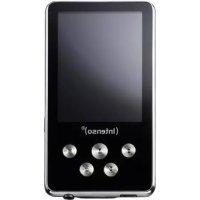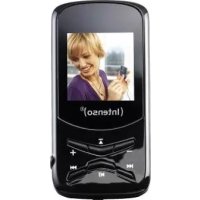
Video Traveller - Media player INTENSO - Free user manual and instructions
Find the device manual for free Video Traveller INTENSO in PDF.

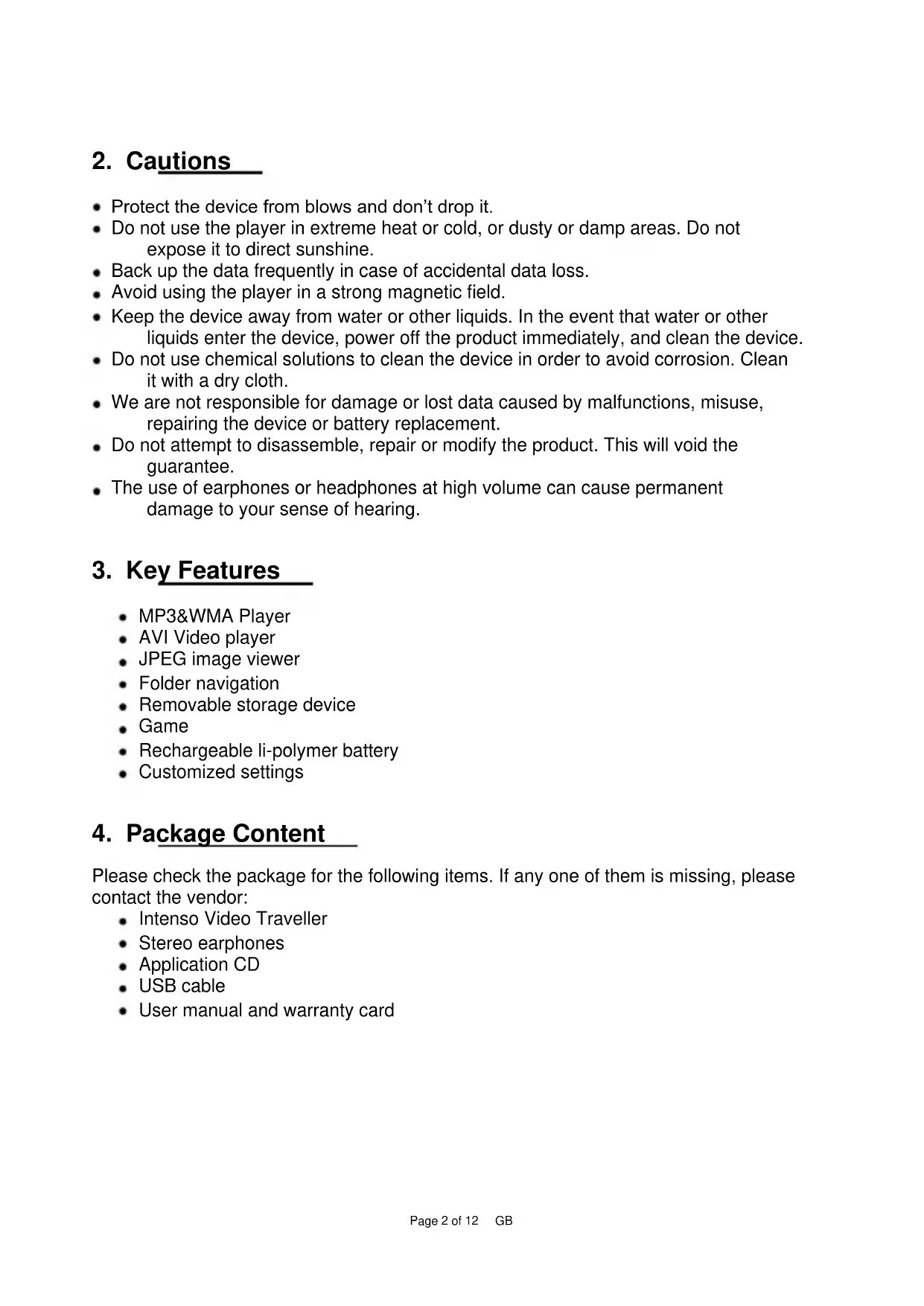


| Product Type | Portable Media Player |
| Brand | Intenso |
| Model | Video Traveller |
| Supported Audio Formats | MP3 (8-320 kbps), WMA (32-384 kbps) |
| Supported Video Format | AVI (128x128 pixels) |
| Supported Photo Format | JPEG (max. 2048x2048 pixels) |
| Supported Text Format | TXT |
| Screen Type | CSTN LCD 1.5 inches |
| Battery Type | Rechargeable Li-polymer via USB |
| Battery Life | Up to 10 hours |
| Connectivity | USB 2.0 |
| Headphone Output | 5 mW + 5 mW |
| Signal-to-Noise Ratio (SNR) | 90 dB |
| Main Features | Music, video, photo, text playback, file navigation, Tetris game, bookmarks, custom settings |
| Power Supply | Rechargeable Li-polymer battery via USB port |
| Care and Cleaning | Use a dry cloth, avoid chemicals |
| Safety | Do not expose to moisture, magnetic fields, shocks; moderate headphone volume |
| Spare Parts and Repairability | Do not disassemble yourself, warranty void; no spare parts specified |
| General Information | Manufacturer: INTENSO, 49377 Vechta, Germany |
Frequently Asked Questions - Video Traveller INTENSO
User questions about Video Traveller INTENSO
0 question about this device. Answer the ones you know or ask your own.
Ask a new question about this device
Download the instructions for your Media player in PDF format for free! Find your manual Video Traveller - INTENSO and take your electronic device back in hand. On this page are published all the documents necessary for the use of your device. Video Traveller by INTENSO.
USER MANUAL Video Traveller INTENSO
Intenso Video Traveller
- Index....1
- Cautions.... 2
- Key Features 2
- Package Content 2
- Before Using 3
- Basic operation....5
- Playing music....6
- Playing videos....6
- Viewing photos 6
- Reading Text 7
- Browsing all files 7
- Deleting file....7
- Playing a game 8
- Customizing Settings 8
- Troubleshooting.... 10
- Technical Specifications .... 11
- Notice 12
2. Cautions
- Protect the device from blows and don't drop it.
- Do not use the player in extreme heat or cold, or dusty or damp areas. Do not expose it to direct sunshine.
- Back up the data frequently in case of accidental data loss.
- Avoid using the player in a strong magnetic field.
- Keep the device away from water or other liquids. In the event that water or other liquids enter the device, power off the product immediately, and clean the device.
- Do not use chemical solutions to clean the device in order to avoid corrosion. Clean it with a dry cloth.
- We are not responsible for damage or lost data caused by malfunctions, misuse, repairing the device or battery replacement.
- Do not attempt to disassemble, repair or modify the product. This will void the guarantee.
- The use of earphones or headphones at high volume can cause permanent damage to your sense of hearing.
3. Key Features
- MP3&WMA Player
- AVI Video player
- JPEG image viewer
- Folder navigation
- Removable storage device
• Game
• Rechargeable li-polymer battery - Customized settings
4. Package Content
Please check the package for the following items. If any one of them is missing, please contact the vendor:
- Intenso Video Traveller
- Stereo earphones
- Application CD
- USB cable
- User manual and warranty card
5. Before Using
Connecting to the PC
If your PC's operating system is Windows 98/SE, please install a driver before connecting the player to your PC. (Driver downloads are available at www.intenso.de). It is not necessary to install a driver if your operating system is WIN 2000/XP/ME/Vista.
Please proceed as follows:
(1) Connect the player to a USB connector on the PC.
(2) The ‘Intenso’ window opens. You can now save data from your hard disk to the removable medium.
Safe removal from the PC
For Windows 2000/XP/ME/Vista:
Right click the ‘Safely Remove Hardware’ icon in the taskbar at the bottom right. Left click ‘Remove USB storage device’ in the context menu that appears. Please first make sure that the data transfer has been completed.
You can now remove the device.
For Windows 98/SE:
Left click the device in the Device Manager. Now click the menu item 'Remove'. Make sure in this case too that the data transfer has been completed.
You can now disconnect the device from the PC.
Charging the battery:
The device has a built-in rechargeable li-polymer battery. The battery is charged via the USB connection to your PC. Before using the device for the first time, please make sure that the battery is fully charged. This usually takes about 3 hours.
To charge the battery, connect the device to the PC using the USB cable. The charging procedure begins automatically. If you wish to check the current status of the charging procedure, please disconnect the device from the PC. You can see a battery symbol at the top right of the display. If this symbol lights up green, then the battery is fully charged.
Note: for optimum performance, the li-polymer battery must be used regularly. If this is not the case, fully charge the battery at least once per month.
Keys Description
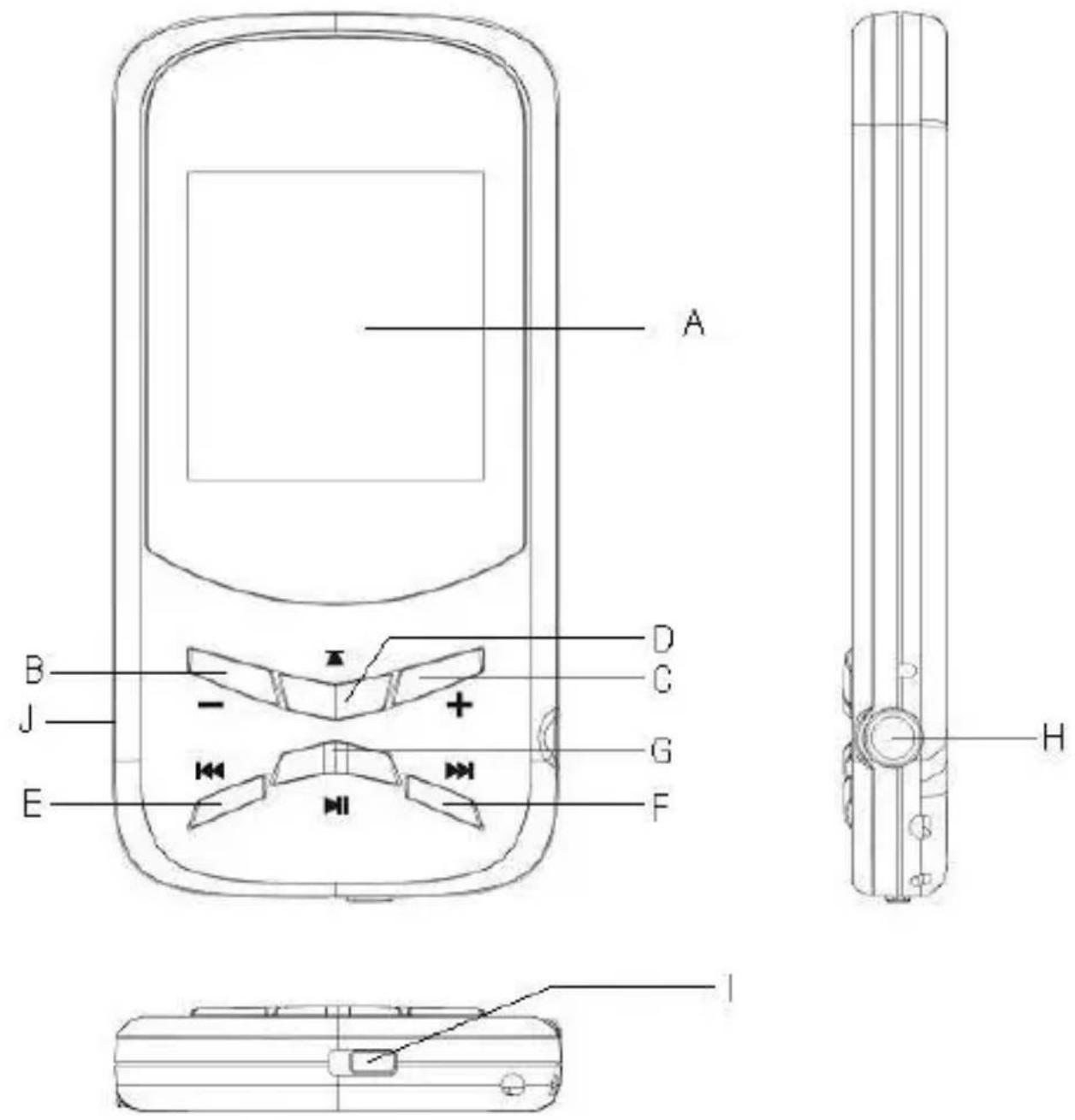
A. LCD Display
B. VOL-: Turn down the volume.
C. VOL+: Turn up the volume.
D. Enter / Escape: Hold for a while to enter the main menu. Briefly press to confirm selection confirm or enter the folder navigation mode.
E. Previous: Play the previous track. Also move up.
F. Next: Play the next track. Also move down.
G. Play/Pause: Turn on or turn off the device. Also play or pause audios.
H. Earphone Jack
I. Power Switch: Turn on or turn off the power
J. USB Port: Connect to a computer
Power On/Off
To switch on,
(1) Slide the ON/OFF Switch to the right to turn on the power.
(2) Press and hold the PLAY/PAUSE button until the display starts.
To switch off,
(1) Press and hold the PLAY/PAUSE button until the display stop.
(2) Slide the ON/OFF Switch to the left to turn off the power.
Note: This player has a power-saving feature which enables the device to power off automatically if it is idle for about 3 minutes.
6. Basic operation
Play/Pause
Press the PLAY/PAUSE button to play or pause.
Adjust Volume
Briefly press the VOL+/VOL- button to decrease or increase volume.
Previous Track
Briefly press the PREVIOUS button.
Next Track
Briefly press the NEXT button.
Fast Forward
Press and hold the NEXT button.
Rewind
Press and hold the PREVIOUS button.
Lock/unlock buttons
To protect the buttons against being pressed accidentally or unlock buttons, hold down the Enter/Escape button and the VOL- together.
A-B Repeat To repeat a specified section of a track,
(1) During play, press and hold the VOL+ button to select the start point of the repeat.
(2) Press and hold the VOL+ button again to select the stop point. The music section between the start point and the stop point is repeated.
(3) To stop A-B repeat, press another time the VOL+ button.
7. Playing music
Enter the music mode
Press and hold the Enter/Escape button to display the main menu. Use the PREVIOUS/NEXT button to select "Music" menu, and press the Enter/Escape button to confirm selection. Now you are in MUSIC mode, referring to music playing using the basic operations.
Folder navigation
To navigate through folders:
(1) In the MUSIC mode, briefly press the Enter/Escape button to enter folder navigation mode.
(2) Press the PREVIOUS/NEXT button to select a folder or track, and press the Enter/Escape button to confirm selection, or press the PLAY/PAUSE button to return.
8. Playing videos
(1) Press and hold the Enter/Escape button to display the main menu.
(2) Use the PREVIOUS/NEXT button to select the "Video" menu, and press the Enter/Escape button to enter the video player mode.
(3) Press the PREVIOUS/NEXT button to search a video file that you want to play, and press the Enter/Escape button to play. For detail information about playing, see the "Basic Operation" section.
(4) During playing, you can briefly press the Enter/Escape button to enter folder navigation mode.
Note: This player can only play AVI videos.
9. Viewing photos
To view photos,
(1) Press and hold the Enter/Escape button to display the main menu.
(2) Select "Photo" and press the Enter/Escape button to confirm. Press the PREVIOUS/NEXT button to select a folder or image, and press Enter/Escape to confirm.
(3) Select the photo that you want to display and press the Enter/Escape button to enlarge it to full screen. In full screen mode, you can press the PREVIOUS/NEXT button to display the previous or the next photo. Press the PLAY/PAUSE to start an automatic slide show, or press the Enter/Escape button to enter folder navigation mode.
Note: Some images may not be displayed. Try to convert the image in JPEG.
10. Reading Text
Reading
(1) Press and hold the Enter/Escape button to display the main menu.
(2) Select "Text" and press the Enter/Escape button to confirm.
(3) Press the PREVIOUS/NEXT button to select a .txt file, and press the Enter/Escape button to open the selected file.
(4) Press the PREVIOUS/NEXT button to page up or page down, or press the PLAY/PAUSE button to page up or down automatically (by setting the time interval between 1 and 5 in Settings/Auto Slide show/Text).
(5) During reading, you can use the bookmark to mark the page for resume reading later. For information about the bookmark, see "Using bookmark" section.
Using bookmark
(1) Go to the page that you want to mark.
(2) Briefly press the VOL+ button to display a "Save Bookmark" window for saving bookmark.
(3) Press the PREVIOUS/NEXT button to select one line on the menu and press the Enter/Escape button to confirm. The bookmark is saved. It starts from the first line of current page.
(4) To read the page that you marked, briefly press the VOL- button to display the "Load Bookmark" window. Select the bookmark and press the Enter/Escape button to confirm. You will be guided to that page.
Note: Some TXT file may not be read. This may because its format is not supported. Skip it or reload another file.
11. Browsing all files
To browse all files stored in the player,
(1) Press and hold the Enter/Escape button to display the main menu.
(2) Select"Navigation" and press the Enter/Escape button to enter the browser mode.
(3) Press PREVIOUS/NEXT button to select a file that you want to view, and press the Enter/Escape button to play or display it.
12. Deleting file
(1) In the folder navigation mode, select the file that you want to delete.
(2) Press and hold the VOL button until a dialogue box appears.
(3) Use the PREVIOUS/NEXT button to select "YES" and press the Enter/Escape button to confirm.
13. Playing a game
This player provides a popular and fun game - Tetris World. To activate the game, on the main menu, select "Game" and press the MENU button to enter the gaming mode. The basic operation is as follows:
Start game Press the PLAY/PAUSE button
Move the block left and right Press PREVIOUS an NEXT button
Rotate the block Press the VOL+ button
Insert the block Press the VOL-button
Exit the Game Press the play Button to pause the Game and hold
then the Enter/Escape Button
14. Customizing Settings
To customize the player settings:
(1) On the main menu, select the "Settings" option and press the Enter/Escape button to enter the system settings mode.
(2) Press the PREVIOUS/NEXT button to select the setting option and press the Enter/Escape button to confirm or press the Play/Pause button to cancel/return.
Music
Repeat Mode
(1) Once: Play current track once and then stop
(2) Repeat 1: Repeat current track
(3) Folder once: Play all audio files in the current folder and stop after playing
(4) Folder Repeat: Repeat all audio files in the current folder
(5) All Once: Play all audio files stored in the player and stop after playing all
(6) All Repeat: Repeat all audio files stored in the player
(7) Intro: Play the first 10 seconds of every audio file
Play mode
(1) Order: Play audio files in order
(2) Shuffle: Play audio files randomly
EQ Select
Normal, 3D, Rock, Pop, Classical, Bass, Jazz, User EQ
User EQ Set
(User-defined equalizer setting)
(1) Press the PRIVOUS/NEXT button to switch EQ column.
(2) Press the VOL+/VOL- button to adjust value.
(3) Repeat pressing the NEXT button until the cursor is on the YES button, and then press the Enter/Escape button to confirm.
(4) Go to the EQ Select menu, and select User EQ to enable the equalizer setting.
Auto Browse
Text Browse
(Set interval between the previous and the next page when the device is in auto page up/down mode.)
Photo Browse
(Set interval between the previous and the next slide in auto slide show mode.)
Display
Blight Time
5 seconds, 10 seconds, 15 seconds, 20 seconds, 30 seconds, Always On.
Lum
(Set the brightness of the screen)
Blight Mode
Normal
Power Save (Turn off the screen when there is no activity within a certain time)
System
About: Information about the product
Upgrade: Upgrade the firmware
Default Set: Restore the player to default setting
Power Off
(Set the continuous playing time before the player is turned off automatically.)
Off, 10 minutes, 15 minutes, 30 minutes, 60 minutes, 120 minutes
Language
(Select language in which the on-screen text is displayed)
Here you can choose between different languages
15. Troubleshooting
Problem - Possible Cause - Solution
- The LCD displays nothing when the device is started.
(1) Battery is too low.
Charge the battery.
(2) The keys are locked.
Unlock the Hold switch by holding down the PLAY/PAUSE and VOL button.
- The player doesn't respond when the Play button is pressed to play an audio file.
(1) The keys are locked by Hold switch Unlock the Hold switch by holding down the PLAY/PAUSE and VOL button.
- No sound when playing an audio file.
(1) The volume is too low.
Adjust the volume.
(2) Bad audio file.
Delete or skip the file.
• The player cannot be connected to the PC.
(1) The USB port is not supported by PC's motherboard.
Update or replace the PC's motherboard.
- The displayed time is changing constantly.
(1) The bit rate of the MP3 file is changing during playback.
Try to use fixed bit rate to compress the MP3 file.
- The PC has an error when you plug-in and unplug the player.
(1) The player is disconnected from the PC abruptly while transferring files.
Do not disconnect the player from the PC when transferring files.
- Total memory displayed on the player is not in accordance with the marked amount.
(1) Part of memory is used to store programs and display characters.
- Some of MP3 files cannot be played properly.
(1) The MP3 file is compressed by a standard, such as MPEG I Layer 1 or Layer 2 that the player does not support.
-
Delete the unsupported MP3 files.
-
Use MPEG I Layer 3 standard to compress the unsupported MP3 files.
• The video cannot be played.
(1) The file format is not supported.
Make sure the video is in AVI format. If not, use the provided converting tool to convert it.
(2) The video data is corrupted
Skip it or reload another file
• The photo cannot be displayed
(1) The file format is not supported
Try to use an image editor to convert it.
(2) The image resolution is beyond limitation of the device.
The device supports a maximum resolution of 3520 X 2816 Pixel. Make sure resolution of the image does not excess this limitation.
• The TXT file cannot be read
(1) The file format is not supported.
Skip it or reload another file.
16. Technical Specifications
Battery Type
Rechargeable li-polymer battery
Battery Life
Max. 10 hours
LCD Display
1.5-inch CSTN screen
Earphone Power
5mW+5mW
Video Format
AVI 128x128 Pixel
Audio Format
MP3, WMA
Photo Format
JPEG
Image Resolution
2048X2048 pixels (Max.)
Bit Rate
MP3: 8-320kbps; WMA: 32-384kbps
SNR
90dB
USB Port
USB2.0
Operating Temperature
0^ +55^
Storage Temperature
-20^ +55^
Operating Relative Humidity
20% \~ 90% (40°C)
Storage Relative Humidity
20% \~ 93% (40°C)
17. Notice
(1) Plug & Play is available only with Windows 2000/XP and Vista. Please install the driver in the case of Windows 98/SE.
(2) Make sure all keys are enabled before operation. If they are locked, hold down the PLAY/PAUSE and VOL button to unlock them.
(3) Please charge the battery immediately when the display indicates low battery, or the device will be powered off automatically.
(4) Please disconnect the player from PC properly to avoid data loss.
(5) When the recorded voice file is too large, the response of the device may be slow.
(6) Software Support only for Windows 2000, Windows XP and Windows Vista.
(INTENSO)®
49377 Vechta
Germany
www.intenso.de
text_image
CE1. Indice
text_image
CE NOVATION NOVATIONtext_image
Image displaying four types of waste management symbols: circular refresh, warning triangle with explosion, and no litter.text_image
Image displaying four types of waste management symbols: circular refresh, warning triangle with explosion, and no litter.Bloquear/desbloquear as teclas
Prima simultaneamente as teclas "D" (Enter/Escape) e "B" (VOL-).
text_image
Image displaying four types of waste management symbols: circular refresh, warning triangle with explosion, and no litter.1. Spis treści
Update firmware: Upgrade firmware